climate settings FORD ESCAPE 2015 3.G Owners Manual
[x] Cancel search | Manufacturer: FORD, Model Year: 2015, Model line: ESCAPE, Model: FORD ESCAPE 2015 3.GPages: 449, PDF Size: 5.36 MB
Page 8 of 449
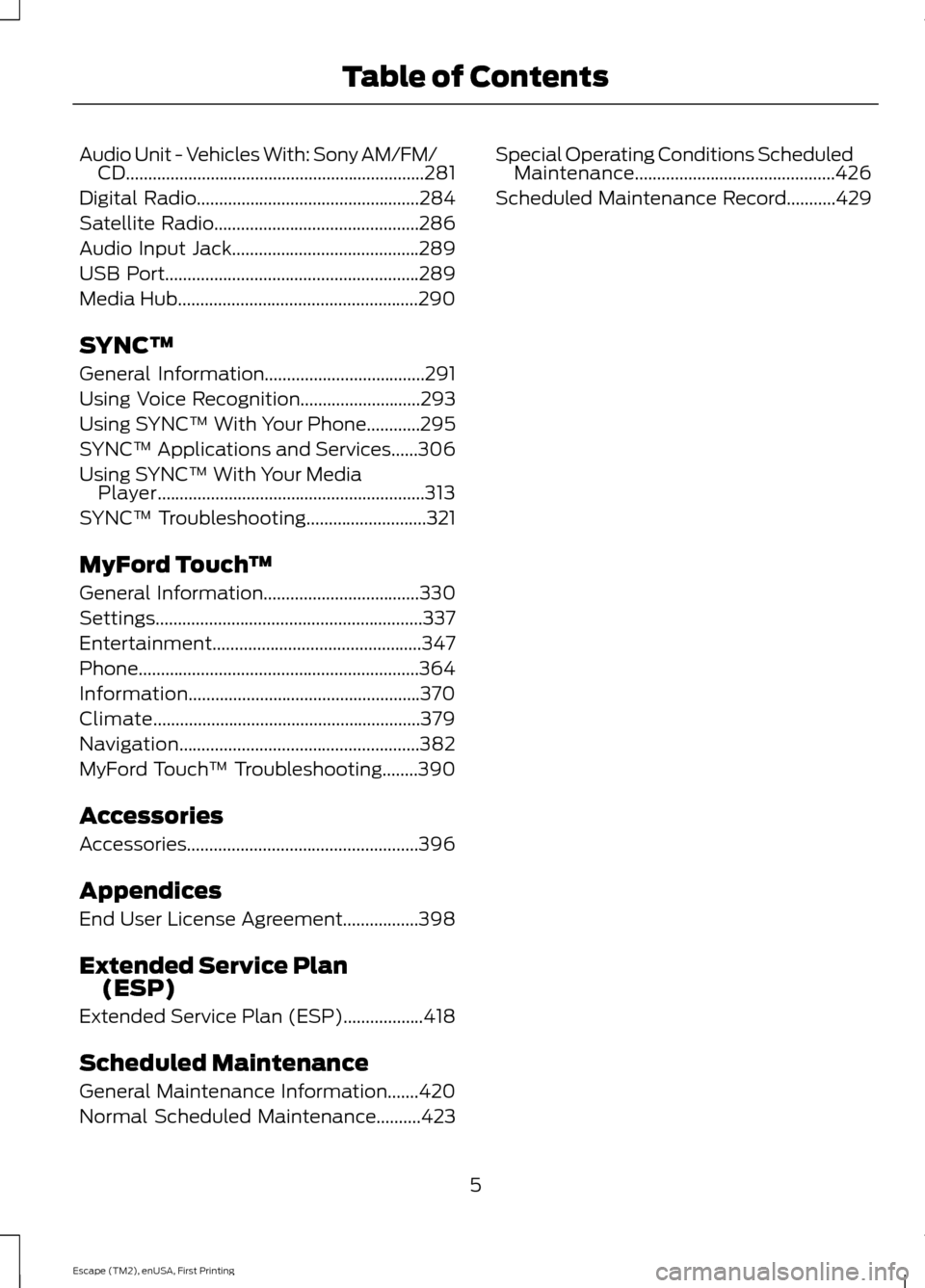
Audio Unit - Vehicles With: Sony AM/FM/
CD...................................................................281
Digital Radio
..................................................284
Satellite Radio
..............................................286
Audio Input Jack..........................................289
USB Port
.........................................................289
Media Hub......................................................290
SYNC™
General Information....................................291
Using Voice Recognition...........................293
Using SYNC™ With Your Phone
............295
SYNC™ Applications and Services......306
Using SYNC™ With Your Media Player............................................................313
SYNC™ Troubleshooting
...........................321
MyFord Touch ™
General Information
...................................330
Settings............................................................337
Entertainment...............................................347
Phone...............................................................364
Information....................................................370
Climate............................................................379
Navigation......................................................382
MyFord Touch ™ Troubleshooting........390
Accessories
Accessories....................................................396
Appendices
End User License Agreement.................398
Extended Service Plan (ESP)
Extended Service Plan (ESP)..................418
Scheduled Maintenance
General Maintenance Information.......420
Normal Scheduled Maintenance
..........423 Special Operating Conditions Scheduled
Maintenance.............................................426
Scheduled Maintenance Record
...........429
5
Escape (TM2), enUSA, First Printing Table of Contents
Page 95 of 449
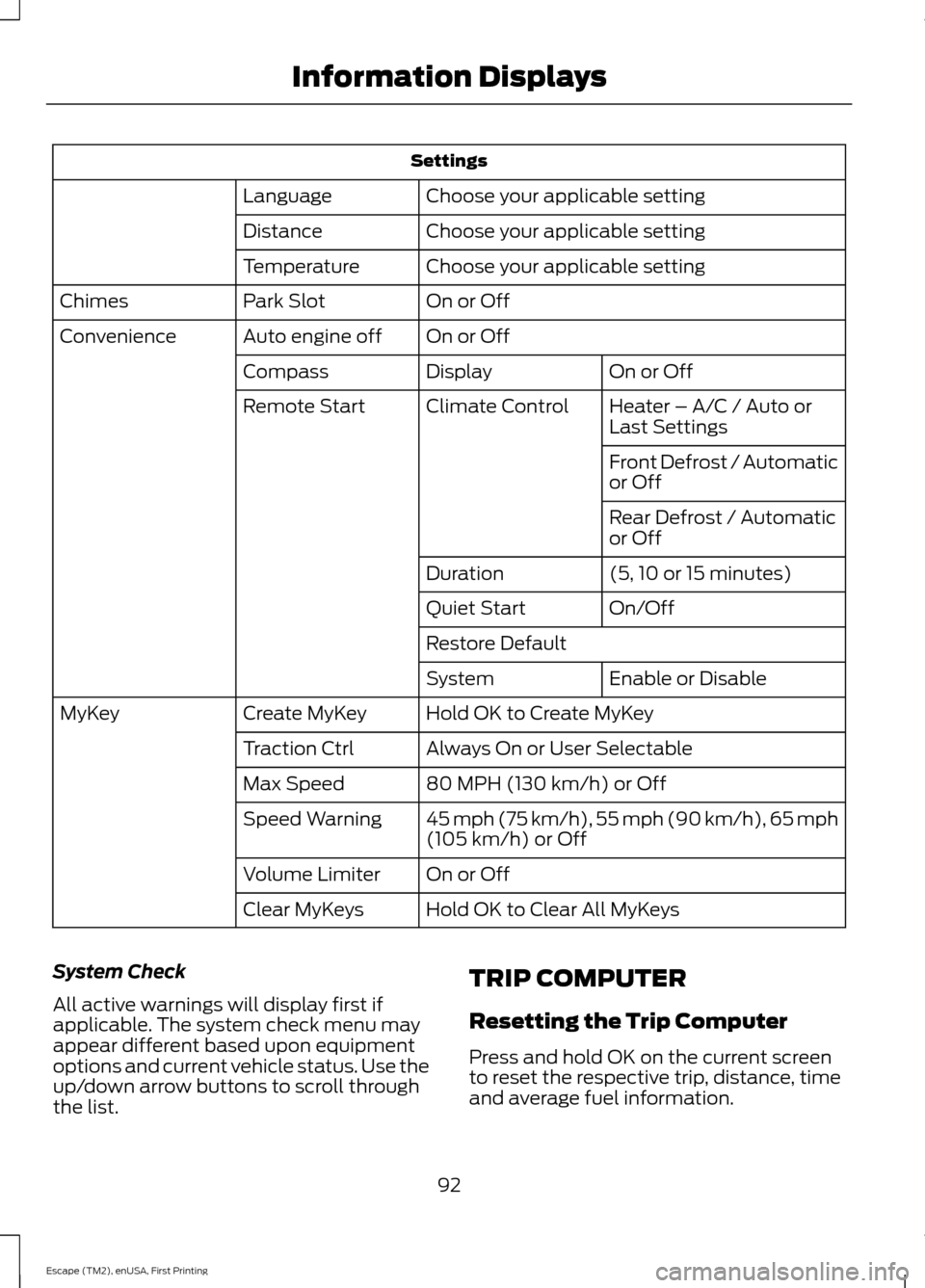
Settings
Choose your applicable setting
Language
Choose your applicable setting
Distance
Choose your applicable setting
Temperature
On or Off
Park Slot
Chimes
On or Off
Auto engine off
Convenience
On or Off
Display
Compass
Heater – A/C / Auto or
Last Settings
Climate Control
Remote Start
Front Defrost / Automatic
or Off
Rear Defrost / Automatic
or Off
(5, 10 or 15 minutes)
Duration
On/Off
Quiet Start
Restore Default
Enable or Disable
System
Hold OK to Create MyKey
Create MyKey
MyKey
Always On or User Selectable
Traction Ctrl
80 MPH (130 km/h) or Off
Max Speed
45 mph (75 km/h), 55 mph (90 km/h), 65 mph
(105 km/h) or Off
Speed Warning
On or Off
Volume Limiter
Hold OK to Clear All MyKeys
Clear MyKeys
System Check
All active warnings will display first if
applicable. The system check menu may
appear different based upon equipment
options and current vehicle status. Use the
up/down arrow buttons to scroll through
the list. TRIP COMPUTER
Resetting the Trip Computer
Press and hold OK on the current screen
to reset the respective trip, distance, time
and average fuel information.
92
Escape (TM2), enUSA, First Printing Information Displays
Page 108 of 449
Turn the control to increase or decrease the air temperature on the passenger
side of the vehicle. This turns on dual zone mode.
Recirculated air: Press the button to switch between outside air and
recirculated air. When you select recirculated air, the air currently in the
passenger compartment recirculates. This may reduce the time needed to cool
the interior (when used with
A/C) and may reduce unwanted odors from
entering your vehicle.
F
Note:
Recirculated air may turn off automatically (or be prevented from turning
on) in all airflow modes except MAX A/C to reduce risk of fogging. Recirculated
air may also turn on and off automatically in Panel or Panel and Floor airflow
modes during hot weather in order to improve cooling efficiency.
Defrost: Press the button to distribute air to the windshield vents and de-mister.
Air distribution to instrument panel and footwell vents turn off. You can use
this setting to defog and clear the windshield of a thin covering of ice.
G
Instrument panel:
Press to distribute air through the instrument panel vents.
Press again to turn off panel mode.
H
Floor:
Distributes air through the demister vents and front and rear seat floor
vents. Press again to turn off floor mode.
I
A/C:
Press the button to turn air conditioning compressor on or off. Use air
conditioning with recirculated air to improve cooling performance and efficiency.
J
Note:
In certain conditions (such as when using Max Defrost), the air
conditioning compressor may continue to operate even after you switch off the
air conditioning with the
A/C button.
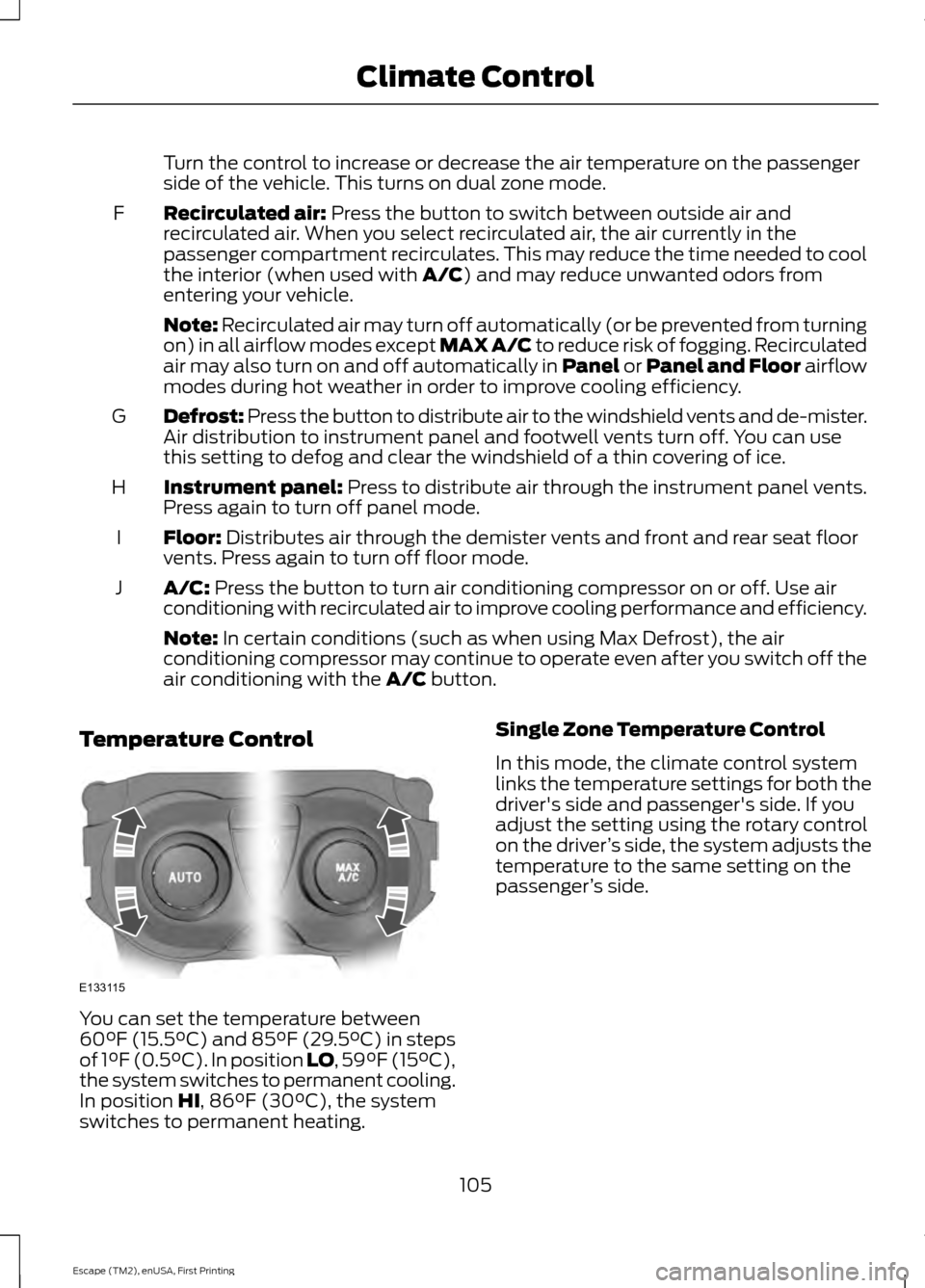
Temperature Control You can set the temperature between
60°F (15.5°C) and 85°F (29.5°C) in steps
of 1°F (0.5°C). In position LO, 59°F (15°C),
the system switches to permanent cooling.
In position
HI, 86°F (30°C), the system
switches to permanent heating. Single Zone Temperature Control
In this mode, the climate control system
links the temperature settings for both the
driver's side and passenger's side. If you
adjust the setting using the rotary control
on the driver
’s side, the system adjusts the
temperature to the same setting on the
passenger ’s side.
105
Escape (TM2), enUSA, First Printing Climate ControlE133115
Page 109 of 449
Dual Zone Temperature Control
Select a temperature for the passenger
’s
side using the rotary control on the
passenger ’s side. Single zone temperature
control automatically switches off. The
temperature on the driver ’s side remains
unchanged. You can now adjust the
driver's side and passenger's side
temperatures independently. The display
shows the temperature settings for each
side.
Switching Back to Single Zone
Temperature Control
Press and hold AUTO for 2-4 seconds. The
passenger ’s side temperature switches to
the driver ’s side temperature setting.
HINTS ON CONTROLLING THE
INTERIOR CLIMATE
General Hints
Note: Prolonged use of recirculated air may
cause the windows to fog up.
Note: You may feel a small amount of air
from the floor air vents regardless of the air
distribution setting.
Note: To reduce humidity build-up inside
your vehicle, do not drive with the system
switched off or with recirculated air always
switched on. Note:
Do not place objects under the front
seats as this may interfere with the airflow
to the rear seats.
Note: Remove any snow, ice or leaves from
the air intake area at the base of the
windshield.
Manual Climate Control
Note: To reduce fogging of the windshield
during humid weather, adjust the air
distribution control to the windshield air
vents position. Increase the temperature
and fan speed to improve clearing, if
required.
Automatic Climate Control
Note: Adjusting the settings when your
vehicle interior is extremely hot or cold is
not necessary. The system automatically
adjusts to heat or cool the cabin to your
selected temperature as quickly as possible.
For the system to function efficiently, the
instrument panel and side air vents should
be fully open.
Note: At low ambient temperatures with
AUTO
selected, the system directs airflow
to the windshield and side window vents
and fan may run at a slow speed until the
engine warms up.
Heating the Interior Quickly Vehicle with automatic climate control
Vehicle with manual climate control
Press the high fan speed button.
Adjust the fan speed to the highest
speed setting.
1
Adjust the temperature control to the
highest setting.
Adjust the temperature control to the
highest setting.
2
Press the floor button to distribute air to
the floor air vents.
Adjust the air distribution control to the
floor air vents position.
3
106
Escape (TM2), enUSA, First Printing Climate Control
Page 110 of 449
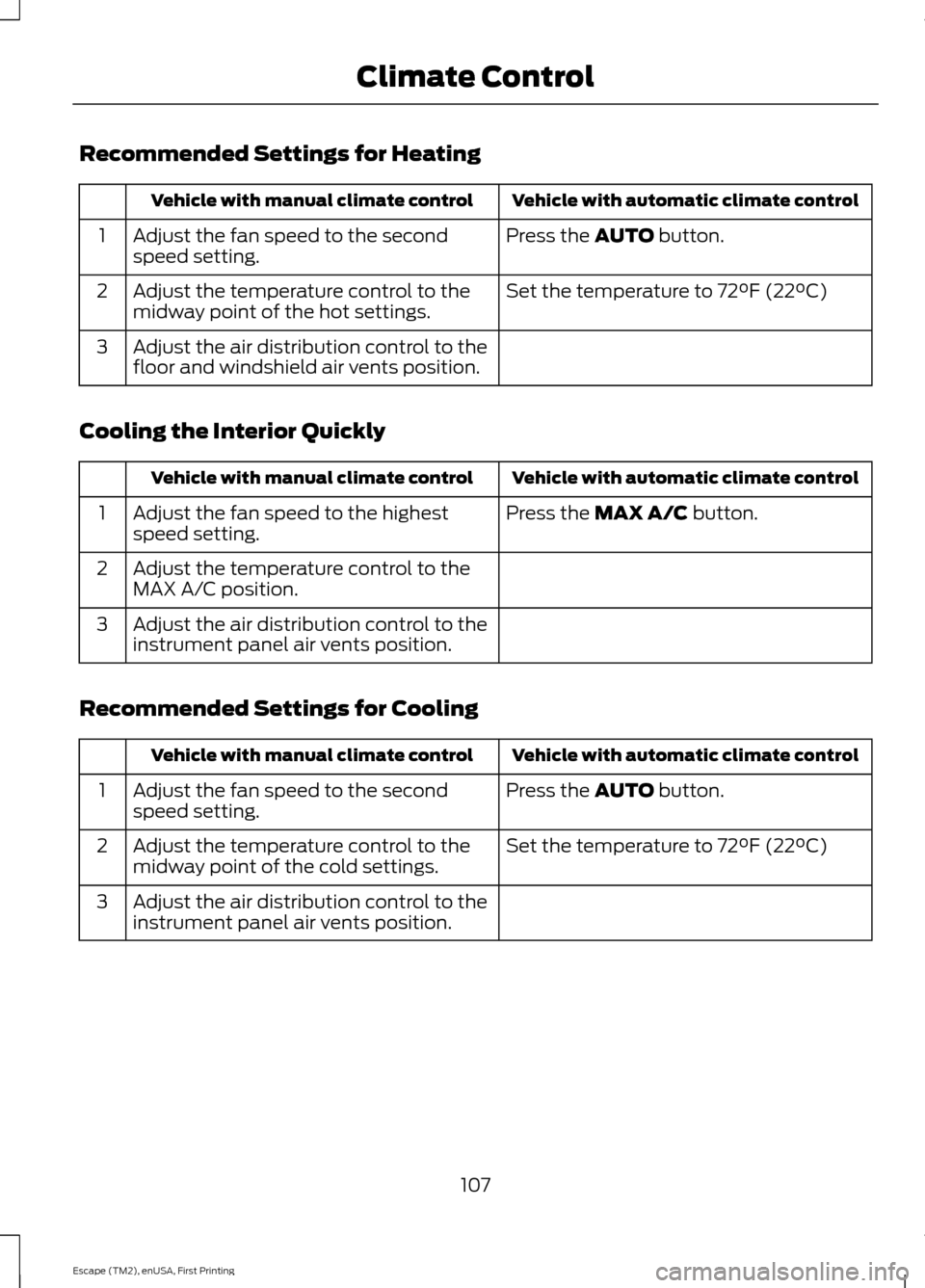
Recommended Settings for Heating
Vehicle with automatic climate control
Vehicle with manual climate control
Press the AUTO button.
Adjust the fan speed to the second
speed setting.
1
Set the temperature to 72°F (22°C)
Adjust the temperature control to the
midway point of the hot settings.
2
Adjust the air distribution control to the
floor and windshield air vents position.
3
Cooling the Interior Quickly Vehicle with automatic climate control
Vehicle with manual climate control
Press the
MAX A/C button.
Adjust the fan speed to the highest
speed setting.
1
Adjust the temperature control to the
MAX A/C position.
2
Adjust the air distribution control to the
instrument panel air vents position.
3
Recommended Settings for Cooling Vehicle with automatic climate control
Vehicle with manual climate control
Press the
AUTO button.
Adjust the fan speed to the second
speed setting.
1
Set the temperature to 72°F (22°C)
Adjust the temperature control to the
midway point of the cold settings.
2
Adjust the air distribution control to the
instrument panel air vents position.
3
107
Escape (TM2), enUSA, First Printing Climate Control
Page 113 of 449
You cannot adjust the system during
remote start operation. Switch on the
ignition to return the system to its previous
settings. You can now make adjustments.
You need to switch on certain
vehicle-dependent features, such as:
•
Heated seats.
• Heated mirrors.
• Heated rear window.
You can adjust the settings using the
information display controls. See
Information Displays (page 90).
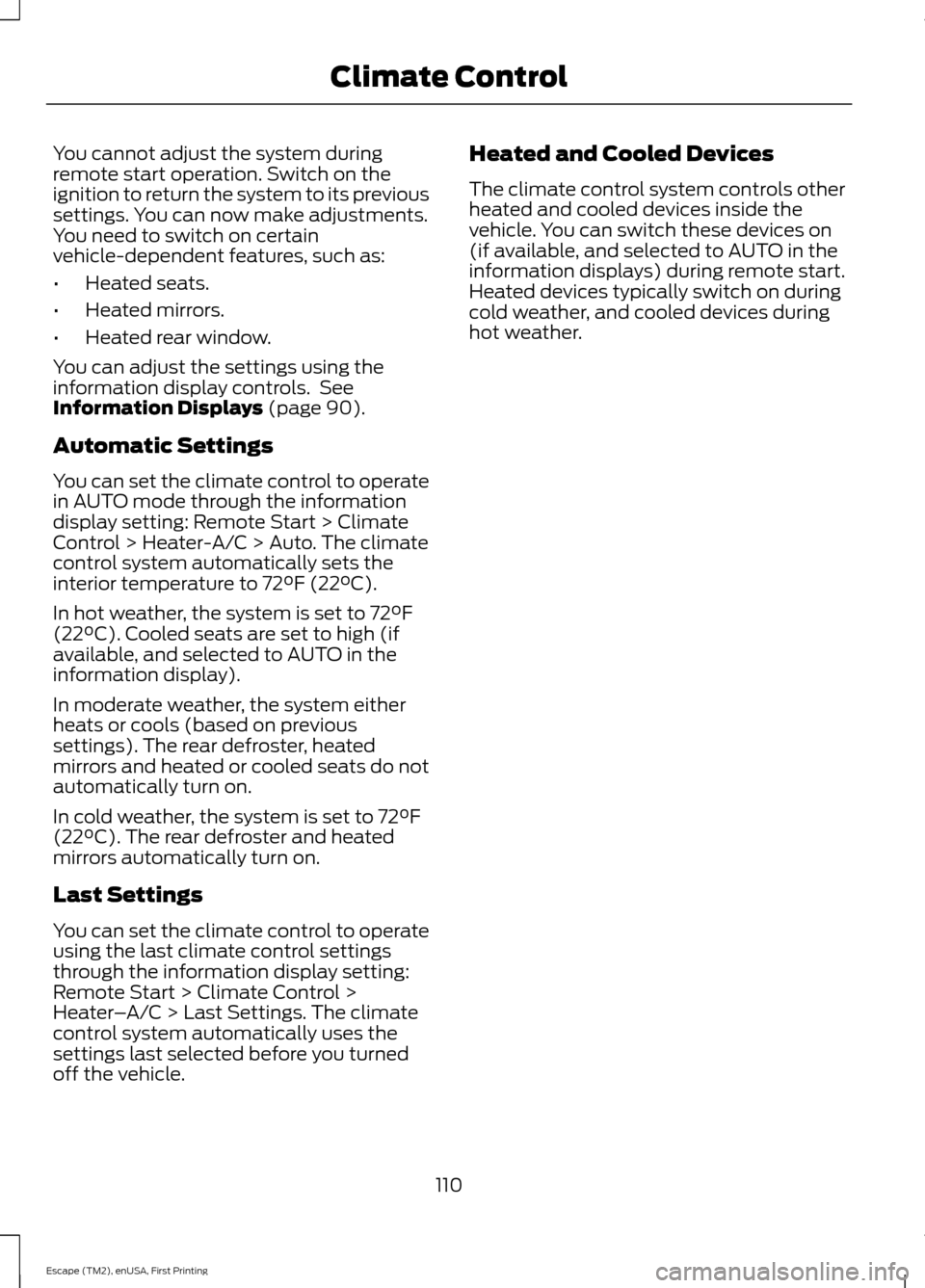
Automatic Settings
You can set the climate control to operate
in AUTO mode through the information
display setting: Remote Start > Climate
Control > Heater-A/C > Auto. The climate
control system automatically sets the
interior temperature to 72°F (22°C).
In hot weather, the system is set to 72°F
(22°C). Cooled seats are set to high (if
available, and selected to AUTO in the
information display).
In moderate weather, the system either
heats or cools (based on previous
settings). The rear defroster, heated
mirrors and heated or cooled seats do not
automatically turn on.
In cold weather, the system is set to 72°F
(22°C). The rear defroster and heated
mirrors automatically turn on.
Last Settings
You can set the climate control to operate
using the last climate control settings
through the information display setting:
Remote Start > Climate Control >
Heater –A/C > Last Settings. The climate
control system automatically uses the
settings last selected before you turned
off the vehicle. Heated and Cooled Devices
The climate control system controls other
heated and cooled devices inside the
vehicle. You can switch these devices on
(if available, and selected to AUTO in the
information displays) during remote start.
Heated devices typically switch on during
cold weather, and cooled devices during
hot weather.
110
Escape (TM2), enUSA, First Printing Climate Control
Page 333 of 449
GENERAL INFORMATION WARNING
Driving while distracted can result in
loss of vehicle control, crash and
injury. We strongly recommend that
you use extreme caution when using any
device that may take your focus off the
road. Your primary responsibility is the safe
operation of your vehicle. We recommend
against the use of any hand-held device
while driving and encourage the use of
voice-operated systems when possible.
Make sure you are aware of all applicable
local laws that may affect the use of
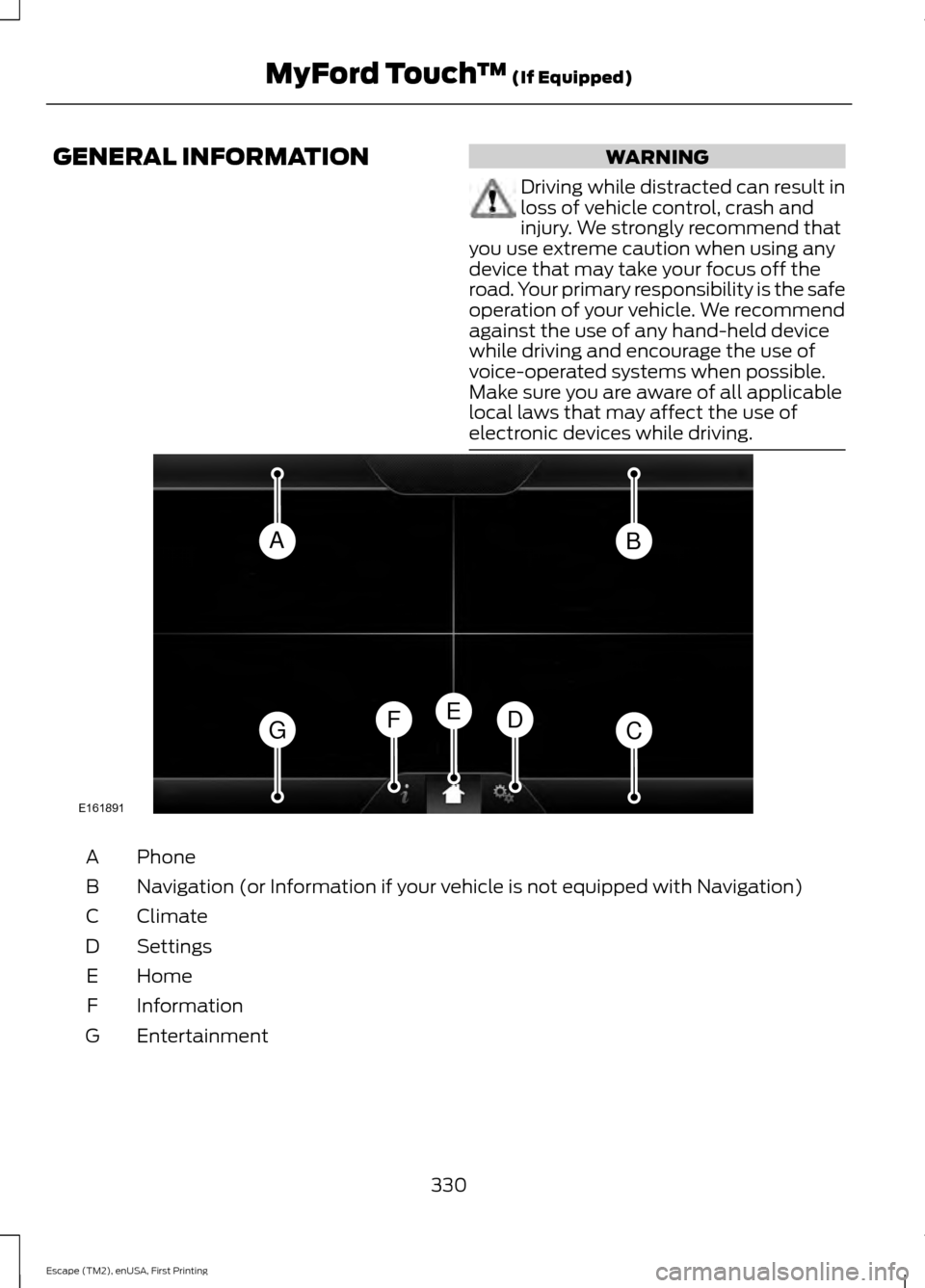
electronic devices while driving. Phone
A
Navigation (or Information if your vehicle is not equipped with Navigation)
B
Climate
C
Settings
D
Home
E
Information
F
Entertainment
G
330
Escape (TM2), enUSA, First Printing MyFord Touch
™ (If Equipped)AB
GCDFE
E161891
Page 334 of 449
This system uses a four-corner strategy to
provide quick access to several vehicle
features and settings. The touchscreen
provides easy interaction with your cellular
phone, multimedia, climate control and
navigation system. The corners display any
active modes within those menus, such as
phone status or the climate temperature.
Note:
Some features are not available while
your vehicle is moving.
Note: You can also directly access the
Home screen and Information screen by
pressing the Home ("house" icon) and
Information ("I" icon) buttons on your
steering wheel controls.
Note: Your system is equipped with a
feature that allows you to access and
control audio features for 30 minutes after
you switch the ignition off (and no doors
open).
PHONE
Press to select any of the following:
• Phone
• Quick Dial
• Phonebook
• History
• Messaging
• Settings
NAVIGATION
Press to select any of the following:
• My Home
• Favorites
• Previous Destinations
• Point of Interest
• Emergency
• Street Address
• Intersection
• City Center
• Map •
Edit Route
• Cancel Route
CLIMATE
Press to select any of the following:
• Driver Settings
• Recirculated Air
• Auto
• Dual
• Passenger Settings
• A/C
• Defrost SETTINGS
Press to select any of the following:
• Clock
• Display
• Sound
• Vehicle
• Settings
• Help HOME
Press to access your home
screen. Depending on your
vehicle ’s option package and software,
your screens may vary in appearance from
the descriptions in this section. Your
features may also be limited depending on
your market. Check with an authorized
dealer for availability. INFORMATION
Press to select any of the following:
• Services
• Travel Link
• Alerts
331
Escape (TM2), enUSA, First Printing MyFord Touch
™ (If Equipped)E142607 E142613 E142608
Page 335 of 449
•
Calendar
• Apps
ENTERTAINMENT
Press to select any of the following:
• AM
• FM
• SIRIUS
• CD
• USB
• BT Stereo
• SD Card
• A/V In
Depending on your vehicle and option
package, you may also have these controls
on your bezel:
• Power: Switch the media or climate
features off and on.
• VOL:
Control the volume of playing
media.
• Seek
and Tune: Use as you normally
would in media modes.
• Eject:
Eject a CD from the
entertainment system.
• SOURCE:
Touch the word repeatedly
to see all available media modes. The
screen does not change, but you see
the media change in the lower left
status bar.
• M:
Touch repeatedly to cycle through
available media modes.
• SOUND:
Touch the word to access the
Sound menu where you can adjust
settings such as: Bass, Treble,
Midrange, Balance and Fade, DSP
(Digital Signal Processing), Occupancy
Mode and Speed Compensated
Volume. (Your vehicle may not have
all of these sound options.) Using Your Steering Wheel
Controls
Depending on your vehicle and option
package, you can use your steering wheel
controls to interact with the touchscreen
system.
•
VOL:
Control the volume of audio
output.
• Seek:
•While in radio mode, press to seek
between memory presets or press
and hold to seek between stations.
• While in USB or CD mode, press to
seek between tracks or press and
hold to fast seek.
• Voice:
Press to start a voice session.
Press again to silence an active voice
prompt so you can begin speaking.
Press and hold to end a voice session.
• PHONE ACCEPT:
•Press to answer a call, or to switch
between calls.
• PHONE REJECT:
•Press to end a call, or to reject an
incoming call.
• HOME: Press to go to the home screen.
• I: Press to go to the information screen.
See
Steering Wheel (page 69).
Cleaning the Touchscreen Display
Use a clean, soft cloth such as one used
for cleaning glasses. If dirt or fingerprints
are still visible, apply a small amount of
alcohol to the cloth. Do not pour or spray
alcohol onto the display. Do not use
detergent or any type of solvent to clean
the display.
Support
The SYNC support team is available to
help you with any questions you are not
able to answer on your own.
332
Escape (TM2), enUSA, First Printing MyFord Touch
™
(If Equipped)
Page 339 of 449
Available voice commands
"Audio list of commands"
"Bluetooth audio list of commands" "Browse list of commands""CD list of commands"
"Climate control list of commands" "List of commands"
"Navigation list of commands" *
"Phone list of commands" "Radio list of commands"
"SD card list of commands"
"Sirius satellite list of commands" **
"Travel link list of commands" *
"USB list of commands"
"Voice instructions list of commands" "Voice settings list of commands" "Help"
* This command is only available when
your vehicle is equipped with the
navigation system, and the navigation
system SD card is in the card slot.
** This command is only available when
you have an active SIRIUS satellite radio
subscription.
Voice Settings
Voice settings allow you to customize the
level of system interaction, help and
feedback. The system defaults to standard
interaction that uses candidate lists and
confirmation prompts as these provide the
highest level of guidance and feedback. •
Interaction Mode: Novice mode
provides detailed interaction and
guidance while the advanced mode
has less audible interaction and more
tone prompts.
• Confirmation Prompts:
The system
uses these short questions to confirm
your voice request. If turned off, the
system simply makes a best guess as
to what you requested. The system
may still occasionally ask you to
confirm settings.
• Phone and Media Candidate Lists:
Candidate lists are lists of possible
results from your voice commands. The
system creates these lists when it has
the same confidence level of several
options based on your voice command.
To access these settings using the
touchscreen:
1. Press the Settings icon >
Settings >
Voice Control.
2. Select from:
• Interaction Mode
• Confirmation Prompts
• Media Candidate Lists
• Phone Candidate Lists
• Voice Control Volume.
To access these settings using voice
commands:
1. Press the voice icon. Wait for the prompt "Please say a command".
Another tone sounds to let you know
the system is listening.
2. Say any of the following commands: Voice settings using voice commands
"Confirmation prompts off""Confirmation prompts on"
"Interaction mode advanced"
336
Escape (TM2), enUSA, First Printing MyFord Touch
™
(If Equipped)