ESP FORD ESCAPE 2022 Workshop Manual
[x] Cancel search | Manufacturer: FORD, Model Year: 2022, Model line: ESCAPE, Model: FORD ESCAPE 2022Pages: 585, PDF Size: 6.15 MB
Page 427 of 585
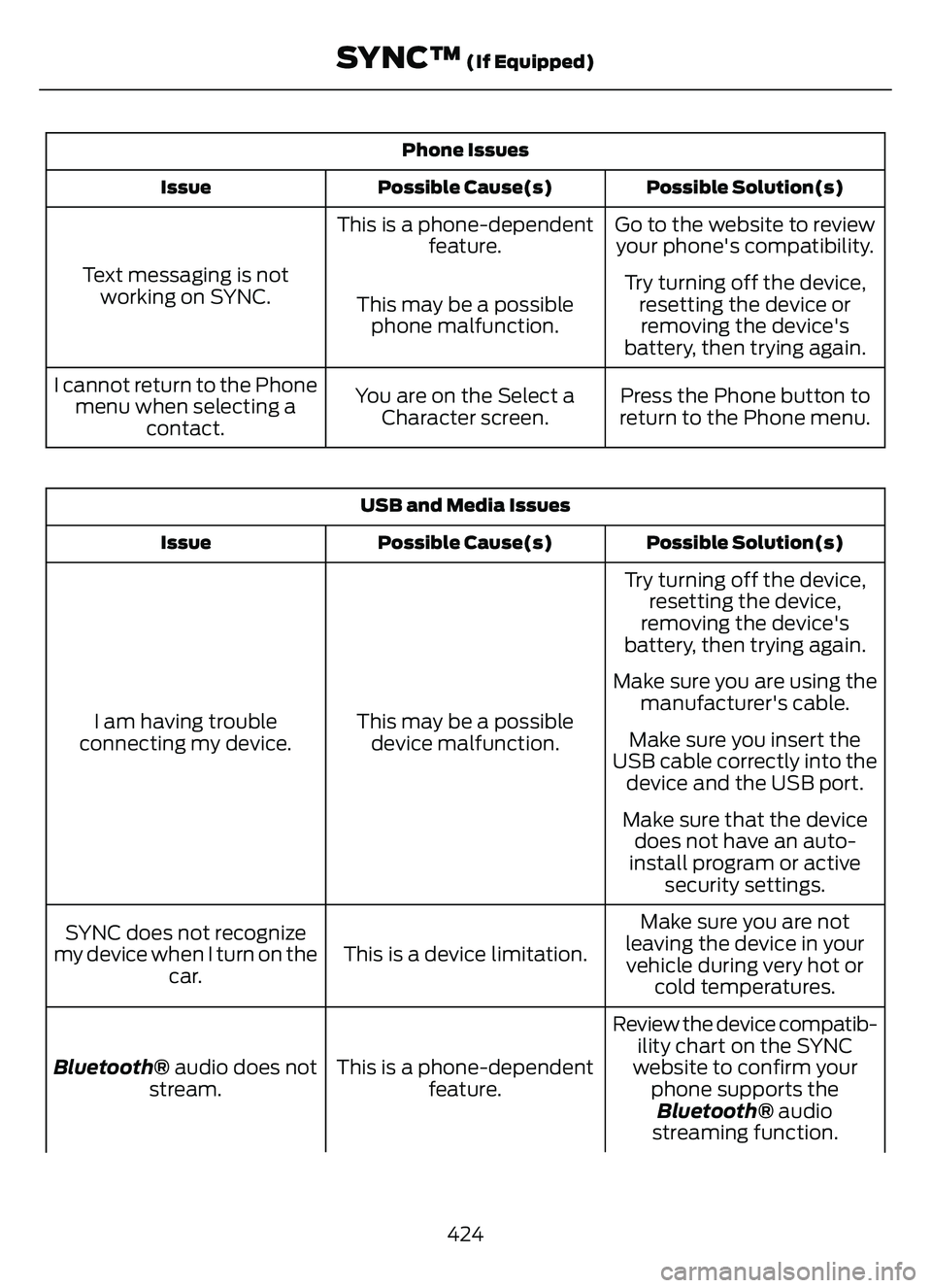
Phone IssuesPossible Solution(s)
Possible Cause(s)
Issue
Go to the website to review
your phone's compatibility.
This is a phone-dependent
feature.
Text messaging is not working on SYNC. Try turning off the device,
resetting the device orremoving the device's
battery, then trying again.
This may be a possible
phone malfunction.
Press the Phone button to
return to the Phone menu.
You are on the Select a
Character screen.
I cannot return to the Phone
menu when selecting a contact.
USB and Media Issues
Possible Solution(s)
Possible Cause(s)
Issue
Try turning off the device,
resetting the device,
removing the device's
battery, then trying again.
This may be a possible device malfunction.
I am having trouble
connecting my device. Make sure you are using the
manufacturer's cable.
Make sure you insert the
USB cable correctly into the device and the USB port.
Make sure that the device does not have an auto-
install program or active security settings.
Make sure you are not
leaving the device in your vehicle during very hot or cold temperatures.
This is a device limitation.
SYNC does not recognize
my device when I turn on the car.
Review the device compatib-ility chart on the SYNC
website to confirm your phone supports theBluetooth® audio
streaming function.
This is a phone-dependent
feature.
Bluetooth® audio does not
stream.
424
SYNC™ (If Equipped)
Page 428 of 585
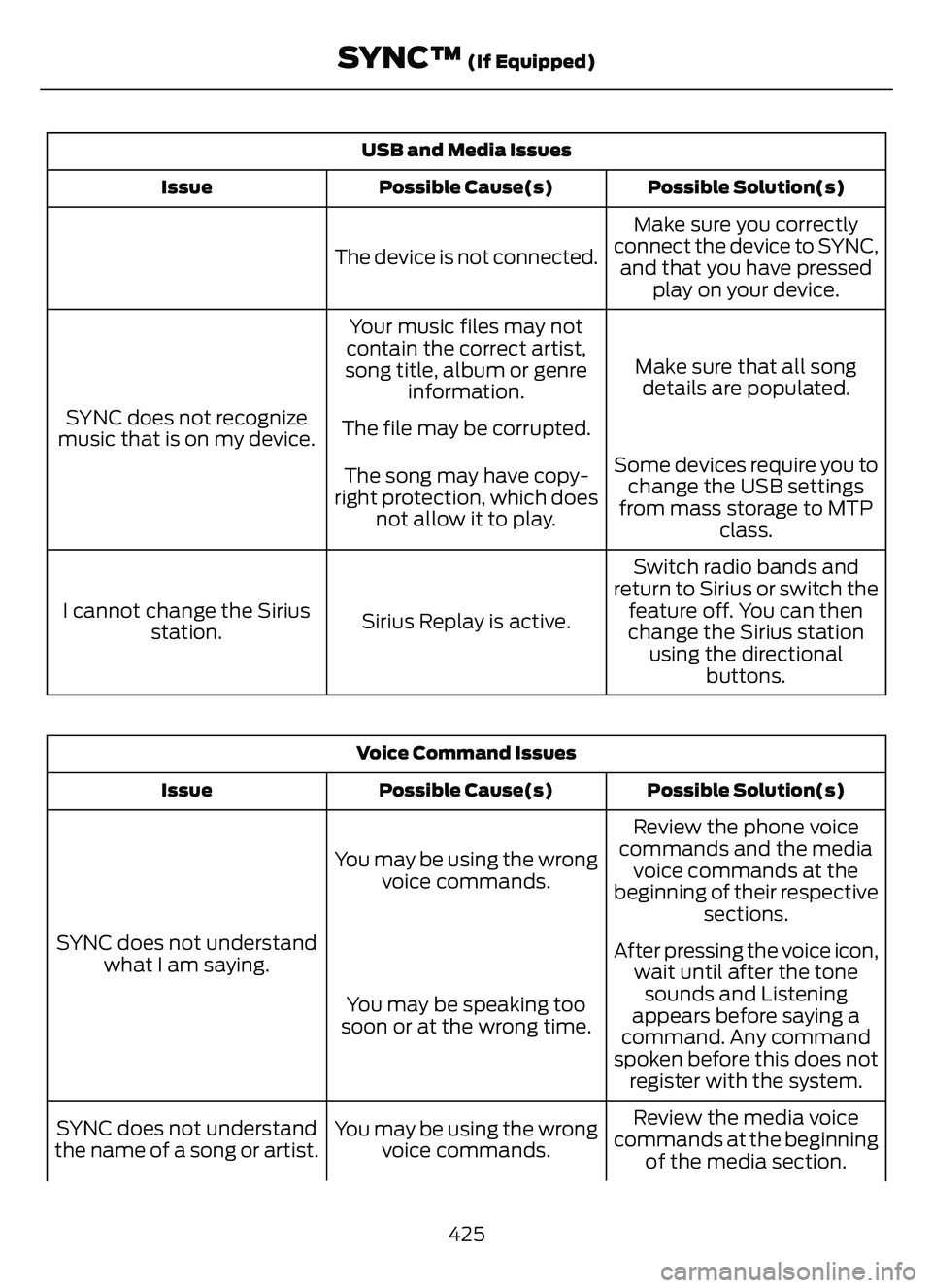
USB and Media IssuesPossible Solution(s)
Possible Cause(s)
Issue
Make sure you correctly
connect the device to SYNC, and that you have pressed play on your device.
The device is not connected.
Make sure that all songdetails are populated.
Your music files may not
contain the correct artist,
song title, album or genre information.
SYNC does not recognize
music that is on my device. The file may be corrupted.
Some devices require you tochange the USB settings
from mass storage to MTP class.
The song may have copy-
right protection, which does not allow it to play.
Switch radio bands and
return to Sirius or switch the feature off. You can then
change the Sirius station using the directional buttons.
Sirius Replay is active.
I cannot change the Sirius
station.
Voice Command Issues
Possible Solution(s)
Possible Cause(s)
Issue
Review the phone voice
commands and the media voice commands at the
beginning of their respective sections.
You may be using the wrong
voice commands.
SYNC does not understand what I am saying. After pressing the voice icon,
wait until after the tonesounds and Listening
appears before saying a
command. Any command
spoken before this does not register with the system.
You may be speaking too
soon or at the wrong time.
Review the media voice
commands at the beginning of the media section.
You may be using the wrong
voice commands.
SYNC does not understand
the name of a song or artist.
425
SYNC™ (If Equipped)
Page 429 of 585
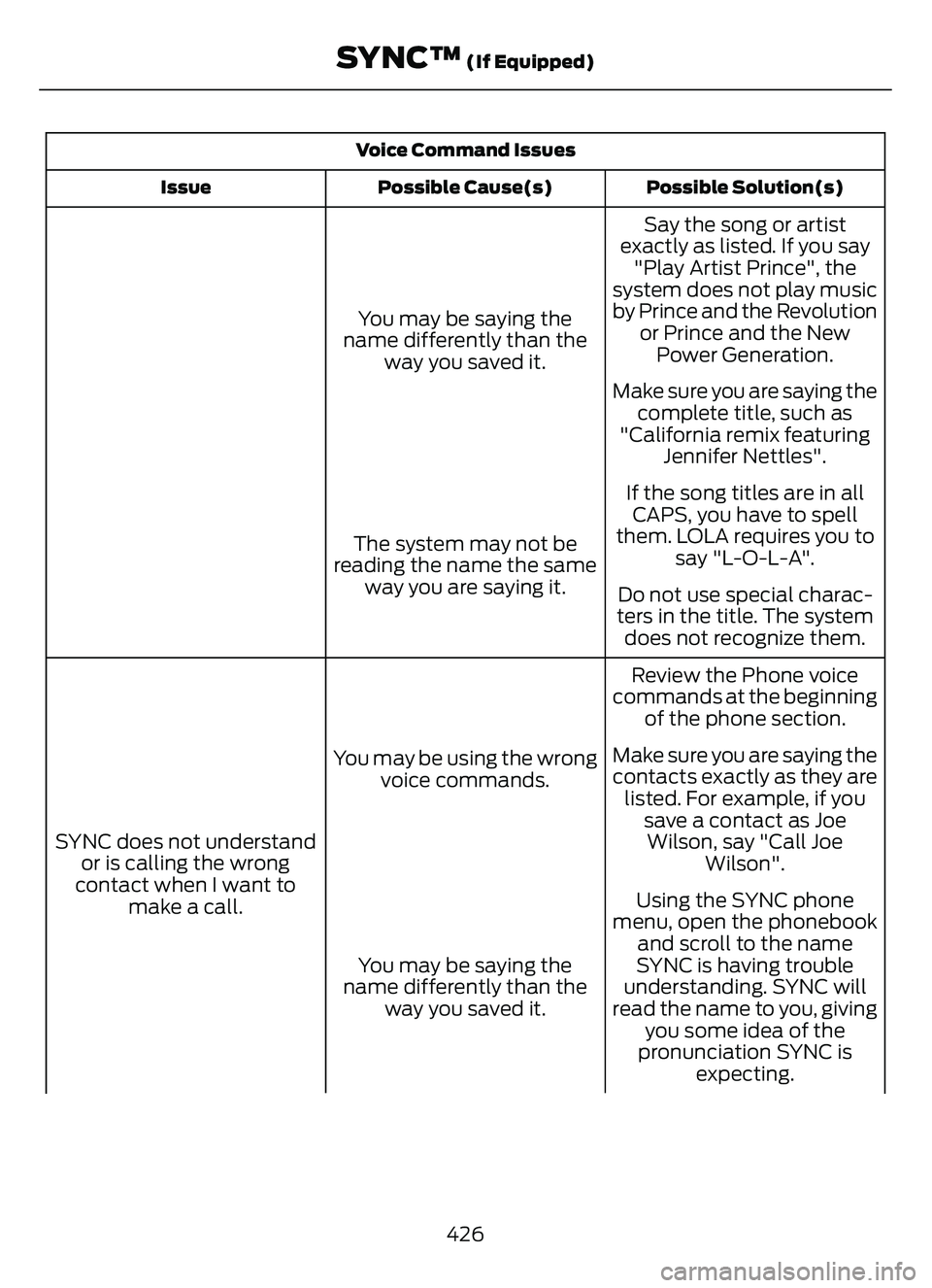
Voice Command IssuesPossible Solution(s)
Possible Cause(s)
Issue
Say the song or artist
exactly as listed. If you say "Play Artist Prince", the
system does not play music
by Prince and the Revolution or Prince and the NewPower Generation.
You may be saying the
name differently than the way you saved it.
Make sure you are saying thecomplete title, such as
"California remix featuring Jennifer Nettles".
If the song titles are in all CAPS, you have to spell
them. LOLA requires you to say "L-O-L-A".
The system may not be
reading the name the same way you are saying it. Do not use special charac-
ters in the title. The system does not recognize them.
Review the Phone voice
commands at the beginning of the phone section.
You may be using the wrong voice commands.
SYNC does not understand or is calling the wrong
contact when I want to make a call. Make sure you are saying the
contacts exactly as they are
listed. For example, if you save a contact as JoeWilson, say "Call Joe Wilson".
Using the SYNC phone
menu, open the phonebook and scroll to the name
SYNC is having trouble
understanding. SYNC will
read the name to you, giving you some idea of the
pronunciation SYNC is expecting.
You may be saying the
name differently than the way you saved it.
426
SYNC™ (If Equipped)
Page 430 of 585
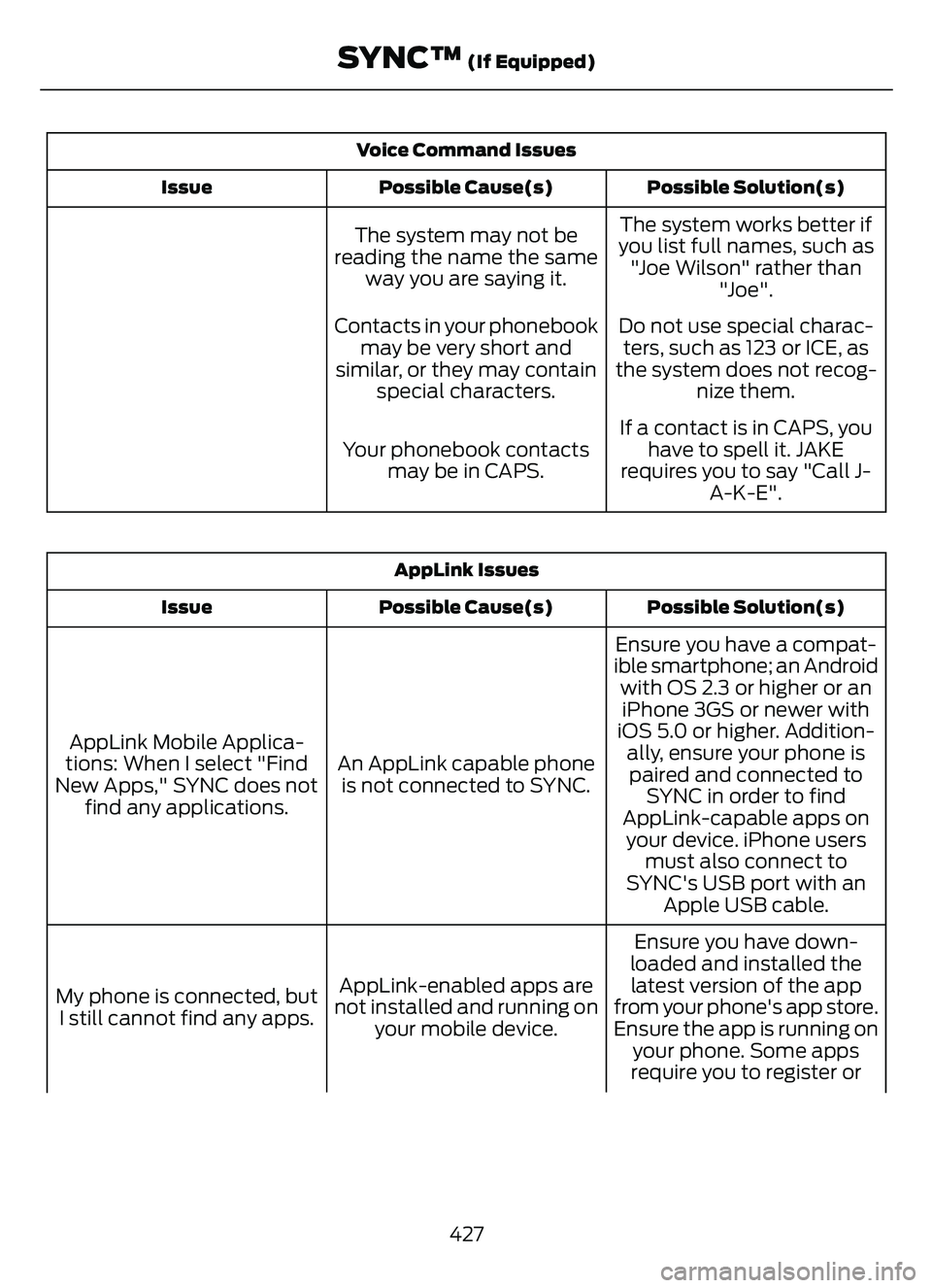
Voice Command IssuesPossible Solution(s)
Possible Cause(s)
Issue
The system works better if
you list full names, such as "Joe Wilson" rather than "Joe".
The system may not be
reading the name the same way you are saying it.
Do not use special charac-ters, such as 123 or ICE, as
the system does not recog- nize them.
Contacts in your phonebook
may be very short and
similar, or they may contain special characters.
If a contact is in CAPS, youhave to spell it. JAKE
requires you to say "Call J- A-K-E".
Your phonebook contacts
may be in CAPS.
AppLink Issues
Possible Solution(s)
Possible Cause(s)
Issue
Ensure you have a compat-
ible smartphone; an Android with OS 2.3 or higher or aniPhone 3GS or newer with
iOS 5.0 or higher. Addition- ally, ensure your phone is
An AppLink capable phone
is not connected to SYNC.
AppLink Mobile Applica-
tions: When I select "Find
New Apps," SYNC does not find any applications. paired and connected to
SYNC in order to find
AppLink-capable apps on your device. iPhone users must also connect to
SYNC's USB port with an Apple USB cable.
Ensure you have down-
loaded and installed the latest version of the app
from your phone's app store.
Ensure the app is running on your phone. Some apps
AppLink-enabled apps are
not installed and running on your mobile device.
My phone is connected, but
I still cannot find any apps.
require you to register or
427
SYNC™ (If Equipped)
Page 431 of 585
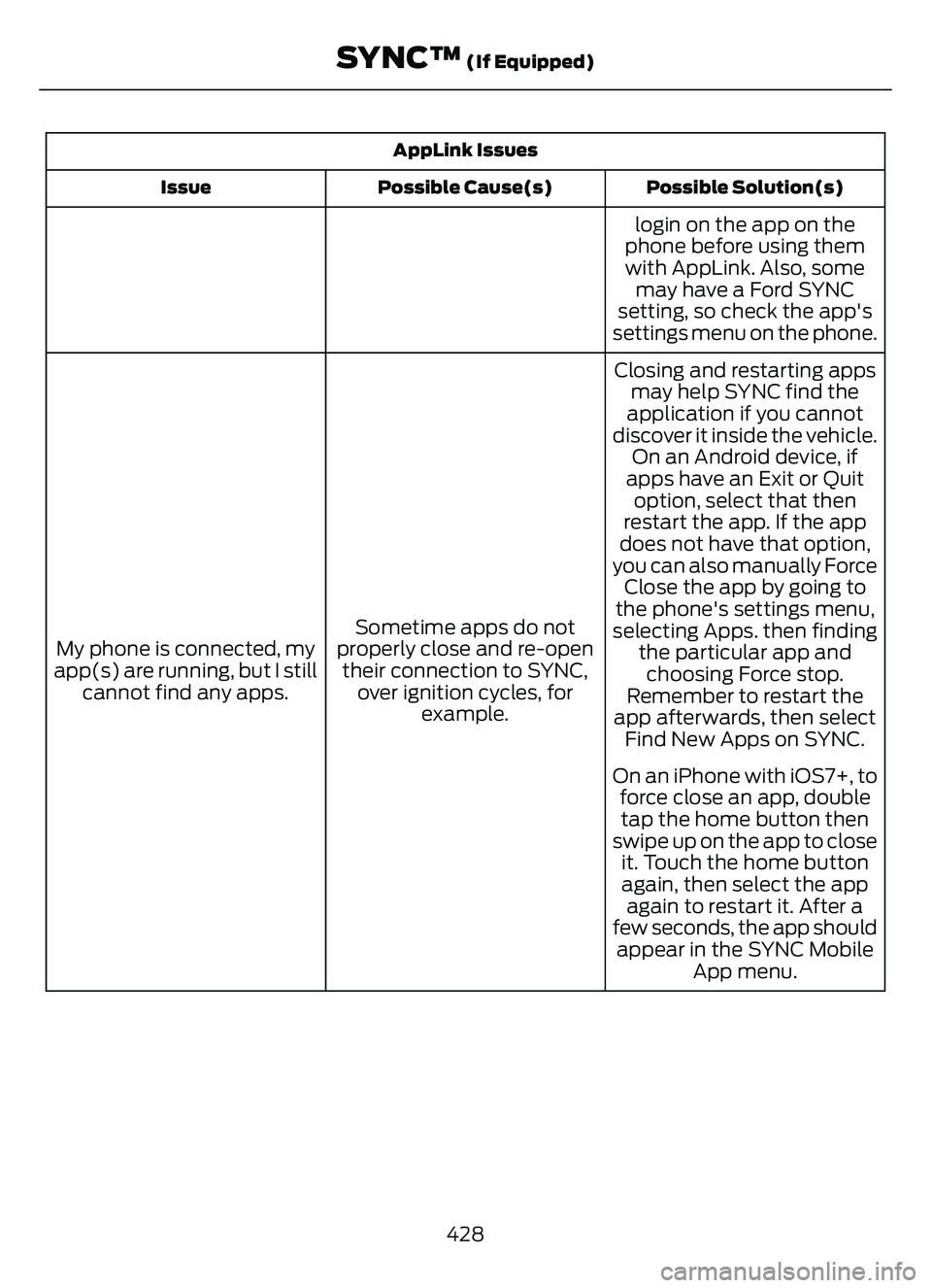
AppLink IssuesPossible Solution(s)
Possible Cause(s)
Issue
login on the app on the
phone before using them with AppLink. Also, some may have a Ford SYNC
setting, so check the app's
settings menu on the phone.
Closing and restarting apps may help SYNC find the
application if you cannot
discover it inside the vehicle. On an Android device, if
apps have an Exit or Quit
Sometime apps do not
properly close and re-open their connection to SYNC, over ignition cycles, for example.
My phone is connected, my
app(s) are running, but I still cannot find any apps. option, select that then
restart the app. If the app
does not have that option,
you can also manually Force Close the app by going to
the phone's settings menu,
selecting Apps. then finding the particular app andchoosing Force stop.
Remember to restart the
app afterwards, then select Find New Apps on SYNC.
On an iPhone with iOS7+, to force close an app, doubletap the home button then
swipe up on the app to close it. Touch the home buttonagain, then select the app again to restart it. After a
few seconds, the app should appear in the SYNC Mobile App menu.
428
SYNC™ (If Equipped)
Page 432 of 585
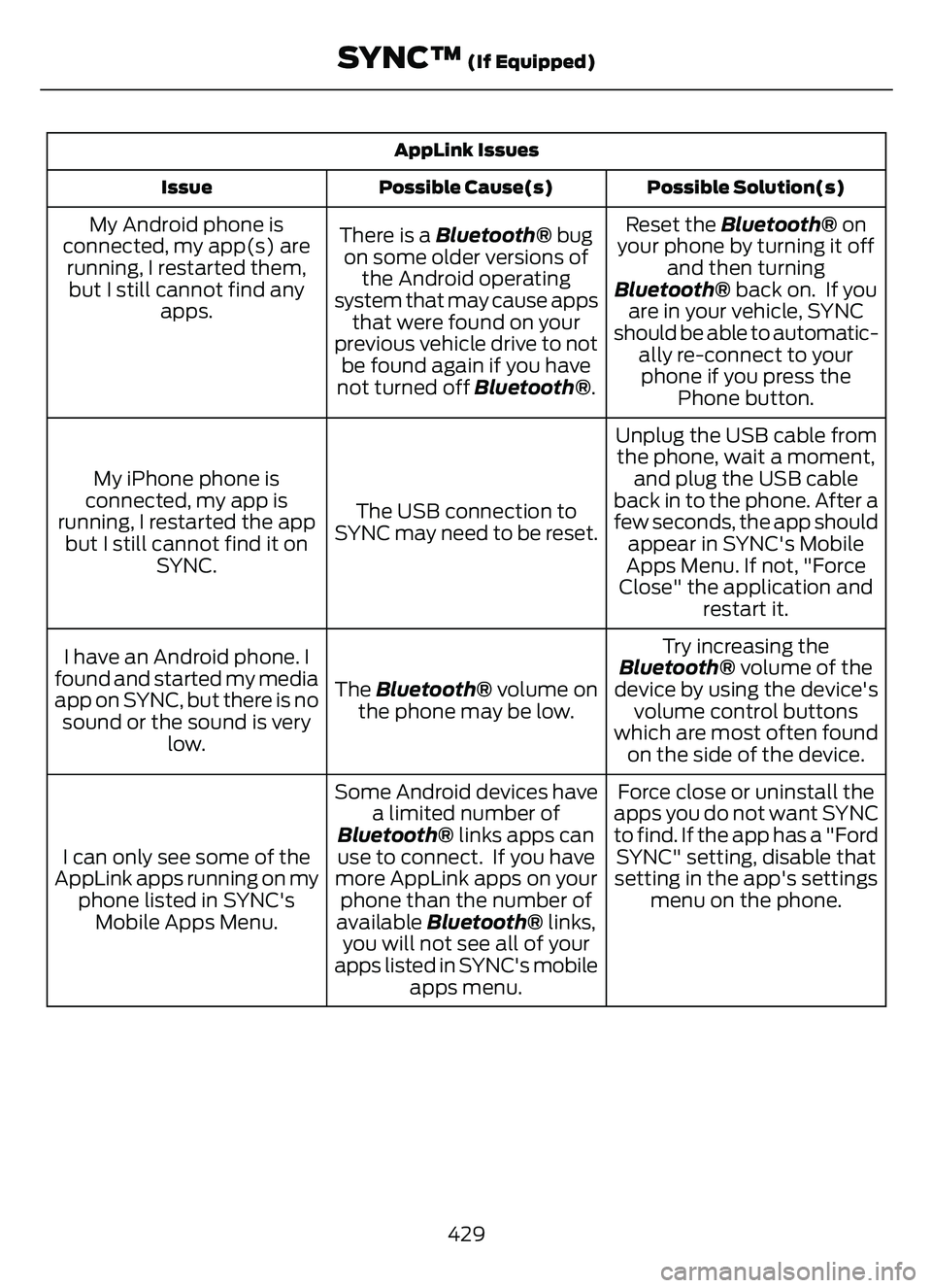
AppLink IssuesPossible Solution(s)
Possible Cause(s)
Issue
Reset the Bluetooth® on
your phone by turning it off and then turning
Bluetooth® back on. If you are in your vehicle, SYNC
should be able to automatic- ally re-connect to yourphone if you press the Phone button.
There is a Bluetooth® bug
on some older versions of the Android operating
system that may cause apps that were found on your
previous vehicle drive to not be found again if you have
not turned off Bluetooth®.
My Android phone is
connected, my app(s) are running, I restarted them,but I still cannot find any apps.
Unplug the USB cable fromthe phone, wait a moment, and plug the USB cable
back in to the phone. After a
few seconds, the app should appear in SYNC's Mobile
Apps Menu. If not, "Force
Close" the application and restart it.
The USB connection to
SYNC may need to be reset.
My iPhone phone is
connected, my app is
running, I restarted the app but I still cannot find it on SYNC.
Try increasing the
Bluetooth® volume of the
device by using the device's volume control buttons
which are most often found on the side of the device.
The Bluetooth® volume on
the phone may be low.
I have an Android phone. I
found and started my media
app on SYNC, but there is no sound or the sound is very low.
Force close or uninstall the
apps you do not want SYNC
to find. If the app has a "Ford SYNC" setting, disable that
setting in the app's settings menu on the phone.
Some Android devices have
a limited number of
Bluetooth® links apps can
use to connect. If you have
more AppLink apps on your phone than the number of
available Bluetooth® links, you will not see all of your
apps listed in SYNC's mobile apps menu.
I can only see some of the
AppLink apps running on my phone listed in SYNC'sMobile Apps Menu.
429
SYNC™ (If Equipped)
Page 434 of 585
GENERAL INFORMATION
WARNING: Driving while distracted
can result in loss of vehicle control, crash
and injury. We strongly recommend that
you use extreme caution when using any
device that may take your focus off the
road. Your primary responsibility is the
safe operation of your vehicle. We
recommend against the use of any
hand-held device while driving and
encourage the use of voice-operated
systems when possible. Make sure you
are aware of all applicable local laws
that may affect the use of electronic
devices while driving.
About SYNC
The system allows you to interact with the
entertainment, information and
communication systems on your vehicle
using voice commands and a touchscreen.
The system provides easy interaction with
audio, phone, navigation, mobile apps and
settings.
Note: You can switch the system on and
use it for up to an hour without switching
the ignition on.
Note: You can use the system after you
switch the ignition off for up to 10 minutes
or until you open a door.
Note: For your safety, some features are
speed-dependent. Their use is limited to
when your vehicle speed is less than 3 mph
(5 km/h).
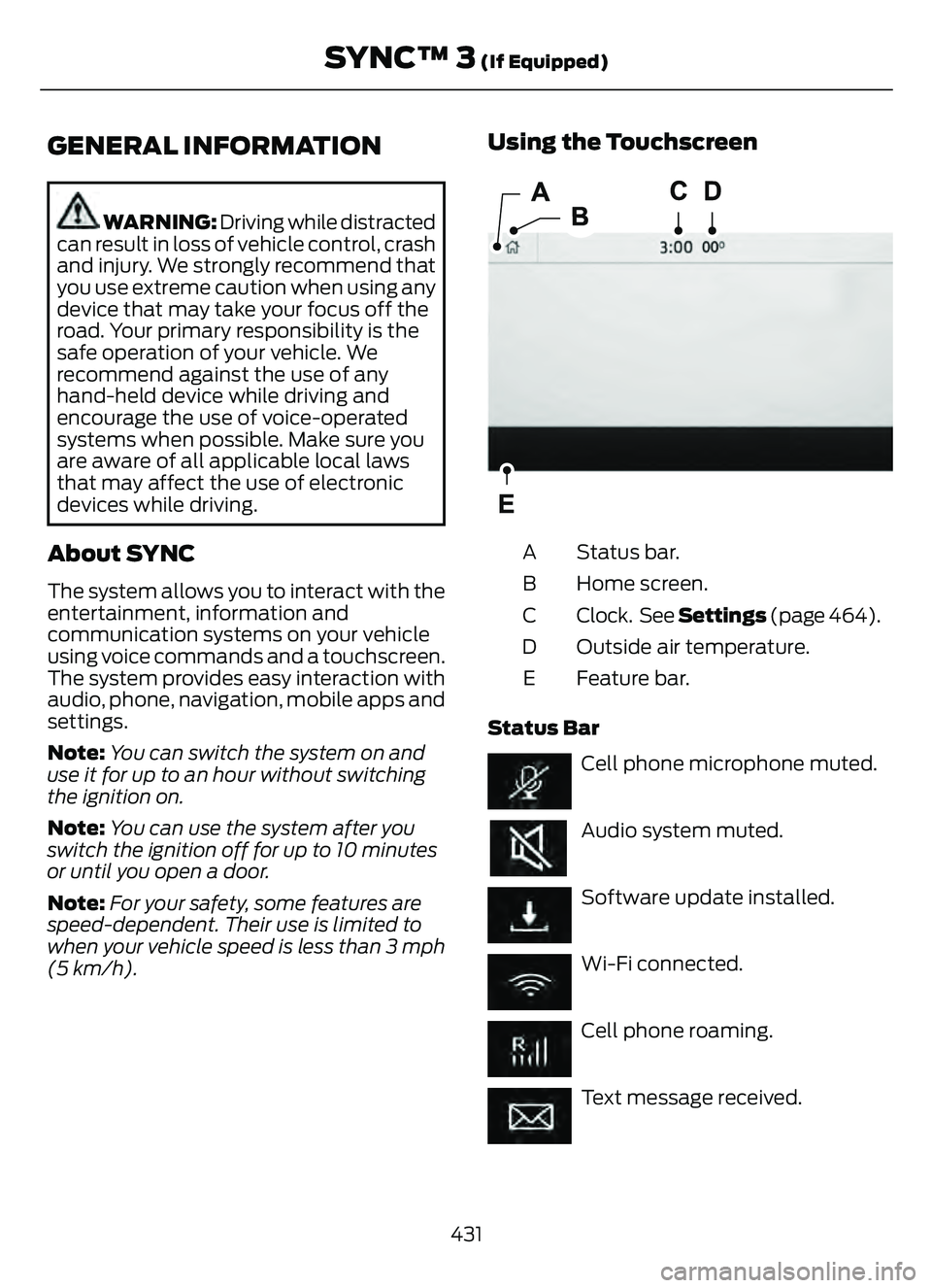
Using the Touchscreen
E293823E293823
Status bar.
A
Home screen.
B
Clock. See Settings (page 464).
C
Outside air temperature.
D
Feature bar.
E
Status Bar
Cell phone microphone muted.
Audio system muted.
Software update installed.
Wi-Fi connected.
Cell phone roaming.
Text message received.
431
SYNC™ 3 (If Equipped)
Page 440 of 585
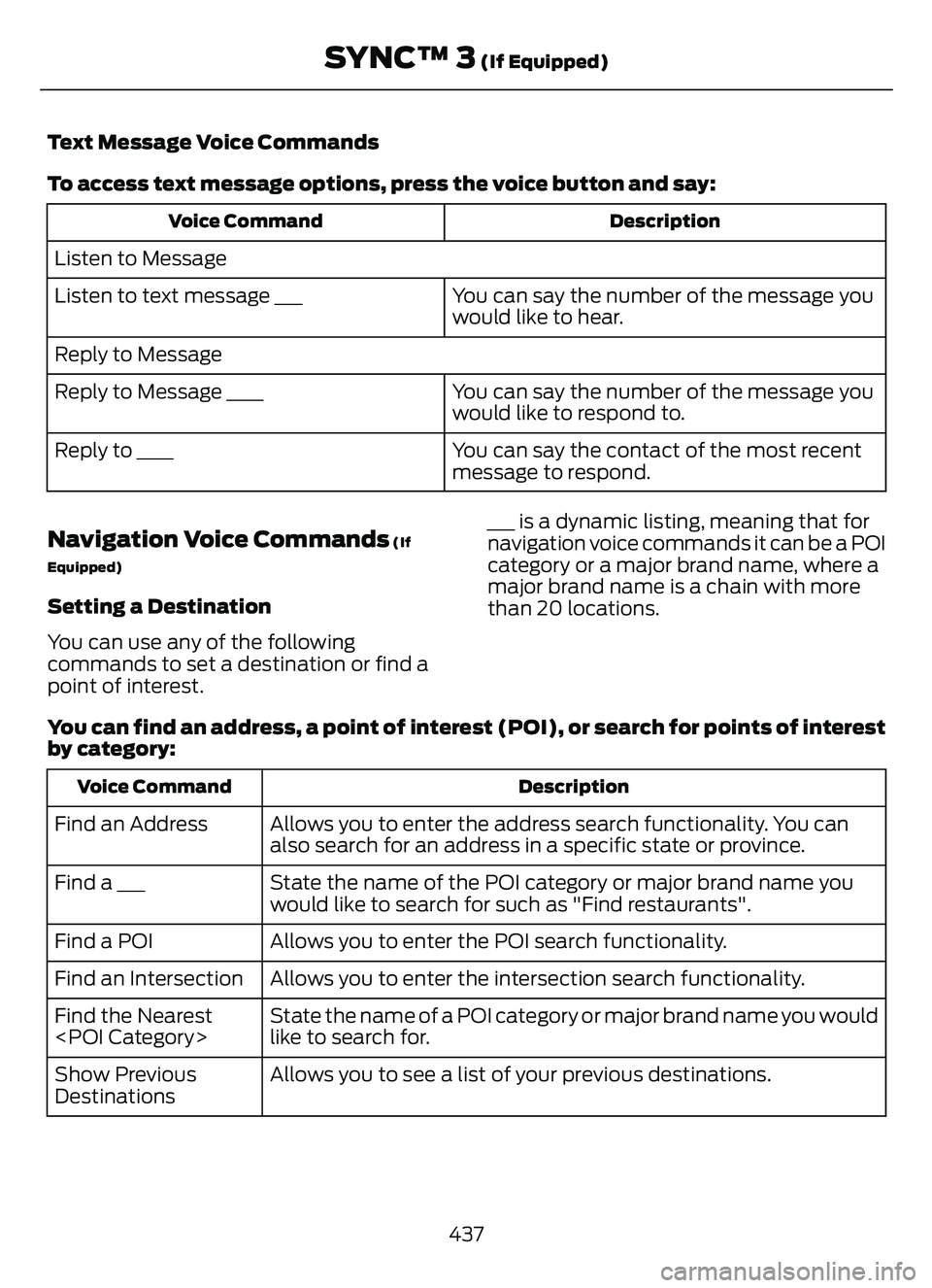
Text Message Voice Commands
To access text message options, press the voice button and say:
Description
Voice Command
Listen to Message
You can say the number of the message you
would like to hear.
Listen to text message ___
Reply to Message
You can say the number of the message you
would like to respond to.
Reply to Message ____
You can say the contact of the most recent
message to respond.
Reply to ____
Navigation Voice Commands (If
Equipped)
Setting a Destination
You can use any of the following
commands to set a destination or find a
point of interest. ___ is a dynamic listing, meaning that for
navigation voice commands it can be a POI
category or a major brand name, where a
major brand name is a chain with more
than 20 locations.
You can find an address, a point of interest (POI), or search for points of interest
by category:
Description
Voice Command
Allows you to enter the address search functionality. You can
also search for an address in a specific state or province.
Find an Address
State the name of the POI category or major brand name you
would like to search for such as "Find restaurants".
Find a ___
Allows you to enter the POI search functionality.
Find a POI
Allows you to enter the intersection search functionality.
Find an Intersection
State the name of a POI category or major brand name you would
like to search for.
Find the Nearest
Allows you to see a list of your previous destinations.
Show Previous
Destinations
437
SYNC™ 3 (If Equipped)
Page 445 of 585
SiriusXM® Satellite Radio (If
Activated)
Note: This feature may not be available in
all markets and requires an active
subscription.
E234451
SiriusXM satellite radio is a
subscription-based satellite radio service
that broadcasts a variety of music, sports,
news, weather, traffic and entertainment
programming. Your factory-installed
SiriusXM satellite radio system includes
hardware and a limited subscription term
that begins on the date of sale or lease of
your vehicle. See an authorized dealer for
availability. For more information on extended
subscription terms (a service fee is
required), the online media player and a
list of SiriusXM satellite radio channels,
and other features, please visit
www.siriusxm.com in the United States,
www.siriusxm.ca in Canada, or call
SiriusXM at 1-888-539-7474.
Note:
SiriusXM reserves the unrestricted
right to change, rearrange, add or delete
programming. This includes canceling,
moving or adding particular channels, and
its prices, at any time, with or without notice
to you. We are not responsible for any such
programming changes.
Note: This receiver includes the eCos
real-time operating system. eCos is
published under the eCos License.
The following buttons are available for SiriusXM:
Action and Description
Menu Item
Touch this button to see a list of available stations.
Browse
A pop-up appears, allowing you to type in the call numbers of
a station.
Direct Tune
Once you enter the stations call numbers, you can select:The system tunes to the station you select.
Enter
You exit the pop-up and the current station
continues to play.
Cancel
You can press the backspace button to delete the previous
number.
442
SYNC™ 3 (If Equipped)
Page 449 of 585
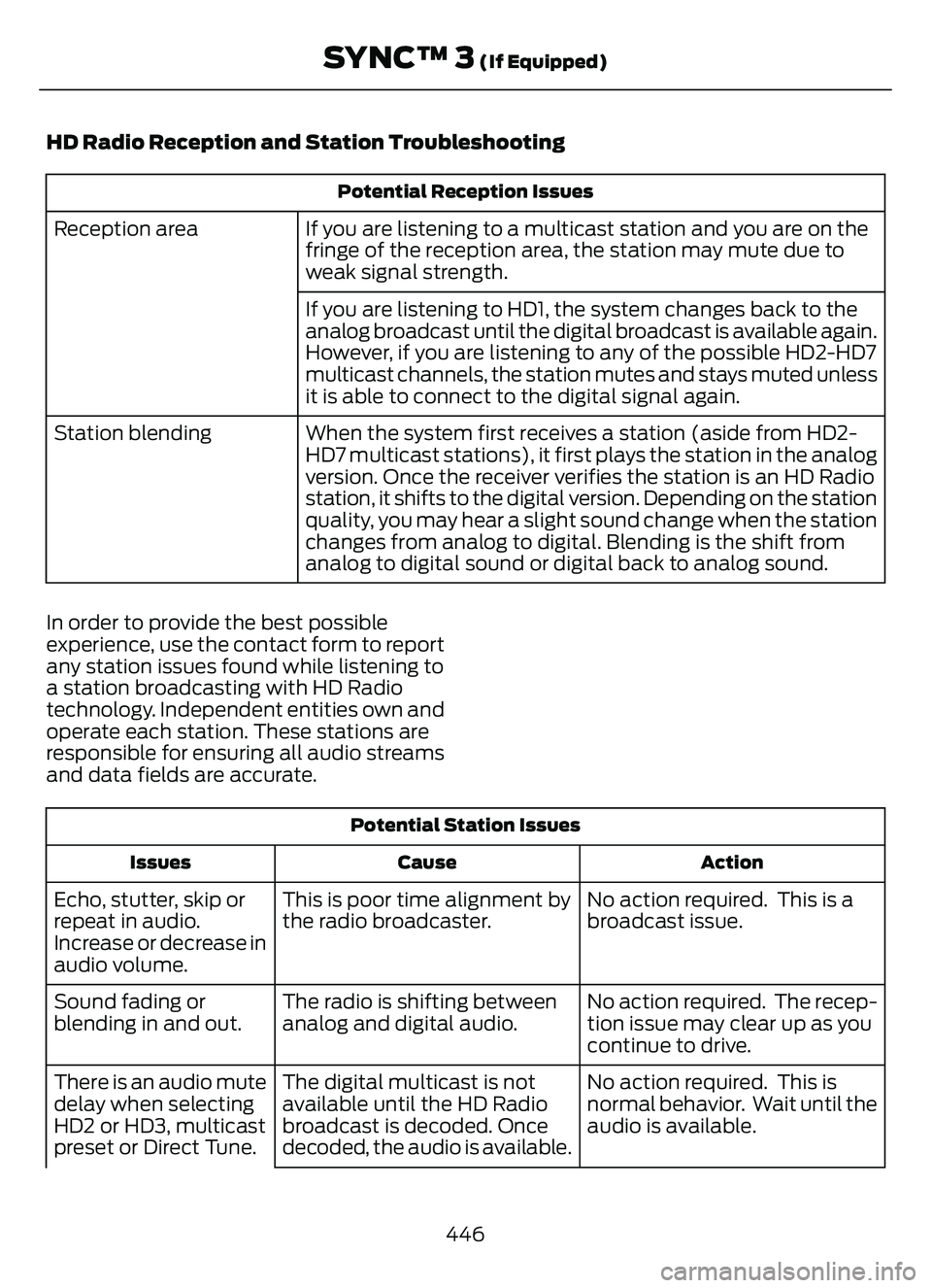
HD Radio Reception and Station Troubleshooting
Potential Reception Issues
If you are listening to a multicast station and you are on the
fringe of the reception area, the station may mute due to
weak signal strength.
Reception area
If you are listening to HD1, the system changes back to the
analog broadcast until the digital broadcast is available again.
However, if you are listening to any of the possible HD2-HD7
multicast channels, the station mutes and stays muted unless
it is able to connect to the digital signal again.
When the system first receives a station (aside from HD2-
HD7 multicast stations), it first plays the station in the analog
version. Once the receiver verifies the station is an HD Radio
station, it shifts to the digital version. Depending on the station
quality, you may hear a slight sound change when the station
changes from analog to digital. Blending is the shift from
analog to digital sound or digital back to analog sound.
Station blending
In order to provide the best possible
experience, use the contact form to report
any station issues found while listening to
a station broadcasting with HD Radio
technology. Independent entities own and
operate each station. These stations are
responsible for ensuring all audio streams
and data fields are accurate.
Potential Station Issues Action
Cause
Issues
No action required. This is a
broadcast issue.
This is poor time alignment by
the radio broadcaster.
Echo, stutter, skip or
repeat in audio.
Increase or decrease in
audio volume.
No action required. The recep-
tion issue may clear up as you
continue to drive.
The radio is shifting between
analog and digital audio.
Sound fading or
blending in and out.
No action required. This is
normal behavior. Wait until the
audio is available.
The digital multicast is not
available until the HD Radio
broadcast is decoded. Once
decoded, the audio is available.
There is an audio mute
delay when selecting
HD2 or HD3, multicast
preset or Direct Tune.
446
SYNC™ 3 (If Equipped)