display FORD EXPEDITION 2003 2.G Owner's Manual
[x] Cancel search | Manufacturer: FORD, Model Year: 2003, Model line: EXPEDITION, Model: FORD EXPEDITION 2003 2.GPages: 320, PDF Size: 3.67 MB
Page 53 of 320
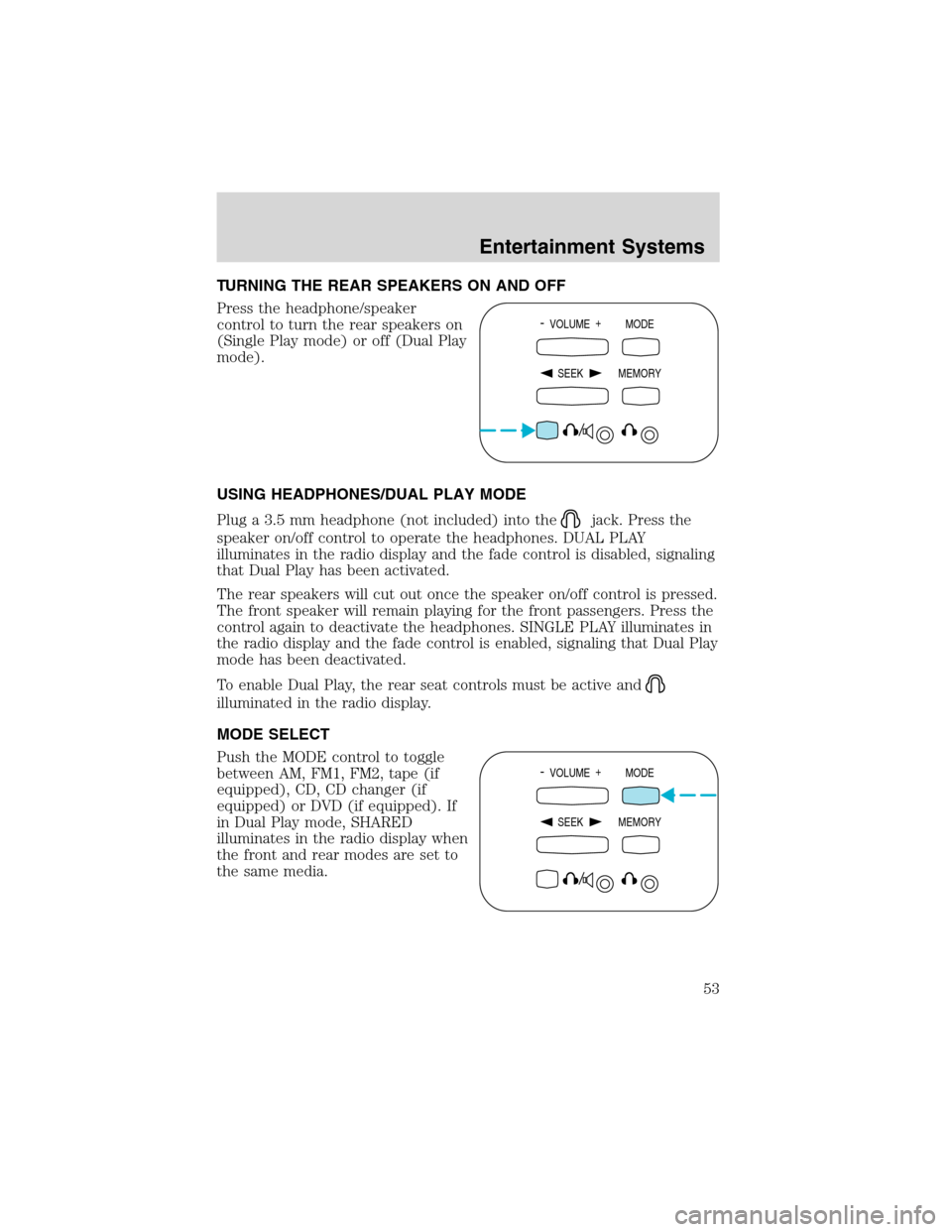
TURNING THE REAR SPEAKERS ON AND OFF
Press the headphone/speaker
control to turn the rear speakers on
(Single Play mode) or off (Dual Play
mode).
USING HEADPHONES/DUAL PLAY MODE
Plug a 3.5 mm headphone (not included) into the
jack. Press the
speaker on/off control to operate the headphones. DUAL PLAY
illuminates in the radio display and the fade control is disabled, signaling
that Dual Play has been activated.
The rear speakers will cut out once the speaker on/off control is pressed.
The front speaker will remain playing for the front passengers. Press the
control again to deactivate the headphones. SINGLE PLAY illuminates in
the radio display and the fade control is enabled, signaling that Dual Play
mode has been deactivated.
To enable Dual Play, the rear seat controls must be active and
illuminated in the radio display.
MODE SELECT
Push the MODE control to toggle
between AM, FM1, FM2, tape (if
equipped), CD, CD changer (if
equipped) or DVD (if equipped). If
in Dual Play mode, SHARED
illuminates in the radio display when
the front and rear modes are set to
the same media.
- VOLUME +
MODE
SEEK MEMORY
- VOLUME +
MODE
SEEK MEMORY
Entertainment Systems
53
Page 56 of 320
CLEANING CASSETTE PLAYER (IF EQUIPPED)
Clean the tape player head with a cassette cleaning cartridge after 10 to
12 hours of play in order to maintain the best sound and operation.
CASSETTE AND CASSETTE PLAYER CARE
•Use only cassettes that are 90 minutes long or less.
•Do not expose tapes to direct sunlight, high humidity, extreme heat or
extreme cold. Allow tapes that may have been exposed to extreme
temperatures to reach a moderate temperature before playing.
•Tighten very loose tapes by inserting a finger or pencil into the hole
and turning the hub.
•Remove loose labels before inserting tapes.
•Do not leave tapes in the cassette player for a long time when not
being played.
RADIO FREQUENCY INFORMATION
The Federal Communications Commission (FCC) and the Canadian Radio
and Telecommunications Commission(CRTC) establish the frequencies
AM and FM stations may use for their broadcasts. Allowable frequencies
are:
AM 530, 540–1600, 1610 kHz
FM 87.7, 87.9–107.7, 107.9 MHz
Not all frequencies are used in a given area.
RADIO RECEPTION FACTORS
Three factors can affect radio reception:
•Distance/strength.The further an FM signal travels, the weaker it is.
The listenable range of the average FM station is approximately 40 km
(24 miles). This range can be affected by“signal modulation.”Signal
modulation is a process radio stations use to increase their
strength/volume relative to other stations.
•Terrain.Hills, mountains and tall buildings between your vehicle’s
antenna and the radio station signal can cause FM reception problems.
Static can be caused on AM stations by power lines, electric fences,
traffic lights and thunderstorms. Moving away from an interfering
structure (out of its“shadow”) returns your reception to normal.
•Station overload.Weak signals are sometimes captured by stronger
signals when you pass a broadcast tower. A stronger signal may
temporarily overtake a weaker signal and play while the weak station
frequency is displayed.
Entertainment Systems
56
Page 58 of 320
3.DIMcontrol
Adjust to increase (+) or decrease (-) the amount of brightness on the
screen.
4.ENTERcontrol
Press to select the function pointed to within the active menu. May also
be used by some user interactive discs during movie play.
5.MENUcontrol
Press to bring up the disc menu.
6.AUXcontrol
Press to switch DVD player from play mode to auxiliary mode.
7.Auxiliary jacks
Insert lines for standard video game players.
8.STOP/EJECTcontrol
Press once to stop DVD play. Press again to eject the DVD.
9.DISPLAY (DISP)control
Press to enable on screen display of player menu and user display
adjustments.
DVD control features
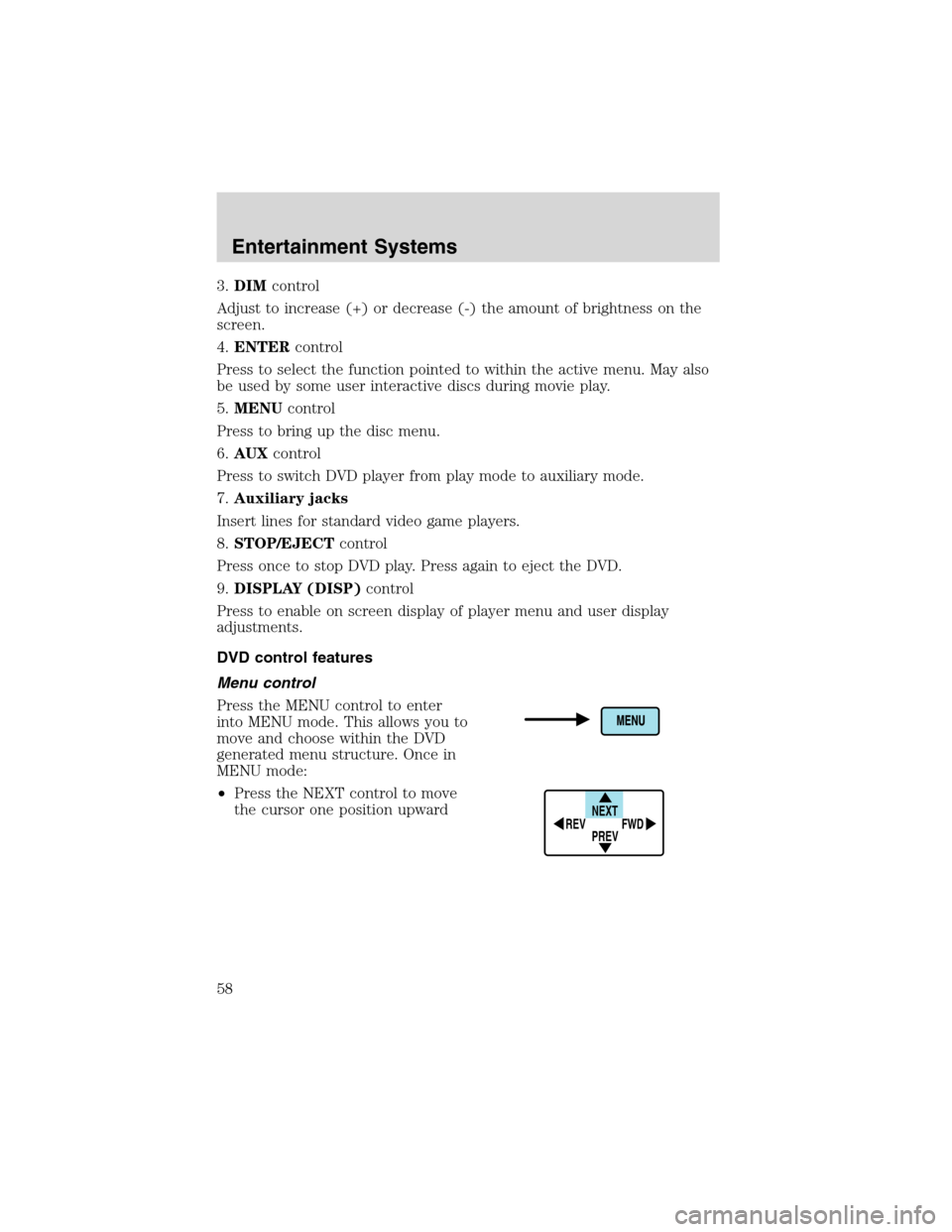
Menu control
Press the MENU control to enter
into MENU mode. This allows you to
move and choose within the DVD
generated menu structure. Once in
MENU mode:
•Press the NEXT control to move
the cursor one position upward
NEXT
PREV REV
FWD
Entertainment Systems
58
Page 60 of 320
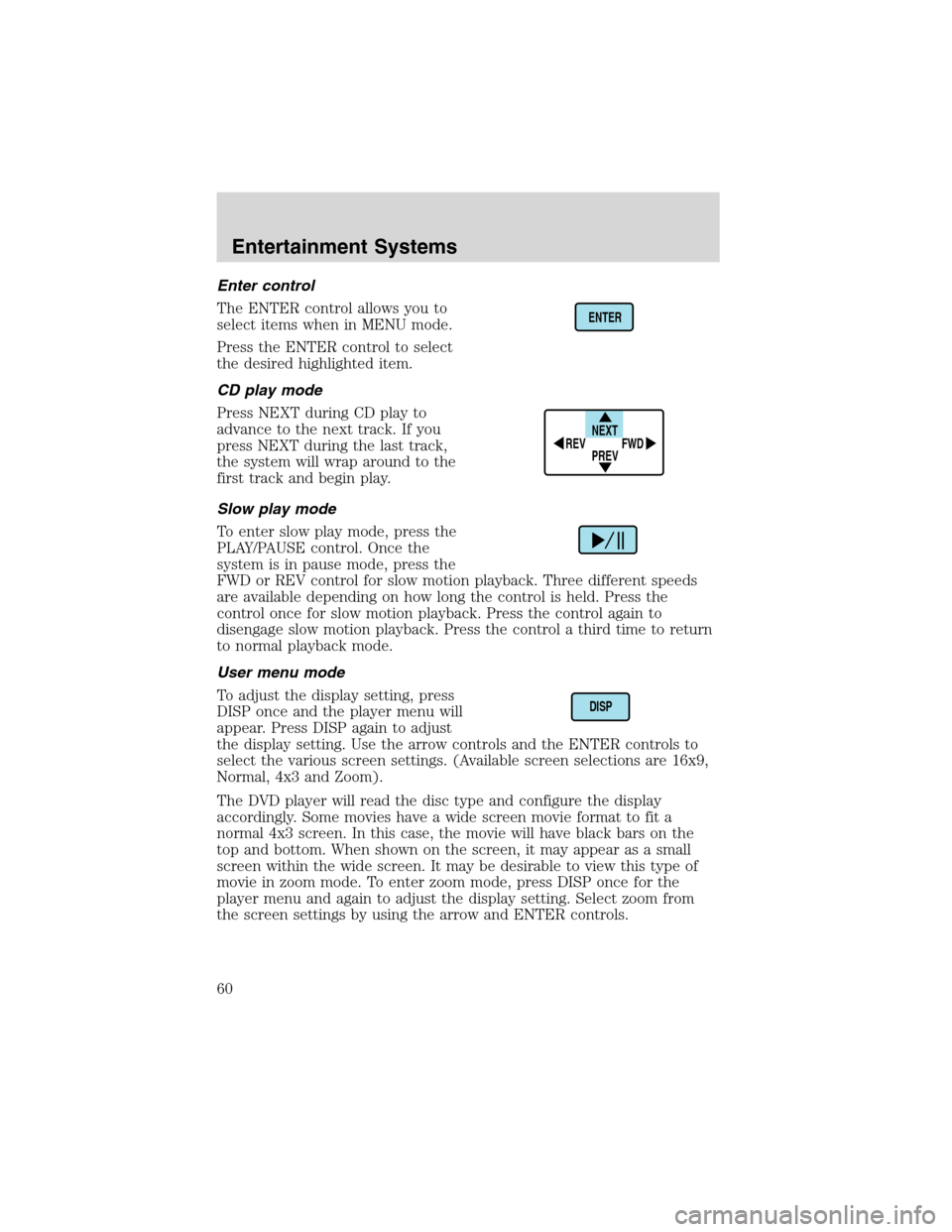
Enter control
The ENTER control allows you to
select items when in MENU mode.
Press the ENTER control to select
the desired highlighted item.
CD play mode
Press NEXT during CD play to
advance to the next track. If you
press NEXT during the last track,
the system will wrap around to the
first track and begin play.
Slow play mode
To enter slow play mode, press the
PLAY/PAUSE control. Once the
system is in pause mode, press the
FWD or REV control for slow motion playback. Three different speeds
are available depending on how long the control is held. Press the
control once for slow motion playback. Press the control again to
disengage slow motion playback. Press the control a third time to return
to normal playback mode.
User menu mode
To adjust the display setting, press
DISP once and the player menu will
appear. Press DISP again to adjust
the display setting. Use the arrow controls and the ENTER controls to
select the various screen settings. (Available screen selections are 16x9,
Normal, 4x3 and Zoom).
The DVD player will read the disc type and configure the display
accordingly. Some movies have a wide screen movie format to fit a
normal 4x3 screen. In this case, the movie will have black bars on the
top and bottom. When shown on the screen, it may appear as a small
screen within the wide screen. It may be desirable to view this type of
movie in zoom mode. To enter zoom mode, press DISP once for the
player menu and again to adjust the display setting. Select zoom from
the screen settings by using the arrow and ENTER controls.
ENTER
NEXT
PREV REV
FWD
DISP
Entertainment Systems
60
Page 61 of 320
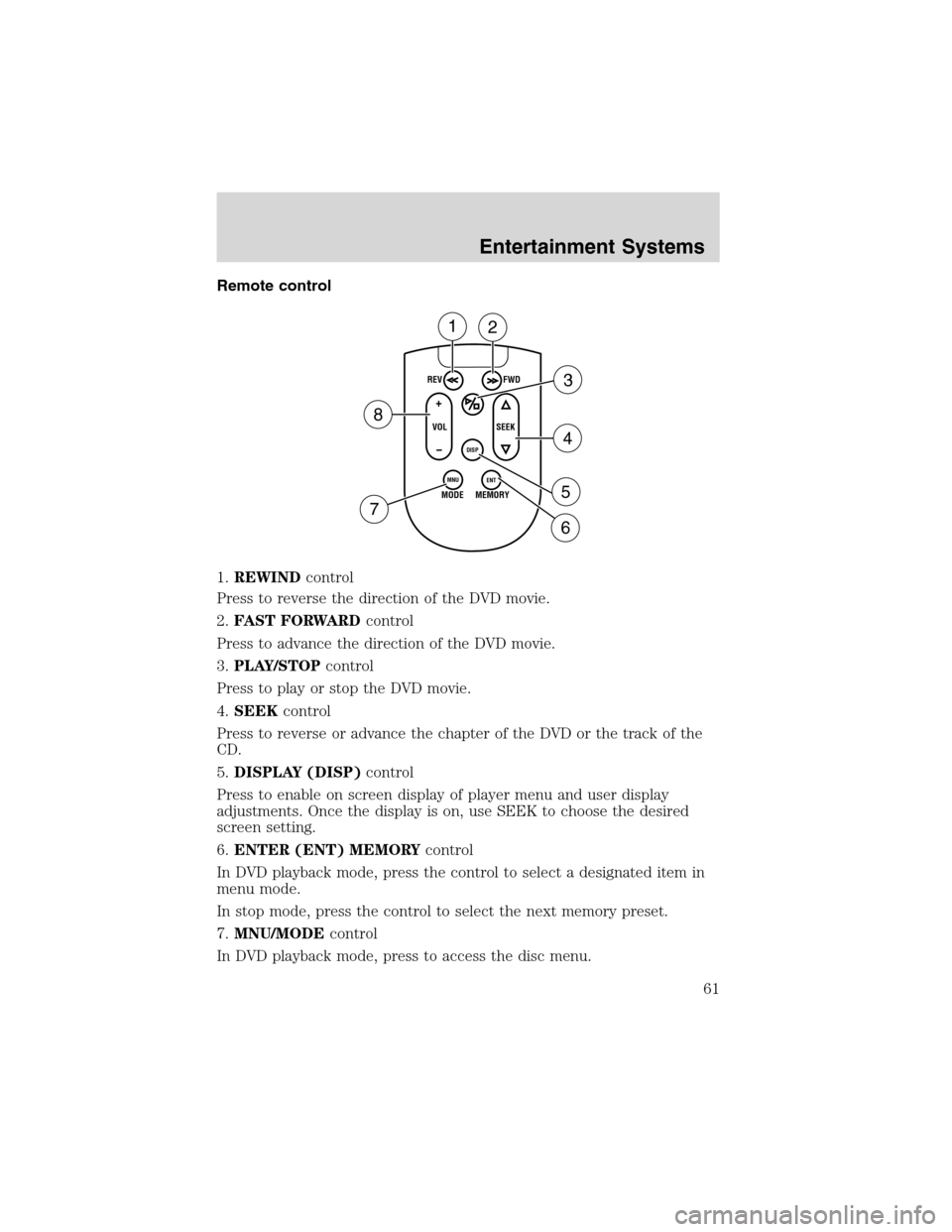
Remote control
1.REWINDcontrol
Press to reverse the direction of the DVD movie.
2.FAST FORWARDcontrol
Press to advance the direction of the DVD movie.
3.PLAY/STOPcontrol
Press to play or stop the DVD movie.
4.SEEKcontrol
Press to reverse or advance the chapter of the DVD or the track of the
CD.
5.DISPLAY (DISP)control
Press to enable on screen display of player menu and user display
adjustments. Once the display is on, use SEEK to choose the desired
screen setting.
6.ENTER (ENT) MEMORYcontrol
In DVD playback mode, press the control to select a designated item in
menu mode.
In stop mode, press the control to select the next memory preset.
7.MNU/MODEcontrol
In DVD playback mode, press to access the disc menu.
REV
FWD
SEEK VOL
MODE
MEMORY
+
DISP
MNU
ENT-
12
3
4
5
6 7
8
Entertainment Systems
61
Page 63 of 320
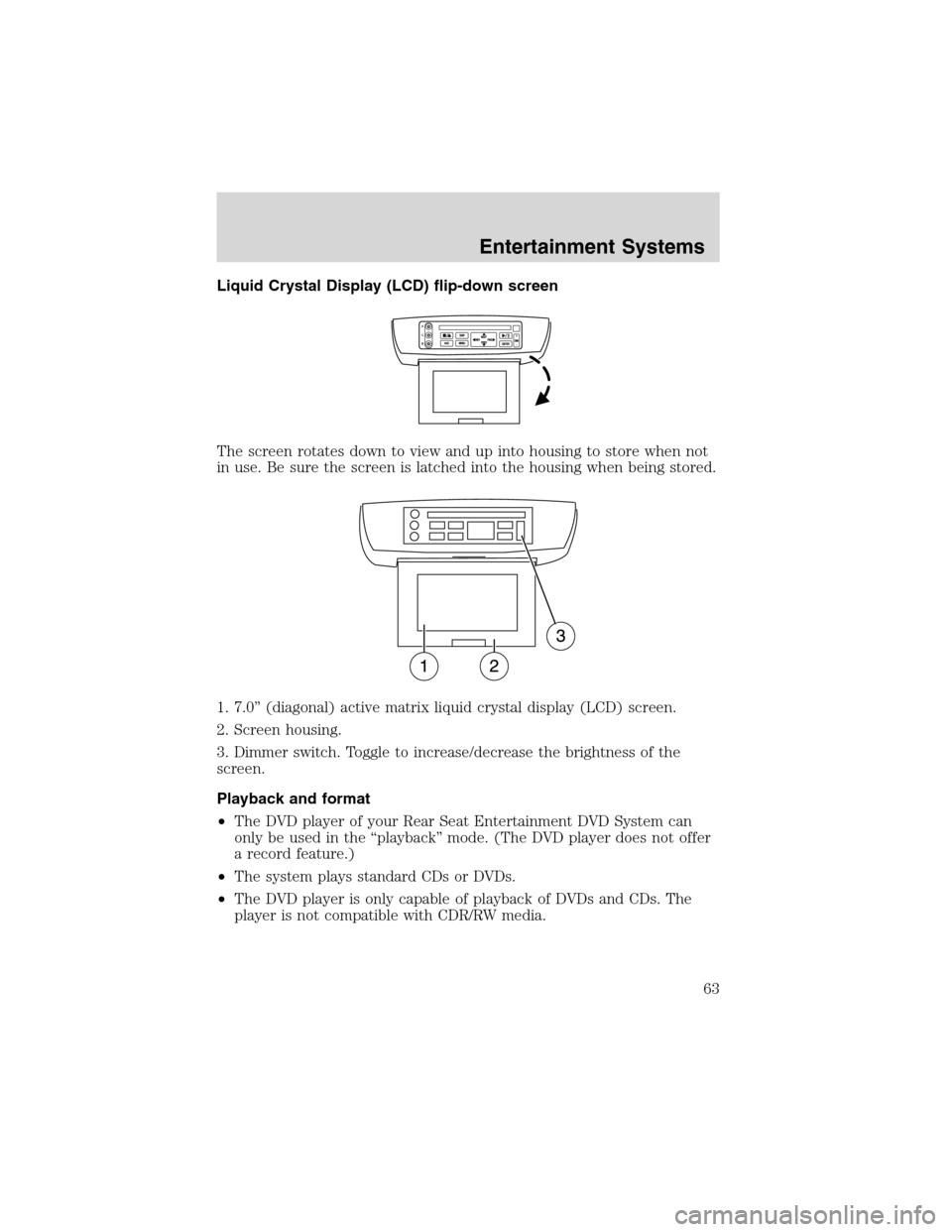
Liquid Crystal Display (LCD) flip-down screen
The screen rotates down to view and up into housing to store when not
in use. Be sure the screen is latched into the housing when being stored.
1. 7.0”(diagonal) active matrix liquid crystal display (LCD) screen.
2. Screen housing.
3. Dimmer switch. Toggle to increase/decrease the brightness of the
screen.
Playback and format
•The DVD player of your Rear Seat Entertainment DVD System can
only be used in the“playback”mode. (The DVD player does not offer
a record feature.)
•The system plays standard CDs or DVDs.
•The DVD player is only capable of playback of DVDs and CDs. The
player is not compatible with CDR/RW media.
Entertainment Systems
63
Page 64 of 320
Rear Seat Entertainment DVD System protection circuits
High temperature sensor circuit
•Excessively high temperatures may cause damage to the DVD player.
•When the temperature of the DVD player becomes too hot, the high
temperature sensor circuit stops machine operation. DVD/CD will
illuminate in the radio display.
General operating tips
•When the engine is not running, use the system sparingly otherwise it
will run the battery down.
•When the ignition is turned to OFF, the Rear Seat Entertainment DVD
System is also turned OFF. When the ignition is turned ON, the
system will begin playback from the last selected media source when
the play control is pressed.
•To disable the DVD player, simultaneously press the 3 and 5 memory
presets on the radio face. To enable the DVD player again, press the 3
and 5 presets simultaneously.
•The DVD player is only capable of reading the bottom side of a disc.
When inserting a single sided disc, the label should be up. For a
multi-sided disc, the desired play side should be down when the disc
is inserted into the player.
•The DVD player is only capable of playback of DVDs and CDs. The
player is not compatible with CDR/RW media.
•DVDs are formatted by regions. This DVD system can only play region
1 DVDs (DVDs manufactured in U.S and Canada).
This unit is designed to play commercially pressed 12 cm (4.75
in) audio compact discs and DVDs only. Due to technical
incompatibility, certain recordable and re-recordable compact
discs may not function correctly when used in Ford DVD/CD
players. Irregular shaped discs, discs with a scratch protection
film attached, and discs with homemade paper (adhesive) labels
should not be inserted into the player. The label may peel and
cause the disc to become jammed. It is recommended that
homemade discs be identified with permanent felt tip marker
rather than adhesive labels. Ball point pens may damage discs.
Please contact your dealer for further information.
Entertainment Systems
64
Page 65 of 320
Inserting a CD/DVD
Inserting a CD/DVD into the DVD player automatically turns the power
ON and playback should begin.
The counter is automatically reset to 0:00:00.
Ensure that the overhead screen is down for viewing.
Removing a CD/DVD
1. Press the STOP/EJECT control to stop playback.
2. Press the STOP/EJECT control again to eject the CD/DVD.
If the CD/DVD is not removed within the allotted time, the system will
pull the CD/DVD back into the system for safety purposes. If the
CD/DVD will not eject from the system, press and hold the EJECT
control for approximately 2 seconds. The disc should eject whether the
vehicle ignition is ON or OFF.
Playing a video game/auxiliary device
1. Connect the video line from your video game device to the YELLOW
auxiliary input jack.
2. Connect the left and right audio lines to the WHITE and RED auxiliary
input jacks respectively.
3. Press the MODE control until DVD/CD AUX (no disc in player) or
DVD/CD play (disc in player) illuminates in the radio display. If a disc is
in the system, playback should begin. To enable the aux inputs, press the
STOP control or press the AUX control on the DVD player.
Entertainment Systems
65
Page 66 of 320
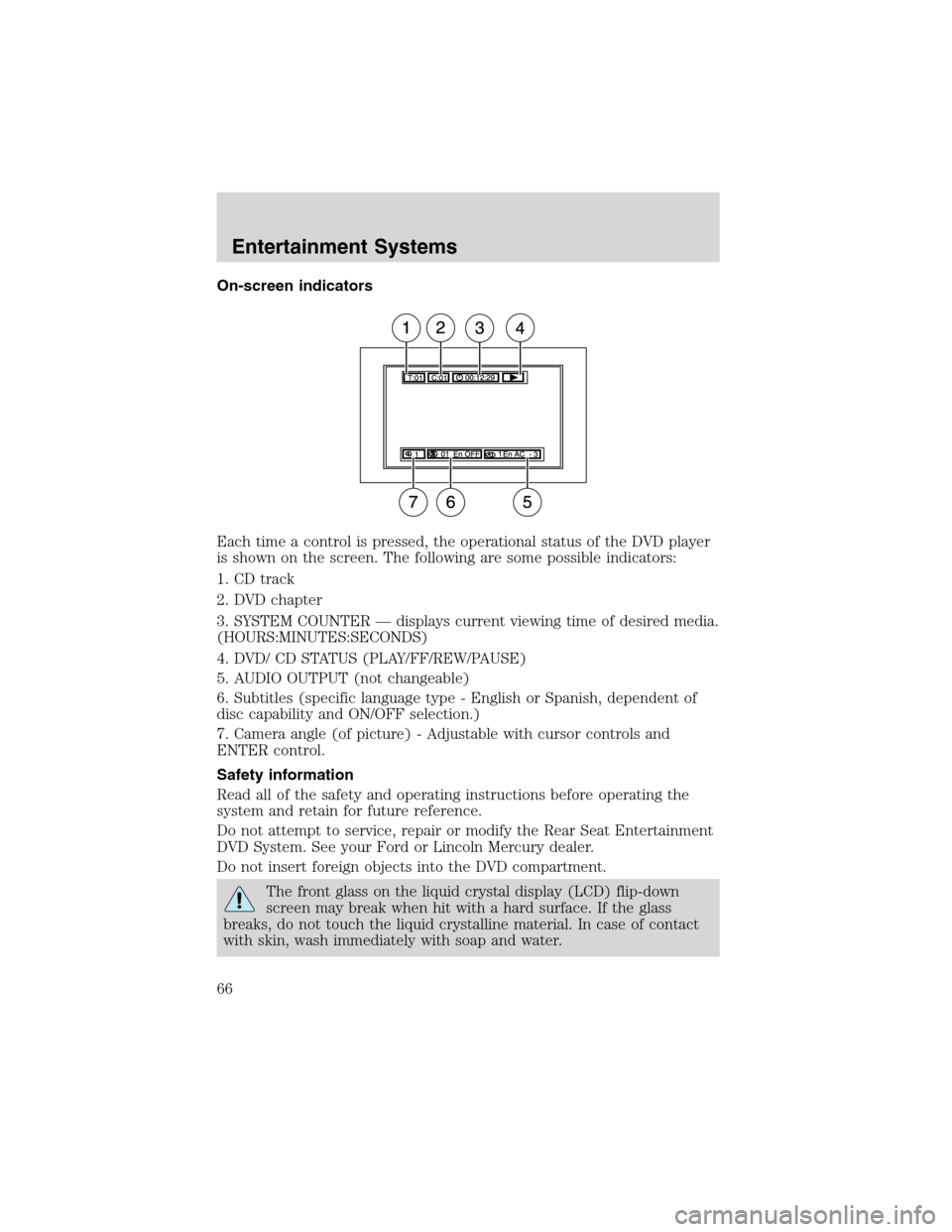
On-screen indicators
Each time a control is pressed, the operational status of the DVD player
is shown on the screen. The following are some possible indicators:
1. CD track
2. DVD chapter
3. SYSTEM COUNTER—displays current viewing time of desired media.
(HOURS:MINUTES:SECONDS)
4. DVD/ CD STATUS (PLAY/FF/REW/PAUSE)
5. AUDIO OUTPUT (not changeable)
6. Subtitles (specific language type - English or Spanish, dependent of
disc capability and ON/OFF selection.)
7. Camera angle (of picture) - Adjustable with cursor controls and
ENTER control.
Safety information
Read all of the safety and operating instructions before operating the
system and retain for future reference.
Do not attempt to service, repair or modify the Rear Seat Entertainment
DVD System. See your Ford or Lincoln Mercury dealer.
Do not insert foreign objects into the DVD compartment.
The front glass on the liquid crystal display (LCD) flip-down
screen may break when hit with a hard surface. If the glass
breaks, do not touch the liquid crystalline material. In case of contact
with skin, wash immediately with soap and water.
Entertainment Systems
66
Page 67 of 320
Do not expose the liquid crystal display (LCD) flip-down screen
to direct sunlight or intensive ultraviolet rays for extensive
periods of time. Ultraviolet rays deteriorate the liquid crystal.
Be sure to review User Manuals for video games and video game
equipment when used as auxiliary inputs for your Rear Seat
Entertainment DVD System.
Do not operate video games or video equipment if the power cords
and/or cables are broken, split or damaged. Carefully place cords and/or
cables where they will not be stepped on or interfere with the operation
of seats and/or compartments.
Disconnect video games and video equipment power cords and/or cables
when not in use.
Avoid touching auxiliary input jacks with your fingers. Do not blow on
them or allow them to get wet or dirty.
Do not clean any part of the DVD layer with benzene, paint thinner or
any other solvent.
Federal Communication Commission (FCC) Compliance
Changes or modifications not approved by Ford Motor Company could
void user’s authority to operate the equipment. This equipment has been
tested and found to comply with the limits for a Class B digital device,
pursuant to Part 15 of the FCC Rules. These limits are designed to
provide reasonable protection against harmful interference in a residential
installation. This equipment generates, uses and can radiate radio
frequency energy and, if not installed and used in accordance with the
instructions, may cause harmful interference and radio communications.
However, there is no guarantee that interference will not occur in a
particular installation. If this equipment does cause harmful interference
to radio or television reception, which can be determined by turning the
equipment off and on, the user is encouraged to consult the dealer or an
experienced radio/TV technician for help.
Care and service of the DVD player
Environmental extremes
DVD players that are subjected to harsh environmental conditions may
be damaged or perform at less than maximum capability. To avoid these
outcomes, whenever possible avoid exposing your DVD player to:
•extremely hot or cold temperatures.
•direct sunlight.
Entertainment Systems
67