ECO mode FORD EXPEDITION 2005 2.G User Guide
[x] Cancel search | Manufacturer: FORD, Model Year: 2005, Model line: EXPEDITION, Model: FORD EXPEDITION 2005 2.GPages: 368, PDF Size: 11.76 MB
Page 44 of 368
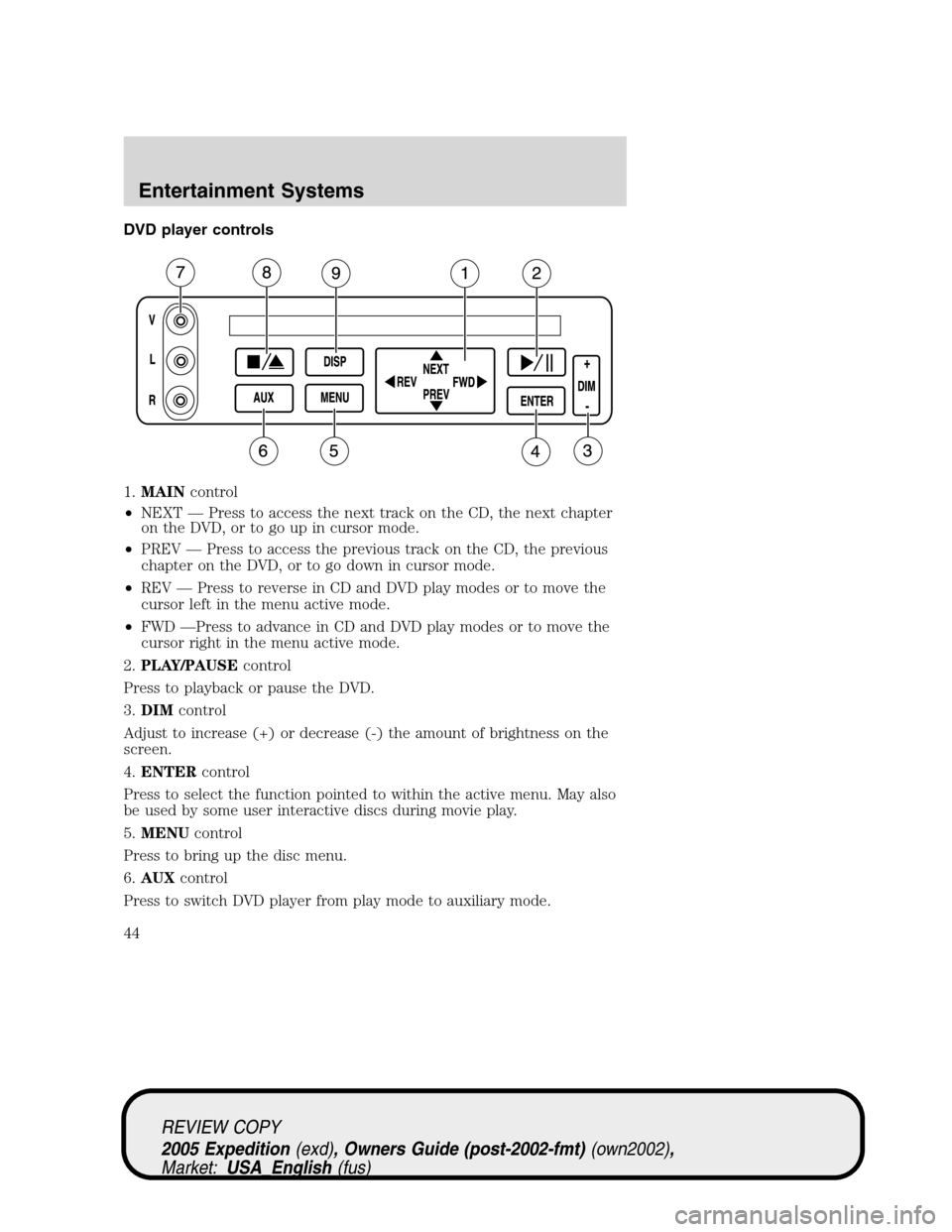
DVD player controls
1.MAINcontrol
•NEXT — Press to access the next track on the CD, the next chapter
on the DVD, or to go up in cursor mode.
•PREV — Press to access the previous track on the CD, the previous
chapter on the DVD, or to go down in cursor mode.
•REV — Press to reverse in CD and DVD play modes or to move the
cursor left in the menu active mode.
•FWD —Press to advance in CD and DVD play modes or to move the
cursor right in the menu active mode.
2.PLAY/PAUSEcontrol
Press to playback or pause the DVD.
3.DIMcontrol
Adjust to increase (+) or decrease (-) the amount of brightness on the
screen.
4.ENTERcontrol
Press to select the function pointed to within the active menu. May also
be used by some user interactive discs during movie play.
5.MENUcontrol
Press to bring up the disc menu.
6.AUXcontrol
Press to switch DVD player from play mode to auxiliary mode.
REVIEW COPY
2005 Expedition(exd), Owners Guide (post-2002-fmt)(own2002),
Market:USA_English(fus)
Entertainment Systems
44
Page 47 of 368
Slow play mode
To enter slow play mode, press the
PLAY/PAUSE control. Once the
system is in pause mode, press the
FWD or REV control for slow motion playback. Three different speeds
are available depending on how long the control is held. Press the
control once for slow motion playback. Press the control again to
disengage slow motion playback. Press the PLAY/PAUSE control to
return to normal playback mode.
User menu mode
To adjust the display setting, press
DISP once and the current display
setting will appear on the screen
along with the current media status. Pressing DISP again will toggle the
display setting through the next available display settings. (Available
screen selections are 4x3, ZOOM, and 16x9.) The setting will disappear
after approximately three seconds, but the title bar and audio setting will
remain on the screen until DISP is pressed again.
The DVD player will read the disc type and configure the display
accordingly. Some movies have a wide screen movie format to fit a
normal 4x3 screen. In this case, the movie will have black bars on the
top and bottom or left and right of the image on the screen. When
shown on the screen, it may appear as a small screen within the wide
screen. It may be desirable to view this type of movie in ZOOM mode. To
enter ZOOM mode, press DISP once for the current display setting and
press DISP again within three seconds to change the display setting to
the desired display setting.
DISP
REVIEW COPY
2005 Expedition(exd), Owners Guide (post-2002-fmt)(own2002),
Market:USA_English(fus)
Entertainment Systems
47
Page 48 of 368
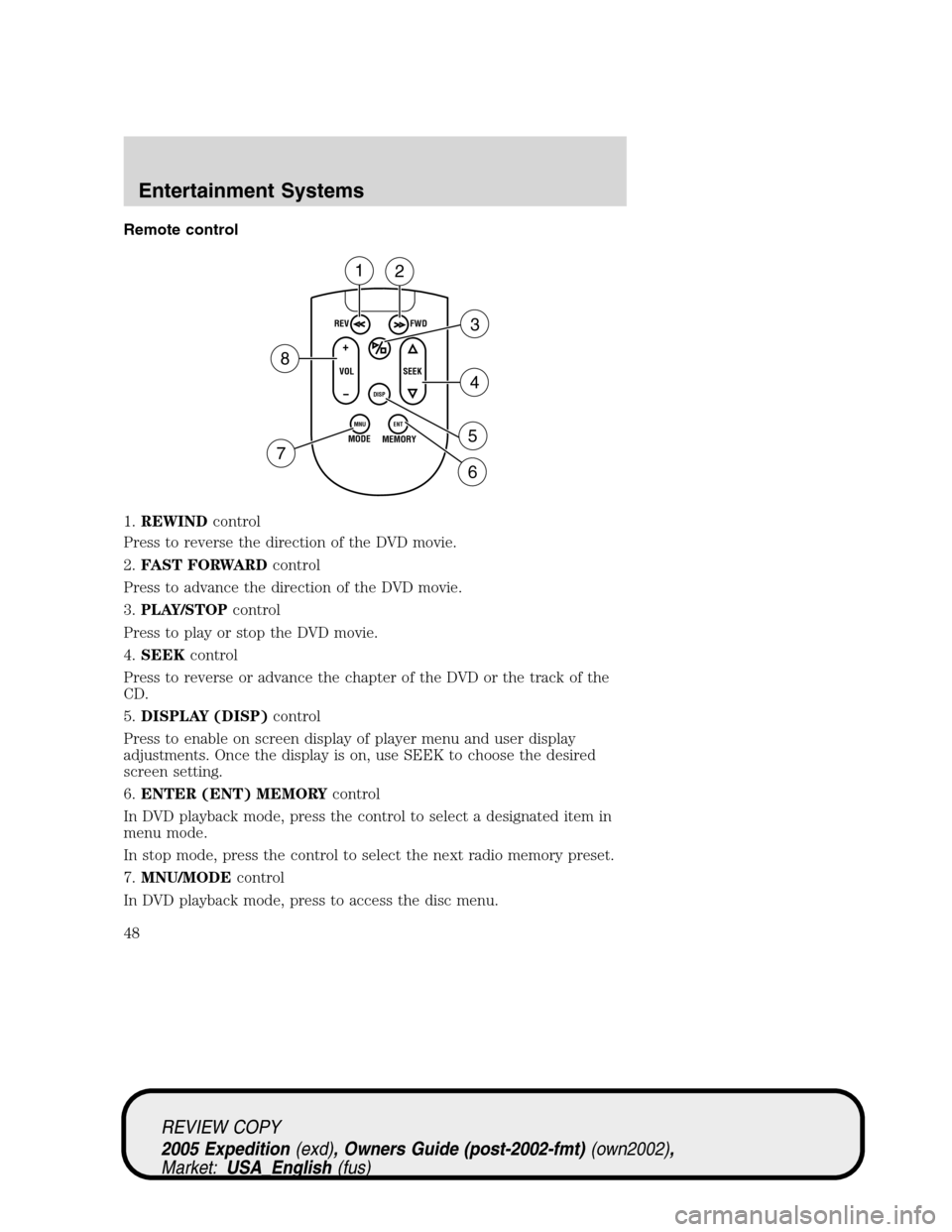
Remote control
1.REWINDcontrol
Press to reverse the direction of the DVD movie.
2.FAST FORWARDcontrol
Press to advance the direction of the DVD movie.
3.PLAY/STOPcontrol
Press to play or stop the DVD movie.
4.SEEKcontrol
Press to reverse or advance the chapter of the DVD or the track of the
CD.
5.DISPLAY (DISP)control
Press to enable on screen display of player menu and user display
adjustments. Once the display is on, use SEEK to choose the desired
screen setting.
6.ENTER (ENT) MEMORYcontrol
In DVD playback mode, press the control to select a designated item in
menu mode.
In stop mode, press the control to select the next radio memory preset.
7.MNU/MODEcontrol
In DVD playback mode, press to access the disc menu.
REV
FWD
SEEK VOL
MODE
MEMORY
+
DISP
MNU
ENT-
12
3
4
5
6 7
8
REVIEW COPY
2005 Expedition(exd), Owners Guide (post-2002-fmt)(own2002),
Market:USA_English(fus)
Entertainment Systems
48
Page 49 of 368
In stop mode, press to change to a different playing media (e.g. AM, FM,
CD...)
8.VOLUMEcontrol
Press to increase (+) or decrease (-) volume level.
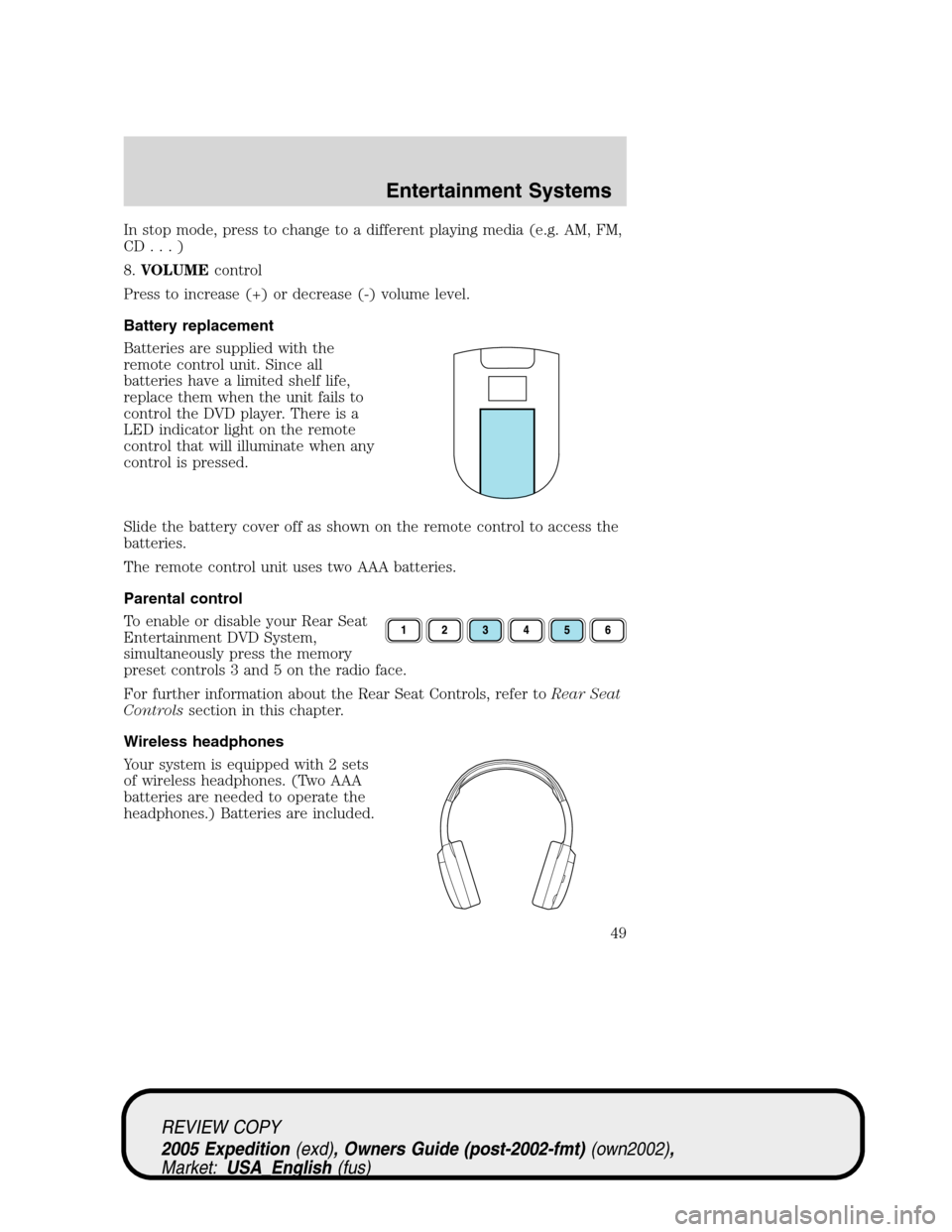
Battery replacement
Batteries are supplied with the
remote control unit. Since all
batteries have a limited shelf life,
replace them when the unit fails to
control the DVD player. There is a
LED indicator light on the remote
control that will illuminate when any
control is pressed.
Slide the battery cover off as shown on the remote control to access the
batteries.
The remote control unit uses two AAA batteries.
Parental control
To enable or disable your Rear Seat
Entertainment DVD System,
simultaneously press the memory
preset controls 3 and 5 on the radio face.
For further information about the Rear Seat Controls, refer toRear Seat
Controlssection in this chapter.
Wireless headphones
Your system is equipped with 2 sets
of wireless headphones. (Two AAA
batteries are needed to operate the
headphones.) Batteries are included.
REVIEW COPY
2005 Expedition(exd), Owners Guide (post-2002-fmt)(own2002),
Market:USA_English(fus)
Entertainment Systems
49
Page 51 of 368
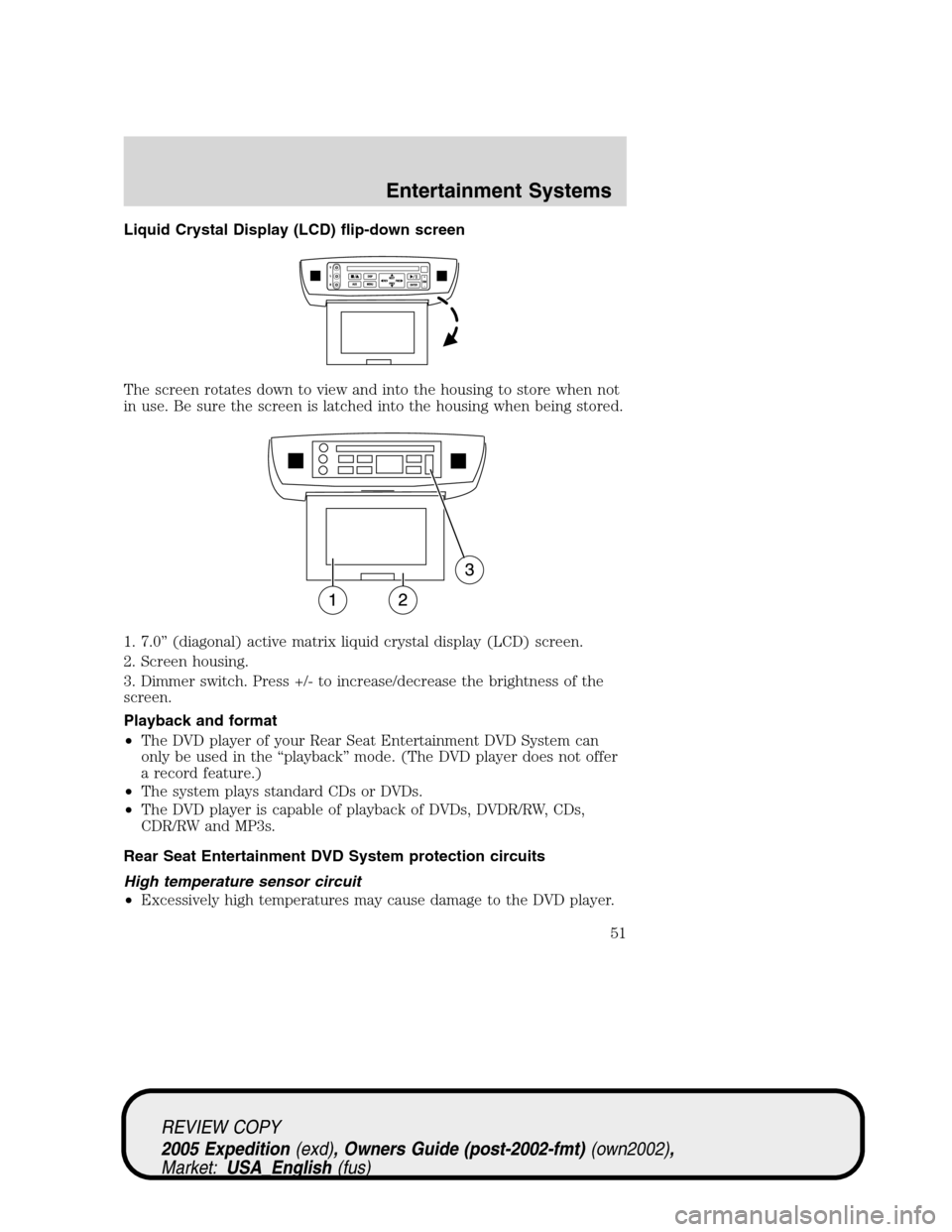
Liquid Crystal Display (LCD) flip-down screen
The screen rotates down to view and into the housing to store when not
in use. Be sure the screen is latched into the housing when being stored.
1. 7.0” (diagonal) active matrix liquid crystal display (LCD) screen.
2. Screen housing.
3. Dimmer switch. Press +/- to increase/decrease the brightness of the
screen.
Playback and format
•The DVD player of your Rear Seat Entertainment DVD System can
only be used in the “playback” mode. (The DVD player does not offer
a record feature.)
•The system plays standard CDs or DVDs.
•The DVD player is capable of playback of DVDs, DVDR/RW, CDs,
CDR/RW and MP3s.
Rear Seat Entertainment DVD System protection circuits
High temperature sensor circuit
•Excessively high temperatures may cause damage to the DVD player.
REVIEW COPY
2005 Expedition(exd), Owners Guide (post-2002-fmt)(own2002),
Market:USA_English(fus)
Entertainment Systems
51
Page 53 of 368
Inserting a CD/DVD into the DVD player automatically turns the power
ON and playback should begin.
The counter is automatically reset to 0:00:00.
Removing a CD/DVD
1. Press the STOP/EJECT control to stop playback.
2. Press the STOP/EJECT control again to eject the CD/DVD.
If the CD/DVD is not removed within the allotted time, the system will
pull the CD/DVD back into the system for safety purposes. If the
CD/DVD will not eject from the system, press and hold the EJECT
control for approximately 2 seconds. The disc should eject whether the
vehicle ignition is ON or OFF.
Playing a video game/auxiliary device
1. Connect the video line from your video game device to the YELLOW
auxiliary input jack.
2. Connect the left and right audio lines to the WHITE and RED auxiliary
input jacks respectively.
3. Press the MODE control until DVD/CD AUX (no disc in player) or
DVD/CD play (disc in player) illuminates in the radio display. If a disc is
in the system, playback should begin. To enable the aux inputs, press the
STOP control or press the AUX control on the DVD player.
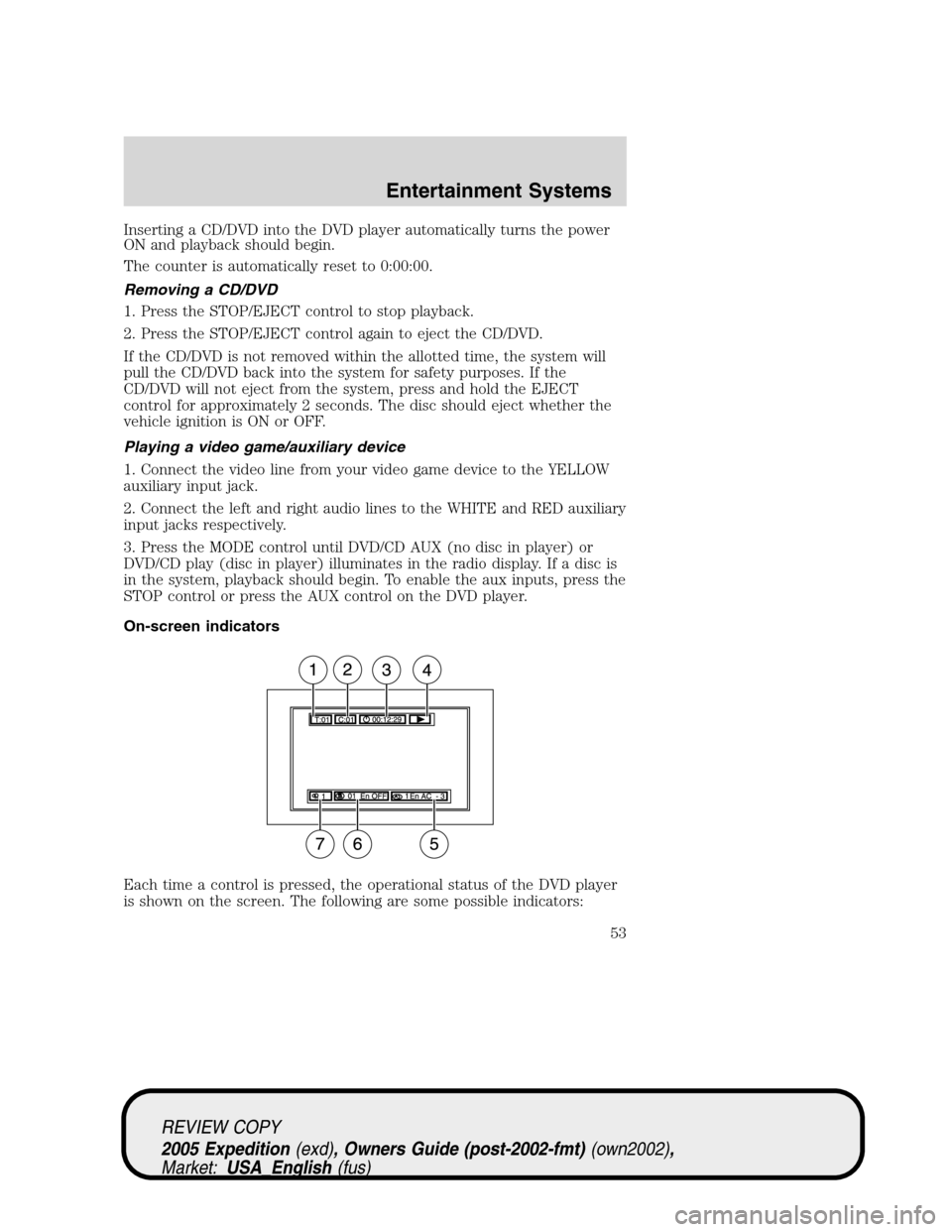
On-screen indicators
Each time a control is pressed, the operational status of the DVD player
is shown on the screen. The following are some possible indicators:
REVIEW COPY
2005 Expedition(exd), Owners Guide (post-2002-fmt)(own2002),
Market:USA_English(fus)
Entertainment Systems
53
Page 67 of 368
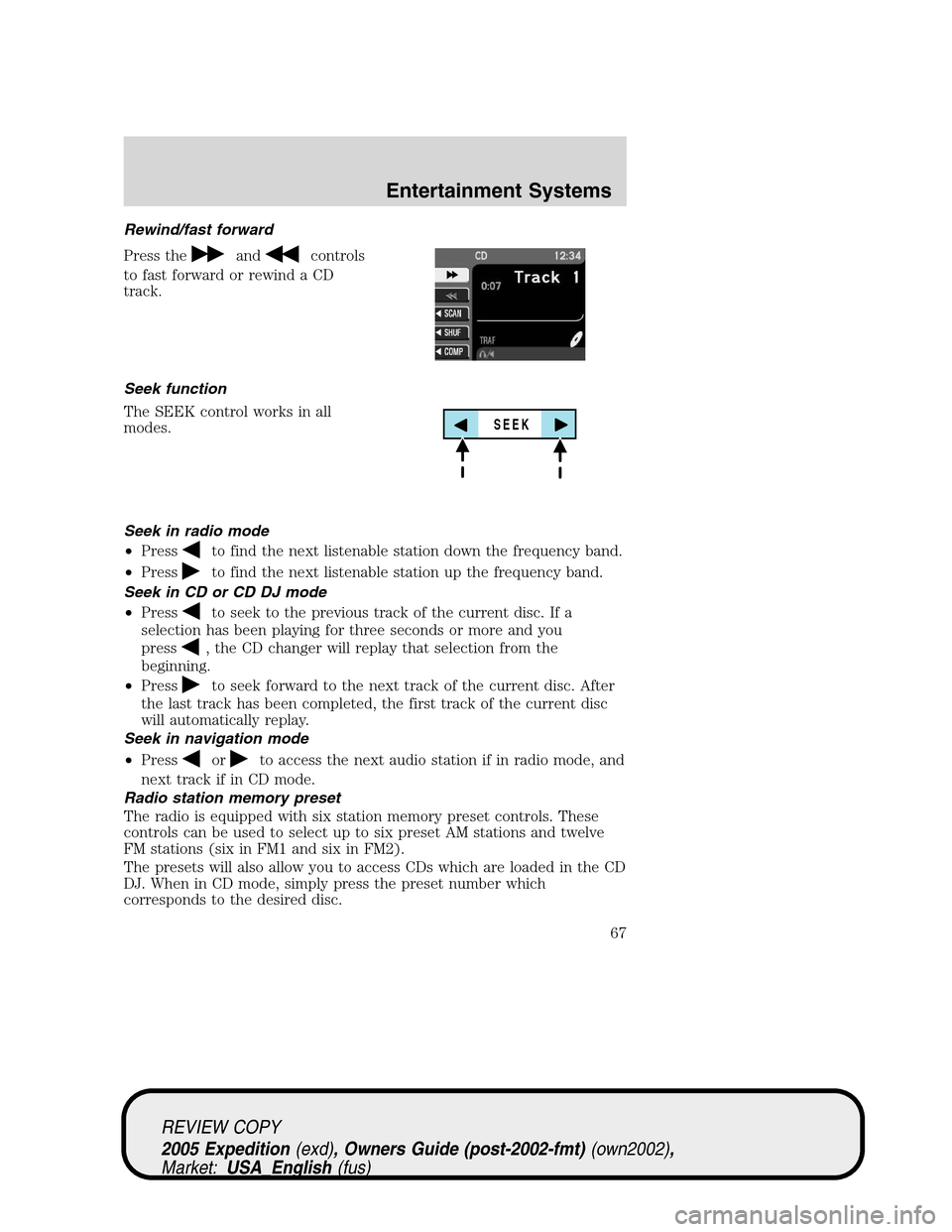
Rewind/fast forward
Press the
andcontrols
to fast forward or rewind a CD
track.
Seek function
The SEEK control works in all
modes.
Seek in radio mode
•Press
to find the next listenable station down the frequency band.
•Press
to find the next listenable station up the frequency band.
Seek in CD or CD DJ mode
•Press
to seek to the previous track of the current disc. If a
selection has been playing for three seconds or more and you
press
, the CD changer will replay that selection from the
beginning.
•Press
to seek forward to the next track of the current disc. After
the last track has been completed, the first track of the current disc
will automatically replay.
Seek in navigation mode
•Press
orto access the next audio station if in radio mode, and
next track if in CD mode.
Radio station memory preset
The radio is equipped with six station memory preset controls. These
controls can be used to select up to six preset AM stations and twelve
FM stations (six in FM1 and six in FM2).
The presets will also allow you to access CDs which are loaded in the CD
DJ. When in CD mode, simply press the preset number which
corresponds to the desired disc.
SEEK
REVIEW COPY
2005 Expedition(exd), Owners Guide (post-2002-fmt)(own2002),
Market:USA_English(fus)
Entertainment Systems
67
Page 69 of 368
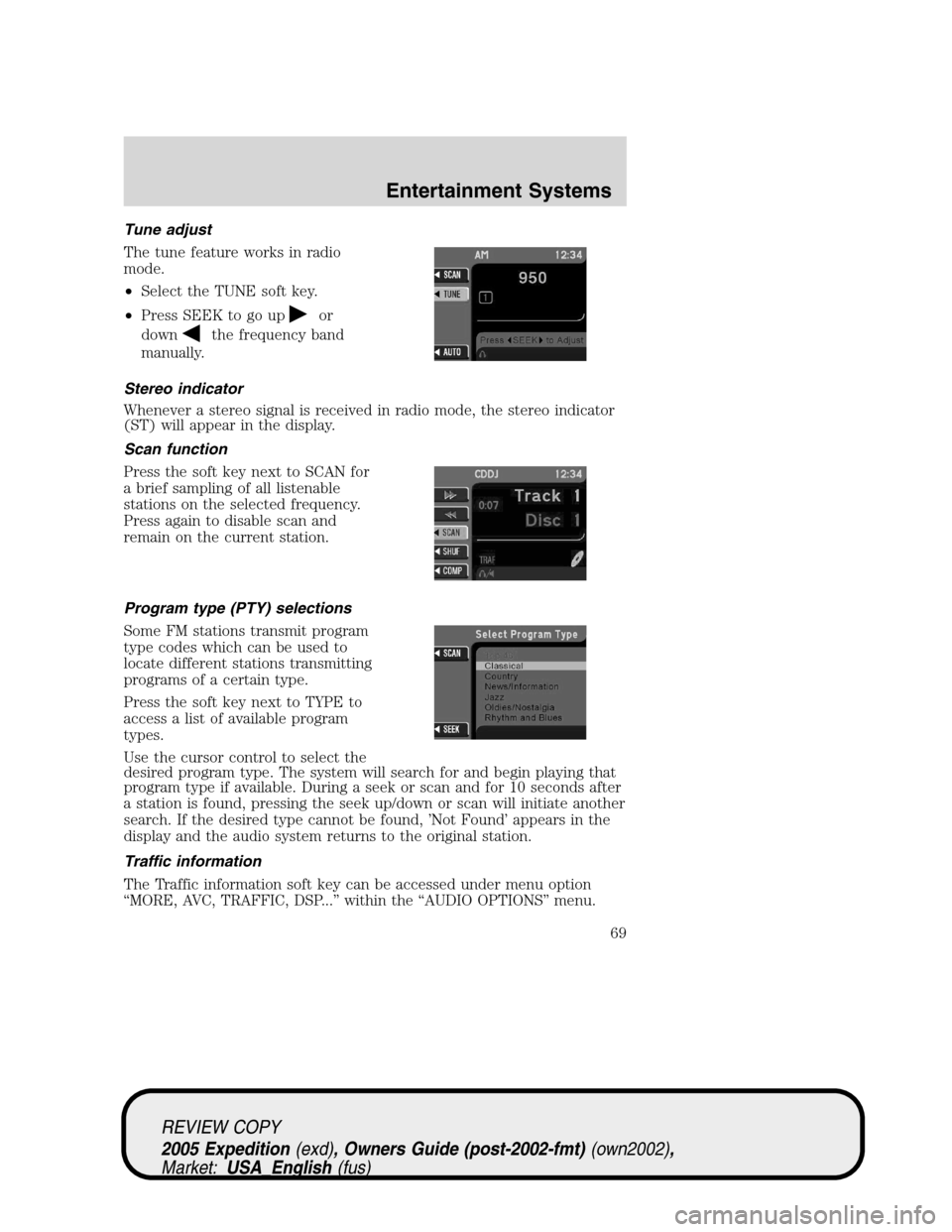
Tune adjust
The tune feature works in radio
mode.
•Select the TUNE soft key.
•Press SEEK to go up
or
down
the frequency band
manually.
Stereo indicator
Whenever a stereo signal is received in radio mode, the stereo indicator
(ST) will appear in the display.
Scan function
Press the soft key next to SCAN for
a brief sampling of all listenable
stations on the selected frequency.
Press again to disable scan and
remain on the current station.
Program type (PTY) selections
Some FM stations transmit program
type codes which can be used to
locate different stations transmitting
programs of a certain type.
Press the soft key next to TYPE to
access a list of available program
types.
Use the cursor control to select the
desired program type. The system will search for and begin playing that
program type if available. During a seek or scan and for 10 seconds after
a station is found, pressing the seek up/down or scan will initiate another
search. If the desired type cannot be found, ’Not Found’ appears in the
display and the audio system returns to the original station.
Traffic information
The Traffic information soft key can be accessed under menu option
“MORE, AVC, TRAFFIC, DSP...” within the “AUDIO OPTIONS” menu.
REVIEW COPY
2005 Expedition(exd), Owners Guide (post-2002-fmt)(own2002),
Market:USA_English(fus)
Entertainment Systems
69
Page 71 of 368
Press the CD control until DVD
appears in the display.
(EJECT) — Press to stop DVD and eject the DVD disc.
(PLAY) / II (PAUSE) — Press to play/pause the DVD. If in play
mode, the DVD will pause when pressed. If in pause mode, the DVD will
play when pressed.
(STOP) / AUX — If a DVD movie is playing, press to stop. If a movie
is not playing, press to activate AUX mode.
CD DJ
Your vehicle is equipped with a CD DJ (CD changer). It is located in the
center console.
Radio power must be turned on to play the CDs in the CD DJ. The
magazine may be stored in the glove box when not being used.
The CD magazine may be inserted or ejected with the radio power off.
ONLY use the magazine supplied with the CD DJ, other types will
damage the unit.
Keep the CD DJ door closed. Coins and foreign objects will damage the
CD player and void your audio system warranty.
The CD magazine does not have to be full (all 6 disks) for the CD DJ to
function.
CD units are designed to play commercially pressed 12 cm (4.75 in)
audio compact discs only. Due to technical incompatibility, certain
recordable and re-recordable compact discs may not function
correctly when used in Ford CD players. Irregular shaped CDs,
CDs with a scratch protection film attached, and CDs with
homemade paper (adhesive) labels should not be inserted into
the CD player. The label may peel and cause the CD to become
jammed. It is recommended that homemade CDs be identified
with permanent felt tip marker rather than adhesive labels. Ball
point pens may damage CDs. Please contact your dealer for
further information.
REVIEW COPY
2005 Expedition(exd), Owners Guide (post-2002-fmt)(own2002),
Market:USA_English(fus)
Entertainment Systems
71
Page 89 of 368
•UNITS — Press to select from miles or kilometers. When Km are
selected, it will affect the map and the fuel economy screen.
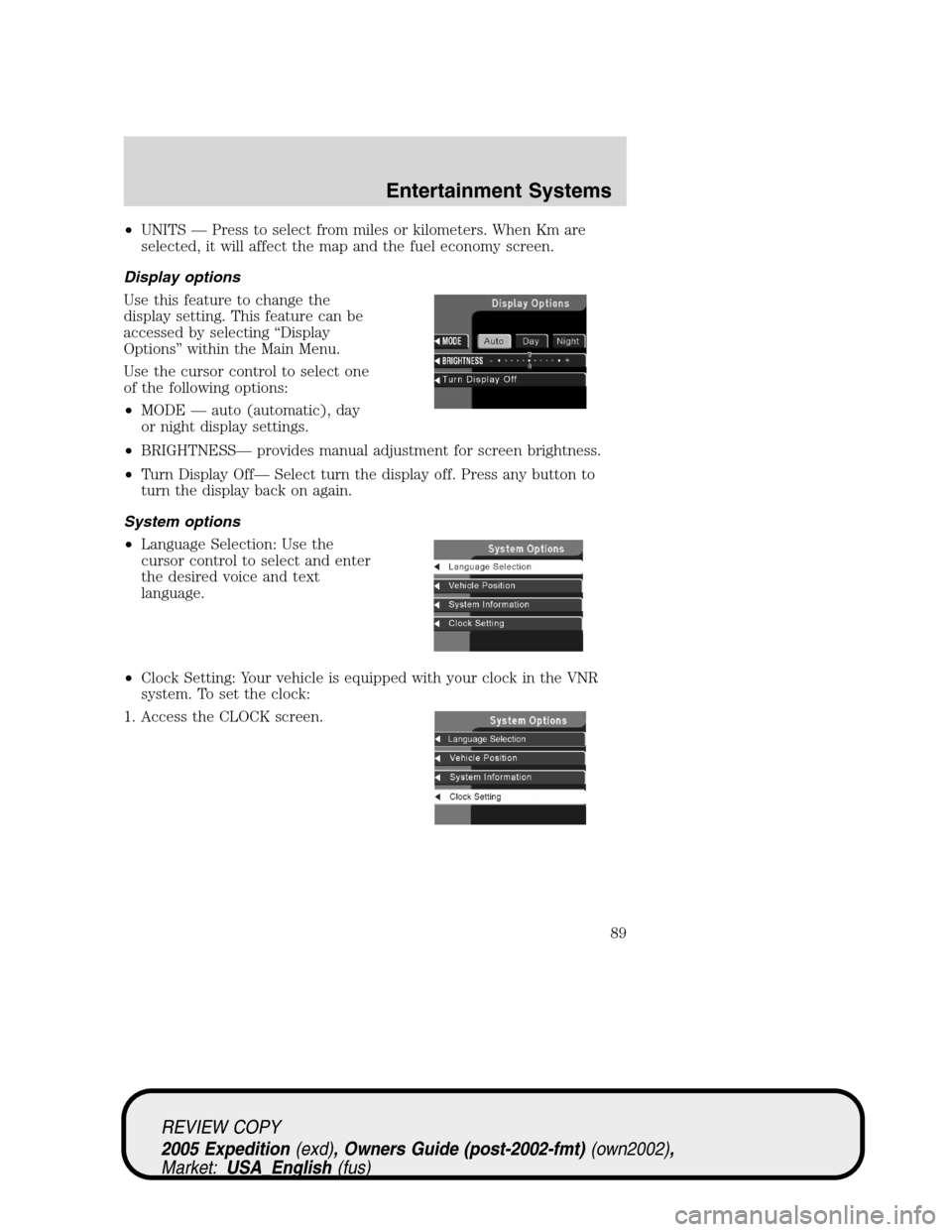
Display options
Use this feature to change the
display setting. This feature can be
accessed by selecting “Display
Options” within the Main Menu.
Use the cursor control to select one
of the following options:
•MODE — auto (automatic), day
or night display settings.
•BRIGHTNESS— provides manual adjustment for screen brightness.
•Turn Display Off— Select turn the display off. Press any button to
turn the display back on again.
System options
•Language Selection: Use the
cursor control to select and enter
the desired voice and text
language.
•Clock Setting: Your vehicle is equipped with your clock in the VNR
system. To set the clock:
1. Access the CLOCK screen.
REVIEW COPY
2005 Expedition(exd), Owners Guide (post-2002-fmt)(own2002),
Market:USA_English(fus)
Entertainment Systems
89