display FORD EXPEDITION 2005 2.G Owner's Manual
[x] Cancel search | Manufacturer: FORD, Model Year: 2005, Model line: EXPEDITION, Model: FORD EXPEDITION 2005 2.GPages: 368, PDF Size: 11.76 MB
Page 52 of 368
•When the temperature of the DVD player becomes too hot, the high
temperature sensor circuit stops machine operation. DVD/CD HOT will
illuminate in the radio display.
•The DVD player will remain inactive until it cools to a normal
operating temperature. Length of time to cool will vary depending on
conditions.
General operating tips
•When the engine is not running, use the system sparingly. Otherwise,
it will run the battery down.
•When the ignition is turned to OFF, the Rear Seat Entertainment DVD
System is also turned OFF. When the ignition is turned ON, the
system will begin playback from the last selected media source when
the play control is pressed.
•To disable the DVD player, simultaneously press the 3 and 5 memory
presets on the radio face. To enable the DVD player again, press the 3
and 5 presets simultaneously.
•The DVD player is only capable of reading the bottom side of a disc.
When inserting a single sided disc, the label should be up. For a
multi-sided disc, the desired play side should be down when the disc
is inserted into the player.
•The DVD player is capable of playback of DVDs, DVDR/RW, CDs,
CDR/RW and MP3s.
•DVDs are formatted by regions. This DVD system can only play region
1 DVDs (DVDs manufactured for U.S. and Canada).
This unit is designed to play commercially pressed 4.75 (12 cm)
audio compact discs and DVDs only. Due to technical
incompatibility, certain recordable and re-recordable compact
discs may not function correctly when used in Ford DVD/CD
players. Irregular shaped discs, discs with a scratch protection
film attached, and discs with homemade paper (adhesive) labels
should not be inserted into the player. The label may peel and
cause the disc to become jammed. It is recommended that
homemade discs be identified with permanent felt tip marker
rather than adhesive labels. Ball point pens may damage discs.
Please contact your dealer for further information.
Inserting a CD/DVD
Partially insert the CD/DVD into the slot and the system will fully pull in
the disc. Inserting the disc too far could cause the disc to jam in the
system.
REVIEW COPY
2005 Expedition(exd), Owners Guide (post-2002-fmt)(own2002),
Market:USA_English(fus)
Entertainment Systems
52
Page 53 of 368
Inserting a CD/DVD into the DVD player automatically turns the power
ON and playback should begin.
The counter is automatically reset to 0:00:00.
Removing a CD/DVD
1. Press the STOP/EJECT control to stop playback.
2. Press the STOP/EJECT control again to eject the CD/DVD.
If the CD/DVD is not removed within the allotted time, the system will
pull the CD/DVD back into the system for safety purposes. If the
CD/DVD will not eject from the system, press and hold the EJECT
control for approximately 2 seconds. The disc should eject whether the
vehicle ignition is ON or OFF.
Playing a video game/auxiliary device
1. Connect the video line from your video game device to the YELLOW
auxiliary input jack.
2. Connect the left and right audio lines to the WHITE and RED auxiliary
input jacks respectively.
3. Press the MODE control until DVD/CD AUX (no disc in player) or
DVD/CD play (disc in player) illuminates in the radio display. If a disc is
in the system, playback should begin. To enable the aux inputs, press the
STOP control or press the AUX control on the DVD player.
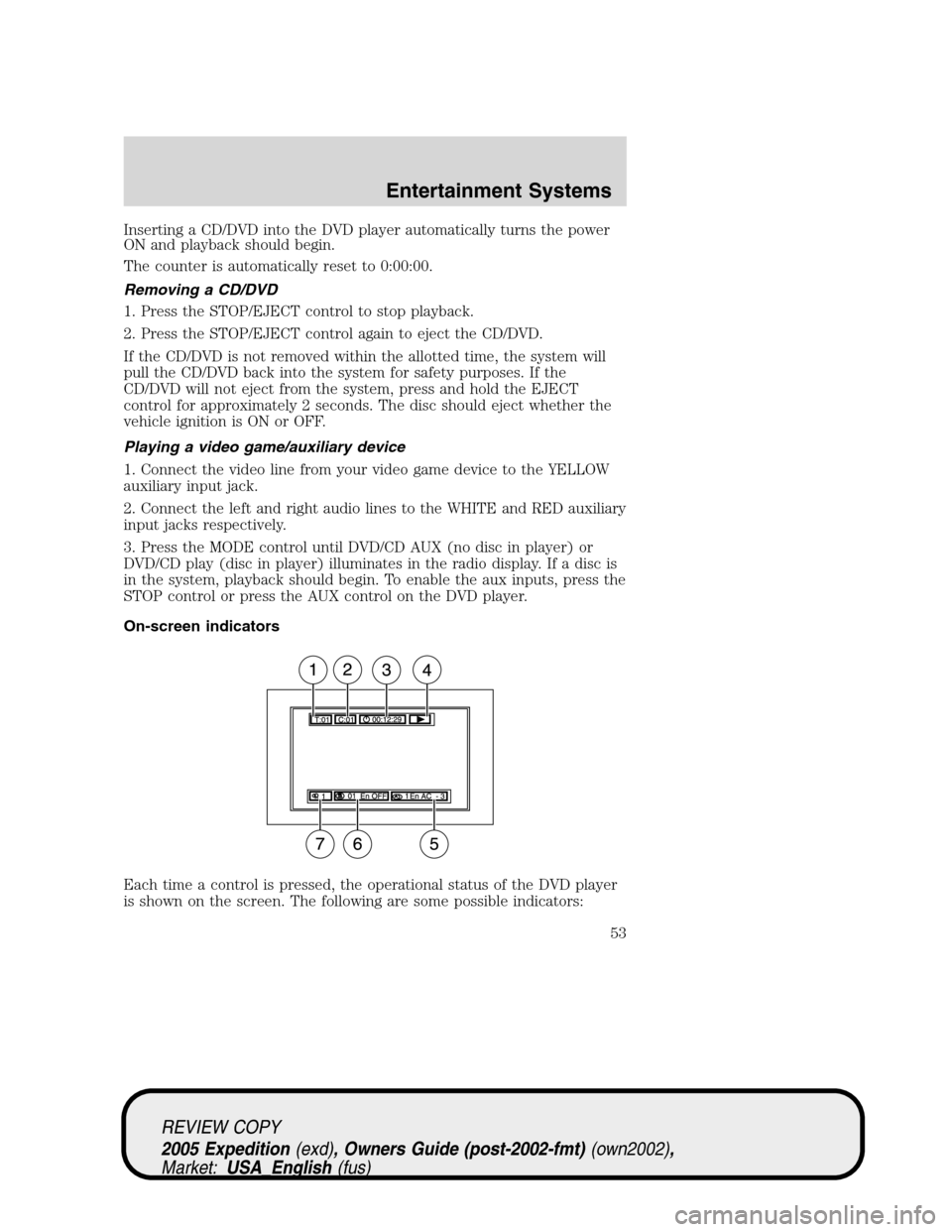
On-screen indicators
Each time a control is pressed, the operational status of the DVD player
is shown on the screen. The following are some possible indicators:
REVIEW COPY
2005 Expedition(exd), Owners Guide (post-2002-fmt)(own2002),
Market:USA_English(fus)
Entertainment Systems
53
Page 54 of 368
1. CD track
2. DVD chapter
3. SYSTEM COUNTER — displays current viewing time of desired media.
(HOURS:MINUTES:SECONDS)
4. DVD/ CD STATUS (PLAY/FF/REW/PAUSE)
5. AUDIO OUTPUT (not changeable)
6. Subtitles (specific language type - English or Spanish, dependent on
disc capability and ON/OFF selection.)
7. Camera angle (of picture) - Adjustable with cursor controls and
ENTER control.
Safety information
Read all of the safety and operating instructions before operating the
system and retain for future reference.
Do not attempt to service, repair or modify the Rear Seat Entertainment
DVD System. See your Ford or Lincoln Mercury dealer.
Do not insert foreign objects into the DVD compartment.
The front glass on the liquid crystal display (LCD) flip-down
screen may break when hit with a hard surface. If the glass
breaks, do not touch the liquid crystalline material. In case of contact
with skin, wash immediately with soap and water.
Do not expose the liquid crystal display (LCD) flip-down screen
to direct sunlight or intensive ultraviolet rays for extensive
periods of time. Ultraviolet rays deteriorate the liquid crystal.
Be sure to review user manuals for video games and video game
equipment when used as auxiliary inputs for your Rear Seat
Entertainment DVD System.
Do not operate video games or video equipment if the power cords
and/or cables are broken, split or damaged. Carefully place cords and/or
cables where they will not be stepped on or interfere with the operation
of seats and/or compartments.
Disconnect video games and video equipment power cords and/or cables
when not in use.
Avoid touching auxiliary input jacks with your fingers. Do not blow on
them or allow them to get wet or dirty.
Do not clean any part of the DVD player with benzene, paint thinner or
any other solvent.
REVIEW COPY
2005 Expedition(exd), Owners Guide (post-2002-fmt)(own2002),
Market:USA_English(fus)
Entertainment Systems
54
Page 56 of 368
moisture condensation occurs, do not insert a CD or DVD into the
player. If one is already in the player, remove it. Turn the DVD player ON
to dry the moisture before inserting a DVD. This could take an hour or
more.
Cleaning the liquid crystal display (LCD) flip-down screen
Clean the display screen by applying a small amount of water or any
ammonia-based household glass cleaner directly to a soft cloth. Rub the
screen gently until the dust, dirt or fingerprints are removed. Do not
spray the screen directly with water or glass cleaning solvents. Overspray
from these fluids could drip down into the internal electronics of the
screen and cause damage. Do not apply excessive pressure while
cleaning the screen.
Foreign substances
Exercise care to prevent dirt and foreign objects from entering the DVD
player compartment. If liquid is accidentally spilled onto the system,
immediately turn the system OFF and consult a qualified service
technician.
Cleaning CDs and DVDs
Inspect all discs for contamination before playing. If necessary, clean
discs only with an approved CD cleaner and wipe from the center out to
the edge. Do not use circular motion.
Cleaning the DVD player exterior
Clean the exterior of the DVD player with a damp cloth. Do not use CD
cleaning kits or CDs intended to clean the interior of your DVD player.
Use of these products may damage your system.
VEHICLE NAVIGATION RADIO (VNR IF EQUIPPED)
Your vehicle may be equipped with a Vehicle Navigation Radio (VNR)
which allows you to listen to the radio, play CDs and also navigate the
vehicle using navigation CDs.
Your Vehicle Navigation Radio is equipped with many different features
and controls. The labeled controls on the front face of the system (which
are called out below) are known as hard keys. The five blank controls
located under the MENU control are called soft keys. These controls are
labeled on the screen and can change functionality depending on which
screen is activated in the display. The hard keys will be explained further
below and the soft keys will be described as needed.
REVIEW COPY
2005 Expedition(exd), Owners Guide (post-2002-fmt)(own2002),
Market:USA_English(fus)
Entertainment Systems
56
Page 57 of 368
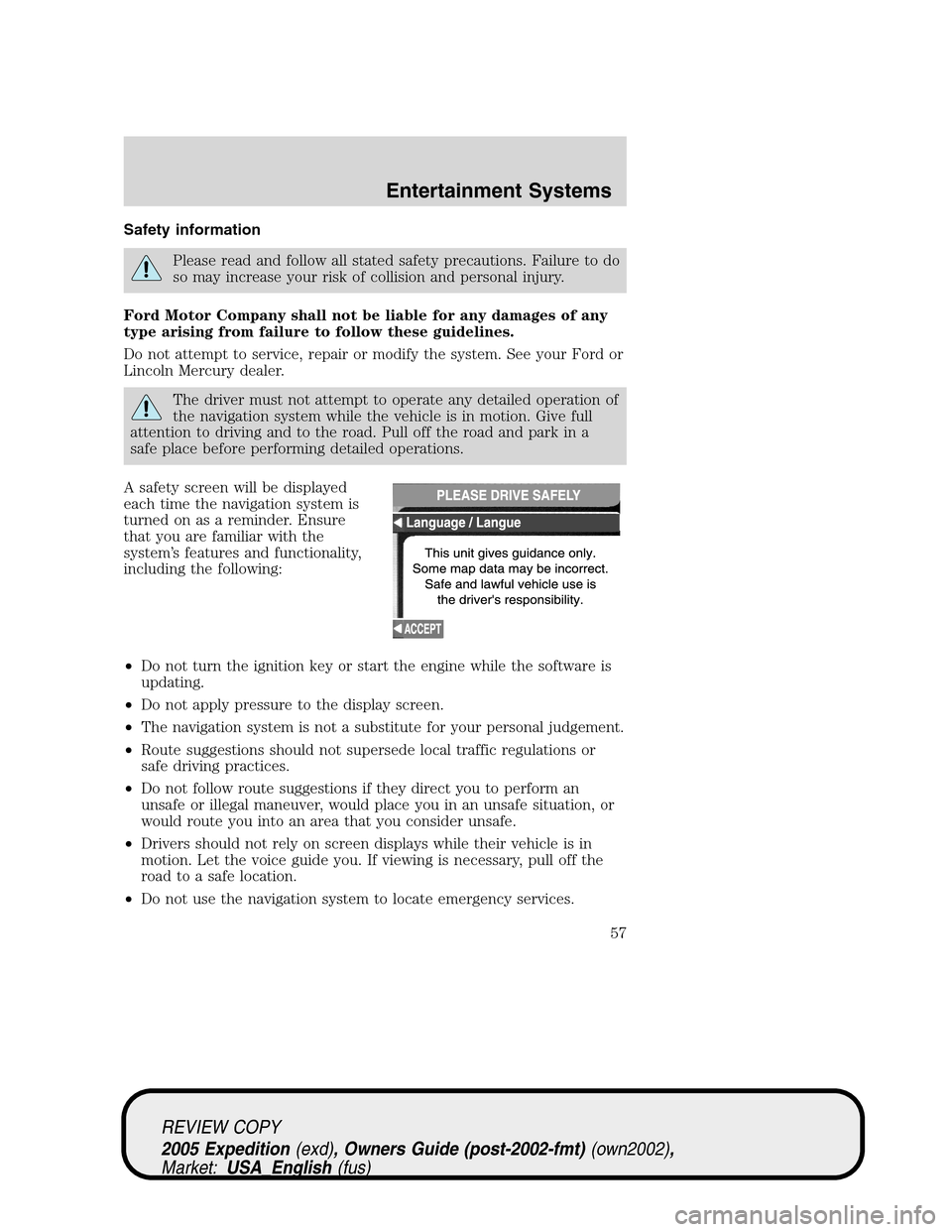
Safety information
Please read and follow all stated safety precautions. Failure to do
so may increase your risk of collision and personal injury.
Ford Motor Company shall not be liable for any damages of any
type arising from failure to follow these guidelines.
Do not attempt to service, repair or modify the system. See your Ford or
Lincoln Mercury dealer.
The driver must not attempt to operate any detailed operation of
the navigation system while the vehicle is in motion. Give full
attention to driving and to the road. Pull off the road and park in a
safe place before performing detailed operations.
A safety screen will be displayed
each time the navigation system is
turned on as a reminder. Ensure
that you are familiar with the
system’s features and functionality,
including the following:
•Do not turn the ignition key or start the engine while the software is
updating.
•Do not apply pressure to the display screen.
•The navigation system is not a substitute for your personal judgement.
•Route suggestions should not supersede local traffic regulations or
safe driving practices.
•Do not follow route suggestions if they direct you to perform an
unsafe or illegal maneuver, would place you in an unsafe situation, or
would route you into an area that you consider unsafe.
•Drivers should not rely on screen displays while their vehicle is in
motion. Let the voice guide you. If viewing is necessary, pull off the
road to a safe location.
•Do not use the navigation system to locate emergency services.
REVIEW COPY
2005 Expedition(exd), Owners Guide (post-2002-fmt)(own2002),
Market:USA_English(fus)
Entertainment Systems
57
Page 59 of 368
location as home. Pressing the home key after the home location has
been set will calculate a route to that set home location.
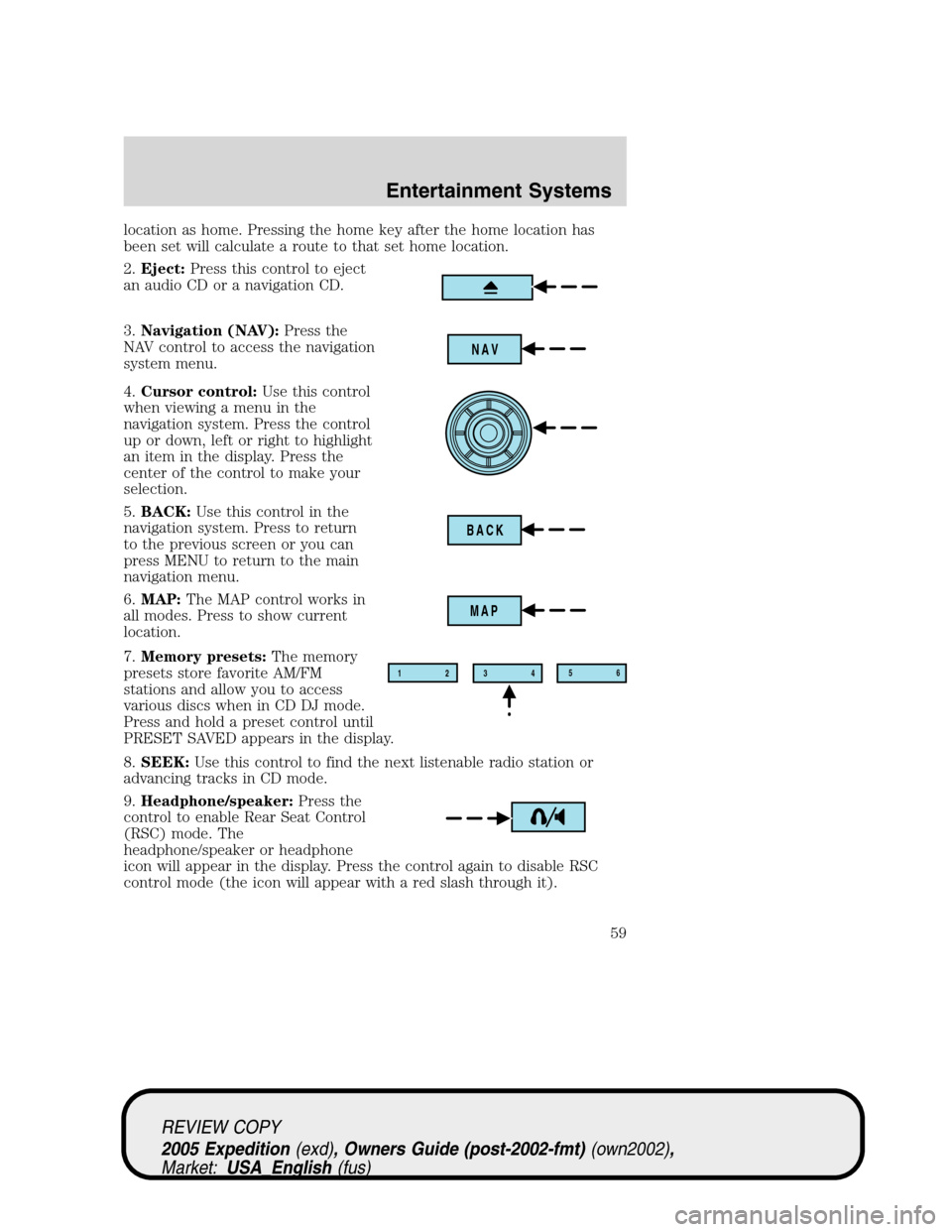
2.Eject:Press this control to eject
an audio CD or a navigation CD.
3.Navigation (NAV):Press the
NAV control to access the navigation
system menu.
4.Cursor control:Use this control
when viewing a menu in the
navigation system. Press the control
up or down, left or right to highlight
an item in the display. Press the
center of the control to make your
selection.
5.BACK:Use this control in the
navigation system. Press to return
to the previous screen or you can
press MENU to return to the main
navigation menu.
6.MAP:The MAP control works in
all modes. Press to show current
location.
7.Memory presets:The memory
presets store favorite AM/FM
stations and allow you to access
various discs when in CD DJ mode.
Press and hold a preset control until
PRESET SAVED appears in the display.
8.SEEK:Use this control to find the next listenable radio station or
advancing tracks in CD mode.
9.Headphone/speaker:Press the
control to enable Rear Seat Control
(RSC) mode. The
headphone/speaker or headphone
icon will appear in the display. Press the control again to disable RSC
control mode (the icon will appear with a red slash through it).
NAV
BACK
MAP
12
3456
REVIEW COPY
2005 Expedition(exd), Owners Guide (post-2002-fmt)(own2002),
Market:USA_English(fus)
Entertainment Systems
59
Page 60 of 368
When in RSC mode, Dual Play mode can be enabled and disabled by the
RSC, or by pressing Preset 2 and 4 simultaneously on the Navigation
radio system. The system is in Dual Play mode if both the Headphone
and Speaker icons are present, and in just RSC mode if only the
Headphone icon is present.
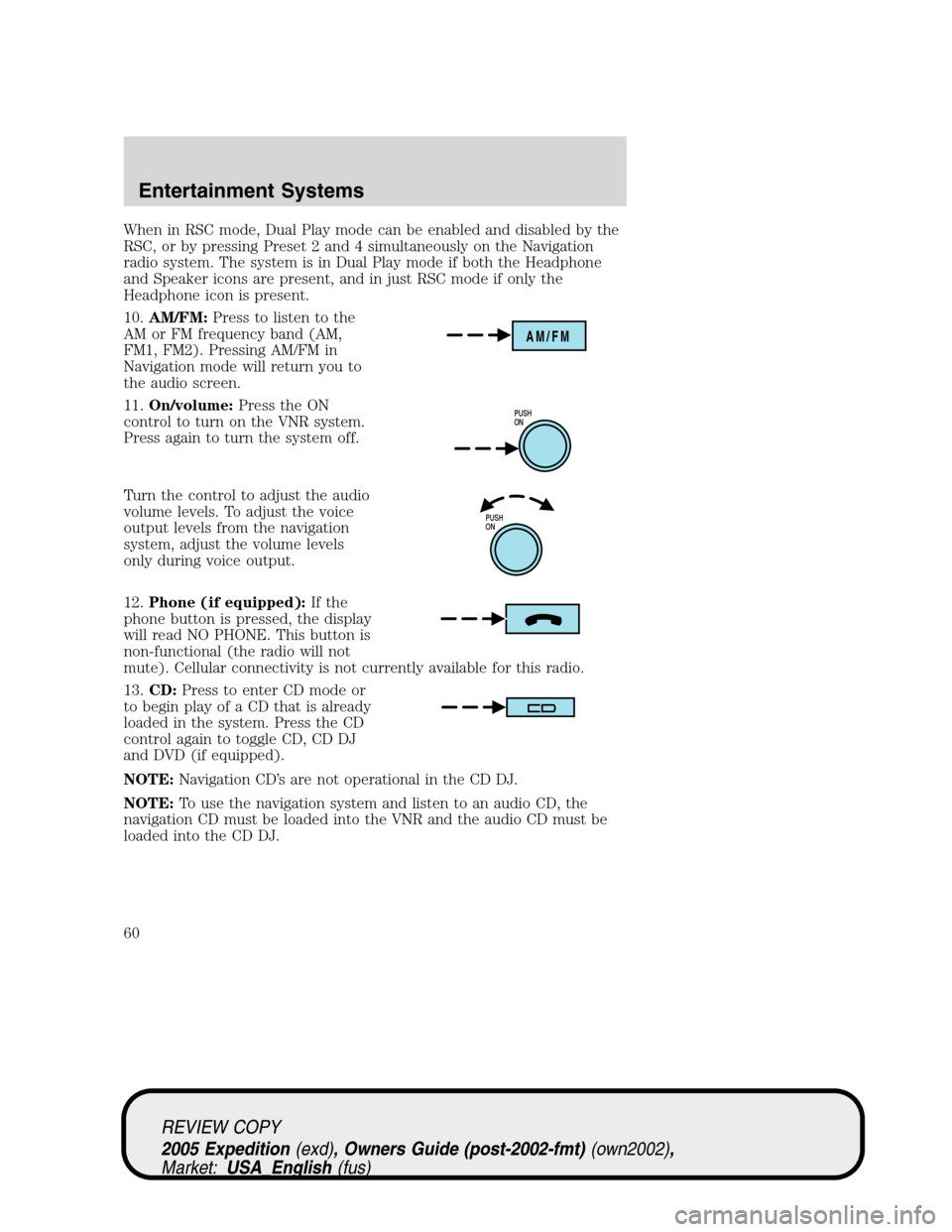
10.AM/FM:Press to listen to the
AM or FM frequency band (AM,
FM1, FM2). Pressing AM/FM in
Navigation mode will return you to
the audio screen.
11.On/volume:Press the ON
control to turn on the VNR system.
Press again to turn the system off.
Turn the control to adjust the audio
volume levels. To adjust the voice
output levels from the navigation
system, adjust the volume levels
only during voice output.
12.Phone (if equipped):If the
phone button is pressed, the display
will read NO PHONE. This button is
non-functional (the radio will not
mute). Cellular connectivity is not currently available for this radio.
13.CD:Press to enter CD mode or
to begin play of a CD that is already
loaded in the system. Press the CD
control again to toggle CD, CD DJ
and DVD (if equipped).
NOTE:Navigation CD’s are not operational in the CD DJ.
NOTE:To use the navigation system and listen to an audio CD, the
navigation CD must be loaded into the VNR and the audio CD must be
loaded into the CD DJ.
AM/FM
PUSH
ON
PUSH
ON
REVIEW COPY
2005 Expedition(exd), Owners Guide (post-2002-fmt)(own2002),
Market:USA_English(fus)
Entertainment Systems
60
Page 62 of 368
3. Press the memory presets to
choose the desired disc in the CD
DJ.
Note:Navigation CD’s are not operational in the CD DJ.
To use the Navigation system:
1. Ensure that the ignition and the VNR system are ON, and a map data
disc is inserted into the VNR CD slot.
Note:To use the navigation system and listen to an audio CD, the
navigation CD must be loaded into the VNR and the audio CD must be
loaded into the CD DJ.
2. Press the NAV control to enter
into Navigation mode.
3. To enter a destination, ensure
that the vehicle is in the PARK position.
4. To navigate to home from the
current location, press HOME. If a
home location has not previously
been stored, pressing and holding
HOME will store the home location.
Audio features
Your Vehicle Navigation Radio has many features including a full range of
audio functions.
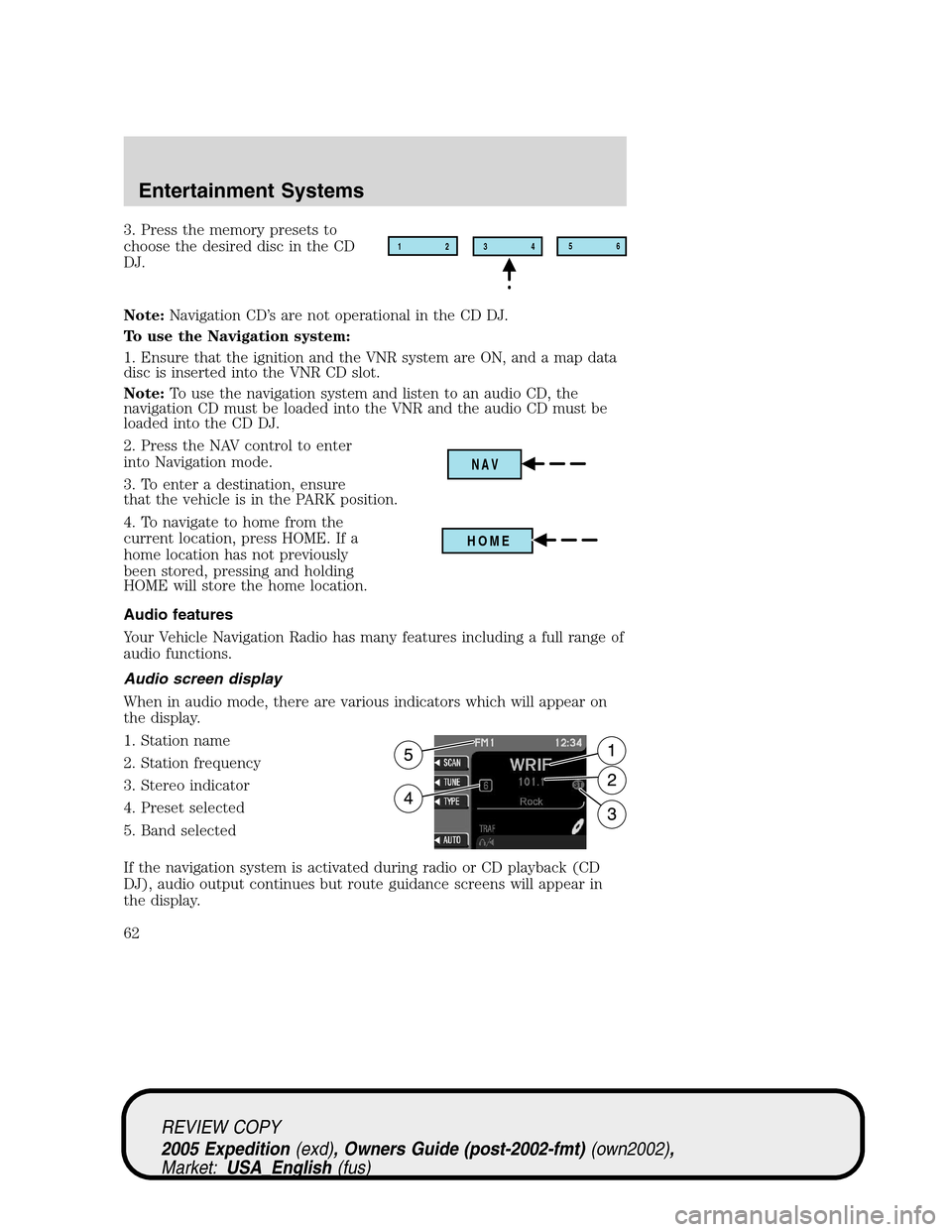
Audio screen display
When in audio mode, there are various indicators which will appear on
the display.
1. Station name
2. Station frequency
3. Stereo indicator
4. Preset selected
5. Band selected
If the navigation system is activated during radio or CD playback (CD
DJ), audio output continues but route guidance screens will appear in
the display.12
3456
NAV
HOME
REVIEW COPY
2005 Expedition(exd), Owners Guide (post-2002-fmt)(own2002),
Market:USA_English(fus)
Entertainment Systems
62
Page 63 of 368
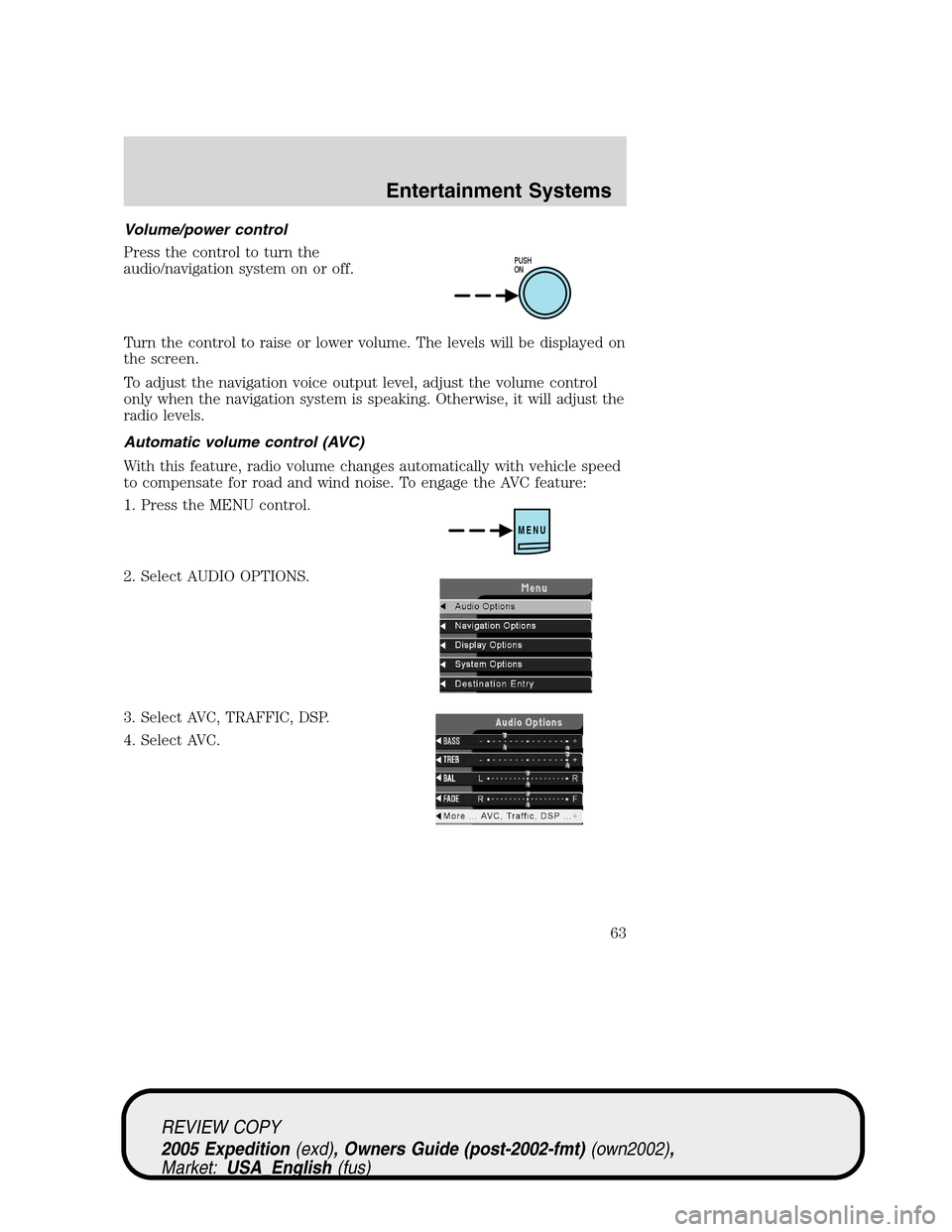
Volume/power control
Press the control to turn the
audio/navigation system on or off.
Turn the control to raise or lower volume. The levels will be displayed on
the screen.
To adjust the navigation voice output level, adjust the volume control
only when the navigation system is speaking. Otherwise, it will adjust the
radio levels.
Automatic volume control (AVC)
With this feature, radio volume changes automatically with vehicle speed
to compensate for road and wind noise. To engage the AVC feature:
1. Press the MENU control.
2. Select AUDIO OPTIONS.
3. Select AVC, TRAFFIC, DSP.
4. Select AVC.
PUSH
ON
MENU
REVIEW COPY
2005 Expedition(exd), Owners Guide (post-2002-fmt)(own2002),
Market:USA_English(fus)
Entertainment Systems
63
Page 64 of 368
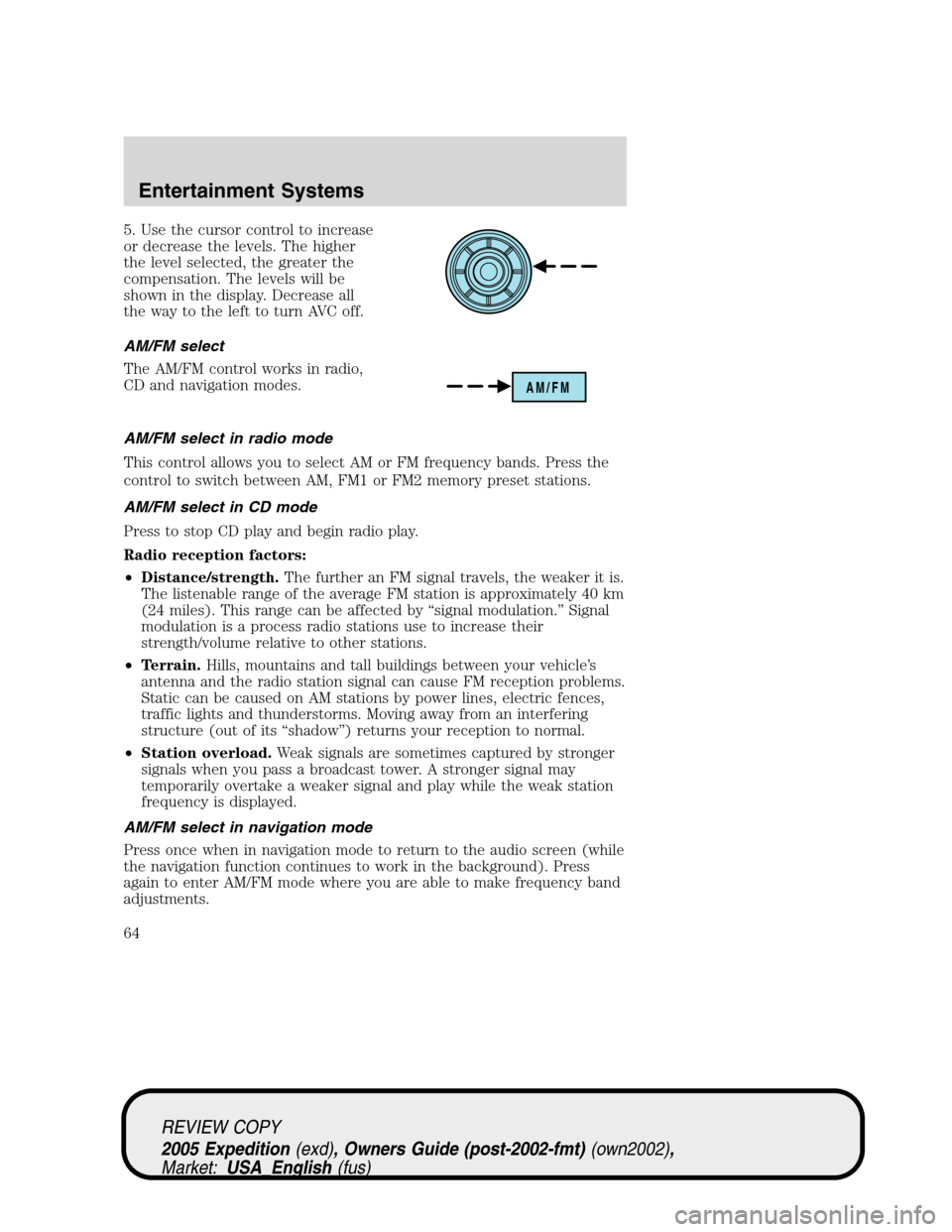
5. Use the cursor control to increase
or decrease the levels. The higher
the level selected, the greater the
compensation. The levels will be
shown in the display. Decrease all
the way to the left to turn AVC off.
AM/FM select
The AM/FM control works in radio,
CD and navigation modes.
AM/FM select in radio mode
This control allows you to select AM or FM frequency bands. Press the
control to switch between AM, FM1 or FM2 memory preset stations.
AM/FM select in CD mode
Press to stop CD play and begin radio play.
Radio reception factors:
•Distance/strength.The further an FM signal travels, the weaker it is.
The listenable range of the average FM station is approximately 40 km
(24 miles). This range can be affected by “signal modulation.” Signal
modulation is a process radio stations use to increase their
strength/volume relative to other stations.
•Terrain.Hills, mountains and tall buildings between your vehicle’s
antenna and the radio station signal can cause FM reception problems.
Static can be caused on AM stations by power lines, electric fences,
traffic lights and thunderstorms. Moving away from an interfering
structure (out of its “shadow”) returns your reception to normal.
•Station overload.Weak signals are sometimes captured by stronger
signals when you pass a broadcast tower. A stronger signal may
temporarily overtake a weaker signal and play while the weak station
frequency is displayed.
AM/FM select in navigation mode
Press once when in navigation mode to return to the audio screen (while
the navigation function continues to work in the background). Press
again to enter AM/FM mode where you are able to make frequency band
adjustments.
AM/FM
REVIEW COPY
2005 Expedition(exd), Owners Guide (post-2002-fmt)(own2002),
Market:USA_English(fus)
Entertainment Systems
64