phone FORD EXPEDITION 2013 3.G User Guide
[x] Cancel search | Manufacturer: FORD, Model Year: 2013, Model line: EXPEDITION, Model: FORD EXPEDITION 2013 3.GPages: 497, PDF Size: 5.64 MB
Page 122 of 497
2. Press the 3 and 5 buttons a second time and the rear control is
LOCKED. The rear passengers are restricted from control over media
of any kind (the rear controls are disabled).Note:If in Dual Play
mode, the headphone icon normally illuminated in the audio display
when in Dual Play turns off in the audio display.
3. Press the 3 and 5 buttons a third time and full control will be
restored to the rear seat controls. Switching the ignition off and then
on again has the same effect.
Switching Dual Play Mode On
Dual Play mode can be switched on by simultaneously pressing the 2 and
4 memory preset buttons on the audio or by doing the following:
1. Press the headphone/speaker control. The headphone icon
illuminates in both front and rear audio displays indicating the rear
seat speakers have been disabled and headphones are now active.
2. Press MEDIA to change audio sources (as heard in the headphones
only).
3. Use the other controls to make adjustments to the playing media.
Switching Dual Play Mode Off
Use any one of the following to switch Dual Play mode off:
1. Press the 2 and 4 memory preset buttons simultaneously again.
2. Press the 3 and 5 memory preset buttons simultaneously until the
rear seat controls are LOCKED.
3. Press the headphone/speaker button again
Using Dual Play Mode with Headphones
WARNING:Do not leave children unattended in the vehicle and
do not let children operate the system while unsupervised. If
wired headphones or auxiliary systems are used, children may become
entangled in the cords and seriously injure themselves.
Plug a 3.5 millimeter headphone (not included) into the headphone jack.
Press the speaker button, or the 2 and 4 memory preset buttons
simultaneously on the radio to switch on the headphones. DUAL PLAY
illuminates in the audio display, sound is no longer heard from the rear
speakers and the fade control is disabled, signaling that Dual Play is
switched on
The front speakers remain on for the front passengers. Press the speaker
button, or the 2 and 4 memory preset buttons simultaneously on the
radio again to switch off the headphones and Dual Play mode. SINGLE
PLAY illuminates in the audio display and fade control and sound from
rear speakers are restored, signaling that Dual Play is switched off.
122Audio System
2013 Expedition(exd)
Owners Guide gf, 1st Printing
USA(fus)
Page 123 of 497
To use any rear controls (whether in Single Play or Dual Play mode), the
rear seat controls must be switched on. To switch on Dual Play, the rear
seat controls must be switched on and the headphone icon illuminated in
the audio display. SeeActivating the rear audio controlspreviously.
AUXILIARY INPUT JACK
WARNING:Driving while distracted can result in loss of vehicle
control, accident and injury. Ford strongly recommends that you
use extreme caution when using any device or feature that may take
your focus off the road. Your primary responsibility is the safe operation
of the vehicle. We recommend against the use of any handheld device
while driving, encourage the use of voice-operated systems when
possible and that you become aware of applicable state and local laws
that may affect use of electronic devices while driving.
WARNING:For safety reasons, do not connect or adjust the
settings on your portable music player while the vehicle is moving.
WARNING:Store the portable music player in a secure location,
such as the center console or the glove box, when the vehicle is
in motion. Hard objects may become projectiles in a collision or sudden
stop, which may increase the risk of serious injury. The audio extension
cable must be long enough to allow the portable music player to be
safely stored while the vehicle is in motion.
The auxiliary input jack (AIJ) allows
you to connect and play music from
your portable music player through
the vehicle speakers. You can use
any portable music player designed
for use with headphones. Your audio
extension cable must have male
18-inch (3.5 millimeter) connectors
at each end.
1. Make sure the vehicle, radio and portable music player are turned off
and the transmission is in positionP.
2. Plug the extension cable from the portable music player into the AIJ.
LINE IN
Audio System123
2013 Expedition(exd)
Owners Guide gf, 1st Printing
USA(fus)
Page 128 of 497
REAR SEAT ENTERTAINMENT SYSTEM (IF EQUIPPED)
WARNING:Driving while distracted can result in loss of vehicle
control, accident and injury. Ford strongly recommends that you
use extreme caution when using any device or feature that may take
your focus off the road. Your primary responsibility is the safe operation
of the vehicle. We recommend against the use of any handheld device
while driving, encourage the use of voice-operated systems when
possible and that you become aware of applicable state and local laws
that may affect use of electronic devices while driving.
Note:Be sure to run the vehicle engine while using the device. Using
this device without running the engine can result in battery drainage. To
avoid the risk of battery drainage, please remember to turn off the
device when the vehicle is not in use for long periods of time.
The system consists of the following features:
•Seven-inch color TFT-LCD panel (480x234) with 16:9 aspect
•Built-in top-loading slot load DVD player
•Infrared (IR) transmitters for IR wireless headphones
•Audio/Video source input (three RCA jacks)
•USB 2.0 (optional)
•One-eighth inch stereo headphone jack
•Forward remote sensor on the front panel
•Full-function remote control
•Five control buttons on the front panel - POWER, SOURCE, STOP,
PLAY and EJECT
•OSD (On-screen display) control
•12V DC power input
•FM transmitter (may be optional)
Note:Do not touch the inner pins of the jacks on the front panel.
Electrostatic discharge may cause permanent damage to the device.
Your system plays the following types of discs:
•DVD-Video:DVD contains video.
•DVD +/- R:DVD contains video.
•CD-DA:CD contains musical or sound content only.
•CD-Video:CD contains movie only.
•CD-R/RW:A disc that contains audio files (for example, a CD-R with
MP3 files), MPEG, or JPEG files.
Your system does not play the following types of discs:
•Optical disc CD-1
•CD-ROM
•DVD-ROM mini disc-CDG (audio only, not graphics)
128Audio System
2013 Expedition(exd)
Owners Guide gf, 1st Printing
USA(fus)
Page 129 of 497
Important Notice
It is unlawful in most jurisdictions for a person to drive a motor vehicle
which is equipped with a television viewer or screen that is located in
the motor vehicle at any point forward of the back of the driver’s seat, or
that is visible, directly or indirectly, to the driver while operating the
vehicle. In the interest of safety, the unit should never be installed where
it is visible, directly or indirectly, by the operator of the motor vehicle. If
your vehicle is equipped with a wireless rear seat audio system or any
other wireless IR device, power system off in order to operate the DVD
headrest system. If system is powered on, the two systems may interfere
with each other canceling out or creating undesirable audio through the
wireless headphones.
Safety Precaution
For safety reasons, when changing video discs it is recommended that
the vehicle not be in motion, and that you do not allow children to
unfasten safety belts to change discs or make any adjustments to the
system. System adjustments can be accomplished using the remote
control unit, while safety belts remain fastened. Enjoy your
entertainment system but remember that safety of all passengers remains
the number one priority.
Wireless Headphones
This unit includes a built-in dual channel infrared transmitter for use
with a wireless headphone. The volume can then be adjusted with the
controls on each headset. The wireless headphone must be used within a
line of sight from the transmitter as infrared transmission, like visible
light, travels only in a straight line.
Wired Headphones
There is a one-eighth inch headphone jack on the device that can be
used with any standard stereo headphone. Remove and save the
protective plastic cover to access the jacks. Remember to replace the
cover when the jacks are not in use.
A/V Input
An external AV device such as a DVD player, video game device, or other
audio/video device may be connected to the unit by using the “AV
INPUT” port consisting of three RCA jacks (Yellow: Video, Red: Audio-R,
White: Audio-L). To display and listen to the video/audio signal of this
external source, connect the video source RCA cables to the AV inputs
on the monitor. The video source overrides any other video source for
that monitor.
Audio System129
2013 Expedition(exd)
Owners Guide gf, 1st Printing
USA(fus)
Page 131 of 497
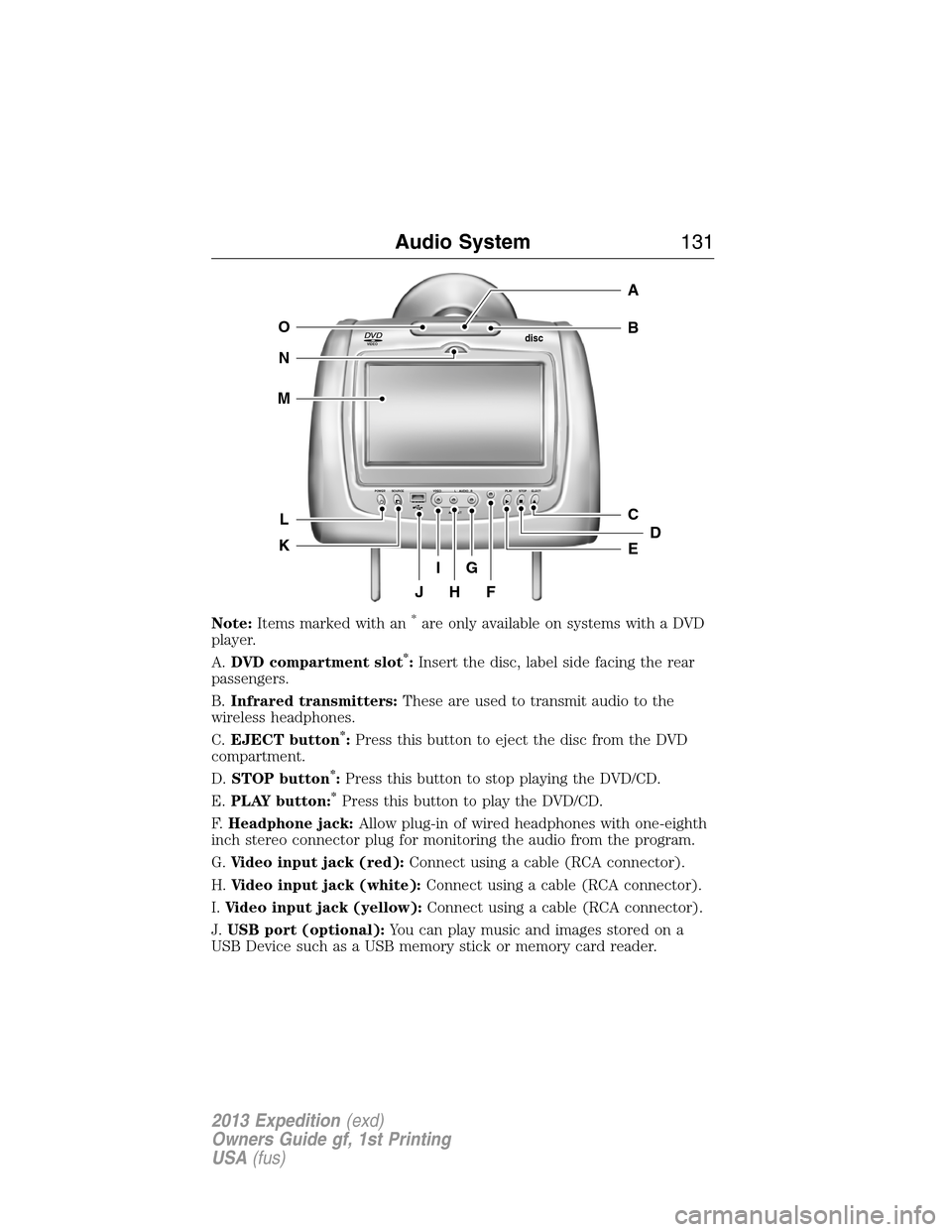
Note:Items marked with an*are only available on systems with a DVD
player.
A.DVD compartment slot
*:Insert the disc, label side facing the rear
passengers.
B.Infrared transmitters:These are used to transmit audio to the
wireless headphones.
C.EJECT button
*:Press this button to eject the disc from the DVD
compartment.
D.STOP button
*:Press this button to stop playing the DVD/CD.
E.PLAY button:
*Press this button to play the DVD/CD.
F.Headphone jack:Allow plug-in of wired headphones with one-eighth
inch stereo connector plug for monitoring the audio from the program.
G.Video input jack (red):Connect using a cable (RCA connector).
H.Video input jack (white):Connect using a cable (RCA connector).
I.Video input jack (yellow):Connect using a cable (RCA connector).
J.USB port (optional):You can play music and images stored on a
USB Device such as a USB memory stick or memory card reader.
VIDEOdisc
POWER SOURCE VDEO L RAUDIO PLAY STOP ELECT
AV INPUT
HFJ
IG
C
B
A
E
DL
N
M
O
K
Audio System131
2013 Expedition(exd)
Owners Guide gf, 1st Printing
USA(fus)
Page 133 of 497
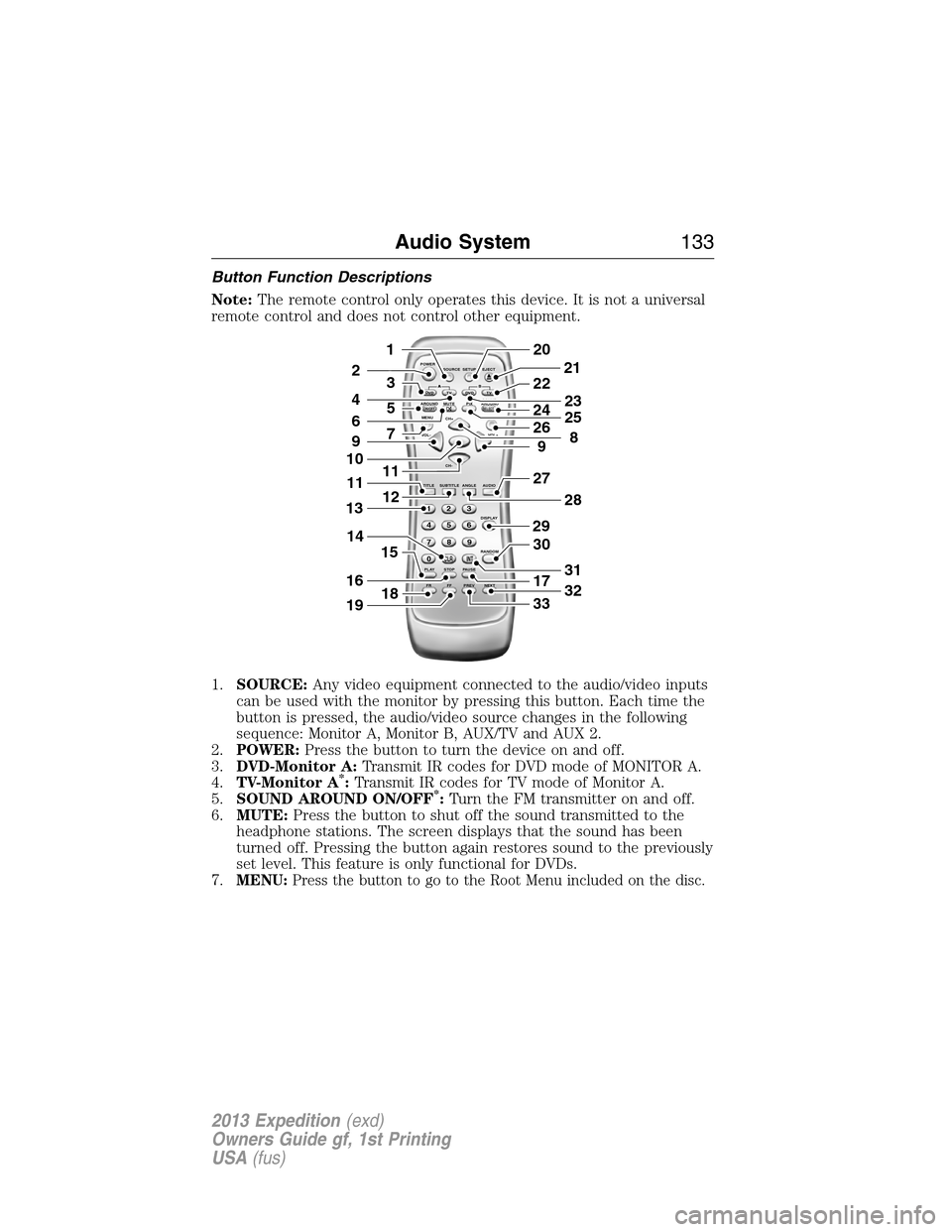
Button Function Descriptions
Note:The remote control only operates this device. It is not a universal
remote control and does not control other equipment.
1.SOURCE:Any video equipment connected to the audio/video inputs
can be used with the monitor by pressing this button. Each time the
button is pressed, the audio/video source changes in the following
sequence: Monitor A, Monitor B, AUX/TV and AUX 2.
2.POWER:Press the button to turn the device on and off.
3.DVD-Monitor A:Transmit IR codes for DVD mode of MONITOR A.
4.TV-Monitor A
*:Transmit IR codes for TV mode of Monitor A.
5.SOUND AROUND ON/OFF*:Turn the FM transmitter on and off.
6.MUTE:Press the button to shut off the sound transmitted to the
headphone stations. The screen displays that the sound has been
turned off. Pressing the button again restores sound to the previously
set level. This feature is only functional for DVDs.
7.
MENU:Press the button to go to the Root Menu included on the disc.
POWER
SOURCE
A
SOUND
AROUNDSOUND
AROUND MUTE
MENU REPEAT
CH+
CH-
TITLE SUBTITLE ANGLE AUDIO
DISPLAY
RANDOM
PLAY
123
6 5 4
789
0
CLR INT
FR FF PREV NEXTSTOP PAUSE VOL- VOL+PIX A
D
VD
ON/OFFSELECT
TV DVD TVSETUP EJECTB
5
9
29
27
30
17
33
28
32
31
201
2
7
11
12
4
3
15
21
22
24
2625
8
23
6
9
10
16
13
18
11
14
19
Audio System133
2013 Expedition(exd)
Owners Guide gf, 1st Printing
USA(fus)
Page 134 of 497
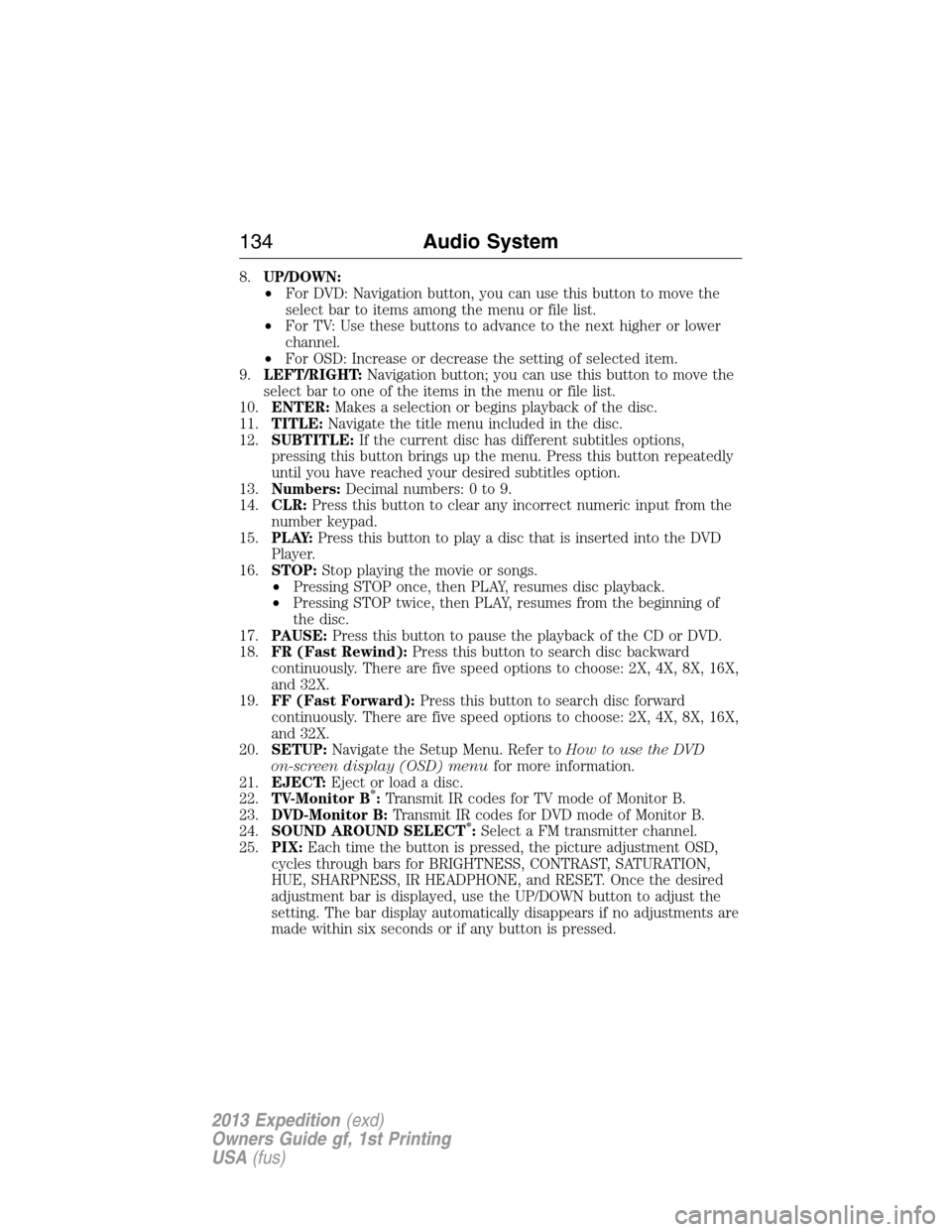
8.UP/DOWN:
•For DVD: Navigation button, you can use this button to move the
select bar to items among the menu or file list.
•For TV: Use these buttons to advance to the next higher or lower
channel.
•For OSD: Increase or decrease the setting of selected item.
9.LEFT/RIGHT:Navigation button; you can use this button to move the
select bar to one of the items in the menu or file list.
10.ENTER:Makes a selection or begins playback of the disc.
11.TITLE:Navigate the title menu included in the disc.
12.SUBTITLE:If the current disc has different subtitles options,
pressing this button brings up the menu. Press this button repeatedly
until you have reached your desired subtitles option.
13.Numbers:Decimal numbers: 0 to 9.
14.CLR:Press this button to clear any incorrect numeric input from the
number keypad.
15.P L AY:Press this button to play a disc that is inserted into the DVD
Player.
16.STOP:Stop playing the movie or songs.
•Pressing STOP once, then PLAY, resumes disc playback.
•Pressing STOP twice, then PLAY, resumes from the beginning of
the disc.
17.PAUSE:Press this button to pause the playback of the CD or DVD.
18.FR (Fast Rewind):Press this button to search disc backward
continuously. There are five speed options to choose: 2X, 4X, 8X, 16X,
and 32X.
19.FF (Fast Forward):Press this button to search disc forward
continuously. There are five speed options to choose: 2X, 4X, 8X, 16X,
and 32X.
20.SETUP:Navigate the Setup Menu. Refer toHow to use the DVD
on-screen display (OSD) menufor more information.
21.EJECT:Eject or load a disc.
22.TV-Monitor B
*:Transmit IR codes for TV mode of Monitor B.
23.DVD-Monitor B:Transmit IR codes for DVD mode of Monitor B.
24.SOUND AROUND SELECT
*:Select a FM transmitter channel.
25.PIX:Each time the button is pressed, the picture adjustment OSD,
cycles through bars for BRIGHTNESS, CONTRAST, SATURATION,
HUE, SHARPNESS, IR HEADPHONE, and RESET. Once the desired
adjustment bar is displayed, use the UP/DOWN button to adjust the
setting. The bar display automatically disappears if no adjustments are
made within six seconds or if any button is pressed.
134Audio System
2013 Expedition(exd)
Owners Guide gf, 1st Printing
USA(fus)
Page 142 of 497
Connecting an MP3 Device
Connecting an MP3 Device to Your DVD-headrest Module via USB
Plug the MP3 Dock Connector to USB cable into a high-power USB port
on your DVD-headrest module, and then connect the other end to the
player.
See the documentation that came with your device for more information.
Charging the MP3 Player Battery
Connect the device to the USB port on your DVD-headrest module. The
DVD-headrest module must be turned on. Depending on the device, it
may or may not charge when connected to the USB port.
Note:Not all devices are able to charge when connected to the USB
port.
Connecting an MP3 Device to Your DVD-headrest Module via A/V
Cable
1. Connect the device using an A/V cable to the headphones port .
Note: Use the A/V cable made specifically for the device. Other
similar RCA-type cables might not work.
2. Connect the video and audio connectors to the AV-IN ports on your
DVD-headrest module, matching the yellow, red and white
connectors to the appropriate jacks.
Troubleshooting
Symptom Possible Cause
Device does not power
on•Vehicle ignition is not turned on.
•Batteries not installed in remote control.
IR sensor inoperative•Batteries in remote control are not working.
•Remote sensor eye is blocked.
•The infrared transmitter is affixed over the
sensor eye of the component to be controlled.
Disc does not play•The disc was inserted backward.
•The disc is defective. Try another disc.
•The disc is not compatible with the
entertainment system.
•The device code and disc region code do not
match. This device is set to Region 1.
142Audio System
2013 Expedition(exd)
Owners Guide gf, 1st Printing
USA(fus)
Page 143 of 497
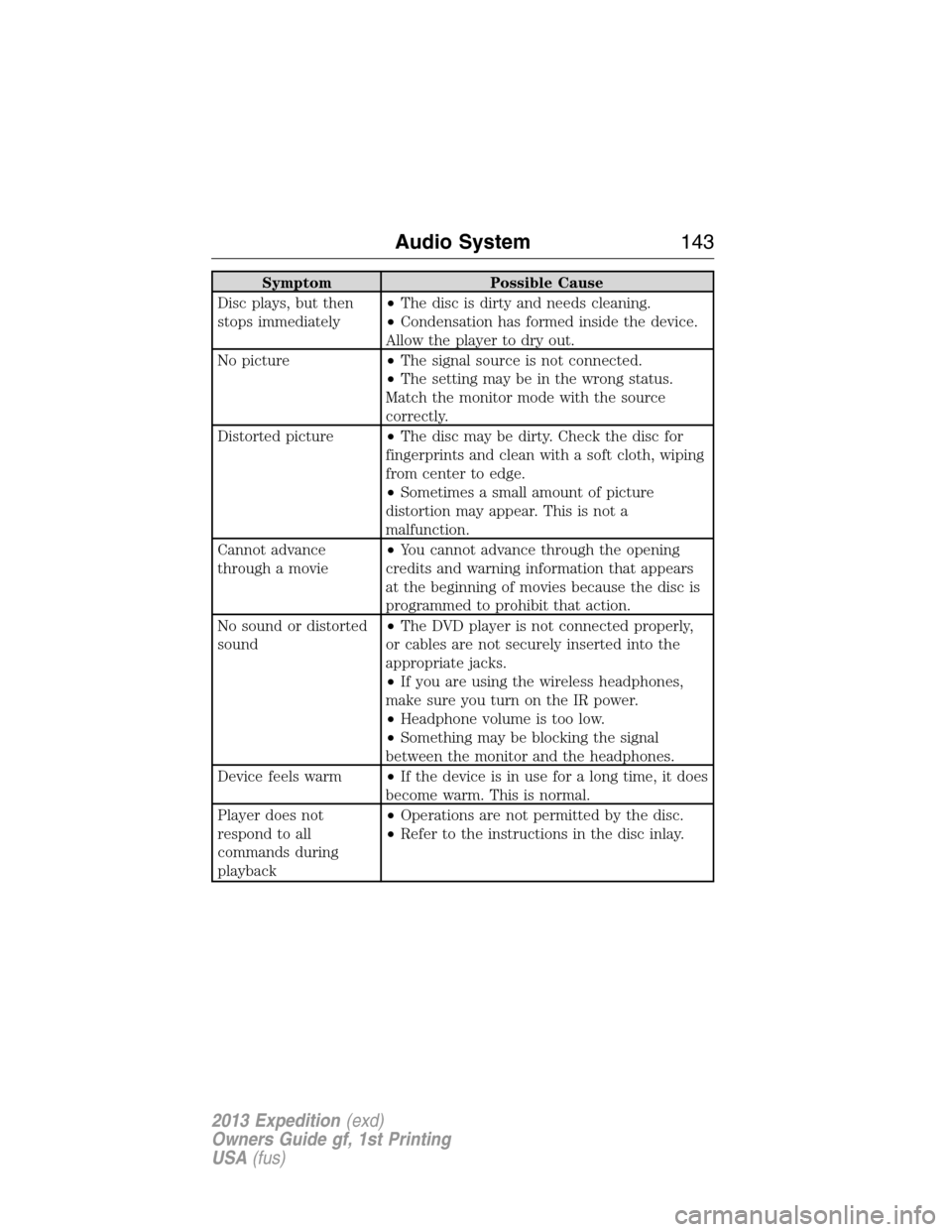
Symptom Possible Cause
Disc plays, but then
stops immediately•The disc is dirty and needs cleaning.
•Condensation has formed inside the device.
Allow the player to dry out.
No picture•The signal source is not connected.
•The setting may be in the wrong status.
Match the monitor mode with the source
correctly.
Distorted picture•The disc may be dirty. Check the disc for
fingerprints and clean with a soft cloth, wiping
from center to edge.
•Sometimes a small amount of picture
distortion may appear. This is not a
malfunction.
Cannot advance
through a movie•You cannot advance through the opening
credits and warning information that appears
at the beginning of movies because the disc is
programmed to prohibit that action.
No sound or distorted
sound•The DVD player is not connected properly,
or cables are not securely inserted into the
appropriate jacks.
•If you are using the wireless headphones,
make sure you turn on the IR power.
•Headphone volume is too low.
•Something may be blocking the signal
between the monitor and the headphones.
Device feels warm•If the device is in use for a long time, it does
become warm. This is normal.
Player does not
respond to all
commands during
playback•Operations are not permitted by the disc.
•Refer to the instructions in the disc inlay.
Audio System143
2013 Expedition(exd)
Owners Guide gf, 1st Printing
USA(fus)
Page 273 of 497
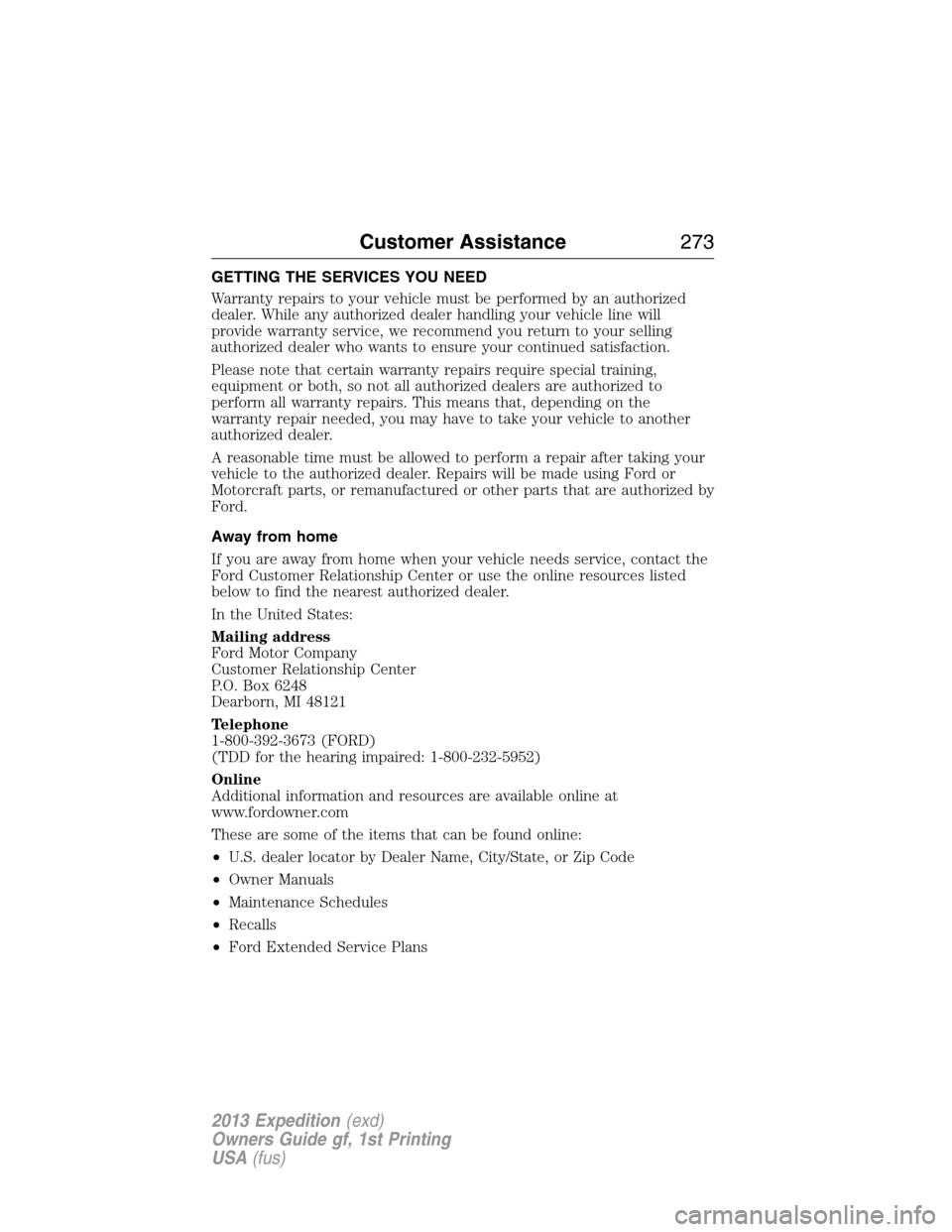
GETTING THE SERVICES YOU NEED
Warranty repairs to your vehicle must be performed by an authorized
dealer. While any authorized dealer handling your vehicle line will
provide warranty service, we recommend you return to your selling
authorized dealer who wants to ensure your continued satisfaction.
Please note that certain warranty repairs require special training,
equipment or both, so not all authorized dealers are authorized to
perform all warranty repairs. This means that, depending on the
warranty repair needed, you may have to take your vehicle to another
authorized dealer.
A reasonable time must be allowed to perform a repair after taking your
vehicle to the authorized dealer. Repairs will be made using Ford or
Motorcraft parts, or remanufactured or other parts that are authorized by
Ford.
Away from home
If you are away from home when your vehicle needs service, contact the
Ford Customer Relationship Center or use the online resources listed
below to find the nearest authorized dealer.
In the United States:
Mailing address
Ford Motor Company
Customer Relationship Center
P.O. Box 6248
Dearborn, MI 48121
Telephone
1-800-392-3673 (FORD)
(TDD for the hearing impaired: 1-800-232-5952)
Online
Additional information and resources are available online at
www.fordowner.com
These are some of the items that can be found online:
•U.S. dealer locator by Dealer Name, City/State, or Zip Code
•Owner Manuals
•Maintenance Schedules
•Recalls
•Ford Extended Service Plans
Customer Assistance273
2013 Expedition(exd)
Owners Guide gf, 1st Printing
USA(fus)