AUX FORD EXPEDITION 2015 3.G Owner's Manual
[x] Cancel search | Manufacturer: FORD, Model Year: 2015, Model line: EXPEDITION, Model: FORD EXPEDITION 2015 3.GPages: 564, PDF Size: 6.71 MB
Page 419 of 564
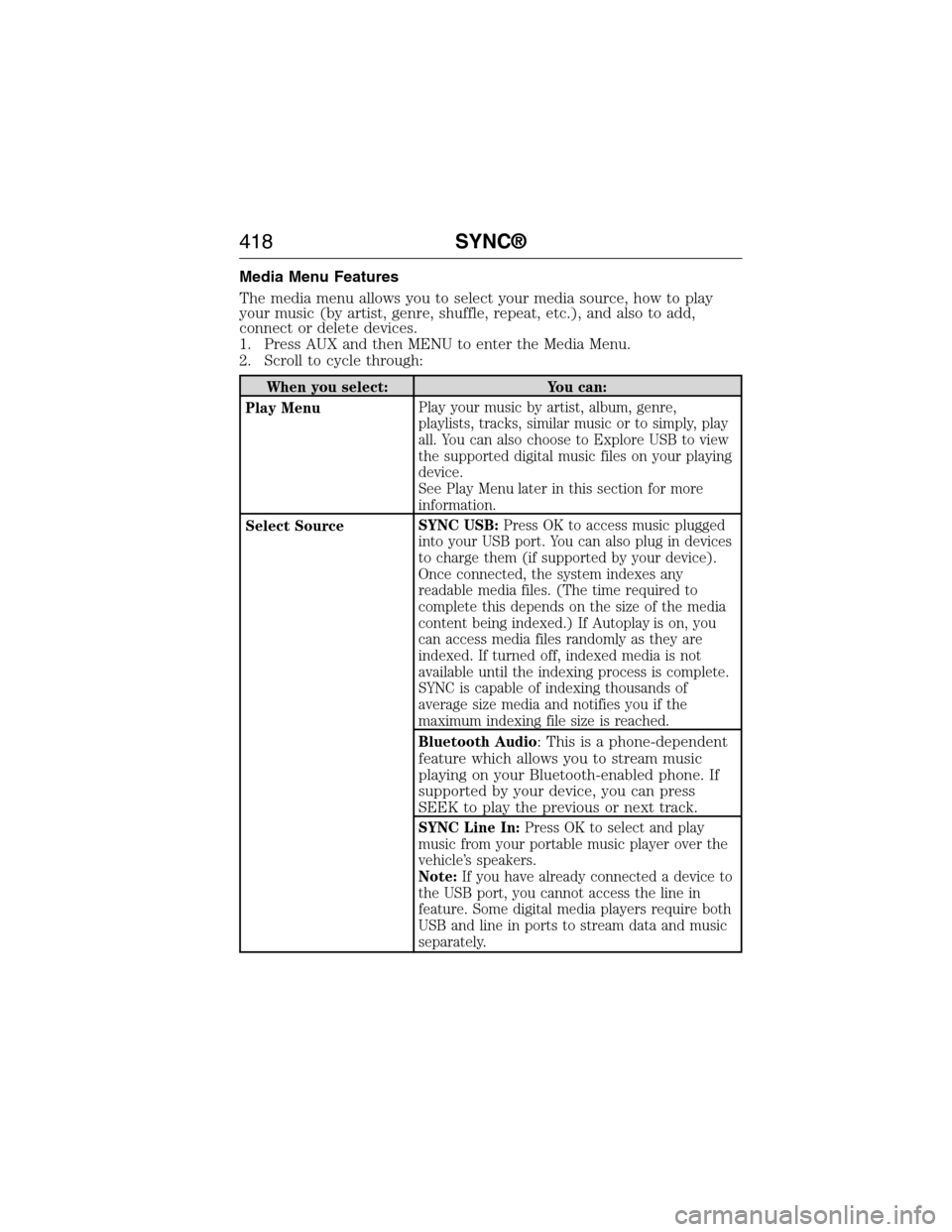
Media Menu Features
The media menu allows you to select your media source, how to play
your music (by artist, genre, shuffle, repeat, etc.), and also to add,
connect or delete devices.
1. Press AUX and then MENU to enter the Media Menu.
2. Scroll to cycle through:
When you select: You can:
Play MenuPlay your music by artist, album, genre,
playlists, tracks, similar music or to simply, play
all. You can also choose to Explore USB to view
the supported digital music files on your playing
device.
See Play Menu later in this section for more
information.
Select SourceSYNC USB:Press OK to access music plugged
into your USB port. You can also plug in devices
to charge them (if supported by your device).
Once connected, the system indexes any
readable media files. (The time required to
complete this depends on the size of the media
content being indexed.) If Autoplay is on, you
can access media files randomly as they are
indexed. If turned off, indexed media is not
available until the indexing process is complete.
SYNC is capable of indexing thousands of
average size media and notifies you if the
maximum indexing file size is reached.
Bluetooth Audio
: This is a phone-dependent
feature which allows you to stream music
playing on your Bluetooth-enabled phone. If
supported by your device, you can press
SEEK to play the previous or next track.
SYNC Line In:Press OK to select and play
music from your portable music player over the
vehicle’s speakers.
Note:If you have already connected a device to
the USB port, you cannot access the line in
feature. Some digital media players require both
USB and line in ports to stream data and music
separately.
418SYNC®
2015 Expedition(exd)
Owners Guide gf, 1st Printing, July 2014
USA(fus)
Page 421 of 564
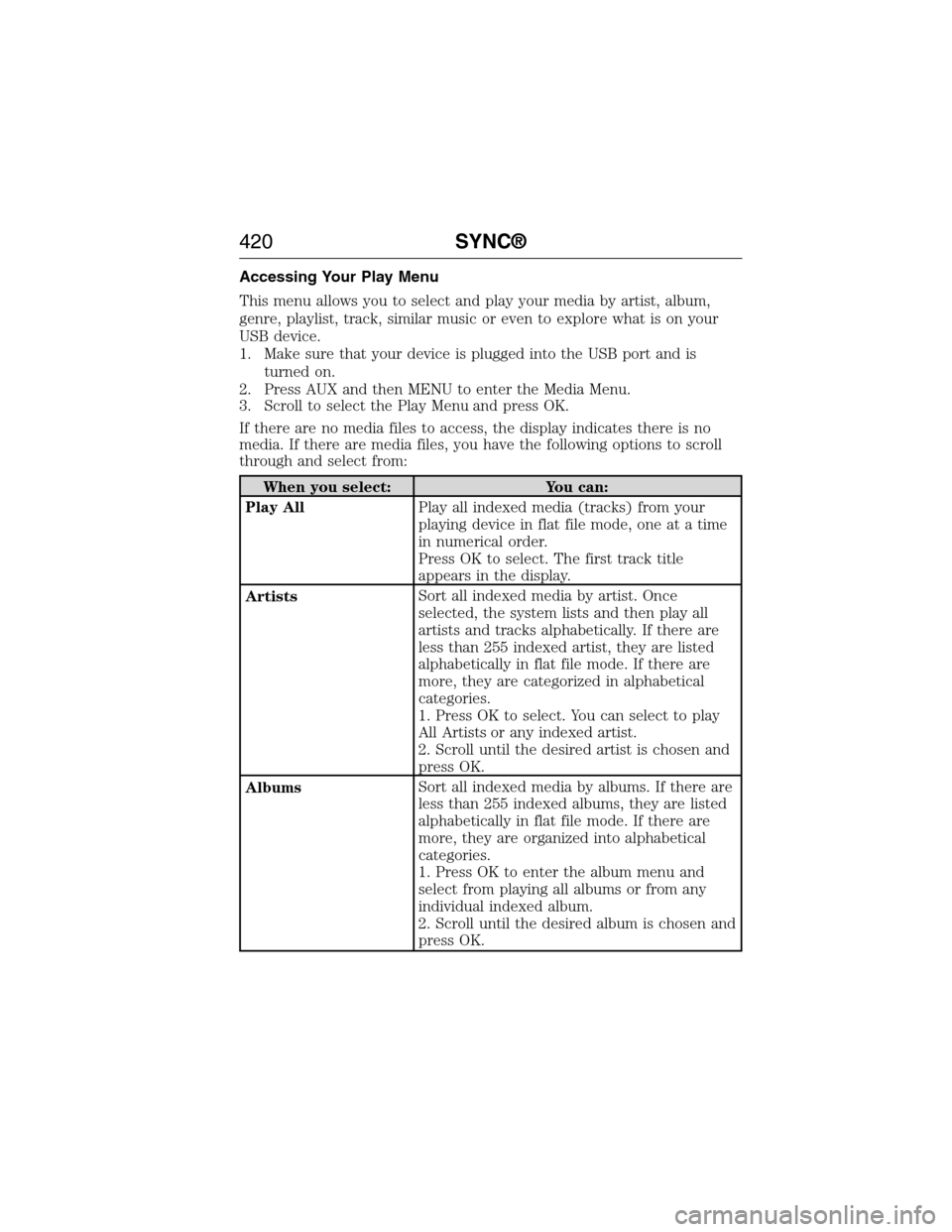
Accessing Your Play Menu
This menu allows you to select and play your media by artist, album,
genre, playlist, track, similar music or even to explore what is on your
USB device.
1. Make sure that your device is plugged into the USB port and is
turned on.
2. Press AUX and then MENU to enter the Media Menu.
3. Scroll to select the Play Menu and press OK.
If there are no media files to access, the display indicates there is no
media. If there are media files, you have the following options to scroll
through and select from:
When you select: You can:
Play AllPlay all indexed media (tracks) from your
playing device in flat file mode, one at a time
in numerical order.
Press OK to select. The first track title
appears in the display.
ArtistsSort all indexed media by artist. Once
selected, the system lists and then play all
artists and tracks alphabetically. If there are
less than 255 indexed artist, they are listed
alphabetically in flat file mode. If there are
more, they are categorized in alphabetical
categories.
1. Press OK to select. You can select to play
All Artists or any indexed artist.
2. Scroll until the desired artist is chosen and
press OK.
AlbumsSort all indexed media by albums. If there are
less than 255 indexed albums, they are listed
alphabetically in flat file mode. If there are
more, they are organized into alphabetical
categories.
1. Press OK to enter the album menu and
select from playing all albums or from any
individual indexed album.
2. Scroll until the desired album is chosen and
press OK.
420SYNC®
2015 Expedition(exd)
Owners Guide gf, 1st Printing, July 2014
USA(fus)
Page 423 of 564
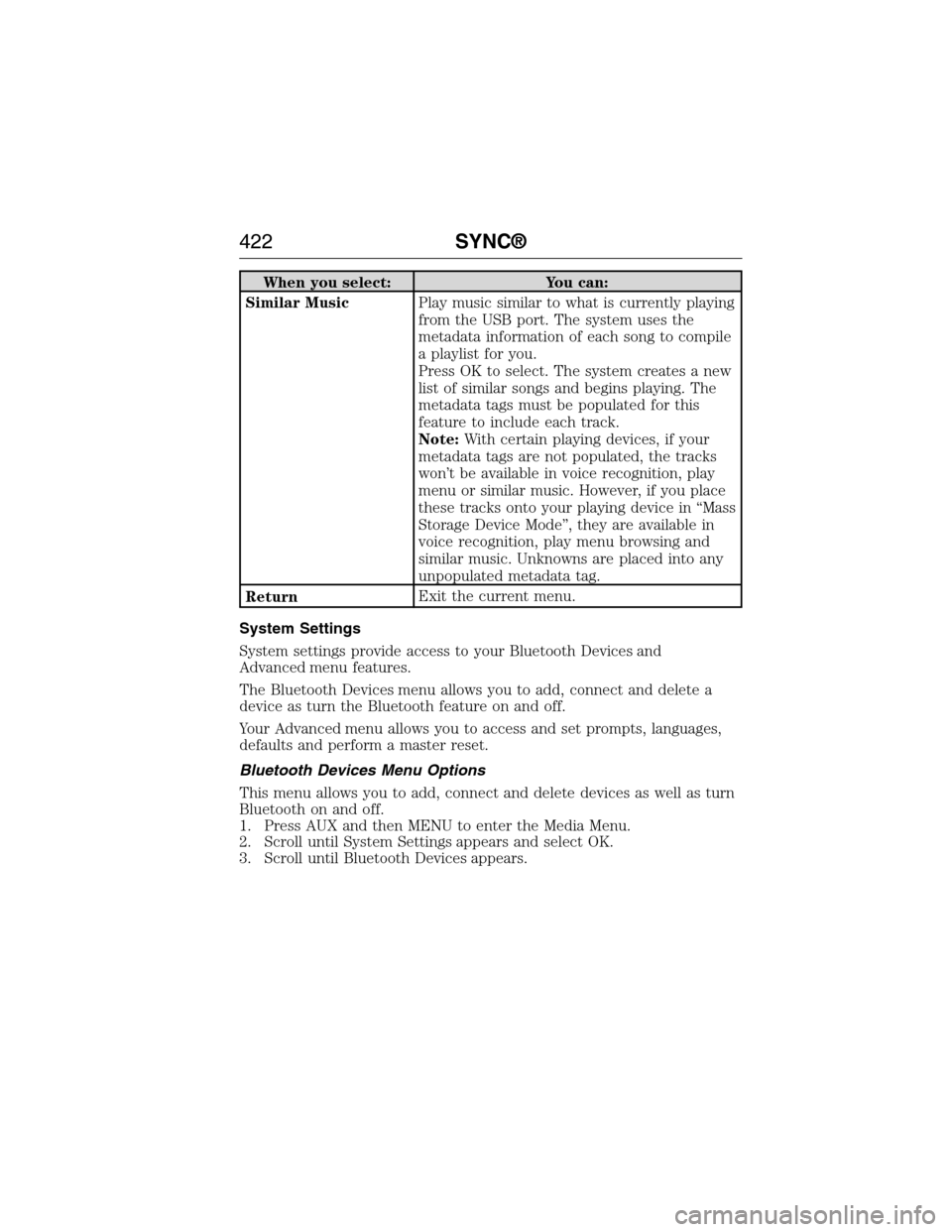
When you select: You can:
Similar MusicPlay music similar to what is currently playing
from the USB port. The system uses the
metadata information of each song to compile
a playlist for you.
Press OK to select. The system creates a new
list of similar songs and begins playing. The
metadata tags must be populated for this
feature to include each track.
Note:With certain playing devices, if your
metadata tags are not populated, the tracks
won’t be available in voice recognition, play
menu or similar music. However, if you place
these tracks onto your playing device in “Mass
Storage Device Mode”, they are available in
voice recognition, play menu browsing and
similar music. Unknowns are placed into any
unpopulated metadata tag.
ReturnExit the current menu.
System Settings
System settings provide access to your Bluetooth Devices and
Advanced menu features.
The Bluetooth Devices menu allows you to add, connect and delete a
device as turn the Bluetooth feature on and off.
Your Advanced menu allows you to access and set prompts, languages,
defaults and perform a master reset.
Bluetooth Devices Menu Options
This menu allows you to add, connect and delete devices as well as turn
Bluetooth on and off.
1. Press AUX and then MENU to enter the Media Menu.
2. Scroll until System Settings appears and select OK.
3. Scroll until Bluetooth Devices appears.
422SYNC®
2015 Expedition(exd)
Owners Guide gf, 1st Printing, July 2014
USA(fus)
Page 425 of 564
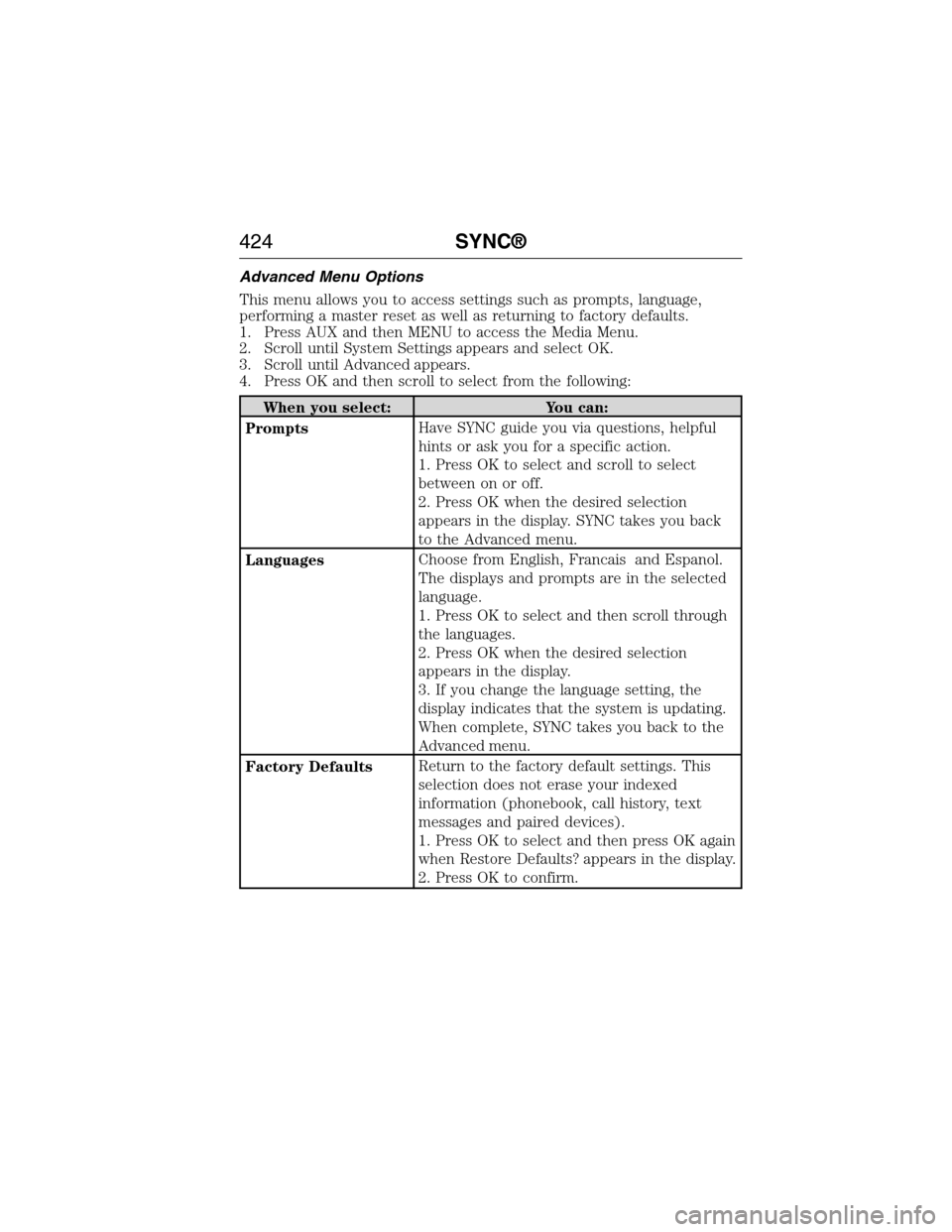
Advanced Menu Options
This menu allows you to access settings such as prompts, language,
performing a master reset as well as returning to factory defaults.
1. Press AUX and then MENU to access the Media Menu.
2. Scroll until System Settings appears and select OK.
3. Scroll until Advanced appears.
4. Press OK and then scroll to select from the following:
When you select: You can:
PromptsHave SYNC guide you via questions, helpful
hints or ask you for a specific action.
1. Press OK to select and scroll to select
between on or off.
2. Press OK when the desired selection
appears in the display. SYNC takes you back
to the Advanced menu.
LanguagesChoose from English, Francais and Espanol.
The displays and prompts are in the selected
language.
1. Press OK to select and then scroll through
the languages.
2. Press OK when the desired selection
appears in the display.
3. If you change the language setting, the
display indicates that the system is updating.
When complete, SYNC takes you back to the
Advanced menu.
Factory DefaultsReturn to the factory default settings. This
selection does not erase your indexed
information (phonebook, call history, text
messages and paired devices).
1. Press OK to select and then press OK again
when Restore Defaults? appears in the display.
2. Press OK to confirm.
424SYNC®
2015 Expedition(exd)
Owners Guide gf, 1st Printing, July 2014
USA(fus)
Page 466 of 564
If your indexed media files contain no information embedded in these
metadata tags, SYNC may classify the empty metadata tags as
Unknown.
In order to playback video from your iPod® or iPhone®, (if compatible),
you MUST have a special combination USB/RCA composite video cable
(which you can buy from Apple®). When the cable is connected to your
iPod® or iPhone®, plug the other end into both the RCA jacks and the
USB port.
Bluetooth Audio
Your system allows you to stream audio over your vehicle’s speakers from
your connected, Bluetooth-enabled cellular phone.
To access, press the lower left corner on the touchscreen, then
select theBT Stereotab.
Bluetooth Audio Voice Commands
If you are listening to a Bluetooth audio device, press the voice
button on the steering wheel control. When prompted, say
“Next song”, “Pause”, “Play” or “Previous song”.
If you are not listening to a Bluetooth audio device, press the voice
button and, after the tone, say “Bluetooth Audio”, then “Next song”,
“Pause”, “Play” or “Previous song”.
Line In (Auxiliary Input Jack)
WARNING:Driving while distracted can result in loss of vehicle
control, crash and injury. We strongly recommend that you use
extreme caution when using any device that may take your focus off
the road. Your primary responsibility is the safe operation of your
vehicle. We recommend against the use of any hand-held device while
driving and encourage the use of voice-operated systems when possible.
Make sure you are aware of all applicable local laws that may affect the
use of electronic devices while driving.
WARNING:For safety reasons, do not connect or adjust the
settings on your portable music player while your vehicle is
moving.
MyFord Touch® (If Equipped)465
2015 Expedition(exd)
Owners Guide gf, 1st Printing, July 2014
USA(fus)
Page 467 of 564
WARNING:Store the portable music player in a secure location,
such as the center console or the glove box, when your vehicle is
in motion. Hard objects may become projectiles in a crash or sudden
stop, which may increase the risk of serious injury. The audio extension
cable must be long enough to allow the portable music player to be
safely stored while your vehicle is moving.
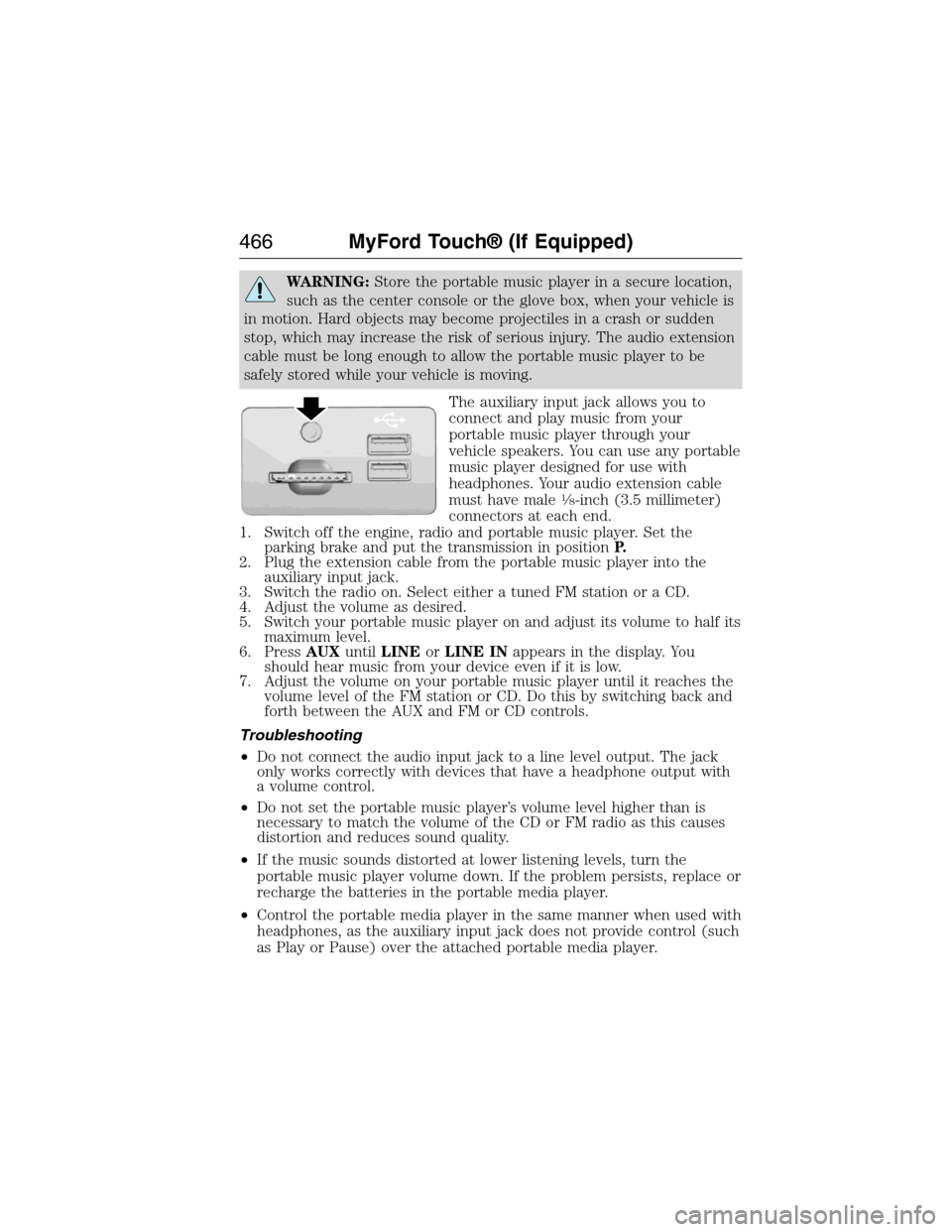
The auxiliary input jack allows you to
connect and play music from your
portable music player through your
vehicle speakers. You can use any portable
music player designed for use with
headphones. Your audio extension cable
must have male
18-inch (3.5 millimeter)
connectors at each end.
1. Switch off the engine, radio and portable music player. Set the
parking brake and put the transmission in positionP.
2. Plug the extension cable from the portable music player into the
auxiliary input jack.
3. Switch the radio on. Select either a tuned FM station or a CD.
4. Adjust the volume as desired.
5. Switch your portable music player on and adjust its volume to half its
maximum level.
6. PressAUXuntilLINEorLINE INappears in the display. You
should hear music from your device even if it is low.
7. Adjust the volume on your portable music player until it reaches the
volume level of the FM station or CD. Do this by switching back and
forth between the AUX and FM or CD controls.
Troubleshooting
•Do not connect the audio input jack to a line level output. The jack
only works correctly with devices that have a headphone output with
a volume control.
•Do not set the portable music player’s volume level higher than is
necessary to match the volume of the CD or FM radio as this causes
distortion and reduces sound quality.
•If the music sounds distorted at lower listening levels, turn the
portable music player volume down. If the problem persists, replace or
recharge the batteries in the portable media player.
•Control the portable media player in the same manner when used with
headphones, as the auxiliary input jack does not provide control (such
as Play or Pause) over the attached portable media player.
466MyFord Touch® (If Equipped)
2015 Expedition(exd)
Owners Guide gf, 1st Printing, July 2014
USA(fus)
Page 557 of 564
911 Assist™ ......................405, 482
A
ABS (see Brakes) .....................212
Accessing and using your
USB port ....................................461
Accessing call history/phone
book during active call .............394
Accessing your calendar ..........481
Accessing your media menu
features ......................................418
Accessing your phone menu
features ......................................396
Accessory delay ..........................98
Active call menu options .........394
Adding (pairing) a phone ........468
Advanced menu
options ...............................403, 424
Advanced menu options
(prompts, languages, defaults,
master reset, installing
applications) ..............................403
Airbag supplemental restraint
system ..........................................47
and child safety seats ..............48
description ................................47
disposal ......................................53
driver airbag ..............................47
passenger airbag .......................47
side airbag ...........................47–48
Air cleaner filter .......303–304, 360
Air conditioning ................136, 138
manual heating and air
conditioning system .......136, 138
Air filter .............................304, 360All Wheel Drive (AWD),
driving off road .........................203
Ambient mood/lighting .............488
Ambulance packages ..................15
AM/FM .......................................449
Antifreeze
(see Engine coolant) ................294
Anti-lock brake system
(see Brakes) ..............................212
Anti-theft system ..................79, 82
arming the system ..............79, 82
disarming a triggered
system .......................................82
AppLink™ .................................413
Ashtray(s) .................................176
Audio system
Single CD ........................370, 375
Audio system
(see Radio) ........................370, 375
Automatic transmission
driving an automatic
overdrive .................................194
fluid, adding ............................298
fluid, checking ........................298
fluid, refill capacities ..............356
fluid, specification ..................356
Selectshift (SST) ....................197
Auxiliary Input Jack .................458
Auxiliary input jack
(Line in) ....................................383
Auxiliary powerpoint ................173
A/V inputs ..........................385, 465
Axle
lubricant specifications ..........356
refill capacities ........................356
556Index
2015 Expedition(exd)
Owners Guide gf, 1st Printing, July 2014
USA(fus)