lock FORD EXPEDITION 2019 Owners Manual
[x] Cancel search | Manufacturer: FORD, Model Year: 2019, Model line: EXPEDITION, Model: FORD EXPEDITION 2019Pages: 583, PDF Size: 6.71 MB
Page 251 of 583
A message displays if something obstructs
the radar signals from the sensor. The
sensor is in the lower grille. The system
cannot detect a vehicle ahead and does
not function when something blocks the
sensor.
Note:
You cannot see the sensor. It is
behind a fascia panel.
Keep the front of your vehicle free of dirt,
metal badges or objects. Vehicle front
protectors and aftermarket lights may also
block the sensor.
Possible Causes and Actions for This Message Displaying: Action
Cause
Clean the grille surface in front of the radar
or remove the object causing the obstruc-
tion.
The surface of the radar is dirty or
obstructed.
Wait a short time. It may take several
minutes for the radar to detect that it is free
from obstruction.
The surface of the radar is clean but the
message remains in the display.
Do not use the system in these conditions
because it may not detect any vehicles
ahead.
Heavy rain or snow is interfering with the
radar signals.
Do not use the system in these conditions
because it may not detect any vehicles
ahead.
Water, snow or ice on the surface of the
road may interfere with the radar signals.
Wait a short time or switch to normal cruise
control.
You are in a desert or remote area with no
other vehicles and no roadside objects.
Due to the nature of radar technology, it is possible to get a blockage warning with no
actual block. A false blocked condition either self clears, or clears after you restart your
vehicle.
Switching to Normal Cruise
Control WARNING: Normal cruise control
will not brake when your vehicle is
approaching slower vehicles. Always be
aware of which mode you have selected
and apply the brakes when necessary. The cruise control indicator light
replaces the adaptive cruise
control indicator light if you
select normal cruise control. The gap
setting does not display, and the system
does not respond to lead vehicles.
Automatic braking remains active to
maintain set speed.
You can change from adaptive cruise
control to normal cruise control through
the information display.
248
Expedition (TB8) Canada/United States of America, enUSA, Edition date: 201808, Second-Printing Cruise ControlE71340
Page 252 of 583
DRIVER ALERT (IF EQUIPPED)
WARNING:
The system is
designed to aid the driver. It is not
intended to replace your attention and
judgment. You are still responsible to
drive with due care and attention. WARNING:
At all times, you are
responsible for controlling your vehicle,
supervising the system and intervening,
if required. Failure to take care may result
in the loss of control of your vehicle,
serious personal injury or death. WARNING:
The system may not
function if the sensor is blocked. WARNING:
Take regular rest
breaks if you feel tired. Do not wait for
the system to warn you. WARNING:
Certain driving styles
may result in the system warning you
even if you are not feeling tired. WARNING:
In cold and severe
weather conditions the system may not
function. Rain, snow and spray can all
limit sensor performance. WARNING:
The system will not
operate if the sensor cannot track the
road lane markings. WARNING:
If damage occurs in
the immediate area surrounding the
sensor, have your vehicle checked as
soon as possible. WARNING:
The system may not
correctly operate if your vehicle is fitted
with a suspension kit not approved by
us. Note:
Keep the windshield free from
obstructions. For example, bird droppings,
insects and snow or ice.
Note: If the camera is blocked or if the
windshield is damaged, the system may not
function.
Note: If enabled in the menu, the system
activates at speeds above
40 mph
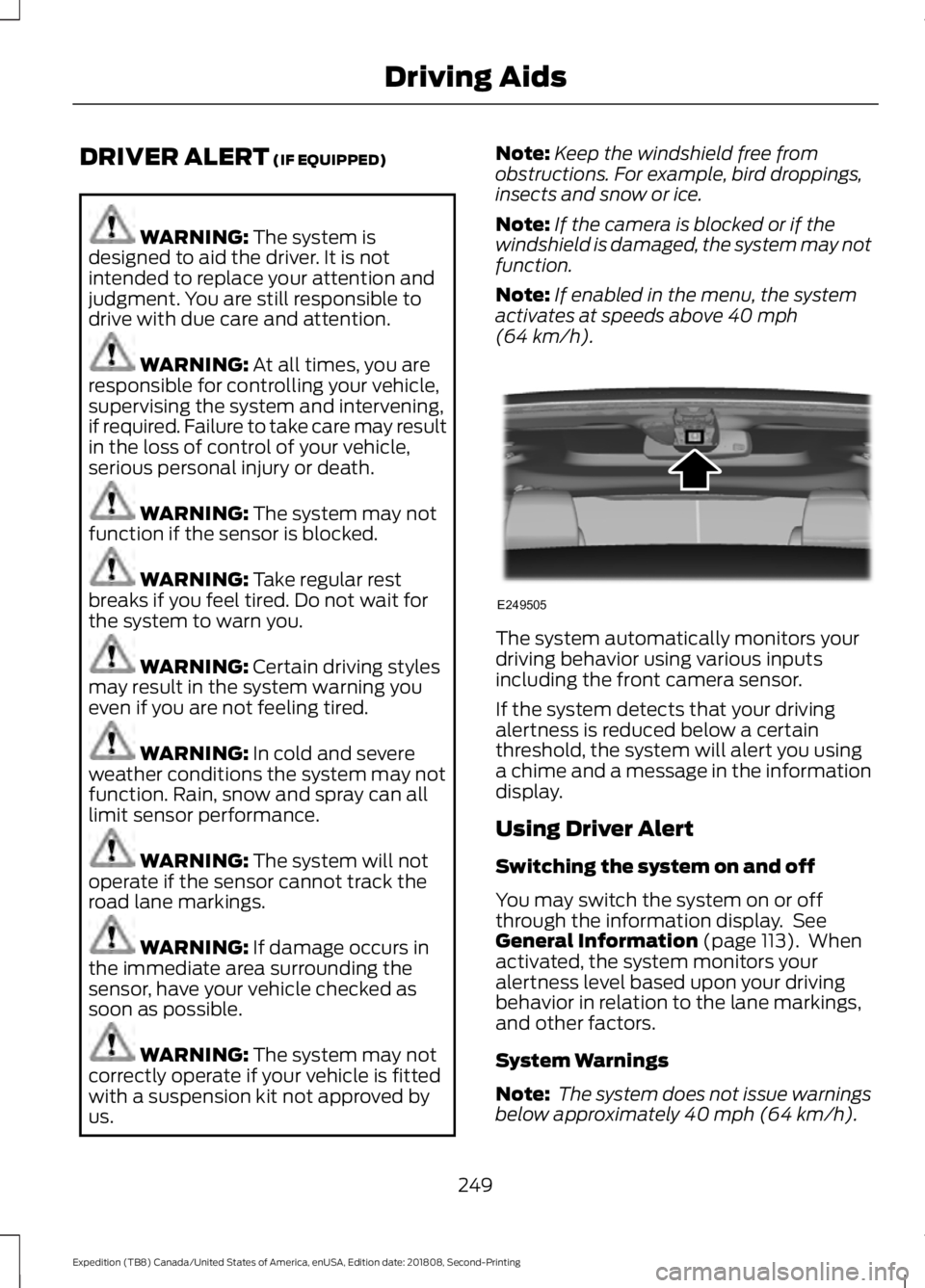
(64 km/h). The system automatically monitors your
driving behavior using various inputs
including the front camera sensor.
If the system detects that your driving
alertness is reduced below a certain
threshold, the system will alert you using
a chime and a message in the information
display.
Using Driver Alert
Switching the system on and off
You may switch the system on or off
through the information display. See
General Information
(page 113). When
activated, the system monitors your
alertness level based upon your driving
behavior in relation to the lane markings,
and other factors.
System Warnings
Note: The system does not issue warnings
below approximately
40 mph (64 km/h).
249
Expedition (TB8) Canada/United States of America, enUSA, Edition date: 201808, Second-Printing Driving AidsE249505
Page 253 of 583
The warning system is in two stages. At
first the system issues a temporary warning
that you need to take a rest. This message
will only appear for a short time. If the
system detects further reduction in driving
alertness, another warning may be issued
which will remain in the information display
for a longer time. Press OK on the steering
wheel control to clear the warning. When
active the system will run automatically in
the background and only issue a warning
if required.
Resetting the System
You can reset the system by either:
•
Switching the ignition off and on.
• Stopping your vehicle and then opening
and closing the driver ’s door.
LANE KEEPING SYSTEM (IF
EQUIPPED) WARNING:
You are responsible
for controlling your vehicle at all times.
The system is designed to be an aid and
does not relieve you of your responsibility
to drive with due care and attention.
Failure to follow this instruction could
result in the loss of control of your
vehicle, personal injury or death. WARNING:
Always drive with due
care and attention when using and
operating the controls and features on
your vehicle. WARNING:
In cold and severe
weather conditions the system may not
function. Rain, snow and spray can all
limit sensor performance. WARNING:
The system will not
operate if the sensor cannot track the
road lane markings. WARNING:
The sensor may
incorrectly track lane markings as other
structures or objects. This can result in
a false or missed warning. WARNING:
The system may not
operate properly if the sensor is blocked.
Keep the windshield free from
obstruction. WARNING:
If damage occurs in
the immediate area surrounding the
sensor, have your vehicle checked as
soon as possible. WARNING:
The system may not
correctly operate if your vehicle is fitted
with a suspension kit not approved by
us.
Note: The system works above
40 mph
(64 km/h).
Note: The system works as long as the
camera can detect one lane marking.
Note: When you select aid or alert and aid
mode and the system detects no steering
activity for a short period, the system alerts
you to put your hands on the steering wheel.
The system may detect a light grip or touch
on the steering wheel as hands off driving.
Note: The system may not function if the
camera is blocked, or if the windshield is
damaged or dirty.
250
Expedition (TB8) Canada/United States of America, enUSA, Edition date: 201808, Second-Printing Driving Aids
Page 256 of 583
•
The road has no or poor lane markings
in the camera field-of-view.
• The camera is obscured or unable to
detect the lane markings due to
environmental, traffic or vehicle
conditions. For example, significant sun
angles, shadows, snow, heavy rain or
fog, following a large vehicle that is
blocking or shadowing the lane or poor
headlamp illumination. See Troubleshooting for additional
information.
Green: Indicates that the system is
available or ready to provide a warning or
intervention, on the indicated side.
Yellow: Indicates that the system is
providing or has just provided a lane
keeping aid intervention.
Red: Indicates that the system is providing
or has just provided a lane keeping alert
warning.
Troubleshooting Why is the feature not available (line markings are gray) when I can see the lane markings
on the road?
Your vehicle speed is outside the operational range of the feature.
The sun is shining directly into the camera lens.
A quick intentional lane change has occurred.
Your vehicle stays too close to the lane markings.
Driving at high speeds in curves.
The last alert warning or aid intervention occurred a short time ago.
Ambiguous lane markings, for example in construction zones.
Rapid transition from light to dark, or from dark to light.
Sudden offset in lane markings.
ABS or AdvanceTrac ™ is active.
There is a camera blockage due to dirt, grime, fog, frost or water on the windshield.
You are driving too close to the vehicle in front of you.
Transitioning between no lane markings to lane markings or vice versa.
There is standing water on the road.
Faint lane markings, for example partial yellow lane markings on concrete roads.
253
Expedition (TB8) Canada/United States of America, enUSA, Edition date: 201808, Second-Printing Driving Aids
Page 258 of 583
The system is designed to detect vehicles
that may have entered the blind spot zone.
The detection area is on both sides of your
vehicle, extending rearward from the
exterior mirrors to approximately 13 ft
(4 m) beyond the rear bumper. The
detection area extends to approximately
59 ft (18 m)
beyond the rear bumper when
the vehicle speed is greater than 30 mph
(48 km/h) to alert you of faster
approaching vehicles.
Note: The system does not prevent contact
with other vehicles. It is not designed to
detect parked vehicles, pedestrians, animals
or other infrastructures.
Using the Blind Spot Information
System
Vehicles with Automatic Transmission
The system turns on when all of the
following occur:
• You start your vehicle.
• You shift into drive (D).
• The vehicle speed is greater than
6 mph (10 km/h)
.
Note: The system does not operate in park
(P) or reverse (R).
Vehicles with Manual Transmission
The system turns on when all of the
following occur:
• You start your vehicle.
• The vehicle speed is greater than
6 mph (10 km/h)
.
Note: The system does not operate in
reverse (R). System Lights and Messages
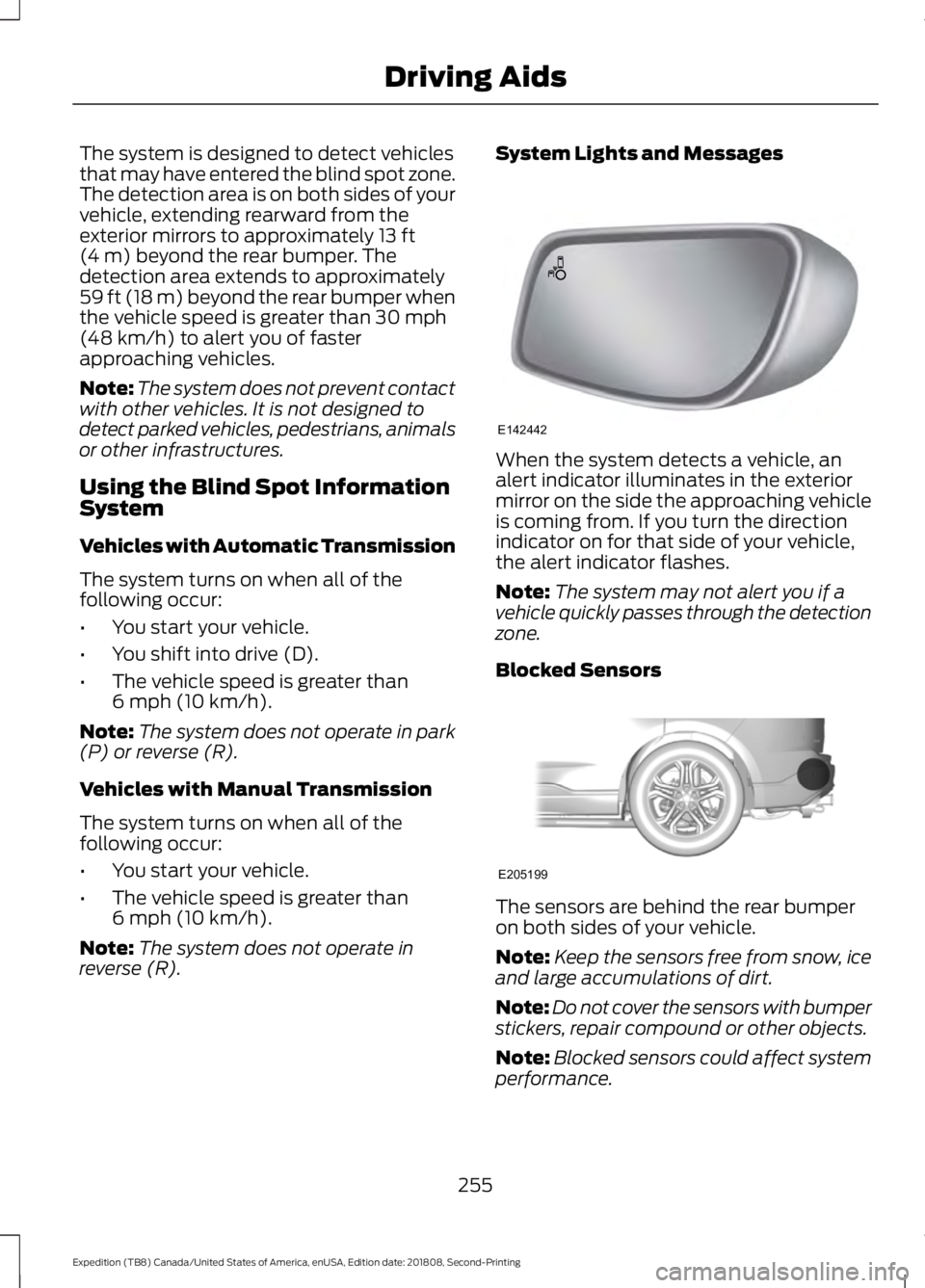
When the system detects a vehicle, an
alert indicator illuminates in the exterior
mirror on the side the approaching vehicle
is coming from. If you turn the direction
indicator on for that side of your vehicle,
the alert indicator flashes.
Note:
The system may not alert you if a
vehicle quickly passes through the detection
zone.
Blocked Sensors The sensors are behind the rear bumper
on both sides of your vehicle.
Note:
Keep the sensors free from snow, ice
and large accumulations of dirt.
Note: Do not cover the sensors with bumper
stickers, repair compound or other objects.
Note: Blocked sensors could affect system
performance.
255
Expedition (TB8) Canada/United States of America, enUSA, Edition date: 201808, Second-Printing Driving AidsE142442 E205199
Page 259 of 583
If the sensors become blocked, a message
may appear in the information display. See
Information Messages (page 125). The
alert indicators remain illuminated but the
system does not alert you.
Blind Spot Information System
with Trailer Tow
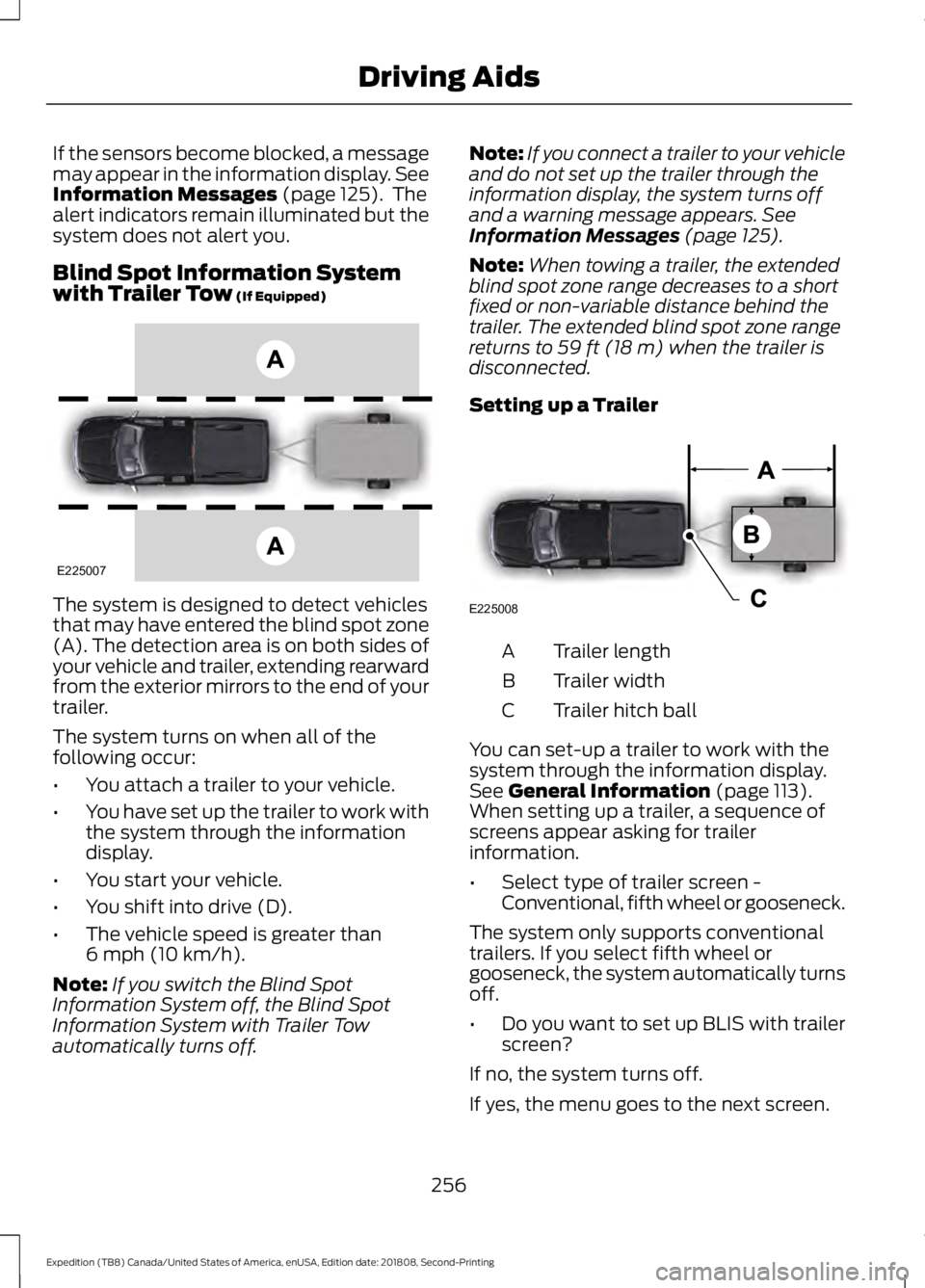
(If Equipped) The system is designed to detect vehicles
that may have entered the blind spot zone
(A). The detection area is on both sides of
your vehicle and trailer, extending rearward
from the exterior mirrors to the end of your
trailer.
The system turns on when all of the
following occur:
•
You attach a trailer to your vehicle.
• You have set up the trailer to work with
the system through the information
display.
• You start your vehicle.
• You shift into drive (D).
• The vehicle speed is greater than
6 mph (10 km/h)
.
Note: If you switch the Blind Spot
Information System off, the Blind Spot
Information System with Trailer Tow
automatically turns off. Note:
If you connect a trailer to your vehicle
and do not set up the trailer through the
information display, the system turns off
and a warning message appears.
See
Information Messages (page 125).
Note: When towing a trailer, the extended
blind spot zone range decreases to a short
fixed or non-variable distance behind the
trailer. The extended blind spot zone range
returns to
59 ft (18 m) when the trailer is
disconnected.
Setting up a Trailer Trailer length
A
Trailer width
B
Trailer hitch ball
C
You can set-up a trailer to work with the
system through the information display.
See
General Information (page 113).
When setting up a trailer, a sequence of
screens appear asking for trailer
information.
• Select type of trailer screen -
Conventional, fifth wheel or gooseneck.
The system only supports conventional
trailers. If you select fifth wheel or
gooseneck, the system automatically turns
off.
• Do you want to set up BLIS with trailer
screen?
If no, the system turns off.
If yes, the menu goes to the next screen.
256
Expedition (TB8) Canada/United States of America, enUSA, Edition date: 201808, Second-Printing Driving AidsE225007 E225008
Page 263 of 583
Zone coverage also decreases when
parking at narrow angles. The sensor on
the left-hand side is mostly obstructed and
zone coverage on that side is severely
reduced.
System Lights, Messages and
Audible Alerts
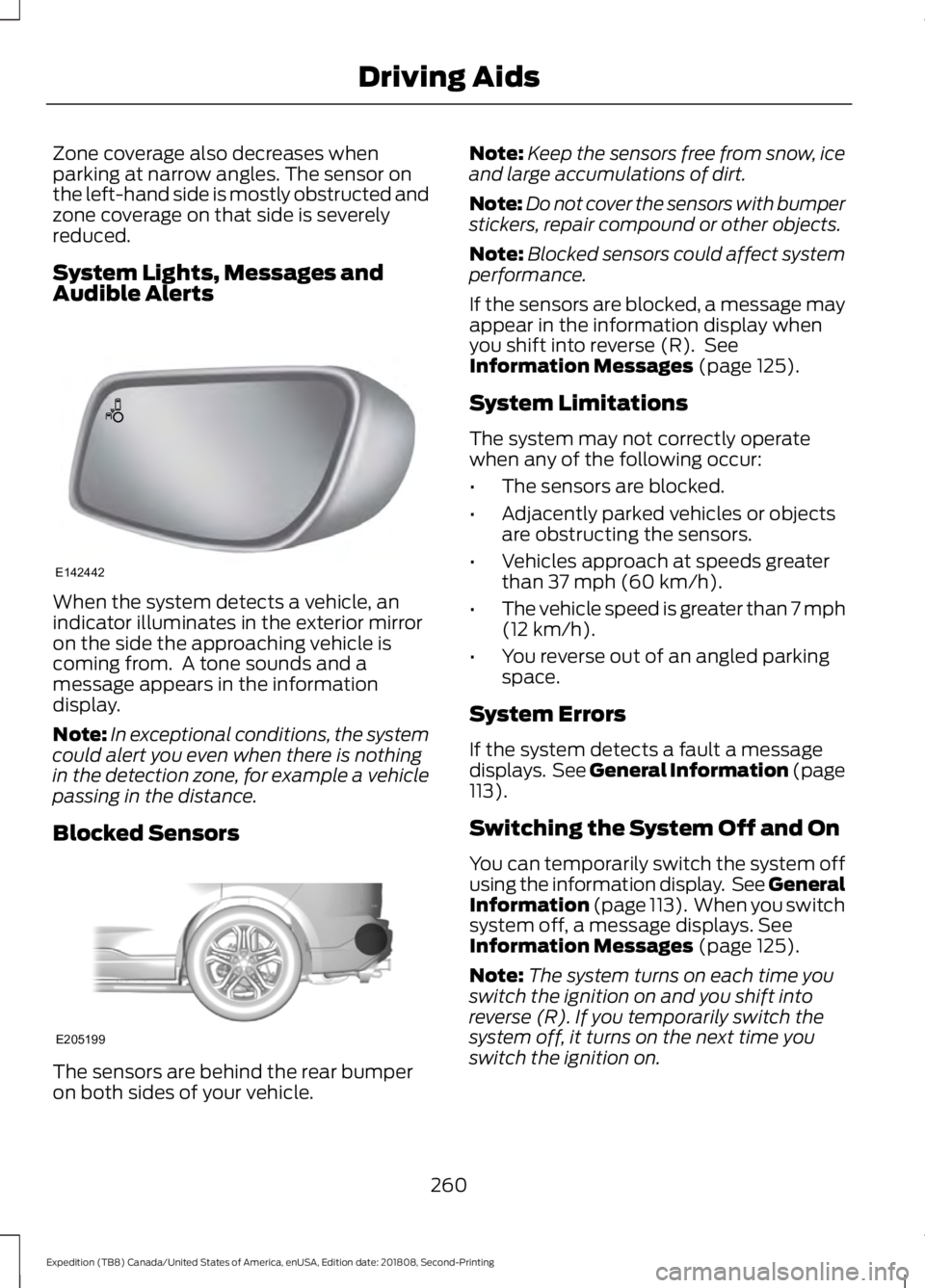
When the system detects a vehicle, an
indicator illuminates in the exterior mirror
on the side the approaching vehicle is
coming from. A tone sounds and a
message appears in the information
display.
Note:
In exceptional conditions, the system
could alert you even when there is nothing
in the detection zone, for example a vehicle
passing in the distance.
Blocked Sensors The sensors are behind the rear bumper
on both sides of your vehicle. Note:
Keep the sensors free from snow, ice
and large accumulations of dirt.
Note: Do not cover the sensors with bumper
stickers, repair compound or other objects.
Note: Blocked sensors could affect system
performance.
If the sensors are blocked, a message may
appear in the information display when
you shift into reverse (R). See
Information Messages (page 125).
System Limitations
The system may not correctly operate
when any of the following occur:
• The sensors are blocked.
• Adjacently parked vehicles or objects
are obstructing the sensors.
• Vehicles approach at speeds greater
than
37 mph (60 km/h).
• The vehicle speed is greater than 7 mph
(12 km/h)
.
• You reverse out of an angled parking
space.
System Errors
If the system detects a fault a message
displays. See General Information (page
113
).
Switching the System Off and On
You can temporarily switch the system off
using the information display. See
General
Information (page 113). When you switch
system off, a message displays. See
Information Messages (page 125).
Note: The system turns on each time you
switch the ignition on and you shift into
reverse (R). If you temporarily switch the
system off, it turns on the next time you
switch the ignition on.
260
Expedition (TB8) Canada/United States of America, enUSA, Edition date: 201808, Second-Printing Driving AidsE142442 E205199
Page 267 of 583
•
If required, you can switch Active
Braking on or off.
• If required, you can switch the entire
Pre-Collision Assist feature on or off.
Note: Active braking automatically turns
on every time you switch the ignition on.
Note: We recommended that you switch
the system off if you install a snow plow or
similar object in such a way that it may
block the radar sensor. Your vehicle
remembers the setting across key cycles.
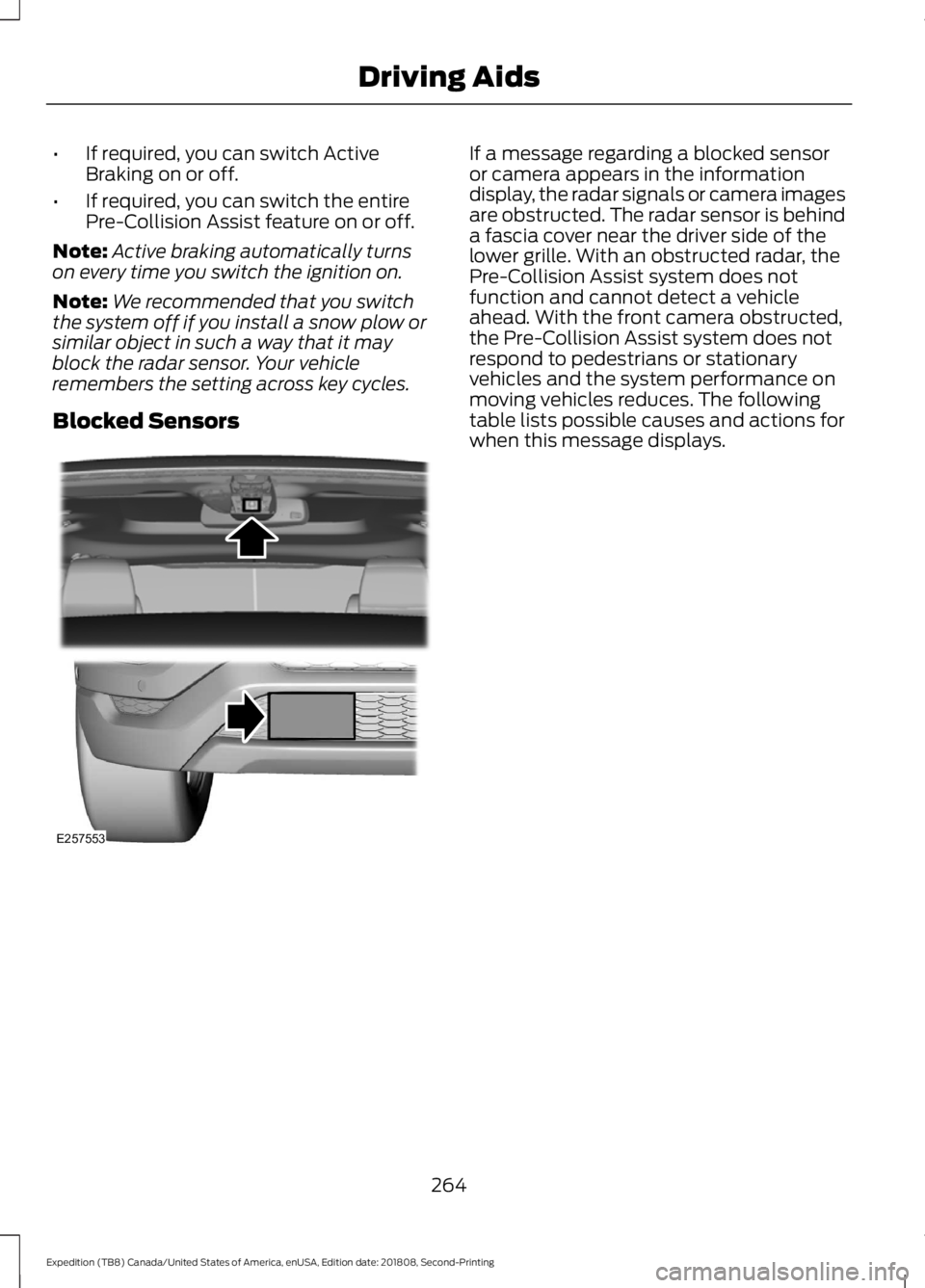
Blocked Sensors If a message regarding a blocked sensor
or camera appears in the information
display, the radar signals or camera images
are obstructed. The radar sensor is behind
a fascia cover near the driver side of the
lower grille. With an obstructed radar, the
Pre-Collision Assist system does not
function and cannot detect a vehicle
ahead. With the front camera obstructed,
the Pre-Collision Assist system does not
respond to pedestrians or stationary
vehicles and the system performance on
moving vehicles reduces. The following
table lists possible causes and actions for
when this message displays.
264
Expedition (TB8) Canada/United States of America, enUSA, Edition date: 201808, Second-Printing Driving AidsE257553
Page 287 of 583
A message displays during calibration and
after calibration is complete.
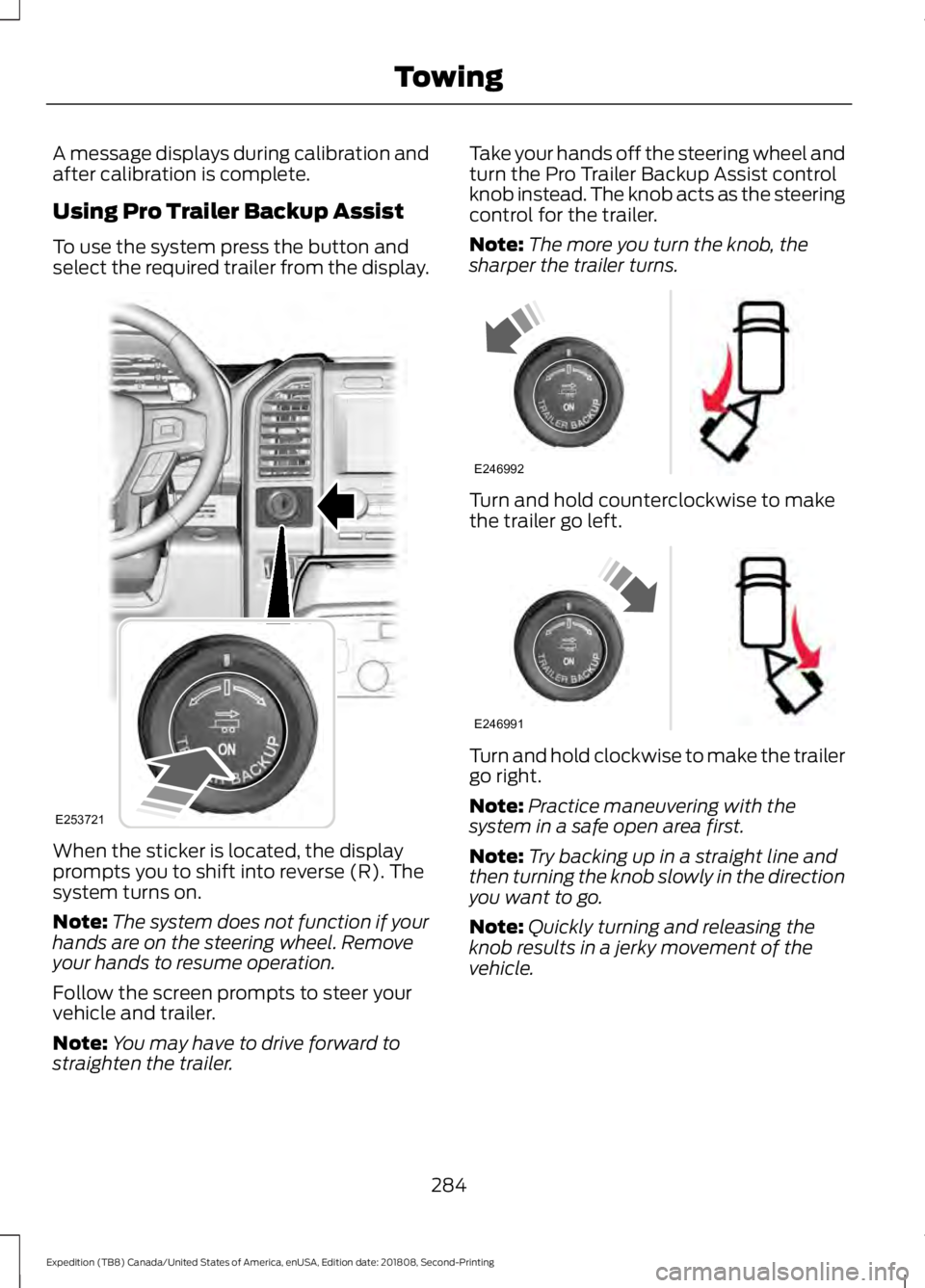
Using Pro Trailer Backup Assist
To use the system press the button and
select the required trailer from the display.
When the sticker is located, the display
prompts you to shift into reverse (R). The
system turns on.
Note:
The system does not function if your
hands are on the steering wheel. Remove
your hands to resume operation.
Follow the screen prompts to steer your
vehicle and trailer.
Note: You may have to drive forward to
straighten the trailer. Take your hands off the steering wheel and
turn the Pro Trailer Backup Assist control
knob instead. The knob acts as the steering
control for the trailer.
Note:
The more you turn the knob, the
sharper the trailer turns. Turn and hold counterclockwise to make
the trailer go left.
Turn and hold clockwise to make the trailer
go right.
Note:
Practice maneuvering with the
system in a safe open area first.
Note: Try backing up in a straight line and
then turning the knob slowly in the direction
you want to go.
Note: Quickly turning and releasing the
knob results in a jerky movement of the
vehicle.
284
Expedition (TB8) Canada/United States of America, enUSA, Edition date: 201808, Second-Printing TowingE253721 E246992 E246991
Page 290 of 583
For best results:
•
Use a long, straight, smooth and level
road when attempting to calibrate.
• Drive straight forward.
• Drive between 4 mph (6 km/h) and
24 mph (39 km/h).
System Operation
The following warnings or difficulties may
occur during feature operation. Tips to
resolve them are listed below.
The system is not available:
• The system relies on many
sub-systems in your vehicle to operate
correctly. If those sub-systems are not
operating correctly the system may not
be available.
• Low battery voltage is a condition
which prevents the system from
operating. Please make sure the
battery is correctly charged if the
system is not available.
• You may need to drive your vehicle
straight forward above
25 mph
(40 km/h) before the system is
available again.
• If the message still displays take your
vehicle to an authorized dealer for
service.
Sticker lost:
• If the system cannot initially find the
sticker, it may be necessary for you to
change the lighting conditions by
moving the vehicle and trailer or
waiting until conditions change.
• Check for the following if you receive
the lost sticker message while using
the system.
• Stop your vehicle as soon as the
message displays.
• Make sure the sticker is visible and the
pattern is discernable in the rear view
camera image. •
Clean the sticker and camera to make
sure they are unobstructed.
• Clean the lens with a soft, lint-free
cloth and water.
• Clean the sticker with isopropyl rubbing
alcohol sprayed directly onto the
sticker, and then wipe clean with a soft
cloth.
• Remove any items that may be
blocking the view of the sticker.
Depending on your trailer configuration
and any equipment mounted to your
trailer it is possible for the sticker to be
blocked from view of the camera as it
rotates on the hitch ball but not be
blocked during setup. Remove the
obstruction if possible. It is necessary
to remove the sticker from its current
location if the obstruction cannot be
cleared and place a new sticker that is
visible to the camera in all positions of
the trailer behind your vehicle.
• Placing the sticker on a surface angled
away from the vehicle reduces
performance. Use a drawbar that
positions the trailer level to the ground
when attached to vehicle. This typically
provides a level surface to mount the
sticker. Place the sticker on a bracket
or other object when no level surface
is available.
• Make sure the entire sticker is on a flat
surface that is completely visible to the
camera. Do not fold the sticker over an
edge on the trailer frame. This can
degrade performance.
• Shadows on the sticker may effect
tracking performance under some
lighting conditions. Moving the sticker
to another location within the allowed
placement area may improve
performance. Use the change sticker
option in your Towing menu if you
move the sticker.
287
Expedition (TB8) Canada/United States of America, enUSA, Edition date: 201808, Second-Printing Towing