buttons FORD EXPEDITION 2021 Owner's Manual
[x] Cancel search | Manufacturer: FORD, Model Year: 2021, Model line: EXPEDITION, Model: FORD EXPEDITION 2021Pages: 574, PDF Size: 8.33 MB
Page 413 of 574
Playing or Pausing Media
Press and release the button to
either play or pause current
media source.
Returning to the Previous Screen Press and release the button.
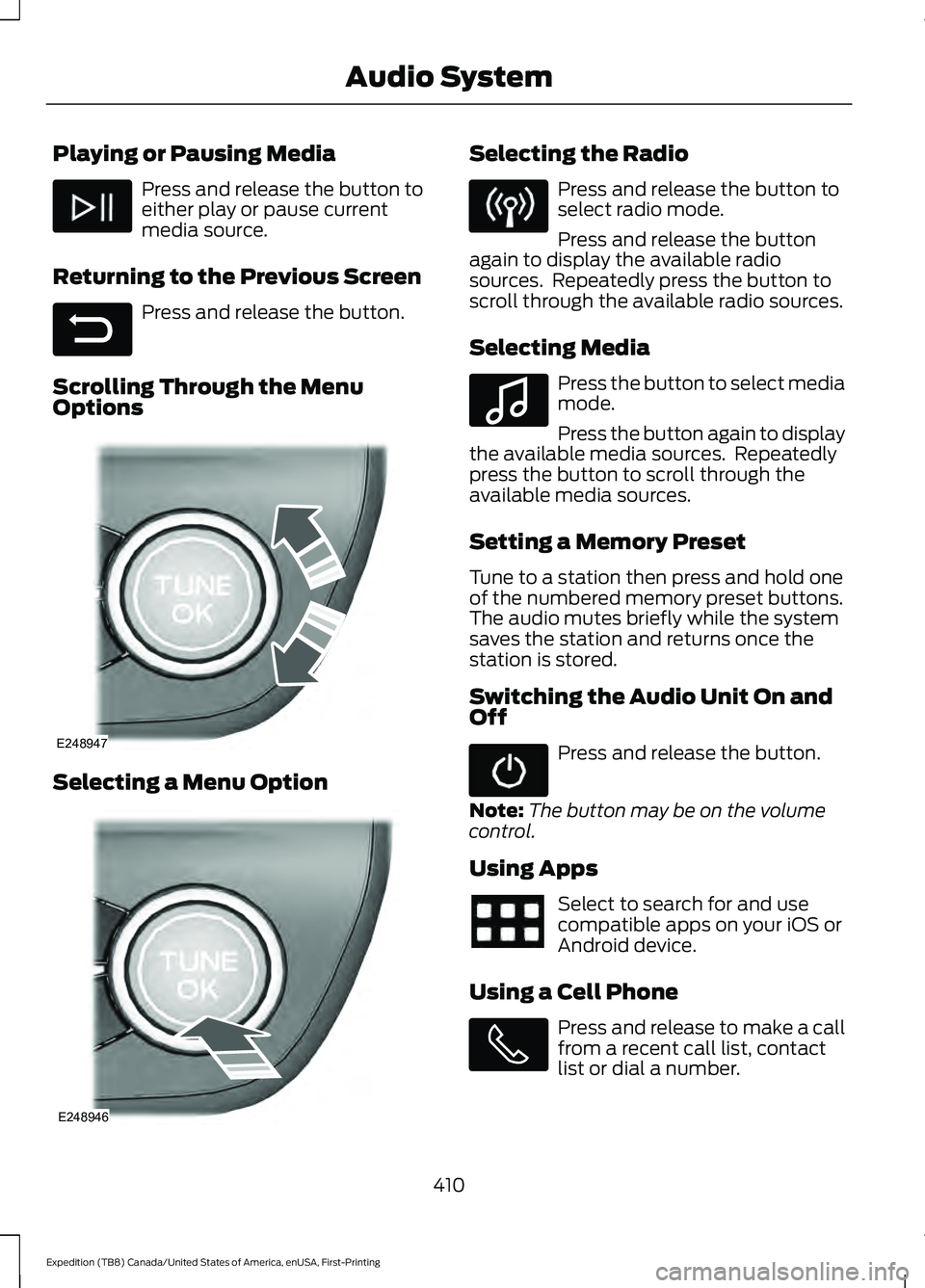
Scrolling Through the Menu
Options Selecting a Menu Option Selecting the Radio
Press and release the button to
select radio mode.
Press and release the button
again to display the available radio
sources. Repeatedly press the button to
scroll through the available radio sources.
Selecting Media Press the button to select media
mode.
Press the button again to display
the available media sources. Repeatedly
press the button to scroll through the
available media sources.
Setting a Memory Preset
Tune to a station then press and hold one
of the numbered memory preset buttons.
The audio mutes briefly while the system
saves the station and returns once the
station is stored.
Switching the Audio Unit On and
Off Press and release the button.
Note: The button may be on the volume
control.
Using Apps Select to search for and use
compatible apps on your iOS or
Android device.
Using a Cell Phone Press and release to make a call
from a recent call list, contact
list or dial a number.
410
Expedition (TB8) Canada/United States of America, enUSA, First-Printing Audio System E281480 E248947 E248946 E100027
Page 415 of 574
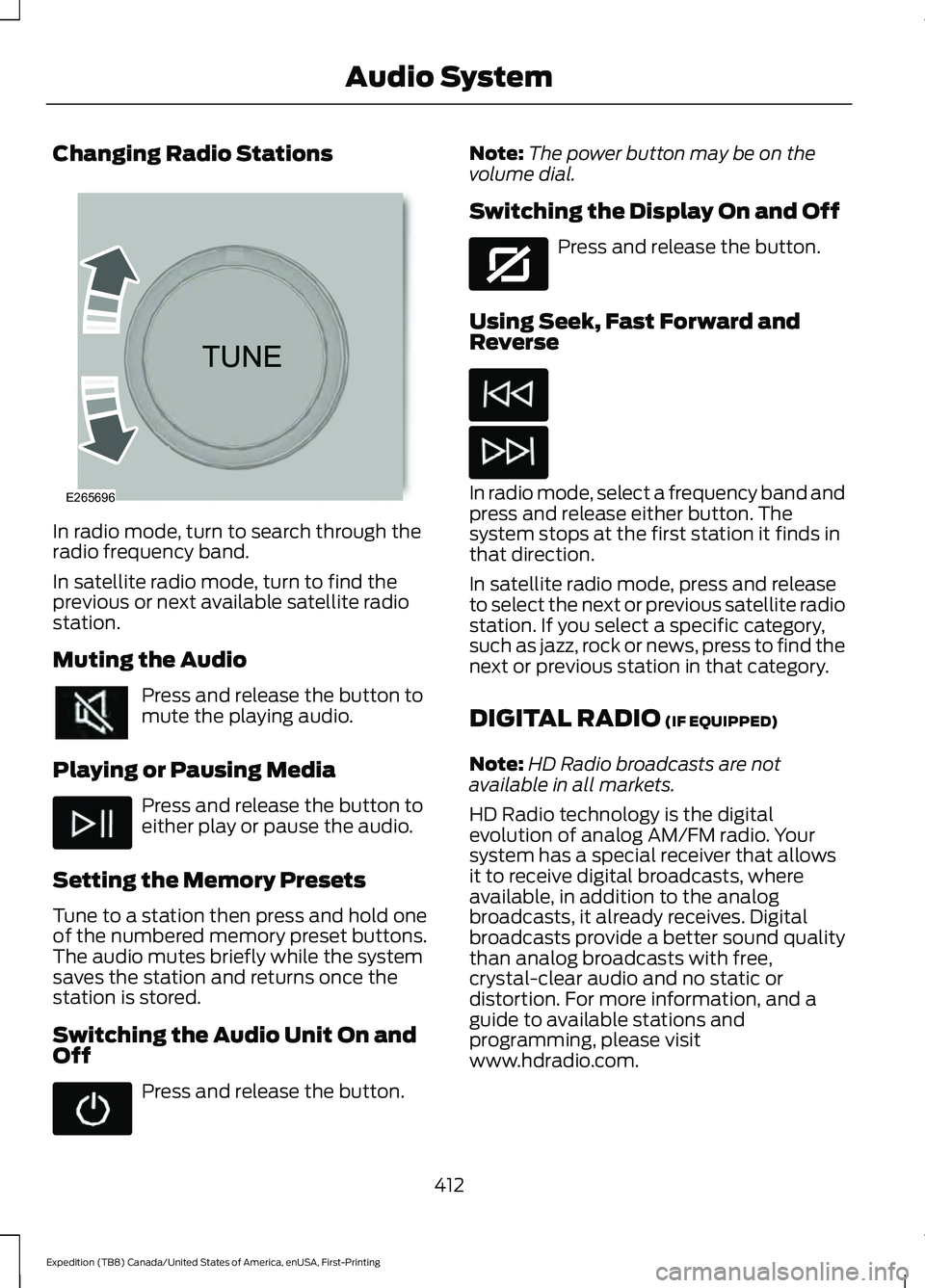
Changing Radio Stations
In radio mode, turn to search through the
radio frequency band.
In satellite radio mode, turn to find the
previous or next available satellite radio
station.
Muting the Audio
Press and release the button to
mute the playing audio.
Playing or Pausing Media Press and release the button to
either play or pause the audio.
Setting the Memory Presets
Tune to a station then press and hold one
of the numbered memory preset buttons.
The audio mutes briefly while the system
saves the station and returns once the
station is stored.
Switching the Audio Unit On and
Off Press and release the button. Note:
The power button may be on the
volume dial.
Switching the Display On and Off Press and release the button.
Using Seek, Fast Forward and
Reverse In radio mode, select a frequency band and
press and release either button. The
system stops at the first station it finds in
that direction.
In satellite radio mode, press and release
to select the next or previous satellite radio
station. If you select a specific category,
such as jazz, rock or news, press to find the
next or previous station in that category.
DIGITAL RADIO (IF EQUIPPED)
Note: HD Radio broadcasts are not
available in all markets.
HD Radio technology is the digital
evolution of analog AM/FM radio. Your
system has a special receiver that allows
it to receive digital broadcasts, where
available, in addition to the analog
broadcasts, it already receives. Digital
broadcasts provide a better sound quality
than analog broadcasts with free,
crystal-clear audio and no static or
distortion. For more information, and a
guide to available stations and
programming, please visit
www.hdradio.com.
412
Expedition (TB8) Canada/United States of America, enUSA, First-Printing Audio SystemE265696 E272035
Page 426 of 574
__ is a dynamic listing, meaning that it
could be the name of anything, such as a
contact or phone number.
Phone Controls
Use the phone buttons on your steering
wheel to answer, reject, or hang up a call.
Accessing Features through the
Phone Menu
You can access your call history,
phonebook, sent text messages, as well
as access phone and system settings.
1. Press the PHONE button to enter the
phone menu.
2. Scroll through the menu to view contacts, text messages, and the
phone dialer.
SYNC™ APPLICATIONS AND
SERVICES
• SYNC AppLink: Allows you to connect
to and use certain applications (if your
phone is compatible).
These features may require activation.
Available AppLink enabled apps vary by
market.
SYNC Mobile Apps
The system enables voice and steering
wheel control of SYNC AppLink enabled
smartphone apps. When an app is running
through AppLink, you can control main
features of the app through voice
commands and steering wheel controls. Note:
You must pair and connect your
smartphone to SYNC to access AppLink.
Note: Android users need to connect the
phone to SYNC using Bluetooth.
Note: For information on available apps,
supported smartphone devices and
troubleshooting tips please visit the Ford
website
Note: Availability of SYNC AppLink enabled
Apps will vary by region.
Note: Make sure you have an active account
for the app that you have downloaded.
Some apps work automatically with no
setup. Other apps want you to configure
your personal settings and personalize your
experience by creating stations or favorites.
We recommend you do this at home or
outside of your vehicle.
To Access Using the SYNC Menu
Press the Mobile Apps button to access
the menu on-screen. Then select: Action and Description
Menu
Item
Scroll through the list of
available applications and
select a particular app.
Find
Mobile
Apps
Note: If you cannot find a compatible SYNC
AppLink app, make sure the required app is
running on the mobile device.
423
Expedition (TB8) Canada/United States of America, enUSA, First-Printing SYNC™
(If Equipped)
Page 432 of 574
USB and media issues
Possible solution(s)
Possible cause(s)
Issue
The file may be corrupted. Some devices require you tochange the USB settings
from mass storage to MTP class.
The song may have copy-
right protection, which does not allow it to play.
Switch radio bands and
return to Sirius or switch the feature off. You can then
change the Sirius station using the directional buttons.
Sirius Replay is active.
I cannot change the Sirius
station. Voice command issues
Possible solution(s)
Possible cause(s)
Issue
Review the phone voice
commands and the media voice commands at the
beginning of their respective sections.
You may be using the wrong
voice commands.
SYNC does not understand what I am saying. After pressing the voice icon,
wait until after the tonesounds and Listening
appears before saying a
command. Any command
spoken before this does not register with the system.
You may be speaking too
soon or at the wrong time.
Review the media voice
commands at the beginning of the media section.
You may be using the wrong
voice commands.
SYNC does not understand
the name of a song or artist. Say the song or artist
exactly as listed. If you say "Play Artist Prince", the
system does not play music
by Prince and the Revolution or Prince and the NewPower Generation.
You may be saying the
name differently than the way you saved it.
429
Expedition (TB8) Canada/United States of America, enUSA, First-Printing SYNC™ (If Equipped)
Page 436 of 574
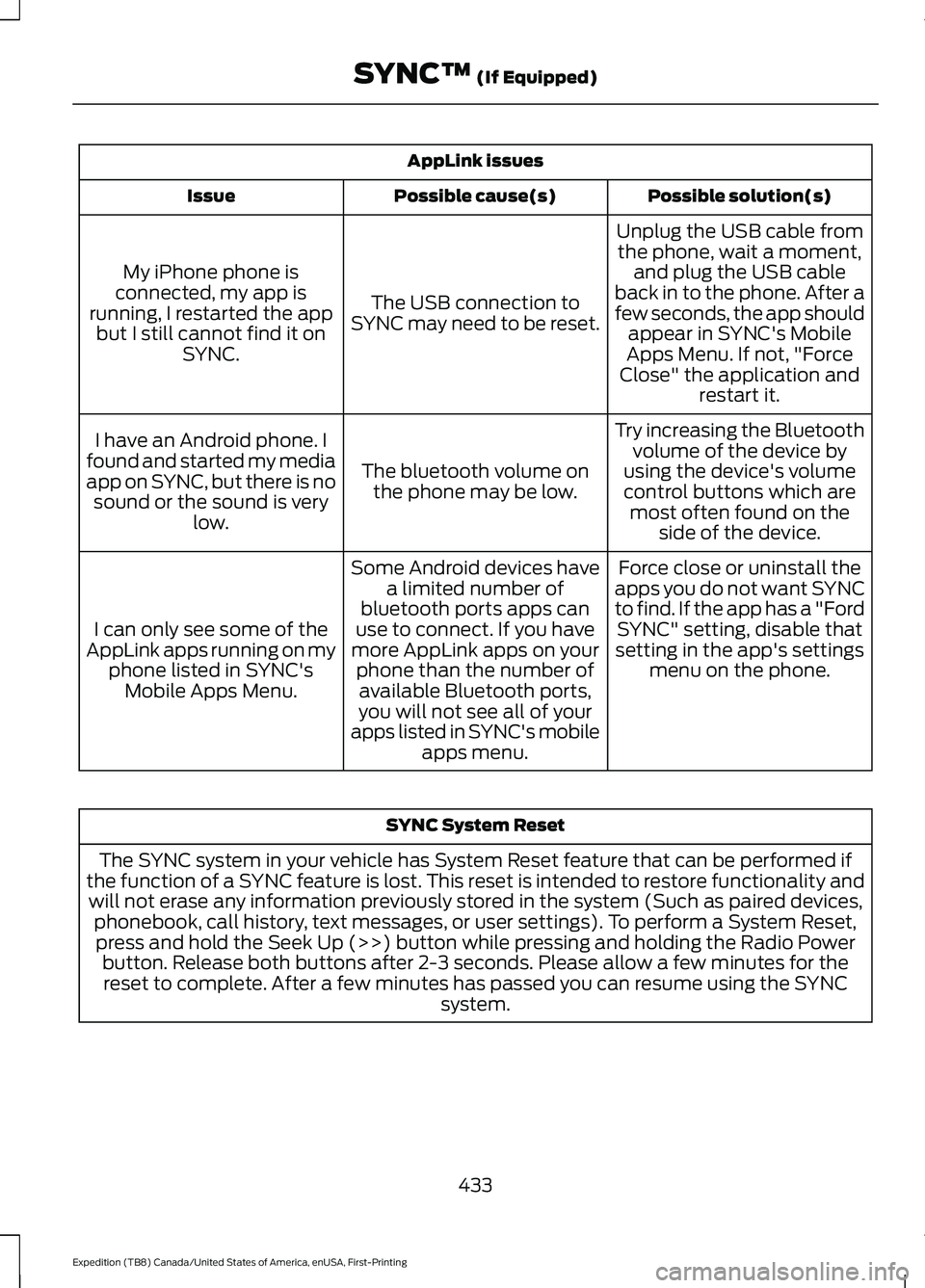
AppLink issues
Possible solution(s)
Possible cause(s)
Issue
Unplug the USB cable fromthe phone, wait a moment, and plug the USB cable
back in to the phone. After a
few seconds, the app should appear in SYNC's Mobile
Apps Menu. If not, "Force
Close" the application and restart it.
The USB connection to
SYNC may need to be reset.
My iPhone phone is
connected, my app is
running, I restarted the app but I still cannot find it on SYNC.
Try increasing the Bluetoothvolume of the device by
using the device's volume control buttons which are most often found on the side of the device.
The bluetooth volume on
the phone may be low.
I have an Android phone. I
found and started my media
app on SYNC, but there is no sound or the sound is very low.
Force close or uninstall the
apps you do not want SYNC
to find. If the app has a "Ford SYNC" setting, disable that
setting in the app's settings menu on the phone.
Some Android devices have
a limited number of
bluetooth ports apps can
use to connect. If you have
more AppLink apps on your phone than the number ofavailable Bluetooth ports,
you will not see all of your
apps listed in SYNC's mobile apps menu.
I can only see some of the
AppLink apps running on my phone listed in SYNC'sMobile Apps Menu. SYNC System Reset
The SYNC system in your vehicle has System Reset feature that can be performed if
the function of a SYNC feature is lost. This reset is intended to restore functionality and will not erase any information previously stored in the system (Such as paired devices, phonebook, call history, text messages, or user settings). To perform a System Reset,press and hold the Seek Up (>>) button while pressing and holding the Radio Power button. Release both buttons after 2-3 seconds. Please allow a few minutes for thereset to complete. After a few minutes has passed you can resume using the SYNC system.
433
Expedition (TB8) Canada/United States of America, enUSA, First-Printing SYNC™ (If Equipped)
Page 446 of 574
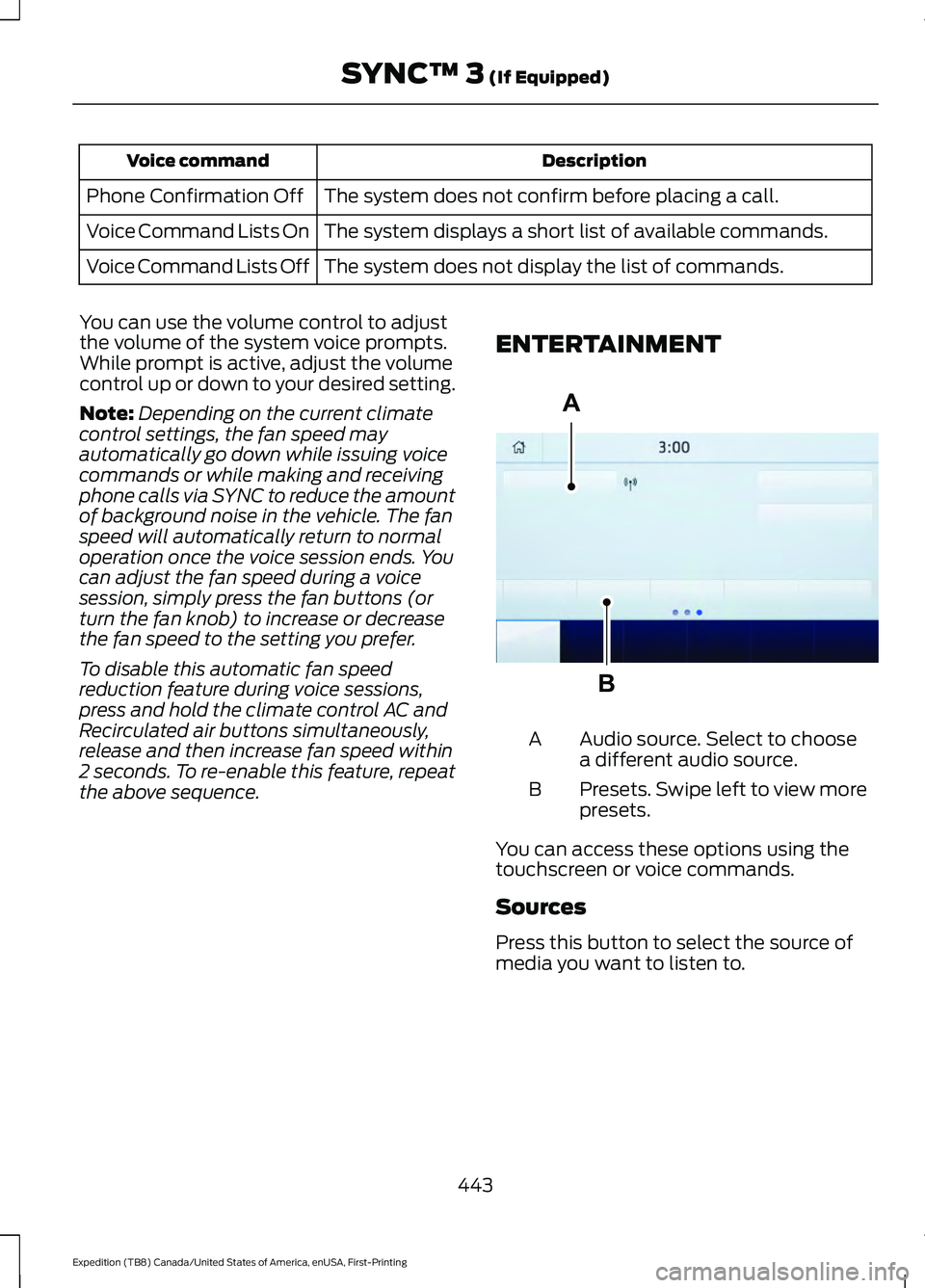
Description
Voice command
The system does not confirm before placing a call.
Phone Confirmation Off
The system displays a short list of available commands.
Voice Command Lists On
The system does not display the list of commands.
Voice Command Lists Off
You can use the volume control to adjust
the volume of the system voice prompts.
While prompt is active, adjust the volume
control up or down to your desired setting.
Note: Depending on the current climate
control settings, the fan speed may
automatically go down while issuing voice
commands or while making and receiving
phone calls via SYNC to reduce the amount
of background noise in the vehicle. The fan
speed will automatically return to normal
operation once the voice session ends. You
can adjust the fan speed during a voice
session, simply press the fan buttons (or
turn the fan knob) to increase or decrease
the fan speed to the setting you prefer.
To disable this automatic fan speed
reduction feature during voice sessions,
press and hold the climate control AC and
Recirculated air buttons simultaneously,
release and then increase fan speed within
2 seconds. To re-enable this feature, repeat
the above sequence. ENTERTAINMENT Audio source. Select to choose
a different audio source.
A
Presets. Swipe left to view more
presets.
B
You can access these options using the
touchscreen or voice commands.
Sources
Press this button to select the source of
media you want to listen to.
443
Expedition (TB8) Canada/United States of America, enUSA, First-Printing SYNC™ 3 (If Equipped)A
BE293491
Page 447 of 574
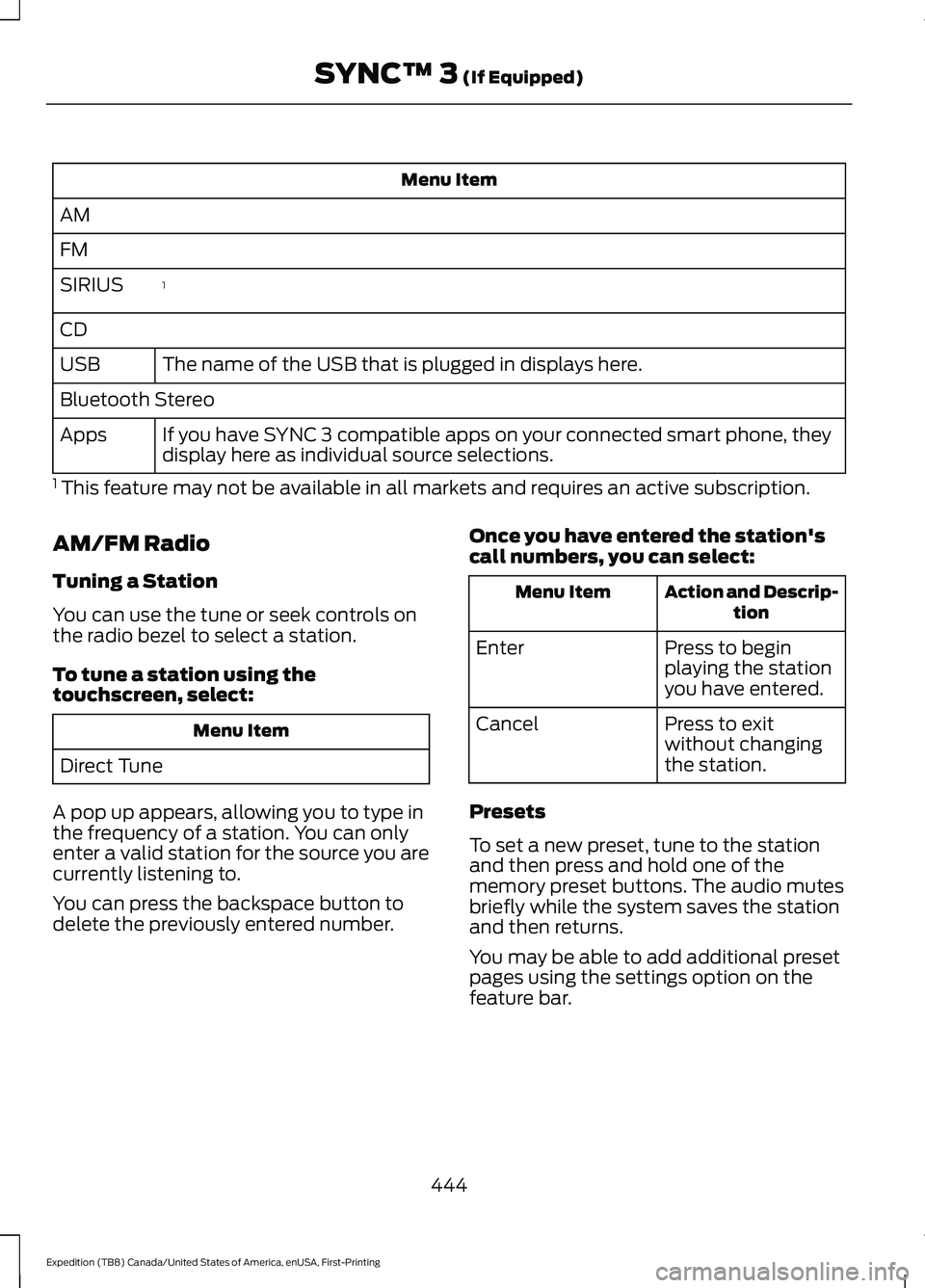
Menu Item
AM
FM 1
SIRIUS
CD
The name of the USB that is plugged in displays here.
USB
Bluetooth Stereo
If you have SYNC 3 compatible apps on your connected smart phone, they
display here as individual source selections.
Apps
1 This feature may not be available in all markets and requires an active subscription.
AM/FM Radio
Tuning a Station
You can use the tune or seek controls on
the radio bezel to select a station.
To tune a station using the
touchscreen, select: Menu Item
Direct Tune
A pop up appears, allowing you to type in
the frequency of a station. You can only
enter a valid station for the source you are
currently listening to.
You can press the backspace button to
delete the previously entered number. Once you have entered the station's
call numbers, you can select: Action and Descrip-
tion
Menu Item
Press to begin
playing the station
you have entered.
Enter
Press to exit
without changing
the station.
Cancel
Presets
To set a new preset, tune to the station
and then press and hold one of the
memory preset buttons. The audio mutes
briefly while the system saves the station
and then returns.
You may be able to add additional preset
pages using the settings option on the
feature bar.
444
Expedition (TB8) Canada/United States of America, enUSA, First-Printing SYNC™ 3 (If Equipped)
Page 448 of 574
SiriusXM® Satellite Radio (If
Activated)
Note:
This feature may not be available in
all markets and requires an active
subscription. SiriusXM satellite radio is a
subscription-based satellite radio service
that broadcasts a variety of music, sports,
news, weather, traffic and entertainment
programming. Your factory-installed
SiriusXM satellite radio system includes
hardware and a limited subscription term
that begins on the date of sale or lease of
your vehicle. See an authorized dealer for
availability.
For more information on extended
subscription terms (a service fee is
required), the online media player and a
list of SiriusXM satellite radio channels,
and other features, please visit
www.siriusxm.com in the United States,
www.siriusxm.ca in Canada, or call
SiriusXM at 1-888-539-7474.
Note:
SiriusXM reserves the unrestricted
right to change, rearrange, add or delete
programming. This includes canceling,
moving or adding particular channels, and
its prices, at any time, with or without notice
to you. We are not responsible for any such
programming changes.
Note: This receiver includes the eCos
real-time operating system. eCos is
published under the eCos License.
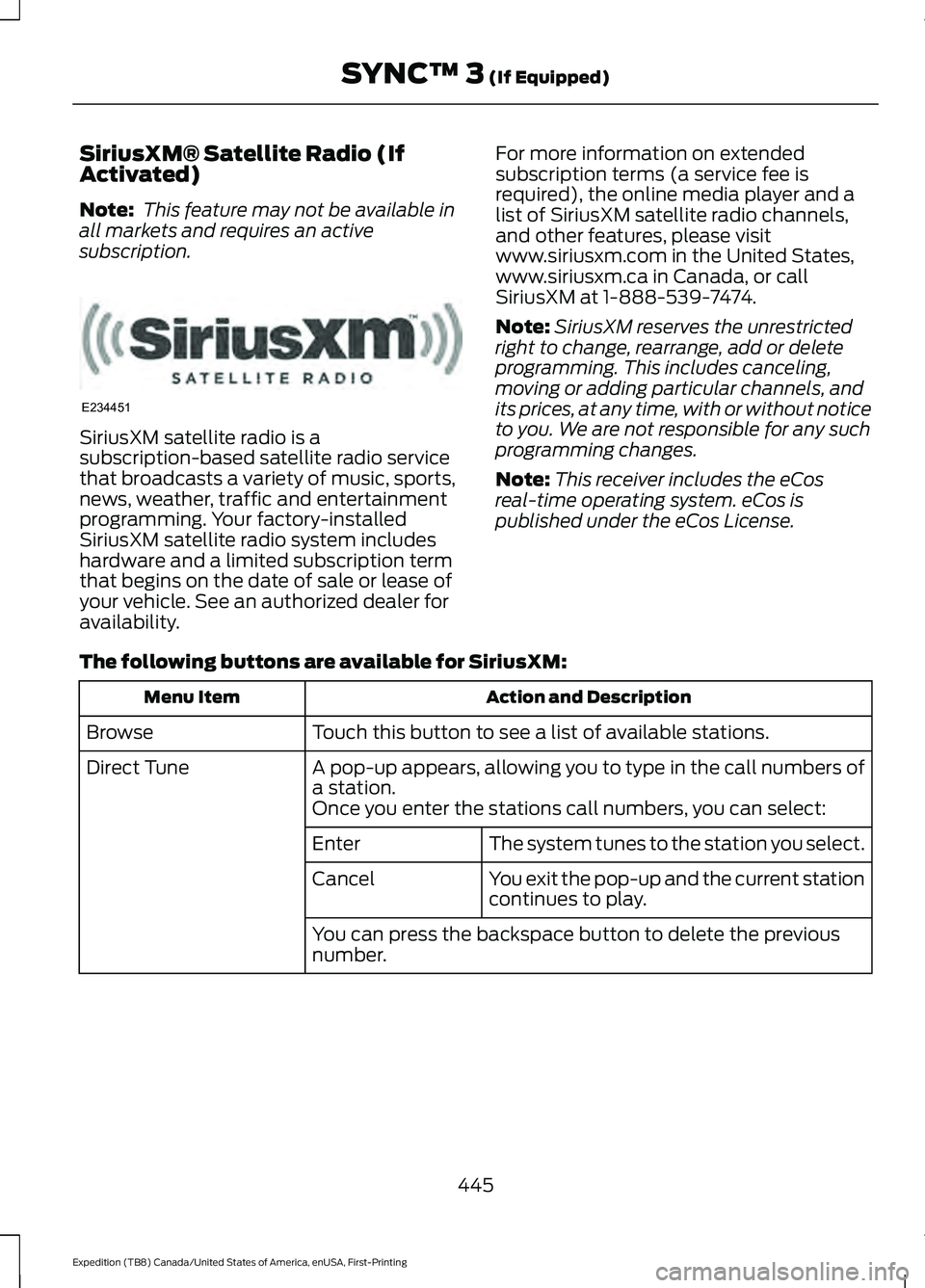
The following buttons are available for SiriusXM: Action and Description
Menu Item
Touch this button to see a list of available stations.
Browse
A pop-up appears, allowing you to type in the call numbers of
a station.
Direct Tune
Once you enter the stations call numbers, you can select:The system tunes to the station you select.
Enter
You exit the pop-up and the current station
continues to play.
Cancel
You can press the backspace button to delete the previous
number.
445
Expedition (TB8) Canada/United States of America, enUSA, First-Printing SYNC™ 3 (If Equipped)E234451
Page 449 of 574
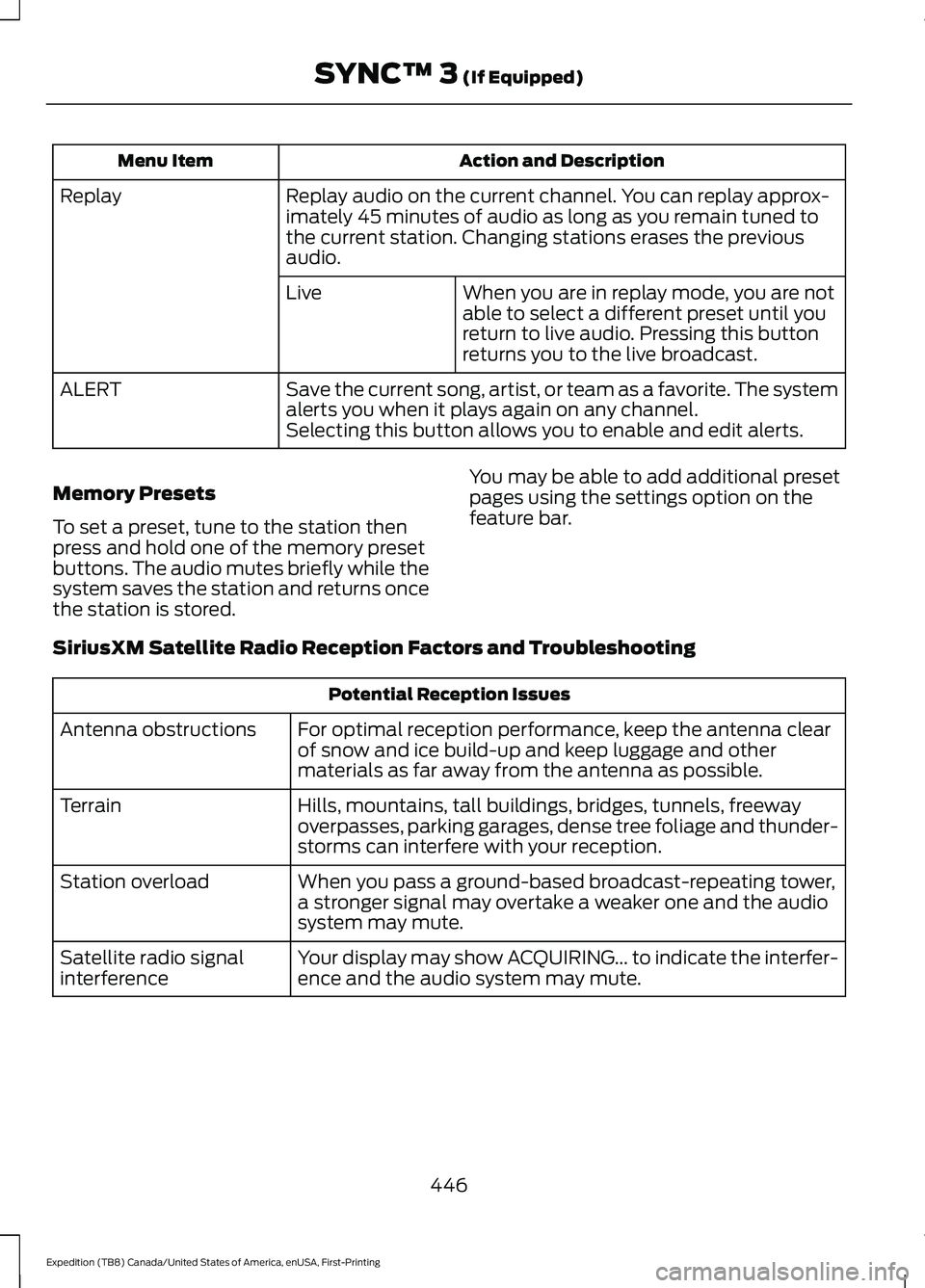
Action and Description
Menu Item
Replay audio on the current channel. You can replay approx-
imately 45 minutes of audio as long as you remain tuned to
the current station. Changing stations erases the previous
audio.
Replay
When you are in replay mode, you are not
able to select a different preset until you
return to live audio. Pressing this button
returns you to the live broadcast.
Live
Save the current song, artist, or team as a favorite. The system
alerts you when it plays again on any channel.
ALERT
Selecting this button allows you to enable and edit alerts.
Memory Presets
To set a preset, tune to the station then
press and hold one of the memory preset
buttons. The audio mutes briefly while the
system saves the station and returns once
the station is stored. You may be able to add additional preset
pages using the settings option on the
feature bar.
SiriusXM Satellite Radio Reception Factors and Troubleshooting Potential Reception Issues
For optimal reception performance, keep the antenna clear
of snow and ice build-up and keep luggage and other
materials as far away from the antenna as possible.
Antenna obstructions
Hills, mountains, tall buildings, bridges, tunnels, freeway
overpasses, parking garages, dense tree foliage and thunder-
storms can interfere with your reception.
Terrain
When you pass a ground-based broadcast-repeating tower,
a stronger signal may overtake a weaker one and the audio
system may mute.
Station overload
Your display may show ACQUIRING... to indicate the interfer-
ence and the audio system may mute.
Satellite radio signal
interference
446
Expedition (TB8) Canada/United States of America, enUSA, First-Printing SYNC™ 3 (If Equipped)
Page 453 of 574

Potential Station Issues
Action
Cause
Issues
No action required. The station
is not available in your current
location.
The previously stored multicast
preset or direct tune is not
available in your current recep-
tion area.
Cannot access HD2 or
HD3 multicast channel
when recalling a preset
or from a direct tune.
Fill out the station issue form.1
Data service issue by the radio
broadcaster.
Text information does
not match currently
playing audio.
Fill out the station issue form.
1
Data service issue by the radio
broadcaster.
There is no text
information shown for
currently selected
frequency.
1 You can find the form here: Website
http://hdradio.com/stations/feedback
HD Radio Technology manufactured under
license from iBiquity Digital Corporation
and foreign patents. HD Radio and the HD
and HD Radio logos are proprietary
trademarks of DTS. The vehicle
manufacturer and DTS are not responsible
for the content sent using HD Radio
technology. Content may be changed,
added or deleted at any time at the station
owner's discretion. CD (If Equipped)
Once you select this option, the system
returns you to the main audio screen.
The current audio information appears on
the screen.
The following buttons are also available: Function
Button
You can use the browse button to select a track.
Browse
Select this button and a small number one displays to indicate
the track is set to repeat.
Repeat
450
Expedition (TB8) Canada/United States of America, enUSA, First-Printing SYNC™ 3
(If Equipped)