trailer FORD EXPEDITION 2021 Owners Manual
[x] Cancel search | Manufacturer: FORD, Model Year: 2021, Model line: EXPEDITION, Model: FORD EXPEDITION 2021Pages: 574, PDF Size: 8.33 MB
Page 8 of 574
Driving Aids
Driver Alert
.....................................................254
Lane Keeping System ...............................
255
Blind Spot Information System ............
259
Cross Traffic Alert .......................................
263
Steering ..........................................................
266
Pre-Collision Assist ....................................
267
Drive Control ..................................................
271
Load Carrying
Rear Under Floor Storage ........................
275
Cargo Nets ......................................................
277
Roof Racks and Load Carriers ................
278
Load Limit ......................................................
279
Towing
Towing a Trailer ...........................................
285
Trailer Reversing Aids ................................
286
Trailer Sway Control ..................................
295
Recommended Towing Weights ..........
296
Essential Towing Checks .........................
299
Towing the Vehicle on Four Wheels .....
306
Driving Hints
Reduced Engine Performance ..............
309
Economical Driving ...................................
309
Breaking-In .....................................................
310
Driving Through Water ..............................
310
Floor Mats ......................................................
310
Roadside Emergencies
Roadside Assistance ..................................
312
Hazard Flashers ............................................
313
Fuel Shutoff ...................................................
313
Jump Starting the Vehicle ........................
314
Post-Crash Alert System ..........................
316
Transporting the Vehicle ...........................
316
Towing Points ................................................
317Customer Assistance
Getting the Services You Need
...............
318
In California (U.S. Only) ............................
319
The Better Business Bureau (BBB) Auto Line Program (U.S. Only) ....................
320
Utilizing the Mediation/Arbitration Program (Canada Only) .......................
321
Getting Assistance Outside the U.S. and Canada ........................................................
321
Ordering Additional Owner's Literature ........................................................................\
323
Reporting Safety Defects (U.S. Only) ........................................................................\
323
Reporting Safety Defects (Canada Only) ........................................................................\
323
Fuses
Fuse Box Locations ....................................
325
Fuse Specification Chart ..........................
325
Changing a Fuse ..........................................
333
Maintenance
General Information ..................................
335
Opening and Closing the Hood .............
335
Under Hood Overview ..............................
336
Engine Oil Dipstick ......................................
337
Engine Oil Check .........................................
337
Oil Change Indicator Reset .....................
338
Changing the Engine Air Filter ...............
339
Engine Coolant Check ..............................
339
Automatic Transmission Fluid Check ........................................................................\
343
Transfer Case Fluid Check ......................
344
Brake Fluid Check .......................................
344
Power Steering Fluid Check ....................
345
Changing the 12V Battery ........................
345
Adjusting the Headlamps ........................
347
Washer Fluid Check ...................................
348
Fuel Filter .......................................................
349
Checking the Wiper Blades ....................
349
Changing the Wiper Blades ....................
349
5
Expedition (TB8) Canada/United States of America, enUSA, First-Printing Table of Contents
Page 87 of 574
When Opening
The system stops when it detects an
obstacle and two short tones sound.
Remove the obstacle to operate the
liftgate.
Switching the Power Liftgate On
or Off
You can switch the power liftgate on or off
through the vehicle settings menu. See
General Information (page 119).
When switched off, the liftgate only
unlatches and will not power open or close.
Using the Hands-Free Liftgate
(If
Equipped)
Make sure you have a passive key within
3 ft (1 m)
of the liftgate.
1. Stand behind your vehicle, and face the
liftgate.
2. Move your foot, in a single-kick motion,
without pausing, under and away from
the rear bumper detection area.
3. The liftgate power opens or closes.
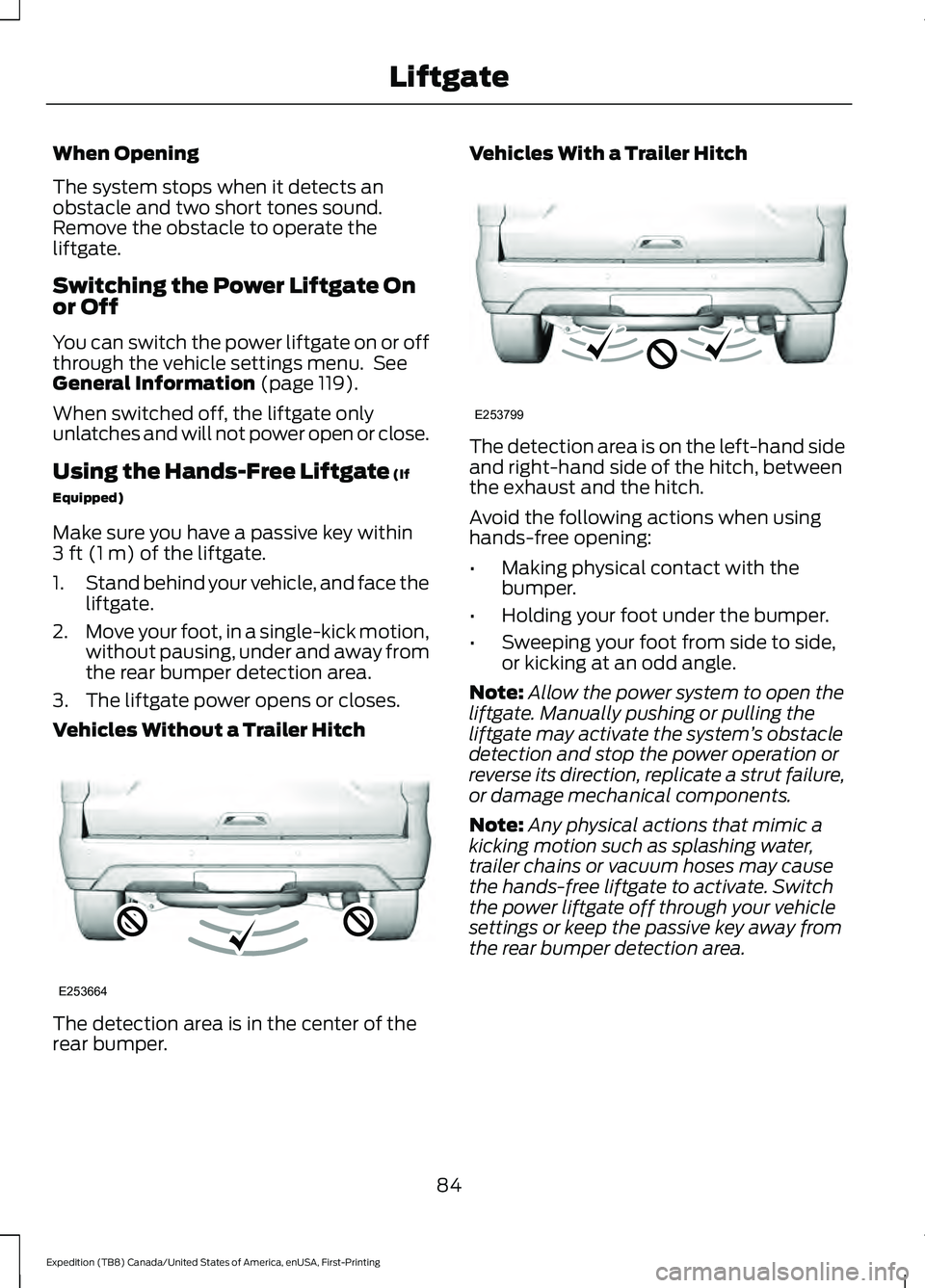
Vehicles Without a Trailer Hitch The detection area is in the center of the
rear bumper. Vehicles With a Trailer Hitch
The detection area is on the left-hand side
and right-hand side of the hitch, between
the exhaust and the hitch.
Avoid the following actions when using
hands-free opening:
•
Making physical contact with the
bumper.
• Holding your foot under the bumper.
• Sweeping your foot from side to side,
or kicking at an odd angle.
Note: Allow the power system to open the
liftgate. Manually pushing or pulling the
liftgate may activate the system ’s obstacle
detection and stop the power operation or
reverse its direction, replicate a strut failure,
or damage mechanical components.
Note: Any physical actions that mimic a
kicking motion such as splashing water,
trailer chains or vacuum hoses may cause
the hands-free liftgate to activate. Switch
the power liftgate off through your vehicle
settings or keep the passive key away from
the rear bumper detection area.
84
Expedition (TB8) Canada/United States of America, enUSA, First-Printing LiftgateE253664 E253799
Page 122 of 574
GENERAL INFORMATION -
VEHICLES WITH: 4 INCH
INFORMATION AND
ENTERTAINMENT DISPLAY
SCREEN
WARNING: Driving while distracted
can result in loss of vehicle control, crash
and injury. We strongly recommend that
you use extreme caution when using any
device that may take your focus off the
road. Your primary responsibility is the
safe operation of your vehicle. We
recommend against the use of any
hand-held device while driving and
encourage the use of voice-operated
systems when possible. Make sure you
are aware of all applicable local laws
that may affect the use of electronic
devices while driving.
You can control various systems on your
vehicle using the information display
controls on the steering wheel.
Corresponding information appears in the
information display. Note:
Some options could appear slightly
different or not at all if the items are
optional.
Note: Trailer options are not available if
your vehicle speed is greater than 3 mph
(5 km/h).
Note: Some MyKey menu options only
appear if MyKey is enabled and you
programmed at least one MyKey. This icon gives you the ability to
switch a feature on or off. A
check in the box indicates the
feature is on, and unchecked indicates the
feature is off.
Information Display Controls (4
Inch Display)
• Press the up and down arrow buttons
to scroll through and highlight the
options within a menu.
• Press the right arrow button to enter a
sub-menu.
• Press the left arrow button to exit a
menu.
• Press the
OK button to choose and
confirm a setting or messages.
4 Inch Display Main Menu
Display Mode Trip/FuelTowing
Off Road Settings
119
Expedition (TB8) Canada/United States of America, enUSA, First-Printing Information DisplaysE204495
Page 124 of 574
Trip/Fuel
Average Speed
Auto StartStop
Trip 1 or 2
• Shows the time, distance and average fuel economy of an individual journey. Also
shows DTE.
Fuel
• Fuel Economy - Shows your instantaneous fuel usage as a bar graph, average fuel
economy and DTE.
• Fuel History - Shows your fuel usage based on time. The system updates the graph
each minute with the fuel economy that you achieved during 30 minutes of driving.
Also shows DTE.
Auto StartStop
• Shows the Auto StartStop status.
Note: Press and hold
OK to reset values.
Note: Once you select a trailer, it remains active until you set it as no longer active. An active
trailer still accumulates miles even after you physically disconnect it from your vehicle. Towing
Trailer Status
Trailer Status
Trailer Light Check
Trailer Sway Control
Trailer
Options
Enter the submenu and select your
setting
Select Trailer
Change Trailer Settings
Add Trailer
Connection Checklist
121
Expedition (TB8) Canada/United States of America, enUSA, First-Printing Information Displays
Page 125 of 574
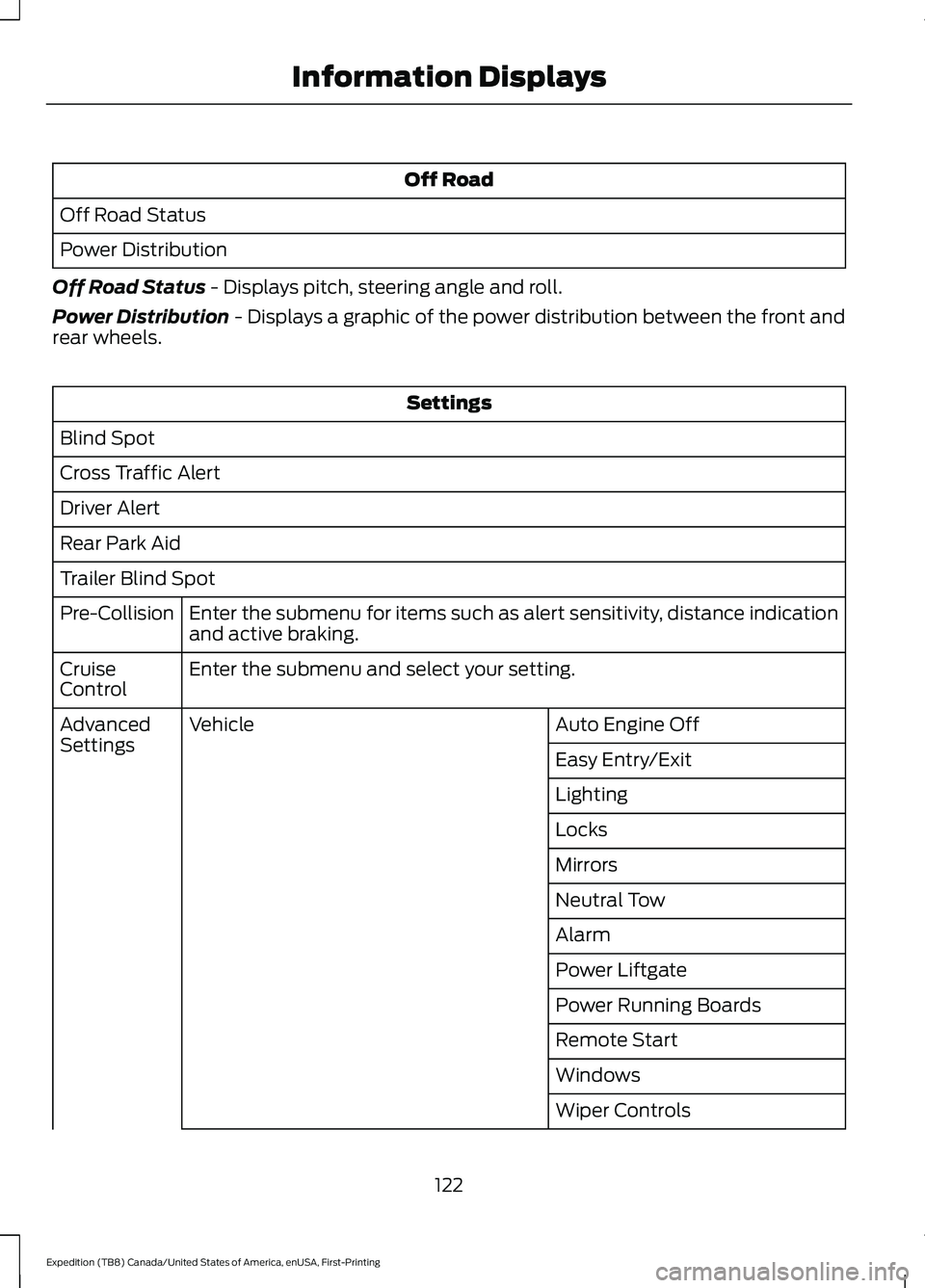
Off Road
Off Road Status
Power Distribution
Off Road Status - Displays pitch, steering angle and roll.
Power Distribution
- Displays a graphic of the power distribution between the front and
rear wheels. Settings
Blind Spot
Cross Traffic Alert
Driver Alert
Rear Park Aid
Trailer Blind Spot Enter the submenu for items such as alert sensitivity, distance indication
and active braking.
Pre-Collision
Enter the submenu and select your setting.
Cruise
Control
Auto Engine Off
Vehicle
Advanced
Settings
Easy Entry/Exit
Lighting
Locks
Mirrors
Neutral Tow
Alarm
Power Liftgate
Power Running Boards
Remote Start
Windows
Wiper Controls
122
Expedition (TB8) Canada/United States of America, enUSA, First-Printing Information Displays
Page 126 of 574
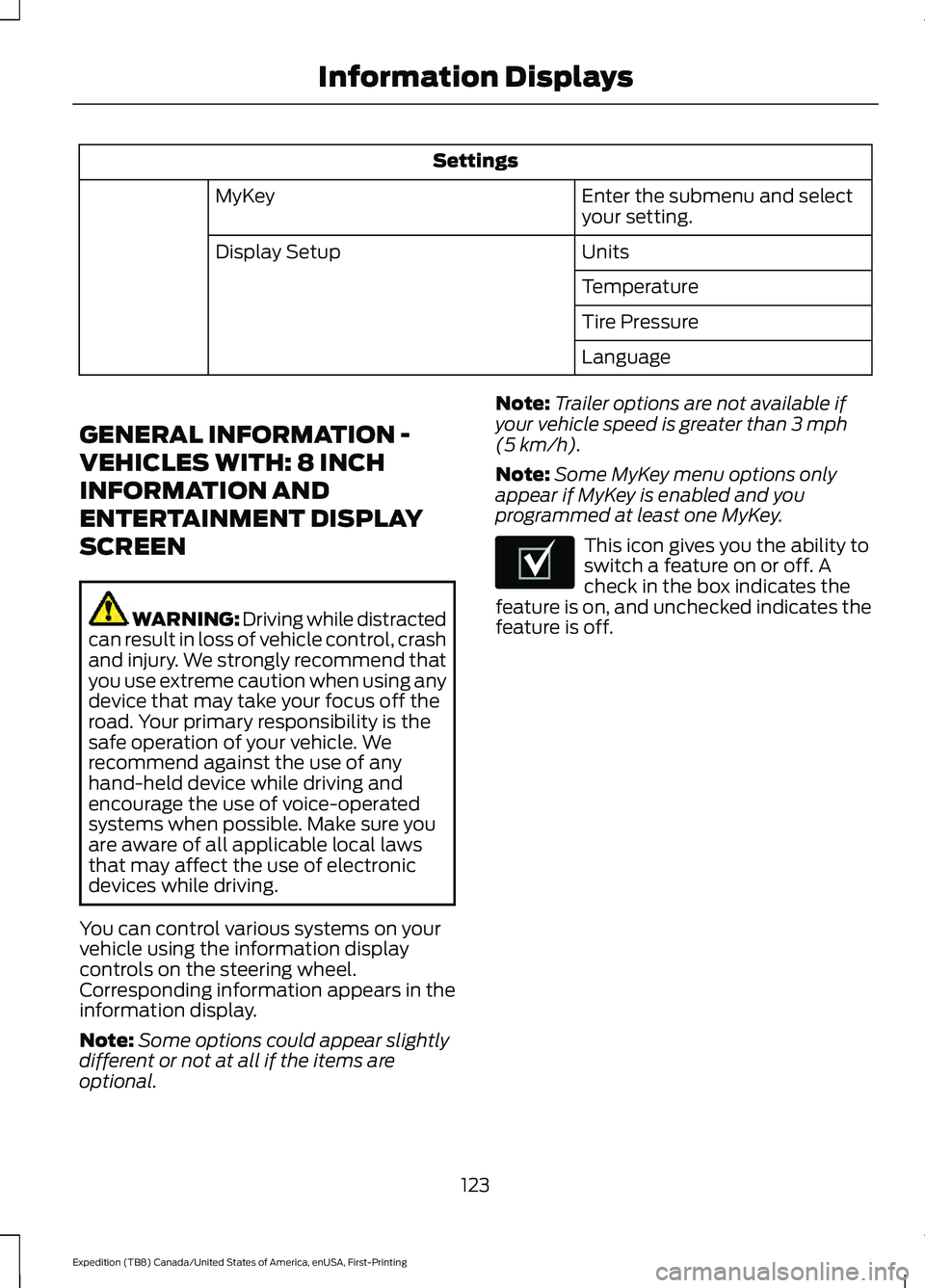
Settings
Enter the submenu and select
your setting.
MyKey
Units
Display Setup
Temperature
Tire Pressure
Language
GENERAL INFORMATION -
VEHICLES WITH: 8 INCH
INFORMATION AND
ENTERTAINMENT DISPLAY
SCREEN WARNING: Driving while distracted
can result in loss of vehicle control, crash
and injury. We strongly recommend that
you use extreme caution when using any
device that may take your focus off the
road. Your primary responsibility is the
safe operation of your vehicle. We
recommend against the use of any
hand-held device while driving and
encourage the use of voice-operated
systems when possible. Make sure you
are aware of all applicable local laws
that may affect the use of electronic
devices while driving.
You can control various systems on your
vehicle using the information display
controls on the steering wheel.
Corresponding information appears in the
information display.
Note: Some options could appear slightly
different or not at all if the items are
optional. Note:
Trailer options are not available if
your vehicle speed is greater than 3 mph
(5 km/h).
Note: Some MyKey menu options only
appear if MyKey is enabled and you
programmed at least one MyKey. This icon gives you the ability to
switch a feature on or off. A
check in the box indicates the
feature is on, and unchecked indicates the
feature is off.
123
Expedition (TB8) Canada/United States of America, enUSA, First-Printing Information DisplaysE204495
Page 130 of 574
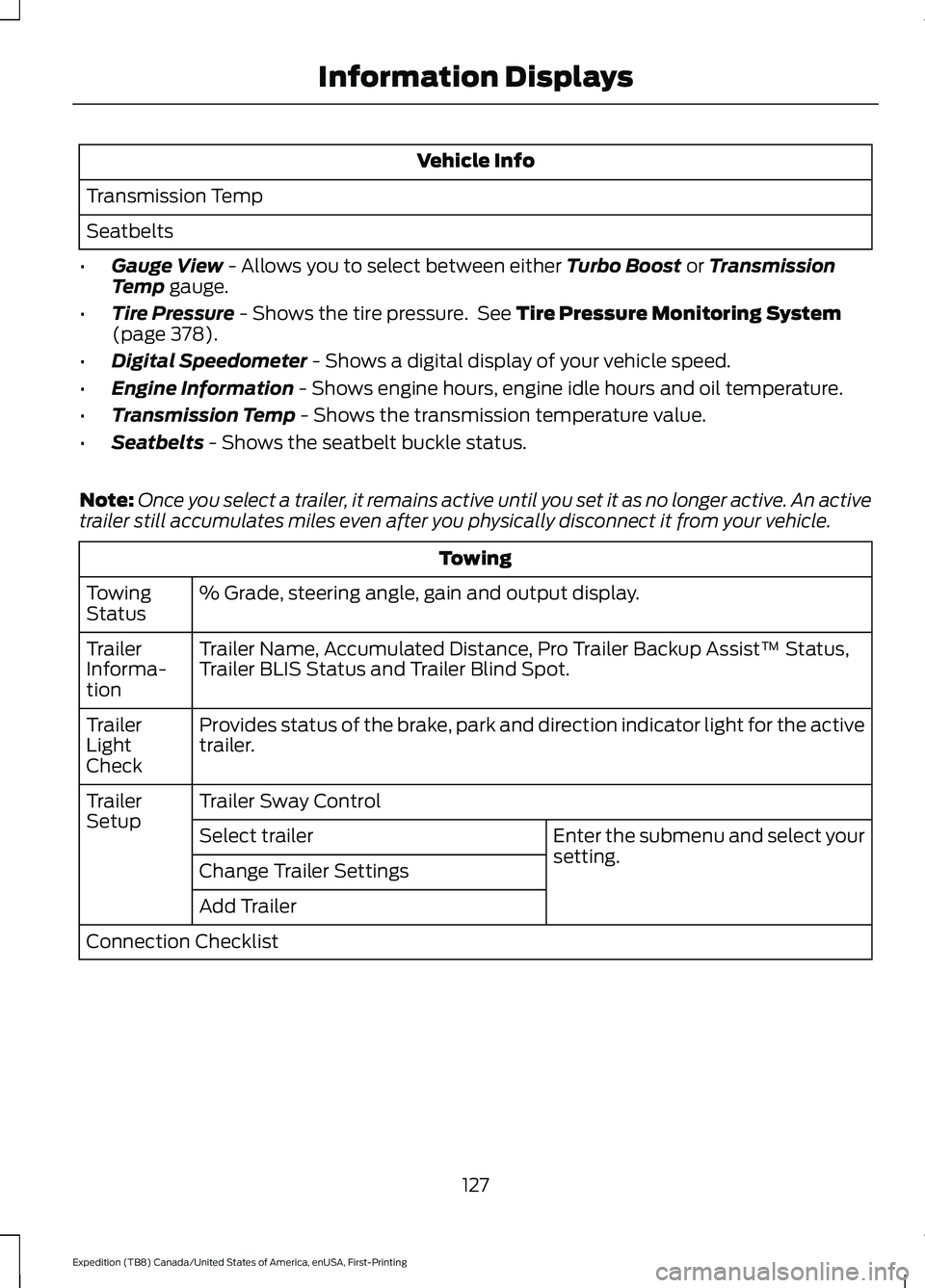
Vehicle Info
Transmission Temp
Seatbelts
• Gauge View - Allows you to select between either Turbo Boost or Transmission
Temp gauge.
• Tire Pressure
- Shows the tire pressure. See Tire Pressure Monitoring System
(page 378).
• Digital Speedometer
- Shows a digital display of your vehicle speed.
• Engine Information
- Shows engine hours, engine idle hours and oil temperature.
• Transmission Temp
- Shows the transmission temperature value.
• Seatbelts
- Shows the seatbelt buckle status.
Note: Once you select a trailer, it remains active until you set it as no longer active. An active
trailer still accumulates miles even after you physically disconnect it from your vehicle. Towing
% Grade, steering angle, gain and output display.
Towing
Status
Trailer Name, Accumulated Distance, Pro Trailer Backup Assist™ Status,
Trailer BLIS Status and Trailer Blind Spot.
Trailer
Informa-
tion
Provides status of the brake, park and direction indicator light for the active
trailer.
Trailer
Light
Check
Trailer Sway Control
Trailer
Setup
Enter the submenu and select your
setting.
Select trailer
Change Trailer Settings
Add Trailer
Connection Checklist
127
Expedition (TB8) Canada/United States of America, enUSA, First-Printing Information Displays
Page 131 of 574
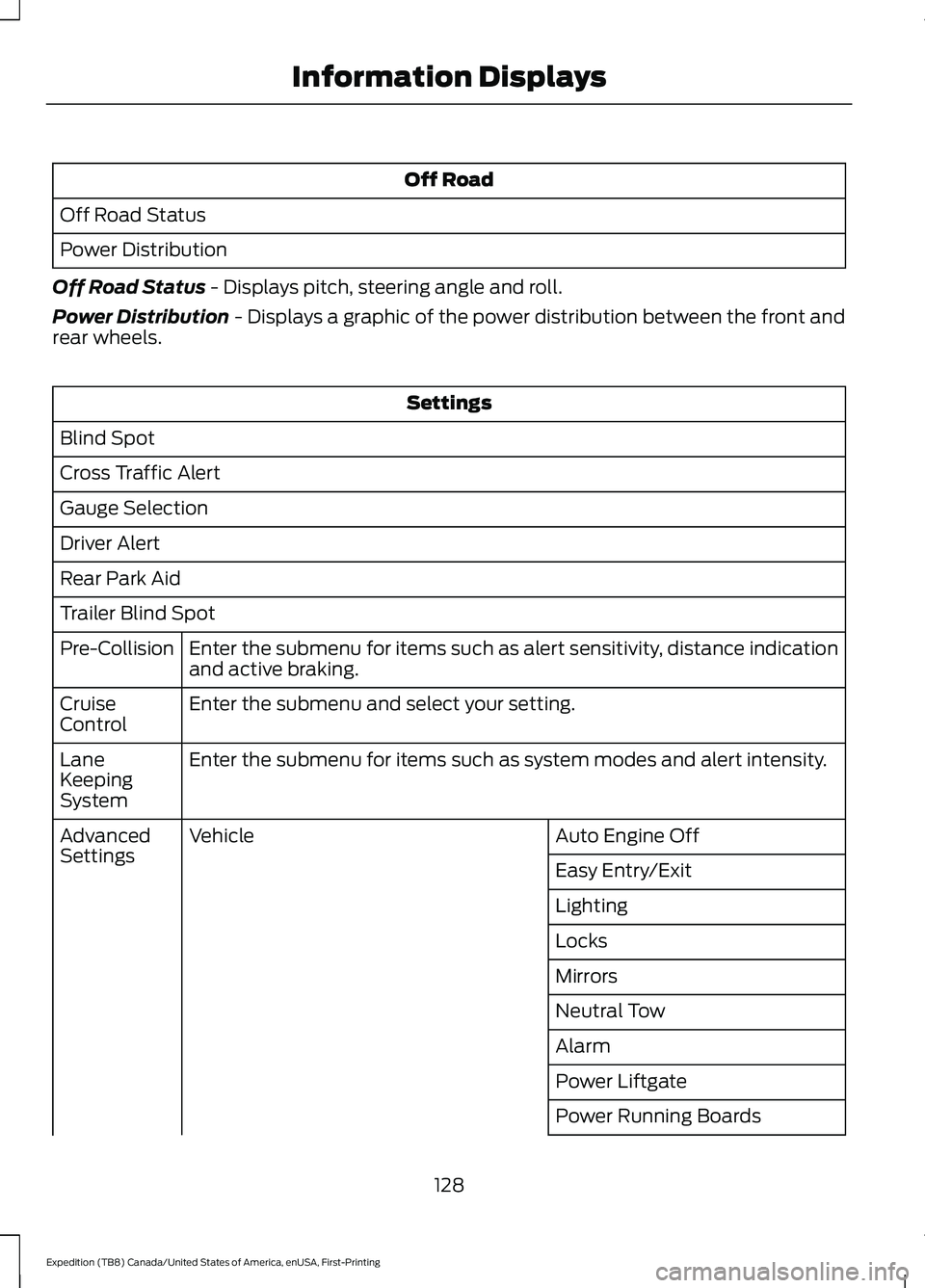
Off Road
Off Road Status
Power Distribution
Off Road Status - Displays pitch, steering angle and roll.
Power Distribution
- Displays a graphic of the power distribution between the front and
rear wheels. Settings
Blind Spot
Cross Traffic Alert
Gauge Selection
Driver Alert
Rear Park Aid
Trailer Blind Spot Enter the submenu for items such as alert sensitivity, distance indication
and active braking.
Pre-Collision
Enter the submenu and select your setting.
Cruise
Control
Enter the submenu for items such as system modes and alert intensity.
Lane
Keeping
System
Auto Engine Off
Vehicle
Advanced
Settings
Easy Entry/Exit
Lighting
Locks
Mirrors
Neutral Tow
Alarm
Power Liftgate
Power Running Boards
128
Expedition (TB8) Canada/United States of America, enUSA, First-Printing Information Displays
Page 136 of 574
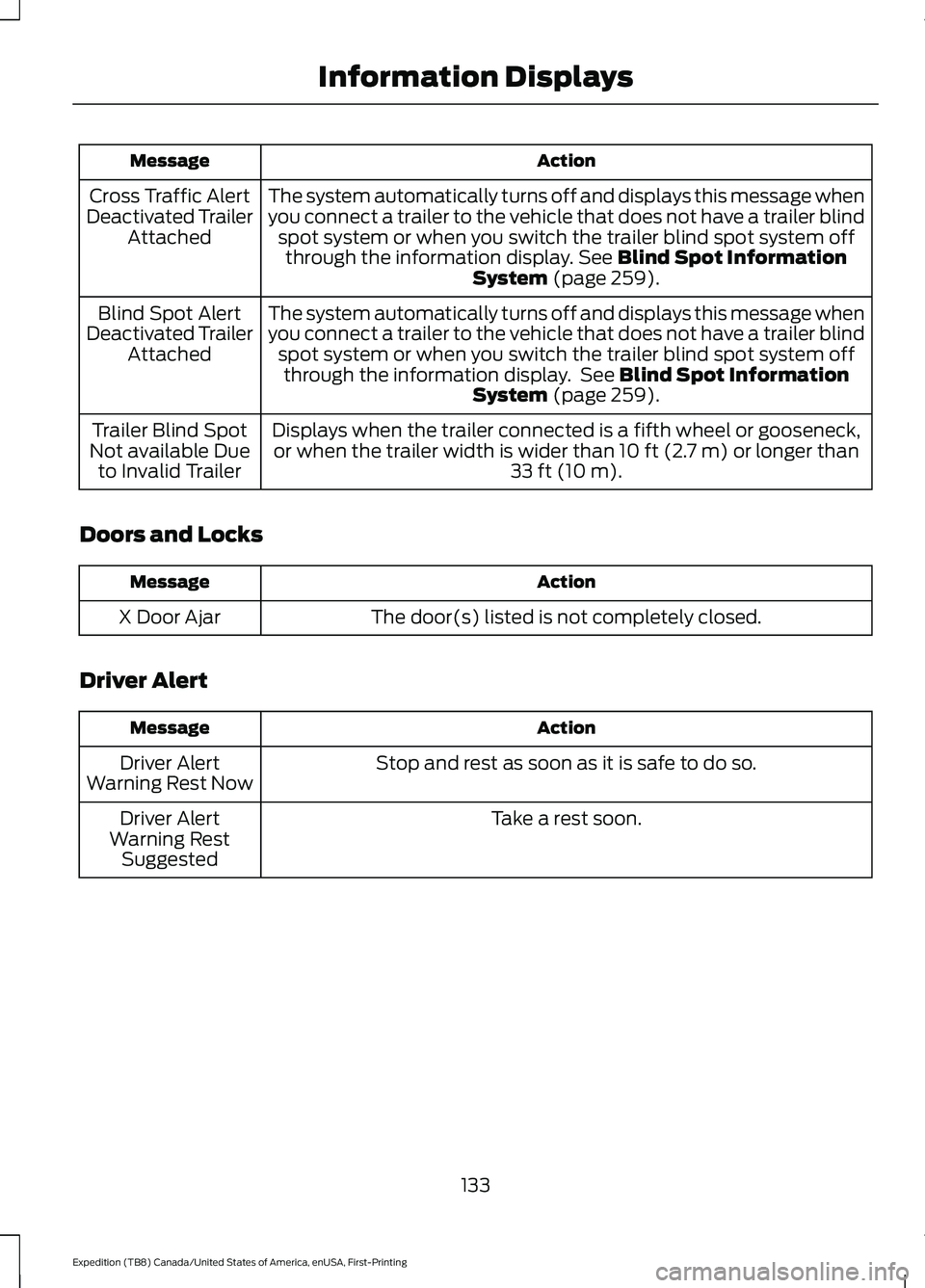
Action
Message
The system automatically turns off and displays this message when
you connect a trailer to the vehicle that does not have a trailer blindspot system or when you switch the trailer blind spot system offthrough the information display. See Blind Spot Information
System (page 259).
Cross Traffic Alert
Deactivated Trailer Attached
The system automatically turns off and displays this message when
you connect a trailer to the vehicle that does not have a trailer blindspot system or when you switch the trailer blind spot system offthrough the information display. See
Blind Spot Information
System (page 259).
Blind Spot Alert
Deactivated Trailer Attached
Displays when the trailer connected is a fifth wheel or gooseneck,or when the trailer width is wider than
10 ft (2.7 m) or longer than
33 ft (10 m).
Trailer Blind Spot
Not available Due to Invalid Trailer
Doors and Locks Action
Message
The door(s) listed is not completely closed.
X Door Ajar
Driver Alert Action
Message
Stop and rest as soon as it is safe to do so.
Driver Alert
Warning Rest Now
Take a rest soon.
Driver Alert
Warning Rest Suggested
133
Expedition (TB8) Canada/United States of America, enUSA, First-Printing Information Displays
Page 145 of 574
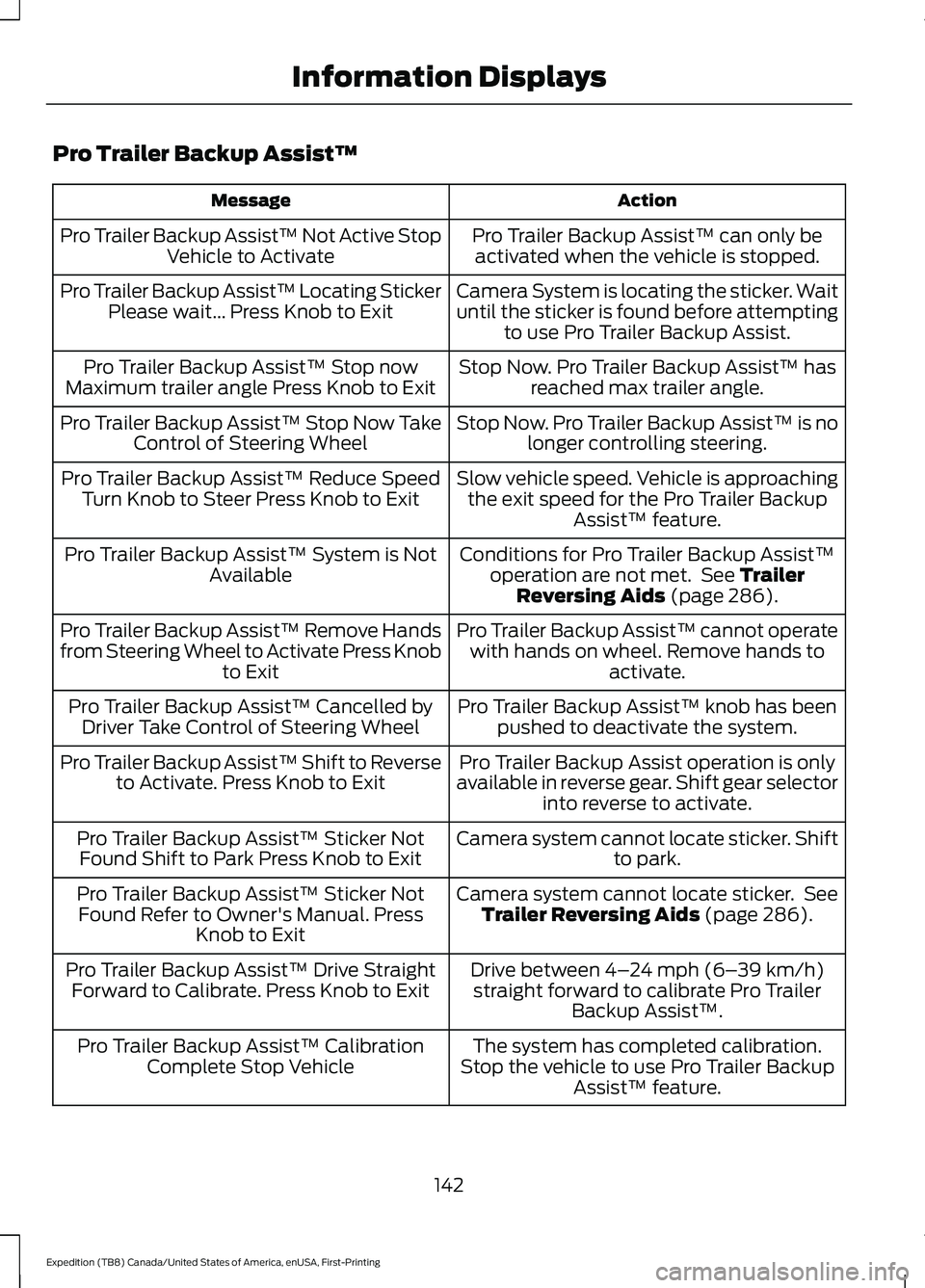
Pro Trailer Backup Assist™
Action
Message
Pro Trailer Backup Assist™ can only beactivated when the vehicle is stopped.
Pro Trailer Backup Assist™ Not Active Stop
Vehicle to Activate
Camera System is locating the sticker. Wait
until the sticker is found before attemptingto use Pro Trailer Backup Assist.
Pro Trailer Backup Assist™ Locating Sticker
Please wait... Press Knob to Exit
Stop Now. Pro Trailer Backup Assist™ hasreached max trailer angle.
Pro Trailer Backup Assist™ Stop now
Maximum trailer angle Press Knob to Exit
Stop Now. Pro Trailer Backup Assist™ is nolonger controlling steering.
Pro Trailer Backup Assist™ Stop Now Take
Control of Steering Wheel
Slow vehicle speed. Vehicle is approachingthe exit speed for the Pro Trailer Backup Assist™ feature.
Pro Trailer Backup Assist™ Reduce Speed
Turn Knob to Steer Press Knob to Exit
Conditions for Pro Trailer Backup Assist™operation are not met. See Trailer
Reversing Aids (page 286).
Pro Trailer Backup Assist™ System is Not
Available
Pro Trailer Backup Assist™ cannot operatewith hands on wheel. Remove hands to activate.
Pro Trailer Backup Assist™ Remove Hands
from Steering Wheel to Activate Press Knob
to Exit
Pro Trailer Backup Assist™ knob has beenpushed to deactivate the system.
Pro Trailer Backup Assist™ Cancelled by
Driver Take Control of Steering Wheel
Pro Trailer Backup Assist operation is only
available in reverse gear. Shift gear selector into reverse to activate.
Pro Trailer Backup Assist™ Shift to Reverse
to Activate. Press Knob to Exit
Camera system cannot locate sticker. Shiftto park.
Pro Trailer Backup Assist™ Sticker Not
Found Shift to Park Press Knob to Exit
Camera system cannot locate sticker. SeeTrailer Reversing Aids
(page 286).
Pro Trailer Backup Assist™ Sticker Not
Found Refer to Owner's Manual. Press Knob to Exit
Drive between
4–24 mph (6– 39 km/h)
straight forward to calibrate Pro Trailer Backup Assist™.
Pro Trailer Backup Assist™ Drive Straight
Forward to Calibrate. Press Knob to Exit
The system has completed calibration.
Stop the vehicle to use Pro Trailer Backup Assist™ feature.
Pro Trailer Backup Assist™ Calibration
Complete Stop Vehicle
142
Expedition (TB8) Canada/United States of America, enUSA, First-Printing Information Displays