bluetooth FORD EXPEDITION 2023 User Guide
[x] Cancel search | Manufacturer: FORD, Model Year: 2023, Model line: EXPEDITION, Model: FORD EXPEDITION 2023Pages: 658, PDF Size: 16.16 MB
Page 523 of 658
SWITCHING TEXT MESSAGE
NOTIFICATION ON AND OFF
iOS
1.Go to the settings menu on your cellphone.
2.Select Bluetooth®.
3.Select the information icon to the rightof your vehicle.
4.Switch text message notification on oroff.
Android
1.Go to the settings menu on your cellphone.
2.Select Bluetooth®.
3.Select the profiles option.
4.Select the phone profile.
5.Switch text message notification on oroff.
519
2023 Expedition (TB8) Canada/United States of America, enUSA, Edition date: 202207, DOMPhone - Vehicles With: 15 Inch Screen
Page 524 of 658
CONNECTING A BLUETOOTH®
DEVICE
1.Make sure Bluetooth® is enabled onyour device.
2.Press Settings on the touchscreen.
3.Press Connectivity.
4.Press Bluetooth.
5.Press Add a Bluetooth Device.
Note:A prompt alerts you to search for yourvehicle on your device.
6.Select your vehicle on your device.
Note:A number appears on your device andon the touchscreen.
7.Confirm that the number on yourdevice matches the number on thetouchscreen.
Note:The touchscreen indicates that youhave successfully paired your device.
The Bluetooth® word mark and logos areregistered trademarks owned by BluetoothSIG, Inc. and any use of such marks byFord Motor Company is under license.Other trademarks and trade names arethose of their respective owners.
PLAYING MEDIA USING
BLUETOOTH®
WARNING: Driving while distractedcan result in loss of vehicle control, crashand injury. We strongly recommend thatyou use extreme caution when using anydevice that may take your focus off theroad. Your primary responsibility is thesafe operation of your vehicle. Werecommend against the use of any
hand-held device while driving andencourage the use of voice-operatedsystems when possible. Make sure youare aware of all applicable local lawsthat may affect the use of electronicdevices while driving.
Connect your device.
Press the audio button on thefeature bar.
Press Sources.
Press the Bluetooth® option.
Press to play a track. Press againto pause the track.
Press to skip to the next track.
Press and hold to fast forwardthrough the track.
Press once to return to thebeginning of a track. Repeatedlypress to return to previoustracks.
Press and hold to fast rewind through thetrack.
520
2023 Expedition (TB8) Canada/United States of America, enUSA, Edition date: 202207, DOMBluetooth® - Vehicles With: 12 Inch ScreenE100027 E250655
Page 525 of 658
CONNECTING A BLUETOOTH®
DEVICE
1.Make sure Bluetooth® is enabled onyour device.
2.Access the vehicle drawer.
3.Press Connectivity.
4.Press Bluetooth.
5.Switch Bluetooth on.
6.Press Add a Bluetooth Device.
Note:A prompt alerts you to search for yourvehicle on your device.
7.Select your vehicle on your device.
Note:A number appears on your device andon the touchscreen.
8.Confirm that the PIN (personalidentification number) on your devicematches the number on thetouchscreen.
Note:The touchscreen indicates that youhave successfully paired your device.
The Bluetooth® word mark and logos areregistered trademarks owned by BluetoothSIG, Inc. and any use of such marks byFord Motor Company is under license.Other trademarks and trade names arethose of their respective owners.
PLAYING MEDIA USING
BLUETOOTH®
WARNING: Driving while distractedcan result in loss of vehicle control, crashand injury. We strongly recommend thatyou use extreme caution when using anydevice that may take your focus off theroad. Your primary responsibility is thesafe operation of your vehicle. Werecommend against the use of any
hand-held device while driving andencourage the use of voice-operatedsystems when possible. Make sure youare aware of all applicable local lawsthat may affect the use of electronicdevices while driving.
Connect your device.
Press the button on the statusbar to open the applicationdrawer.
Press the Bluetooth® option.
Press to play a track. Press againto pause the track.
Press to skip to the next track.
Press and hold to fast forwardthrough the track.
Press once to return to thebeginning of a track. Repeatedlypress to return to previoustracks.
Press and hold to fast rewind through thetrack.
Browsing your Media Library
When a compatible mobile device isconnected to the vehicle, your medialibrary will be accessible through thetouchscreen. From the touchscreen, youcan browse through songs, albums, artists,and playlists on your mobile device.
Note:This feature is dependent on theconnected mobile device and the mediaapplication used.
Note:Browse feature functionality may belimited while driving.
521
2023 Expedition (TB8) Canada/United States of America, enUSA, Edition date: 202207, DOMBluetooth® - Vehicles With: 15 Inch ScreenE356583
Page 526 of 658
APP PRECAUTIONS
WARNING: Driving while distractedcan result in loss of vehicle control, crashand injury. We strongly recommend thatyou use extreme caution when using anydevice that may take your focus off theroad. Your primary responsibility is thesafe operation of your vehicle. Werecommend against the use of anyhand-held device while driving andencourage the use of voice-operatedsystems when possible. Make sure youare aware of all applicable local lawsthat may affect the use of electronicdevices while driving.
APP REQUIREMENTS
When you start an app through the systemfor the first time, you could be asked togrant certain permissions. You can reviewand change the permissions that you havegranted at any time when your vehicle isnot moving. We recommend that youcheck your data plan before using yourapps through the system. Using themcould result in additional charges. We alsorecommend that you check the appprovider's terms and conditions andprivacy policy before using their app. Makesure that you have an active account forapps that you want to use through thesystem. Some apps will work with nosetup. Others require you to configuresome personal settings before you can usethem.
ACCESSING APPS
Select the apps option on thefeature bar.
ENABLING APPS ON AN IOS
DEVICE
Select the apps option on thefeature bar.
1.Select Mobile Apps Help.
2.Follow the instructions to pair andconnect your device via Bluetooth® orwith a USB cable.
3.Start the apps on your device that youwant to use.
4.Select the app that you want to use onthe touchscreen.
Note:Some apps may run through AppleCarPlay if it is enabled.
Note:Closing an app on your device willclose it on the touchscreen.
Note:For troubleshooting assistance selectMobile Apps List under Mobile Apps Help.
ENABLING APPS ON AN
ANDROID DEVICE
Select the apps option on thefeature bar.
1.Select Mobile Apps Help.
2.Follow the instructions to pair andconnect your device via Bluetooth® orwith a USB cable.
3.Start the apps on your device that youwant to use.
4.Select Find Mobile Apps.
5.Select the app that you want to use onthe touchscreen.
Note:Some devices may lose the ability toplay music over USB when Mobile Apps areenabled.
Note:Some apps may run through AndroidAuto if it is enabled.
522
2023 Expedition (TB8) Canada/United States of America, enUSA, Edition date: 202207, DOMApps - Vehicles With: 12 Inch Screen
Page 527 of 658

Note:Closing an app on your device willclose it on the touchscreen.
Note:For troubleshooting assistance selectMobile Apps List under Mobile Apps Help.
SWITCHING APPLE CARPLAY
ON AND OFF
Enabling Apple CarPlay with USB
1.Connect your device to a USB port.
2.Follow the instructions on your deviceand the touchscreen.
Note:Selecting "Enable Wireless CarPlay"on your device will prepare the device forwireless carplay when you re-enter thevehicle.
Enabling Apple CarPlay withWireless
1.Pair your device to Bluetooth®.
2.Follow the instructions on your deviceand the touchscreen.
Disabling Apple CarPlay
Select the settings option on thefeature bar.
1.Press Phone List.
2.Select your device from the list.
3.Press Disable.
Re-Enabling Apple CarPlay
Select the settings option on thefeature bar.
1.Press Phone List.
2.Select your device from the list.
3.Press Connect to Apple CarPlay.
SWITCHING ANDROID AUTO
ON AND OFF
Enabling Android Auto with USB
(If Equipped)
1.Connect your device to a USB port.
2.Follow the instructions on thetouchscreen.
Note:Certain features of the system arenot available when you are using AndroidAuto.
Enabling Android Auto withWireless
1.Pair your device to Bluetooth®.
2.Follow the instructions on your deviceand the touchscreen.
Note:Certain Android Devices do notsupport Android Auto Wireless. Pleasecheck your Android OS version forcompatibility.
Disabling Android Auto
Select the settings option on thefeature bar.
1.Press Phone List.
2.Select your device from the list.
3.Press Disable.
Re-Enabling Android Auto
Select the settings option on thefeature bar.
1.Press Phone List.
2.Select your device from the list.
3.Press Connect to Android Auto.
523
2023 Expedition (TB8) Canada/United States of America, enUSA, Edition date: 202207, DOMApps - Vehicles With: 12 Inch Screen
Page 528 of 658
APP PRECAUTIONS
WARNING: Driving while distractedcan result in loss of vehicle control, crashand injury. We strongly recommend thatyou use extreme caution when using anydevice that may take your focus off theroad. Your primary responsibility is thesafe operation of your vehicle. Werecommend against the use of anyhand-held device while driving andencourage the use of voice-operatedsystems when possible. Make sure youare aware of all applicable local lawsthat may affect the use of electronicdevices while driving.
APP REQUIREMENTS
When you start an app through the systemfor the first time, you could be asked togrant certain permissions. You can reviewand change the permissions that you havegranted at any time when your vehicle isnot moving. We recommend that youcheck your data plan before using yourapps through the system. Using themcould result in additional charges. We alsorecommend that you check the appprovider's terms and conditions andprivacy policy before using their app. Makesure that you have an active account forapps that you want to use through thesystem. Some apps will work with nosetup. Others require you to configuresome personal settings before you can usethem.
ACCESSING APPS
Press the button to open theapplication drawer.
ENABLING APPS ON AN IOS
DEVICE
Select the apps option in thefeature drawer.
1.If your device is connected via USB,switch Apple CarPlay off.
2.Connect your device to a USB port orpair and connect using Bluetooth.
3.If prompted to enable CarPlay, selectDisable.
4.Start the apps on your device that youwant to use through SYNC.
Note:If you close the apps on your device,you will not be able to use them through thesystem.
5.Select the app that you want to use onthe touchscreen.
Note:Connect your device to a USB port ifyou want to use a navigation app. Whenusing a navigation app, keep your deviceunlocked and the app open.
ENABLING APPS ON AN
ANDROID DEVICE
Select the apps option in thefeature drawer.
1.If your device is connected via USB,switch Android Auto off.
2.Pair your device.
3.Start the apps on your device that youwant to use through SYNC.
Note:If you close the apps on your device,you will not be able to use them through thesystem.
4.Select Find Mobile Apps.
Note:The system searches and connectsto compatible apps that are running on yourdevice.
524
2023 Expedition (TB8) Canada/United States of America, enUSA, Edition date: 202207, DOMApps - Vehicles With: 15 Inch Screen E356583
Page 629 of 658
ELECTROMAGNETIC
COMPATIBILITY
WARNING: Do not place objectsor mount equipment on or near theairbag cover, on the side of the front orrear seatbacks, or in areas that maycome into contact with a deployingairbag. Failure to follow theseinstructions may increase the risk ofpersonal injury in the event of a crash.
WARNING: Do not fasten antennacables to vehicle wiring, fuel pipes andbrake pipes.
WARNING: Keep antenna andpower cables at least 4 in (10 cm) fromany electronic modules and airbags.
Note:We test and certify your vehicle tomeet electromagnetic compatibilitylegislation. It is your responsibility to makesure that any equipment an authorizeddealer installs on your vehicle complies withapplicable local legislation and otherrequirements. Installation of someaftermarket electronic devices coulddegrade the performance of vehiclefunctions, which use radio frequency signalssuch as broadcast radio receiver, tirepressure monitoring system, push buttonstart,Bluetooth® connectivity or satellitenavigation.
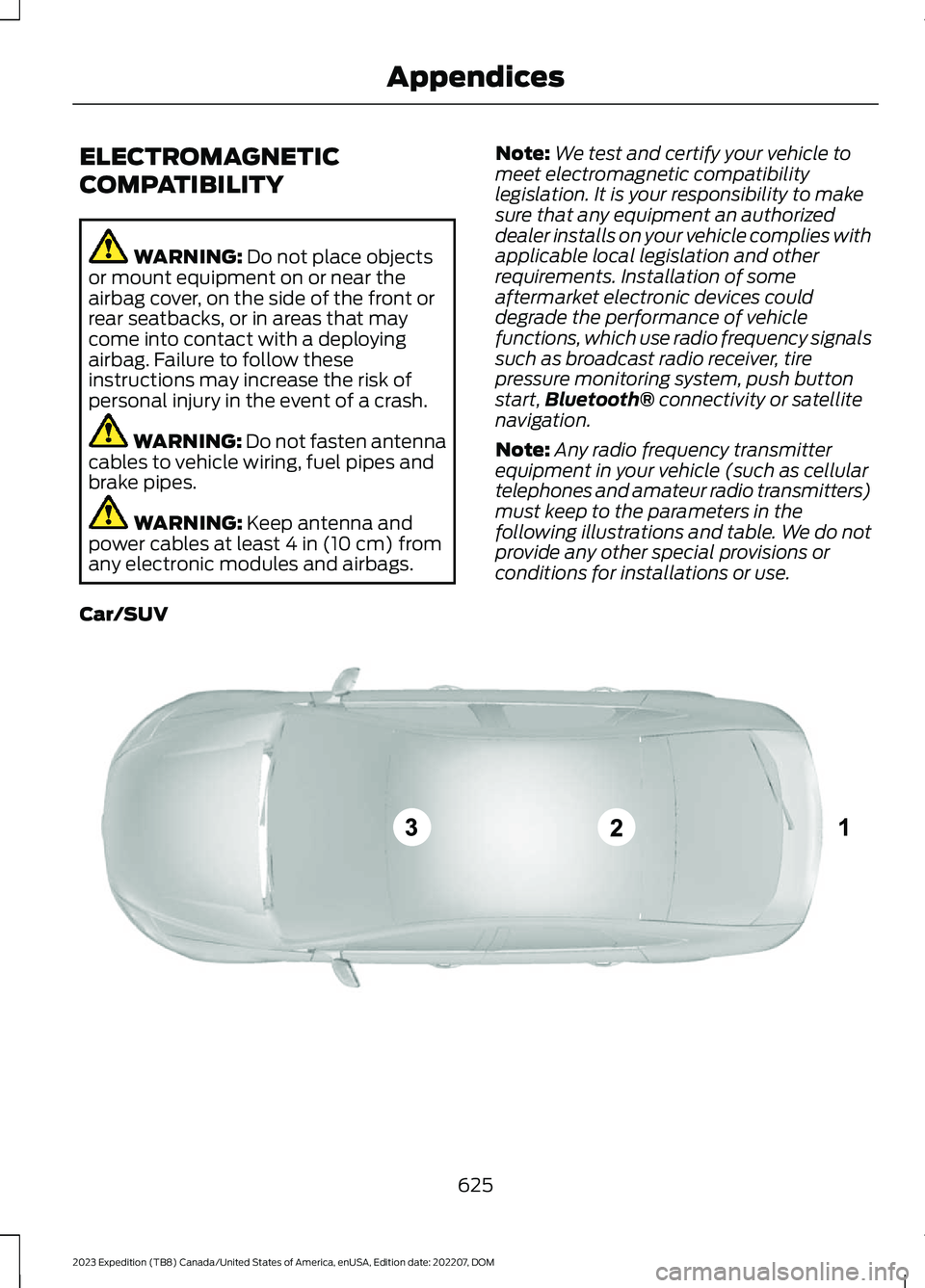
Note:Any radio frequency transmitterequipment in your vehicle (such as cellulartelephones and amateur radio transmitters)must keep to the parameters in thefollowing illustrations and table. We do notprovide any other special provisions orconditions for installations or use.
Car/SUV
625
2023 Expedition (TB8) Canada/United States of America, enUSA, Edition date: 202207, DOMAppendicesE239120
Page 636 of 658
Blind Spot Information System.............320Blind Spot Information System –Troubleshooting............................................324Blind Spot Information System With TrailerCoverage...........................................................322Blind Spot Information SystemIndicators.....................................................323Blind Spot Information SystemLimitations..................................................320Blind Spot Information SystemPrecautions.................................................320Blind Spot Information SystemRequirements............................................320Blind Spot Information System –Troubleshooting........................................324Blind Spot Information System –Information Messages................................324Blind Spot Information System WithTrailer Coverage.........................................322Blind Spot Information System With TrailerCoverage Limitations...................................322Selecting a Trailer..............................................323Setting a Trailer Length....................................322What Is Blind Spot Information System withTrailer Coverage.............................................322BlueCruise Alerts.........................................300BlueCruise AutomaticCancellation...............................................300BlueCruise.......................................................297BlueCruise – Troubleshooting.......................301BlueCruise Indicators................................300BlueCruise Limitations..............................298BlueCruise Precautions.............................297BlueCruise Requirements........................298BlueCruise Settings....................................299BlueCruise – Troubleshooting.................301BlueCruise – Information Messages...........301Bluetooth®....................................................520Body Control Module Fuse Box.............408Accessing the Body Control Module FuseBox.....................................................................408Identifying the Fuses in the Body ControlModule Fuse Box..........................................408Locating the Body Control Module FuseBox.....................................................................408Bonnet LockSee: Opening and Closing the Hood...........412Booster Seats..................................................45
Brake Fluid Specification..........................230Brake Over Accelerator..............................229Brake Precautions.......................................229Brakes..............................................................229Anti-Lock Braking System..............................229Brakes – Troubleshooting..............................230Brakes – Troubleshooting........................230Brakes – Frequently Asked Questions........231Brakes – Warning Lamps...............................230Breaking-In....................................................389
C
Calculating Payload....................................347Calculating the Load Limit.......................347Canceling the Set Speed..........................250Capacities and Specifications................463Catalytic Converter.......................................212Catalytic Converter –Troubleshooting.............................................212Catalytic Converter Precautions.............212Catalytic Converter –Troubleshooting.........................................212Catalytic Converter – WarningLamps.................................................................212Center Console...............................................191Locking the Center Console.............................191Opening the Center Console...........................191Center Display Limitations......................499Center Display Overview..........................499Center Display Precautions.....................499Changing a Flat Tire...................................456Changing a Road Wheel...........................456Changing the 12V Battery.........................420Changing the Fuel Filter.............................419Changing the Language.............................142Changing the Measurement Unit...........142Changing the Remote Control Battery -Vehicles With: Flip Key..............................69Changing the Remote Control Battery -Vehicles With: Push Button Start..........70Changing the Temperature Unit.............142Changing the Tire Pressure Unit.............142Changing the Vehicle Wi-Fi HotspotName or Password - Vehicles With: 12Inch Screen.................................................479
632
2023 Expedition (TB8) Canada/United States of America, enUSA, Edition date: 202207, DOMIndex
Page 637 of 658
Changing the Vehicle Wi-Fi HotspotName or Password - Vehicles With: 15Inch Screen................................................480Charging a Device.........................................185Charging a Wireless Device......................190Checking MyKey System Status................77Checking the Brake Fluid..........................229Checking the Coolant.................................415Checking the Seatbelts...............................54Checking the Tire Pressures....................448Checking the Wiper Blades.........................111Children and Airbags....................................60Child Restraint Anchor Points...................38Locating the Child Restraint Lower AnchorPoints...................................................................38Locating the Child Restraint Top TetherAnchor Points...................................................39What Are the Child Restraint AnchorPoints...................................................................38Child Restraints...............................................39Child Restraint Position Information............39Child Restraints Recommendation................41Child Safety.......................................................37Child Restraint Anchor Points.........................38Child Restraints.....................................................39Installing Child Restraints..................................41Child Safety Locks..........................................47Child Safety Precautions.............................37Cleaning Products.......................................429Cleaning the Exterior..................................430Cleaning Camera Lenses andSensors..............................................................431Cleaning Chrome, Aluminium or StainlessSteel..................................................................430Cleaning Headlamps and RearLamps...............................................................430Cleaning Stripes or Graphics..........................431Cleaning the Engine Compartment.............431Cleaning the Exterior Precautions..............430Cleaning the Underbody..................................431Cleaning Wheels................................................430Cleaning Windows and WiperBlades...............................................................430Cleaning the Interior....................................431Cleaning Carpets and Floor Mats................433Cleaning Displays and Screens....................432Cleaning Moonroof Tracks.............................433Cleaning Plastic..................................................432
Cleaning Seatbelts............................................433Cleaning Seats and the Headliner...............432Cleaning the Instrument Panel.....................431Clearing All MyKeys........................................77Climate Control.............................................148Auto Mode............................................................150Climate Control Hints..................................151Closing the Liftgate.......................................93Closing the Hands-Free Liftgate....................94Closing the Liftgate From Inside YourVehicle.................................................................93Closing the Liftgate From Outside YourVehicle.................................................................93Closing the Liftgate Using the RemoteControl................................................................94Cold Weather Precautions.......................389Connected Navigation...............................526Connected Vehicle......................................475Connected Vehicle –Troubleshooting............................................476Connecting the Vehicle to a MobileNetwork............................................................475Connected Vehicle Data..............................28Connected Vehicle Limitations...............475Connected Vehicle Requirements.........475Connected Vehicle –Troubleshooting........................................476Connected Vehicle – Frequently AskedQuestions.........................................................476Connecting a Bluetooth® Device..........520Connecting a Trailer....................................355Connecting a Trailer –Troubleshooting.............................................357Hitches...................................................................354Connecting a Trailer Precautions..........354Connecting a Trailer –Troubleshooting........................................357Connecting a Trailer – InformationMessages..........................................................357Connecting the Vehicle to a MobileNetwork........................................................475Connecting FordPass to the Modem..........475Enabling and Disabling the Modem...........475What Is the Modem..........................................475Connecting the Vehicle to a Wi-FiNetwork - Vehicles With: 12 InchScreen...........................................................476
633
2023 Expedition (TB8) Canada/United States of America, enUSA, Edition date: 202207, DOMIndex
Page 646 of 658
Operating the Doors From Inside YourVehicle..............................................................81Opening the Doors From Inside YourVehicle.................................................................82Unlocking and Locking the Doors Using theCentral Locking.................................................81Operating the Doors From Outside YourVehicle..............................................................81Unlocking and Locking the Doors Using theKey Blade.............................................................81Unlocking and Locking the Doors Using theRemote Control................................................81Ordering a Canadian French Owner'sManual.........................................................549OTASee: Software Update Settings - VehiclesWith: 12 Inch Screen.....................................532See: Software Update Settings - VehiclesWith: 15 Inch Screen.....................................533See: Vehicle Software Updates....................532Overhead Storage.........................................191Opening the Overhead StorageCompartment..................................................191Overriding Cross Traffic Braking............240Overriding Reverse Braking Assist.........236Overriding the Set Speed.........................288Over the airSee: Software Update Settings - VehiclesWith: 12 Inch Screen.....................................532Over-the-airSee: Software Update Settings - VehiclesWith: 12 Inch Screen.....................................532See: Software Update Settings - VehiclesWith: 15 Inch Screen.....................................533See: Software Update Settings - VehiclesWith: 15 Inch Screen.....................................533See: Vehicle Software Updates....................532See: Vehicle Software Updates....................532
P
Parking Aid Indicators................................265Parking Aid Precautions.............................261Parking Aids....................................................261Front Parking Aid...............................................263Parking Aids – Troubleshooting...................265Rear Parking Aid.................................................262Side Parking Aid.................................................263
Parking Aids – Troubleshooting.............265Parking Aids – InformationMessages.........................................................265Passive Anti-Theft System......................100How Does the Passive Anti-Theft SystemWork...................................................................100What Is the Passive Anti-TheftSystem..............................................................100Perchlorate....................................................595Performing a System Reset - VehiclesWith: 12 Inch Screen.................................535Performing a System Reset - VehiclesWith: 15 Inch Screen................................535Personalized Settings.................................142Personal Safety SystemComponents.................................................55Personal Safety System™..........................55Phone Menu.....................................................511Phone.................................................................511Phone Precautions........................................511Playing Media Using Bluetooth®..........520Playing Media Using the USB Port........185Playing or Pausing the AudioSource............................................................481Post-Crash Alert System..........................396How Does the Post-Crash Alert SystemWork..................................................................396Post-Crash Alert SystemLimitations......................................................396Switching the Post-Crash Alert SystemOff......................................................................396What Is the Post-Crash AlertSystem.............................................................396Post Impact Braking...................................396How Does Post Impact BrakingWork..................................................................396Overriding Post Impact Braking...................397Post Impact Braking Indicators....................397Post Impact Braking Limitations.................396Power Outlet Indicators.............................187Power Outlet Limitations...........................187Power Outlet..................................................187Power Outlet Precautions.........................187Power Running Board Precautions.......104Power Running Board Settings - VehiclesWith: 12 Inch Screen.................................104Power Running Board Settings - VehiclesWith: 15 Inch Screen.................................104
642
2023 Expedition (TB8) Canada/United States of America, enUSA, Edition date: 202207, DOMIndex