load FORD EXPLORER 2014 5.G Repair Manual
[x] Cancel search | Manufacturer: FORD, Model Year: 2014, Model line: EXPLORER, Model: FORD EXPLORER 2014 5.GPages: 586, PDF Size: 9.07 MB
Page 433 of 586
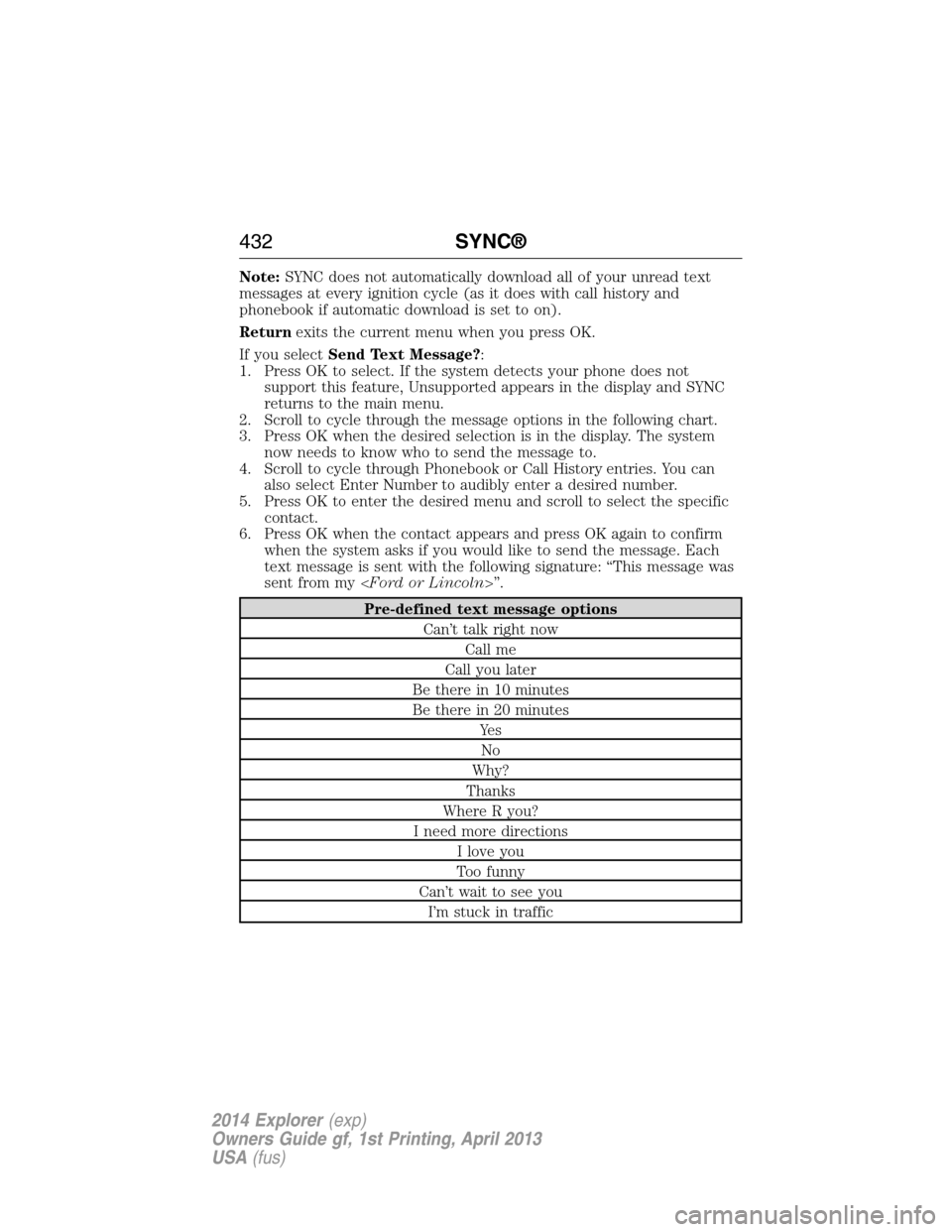
Note:SYNC does not automatically download all of your unread text
messages at every ignition cycle (as it does with call history and
phonebook if automatic download is set to on).
Returnexits the current menu when you press OK.
If you selectSend Text Message?:
1. Press OK to select. If the system detects your phone does not
support this feature, Unsupported appears in the display and SYNC
returns to the main menu.
2. Scroll to cycle through the message options in the following chart.
3. Press OK when the desired selection is in the display. The system
now needs to know who to send the message to.
4. Scroll to cycle through Phonebook or Call History entries. You can
also select Enter Number to audibly enter a desired number.
5. Press OK to enter the desired menu and scroll to select the specific
contact.
6. Press OK when the contact appears and press OK again to confirm
when the system asks if you would like to send the message. Each
text message is sent with the following signature: “This message was
sent from my
Pre-defined text message options
Can’t talk right now
Call me
Call you later
Be there in 10 minutes
Be there in 20 minutes
Ye s
No
Why?
Thanks
Where R you?
I need more directions
I love you
Too funny
Can’t wait to see you
I’m stuck in traffic
432SYNC®
2014 Explorer(exp)
Owners Guide gf, 1st Printing, April 2013
USA(fus)
Page 434 of 586
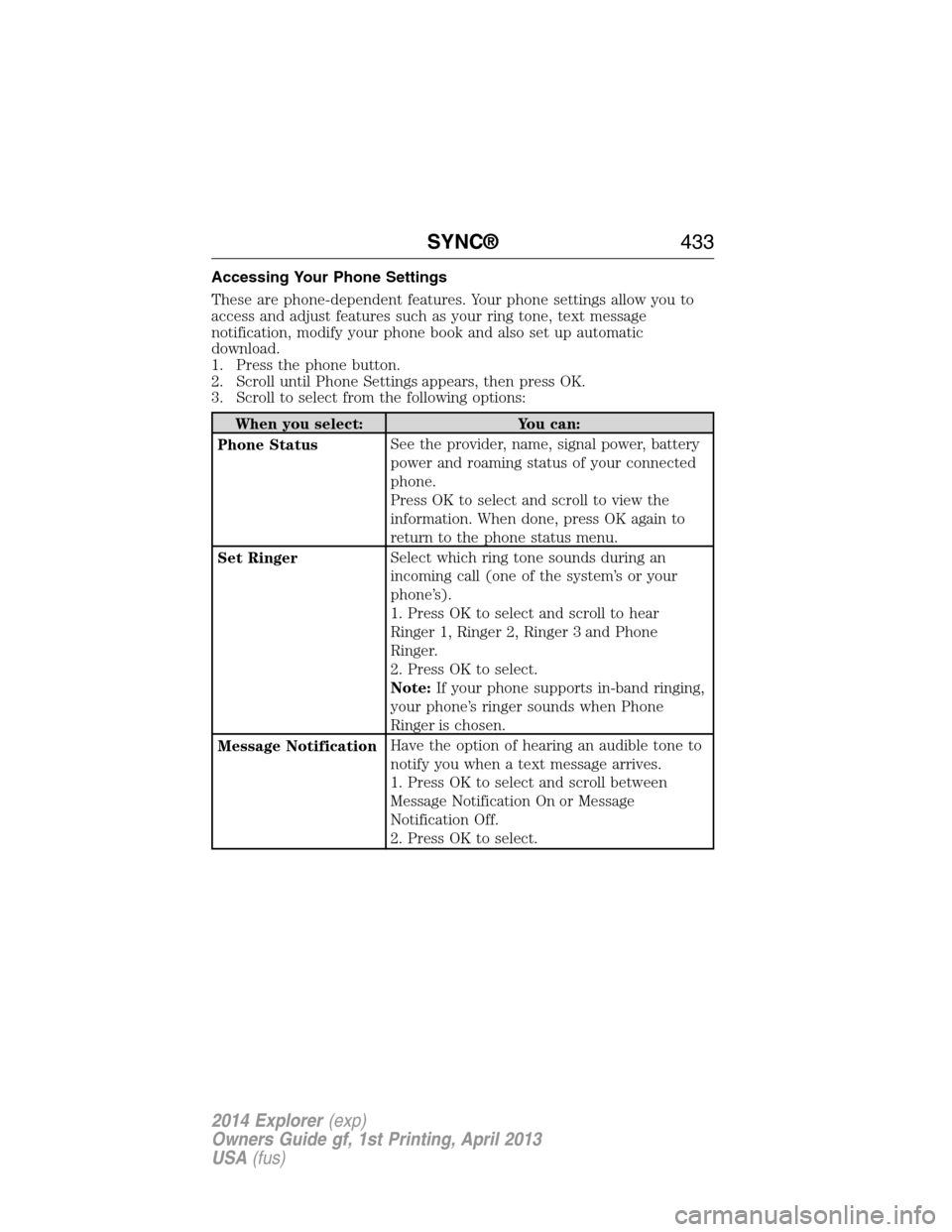
Accessing Your Phone Settings
These are phone-dependent features. Your phone settings allow you to
access and adjust features such as your ring tone, text message
notification, modify your phone book and also set up automatic
download.
1. Press the phone button.
2. Scroll until Phone Settings appears, then press OK.
3. Scroll to select from the following options:
When you select: You can:
Phone StatusSee the provider, name, signal power, battery
power and roaming status of your connected
phone.
Press OK to select and scroll to view the
information. When done, press OK again to
return to the phone status menu.
Set RingerSelect which ring tone sounds during an
incoming call (one of the system’s or your
phone’s).
1. Press OK to select and scroll to hear
Ringer 1, Ringer 2, Ringer 3 and Phone
Ringer.
2. Press OK to select.
Note:If your phone supports in-band ringing,
your phone’s ringer sounds when Phone
Ringer is chosen.
Message NotificationHave the option of hearing an audible tone to
notify you when a text message arrives.
1. Press OK to select and scroll between
Message Notification On or Message
Notification Off.
2. Press OK to select.
SYNC®433
2014 Explorer(exp)
Owners Guide gf, 1st Printing, April 2013
USA(fus)
Page 435 of 586
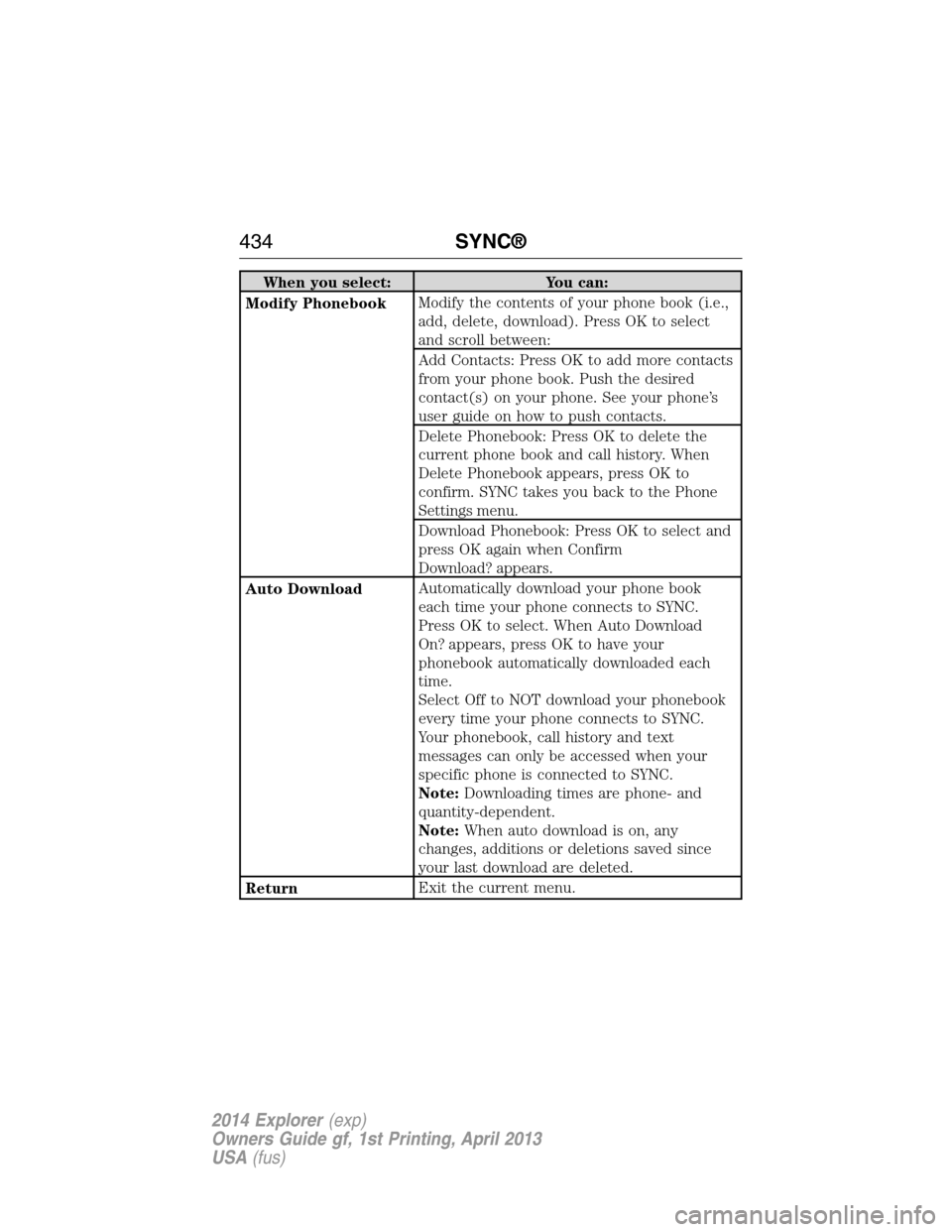
When you select: You can:
Modify PhonebookModify the contents of your phone book (i.e.,
add, delete, download). Press OK to select
and scroll between:
Add Contacts: Press OK to add more contacts
from your phone book. Push the desired
contact(s) on your phone. See your phone’s
user guide on how to push contacts.
Delete Phonebook: Press OK to delete the
current phone book and call history. When
Delete Phonebook appears, press OK to
confirm. SYNC takes you back to the Phone
Settings menu.
Download Phonebook: Press OK to select and
press OK again when Confirm
Download? appears.
Auto DownloadAutomatically download your phone book
each time your phone connects to SYNC.
Press OK to select. When Auto Download
On? appears, press OK to have your
phonebook automatically downloaded each
time.
Select Off to NOT download your phonebook
every time your phone connects to SYNC.
Your phonebook, call history and text
messages can only be accessed when your
specific phone is connected to SYNC.
Note:Downloading times are phone- and
quantity-dependent.
Note:When auto download is on, any
changes, additions or deletions saved since
your last download are deleted.
ReturnExit the current menu.
434SYNC®
2014 Explorer(exp)
Owners Guide gf, 1st Printing, April 2013
USA(fus)
Page 438 of 586
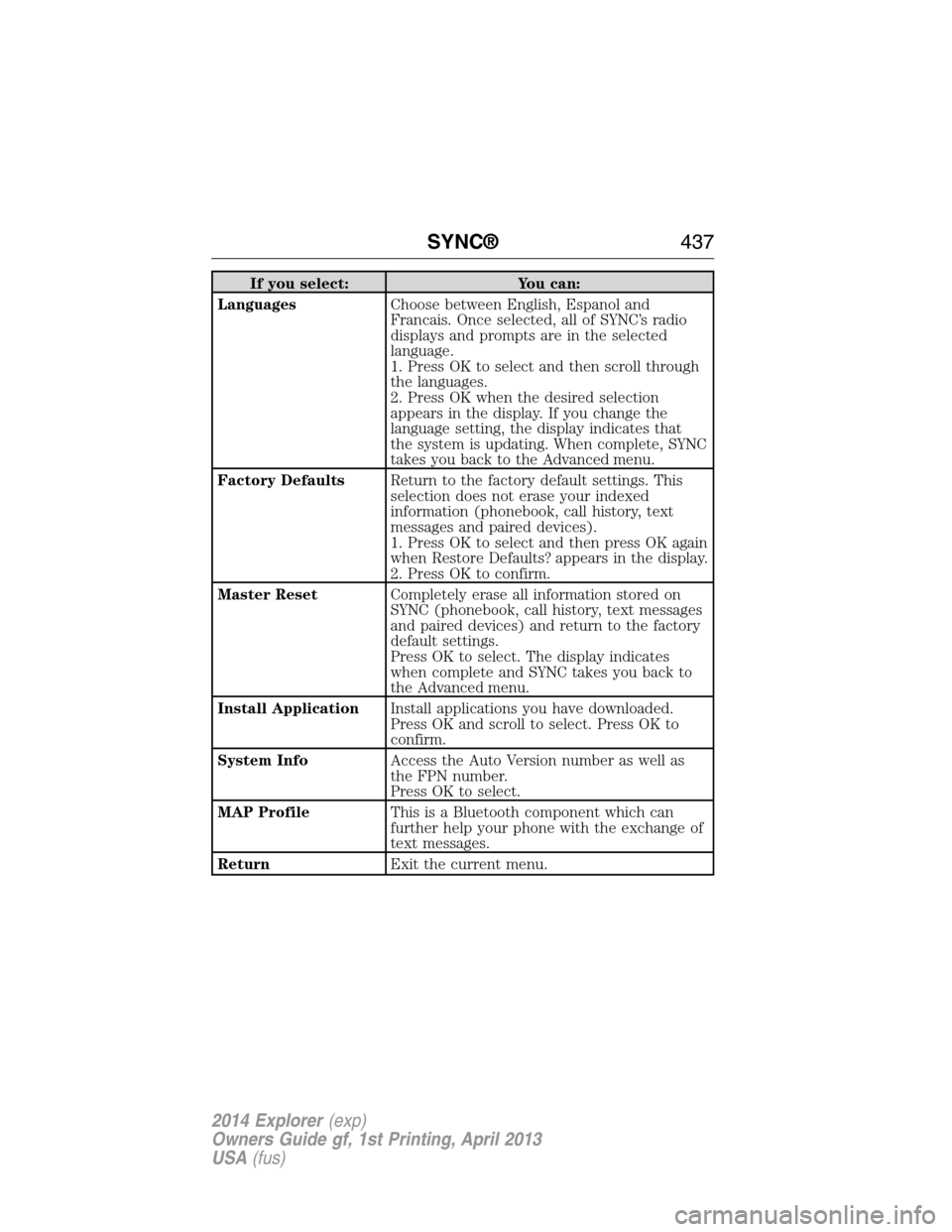
If you select: You can:
LanguagesChoose between English, Espanol and
Francais. Once selected, all of SYNC’s radio
displays and prompts are in the selected
language.
1. Press OK to select and then scroll through
the languages.
2. Press OK when the desired selection
appears in the display. If you change the
language setting, the display indicates that
the system is updating. When complete, SYNC
takes you back to the Advanced menu.
Factory DefaultsReturn to the factory default settings. This
selection does not erase your indexed
information (phonebook, call history, text
messages and paired devices).
1. Press OK to select and then press OK again
when Restore Defaults? appears in the display.
2. Press OK to confirm.
Master ResetCompletely erase all information stored on
SYNC (phonebook, call history, text messages
and paired devices) and return to the factory
default settings.
Press OK to select. The display indicates
when complete and SYNC takes you back to
the Advanced menu.
Install ApplicationInstall applications you have downloaded.
Press OK and scroll to select. Press OK to
confirm.
System InfoAccess the Auto Version number as well as
the FPN number.
Press OK to select.
MAP ProfileThis is a Bluetooth component which can
further help your phone with the exchange of
text messages.
ReturnExit the current menu.
SYNC®437
2014 Explorer(exp)
Owners Guide gf, 1st Printing, April 2013
USA(fus)
Page 445 of 586
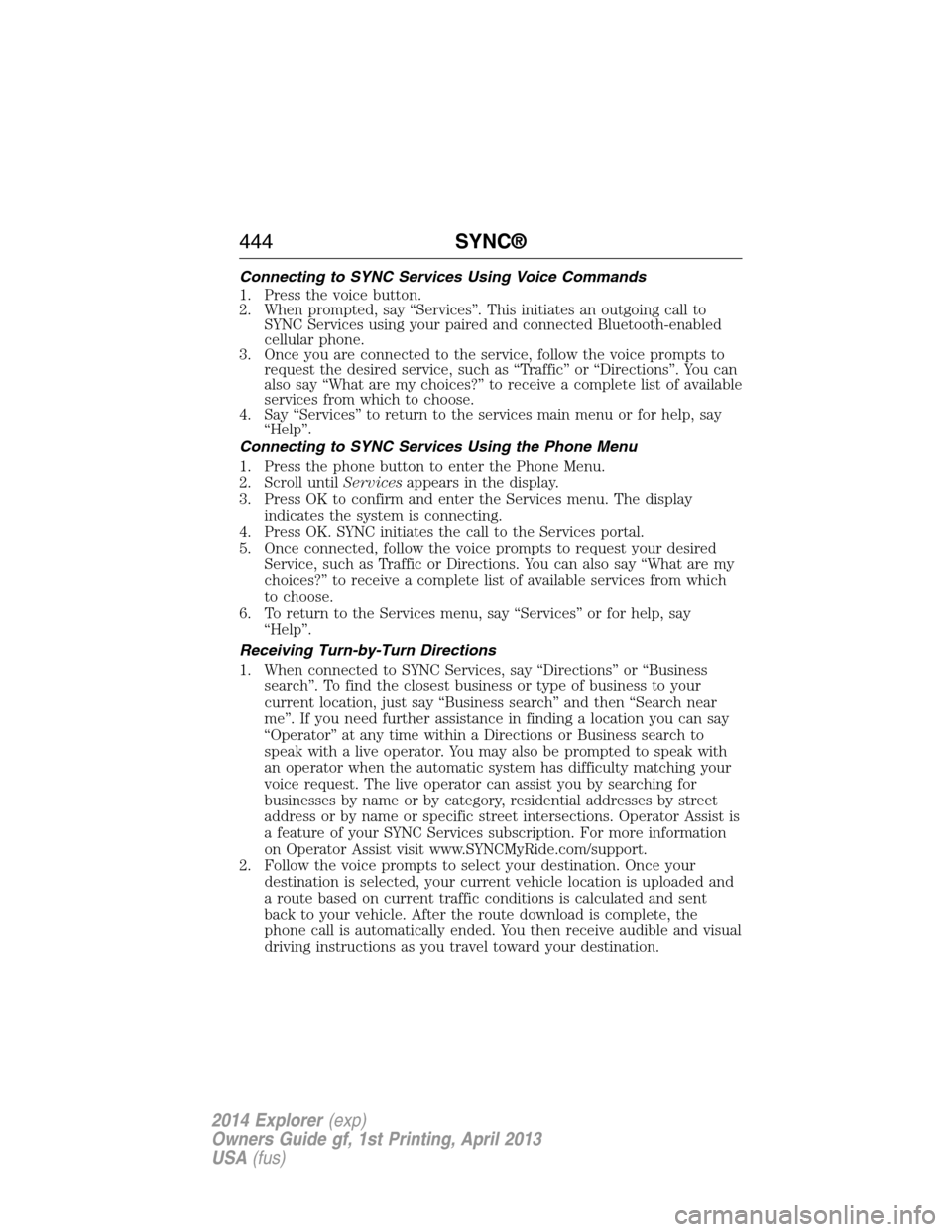
Connecting to SYNC Services Using Voice Commands
1. Press the voice button.
2. When prompted, say “Services”. This initiates an outgoing call to
SYNC Services using your paired and connected Bluetooth-enabled
cellular phone.
3. Once you are connected to the service, follow the voice prompts to
request the desired service, such as “Traffic” or “Directions”. You can
also say “What are my choices?” to receive a complete list of available
services from which to choose.
4. Say “Services” to return to the services main menu or for help, say
“Help”.
Connecting to SYNC Services Using the Phone Menu
1. Press the phone button to enter the Phone Menu.
2. Scroll untilServicesappears in the display.
3. Press OK to confirm and enter the Services menu. The display
indicates the system is connecting.
4. Press OK. SYNC initiates the call to the Services portal.
5. Once connected, follow the voice prompts to request your desired
Service, such as Traffic or Directions. You can also say “What are my
choices?” to receive a complete list of available services from which
to choose.
6. To return to the Services menu, say “Services” or for help, say
“Help”.
Receiving Turn-by-Turn Directions
1. When connected to SYNC Services, say “Directions” or “Business
search”. To find the closest business or type of business to your
current location, just say “Business search” and then “Search near
me”. If you need further assistance in finding a location you can say
“Operator” at any time within a Directions or Business search to
speak with a live operator. You may also be prompted to speak with
an operator when the automatic system has difficulty matching your
voice request. The live operator can assist you by searching for
businesses by name or by category, residential addresses by street
address or by name or specific street intersections. Operator Assist is
a feature of your SYNC Services subscription. For more information
on Operator Assist visit www.SYNCMyRide.com/support.
2. Follow the voice prompts to select your destination. Once your
destination is selected, your current vehicle location is uploaded and
a route based on current traffic conditions is calculated and sent
back to your vehicle. After the route download is complete, the
phone call is automatically ended. You then receive audible and visual
driving instructions as you travel toward your destination.
444SYNC®
2014 Explorer(exp)
Owners Guide gf, 1st Printing, April 2013
USA(fus)
Page 458 of 586
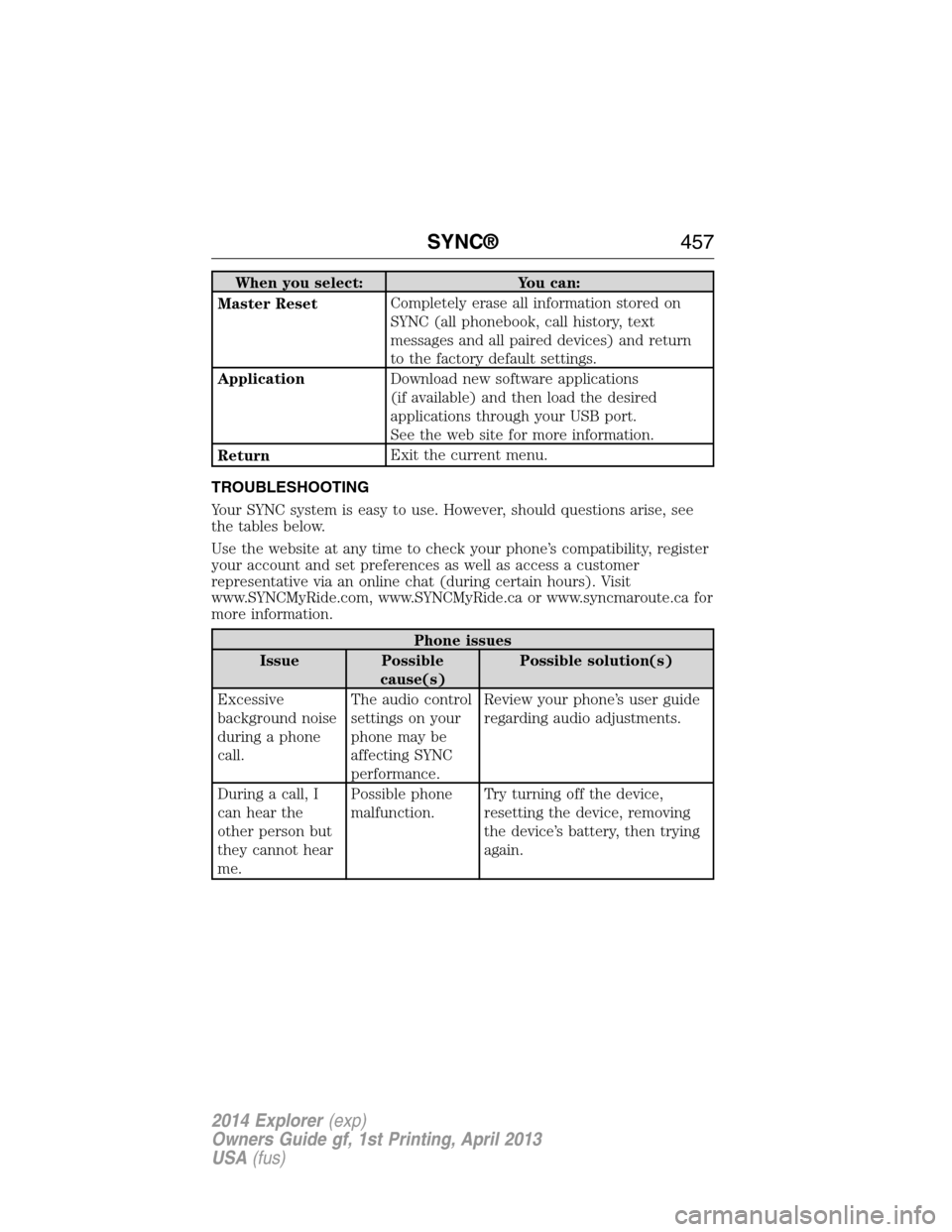
When you select: You can:
Master ResetCompletely erase all information stored on
SYNC (all phonebook, call history, text
messages and all paired devices) and return
to the factory default settings.
ApplicationDownload new software applications
(if available) and then load the desired
applications through your USB port.
See the web site for more information.
ReturnExit the current menu.
TROUBLESHOOTING
Your SYNC system is easy to use. However, should questions arise, see
the tables below.
Use the website at any time to check your phone’s compatibility, register
your account and set preferences as well as access a customer
representative via an online chat (during certain hours). Visit
www.SYNCMyRide.com, www.SYNCMyRide.ca or www.syncmaroute.ca for
more information.
Phone issues
Issue Possible
cause(s)Possible solution(s)
Excessive
background noise
during a phone
call.The audio control
settings on your
phone may be
affecting SYNC
performance.Review your phone’s user guide
regarding audio adjustments.
During a call, I
can hear the
other person but
they cannot hear
me.Possible phone
malfunction.Try turning off the device,
resetting the device, removing
the device’s battery, then trying
again.
SYNC®457
2014 Explorer(exp)
Owners Guide gf, 1st Printing, April 2013
USA(fus)
Page 459 of 586
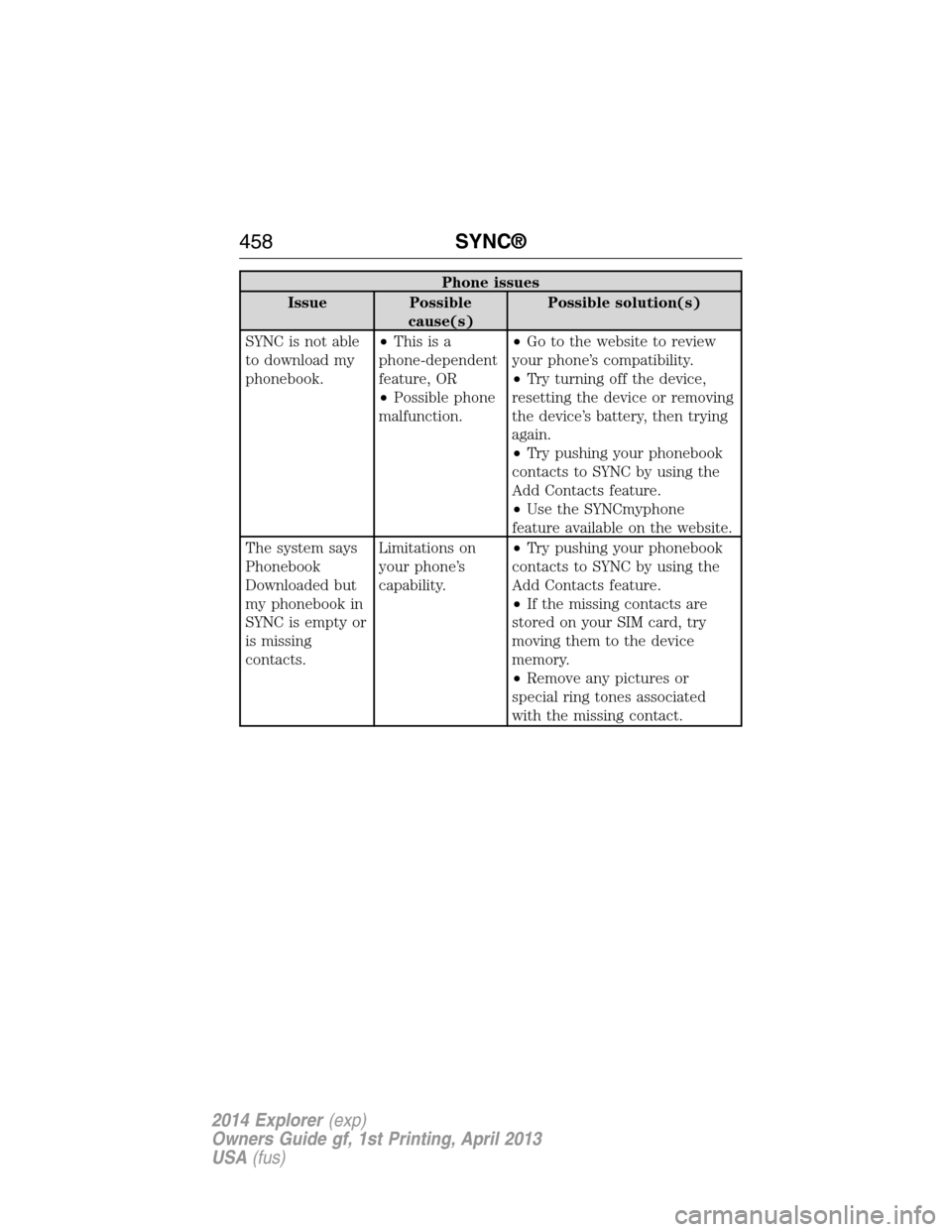
Phone issues
Issue Possible
cause(s)Possible solution(s)
SYNC is not able
to download my
phonebook.•Thisisa
phone-dependent
feature, OR
•Possible phone
malfunction.•Go to the website to review
your phone’s compatibility.
•Try turning off the device,
resetting the device or removing
the device’s battery, then trying
again.
•Try pushing your phonebook
contacts to SYNC by using the
Add Contacts feature.
•Use the SYNCmyphone
feature available on the website.
The system says
Phonebook
Downloaded but
my phonebook in
SYNC is empty or
is missing
contacts.Limitations on
your phone’s
capability.•Try pushing your phonebook
contacts to SYNC by using the
Add Contacts feature.
•If the missing contacts are
stored on your SIM card, try
moving them to the device
memory.
•Remove any pictures or
special ring tones associated
with the missing contact.
458SYNC®
2014 Explorer(exp)
Owners Guide gf, 1st Printing, April 2013
USA(fus)
Page 460 of 586
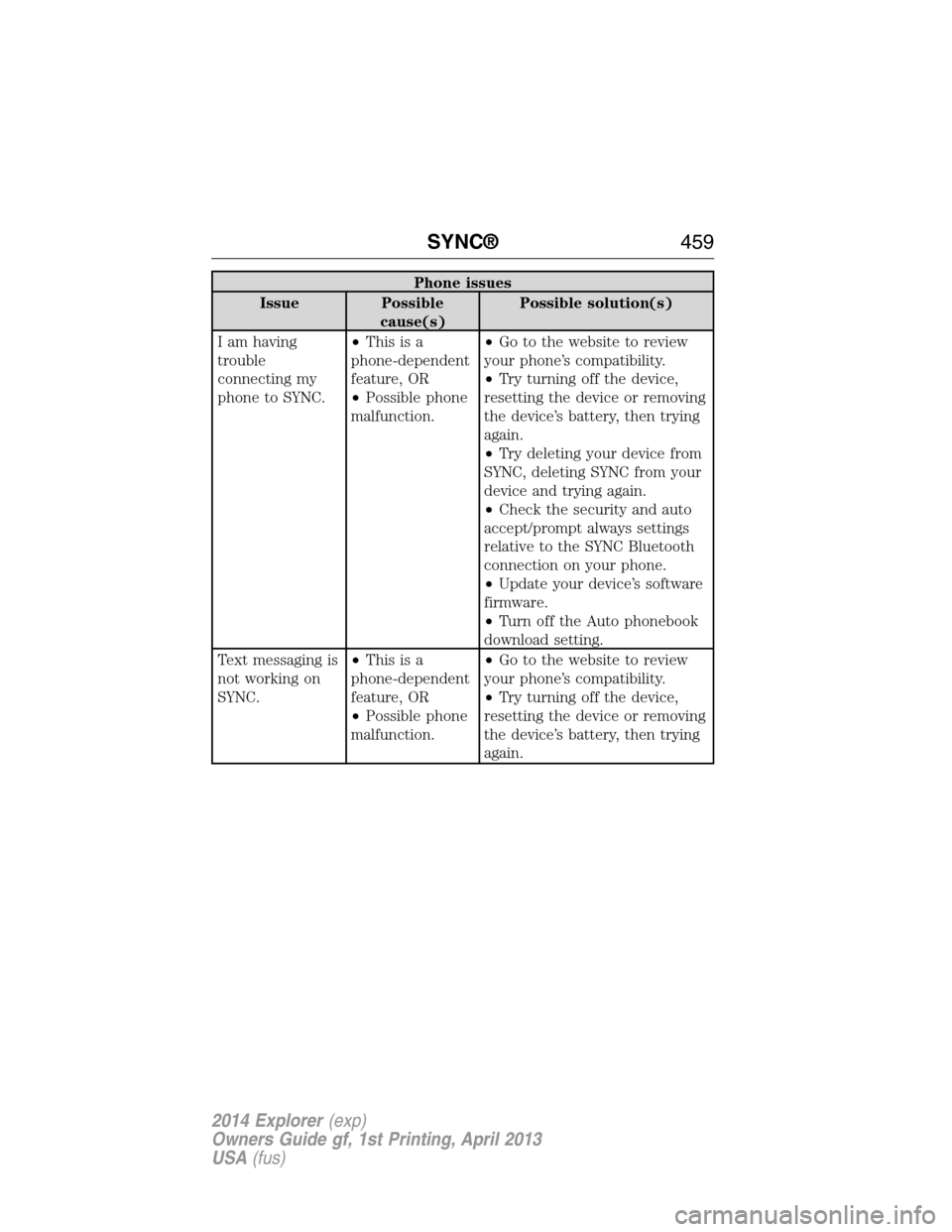
Phone issues
Issue Possible
cause(s)Possible solution(s)
I am having
trouble
connecting my
phone to SYNC.•Thisisa
phone-dependent
feature, OR
•Possible phone
malfunction.•Go to the website to review
your phone’s compatibility.
•Try turning off the device,
resetting the device or removing
the device’s battery, then trying
again.
•Try deleting your device from
SYNC, deleting SYNC from your
device and trying again.
•Check the security and auto
accept/prompt always settings
relative to the SYNC Bluetooth
connection on your phone.
•Update your device’s software
firmware.
•Turn off the Auto phonebook
download setting.
Text messaging is
not working on
SYNC.•Thisisa
phone-dependent
feature, OR
•Possible phone
malfunction.•Go to the website to review
your phone’s compatibility.
•Try turning off the device,
resetting the device or removing
the device’s battery, then trying
again.
SYNC®459
2014 Explorer(exp)
Owners Guide gf, 1st Printing, April 2013
USA(fus)
Page 462 of 586
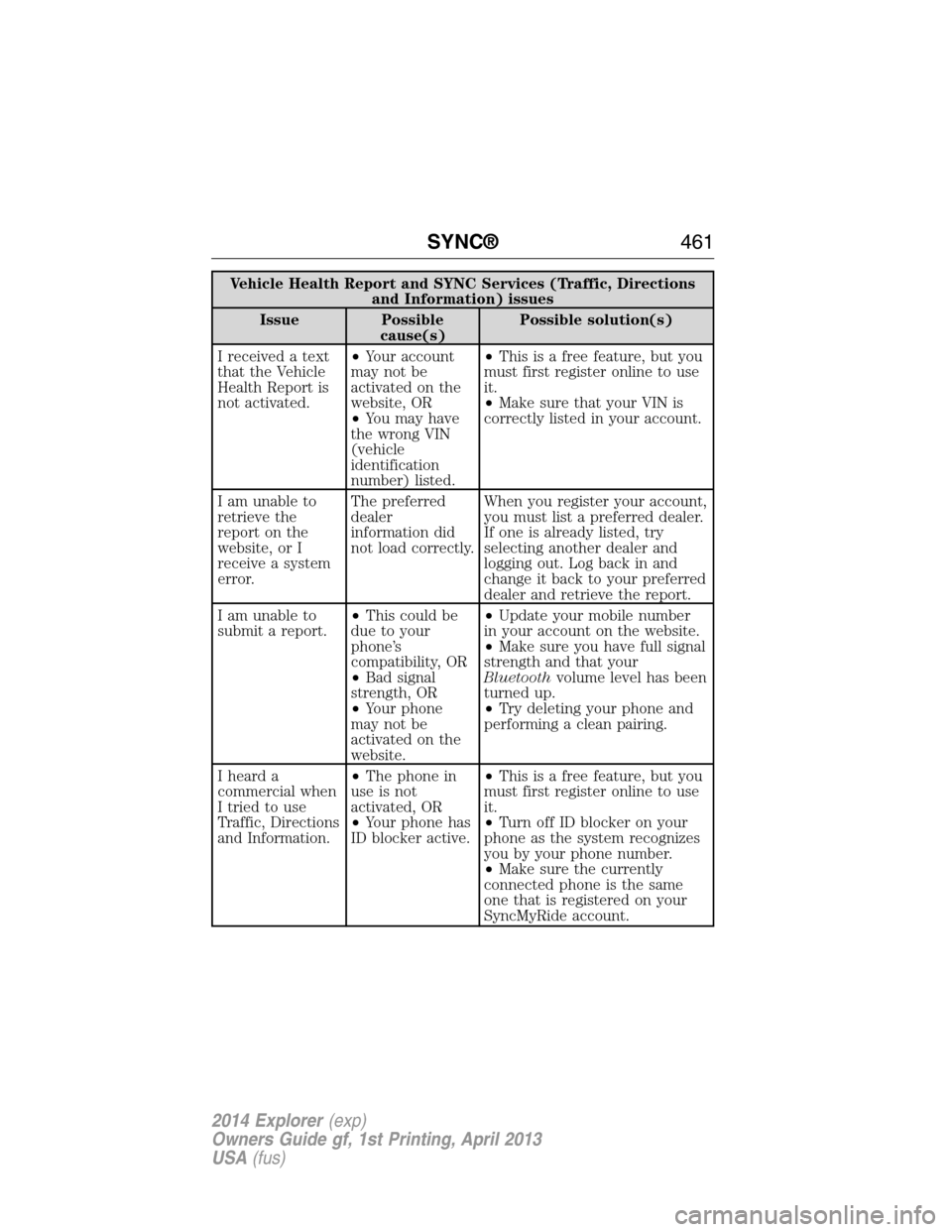
Vehicle Health Report and SYNC Services (Traffic, Directions
and Information) issues
Issue Possible
cause(s)Possible solution(s)
I received a text
that the Vehicle
Health Report is
not activated.•Your account
may not be
activated on the
website, OR
•You may have
the wrong VIN
(vehicle
identification
number) listed.•This is a free feature, but you
must first register online to use
it.
•Make sure that your VIN is
correctly listed in your account.
I am unable to
retrieve the
report on the
website, or I
receive a system
error.The preferred
dealer
information did
not load correctly.When you register your account,
you must list a preferred dealer.
If one is already listed, try
selecting another dealer and
logging out. Log back in and
change it back to your preferred
dealer and retrieve the report.
I am unable to
submit a report.•This could be
due to your
phone’s
compatibility, OR
•Bad signal
strength, OR
•Your phone
may not be
activated on the
website.•Update your mobile number
in your account on the website.
•Make sure you have full signal
strength and that your
Bluetoothvolume level has been
turned up.
•Try deleting your phone and
performing a clean pairing.
I heard a
commercial when
I tried to use
Traffic, Directions
and Information.•The phone in
use is not
activated, OR
•Your phone has
ID blocker active.•This is a free feature, but you
must first register online to use
it.
•Turn off ID blocker on your
phone as the system recognizes
you by your phone number.
•Make sure the currently
connected phone is the same
one that is registered on your
SyncMyRide account.
SYNC®461
2014 Explorer(exp)
Owners Guide gf, 1st Printing, April 2013
USA(fus)
Page 471 of 586
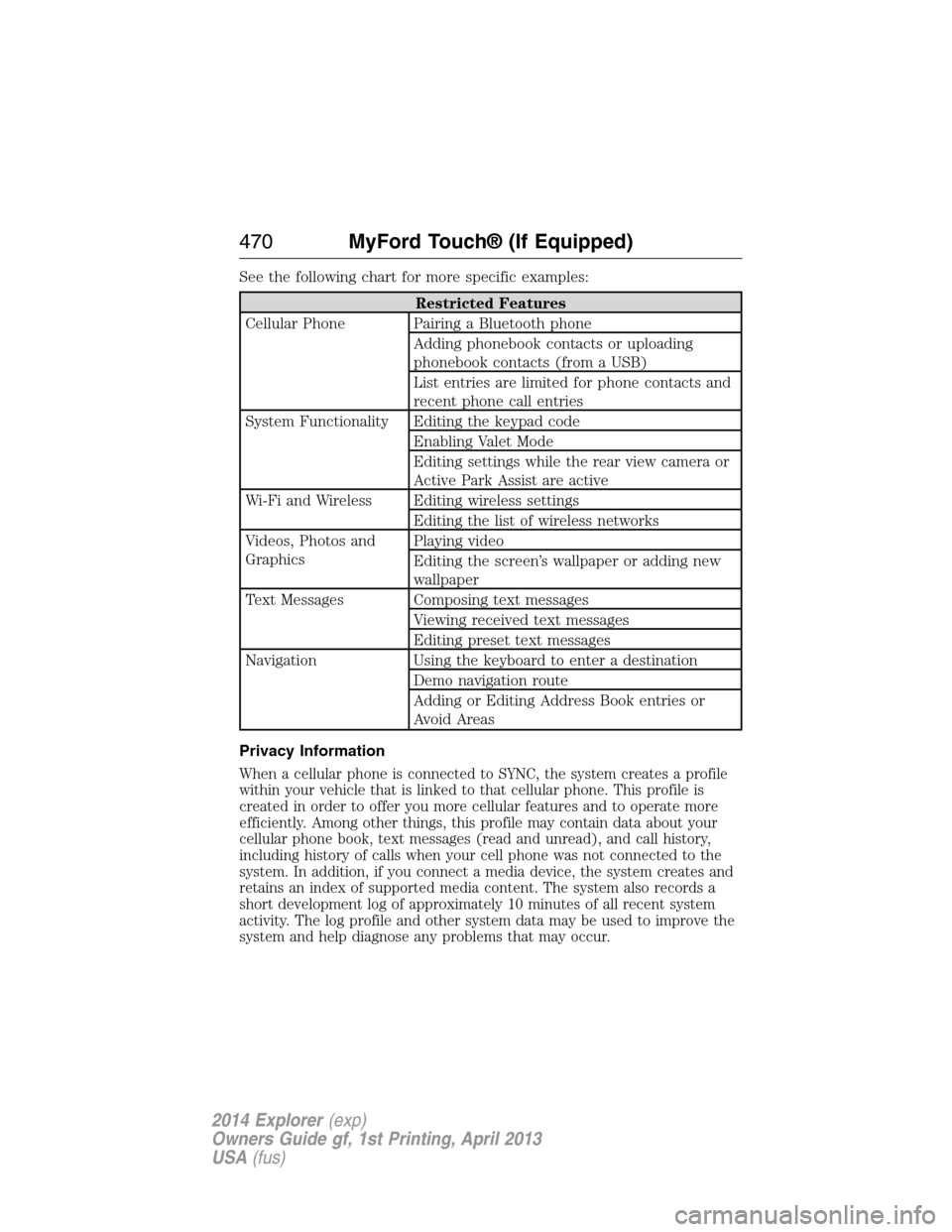
See the following chart for more specific examples:
Restricted Features
Cellular Phone Pairing a Bluetooth phone
Adding phonebook contacts or uploading
phonebook contacts (from a USB)
List entries are limited for phone contacts and
recent phone call entries
System Functionality Editing the keypad code
Enabling Valet Mode
Editing settings while the rear view camera or
Active Park Assist are active
Wi-Fi and Wireless Editing wireless settings
Editing the list of wireless networks
Videos, Photos and
GraphicsPlaying video
Editing the screen’s wallpaper or adding new
wallpaper
Text Messages Composing text messages
Viewing received text messages
Editing preset text messages
Navigation Using the keyboard to enter a destination
Demo navigation route
Adding or Editing Address Book entries or
Avoid Areas
Privacy Information
When a cellular phone is connected to SYNC, the system creates a profile
within your vehicle that is linked to that cellular phone. This profile is
created in order to offer you more cellular features and to operate more
efficiently. Among other things, this profile may contain data about your
cellular phone book, text messages (read and unread), and call history,
including history of calls when your cell phone was not connected to the
system. In addition, if you connect a media device, the system creates and
retains an index of supported media content. The system also records a
short development log of approximately 10 minutes of all recent system
activity. The log profile and other system data may be used to improve the
system and help diagnose any problems that may occur.
470MyFord Touch® (If Equipped)
2014 Explorer(exp)
Owners Guide gf, 1st Printing, April 2013
USA(fus)