load FORD EXPLORER 2014 5.G Workshop Manual
[x] Cancel search | Manufacturer: FORD, Model Year: 2014, Model line: EXPLORER, Model: FORD EXPLORER 2014 5.GPages: 586, PDF Size: 9.07 MB
Page 379 of 586
The usage of a full-size dissimilar spare tire and wheel assembly can lead
to impairment of the following:
•Handling, stability and braking performance
•Comfort and noise
•Ground clearance and parking at curbs
•Winter weather driving capability
•Wet weather driving capability
•All-wheel driving capability (if applicable)
•Load leveling adjustment (if applicable)
When driving with the full-size dissimilar spare tire and wheel assembly,
additional caution should be given to:
•towing a trailer.
•driving vehicles equipped with a camper body.
•driving vehicles with a load on the cargo rack.
Drive cautiously when using a full-size dissimilar spare tire and wheel,
and seek service as soon as possible.
Tire Change Procedure
WARNING:When one of the front wheels is off the ground, the
transmission alone will not prevent the vehicle from moving or
slipping off the jack, even if the transmission selector lever is in
positionP.
WARNING:To help prevent the vehicle from moving when you
change a tire, be sure to place the transmission selector lever in
positionP,set the parking brake and block (in both directions) the
wheel that is diagonally opposite (other side and end of the vehicle) to
the tire being changed.
WARNING:Never get underneath a vehicle that is supported
only by a jack. If the vehicle slips off the jack, you or someone
else could be seriously injured.
378Wheels and Tires
2014 Explorer(exp)
Owners Guide gf, 1st Printing, April 2013
USA(fus)
Page 401 of 586
GENERAL INFORMATION
Radio Frequencies and Reception Factors
AM and FM frequencies are established by the Federal Communications
Commission (FCC) and the Canadian Radio and Telecommunications
Commission (CRTC). Those frequencies are:
AM: 530, 540–1700, 1710 kHz
FM: 87.9–107.7, 107.9 MHz
Radio reception factors
Distance and
strengthThe further you travel from an FM station,
the weaker the signal and the weaker the
reception.
TerrainHills, mountains, tall buildings, bridges,
tunnels, freeway overpasses, parking garages,
dense tree foliage and thunderstorms can
interfere with the reception.
Station overloadWhen you pass a ground-based broadcast
repeating tower, a stronger signal may
overtake a weaker one and result in the audio
system muting.
CD and CD Player Information
Note:CD units play commercially pressed 4.75-inch (12 centimeter)
audio compact discs only. Due to technical incompatibility, certain
recordable and re-recordable compact discs may not function correctly
when used in Ford CD players.
Note:Do not insert CDs with homemade paper (adhesive) labels into
the CD player as the label may peel and cause the CD to become
jammed. You should use a permanent felt tip marker rather than
adhesive labels on your homemade CDs. Ballpoint pens may damage
CDs. Please contact your authorized dealer for further information.
Note:Do not use any irregularly shaped discs or discs with a scratch
protection film attached.
Always handle discs by their edges only. Clean the disc with an approved
CD cleaner only. Wipe it from the center of the disc toward the edge. Do
not clean in a circular motion.
Do not expose discs to direct sunlight or heat sources for extended
periods.
400Audio System
2014 Explorer(exp)
Owners Guide gf, 1st Printing, April 2013
USA(fus)
Page 414 of 586
SATELLITE RADIO INFORMATION (IF EQUIPPED)
Satellite Radio Channels
Sirius broadcasts a variety of music, news, sports, weather, traffic and
entertainment satellite radio channels. For more information and a
complete list of Sirius satellite radio channels, visit www.siriusxm.com in
the United States, www.sirius.ca in Canada, or call Sirius at
1–888–539–7474.
Note:This receiver includes the eCos real-time operating system. eCos
is published under the eCos License.
Satellite Radio Reception Factors
Potential satellite radio reception issues
Antenna
obstructionsFor optimal reception performance, keep the
antenna clear of snow and ice build-up and
keep luggage and other material as far away
from the antenna as possible.
TerrainHills, mountains, tall buildings, bridges,
tunnels, freeway overpasses, parking garages,
dense tree foliage and thunderstorms can
interfere with your reception.
Station overloadWhen you pass a ground-based
broadcast-repeating tower, a stronger signal
may overtake a weaker one and the audio
system may mute.
Satellite radio signal
interferenceYour display may show ACQUIRING...to
indicate the interference and the audio
system may mute.
Sirius Satellite Radio Service
Note:Sirius reserves the unrestricted right to change, rearrange, add or
delete programming including canceling, moving or adding particular
channels, and its prices, at any time, with or without notice to you. Ford
Motor Company shall not be responsible for any such programming
changes.
Audio System413
2014 Explorer(exp)
Owners Guide gf, 1st Printing, April 2013
USA(fus)
Page 420 of 586
GENERAL INFORMATION
Make sure you review your device’s manual before using it with SYNC.
Support
The SYNC support team is available to help you with any questions you
cannot answer on your own.
Monday-Saturday, 8:30am-8:00pm EST.
In the United States, call: 1–888–270–1055.
In Canada, call: 1–800–565–3673.
Times are subject to change due to holidays.
SYNC Owner Account
Why do I need a SYNC owner account?
•Required to activate Vehicle Health Report and to view the reports
online.
•Required to activate the subscription-based SYNC Services and to
personalize your Saved Points and Favorites.
•Essential for keeping up with the latest software downloads available
for SYNC.
•Access to customer support for any questions you may have.
Driving Restrictions
For your safety, certain features are speed-dependent and restricted
when your vehicle is traveling over 3 mph (5 km/h).
Safety Information
WARNING:Driving while distracted can result in loss of vehicle
control, crash and injury. We strongly recommend that you use
extreme caution when using any device that may take your focus off
the road. Your primary responsibility is the safe operation of your
vehicle. We recommend against the use of any handheld device while
driving and encourage the use of voice-operated systems when possible.
Make sure you are aware of all applicable local laws that may affect the
use of electronic devices while driving.
SYNC®419
2014 Explorer(exp)
Owners Guide gf, 1st Printing, April 2013
USA(fus)
Page 424 of 586
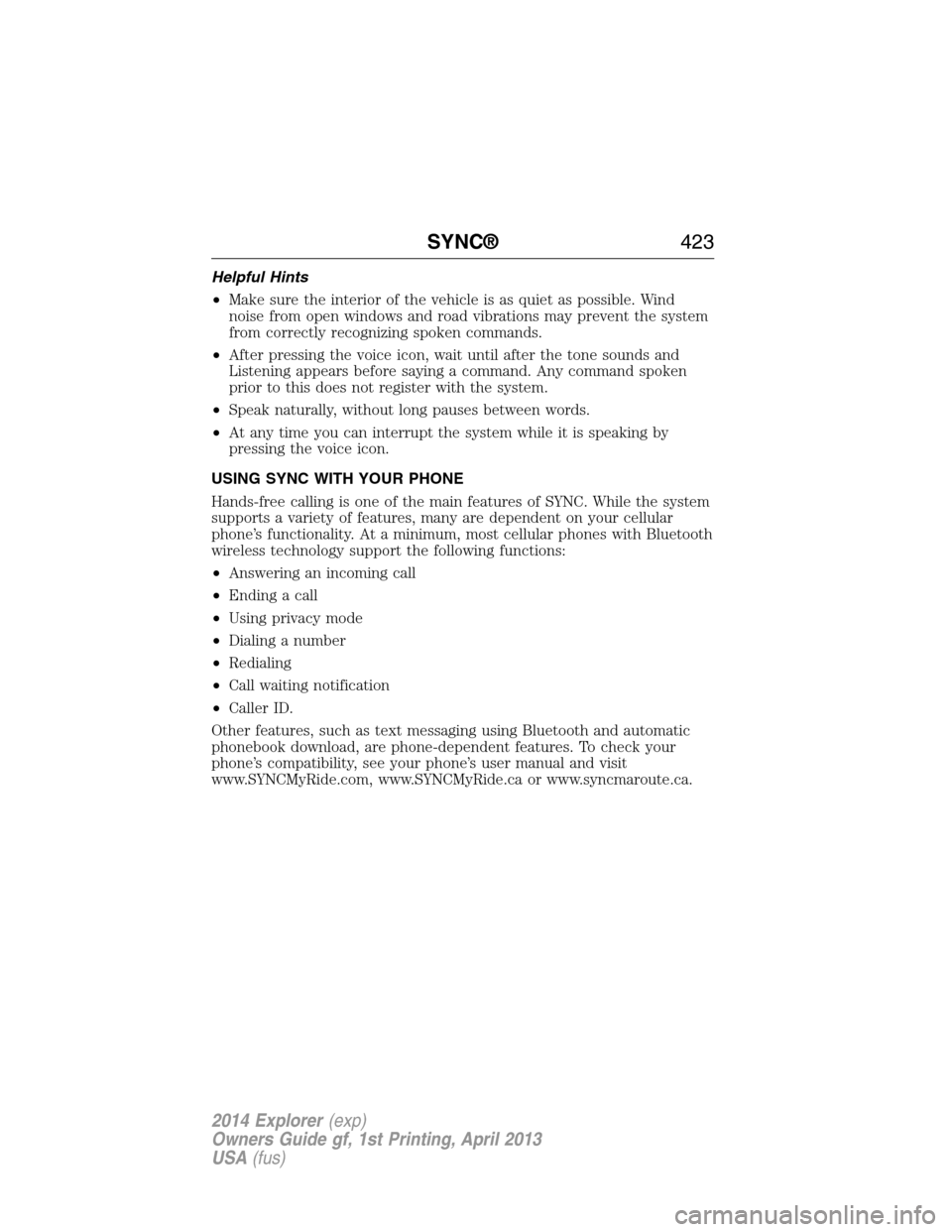
Helpful Hints
•Make sure the interior of the vehicle is as quiet as possible. Wind
noise from open windows and road vibrations may prevent the system
from correctly recognizing spoken commands.
•After pressing the voice icon, wait until after the tone sounds and
Listening appears before saying a command. Any command spoken
prior to this does not register with the system.
•Speak naturally, without long pauses between words.
•At any time you can interrupt the system while it is speaking by
pressing the voice icon.
USING SYNC WITH YOUR PHONE
Hands-free calling is one of the main features of SYNC. While the system
supports a variety of features, many are dependent on your cellular
phone’s functionality. At a minimum, most cellular phones with Bluetooth
wireless technology support the following functions:
•Answering an incoming call
•Ending a call
•Using privacy mode
•Dialing a number
•Redialing
•Call waiting notification
•Caller ID.
Other features, such as text messaging using Bluetooth and automatic
phonebook download, are phone-dependent features. To check your
phone’s compatibility, see your phone’s user manual and visit
www.SYNCMyRide.com, www.SYNCMyRide.ca or www.syncmaroute.ca.
SYNC®423
2014 Explorer(exp)
Owners Guide gf, 1st Printing, April 2013
USA(fus)
Page 425 of 586
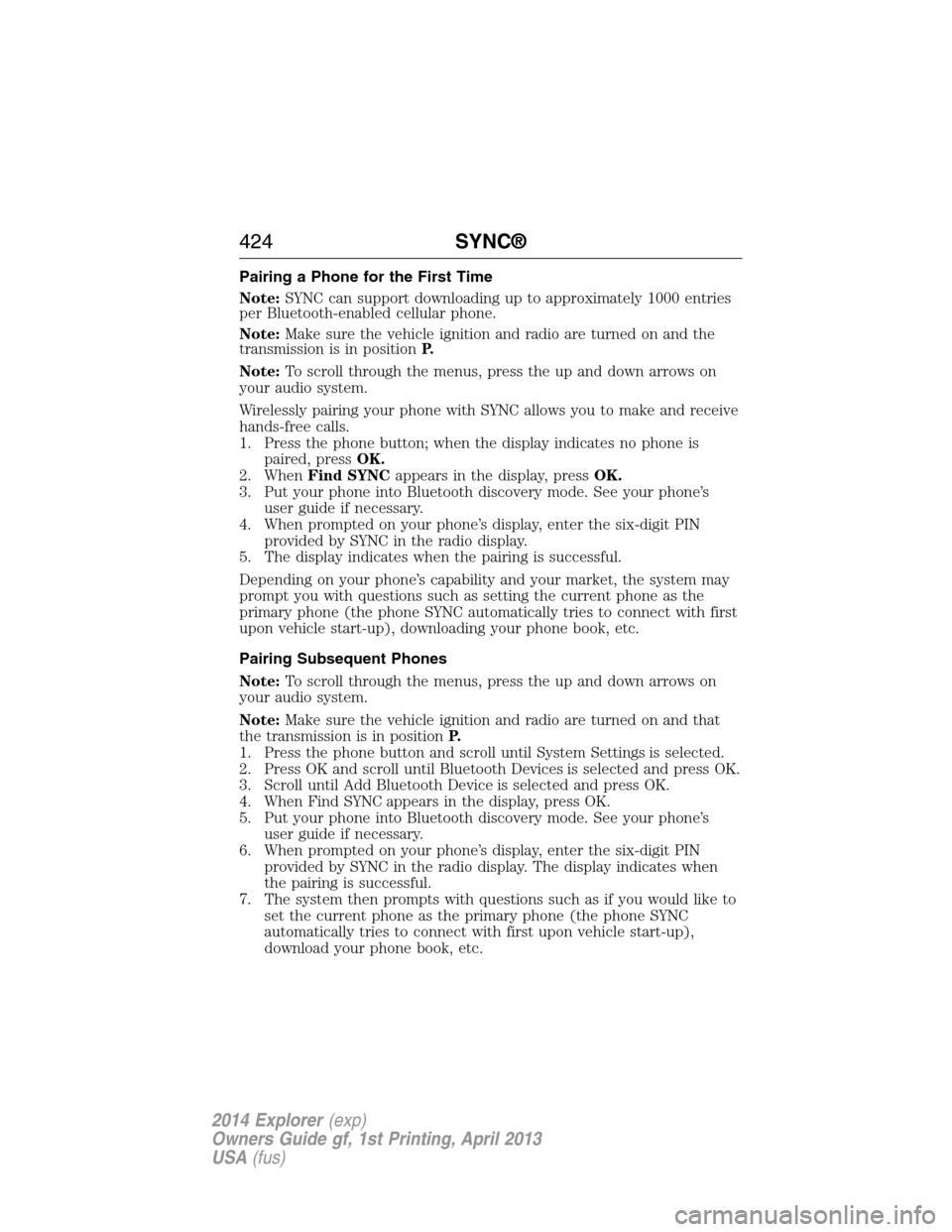
Pairing a Phone for the First Time
Note:SYNC can support downloading up to approximately 1000 entries
per Bluetooth-enabled cellular phone.
Note:Make sure the vehicle ignition and radio are turned on and the
transmission is in positionP.
Note:To scroll through the menus, press the up and down arrows on
your audio system.
Wirelessly pairing your phone with SYNC allows you to make and receive
hands-free calls.
1. Press the phone button; when the display indicates no phone is
paired, pressOK.
2. WhenFind SYNCappears in the display, pressOK.
3. Put your phone into Bluetooth discovery mode. See your phone’s
user guide if necessary.
4. When prompted on your phone’s display, enter the six-digit PIN
provided by SYNC in the radio display.
5. The display indicates when the pairing is successful.
Depending on your phone’s capability and your market, the system may
prompt you with questions such as setting the current phone as the
primary phone (the phone SYNC automatically tries to connect with first
upon vehicle start-up), downloading your phone book, etc.
Pairing Subsequent Phones
Note:To scroll through the menus, press the up and down arrows on
your audio system.
Note:Make sure the vehicle ignition and radio are turned on and that
the transmission is in positionP.
1. Press the phone button and scroll until System Settings is selected.
2. Press OK and scroll until Bluetooth Devices is selected and press OK.
3. Scroll until Add Bluetooth Device is selected and press OK.
4. When Find SYNC appears in the display, press OK.
5. Put your phone into Bluetooth discovery mode. See your phone’s
user guide if necessary.
6. When prompted on your phone’s display, enter the six-digit PIN
provided by SYNC in the radio display. The display indicates when
the pairing is successful.
7. The system then prompts with questions such as if you would like to
set the current phone as the primary phone (the phone SYNC
automatically tries to connect with first upon vehicle start-up),
download your phone book, etc.
424SYNC®
2014 Explorer(exp)
Owners Guide gf, 1st Printing, April 2013
USA(fus)
Page 426 of 586
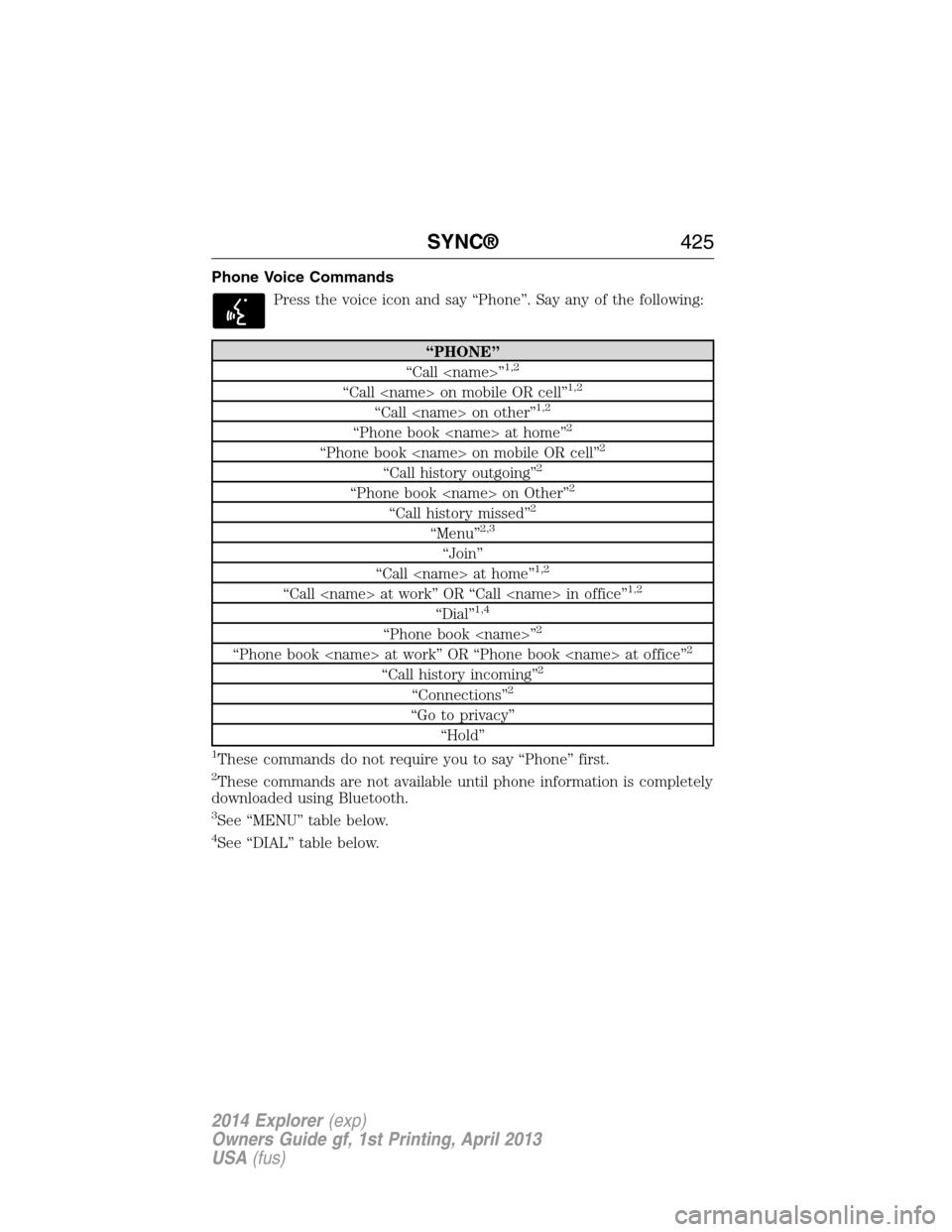
Phone Voice Commands
Press the voice icon and say “Phone”. Say any of the following:
“PHONE”
“Call
“Call
“Call
“Phone book
“Phone book
“Call history outgoing”2
“Phone book
“Call history missed”2
“Menu”2,3
“Join”
“Call
“Call
“Dial”1,4
“Phone book
“Phone book
“Call history incoming”2
“Connections”2
“Go to privacy”
“Hold”
1These commands do not require you to say “Phone” first.
2These commands are not available until phone information is completely
downloaded using Bluetooth.
3See “MENU” table below.
4See “DIAL” table below.
SYNC®425
2014 Explorer(exp)
Owners Guide gf, 1st Printing, April 2013
USA(fus)
Page 430 of 586
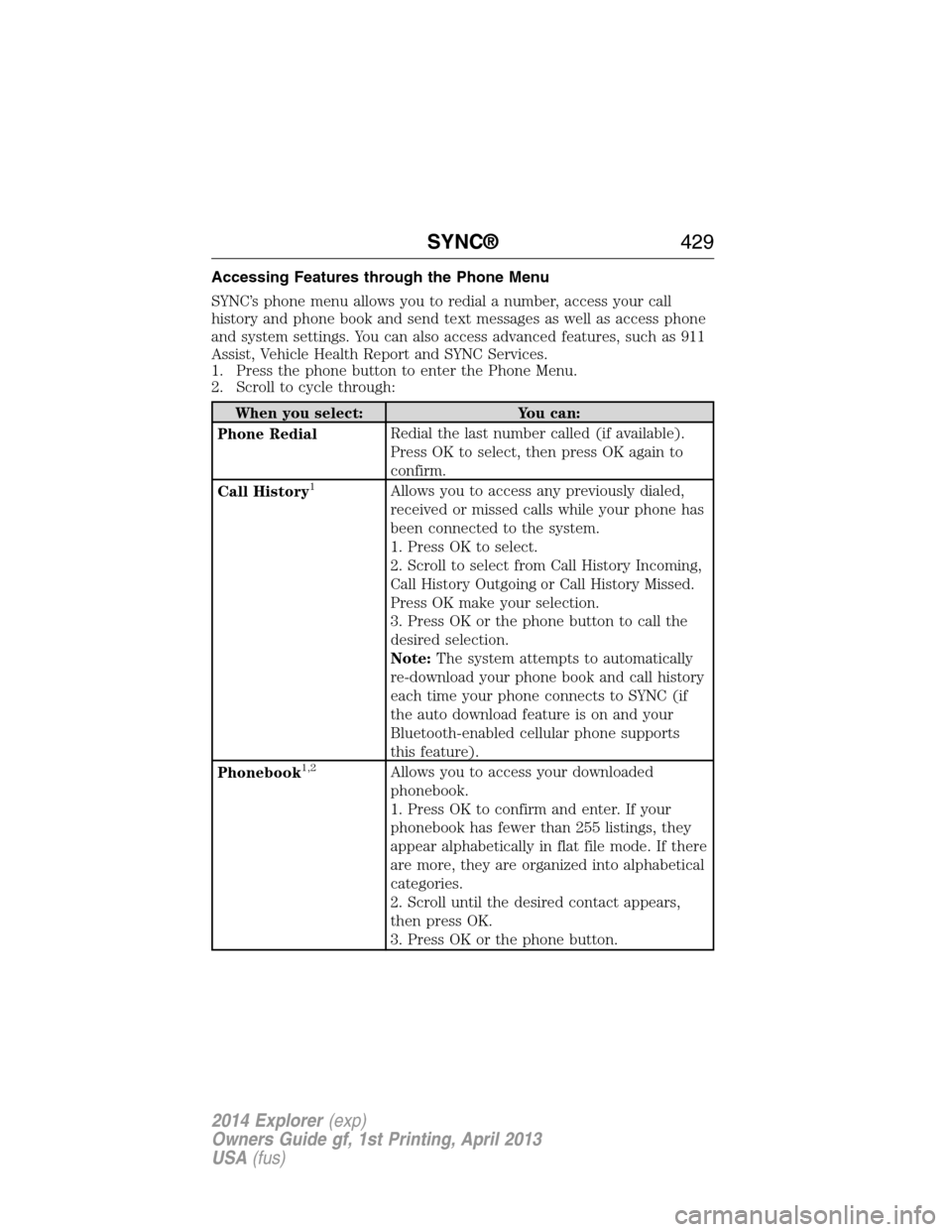
Accessing Features through the Phone Menu
SYNC’s phone menu allows you to redial a number, access your call
history and phone book and send text messages as well as access phone
and system settings. You can also access advanced features, such as 911
Assist, Vehicle Health Report and SYNC Services.
1. Press the phone button to enter the Phone Menu.
2. Scroll to cycle through:
When you select: You can:
Phone RedialRedial the last number called (if available).
Press OK to select, then press OK again to
confirm.
Call History
1Allows you to access any previously dialed,
received or missed calls while your phone has
been connected to the system.
1. Press OK to select.
2. Scroll to select from Call History Incoming,
Call History Outgoing or Call History Missed.
Press OK make your selection.
3. Press OK or the phone button to call the
desired selection.
Note:The system attempts to automatically
re-download your phone book and call history
each time your phone connects to SYNC (if
the auto download feature is on and your
Bluetooth-enabled cellular phone supports
this feature).
Phonebook
1,2Allows you to access your downloaded
phonebook.
1. Press OK to confirm and enter. If your
phonebook has fewer than 255 listings, they
appear alphabetically in flat file mode. If there
are more, they are organized into alphabetical
categories.
2. Scroll until the desired contact appears,
then press OK.
3. Press OK or the phone button.
SYNC®429
2014 Explorer(exp)
Owners Guide gf, 1st Printing, April 2013
USA(fus)
Page 431 of 586
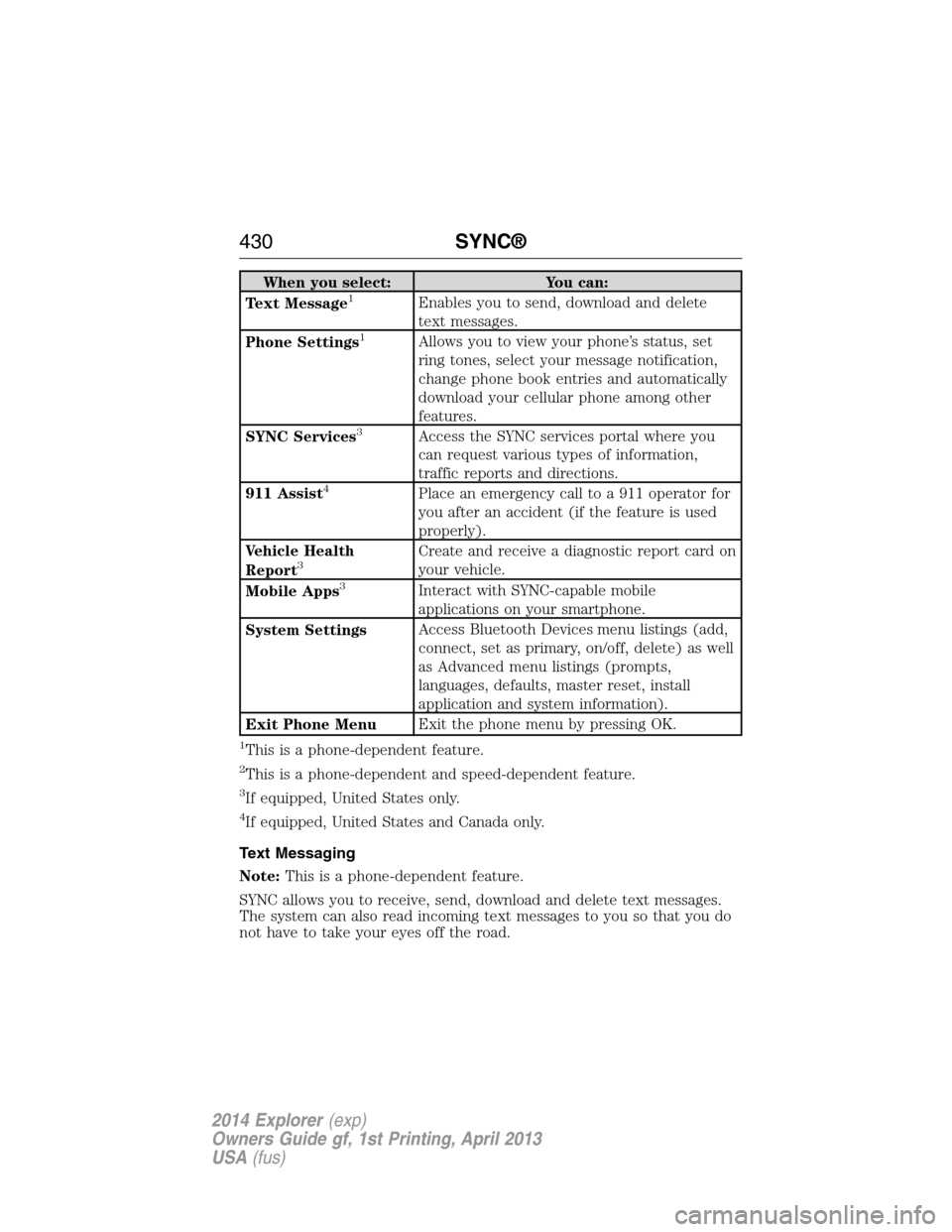
When you select: You can:
Text Message1Enables you to send, download and delete
text messages.
Phone Settings
1Allows you to view your phone’s status, set
ring tones, select your message notification,
change phone book entries and automatically
download your cellular phone among other
features.
SYNC Services
3Access the SYNC services portal where you
can request various types of information,
traffic reports and directions.
911 Assist
4Place an emergency call to a 911 operator for
you after an accident (if the feature is used
properly).
Vehicle Health
Report
3Create and receive a diagnostic report card on
your vehicle.
Mobile Apps
3Interact with SYNC-capable mobile
applications on your smartphone.
System SettingsAccess Bluetooth Devices menu listings (add,
connect, set as primary, on/off, delete) as well
as Advanced menu listings (prompts,
languages, defaults, master reset, install
application and system information).
Exit Phone MenuExit the phone menu by pressing OK.
1This is a phone-dependent feature.
2This is a phone-dependent and speed-dependent feature.
3If equipped, United States only.
4If equipped, United States and Canada only.
Text Messaging
Note:This is a phone-dependent feature.
SYNC allows you to receive, send, download and delete text messages.
The system can also read incoming text messages to you so that you do
not have to take your eyes off the road.
430SYNC®
2014 Explorer(exp)
Owners Guide gf, 1st Printing, April 2013
USA(fus)
Page 432 of 586
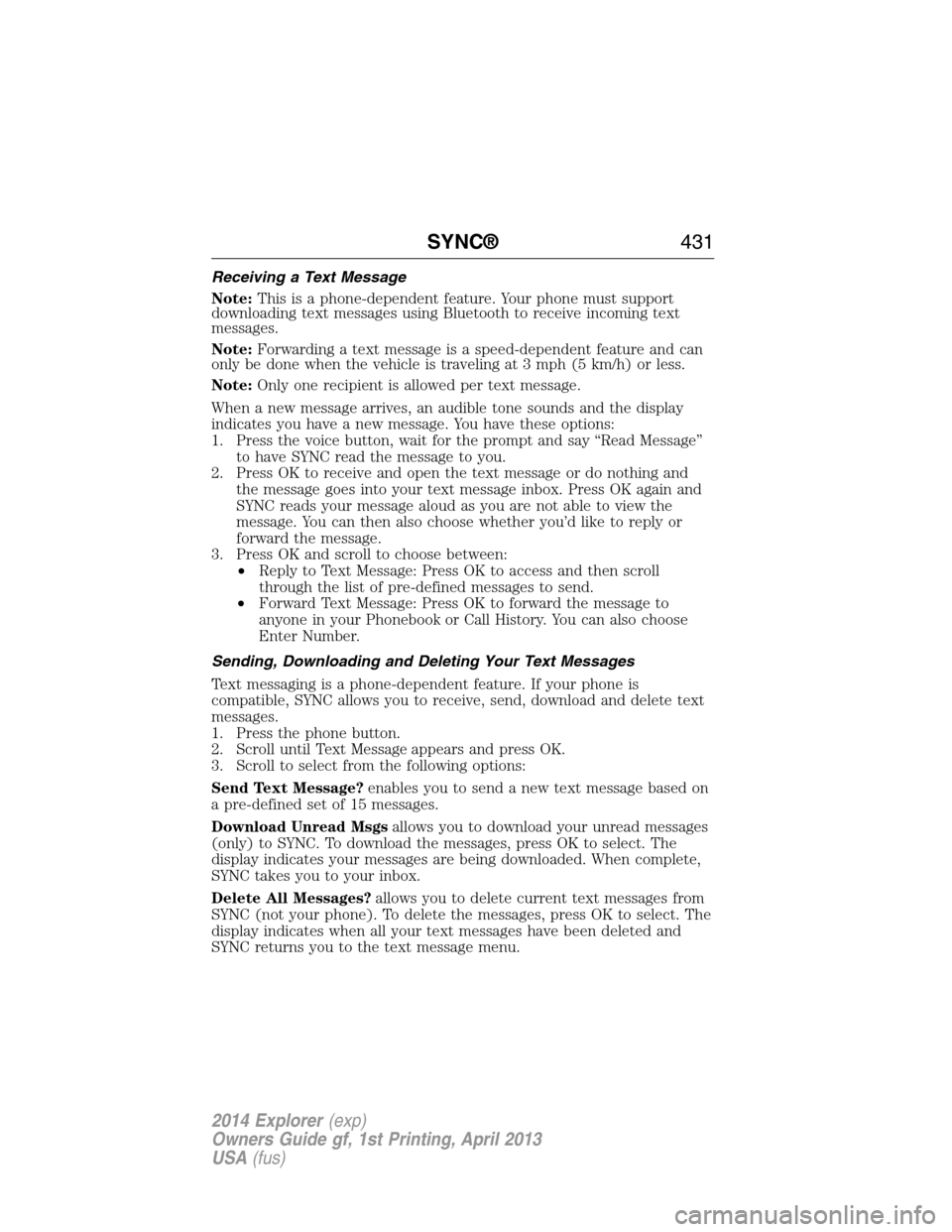
Receiving a Text Message
Note:This is a phone-dependent feature. Your phone must support
downloading text messages using Bluetooth to receive incoming text
messages.
Note:Forwarding a text message is a speed-dependent feature and can
only be done when the vehicle is traveling at 3 mph (5 km/h) or less.
Note:Only one recipient is allowed per text message.
When a new message arrives, an audible tone sounds and the display
indicates you have a new message. You have these options:
1. Press the voice button, wait for the prompt and say “Read Message”
to have SYNC read the message to you.
2. Press OK to receive and open the text message or do nothing and
the message goes into your text message inbox. Press OK again and
SYNC reads your message aloud as you are not able to view the
message. You can then also choose whether you’d like to reply or
forward the message.
3. Press OK and scroll to choose between:
•Reply to Text Message: Press OK to access and then scroll
through the list of pre-defined messages to send.
•Forward Text Message: Press OK to forward the message to
anyone in your Phonebook or Call History. You can also choose
Enter Number.
Sending, Downloading and Deleting Your Text Messages
Text messaging is a phone-dependent feature. If your phone is
compatible, SYNC allows you to receive, send, download and delete text
messages.
1. Press the phone button.
2. Scroll until Text Message appears and press OK.
3. Scroll to select from the following options:
Send Text Message?enables you to send a new text message based on
a pre-defined set of 15 messages.
Download Unread Msgsallows you to download your unread messages
(only) to SYNC. To download the messages, press OK to select. The
display indicates your messages are being downloaded. When complete,
SYNC takes you to your inbox.
Delete All Messages?allows you to delete current text messages from
SYNC (not your phone). To delete the messages, press OK to select. The
display indicates when all your text messages have been deleted and
SYNC returns you to the text message menu.
SYNC®431
2014 Explorer(exp)
Owners Guide gf, 1st Printing, April 2013
USA(fus)