ECO mode FORD EXPLORER 2015 5.G Owner's Guide
[x] Cancel search | Manufacturer: FORD, Model Year: 2015, Model line: EXPLORER, Model: FORD EXPLORER 2015 5.GPages: 596, PDF Size: 6.32 MB
Page 284 of 596
BREAKING-IN
You need to break in new tires for approximately 300 miles
(480 kilometers). During this time, your vehicle may exhibit some unique
driving characteristics. Avoid driving too fast during the first 1000 miles
(1600 kilometers). Vary your speed frequently and change up through
the gears early. Do not labor the engine. Do not tow during the first
1000 miles (1600 kilometers).
ECONOMICAL DRIVING
Fuel economy is affected by several things, such as how you drive, the
conditions you drive under and how you maintain your vehicle.
There are some things to keep in mind that may improve your fuel economy:
•Accelerate and slow down in a smooth, moderate fashion.
•Drive at steady speeds without stopping.
•Anticipate stops; slowing down may eliminate the need to stop.
•Combine errands and minimize stop-and-go driving.
•Close the windows for high-speed driving.
•Drive at reasonable speeds (traveling at 55 mph [88 km/h] uses 15%
less fuel than traveling at 65 mph [105 km/h]).
•Keep the tires properly inflated and use only the recommended size.
•Use the recommended engine oil.
•Perform all regularly scheduled maintenance.
There are also some things you may not want to do because they may
reduce your fuel economy:
•Sudden or hard accelerations.
•Rev the engine before turning it off.
•Idle for periods longer than one minute.
•Warm up your vehicle on cold mornings.
•Use the air conditioner or front defroster.
•Use the speed control in hilly terrain.
•Rest your foot on the brake pedal while driving.
•Drive a heavily loaded vehicle or tow a trailer.
•Carry unnecessary weight (approximately 1 mpg [0.4 km/L] is lost for
every 400 pounds [180 kilograms] of weight carried).
Driving Hints283
2015 Explorer(exp)
Owners Guide gf, 2nd Printing, September 2014
USA(fus)
Page 289 of 596
HAZARD WARNING FLASHERS
The hazard flasher control is located on the instrument panel
by the radio. Use it when your vehicle is disabled and is
creating a safety hazard for other motorists.
•Press the flasher control and all front and rear direction signals will
flash.
•Press the flasher control again to turn them off.
Note:
With extended use, the flashers may run down your 12–volt battery.
FUEL SHUTOFF
WARNING:Failure to inspect and if necessary repair fuel leaks
after a collision may increase the risk of fire and serious injury.
Ford Motor Company recommends that the fuel system be inspected by
an authorized dealer after any collision.
In the event of a moderate to severe collision, this vehicle includes a fuel
pump shutoff feature that stops the flow of fuel to the engine. Not every
impact will cause a shutoff.
Should your vehicle shut off after a collision, you may restart your
vehicle. For vehicles equipped with a key system:
1. Switch off the ignition.
2. Switch on the ignition.
3. Repeat Steps 1 and 2 to re-enable fuel pump.
For vehicles equipped with a push button start system:
1. Press theSTART/STOPbutton to switch off the ignition.
2. Press the brake pedal and press theSTART/STOPbutton to start the
vehicle.
3. Remove your foot from the brake pedal and press theSTART/STOP
button to switch off the ignition.
4. You can either attempt to start the engine by pressing the brake pedal
and theSTART/STOPbutton, or switch on the ignition only by pressing
theSTART/STOPbutton without pressing the brake pedal. Both ways
re-enable the fuel system.
288Roadside Emergencies
2015 Explorer(exp)
Owners Guide gf, 2nd Printing, September 2014
USA(fus)
Page 353 of 596
Power is supplied to all four wheels through a transfer case or power
transfer unit. Four-wheel drive vehicles allow you to select different drive
modes as necessary. You can find information on transfer case operation
and shifting procedures in theTransmissionchapter. You can find
information on transfer case maintenance in theMaintenancechapter.
You should become thoroughly familiar with this information before you
operate your vehicle.
On some four-wheel drive models, the initial shift from two-wheel drive
to four-wheel drive while the vehicle is moving can cause a momentary
clunk and ratcheting sound. These sounds are normal as the front
drivetrain comes up to speed and are not cause for concern.
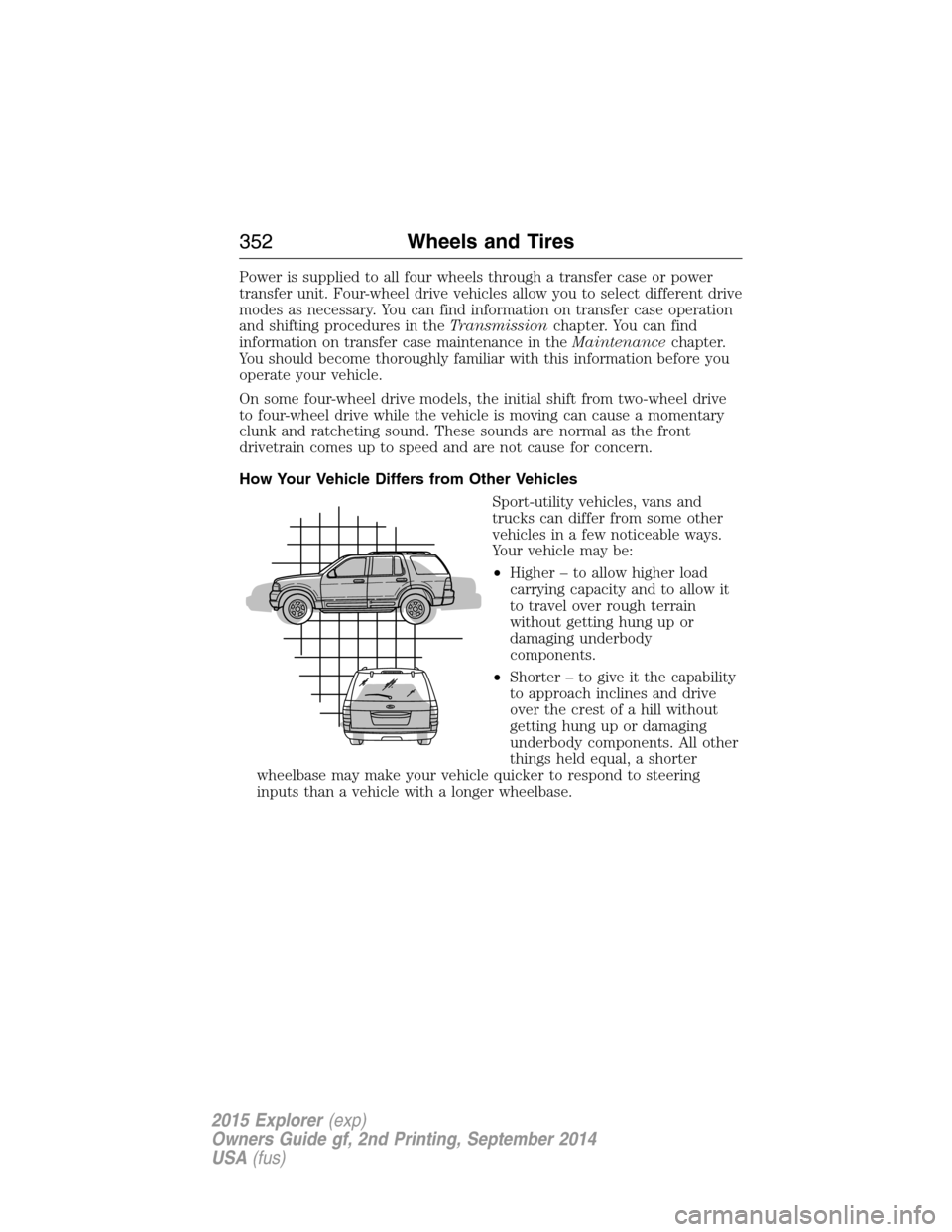
How Your Vehicle Differs from Other Vehicles
Sport-utility vehicles, vans and
trucks can differ from some other
vehicles in a few noticeable ways.
Your vehicle may be:
•Higher – to allow higher load
carrying capacity and to allow it
to travel over rough terrain
without getting hung up or
damaging underbody
components.
•Shorter – to give it the capability
to approach inclines and drive
over the crest of a hill without
getting hung up or damaging
underbody components. All other
things held equal, a shorter
wheelbase may make your vehicle quicker to respond to steering
inputs than a vehicle with a longer wheelbase.
352Wheels and Tires
2015 Explorer(exp)
Owners Guide gf, 2nd Printing, September 2014
USA(fus)
Page 401 of 596
MP3 Track and Folder Structure
Audio systems capable of recognizing and playing MP3 individual tracks
and folder structures work as follows:
•There are two different modes for MP3 disc playback: MP3 track
mode (system default) and MP3 folder mode.
•MP3 track mode ignores any folder structure on the MP3 disc. The
player numbers each MP3 track on the disc (noted by the .mp3 file
extension) from T001 to a maximum of T255.Note:The maximum
number of playable MP3 files may be less depending on the structure
of the CD and exact model of radio present.
•MP3 folder mode represents a folder structure consisting of one level
of folders. The CD player numbers all MP3 tracks on the disc (noted
by the .mp3 file extension) and all folders containing MP3 files, from
F001 (folder) T001 (track) to F253 T255.
•Creating discs with only one level of folders helps with navigation
through the disc files.
If you are burning your own MP3 discs, it is important to understand
how the system reads the structures you create. While various files may
be present, (files with extensions other than mp3), only files with the
.mp3 extension are played; other files are ignored by the system. This
enables you to use the same MP3 disc for a variety of tasks on your work
computer, home computer and your in-vehicle system.
In track mode, the system displays and plays the structure as if it were
only one level deep (all .mp3 files play, regardless of being in a specific
folder). In folder mode, the system only plays the .mp3 files in the
current folder.
400Audio System
2015 Explorer(exp)
Owners Guide gf, 2nd Printing, September 2014
USA(fus)
Page 407 of 596
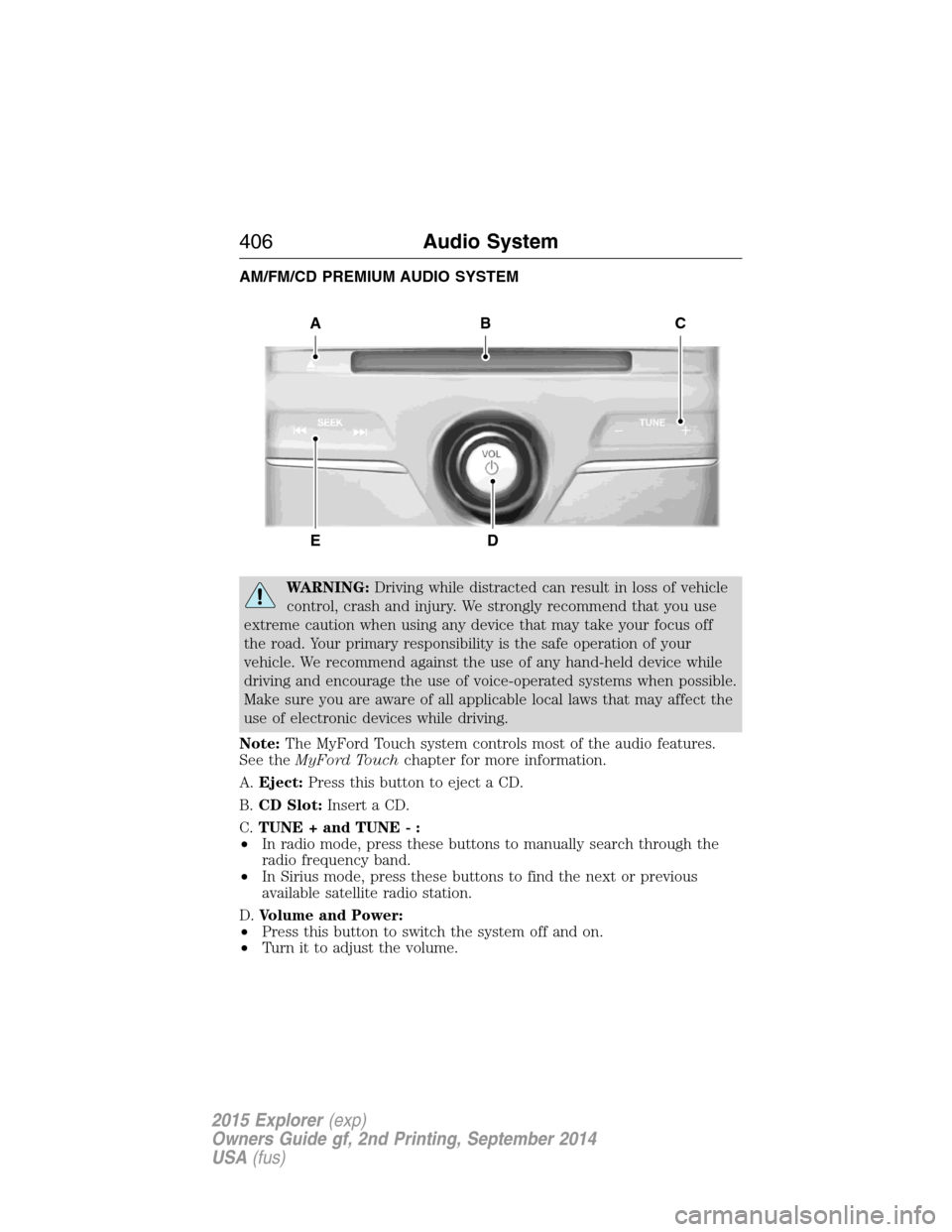
AM/FM/CD PREMIUM AUDIO SYSTEM
WARNING:Driving while distracted can result in loss of vehicle
control, crash and injury. We strongly recommend that you use
extreme caution when using any device that may take your focus off
the road. Your primary responsibility is the safe operation of your
vehicle. We recommend against the use of any hand-held device while
driving and encourage the use of voice-operated systems when possible.
Make sure you are aware of all applicable local laws that may affect the
use of electronic devices while driving.
Note:The MyFord Touch system controls most of the audio features.
See theMyFord Touchchapter for more information.
A.Eject:Press this button to eject a CD.
B.CD Slot:Insert a CD.
C.TUNE + and TUNE - :
•In radio mode, press these buttons to manually search through the
radio frequency band.
•In Sirius mode, press these buttons to find the next or previous
available satellite radio station.
D.Volume and Power:
•Press this button to switch the system off and on.
•Turn it to adjust the volume.
A
ED
BC
406Audio System
2015 Explorer(exp)
Owners Guide gf, 2nd Printing, September 2014
USA(fus)
Page 408 of 596
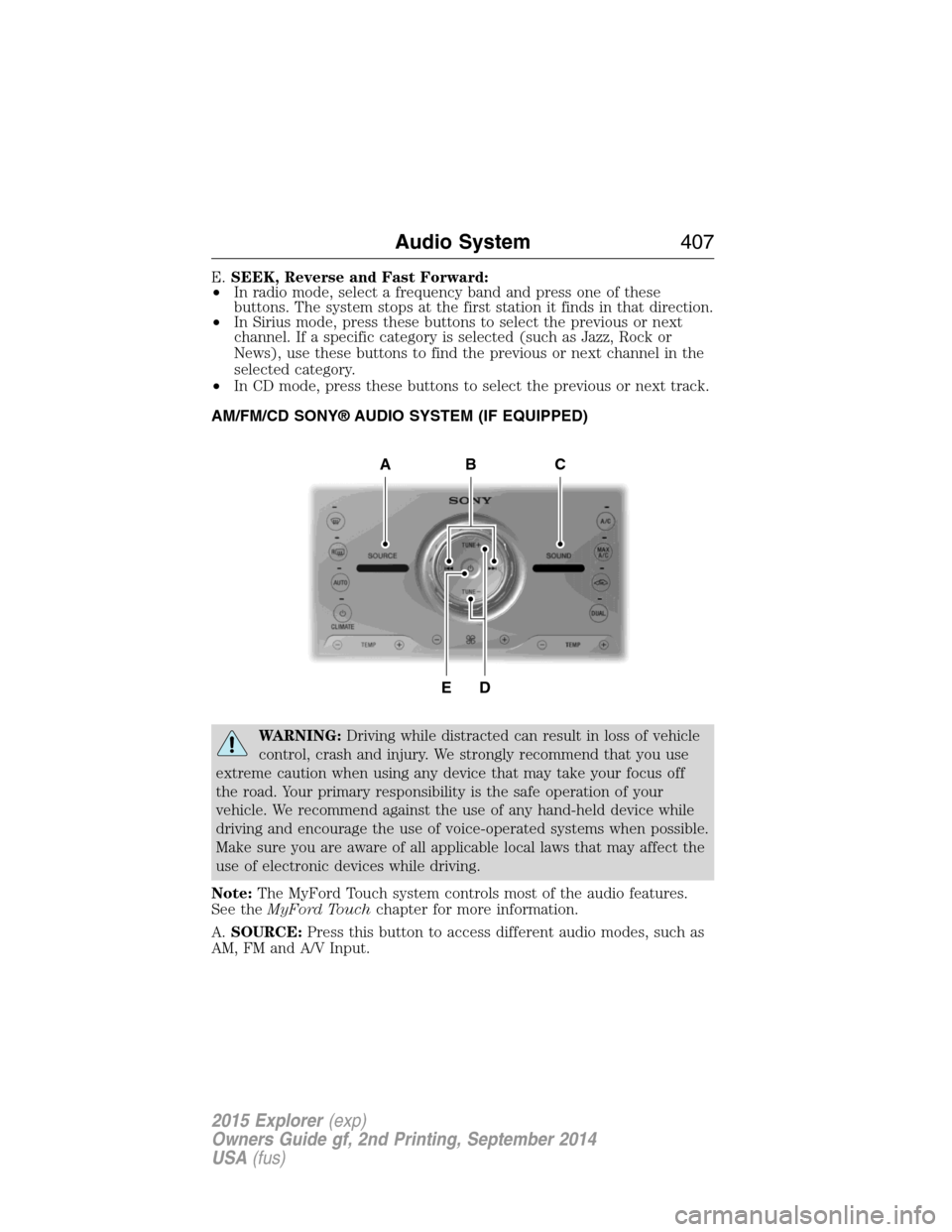
E.SEEK, Reverse and Fast Forward:
•In radio mode, select a frequency band and press one of these
buttons. The system stops at the first station it finds in that direction.
•In Sirius mode, press these buttons to select the previous or next
channel. If a specific category is selected (such as Jazz, Rock or
News), use these buttons to find the previous or next channel in the
selected category.
•In CD mode, press these buttons to select the previous or next track.
AM/FM/CD SONY® AUDIO SYSTEM (IF EQUIPPED)
WARNING:Driving while distracted can result in loss of vehicle
control, crash and injury. We strongly recommend that you use
extreme caution when using any device that may take your focus off
the road. Your primary responsibility is the safe operation of your
vehicle. We recommend against the use of any hand-held device while
driving and encourage the use of voice-operated systems when possible.
Make sure you are aware of all applicable local laws that may affect the
use of electronic devices while driving.
Note:The MyFord Touch system controls most of the audio features.
See theMyFord Touchchapter for more information.
A.SOURCE:Press this button to access different audio modes, such as
AM, FM and A/V Input.
DE
ACB
Audio System407
2015 Explorer(exp)
Owners Guide gf, 2nd Printing, September 2014
USA(fus)
Page 414 of 596
Sirius satellite radio is a
subscription-based satellite radio
service that broadcasts a variety of
music, sports, news, weather, traffic
and entertainment programming.
Your factory-installed Sirius satellite
radio system includes hardware and
a limited subscription term which begins on the date of sale or lease of
your vehicle. See an authorized dealer for availability.
For more information on extended subscription terms (a service fee is
required), the online media player and a complete list of Sirius satellite
radio channels, and other features, please visit www.siriusxm.com in the
United States, www.sirius.ca in Canada, or call Sirius at 1–888–539–7474.
Satellite Radio Electronic Serial Number (ESN)
You need your ESN to activate, modify or track your satellite radio
account. When in satellite radio mode, you can view this number by
pressingSIRIUSand memory preset 1 at the same time, or tuning to
channel 0. To access your ESN, press the bottom left corner of the
touchscreen, thenSIRIUS>Options.
Troubleshooting
Radio display Condition Possible action
Acquiring Radio requires more
than two seconds to
produce audio for the
selected channel.No action required.
This message should
disappear shortly.
Sat Fault/SIRIUS
system failureThere is an internal
module or system
failure present.If this message does
not clear shortly, or
with an ignition key
cycle, your receiver
may have a fault. See
an authorized dealer
for service.
Invalid Channel The channel is no
longer available.Tune to another
channel or choose
another preset.
Audio System413
2015 Explorer(exp)
Owners Guide gf, 2nd Printing, September 2014
USA(fus)
Page 421 of 596
USING VOICE RECOGNITION
This system helps you control many features using voice commands. This
allows you to keep your hands on the wheel and focus on what is in
front of you.
Initiating a Voice Session
Push the voice icon; a tone sounds and Listening appears in the
display. Say any of the following:
Say: If you want to:
“Phone” Make calls.
“USB” Access the device connected to your USB
port.
“Bluetooth Audio” Stream audio from your phone.
“Line in” Access the device connected to the auxiliary
input jack.
“Cancel” Cancel the requested action.
“SYNC” Return to the main menu.
“Voice settings” Adjust the level of voice interaction and
feedback.
“Vehicle Health Report” Run a vehicle health report.
*
“Services” Access the SYNC Services portal.*
“Mobile apps” Access mobile applications.*
“Help” Hear a list of voice commands available in the
current mode.
*If equipped, U.S. only.
System Interaction and Feedback
The system provides feedback through audible tones, prompts, questions
and spoken confirmations depending on the situation and the chosen
level of interaction (voice settings). You can customize the voice
recognition system to provide more or less instruction and feedback.
The default setting is to a higher level of interaction in order to help you
learn to use the system. You can change these settings at any time.
420SYNC®
2015 Explorer(exp)
Owners Guide gf, 2nd Printing, September 2014
USA(fus)
Page 422 of 596
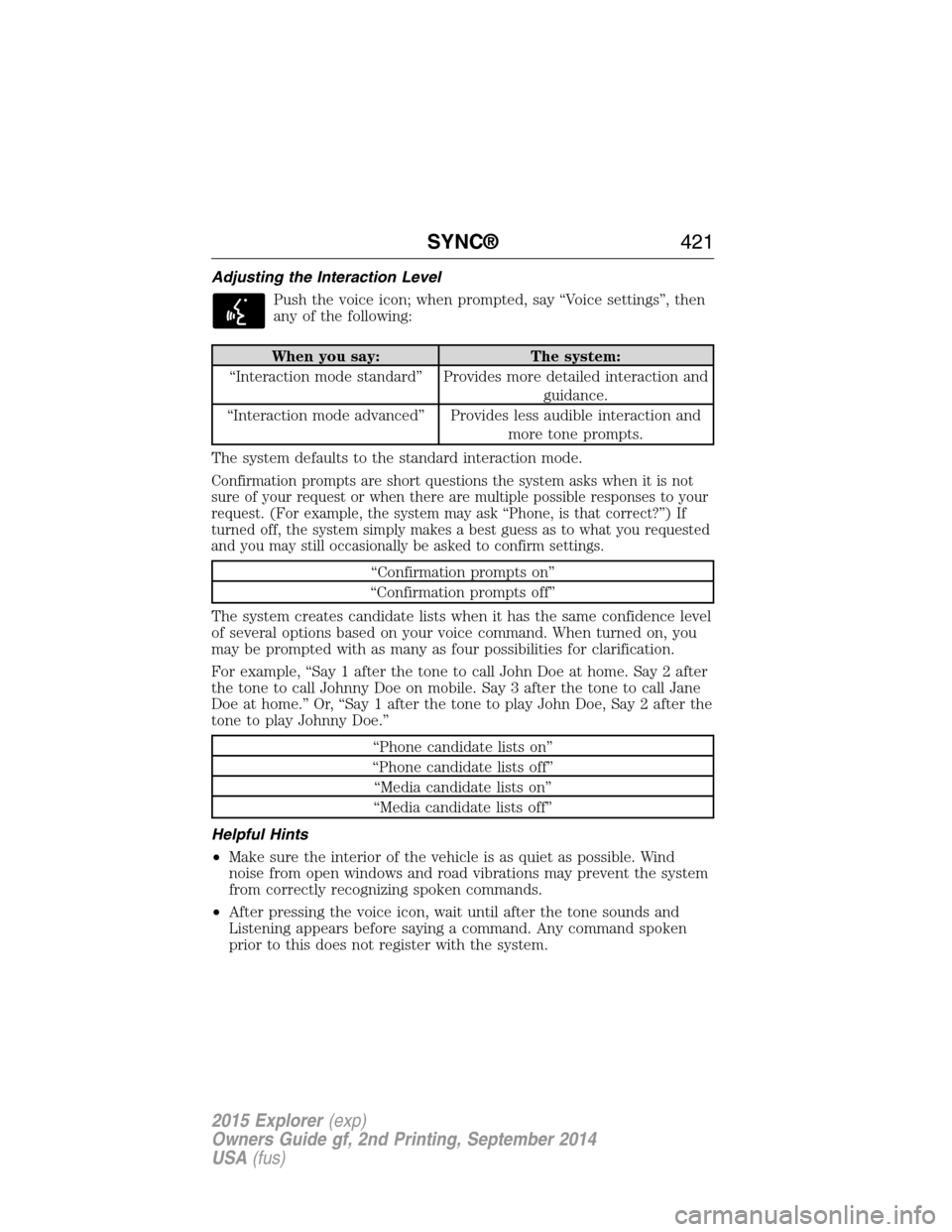
Adjusting the Interaction Level
Push the voice icon; when prompted, say “Voice settings”, then
any of the following:
When you say: The system:
“Interaction mode standard” Provides more detailed interaction and
guidance.
“Interaction mode advanced” Provides less audible interaction and
more tone prompts.
The system defaults to the standard interaction mode.
Confirmation prompts are short questions the system asks when it is not
sure of your request or when there are multiple possible responses to your
request. (For example, the system may ask “Phone, is that correct?”) If
turned off, the system simply makes a best guess as to what you requested
and you may still occasionally be asked to confirm settings.
“Confirmation prompts on”
“Confirmation prompts off”
The system creates candidate lists when it has the same confidence level
of several options based on your voice command. When turned on, you
may be prompted with as many as four possibilities for clarification.
For example, “Say 1 after the tone to call John Doe at home. Say 2 after
the tone to call Johnny Doe on mobile. Say 3 after the tone to call Jane
Doe at home.” Or, “Say 1 after the tone to play John Doe, Say 2 after the
tone to play Johnny Doe.”
“Phone candidate lists on”
“Phone candidate lists off”
“Media candidate lists on”
“Media candidate lists off”
Helpful Hints
•Make sure the interior of the vehicle is as quiet as possible. Wind
noise from open windows and road vibrations may prevent the system
from correctly recognizing spoken commands.
•After pressing the voice icon, wait until after the tone sounds and
Listening appears before saying a command. Any command spoken
prior to this does not register with the system.
SYNC®421
2015 Explorer(exp)
Owners Guide gf, 2nd Printing, September 2014
USA(fus)
Page 426 of 596
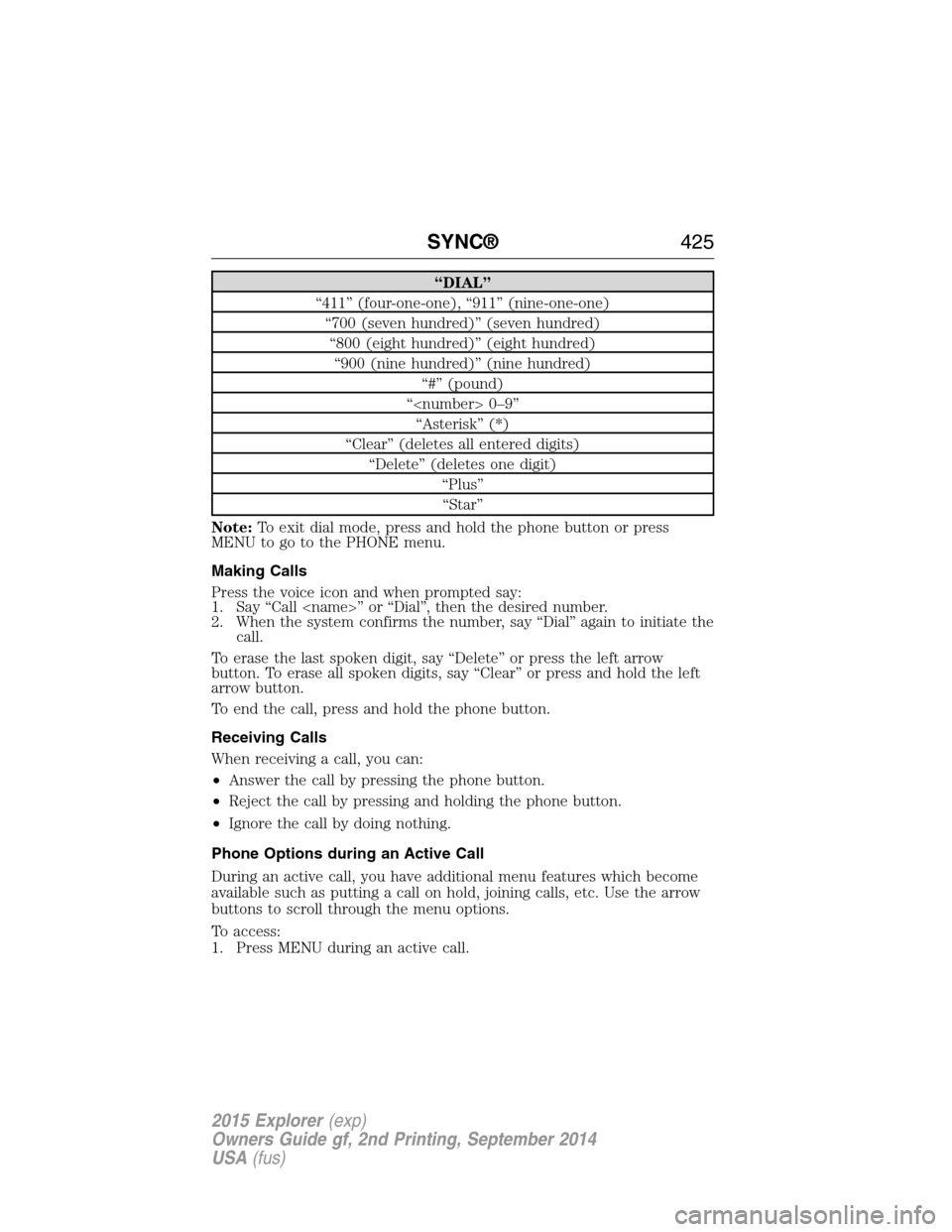
“DIAL”
“411” (four-one-one), “911” (nine-one-one)
“700 (seven hundred)” (seven hundred)
“800 (eight hundred)” (eight hundred)
“900 (nine hundred)” (nine hundred)
“#” (pound)
“
“Asterisk” (*)
“Clear” (deletes all entered digits)
“Delete” (deletes one digit)
“Plus”
“Star”
Note:To exit dial mode, press and hold the phone button or press
MENU to go to the PHONE menu.
Making Calls
Press the voice icon and when prompted say:
1. Say “Call
2. When the system confirms the number, say “Dial” again to initiate the
call.
To erase the last spoken digit, say “Delete” or press the left arrow
button. To erase all spoken digits, say “Clear” or press and hold the left
arrow button.
To end the call, press and hold the phone button.
Receiving Calls
When receiving a call, you can:
•Answer the call by pressing the phone button.
•Reject the call by pressing and holding the phone button.
•Ignore the call by doing nothing.
Phone Options during an Active Call
During an active call, you have additional menu features which become
available such as putting a call on hold, joining calls, etc. Use the arrow
buttons to scroll through the menu options.
To access:
1. Press MENU during an active call.
SYNC®425
2015 Explorer(exp)
Owners Guide gf, 2nd Printing, September 2014
USA(fus)