ECO mode FORD EXPLORER 2015 5.G Service Manual
[x] Cancel search | Manufacturer: FORD, Model Year: 2015, Model line: EXPLORER, Model: FORD EXPLORER 2015 5.GPages: 596, PDF Size: 6.32 MB
Page 442 of 596
SYNC Services: Traffic, Directions & Information (TDI)
(If Equipped, United States Only)
Note:SYNC Services varies by trim level and model year and may
require a subscription. Traffic alerts and turn-by-turn directions available
in select markets. Message and data rates may apply. Ford Motor
Company reserves the right to change or discontinue this product service
at any time without prior notification or incurring any future obligation.
Note:SYNC Services requires activation prior to use. Visit
www.SYNCMyRide.com to register and check your eligibility for
complimentary services. Standard phone and message rates may apply.
Subscription may be required. You must also have the active SYNC
Services Bluetooth-enabled cellular phone paired and connected to the
system in order to connect to, and use, SYNC Services. SeeUsing SYNC
with your phonefor pairing instructions.
Note:This feature does not function properly if you have enabled caller
ID blocking on your mobile phone. Make sure your mobile phone is not
blocking caller ID before using SYNC Services.
Note:
The driver is ultimately responsible for the safe operation of the
vehicle, and therefore, must evaluate whether it is safe to follow the
suggested directions. Any navigation features are provided only as an aid.
Make your driving decisions based on your observations of local conditions
and existing traffic regulations. Do not follow the route suggestions if doing
so would result in an unsafe or illegal maneuver, if you would be placed in
an unsafe situation, or if you would be directed into an area that you
consider unsafe. Maps used by this system may be inaccurate because of
errors, changes in roads, traffic conditions or driving conditions.
Note:When you connect, the service uses GPS technology and advanced
vehicle sensors to collect the vehicle’s current location, travel direction
and speed to help provide you with the directions, traffic reports, or
business searches you request. Further, to provide the services you
request and for continuous improvement, the service may collect and
record call details and voice communications. For more information, see
SYNC Services Terms and Conditions at www.SYNCMyRide.com. If you
do not want Ford or its service providers to collect the vehicle travel
information or other information identified in the Terms and Conditions,
do not activate or use the service.
SYNC Services uses advanced vehicle sensors, integrated GPS technology
and comprehensive map and traffic data, to give you personalized traffic
reports, precise turn-by-turn directions, business search, news, sports,
weather and more. For a complete list of services, or to learn more,
please visit www.SYNCMyRide.com.
SYNC®441
2015 Explorer(exp)
Owners Guide gf, 2nd Printing, September 2014
USA(fus)
Page 454 of 596
When you select: You can:
Similar MusicPlay music similar to what is currently playing
from the USB port. The system uses the
metadata information of each song to compile
a playlist for you.
Press OK to select. The system creates a new
list of similar songs and begins playing. The
metadata tags must be populated for this
feature to include each track.
Note:With certain playing devices, if your
metadata tags are not populated, the tracks
won’t be available in voice recognition, play
menu or similar music. However, if you place
these tracks onto your playing device in “Mass
Storage Device Mode”, they are available in
voice recognition, play menu browsing and
similar music. Unknowns are placed into any
unpopulated metadata tag.
ReturnExit the current menu.
System Settings
System settings provide access to your Bluetooth Devices and
Advanced menu features.
The Bluetooth Devices menu allows you to add, connect and delete a
device as turn the Bluetooth feature on and off.
Your Advanced menu allows you to access and set prompts, languages,
defaults and perform a master reset.
Bluetooth Devices Menu Options
This menu allows you to add, connect and delete devices as well as turn
Bluetooth on and off.
1. Press AUX and then MENU to enter the Media Menu.
2. Scroll until System Settings appears and select OK.
SYNC®453
2015 Explorer(exp)
Owners Guide gf, 2nd Printing, September 2014
USA(fus)
Page 455 of 596
3. Scroll until Bluetooth Devices appears.
4. Press OK and then scroll to select from:
When you select: You can:
Add Bluetooth
Device
*Allows you to pair additional devices to the
system.
1. Press OK to select and press OK again
when Find SYNC appears in the display.
2. Follow the directions in your phone’s user
guide to put your phone into discovery mode.
A six-digit PIN appears in the display.
3. When prompted on your phone’s six-digit
display, enter the PIN.
Connect Bluetooth
DeviceConnect a previously paired
Bluetooth-enabled phone.
1. Press OK to select and view a list of
devices.
2. Scroll until the desired device is chosen
and press OK to connect the device.
Set Bluetooth On/OffTurn the Bluetooth feature on and off.
Press OK and scroll to toggle between On and
Off. When the desired selection is chosen,
press OK. Turning Bluetooth off disconnects
all Bluetooth devices and deactivates
Bluetooth features.
Delete DeviceDelete a paired media device.
Press OK and scroll to select the device.
Press OK to confirm.
Delete All DevicesDelete all previously paired devices.
Press OK to select.
ReturnExit the current menu.
*This is a speed-dependent feature
Advanced Menu Options
This menu allows you to access settings such as prompts, language,
performing a master reset as well as returning to factory defaults.
1. Press AUX and then MENU to access the Media Menu.
2. Scroll until System Settings appears and select OK.
454SYNC®
2015 Explorer(exp)
Owners Guide gf, 2nd Printing, September 2014
USA(fus)
Page 475 of 596
Audio Sources and Memory Presets
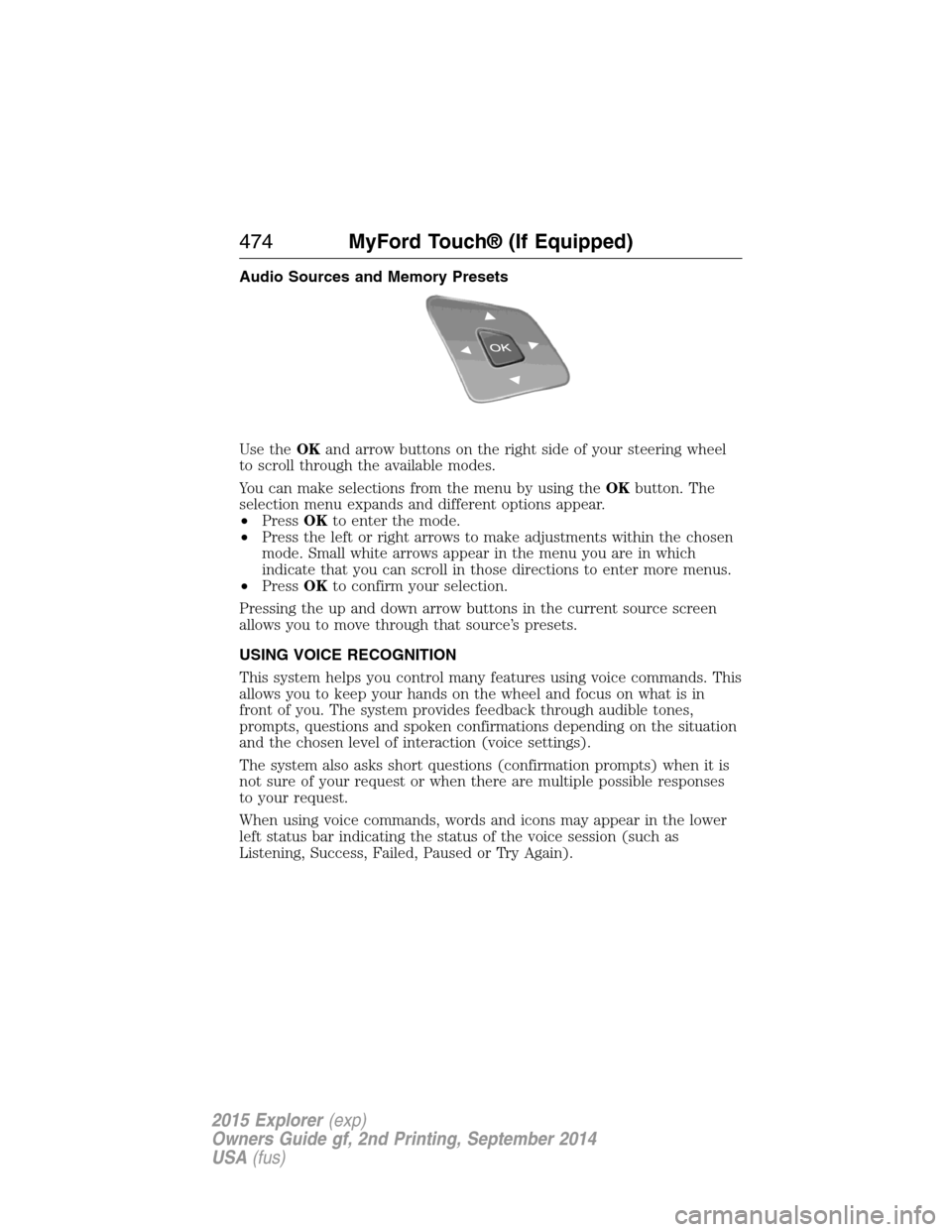
Use theOKand arrow buttons on the right side of your steering wheel
to scroll through the available modes.
You can make selections from the menu by using theOKbutton. The
selection menu expands and different options appear.
•PressOKto enter the mode.
•Press the left or right arrows to make adjustments within the chosen
mode. Small white arrows appear in the menu you are in which
indicate that you can scroll in those directions to enter more menus.
•PressOKto confirm your selection.
Pressing the up and down arrow buttons in the current source screen
allows you to move through that source’s presets.
USING VOICE RECOGNITION
This system helps you control many features using voice commands. This
allows you to keep your hands on the wheel and focus on what is in
front of you. The system provides feedback through audible tones,
prompts, questions and spoken confirmations depending on the situation
and the chosen level of interaction (voice settings).
The system also asks short questions (confirmation prompts) when it is
not sure of your request or when there are multiple possible responses
to your request.
When using voice commands, words and icons may appear in the lower
left status bar indicating the status of the voice session (such as
Listening, Success, Failed, Paused or Try Again).
474MyFord Touch® (If Equipped)
2015 Explorer(exp)
Owners Guide gf, 2nd Printing, September 2014
USA(fus)
Page 495 of 596
Playing Music from Your Device
Note:The system is capable of indexing up to 30,000 songs.
Insert your device and select theSD CardorUSBtab once the system
recognizes it. You can then select from the following options:
Repeatreplays the currently playing song or album.
Shuffleplays music on the selected album or folder in random order.
Similar Musicallows you to choose music similar to what is currently
playing.
More Infodisplays information such as current track, artist name,
album and genre.
Optionsallows you to view and adjust various media settings.
•Sound Settingsallows you to adjust settings for:
•Bass
•Midrange
•Treble
•Balance and Fade
•DSP (Digital Signal Processing)
•Occupancy Mode
•Speed Compensated Volume.
Note:Your vehicle may not have all these sound settings.
•Media Player Settingsallows you to select more settings, which is
underMedia Player.SeeSettings.
•Device Informationdisplays software and firmware information
about the currently connected media device.
•Update Media Indexindexes your device each time you connect it
to make sure you have the latest voice commands available for all
media on the device.
Browseallows you to view the contents of the device. It also allows you
to search by categories, such as genre, artist or album.
If you want to view song information such as Title, Artist, File, Folder,
Album, and Genre, touch the on-screen album art.
You can also touchWhat’s Playingto hear how the system pronounces
the current band and song. This can be helpful when using voice
commands to make sure the system correctly plays your request.
494MyFord Touch® (If Equipped)
2015 Explorer(exp)
Owners Guide gf, 2nd Printing, September 2014
USA(fus)
Page 501 of 596
Pairing Your Phone for the First Time
WARNING:Driving while distracted can result in loss of vehicle
control, crash and injury. We strongly recommend that you use
extreme caution when using any device that may take your focus off
the road. Your primary responsibility is the safe operation of your
vehicle. We recommend against the use of any hand-held device while
driving and encourage the use of voice-operated systems when possible.
Make sure you are aware of all applicable local laws that may affect the
use of electronic devices while driving.
The first thing you must do to use the phone features of SYNC is to pair
your Bluetooth-enabled cellular phone with SYNC. This allows you to use
your phone in a hands-free manner.
Note:Put the transmission in positionP.Turn on your vehicle ignition
and the radio.
1. TouchAdd Phonein the upper left corner of the touchscreen.Find
SYNCappears on the screen and instructs you to begin the pairing
process from your device.
2. Make sure that Bluetooth is set toOnand that your cellular phone is
in the proper mode. See your phone’s manual if necessary.
•SelectSYNC,and a six-digit PIN appears on your device.
3. If you are prompted to enter a PIN on your device, it does not
support Secure Simple Pairing. To pair, enter the PIN displayed on
the touchscreen. Skip the next step.
4. When prompted on your phone’s display, confirm that the PIN
provided by SYNC matches the PIN displayed on your cellular phone.
5. The display indicates when the pairing is successful.
SYNC may prompt you with more phone options. For more information on
your phone’s capability, see your phone’s manual and visit the website.
Pairing Subsequent Phones
Note:Put the transmission in positionP.Turn on your vehicle ignition
and the radio.
1. Press thePhonecorner of the touchscreen >Settings>BT
Devices>Add Device.
2. Make sure that Bluetooth is set toOnand that your cellular phone is
in the proper mode. See your phone’s manual if necessary.
•SelectSYNC,and a six-digit PIN appears on your device.
3. If you are prompted to enter a PIN on your device, it does not
support Secure Simple Pairing. To pair, enter the PIN displayed on
the touchscreen. Skip the next step.
500MyFord Touch® (If Equipped)
2015 Explorer(exp)
Owners Guide gf, 2nd Printing, September 2014
USA(fus)
Page 521 of 596
•Each file must be 1.5 MB or less.
•Recommended dimensions: 800 x 384.
Sound
Press the Settings icon >Sound,then select from the
following:
Sound Settings
Bass DSP*
Midrange Occupancy Mode*
Treble Speed Compensated Volume
Set Balance and Fade
*If equipped.
Vehicle
Press the Settings icon >Vehicle,then select from the
following:
•Ambient Lighting.
•Vehicle Health Report.
•Door Keypad Code.
•Camera Settings.
•Enable Valet Mode.
Ambient Lighting (If Equipped)
When activated, ambient lighting illuminates footwells and cupholders
with a choice of colors. To access and make adjustments:
1. Press the Settings icon >Vehicle>Ambient Lighting.
2. Touch the desired color.
3. Use the scroll bar to increase or decrease the intensity.
To turn the feature on or off, press the power button.
Vehicle Health Report
Turn Automatic Reminders on and off and set the mileage interval at
which you would like to receive the reports. Press?for more information
on these selections.
When done making your selections, pressRun Vehicle Health Report
Nowif you want your report.
520MyFord Touch® (If Equipped)
2015 Explorer(exp)
Owners Guide gf, 2nd Printing, September 2014
USA(fus)
Page 532 of 596
C.Fan speed:Touch+or-to increase or decrease the volume of air
circulated in your vehicle.
Note:When the system is controlling the fan speed automatically, all
the fan speed indicators turn off.
D.Rear:Touch to access the rear climate control. Rear climate control
settings appear at the bottom of the screen.
•Touch the power icon to turn the rear climate control functions off
and on.
•TouchRear Controlto allow the rear seat passengers to adjust the
rear climate settings. Touch it again to prevent the rear seat
passengers from adjusting the settings.Rear Controlautomatically
turns off when you use the touchscreen to adjust the rear climate
settings.
•Touch+or–to adjust the temperature.
•To adjust fan speed, touch+or–next to the fan icon.
•TouchRearagain to close the rear controls. Closing the rear climate
control functions does not affect their current settings.
E.Recirculated air:Touch the button to switch between outside air
and recirculated air. When you select recirculated air, the air currently in
the passenger compartment recirculates. This may reduce the time
needed to cool the interior (when used withA/C) and may reduce
unwanted odors from entering your vehicle.
Note:Recirculated air may turn off automatically (or be prevented
from turning on) in all airflow modes exceptMAX A/Cto reduce risk
of fogging.
F.MAX A/C:Touch the button to maximize cooling. Recirculated air
flows through the instrument panel vents, air conditioning automatically
turns on, and the fan automatically adjusts to the highest speed.
G.A/C:Touch the button to switch the air conditioning compressor on
or off. Use air conditioning with recirculated air to improve cooling
performance and efficiency.
Note:In certain conditions, the air conditioning compressor may
continue to operate even after you switch off the air conditioning with
theA/Cbutton.
H.AUTO:Touch the button to switch on automatic operation. Select the
desired temperature using the temperature control. The system adjusts
fan speed, air distribution, air conditioning operation, and selects outside
air or recirculated air to heat or cool the vehicle in order to maintain the
desired temperature. You can also use theAUTObutton to switch off
dual zone operation by touching and holding the button for more than
two seconds.
MyFord Touch® (If Equipped)531
2015 Explorer(exp)
Owners Guide gf, 2nd Printing, September 2014
USA(fus)
Page 535 of 596
Your navigation system is comprised of two main features, destination
mode and map mode.
To set a destination, press the green corner of your touchscreen, then
Destwhen it appears. SeeSetting a destinationlater in this chapter.
To view the navigation map and your vehicle’s current location, touch the
green bar in the upper right hand corner of the touchscreen, or, press
Dest>Map.SeeMap modelater in this chapter.
Setting a Destination
Press the green corner of your touchscreen, thenDestwhen it appears.
Choose any of the following:
Destination selections
My Home Street Address
Favorites Intersection
Previous Destinations City Center
Point of Interest Map
Emergency Edit Route Cancel Route
1. Enter the necessary information into the highlighted text fields (in
any order). For address destination entry,Go!appears once you
enter all the necessary information. PressingGo!makes the address
location appear on the map. If you choosePrevious Destination,
the last 20 destinations you have selected appear.
2. SelectSet as Destto make this your destination. You can also
choose to set this as a waypoint (have the system route to this point
on the way to your current destination) or save it as a favorite. The
system considers anyAvoid Areasselections in its route calculation.
3. Choose from up to three different types of routes, and then select
Start Route.
•Fastest Route:Uses the fastest moving roads possible.
•Shortest Route:Uses the shortest distance possible.
•Eco Route:Uses the most fuel-efficient route.
You can cancel the route or have the system demo the route for you.
SelectRoute Prefsto set route preferences like avoiding freeways,
tollroads, ferries and car trains as well as to use or not use
high-occupancy vehicle lanes. (High-occupancy vehicle lanes are also
known as carpool or diamond lanes. People who ride in buses, vanpools
or carpools use these lanes.)
Note:If your vehicle is on a recognized road and you do not press the
Start Routebutton, the system defaults to theFastest Routeoption
and begins guidance.
534MyFord Touch® (If Equipped)
2015 Explorer(exp)
Owners Guide gf, 2nd Printing, September 2014
USA(fus)
Page 540 of 596
Avoid Areas
Avoid Areasallows you to choose areas which you want the system to
avoid when calculating a route for you.
PressAddto program an entry. Once you make a selection, the system
tries to avoid the area(s) if possible for all routes. To delete a selection,
choose the listing on the screen. When the screen changes toAvoid
Areas Edit,you can pressDeleteat the bottom right of the screen.
Map Mode
Press the green bar in the upper right area of the touchscreen to view
map mode. Map mode shows advanced viewing comprised of both 2D
city maps as well as 3D landmarks (when available).
2D city mapsshow detailed outlines of buildings, visible land use and
land elements and detailed railway infrastructure for the most essential
cities around the globe. These maps also contain features, such as town
blocks, building footprints, and railways.
3D landmarksappear as clear, visible objects that are typically
recognizable and have a certain tourist value. The 3D landmarks appear
in 3D map mode only. Coverage varies, and improves with updated map
releases.
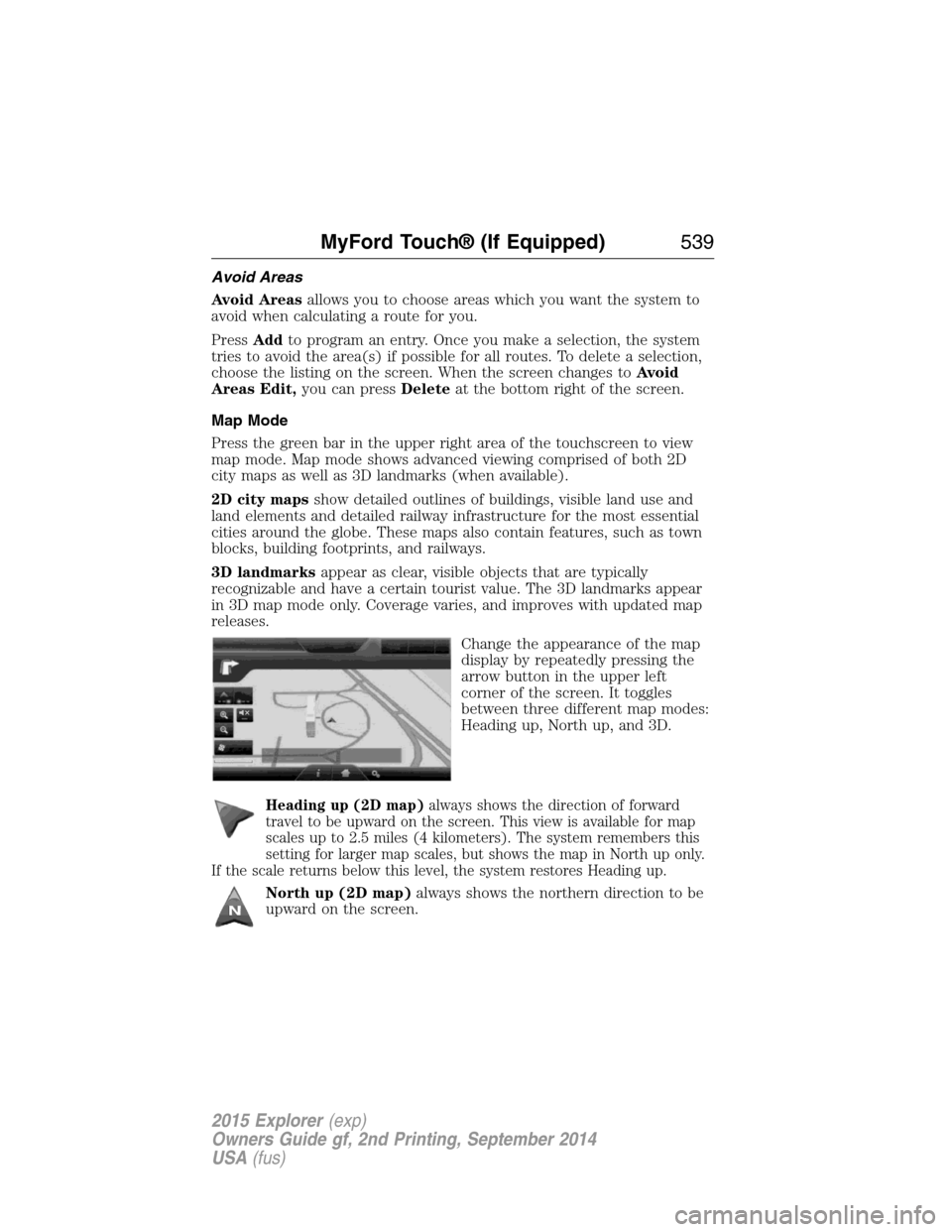
Change the appearance of the map
display by repeatedly pressing the
arrow button in the upper left
corner of the screen. It toggles
between three different map modes:
Heading up, North up, and 3D.
Heading up (2D map)always shows the direction of forward
travel to be upward on the screen. This view is available for map
scales up to 2.5 miles (4 kilometers). The system remembers this
setting for larger map scales, but shows the map in North up only.
If the scale returns below this level, the system restores Heading up.
North up (2D map)always shows the northern direction to be
upward on the screen.
MyFord Touch® (If Equipped)539
2015 Explorer(exp)
Owners Guide gf, 2nd Printing, September 2014
USA(fus)