display FORD EXPLORER 2015 5.G Repair Manual
[x] Cancel search | Manufacturer: FORD, Model Year: 2015, Model line: EXPLORER, Model: FORD EXPLORER 2015 5.GPages: 596, PDF Size: 6.32 MB
Page 230 of 596
If a fault is present in the system, a warning message appears in the
information display and does not allow the driver to switch the faulted
system on.
Note:If your vehicle is equipped with MyKey®, it is possible to prevent
turning the sensing system off. Refer to theMyKey®chapter.
Using the Rear Sensing System
The rear sensors are only active when the transmission is inR.Asthe
vehicle moves closer to the obstacle, the rate of the audible warning
increases. When the obstacle is fewer than 12 inches (30 centimeters)
away, the warning sounds continuously. If a stationary or receding object
is detected farther than 12 inches (30 centimeters) from the side of the
vehicle, the tone sounds for only three seconds. Once the system detects
an object approaching, the warning sounds again.
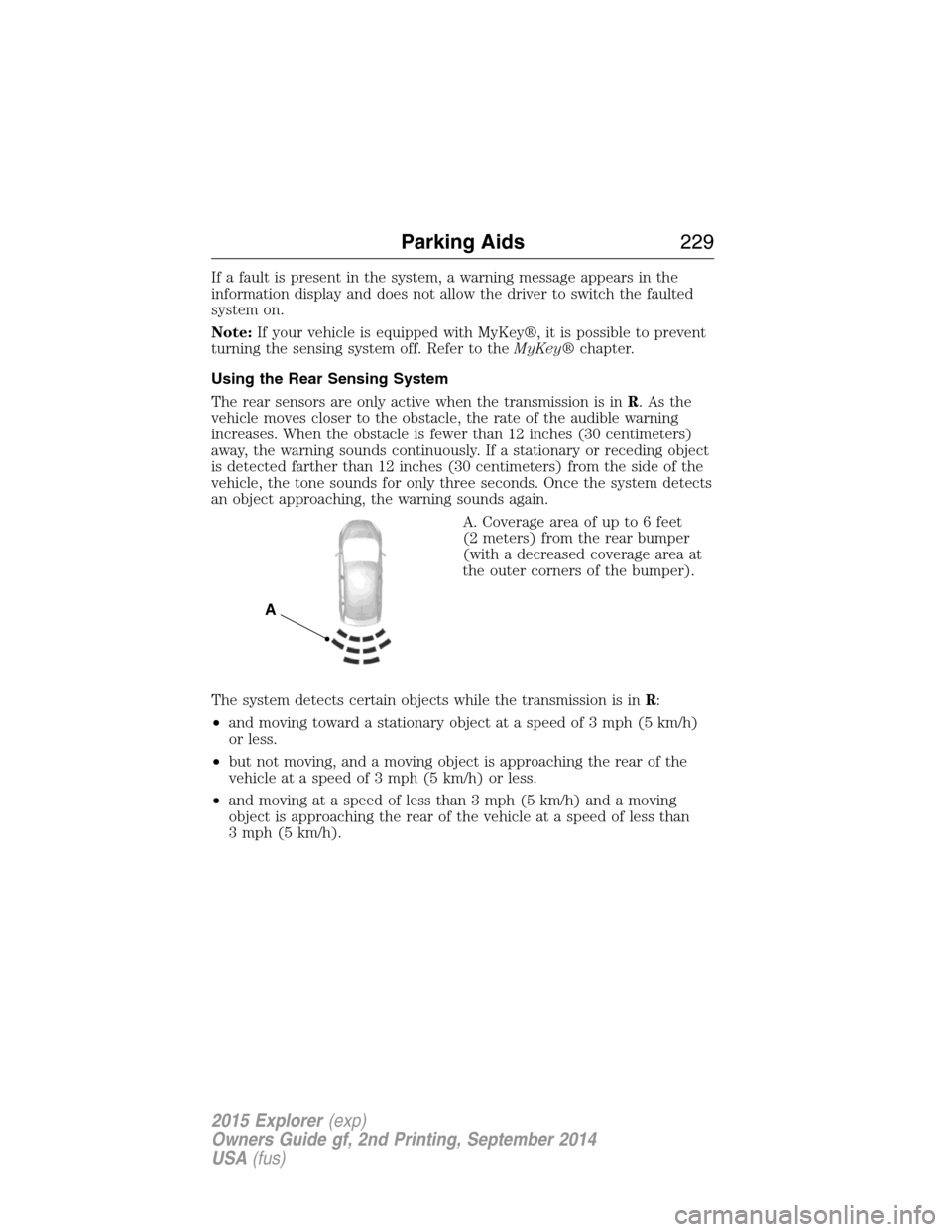
A. Coverage area of up to 6 feet
(2 meters) from the rear bumper
(with a decreased coverage area at
the outer corners of the bumper).
The system detects certain objects while the transmission is inR:
•and moving toward a stationary object at a speed of 3 mph (5 km/h)
or less.
•but not moving, and a moving object is approaching the rear of the
vehicle at a speed of 3 mph (5 km/h) or less.
•and moving at a speed of less than 3 mph (5 km/h) and a moving
object is approaching the rear of the vehicle at a speed of less than
3 mph (5 km/h).
A
Parking Aids229
2015 Explorer(exp)
Owners Guide gf, 2nd Printing, September 2014
USA(fus)
Page 232 of 596
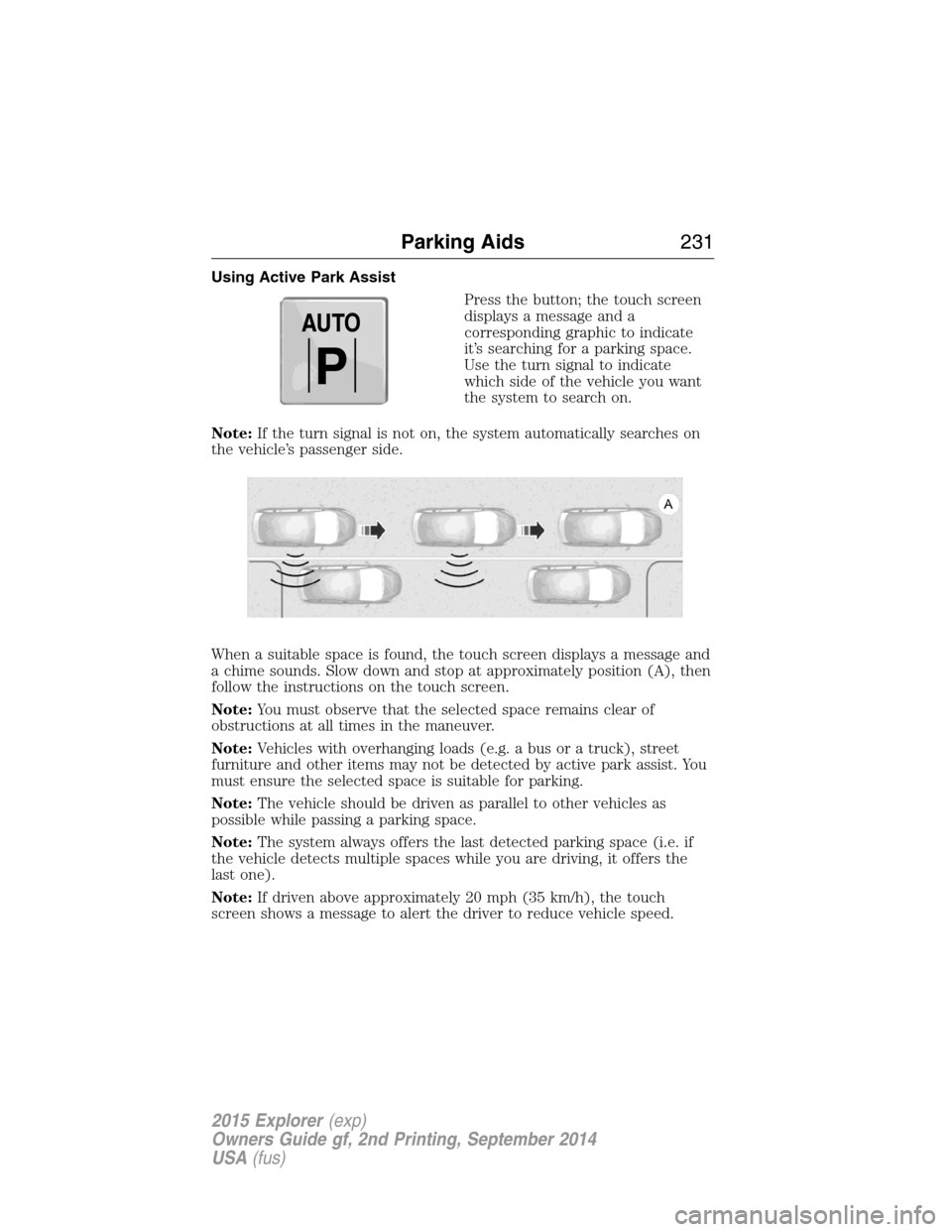
Using Active Park Assist
Press the button; the touch screen
displays a message and a
corresponding graphic to indicate
it’s searching for a parking space.
Use the turn signal to indicate
which side of the vehicle you want
the system to search on.
Note:If the turn signal is not on, the system automatically searches on
the vehicle’s passenger side.
When a suitable space is found, the touch screen displays a message and
a chime sounds. Slow down and stop at approximately position (A), then
follow the instructions on the touch screen.
Note:You must observe that the selected space remains clear of
obstructions at all times in the maneuver.
Note:Vehicles with overhanging loads (e.g. a bus or a truck), street
furniture and other items may not be detected by active park assist. You
must ensure the selected space is suitable for parking.
Note:The vehicle should be driven as parallel to other vehicles as
possible while passing a parking space.
Note:The system always offers the last detected parking space (i.e. if
the vehicle detects multiple spaces while you are driving, it offers the
last one).
Note:If driven above approximately 20 mph (35 km/h), the touch
screen shows a message to alert the driver to reduce vehicle speed.
AUTO
P
Parking Aids231
2015 Explorer(exp)
Owners Guide gf, 2nd Printing, September 2014
USA(fus)
Page 233 of 596
Automatic Steering into Parking Space
Note:If vehicle speed exceeds 6 mph (10 km/h), the system turns off
and you need to take full control of the vehicle.
Note:If a maneuver is interrupted before completion, the system turns
off and you need to full take control of the vehicle. In some instances
after an interruption a message may appear that would allow you to
resume the maneuver.
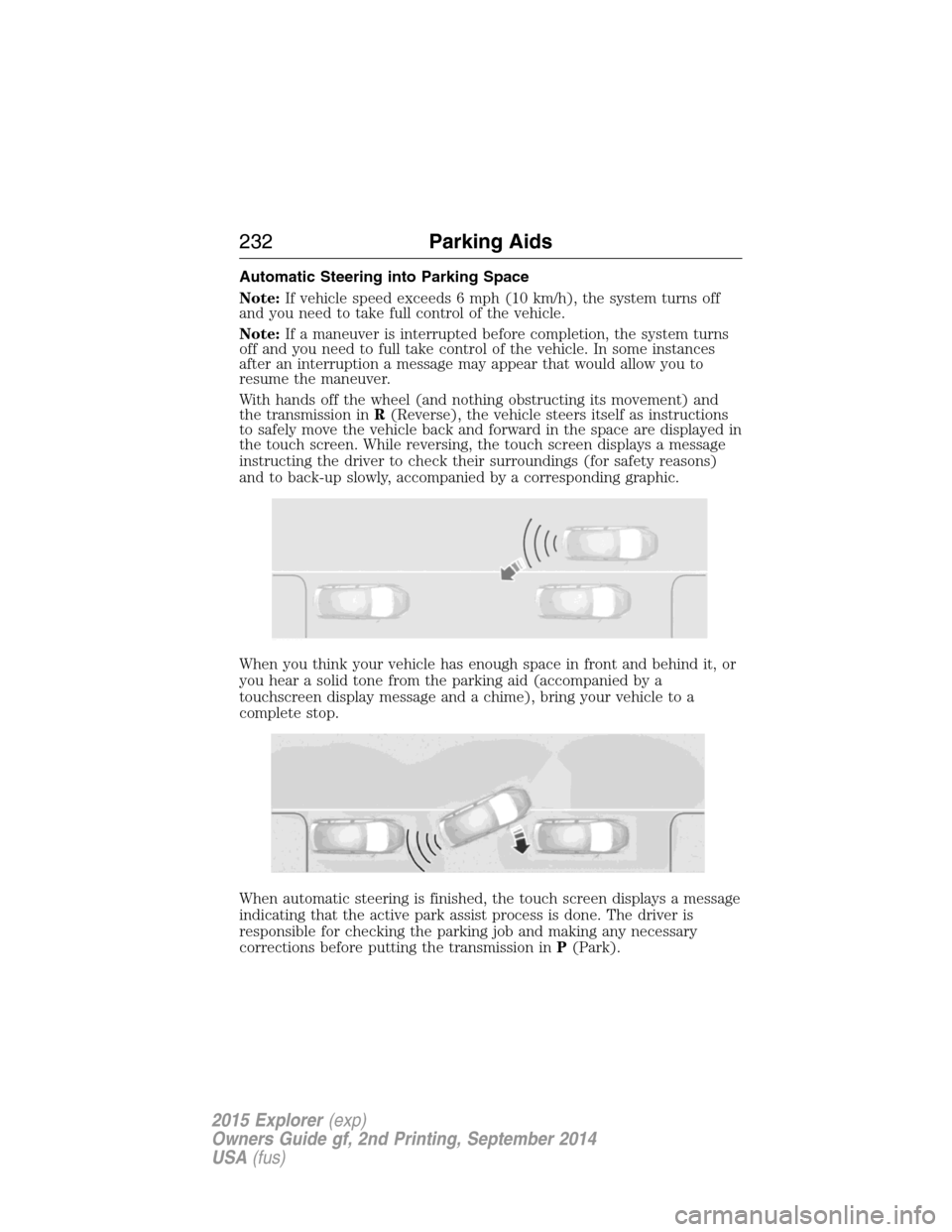
With hands off the wheel (and nothing obstructing its movement) and
the transmission inR(Reverse), the vehicle steers itself as instructions
to safely move the vehicle back and forward in the space are displayed in
the touch screen. While reversing, the touch screen displays a message
instructing the driver to check their surroundings (for safety reasons)
and to back-up slowly, accompanied by a corresponding graphic.
When you think your vehicle has enough space in front and behind it, or
you hear a solid tone from the parking aid (accompanied by a
touchscreen display message and a chime), bring your vehicle to a
complete stop.
When automatic steering is finished, the touch screen displays a message
indicating that the active park assist process is done. The driver is
responsible for checking the parking job and making any necessary
corrections before putting the transmission inP(Park).
232Parking Aids
2015 Explorer(exp)
Owners Guide gf, 2nd Printing, September 2014
USA(fus)
Page 234 of 596
Deactivating the Park Assist Feature
The system can be deactivated manually by:
•pressing the active park assist button
•grabbing the steering wheel
•driving above approximately 20 mph (35 km/h) for 30 seconds during
an active park search
•driving above 6 mph (10 km/h) during automatic steering
•turning off the traction control system.
Certain vehicle conditions can also deactivate the system:
•Traction control has activated on a slippery or loose surface.
•Anti-lock brake system activation or failure.
•Any door (except the driver’s) opens.
•Something touches the steering wheel.
If a problem occurs with the system, a warning message is displayed,
followed by a chime. Occasional active park assist messages may occur in
normal operation. For recurring or frequent active park assist faults,
contact an authorized dealer to have your vehicle serviced.
Troubleshooting the System
The system does not look for a space
The traction control system may be off
Any door (except the driver’s) may not be completely closed
The system does not offer a particular space
Something may be contacting the front bumper or side sensors
There is not enough room on both sides of the vehicle in order to park
There is not enough space for the parking maneuver on the opposite
side of the parking space
The vehicle is farther than 5 ft (1.5 m) from the parking space
The vehicle is closer than 16 in. (40 cm) from neighboring parked
vehicles
The transmission is in R (Reverse); the vehicle must be moving
forward to detect a parking space
The vehicle is going faster than 20 mph (35 km/h)
Parking Aids233
2015 Explorer(exp)
Owners Guide gf, 2nd Printing, September 2014
USA(fus)
Page 236 of 596
WARNING:Use caution when using the rear video camera and
the liftgate is ajar. If the liftgate is ajar, the camera will be out of
position and the video image may be incorrect. All guidelines have been
removed when the liftgate is ajar.
WARNING:Use caution when turning camera features on or off
while in R (Reverse). Make sure the vehicle is not moving.
The rear view camera system provides a video image of the area behind
the vehicle.
During operation, lines appear in the display which represent your
vehicle’s path and proximity to objects behind the vehicle.
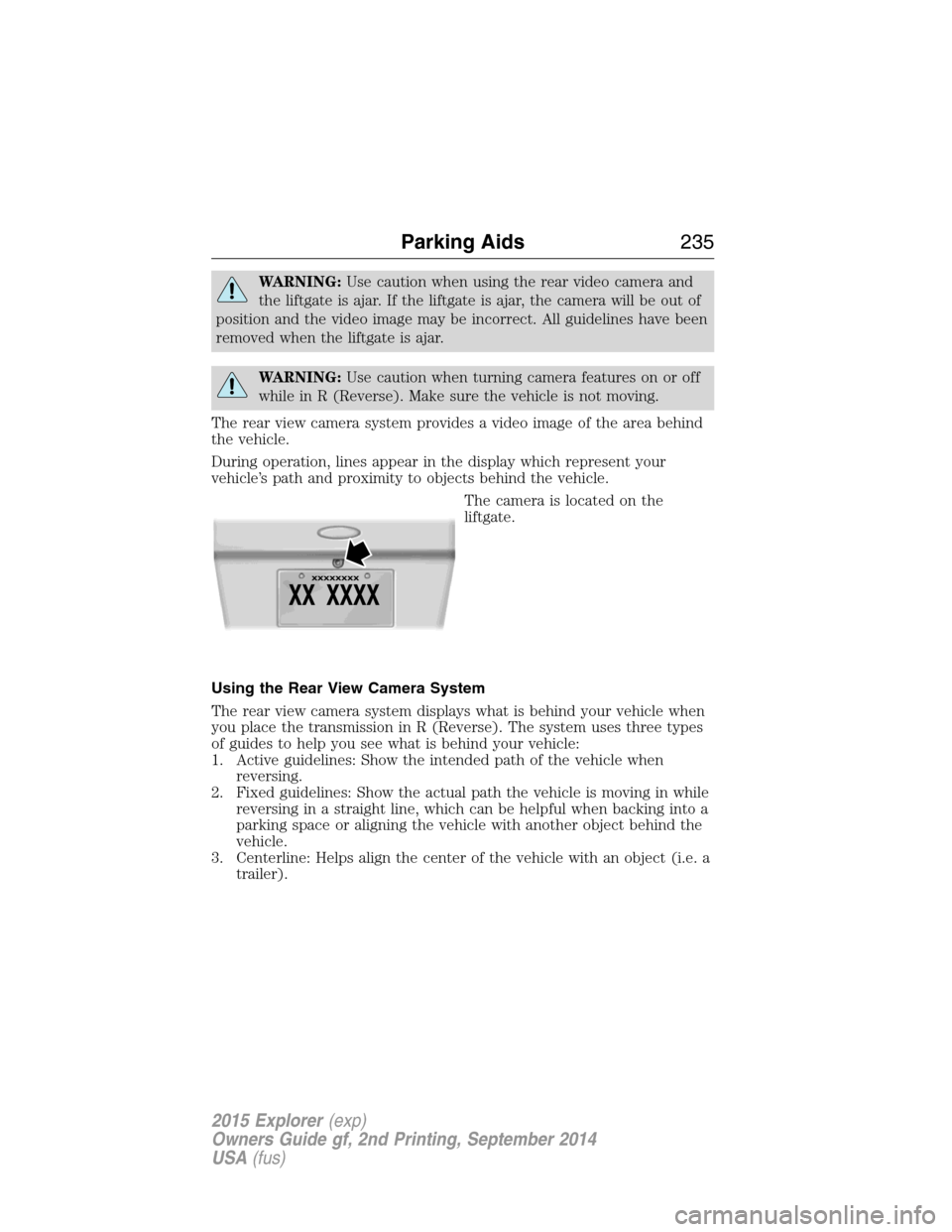
The camera is located on the
liftgate.
Using the Rear View Camera System
The rear view camera system displays what is behind your vehicle when
you place the transmission in R (Reverse). The system uses three types
of guides to help you see what is behind your vehicle:
1. Active guidelines: Show the intended path of the vehicle when
reversing.
2. Fixed guidelines: Show the actual path the vehicle is moving in while
reversing in a straight line, which can be helpful when backing into a
parking space or aligning the vehicle with another object behind the
vehicle.
3. Centerline: Helps align the center of the vehicle with an object (i.e. a
trailer).
Parking Aids235
2015 Explorer(exp)
Owners Guide gf, 2nd Printing, September 2014
USA(fus)
Page 237 of 596
Note:If the transmission is in R (Reverse) and the trunk/liftgate is ajar,
no rear view camera features are displayed.
Note:If the image comes on while the transmission is not in R
(Reverse), have the system inspected by your authorized dealer.
Note:When towing, the camera only sees what is being towed behind
the vehicle. This might not provide adequate coverage as it usually
provides in normal operation and some objects might not be seen. In
some vehicles, the guidelines may disappear once the trailer tow
connector is engaged.
Note:The camera may not operate correctly under the following
conditions:
•Nighttime or dark areas if one or both reverse lamps are not
operating. Do not use the rear view camera display when lighting is
low until both reverse lamps are functional.
•The camera’s view is obstructed by mud, water or debris. Clean the
lens with a soft, lint-free cloth and non-abrasive cleaner.
•The rear of the vehicle is hit or damaged, causing the camera to
become misaligned. Check with your authorized dealer to have the
rear view camera system checked for proper coverage and operation.
Adjusting the Rear View Camera Settings (If Equipped)
To access any of the rear view camera system settings, make the
following selections in the touch screen when the transmission is not in
R (Reverse):
1. Menu
2. Vehicle
3. Rear View Camera
After changing a system setting, the touch screen shows a preview of the
feature(s) selected.
236Parking Aids
2015 Explorer(exp)
Owners Guide gf, 2nd Printing, September 2014
USA(fus)
Page 239 of 596
Enhanced Park Aids
Note:Enhanced park aids is only available when the transmission is in R
(Reverse).
Note:The reverse sensing system is not effective at speeds above 3 mph
(5 km/h) and may not detect certain angular or moving objects.
The enhanced park aids allows the driver to view the area that is being
detected by the reverse sensing system. The system uses red, yellow and
green highlights which appear on top of the video image when an object
is detected by the reverse sensing system. The alert highlights the
closest object detected. The reverse sensing alert can be disabled and if
enhanced park aids is enabled, highlighted areas are still displayed.
Selectable settings for this feature are ON and OFF.
Manual Zoom
WARNING:When manual zoom is on, the full area behind the
vehicle is not shown. Be aware of your surroundings when using
the manual zoom feature.
Note:Manual zoom is only available when the transmission is in R
(Reverse).
Note:When manual zoom is enabled, only the centerline is shown.
Allows the driver to get a closer view of an object behind the vehicle.
The zoomed image keeps the bumper in the image to provide a
reference. The zoom is only active while the transmission is in R
(Reverse), When the transmission is shifted out of R (Reverse), the
feature automatically turns off and must be reset when it is used again.
Selectable settings for this feature are OFF and ON. Press the zoom
button to change the view. The default setting for the manual zoom is
OFF.
Rear Camera Delay
When shifting the transmission out of R (Reverse) and into any gear
other than P (Park), the camera image remains in the display until the
vehicle speed reaches 6 mph (10 km/h). This occurs when the rear
camera delay feature is on, or until a radio button is selected.
Selectable settings for this feature are ON and OFF. The default setting
for the rear camera delay is OFF.
238Parking Aids
2015 Explorer(exp)
Owners Guide gf, 2nd Printing, September 2014
USA(fus)
Page 242 of 596
WARNING:Do not use in poor visibility, specifically fog, rain,
spray or snow.
Note:It is your responsibility to stay alert, drive safely and be in control
of your vehicle at all times.
The system adjusts your speed to maintain a proper distance between
you and the vehicle in front of you in the same lane. You can select from
one of four GAP settings. The controls are located on the steering wheel.
At startup, the system sets the gap to the last selected setting. Once
activated, you can deactivate the system at any time by pressing the
brake pedal, pressing the steering wheelOFFcontrol or pressing the
CNCLcontrol. In addition, you can temporarily increase the vehicle
speed above the current speed by manually pressing on the accelerator
pedal.
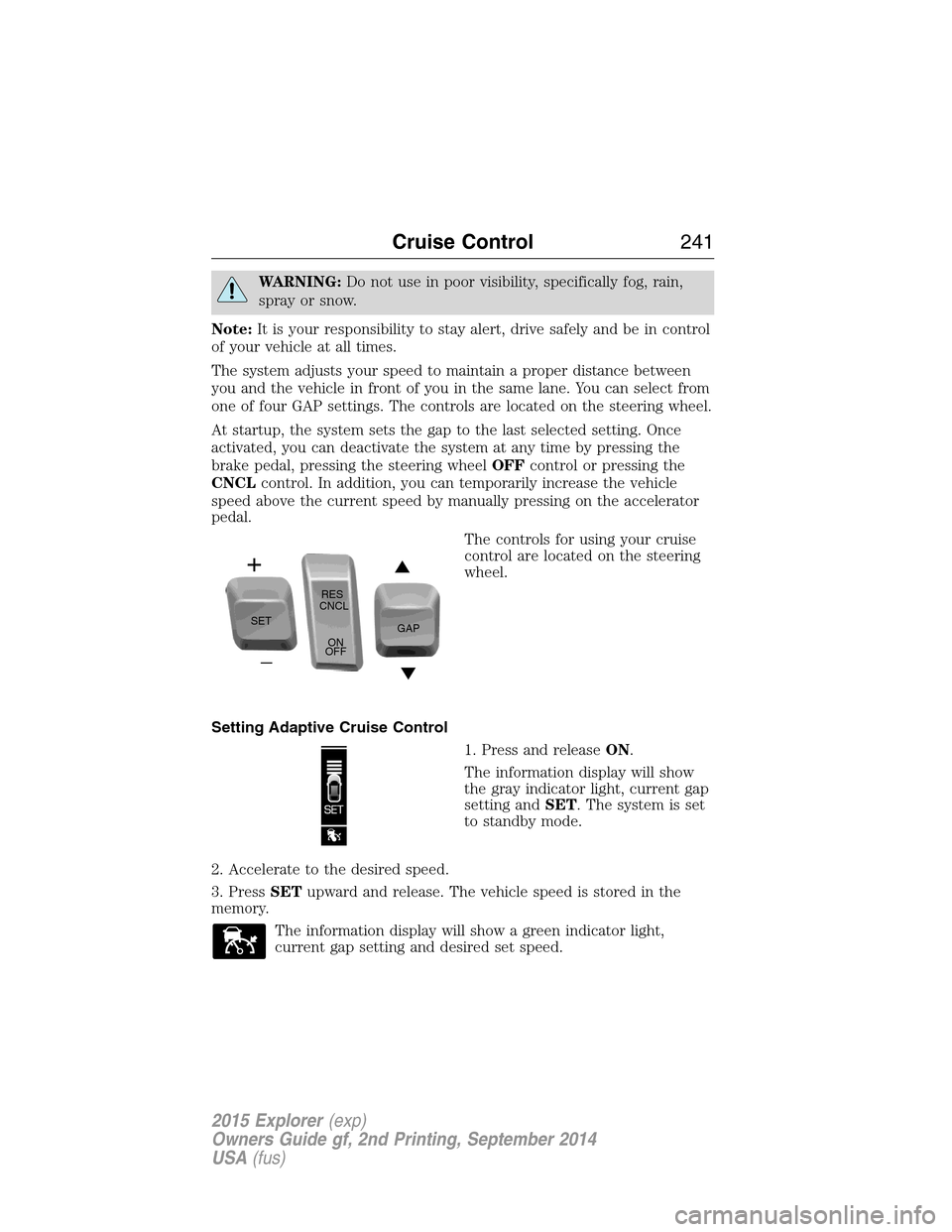
The controls for using your cruise
control are located on the steering
wheel.
Setting Adaptive Cruise Control
1. Press and releaseON.
The information display will show
the gray indicator light, current gap
setting andSET. The system is set
to standby mode.
2. Accelerate to the desired speed.
3. PressSETupward and release. The vehicle speed is stored in the
memory.
The information display will show a green indicator light,
current gap setting and desired set speed.
SETRES
CNCL
ON
OFFGAP
Cruise Control241
2015 Explorer(exp)
Owners Guide gf, 2nd Printing, September 2014
USA(fus)
Page 243 of 596
4. Take your foot off the accelerator pedal.
5. A lead vehicle graphic will
illuminate if there is a vehicle
detected in front of you.
Note:When adaptive cruise control is active, the speedometer may vary
slightly from the set speed displayed in the information display.
Following a Vehicle
WARNING:When following a vehicle in front of you, your
vehicle will not decelerate automatically to a stop, nor will your
vehicle always decelerate quickly enough to avoid a collision without
driver intervention. Always apply the brakes when necessary. Failing to
do so may result in a collision, serious injury or death.
WARNING:Adaptive cruise control only warns of vehicles
detected by the radar sensor. In some cases there may be no
warning or the warning may be delayed. The driver should always apply
the brakes when necessary. Failing to do so may result in a collision,
serious injury or death.
Note:The brakes may emit a sound when they are being modulated by
the adaptive cruise control system.
When a vehicle ahead of you enters the same lane or a slower vehicle is
ahead in the same lane, the vehicle speed adjusts to maintain a preset
gap distance. The distance setting is adjustable.
The lead vehicle graphic will be illuminated.
Your vehicle will maintain a constant distance between the vehicle ahead
until:
•the vehicle in front of you accelerates to a speed above the set speed
•the vehicle in front of you moves out of your lane or out of view
•the vehicle speed falls below 16 mph (26 km/h)
•a new gap distance is set.
The vehicle brakes will be automatically applied to slow your vehicle to
maintain a safe distance from the vehicle in front. The maximum braking
which is applied by the system is limited and can be overridden by the
driver applying the brakes.
242Cruise Control
2015 Explorer(exp)
Owners Guide gf, 2nd Printing, September 2014
USA(fus)
Page 244 of 596
To help you to pass, the system may provide a small, temporary
acceleration when you switch on the left turn signal while following a
lead vehicle.
If the system predicts that its maximum braking level will not be
sufficient, an audible warning will sound while the system continues to
brake. This is accompanied by a heads-up display; a red warning bar
illuminating on the windshield. You should take immediate action.
Setting the Gap Distance
Note:It is your responsibility to select a gap appropriate to the driving
conditions.
You can decrease or increase the
distance between your vehicle and
the vehicle in front of you by
pressing theGAPcontrolupor
down. The selected gap will display
in the information display as shown by the bars in the graphic. Four gap
distance settings are available.
Graphic display (bars
between vehicles)Following
distanceFollowing distance at
60 mph (100 km/h)Dynamic
behavior
1 bar 1 second 31 yards (28 m) Sporty
2 bars 1.4 seconds 43 yards (39 m) Normal
3 bars 1.8 seconds 55 yards (50 m) Normal
4 bars 2.2 seconds 67 yards (61 m) Comfort
Each time you restart your vehicle, the system will select the last chosen
gap for the current driver.
Disengaging Adaptive Cruise Control
Press the brake pedal or pressCNCLto disengage the system.
Disengaging the system will not erase your previous set speed.
Overriding Adaptive Cruise Control
WARNING:Whenever the driver is overriding the ACC by
pressing the accelerator pedal, the ACC will not automatically
apply the brakes to maintain separation from any vehicle ahead.
You can override the set speed and gap distance by pressing the
accelerator pedal.
Cruise Control243
2015 Explorer(exp)
Owners Guide gf, 2nd Printing, September 2014
USA(fus)