reset FORD EXPLORER 2019 User Guide
[x] Cancel search | Manufacturer: FORD, Model Year: 2019, Model line: EXPLORER, Model: FORD EXPLORER 2019Pages: 571, PDF Size: 6.8 MB
Page 110 of 571
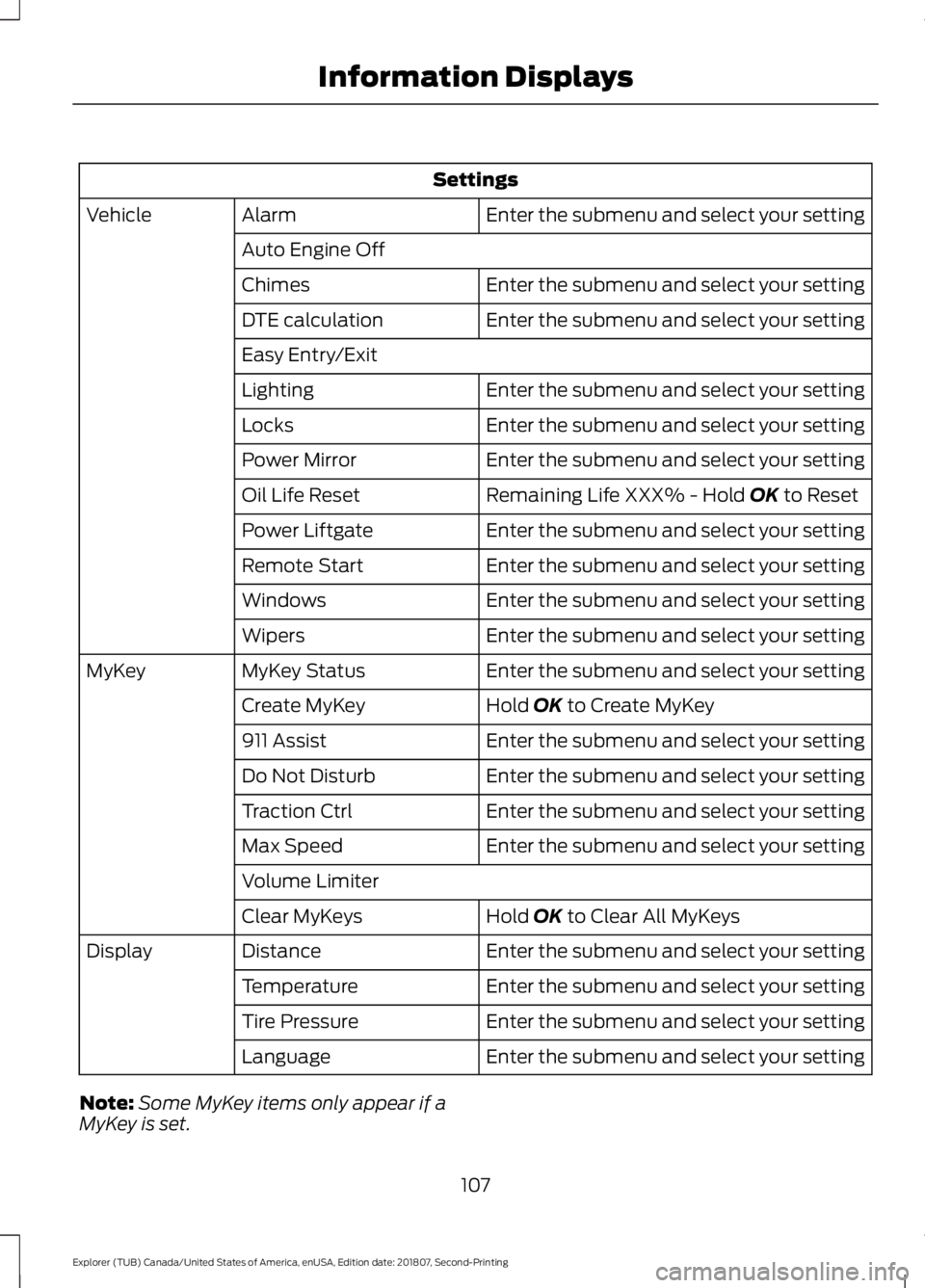
Settings
Enter the submenu and select your setting
Alarm
Vehicle
Auto Engine Off Enter the submenu and select your setting
Chimes
Enter the submenu and select your setting
DTE calculation
Easy Entry/Exit
Enter the submenu and select your setting
Lighting
Enter the submenu and select your setting
Locks
Enter the submenu and select your setting
Power Mirror
Remaining Life XXX% - Hold OK to Reset
Oil Life Reset
Enter the submenu and select your setting
Power Liftgate
Enter the submenu and select your setting
Remote Start
Enter the submenu and select your setting
Windows
Enter the submenu and select your setting
Wipers
Enter the submenu and select your setting
MyKey Status
MyKey
Hold
OK to Create MyKey
Create MyKey
Enter the submenu and select your setting
911 Assist
Enter the submenu and select your setting
Do Not Disturb
Enter the submenu and select your setting
Traction Ctrl
Enter the submenu and select your setting
Max Speed
Volume Limiter
Hold
OK to Clear All MyKeys
Clear MyKeys
Enter the submenu and select your setting
Distance
Display
Enter the submenu and select your setting
Temperature
Enter the submenu and select your setting
Tire Pressure
Enter the submenu and select your setting
Language
Note: Some MyKey items only appear if a
MyKey is set.
107
Explorer (TUB) Canada/United States of America, enUSA, Edition date: 201807, Second-Printing Information Displays
Page 113 of 571
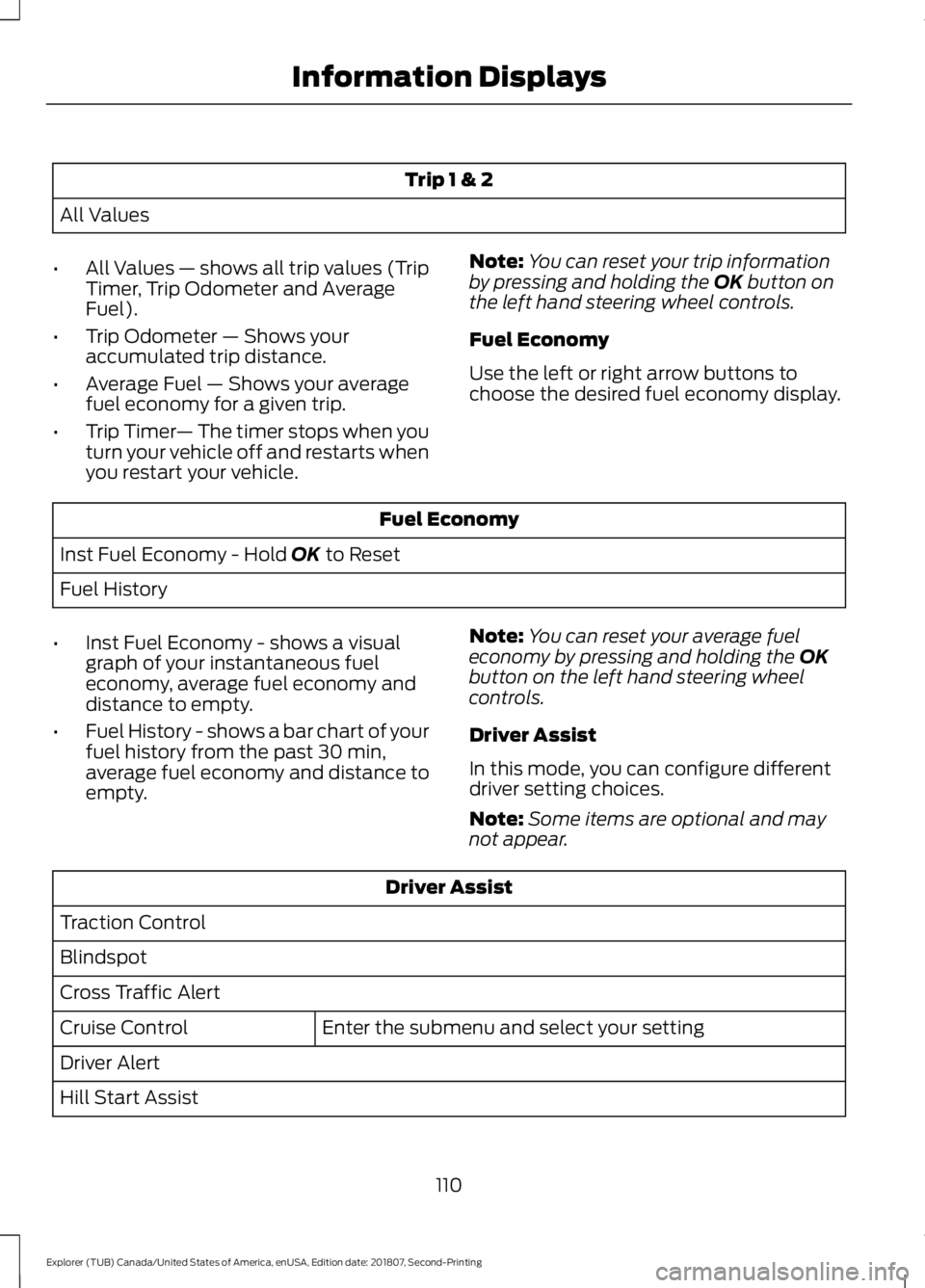
Trip 1 & 2
All Values
• All Values — shows all trip values (Trip
Timer, Trip Odometer and Average
Fuel).
• Trip Odometer — Shows your
accumulated trip distance.
• Average Fuel — Shows your average
fuel economy for a given trip.
• Trip Timer — The timer stops when you
turn your vehicle off and restarts when
you restart your vehicle. Note:
You can reset your trip information
by pressing and holding the OK button on
the left hand steering wheel controls.
Fuel Economy
Use the left or right arrow buttons to
choose the desired fuel economy display. Fuel Economy
Inst Fuel Economy - Hold
OK to Reset
Fuel History
• Inst Fuel Economy - shows a visual
graph of your instantaneous fuel
economy, average fuel economy and
distance to empty.
• Fuel History - shows a bar chart of your
fuel history from the past 30 min,
average fuel economy and distance to
empty. Note:
You can reset your average fuel
economy by pressing and holding the
OK
button on the left hand steering wheel
controls.
Driver Assist
In this mode, you can configure different
driver setting choices.
Note: Some items are optional and may
not appear. Driver Assist
Traction Control
Blindspot
Cross Traffic Alert Enter the submenu and select your setting
Cruise Control
Driver Alert
Hill Start Assist
110
Explorer (TUB) Canada/United States of America, enUSA, Edition date: 201807, Second-Printing Information Displays
Page 114 of 571
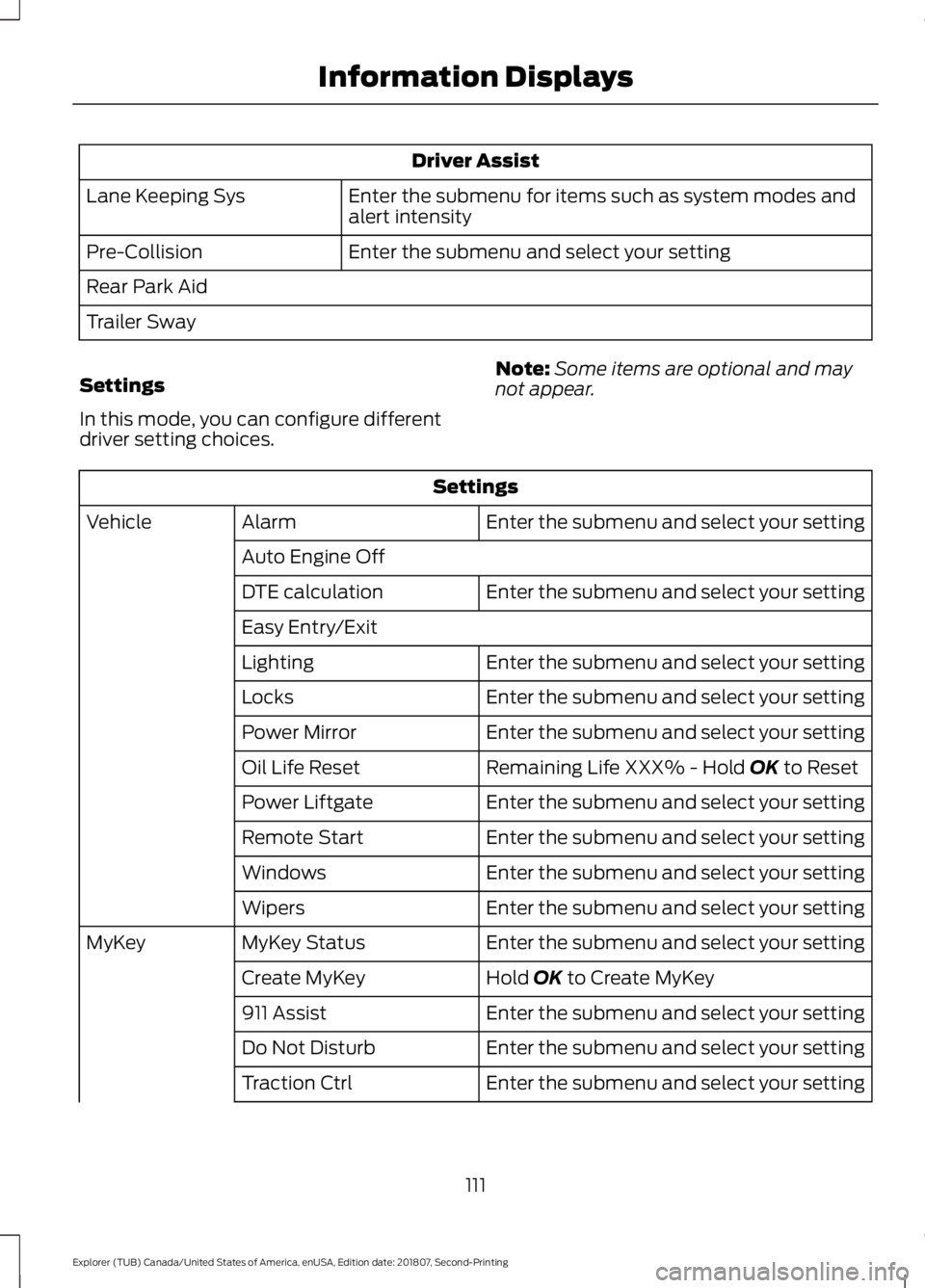
Driver Assist
Enter the submenu for items such as system modes and
alert intensity
Lane Keeping Sys
Enter the submenu and select your setting
Pre-Collision
Rear Park Aid
Trailer Sway
Settings
In this mode, you can configure different
driver setting choices. Note:
Some items are optional and may
not appear. Settings
Enter the submenu and select your setting
Alarm
Vehicle
Auto Engine Off Enter the submenu and select your setting
DTE calculation
Easy Entry/Exit
Enter the submenu and select your setting
Lighting
Enter the submenu and select your setting
Locks
Enter the submenu and select your setting
Power Mirror
Remaining Life XXX% - Hold OK to Reset
Oil Life Reset
Enter the submenu and select your setting
Power Liftgate
Enter the submenu and select your setting
Remote Start
Enter the submenu and select your setting
Windows
Enter the submenu and select your setting
Wipers
Enter the submenu and select your setting
MyKey Status
MyKey
Hold
OK to Create MyKey
Create MyKey
Enter the submenu and select your setting
911 Assist
Enter the submenu and select your setting
Do Not Disturb
Enter the submenu and select your setting
Traction Ctrl
111
Explorer (TUB) Canada/United States of America, enUSA, Edition date: 201807, Second-Printing Information Displays
Page 116 of 571
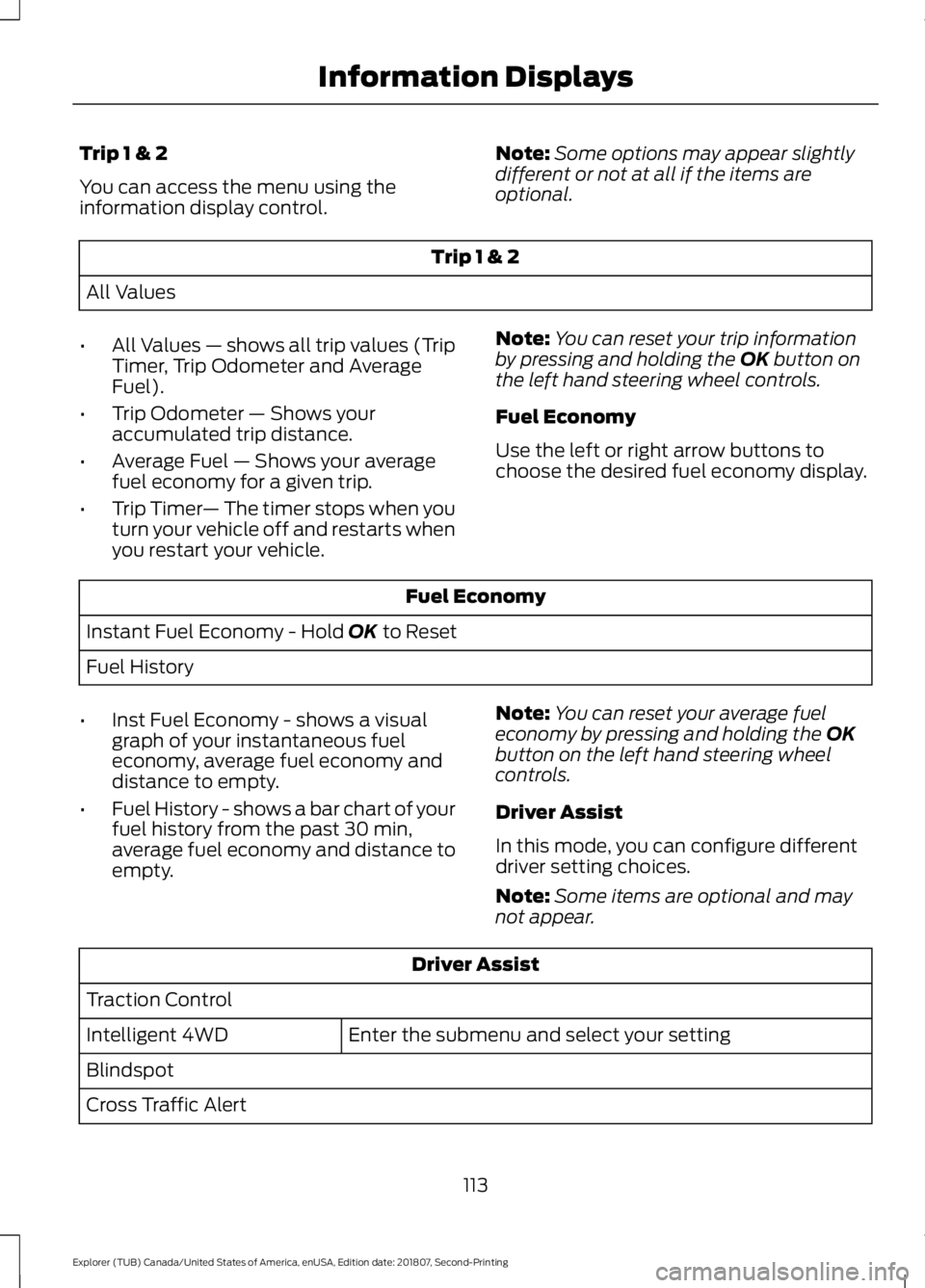
Trip 1 & 2
You can access the menu using the
information display control.
Note:
Some options may appear slightly
different or not at all if the items are
optional. Trip 1 & 2
All Values
• All Values — shows all trip values (Trip
Timer, Trip Odometer and Average
Fuel).
• Trip Odometer — Shows your
accumulated trip distance.
• Average Fuel — Shows your average
fuel economy for a given trip.
• Trip Timer — The timer stops when you
turn your vehicle off and restarts when
you restart your vehicle. Note:
You can reset your trip information
by pressing and holding the OK button on
the left hand steering wheel controls.
Fuel Economy
Use the left or right arrow buttons to
choose the desired fuel economy display. Fuel Economy
Instant Fuel Economy - Hold
OK to Reset
Fuel History
• Inst Fuel Economy - shows a visual
graph of your instantaneous fuel
economy, average fuel economy and
distance to empty.
• Fuel History - shows a bar chart of your
fuel history from the past 30 min,
average fuel economy and distance to
empty. Note:
You can reset your average fuel
economy by pressing and holding the
OK
button on the left hand steering wheel
controls.
Driver Assist
In this mode, you can configure different
driver setting choices.
Note: Some items are optional and may
not appear. Driver Assist
Traction Control Enter the submenu and select your setting
Intelligent 4WD
Blindspot
Cross Traffic Alert
113
Explorer (TUB) Canada/United States of America, enUSA, Edition date: 201807, Second-Printing Information Displays
Page 117 of 571
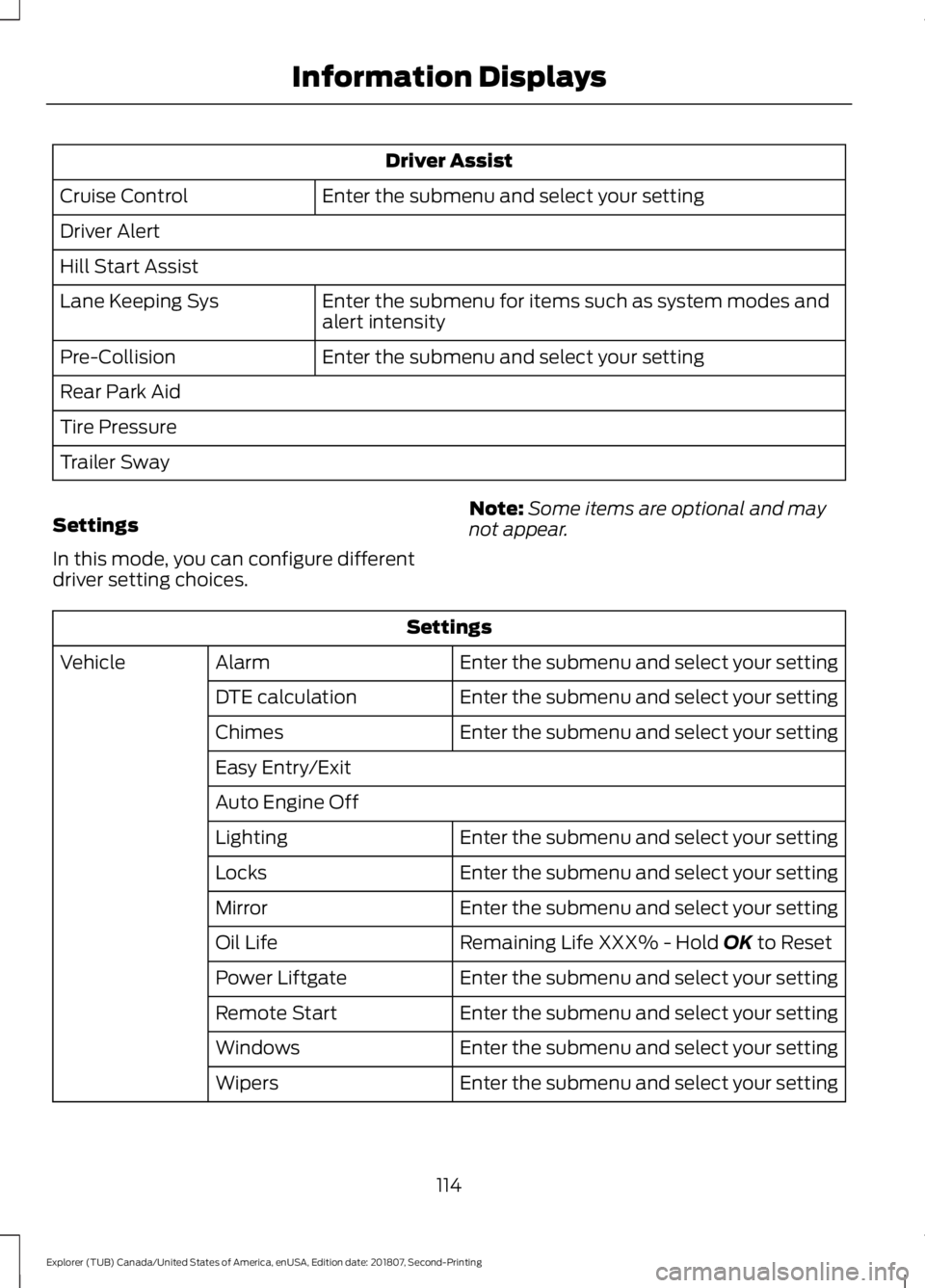
Driver Assist
Enter the submenu and select your setting
Cruise Control
Driver Alert
Hill Start Assist
Enter the submenu for items such as system modes and
alert intensity
Lane Keeping Sys
Enter the submenu and select your setting
Pre-Collision
Rear Park Aid
Tire Pressure
Trailer Sway
Settings
In this mode, you can configure different
driver setting choices. Note:
Some items are optional and may
not appear. Settings
Enter the submenu and select your setting
Alarm
Vehicle
Enter the submenu and select your setting
DTE calculation
Enter the submenu and select your setting
Chimes
Easy Entry/Exit
Auto Engine Off
Enter the submenu and select your setting
Lighting
Enter the submenu and select your setting
Locks
Enter the submenu and select your setting
Mirror
Remaining Life XXX% - Hold OK to Reset
Oil Life
Enter the submenu and select your setting
Power Liftgate
Enter the submenu and select your setting
Remote Start
Enter the submenu and select your setting
Windows
Enter the submenu and select your setting
Wipers
114
Explorer (TUB) Canada/United States of America, enUSA, Edition date: 201807, Second-Printing Information Displays
Page 119 of 571
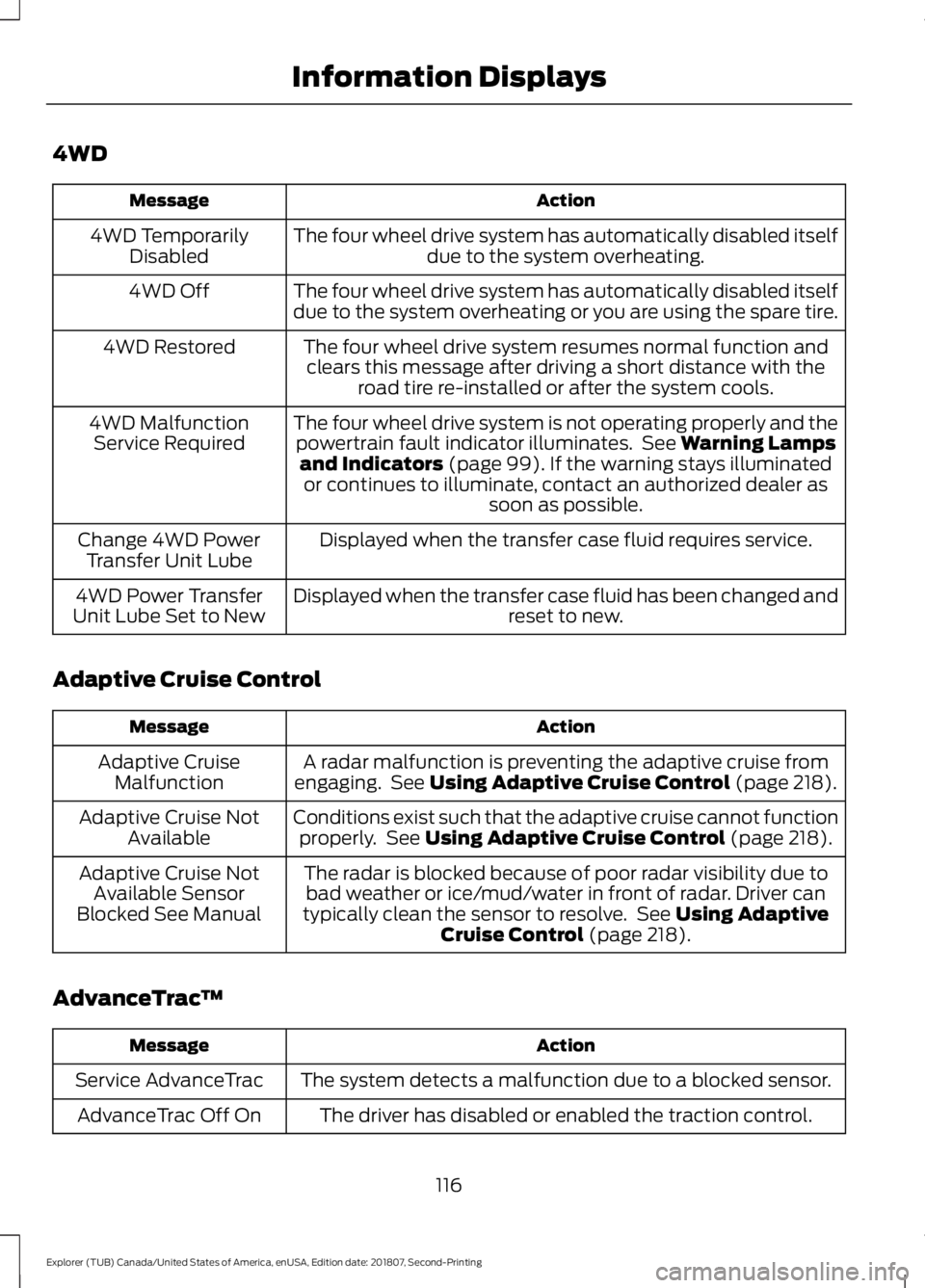
4WD
Action
Message
The four wheel drive system has automatically disabled itselfdue to the system overheating.
4WD Temporarily
Disabled
The four wheel drive system has automatically disabled itself
due to the system overheating or you are using the spare tire.
4WD Off
The four wheel drive system resumes normal function andclears this message after driving a short distance with the road tire re-installed or after the system cools.
4WD Restored
The four wheel drive system is not operating properly and thepowertrain fault indicator illuminates. See Warning Lamps
and Indicators (page 99). If the warning stays illuminated
or continues to illuminate, contact an authorized dealer as soon as possible.
4WD Malfunction
Service Required
Displayed when the transfer case fluid requires service.
Change 4WD Power
Transfer Unit Lube
Displayed when the transfer case fluid has been changed and reset to new.
4WD Power Transfer
Unit Lube Set to New
Adaptive Cruise Control Action
Message
A radar malfunction is preventing the adaptive cruise from
engaging. See
Using Adaptive Cruise Control (page 218).
Adaptive Cruise
Malfunction
Conditions exist such that the adaptive cruise cannot functionproperly. See
Using Adaptive Cruise Control (page 218).
Adaptive Cruise Not
Available
The radar is blocked because of poor radar visibility due tobad weather or ice/mud/water in front of radar. Driver can
typically clean the sensor to resolve. See
Using Adaptive
Cruise Control (page 218).
Adaptive Cruise Not
Available Sensor
Blocked See Manual
AdvanceTrac ™ Action
Message
The system detects a malfunction due to a blocked sensor.
Service AdvanceTrac
The driver has disabled or enabled the traction control.
AdvanceTrac Off On
116
Explorer (TUB) Canada/United States of America, enUSA, Edition date: 201807, Second-Printing Information Displays
Page 122 of 571
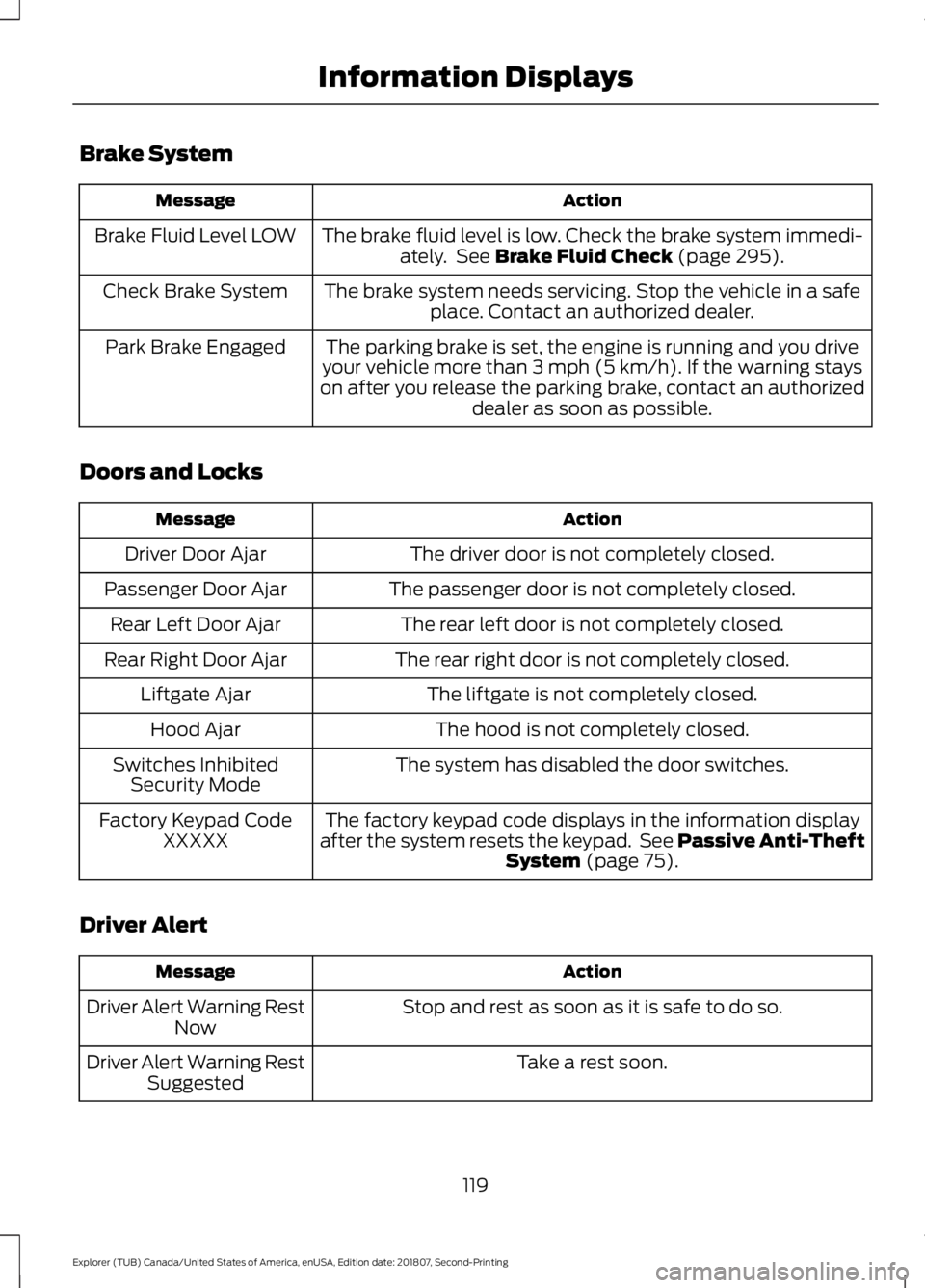
Brake System
Action
Message
The brake fluid level is low. Check the brake system immedi-ately. See Brake Fluid Check (page 295).
Brake Fluid Level LOW
The brake system needs servicing. Stop the vehicle in a safeplace. Contact an authorized dealer.
Check Brake System
The parking brake is set, the engine is running and you drive
your vehicle more than 3 mph (5 km/h). If the warning stays
on after you release the parking brake, contact an authorized dealer as soon as possible.
Park Brake Engaged
Doors and Locks Action
Message
The driver door is not completely closed.
Driver Door Ajar
The passenger door is not completely closed.
Passenger Door Ajar
The rear left door is not completely closed.
Rear Left Door Ajar
The rear right door is not completely closed.
Rear Right Door Ajar
The liftgate is not completely closed.
Liftgate Ajar
The hood is not completely closed.
Hood Ajar
The system has disabled the door switches.
Switches Inhibited
Security Mode
The factory keypad code displays in the information display
after the system resets the keypad. See Passive Anti-Theft System
(page 75).
Factory Keypad Code
XXXXX
Driver Alert Action
Message
Stop and rest as soon as it is safe to do so.
Driver Alert Warning Rest
Now
Take a rest soon.
Driver Alert Warning Rest
Suggested
119
Explorer (TUB) Canada/United States of America, enUSA, Edition date: 201807, Second-Printing Information Displays
Page 144 of 571
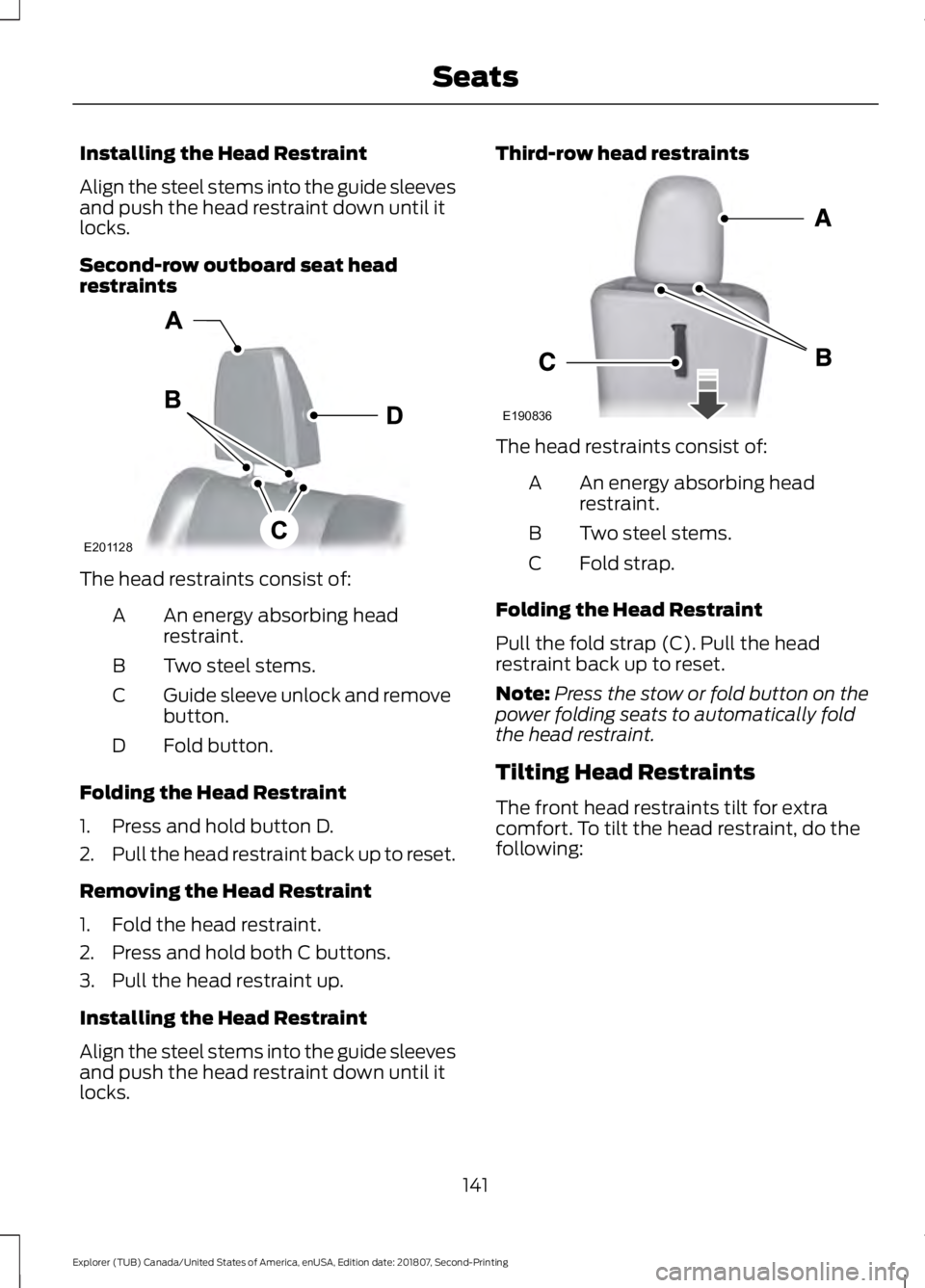
Installing the Head Restraint
Align the steel stems into the guide sleeves
and push the head restraint down until it
locks.
Second-row outboard seat head
restraints
The head restraints consist of:
An energy absorbing head
restraint.
A
Two steel stems.
B
Guide sleeve unlock and remove
button.
C
Fold button.
D
Folding the Head Restraint
1. Press and hold button D.
2. Pull the head restraint back up to reset.
Removing the Head Restraint
1. Fold the head restraint.
2. Press and hold both C buttons.
3. Pull the head restraint up.
Installing the Head Restraint
Align the steel stems into the guide sleeves
and push the head restraint down until it
locks. Third-row head restraints
The head restraints consist of:
An energy absorbing head
restraint.
A
Two steel stems.
B
Fold strap.
C
Folding the Head Restraint
Pull the fold strap (C). Pull the head
restraint back up to reset.
Note: Press the stow or fold button on the
power folding seats to automatically fold
the head restraint.
Tilting Head Restraints
The front head restraints tilt for extra
comfort. To tilt the head restraint, do the
following:
141
Explorer (TUB) Canada/United States of America, enUSA, Edition date: 201807, Second-Printing SeatsE201128 E190836
Page 149 of 571
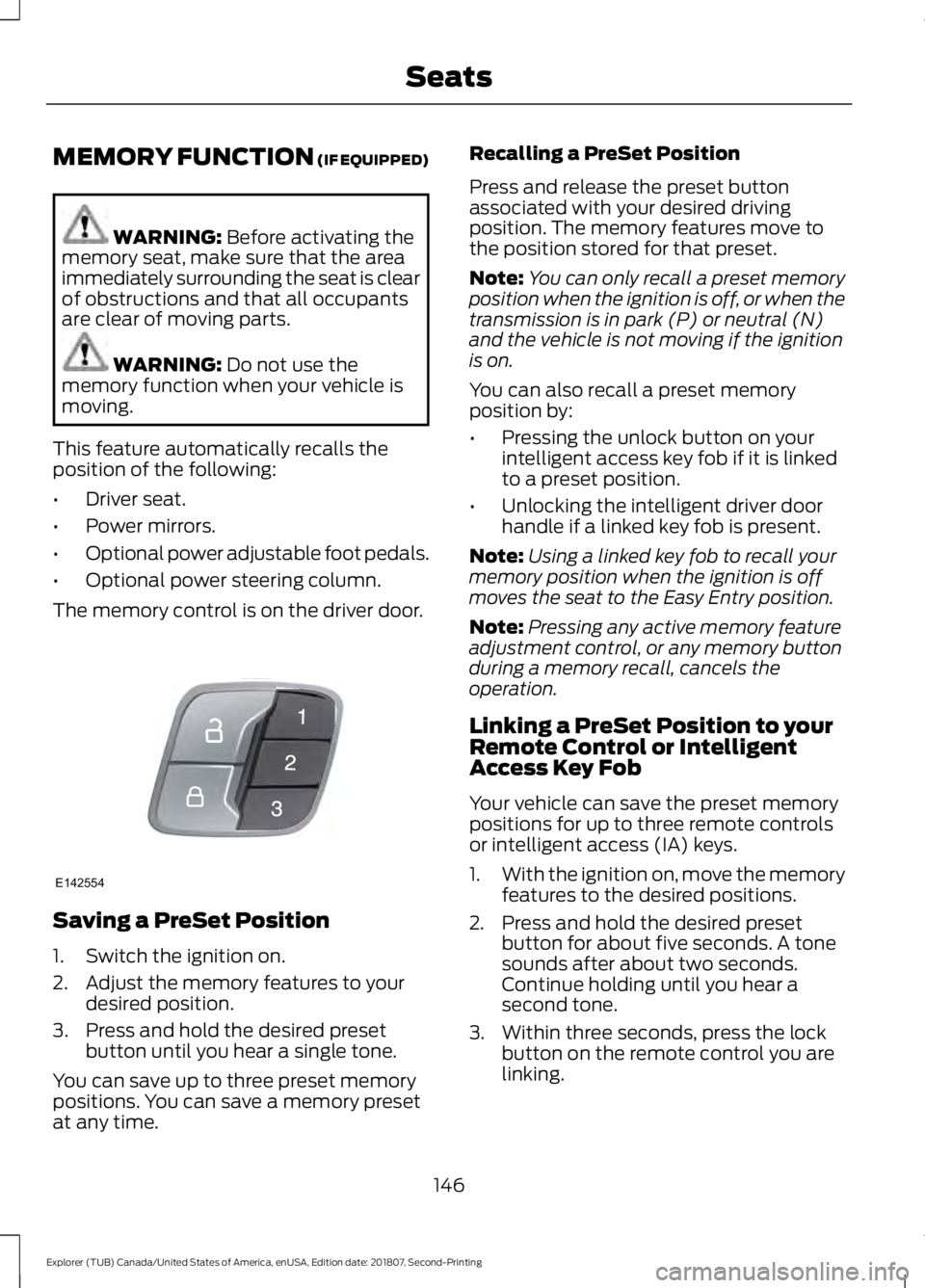
MEMORY FUNCTION (IF EQUIPPED)
WARNING:
Before activating the
memory seat, make sure that the area
immediately surrounding the seat is clear
of obstructions and that all occupants
are clear of moving parts. WARNING:
Do not use the
memory function when your vehicle is
moving.
This feature automatically recalls the
position of the following:
• Driver seat.
• Power mirrors.
• Optional power adjustable foot pedals.
• Optional power steering column.
The memory control is on the driver door. Saving a PreSet Position
1. Switch the ignition on.
2. Adjust the memory features to your
desired position.
3. Press and hold the desired preset button until you hear a single tone.
You can save up to three preset memory
positions. You can save a memory preset
at any time. Recalling a PreSet Position
Press and release the preset button
associated with your desired driving
position. The memory features move to
the position stored for that preset.
Note:
You can only recall a preset memory
position when the ignition is off, or when the
transmission is in park (P) or neutral (N)
and the vehicle is not moving if the ignition
is on.
You can also recall a preset memory
position by:
• Pressing the unlock button on your
intelligent access key fob if it is linked
to a preset position.
• Unlocking the intelligent driver door
handle if a linked key fob is present.
Note: Using a linked key fob to recall your
memory position when the ignition is off
moves the seat to the Easy Entry position.
Note: Pressing any active memory feature
adjustment control, or any memory button
during a memory recall, cancels the
operation.
Linking a PreSet Position to your
Remote Control or Intelligent
Access Key Fob
Your vehicle can save the preset memory
positions for up to three remote controls
or intelligent access (IA) keys.
1. With the ignition on, move the memory
features to the desired positions.
2. Press and hold the desired preset button for about five seconds. A tone
sounds after about two seconds.
Continue holding until you hear a
second tone.
3. Within three seconds, press the lock button on the remote control you are
linking.
146
Explorer (TUB) Canada/United States of America, enUSA, Edition date: 201807, Second-Printing SeatsE142554
Page 157 of 571
FOLD: Press to fold down the
seatback.
C
RH / BOTH / LH: Press to select
the normal, stow and fold modes
to activate the right-hand seat,
the left-hand seat or both.
D
Note: The third row seat includes obstacle
detection that allows the seat to stop and
reverse direction if it hits an obstacle so that
the obstacle can be removed.
Note: Pressing a different button while the
power seat feature is already being
performed may cause the first selected seat
movement to be cancelled. Allow the first
seat movement to be completed before
pressing a button for another function.
Note: Make sure that there are no objects
such as books, purses or briefcases on the
load floor before unstowing the seat. Failure
to remove all objects from the top of the
load floor prior to unstowing it may cause
damage to the seat.
Note: In order to allow the seat to complete
the stowed position, do not place objects
under the seat before stowing. Remove all
objects from the seat and stowage tub.
Note: In the unlikely event that the third
row power seat stops prematurely or travels
to an unexpected position, press the FOLD
button (C) to reset the seat and return it to
a normal position.
These seats feature a power one-touch
operation that allows you fold and stow
the seats.
• The power fold seats work only when
the transmission is in park (P) and the
liftgate is open.
• If the ignition is off and the feature is
still running, the battery saver turns it
off after 10 minutes. Press unlock on
the remote entry key transmitter to
reactivate the power seats or unlock it
with the keyless entry keypad. See
Remote Control (page 53). HEATED SEATS
(IF EQUIPPED)
Front Seats WARNING: People who are unable
to feel pain to their skin because of
advanced age, chronic illness, diabetes,
spinal cord injury, medication, alcohol
use, exhaustion or other physical
conditions, must exercise care when
using the heated seat. The heated seat
may cause burns even at low
temperatures, especially if used for long
periods of time. Do not place anything
on the seat that insulates against heat,
such as a blanket or cushion. This may
cause the heated seat to overheat. Do
not puncture the seat with pins, needles
or other pointed objects. This may
damage the heating element which may
cause the heated seat to overheat. An
overheated seat may cause serious
personal injury.
Do not do the following:
• Place heavy objects on the seat.
• Operate the heated seat if water or any
other liquid spills on the seat. Allow the
seat to dry thoroughly.
Note: The engine must be running to use
this feature. Press the heated seat symbol to cycle
through the various heat settings and off.
More indicator lights indicate warmer
settings.
154
Explorer (TUB) Canada/United States of America, enUSA, Edition date: 201807, Second-Printing SeatsE146322