ECO mode FORD EXPLORER 2020 User Guide
[x] Cancel search | Manufacturer: FORD, Model Year: 2020, Model line: EXPLORER, Model: FORD EXPLORER 2020Pages: 555, PDF Size: 8.16 MB
Page 67 of 555
PRINCIPLE OF OPERATION
MyKey allows you to program keys with
restricted driving modes to promote good
driving habits. You can program the
restrictions to all keys except one. Any keys
that you did not program are administrator
keys or admin keys.
You can use admin keys to:
•
Create a MyKey with certain vehicle
restrictions.
• Program certain MyKey settings.
• Clear all MyKey restrictions.
After you program a MyKey, you can view
the following information through the
information display:
• The total number of admin keys and
MyKeys for your vehicle.
• The total distance a MyKey driver
traveled with your vehicle.
Note: Every MyKey receives the same
restrictions and settings. You cannot
program them individually.
Note: For vehicles equipped with a
push-button start switch: When both a
MyKey and an admin key are present when
you start your vehicle, the system recognizes
the admin key only. Standard Settings
Not every vehicle includes the features
listed below. If your vehicle has this
equipment, then you cannot change the
following settings when using a MyKey:
•
Seatbelt reminder or Belt-Minder™.
MyKey mutes the audio system until
drivers, and in some instances,
passengers, fasten their seatbelts.
Note: If your vehicle includes an
AM/FM radio or a very basic audio
system, then the radio may not mute.
• Earlier low-fuel warning. The low-fuel
warning activates earlier for MyKey
drivers, giving them more time to refuel.
• Certain driver alerts, stability systems
or parking aids turn on automatically
when you use the MyKey system. For
example, Blind Spot Information
System (BLIS), cross traffic alert, lane
departure warning or forward collision
warning. Note:
MyKey drivers may be
able to turn the lane departure warning
feature off, but this feature turns back
on automatically with every new key
cycle.
• Restricted touchscreen operation in
some markets. For example, MyKey
may prevent manual navigation
destination input while the vehicle is in
any gear other than park (P) or when
the vehicle reaches a certain rate of
speed.
• Satellite radio adult content
restrictions, if this feature is available
in your market.
Optional Settings
You can configure certain vehicle feature
settings when you first create a MyKey. You
can also change the settings afterward
with an admin key.
64
Explorer (CTW) Canada/United States of America, enUSA, Edition date: 201902, Third-Printing- MyKey
™
Page 72 of 555
LOCKING AND UNLOCKING
You can use the power door lock control
or the remote control to lock and unlock
your vehicle.
Power Door Locks
The power door lock control is on the driver
and front passenger door panels.
Unlock.
A
Lock.
B
Remote Control
You can use the remote control at any
time.
Unlocking the Doors Press the button to unlock the
driver door.
Press the button again within
three seconds to unlock all doors. The
direction indicators flash.
Press and hold both the lock and unlock
buttons on the remote control for three
seconds to change between driver door or
all doors unlock mode. The direction
indicators will flash twice to indicate a
change to the unlocking mode. Driver door
mode only unlocks the driver door when you press the unlock button once. All door
mode unlocks all doors when you press
the unlock button once. The unlocking
mode applies to the remote control,
keyless entry keypad and intelligent
access.
Locking the Doors Press the button to lock all
doors. The direction indicators
will flash.
Press the button again within three
seconds to confirm that all the doors
close. The doors lock again, the horn
sounds and the direction indicators flash
if all the doors and the liftgate close.
Note: If any door or the liftgate is open, or
if the hood is open on vehicles with an
anti-theft alarm or remote start, the horn
sounds twice and the direction indicators
do not flash.
Locking and Unlocking the Doors
with the Key Blade
Locking with the Key
Turn the top of the key toward the front of
your vehicle.
Unlocking with the Key
Turn the top of the key toward the rear of
your vehicle.
Note: If the child safety locks are on and
you pull the interior handle, you only turn off
the emergency locking, not the child safety
lock. You can only open the doors using the
external door handle.
69
Explorer (CTW) Canada/United States of America, enUSA, Edition date: 201902, Third-Printing- Doors and LocksE138628 E138629 E138623
Page 76 of 555
To program additional personal entry
codes, repeat steps 1 through 3, then for
step 4:
•
Press 3·4 to save personal code 2.
• Press
5·6 to save personal code 3.
• Press
7·8 to save personal code 4.
• Press
9·0 to save personal code 5.
Hints:
• Do not set a code that uses five of the
same number.
• Do not use five numbers in sequential
order.
• The factory-set code works even if you
have set your own personal code.
Erasing a Personal Code
1. Enter the factory-set five-digit code.
2. Press and release
1·2 on the keypad
within five seconds.
3. Press and hold
1·2 for two seconds.
You must do this within five seconds
of completing step 2.
All personal codes erase and only the
factory-set five-digit code works.
Anti-Scan Feature
The keypad goes into an anti-scan mode
if you enter the wrong code seven times.
This mode turns off the keypad for one
minute and the keypad lamp flashes.
The anti-scan feature turns off after any
of the following occur:
• One minute of keypad inactivity.
• You press the unlock button on the
remote control.
• You switch your vehicle on.
• You unlock the vehicle using intelligent
access. Locking and Unlocking the Doors
Locking All Doors
Press and hold 7·8 and 9·0 on the keypad
simultaneously with the driver door closed.
You do not need to enter a code first.
Unlocking All Doors
Enter the factory-set code or your personal
code, then press 3·4 on the keypad within
five seconds.
Unlocking Only the Driver Door
Enter the factory-set or your personal
five-digit code. You must press each
number within five seconds of each other.
The interior lamps illuminate.
Note:
All doors unlock if the two-stage
unlocking feature is turned off. See Locking
and Unlocking
(page 69).
73
Explorer (CTW) Canada/United States of America, enUSA, Edition date: 201902, Third-Printing- Doors and Locks
Page 84 of 555
Use the control on the side of the steering
column to adjust the position.
To adjust:
•
Tilt: Press the top or bottom of the
control.
• Telescope: Press the front or rear of
the control.
End of Travel Position
The steering column stops just short of the
end of the column travel to prevent
damage to the steering column. A new
stopping position sets if it encounters an
object when tilting or telescoping.
To reset the steering column to its normal
stopping position:
1. Confirm there is nothing obstructing the motion of the steering column.
2. Press and hold the steering column control until the steering column stops
moving.
3. Press the steering column control again.
Note: The steering column may begin to
move again. 4. When the steering column stops,
continue holding the control for a few
seconds.
5. Repeat for each direction as necessary.
A new stopping position sets. The next
time you tilt or telescope the steering
column, it stops just short of the end of the
column travel.
Memory Feature
You can save and recall the steering
column position with the memory
function. See Memory Function (page
150).
Pressing the adjustment control during a
memory recall cancels the operation.
Easy Entry and Exit Feature
The column moves up when you switch
the ignition off. Switch the ignition on to
return the system to its previous settings.
You can switch this feature on or off
through the touchscreen. See
Settings
(page 469).
Note: If you press any adjustment or
memory button when in easy exit mode, the
system cancels the operation.
Note: Depending on your vehicle, the
column may move up and in.
81
Explorer (CTW) Canada/United States of America, enUSA, Edition date: 201902, Third-Printing- Steering WheelE261582
Page 85 of 555
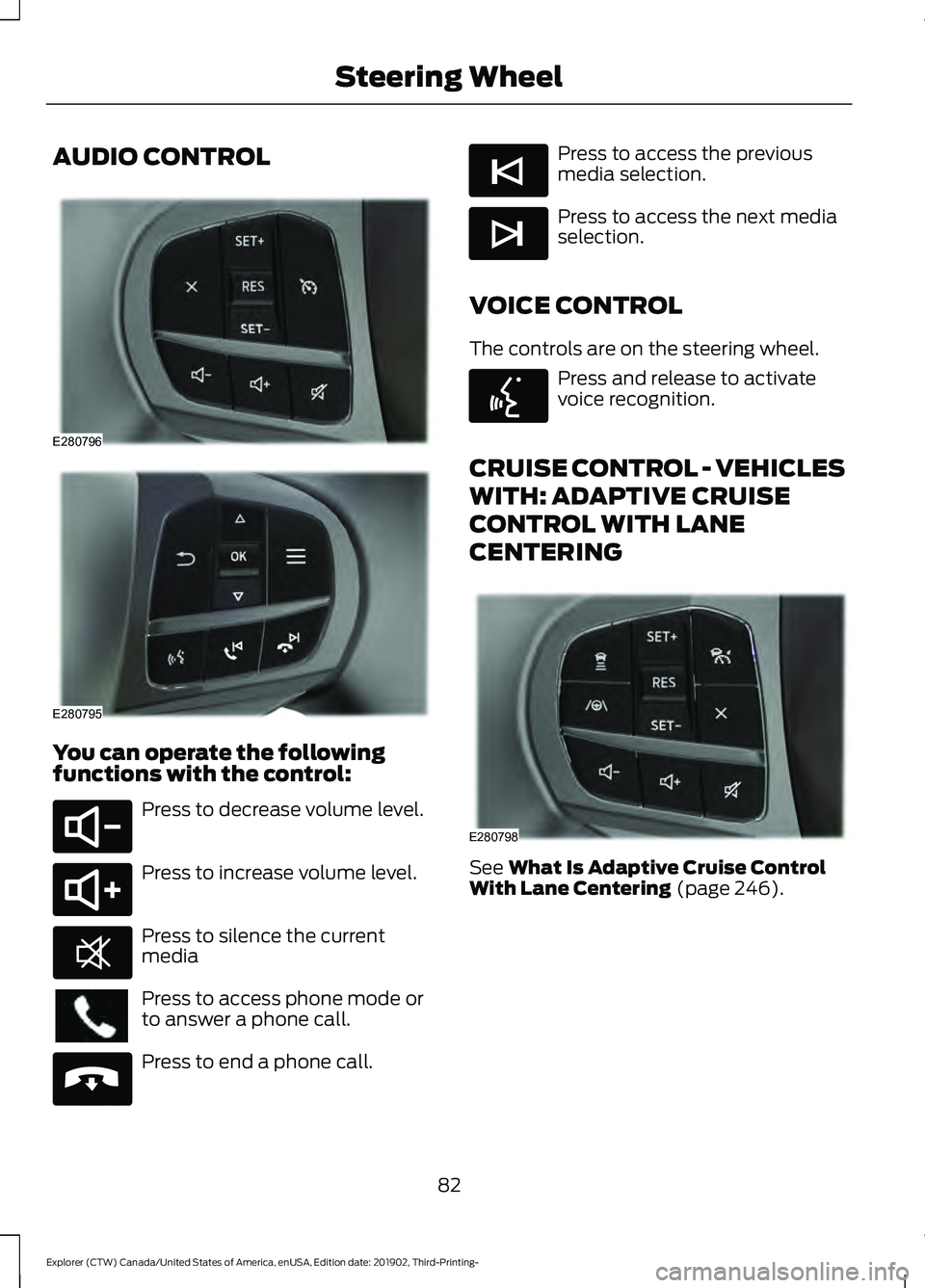
AUDIO CONTROL
You can operate the following
functions with the control:
Press to decrease volume level.
Press to increase volume level.
Press to silence the current
media
Press to access phone mode or
to answer a phone call.
Press to end a phone call. Press to access the previous
media selection.
Press to access the next media
selection.
VOICE CONTROL
The controls are on the steering wheel. Press and release to activate
voice recognition.
CRUISE CONTROL - VEHICLES
WITH: ADAPTIVE CRUISE
CONTROL WITH LANE
CENTERING See What Is Adaptive Cruise Control
With Lane Centering (page 246).
82
Explorer (CTW) Canada/United States of America, enUSA, Edition date: 201902, Third-Printing- Steering WheelE280796 E280795 E280802 E280803 E268549 E265040 E265045 E265044 E142599 E280798
Page 92 of 555
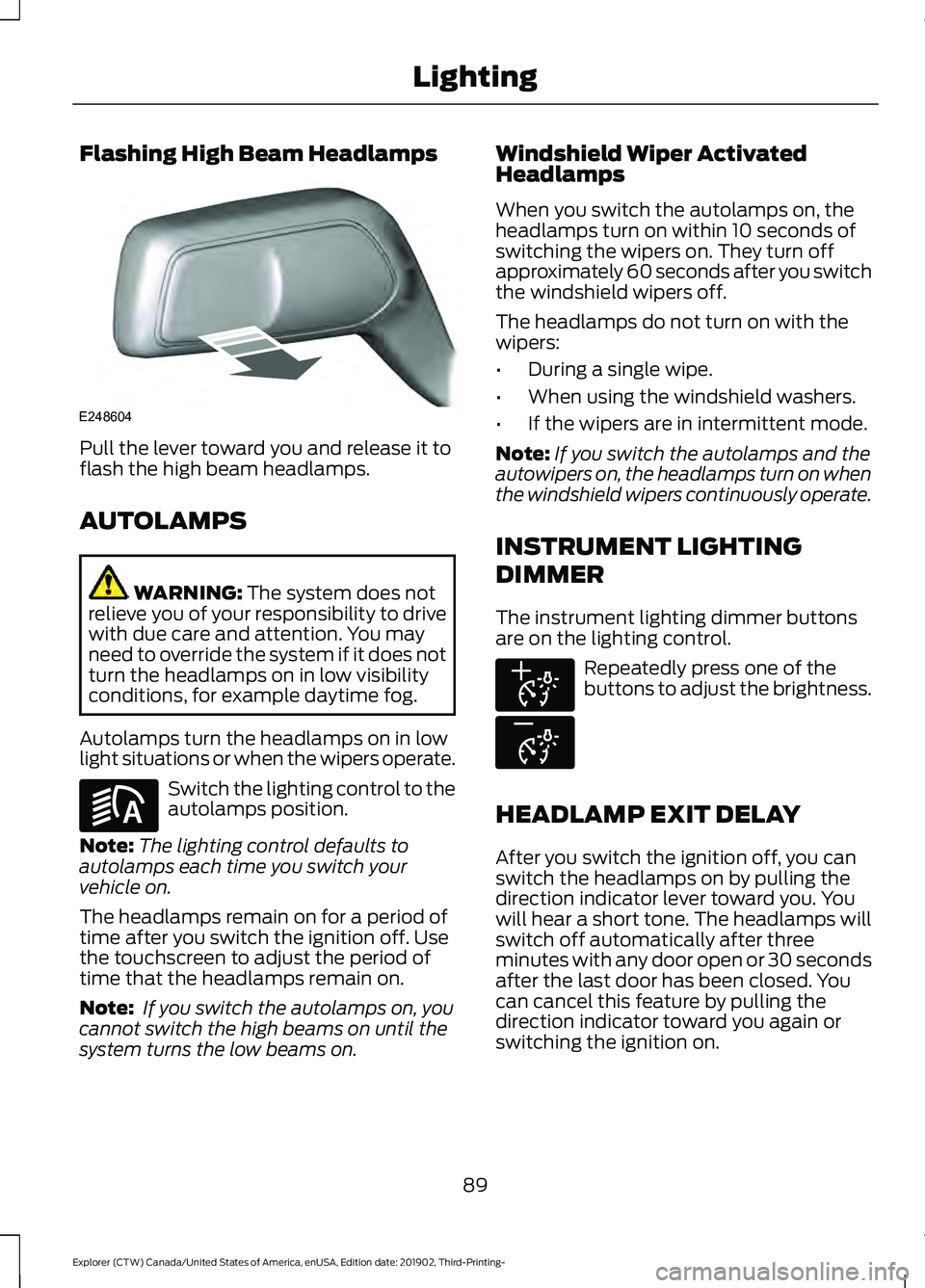
Flashing High Beam Headlamps
Pull the lever toward you and release it to
flash the high beam headlamps.
AUTOLAMPS
WARNING: The system does not
relieve you of your responsibility to drive
with due care and attention. You may
need to override the system if it does not
turn the headlamps on in low visibility
conditions, for example daytime fog.
Autolamps turn the headlamps on in low
light situations or when the wipers operate. Switch the lighting control to the
autolamps position.
Note: The lighting control defaults to
autolamps each time you switch your
vehicle on.
The headlamps remain on for a period of
time after you switch the ignition off. Use
the touchscreen to adjust the period of
time that the headlamps remain on.
Note: If you switch the autolamps on, you
cannot switch the high beams on until the
system turns the low beams on. Windshield Wiper Activated
Headlamps
When you switch the autolamps on, the
headlamps turn on within 10 seconds of
switching the wipers on. They turn off
approximately 60 seconds after you switch
the windshield wipers off.
The headlamps do not turn on with the
wipers:
•
During a single wipe.
• When using the windshield washers.
• If the wipers are in intermittent mode.
Note: If you switch the autolamps and the
autowipers on, the headlamps turn on when
the windshield wipers continuously operate.
INSTRUMENT LIGHTING
DIMMER
The instrument lighting dimmer buttons
are on the lighting control. Repeatedly press one of the
buttons to adjust the brightness.
HEADLAMP EXIT DELAY
After you switch the ignition off, you can
switch the headlamps on by pulling the
direction indicator lever toward you. You
will hear a short tone. The headlamps will
switch off automatically after three
minutes with any door open or 30 seconds
after the last door has been closed. You
can cancel this feature by pulling the
direction indicator toward you again or
switching the ignition on.
89
Explorer (CTW) Canada/United States of America, enUSA, Edition date: 201902, Third-Printing- LightingE248604 E281240 E291299 E296433
Page 110 of 555
WARNING: Do not remove the
coolant reservoir cap when the engine is
on or the cooling system is hot. Wait 10
minutes for the cooling system to cool
down. Cover the coolant reservoir cap
with a thick cloth to prevent the
possibility of scalding and slowly remove
the cap. Failure to follow this instruction
could result in personal injury.
Fuel Gauge
The fuel gauge indicates about how much
fuel is in the fuel tank.
The arrow adjacent to the fuel pump
symbol indicates on which side of your
vehicle the fuel filler door is located.
Note: The fuel gauge may vary slightly
when your vehicle is moving or on a slope.
Low Fuel Reminder
A low fuel level reminder displays and
sounds when the distance to empty
reaches
75 mi (120 km) to empty for
MyKey, and at 50 mi (80 km), 25 mi
(40 km), 10 mi (20 km) and 0 mi (0 km)
for all vehicle keys.
Note: The low fuel reminder can appear at
different fuel gauge positions depending on
fuel economy conditions. This variation is
normal.
WARNING LAMPS AND
INDICATORS
The following warning lamps and
indicators alert you to a vehicle condition
that may become serious. Some lamps
illuminate when you start your vehicle to
make sure they work. If any lamps remain
on after starting your vehicle, refer to the
respective system warning lamp for further
information. Note:
Some warning indicators appear in
the information display and function the
same as a warning lamp, but do not display
when you start your vehicle.
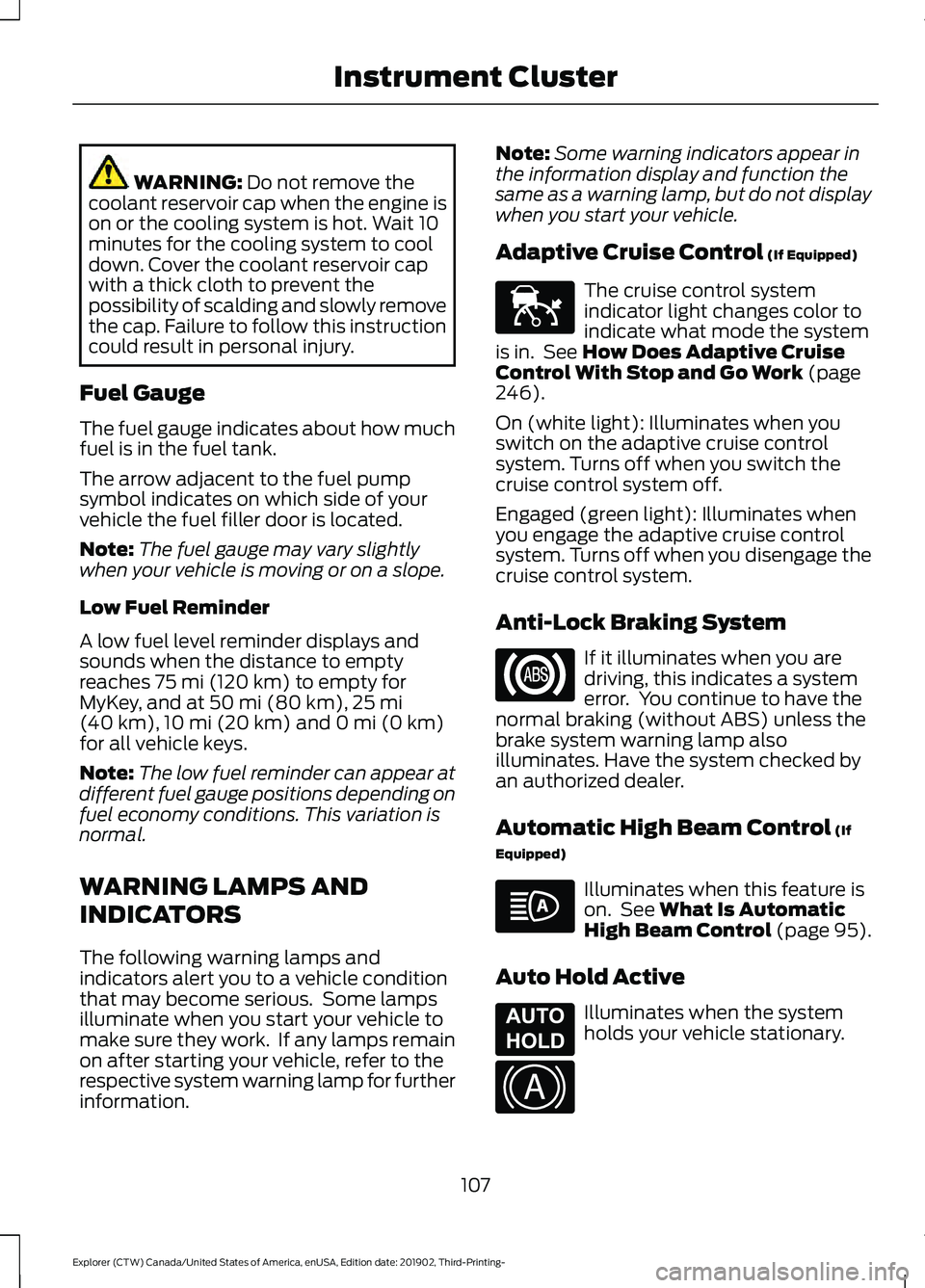
Adaptive Cruise Control
(If Equipped) The cruise control system
indicator light changes color to
indicate what mode the system
is in. See
How Does Adaptive Cruise
Control With Stop and Go Work (page
246).
On (white light): Illuminates when you
switch on the adaptive cruise control
system. Turns off when you switch the
cruise control system off.
Engaged (green light): Illuminates when
you engage the adaptive cruise control
system. Turns off when you disengage the
cruise control system.
Anti-Lock Braking System If it illuminates when you are
driving, this indicates a system
error. You continue to have the
normal braking (without ABS) unless the
brake system warning lamp also
illuminates. Have the system checked by
an authorized dealer.
Automatic High Beam Control
(If
Equipped) Illuminates when this feature is
on. See
What Is Automatic
High Beam Control (page 95).
Auto Hold Active Illuminates when the system
holds your vehicle stationary.
107
Explorer (CTW) Canada/United States of America, enUSA, Edition date: 201902, Third-Printing- Instrument ClusterE144524 E197933 E322410
Page 113 of 555
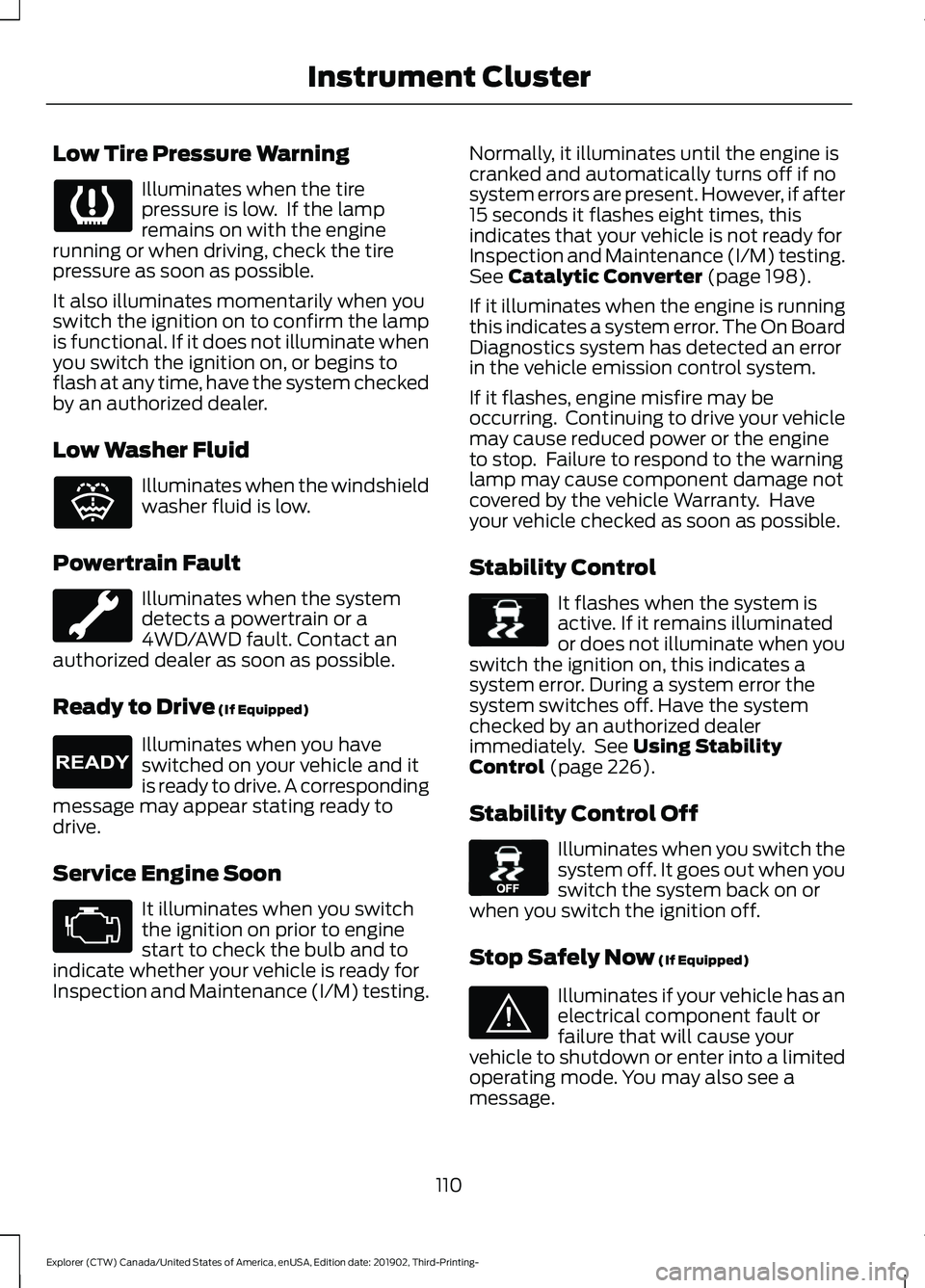
Low Tire Pressure Warning
Illuminates when the tire
pressure is low. If the lamp
remains on with the engine
running or when driving, check the tire
pressure as soon as possible.
It also illuminates momentarily when you
switch the ignition on to confirm the lamp
is functional. If it does not illuminate when
you switch the ignition on, or begins to
flash at any time, have the system checked
by an authorized dealer.
Low Washer Fluid Illuminates when the windshield
washer fluid is low.
Powertrain Fault Illuminates when the system
detects a powertrain or a
4WD/AWD fault. Contact an
authorized dealer as soon as possible.
Ready to Drive (If Equipped) Illuminates when you have
switched on your vehicle and it
is ready to drive. A corresponding
message may appear stating ready to
drive.
Service Engine Soon It illuminates when you switch
the ignition on prior to engine
start to check the bulb and to
indicate whether your vehicle is ready for
Inspection and Maintenance (I/M) testing. Normally, it illuminates until the engine is
cranked and automatically turns off if no
system errors are present. However, if after
15 seconds it flashes eight times, this
indicates that your vehicle is not ready for
Inspection and Maintenance (I/M) testing.
See
Catalytic Converter (page 198).
If it illuminates when the engine is running
this indicates a system error. The On Board
Diagnostics system has detected an error
in the vehicle emission control system.
If it flashes, engine misfire may be
occurring. Continuing to drive your vehicle
may cause reduced power or the engine
to stop. Failure to respond to the warning
lamp may cause component damage not
covered by the vehicle Warranty. Have
your vehicle checked as soon as possible.
Stability Control It flashes when the system is
active. If it remains illuminated
or does not illuminate when you
switch the ignition on, this indicates a
system error. During a system error the
system switches off. Have the system
checked by an authorized dealer
immediately. See
Using Stability
Control (page 226).
Stability Control Off Illuminates when you switch the
system off. It goes out when you
switch the system back on or
when you switch the ignition off.
Stop Safely Now
(If Equipped) Illuminates if your vehicle has an
electrical component fault or
failure that will cause your
vehicle to shutdown or enter into a limited
operating mode. You may also see a
message.
110
Explorer (CTW) Canada/United States of America, enUSA, Edition date: 201902, Third-Printing- Instrument Cluster E132353 E224090 E138639 E130458 E144693
Page 121 of 555
The percent displayed is an indication of
the regenerative braking efficiency with
100% representing the maximum amount
of energy recovery. Brake Coach can be
turned on or off in the settings menu.
Trip Summary
Displays upon shutting off your vehicle.
The values are cumulative since you last
started your vehicle.
The information shown is the same as the
This Trip on demand screen. See
Personalized Settings (page 118).
Vehicle Charging Status
Displays when you switch off your vehicle
and when you switch on your vehicle while
plugged in. Charging status includes the
charge start or charge end time as
appropriate. You can modify your vehicle
charge settings through the touchscreen.
See
SYNC™ 3 (page 438).
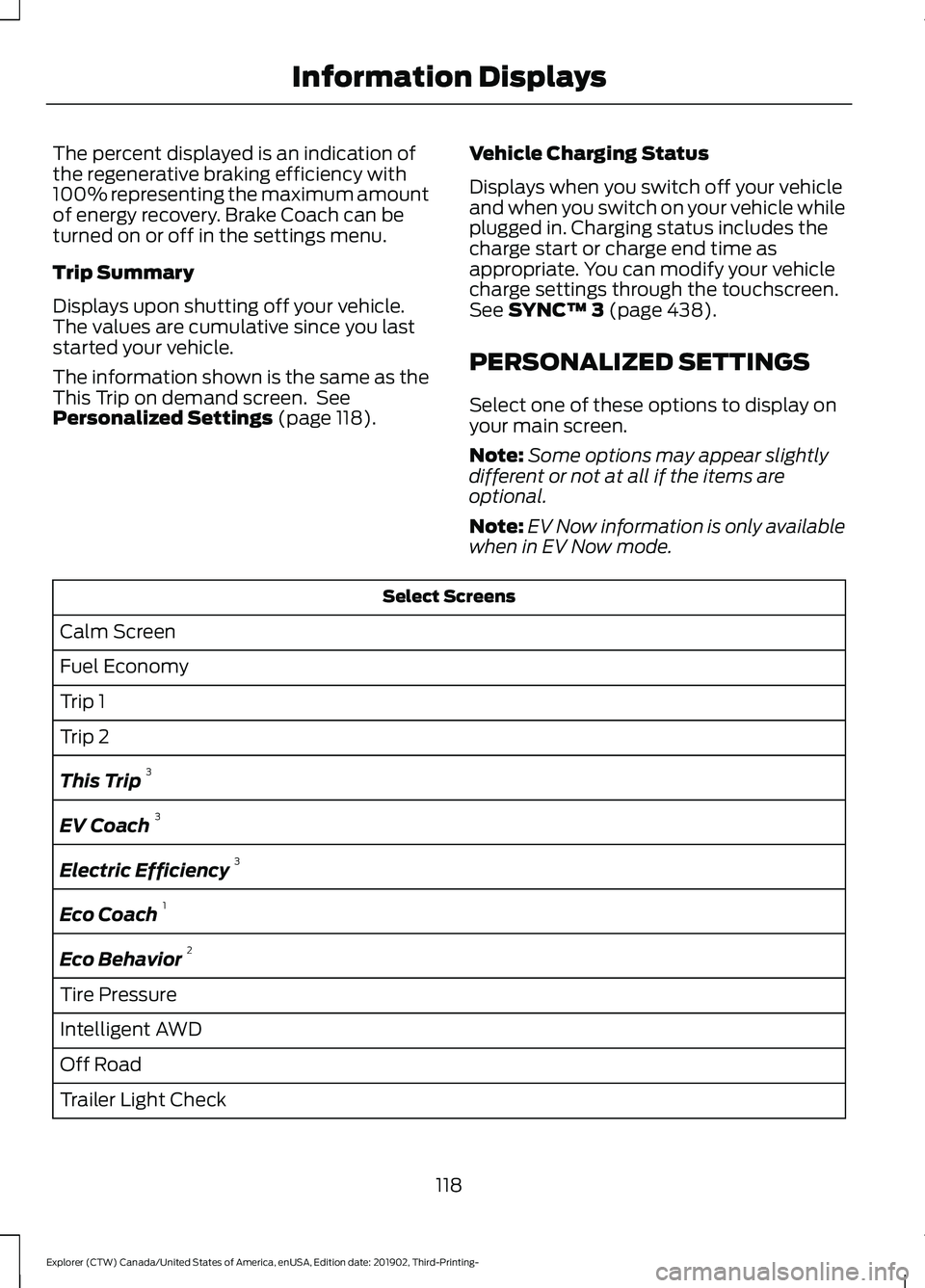
PERSONALIZED SETTINGS
Select one of these options to display on
your main screen.
Note: Some options may appear slightly
different or not at all if the items are
optional.
Note: EV Now information is only available
when in EV Now mode. Select Screens
Calm Screen
Fuel Economy
Trip 1
Trip 2
This Trip 3
EV Coach 3
Electric Efficiency 3
Eco Coach 1
Eco Behavior 2
Tire Pressure
Intelligent AWD
Off Road
Trailer Light Check
118
Explorer (CTW) Canada/United States of America, enUSA, Edition date: 201902, Third-Printing- Information Displays
Page 126 of 555
Action
Message
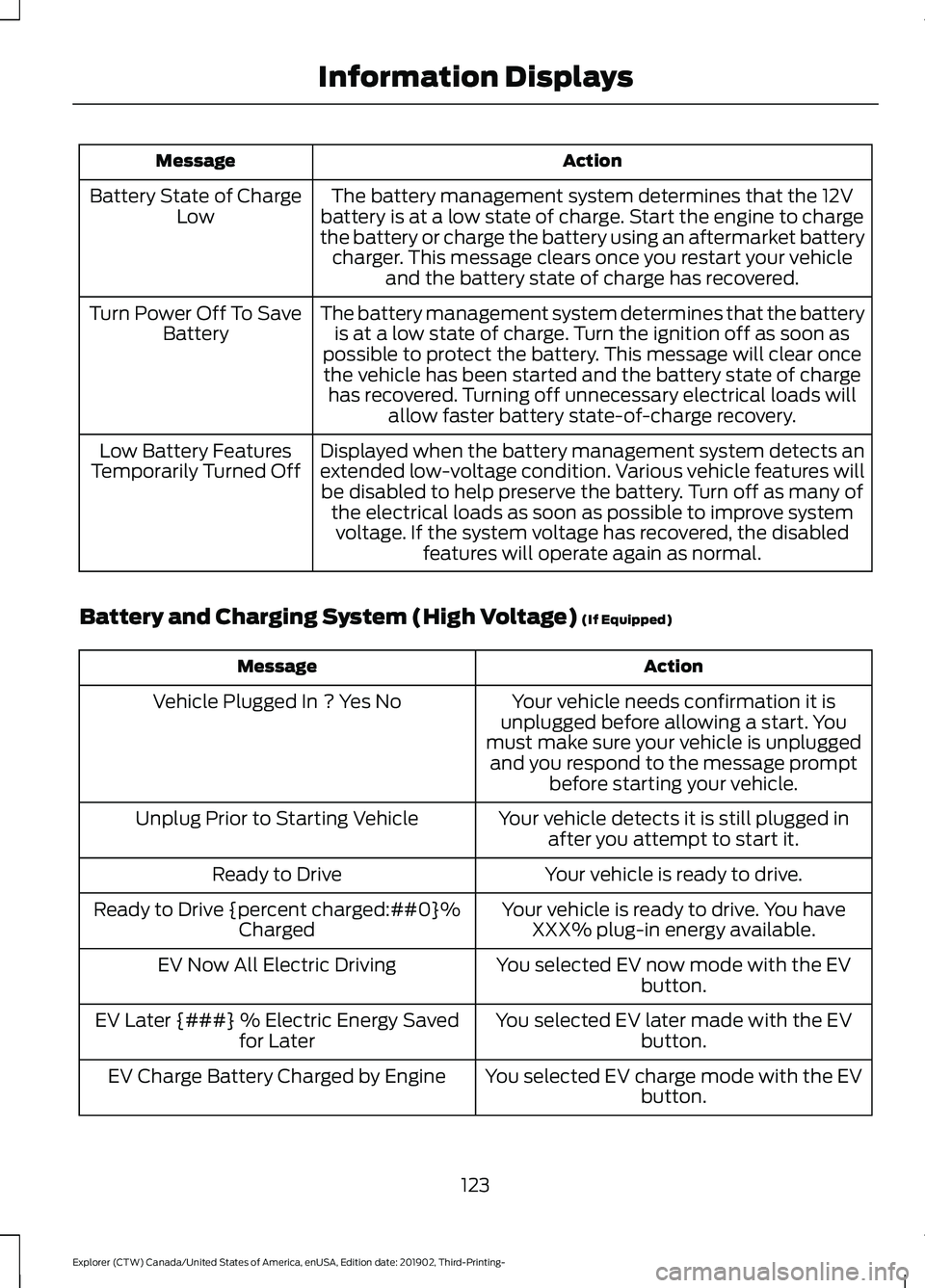
The battery management system determines that the 12V
battery is at a low state of charge. Start the engine to charge
the battery or charge the battery using an aftermarket battery charger. This message clears once you restart your vehicle and the battery state of charge has recovered.
Battery State of Charge
Low
The battery management system determines that the batteryis at a low state of charge. Turn the ignition off as soon as
possible to protect the battery. This message will clear once the vehicle has been started and the battery state of charge has recovered. Turning off unnecessary electrical loads will allow faster battery state-of-charge recovery.
Turn Power Off To Save
Battery
Displayed when the battery management system detects an
extended low-voltage condition. Various vehicle features willbe disabled to help preserve the battery. Turn off as many of the electrical loads as soon as possible to improve systemvoltage. If the system voltage has recovered, the disabled features will operate again as normal.
Low Battery Features
Temporarily Turned Off
Battery and Charging System (High Voltage) (If Equipped) Action
Message
Your vehicle needs confirmation it is
unplugged before allowing a start. You
must make sure your vehicle is unplugged and you respond to the message prompt before starting your vehicle.
Vehicle Plugged In ? Yes No
Your vehicle detects it is still plugged inafter you attempt to start it.
Unplug Prior to Starting Vehicle
Your vehicle is ready to drive.
Ready to Drive
Your vehicle is ready to drive. You haveXXX% plug-in energy available.
Ready to Drive {percent charged:##0}%
Charged
You selected EV now mode with the EVbutton.
EV Now All Electric Driving
You selected EV later made with the EVbutton.
EV Later {###} % Electric Energy Saved
for Later
You selected EV charge mode with the EVbutton.
EV Charge Battery Charged by Engine
123
Explorer (CTW) Canada/United States of America, enUSA, Edition date: 201902, Third-Printing- Information Displays