wheel FORD EXPLORER 2023 Workshop Manual
[x] Cancel search | Manufacturer: FORD, Model Year: 2023, Model line: EXPLORER, Model: FORD EXPLORER 2023Pages: 573, PDF Size: 16.1 MB
Page 253 of 573
Use the touchscreen to select thefollowing:
1.Select Settings.
2.Select Driver Assist.
3.Select Cruise Control.
4.Select Normal.
The cruise control indicatorreplaces the adaptive cruisecontrol indicator if you selectnormal cruise control. The gap settingdoes not display, and the system does notrespond to lead vehicles. Automaticbraking remains active to maintain setspeed. The system remembers the lastsetting when you start your vehicle.
SWITCHING LANE CENTERING
ON AND OFF
The cruise controls are on the steeringwheel. See Cruise Control (page 81).
Press the button.
The indicator appears in the informationdisplay. When the system is on, the colorof the indicator changes to indicate thesystem status. See Adaptive CruiseControl Indicators (page 248).
Note:Adaptive cruise control must be onbefore you can switch lane centering on.
Activating Lane Centering
The system only activates when all of thefollowing occur:
•You have adaptive cruise control withstop-and-go on.
•Your hands are on the steering wheel.
•The system detects both lanemarkings.
Note:If it does not detect valid lanemarkings, the system stays inactive untilvalid markings are available.
You can override the system at any timeby steering your vehicle.
System Alerts and AutomaticCancellation
You must keep your hands on the steeringwheel at all times.
When the system is active and detects nosteering activity for a certain period of time,the system alerts you to put your hands onthe steering wheel. If you do not react tothe warnings the system cancels and slowsyour vehicle down to idle speeds whilemaintaining steering control.
The system also alerts you if your vehiclecrosses lane markings without detectedsteering activity.
Note:The system may detect a light gripor touch on the steering wheel as hands-offdriving.
When an external condition cancels thesystem, for example, no lane markingsavailable, a tone sounds and a messageappears in the information display.
If your vehicle starts to slowdown, you must provide steeringinput to the wheel and press andrelease the button to regain full systemperformance.
Automatic cancellation can also occur if:
•The lane becomes too wide or toonarrow.
•The system cannot detect valid lanemarkings.
•Lane markings are crossed.
Note:The system disables until the nextkey cycle if your vehicle slows down due todriver inactivity twice within a key cycle.
249
2023 Explorer (CTW) Canada/United States of America, enUSA, Edition date: 202209, First-PrintingAdaptive Cruise Control (If Equipped)E71340 E262175
Page 255 of 573
Note:The system could abbreviate orshorten certain messages depending uponwhich cluster type you have.
ActionMessage
Return your hands to the steering wheel and provide steeringinput to cancel the message.Keep Hands on SteeringWheel
To reset the feature when the vehicle is stationary, return thegear selector to park and turn the vehicle off. Restart thevehicle with your foot on the brake pedal.
Lane Centering AssistNot Available
You must immediately take full control of the vehicle.Resume Control
Resume adaptive cruise control with lane centering byapplying foot pressure on the accelerator pedal. You can alsoresume the feature by pressing the resume button on thesteering wheel.
Press Accelerator Pedalto Resume
251
2023 Explorer (CTW) Canada/United States of America, enUSA, Edition date: 202209, First-PrintingAdaptive Cruise Control (If Equipped)
Page 259 of 573
Note:If you receive a warning you shouldconsider resting, even if the currentassessment is within the typical range.
The warning system has two stages. Atfirst, the system issues a temporarywarning that you need to take a rest. Thismessage only appears for a short time. Ifthe system detects further reduction indriving alertness, it may issue anotherwarning that remains in the informationdisplay for a longer time. You can press OKon the steering wheel control to clear thewarning.
Resetting the System
You can reset the system by either:
•Switching the ignition off and on.
•Stopping the vehicle and then openingand closing the driver’s door.
LANE KEEPING SYSTEM
WARNING: You are responsible forcontrolling your vehicle at all times. Thesystem is designed to be an aid and doesnot relieve you of your responsibility todrive with due care and attention. Failureto follow this instruction could result inthe loss of control of your vehicle,personal injury or death.
WARNING: Always drive with duecare and attention when using andoperating the controls and features onyour vehicle.
WARNING: In cold and severeweather conditions the system may notfunction. Rain, snow and spray can alllimit sensor performance.
WARNING: Large contrasts inoutside lighting can limit sensorperformance.
WARNING: The system will notoperate if the sensor cannot track theroad lane markings.
WARNING: The sensor mayincorrectly track lane markings as otherstructures or objects. This can result ina false or missed warning.
WARNING: The system may notoperate properly if the sensor is blocked.Keep the windshield free fromobstruction.
WARNING: If damage occurs in theimmediate area surrounding the sensor,have your vehicle checked as soon aspossible.
WARNING: The system may notcorrectly operate if your vehicle is fittedwith a suspension kit not approved byus.
Note:The system works above 40 mph(64 km/h).
Note:The system works as long as thecamera can detect one lane marking.
Note:When you select aid or alert and aidmode and the system detects no steeringactivity for a short period, the system alertsyou to put your hands on the steering wheel.The system may detect a light grip ortouch on the steering wheel as hands offdriving.
Note:The system may not function if thecamera is blocked, or if the windshield isdamaged or dirty.
255
2023 Explorer (CTW) Canada/United States of America, enUSA, Edition date: 202209, First-PrintingDriving Aids
Page 260 of 573
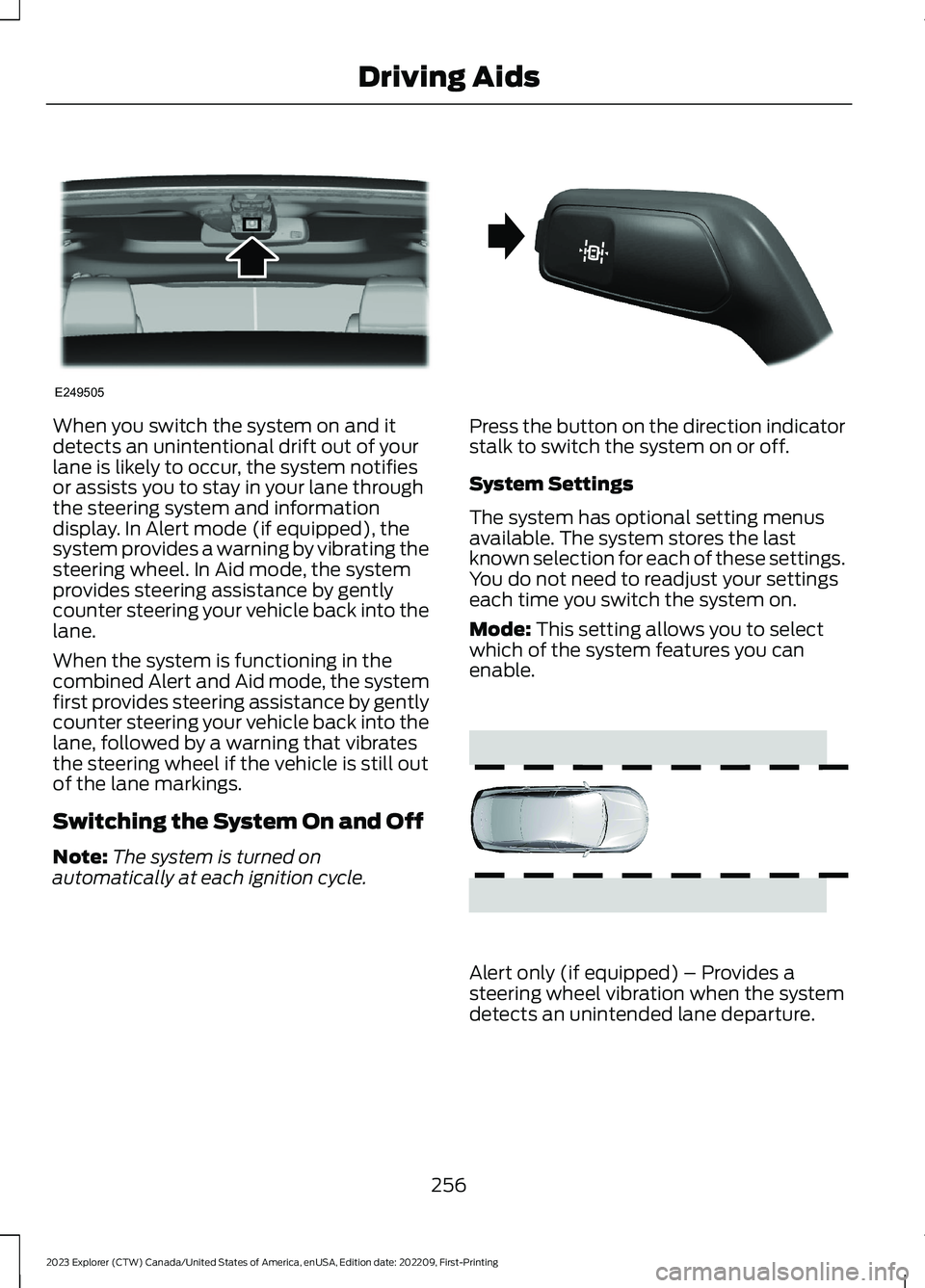
When you switch the system on and itdetects an unintentional drift out of yourlane is likely to occur, the system notifiesor assists you to stay in your lane throughthe steering system and informationdisplay. In Alert mode (if equipped), thesystem provides a warning by vibrating thesteering wheel. In Aid mode, the systemprovides steering assistance by gentlycounter steering your vehicle back into thelane.
When the system is functioning in thecombined Alert and Aid mode, the systemfirst provides steering assistance by gentlycounter steering your vehicle back into thelane, followed by a warning that vibratesthe steering wheel if the vehicle is still outof the lane markings.
Switching the System On and Off
Note:The system is turned onautomatically at each ignition cycle.
Press the button on the direction indicatorstalk to switch the system on or off.
System Settings
The system has optional setting menusavailable. The system stores the lastknown selection for each of these settings.You do not need to readjust your settingseach time you switch the system on.
Mode: This setting allows you to selectwhich of the system features you canenable.
Alert only (if equipped) – Provides asteering wheel vibration when the systemdetects an unintended lane departure.
256
2023 Explorer (CTW) Canada/United States of America, enUSA, Edition date: 202209, First-PrintingDriving AidsE249505 E288067 E165515
Page 261 of 573
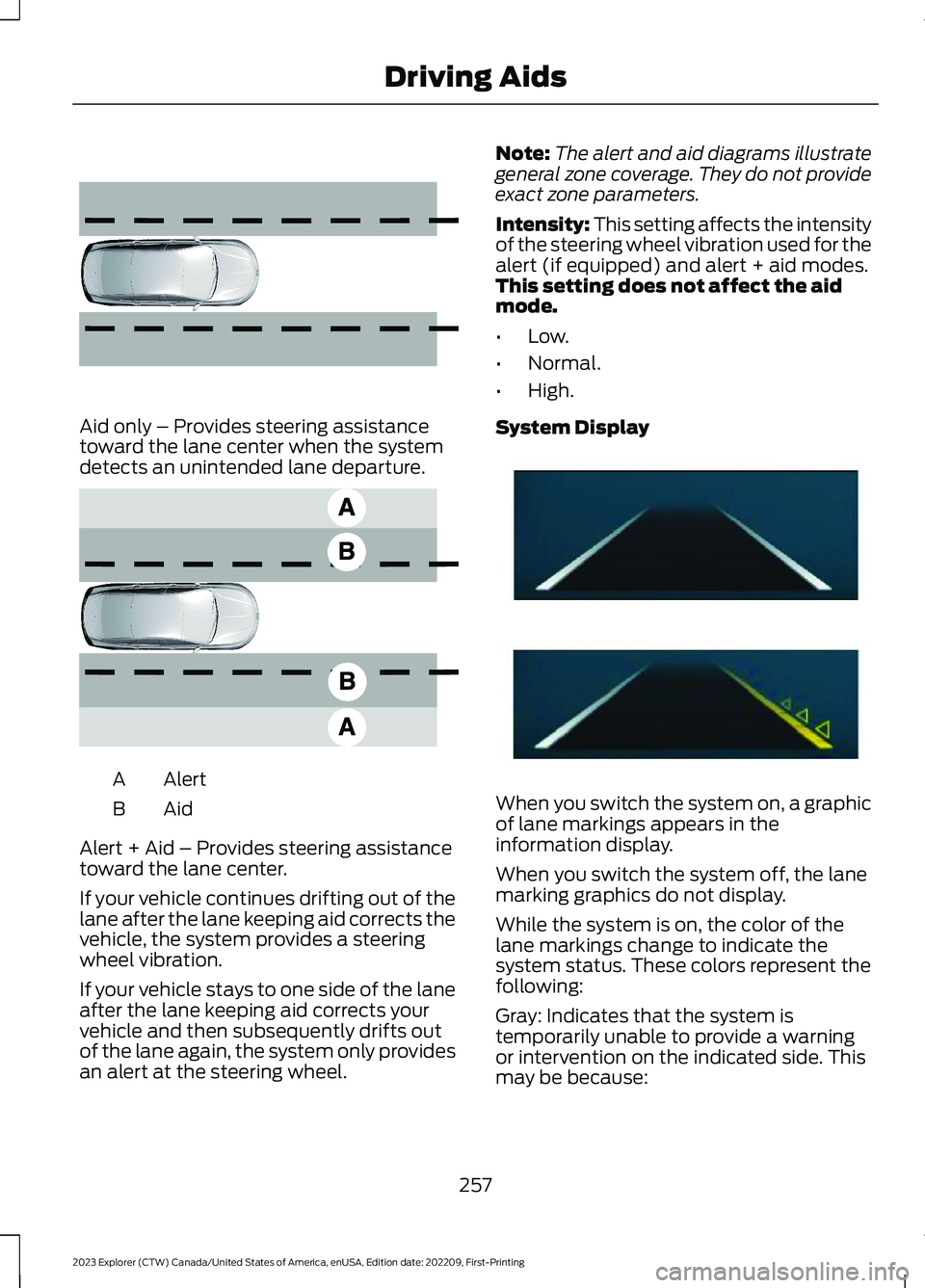
Aid only – Provides steering assistancetoward the lane center when the systemdetects an unintended lane departure.
AlertA
AidB
Alert + Aid – Provides steering assistancetoward the lane center.
If your vehicle continues drifting out of thelane after the lane keeping aid corrects thevehicle, the system provides a steeringwheel vibration.
If your vehicle stays to one side of the laneafter the lane keeping aid corrects yourvehicle and then subsequently drifts outof the lane again, the system only providesan alert at the steering wheel.
Note:The alert and aid diagrams illustrategeneral zone coverage. They do not provideexact zone parameters.
Intensity: This setting affects the intensityof the steering wheel vibration used for thealert (if equipped) and alert + aid modes.This setting does not affect the aidmode.
•Low.
•Normal.
•High.
System Display
When you switch the system on, a graphicof lane markings appears in theinformation display.
When you switch the system off, the lanemarking graphics do not display.
While the system is on, the color of thelane markings change to indicate thesystem status. These colors represent thefollowing:
Gray: Indicates that the system istemporarily unable to provide a warningor intervention on the indicated side. Thismay be because:
257
2023 Explorer (CTW) Canada/United States of America, enUSA, Edition date: 202209, First-PrintingDriving Aids E165516 E165517 E294544
Page 274 of 573

Note:Brake support and active braking areactive at speeds up to 75 mph (120 km/h).If your vehicle has a radar sensor includedwith adaptive cruise control, then brakesupport and active braking are active up tothe maximum speed of the vehicle.
Note:If you perceive pre-collision assistalerts as being too frequent or disturbing,then you can reduce the alert sensitivity,though we recommend using the highestsensitivity setting where possible. Settinglower sensitivity would lead to fewer andlater system warnings.
Distance Indication and Alert (If
Equipped)
Distance indication and alert is a functionthat provides the driver with a graphicalindication of the time gap to otherpreceding vehicles traveling in the samedirection. Distance indication and alertshows one of the graphics that follow inthe information display.
If the time gap to a preceding vehicle issmall, a red visual indication displays tothe driver.
Note:Distance indication and alertdeactivates and the graphics do not displaywhen adaptive cruise control is active.
Time GapDistance GapGraphicsSensitivitySpeed
>0.9sec>82 ft (25 m)GreyNormal62 mph(100 km/h)
0.6sec —0.9sec56–82 ft(17–25 m)YellowNormal62 mph(100 km/h)
<0.6sec<56 ft (17 m)RedNormal62 mph(100 km/h)
Evasive Steering Assist (If Equipped)
If your vehicle is rapidly approaching astationary vehicle or a vehicle traveling inthe same direction as your vehicle, thesystem design helps you steer around thevehicle.
The system only activates when all of thefollowing occur:
•The system detects a vehicle aheadand starts to apply active braking.
•You turn the steering wheel in anattempt to steer around the vehicle.
270
2023 Explorer (CTW) Canada/United States of America, enUSA, Edition date: 202209, First-PrintingDriving AidsE358669
Page 275 of 573
After you turn the steering wheel, thesystem applies additional steering torqueto help you steer around the vehicle. Afteryou pass the vehicle, the system appliessteering torque in the opposite direction toencourage you to steer back into the lane.The system deactivates after you fully passthe vehicle.
Note:The system does not automaticallysteer around a vehicle. If you do not turn thesteering wheel, the system does notactivate.
Note:The system does not activate if thedistance to the vehicle ahead is too smalland the system cannot avoid a crash.
Adjusting the Pre-Collision AssistSettings
You can adjust the following settings byusing the touchscreen.
•You can change Alert and DistanceAlert sensitivity to one of three possiblesettings.
•You can switch distance indication andalert on or off.
•If required, you can switch activebraking on or off.
•If required, you can switch evasivesteering assist on or off.
Note:Active braking and evasive steeringassist automatically turn on every time youswitch the ignition on.
Note:If you switch active braking off,evasive steering assist turns off.
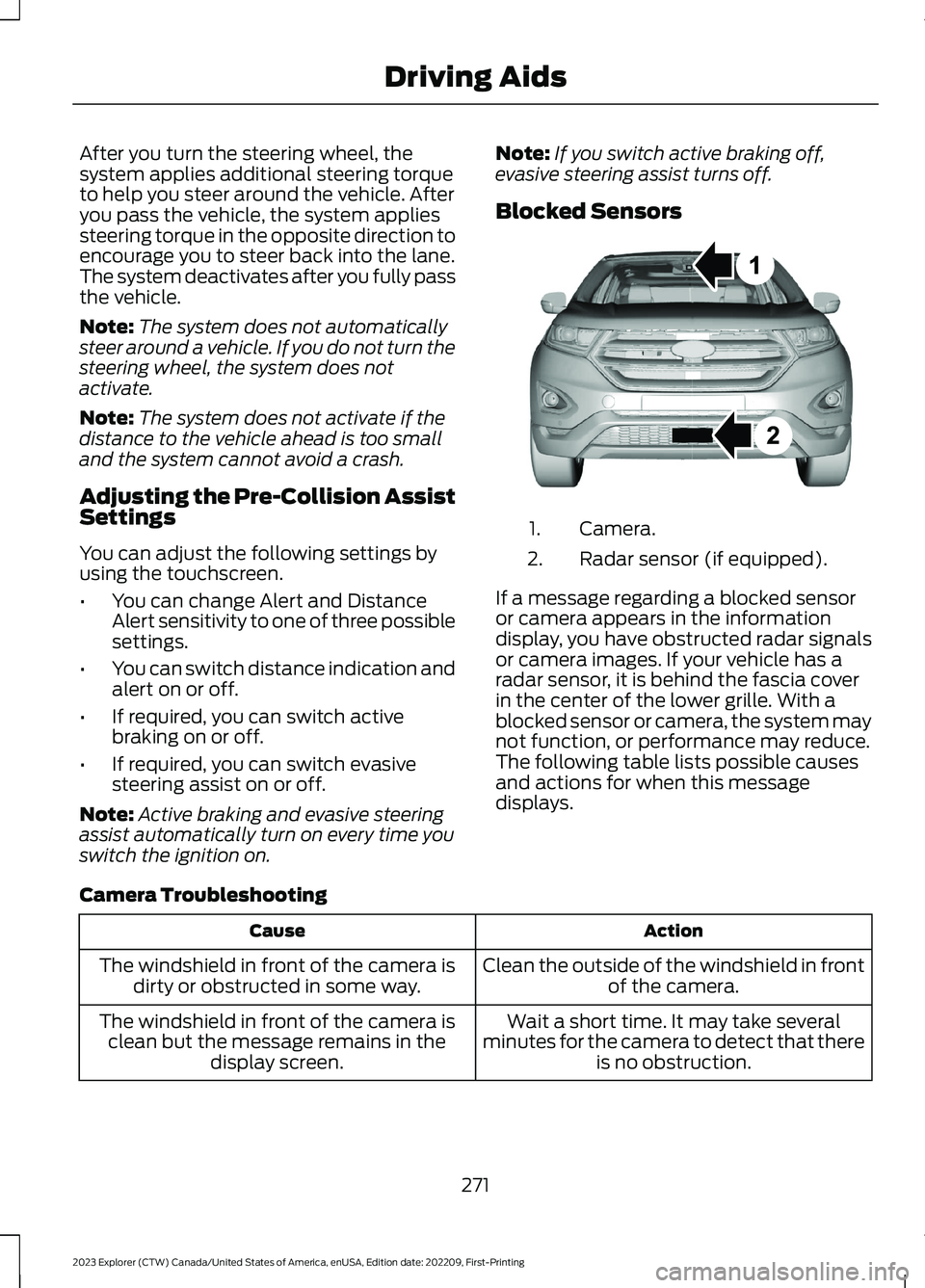
Blocked Sensors
Camera.1.
Radar sensor (if equipped).2.
If a message regarding a blocked sensoror camera appears in the informationdisplay, you have obstructed radar signalsor camera images. If your vehicle has aradar sensor, it is behind the fascia coverin the center of the lower grille. With ablocked sensor or camera, the system maynot function, or performance may reduce.The following table lists possible causesand actions for when this messagedisplays.
Camera Troubleshooting
ActionCause
Clean the outside of the windshield in frontof the camera.The windshield in front of the camera isdirty or obstructed in some way.
Wait a short time. It may take severalminutes for the camera to detect that thereis no obstruction.
The windshield in front of the camera isclean but the message remains in thedisplay screen.
271
2023 Explorer (CTW) Canada/United States of America, enUSA, Edition date: 202209, First-PrintingDriving AidsE273245
Page 277 of 573
WHAT IS DRIVE MODE
CONTROL
Your vehicle has various drive modes thatyou can select for different drivingconditions. Depending on the drive modethat you select, the system adjusts variousvehicle settings.
HOW DOES DRIVE MODE
CONTROL WORK
Selectable drive modes change variouselectronic and mechanical settings withinyour vehicle to tailor its performance anddriving characteristics to on-road oroff-road driving conditions. Steering feeland effort, traction control, stabilitycontrol, chassis control, powertrainresponse, transmission shift points andfour-wheel driveline settings alter to apre-determined setting depending uponthe drive mode that you select.
Note:Your vehicle has diagnostic checksthat continuously monitor all systems forproper operation. If a drive mode isunavailable due to a system fault, yourvehicle defaults to normal mode.
SELECTING A DRIVE MODE
Note:Drive mode changes may not beavailable when the ignition is off or whenthe engine is not running.
Note:Button icons shown may vary fromyour vehicle.
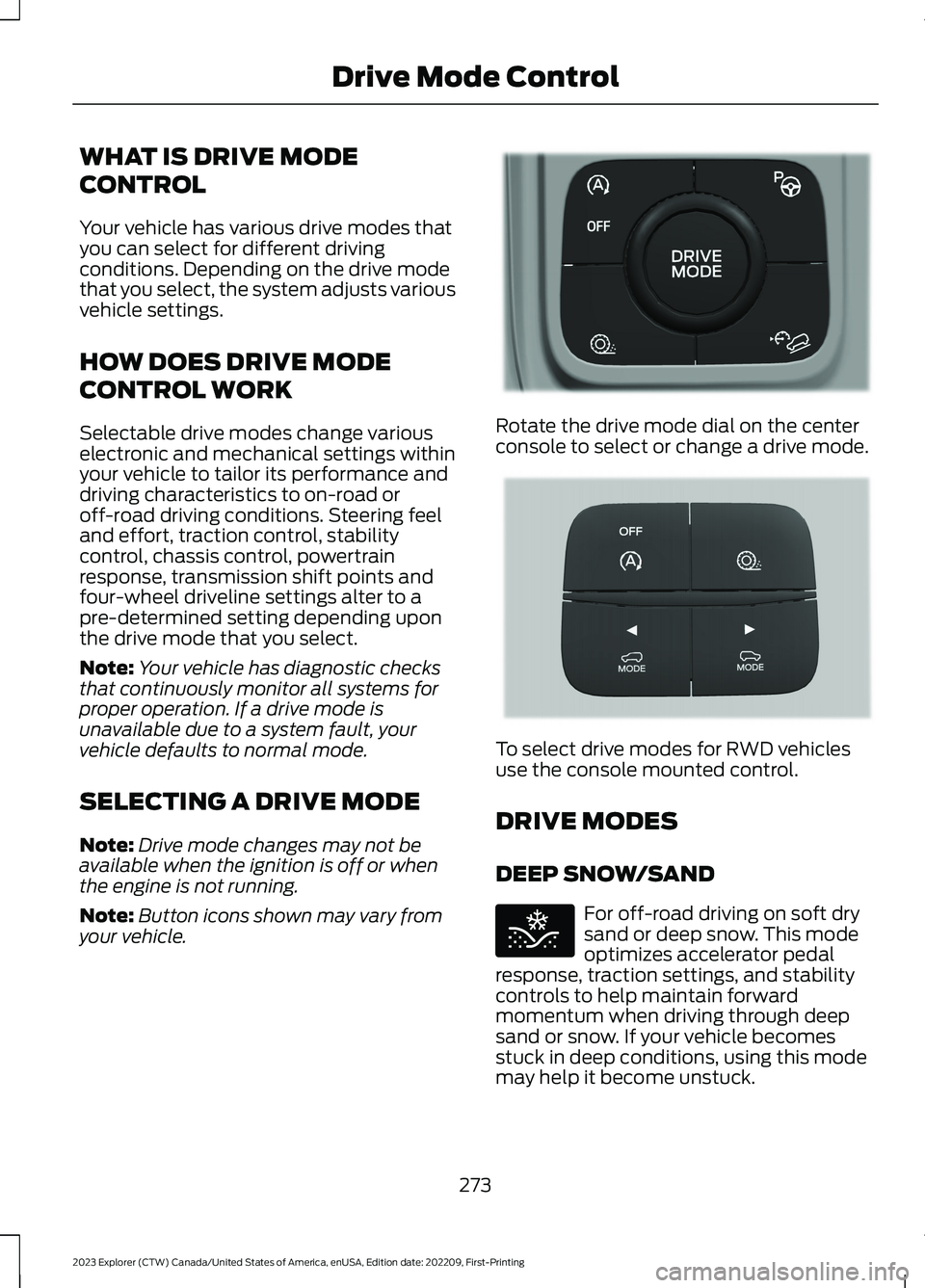
Rotate the drive mode dial on the centerconsole to select or change a drive mode.
To select drive modes for RWD vehiclesuse the console mounted control.
DRIVE MODES
DEEP SNOW/SAND
For off-road driving on soft drysand or deep snow. This modeoptimizes accelerator pedalresponse, traction settings, and stabilitycontrols to help maintain forwardmomentum when driving through deepsand or snow. If your vehicle becomesstuck in deep conditions, using this modemay help it become unstuck.
273
2023 Explorer (CTW) Canada/United States of America, enUSA, Edition date: 202209, First-PrintingDrive Mode ControlE298238 E297643 E295420
Page 278 of 573
Note:Using deep snow/sand mode on dry,hard surfaces could produce some vibration,driveline bind up, and potential excessivetire wear.
ECO
For efficient driving. This modehelps deliver maximum fuelefficiency and helps to increasedriving range.
NORMAL
For everyday driving. This modeis a perfect balance ofexcitement, comfort andconvenience. This is the default mode aftereach ignition cycle.
SLIPPERY
For less than ideal roadconditions such as snow or icecovered roads. This mode lowersthrottle response, adjusts transmissionshift points, and optimizes vehicle stabilitycontrols to help mitigate wheel spin andmaintain vehicle control when driving inwinter conditions.
Note:Using slippery mode on dry, hardsurfaces could produce some vibration,driveline bind up, and potential excessivetire wear.
SPORT
For sporty driving with improvedperformance handling andresponse. This mode increasesaccelerator pedal response, enhancessteering to provide a sportier feel, andadjusts transmission shift points for quickervehicle acceleration.
TOW/HAUL
For improved transmissionoperation when towing a traileror a heavy load. This modemoves upshifts to higher engine speeds toreduce the frequency of transmissionshifting. This mode also provides enginebraking in all forward gears, which slowsyour vehicle and assists you in controllingyour vehicle when descending a slope. Theamount of downshift braking providedvaries based on the amount you press thebrake pedal.
TRAIL
For off-road driving on muddy,rutted, soft, or uneven terrain.This mode lowers throttleresponse to enhance low speed vehiclecontrol when driving off road. Additionally,the mode optimizes traction and stabilitycontrol settings, helping the vehicle tomaintain forward momentum throughloose deformable surfaces.
274
2023 Explorer (CTW) Canada/United States of America, enUSA, Edition date: 202209, First-PrintingDrive Mode ControlE295413 E225310 E295414 E246593 E246592 E295419
Page 288 of 573
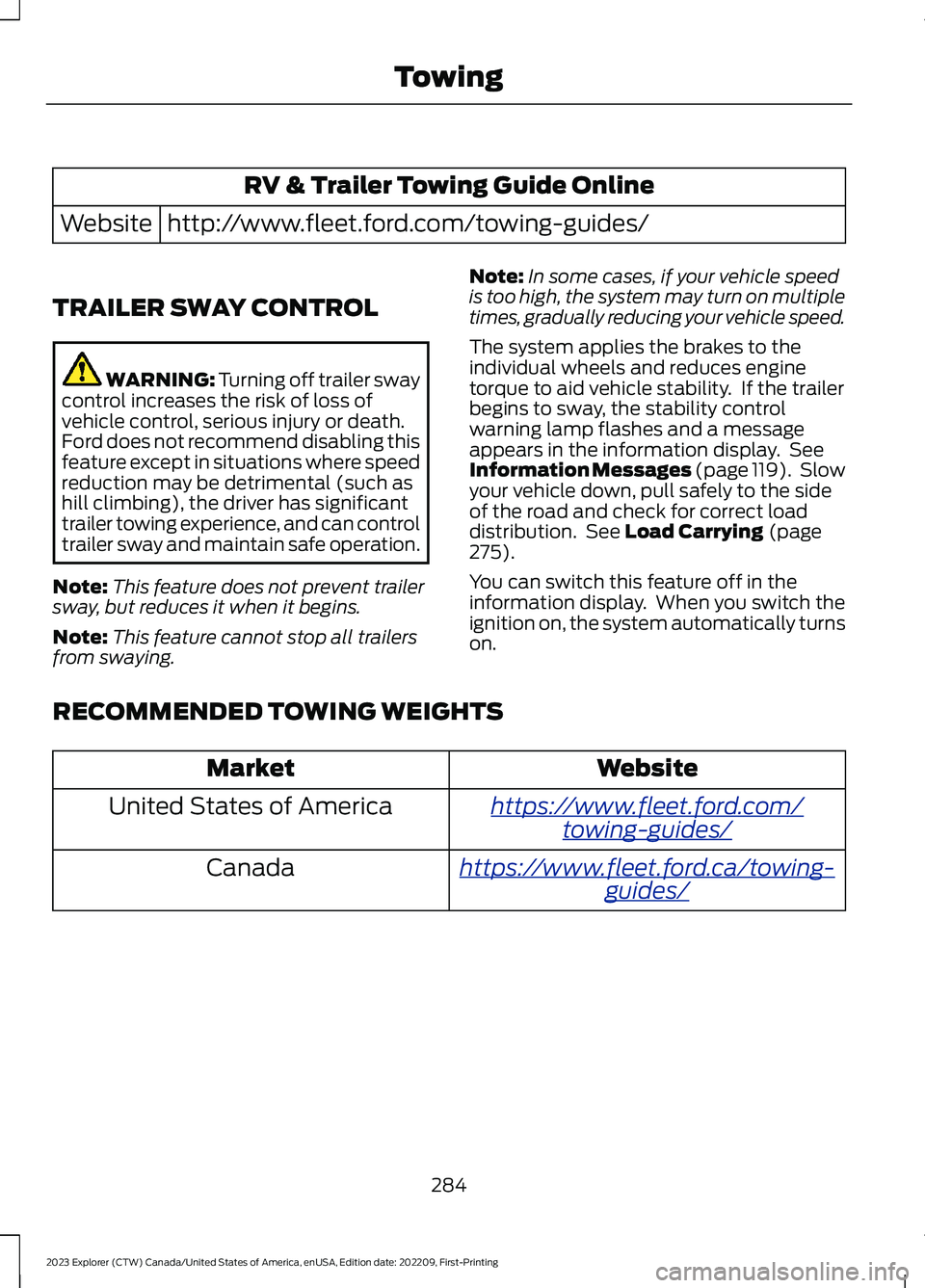
RV & Trailer Towing Guide Online
http://www.fleet.ford.com/towing-guides/Website
TRAILER SWAY CONTROL
WARNING: Turning off trailer swaycontrol increases the risk of loss ofvehicle control, serious injury or death.Ford does not recommend disabling thisfeature except in situations where speedreduction may be detrimental (such ashill climbing), the driver has significanttrailer towing experience, and can controltrailer sway and maintain safe operation.
Note:This feature does not prevent trailersway, but reduces it when it begins.
Note:This feature cannot stop all trailersfrom swaying.
Note:In some cases, if your vehicle speedis too high, the system may turn on multipletimes, gradually reducing your vehicle speed.
The system applies the brakes to theindividual wheels and reduces enginetorque to aid vehicle stability. If the trailerbegins to sway, the stability controlwarning lamp flashes and a messageappears in the information display. SeeInformation Messages (page 119). Slowyour vehicle down, pull safely to the sideof the road and check for correct loaddistribution. See Load Carrying (page275).
You can switch this feature off in theinformation display. When you switch theignition on, the system automatically turnson.
RECOMMENDED TOWING WEIGHTS
WebsiteMarket
https://www.fleet.ford.com/towing-guides/United States of America
https://www.fleet.ford.ca/towing-guides/Canada
284
2023 Explorer (CTW) Canada/United States of America, enUSA, Edition date: 202209, First-PrintingTowing