audio FORD F-150 2018 Workshop Manual
[x] Cancel search | Manufacturer: FORD, Model Year: 2018, Model line: F-150, Model: FORD F-150 2018Pages: 641, PDF Size: 8.37 MB
Page 521 of 641
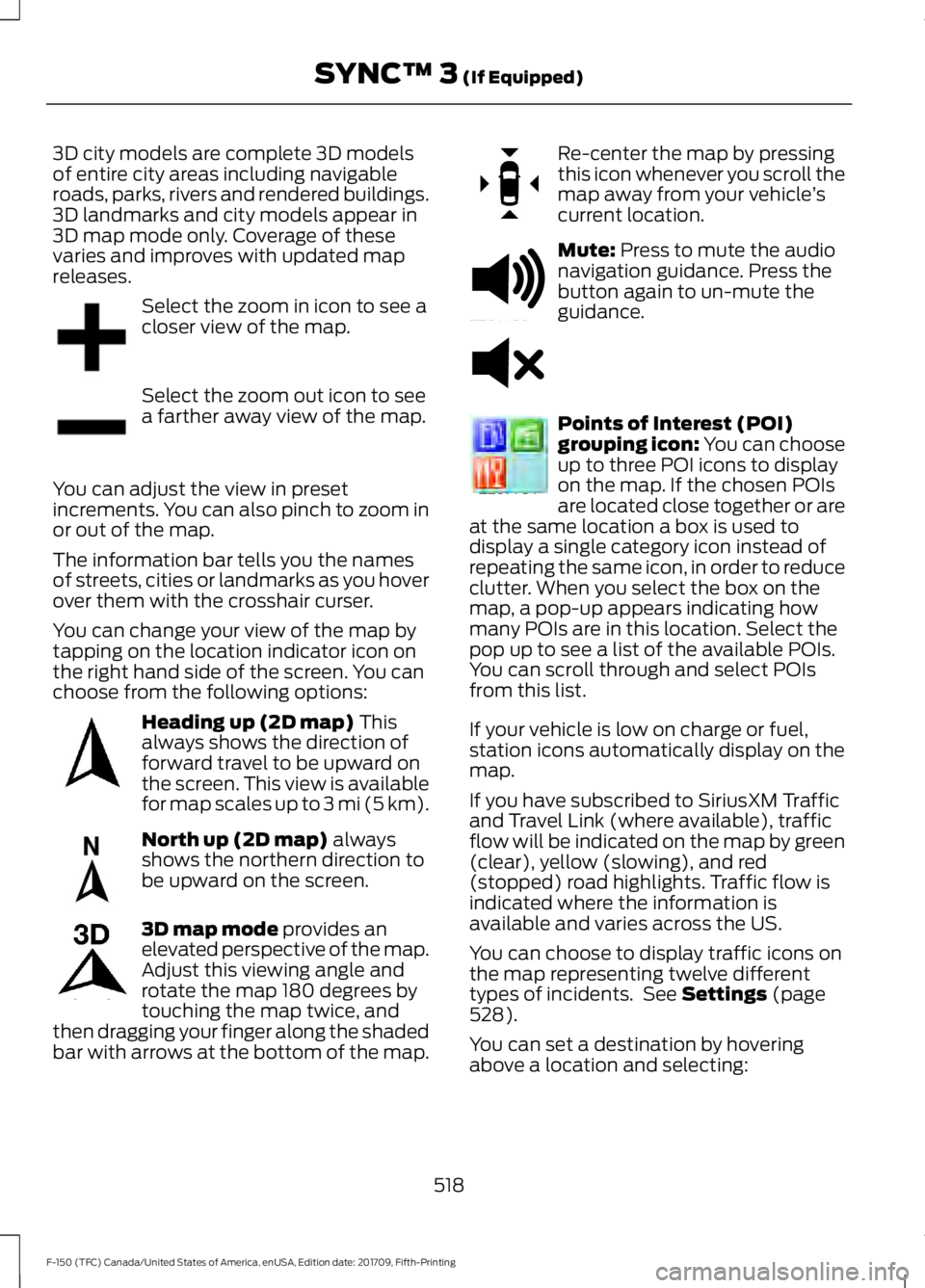
3D city models are complete 3D models
of entire city areas including navigable
roads, parks, rivers and rendered buildings.
3D landmarks and city models appear in
3D map mode only. Coverage of these
varies and improves with updated map
releases.
Select the zoom in icon to see a
closer view of the map.
Select the zoom out icon to see
a farther away view of the map.
You can adjust the view in preset
increments. You can also pinch to zoom in
or out of the map.
The information bar tells you the names
of streets, cities or landmarks as you hover
over them with the crosshair curser.
You can change your view of the map by
tapping on the location indicator icon on
the right hand side of the screen. You can
choose from the following options: Heading up (2D map) This
always shows the direction of
forward travel to be upward on
the screen. This view is available
for map scales up to
3 mi (5 km). North up (2D map)
always
shows the northern direction to
be upward on the screen. 3D map mode
provides an
elevated perspective of the map.
Adjust this viewing angle and
rotate the map 180 degrees by
touching the map twice, and
then dragging your finger along the shaded
bar with arrows at the bottom of the map. Re-center the map by pressing
this icon whenever you scroll the
map away from your vehicle
’s
current location. Mute:
Press to mute the audio
navigation guidance. Press the
button again to un-mute the
guidance. Points of Interest (POI)
grouping icon: You can choose
up to three POI icons to display
on the map. If the chosen POIs
are located close together or are
at the same location a box is used to
display a single category icon instead of
repeating the same icon, in order to reduce
clutter. When you select the box on the
map, a pop-up appears indicating how
many POIs are in this location. Select the
pop up to see a list of the available POIs.
You can scroll through and select POIs
from this list.
If your vehicle is low on charge or fuel,
station icons automatically display on the
map.
If you have subscribed to SiriusXM Traffic
and Travel Link (where available), traffic
flow will be indicated on the map by green
(clear), yellow (slowing), and red
(stopped) road highlights. Traffic flow is
indicated where the information is
available and varies across the US.
You can choose to display traffic icons on
the map representing twelve different
types of incidents. See
Settings (page
528).
You can set a destination by hovering
above a location and selecting:
518
F-150 (TFC) Canada/United States of America, enUSA, Edition date: 201709, Fifth-Printing SYNC™ 3
(If Equipped)E207752 E207753 E207750 E207749 E207748 E207751 E251780 E251779 E207754
Page 532 of 641
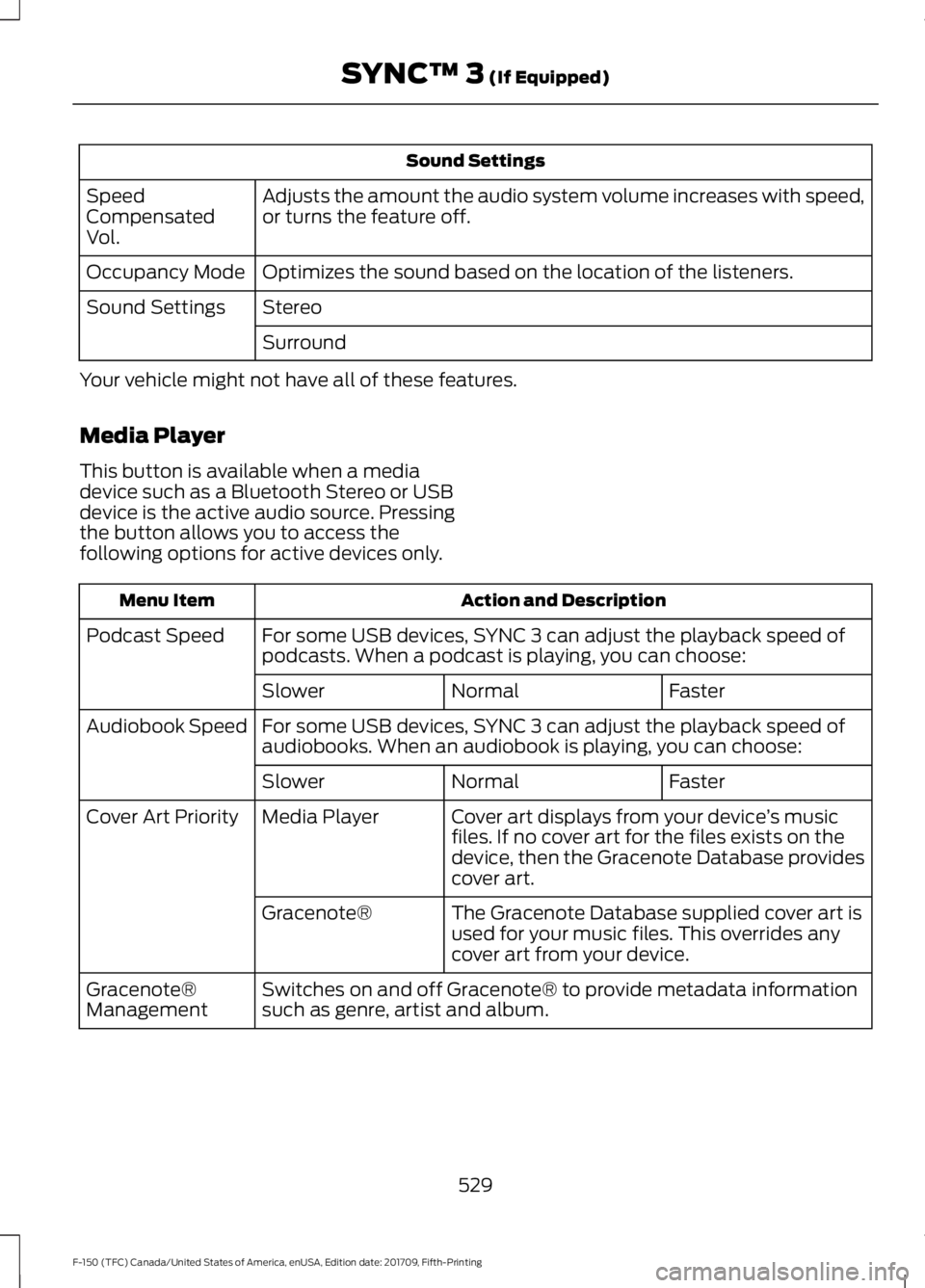
Sound Settings
Adjusts the amount the audio system volume increases with speed,
or turns the feature off.
Speed
Compensated
Vol.
Optimizes the sound based on the location of the listeners.
Occupancy Mode
Stereo
Sound Settings
Surround
Your vehicle might not have all of these features.
Media Player
This button is available when a media
device such as a Bluetooth Stereo or USB
device is the active audio source. Pressing
the button allows you to access the
following options for active devices only. Action and Description
Menu Item
For some USB devices, SYNC 3 can adjust the playback speed of
podcasts. When a podcast is playing, you can choose:
Podcast Speed
Faster
Normal
Slower
For some USB devices, SYNC 3 can adjust the playback speed of
audiobooks. When an audiobook is playing, you can choose:
Audiobook Speed
Faster
Normal
Slower
Cover art displays from your device ’s music
files. If no cover art for the files exists on the
device, then the Gracenote Database provides
cover art.
Media Player
Cover Art Priority
The Gracenote Database supplied cover art is
used for your music files. This overrides any
cover art from your device.
Gracenote®
Switches on and off Gracenote® to provide metadata information
such as genre, artist and album.
Gracenote®
Management
529
F-150 (TFC) Canada/United States of America, enUSA, Edition date: 201709, Fifth-Printing SYNC™ 3 (If Equipped)
Page 536 of 641
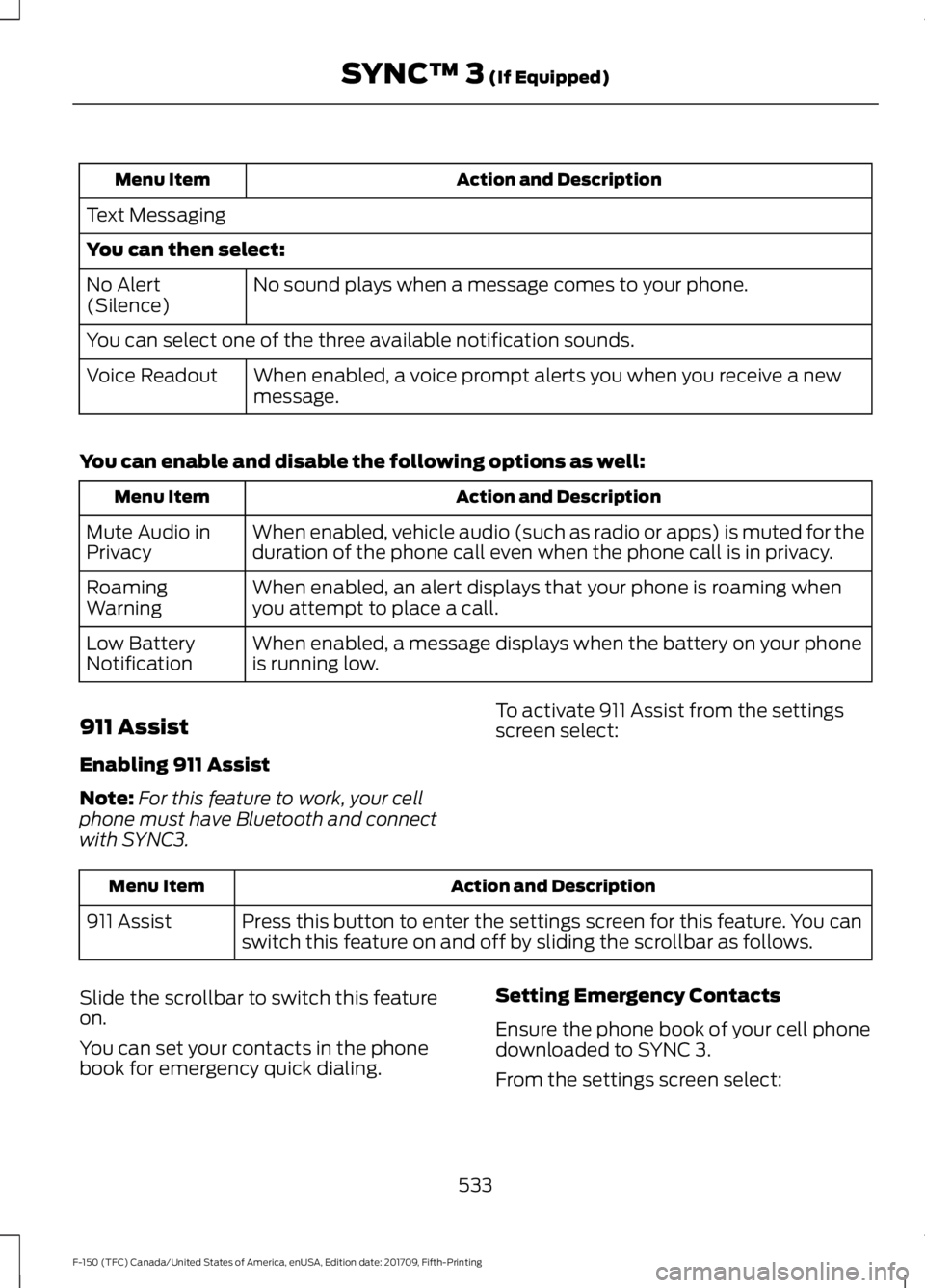
Action and Description
Menu Item
Text Messaging
You can then select: No sound plays when a message comes to your phone.
No Alert
(Silence)
You can select one of the three available notification sounds.
When enabled, a voice prompt alerts you when you receive a new
message.
Voice Readout
You can enable and disable the following options as well: Action and Description
Menu Item
When enabled, vehicle audio (such as radio or apps) is muted for the
duration of the phone call even when the phone call is in privacy.
Mute Audio in
Privacy
When enabled, an alert displays that your phone is roaming when
you attempt to place a call.
Roaming
Warning
When enabled, a message displays when the battery on your phone
is running low.
Low Battery
Notification
911 Assist
Enabling 911 Assist
Note: For this feature to work, your cell
phone must have Bluetooth and connect
with SYNC3. To activate 911 Assist from the settings
screen select: Action and Description
Menu Item
Press this button to enter the settings screen for this feature. You can
switch this feature on and off by sliding the scrollbar as follows.
911 Assist
Slide the scrollbar to switch this feature
on.
You can set your contacts in the phone
book for emergency quick dialing. Setting Emergency Contacts
Ensure the phone book of your cell phone
downloaded to SYNC 3.
From the settings screen select:
533
F-150 (TFC) Canada/United States of America, enUSA, Edition date: 201709, Fifth-Printing SYNC™ 3 (If Equipped)
Page 538 of 641
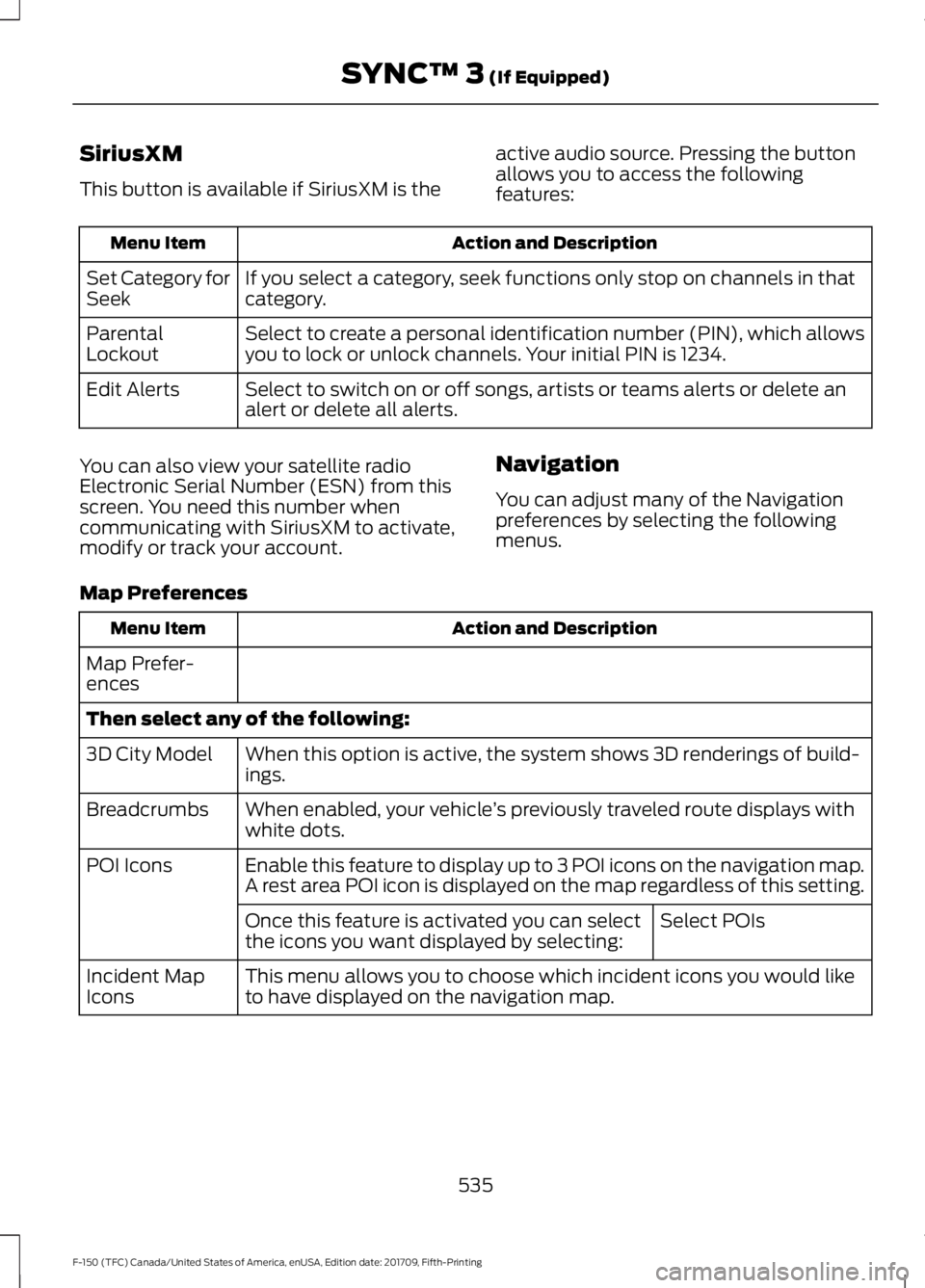
SiriusXM
This button is available if SiriusXM is the
active audio source. Pressing the button
allows you to access the following
features: Action and Description
Menu Item
If you select a category, seek functions only stop on channels in that
category.
Set Category for
Seek
Select to create a personal identification number (PIN), which allows
you to lock or unlock channels. Your initial PIN is 1234.
Parental
Lockout
Select to switch on or off songs, artists or teams alerts or delete an
alert or delete all alerts.
Edit Alerts
You can also view your satellite radio
Electronic Serial Number (ESN) from this
screen. You need this number when
communicating with SiriusXM to activate,
modify or track your account. Navigation
You can adjust many of the Navigation
preferences by selecting the following
menus.
Map Preferences Action and Description
Menu Item
Map Prefer-
ences
Then select any of the following: When this option is active, the system shows 3D renderings of build-
ings.
3D City Model
When enabled, your vehicle ’s previously traveled route displays with
white dots.
Breadcrumbs
Enable this feature to display up to 3 POI icons on the navigation map.
A rest area POI icon is displayed on the map regardless of this setting.
POI Icons
Select POIs
Once this feature is activated you can select
the icons you want displayed by selecting:
This menu allows you to choose which incident icons you would like
to have displayed on the navigation map.
Incident Map
Icons
535
F-150 (TFC) Canada/United States of America, enUSA, Edition date: 201709, Fifth-Printing SYNC™ 3 (If Equipped)
Page 546 of 641
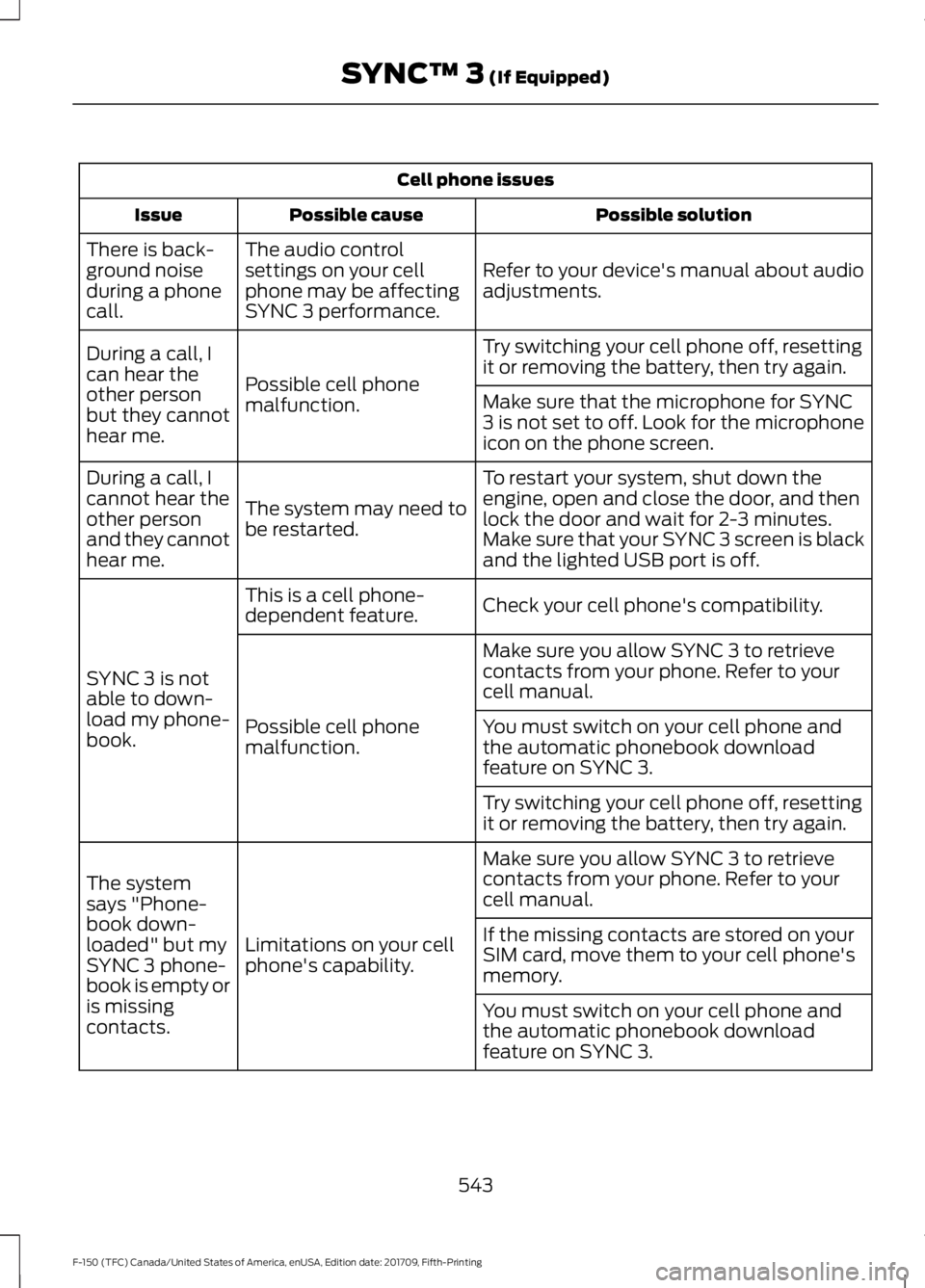
Cell phone issues
Possible solution
Possible cause
Issue
Refer to your device's manual about audio
adjustments.
The audio control
settings on your cell
phone may be affecting
SYNC 3 performance.
There is back-
ground noise
during a phone
call.
Try switching your cell phone off, resetting
it or removing the battery, then try again.
Possible cell phone
malfunction.
During a call, I
can hear the
other person
but they cannot
hear me.
Make sure that the microphone for SYNC
3 is not set to off. Look for the microphone
icon on the phone screen.
To restart your system, shut down the
engine, open and close the door, and then
lock the door and wait for 2-3 minutes.
Make sure that your SYNC 3 screen is black
and the lighted USB port is off.
The system may need to
be restarted.
During a call, I
cannot hear the
other person
and they cannot
hear me.
Check your cell phone's compatibility.
This is a cell phone-
dependent feature.
SYNC 3 is not
able to down-
load my phone-
book. Make sure you allow SYNC 3 to retrieve
contacts from your phone. Refer to your
cell manual.
Possible cell phone
malfunction. You must switch on your cell phone and
the automatic phonebook download
feature on SYNC 3.
Try switching your cell phone off, resetting
it or removing the battery, then try again.
Make sure you allow SYNC 3 to retrieve
contacts from your phone. Refer to your
cell manual.
Limitations on your cell
phone's capability.
The system
says "Phone-
book down-
loaded" but my
SYNC 3 phone-
book is empty or
is missing
contacts. If the missing contacts are stored on your
SIM card, move them to your cell phone's
memory.
You must switch on your cell phone and
the automatic phonebook download
feature on SYNC 3.
543
F-150 (TFC) Canada/United States of America, enUSA, Edition date: 201709, Fifth-Printing SYNC™ 3 (If Equipped)
Page 548 of 641
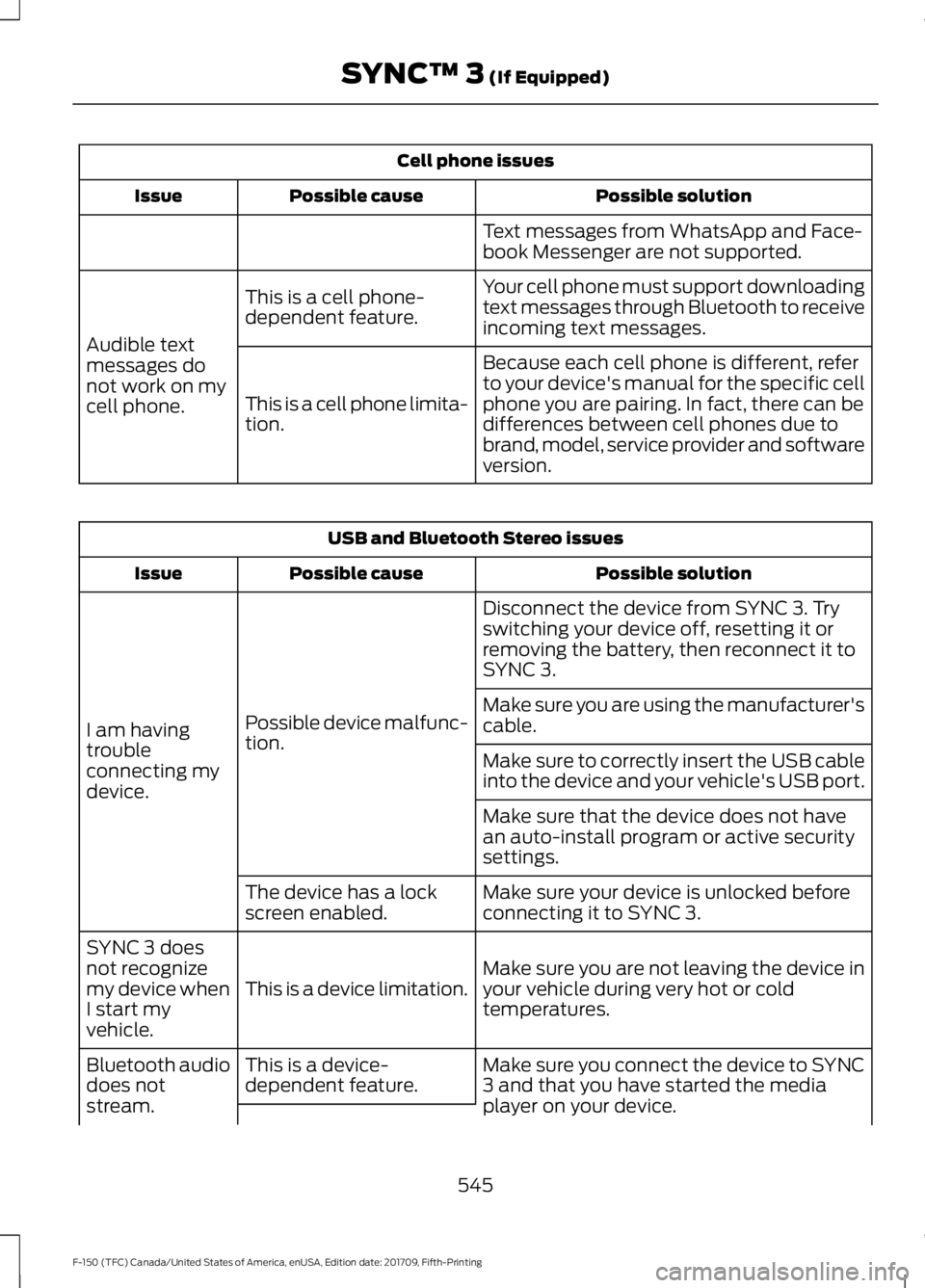
Cell phone issues
Possible solution
Possible cause
Issue
Text messages from WhatsApp and Face-
book Messenger are not supported.
Your cell phone must support downloading
text messages through Bluetooth to receive
incoming text messages.
This is a cell phone-
dependent feature.
Audible text
messages do
not work on my
cell phone. Because each cell phone is different, refer
to your device's manual for the specific cell
phone you are pairing. In fact, there can be
differences between cell phones due to
brand, model, service provider and software
version.
This is a cell phone limita-
tion. USB and Bluetooth Stereo issues
Possible solution
Possible cause
Issue
Disconnect the device from SYNC 3. Try
switching your device off, resetting it or
removing the battery, then reconnect it to
SYNC 3.
Possible device malfunc-
tion.
I am having
trouble
connecting my
device. Make sure you are using the manufacturer's
cable.
Make sure to correctly insert the USB cable
into the device and your vehicle's USB port.
Make sure that the device does not have
an auto-install program or active security
settings.
Make sure your device is unlocked before
connecting it to SYNC 3.
The device has a lock
screen enabled.
Make sure you are not leaving the device in
your vehicle during very hot or cold
temperatures.
This is a device limitation.
SYNC 3 does
not recognize
my device when
I start my
vehicle.
Make sure you connect the device to SYNC
3 and that you have started the media
player on your device.
This is a device-
dependent feature.
Bluetooth audio
does not
stream.
545
F-150 (TFC) Canada/United States of America, enUSA, Edition date: 201709, Fifth-Printing SYNC™ 3 (If Equipped)
Page 554 of 641
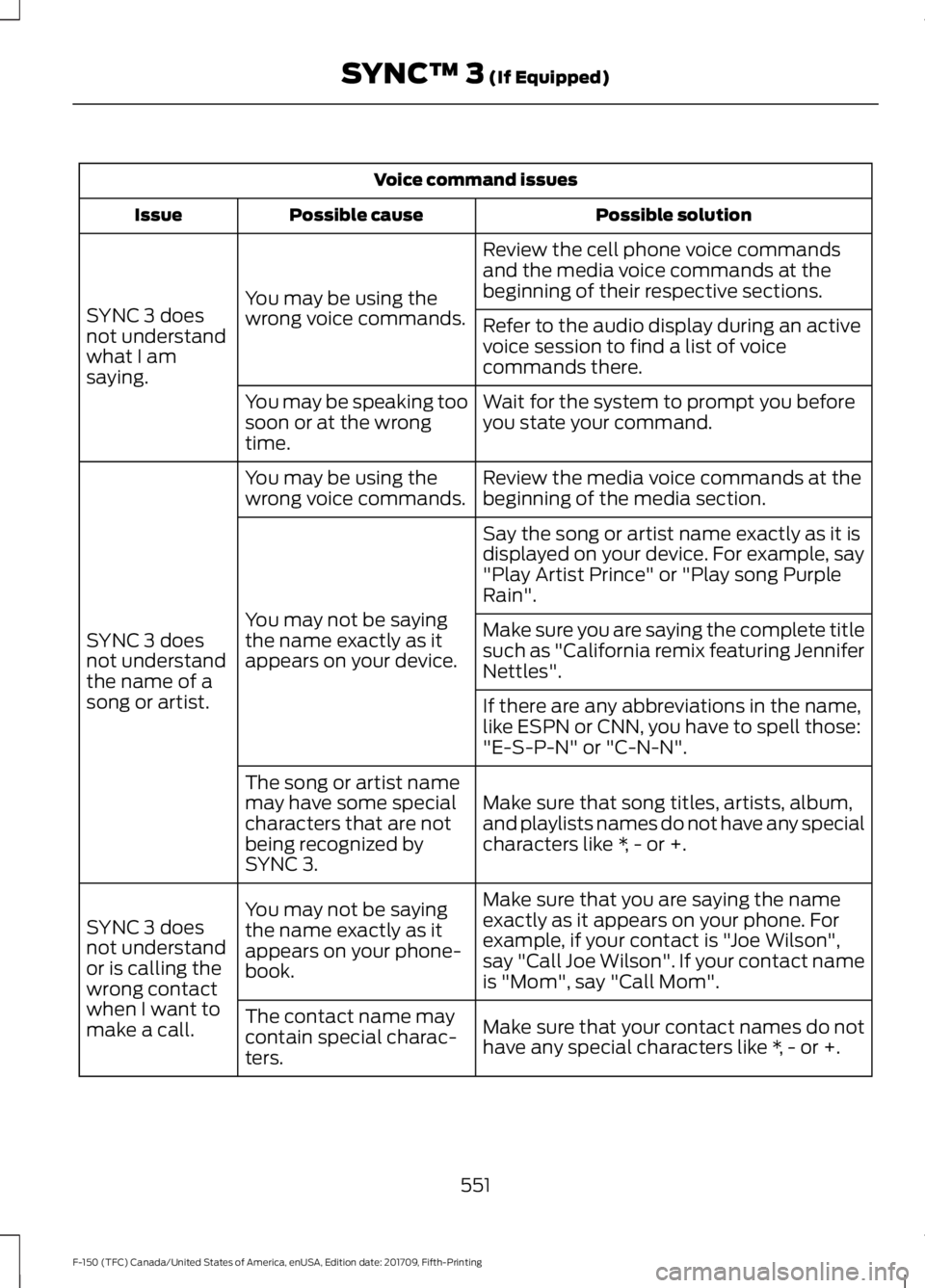
Voice command issues
Possible solution
Possible cause
Issue
Review the cell phone voice commands
and the media voice commands at the
beginning of their respective sections.
You may be using the
wrong voice commands.
SYNC 3 does
not understand
what I am
saying. Refer to the audio display during an active
voice session to find a list of voice
commands there.
Wait for the system to prompt you before
you state your command.
You may be speaking too
soon or at the wrong
time.
Review the media voice commands at the
beginning of the media section.
You may be using the
wrong voice commands.
SYNC 3 does
not understand
the name of a
song or artist. Say the song or artist name exactly as it is
displayed on your device. For example, say
"Play Artist Prince" or "Play song Purple
Rain".
You may not be saying
the name exactly as it
appears on your device. Make sure you are saying the complete title
such as "California remix featuring Jennifer
Nettles".
If there are any abbreviations in the name,
like ESPN or CNN, you have to spell those:
"E-S-P-N" or "C-N-N".
Make sure that song titles, artists, album,
and playlists names do not have any special
characters like *, - or +.
The song or artist name
may have some special
characters that are not
being recognized by
SYNC 3.
Make sure that you are saying the name
exactly as it appears on your phone. For
example, if your contact is "Joe Wilson",
say "Call Joe Wilson". If your contact name
is "Mom", say "Call Mom".
You may not be saying
the name exactly as it
appears on your phone-
book.
SYNC 3 does
not understand
or is calling the
wrong contact
when I want to
make a call.
Make sure that your contact names do not
have any special characters like *, - or +.
The contact name may
contain special charac-
ters.
551
F-150 (TFC) Canada/United States of America, enUSA, Edition date: 201709, Fifth-Printing SYNC™ 3 (If Equipped)
Page 558 of 641
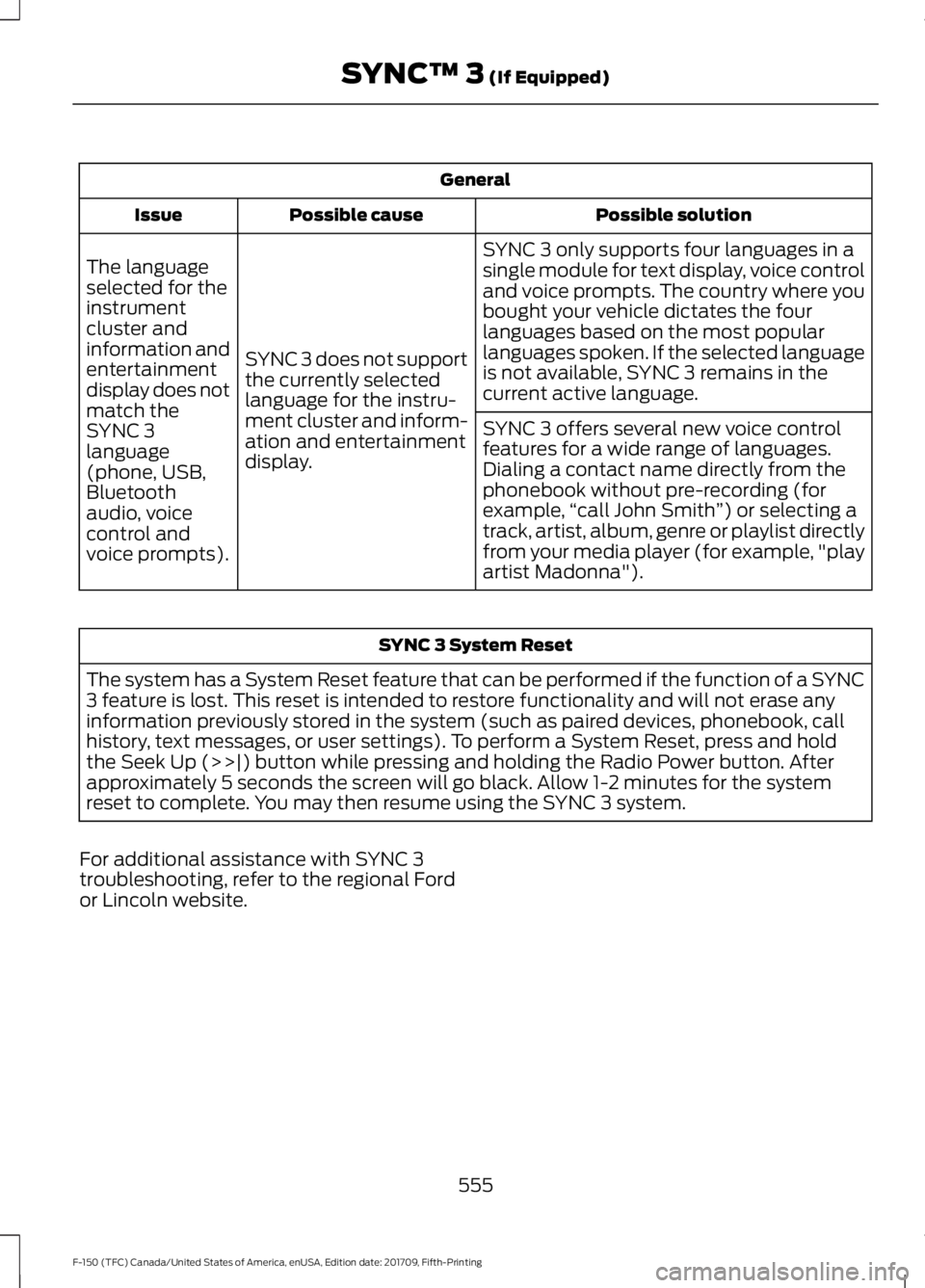
General
Possible solution
Possible cause
Issue
SYNC 3 only supports four languages in a
single module for text display, voice control
and voice prompts. The country where you
bought your vehicle dictates the four
languages based on the most popular
languages spoken. If the selected language
is not available, SYNC 3 remains in the
current active language.
SYNC 3 does not support
the currently selected
language for the instru-
ment cluster and inform-
ation and entertainment
display.
The language
selected for the
instrument
cluster and
information and
entertainment
display does not
match the
SYNC 3
SYNC 3 offers several new voice control
features for a wide range of languages.
Dialing a contact name directly from the
phonebook without pre-recording (for
example,
“call John Smith ”) or selecting a
track, artist, album, genre or playlist directly
from your media player (for example, "play
artist Madonna").
language
(phone, USB,
Bluetooth
audio, voice
control and
voice prompts). SYNC 3 System Reset
The system has a System Reset feature that can be performed if the function of a SYNC
3 feature is lost. This reset is intended to restore functionality and will not erase any
information previously stored in the system (such as paired devices, phonebook, call
history, text messages, or user settings). To perform a System Reset, press and hold
the Seek Up (>>|) button while pressing and holding the Radio Power button. After
approximately 5 seconds the screen will go black. Allow 1-2 minutes for the system
reset to complete. You may then resume using the SYNC 3 system.
For additional assistance with SYNC 3
troubleshooting, refer to the regional Ford
or Lincoln website.
555
F-150 (TFC) Canada/United States of America, enUSA, Edition date: 201709, Fifth-Printing SYNC™ 3 (If Equipped)
Page 559 of 641
For a complete listing of the accessories
that are available for your vehicle, please
contact your authorized dealer or visit the
online store web site:
Web Address (United States)
www.Accessories.Ford.com Web Address (Canada)
www.Accessories.Ford.ca
Ford Accessories are available for your
vehicle through an authorized Ford dealer.
Ford Motor Company will repair or replace
any properly authorized dealer-installed
Ford Original Accessory found to be
defective in factory-supplied materials or
workmanship during the warranty period,
as well as any component damaged by the
defective accessories.
Ford Motor Company will warrant your
Ford Original Accessory through the
warranty that provides the greatest
benefit:
• 24 months, unlimited mileage.
• The remainder of your new vehicle
limited warranty.
Contact an authorized dealer for details
and a copy of the warranty.
Exterior Style
• Bed rails.
• Chrome exhaust tips.
• Custom graphics*.
• Door sills*.
• Fender flares*.
• Fog lamps*.
• Hood deflector.
• Running boards.
• Side window deflectors*. •
Splash guards.
• Tailgate dampener.
• Tow hooks.
• Trailer tow mirrors.
• Trim kits.
Interior Style
• Ambient lighting.
• Floor mats.
• Premium floor liners.
Lifestyle
• Audio upgrade*.
• Bed divider.
• Bed extender.
• Bed lighting.
• Bedliners and bedmats.
• Bed ramps.
• Bed side step.
• Ford Telematics ™*.
• Hitch balls and towbars.
• Interior cargo organization and
management.
• In-vehicle safe*.
• Racks and carriers*.
• Rear-seat entertainment*.
• Smoker's package.
• Sportliner cargo liner*.
• Tablet cradle*
• Tonneau/Bed cover*.
• Trailer brake controller.
• Trailer hitches, wiring harnesses and
accessories.
• Truck bed camping tent*.
• Truck bed cargo organization and
management.
• Wireless charging*.
556
F-150 (TFC) Canada/United States of America, enUSA, Edition date: 201709, Fifth-Printing Accessories
Page 593 of 641
UPGRADES AND RECOVERY MEDIA:
If the SOFTWARE is provided by FORD
MOTOR COMPANY separate from the
DEVICES on media such as a ROM chip,
CD ROM disk(s) or via web download or
other means, and is labeled "For Upgrade
Purposes Only" or "For Recovery Purposes
Only" you may install one (1) copy of such
SOFTWARE onto the DEVICES as a
replacement copy for the existing
SOFTWARE, and use it in accordance with
this EULA, including any additional EULA
terms accompanying the upgrade
SOFTWARE.
INTELLECTUAL PROPERTY RIGHTS:
All title and intellectual property rights in
and to the SOFTWARE (including but not
limited to any images, photographs,
animations, video, audio, music, text and
"applets" incorporated into the
SOFTWARE), the accompanying printed
materials, and any copies of the
SOFTWARE, are owned by FORD MOTOR
COMPANY, or its affiliates or suppliers. The
SOFTWARE is licensed, not sold. You may
not copy the printed materials
accompanying the SOFTWARE. All title
and intellectual property rights in and to
the content which may be accessed
through use of the SOFTWARE is the
property of the respective content owner
and may be protected by applicable
copyright or other intellectual property
laws and treaties. This EULA grants you no
rights to use such content outside its
intended use. All rights not specifically
granted under this EULA are reserved by
FORD MOTOR COMPANY, its affiliates,
and third party software and service
providers and suppliers. Use of any on-line
services which may be accessed through
the SOFTWARE may be governed by the
respective terms of use relating to such
services. If this SOFTWARE contains
documentation that is provided only in
electronic form, you may print one copy of
such electronic documentation.
EXPORT RESTRICTIONS: You
acknowledge that the SOFTWARE is
subject to U.S. and European Union export
jurisdiction. You agree to comply with all
applicable international and national laws
that apply to the SOFTWARE, including
the U.S. Export Administration Regulations,
as well as end-user, end-use and
destination restrictions issued by U.S. and
other governments.
TRADEMARKS: This EULA does not grant
you any rights in connection with any
trademarks or service marks of FORD
MOTOR COMPANY, its affiliates, and third
party software and service providers.
PRODUCT SUPPORT:
Please refer to
FORD MOTOR COMPANY instructions
provided in the documentation for the
DEVICES product support, such as the
vehicle owner guide.
Should you have any questions concerning
this EULA, or if you desire to contact FORD
MOTOR COMPANY for any other reason,
please refer to the address provided in the
documentation for the DEVICES.
No Liability for Certain Damages:
EXCEPT AS PROHIBITED BY LAW, FORD
MOTOR COMPANY, ANY THIRD PARTY
SOFTWARE OR SERVICES SUPPLIERS,
AND THEIR AFFILIATES SHALL HAVE NO
LIABILITY FOR ANY INDIRECT, SPECIAL,
CONSEQUENTIAL OR INCIDENTAL
DAMAGES ARISING FROM OR IN
CONNECTION WITH THE USE OR
PERFORMANCE OF THE SOFTWARE. THIS
LIMITATION SHALL APPLY EVEN IF ANY
REMEDY FAILS OF ITS ESSENTIAL
PURPOSE. THERE ARE NO WARRANTIES
OTHER THAN THOSE THAT MAY BE
EXPRESSLY PROVIDED FOR YOUR NEW
VEHICLE.
590
F-150 (TFC) Canada/United States of America, enUSA, Edition date: 201709, Fifth-Printing Appendices