instrument cluster FORD F-450 2022 Workshop Manual
[x] Cancel search | Manufacturer: FORD, Model Year: 2022, Model line: F-450, Model: FORD F-450 2022Pages: 740, PDF Size: 12.6 MB
Page 328 of 740
Website
Market
ht tp s:/ /
www .fl e e t.f or d . c om/
t o wing-g uide s/United States of
America
ht tp s:/ /
www .fl e e t.f or d . c a/
t o wing-g uide s/Canada
FIFTH-WHEEL TRAILER HITCH
Your vehicle has a fifth-wheel prep
package. This package enables your
vehicle to accept certain fifth-wheel trailer
hitches and gooseneck ball hitches. The
fifth-wheel trailer hitch attaches to the four
mounting pads in the pick-up bed. A 7-pin
trailer wiring connector could be in the bed
as well. The gooseneck ball hitch is a
separate mounting pad from the
fifth-wheel hitch in the center of the bed.
Shorter pick-up boxes provide less
clearance between the cab and the
fifth-wheel and gooseneck trailer
compared to longer box pick-ups. When
selecting a trailer and tow vehicle, it is
critical to check that this combination
provides clearance between the front of
the trailer and tow vehicle for turns up to
90°. Failure to follow this recommendation
could result in the trailer contacting the
cab of the tow vehicle during tight turns
that are typical during low-speed parking
and turning maneuvers. This contact could
result in damage to the trailer and tow
vehicle.
Note: Contact an authorized dealer to
purchase gooseneck and fifth-wheel hitches
that are compatible with your vehicle.
Note: The mounting pads in the bed are
specifically designed for certain fifth-wheel
trailer hitches and gooseneck ball hitches.
Do not use these mounting pads for other
purposes. CONNECTING A TRAILER
Recognizing a Trailer
1.
Attach the trailer and wiring connector
to your vehicle.
2. Switch on your vehicle.
3. Set up a profile for the trailer using the
instrument cluster display.
Note: If your vehicle does not recognize the
trailer, press and hold the brake pedal for a
few seconds.
Note: Trailer profiles store trailer types,
dimensions, preferences, trailer specific
mileage and fuel economy.
Note: Disabling the trailer detection
notification makes the default trailer profile
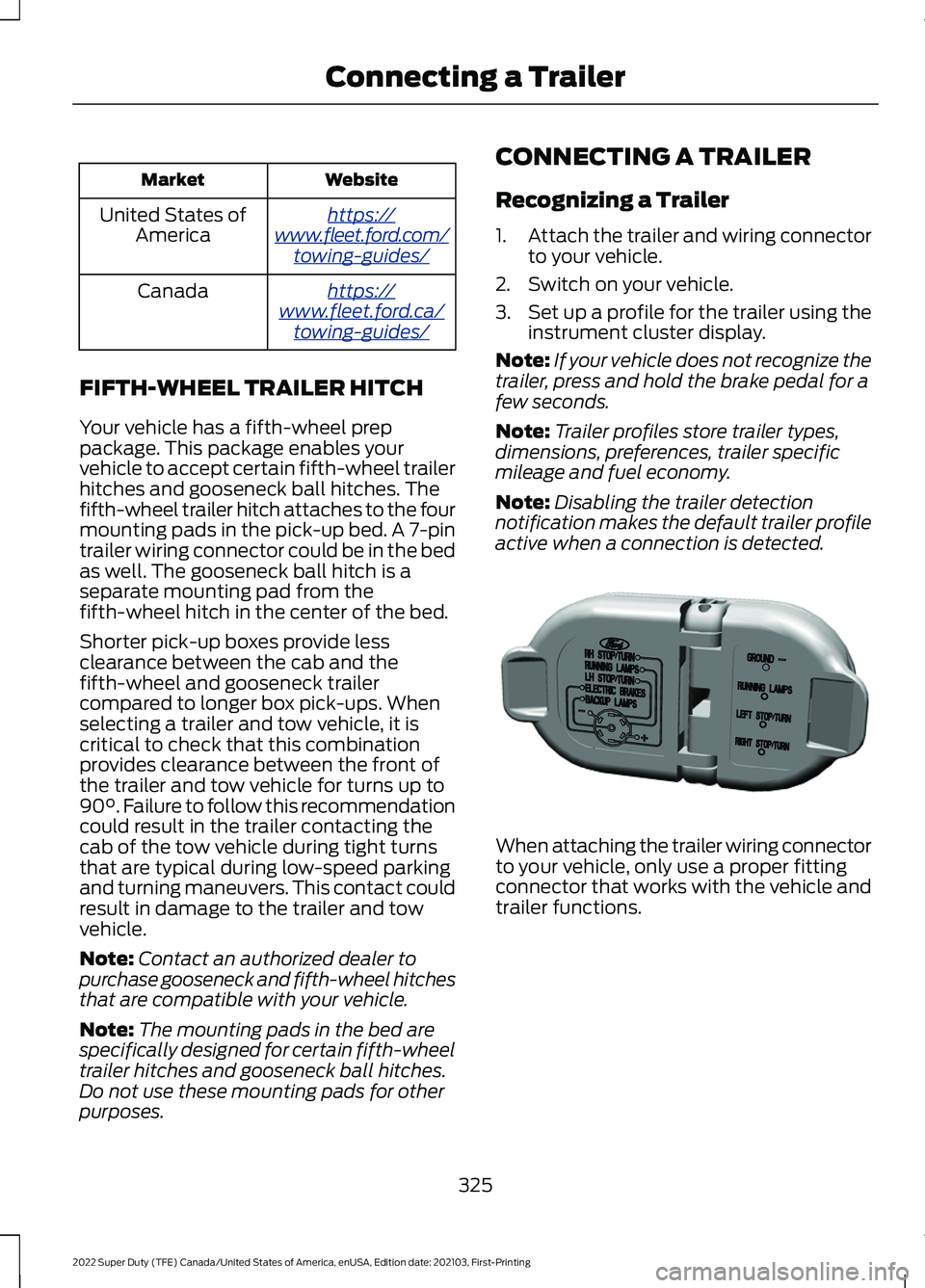
active when a connection is detected. When attaching the trailer wiring connector
to your vehicle, only use a proper fitting
connector that works with the vehicle and
trailer functions.
325
2022 Super Duty (TFE) Canada/United States of America, enUSA, Edition date: 202103, First-Printing Connecting a TrailerE163167
Page 338 of 740
6. If the trailer wheels lock up, indicated
by squealing tires, reduce the gain
setting. If the trailer wheels turn freely,
increase the gain setting. Repeat Steps
5 and 6 until the gain setting is at a
point just below trailer wheel lock-up.
If towing a heavier trailer, trailer wheel
lock-up may not be attainable even
with the maximum gain setting of 10.
Note: Only perform this procedure at
speeds of approximately 20– 25 mph
(30–40 km/h).
Note: The trailer brake controller reduces
output at vehicle speeds below
11 mph
(18 km/h) so that trailer and vehicle braking
is not jerky or harsh. This feature is only
available when applying the brakes using
your vehicle's brake pedal, not the
controller.
Note: Your vehicle's brake system and the
trailer brake system work independently of
each other. Changing the gain setting on the
controller does not affect the operation of
your vehicle's brakes whether you attach a
trailer or not.
Note: With the proper electrical connection,
pressing your vehicle brake pedal or using
the manual control lever illuminates both
trailer and vehicle brake lamps.
Note: When you switch the engine off, the
controller output is disabled and the display
and module shut down. The controller
module and display turn on when you switch
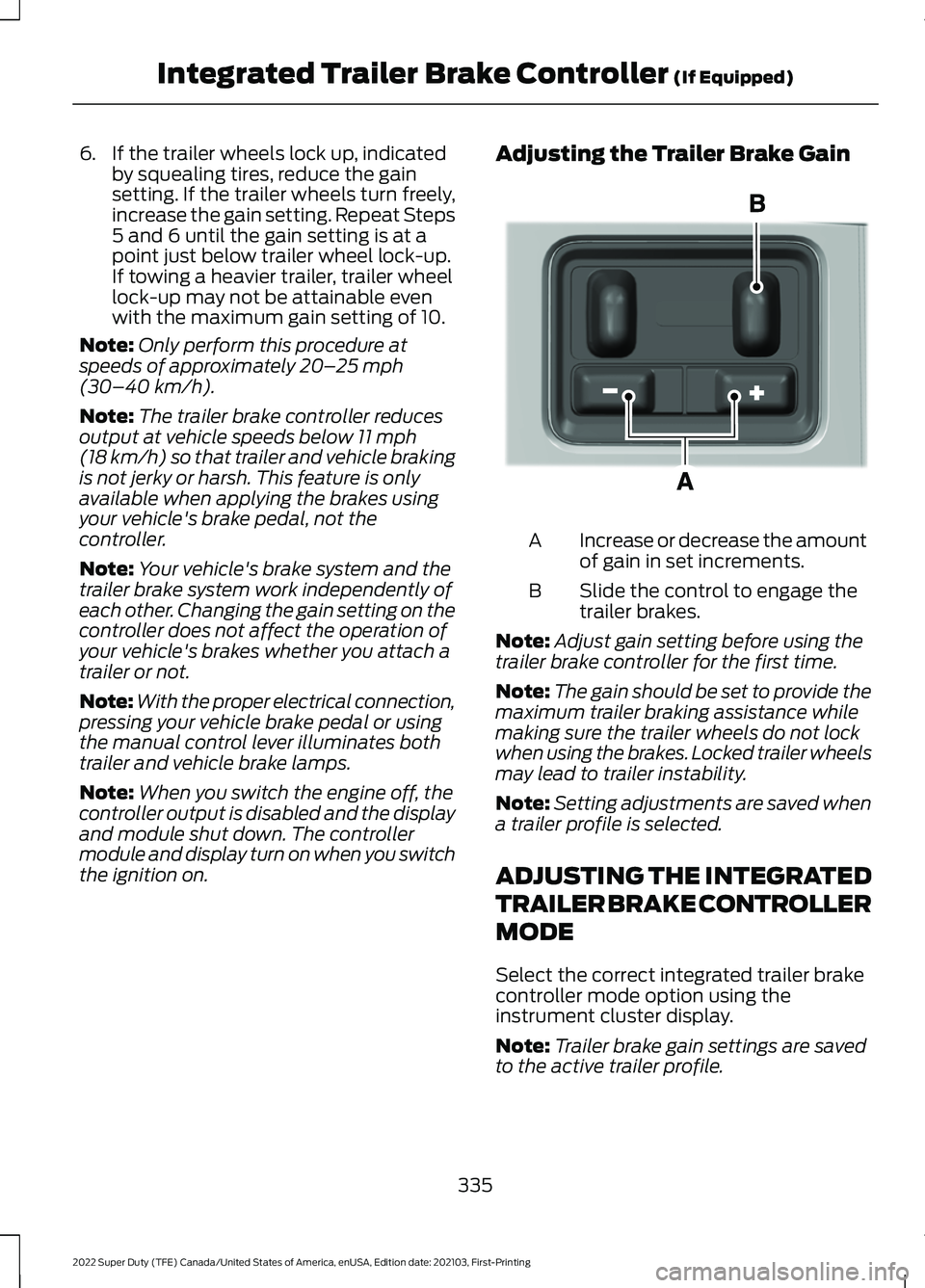
the ignition on. Adjusting the Trailer Brake Gain
Increase or decrease the amount
of gain in set increments.
A
Slide the control to engage the
trailer brakes.
B
Note: Adjust gain setting before using the
trailer brake controller for the first time.
Note: The gain should be set to provide the
maximum trailer braking assistance while
making sure the trailer wheels do not lock
when using the brakes. Locked trailer wheels
may lead to trailer instability.
Note: Setting adjustments are saved when
a trailer profile is selected.
ADJUSTING THE INTEGRATED
TRAILER BRAKE CONTROLLER
MODE
Select the correct integrated trailer brake
controller mode option using the
instrument cluster display.
Note: Trailer brake gain settings are saved
to the active trailer profile.
335
2022 Super Duty (TFE) Canada/United States of America, enUSA, Edition date: 202103, First-Printing Integrated Trailer Brake Controller
(If Equipped)E333154
Page 339 of 740
Selecting the Trailer Brake Type
Use the instrument cluster display controls
on the steering wheel to select the correct
setting for your trailer.
Note:
Select Default
Electric/Surge/None if the trailer has
electric, surge or no brakes. Selecting the Trailer Brake Effort
Select the correct setting for your trailer.
Note:
Select a different setting if your
trailer's brakes require more initial voltage,
or you prefer more aggressive trailer braking.
INTEGRATED TRAILER BRAKE CONTROLLER –
TROUBLESHOOTING
INTEGRATED TRAILER BRAKE CONTROLLER – INFORMATION
MESSAGES Action
Message
The system detects a correct trailer
connection during a given ignition cycle.
Trailer Connected
The system detects the trailer wiring
connection is disconnected, during a given ignition cycle.
Trailer Disconnected
The system detects an electrical fault inthe trailer brake circuit. If this message
appears without a trailer attached, see your authorized dealer. If a trailer is attached, inspect and repair the trailer wiring.
Trailer Wiring Fault
Displays the current gain setting for thetrailer brake.
Trailer Brake Gain: {trailer gain value:#0.0}
Displays the current gain setting for the
trailer brake when you do not have a trailer connected.
Trailer Brake Gain: {trailer gain value:#0.0}
No Trailer
336
2022 Super Duty (TFE) Canada/United States of America, enUSA, Edition date: 202103, First-Printing Integrated Trailer Brake Controller
(If Equipped)
Page 343 of 740
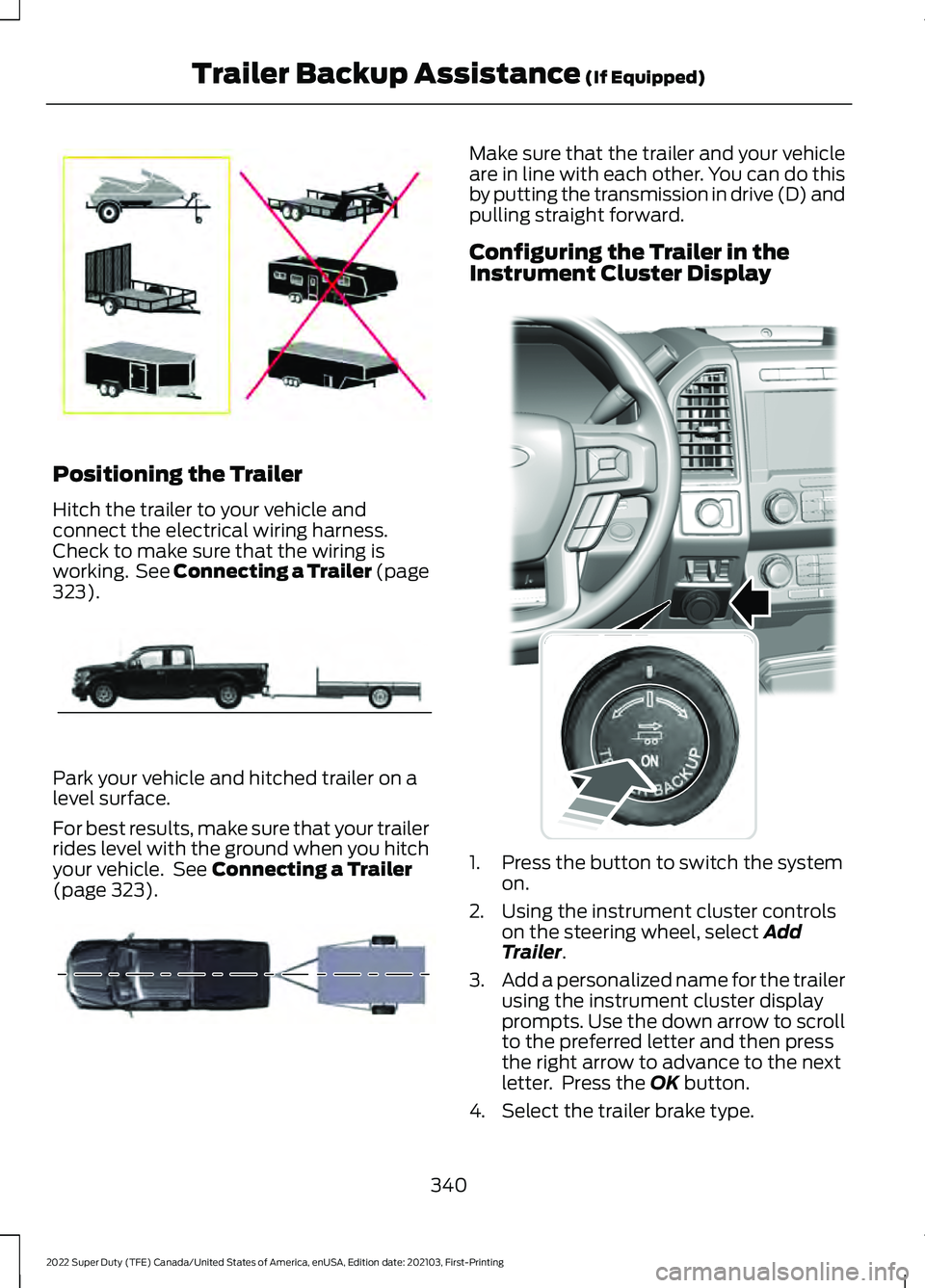
Positioning the Trailer
Hitch the trailer to your vehicle and
connect the electrical wiring harness.
Check to make sure that the wiring is
working. See Connecting a Trailer (page
323).
Park your vehicle and hitched trailer on a
level surface.
For best results, make sure that your trailer
rides level with the ground when you hitch
your vehicle. See
Connecting a Trailer
(page 323). Make sure that the trailer and your vehicle
are in line with each other. You can do this
by putting the transmission in drive (D) and
pulling straight forward.
Configuring the Trailer in the
Instrument Cluster Display
1. Press the button to switch the system
on.
2. Using the instrument cluster controls on the steering wheel, select
Add
Trailer.
3. Add a personalized name for the trailer
using the instrument cluster display
prompts. Use the down arrow to scroll
to the preferred letter and then press
the right arrow to advance to the next
letter. Press the
OK button.
4. Select the trailer brake type.
340
2022 Super Duty (TFE) Canada/United States of America, enUSA, Edition date: 202103, First-Printing Trailer Backup Assistance
(If Equipped)E209766 E209759 E209760 E318266
Page 345 of 740
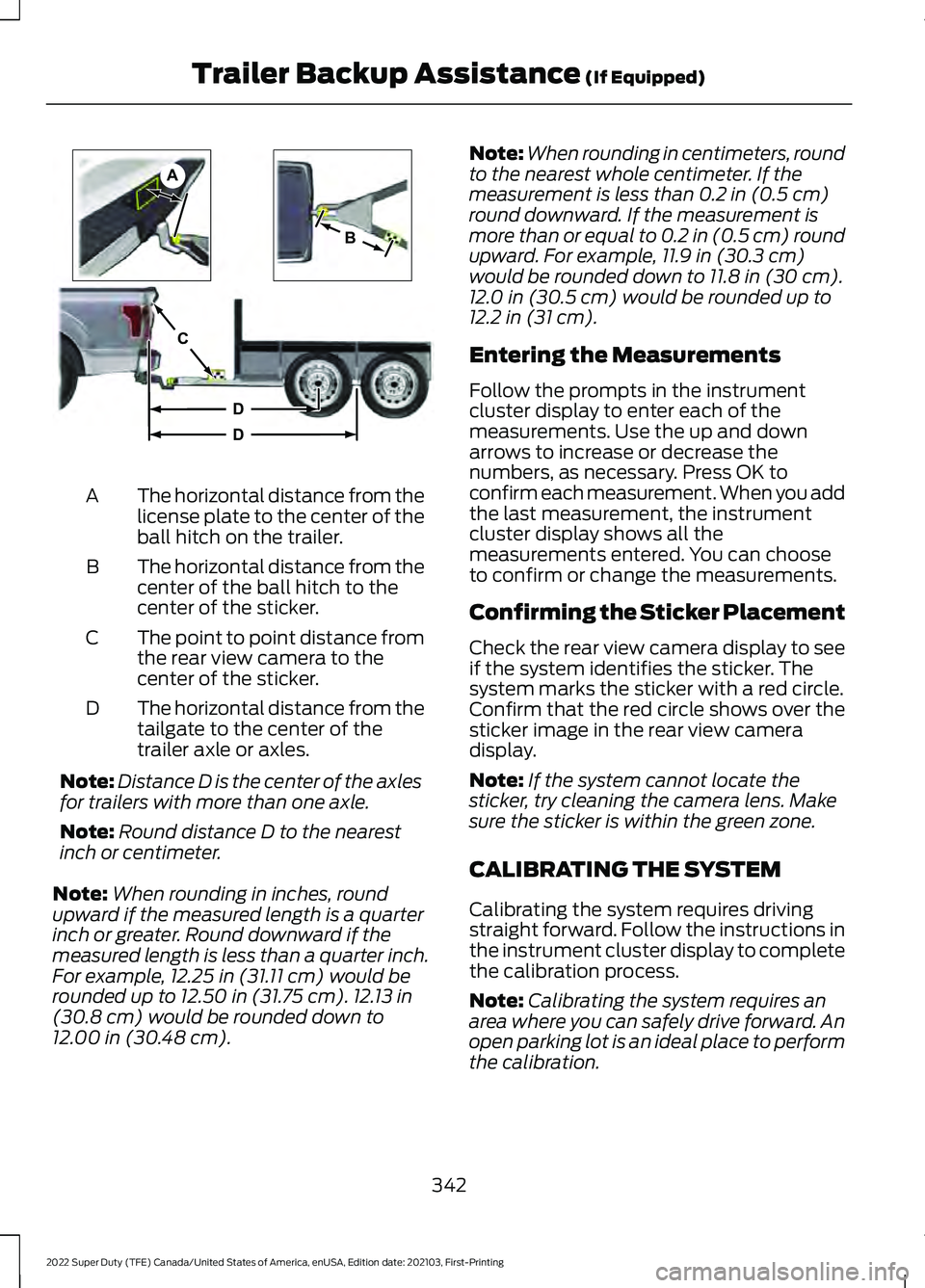
The horizontal distance from the
license plate to the center of the
ball hitch on the trailer.
A
The horizontal distance from the
center of the ball hitch to the
center of the sticker.
B
The point to point distance from
the rear view camera to the
center of the sticker.
C
The horizontal distance from the
tailgate to the center of the
trailer axle or axles.
D
Note: Distance D is the center of the axles
for trailers with more than one axle.
Note: Round distance D to the nearest
inch or centimeter.
Note: When rounding in inches, round
upward if the measured length is a quarter
inch or greater. Round downward if the
measured length is less than a quarter inch.
For example, 12.25 in (31.11 cm) would be
rounded up to 12.50 in (31.75 cm). 12.13 in
(30.8 cm) would be rounded down to
12.00 in (30.48 cm). Note:
When rounding in centimeters, round
to the nearest whole centimeter. If the
measurement is less than
0.2 in (0.5 cm)
round downward. If the measurement is
more than or equal to 0.2 in (0.5 cm) round
upward. For example, 11.9 in (30.3 cm)
would be rounded down to
11.8 in (30 cm).
12.0 in (30.5 cm) would be rounded up to
12.2 in (31 cm).
Entering the Measurements
Follow the prompts in the instrument
cluster display to enter each of the
measurements. Use the up and down
arrows to increase or decrease the
numbers, as necessary. Press OK to
confirm each measurement. When you add
the last measurement, the instrument
cluster display shows all the
measurements entered. You can choose
to confirm or change the measurements.
Confirming the Sticker Placement
Check the rear view camera display to see
if the system identifies the sticker. The
system marks the sticker with a red circle.
Confirm that the red circle shows over the
sticker image in the rear view camera
display.
Note: If the system cannot locate the
sticker, try cleaning the camera lens. Make
sure the sticker is within the green zone.
CALIBRATING THE SYSTEM
Calibrating the system requires driving
straight forward. Follow the instructions in
the instrument cluster display to complete
the calibration process.
Note: Calibrating the system requires an
area where you can safely drive forward. An
open parking lot is an ideal place to perform
the calibration.
342
2022 Super Duty (TFE) Canada/United States of America, enUSA, Edition date: 202103, First-Printing Trailer Backup Assistance
(If Equipped)A
B
C
D
DE209806
Page 346 of 740
Note:
Keep the steering wheel straight
when instructed to by the instrument cluster
display. If the steering wheel is in a turned
position during this instruction, the
calibration pauses.
Note: The system is designed to work with
drawbars that have a license plate to hitch
ball center measurement of 9– 20 in
(23–52 cm) when installed. Do not attempt
to use drawbars that have a length outside
of this range as the system performance
degrades and could cause improper system
function.
Note: The instrument cluster display shows
if you are going too slow or fast. Calibration
pauses if the speed is outside the required
range of
4– 24 mph (6– 39 km/h).
Note: For best results, do not calibrate the
system at night when calibrating the system
with the sticker.
SETTING UP THE TRAILER
BACKUP ASSISTANCE FOR A
FIFTH-WHEEL OR GOOSENECK
TRAILER
CONFIGURING THE TRAILER
You must configure a trailer in the system
to use trailer backup assistance. This is a
one-time setup process and the trailer
information is saved in the system for the
next time you use that trailer.
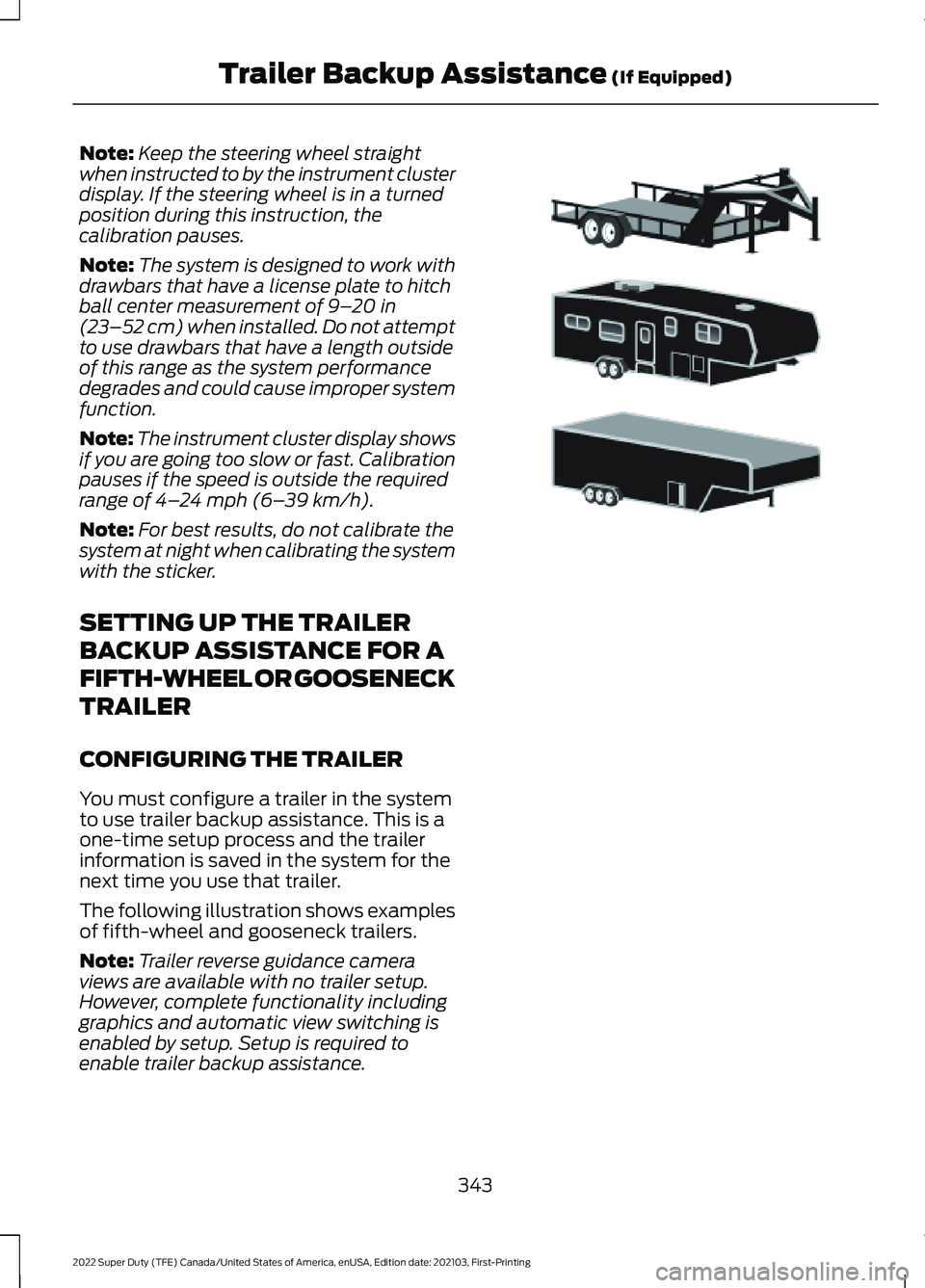
The following illustration shows examples
of fifth-wheel and gooseneck trailers.
Note: Trailer reverse guidance camera
views are available with no trailer setup.
However, complete functionality including
graphics and automatic view switching is
enabled by setup. Setup is required to
enable trailer backup assistance. 343
2022 Super Duty (TFE) Canada/United States of America, enUSA, Edition date: 202103, First-Printing Trailer Backup Assistance
(If Equipped)E311877
Page 347 of 740
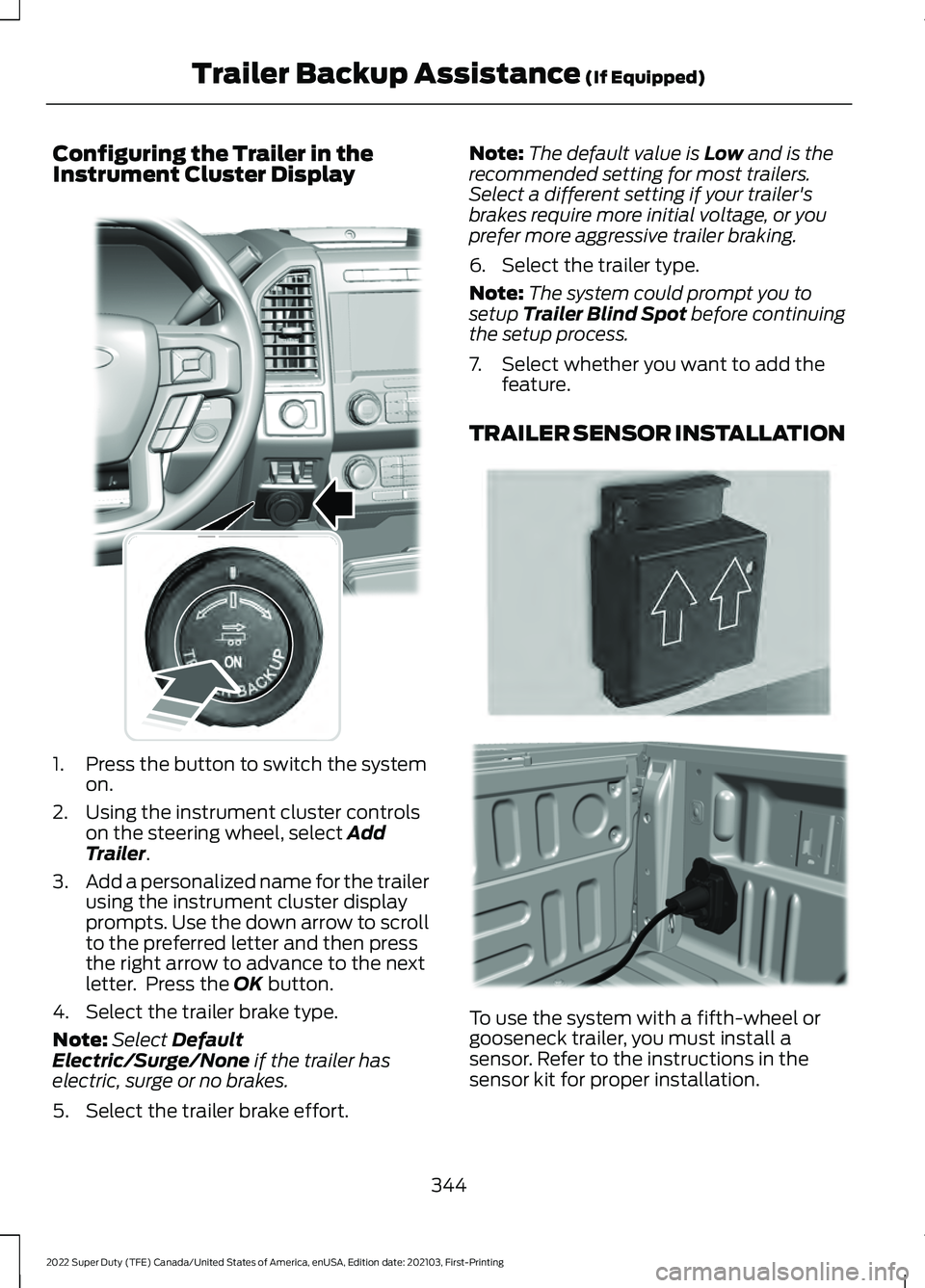
Configuring the Trailer in the
Instrument Cluster Display
1. Press the button to switch the system
on.
2. Using the instrument cluster controls on the steering wheel, select Add
Trailer.
3. Add a personalized name for the trailer
using the instrument cluster display
prompts. Use the down arrow to scroll
to the preferred letter and then press
the right arrow to advance to the next
letter. Press the
OK button.
4. Select the trailer brake type.
Note: Select
Default
Electric/Surge/None if the trailer has
electric, surge or no brakes.
5. Select the trailer brake effort. Note:
The default value is
Low and is the
recommended setting for most trailers.
Select a different setting if your trailer's
brakes require more initial voltage, or you
prefer more aggressive trailer braking.
6. Select the trailer type.
Note: The system could prompt you to
setup
Trailer Blind Spot before continuing
the setup process.
7. Select whether you want to add the feature.
TRAILER SENSOR INSTALLATION To use the system with a fifth-wheel or
gooseneck trailer, you must install a
sensor. Refer to the instructions in the
sensor kit for proper installation.
344
2022 Super Duty (TFE) Canada/United States of America, enUSA, Edition date: 202103, First-Printing Trailer Backup Assistance
(If Equipped)E318266 E315959 E316145
Page 348 of 740
Note:
Make sure the arrows on the sensor
housing are facing up. Mount the sensor to
a vertical part of the trailer that pivots and
moves when you turn your vehicle. Do not
mount to a stationary surface or to the truck
side of the fifth wheel-trailer hitch.
Note: You need to replace the 7/4 way
connector in the bumper with the
recommended 7/12 pin connector if your
vehicle did not come with the fifth-wheel
prep package. See your authorized dealer.
Note: If your vehicle has the fifth-wheel
prep package, you have everything you need.
If your vehicle does not have the fifth-wheel
prep package, see your authorized dealer to
purchase the sensor kit and the 7/12 pin
connector.
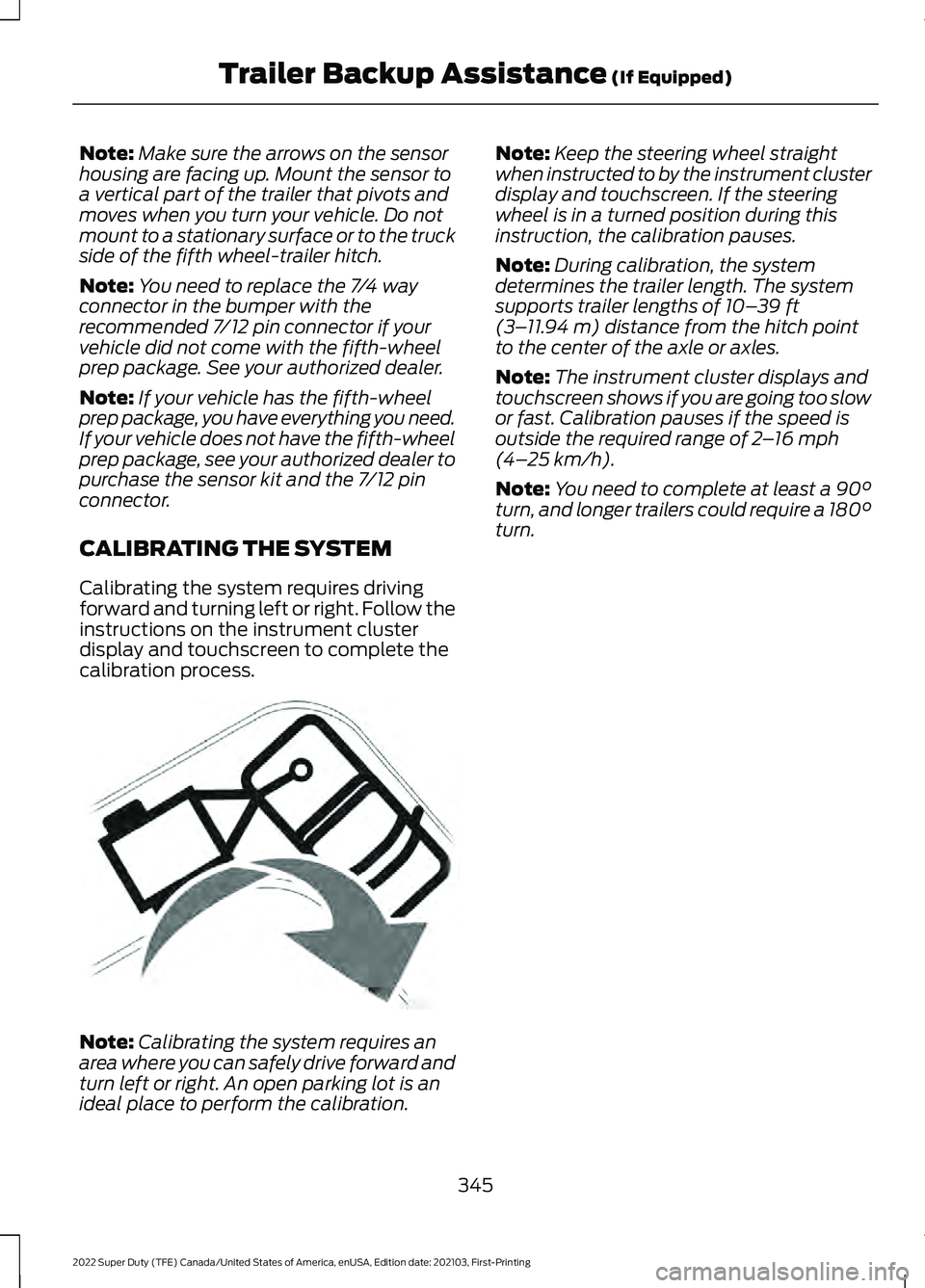
CALIBRATING THE SYSTEM
Calibrating the system requires driving
forward and turning left or right. Follow the
instructions on the instrument cluster
display and touchscreen to complete the
calibration process. Note:
Calibrating the system requires an
area where you can safely drive forward and
turn left or right. An open parking lot is an
ideal place to perform the calibration. Note:
Keep the steering wheel straight
when instructed to by the instrument cluster
display and touchscreen. If the steering
wheel is in a turned position during this
instruction, the calibration pauses.
Note: During calibration, the system
determines the trailer length. The system
supports trailer lengths of 10– 39 ft
(3– 11.94 m) distance from the hitch point
to the center of the axle or axles.
Note: The instrument cluster displays and
touchscreen shows if you are going too slow
or fast. Calibration pauses if the speed is
outside the required range of
2 – 16 mph
(4– 25 km/h).
Note: You need to complete at least a 90°
turn, and longer trailers could require a 180°
turn.
345
2022 Super Duty (TFE) Canada/United States of America, enUSA, Edition date: 202103, First-Printing Trailer Backup Assistance
(If Equipped)E346605
Page 349 of 740
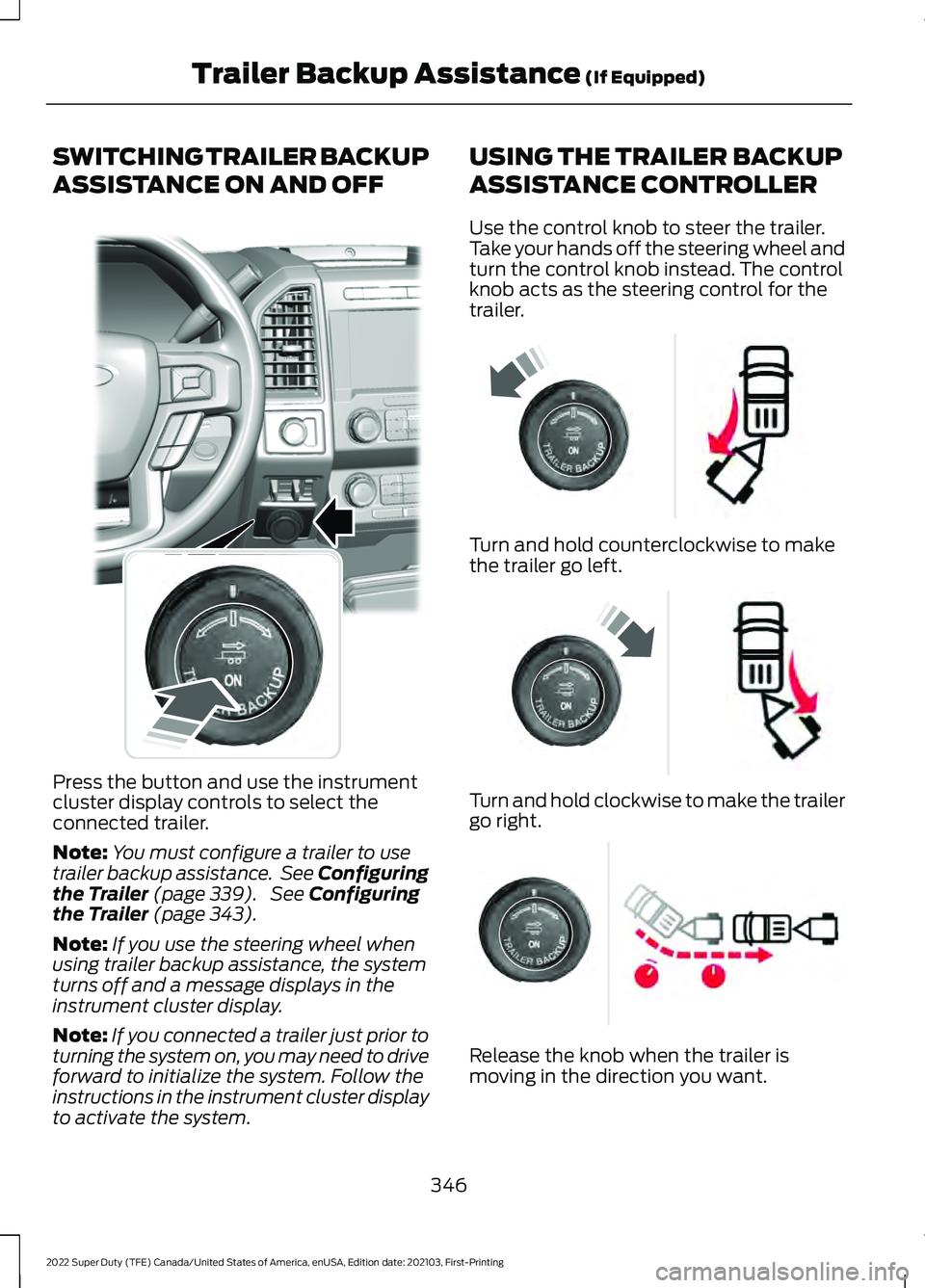
SWITCHING TRAILER BACKUP
ASSISTANCE ON AND OFF
Press the button and use the instrument
cluster display controls to select the
connected trailer.
Note:
You must configure a trailer to use
trailer backup assistance. See Configuring
the Trailer (page 339). See Configuring
the Trailer (page 343).
Note: If you use the steering wheel when
using trailer backup assistance, the system
turns off and a message displays in the
instrument cluster display.
Note: If you connected a trailer just prior to
turning the system on, you may need to drive
forward to initialize the system. Follow the
instructions in the instrument cluster display
to activate the system. USING THE TRAILER BACKUP
ASSISTANCE CONTROLLER
Use the control knob to steer the trailer.
Take your hands off the steering wheel and
turn the control knob instead. The control
knob acts as the steering control for the
trailer.
Turn and hold counterclockwise to make
the trailer go left.
Turn and hold clockwise to make the trailer
go right.
Release the knob when the trailer is
moving in the direction you want.
346
2022 Super Duty (TFE) Canada/United States of America, enUSA, Edition date: 202103, First-Printing Trailer Backup Assistance
(If Equipped)E318266 E209812 E209813 E209814
Page 354 of 740
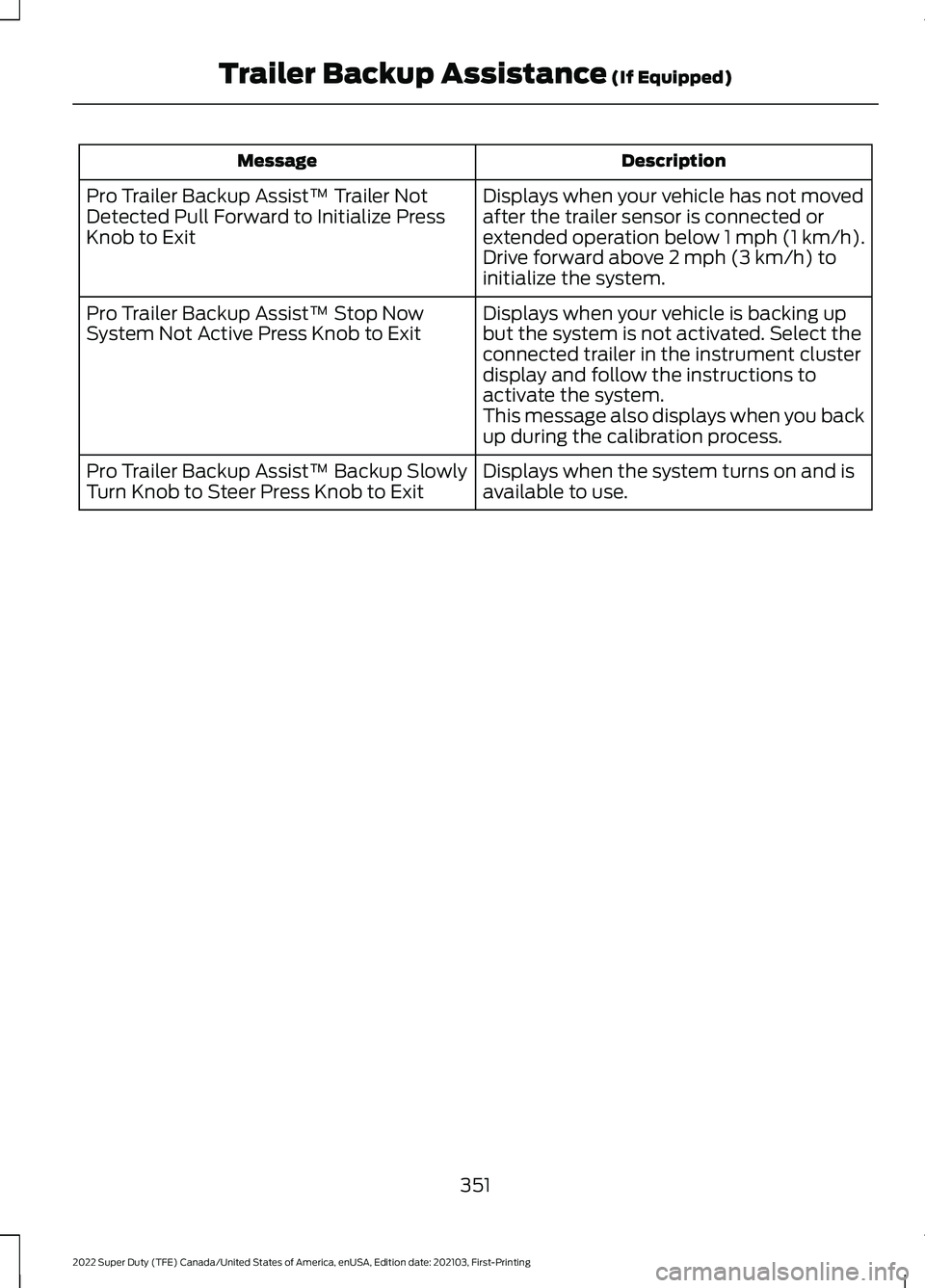
Description
Message
Displays when your vehicle has not moved
after the trailer sensor is connected or
extended operation below 1 mph (1 km/h).
Drive forward above 2 mph (3 km/h) to
initialize the system.
Pro Trailer Backup Assist™ Trailer Not
Detected Pull Forward to Initialize Press
Knob to Exit
Displays when your vehicle is backing up
but the system is not activated. Select the
connected trailer in the instrument cluster
display and follow the instructions to
activate the system.
This message also displays when you back
up during the calibration process.
Pro Trailer Backup Assist™ Stop Now
System Not Active Press Knob to Exit
Displays when the system turns on and is
available to use.
Pro Trailer Backup Assist™ Backup Slowly
Turn Knob to Steer Press Knob to Exit
351
2022 Super Duty (TFE) Canada/United States of America, enUSA, Edition date: 202103, First-Printing Trailer Backup Assistance
(If Equipped)