ad blue FORD F150 2023 User Guide
[x] Cancel search | Manufacturer: FORD, Model Year: 2023, Model line: F150, Model: FORD F150 2023Pages: 786, PDF Size: 23.15 MB
Page 362 of 786
The driver-facing camera may not operatecorrectly due to any of the following:
•You have a pre-existing eye condition,such as an eye misalignment, or havehad eye surgery.
•You cover your facial features by amask, hat or other items.
•The lighting conditions changesignificantly.
•You are not in the field of view of thecamera.
•You position or tilt yourself to one side.
•You are moving around extensively.
•You are wearing glasses or sunglassesthat are too dark or reflective.
Note:The system has limited steeringassistance and may not be sufficient for alldriving situations.
Note:In exceptional conditions, such asinclement weather or direct sunlight, thesystem could deviate from the center line.
Note:The information provided by thenavigation map data could be inaccurate orout of date.
BLUECRUISE SETTINGS
Enabling BlueCruise
1.Press Features on the touchscreen.
2.Press Driver Assistance.
3.Press Cruise Control.
4.Press Lane Centering withHands-Free.
Enabling Activation Prompts
1.Press Features on the touchscreen.
2.Press Driver Assistance.
3.Press Cruise Control.
4.Press Activation Prompts.
SWITCHING BLUECRUISE ON
AND OFF
Switching BlueCruise On
The controls are on the steering wheel.
Using Activation Prompts
When the prompt appears, pressthe button to switch BlueCruiseon.
The indicator appears in the instrumentcluster. When the system is on, the colorof the indicator changes to indicate thesystem status.
Note:You must enable activation promptsin the touchscreen.
Using Steering Wheel Controls
Using the adaptive cruise controland lateral support buttons,make sure both systems areactive. BlueCruise activates.
Switching BlueCruise Off
Press either the lateral supportor adaptive cruise control buttonwhen system is active or instandby mode.
BlueCruise turns off througheach ignition cycle.
358
2023 F-150 (TFD) Canada/United States of America, enUSA, Edition date: 202206, DOMBlueCruise (If Equipped)E144529 E308131 E144529 E308131 E144529
Page 363 of 786
BLUECRUISE ALERTS
When BlueCruise is providing hands-ondriving or transitioning to hands-on drivingfrom hands-free driving and detects nosteering activity for a certain period of time,the system alerts you with a message inthe instrument cluster to put your handson the steering wheel. After the first alert,the system alerts you with a message inthe instrument cluster and an audiblewarning.
When BlueCruise is providing hands-on orhands-free driving and detects you are notlooking at the road for a certain period oftime, the system alerts you to return youreyes to the road. Depending on where youare looking, the alert can be a message inthe instrument cluster and an audiblewarning.
If you do not react to the warnings,BlueCruise cancels, quickly activates andreleases the brakes, and slows your vehicledown to low speeds while maintainingsteering control.
If your vehicle slows down and you resumecontrol, a message appears to prompt youto press the accelerator pedal to allow thesystem to resume.
Note:If the system detects repeatedinactivity, it disables until the next key cycle.
BLUECRUISE AUTOMATIC
CANCELLATION
When an external condition cancelsBlueCruise, for example, no lane markingsavailable, a tone sounds and a messageappears in the instrument cluster.
If your vehicle starts to slowdown, you must take control ofsteering and press and releasethe button to reactivate BlueCruise.
System cancellation can also occur if:
•The lane becomes too narrow.
•The system cannot detect valid lanemarkings.
•Lane markings cross.
•Your eyes are not on the road or yourhands are not on the steering wheel.
If you have your hands on the steeringwheel and your eyes are on the road whenthe feature is active and a cancellationoccurs, the system sounds a tone anddisplays a cancelled graphic in theinstrument cluster.
If you are not paying attention to the roador your hands are not on the steering wheeland a cancellation occurs, the systemdisplays a message and a tone sounds untilyou resume control. If you do not resumecontrol in time, BlueCruise quickly activatesand releases the brakes, and slows yourvehicle to low speeds while maintainingsteering control. If your vehicle slows downand you resume control, a messageappears to prompt you to press theaccelerator pedal to allow the system toresume.
Note:The system disables until the vehicleis turned off and back on if it detectsrepeated inactivity.
BLUECRUISE INDICATORS
When on, the color of theindicator changes to indicate thestatus.
Gray indicates BlueCruise is on but inactive.
Green indicates BlueCruise is active andapplying continuous steering support.
Blue indicates BlueCruise is active andhands-free driving mode is available.
359
2023 F-150 (TFD) Canada/United States of America, enUSA, Edition date: 202206, DOMBlueCruise (If Equipped)E308130 E297977
Page 364 of 786
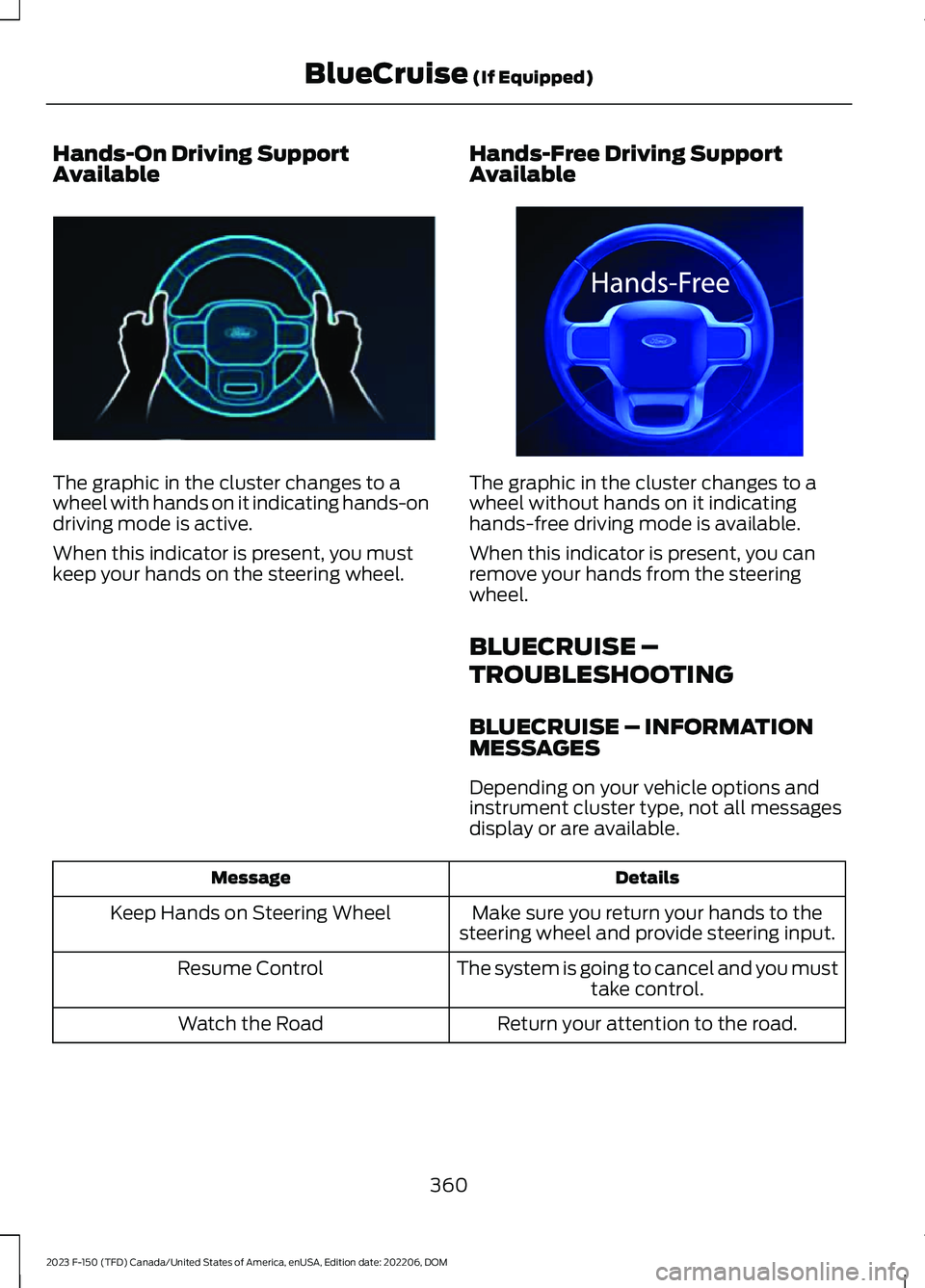
Hands-On Driving SupportAvailable
The graphic in the cluster changes to awheel with hands on it indicating hands-ondriving mode is active.
When this indicator is present, you mustkeep your hands on the steering wheel.
Hands-Free Driving SupportAvailable
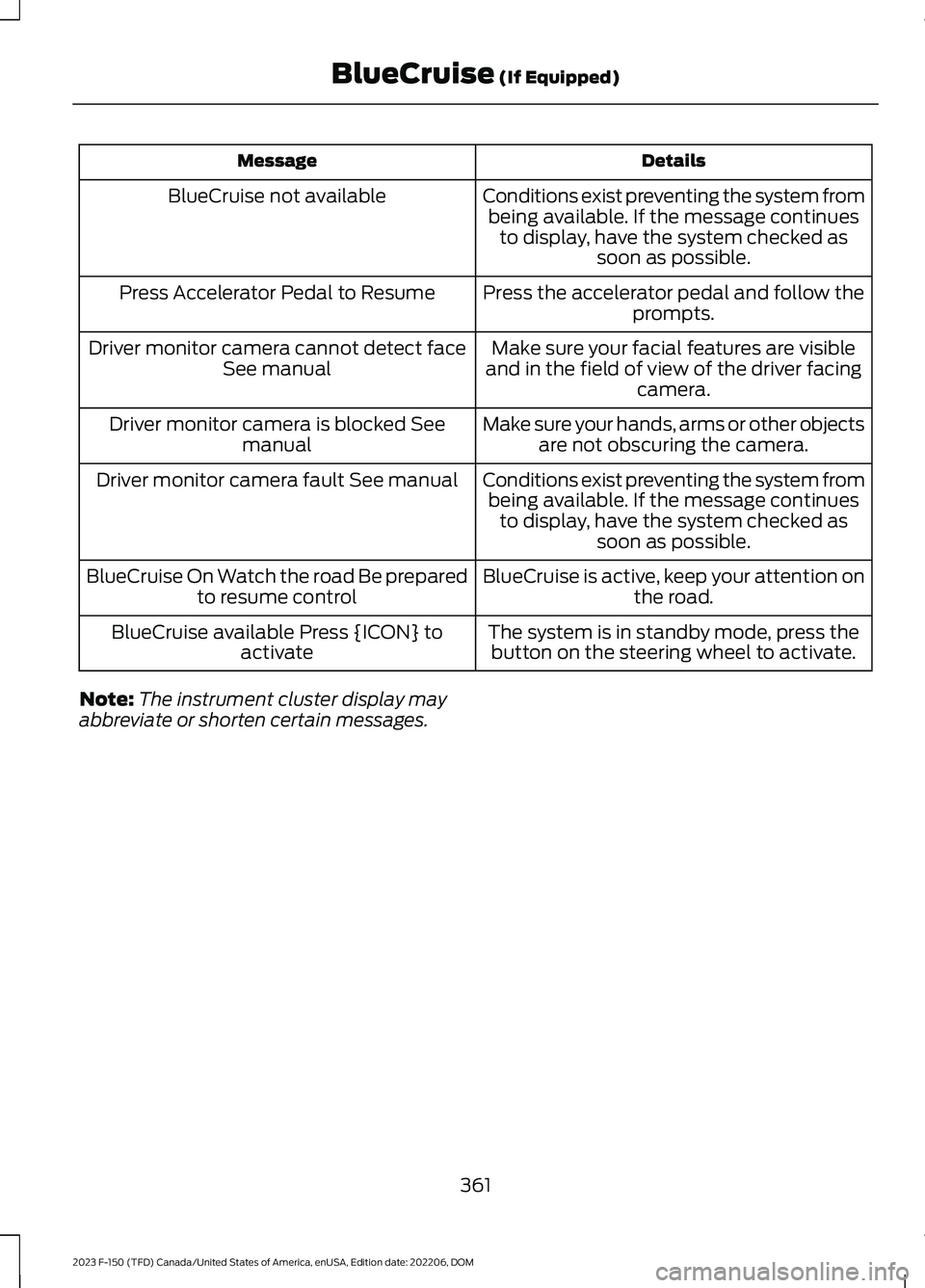
The graphic in the cluster changes to awheel without hands on it indicatinghands-free driving mode is available.
When this indicator is present, you canremove your hands from the steeringwheel.
BLUECRUISE –
TROUBLESHOOTING
BLUECRUISE – INFORMATIONMESSAGES
Depending on your vehicle options andinstrument cluster type, not all messagesdisplay or are available.
DetailsMessage
Make sure you return your hands to thesteering wheel and provide steering input.Keep Hands on Steering Wheel
The system is going to cancel and you musttake control.Resume Control
Return your attention to the road.Watch the Road
360
2023 F-150 (TFD) Canada/United States of America, enUSA, Edition date: 202206, DOMBlueCruise (If Equipped)E310620 E332864
Page 365 of 786
DetailsMessage
Conditions exist preventing the system frombeing available. If the message continuesto display, have the system checked assoon as possible.
BlueCruise not available
Press the accelerator pedal and follow theprompts.Press Accelerator Pedal to Resume
Make sure your facial features are visibleand in the field of view of the driver facingcamera.
Driver monitor camera cannot detect faceSee manual
Make sure your hands, arms or other objectsare not obscuring the camera.Driver monitor camera is blocked Seemanual
Conditions exist preventing the system frombeing available. If the message continuesto display, have the system checked assoon as possible.
Driver monitor camera fault See manual
BlueCruise is active, keep your attention onthe road.BlueCruise On Watch the road Be preparedto resume control
The system is in standby mode, press thebutton on the steering wheel to activate.BlueCruise available Press {ICON} toactivate
Note:The instrument cluster display mayabbreviate or shorten certain messages.
361
2023 F-150 (TFD) Canada/United States of America, enUSA, Edition date: 202206, DOMBlueCruise (If Equipped)
Page 398 of 786
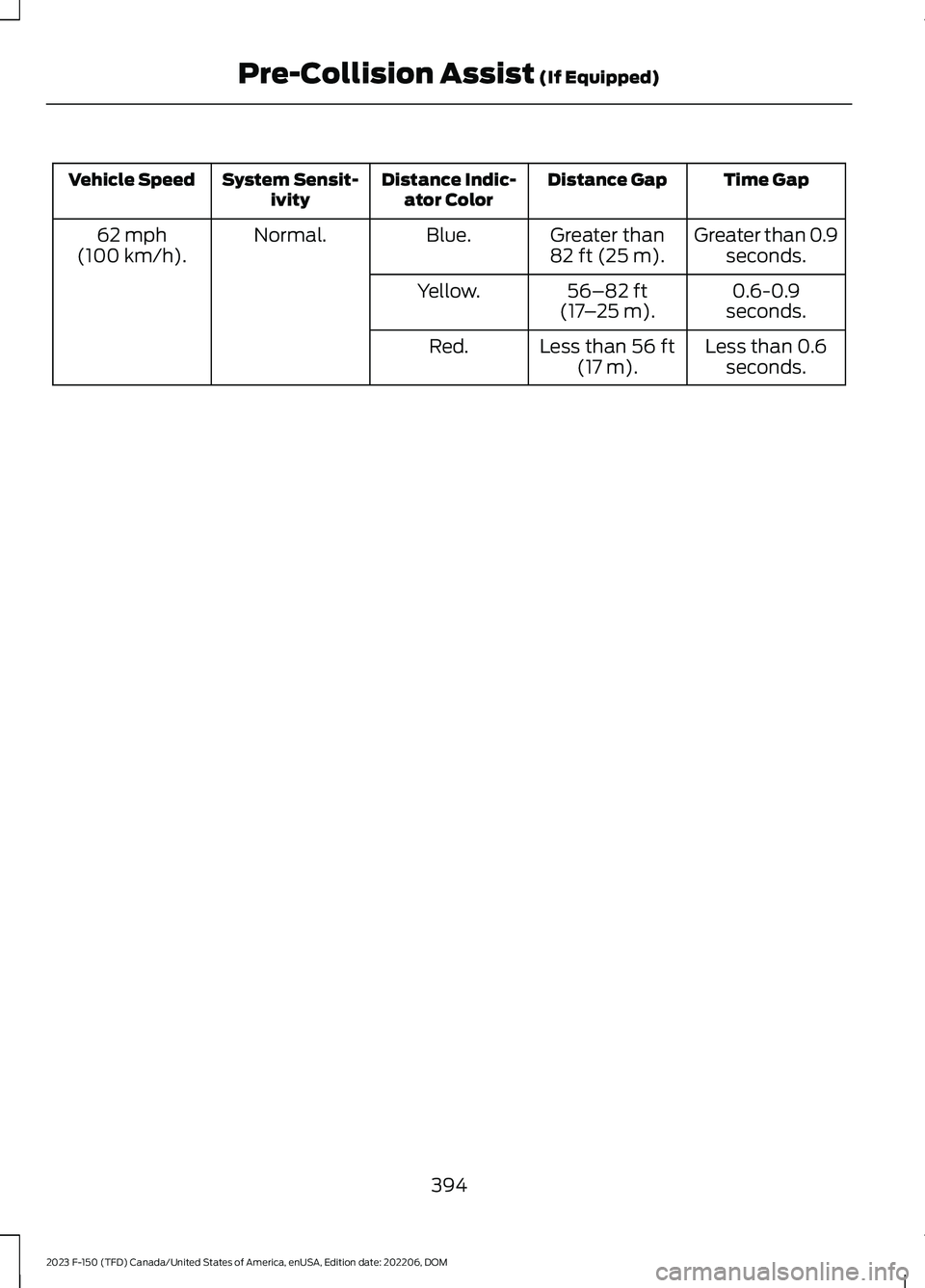
Time GapDistance GapDistance Indic-ator ColorSystem Sensit-ivityVehicle Speed
Greater than 0.9seconds.Greater than82 ft (25 m).Blue.Normal.62 mph(100 km/h).
0.6-0.9seconds.56–82 ft(17–25 m).Yellow.
Less than 0.6seconds.Less than 56 ft(17 m).Red.
394
2023 F-150 (TFD) Canada/United States of America, enUSA, Edition date: 202206, DOMPre-Collision Assist (If Equipped)
Page 641 of 786
CENTER DISPLAY
PRECAUTIONS
WARNING: Driving while distractedcan result in loss of vehicle control, crashand injury. We strongly recommend thatyou use extreme caution when using anydevice that may take your focus off theroad. Your primary responsibility is thesafe operation of your vehicle. Werecommend against the use of anyhand-held device while driving andencourage the use of voice-operatedsystems when possible. Make sure youare aware of all applicable local lawsthat may affect the use of electronicdevices while driving.
CENTER DISPLAY
LIMITATIONS
Speed-restricted Features
For your safety, some features are notavailable while the vehicle is in motion ator above 5 mph (8 km/h). Settings thatare not critical while driving your vehicleare shown as restricted on your display.Some of these settings include:
•Software updates.
•Personal profiles setup.
•Valet mode setup.
•Driver assistance settings.
•MyKey setup.
•Door keypad code setup.
These restricted features becomeavailable when your vehicle is no longer inmotion.
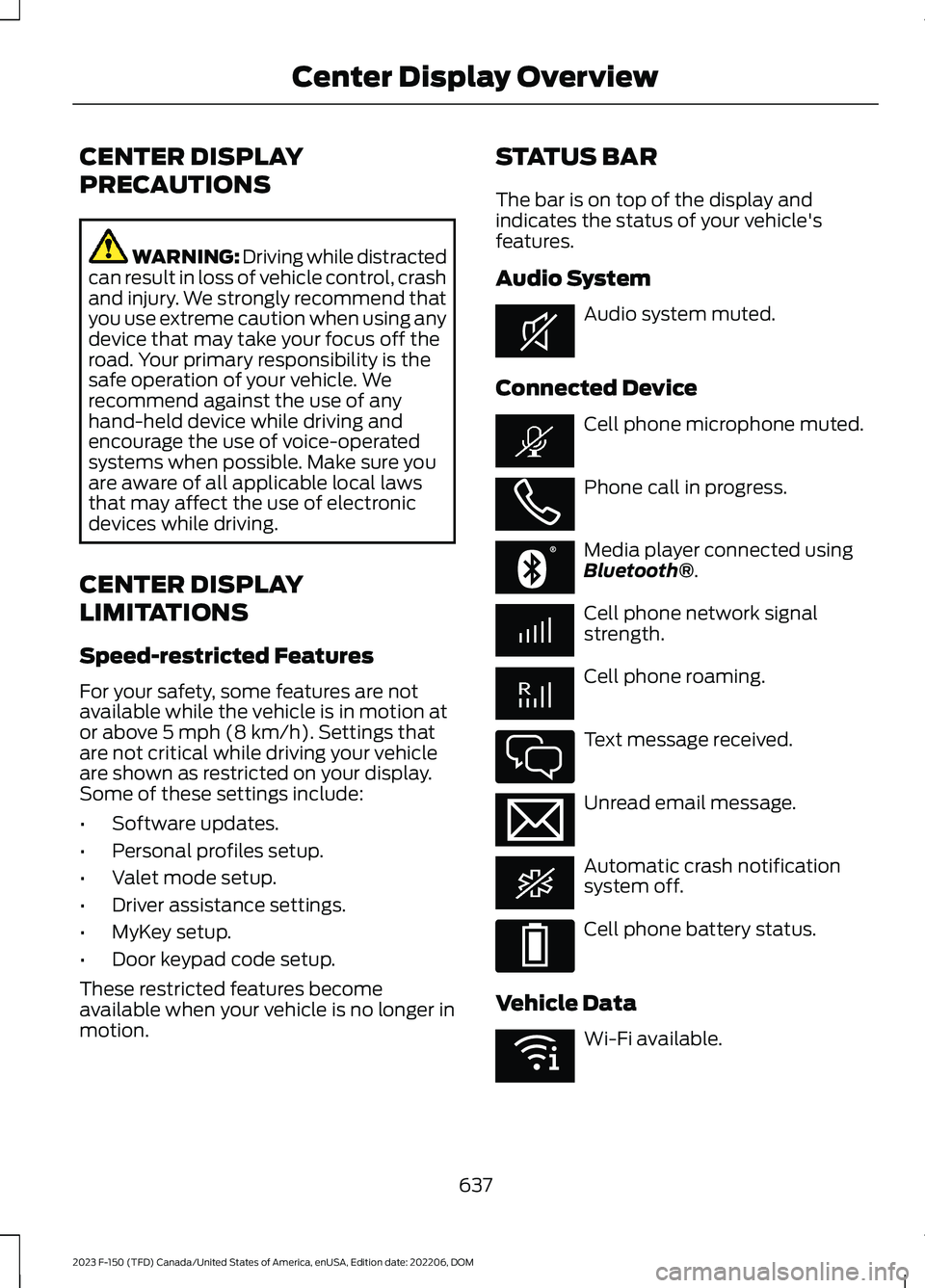
STATUS BAR
The bar is on top of the display andindicates the status of your vehicle'sfeatures.
Audio System
Audio system muted.
Connected Device
Cell phone microphone muted.
Phone call in progress.
Media player connected usingBluetooth®.
Cell phone network signalstrength.
Cell phone roaming.
Text message received.
Unread email message.
Automatic crash notificationsystem off.
Cell phone battery status.
Vehicle Data
Wi-Fi available.
637
2023 F-150 (TFD) Canada/United States of America, enUSA, Edition date: 202206, DOMCenter Display OverviewE353221 E353213 E353208 E335295 E353216 E335293 E353219
Page 642 of 786
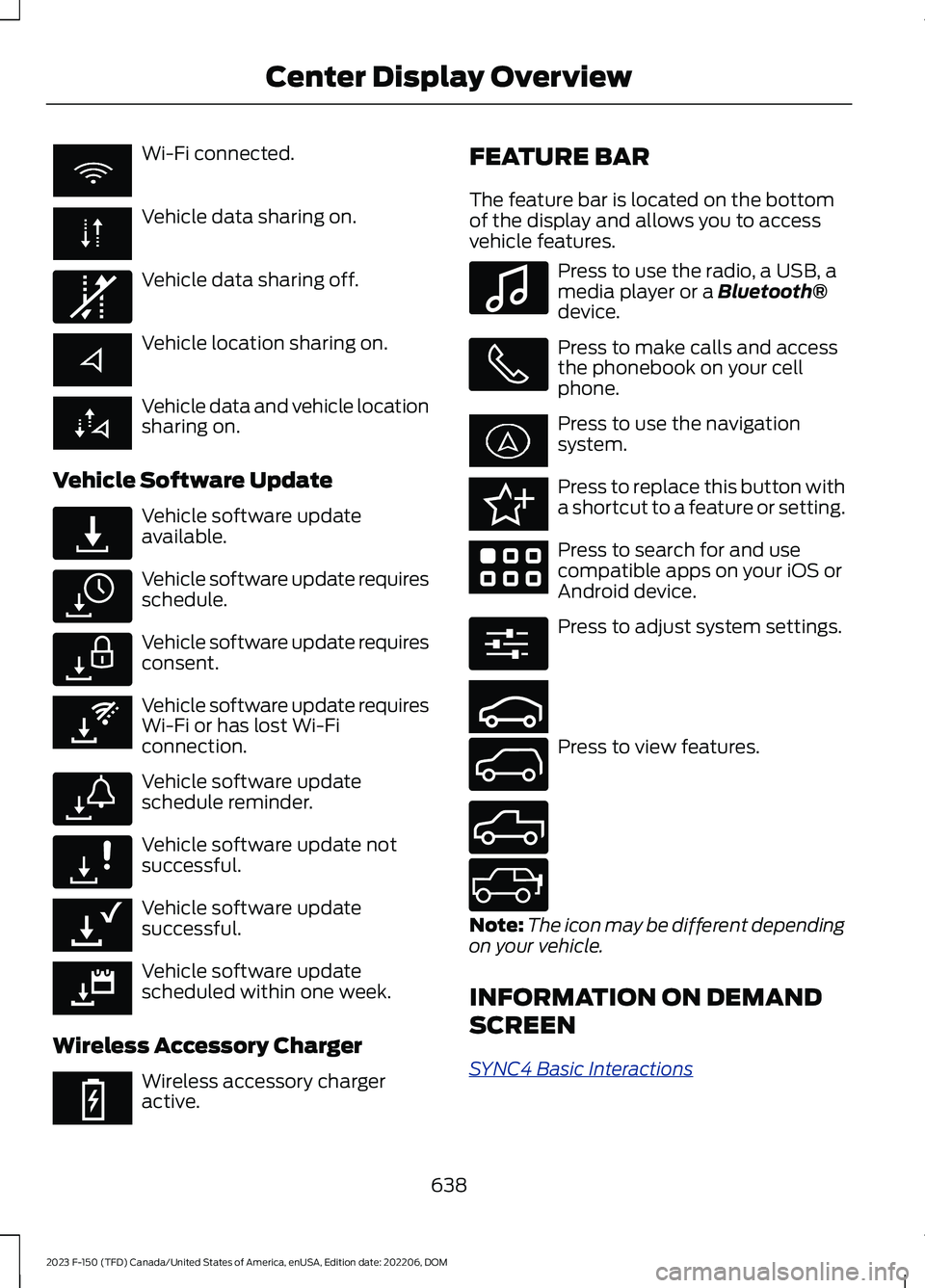
Wi-Fi connected.
Vehicle data sharing on.
Vehicle data sharing off.
Vehicle location sharing on.
Vehicle data and vehicle locationsharing on.
Vehicle Software Update
Vehicle software updateavailable.
Vehicle software update requiresschedule.
Vehicle software update requiresconsent.
Vehicle software update requiresWi-Fi or has lost Wi-Ficonnection.
Vehicle software updateschedule reminder.
Vehicle software update notsuccessful.
Vehicle software updatesuccessful.
Vehicle software updatescheduled within one week.
Wireless Accessory Charger
Wireless accessory chargeractive.
FEATURE BAR
The feature bar is located on the bottomof the display and allows you to accessvehicle features.
Press to use the radio, a USB, amedia player or a Bluetooth®device.
Press to make calls and accessthe phonebook on your cellphone.
Press to use the navigationsystem.
Press to replace this button witha shortcut to a feature or setting.
Press to search for and usecompatible apps on your iOS orAndroid device.
Press to adjust system settings.
Press to view features.
Note:The icon may be different dependingon your vehicle.
INFORMATION ON DEMAND
SCREEN
SYNC4 Basic Interactions
638
2023 F-150 (TFD) Canada/United States of America, enUSA, Edition date: 202206, DOMCenter Display Overview E335292 E327789 E327785 E327786 E353217 E327787 E327788 E353218 E383433 E353214 E100027 E358432 E353220 E280315 E353210 E335299 E335300 E347104
Page 644 of 786
FORD ASSISTANT
USING FORD ASSISTANT
The digital assistant allows you to controlvehicle features using conversationalrequests.
To begin a voice interaction using the wakeword, say the selected wake word, thensay your command.
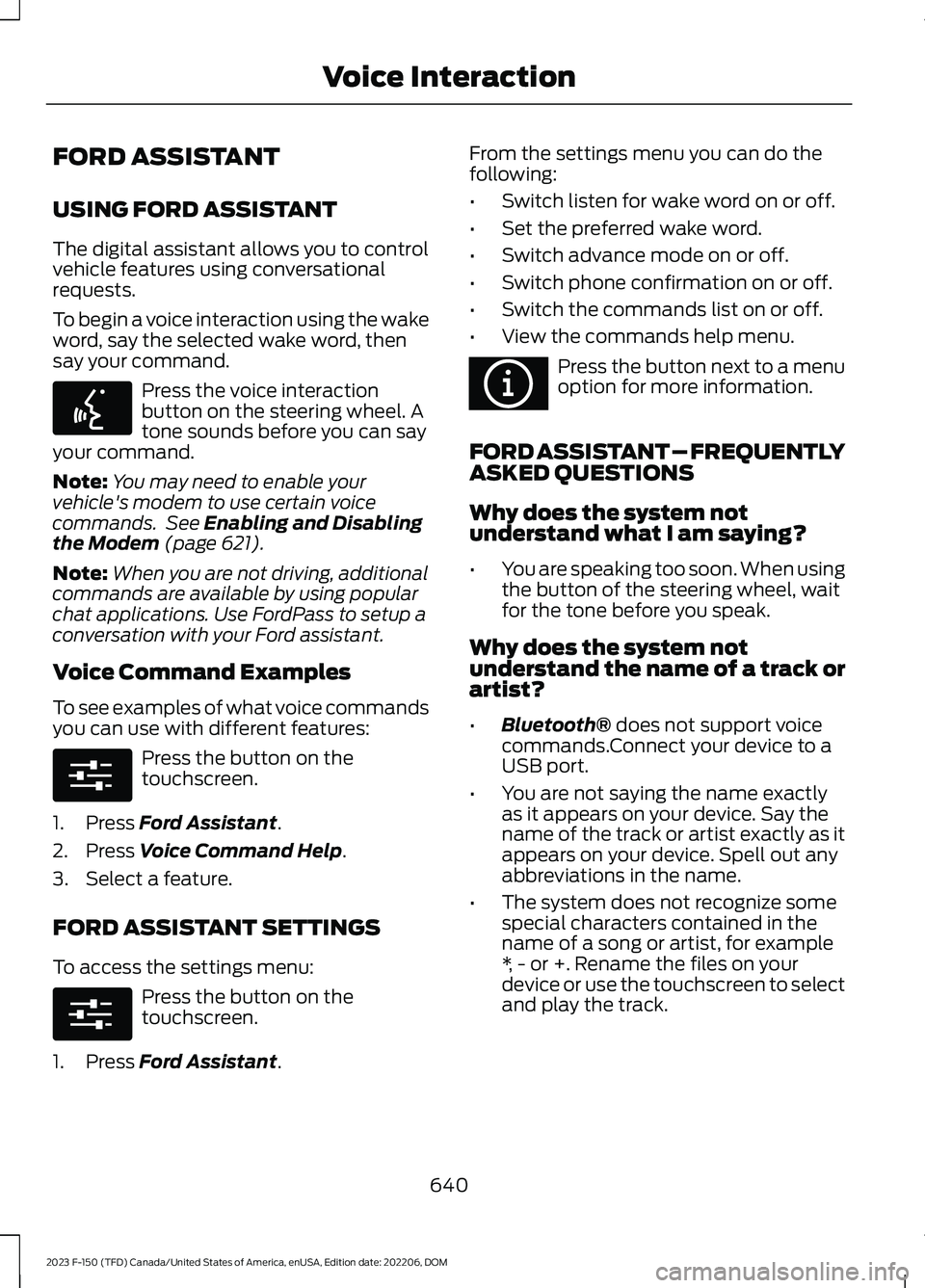
Press the voice interactionbutton on the steering wheel. Atone sounds before you can sayyour command.
Note:You may need to enable yourvehicle's modem to use certain voicecommands. See Enabling and Disablingthe Modem (page 621).
Note:When you are not driving, additionalcommands are available by using popularchat applications. Use FordPass to setup aconversation with your Ford assistant.
Voice Command Examples
To see examples of what voice commandsyou can use with different features:
Press the button on thetouchscreen.
1.Press Ford Assistant.
2.Press Voice Command Help.
3.Select a feature.
FORD ASSISTANT SETTINGS
To access the settings menu:
Press the button on thetouchscreen.
1.Press Ford Assistant.
From the settings menu you can do thefollowing:
•Switch listen for wake word on or off.
•Set the preferred wake word.
•Switch advance mode on or off.
•Switch phone confirmation on or off.
•Switch the commands list on or off.
•View the commands help menu.
Press the button next to a menuoption for more information.
FORD ASSISTANT – FREQUENTLYASKED QUESTIONS
Why does the system notunderstand what I am saying?
•You are speaking too soon. When usingthe button of the steering wheel, waitfor the tone before you speak.
Why does the system notunderstand the name of a track orartist?
•Bluetooth® does not support voicecommands.Connect your device to aUSB port.
•You are not saying the name exactlyas it appears on your device. Say thename of the track or artist exactly as itappears on your device. Spell out anyabbreviations in the name.
•The system does not recognize somespecial characters contained in thename of a song or artist, for example*, - or +. Rename the files on yourdevice or use the touchscreen to selectand play the track.
640
2023 F-150 (TFD) Canada/United States of America, enUSA, Edition date: 202206, DOMVoice InteractionE142599 E280315 E280315 E366956
Page 648 of 786
PHONE PRECAUTIONS
WARNING: Driving while distractedcan result in loss of vehicle control, crashand injury. We strongly recommend thatyou use extreme caution when using anydevice that may take your focus off theroad. Your primary responsibility is thesafe operation of your vehicle. Werecommend against the use of anyhand-held device while driving andencourage the use of voice-operatedsystems when possible. Make sure youare aware of all applicable local lawsthat may affect the use of electronicdevices while driving.
CONNECTING YOUR PHONE
Go to the settings menu on your device andswitch Bluetooth® on.
Press the phone option on thefeature bar.
1.Press Add Phone.
Note:A prompt alerts you to search for yourvehicle on your cell phone.
2.Select your vehicle on your cell phone.
Note:A number appears on your cell phoneand on the touchscreen.
3.Confirm the number on your cell phonematches the number on thetouchscreen.
Note:The touchscreen indicates that youhave successfully paired your cell phone.
4.Download the phonebook from yourcell phone when you are prompted.
Note:If you pair more than one cell phone,use the phone settings on the center displayto specify the primary phone. You canchange this setting at any time.
PHONE MENU
This menu becomes available after pairinga phone.
Recent Call List
Display and select an entry from a list ofprevious calls.
Contacts
Display a smart search form to look up yourcontacts. Use the List button toalphabetically sort your contacts.
Favorites
Display the list of favorite contacts thatare set up on your phone.
Messaging
Displays the list of text messages to read,listen to, or respond to.
Email
Displays the list of emails to read, listen to,or respond to.
Phone List
Display the list of paired or connecteddevices that you can select.
Note:Up to 12 devices can be stored.
Do Not Disturb
Reject incoming calls and switch ring tonesand alerts off.
Phone Keypad
Directly dial a number.
644
2023 F-150 (TFD) Canada/United States of America, enUSA, Edition date: 202206, DOMPhone
Page 652 of 786
SWITCHING TEXT MESSAGE
NOTIFICATION ON AND OFF
iOS
1.Go to the settings menu on your cellphone.
2.Select Bluetooth®.
3.Select the information icon to the rightof your vehicle.
4.Switch text message notification on oroff.
Android
1.Go to the settings menu on your cellphone.
2.Select Bluetooth®.
3.Select the profiles option.
4.Select the phone profile.
5.Switch text message notification on oroff.
648
2023 F-150 (TFD) Canada/United States of America, enUSA, Edition date: 202206, DOMPhone