navigation system FORD F250 2013 Owner's Manual
[x] Cancel search | Manufacturer: FORD, Model Year: 2013, Model line: F250, Model: FORD F250 2013Pages: 577, PDF Size: 7.74 MB
Page 528 of 577
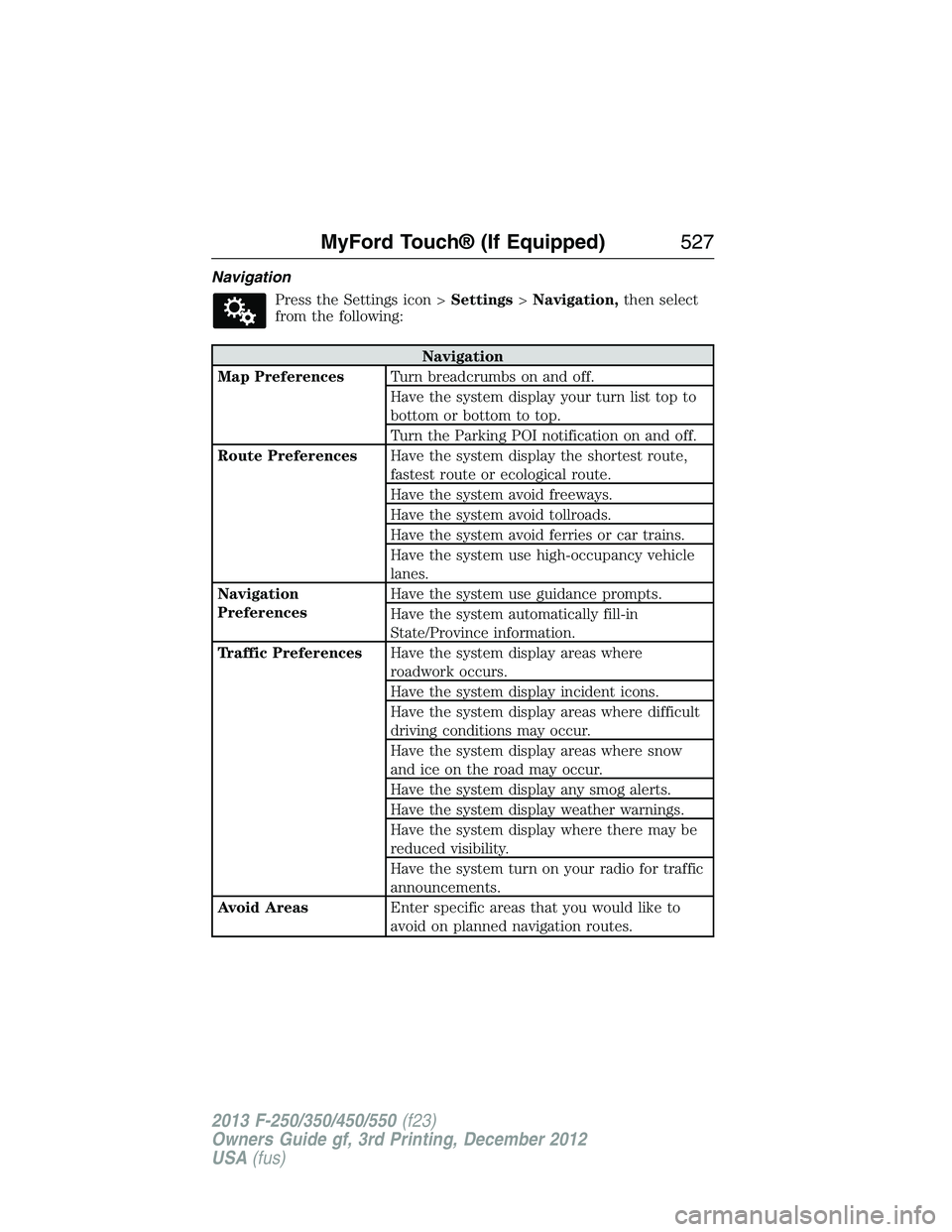
Navigation
Press the Settings icon >Settings>Navigation,then select
from the following:
Navigation
Map PreferencesTurn breadcrumbs on and off.
Have the system display your turn list top to
bottom or bottom to top.
Turn the Parking POI notification on and off.
Route PreferencesHave the system display the shortest route,
fastest route or ecological route.
Have the system avoid freeways.
Have the system avoid tollroads.
Have the system avoid ferries or car trains.
Have the system use high-occupancy vehicle
lanes.
Navigation
PreferencesHave the system use guidance prompts.
Have the system automatically fill-in
State/Province information.
Traffic PreferencesHave the system display areas where
roadwork occurs.
Have the system display incident icons.
Have the system display areas where difficult
driving conditions may occur.
Have the system display areas where snow
and ice on the road may occur.
Have the system display any smog alerts.
Have the system display weather warnings.
Have the system display where there may be
reduced visibility.
Have the system turn on your radio for traffic
announcements.
Avoid AreasEnter specific areas that you would like to
avoid on planned navigation routes.
MyFord Touch® (If Equipped)527
2013 F-250/350/450/550(f23)
Owners Guide gf, 3rd Printing, December 2012
USA(fus)
Page 534 of 577
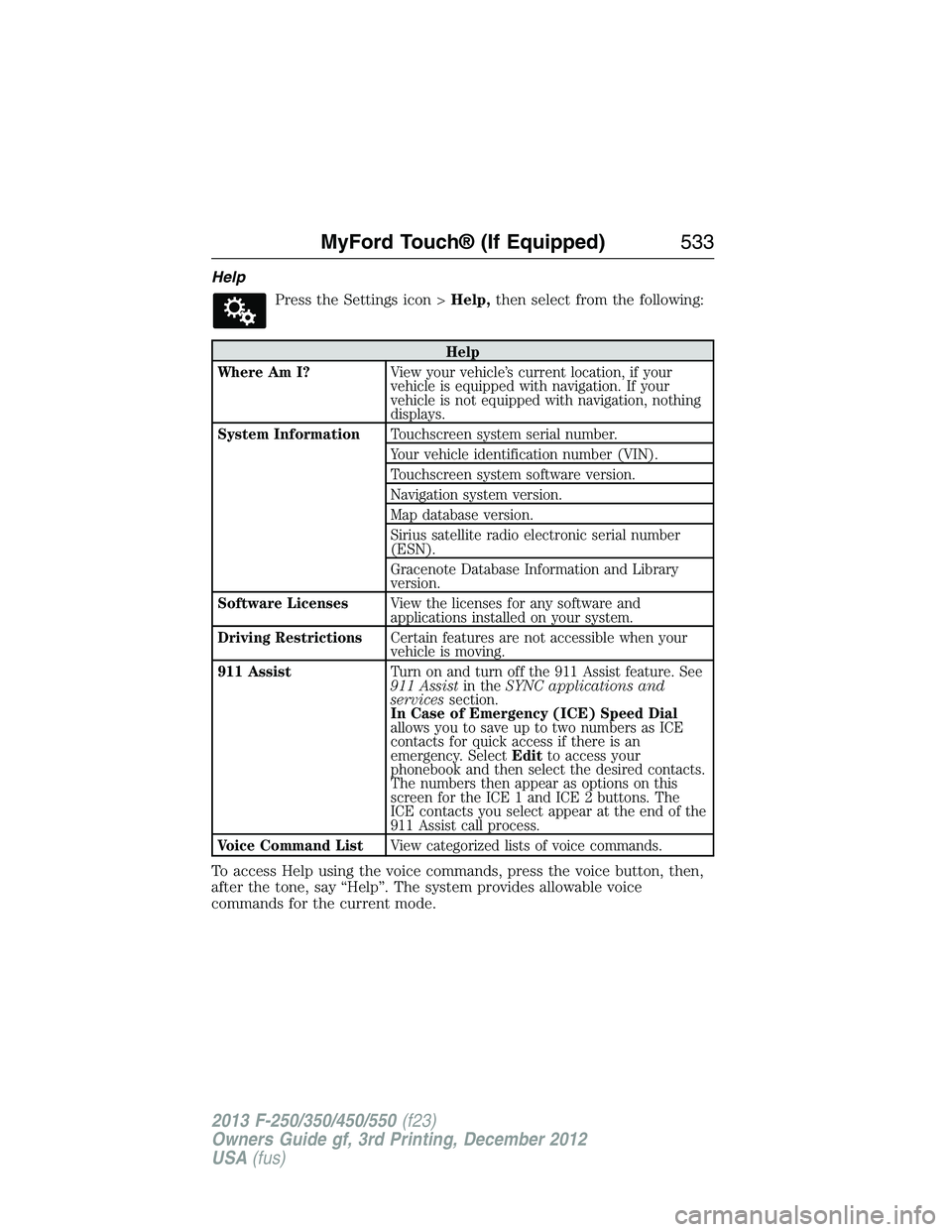
Help
Press the Settings icon >Help,then select from the following:
Help
Where Am I?View your vehicle’s current location, if your
vehicle is equipped with navigation. If your
vehicle is not equipped with navigation, nothing
displays.
System InformationTouchscreen system serial number.
Your vehicle identification number (VIN).
Touchscreen system software version.
Navigation system version.
Map database version.
Sirius satellite radio electronic serial number
(ESN).
Gracenote Database Information and Library
version.
Software LicensesView the licenses for any software and
applications installed on your system.
Driving RestrictionsCertain features are not accessible when your
vehicle is moving.
911 AssistTurn on and turn off the 911 Assist feature. See
911 Assistin theSYNC applications and
servicessection.
In Case of Emergency (ICE) Speed Dial
allows you to save up to two numbers as ICE
contacts for quick access if there is an
emergency. SelectEditto access your
phonebook and then select the desired contacts.
The numbers then appear as options on this
screen for the ICE 1 and ICE 2 buttons. The
ICE contacts you select appear at the end of the
911 Assist call process.
Voice Command ListView categorized lists of voice commands.
To access Help using the voice commands, press the voice button, then,
after the tone, say “Help”. The system provides allowable voice
commands for the current mode.
MyFord Touch® (If Equipped)533
2013 F-250/350/450/550(f23)
Owners Guide gf, 3rd Printing, December 2012
USA(fus)
Page 538 of 577
“TEMPERATURE”
“High”
“Low”
“<15.5–29.5> degrees”
“<60–85> degrees”
“Help”
NAVIGATION SYSTEM (IF EQUIPPED)
Note:The navigation SD card must be in the SD card slot to operate
the navigation system. If you need a replacement SD card, see your
authorized dealer.
Note:The SD card slot is spring-loaded. To remove the SD card, just
push the card in and release it. Do not attempt to pull the card out to
remove it; this could cause damage.
Your navigation system is comprised of two main features, destination
mode and map mode.
To set a destination, press the green corner of your touchscreen, then
Destwhen it appears. SeeSetting a destinationlater in this chapter.
To view the navigation map and your vehicle’s current location, touch the
green bar in the upper right hand corner of the touchscreen, or, press
Dest>Map.SeeMap modelater in this chapter.
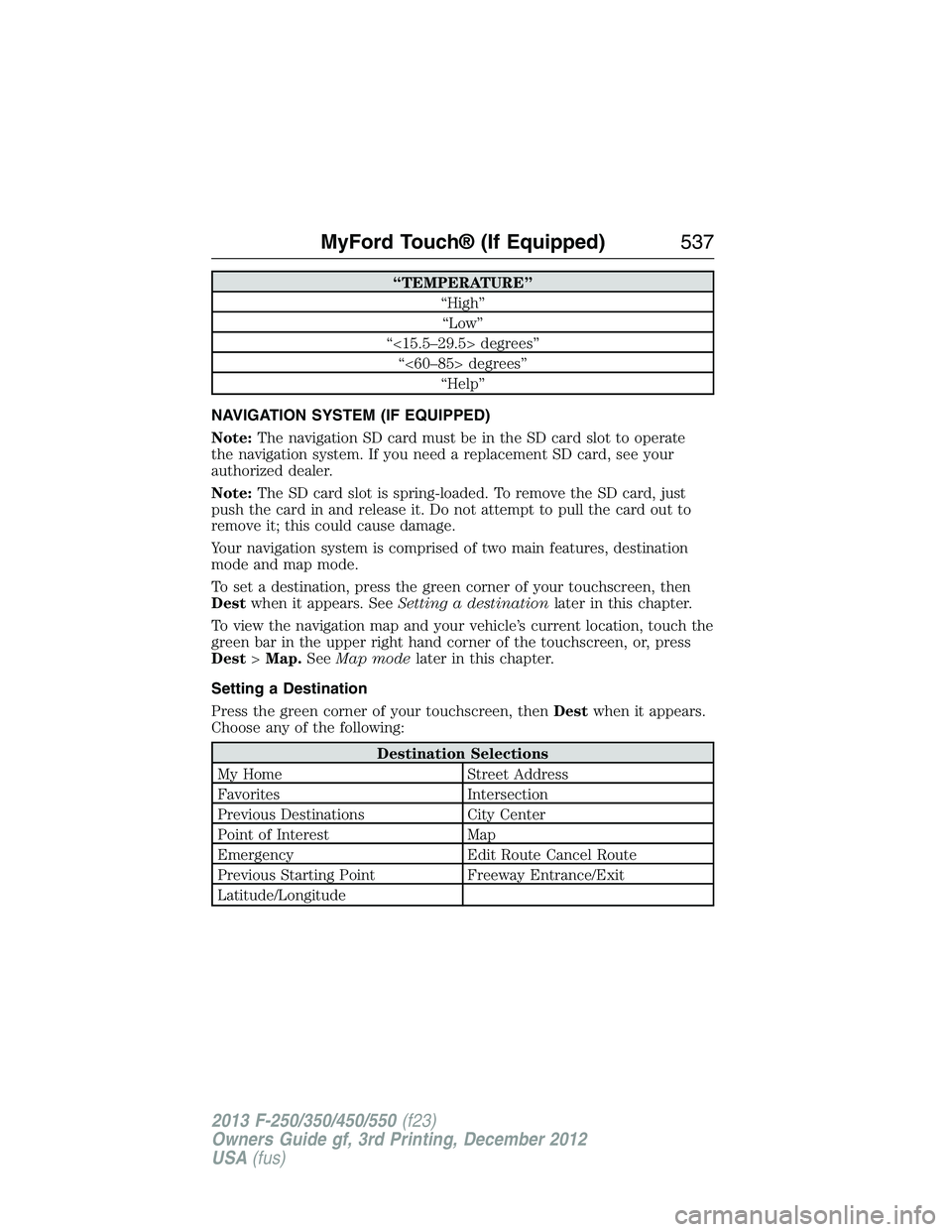
Setting a Destination
Press the green corner of your touchscreen, thenDestwhen it appears.
Choose any of the following:
Destination Selections
My Home Street Address
Favorites Intersection
Previous Destinations City Center
Point of Interest Map
Emergency Edit Route Cancel Route
Previous Starting Point Freeway Entrance/Exit
Latitude/Longitude
MyFord Touch® (If Equipped)537
2013 F-250/350/450/550(f23)
Owners Guide gf, 3rd Printing, December 2012
USA(fus)
Page 539 of 577
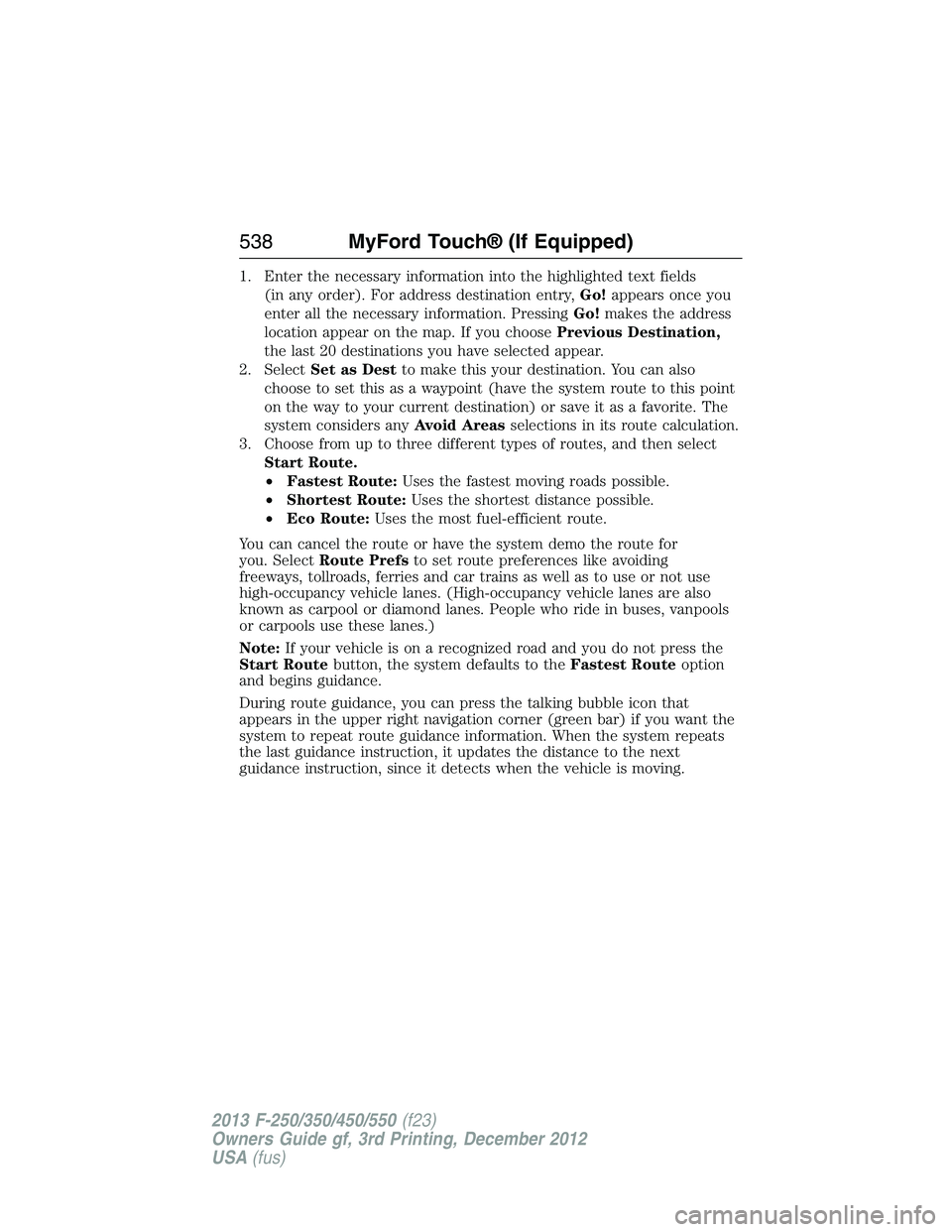
1. Enter the necessary information into the highlighted text fields
(in any order). For address destination entry,Go!appears once you
enter all the necessary information. PressingGo!makes the address
location appear on the map. If you choosePrevious Destination,
the last 20 destinations you have selected appear.
2. SelectSet as Destto make this your destination. You can also
choose to set this as a waypoint (have the system route to this point
on the way to your current destination) or save it as a favorite. The
system considers anyAvoid Areasselections in its route calculation.
3. Choose from up to three different types of routes, and then select
Start Route.
•Fastest Route:Uses the fastest moving roads possible.
•Shortest Route:Uses the shortest distance possible.
•Eco Route:Uses the most fuel-efficient route.
You can cancel the route or have the system demo the route for
you. SelectRoute Prefsto set route preferences like avoiding
freeways, tollroads, ferries and car trains as well as to use or not use
high-occupancy vehicle lanes. (High-occupancy vehicle lanes are also
known as carpool or diamond lanes. People who ride in buses, vanpools
or carpools use these lanes.)
Note:If your vehicle is on a recognized road and you do not press the
Start Routebutton, the system defaults to theFastest Routeoption
and begins guidance.
During route guidance, you can press the talking bubble icon that
appears in the upper right navigation corner (green bar) if you want the
system to repeat route guidance information. When the system repeats
the last guidance instruction, it updates the distance to the next
guidance instruction, since it detects when the vehicle is moving.
538MyFord Touch® (If Equipped)
2013 F-250/350/450/550(f23)
Owners Guide gf, 3rd Printing, December 2012
USA(fus)
Page 543 of 577
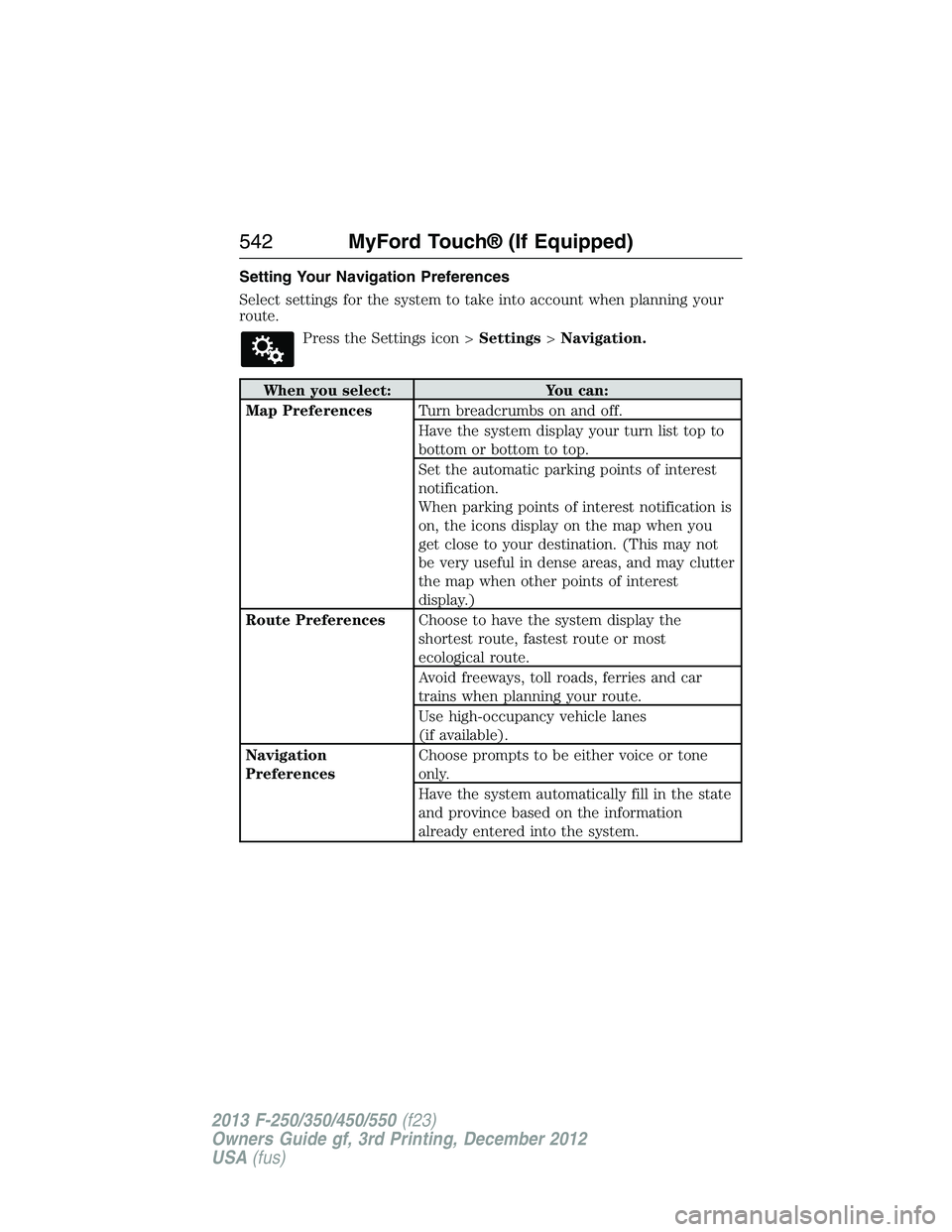
Setting Your Navigation Preferences
Select settings for the system to take into account when planning your
route.
Press the Settings icon >Settings>Navigation.
When you select: You can:
Map PreferencesTurn breadcrumbs on and off.
Have the system display your turn list top to
bottom or bottom to top.
Set the automatic parking points of interest
notification.
When parking points of interest notification is
on, the icons display on the map when you
get close to your destination. (This may not
be very useful in dense areas, and may clutter
the map when other points of interest
display.)
Route PreferencesChoose to have the system display the
shortest route, fastest route or most
ecological route.
Avoid freeways, toll roads, ferries and car
trains when planning your route.
Use high-occupancy vehicle lanes
(if available).
Navigation
PreferencesChoose prompts to be either voice or tone
only.
Have the system automatically fill in the state
and province based on the information
already entered into the system.
542MyFord Touch® (If Equipped)
2013 F-250/350/450/550(f23)
Owners Guide gf, 3rd Printing, December 2012
USA(fus)
Page 548 of 577
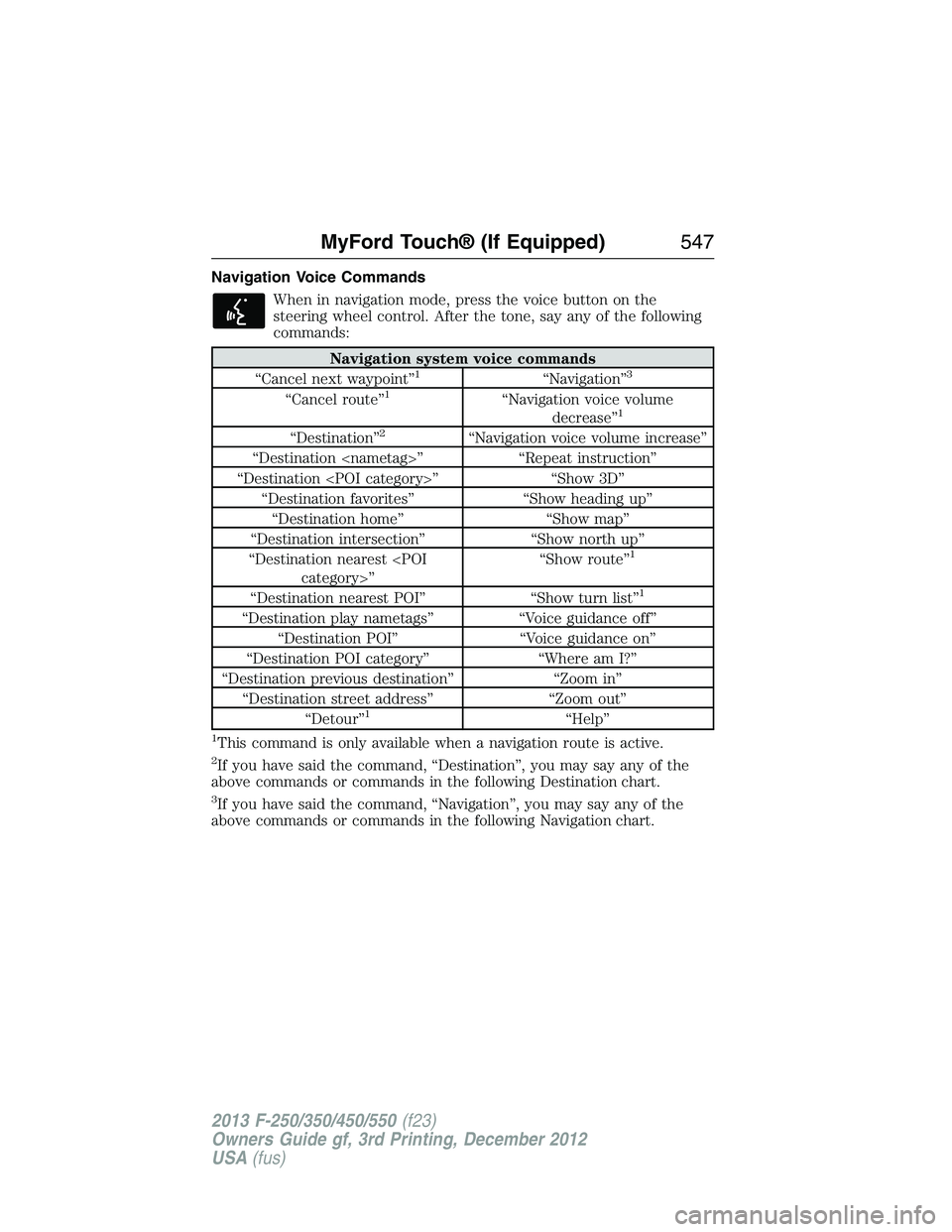
Navigation Voice Commands
When in navigation mode, press the voice button on the
steering wheel control. After the tone, say any of the following
commands:
Navigation system voice commands
“Cancel next waypoint”1“Navigation”3
“Cancel route”1“Navigation voice volume
decrease”1
“Destination”2“Navigation voice volume increase”
“Destination
“Destination
“Destination favorites” “Show heading up”
“Destination home” “Show map”
“Destination intersection” “Show north up”
“Destination nearest
1
“Destination nearest POI” “Show turn list”1
“Destination play nametags” “Voice guidance off”
“Destination POI” “Voice guidance on”
“Destination POI category” “Where am I?”
“Destination previous destination” “Zoom in”
“Destination street address” “Zoom out”
“Detour”
1“Help”
1This command is only available when a navigation route is active.
2If you have said the command, “Destination”, you may say any of the
above commands or commands in the following Destination chart.
3If you have said the command, “Navigation”, you may say any of the
above commands or commands in the following Navigation chart.
MyFord Touch® (If Equipped)547
2013 F-250/350/450/550(f23)
Owners Guide gf, 3rd Printing, December 2012
USA(fus)
Page 549 of 577
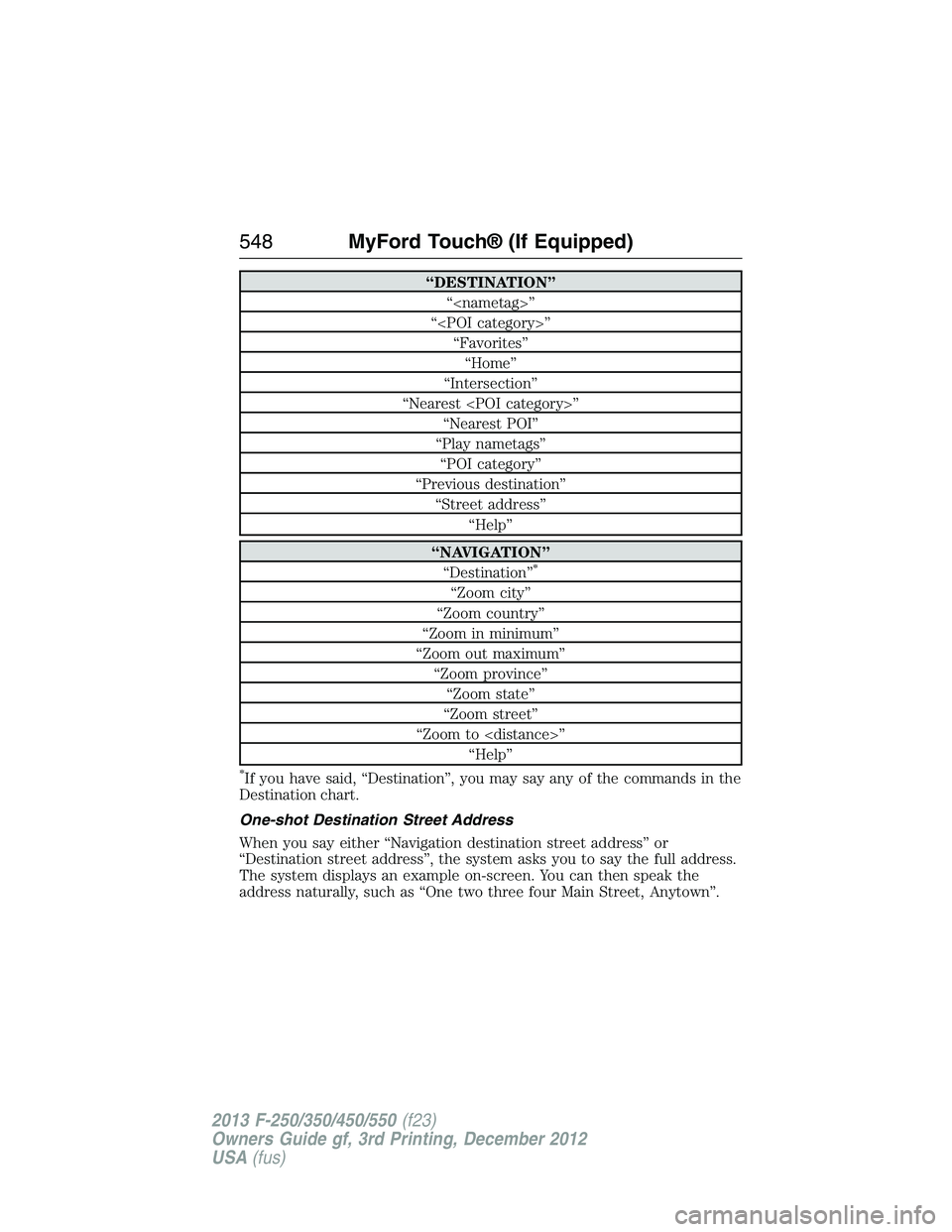
“DESTINATION”
“
“
“Favorites”
“Home”
“Intersection”
“Nearest
“Nearest POI”
“Play nametags”
“POI category”
“Previous destination”
“Street address”
“Help”
“NAVIGATION”
“Destination”*
“Zoom city”
“Zoom country”
“Zoom in minimum”
“Zoom out maximum”
“Zoom province”
“Zoom state”
“Zoom street”
“Zoom to
“Help”
*If you have said, “Destination”, you may say any of the commands in the
Destination chart.
One-shot Destination Street Address
When you say either “Navigation destination street address” or
“Destination street address”, the system asks you to say the full address.
The system displays an example on-screen. You can then speak the
address naturally, such as “One two three four Main Street, Anytown”.
548MyFord Touch® (If Equipped)
2013 F-250/350/450/550(f23)
Owners Guide gf, 3rd Printing, December 2012
USA(fus)
Page 557 of 577
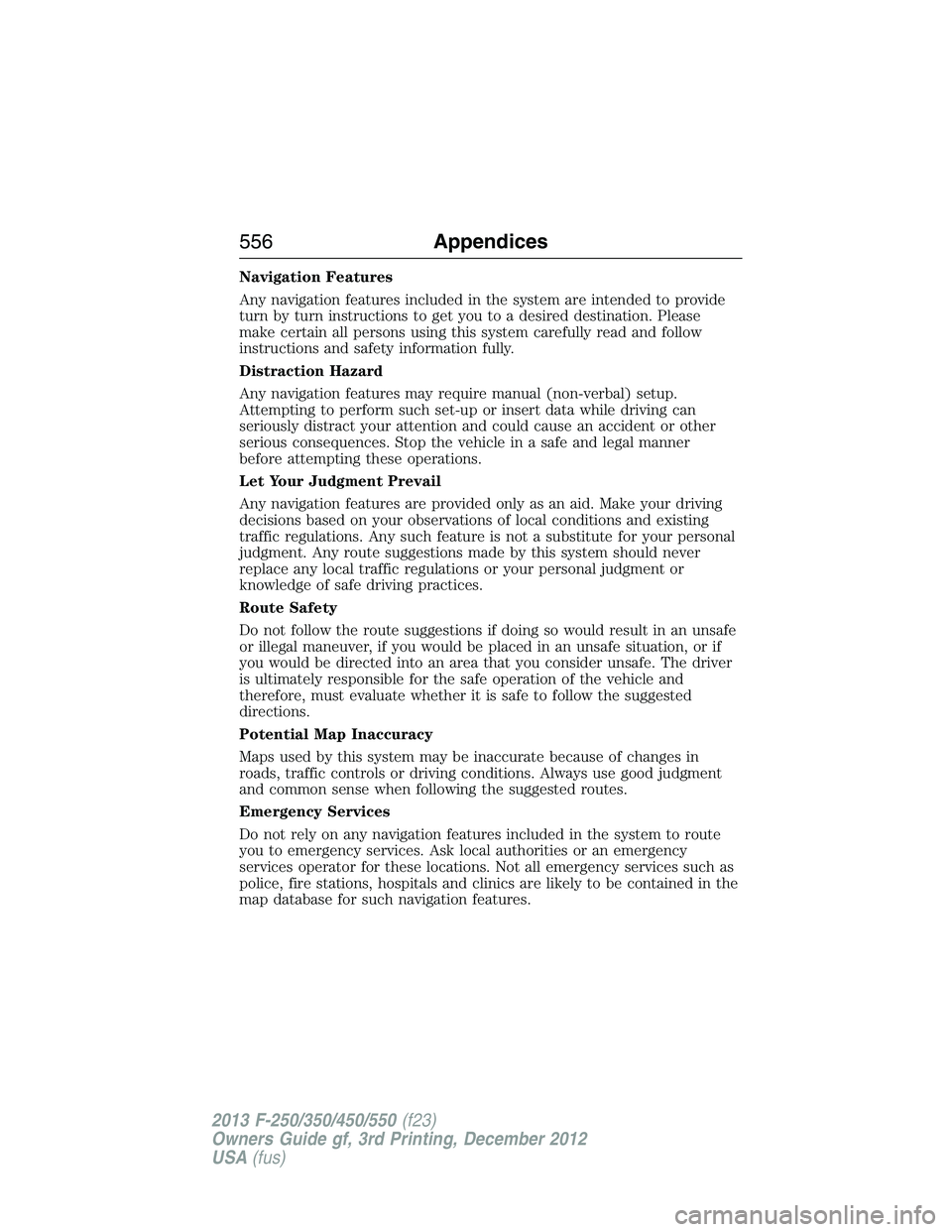
Navigation Features
Any navigation features included in the system are intended to provide
turn by turn instructions to get you to a desired destination. Please
make certain all persons using this system carefully read and follow
instructions and safety information fully.
Distraction Hazard
Any navigation features may require manual (non-verbal) setup.
Attempting to perform such set-up or insert data while driving can
seriously distract your attention and could cause an accident or other
serious consequences. Stop the vehicle in a safe and legal manner
before attempting these operations.
Let Your Judgment Prevail
Any navigation features are provided only as an aid. Make your driving
decisions based on your observations of local conditions and existing
traffic regulations. Any such feature is not a substitute for your personal
judgment. Any route suggestions made by this system should never
replace any local traffic regulations or your personal judgment or
knowledge of safe driving practices.
Route Safety
Do not follow the route suggestions if doing so would result in an unsafe
or illegal maneuver, if you would be placed in an unsafe situation, or if
you would be directed into an area that you consider unsafe. The driver
is ultimately responsible for the safe operation of the vehicle and
therefore, must evaluate whether it is safe to follow the suggested
directions.
Potential Map Inaccuracy
Maps used by this system may be inaccurate because of changes in
roads, traffic controls or driving conditions. Always use good judgment
and common sense when following the suggested routes.
Emergency Services
Do not rely on any navigation features included in the system to route
you to emergency services. Ask local authorities or an emergency
services operator for these locations. Not all emergency services such as
police, fire stations, hospitals and clinics are likely to be contained in the
map database for such navigation features.
556Appendices
2013 F-250/350/450/550(f23)
Owners Guide gf, 3rd Printing, December 2012
USA(fus)
Page 564 of 577
Additional License Limitations:Except where you have been
specifically licensed to do so by NT in a separate written agreement, and
without limiting the preceding paragraph, your license is conditioned on
use of the Data as prescribed in this agreement, and you may not (a) use
this Data with any products, systems, or applications installed or
otherwise connected to or in communication with vehicles capable of
vehicle navigation, positioning, dispatch, real time route guidance, fleet
management or similar applications; or (b) with, or in communication
with, including without limitation, cellular phones, palmtop and handheld
computers, pagers, and personal digital assistants or PDAs.
WARNING:This Data may contain inaccurate or incomplete
information due to the passage of time, changing circumstances,
sources used and the nature of collecting comprehensive geographic
Data, any of which may lead to incorrect results.
No Warranty:This Data is provided to you “as is”, and you agree to
use it at your own risk. NT and its licensors (and their licensors and
suppliers) make no guarantees, representations or warranties of any
kind, express or implied, arising by law or otherwise, including but not
limited to, content, quality, accuracy, completeness, effectiveness,
reliability, fitness for a particular purpose, usefulness, use or results to be
obtained from this Data, or that the Data or server will be uninterrupted
or error free.
Disclaimer of Warranty:NT AND ITS LICENSORS (INCLUDING
THEIR LICENSORS AND SUPPLIERS) DISCLAIM ANY WARRANTIES,
EXPRESS OR IMPLIED, OF QUALITY, PERFORMANCE,
MERCHANTABILITY, FITNESS FOR A PARTICULAR PURPOSE OR
NON-INFRINGEMENT. Some States, Territories and Countries do not
allow certain warranty exclusions, so to that extent the above exclusion
may not apply to you.
Appendices563
2013 F-250/350/450/550(f23)
Owners Guide gf, 3rd Printing, December 2012
USA(fus)
Page 574 of 577
interior lamps ...........................89
replacing bulbs .......327, 329–330
Lane change indicator
(see Turn signal) ........................88
LATCH anchors ...........................31
Lights, warning and indicator ....99
Listening to music ....................478
Loading instructions .................247
Load limits .................................241
Locks
autolock .....................................73
childproof ..................................35
doors ..........................................72
Lug nuts ....................................387
Lumbar support, seats .............158
M
Making and receiving calls .......502
Manual transmission
fluid capacities ........................391
MAP DVD - Loading and
Unloading ..................................502
Map icons ..................................545
Map mode ..................................543
Map preferences .......................542
Map updates ..............................546
Media Bluetooth menu options
(adding, connecting, deleting,
turning on/off) ..........................458
Message center .................104–105
warning messages ...................119
Mirrors ...................................92, 94
fold away .............................93–94
programmable memory ............63
side view mirrors (power) .......92Moon roof ....................................96
Motorcraft® parts .............332, 395
MyFord Touch™ system ..........466
MyKey ..........................................67
N
Navigation features ...................537
Navigation voice commands ....547
Notifications ..............................515
O
Octane rating ............................191
P
Pairing other phones ........426, 502
Pairing your phone ...................501
Pairing your phone for
the first time .....................426, 501
Parental MyKey programming ...67
Parking brake ............................224
Parts
(see Motorcraft® parts) ..........395
Phone Bluetooth menu options
(adding, connecting, deleting,
turning on/off) ..........................437
Phone redial ..............................431
Phone settings ..................505, 528
Phone voice commands ............507
Playing music (by artist,
album, genre, playlist,
tracks, similar) ..........................455
POI categories ...........................539
Point of Interest (POI) .............539
Index573
2013 F-250/350/450/550(f23)
Owners Guide gf, 3rd Printing, December 2012
USA(fus)