display FORD F250 SUPER DUTY 2014 Repair Manual
[x] Cancel search | Manufacturer: FORD, Model Year: 2014, Model line: F250 SUPER DUTY, Model: FORD F250 SUPER DUTY 2014Pages: 460, PDF Size: 6.55 MB
Page 303 of 460
1Add 8 oz. (236 ml) of Additive Friction Modifier XL-3 or equivalent meeting FordSpecification EST-M2C118–A for complete refill of limited slip Ford axles. Ford designrear axles contain a synthetic lubricant that does not require changing unless you submergethe axle in water.2Ford recommends using Motorcraft (Ford) DOT 3 LV High Performance Motor VehicleBrake Fluid, Motorcraft (Ford) DOT 4 LV High Performance Motor Vehicle Brake Fluid orequivalent meeting WSS-M6C65-A1 or WSS-M6C65-A2. Use of any fluid other than therecommended fluid may cause degraded brake performance and not meet the Fordperformance standards. Keep brake fluid clean and dry. Contamination with dirt, water,petroleum products or other materials may result in brake system damage and possiblefailure.3Add the coolant type originally equipped in your vehicle.4Ford has designed your engine to use Motorcraft engine oils or equivalent oils that meetFord’s specification. It is also acceptable to use an engine oil of recommended viscositygrade that meets API SN requirements and displays the API Certification Mark for gasolineengines.5Do not use oils labeled as API SN unless the label also display the API certification mark.These oils do not meet the requirements of your vehicles engine and emissions system.6Do not use supplemental engine oil additives. They are unnecessary and could lead toengine damage not covered by your Ford warranty.7Use the correct automatic transmission fluid. Transmission fluid requirements areindicated on the dipstick blade or the dipstick handle. Check the container to verify thefluid you are adding is of the correct type. Refer to your scheduled maintenance informationto determine the correct service interval.
Note:Automatic transmissions that require MERCON LV should only use MERCON LV fluid.Use of any fluid other than the recommended fluid may cause transmission damage.8Indicates only approximate dry-fill capacity. Some applications may vary based on coolersize and if equipped with an in-tank cooler. You should set the amount of transmissionfluid and fluid level by the indication on the dipstick’s normal operating range.9Fill to the proper capacity according to dipstick Type A. For correct dipstick type, SeeAutomatic Transmission Fluid Check (page 231).9Fill to the proper capacity according to dipstick Type B. For correct dipstick type, SeeAutomatic Transmission Fluid Check (page 231).10See the Warning below:
WARNING
The air conditioning refrigerant system contains refrigerant R-134a under highpressure. Opening the air conditioning refrigerant system can cause personal injury.Have the air conditioning refrigerant system serviced only by qualified personnel.
300
Super Duty (TFA)
Capacities and Specifications
Page 305 of 460
•MP3 folder mode represents a folderstructure consisting of one level offolders. The CD player numbers all MP3tracks on the disc (noted by the .mp3file extension) and all folderscontaining MP3 files, from F001(folder) T001 (track) to F253 T255.
•Creating discs with only one level offolders helps with navigation throughthe disc files.
If you are burning your own MP3 discs, it isimportant to understand how the systemreads the structures you create. Whilevarious files may be present, (files withextensions other than mp3), only files withthe .mp3 extension are played; other filesare ignored by the system. This enablesyou to use the same MP3 disc for a varietyof tasks on your work computer, homecomputer and your in-vehicle system.
In track mode, the system displays andplays the structure as if it were only onelevel deep (all .mp3 files play, regardlessof being in a specific folder). In foldermode, the system only plays the .mp3 filesin the current folder.
AUDIO UNIT - VEHICLES WITH:
AM/FM
WARNING
Driving while distracted can result inloss of vehicle control, crash andinjury. We strongly recommend thatyou use extreme caution when using anydevice that may take your focus off theroad. Your primary responsibility is the safeoperation of your vehicle. We recommendagainst the use of any hand-held devicewhile driving and encourage the use ofvoice-operated systems when possible.Make sure you are aware of all applicablelocal laws that may affect the use ofelectronic devices while driving.
302
Super Duty (TFA)
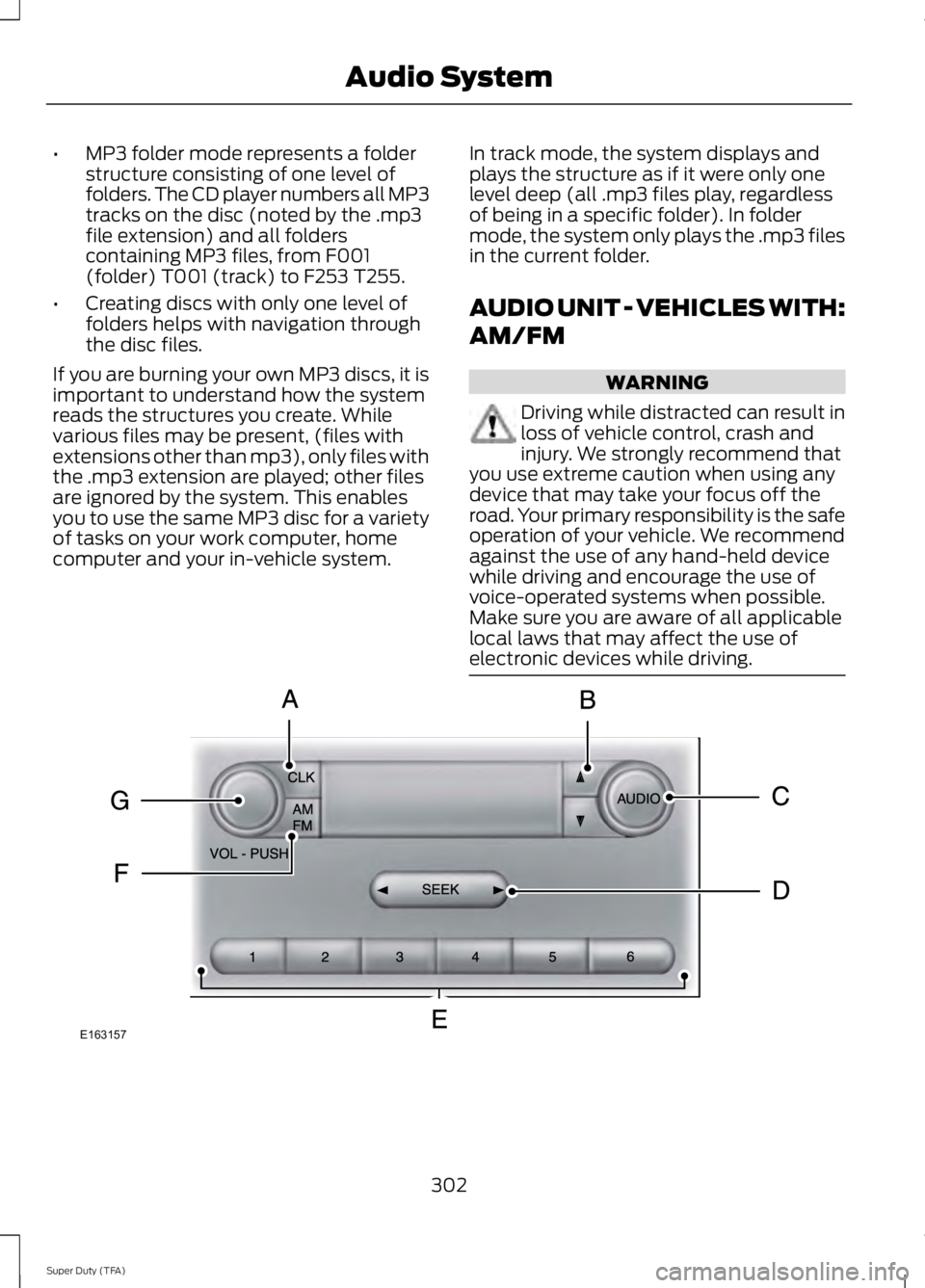
Audio SystemE163157
Page 306 of 460
CLK: Press this button to switch the display between the clock and radiofrequency. To set the time, press and hold the button until the hours start toflash. Press the arrow buttons (B) to adjust he hours, then repeat to set theminutes. Press CLK again to exit clock mode.
A
Tune: Press these arrow buttons to manually search through the radio frequencyband. Press and hold for a fast search. In AUDIO mode, press the buttons toadjust different sound settings.
B
AUDIO: Press this button to access settings for Treble, Middle, Bass, Fade andBalance.C
SEEK: Press this button to go to the previous or next strong station on thefrequency band.D
Memory presets: Store your favorite radio stations. To store a radio station,tune to the station, then press and hold a preset button until sound returns.E
AM/FM: Press this button to select a frequency band.F
VOL-PUSH: Press this button to switch the system off and on. Turn the controlto adjust the volume.G
AUDIO UNIT - VEHICLES WITH:
AM/FM/CD/SYNC
WARNING
Driving while distracted can result inloss of vehicle control, crash andinjury. We strongly recommend thatyou use extreme caution when using anydevice that may take your focus off theroad. Your primary responsibility is the safeoperation of your vehicle. We recommendagainst the use of any hand-held devicewhile driving and encourage the use ofvoice-operated systems when possible.Make sure you are aware of all applicablelocal laws that may affect the use ofelectronic devices while driving.
303
Super Duty (TFA)
Audio System
Page 307 of 460
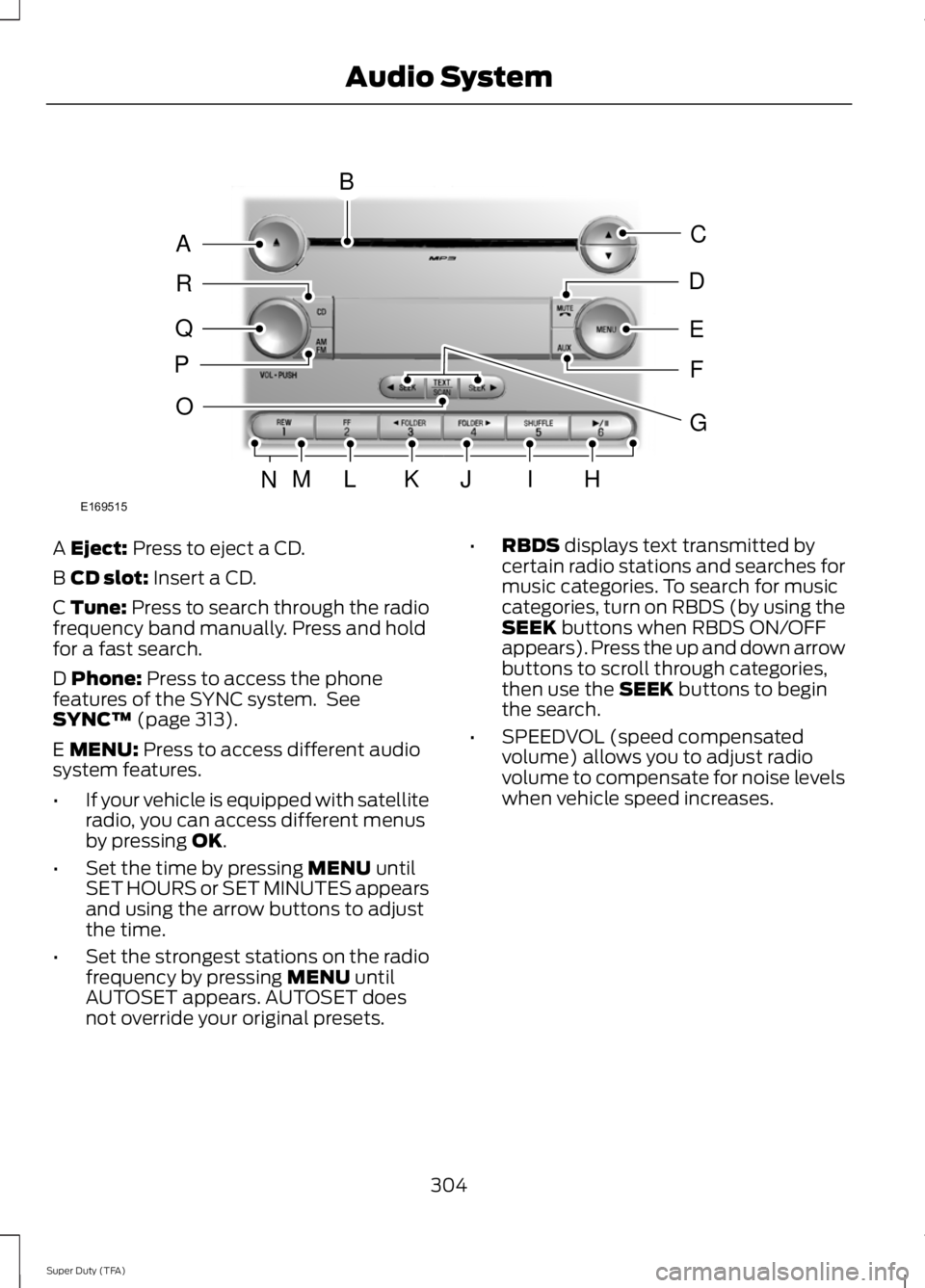
A Eject: Press to eject a CD.
B CD slot: Insert a CD.
C Tune: Press to search through the radiofrequency band manually. Press and holdfor a fast search.
D Phone: Press to access the phonefeatures of the SYNC system. SeeSYNC™ (page 313).
E MENU: Press to access different audiosystem features.
•If your vehicle is equipped with satelliteradio, you can access different menusby pressing OK.
•Set the time by pressing MENU untilSET HOURS or SET MINUTES appearsand using the arrow buttons to adjustthe time.
•Set the strongest stations on the radiofrequency by pressing MENU untilAUTOSET appears. AUTOSET doesnot override your original presets.
•RBDS displays text transmitted bycertain radio stations and searches formusic categories. To search for musiccategories, turn on RBDS (by using theSEEK buttons when RBDS ON/OFFappears). Press the up and down arrowbuttons to scroll through categories,then use the SEEK buttons to beginthe search.
•SPEEDVOL (speed compensatedvolume) allows you to adjust radiovolume to compensate for noise levelswhen vehicle speed increases.
304
Super Duty (TFA)
Audio SystemE169515
B
A
Q
R
P
C
E
D
F
O
MLKJIHN
G
Page 308 of 460
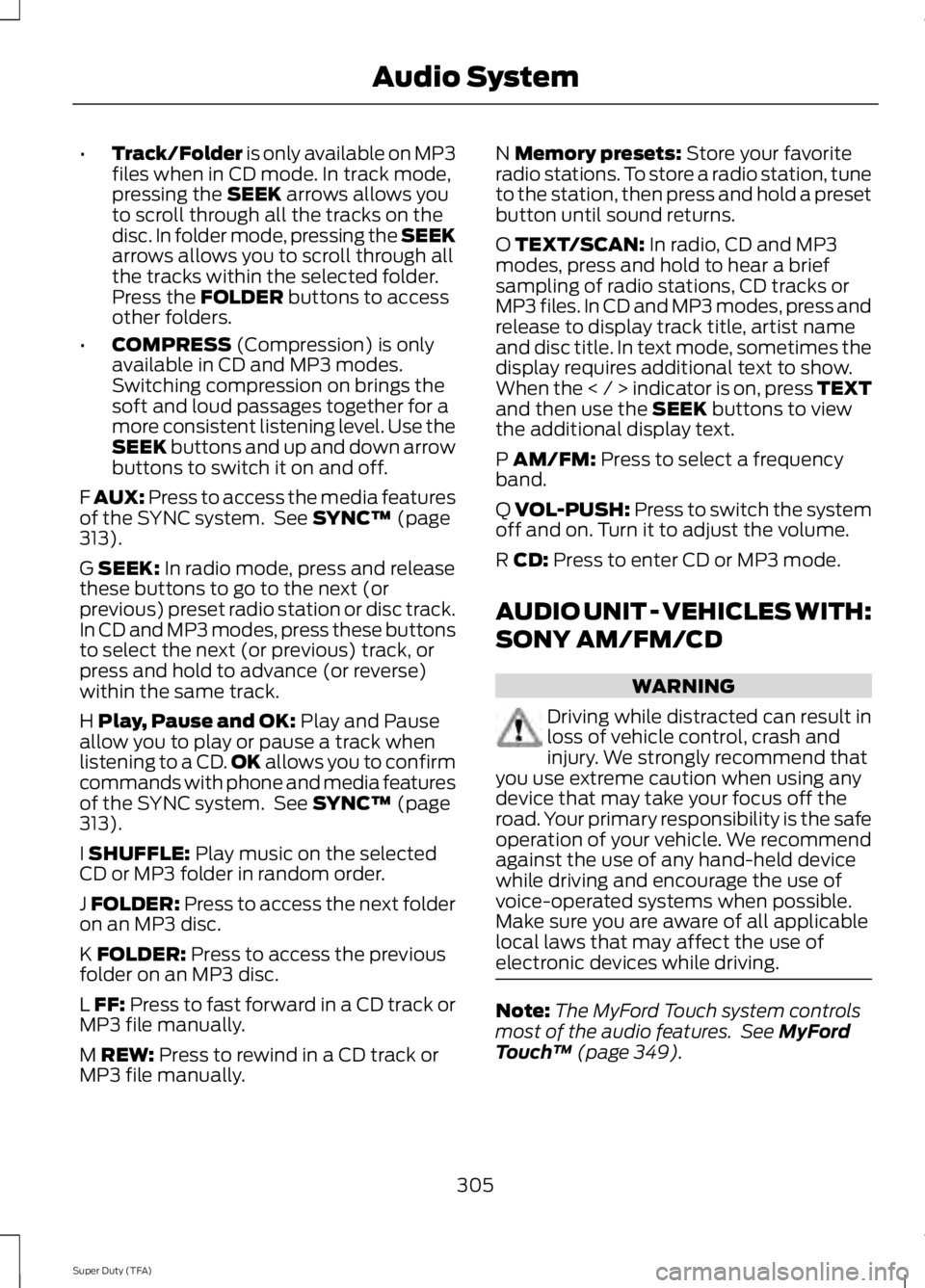
•Track/Folder is only available on MP3files when in CD mode. In track mode,pressing the SEEK arrows allows youto scroll through all the tracks on thedisc. In folder mode, pressing the SEEKarrows allows you to scroll through allthe tracks within the selected folder.Press the FOLDER buttons to accessother folders.
•COMPRESS (Compression) is onlyavailable in CD and MP3 modes.Switching compression on brings thesoft and loud passages together for amore consistent listening level. Use theSEEK buttons and up and down arrowbuttons to switch it on and off.
F AUX: Press to access the media featuresof the SYNC system. See SYNC™ (page313).
G SEEK: In radio mode, press and releasethese buttons to go to the next (orprevious) preset radio station or disc track.In CD and MP3 modes, press these buttonsto select the next (or previous) track, orpress and hold to advance (or reverse)within the same track.
H Play, Pause and OK: Play and Pauseallow you to play or pause a track whenlistening to a CD.OK allows you to confirmcommands with phone and media featuresof the SYNC system. See SYNC™ (page313).
I SHUFFLE: Play music on the selectedCD or MP3 folder in random order.
J FOLDER: Press to access the next folderon an MP3 disc.
K FOLDER: Press to access the previousfolder on an MP3 disc.
L FF: Press to fast forward in a CD track orMP3 file manually.
M REW: Press to rewind in a CD track orMP3 file manually.
N Memory presets: Store your favoriteradio stations. To store a radio station, tuneto the station, then press and hold a presetbutton until sound returns.
O TEXT/SCAN: In radio, CD and MP3modes, press and hold to hear a briefsampling of radio stations, CD tracks orMP3 files. In CD and MP3 modes, press andrelease to display track title, artist nameand disc title. In text mode, sometimes thedisplay requires additional text to show.When the < / > indicator is on, press TEXTand then use the SEEK buttons to viewthe additional display text.
P AM/FM: Press to select a frequencyband.
Q VOL-PUSH: Press to switch the systemoff and on. Turn it to adjust the volume.
R CD: Press to enter CD or MP3 mode.
AUDIO UNIT - VEHICLES WITH:
SONY AM/FM/CD
WARNING
Driving while distracted can result inloss of vehicle control, crash andinjury. We strongly recommend thatyou use extreme caution when using anydevice that may take your focus off theroad. Your primary responsibility is the safeoperation of your vehicle. We recommendagainst the use of any hand-held devicewhile driving and encourage the use ofvoice-operated systems when possible.Make sure you are aware of all applicablelocal laws that may affect the use ofelectronic devices while driving.
Note:The MyFord Touch system controlsmost of the audio features. See MyFordTouch™ (page 349).
305
Super Duty (TFA)
Audio System
Page 312 of 460
HD Radio Technology manufactured underlicense from iBiquity Digital Corp. U.S. andforeign patents. HD Radio and the HD andHD Radio logos are proprietary trademarksof iBiquity Digital Corp. Ford MotorCompany and iBiquity Digital Corp. are notresponsible for the content sent using HDRadio technology. Content may bechanged, added or deleted at any time atthe station owner's discretion.
SATELLITE RADIO (IF EQUIPPED)
SIRIUS® broadcasts a variety of music,news, sports, weather, traffic andentertainment satellite radio channels. Formore information and a complete list ofSIRIUS satellite radio channels, visitwww.siriusxm.com in the United States,www.sirius.ca in Canada, or call SIRIUS at1-888-539-7474.
Note:This receiver includes the eCosreal-time operating system. eCos ispublished under the eCos License.
Satellite Radio Reception Factors
Potential satellite radio reception issues
For optimal reception performance, keep the antennaclear of snow and ice build-up and keep luggage and othermaterial as far away from the antenna as possible.
Antenna obstructions
Hills, mountains, tall buildings, bridges, tunnels, freewayoverpasses, parking garages, dense tree foliage andthunderstorms can interfere with your reception.
Terrain
When you pass a ground-based broadcast-repeatingtower, a stronger signal may overtake a weaker one andthe audio system may mute.
Station overload
Your display may show ACQUIRING . . . to indicate theinterference and the audio system may mute.Satellite radio signal interfer-ence
SIRIUS® Satellite Radio Service
Note:SIRIUS reserves the unrestricted rightto change, rearrange, add or deleteprogramming including canceling, movingor adding particular channels, and its prices,at any time, with or without notice to you.Ford Motor Company shall not beresponsible for any such programmingchanges.
309
Super Duty (TFA)
Audio SystemE142593
Page 313 of 460
SIRIUS satellite radio is asubscription-based satellite radio servicethat broadcasts a variety of music, sports,news, weather, traffic and entertainmentprogramming. Your factory-installedSIRIUS satellite radio system includeshardware and a limited subscription term,which begins on the date of sale or leaseof your vehicle. See an authorized dealerfor availability.
For more information on extendedsubscription terms (a service fee isrequired), the online media player and acomplete list of SIRIUS satellite radiochannels, and other features, please visitwww.siriusxm.com in the United States,www.sirius.ca in Canada, or call SIRIUS at1-888-539-7474.
Satellite Radio Electronic SerialNumber (ESN)
You need your ESN to activate, modify ortrack your satellite radio account. When insatellite radio mode, press Options.
Troubleshooting
Possible actionConditionRadio display
No action required. Thismessage should disappearshortly.
Radio requires more thantwo seconds to produceaudio for the selectedchannel.
Acquiring
If this message does notclear shortly, or with an igni-tion key cycle, your receivermay have a fault. See anauthorized dealer for service.
There is an internal moduleor system failure present.Sat Fault/SIRIUS systemfailure
Tune to another channel orchoose another preset.The channel is no longeravailable.Invalid Channel
Contact SIRIUS at 1-888-539-7474 to subscribe tothe channel, or tune toanother channel.
Your subscription does notinclude this channel.Unsubscribed Channel
The signal is blocked. Whenyou move into an open area,the signal should return.
The signal is lost from theSIRIUS satellite or SIRIUStower to your vehicleantenna.
No Signal
No action required. Theprocess may take up tothree minutes.
Update of channelprogramming in progress.Updating
310
Super Duty (TFA)
Audio System
Page 314 of 460
Possible actionConditionRadio display
Contact SIRIUS at 1-888-539-7474 to resolvesubscription issues.
Your satellite service is nolonger available.Call SIRIUS 1-888-539-7474
Use the channel guide toturn off the Lock or Skipfunction on that station.
All the channels in theselected category are eitherskipped or locked.
None found. Check ChannelGuide.
No action required.SIRIUS has updated thechannels available for yourvehicle.
Subscription Updated
AUDIO INPUT JACK
WARNINGS
Driving while distracted can result inloss of vehicle control, crash andinjury. We strongly recommend thatyou use extreme caution when using anydevice that may take your focus off theroad. Your primary responsibility is the safeoperation of your vehicle. We recommendagainst the use of any hand-held devicewhile driving and encourage the use ofvoice-operated systems when possible.Make sure you are aware of all applicablelocal laws that may affect the use ofelectronic devices while driving.
For safety reasons, do not connector adjust the settings on yourportable music player while yourvehicle is moving.
Store the portable music player in asecure location, such as the centerconsole or the glove box, when yourvehicle is moving. Hard objects maybecome projectiles in a collision or suddenstop, which may increase the risk of seriousinjury. The audio extension cable must belong enough to allow the portable musicplayer to be safely stored while yourvehicle is moving.
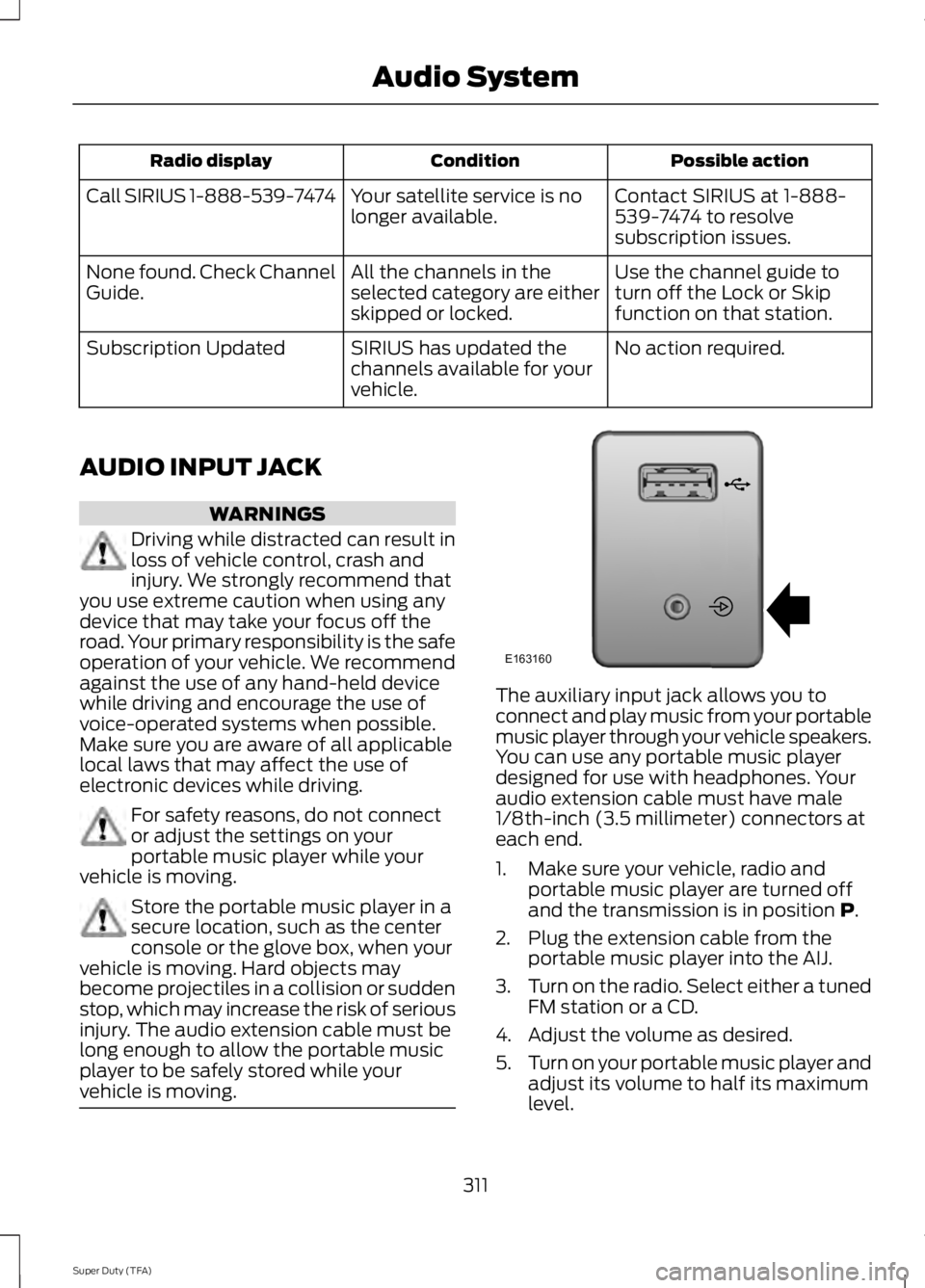
The auxiliary input jack allows you toconnect and play music from your portablemusic player through your vehicle speakers.You can use any portable music playerdesigned for use with headphones. Youraudio extension cable must have male1/8th-inch (3.5 millimeter) connectors ateach end.
1. Make sure your vehicle, radio andportable music player are turned offand the transmission is in position P.
2. Plug the extension cable from theportable music player into the AIJ.
3.Turn on the radio. Select either a tunedFM station or a CD.
4. Adjust the volume as desired.
5.Turn on your portable music player andadjust its volume to half its maximumlevel.
311
Super Duty (TFA)
Audio SystemE163160
Page 315 of 460
6. Press AUX until LINE or LINE INappears in the display. You should hearmusic from your device even if it is low.
7. Adjust the volume on your portablemusic player until it reaches the volumelevel of the FM station or CD. Do thisby switching back and forth betweenthe AUX and FM or CD controls.
USB PORT (IF EQUIPPED)
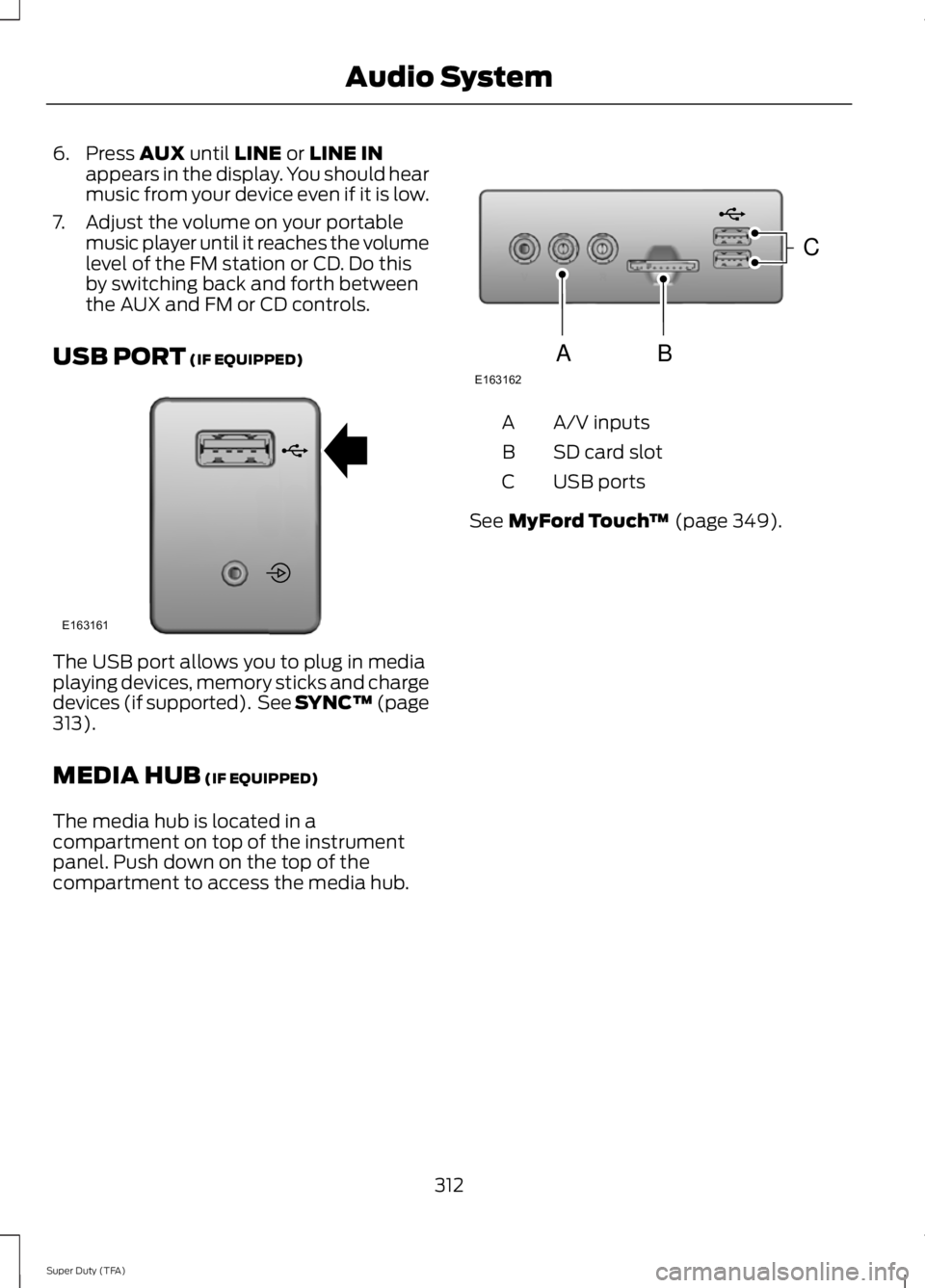
The USB port allows you to plug in mediaplaying devices, memory sticks and chargedevices (if supported). See SYNC™ (page313).
MEDIA HUB (IF EQUIPPED)
The media hub is located in acompartment on top of the instrumentpanel. Push down on the top of thecompartment to access the media hub.
A/V inputsA
SD card slotB
USB portsC
See MyFord Touch™ (page 349).
312
Super Duty (TFA)
Audio SystemE163161 E163162
C
BA
Page 318 of 460
System data cannot be accessed withoutspecial equipment and access to thevehicle's SYNC module. Ford MotorCompany and Ford of Canada will notaccess the system data for any purposeother than as described absent consent, acourt order, or where required by lawenforcement, other governmentauthorities, or other third parties actingwith lawful authority. Other parties mayseek to access the informationindependently of Ford Motor Company andFord of Canada. For further privacyinformation, see the sections on 911 Assist,Vehicle Health Report, and Traffic,Directions and Information.
USING VOICE RECOGNITION
This system helps you control manyfeatures using voice commands. Thisallows you to keep your hands on thewheel and focus on what is in front of you.
Initiating a Voice Session
Push the voice icon. A tonesounds and Listening appears inthe display. Say any of thefollowing:
If You Want ToSay
Stream audio from your phone."Bluetooth audio"
Cancel the requested action."Cancel"
Access the device connected to the auxiliary input jack."Line in"
Access mobile applications."Mobile apps" *
Make calls."Phone"
Access the SYNC Services portal."Services" *
Return to the main menu."SYNC"
Access the device connected to your USB port."USB"
Run a vehicle health report."Vehicle health report" *
Adjust the level of voice interaction and feedback."Voice settings"
Hear a list of voice commands available in the currentmode."Help"
* This is an optional feature and available in the United States only.
315
Super Duty (TFA)
SYNC™ (If Equipped)E142599