ESP FORD F450 SUPER DUTY 2016 Manual Online
[x] Cancel search | Manufacturer: FORD, Model Year: 2016, Model line: F450 SUPER DUTY, Model: FORD F450 SUPER DUTY 2016Pages: 507, PDF Size: 8.13 MB
Page 372 of 507
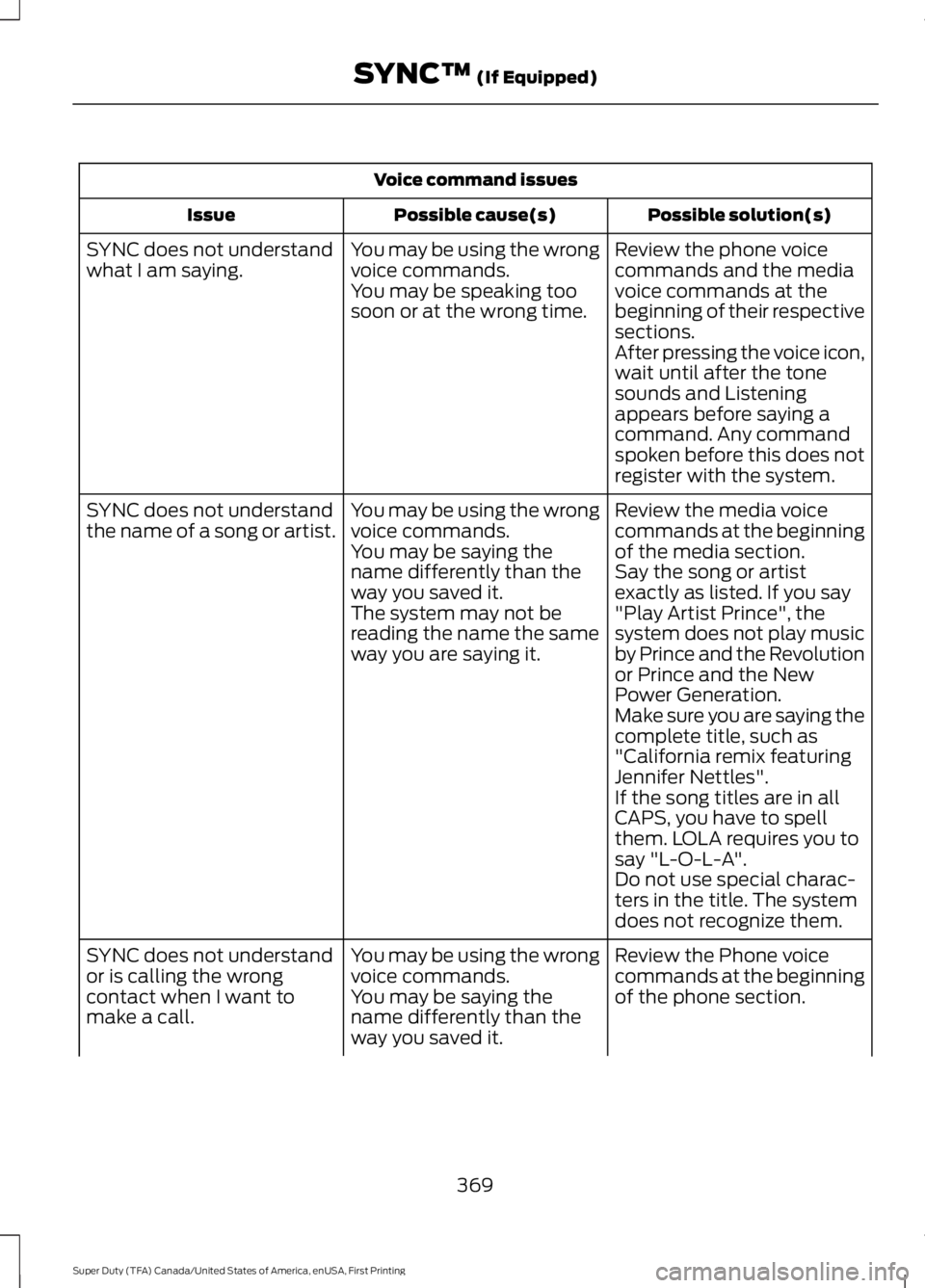
Voice command issues
Possible solution(s)Possible cause(s)Issue
Review the phone voicecommands and the mediavoice commands at thebeginning of their respectivesections.
You may be using the wrongvoice commands.You may be speaking toosoon or at the wrong time.
SYNC does not understandwhat I am saying.
After pressing the voice icon,wait until after the tonesounds and Listeningappears before saying acommand. Any commandspoken before this does notregister with the system.
Review the media voicecommands at the beginningof the media section.
You may be using the wrongvoice commands.You may be saying thename differently than theway you saved it.
SYNC does not understandthe name of a song or artist.
Say the song or artistexactly as listed. If you say"Play Artist Prince", thesystem does not play musicby Prince and the Revolutionor Prince and the NewPower Generation.
The system may not bereading the name the sameway you are saying it.
Make sure you are saying thecomplete title, such as"California remix featuringJennifer Nettles".If the song titles are in allCAPS, you have to spellthem. LOLA requires you tosay "L-O-L-A".Do not use special charac-ters in the title. The systemdoes not recognize them.
Review the Phone voicecommands at the beginningof the phone section.
You may be using the wrongvoice commands.You may be saying thename differently than theway you saved it.
SYNC does not understandor is calling the wrongcontact when I want tomake a call.
369
Super Duty (TFA) Canada/United States of America, enUSA, First Printing
SYNC™ (If Equipped)
Page 377 of 507
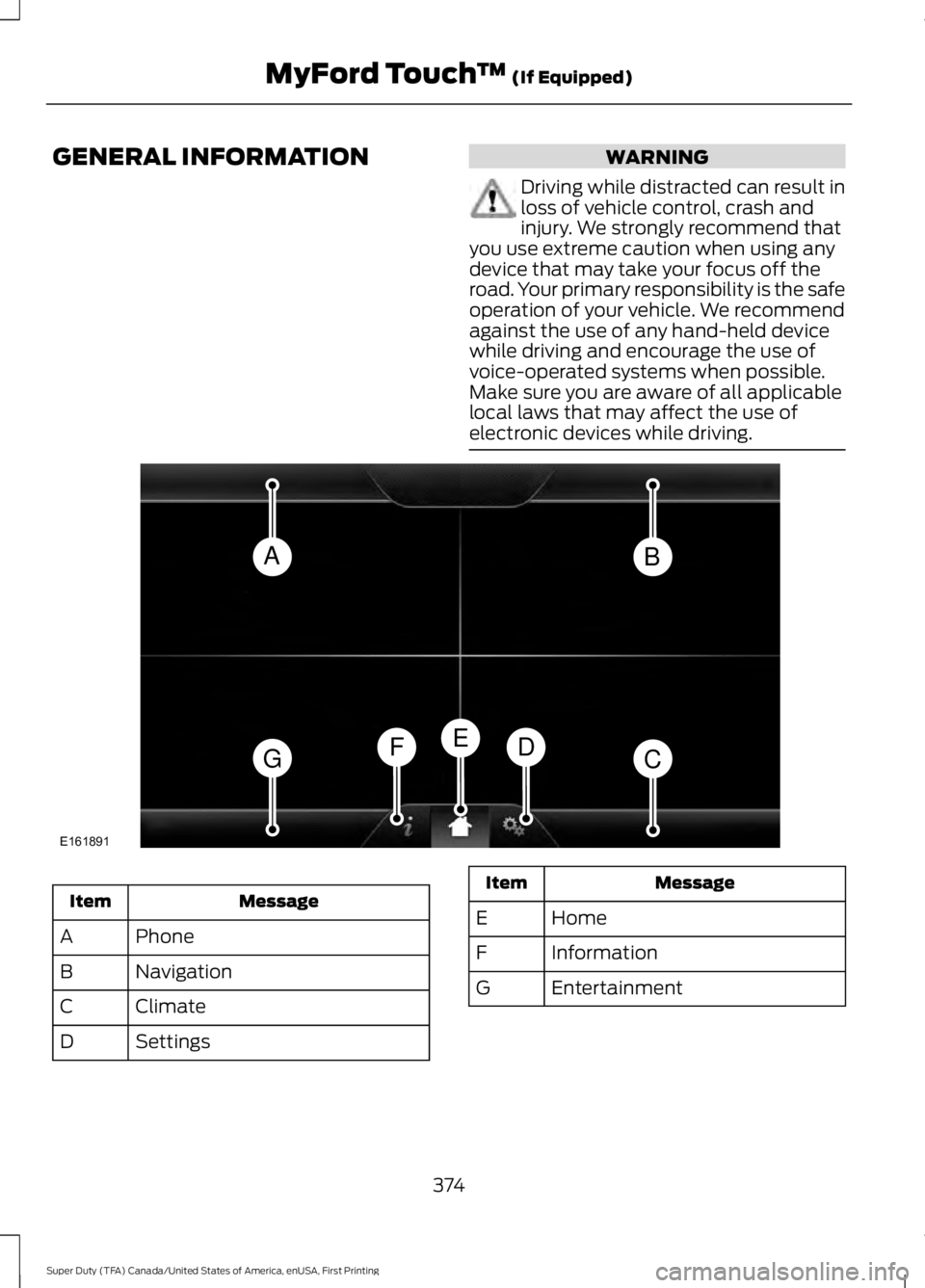
GENERAL INFORMATIONWARNING
Driving while distracted can result inloss of vehicle control, crash andinjury. We strongly recommend thatyou use extreme caution when using anydevice that may take your focus off theroad. Your primary responsibility is the safeoperation of your vehicle. We recommendagainst the use of any hand-held devicewhile driving and encourage the use ofvoice-operated systems when possible.Make sure you are aware of all applicablelocal laws that may affect the use ofelectronic devices while driving.
MessageItem
PhoneA
NavigationB
ClimateC
SettingsD
MessageItem
HomeE
InformationF
EntertainmentG
374
Super Duty (TFA) Canada/United States of America, enUSA, First Printing
MyFord Touch™ (If Equipped)AB
GCDFE
E161891
Page 378 of 507
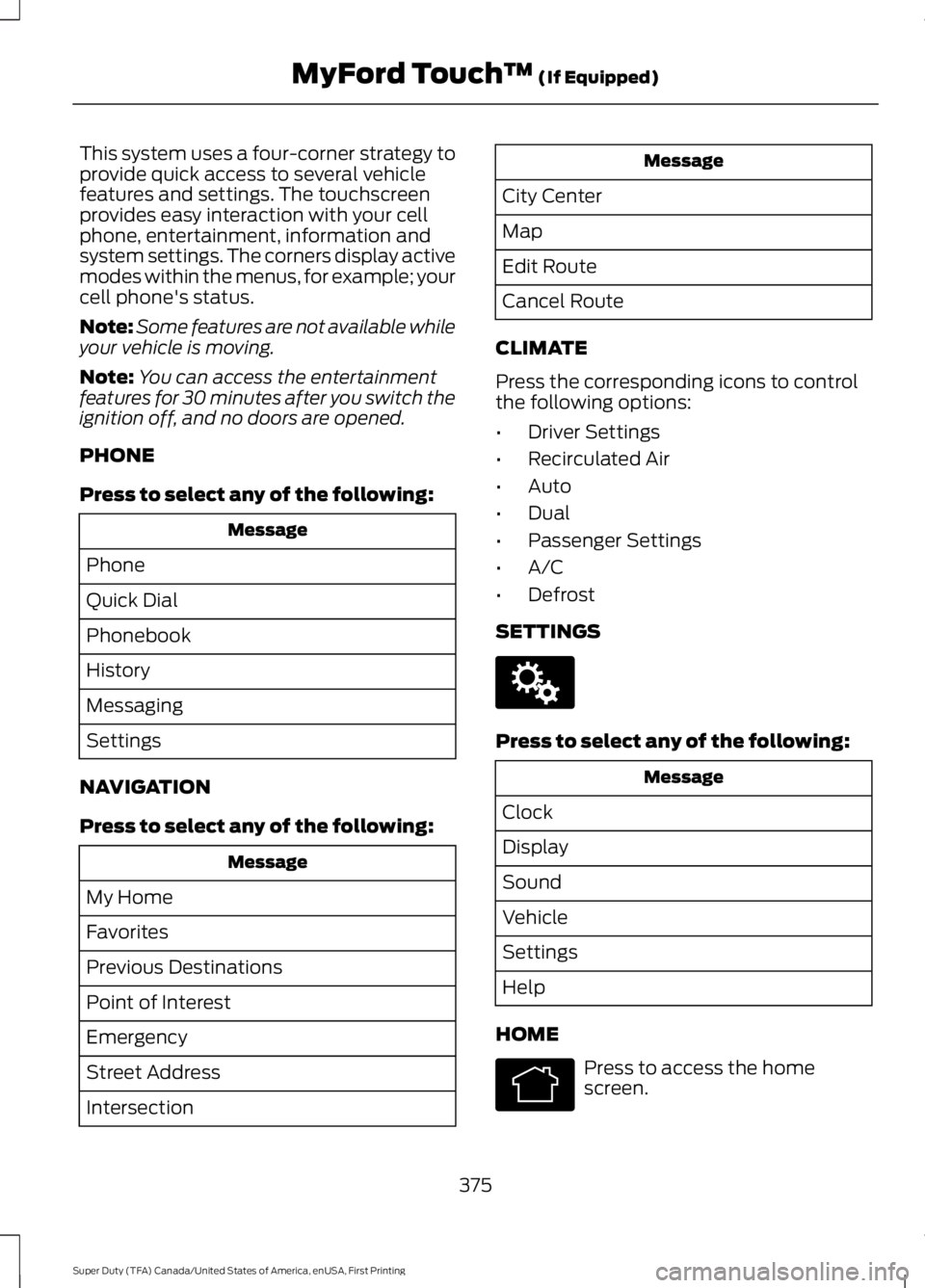
This system uses a four-corner strategy toprovide quick access to several vehiclefeatures and settings. The touchscreenprovides easy interaction with your cellphone, entertainment, information andsystem settings. The corners display activemodes within the menus, for example; yourcell phone's status.
Note:Some features are not available whileyour vehicle is moving.
Note:You can access the entertainmentfeatures for 30 minutes after you switch theignition off, and no doors are opened.
PHONE
Press to select any of the following:
Message
Phone
Quick Dial
Phonebook
History
Messaging
Settings
NAVIGATION
Press to select any of the following:
Message
My Home
Favorites
Previous Destinations
Point of Interest
Emergency
Street Address
Intersection
Message
City Center
Map
Edit Route
Cancel Route
CLIMATE
Press the corresponding icons to controlthe following options:
•Driver Settings
•Recirculated Air
•Auto
•Dual
•Passenger Settings
•A/C
•Defrost
SETTINGS
Press to select any of the following:
Message
Clock
Display
Sound
Vehicle
Settings
Help
HOME
Press to access the homescreen.
375
Super Duty (TFA) Canada/United States of America, enUSA, First Printing
MyFord Touch™ (If Equipped)E142607 E142613
Page 381 of 507
Safety Information
WARNING
Driving while distracted can result inloss of vehicle control, crash andinjury. We strongly recommend thatyou use extreme caution when using anydevice that may take your focus off theroad. Your primary responsibility is the safeoperation of your vehicle. We recommendagainst the use of any hand-held devicewhile driving and encourage the use ofvoice-operated systems when possible.Make sure you are aware of all applicablelocal laws that may affect the use ofelectronic devices while driving.
•Do not attempt to service or repair thesystem. Have your vehicle checked byan authorized dealer.
•Do not operate media devices if thepower cables are broken or damaged.
•Make sure the power cables do notinterfere with the safe operation of yourvehicle's controls or affect your safedriving abilities.
•Some SYNC functions arespeed-dependent. Their use is limitedto when your vehicle is traveling atspeeds below 3 mph (5 km/h).
Make sure that you review your device'smanual before using it with SYNC.
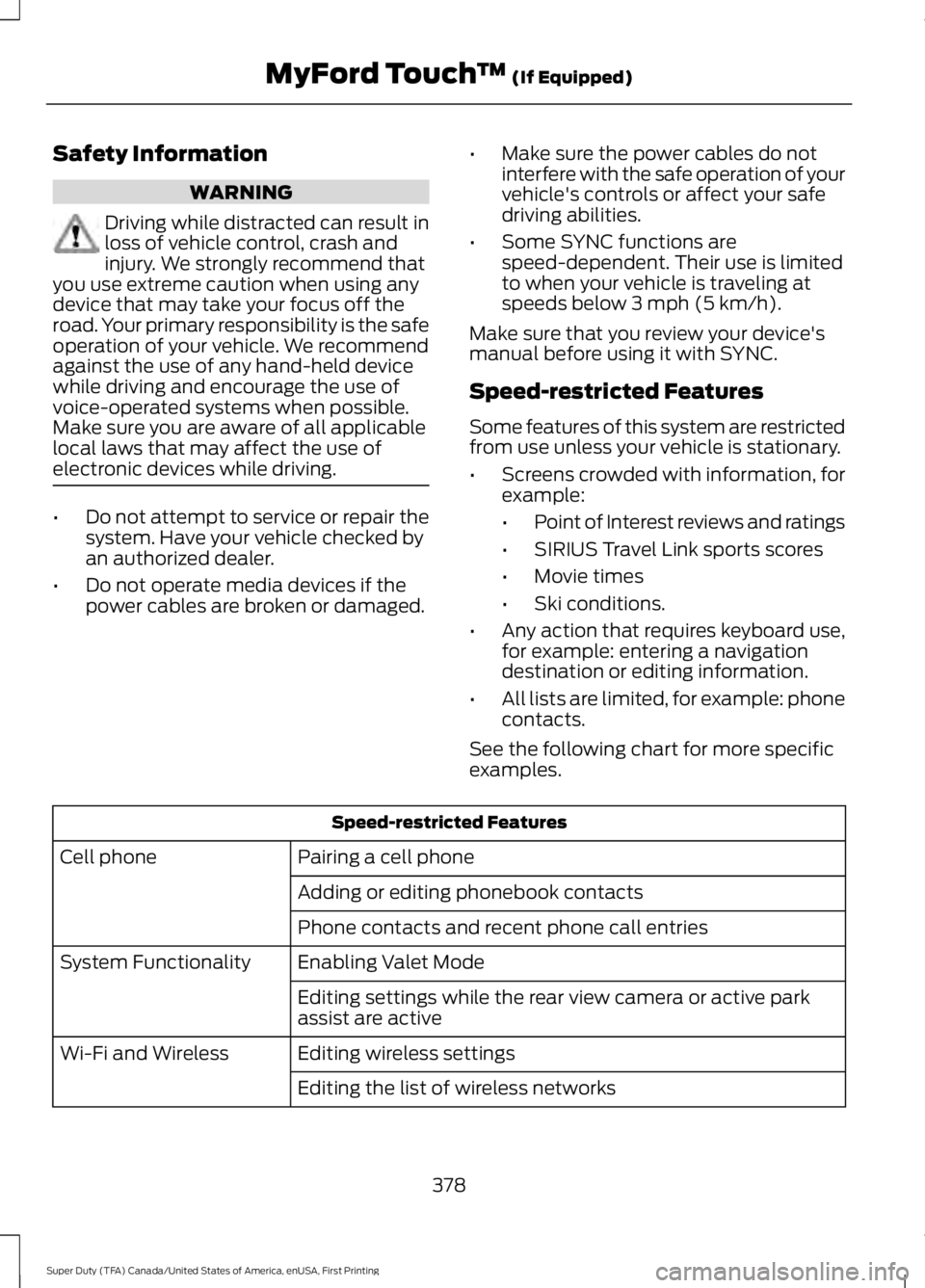
Speed-restricted Features
Some features of this system are restrictedfrom use unless your vehicle is stationary.
•Screens crowded with information, forexample:
•Point of Interest reviews and ratings
•SIRIUS Travel Link sports scores
•Movie times
•Ski conditions.
•Any action that requires keyboard use,for example: entering a navigationdestination or editing information.
•All lists are limited, for example: phonecontacts.
See the following chart for more specificexamples.
Speed-restricted Features
Pairing a cell phoneCell phone
Adding or editing phonebook contacts
Phone contacts and recent phone call entries
Enabling Valet ModeSystem Functionality
Editing settings while the rear view camera or active parkassist are active
Editing wireless settingsWi-Fi and Wireless
Editing the list of wireless networks
378
Super Duty (TFA) Canada/United States of America, enUSA, First Printing
MyFord Touch™ (If Equipped)
Page 382 of 507
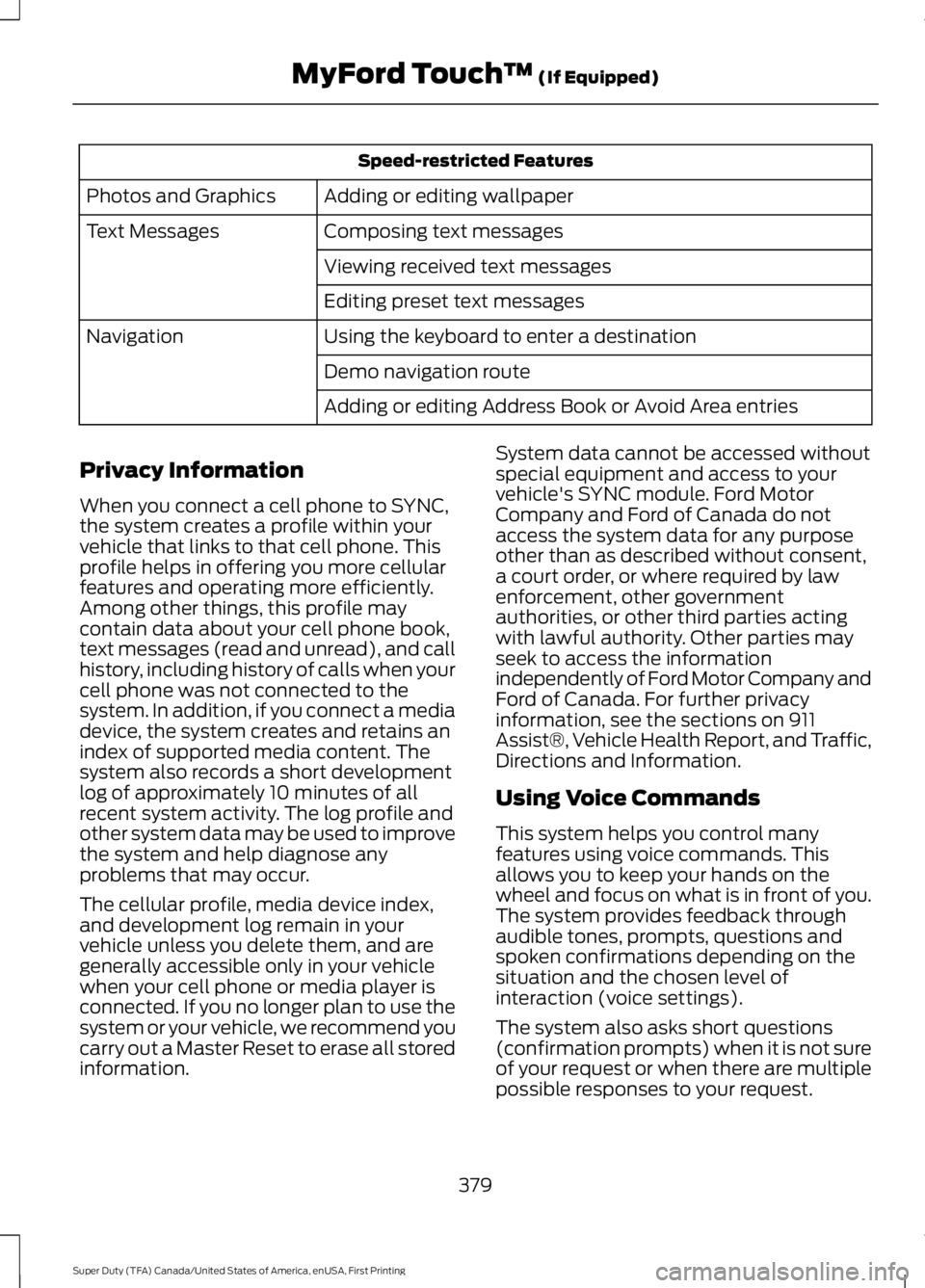
Speed-restricted Features
Adding or editing wallpaperPhotos and Graphics
Composing text messagesText Messages
Viewing received text messages
Editing preset text messages
Using the keyboard to enter a destinationNavigation
Demo navigation route
Adding or editing Address Book or Avoid Area entries
Privacy Information
When you connect a cell phone to SYNC,the system creates a profile within yourvehicle that links to that cell phone. Thisprofile helps in offering you more cellularfeatures and operating more efficiently.Among other things, this profile maycontain data about your cell phone book,text messages (read and unread), and callhistory, including history of calls when yourcell phone was not connected to thesystem. In addition, if you connect a mediadevice, the system creates and retains anindex of supported media content. Thesystem also records a short developmentlog of approximately 10 minutes of allrecent system activity. The log profile andother system data may be used to improvethe system and help diagnose anyproblems that may occur.
The cellular profile, media device index,and development log remain in yourvehicle unless you delete them, and aregenerally accessible only in your vehiclewhen your cell phone or media player isconnected. If you no longer plan to use thesystem or your vehicle, we recommend youcarry out a Master Reset to erase all storedinformation.
System data cannot be accessed withoutspecial equipment and access to yourvehicle's SYNC module. Ford MotorCompany and Ford of Canada do notaccess the system data for any purposeother than as described without consent,a court order, or where required by lawenforcement, other governmentauthorities, or other third parties actingwith lawful authority. Other parties mayseek to access the informationindependently of Ford Motor Company andFord of Canada. For further privacyinformation, see the sections on 911Assist®, Vehicle Health Report, and Traffic,Directions and Information.
Using Voice Commands
This system helps you control manyfeatures using voice commands. Thisallows you to keep your hands on thewheel and focus on what is in front of you.The system provides feedback throughaudible tones, prompts, questions andspoken confirmations depending on thesituation and the chosen level ofinteraction (voice settings).
The system also asks short questions(confirmation prompts) when it is not sureof your request or when there are multiplepossible responses to your request.
379
Super Duty (TFA) Canada/United States of America, enUSA, First Printing
MyFord Touch™ (If Equipped)
Page 402 of 507
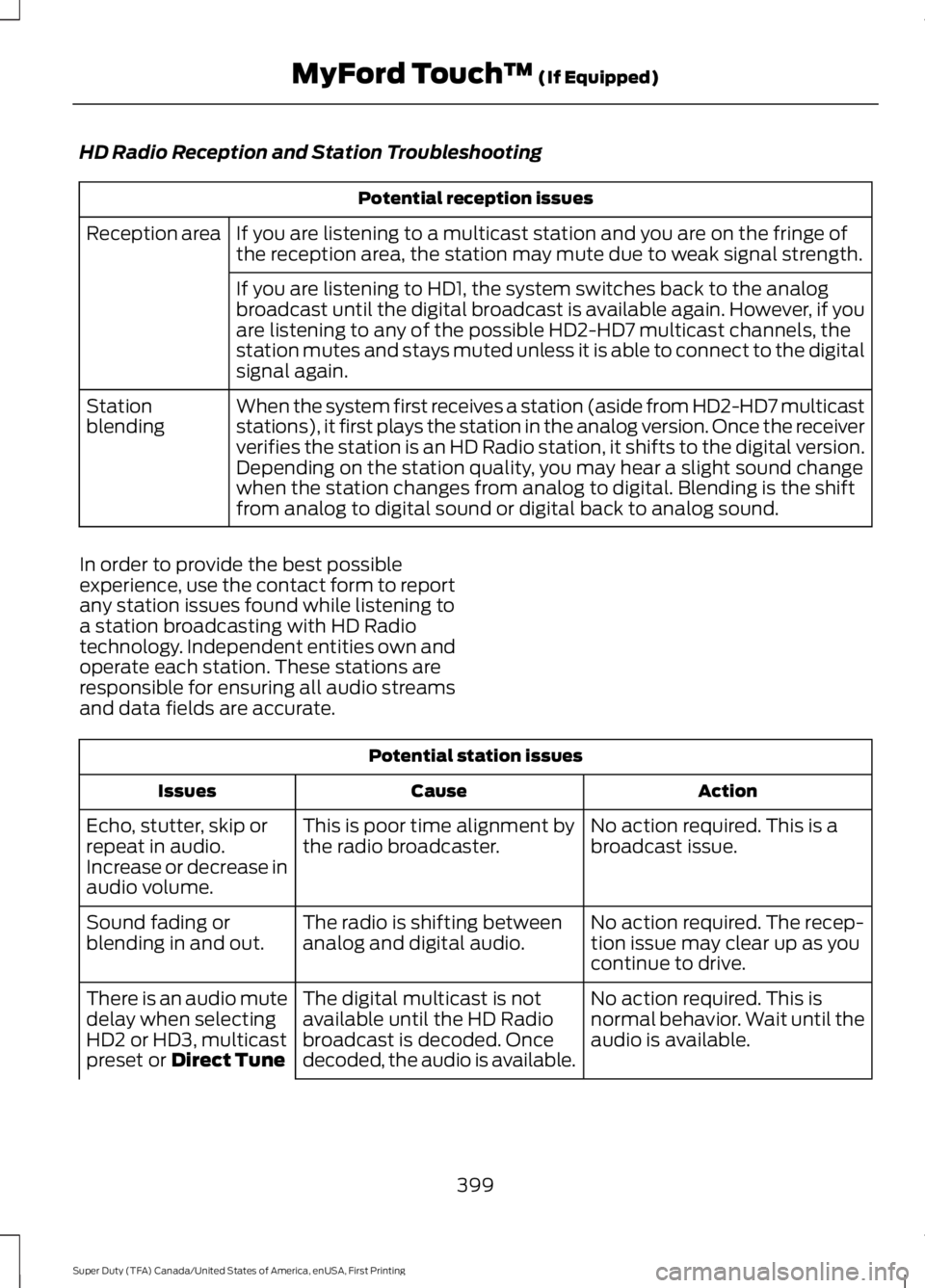
HD Radio Reception and Station Troubleshooting
Potential reception issues
If you are listening to a multicast station and you are on the fringe ofthe reception area, the station may mute due to weak signal strength.Reception area
If you are listening to HD1, the system switches back to the analogbroadcast until the digital broadcast is available again. However, if youare listening to any of the possible HD2-HD7 multicast channels, thestation mutes and stays muted unless it is able to connect to the digitalsignal again.
When the system first receives a station (aside from HD2-HD7 multicaststations), it first plays the station in the analog version. Once the receiververifies the station is an HD Radio station, it shifts to the digital version.Depending on the station quality, you may hear a slight sound changewhen the station changes from analog to digital. Blending is the shiftfrom analog to digital sound or digital back to analog sound.
Stationblending
In order to provide the best possibleexperience, use the contact form to reportany station issues found while listening toa station broadcasting with HD Radiotechnology. Independent entities own andoperate each station. These stations areresponsible for ensuring all audio streamsand data fields are accurate.
Potential station issues
ActionCauseIssues
No action required. This is abroadcast issue.This is poor time alignment bythe radio broadcaster.Echo, stutter, skip orrepeat in audio.Increase or decrease inaudio volume.
No action required. The recep-tion issue may clear up as youcontinue to drive.
The radio is shifting betweenanalog and digital audio.Sound fading orblending in and out.
No action required. This isnormal behavior. Wait until theaudio is available.
The digital multicast is notavailable until the HD Radiobroadcast is decoded. Oncedecoded, the audio is available.
There is an audio mutedelay when selectingHD2 or HD3, multicastpreset or Direct Tune
399
Super Duty (TFA) Canada/United States of America, enUSA, First Printing
MyFord Touch™ (If Equipped)
Page 403 of 507
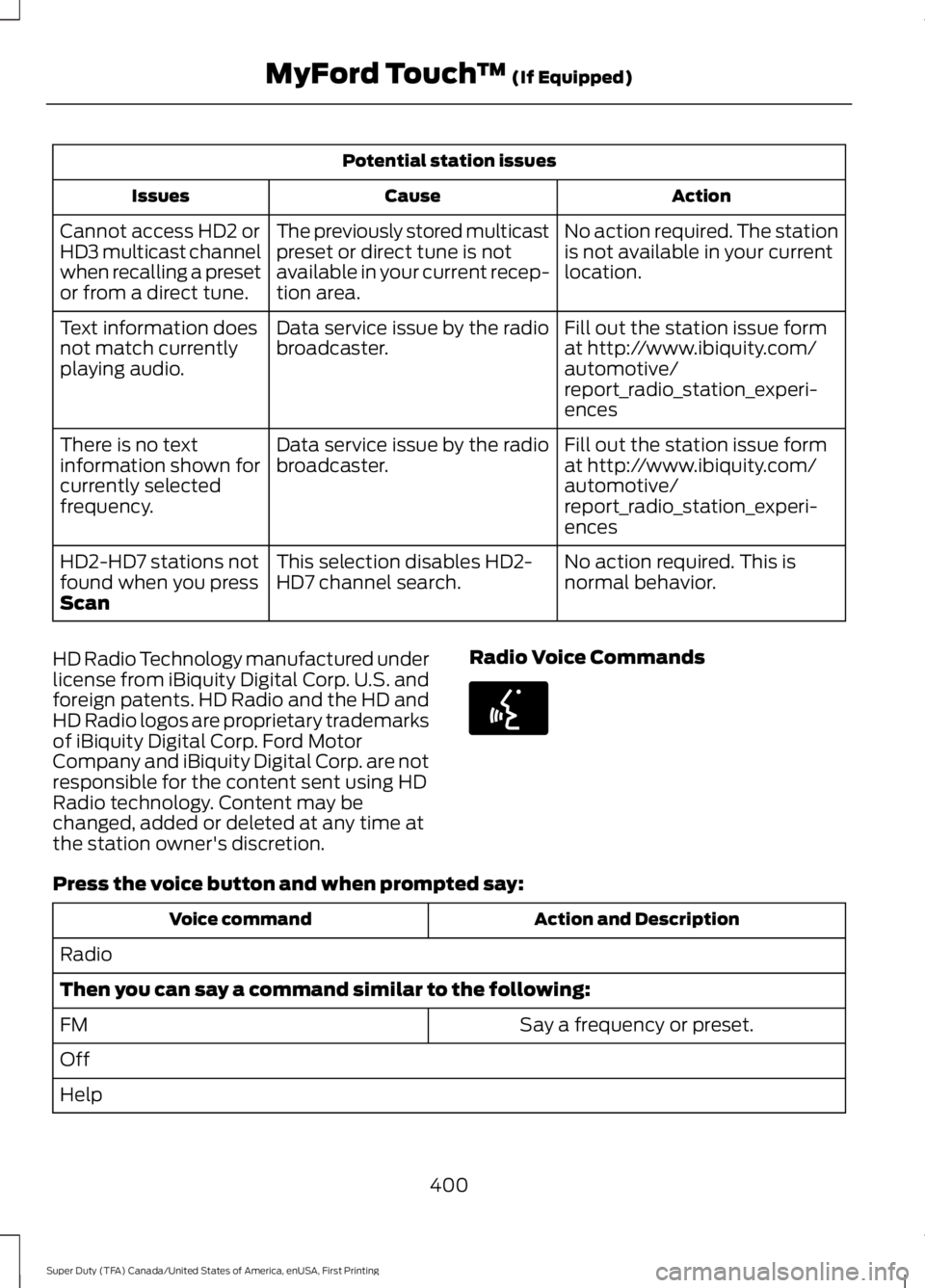
Potential station issues
ActionCauseIssues
No action required. The stationis not available in your currentlocation.
The previously stored multicastpreset or direct tune is notavailable in your current recep-tion area.
Cannot access HD2 orHD3 multicast channelwhen recalling a presetor from a direct tune.
Fill out the station issue format http://www.ibiquity.com/automotive/report_radio_station_experi-ences
Data service issue by the radiobroadcaster.Text information doesnot match currentlyplaying audio.
Fill out the station issue format http://www.ibiquity.com/automotive/report_radio_station_experi-ences
Data service issue by the radiobroadcaster.There is no textinformation shown forcurrently selectedfrequency.
No action required. This isnormal behavior.This selection disables HD2-HD7 channel search.HD2-HD7 stations notfound when you pressScan
HD Radio Technology manufactured underlicense from iBiquity Digital Corp. U.S. andforeign patents. HD Radio and the HD andHD Radio logos are proprietary trademarksof iBiquity Digital Corp. Ford MotorCompany and iBiquity Digital Corp. are notresponsible for the content sent using HDRadio technology. Content may bechanged, added or deleted at any time atthe station owner's discretion.
Radio Voice Commands
Press the voice button and when prompted say:
Action and DescriptionVoice command
Radio
Then you can say a command similar to the following:
Say a frequency or preset.FM
Off
Help
400
Super Duty (TFA) Canada/United States of America, enUSA, First Printing
MyFord Touch™ (If Equipped)E142599
Page 404 of 507
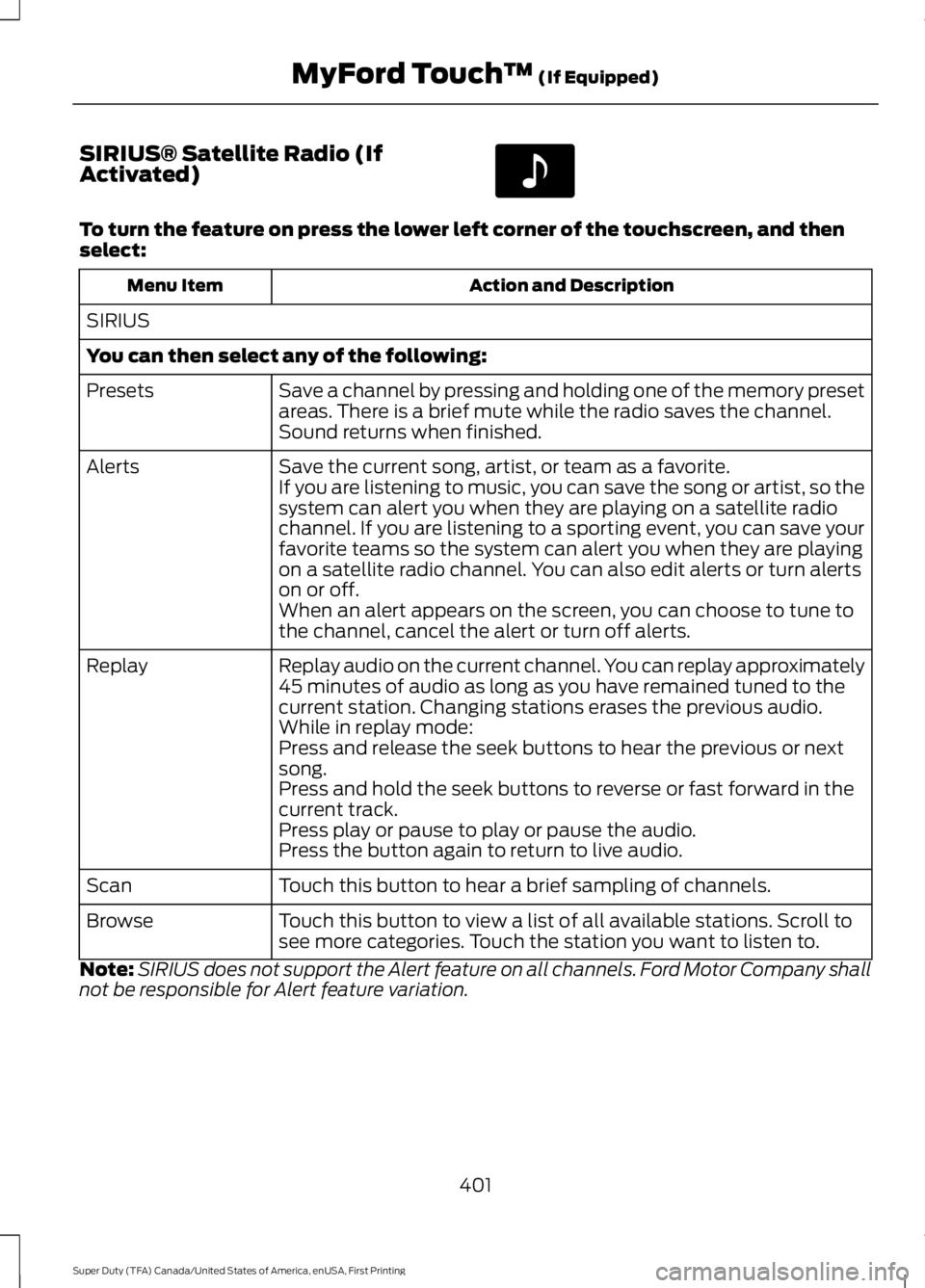
SIRIUS® Satellite Radio (IfActivated)
To turn the feature on press the lower left corner of the touchscreen, and thenselect:
Action and DescriptionMenu Item
SIRIUS
You can then select any of the following:
Save a channel by pressing and holding one of the memory presetareas. There is a brief mute while the radio saves the channel.Sound returns when finished.
Presets
Save the current song, artist, or team as a favorite.AlertsIf you are listening to music, you can save the song or artist, so thesystem can alert you when they are playing on a satellite radiochannel. If you are listening to a sporting event, you can save yourfavorite teams so the system can alert you when they are playingon a satellite radio channel. You can also edit alerts or turn alertson or off.When an alert appears on the screen, you can choose to tune tothe channel, cancel the alert or turn off alerts.
Replay audio on the current channel. You can replay approximately45 minutes of audio as long as you have remained tuned to thecurrent station. Changing stations erases the previous audio.
Replay
While in replay mode:Press and release the seek buttons to hear the previous or nextsong.Press and hold the seek buttons to reverse or fast forward in thecurrent track.Press play or pause to play or pause the audio.Press the button again to return to live audio.
Touch this button to hear a brief sampling of channels.Scan
Touch this button to view a list of all available stations. Scroll tosee more categories. Touch the station you want to listen to.Browse
Note:SIRIUS does not support the Alert feature on all channels. Ford Motor Company shallnot be responsible for Alert feature variation.
401
Super Duty (TFA) Canada/United States of America, enUSA, First Printing
MyFord Touch™ (If Equipped)E142611
Page 406 of 507
MessageMessage
SIRIUS requires this number when communicating with you aboutyour account.Electronic SerialNumber (ESN)
Touch this button to manually enter the desired satellite channelnumber. Touch Enter when you are doneDirect Tune
Note:Your vehicle may not have all these sound settings.
SIRIUS Satellite Radio Information
Note:SIRIUS reserves the unrestricted rightto change, rearrange, add or deleteprogramming including canceling, movingor adding particular channels, and its prices,at any time, with or without notice to you.Ford Motor Company shall not beresponsible for any such programmingchanges.
SIRIUS satellite radio is asubscription-based satellite radio servicethat broadcasts a variety of music, sports,news, weather, traffic and entertainmentprogramming. Your factory-installedSIRIUS satellite radio system includeshardware and a limited subscription termthat begins on the date of sale or lease ofyour vehicle. See an authorized dealer foravailability.
For more information on extendedsubscription terms (a service fee isrequired), the online media player and alist of SIRIUS satellite radio channels, andother features, please visitwww.siriusxm.com in the United States,www.sirius.ca in Canada, or call SIRIUS at1-888-539-7474.
Note:This receiver includes the eCosreal-time operating system. eCos ispublished under the eCos License.
Satellite Radio Electronic Serial Number(ESN)
You need your ESN to activate, modify ortrack your satellite radio account. The ESNis on the System Information Screen (SRESN:XXXXXXXXXXXX).
To access your ESN, touch the bottomleft corner of the touchscreen, thenselect:
Message
SIRIUS
Options
403
Super Duty (TFA) Canada/United States of America, enUSA, First Printing
MyFord Touch™ (If Equipped)E142593
Page 415 of 507
Pairing Your Cell Phone for theFirst Time
WARNING
Driving while distracted can result inloss of vehicle control, crash andinjury. We strongly recommend thatyou use extreme caution when using anydevice that may take your focus off theroad. Your primary responsibility is the safeoperation of your vehicle. We recommendagainst the use of any hand-held devicewhile driving and encourage the use ofvoice-operated systems when possible.Make sure you are aware of all applicablelocal laws that may affect the use ofelectronic devices while driving.
The first thing you must do to use thephone features of SYNC is to pair yourBluetooth-enabled cell phone with SYNC.This allows you to use your cell phone in ahands-free manner.
Note:This is a speed-dependent feature.It is unavailable when your vehicle istraveling at speeds over 3 mph (5 km/h).
Touch the upper left corner of the touchscreen:
Action and DescriptionMessage
Add phone
Follow the on-screen instructions.Find SYNCMake sure that Bluetooth is set to On and that your cell phoneis in the correct mode. See your cell phone’s manual ifnecessary.Select SYNC and a six-digit PIN appears on your device.If you are prompted to enter a PIN on your device, it does notsupport Secure Simple Pairing. To pair, enter the PINdisplayed on the touchscreen. Skip the next step.When prompted on your cell phone’s display, confirm thatthe PIN provided by SYNC matches the PIN displayed on yourcell phone.The display indicates when the pairing is successful.SYNC may prompt you with more cell phone options. Formore information on your cell phone's capability, see yourcell phone's manual and visit the website.
Pairing Subsequent Cell Phones
Note:This is a speed-dependent feature.It is unavailable when your vehicle istraveling at speeds over 3 mph (5 km/h).
Make sure that Bluetooth is set to On andthat your cell phone is in the correct mode.See your device's manual if necessary.
412
Super Duty (TFA) Canada/United States of America, enUSA, First Printing
MyFord Touch™ (If Equipped)