bluetooth FORD F650 2013 12.G User Guide
[x] Cancel search | Manufacturer: FORD, Model Year: 2013, Model line: F650, Model: FORD F650 2013 12.GPages: 378, PDF Size: 3.82 MB
Page 338 of 378
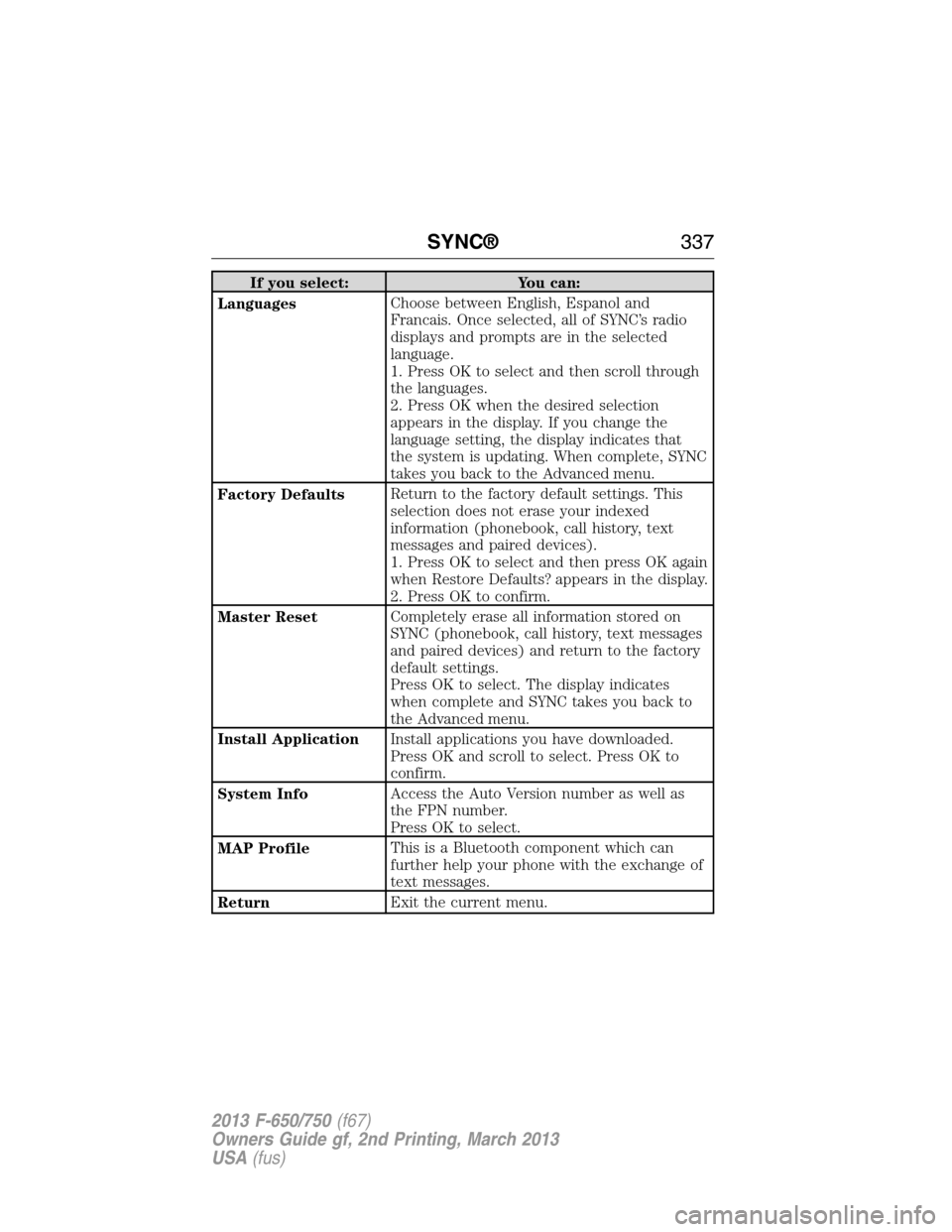
If you select: You can:
LanguagesChoose between English, Espanol and
Francais. Once selected, all of SYNC’s radio
displays and prompts are in the selected
language.
1. Press OK to select and then scroll through
the languages.
2. Press OK when the desired selection
appears in the display. If you change the
language setting, the display indicates that
the system is updating. When complete, SYNC
takes you back to the Advanced menu.
Factory DefaultsReturn to the factory default settings. This
selection does not erase your indexed
information (phonebook, call history, text
messages and paired devices).
1. Press OK to select and then press OK again
when Restore Defaults? appears in the display.
2. Press OK to confirm.
Master ResetCompletely erase all information stored on
SYNC (phonebook, call history, text messages
and paired devices) and return to the factory
default settings.
Press OK to select. The display indicates
when complete and SYNC takes you back to
the Advanced menu.
Install ApplicationInstall applications you have downloaded.
Press OK and scroll to select. Press OK to
confirm.
System InfoAccess the Auto Version number as well as
the FPN number.
Press OK to select.
MAP ProfileThis is a Bluetooth component which can
further help your phone with the exchange of
text messages.
ReturnExit the current menu.
SYNC®337
2013 F-650/750(f67)
Owners Guide gf, 2nd Printing, March 2013
USA(fus)
Page 340 of 378
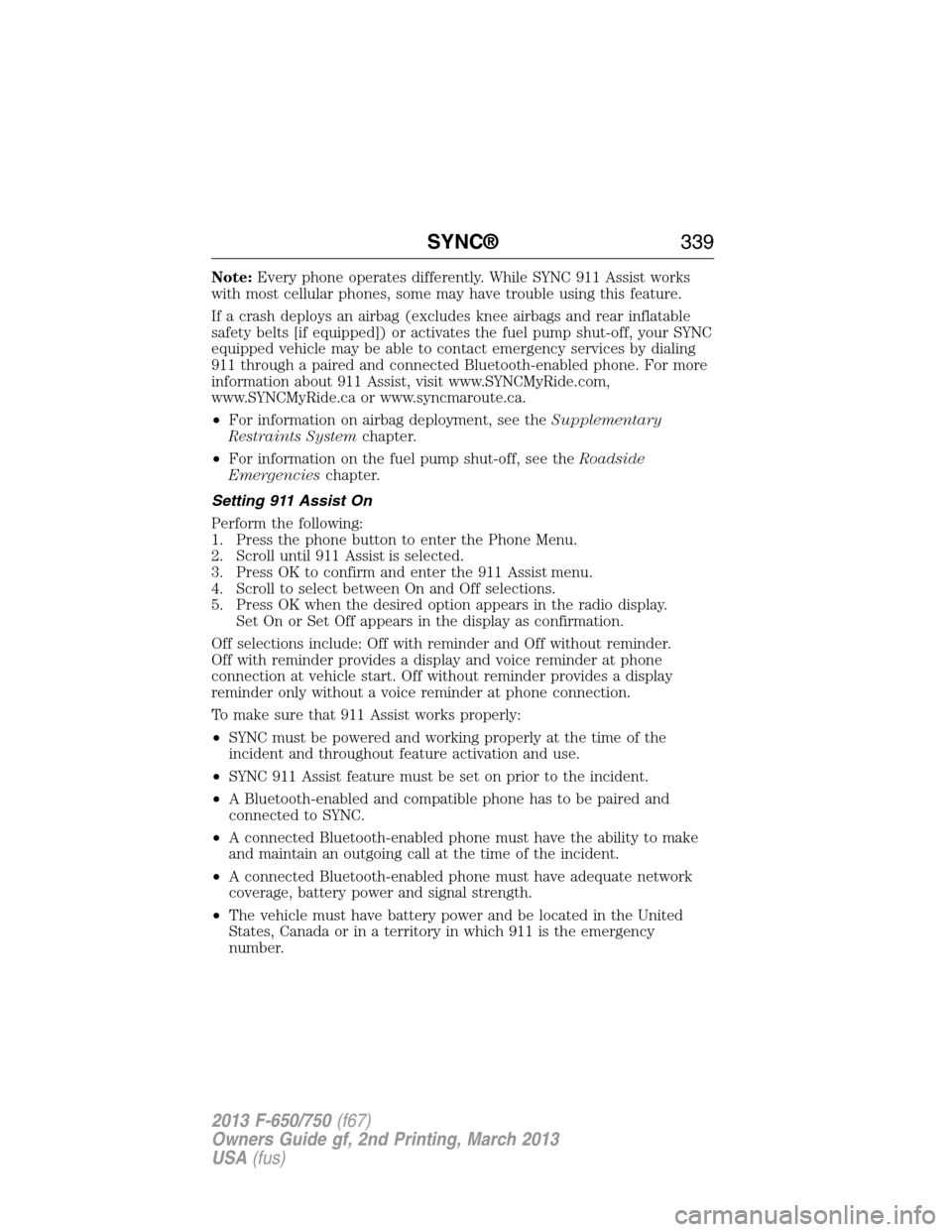
Note:Every phone operates differently. While SYNC 911 Assist works
with most cellular phones, some may have trouble using this feature.
If a crash deploys an airbag (excludes knee airbags and rear inflatable
safety belts [if equipped]) or activates the fuel pump shut-off, your SYNC
equipped vehicle may be able to contact emergency services by dialing
911 through a paired and connected Bluetooth-enabled phone. For more
information about 911 Assist, visit www.SYNCMyRide.com,
www.SYNCMyRide.ca or www.syncmaroute.ca.
•For information on airbag deployment, see theSupplementary
Restraints Systemchapter.
•For information on the fuel pump shut-off, see theRoadside
Emergencieschapter.
Setting 911 Assist On
Perform the following:
1. Press the phone button to enter the Phone Menu.
2. Scroll until 911 Assist is selected.
3. Press OK to confirm and enter the 911 Assist menu.
4. Scroll to select between On and Off selections.
5. Press OK when the desired option appears in the radio display.
Set On or Set Off appears in the display as confirmation.
Off selections include: Off with reminder and Off without reminder.
Off with reminder provides a display and voice reminder at phone
connection at vehicle start. Off without reminder provides a display
reminder only without a voice reminder at phone connection.
To make sure that 911 Assist works properly:
•SYNC must be powered and working properly at the time of the
incident and throughout feature activation and use.
•SYNC 911 Assist feature must be set on prior to the incident.
•A Bluetooth-enabled and compatible phone has to be paired and
connected to SYNC.
•A connected Bluetooth-enabled phone must have the ability to make
and maintain an outgoing call at the time of the incident.
•A connected Bluetooth-enabled phone must have adequate network
coverage, battery power and signal strength.
•The vehicle must have battery power and be located in the United
States, Canada or in a territory in which 911 is the emergency
number.
SYNC®339
2013 F-650/750(f67)
Owners Guide gf, 2nd Printing, March 2013
USA(fus)
Page 344 of 378
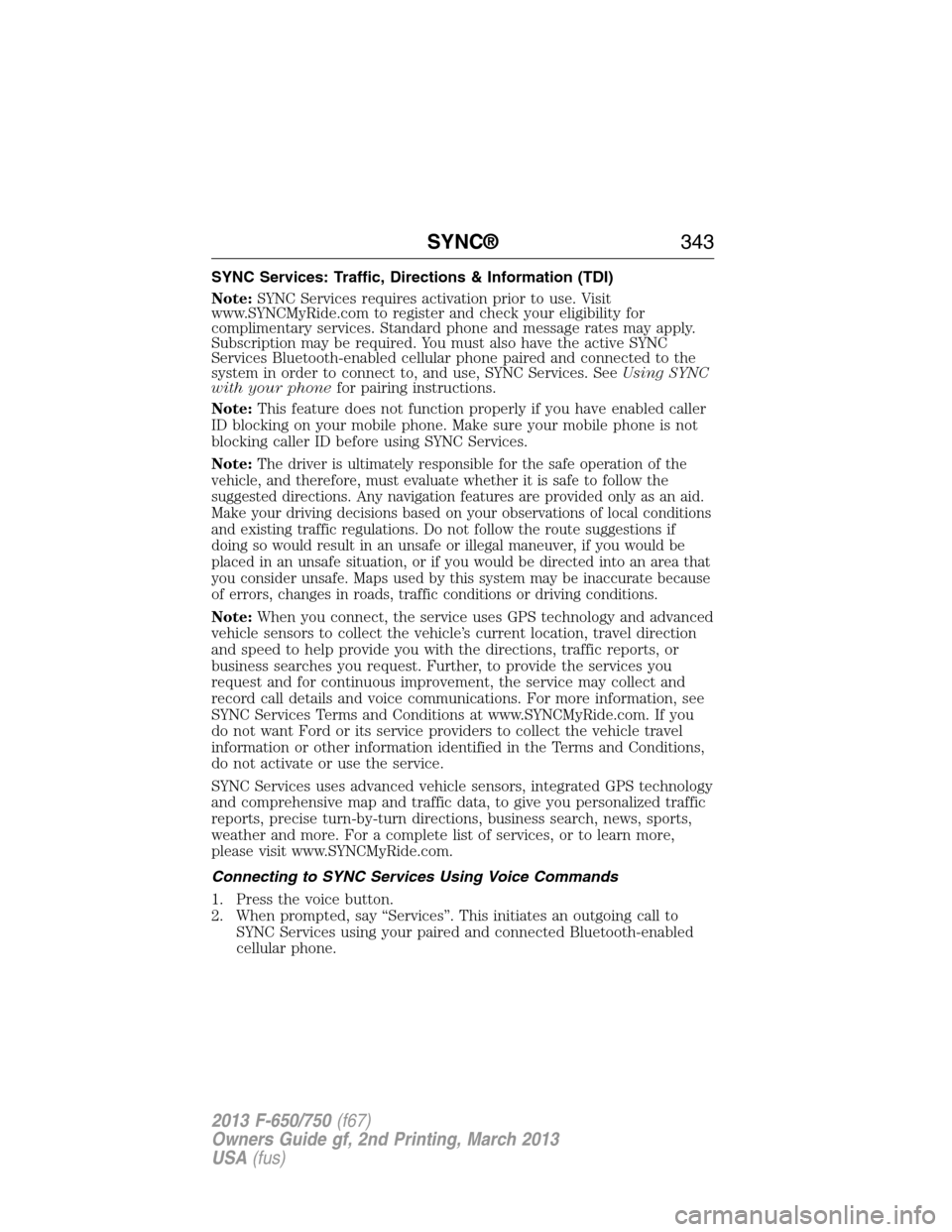
SYNC Services: Traffic, Directions & Information (TDI)
Note:SYNC Services requires activation prior to use. Visit
www.SYNCMyRide.com to register and check your eligibility for
complimentary services. Standard phone and message rates may apply.
Subscription may be required. You must also have the active SYNC
Services Bluetooth-enabled cellular phone paired and connected to the
system in order to connect to, and use, SYNC Services. SeeUsing SYNC
with your phonefor pairing instructions.
Note:This feature does not function properly if you have enabled caller
ID blocking on your mobile phone. Make sure your mobile phone is not
blocking caller ID before using SYNC Services.
Note:
The driver is ultimately responsible for the safe operation of the
vehicle, and therefore, must evaluate whether it is safe to follow the
suggested directions. Any navigation features are provided only as an aid.
Make your driving decisions based on your observations of local conditions
and existing traffic regulations. Do not follow the route suggestions if
doing so would result in an unsafe or illegal maneuver, if you would be
placed in an unsafe situation, or if you would be directed into an area that
you consider unsafe. Maps used by this system may be inaccurate because
of errors, changes in roads, traffic conditions or driving conditions.
Note:When you connect, the service uses GPS technology and advanced
vehicle sensors to collect the vehicle’s current location, travel direction
and speed to help provide you with the directions, traffic reports, or
business searches you request. Further, to provide the services you
request and for continuous improvement, the service may collect and
record call details and voice communications. For more information, see
SYNC Services Terms and Conditions at www.SYNCMyRide.com. If you
do not want Ford or its service providers to collect the vehicle travel
information or other information identified in the Terms and Conditions,
do not activate or use the service.
SYNC Services uses advanced vehicle sensors, integrated GPS technology
and comprehensive map and traffic data, to give you personalized traffic
reports, precise turn-by-turn directions, business search, news, sports,
weather and more. For a complete list of services, or to learn more,
please visit www.SYNCMyRide.com.
Connecting to SYNC Services Using Voice Commands
1. Press the voice button.
2. When prompted, say “Services”. This initiates an outgoing call to
SYNC Services using your paired and connected Bluetooth-enabled
cellular phone.
SYNC®343
2013 F-650/750(f67)
Owners Guide gf, 2nd Printing, March 2013
USA(fus)
Page 346 of 378
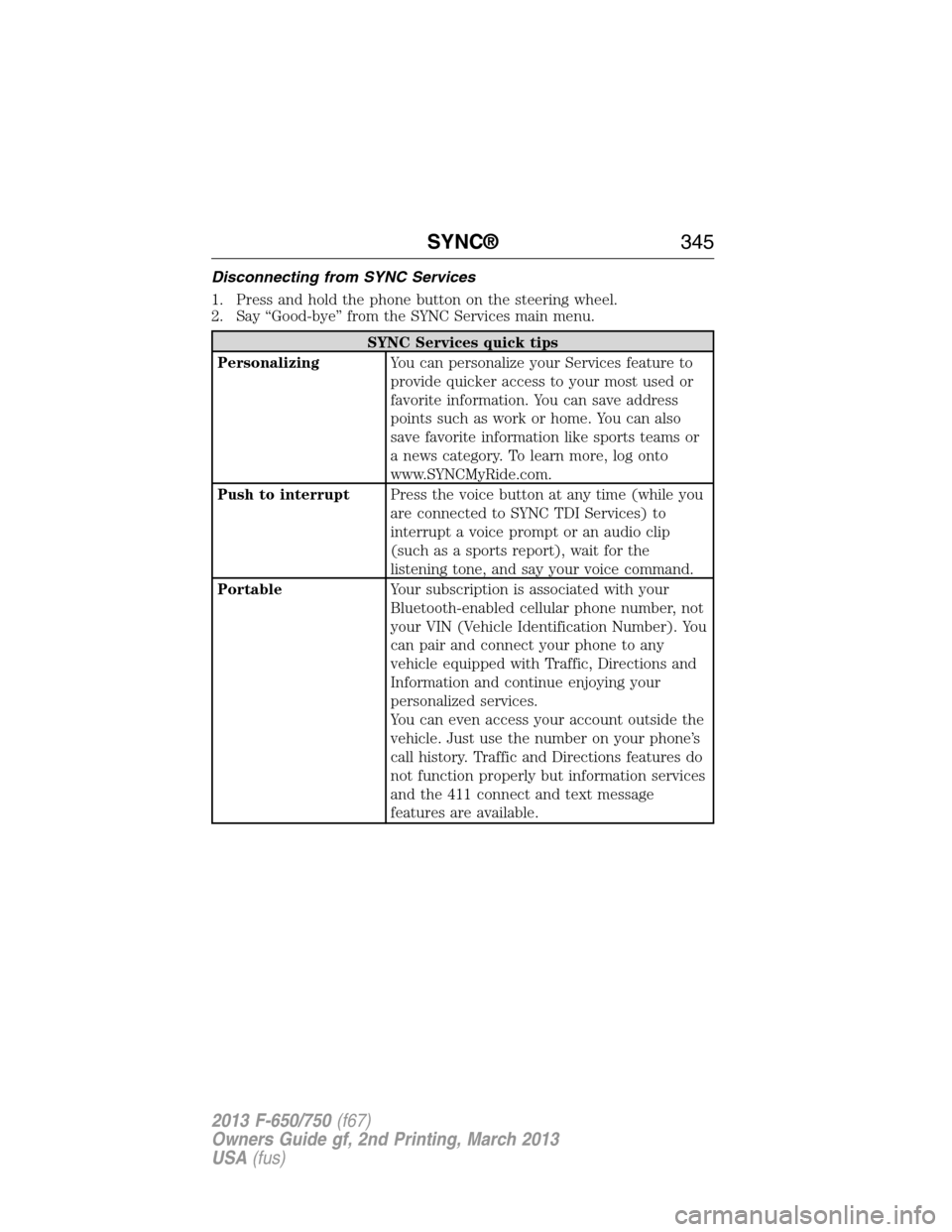
Disconnecting from SYNC Services
1. Press and hold the phone button on the steering wheel.
2. Say “Good-bye” from the SYNC Services main menu.
SYNC Services quick tips
PersonalizingYou can personalize your Services feature to
provide quicker access to your most used or
favorite information. You can save address
points such as work or home. You can also
save favorite information like sports teams or
a news category. To learn more, log onto
www.SYNCMyRide.com.
Push to interruptPress the voice button at any time (while you
are connected to SYNC TDI Services) to
interrupt a voice prompt or an audio clip
(such as a sports report), wait for the
listening tone, and say your voice command.
PortableYour subscription is associated with your
Bluetooth-enabled cellular phone number, not
your VIN (Vehicle Identification Number). You
can pair and connect your phone to any
vehicle equipped with Traffic, Directions and
Information and continue enjoying your
personalized services.
You can even access your account outside the
vehicle. Just use the number on your phone’s
call history. Traffic and Directions features do
not function properly but information services
and the 411 connect and text message
features are available.
SYNC®345
2013 F-650/750(f67)
Owners Guide gf, 2nd Printing, March 2013
USA(fus)
Page 349 of 378
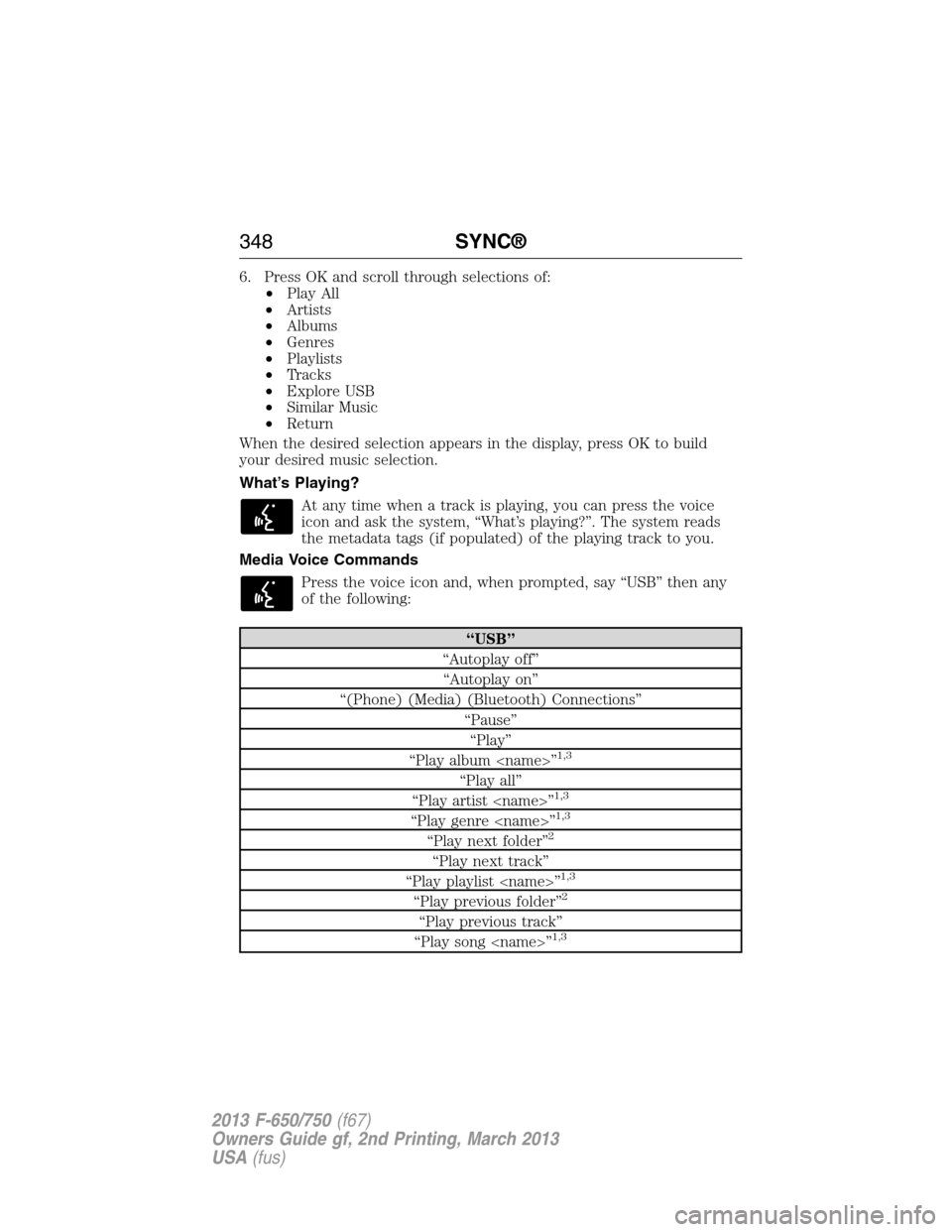
6. Press OK and scroll through selections of:
•Play All
•Artists
•Albums
•Genres
•Playlists
•Tracks
•Explore USB
•Similar Music
•Return
When the desired selection appears in the display, press OK to build
your desired music selection.
What’s Playing?
At any time when a track is playing, you can press the voice
icon and ask the system, “What’s playing?”. The system reads
the metadata tags (if populated) of the playing track to you.
Media Voice Commands
Press the voice icon and, when prompted, say “USB” then any
of the following:
“USB”
“Autoplay off”
“Autoplay on”
“(Phone) (Media) (Bluetooth) Connections”
“Pause”
“Play”
“Play album
1,3
“Play all”
“Play artist
“Play genre
“Play next folder”2
“Play next track”
“Play playlist
“Play previous folder”2
“Play previous track”
“Play song
348SYNC®
2013 F-650/750(f67)
Owners Guide gf, 2nd Printing, March 2013
USA(fus)
Page 351 of 378
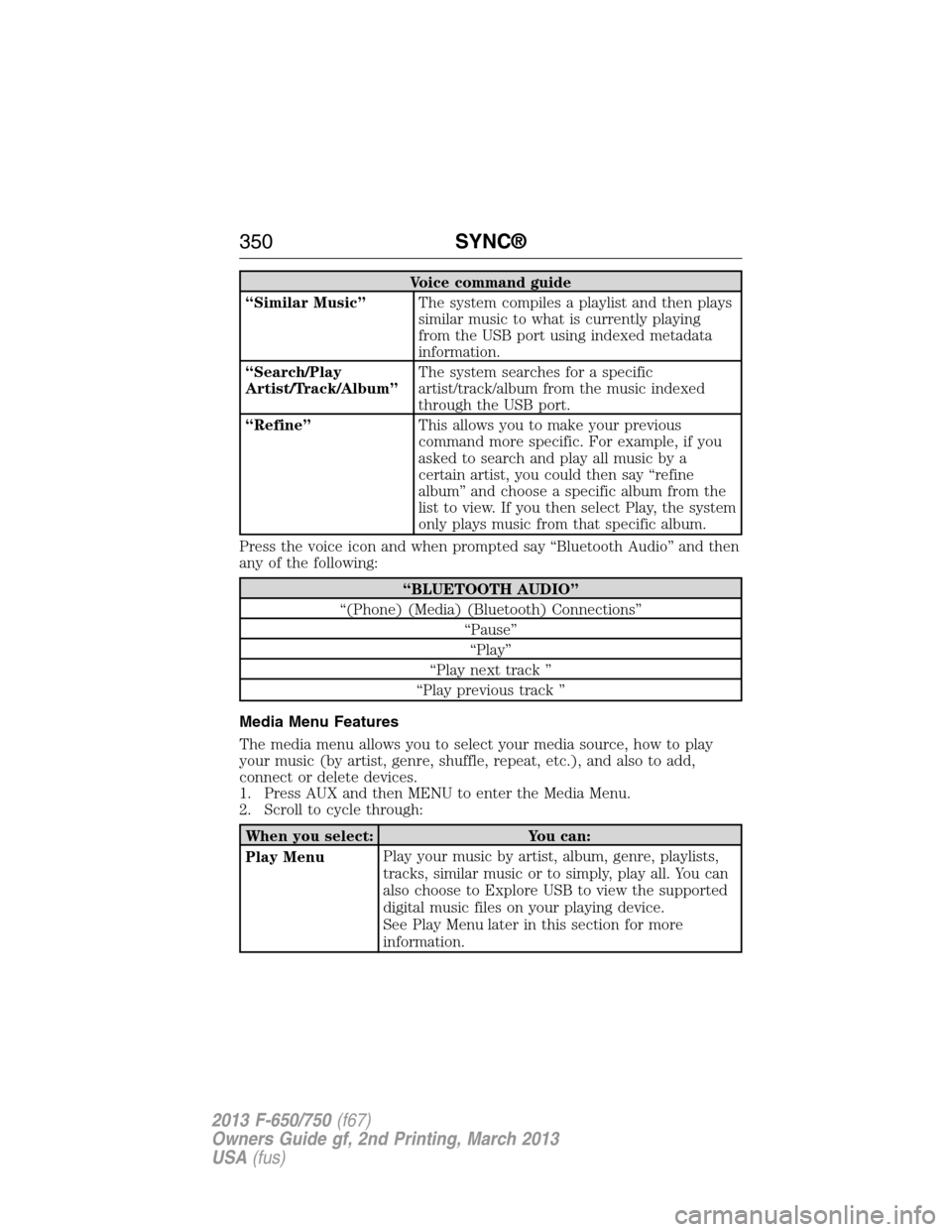
Voice command guide
“Similar Music”The system compiles a playlist and then plays
similar music to what is currently playing
from the USB port using indexed metadata
information.
“Search/Play
Artist/Track/Album”The system searches for a specific
artist/track/album from the music indexed
through the USB port.
“Refine”This allows you to make your previous
command more specific. For example, if you
asked to search and play all music by a
certain artist, you could then say “refine
album” and choose a specific album from the
list to view. If you then select Play, the system
only plays music from that specific album.
Press the voice icon and when prompted say “Bluetooth Audio” and then
any of the following:
“BLUETOOTH AUDIO”
“(Phone) (Media) (Bluetooth) Connections”
“Pause”
“Play”
“Play next track ”
“Play previous track ”
Media Menu Features
The media menu allows you to select your media source, how to play
your music (by artist, genre, shuffle, repeat, etc.), and also to add,
connect or delete devices.
1. Press AUX and then MENU to enter the Media Menu.
2. Scroll to cycle through:
When you select: You can:
Play MenuPlay your music by artist, album, genre, playlists,
tracks, similar music or to simply, play all. You can
also choose to Explore USB to view the supported
digital music files on your playing device.
See Play Menu later in this section for more
information.
350SYNC®
2013 F-650/750(f67)
Owners Guide gf, 2nd Printing, March 2013
USA(fus)
Page 352 of 378
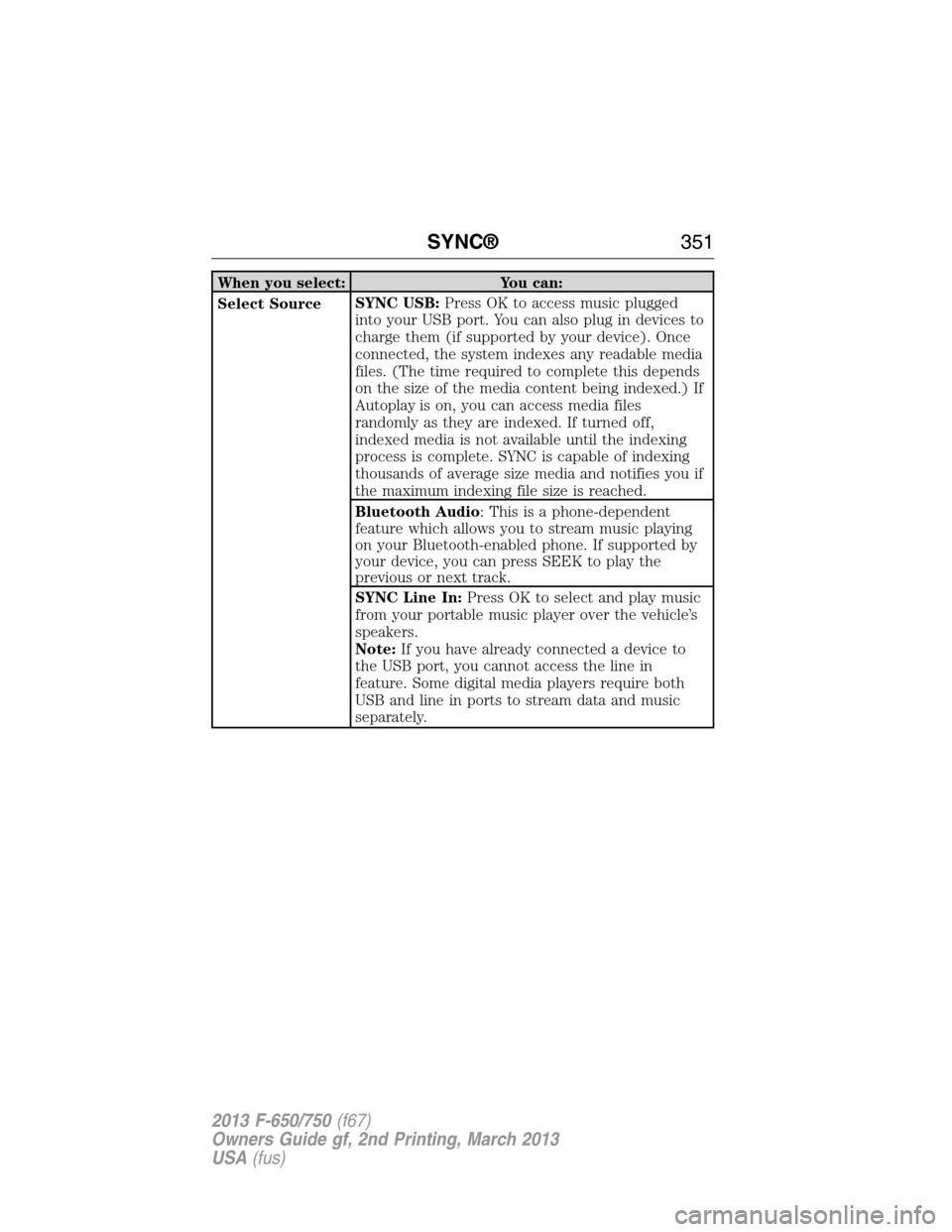
When you select: You can:
Select SourceSYNC USB:Press OK to access music plugged
into your USB port. You can also plug in devices to
charge them (if supported by your device). Once
connected, the system indexes any readable media
files. (The time required to complete this depends
on the size of the media content being indexed.) If
Autoplay is on, you can access media files
randomly as they are indexed. If turned off,
indexed media is not available until the indexing
process is complete. SYNC is capable of indexing
thousands of average size media and notifies you if
the maximum indexing file size is reached.
Bluetooth Audio: This is a phone-dependent
feature which allows you to stream music playing
on your Bluetooth-enabled phone. If supported by
your device, you can press SEEK to play the
previous or next track.
SYNC Line In:Press OK to select and play music
from your portable music player over the vehicle’s
speakers.
Note:If you have already connected a device to
the USB port, you cannot access the line in
feature. Some digital media players require both
USB and line in ports to stream data and music
separately.
SYNC®351
2013 F-650/750(f67)
Owners Guide gf, 2nd Printing, March 2013
USA(fus)
Page 353 of 378
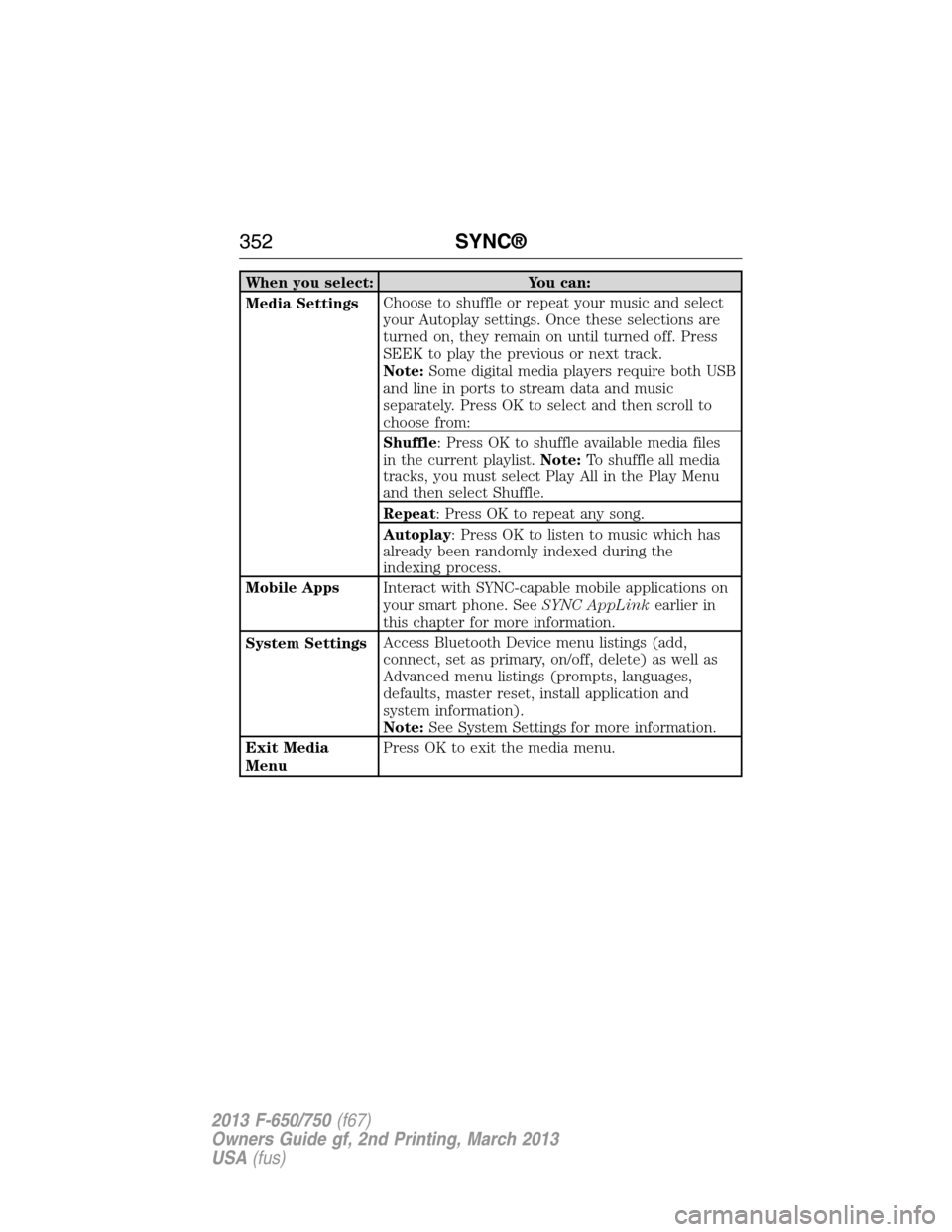
When you select: You can:
Media SettingsChoose to shuffle or repeat your music and select
your Autoplay settings. Once these selections are
turned on, they remain on until turned off. Press
SEEK to play the previous or next track.
Note:Some digital media players require both USB
and line in ports to stream data and music
separately. Press OK to select and then scroll to
choose from:
Shuffle: Press OK to shuffle available media files
in the current playlist.Note:To shuffle all media
tracks, you must select Play All in the Play Menu
and then select Shuffle.
Repeat: Press OK to repeat any song.
Autoplay: Press OK to listen to music which has
already been randomly indexed during the
indexing process.
Mobile AppsInteract with SYNC-capable mobile applications on
your smart phone. SeeSYNC AppLinkearlier in
this chapter for more information.
System SettingsAccess Bluetooth Device menu listings (add,
connect, set as primary, on/off, delete) as well as
Advanced menu listings (prompts, languages,
defaults, master reset, install application and
system information).
Note:See System Settings for more information.
Exit Media
MenuPress OK to exit the media menu.
352SYNC®
2013 F-650/750(f67)
Owners Guide gf, 2nd Printing, March 2013
USA(fus)
Page 356 of 378
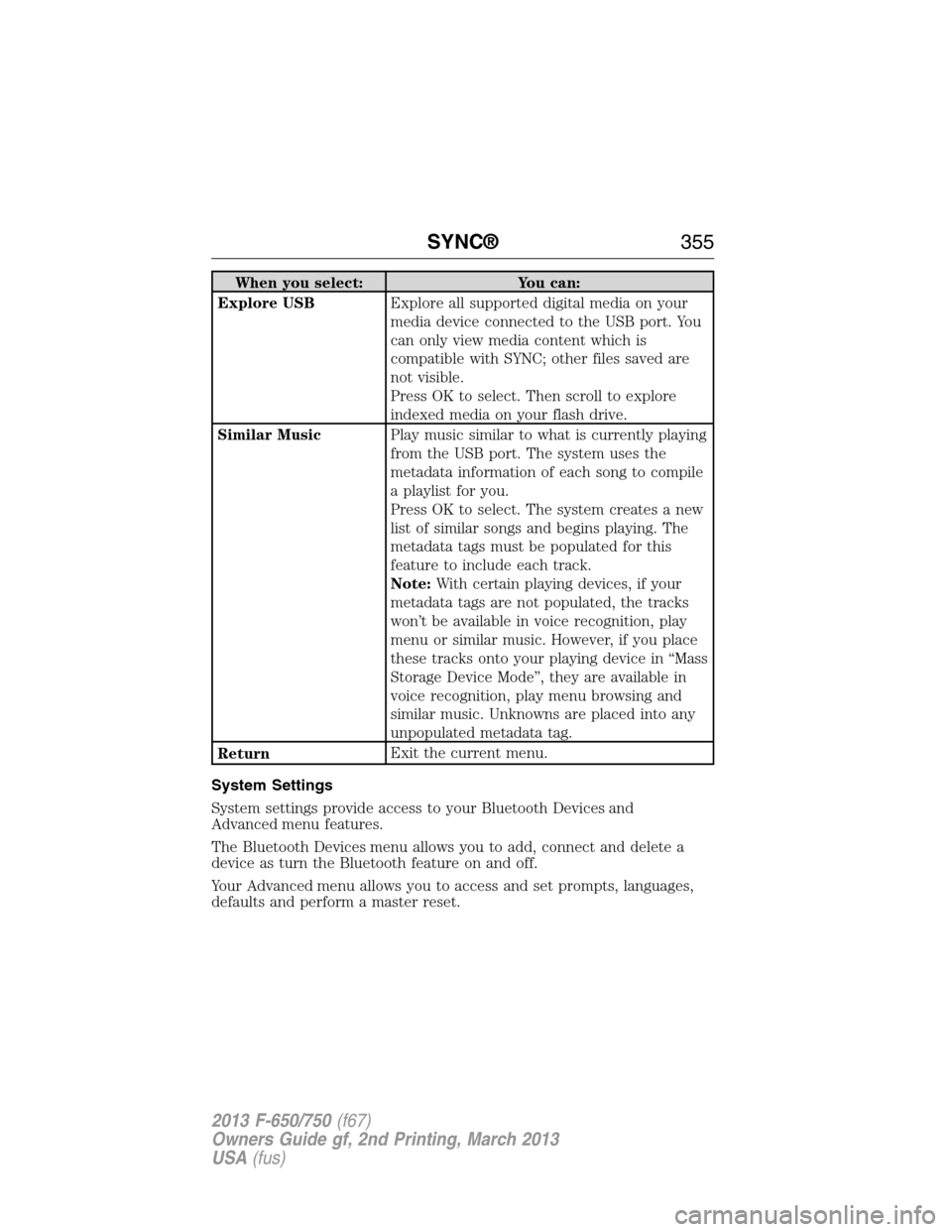
When you select: You can:
Explore USBExplore all supported digital media on your
media device connected to the USB port. You
can only view media content which is
compatible with SYNC; other files saved are
not visible.
Press OK to select. Then scroll to explore
indexed media on your flash drive.
Similar MusicPlay music similar to what is currently playing
from the USB port. The system uses the
metadata information of each song to compile
a playlist for you.
Press OK to select. The system creates a new
list of similar songs and begins playing. The
metadata tags must be populated for this
feature to include each track.
Note:With certain playing devices, if your
metadata tags are not populated, the tracks
won’t be available in voice recognition, play
menu or similar music. However, if you place
these tracks onto your playing device in “Mass
Storage Device Mode”, they are available in
voice recognition, play menu browsing and
similar music. Unknowns are placed into any
unpopulated metadata tag.
ReturnExit the current menu.
System Settings
System settings provide access to your Bluetooth Devices and
Advanced menu features.
The Bluetooth Devices menu allows you to add, connect and delete a
device as turn the Bluetooth feature on and off.
Your Advanced menu allows you to access and set prompts, languages,
defaults and perform a master reset.
SYNC®355
2013 F-650/750(f67)
Owners Guide gf, 2nd Printing, March 2013
USA(fus)
Page 357 of 378
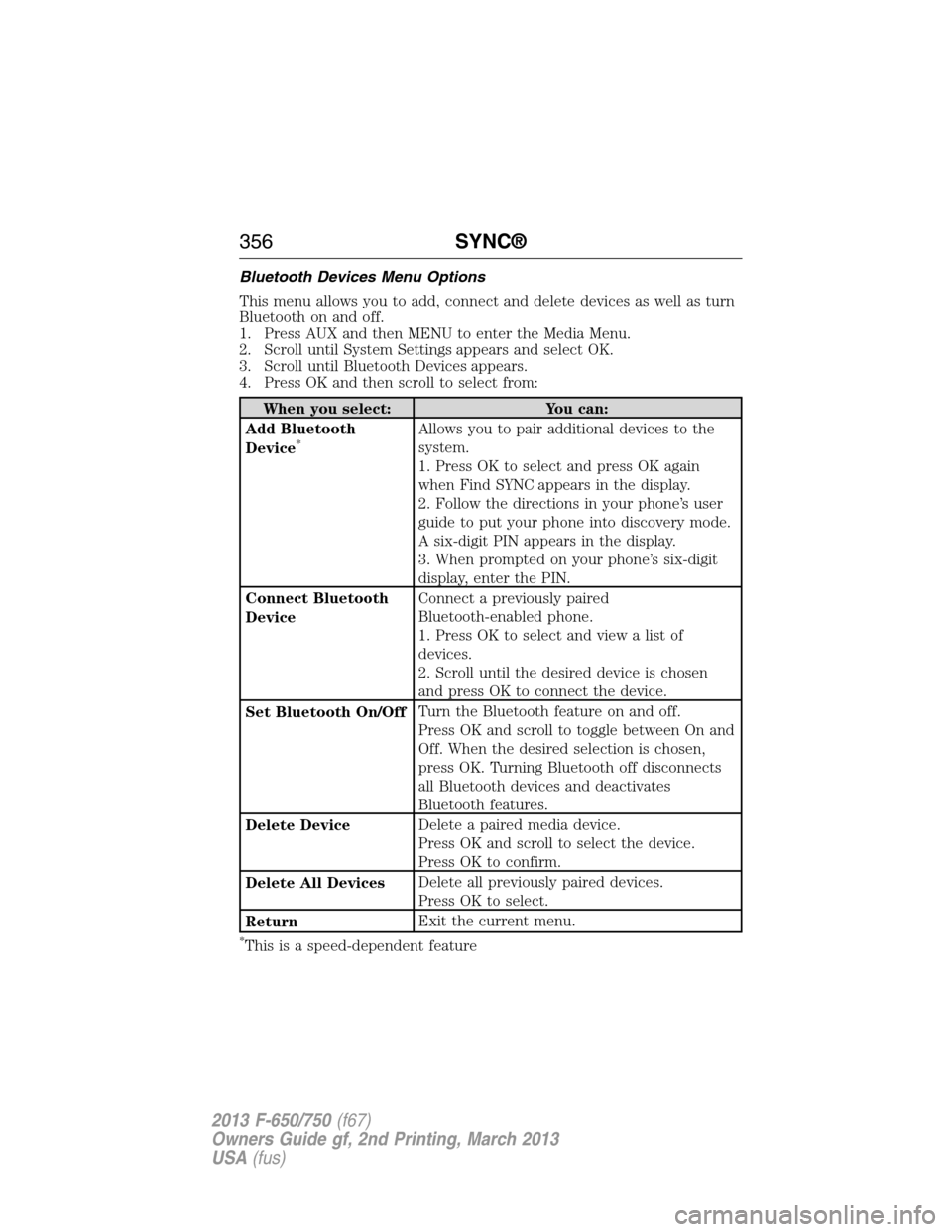
Bluetooth Devices Menu Options
This menu allows you to add, connect and delete devices as well as turn
Bluetooth on and off.
1. Press AUX and then MENU to enter the Media Menu.
2. Scroll until System Settings appears and select OK.
3. Scroll until Bluetooth Devices appears.
4. Press OK and then scroll to select from:
When you select: You can:
Add Bluetooth
Device
*Allows you to pair additional devices to the
system.
1. Press OK to select and press OK again
when Find SYNC appears in the display.
2. Follow the directions in your phone’s user
guide to put your phone into discovery mode.
A six-digit PIN appears in the display.
3. When prompted on your phone’s six-digit
display, enter the PIN.
Connect Bluetooth
DeviceConnect a previously paired
Bluetooth-enabled phone.
1. Press OK to select and view a list of
devices.
2. Scroll until the desired device is chosen
and press OK to connect the device.
Set Bluetooth On/OffTurn the Bluetooth feature on and off.
Press OK and scroll to toggle between On and
Off. When the desired selection is chosen,
press OK. Turning Bluetooth off disconnects
all Bluetooth devices and deactivates
Bluetooth features.
Delete DeviceDelete a paired media device.
Press OK and scroll to select the device.
Press OK to confirm.
Delete All DevicesDelete all previously paired devices.
Press OK to select.
ReturnExit the current menu.
*This is a speed-dependent feature
356SYNC®
2013 F-650/750(f67)
Owners Guide gf, 2nd Printing, March 2013
USA(fus)