buttons FORD FIESTA 2014 Owner's Manual
[x] Cancel search | Manufacturer: FORD, Model Year: 2014, Model line: FIESTA, Model: FORD FIESTA 2014Pages: 398, PDF Size: 6.09 MB
Page 316 of 398
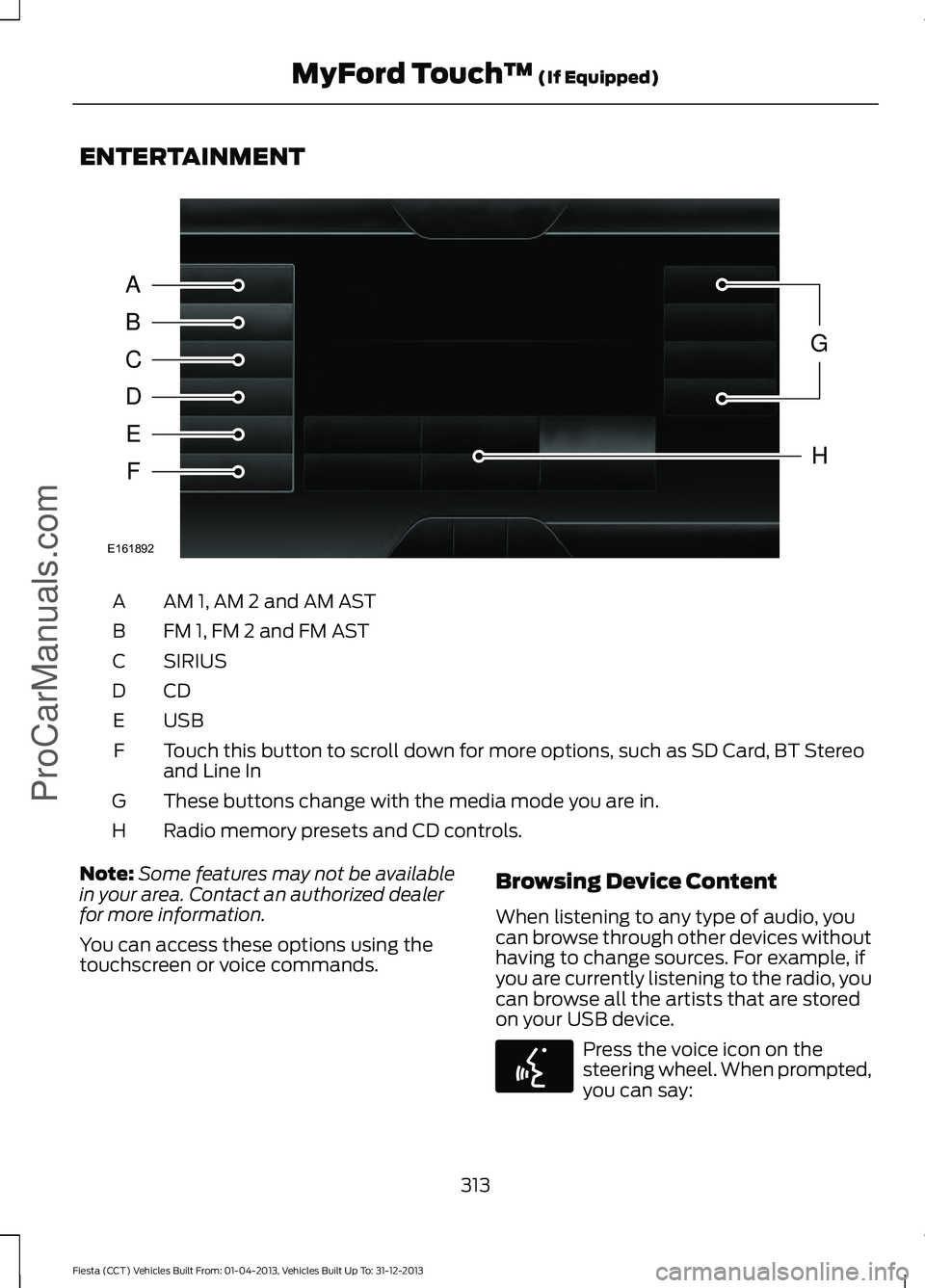
ENTERTAINMENT
AM 1, AM 2 and AM AST
A
FM 1, FM 2 and FM AST
B
SIRIUS
C
CDD
USBE
Touch this button to scroll down for more options, such as SD Card, BT Stereo
and Line In
F
These buttons change with the media mode you are in.
G
Radio memory presets and CD controls.
H
Note: Some features may not be available
in your area. Contact an authorized dealer
for more information.
You can access these options using the
touchscreen or voice commands. Browsing Device Content
When listening to any type of audio, you
can browse through other devices without
having to change sources. For example, if
you are currently listening to the radio, you
can browse all the artists that are stored
on your USB device. Press the voice icon on the
steering wheel. When prompted,
you can say:
313
Fiesta (CCT) Vehicles Built From: 01-04-2013, Vehicles Built Up To: 31-12-2013 MyFord Touch
™ (If Equipped)
ProCarManuals.comA
B
C
D
E
F
G
H
E161892 E142599
Page 323 of 398
"TUNE"
"HD <#>"*
"<87.9-107.9>"
"Preset <#>"
"FM"
"Help"
"FM <87.9-107.9>"
"FM <87.9-107.9> HD <#>"
* If available
SIRIUS® Satellite Radio (If
Activated) Press the lower left corner of the
touchscreen, and then select the
SIRIUS tab.
Memory Presets
Save a channel by pressing and holding
one of the memory preset areas. There is
a brief mute while the radio saves the
channel. Sound returns when finished.
ALERT
Save the current song, artist, or team as a
favorite. The system alerts you when it
plays again on any channel.
Replay
Replay audio on the current channel. You
can replay approximately 45 minutes of
audio as long as you have remained tuned
to the current station. Changing stations
erases the previous audio.
While in replay mode:
• Press and release the seek buttons to
hear the previous or next song.
• Press and hold the seek buttons to
reverse or fast forward in the current
track. •
Press play or pause to play or pause
the audio.
• Press
Replay to return to live audio if
you have been using the feature to
replay audio.
Scan
Touch this button to hear a brief sampling
of channels.
Options
Touch this button to view and adjust
various media settings.
Sound Settings
Touch this button to adjust settings for:
• Bass
• Midrange
• Treble
• Balance and Fade
• DSP (Digital Signal processing)
• Occupancy Mode
• Speed Compensated Volume.
Note: Your vehicle may not have all these
sound settings.
Set Category for Seek/Scan
This allows you to select a category of
music you would like to search for. You can
then choose to either seek or scan for the
stations playing that category.
320
Fiesta (CCT) Vehicles Built From: 01-04-2013, Vehicles Built Up To: 31-12-2013 MyFord Touch
™
(If Equipped)
ProCarManuals.comE142611
Page 343 of 398
"SERVICES"
"Route status"
"Route summary" "Services"
"Update route" "Help"
SIRIUS Travel Link (If Equipped) WARNING
Driving while distracted can result in
loss of vehicle control, crash and
injury. We strongly recommend that
you use extreme caution when using any
device that may take your focus off the
road. Your primary responsibility is the safe
operation of your vehicle. We recommend
against the use of any handheld device
while driving and encourage the use of
voice-operated systems when possible.
Make sure you are aware of all applicable
local laws that may affect the use of
electronic devices while driving. Note:
In order to use SIRIUS Travel Link,
your vehicle must be equipped with
navigation and your navigation SD card
must be in the SD card slot.
Note: A paid subscription is required to
access and use these features. Go to
www.siriusxm.com/travellink for more
information.
Note: Visit www.siriusxm.com/traffic# and
click on Coverage map and details for a
complete listing of all traffic areas covered
by SIRIUS Travel Link.
Note: Neither SIRIUS nor Ford is responsible
for any errors or inaccuracies in the SIRIUS
Travel Link services or its use in vehicles. When you subscribe to SIRIUS Travel Link,
it can help you locate the best gas prices,
find movie listings, get current traffic alerts,
view the current weather map, get
accurate ski conditions and see scores to
current sports games. If your vehicle is equipped with
Navigation, touch the i
(Information) button to access
these features. If your vehicle is not
equipped with Navigation, touch the corner
of the touchscreen with the green tab.
Traffic On Route and Traffic Nearby
Touch these buttons to identify traffic
incidents on your route, nearby your
vehicle ’s current location or near any of
your favorite places, if programmed.
Fuel Prices
Touch this button to view fuel prices at
stations close to your vehicle ’s location or
on an active navigation route.
Movie Listings
Touch this button to view nearby movie
theaters and their show times, if available.
Weather
Touch this button to view the nearby
weather, current weather, or the five day
forecast for the chosen area. Select
Map
to see the weather map, which can show
storms, radar information, charts and
winds. Select Area to select from a listing
of weather locations.
Sports Info
Touch this button to view scores and
schedules from a variety of sports. You can
also save up to 10 favorite teams for easier
access. The score automatically refreshes
when a game is in progress.
340
Fiesta (CCT) Vehicles Built From: 01-04-2013, Vehicles Built Up To: 31-12-2013 MyFord Touch
™
(If Equipped)
ProCarManuals.comE142608
Page 353 of 398
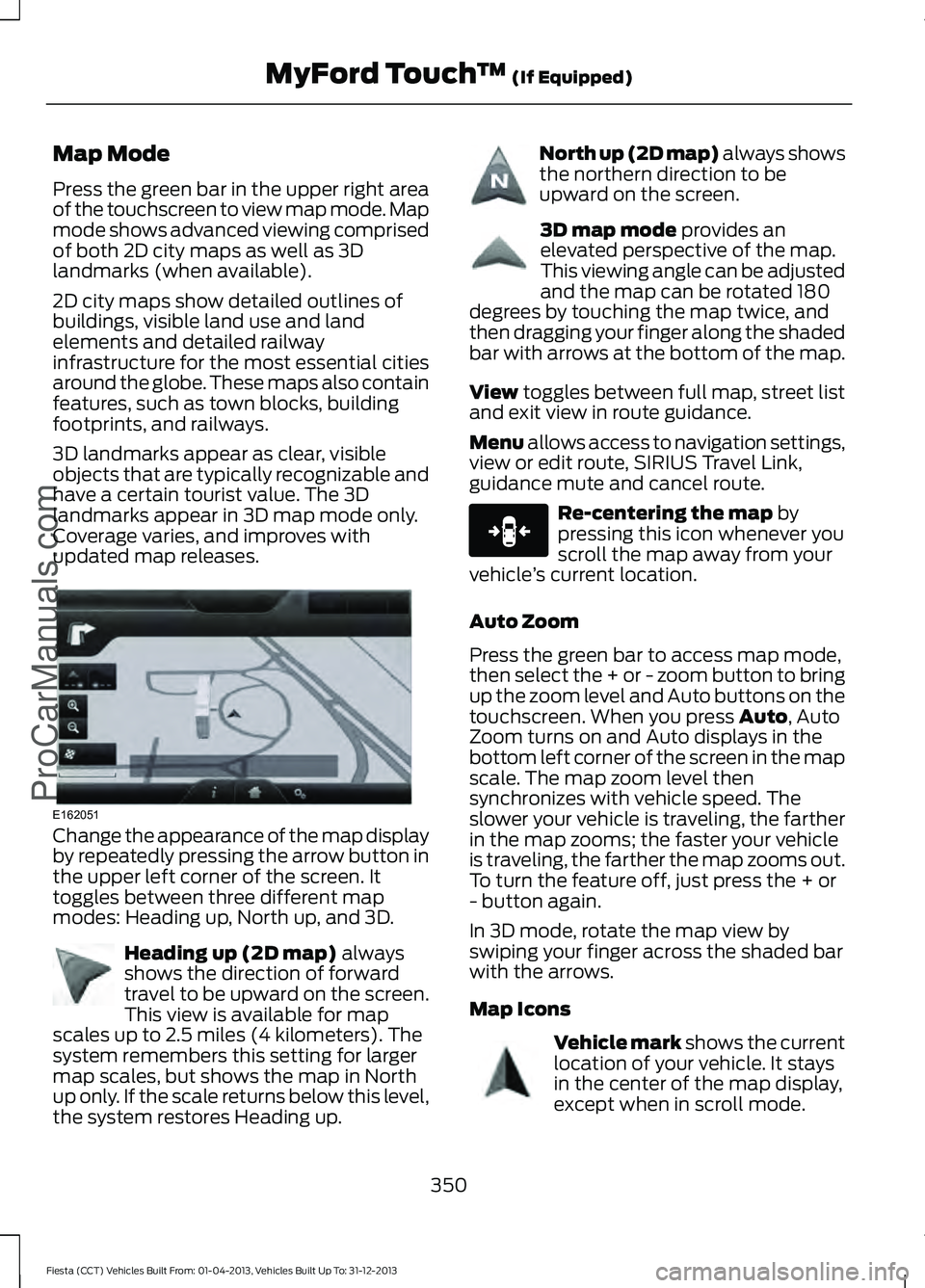
Map Mode
Press the green bar in the upper right area
of the touchscreen to view map mode. Map
mode shows advanced viewing comprised
of both 2D city maps as well as 3D
landmarks (when available).
2D city maps show detailed outlines of
buildings, visible land use and land
elements and detailed railway
infrastructure for the most essential cities
around the globe. These maps also contain
features, such as town blocks, building
footprints, and railways.
3D landmarks appear as clear, visible
objects that are typically recognizable and
have a certain tourist value. The 3D
landmarks appear in 3D map mode only.
Coverage varies, and improves with
updated map releases.
Change the appearance of the map display
by repeatedly pressing the arrow button in
the upper left corner of the screen. It
toggles between three different map
modes: Heading up, North up, and 3D.
Heading up (2D map) always
shows the direction of forward
travel to be upward on the screen.
This view is available for map
scales up to 2.5 miles (4 kilometers). The
system remembers this setting for larger
map scales, but shows the map in North
up only. If the scale returns below this level,
the system restores Heading up. North up (2D map) always shows
the northern direction to be
upward on the screen.
3D map mode
provides an
elevated perspective of the map.
This viewing angle can be adjusted
and the map can be rotated 180
degrees by touching the map twice, and
then dragging your finger along the shaded
bar with arrows at the bottom of the map.
View
toggles between full map, street list
and exit view in route guidance.
Menu allows access to navigation settings,
view or edit route, SIRIUS Travel Link,
guidance mute and cancel route. Re-centering the map
by
pressing this icon whenever you
scroll the map away from your
vehicle ’s current location.
Auto Zoom
Press the green bar to access map mode,
then select the + or - zoom button to bring
up the zoom level and Auto buttons on the
touchscreen. When you press
Auto, Auto
Zoom turns on and Auto displays in the
bottom left corner of the screen in the map
scale. The map zoom level then
synchronizes with vehicle speed. The
slower your vehicle is traveling, the farther
in the map zooms; the faster your vehicle
is traveling, the farther the map zooms out.
To turn the feature off, just press the + or
- button again.
In 3D mode, rotate the map view by
swiping your finger across the shaded bar
with the arrows.
Map Icons Vehicle mark
shows the current
location of your vehicle. It stays
in the center of the map display,
except when in scroll mode.
350
Fiesta (CCT) Vehicles Built From: 01-04-2013, Vehicles Built Up To: 31-12-2013 MyFord Touch
™
(If Equipped)
ProCarManuals.comE162051 E142642 E142643 E142644 E146188 E142646
Page 354 of 398
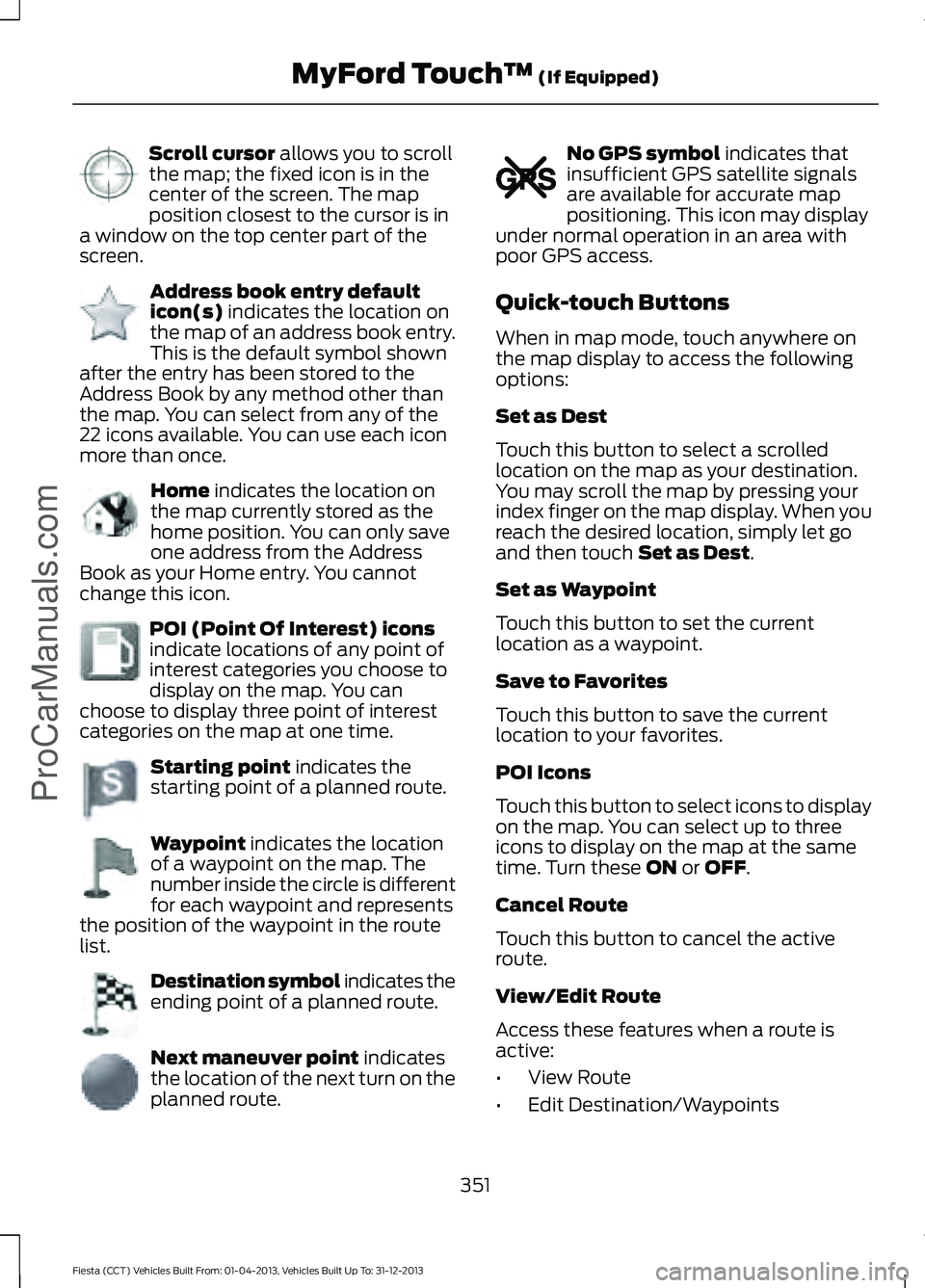
Scroll cursor allows you to scroll
the map; the fixed icon is in the
center of the screen. The map
position closest to the cursor is in
a window on the top center part of the
screen. Address book entry default
icon(s)
indicates the location on
the map of an address book entry.
This is the default symbol shown
after the entry has been stored to the
Address Book by any method other than
the map. You can select from any of the
22 icons available. You can use each icon
more than once. Home
indicates the location on
the map currently stored as the
home position. You can only save
one address from the Address
Book as your Home entry. You cannot
change this icon. POI (Point Of Interest) icons
indicate locations of any point of
interest categories you choose to
display on the map. You can
choose to display three point of interest
categories on the map at one time. Starting point
indicates the
starting point of a planned route. Waypoint
indicates the location
of a waypoint on the map. The
number inside the circle is different
for each waypoint and represents
the position of the waypoint in the route
list. Destination symbol indicates the
ending point of a planned route.
Next maneuver point
indicates
the location of the next turn on the
planned route. No GPS symbol
indicates that
insufficient GPS satellite signals
are available for accurate map
positioning. This icon may display
under normal operation in an area with
poor GPS access.
Quick-touch Buttons
When in map mode, touch anywhere on
the map display to access the following
options:
Set as Dest
Touch this button to select a scrolled
location on the map as your destination.
You may scroll the map by pressing your
index finger on the map display. When you
reach the desired location, simply let go
and then touch
Set as Dest.
Set as Waypoint
Touch this button to set the current
location as a waypoint.
Save to Favorites
Touch this button to save the current
location to your favorites.
POI Icons
Touch this button to select icons to display
on the map. You can select up to three
icons to display on the map at the same
time. Turn these
ON or OFF.
Cancel Route
Touch this button to cancel the active
route.
View/Edit Route
Access these features when a route is
active:
• View Route
• Edit Destination/Waypoints
351
Fiesta (CCT) Vehicles Built From: 01-04-2013, Vehicles Built Up To: 31-12-2013 MyFord Touch
™
(If Equipped)
ProCarManuals.comE142647 E142648 E142649 E142650 E142651 E142652 E142653 E142654 E142655
Page 388 of 398
A
A/C
See: Climate Control........................................... 97
About This Manual...........................................7
Protecting the Environment................................ 7
ABS See: Brakes............................................................ 134
ABS driving hints See: Hints on Driving With Anti-Lock
Brakes.................................................................134
Accessories....................................................239 Exterior style........................................................ 239
Interior style......................................................... 239
Lifestyle................................................................. 239
Peace of mind..................................................... 239
Accessories See: Replacement Parts
Recommendation.............................................. 9
Adjusting the Headlamps.........................188 Horizontal Aim Adjustment............................ 189
Vertical Aim Adjustment................................. 188
Adjusting the Steering Wheel
....................63
Airbag Disposal...............................................42
Air Conditioning See: Climate Control........................................... 97
Air Vents
.............................................................97
Center Air Vents.................................................... 97
Side Air Vent........................................................... 97
Alarm See: Anti-Theft Alarm......................................... 61
Ambient Lighting
.............................................71
Anti-Theft Alarm.............................................61
Alarm System......................................................... 61
Arming the Alarm.................................................. 61
Disarming the Alarm............................................ 61
Triggering the Alarm............................................. 61
Appendices....................................................355
Audible Warnings and Indicators.............84 Automatic Transmission................................... 84
Headlamps On...................................................... 84
Key Outside Car.................................................... 84
Low Fuel.................................................................. 84
Safety Belt Minder............................................... 84
Audio Control
...................................................63
........................................................................\
............. 63
Audio System................................................244 General Information......................................... 244Audio Troubleshooting
..............................258
Audio unit - Vehicles With: AM/FM/CD/SYNC....................................249
Alternative Frequencies................................... 253
Automatic Volume Control............................ 252
Autostore Control.............................................. 252
News Broadcasts............................................... 253
Regional Mode.................................................... 253
Sound Button....................................................... 251
Station Preset Buttons.................................... 252
Station Tuning Control..................................... 252
Waveband Button.............................................. 252
Audio unit - Vehicles With: AM/FM/CD..................................................245
Alternative Frequencies.................................. 248
Automatic Volume Control............................ 248
Autostore Control.............................................. 248
News Broadcasts.............................................. 248
Regional Mode.................................................... 249
Sound Button...................................................... 247
Station Preset Buttons.................................... 248
Station Tuning Control..................................... 247
Waveband Button.............................................. 247
Audio unit - Vehicles With: Sony Audio System/Touchscreen Display
..............255
Audio unit - Vehicles With: Touchscreen Display
..........................................................254
Autolamps........................................................68
Automatic Climate Control........................99 Temperature Control........................................ 100
Automatic Transmission
............................128
Emergency Park Position Release
Lever..................................................................... 131
Hints on Driving with an Automatic Transmission.................................................... 131
Selector Lever Positions................................... 129
Sport Mode and Manual Shifting.................130
Automatic Transmission Fluid Check.............................................................185
Auxiliary Input Jack......................................257
Auxiliary Power Points..................................111 12 Volt DC Power Point....................................... 111
Location.................................................................... 111
B
Bonnet Lock See: Opening and Closing the Hood............177
385
Fiesta (CCT) Vehicles Built From: 01-04-2013, Vehicles Built Up To: 31-12-2013 Index
ProCarManuals.com
Page 393 of 398
Manual Transmission..................................126
Parking Your Vehicle........................................... 127
Recommended Shift Speeds......................... 126
Reverse................................................................... 126
Using the Clutch.................................................. 126
Message Center See: Information Displays................................. 85
Mirrors See: Heated Windows and Mirrors..............103
See: Windows and Mirrors................................. 72
Mobile Communications Equipment......................................................10
Moonroof...........................................................76 Moonroof Sliding Shade.................................... 76
Opening and Closing the Moonroof..............76
Venting the Moonroof......................................... 76
Motorcraft Parts
...........................................236
MyFord Touch ™...........................................295
General Information......................................... 295
MyKey Troubleshooting
...............................50
MyKey ™............................................................48
Principle of Operation........................................ 48
N
Navigation
......................................................345
cityseekr................................................................. 347
Map Mode............................................................ 350
Navigation Map Updates................................ 352
Navigation Voice Commands....................... 352
Point of Interest (POI) Categories...............347
Quick-touch Buttons......................................... 351
Setting a Destination....................................... 345
Setting Your Navigation Preferences.........348
O
Oil Check See: Engine Oil Check....................................... 182
Opening and Closing the Hood
................177
Closing the Hood................................................ 178
Opening the Hood............................................... 177
Ordering Additional Owner's Literature......................................................164
Obtaining a French Owner ’s Manual..........164 P
Parking Aid
......................................................138
Rear Sensing System........................................ 139
Parking Aids....................................................138 Principle of Operation....................................... 138
Parking Brake
.................................................134
All Vehicles............................................................ 135
Vehicles With Automatic Transmission................................................... 134
Vehicles With Manual Transmission...........134
Passive Anti-Theft System
........................60
SecuriLock®.......................................................... 60
PATS See: Passive Anti-Theft System.................... 60
Perchlorate.........................................................12
Personalized Settings..................................89 Measure Units....................................................... 89
Switching Chimes Off........................................ 89
Personal Safety System ™
..........................33
How Does the Personal Safety System
Work?................................................................... 33
Phone...............................................................330 Making Calls......................................................... 332
Pairing Subsequent Phones........................... 331
Pairing Your Phone for the First Time.........331
Phone Menu Options........................................ 332
Phone Settings................................................... 334
Phone Voice Commands................................ 335
Receiving Calls.................................................... 332
Text Messaging................................................... 333
Power Door Locks See: Locking and Unlocking............................. 52
Power Steering Fluid Check.....................185
Power Windows..............................................72 Accessory Delay.................................................... 73
Bounce-Back.......................................................... 72
One-Touch Down................................................. 72
One-Touch Up....................................................... 72
Window Lock.......................................................... 72
R
Rear Seats
......................................................108
Folding the Seatback....................................... 108
Unfolding the Seatback................................... 109
Rear Under Floor Storage..........................152 Adjustable Load Floor....................................... 152
390
Fiesta (CCT) Vehicles Built From: 01-04-2013, Vehicles Built Up To: 31-12-2013 Index
ProCarManuals.com