ECO mode FORD FIESTA 2015 Repair Manual
[x] Cancel search | Manufacturer: FORD, Model Year: 2015, Model line: FIESTA, Model: FORD FIESTA 2015Pages: 423, PDF Size: 5.5 MB
Page 320 of 423
To make adjustments using the
touchscreen, select:
Message
Settings
Sound
Then select from the following:
Bass
Midrange
Treble
Set Balance and Fade
Occupancy Mode
Speed Compensated Volume
DSP
Note: Your vehicle may not have all of
these sound settings. Vehicle To make adjustments using the
touchscreen, select:
Message
Settings
Vehicle
Then select from the following:
Vehicle Health Report
Camera Settings
Enable Valet Mode
Vehicle Health Report
To make adjustments using the touchscreen, select: Action and Description
Message
Press the settings icon.
Settings
Vehicle
Vehicle Health Report
Turn on and off and set the mileage interval at which you
would like to receive the reports. Press the ? for more
information on these selections.
Automatic Reminders
To run the vehicle health report immediately.
Run Vehicle Health
Report Now
You can find more information on Vehicle Health Report in this chapter.
317
Fiesta (CCT), enUSA, Second Printing MyFord Touch
™
(If Equipped)
ProCarManuals.comE142607
Page 321 of 423
Camera Settings
This menu allows you to access settings
for your rear view camera.
To make adjustments using the touchscreen, select:
Action and Description
Message
Press the settings icon.
Settings
Vehicle
Camera Settings
Then select from the following:
Enhanced Park Aids
Rear Camera Delay
You can find more information on the rear view camera system in another chapter. See
Parking Aids (page 135).
Enable Valet Mode
Valet mode allows you to lock the system.
No information is accessible until the
system is unlocked with the correct PIN. Note:
If the system locks, and you need to
reset the PIN, enter 3681 and the system
unlocks. To make adjustments using the touchscreen, select:
Action and Description
Message
Press the settings icon.
Settings
Vehicle
Then enter a four digit PIN twice, as prompted.
Enable Valet Mode
After you press Continue the system locks until you enter the
PIN again.
Continue
Settings
Access and adjust system settings, voice
features, as well as phone, navigation and
wireless settings. System
318
Fiesta (CCT), enUSA, Second Printing MyFord Touch
™
(If Equipped)
ProCarManuals.comE142607 E142607 E142607
Page 322 of 423
To make adjustments using the touchscreen, select:
Action and Description
Message
Press the settings icon.
Settings
System
Then select from the following:
Select to have the touchscreen display in English, Spanish or
French.
Language
Select to display units in kilometers or miles.
Distance
Select to display units in Celsius or Fahrenheit.
Temperature
Adjust the volume of voice prompts from the system.
System Prompt Volume
Select to have the system beep to confirm choices made
through the touchscreen.
Touch Screen Button
Beep
Have the touchscreen keyboard display in QWERTY or ABC
format.
Keyboard Layout
Install any downloaded applications or view the current
software licenses.
Install Applications
Select to restore factory defaults. This erases all personal
settings and personal data.
Master Reset
Voice Control To make adjustments using the touchscreen, select:
Action and Description
Message
Settings
Voice Settings
Then select from the following: Standard interaction mode provides more detailed interaction
and guidance. Advanced mode has less audible interaction
and more tone prompts.
Interaction Mode
319
Fiesta (CCT), enUSA, Second Printing MyFord Touch
™ (If Equipped)
ProCarManuals.comE142607
Page 326 of 423
Action and Description
Message
Connect, disconnect, add or delete a device, as well as save
it as a favorite.
Bluetooth Devices
Turn Bluetooth on and off.
Bluetooth
Have all calls go directly to your voice mail and not ring inside
your vehicle. With this feature turned on, text message noti-
fications are also suppressed and do not ring inside your
vehicle.
Do Not Disturb
Turn on or turn off the 911 Assist feature. See Information
(page 352).
911 Assist
Select the type of notification for phone calls - ring tone,
beep, text to speech or silent.
Phone Ringer
Select the type of notification for text messages - alert tone,
beep, text to speech, or have it be silent.
Text Message Notifica-
tion
If compatible with your phone, you can adjust your internet
data connection. Select to make your connection profile with
the personal area network or to turn off your connection. You
can also choose to adjust your settings or have the system
always connect, never connect when roaming, or query on
connect. Press
? for more information.
Internet Data Connection
Access features, such as automatic phonebook download,
re-download your phonebook, add contacts from your phone
as well as delete or upload your phonebook.
Manage Phonebook
Have the system alert you when in Roaming mode.
Roaming Warning
Wireless & Internet
Your system has a Wi-Fi feature that
creates a wireless network within your
vehicle, thereby allowing other devices
(such as personal computers or phones)
in your vehicle to speak to each other,
share files or play games. Using this Wi-Fi feature, everyone in your vehicle can also
gain access the internet if you have a USB
mobile broadband connection inside your
vehicle, your phone supports personal area
networking and if you park outside a
wireless hotspot.
323
Fiesta (CCT), enUSA, Second Printing MyFord Touch
™
(If Equipped)
ProCarManuals.comE142607
Page 327 of 423
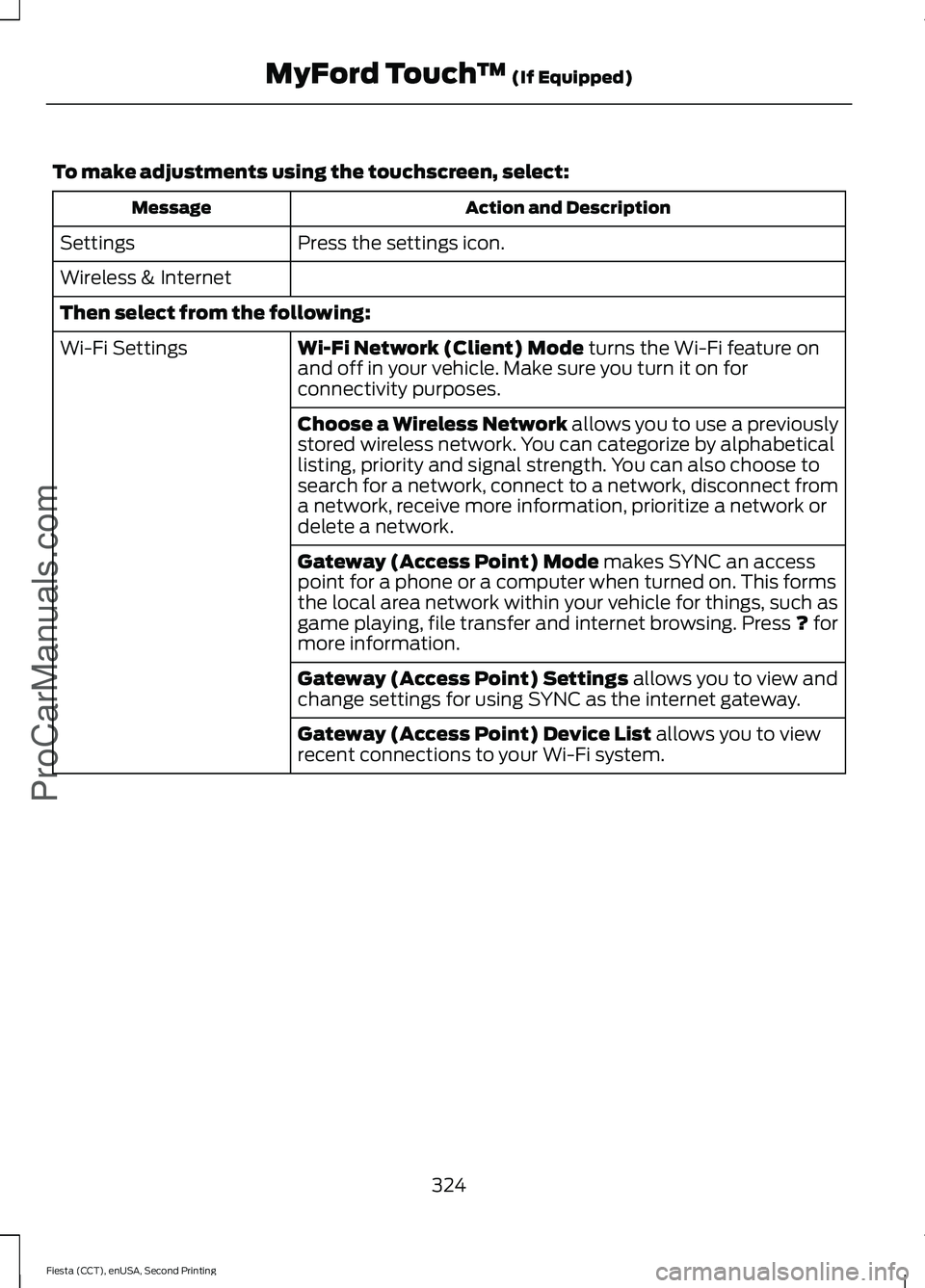
To make adjustments using the touchscreen, select:
Action and Description
Message
Press the settings icon.
Settings
Wireless & Internet
Then select from the following:
Wi-Fi Network (Client) Mode turns the Wi-Fi feature on
and off in your vehicle. Make sure you turn it on for
connectivity purposes.
Wi-Fi Settings
Choose a Wireless Network allows you to use a previously
stored wireless network. You can categorize by alphabetical
listing, priority and signal strength. You can also choose to
search for a network, connect to a network, disconnect from
a network, receive more information, prioritize a network or
delete a network.
Gateway (Access Point) Mode
makes SYNC an access
point for a phone or a computer when turned on. This forms
the local area network within your vehicle for things, such as
game playing, file transfer and internet browsing. Press
? for
more information.
Gateway (Access Point) Settings
allows you to view and
change settings for using SYNC as the internet gateway.
Gateway (Access Point) Device List
allows you to view
recent connections to your Wi-Fi system.
324
Fiesta (CCT), enUSA, Second Printing MyFord Touch
™
(If Equipped)
ProCarManuals.com
Page 329 of 423
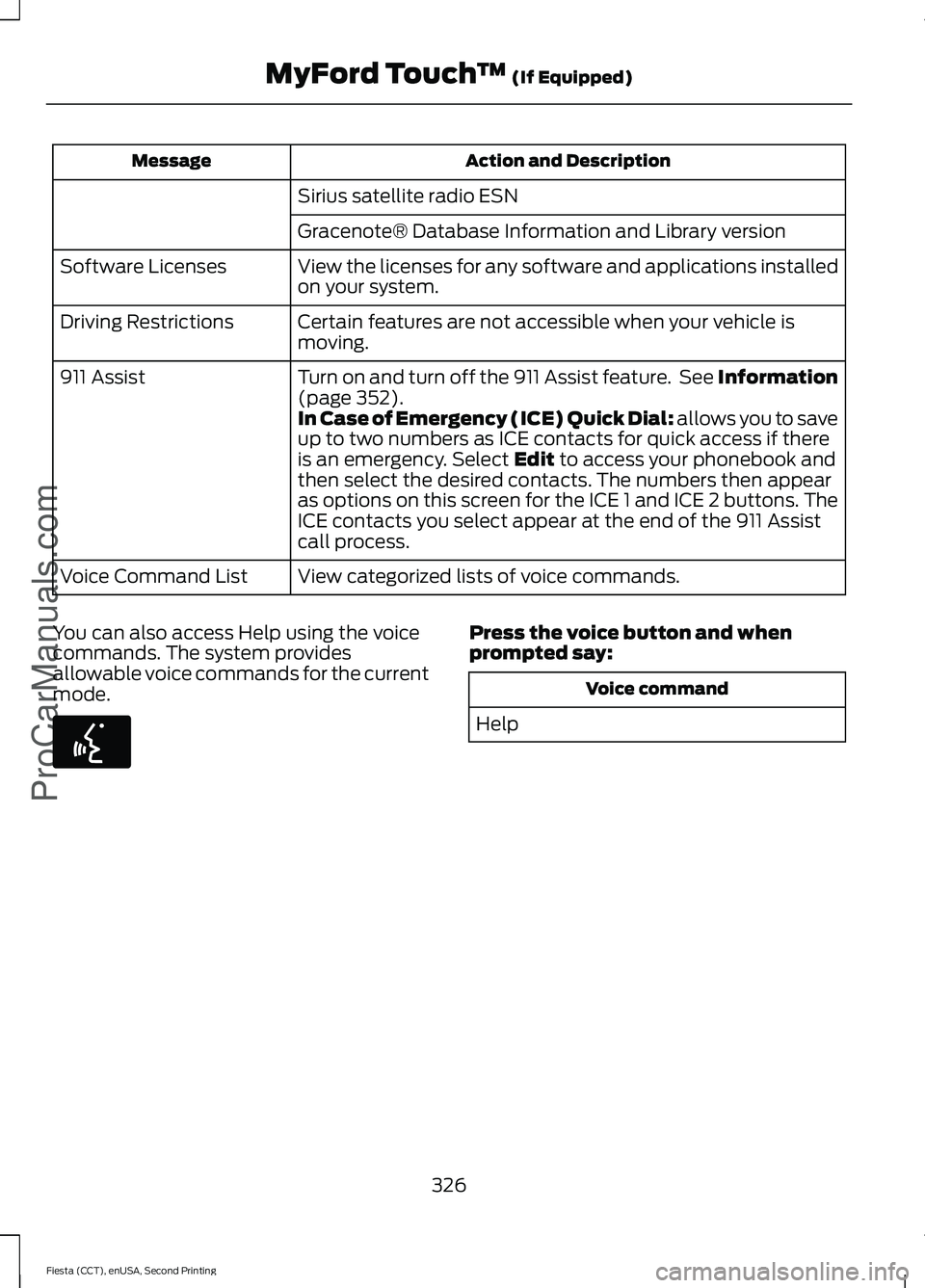
Action and Description
Message
Sirius satellite radio ESN
Gracenote® Database Information and Library version
View the licenses for any software and applications installed
on your system.
Software Licenses
Certain features are not accessible when your vehicle is
moving.
Driving Restrictions
Turn on and turn off the 911 Assist feature. See Information
(page 352).
911 Assist
In Case of Emergency (ICE) Quick Dial: allows you to save
up to two numbers as ICE contacts for quick access if there
is an emergency. Select
Edit to access your phonebook and
then select the desired contacts. The numbers then appear
as options on this screen for the ICE 1 and ICE 2 buttons. The
ICE contacts you select appear at the end of the 911 Assist
call process.
View categorized lists of voice commands.
Voice Command List
You can also access Help using the voice
commands. The system provides
allowable voice commands for the current
mode. Press the voice button and when
prompted say:
Voice command
Help
326
Fiesta (CCT), enUSA, Second Printing MyFord Touch
™
(If Equipped)
ProCarManuals.comE142599
Page 330 of 423
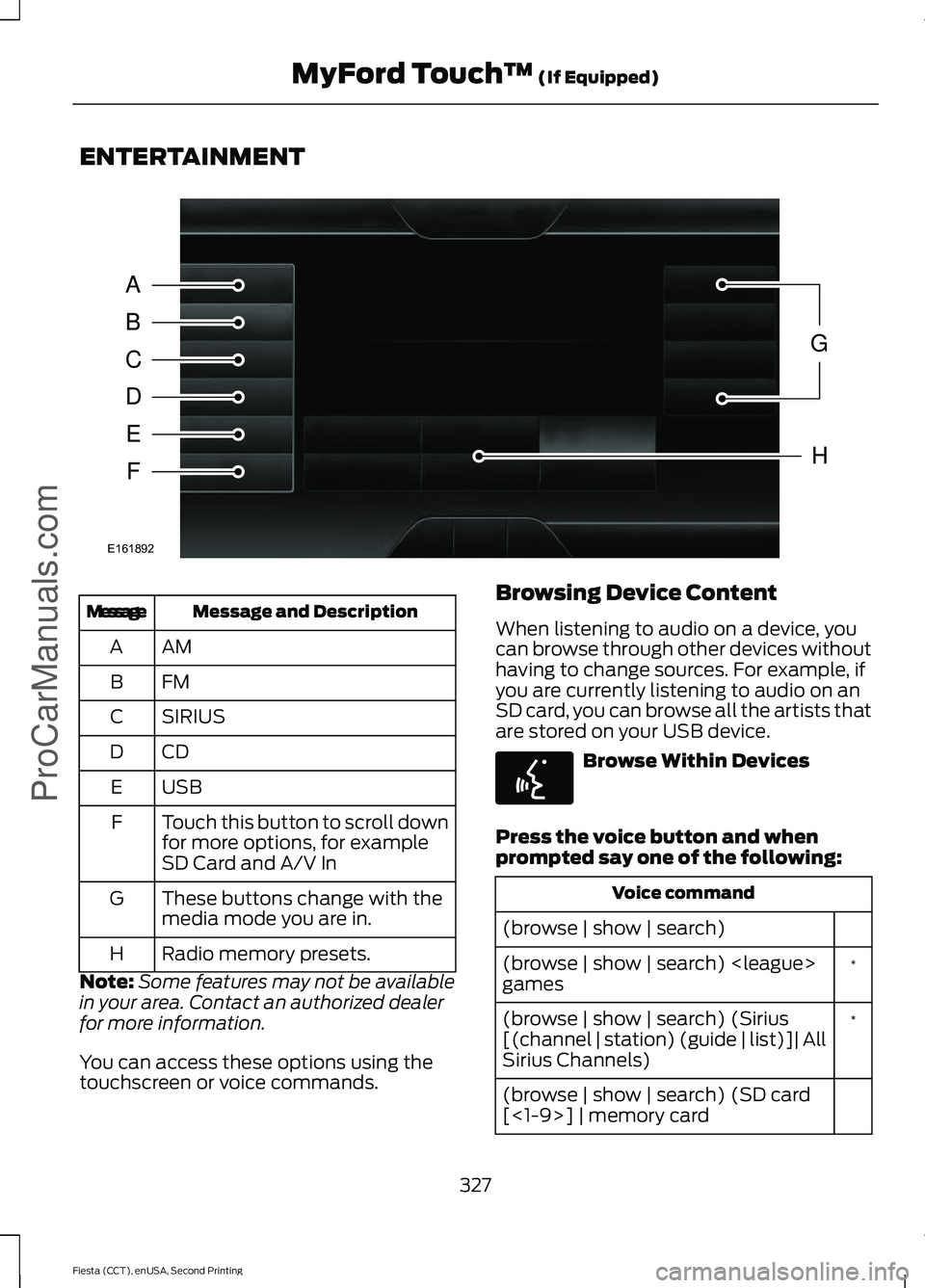
ENTERTAINMENT
Message and Description
Message
AMA
FMB
SIRIUS
C
CDD
USBE
Touch this button to scroll down
for more options, for example
SD Card and A/V In
F
These buttons change with the
media mode you are in.
G
Radio memory presets.
H
Note: Some features may not be available
in your area. Contact an authorized dealer
for more information.
You can access these options using the
touchscreen or voice commands. Browsing Device Content
When listening to audio on a device, you
can browse through other devices without
having to change sources. For example, if
you are currently listening to audio on an
SD card, you can browse all the artists that
are stored on your USB device.
Browse Within Devices
Press the voice button and when
prompted say one of the following: Voice command
(browse | show | search) *
(browse | show | search)
games
*
(browse | show | search) (Sirius
[(channel | station) (guide | list)]| All
Sirius Channels)
(browse | show | search) (SD card
[<1-9>] | memory card
327
Fiesta (CCT), enUSA, Second Printing MyFord Touch
™ (If Equipped)
ProCarManuals.comA
B
C
D
E
F
G
H
E161892 E142599
Page 332 of 423
Scan
Touch this button to go to the next strong
AM or FM radio station. The light on the
button illuminates when the feature is on.
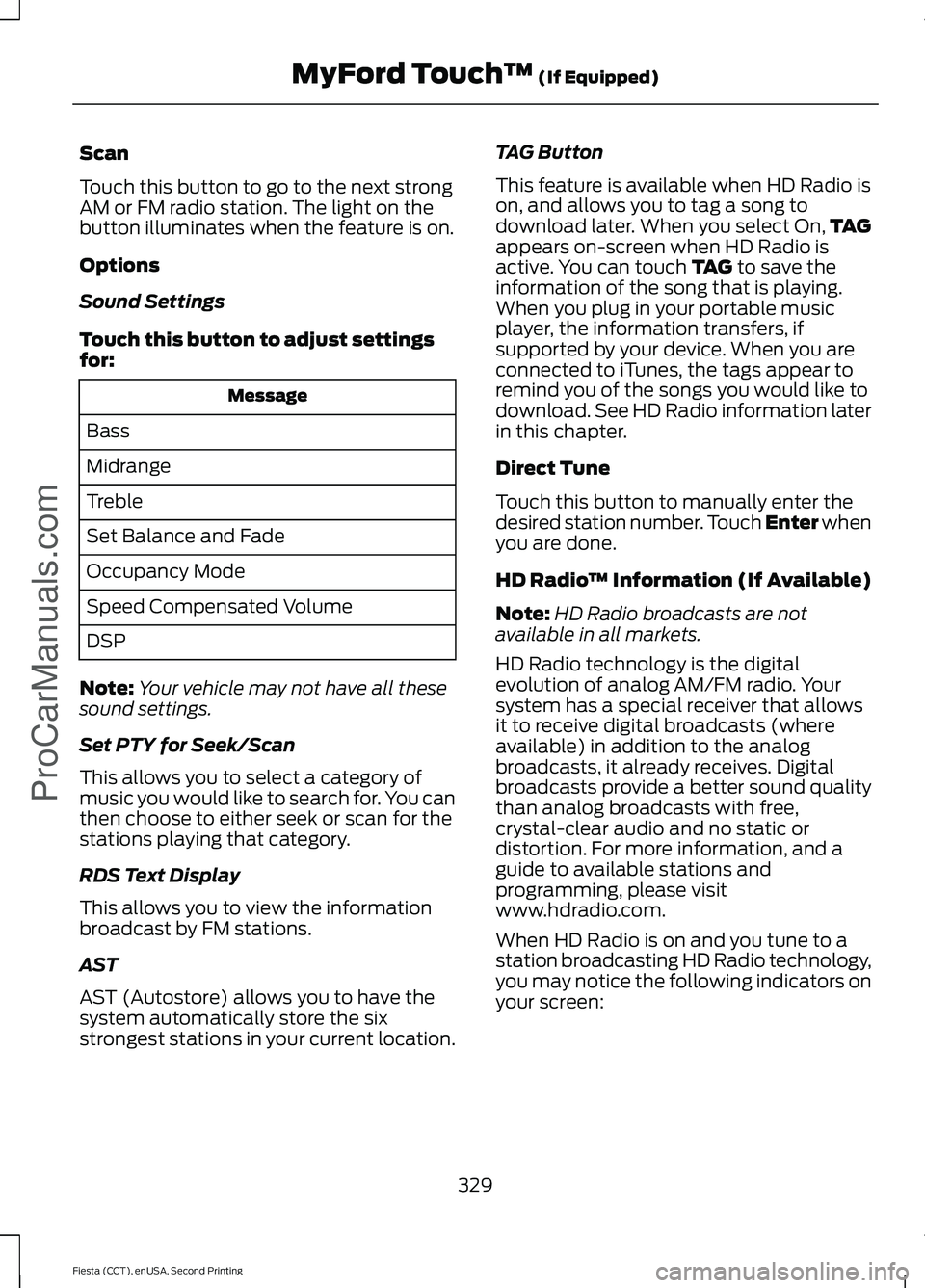
Options
Sound Settings
Touch this button to adjust settings
for:
Message
Bass
Midrange
Treble
Set Balance and Fade
Occupancy Mode
Speed Compensated Volume
DSP
Note: Your vehicle may not have all these
sound settings.
Set PTY for Seek/Scan
This allows you to select a category of
music you would like to search for. You can
then choose to either seek or scan for the
stations playing that category.
RDS Text Display
This allows you to view the information
broadcast by FM stations.
AST
AST (Autostore) allows you to have the
system automatically store the six
strongest stations in your current location. TAG Button
This feature is available when HD Radio is
on, and allows you to tag a song to
download later. When you select On,
TAG
appears on-screen when HD Radio is
active. You can touch TAG to save the
information of the song that is playing.
When you plug in your portable music
player, the information transfers, if
supported by your device. When you are
connected to iTunes, the tags appear to
remind you of the songs you would like to
download. See HD Radio information later
in this chapter.
Direct Tune
Touch this button to manually enter the
desired station number. Touch Enter when
you are done.
HD Radio ™ Information (If Available)
Note: HD Radio broadcasts are not
available in all markets.
HD Radio technology is the digital
evolution of analog AM/FM radio. Your
system has a special receiver that allows
it to receive digital broadcasts (where
available) in addition to the analog
broadcasts, it already receives. Digital
broadcasts provide a better sound quality
than analog broadcasts with free,
crystal-clear audio and no static or
distortion. For more information, and a
guide to available stations and
programming, please visit
www.hdradio.com.
When HD Radio is on and you tune to a
station broadcasting HD Radio technology,
you may notice the following indicators on
your screen:
329
Fiesta (CCT), enUSA, Second Printing MyFord Touch
™
(If Equipped)
ProCarManuals.com
Page 333 of 423
The HD logo either blinks when acquiring
a digital station, and then stays solid when
digital audio is playing, or is grey when
acquiring a digital station, and then
changes to orange when digital audio is
playing. When this logo is available, you
may also see Title and Artist fields
on-screen.
The multicast indicator appears in FM
mode (only) if the current station is
broadcasting multiple digital broadcasts.
The highlighted numbers signify available
digital channels where new or different
content is available. HD1 signifies the main
programming status and is available in
analog and digital broadcasts. Other
multicast stations (HD2 through HD7) are
only available digitally.
TAG allows you to save a song to
download later when you are on an
acquired HD Radio station and the feature
is on.
To turn the feature on and use it, select
AM or FM and the select: Action and Description
Message
Options
TAG Button When you hear a song you, select:
On
The system automatically saves the song's information and
transfers it to your portable music player (if supported) when
you connect it to the system. The system automatically
transfers the tag to your player (if already connected) and a
pop-up confirms the transfer.
Tag
When you access iTunes with your portable music player, the
tags appear to you as a reminder. The system allows you to
tag up to approximately 100 songs. For a list of devices that
support tagging, see www.SYNCMyRide.com,
www.SYNCMyRide.ca or www.syncmaroute.ca
330
Fiesta (CCT), enUSA, Second Printing MyFord Touch
™
(If Equipped)
ProCarManuals.comE142616
Page 336 of 423
HD Radio Technology manufactured under
license from iBiquity Digital Corp. U.S. and
foreign patents. HD Radio and the HD and
HD Radio logos are proprietary trademarks
of iBiquity Digital Corp. Ford Motor
Company and iBiquity Digital Corp. are not
responsible for the content sent using HD
Radio technology. Content may be
changed, added or deleted at any time at
the station owner's discretion.
Radio Voice Commands
Press the voice button and when
prompted say:
Voice command
radio (on | play)
[tune [to]] (AM
[tune [to]] (FM
[tune [to]] AM
[tune [to]] AM (autostore | AST |
autoset)
[tune [to]] AM (autostore | AST |
autoset) preset <1-10>
[tune [to]] FM
[tune [to]] FM (autostore | AST |
autoset)
[tune [to]] FM (autostore | AST |
autoset) preset <1-10>
[tune [to]] FM preset <1-10>
[tune [to]] FM 2 preset <1-10>
[main menu | voice] help SIRIUS® Satellite Radio (If
Activated) To turn the feature on press the lower
left corner of the touchscreen, and then
select:
Message
SIRIUS
Memory Presets
Save a channel by pressing and holding
one of the memory preset areas. There is
a brief mute while the radio saves the
channel. Sound returns when finished.
ALERT
Save the current song, artist, or team as a
favorite. The system alerts you when it
plays again on any channel.
Replay
Replay audio on the current channel. You
can replay approximately 45 minutes of
audio as long as you have remained tuned
to the current station. Changing stations
erases the previous audio.
While in replay mode:
• Press and release the seek buttons to
hear the previous or next song.
• Press and hold the seek buttons to
reverse or fast forward in the current
track.
• Press play or pause to play or pause
the audio.
• Press Replay to return to live audio if
you have been using the feature to
replay audio.
333
Fiesta (CCT), enUSA, Second Printing MyFord Touch
™
(If Equipped)
ProCarManuals.comE142599 E142611