ignition FORD FIESTA 2018 Repair Manual
[x] Cancel search | Manufacturer: FORD, Model Year: 2018, Model line: FIESTA, Model: FORD FIESTA 2018Pages: 449, PDF Size: 6.8 MB
Page 197 of 449
WARNING: For vehicles with
Auto-Start-Stop the battery requirement
is different. You must replace the battery
with one of exactly the same specification.
The battery is located in the engine
compartment. See
Under Hood
Overview (page 183).
Your vehicle has a maintenance-free
battery. It does not require additional
water during service.
If your vehicle battery has a cover, make
sure you correctly install it after cleaning
or replacing the battery.
For longer, trouble-free operation, keep the
top of the battery clean and dry and the
battery cables tightly fastened to the
battery terminals. If any corrosion is
present on the battery or terminals, remove
the cables from the terminals and clean
with a wire brush. You can neutralize the
acid with a solution of baking soda and
water.
We recommend that you disconnect the
negative battery cable terminal from the
battery if you plan to store your vehicle for
an extended period.
To maintain correct operation of the
battery management system, if you add
any electrical devices to your vehicle, do
not connect the ground connection directly
to the negative battery terminal. A
connection at the negative battery terminal
can cause inaccurate measurements of
the battery condition and potential
incorrect system operation.
Note: Electrical accessories or components
added to your vehicle by you or an
authorized dealer, may adversely affect
battery performance, durability and the
performance of other electrical systems on
your vehicle. If a replacement battery is required, we
recommend you use a Ford replacement
battery that matches the electrical
requirements of your vehicle.
If you disconnect or replace the battery
and your vehicle has an automatic
transmission, transmission must relearn
its adaptive strategy. Because of this, the
transmission may shift firmly when first
driven. This is normal operation while the
transmission fully updates its operation to
optimum shift feel.
Remove and Reinstall the Battery
To disconnect or remove the battery, do
the following:
1.
Apply the parking brake and switch the
ignition off.
2. Switch all electrical equipment off, for
example lights and radio.
3. Wait a minimum of two minutes before
disconnecting the battery.
Note: The engine management system has
a power hold function and remains powered
for a period after you switch the ignition off.
This is to allow diagnostic and adaptive
tables to be stored. Disconnecting the
battery without waiting can cause damage
not covered by the vehicle Warranty.
4. Disconnect the negative (-) battery cable terminal first.
5. Disconnect the positive (+) battery cable terminal last.
6. Remove the battery securing clamp.
7. Remove the battery.
8. Install in the reverse order.
Note: Before reconnecting the battery,
make sure the ignition remains switched off.
Note: If you only disconnect the negative
battery cable terminal, make sure it is
isolated or placed away from the battery
terminal to avoid un-intended connection
or arcing.
194
2018 Fiesta (CCT) Canada/United States of America, JE8J 19A321 AB enUSA, Edition date: 201706, First-Printing Maintenance
Page 201 of 449
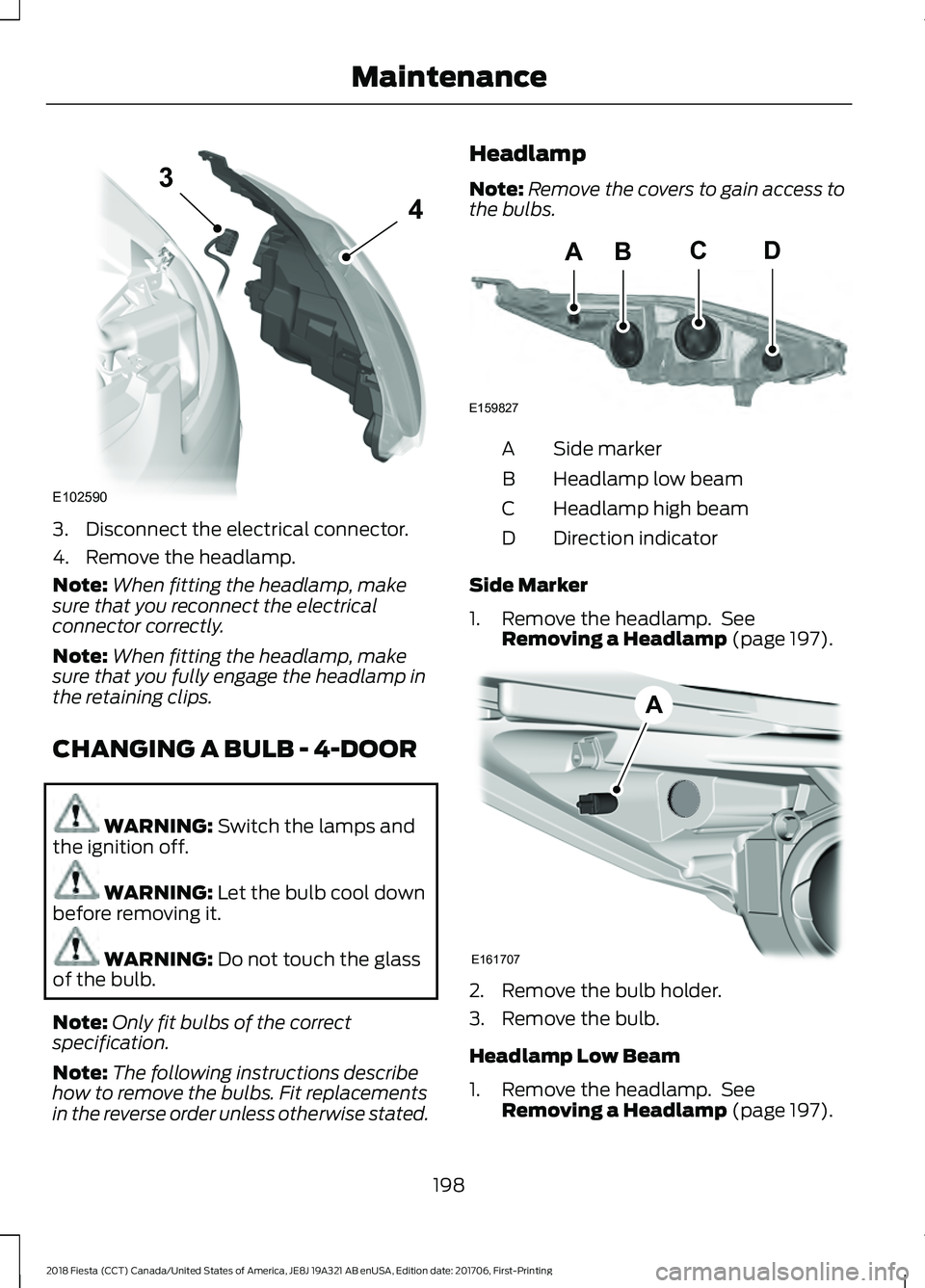
3. Disconnect the electrical connector.
4. Remove the headlamp.
Note:
When fitting the headlamp, make
sure that you reconnect the electrical
connector correctly.
Note: When fitting the headlamp, make
sure that you fully engage the headlamp in
the retaining clips.
CHANGING A BULB - 4-DOOR WARNING: Switch the lamps and
the ignition off. WARNING:
Let the bulb cool down
before removing it. WARNING:
Do not touch the glass
of the bulb.
Note: Only fit bulbs of the correct
specification.
Note: The following instructions describe
how to remove the bulbs. Fit replacements
in the reverse order unless otherwise stated. Headlamp
Note:
Remove the covers to gain access to
the bulbs. Side marker
A
Headlamp low beam
B
Headlamp high beam
C
Direction indicator
D
Side Marker
1. Remove the headlamp. See Removing a Headlamp
(page 197). 2. Remove the bulb holder.
3. Remove the bulb.
Headlamp Low Beam
1. Remove the headlamp. See
Removing a Headlamp
(page 197).
198
2018 Fiesta (CCT) Canada/United States of America, JE8J 19A321 AB enUSA, Edition date: 201706, First-Printing MaintenanceE102590
3
4 BACD
E159827 E161707
A
Page 206 of 449
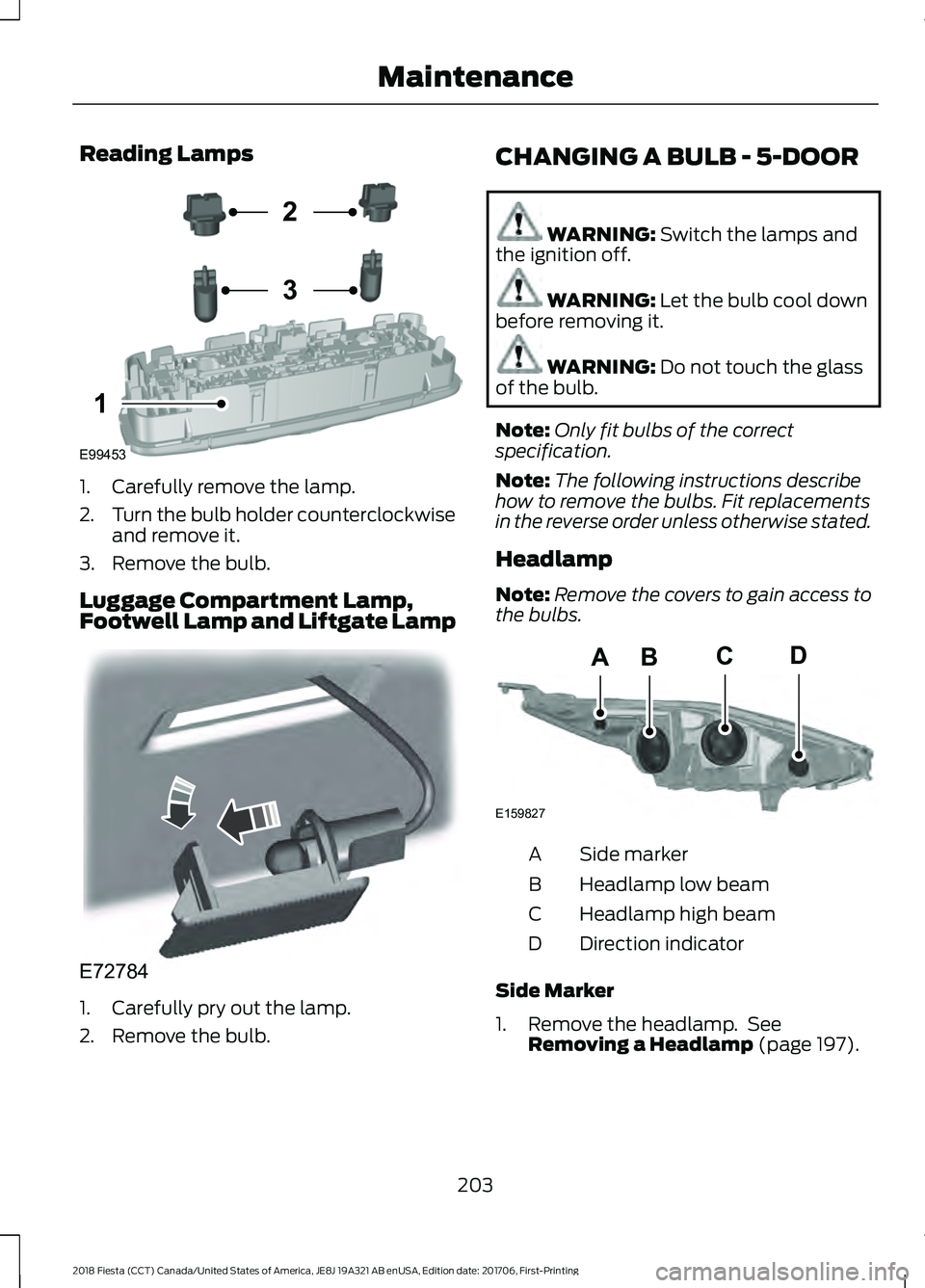
Reading Lamps
1. Carefully remove the lamp.
2.
Turn the bulb holder counterclockwise
and remove it.
3. Remove the bulb.
Luggage Compartment Lamp,
Footwell Lamp and Liftgate Lamp 1. Carefully pry out the lamp.
2. Remove the bulb. CHANGING A BULB - 5-DOOR WARNING: Switch the lamps and
the ignition off. WARNING:
Let the bulb cool down
before removing it. WARNING:
Do not touch the glass
of the bulb.
Note: Only fit bulbs of the correct
specification.
Note: The following instructions describe
how to remove the bulbs. Fit replacements
in the reverse order unless otherwise stated.
Headlamp
Note: Remove the covers to gain access to
the bulbs. Side marker
A
Headlamp low beam
B
Headlamp high beam
C
Direction indicator
D
Side Marker
1. Remove the headlamp. See Removing a Headlamp
(page 197).
203
2018 Fiesta (CCT) Canada/United States of America, JE8J 19A321 AB enUSA, Edition date: 201706, First-Printing MaintenanceE99453
2
3
1 E72784 BACD
E159827
Page 218 of 449
CLEANING THE ENGINE
Engines are more efficient when they are
clean because grease and dirt buildup keep
the engine warmer than normal.
When washing:
•
Take care when using a power washer
to clean the engine. The high-pressure
fluid could penetrate the sealed parts
and cause damage.
• Do not spray a hot engine with cold
water to avoid cracking the engine
block or other engine components.
• Spray Motorcraft Engine Shampoo and
Degreaser on all parts that require
cleaning and pressure rinse clean. In
Canada, use Motorcraft Engine
Shampoo.
• Never wash or rinse the engine while it
is hot or running; water in the running
engine may cause internal damage.
• Never wash or rinse any ignition coil,
spark plug wire or spark plug well, or
the area in and around these locations.
• Cover the battery, power distribution
box, and air filter assembly to prevent
water damage when cleaning the
engine.
CLEANING THE WINDOWS AND
WIPER BLADES
Car wash chemicals and environmental
fallout can result in windshield and wiper
blade contamination. Dirty windshield and
wipers will result in poor windshield wiper
operation. Keep the windshield and wiper
blades clean to maintain windshield wiper
performance. To clean the windshield and wiper blades:
•
Clean the windshield with a
non-abrasive glass cleaner. When
cleaning the interior of the windshield,
avoid getting any glass cleaner on the
instrument panel or door panels. Wipe
any glass cleaner off these surfaces
immediately.
• For windshields contaminated with
tree sap, chemicals, wax or bugs, clean
the entire windshield using steel wool
(no greater than 0000 grade) in a
circular motion and rinse with water.
• Clean the wiper blades with isopropyl
rubbing alcohol or windshield washer
concentrate.
Note: Do not use razor blades or other
sharp objects to clean or remove decals
from the inside of the heated rear window.
The vehicle warranty does not cover
damage caused to the heated rear window
grid lines.
CLEANING THE INTERIOR WARNING: Do not use cleaning
solvents, bleach or dye on the vehicle's
seatbelts, as these actions may weaken
the belt webbing. WARNING:
On vehicles equipped
with seat-mounted airbags, do not use
chemical solvents or strong detergents.
Such products could contaminate the side
airbag system and affect performance of
the side airbag in a crash.
215
2018 Fiesta (CCT) Canada/United States of America, JE8J 19A321 AB enUSA, Edition date: 201706, First-Printing Vehicle Care
Page 285 of 449
Other features, such as text messaging
using Bluetooth and automatic phonebook
download, are phone-dependent features.
To check your phone's compatibility, see
your phone's manual and visit
www.SYNCMyRide.com,
www.SYNCMyRide.ca or
www.syncmaroute.ca.
Pairing a Phone for the First Time
Wirelessly pairing your phone with SYNC
allows you to make and receive hands-free
calls.
Note:
SYNC can support downloading up
to approximately 4000 entries per
Bluetooth-enabled cellular phone.
Note: Make sure to switch on the ignition
and the radio. Shift the transmission into
park (P) for automatic transmission or first
gear for manual transmission.
Using the Audio System
Note: To scroll through the menus, press
the up and down arrows on your audio
system.
1. Make sure to switch on your phone's Bluetooth feature before starting the
search. See your device's manual if
necessary.
2. Press the PHONE button. When the
audio display indicates there is no
paired phone, select the option to add.
3. When a message to begin pairing appears in the audio display, search for
SYNC on your phone to start the pairing
process. 4. When prompted on your cell phone
’s
display, confirm that the PIN provided
by SYNC matches the PIN displayed
on your cell phone. Your phone is now
paired and the display indicates that
the pairing was successful. If you are
prompted to enter a PIN on your device,
enter the PIN displayed on the screen.
The display indicates when the pairing
is successful.
Depending on your phone's capability and
your market, the system may prompt you
with questions, such as setting the current
phone as the primary phone (the phone
SYNC automatically tries to connect with
first upon vehicle start-up) and
downloading your phonebook.
Using Voice Commands Make sure to switch on your
phone's Bluetooth feature
before starting the search. See
your device's manual if necessary.
Press the voice and when prompted
say: Action and Descrip-
tion
Voice Command
Follow the instruc-
tions on the audio
display.
(pair ([Bluetooth]
device | phone |
Bluetooth audio) |
add phone)
You can say any of the voice commands
that appear within open and close brackets
that are separated by |. For example,
where; (what's | what is) appears you say;
what's or what is.
The commands that have [ ] around the
word means that the word is optional.
282
2018 Fiesta (CCT) Canada/United States of America, JE8J 19A321 AB enUSA, Edition date: 201706, First-Printing SYNC™
(If Equipped)E142599
Page 286 of 449
Depending on your phone's capability and
your market, the system may prompt you
with questions, such as setting the current
phone as the primary phone (the phone
SYNC automatically tries to connect with
first upon vehicle start-up) and
downloading your phonebook.
Pairing Subsequent Phones
Note:
Make sure to switch on the ignition
and the radio. Shift the transmission into
park (P) for automatic transmission or first
gear for manual transmission.
Note: To scroll through the menus, press
the up and down arrows on your audio
system.
1. Make sure to switch on your phone's Bluetooth feature before starting the
search. See your device's manual if
necessary.
2. Press the PHONE button.
3. Select the option for Bluetooth Devices.
4. Press the
OK button.
5. Select the option to add. This starts the pairing process.
6. When a message to begin pairing appears in the audio display, search for
SYNC on your device.
7. When prompted on your cell phone ’s
display, confirm that the PIN provided
by SYNC matches the PIN displayed
on your cell phone. Your phone is now
paired and the display indicates that
the pairing was successful. If you are
prompted to enter a PIN on your device,
enter the PIN displayed on the screen.
The display indicates when the pairing
is successful. SYNC may prompt you with more cell
phone options. Your cell phone may also
prompt you to give SYNC permission to
access information. For more information
on your cell phone
’s capability, see your
cell phone ’s manual and visit the website.
Phone Voice Commands Press the voice button. When
prompted, say any of the
following:
Voice Command
(phone | Blackberry | iPhone)
Then say any of the following:
call (___)
call ___ at home
call ___ ((in|at) [the] office | at work)
call ___ on (cell | mobile)
call ___ on other 1
dial [[a] number]
2
([go to] privacy | transfer to phone
| privacy on)
2
(hold call [on] | place call on hold)
2
join (calls | call)
2
mute call [on]
2
(mute call off | un-mute call)
(turn ringer on | silent mode off)
(turn ringer off | silent mode [on])
283
2018 Fiesta (CCT) Canada/United States of America, JE8J 19A321 AB enUSA, Edition date: 201706, First-Printing SYNC™
(If Equipped)E142599
Page 294 of 449
Description and action
Menu Item
2. When a message to begin pairing appears in the audio
display, search for SYNC on your phone. See your phone's
manual if necessary.
3. When prompted on your cell phone ’s display, confirm
that the PIN provided by SYNC matches the PIN displayed
on your cell phone. Skip the next step. If you are prompted
to enter a PIN on your device, it does not support Secure
Simple Pairing. To pair, enter the PIN displayed on the
screen. The display indicates when the pairing is
successful.
4. When the option to set the phone as primary appears,
select either yes or no.
5. SYNC may prompt you with more cell phone options.
Your cell phone may also prompt you to give SYNC
permission to access information. For more information
on your cell phone ’s capability, see your cell phone ’s
manual and visit the website.
Select the delete option and confirm when the system
asks to delete the selected device. After deleting a phone
from the list, you have to repeat the pairing process to pair
it again.
Delete
The system attempts to connect with the primary cellular
phone each time you switch on the ignition. When you
select a cellular phone as primary, it appears first in the
list, marked with an asterisk. Set a previously paired phone
as master by selecting the master option and confirming
it as the primary.
Master
Connect a previously connected phone. You can only have
one phone connected at a time to use the phone's func-
tionality. When you connect another phone, the previous
phone disconnects from the telephone services. The
system allows you to use different Bluetooth devices for
the cellular phone functionality and the Bluetooth audio
music playback feature at the same time.
Conn.
Disconnects the selected cellular phone. Select this option
and confirm when asked. After disconnecting a phone,
you can reconnect it again without repeating the full pairing
process.
Discon.
System Settings
1. Press the MENU button. 2. Select the SYNC settings option, and
then press the
OK button.
291
2018 Fiesta (CCT) Canada/United States of America, JE8J 19A321 AB enUSA, Edition date: 201706, First-Printing SYNC™
(If Equipped)
Page 316 of 449
AppLink issues
Possible solution(s)
Possible cause(s)
Issue
login on the app on the
phone before using them with AppLink. Also, some may have a "Ford SYNC"
setting, so check the app's
settings menu on the phone.
Closing and restarting apps may help SYNC find the
application if you cannot
discover it inside the vehicle. On an Android device, if
apps have an "Exit' or 'Quit'
Sometime apps do not
properly close and re-open their connection to SYNC, over ignition cycles, for example.
My phone is connected, my
app(s) are running, but I still cannot find any apps. option, select that then
restart the app. If the app
does not have that option, you can also manually
"Force Close" the app by
going to the phone's settings
menu, selecting 'Apps.' then finding the particular app
and choosing 'Force stop.' Don't forget to restart the
app afterwards, then select "Find New Apps" on SYNC.
On an iPhone with iOS7+, to force close an app, doubletab the home button then
swipe up on the app to close it. Tab the home button
again, then select the app again to restart it. After a
few seconds, the app should then appear in SYNC'sMobile App's Menu.
Reset the Bluetooth on your phone by turning it off and
then turning Bluetooth back
on. If you are in your vehicle, SYNC should be able to
automatically re-connect to your phone if you press the "Phone" button.
There is a Bluetooth bug on
some older versions of theAndroid operating systemthat may cause apps that
were found on your previous
vehicle drive to not be found
again if you have not turned off Bluetooth.
My Android phone is
connected, my app(s) are running, I restarted them,but I still cannot find any apps.
313
2018 Fiesta (CCT) Canada/United States of America, JE8J 19A321 AB enUSA, Edition date: 201706, First-Printing SYNC™ (If Equipped)
Page 319 of 449
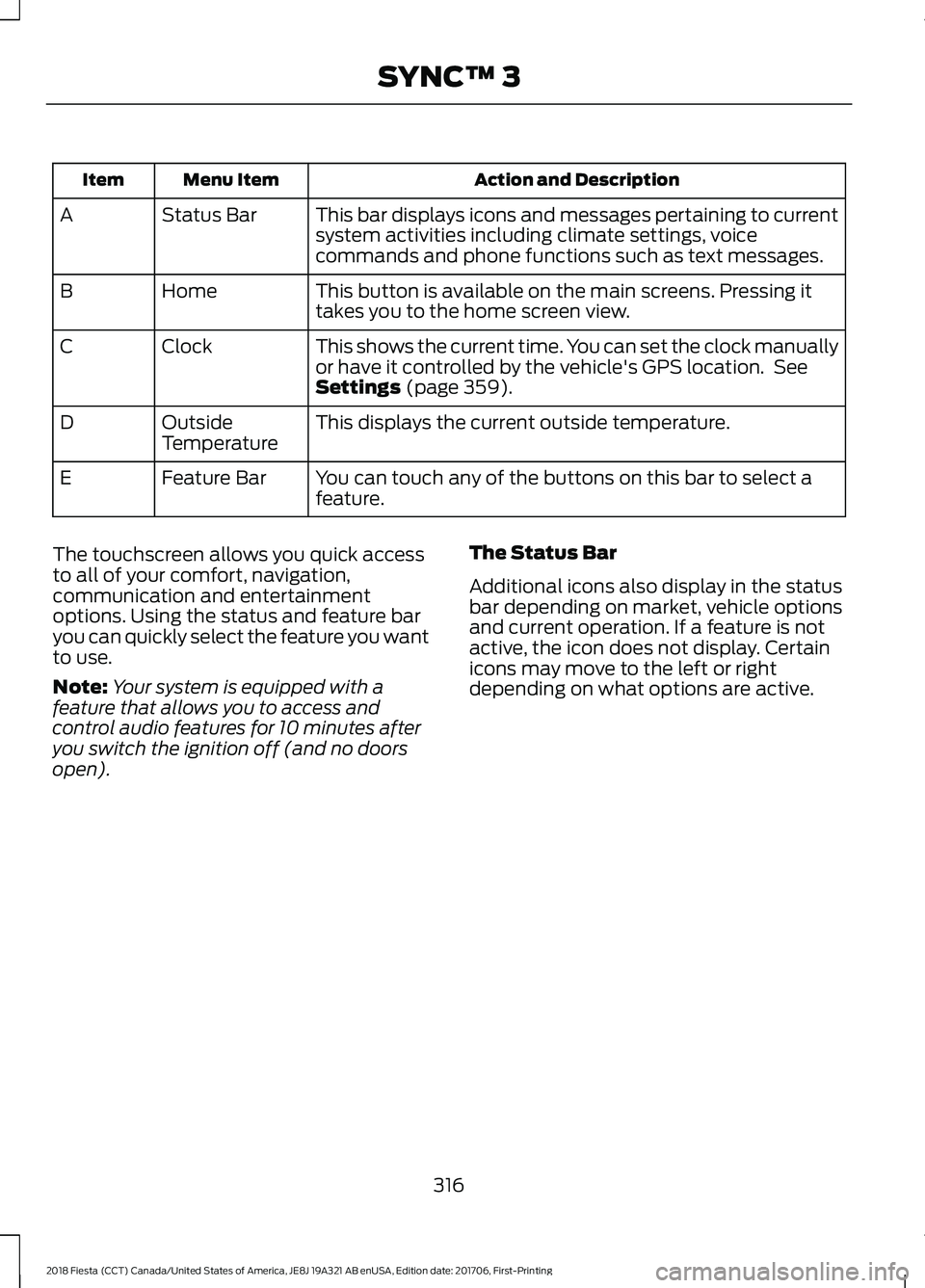
Action and Description
Menu Item
Item
This bar displays icons and messages pertaining to current
system activities including climate settings, voice
commands and phone functions such as text messages.
Status Bar
A
This button is available on the main screens. Pressing it
takes you to the home screen view.
Home
B
This shows the current time. You can set the clock manually
or have it controlled by the vehicle's GPS location. See
Settings (page 359).
Clock
C
This displays the current outside temperature.
Outside
Temperature
D
You can touch any of the buttons on this bar to select a
feature.
Feature Bar
E
The touchscreen allows you quick access
to all of your comfort, navigation,
communication and entertainment
options. Using the status and feature bar
you can quickly select the feature you want
to use.
Note: Your system is equipped with a
feature that allows you to access and
control audio features for 10 minutes after
you switch the ignition off (and no doors
open). The Status Bar
Additional icons also display in the status
bar depending on market, vehicle options
and current operation. If a feature is not
active, the icon does not display. Certain
icons may move to the left or right
depending on what options are active.
316
2018 Fiesta (CCT) Canada/United States of America, JE8J 19A321 AB enUSA, Edition date: 201706, First-Printing SYNC™ 3
Page 327 of 449
The installation of most files occurs in the
background, and does not interrupt your
use of the system. Navigation updates
cannot be installed in the background,
because the files are too large.
Please refer to the website for any further
actions.
Updating Over Wi-Fi
To update your System over Wi-Fi your
vehicle must be within the range of a Wi-Fi
access point. Data rates may apply.
To enable automatic updates using
Wi-Fi, select:
Menu Item
Settings
Wi-Fi You can then select your
Wi-Fi network. You may
have to enter the security
code if the network is
secured. The system
confirms when it has
connected to the network.
Available
Wi-Fi
Networks
You must also give the system permission
to update automatically. Upon vehicle
delivery, the System asks you if you would
like to use the automatic update feature.
If you agree to automatic updates, you can
press OK to confirm. If this selection does
not appear upon vehicle delivery you can
access it through the General Settings. See
Settings (page 359). You can also perform
a master reset. See SYNC™ 3
Troubleshooting (page 373). If you would like to switch this feature
on later, select: Menu Item
Settings
General From this menu, you can
enable automatic updates.
If you have not done so
already, the system
prompts you to set up a
Wi-Fi connection when you
enable this feature.
Automatic
System
Updates
When Wi-Fi and automatic updates are
enabled, your system checks for software
updates periodically. If a new version is
available, it downloads at that time.
Software downloads can take place for up
to 30 minutes after you have switched your
vehicle off. The updates do not interrupt
the normal use of your SYNC 3 system. If
a download does not complete for any
reason, the download continues where it
left off at the next Wi-Fi connected
opportunity. Upon activation of an update,
a banner displays on the touchscreen
indicating the system update. Select the
icon to see more detail. This icon displays
for two ignition cycles.
To switch this feature off: Menu Item
Settings
General In this menu selection, you
can change the selection
for automatic updates to
OFF.
Automatic
System
Updates
324
2018 Fiesta (CCT) Canada/United States of America, JE8J 19A321 AB enUSA, Edition date: 201706, First-Printing SYNC™ 3