wheel FORD FLEX 2013 1.G Owners Manual
[x] Cancel search | Manufacturer: FORD, Model Year: 2013, Model line: FLEX, Model: FORD FLEX 2013 1.GPages: 558, PDF Size: 6.28 MB
Page 492 of 558
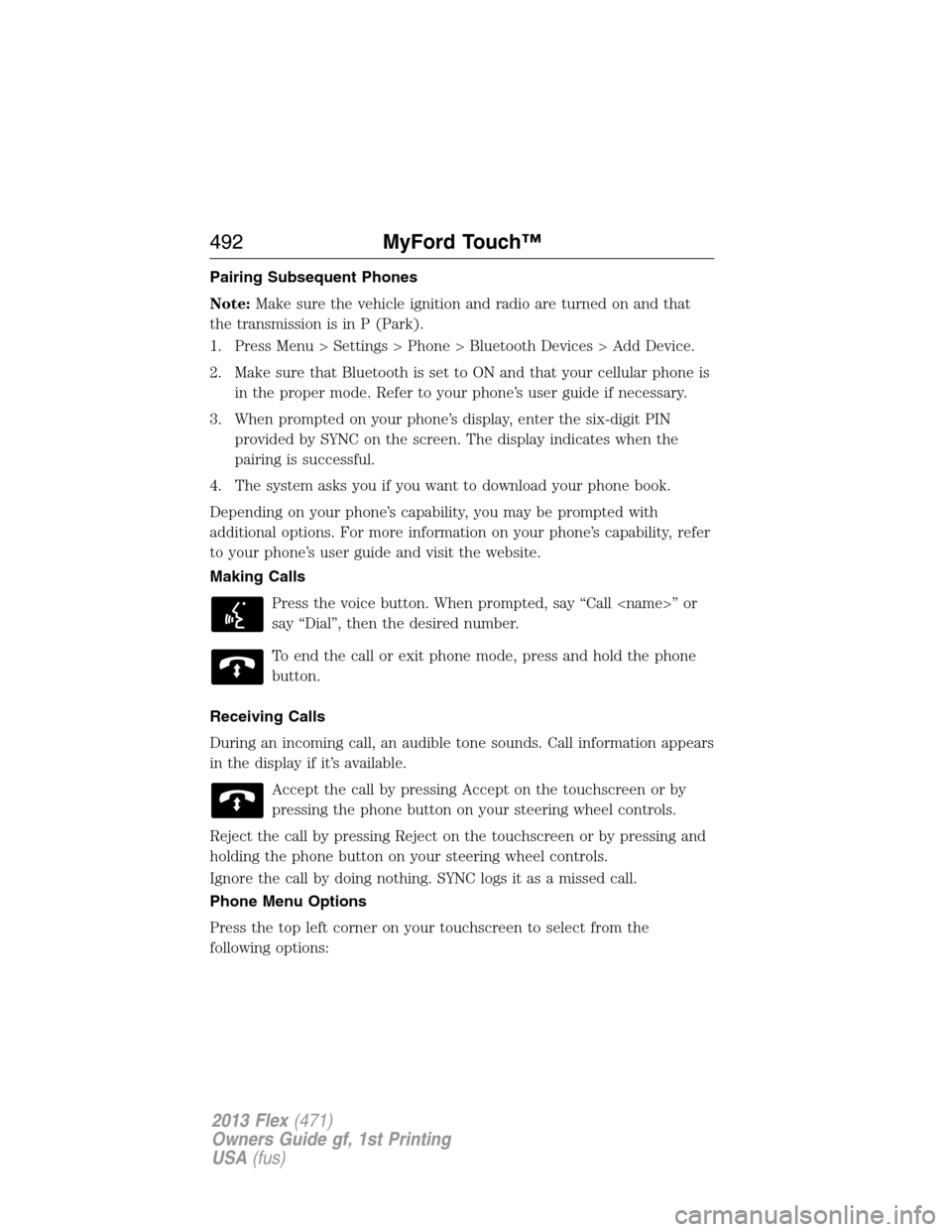
Pairing Subsequent Phones
Note:Make sure the vehicle ignition and radio are turned on and that
the transmission is in P (Park).
1. Press Menu > Settings > Phone > Bluetooth Devices > Add Device.
2. Make sure that Bluetooth is set to ON and that your cellular phone is
in the proper mode. Refer to your phone’s user guide if necessary.
3. When prompted on your phone’s display, enter the six-digit PIN
provided by SYNC on the screen. The display indicates when the
pairing is successful.
4. The system asks you if you want to download your phone book.
Depending on your phone’s capability, you may be prompted with
additional options. For more information on your phone’s capability, refer
to your phone’s user guide and visit the website.
Making Calls
Press the voice button. When prompted, say “Call
say “Dial”, then the desired number.
To end the call or exit phone mode, press and hold the phone
button.
Receiving Calls
During an incoming call, an audible tone sounds. Call information appears
in the display if it’s available.
Accept the call by pressing Accept on the touchscreen or by
pressing the phone button on your steering wheel controls.
Reject the call by pressing Reject on the touchscreen or by pressing and
holding the phone button on your steering wheel controls.
Ignore the call by doing nothing. SYNC logs it as a missed call.
Phone Menu Options
Press the top left corner on your touchscreen to select from the
following options:
492MyFord Touch™
2013 Flex(471)
Owners Guide gf, 1st Printing
USA(fus)
Page 497 of 558
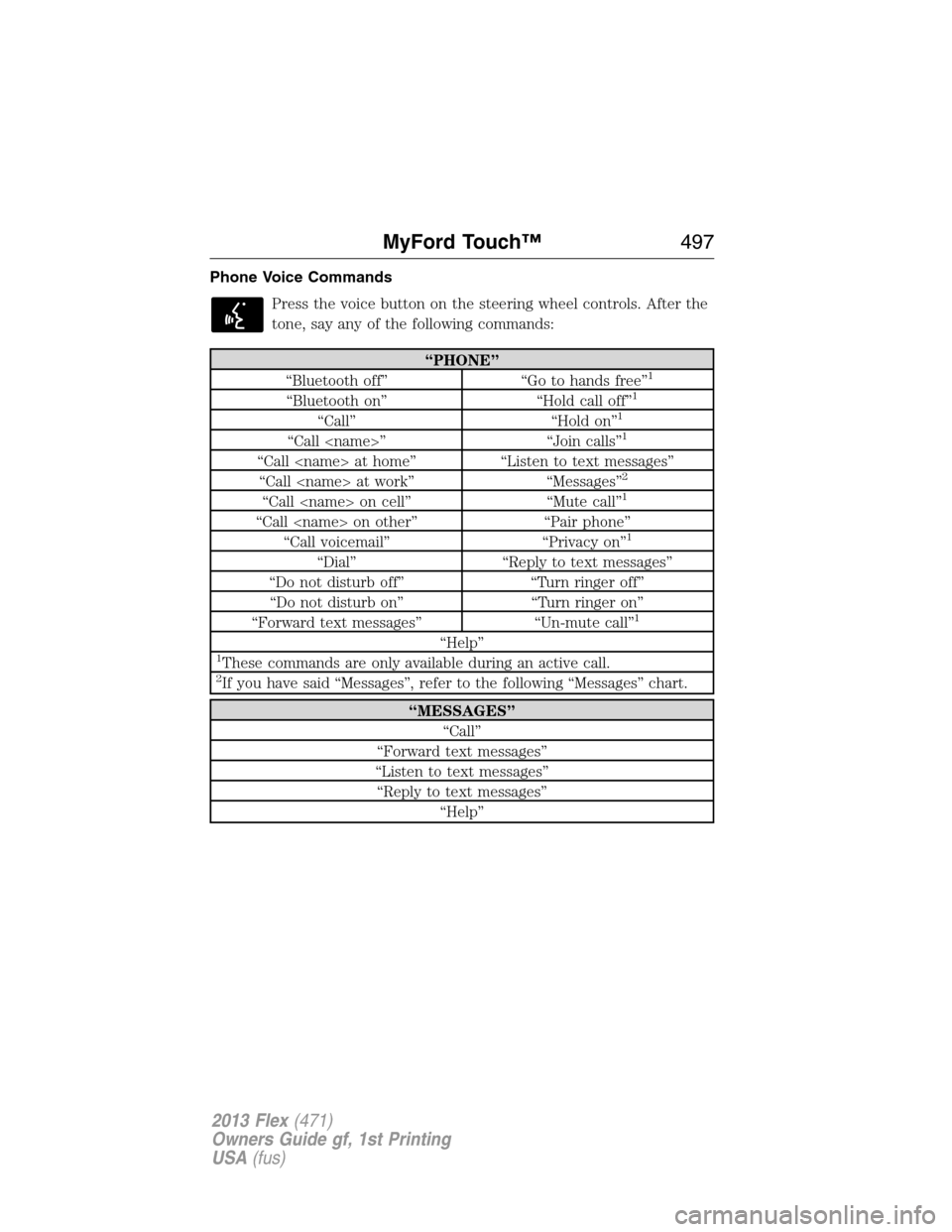
Phone Voice Commands
Press the voice button on the steering wheel controls. After the
tone, say any of the following commands:
“PHONE”
“Bluetooth off” “Go to hands free”1
“Bluetooth on” “Hold call off”1
“Call” “Hold on”1
“Call
“Call
“Call
“Call
“Call
“Call voicemail” “Privacy on”1
“Dial” “Reply to text messages”
“Do not disturb off” “Turn ringer off”
“Do not disturb on” “Turn ringer on”
“Forward text messages” “Un-mute call”
1
“Help”1These commands are only available during an active call.2If you have said “Messages”, refer to the following “Messages” chart.
“MESSAGES”
“Call”
“Forward text messages”
“Listen to text messages”
“Reply to text messages”
“Help”
MyFord Touch™497
2013 Flex(471)
Owners Guide gf, 1st Printing
USA(fus)
Page 501 of 558
If your vehicle is equipped with the navigation feature, SYNC Services
downloads your requested destination to the navigation system. The
navigation system then calculates the route and provides driving
instructions. Refer to theNavigation Featuressection for more
information.
Disconnecting from SYNC Services
1. Press and hold the phone button on the steering wheel.
2. Say “Goodbye” from the SYNC Services main menu.
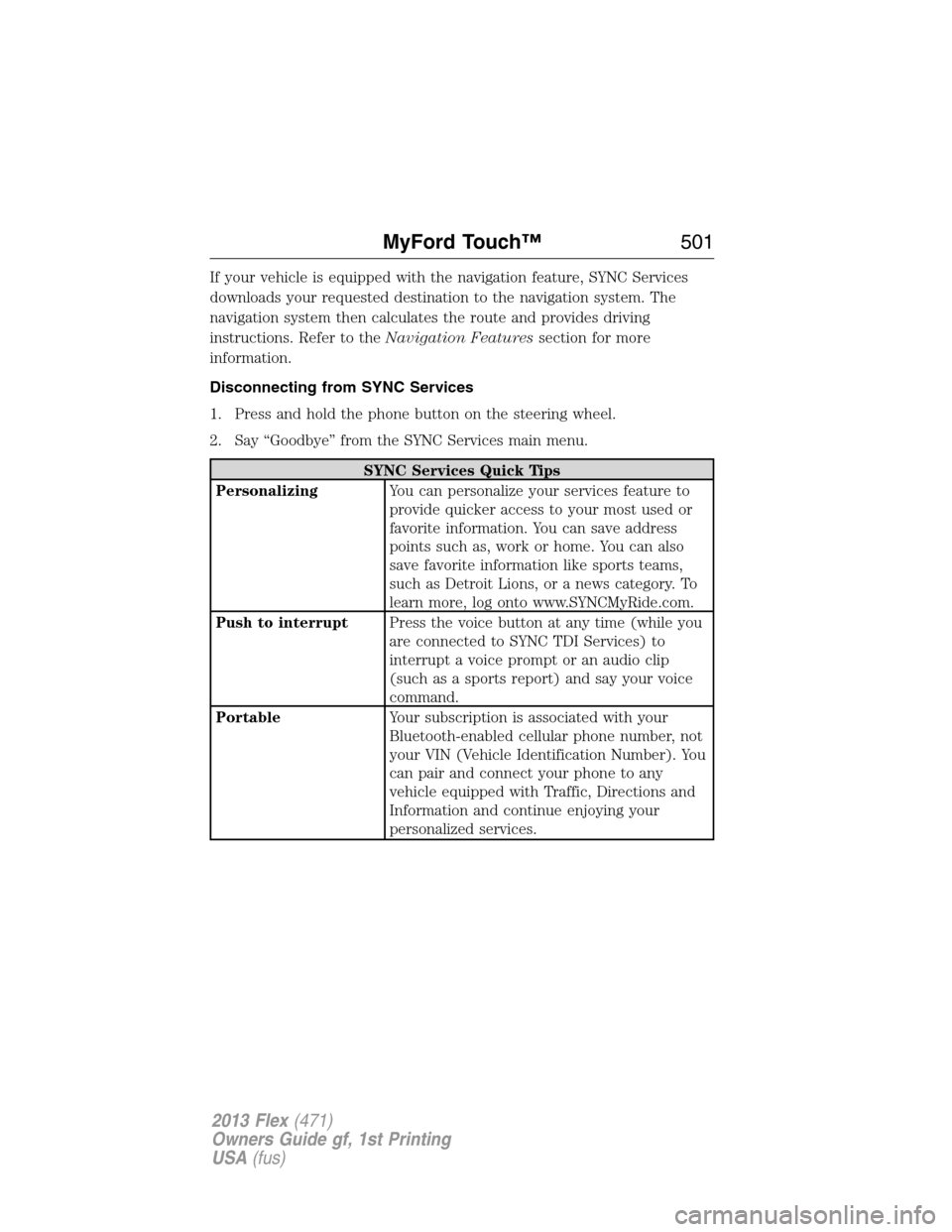
SYNC Services Quick Tips
PersonalizingYou can personalize your services feature to
provide quicker access to your most used or
favorite information. You can save address
points such as, work or home. You can also
save favorite information like sports teams,
such as Detroit Lions, or a news category. To
learn more, log onto www.SYNCMyRide.com.
Push to interruptPress the voice button at any time (while you
are connected to SYNC TDI Services) to
interrupt a voice prompt or an audio clip
(such as a sports report) and say your voice
command.
PortableYour subscription is associated with your
Bluetooth-enabled cellular phone number, not
your VIN (Vehicle Identification Number). You
can pair and connect your phone to any
vehicle equipped with Traffic, Directions and
Information and continue enjoying your
personalized services.
MyFord Touch™501
2013 Flex(471)
Owners Guide gf, 1st Printing
USA(fus)
Page 502 of 558
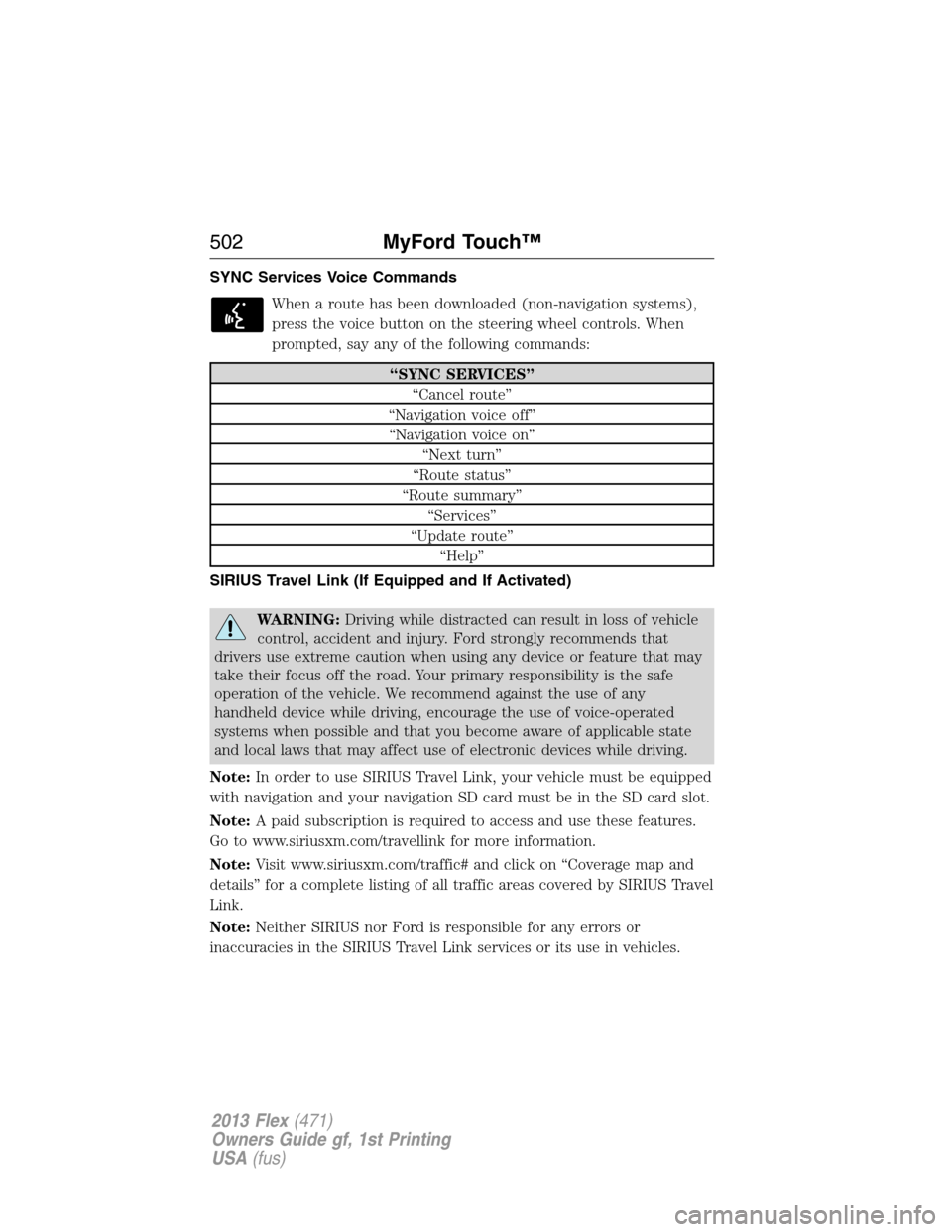
SYNC Services Voice Commands
When a route has been downloaded (non-navigation systems),
press the voice button on the steering wheel controls. When
prompted, say any of the following commands:
“SYNC SERVICES”
“Cancel route”
“Navigation voice off”
“Navigation voice on”
“Next turn”
“Route status”
“Route summary”
“Services”
“Update route”
“Help”
SIRIUS Travel Link (If Equipped and If Activated)
WARNING:Driving while distracted can result in loss of vehicle
control, accident and injury. Ford strongly recommends that
drivers use extreme caution when using any device or feature that may
take their focus off the road. Your primary responsibility is the safe
operation of the vehicle. We recommend against the use of any
handheld device while driving, encourage the use of voice-operated
systems when possible and that you become aware of applicable state
and local laws that may affect use of electronic devices while driving.
Note:In order to use SIRIUS Travel Link, your vehicle must be equipped
with navigation and your navigation SD card must be in the SD card slot.
Note:A paid subscription is required to access and use these features.
Go to www.siriusxm.com/travellink for more information.
Note:Visit www.siriusxm.com/traffic# and click on “Coverage map and
details” for a complete listing of all traffic areas covered by SIRIUS Travel
Link.
Note:Neither SIRIUS nor Ford is responsible for any errors or
inaccuracies in the SIRIUS Travel Link services or its use in vehicles.
502MyFord Touch™
2013 Flex(471)
Owners Guide gf, 1st Printing
USA(fus)
Page 507 of 558
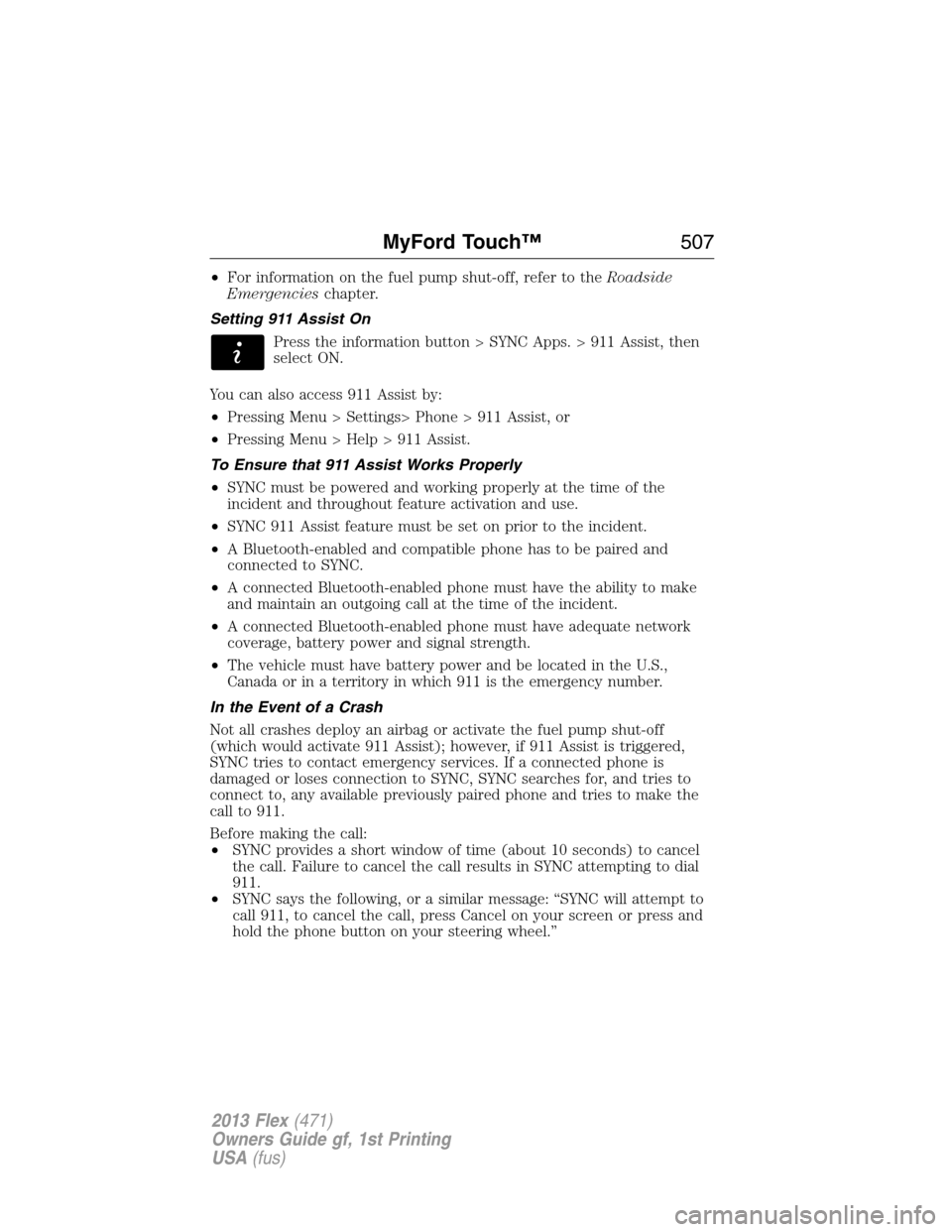
•For information on the fuel pump shut-off, refer to theRoadside
Emergencieschapter.
Setting 911 Assist On
Press the information button > SYNC Apps. > 911 Assist, then
select ON.
You can also access 911 Assist by:
•Pressing Menu > Settings> Phone > 911 Assist, or
•Pressing Menu > Help > 911 Assist.
To Ensure that 911 Assist Works Properly
•SYNC must be powered and working properly at the time of the
incident and throughout feature activation and use.
•SYNC 911 Assist feature must be set on prior to the incident.
•A Bluetooth-enabled and compatible phone has to be paired and
connected to SYNC.
•A connected Bluetooth-enabled phone must have the ability to make
and maintain an outgoing call at the time of the incident.
•A connected Bluetooth-enabled phone must have adequate network
coverage, battery power and signal strength.
•The vehicle must have battery power and be located in the U.S.,
Canada or in a territory in which 911 is the emergency number.
In the Event of a Crash
Not all crashes deploy an airbag or activate the fuel pump shut-off
(which would activate 911 Assist); however, if 911 Assist is triggered,
SYNC tries to contact emergency services. If a connected phone is
damaged or loses connection to SYNC, SYNC searches for, and tries to
connect to, any available previously paired phone and tries to make the
call to 911.
Before making the call:
•SYNC provides a short window of time (about 10 seconds) to cancel
the call. Failure to cancel the call results in SYNC attempting to dial
911.
•SYNC says the following, or a similar message: “SYNC will attempt to
call 911, to cancel the call, press Cancel on your screen or press and
hold the phone button on your steering wheel.”
MyFord Touch™507
2013 Flex(471)
Owners Guide gf, 1st Printing
USA(fus)
Page 509 of 558
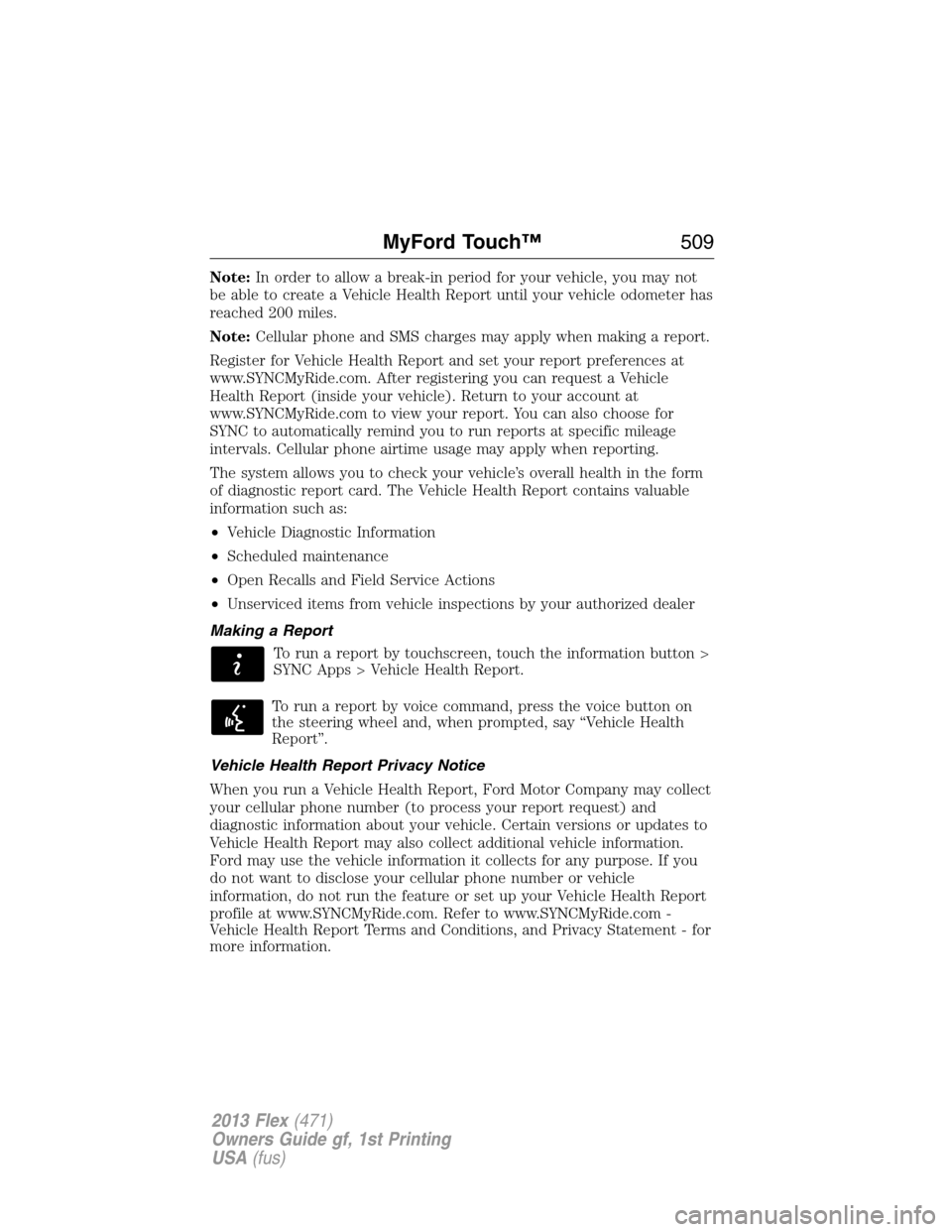
Note:In order to allow a break-in period for your vehicle, you may not
be able to create a Vehicle Health Report until your vehicle odometer has
reached 200 miles.
Note:Cellular phone and SMS charges may apply when making a report.
Register for Vehicle Health Report and set your report preferences at
www.SYNCMyRide.com. After registering you can request a Vehicle
Health Report (inside your vehicle). Return to your account at
www.SYNCMyRide.com to view your report. You can also choose for
SYNC to automatically remind you to run reports at specific mileage
intervals. Cellular phone airtime usage may apply when reporting.
The system allows you to check your vehicle’s overall health in the form
of diagnostic report card. The Vehicle Health Report contains valuable
information such as:
•Vehicle Diagnostic Information
•Scheduled maintenance
•Open Recalls and Field Service Actions
•Unserviced items from vehicle inspections by your authorized dealer
Making a Report
To run a report by touchscreen, touch the information button >
SYNC Apps > Vehicle Health Report.
To run a report by voice command, press the voice button on
the steering wheel and, when prompted, say “Vehicle Health
Report”.
Vehicle Health Report Privacy Notice
When you run a Vehicle Health Report, Ford Motor Company may collect
your cellular phone number (to process your report request) and
diagnostic information about your vehicle. Certain versions or updates to
Vehicle Health Report may also collect additional vehicle information.
Ford may use the vehicle information it collects for any purpose. If you
do not want to disclose your cellular phone number or vehicle
information, do not run the feature or set up your Vehicle Health Report
profile at www.SYNCMyRide.com. Refer to www.SYNCMyRide.com -
Vehicle Health Report Terms and Conditions, and Privacy Statement - for
more information.
MyFord Touch™509
2013 Flex(471)
Owners Guide gf, 1st Printing
USA(fus)
Page 510 of 558
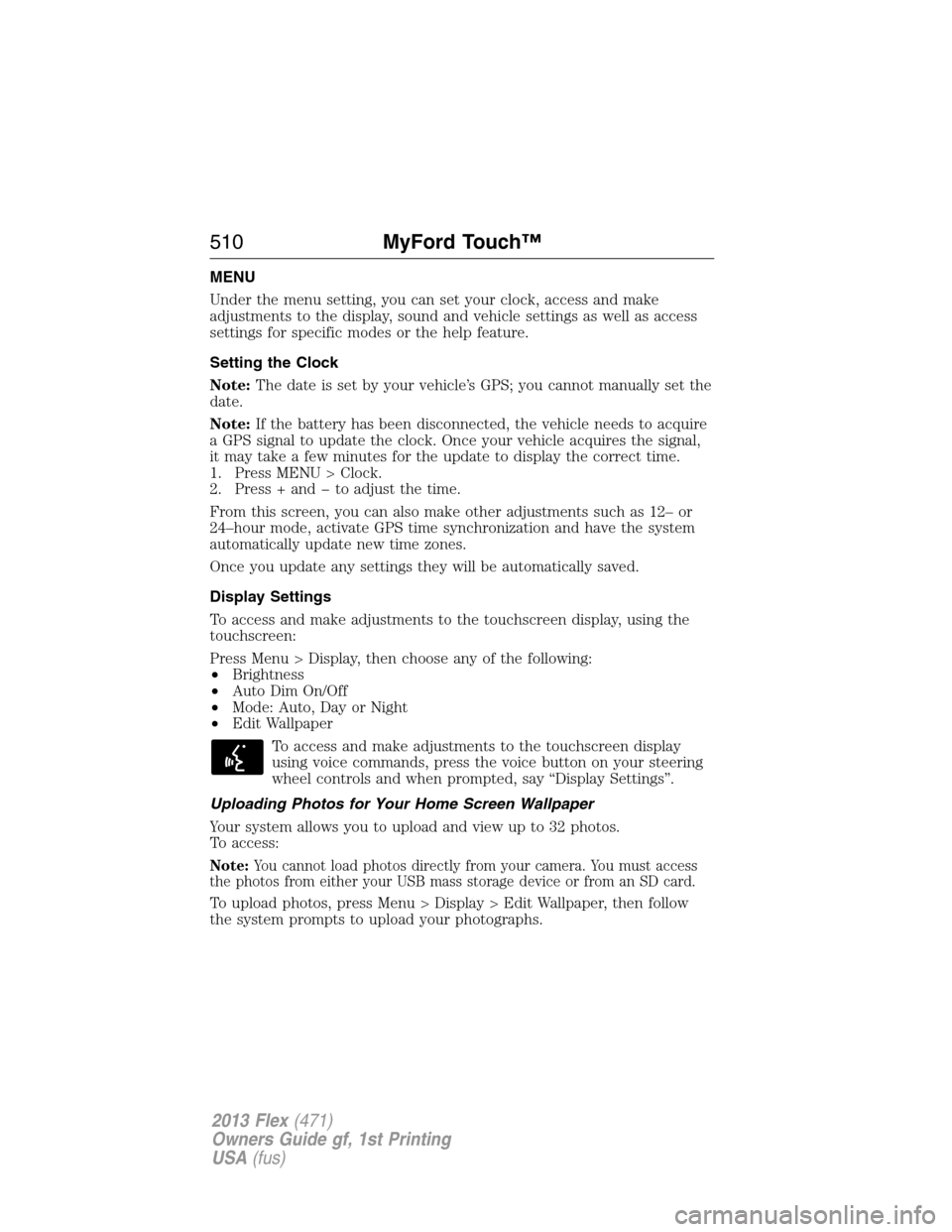
MENU
Under the menu setting, you can set your clock, access and make
adjustments to the display, sound and vehicle settings as well as access
settings for specific modes or the help feature.
Setting the Clock
Note:The date is set by your vehicle’s GPS; you cannot manually set the
date.
Note:If the battery has been disconnected, the vehicle needs to acquire
a GPS signal to update the clock. Once your vehicle acquires the signal,
it may take a few minutes for the update to display the correct time.
1. Press MENU > Clock.
2. Press + and to adjust the time.
From this screen, you can also make other adjustments such as 12– or
24–hour mode, activate GPS time synchronization and have the system
automatically update new time zones.
Once you update any settings they will be automatically saved.
Display Settings
To access and make adjustments to the touchscreen display, using the
touchscreen:
Press Menu > Display, then choose any of the following:
•Brightness
•Auto Dim On/Off
•Mode: Auto, Day or Night
•Edit Wallpaper
To access and make adjustments to the touchscreen display
using voice commands, press the voice button on your steering
wheel controls and when prompted, say “Display Settings”.
Uploading Photos for Your Home Screen Wallpaper
Your system allows you to upload and view up to 32 photos.
To access:
Note:You cannot load photos directly from your camera. You must access
the photos from either your USB mass storage device or from an SD card.
To upload photos, press Menu > Display > Edit Wallpaper, then follow
the system prompts to upload your photographs.
510MyFord Touch™
2013 Flex(471)
Owners Guide gf, 1st Printing
USA(fus)
Page 531 of 558
Navigation Map Updates
Annual navigation map updates are available for purchase through your
dealership, by calling 1-800-NAVMAPS or going to
www.navigation.com/ford. You need to specify the make and model of
your vehicle to determine if there is an update available.
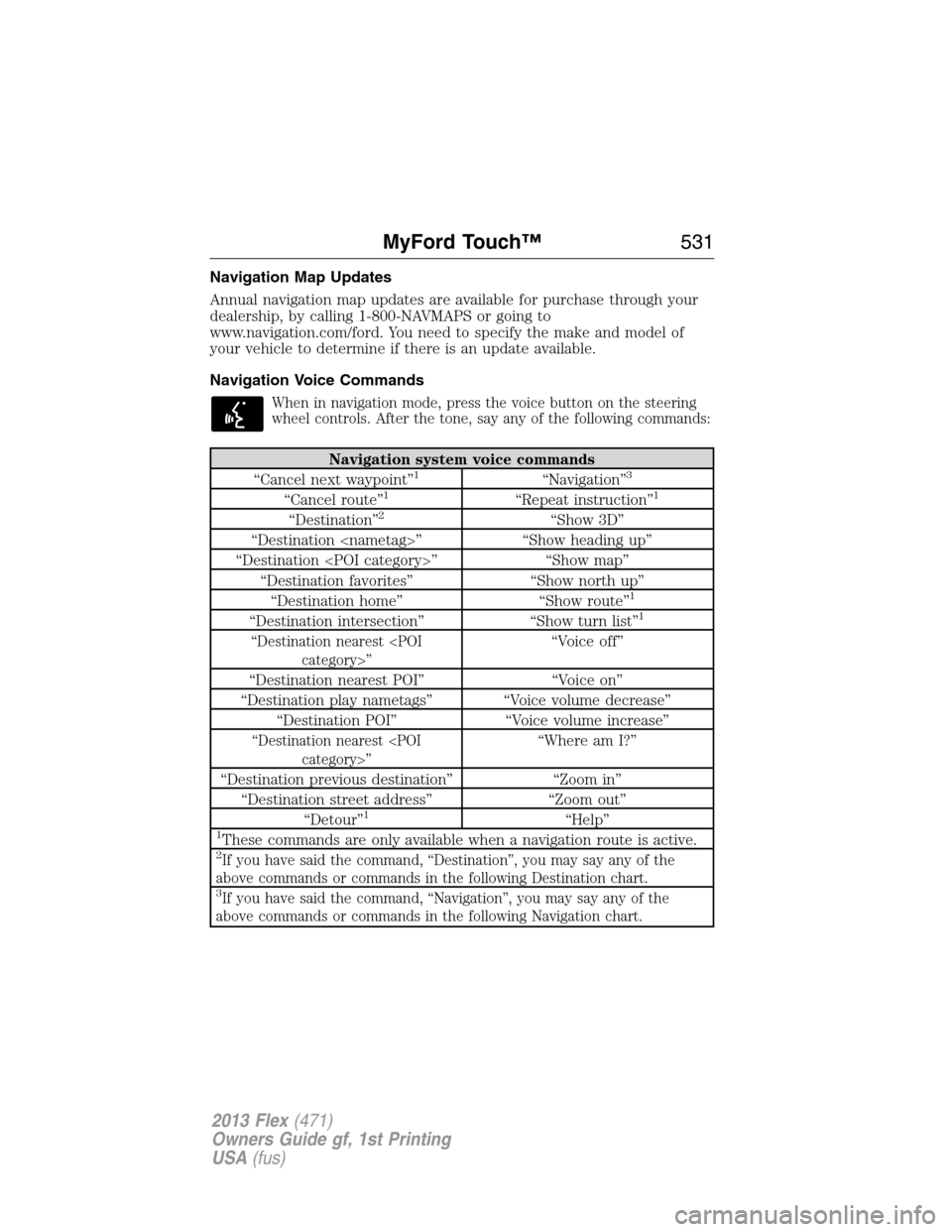
Navigation Voice Commands
When in navigation mode, press the voice button on the steering
wheel controls. After the tone, say any of the following commands:
Navigation system voice commands
“Cancel next waypoint”1“Navigation”3
“Cancel route”1“Repeat instruction”1
“Destination”2“Show 3D”
“Destination
“Destination
“Destination favorites” “Show north up”
“Destination home” “Show route”
1
“Destination intersection” “Show turn list”1
“Destination nearest
“Destination nearest POI” “Voice on”
“Destination play nametags” “Voice volume decrease”
“Destination POI” “Voice volume increase”
“Destination nearest
“Destination previous destination” “Zoom in”
“Destination street address” “Zoom out”
“Detour”
1“Help”1These commands are only available when a navigation route is active.2If you have said the command, “Destination”, you may say any of the
above commands or commands in the following Destination chart.
3If you have said the command, “Navigation”, you may say any of the
above commands or commands in the following Navigation chart.
MyFord Touch™531
2013 Flex(471)
Owners Guide gf, 1st Printing
USA(fus)
Page 539 of 558
WARNING:Operating certain parts of this system while driving
can distract your attention away from the road, and possibly
cause an accident or other serious consequences. Do not change system
settings or enter data non-verbally (using your hands) while driving.
Stop the vehicle in a safe and legal manner before attempting these
operations. This is important since while setting up or changing some
functions you might be required to distract your attention away from
the road and remove your hands from the wheel.
General operation
Voice Command Control
Functions within the Windows Automotive-based system may be
accomplished using only voice commands. Using voice commands while
driving allows you to operate the system without removing your hands
from the wheel.
Prolonged Views of Screen
Do not access any function requiring a prolonged view of the screen
while you are driving. Pull over in a safe and legal manner before
attempting to access a function of the system requiring prolonged
attention. Even occasional short scans to the screen may be hazardous if
your attention has been diverted away from your driving task at a critical
time.
Volume Setting
Do not raise the volume excessively. Keep the volume at a level where
you can still hear outside traffic and emergency signals while driving.
Driving while unable to hear these sounds could cause an accident.
Use of Speech Recognition Functions
Speech recognition software is inherently a statistical process which is
subject to errors. It is your responsibility to monitor any speech
recognition functions included in the system and address any errors.
Navigation Features
Any navigation features included in the system are intended to provide
turn by turn instructions to get you to a desired destination. Please make
certain all persons using this system carefully read and follow
instructions and safety information fully.
Appendices539
2013 Flex(471)
Owners Guide gf, 1st Printing
USA(fus)
Page 551 of 558
911 Assist™ ...................... 424, 506
A
ABS (see Brakes) ..................... 224
Accessing and using your USB
port ............................................ 483
Accessing call history/phone
book during active call ............. 412
Accessing your calendar .......... 506
Accessing your media menu
features ...................................... 436
Accessing your phone menu
features ...................................... 414
Accessory delay ........................ 104
Active call menu options ......... 412
Active Park Assist ..................... 230
Adaptive Cruise Control ........... 240
Adding (pairing) a phone ........ 492
Advanced menu options ... 422, 442
Advanced menu options
(prompts, languages, defaults,
master reset, installing
applications) .............................. 422
Airbag supplemental restraint
system .......................................... 51
and child safety seats .............. 52
description ................................ 51
disposal ...................................... 61
driver airbag .............................. 51
passenger airbag ....................... 51
side airbag ........................... 51, 56
Air cleaner filter ....... 321–322, 375
Air conditioning ........................ 153
manual heating and air
conditioning system ............... 153All Wheel Drive (AWD),
driving off road ......................... 216
Ambient mood/lighting ............. 511
AM/FM ....................................... 466
Anti-lock brake system (see
Brakes) ...................................... 224
Anti-theft system .................. 86, 89
arming the system .............. 86, 89
disarming a triggered system .. 89
Audio system
Single CD ................ 140, 144, 146
Audio system
(see Radio) ................ 140, 144, 146
Automatic transmission
driving an automatic
overdrive ................................. 210
fluid, adding ............................ 313
fluid, checking ........................ 313
fluid, refill capacities .............. 371
fluid, specification .................. 371
Selectshift (SST) .................... 212
Auxiliary Input Jack ................. 479
Auxiliary input jack (Line in) .. 147
Auxiliary powerpoint ................ 189
A/V inputs .......................... 149, 488
B
Battery ....................................... 318
acid, treating emergencies ..... 318
jumping a disabled battery .... 283
maintenance-free .................... 318
replacement, specifications ... 375
servicing .................................. 318
Blind Spot Information System 249
Blind spot mirror ...................... 519
Booster seats ............................... 22
Index551
2013 Flex(471)
Owners Guide gf, 1st Printing
USA(fus)