radio FORD FLEX 2017 1.G User Guide
[x] Cancel search | Manufacturer: FORD, Model Year: 2017, Model line: FLEX, Model: FORD FLEX 2017 1.GPages: 496, PDF Size: 5.92 MB
Page 243 of 496
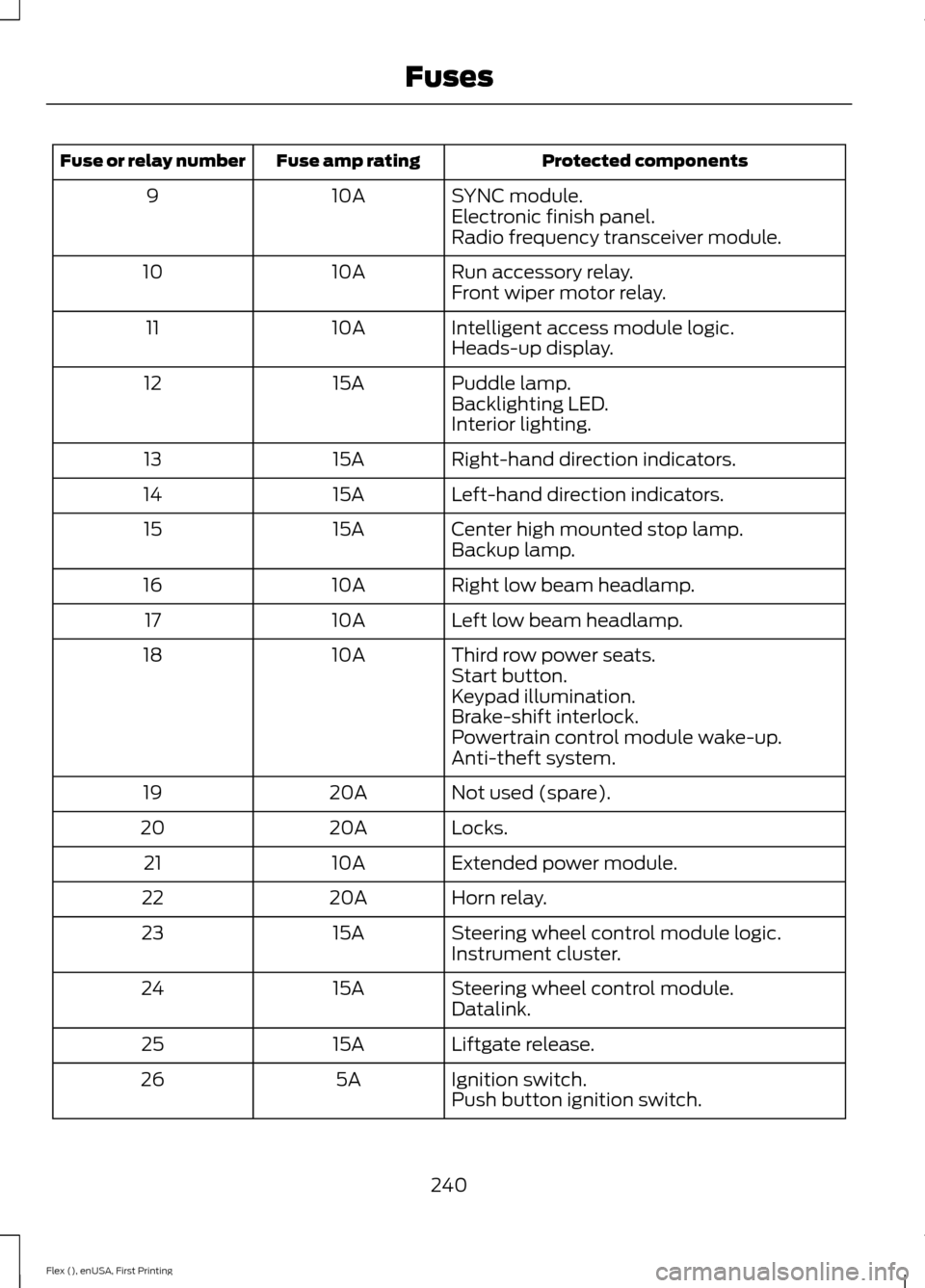
Protected components
Fuse amp rating
Fuse or relay number
SYNC module.
10A
9
Electronic finish panel.
Radio frequency transceiver module.
Run accessory relay.
10A
10
Front wiper motor relay.
Intelligent access module logic.
10A
11
Heads-up display.
Puddle lamp.
15A
12
Backlighting LED.
Interior lighting.
Right-hand direction indicators.
15A
13
Left-hand direction indicators.
15A
14
Center high mounted stop lamp.
15A
15
Backup lamp.
Right low beam headlamp.
10A
16
Left low beam headlamp.
10A
17
Third row power seats.
10A
18
Start button.
Keypad illumination.
Brake-shift interlock.
Powertrain control module wake-up.
Anti-theft system.
Not used (spare).
20A
19
Locks.
20A
20
Extended power module.
10A
21
Horn relay.
20A
22
Steering wheel control module logic.
15A
23
Instrument cluster.
Steering wheel control module.
15A
24
Datalink.
Liftgate release.
15A
25
Ignition switch.
5A
26
Push button ignition switch.
240
Flex (), enUSA, First Printing Fuses
Page 244 of 496
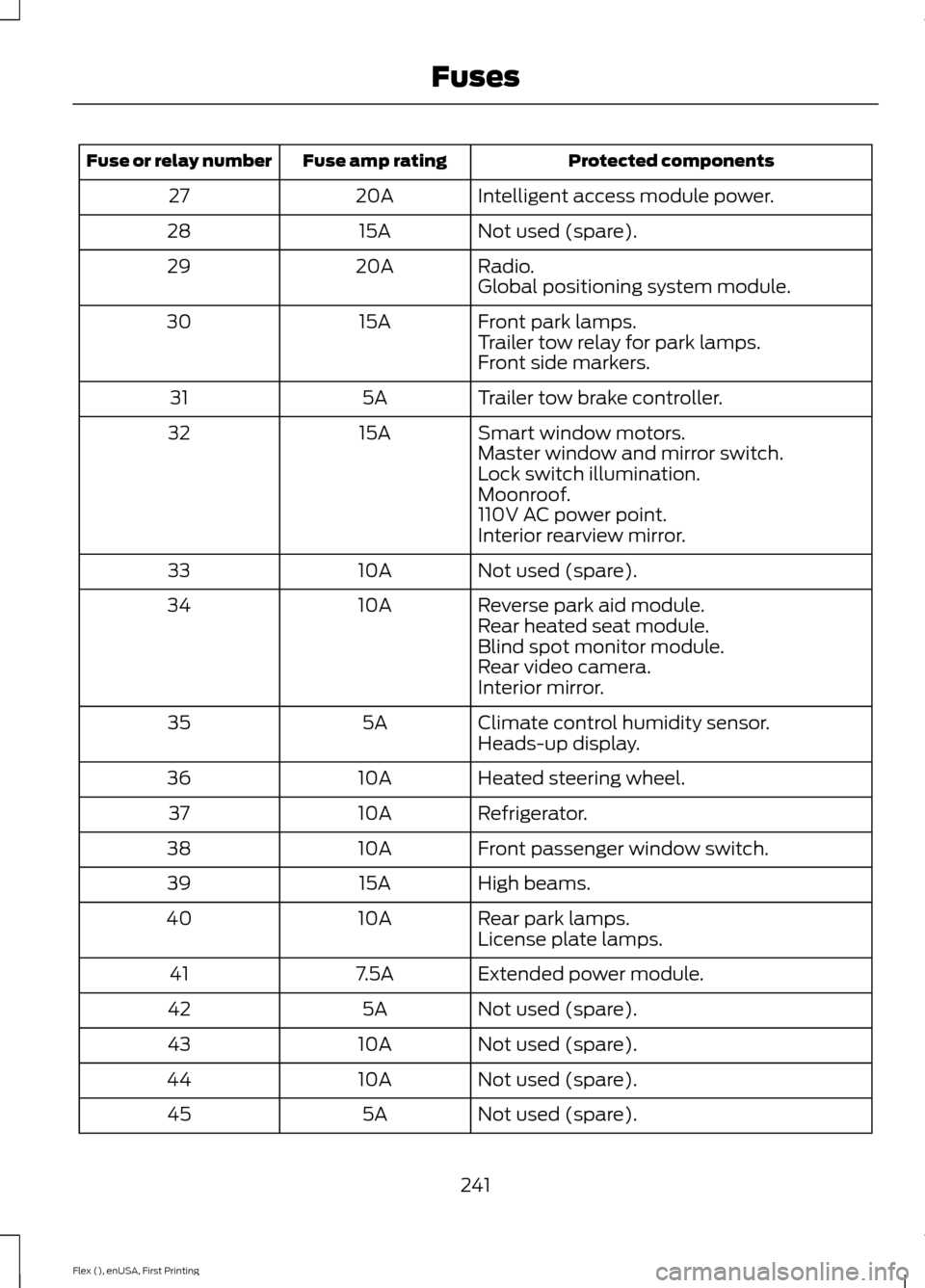
Protected components
Fuse amp rating
Fuse or relay number
Intelligent access module power.
20A
27
Not used (spare).
15A
28
Radio.
20A
29
Global positioning system module.
Front park lamps.
15A
30
Trailer tow relay for park lamps.
Front side markers.
Trailer tow brake controller.
5A
31
Smart window motors.
15A
32
Master window and mirror switch.
Lock switch illumination.
Moonroof.
110V AC power point.
Interior rearview mirror.
Not used (spare).
10A
33
Reverse park aid module.
10A
34
Rear heated seat module.
Blind spot monitor module.
Rear video camera.
Interior mirror.
Climate control humidity sensor.
5A
35
Heads-up display.
Heated steering wheel.
10A
36
Refrigerator.
10A
37
Front passenger window switch.
10A
38
High beams.
15A
39
Rear park lamps.
10A
40
License plate lamps.
Extended power module.
7.5A
41
Not used (spare).
5A
42
Not used (spare).
10A
43
Not used (spare).
10A
44
Not used (spare).
5A
45
241
Flex (), enUSA, First Printing Fuses
Page 260 of 496
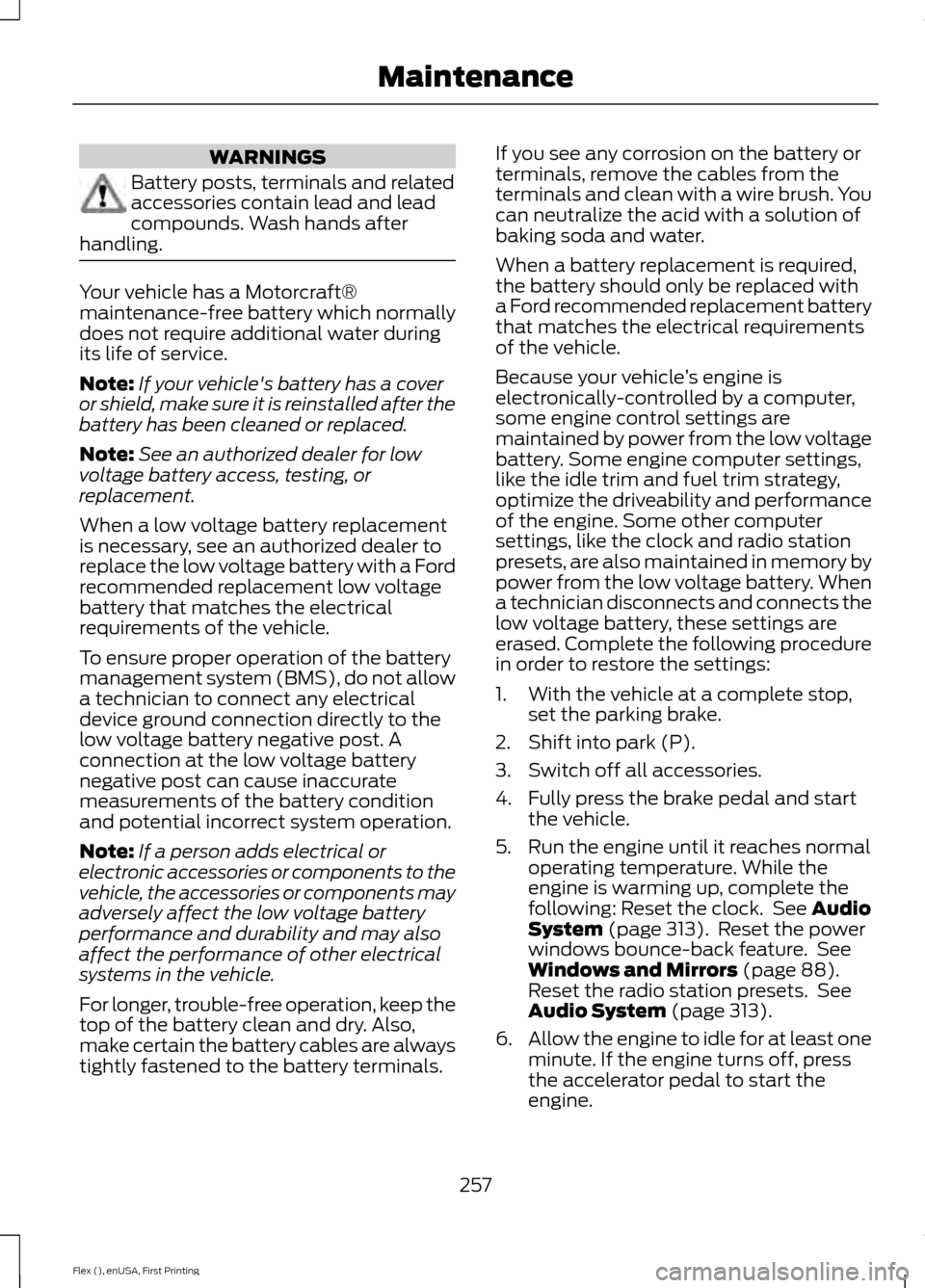
WARNINGS
Battery posts, terminals and related
accessories contain lead and lead
compounds. Wash hands after
handling. Your vehicle has a Motorcraft®
maintenance-free battery which normally
does not require additional water during
its life of service.
Note:
If your vehicle's battery has a cover
or shield, make sure it is reinstalled after the
battery has been cleaned or replaced.
Note: See an authorized dealer for low
voltage battery access, testing, or
replacement.
When a low voltage battery replacement
is necessary, see an authorized dealer to
replace the low voltage battery with a Ford
recommended replacement low voltage
battery that matches the electrical
requirements of the vehicle.
To ensure proper operation of the battery
management system (BMS), do not allow
a technician to connect any electrical
device ground connection directly to the
low voltage battery negative post. A
connection at the low voltage battery
negative post can cause inaccurate
measurements of the battery condition
and potential incorrect system operation.
Note: If a person adds electrical or
electronic accessories or components to the
vehicle, the accessories or components may
adversely affect the low voltage battery
performance and durability and may also
affect the performance of other electrical
systems in the vehicle.
For longer, trouble-free operation, keep the
top of the battery clean and dry. Also,
make certain the battery cables are always
tightly fastened to the battery terminals. If you see any corrosion on the battery or
terminals, remove the cables from the
terminals and clean with a wire brush. You
can neutralize the acid with a solution of
baking soda and water.
When a battery replacement is required,
the battery should only be replaced with
a Ford recommended replacement battery
that matches the electrical requirements
of the vehicle.
Because your vehicle
’s engine is
electronically-controlled by a computer,
some engine control settings are
maintained by power from the low voltage
battery. Some engine computer settings,
like the idle trim and fuel trim strategy,
optimize the driveability and performance
of the engine. Some other computer
settings, like the clock and radio station
presets, are also maintained in memory by
power from the low voltage battery. When
a technician disconnects and connects the
low voltage battery, these settings are
erased. Complete the following procedure
in order to restore the settings:
1. With the vehicle at a complete stop, set the parking brake.
2. Shift into park (P).
3. Switch off all accessories.
4. Fully press the brake pedal and start the vehicle.
5. Run the engine until it reaches normal operating temperature. While the
engine is warming up, complete the
following: Reset the clock. See Audio
System (page 313). Reset the power
windows bounce-back feature. See
Windows and Mirrors
(page 88).
Reset the radio station presets. See
Audio System
(page 313).
6. Allow the engine to idle for at least one
minute. If the engine turns off, press
the accelerator pedal to start the
engine.
257
Flex (), enUSA, First Printing Maintenance
Page 316 of 496
GENERAL INFORMATION
Radio Frequencies and Reception
Factors
AM and FM frequencies are established by
the Federal Communications Commission
(FCC) and the Canadian Radio and
Telecommunications Commission (CRTC).
Those frequencies are:
•
AM: 530, 540-1700, 1710 kHz
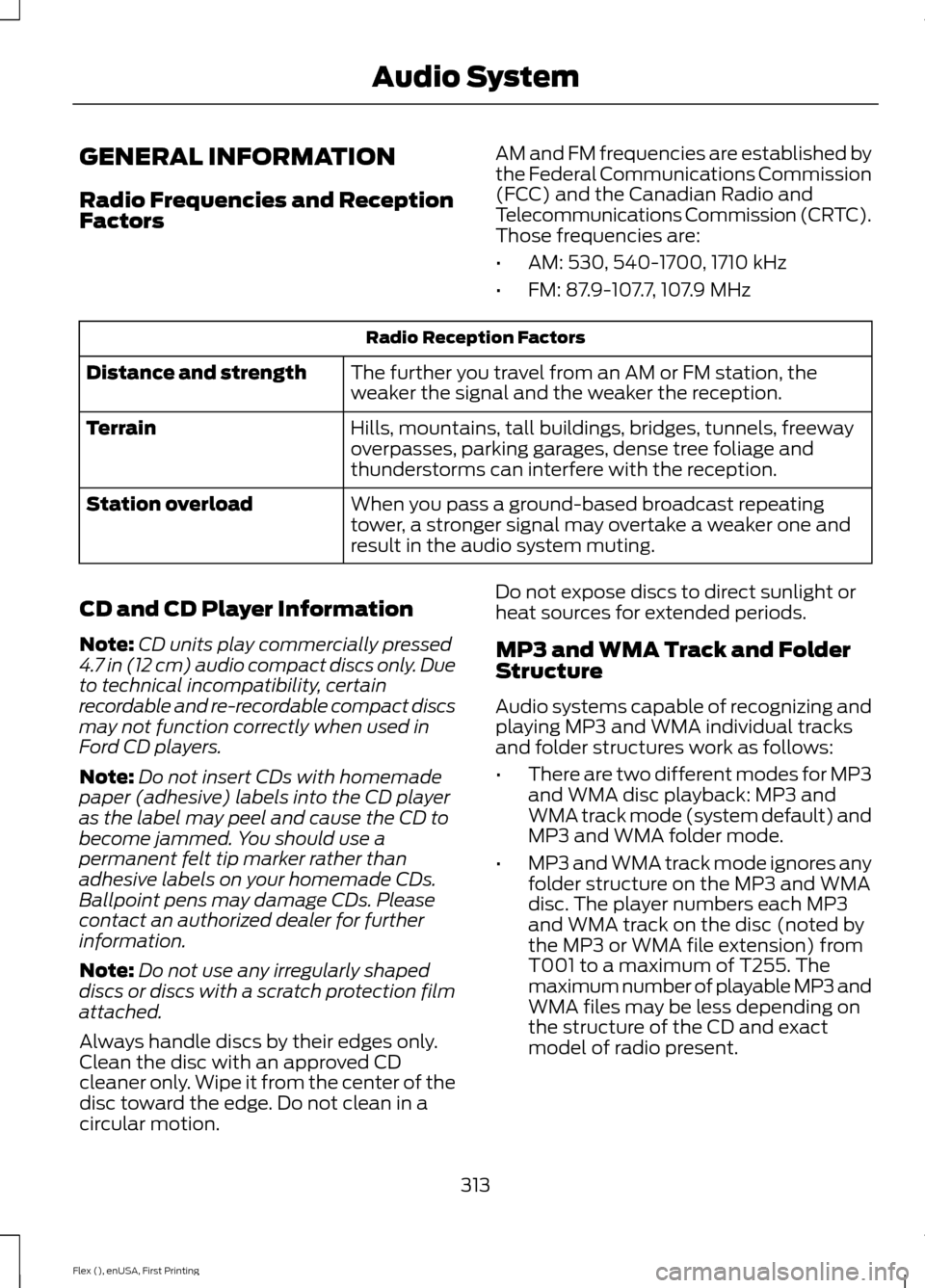
• FM: 87.9-107.7, 107.9 MHz Radio Reception Factors
The further you travel from an AM or FM station, the
weaker the signal and the weaker the reception.
Distance and strength
Hills, mountains, tall buildings, bridges, tunnels, freeway
overpasses, parking garages, dense tree foliage and
thunderstorms can interfere with the reception.
Terrain
When you pass a ground-based broadcast repeating
tower, a stronger signal may overtake a weaker one and
result in the audio system muting.
Station overload
CD and CD Player Information
Note: CD units play commercially pressed
4.7 in (12 cm) audio compact discs only. Due
to technical incompatibility, certain
recordable and re-recordable compact discs
may not function correctly when used in
Ford CD players.
Note: Do not insert CDs with homemade
paper (adhesive) labels into the CD player
as the label may peel and cause the CD to
become jammed. You should use a
permanent felt tip marker rather than
adhesive labels on your homemade CDs.
Ballpoint pens may damage CDs. Please
contact an authorized dealer for further
information.
Note: Do not use any irregularly shaped
discs or discs with a scratch protection film
attached.
Always handle discs by their edges only.
Clean the disc with an approved CD
cleaner only. Wipe it from the center of the
disc toward the edge. Do not clean in a
circular motion. Do not expose discs to direct sunlight or
heat sources for extended periods.
MP3 and WMA Track and Folder
Structure
Audio systems capable of recognizing and
playing MP3 and WMA individual tracks
and folder structures work as follows:
•
There are two different modes for MP3
and WMA disc playback: MP3 and
WMA track mode (system default) and
MP3 and WMA folder mode.
• MP3 and WMA track mode ignores any
folder structure on the MP3 and WMA
disc. The player numbers each MP3
and WMA track on the disc (noted by
the MP3 or WMA file extension) from
T001 to a maximum of T255. The
maximum number of playable MP3 and
WMA files may be less depending on
the structure of the CD and exact
model of radio present.
313
Flex (), enUSA, First Printing Audio System
Page 317 of 496
•
MP3 and WMA folder mode represents
a folder structure consisting of one
level of folders. The CD player numbers
all MP3 and WMA tracks on the disc
(noted by the MP3 or WMA file
extension) and all folders containing
MP3 and WMA files, from F001 (folder)
T001 (track) to F253 T255.
• Creating discs with only one level of
folders helps with navigation through
the disc files.
If you are burning your own MP3 and WMA
discs, it is important to understand how
the system reads the structures you create.
While various files may be present (files
with extensions other than MP3 and
WMA), only files with the MP3 and WMA
extension are played; other files are
ignored by the system. This enables you to
use the same MP3 and WMA disc for a
variety of tasks on your work computer,
home computer and your in-vehicle
system.
In track mode, the system displays and
plays the structure as if it were only one
level deep (all MP3 and WMA files play,
regardless of being in a specific folder). In
folder mode, the system only plays the
MP3 and WMA files in the current folder. AUDIO UNIT - VEHICLES WITH:
AM/FM/CD/SYNC/SATELLITE
RADIO WARNING
Driving while distracted can result in
loss of vehicle control, crash and
injury. We strongly recommend that
you use extreme caution when using any
device that may take your focus off the
road. Your primary responsibility is the safe
operation of your vehicle. We recommend
against the use of any hand-held device
while driving and encourage the use of
voice-operated systems when possible.
Make sure you are aware of all applicable
local laws that may affect the use of
electronic devices while driving. Note:
Some features, such as SIRIUS
satellite radio, may not be available in your
location. Check with an authorized dealer.
Note: Depending on your vehicle option
package, your system may look different
from what you see here.
314
Flex (), enUSA, First Printing Audio System
Page 318 of 496
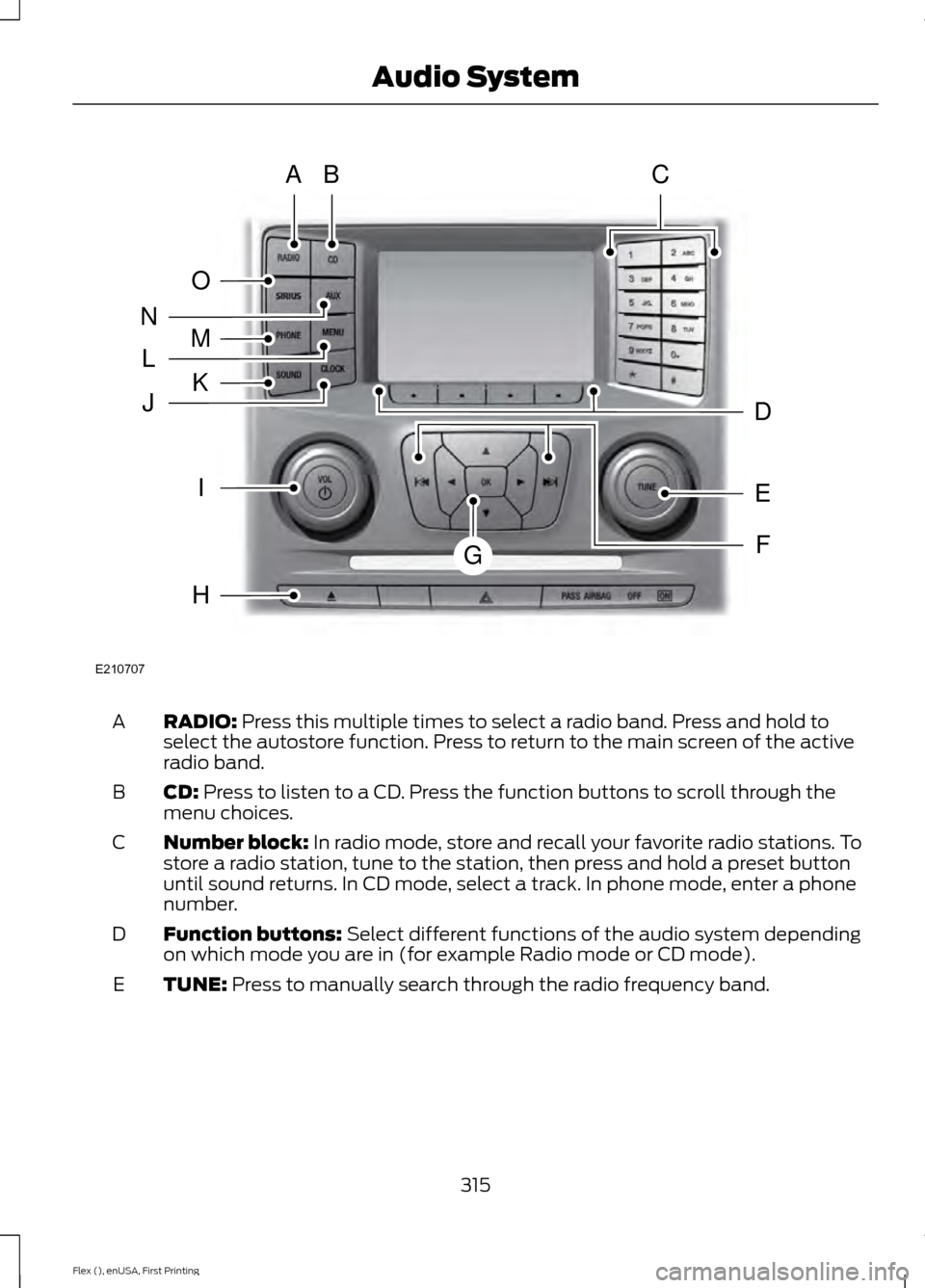
RADIO: Press this multiple times to select a radio band. Press and hold to
select the autostore function. Press to return to the main screen of the active
radio band.
A
CD:
Press to listen to a CD. Press the function buttons to scroll through the
menu choices.
B
Number block:
In radio mode, store and recall your favorite radio stations. To
store a radio station, tune to the station, then press and hold a preset button
until sound returns. In CD mode, select a track. In phone mode, enter a phone
number.
C
Function buttons:
Select different functions of the audio system depending
on which mode you are in (for example Radio mode or CD mode).
D
TUNE:
Press to manually search through the radio frequency band.
E
315
Flex (), enUSA, First Printing Audio SystemE210707
AB
O
NMLKJ
EI
H
C
FG
D
Page 319 of 496
Seek, Fast Forward and Reverse: In radio mode, select a frequency band
and press this button. The system stops at the first station it finds in that
direction. In SIRIUS mode, press to select the next or previous satellite radio
station. If a specific category is selected (such as jazz, rock or news), press to
find the next or previous in the selected category. In CD mode, press to select
the previous or next track. Press and hold to move quickly forward through the
current track.
F
OK and Arrow buttons:
Press OK to confirm menu selections. Press to scroll
through the menu choices.
G
Eject:
Press to eject a CD.
H
VOL and Power:
Press to switch the system on and off. Turn to adjust the
volume.
I
CLOCK:
If not in phone mode, press to display the clock.
J
SOUND:
Press to access settings for Treble, Midrange, Bass, Fade or Balance.
Use the up and down arrow buttons to select the various settings. When you
make your selection, press the left and right arrow buttons to change the
settings. Press
OK to set or press MENU to exit. Sound settings can be set for
each audio source independently.
K
MENU:
Press to access different audio system features.
L
PHONE:
Press to access the phone features of the SYNC system. See your
SYNC information.
M
AUX:
Press to access or switch between devices you plug into your vehicle.
N
SIRIUS:
Press to listen to Sirius satellite radio.
O
Menu Structure
Note: Depending on your system, some
options may appear slightly different.
Press
MENU. Press the up and down arrow buttons to
scroll through the options.
Press the right arrow to enter a menu.
Press the left arrow to exit a menu.
Press OK to confirm a selection. Radio
Select for a brief sampling of all available channels.
Scan
Select to store the six strongest local stations on the AM-
AST and FM-AST frequency bands.
AST
Select to display extra information such as artist name.
Radio Text *
* Extra information may not always be available.
316
Flex (), enUSA, First Printing Audio System
Page 321 of 496
AUDIO UNIT - VEHICLES WITH:
PREMIUM AM/FM/CD
WARNING
Driving while distracted can result in
loss of vehicle control, crash and
injury. We strongly recommend that
you use extreme caution when using any
device that may take your focus off the
road. Your primary responsibility is the safe
operation of your vehicle. We recommend
against the use of any hand-held device
while driving and encourage the use of
voice-operated systems when possible.
Make sure you are aware of all applicable
local laws that may affect the use of
electronic devices while driving. Note:
The touchscreen system controls
most of the audio features. See your SYNC
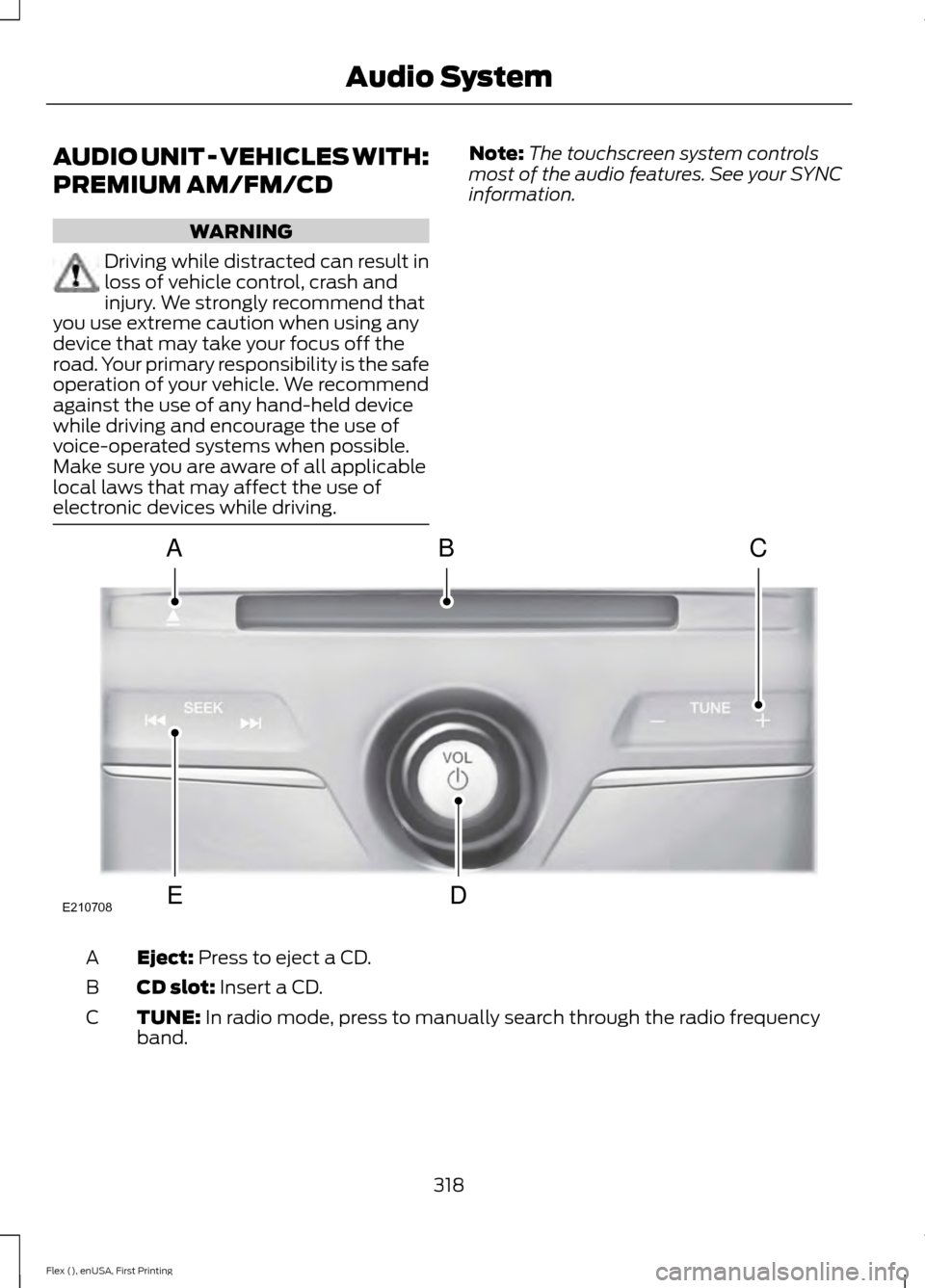
information. Eject: Press to eject a CD.
A
CD slot:
Insert a CD.
B
TUNE:
In radio mode, press to manually search through the radio frequency
band.
C
318
Flex (), enUSA, First Printing Audio SystemE210708
A
ED
BC
Page 322 of 496
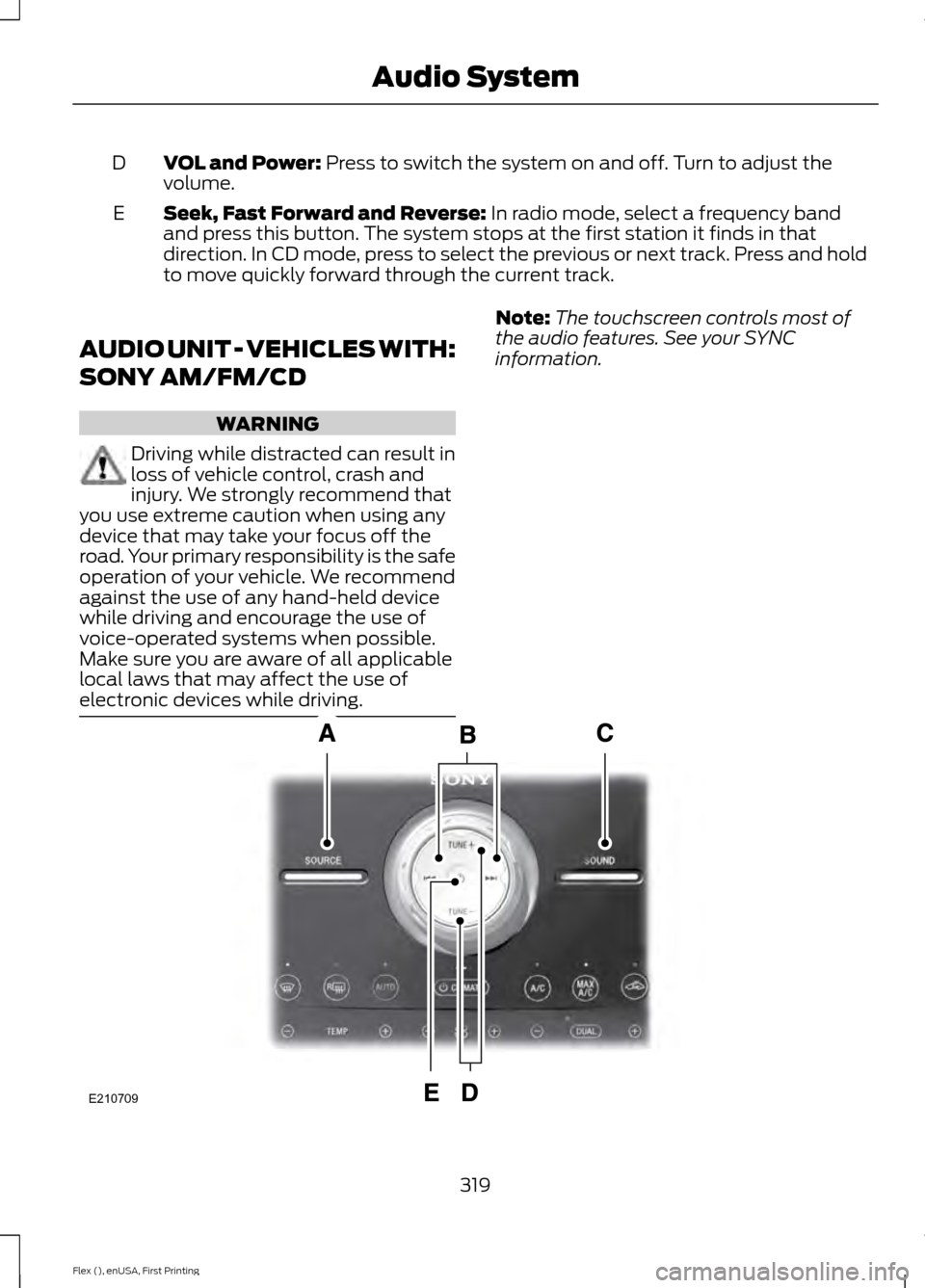
VOL and Power: Press to switch the system on and off. Turn to adjust the
volume.
D
Seek, Fast Forward and Reverse:
In radio mode, select a frequency band
and press this button. The system stops at the first station it finds in that
direction. In CD mode, press to select the previous or next track. Press and hold
to move quickly forward through the current track.
E
AUDIO UNIT - VEHICLES WITH:
SONY AM/FM/CD WARNING
Driving while distracted can result in
loss of vehicle control, crash and
injury. We strongly recommend that
you use extreme caution when using any
device that may take your focus off the
road. Your primary responsibility is the safe
operation of your vehicle. We recommend
against the use of any hand-held device
while driving and encourage the use of
voice-operated systems when possible.
Make sure you are aware of all applicable
local laws that may affect the use of
electronic devices while driving. Note:
The touchscreen controls most of
the audio features. See your SYNC
information. 319
Flex (), enUSA, First Printing Audio SystemE210709
Page 323 of 496
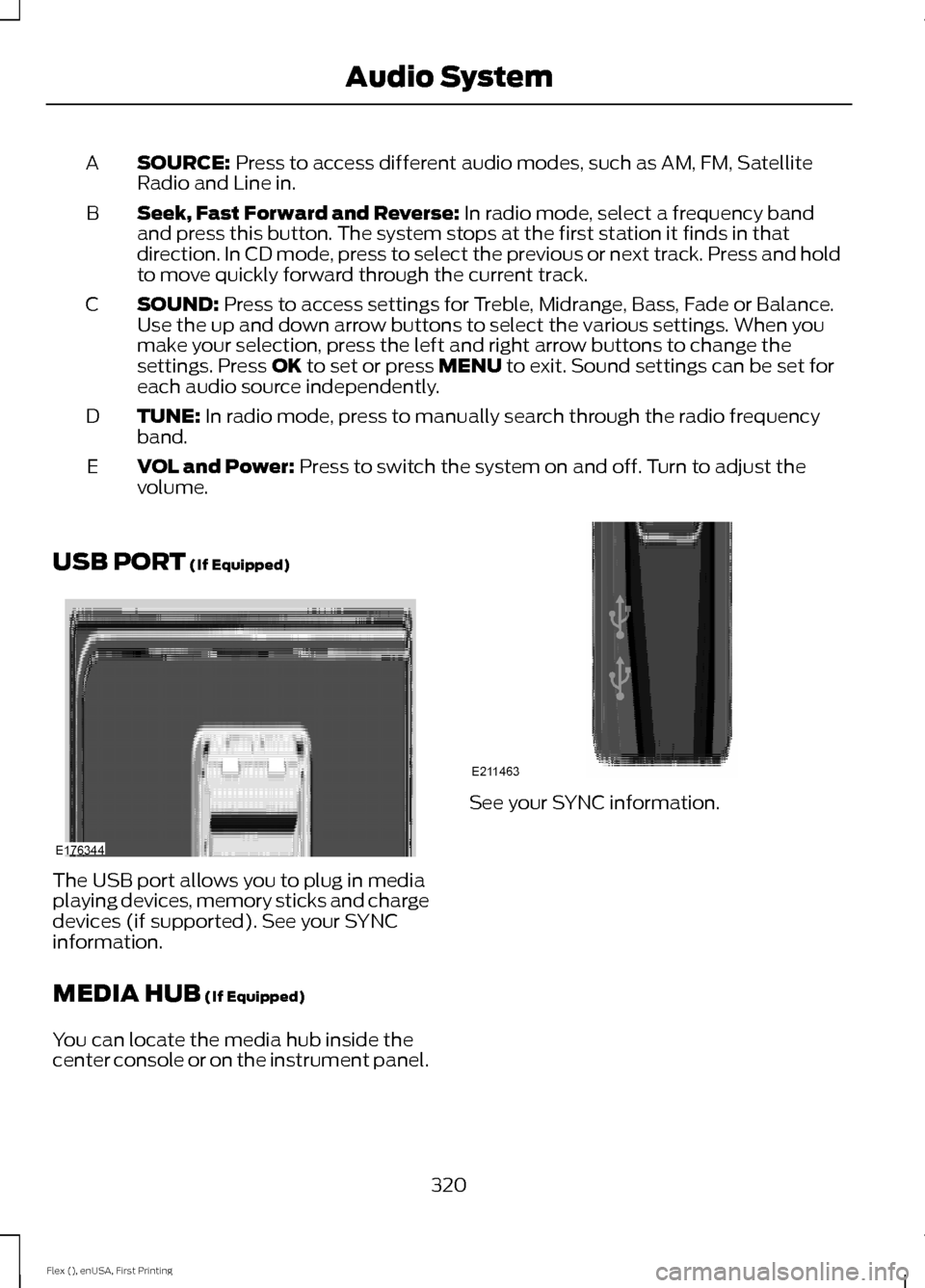
SOURCE: Press to access different audio modes, such as AM, FM, Satellite
Radio and Line in.
A
Seek, Fast Forward and Reverse:
In radio mode, select a frequency band
and press this button. The system stops at the first station it finds in that
direction. In CD mode, press to select the previous or next track. Press and hold
to move quickly forward through the current track.
B
SOUND:
Press to access settings for Treble, Midrange, Bass, Fade or Balance.
Use the up and down arrow buttons to select the various settings. When you
make your selection, press the left and right arrow buttons to change the
settings. Press
OK to set or press MENU to exit. Sound settings can be set for
each audio source independently.
C
TUNE:
In radio mode, press to manually search through the radio frequency
band.
D
VOL and Power:
Press to switch the system on and off. Turn to adjust the
volume.
E
USB PORT
(If Equipped) The USB port allows you to plug in media
playing devices, memory sticks and charge
devices (if supported). See your SYNC
information.
MEDIA HUB
(If Equipped)
You can locate the media hub inside the
center console or on the instrument panel. See your SYNC information.
320
Flex (), enUSA, First Printing Audio SystemE176344 E211463