lock FORD FLEX 2018 Owners Manual
[x] Cancel search | Manufacturer: FORD, Model Year: 2018, Model line: FLEX, Model: FORD FLEX 2018Pages: 508, PDF Size: 6.31 MB
Page 301 of 508
WARNINGS
Never get underneath a vehicle that
is supported only by a jack. If the
vehicle slips off the jack, you or
someone else could be seriously injured. Do not attempt to change a tire on
the side of the vehicle close to
moving traffic. Pull far enough off the
road to avoid the danger of being hit when
operating the jack or changing the wheel. Always use the jack provided as
original equipment with your vehicle.
If using a jack other than the one
provided as original equipment with your
vehicle, make sure the jack capacity is
adequate for the vehicle weight, including
any vehicle cargo or modifications. Note:
Passengers should not remain in your
vehicle when the vehicle is being jacked.
Note: Jack at the specified locations to
avoid damage to the vehicle.
Note: If the third row seat is stowed in the
floor, you will need to unstow it to access
the spare tire.
1. Park on a level surface, set the parking
brake and activate the hazard flashers.
2. Place the transmission in park (P) and
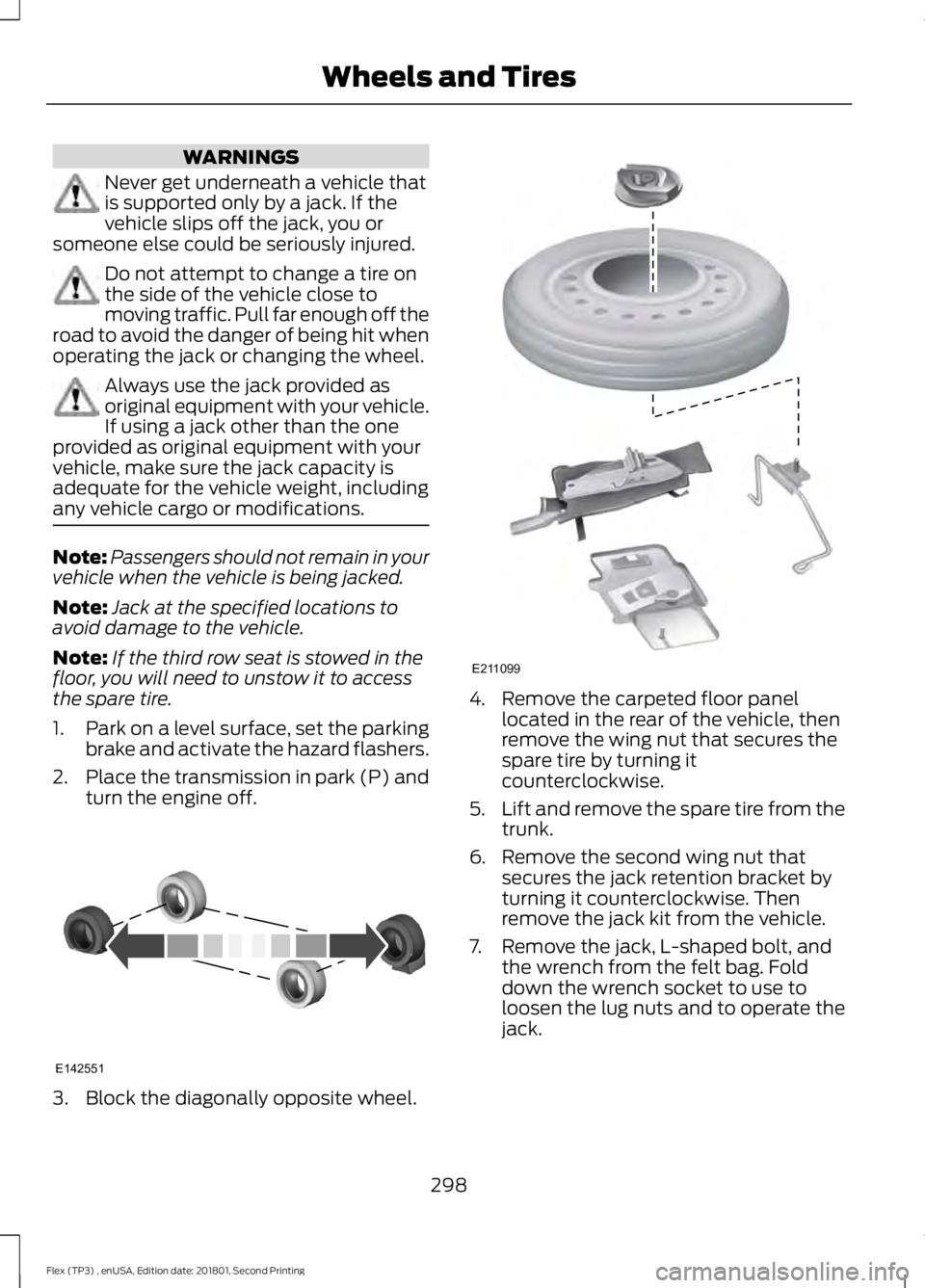
turn the engine off. 3. Block the diagonally opposite wheel. 4. Remove the carpeted floor panel
located in the rear of the vehicle, then
remove the wing nut that secures the
spare tire by turning it
counterclockwise.
5. Lift and remove the spare tire from the
trunk.
6. Remove the second wing nut that secures the jack retention bracket by
turning it counterclockwise. Then
remove the jack kit from the vehicle.
7. Remove the jack, L-shaped bolt, and the wrench from the felt bag. Fold
down the wrench socket to use to
loosen the lug nuts and to operate the
jack.
298
Flex (TP3) , enUSA, Edition date: 201801, Second Printing Wheels and TiresE142551 E211099
Page 302 of 508
8. Remove the wheel cover with the lug
wrench tip and loosen each wheel lug
nut one-half turn counterclockwise,
but do not remove them until the wheel
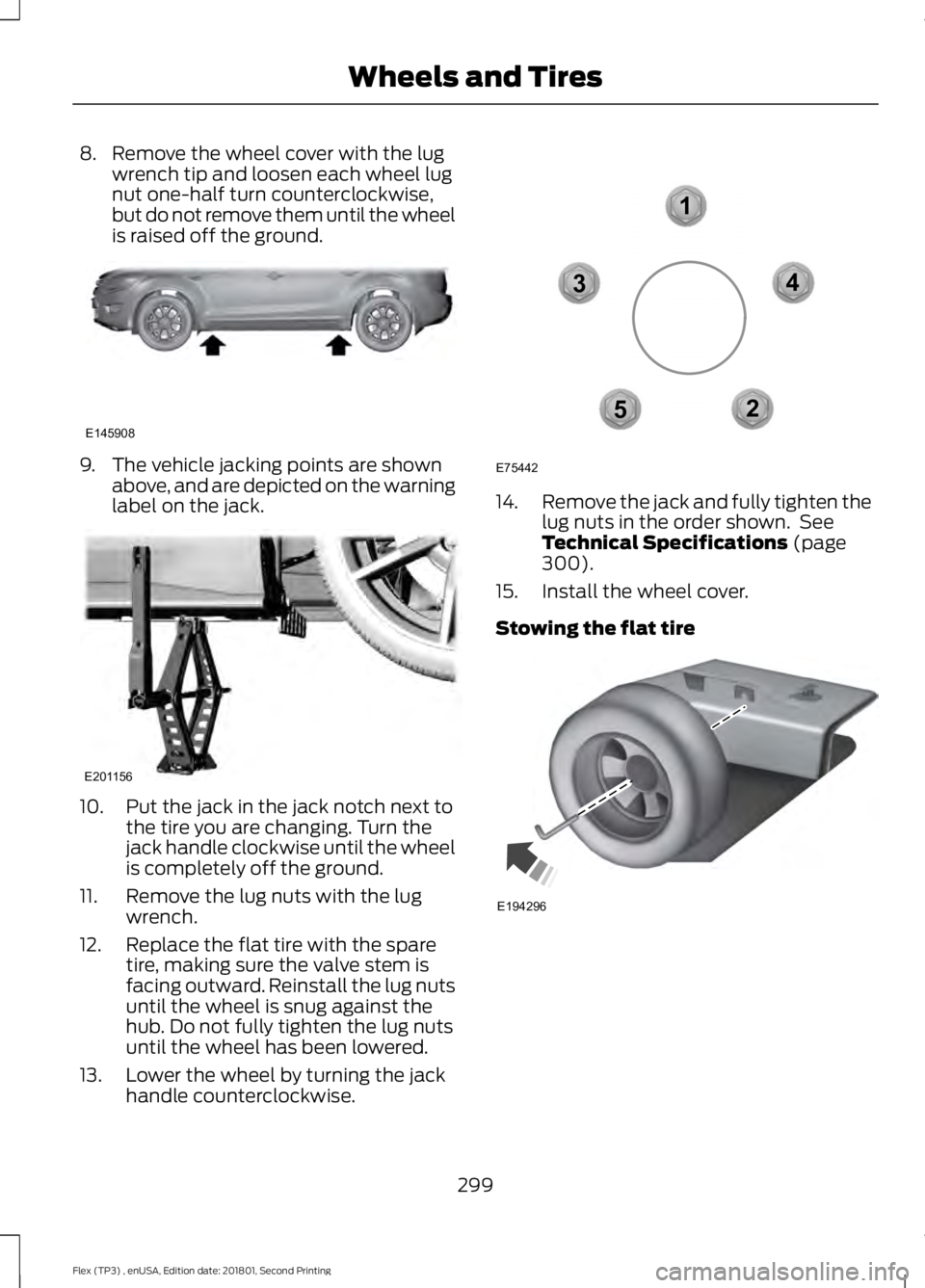
is raised off the ground. 9. The vehicle jacking points are shown
above, and are depicted on the warning
label on the jack. 10. Put the jack in the jack notch next to
the tire you are changing. Turn the
jack handle clockwise until the wheel
is completely off the ground.
11. Remove the lug nuts with the lug wrench.
12. Replace the flat tire with the spare tire, making sure the valve stem is
facing outward. Reinstall the lug nuts
until the wheel is snug against the
hub. Do not fully tighten the lug nuts
until the wheel has been lowered.
13. Lower the wheel by turning the jack handle counterclockwise. 14.
Remove the jack and fully tighten the
lug nuts in the order shown. See
Technical Specifications (page
300).
15. Install the wheel cover.
Stowing the flat tire 299
Flex (TP3) , enUSA, Edition date: 201801, Second Printing Wheels and TiresE145908 E201156 12
3
4
5
E75442 E194296
Page 303 of 508
If you are stowing the flat tire, remove the
L-shaped bolt from the external pocket of
the felt bag. With the third row seat in the
raised position, stand the flat tire in the
rear of the vehicle with the tire
’s valve stem
facing the rear of the vehicle. Fasten the
flat tire to the vehicle by inserting the
L-shaped bolt through one of the lug bolt
holes in the wheel. Turn it clockwise into
the threaded hole in the vehicle until the
tire is secured.
If you are stowing the temporary spare tire,
place the tire over the jack and secure it
with the large wing nut.
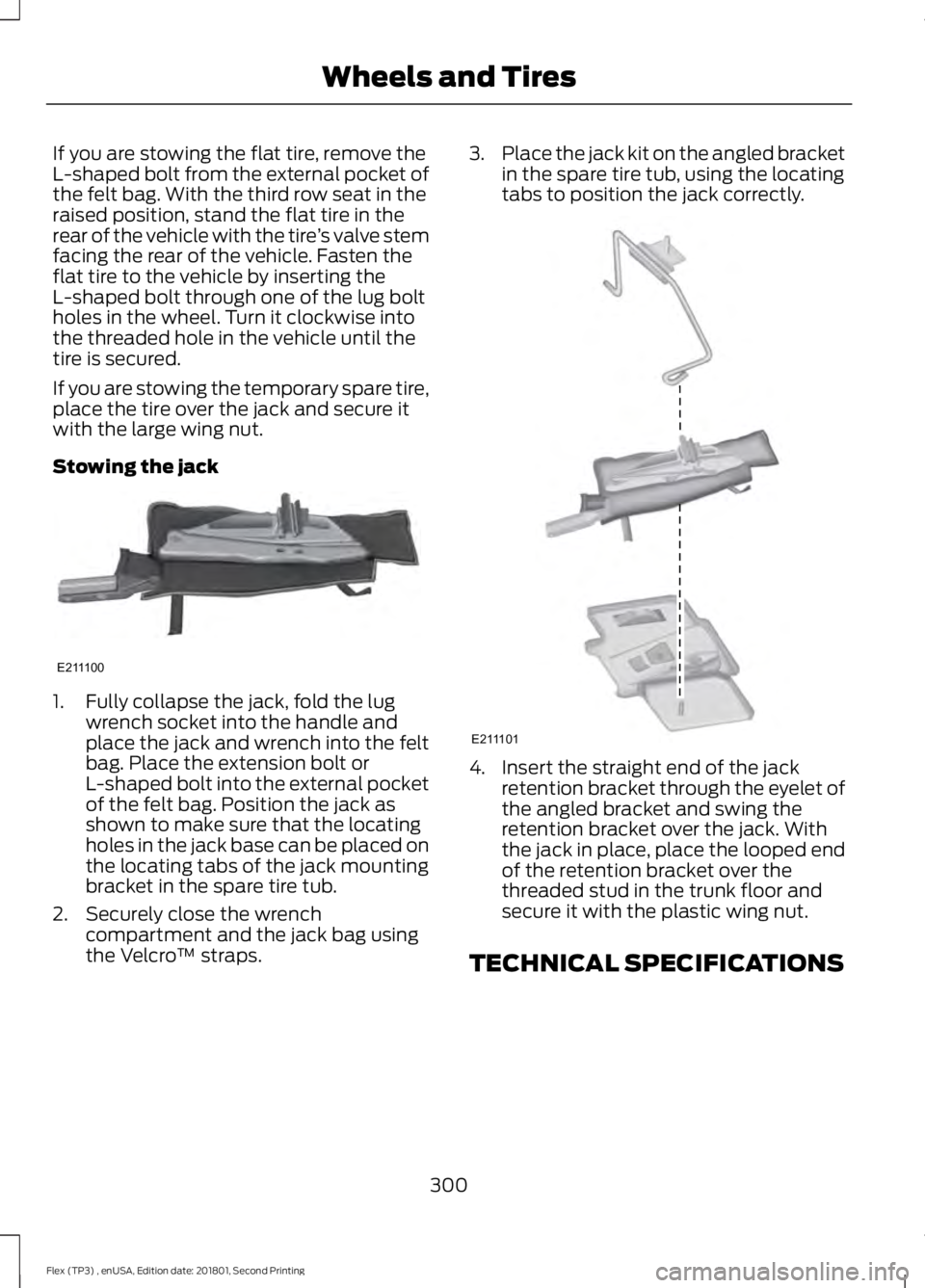
Stowing the jack 1. Fully collapse the jack, fold the lug
wrench socket into the handle and
place the jack and wrench into the felt
bag. Place the extension bolt or
L-shaped bolt into the external pocket
of the felt bag. Position the jack as
shown to make sure that the locating
holes in the jack base can be placed on
the locating tabs of the jack mounting
bracket in the spare tire tub.
2. Securely close the wrench compartment and the jack bag using
the Velcro ™ straps. 3.
Place the jack kit on the angled bracket
in the spare tire tub, using the locating
tabs to position the jack correctly. 4. Insert the straight end of the jack
retention bracket through the eyelet of
the angled bracket and swing the
retention bracket over the jack. With
the jack in place, place the looped end
of the retention bracket over the
threaded stud in the trunk floor and
secure it with the plastic wing nut.
TECHNICAL SPECIFICATIONS
300
Flex (TP3) , enUSA, Edition date: 201801, Second Printing Wheels and TiresE211100 E211101
Page 313 of 508
Specification
Name
WSL-M2C192-A
Power Transfer Unit (PTU) fluid (All Wheel Drive) (U.S.):
Motorcraft® SAE 75W-140 Synthetic Rear Axle Lubricant
XY-75W140-QL
WSL-M2C192-A
Power Transfer Unit (PTU) fluid (All Wheel Drive)
(Canada):
Motorcraft® SAE 75W-140 Synthetic Rear Axle Lubricant
CXY-75W140-1L
WSS-M14P19-A
Windshield washer fluid (U.S.):
Motorcraft® Premium Windshield Wash Concentrate
with Bitterant
ZC-32-B2
WSS-M14P19-A
Windshield washer fluid (Canada):
Motorcraft® Premium Quality Windshield Washer Fluid
CXC-37-(A, B, D, F)
WSH-M17B19-A
A/C refrigerant (U.S.):
Motorcraft® R-134a Refrigerant
YN-19
WSH-M17B19-A
A/C refrigerant (Canada):
R-134a Refrigerant
CYN-19-R
WSH-M1C231-B
A/C refrigerant compressor oil:
Motorcraft® PAG Refrigerant Compressor Oil
YN-12-D
ESB-M1C93-B
Multi-purpose grease:
Motorcraft® Multi-Purpose Grease Spray
XL-5-A
-
Lock cylinders (U.S.):
Penetrating and Lock Lubricant
XL-1
-
Lock cylinders (Canada):
Penetrating Fluid
CXC-51-A
310
Flex (TP3) , enUSA, Edition date: 201801, Second Printing Capacities and Specifications
Page 317 of 508
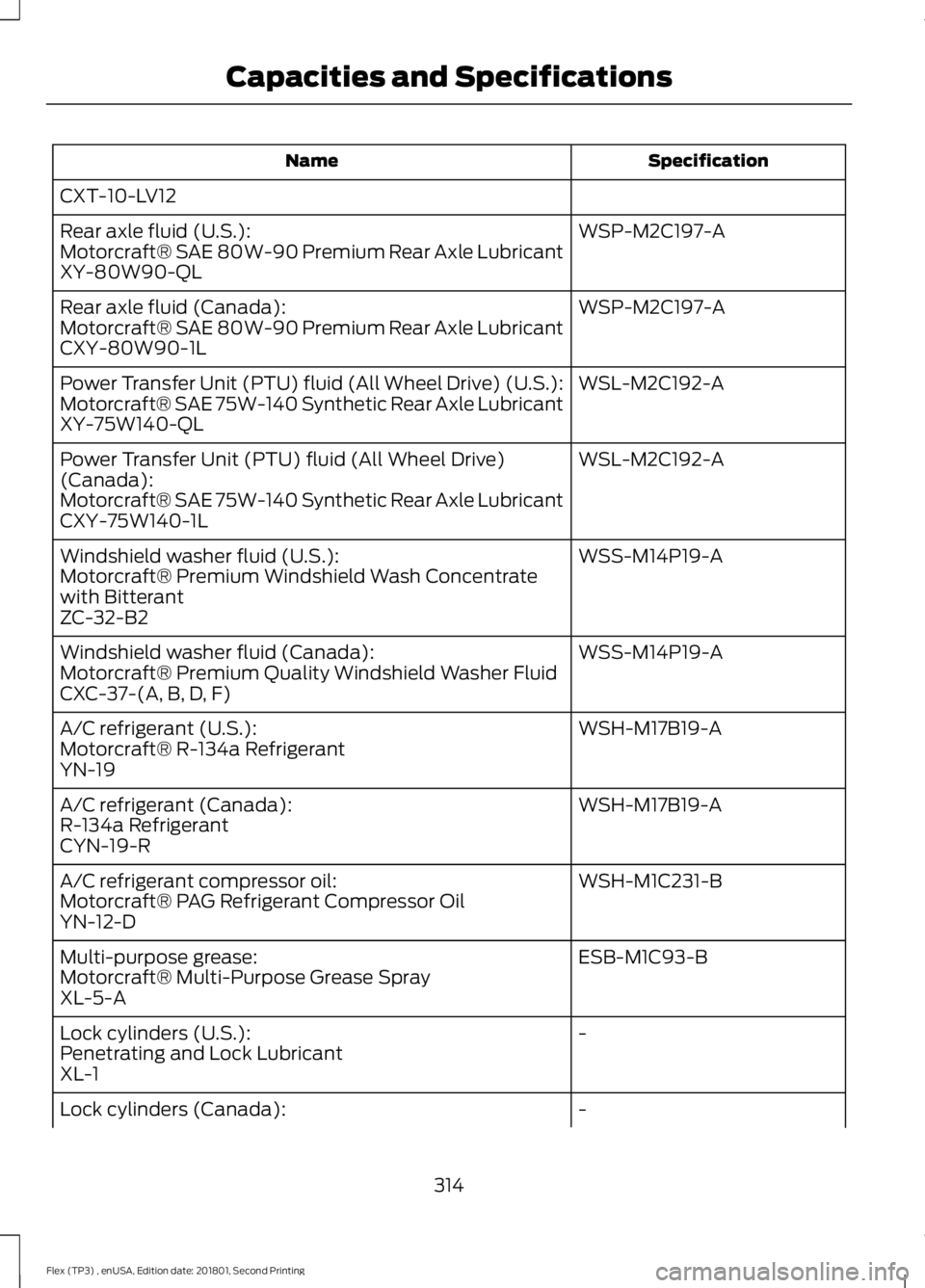
Specification
Name
CXT-10-LV12 WSP-M2C197-A
Rear axle fluid (U.S.):
Motorcraft® SAE 80W-90 Premium Rear Axle Lubricant
XY-80W90-QL
WSP-M2C197-A
Rear axle fluid (Canada):
Motorcraft® SAE 80W-90 Premium Rear Axle Lubricant
CXY-80W90-1L
WSL-M2C192-A
Power Transfer Unit (PTU) fluid (All Wheel Drive) (U.S.):
Motorcraft® SAE 75W-140 Synthetic Rear Axle Lubricant
XY-75W140-QL
WSL-M2C192-A
Power Transfer Unit (PTU) fluid (All Wheel Drive)
(Canada):
Motorcraft® SAE 75W-140 Synthetic Rear Axle Lubricant
CXY-75W140-1L
WSS-M14P19-A
Windshield washer fluid (U.S.):
Motorcraft® Premium Windshield Wash Concentrate
with Bitterant
ZC-32-B2
WSS-M14P19-A
Windshield washer fluid (Canada):
Motorcraft® Premium Quality Windshield Washer Fluid
CXC-37-(A, B, D, F)
WSH-M17B19-A
A/C refrigerant (U.S.):
Motorcraft® R-134a Refrigerant
YN-19
WSH-M17B19-A
A/C refrigerant (Canada):
R-134a Refrigerant
CYN-19-R
WSH-M1C231-B
A/C refrigerant compressor oil:
Motorcraft® PAG Refrigerant Compressor Oil
YN-12-D
ESB-M1C93-B
Multi-purpose grease:
Motorcraft® Multi-Purpose Grease Spray
XL-5-A
-
Lock cylinders (U.S.):
Penetrating and Lock Lubricant
XL-1
-
Lock cylinders (Canada):
314
Flex (TP3) , enUSA, Edition date: 201801, Second Printing Capacities and Specifications
Page 322 of 508
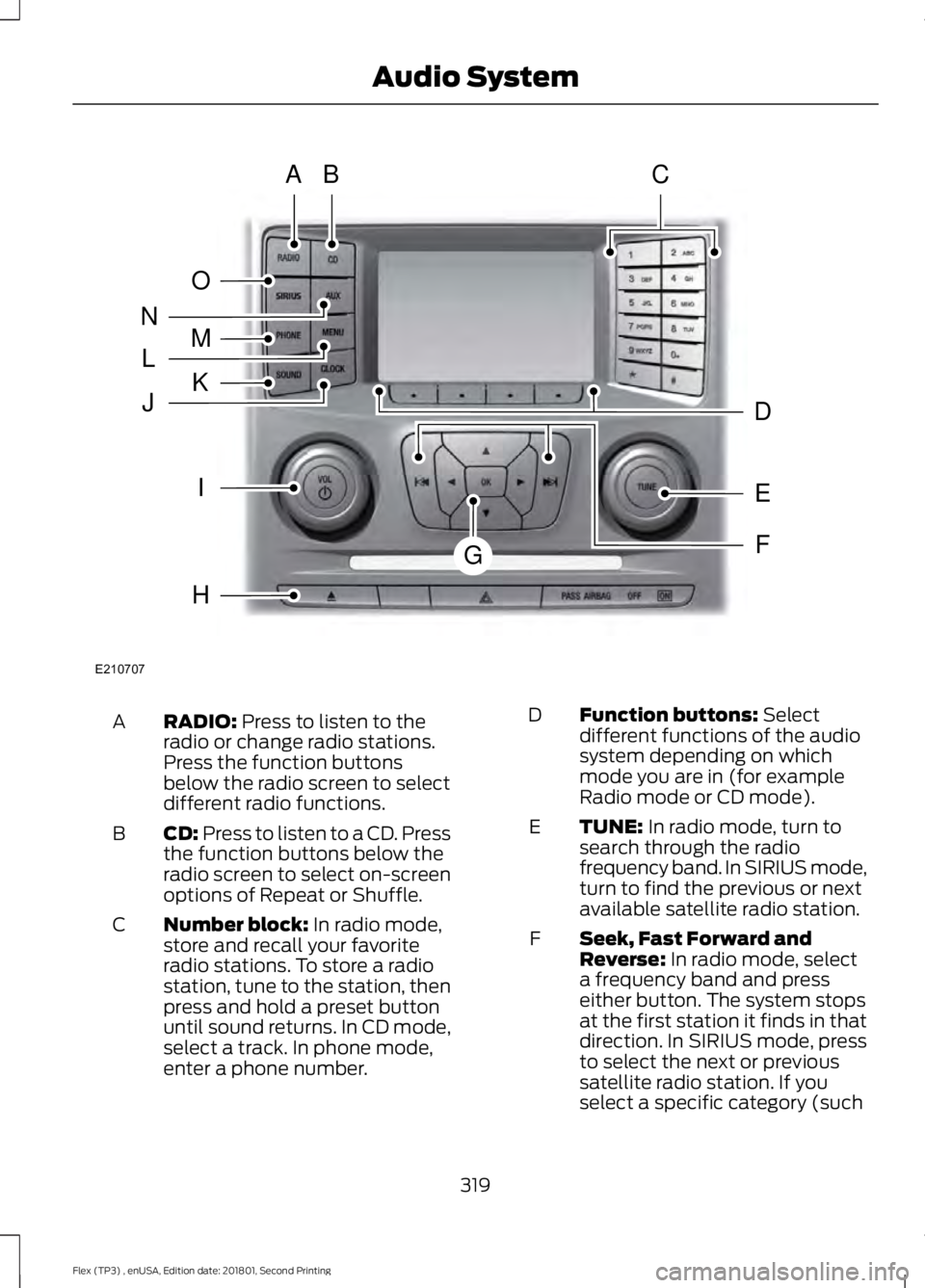
RADIO: Press to listen to the
radio or change radio stations.
Press the function buttons
below the radio screen to select
different radio functions.
A
CD:
Press to listen to a CD. Press
the function buttons below the
radio screen to select on-screen
options of Repeat or Shuffle.
B
Number block:
In radio mode,
store and recall your favorite
radio stations. To store a radio
station, tune to the station, then
press and hold a preset button
until sound returns. In CD mode,
select a track. In phone mode,
enter a phone number.
C Function buttons:
Select
different functions of the audio
system depending on which
mode you are in (for example
Radio mode or CD mode).
D
TUNE:
In radio mode, turn to
search through the radio
frequency band. In SIRIUS mode,
turn to find the previous or next
available satellite radio station.
E
Seek, Fast Forward and
Reverse:
In radio mode, select
a frequency band and press
either button. The system stops
at the first station it finds in that
direction. In SIRIUS mode, press
F
to select the next or previous
satellite radio station. If you
select a specific category (such
319
Flex (TP3) , enUSA, Edition date: 201801, Second Printing Audio SystemE210707
AB
O
NMLKJ
EI
H
C
FG
D
Page 323 of 508
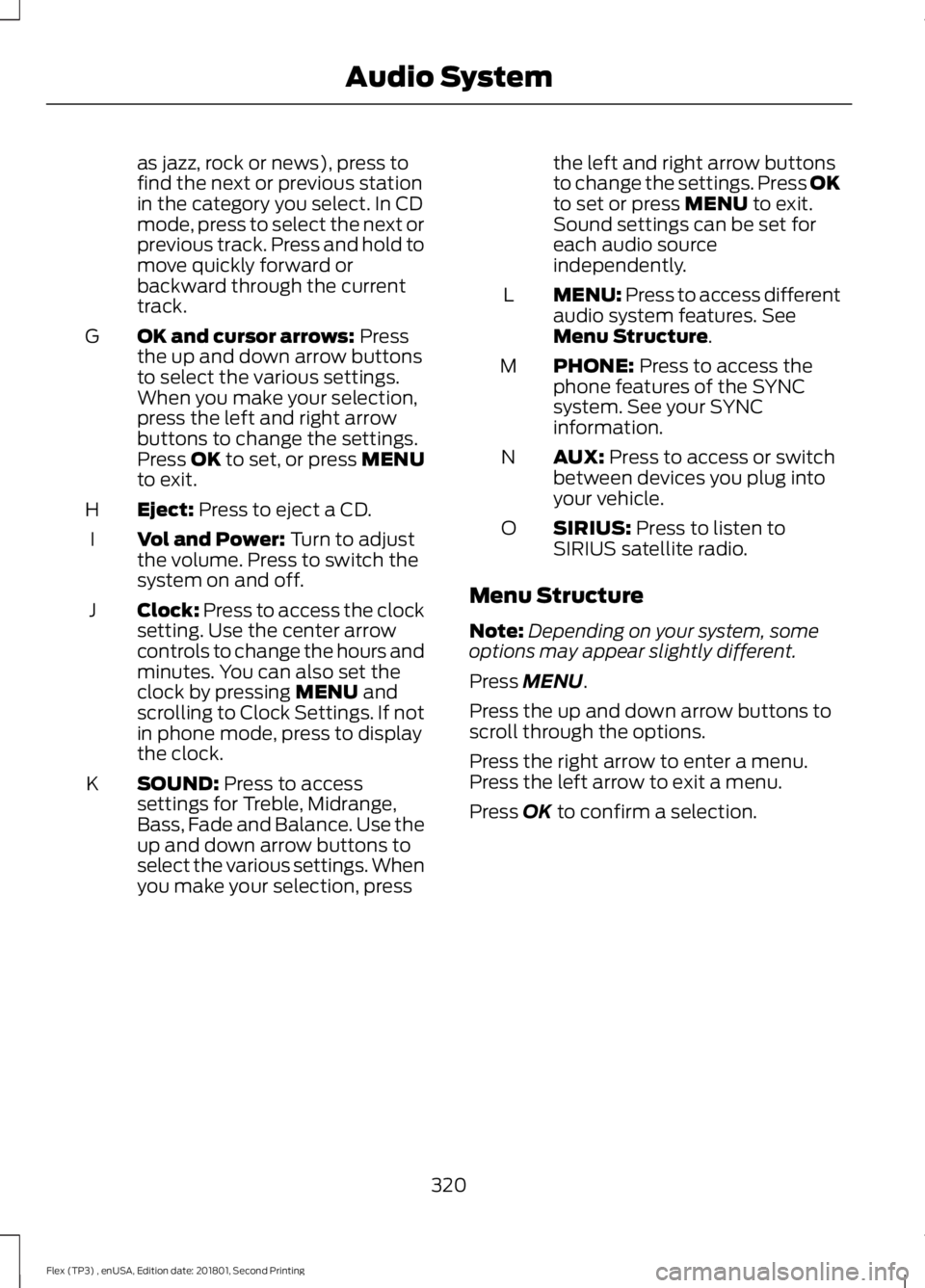
as jazz, rock or news), press to
find the next or previous station
in the category you select. In CD
mode, press to select the next or
previous track. Press and hold to
move quickly forward or
backward through the current
track.
OK and cursor arrows: Press
the up and down arrow buttons
to select the various settings.
When you make your selection,
press the left and right arrow
buttons to change the settings.
Press OK to set, or press MENU
to exit.
G
Eject:
Press to eject a CD.
H
Vol and Power:
Turn to adjust
the volume. Press to switch the
system on and off.
I
Clock:
Press to access the clock
setting. Use the center arrow
controls to change the hours and
minutes. You can also set the
clock by pressing
MENU and
scrolling to Clock Settings. If not
in phone mode, press to display
the clock.
J
SOUND:
Press to access
settings for Treble, Midrange,
Bass, Fade and Balance. Use the
up and down arrow buttons to
select the various settings. When
you make your selection, press
K the left and right arrow buttons
to change the settings. Press OK
to set or press
MENU to exit.
Sound settings can be set for
each audio source
independently.
MENU: Press to access different
audio system features. See
Menu Structure
.
L
PHONE:
Press to access the
phone features of the SYNC
system. See your SYNC
information.
M
AUX:
Press to access or switch
between devices you plug into
your vehicle.
N
SIRIUS:
Press to listen to
SIRIUS satellite radio.
O
Menu Structure
Note: Depending on your system, some
options may appear slightly different.
Press
MENU.
Press the up and down arrow buttons to
scroll through the options.
Press the right arrow to enter a menu.
Press the left arrow to exit a menu.
Press
OK to confirm a selection.
320
Flex (TP3) , enUSA, Edition date: 201801, Second Printing Audio System
Page 324 of 508
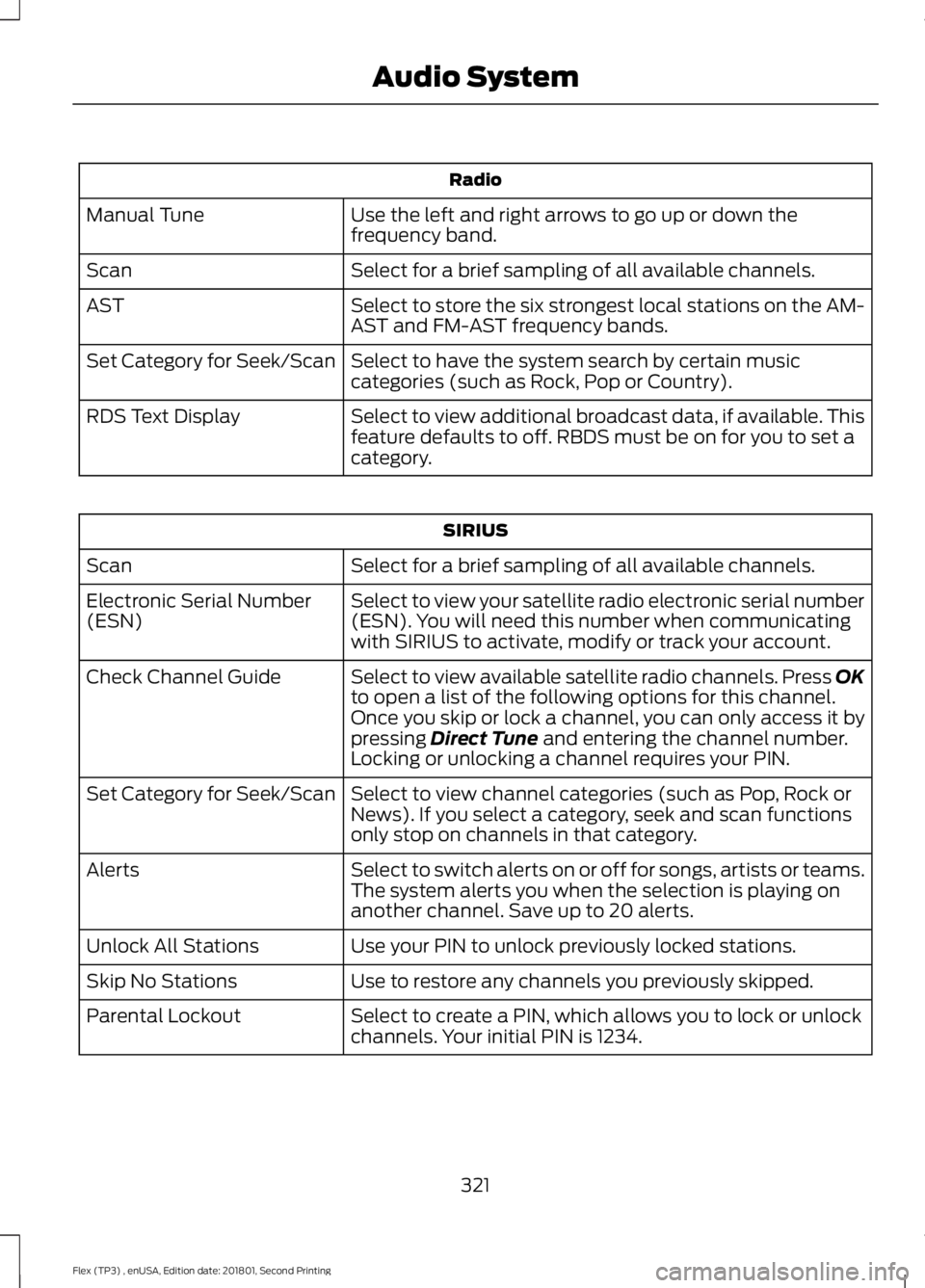
Radio
Use the left and right arrows to go up or down the
frequency band.
Manual Tune
Select for a brief sampling of all available channels.
Scan
Select to store the six strongest local stations on the AM-
AST and FM-AST frequency bands.
AST
Select to have the system search by certain music
categories (such as Rock, Pop or Country).
Set Category for Seek/Scan
Select to view additional broadcast data, if available. This
feature defaults to off. RBDS must be on for you to set a
category.
RDS Text Display SIRIUS
Select for a brief sampling of all available channels.
Scan
Select to view your satellite radio electronic serial number
(ESN). You will need this number when communicating
with SIRIUS to activate, modify or track your account.
Electronic Serial Number
(ESN)
Select to view available satellite radio channels. Press OK
to open a list of the following options for this channel.
Once you skip or lock a channel, you can only access it by
pressing Direct Tune and entering the channel number.
Locking or unlocking a channel requires your PIN.
Check Channel Guide
Select to view channel categories (such as Pop, Rock or
News). If you select a category, seek and scan functions
only stop on channels in that category.
Set Category for Seek/Scan
Select to switch alerts on or off for songs, artists or teams.
The system alerts you when the selection is playing on
another channel. Save up to 20 alerts.
Alerts
Use your PIN to unlock previously locked stations.
Unlock All Stations
Use to restore any channels you previously skipped.
Skip No Stations
Select to create a PIN, which allows you to lock or unlock
channels. Your initial PIN is 1234.
Parental Lockout
321
Flex (TP3) , enUSA, Edition date: 201801, Second Printing Audio System
Page 325 of 508
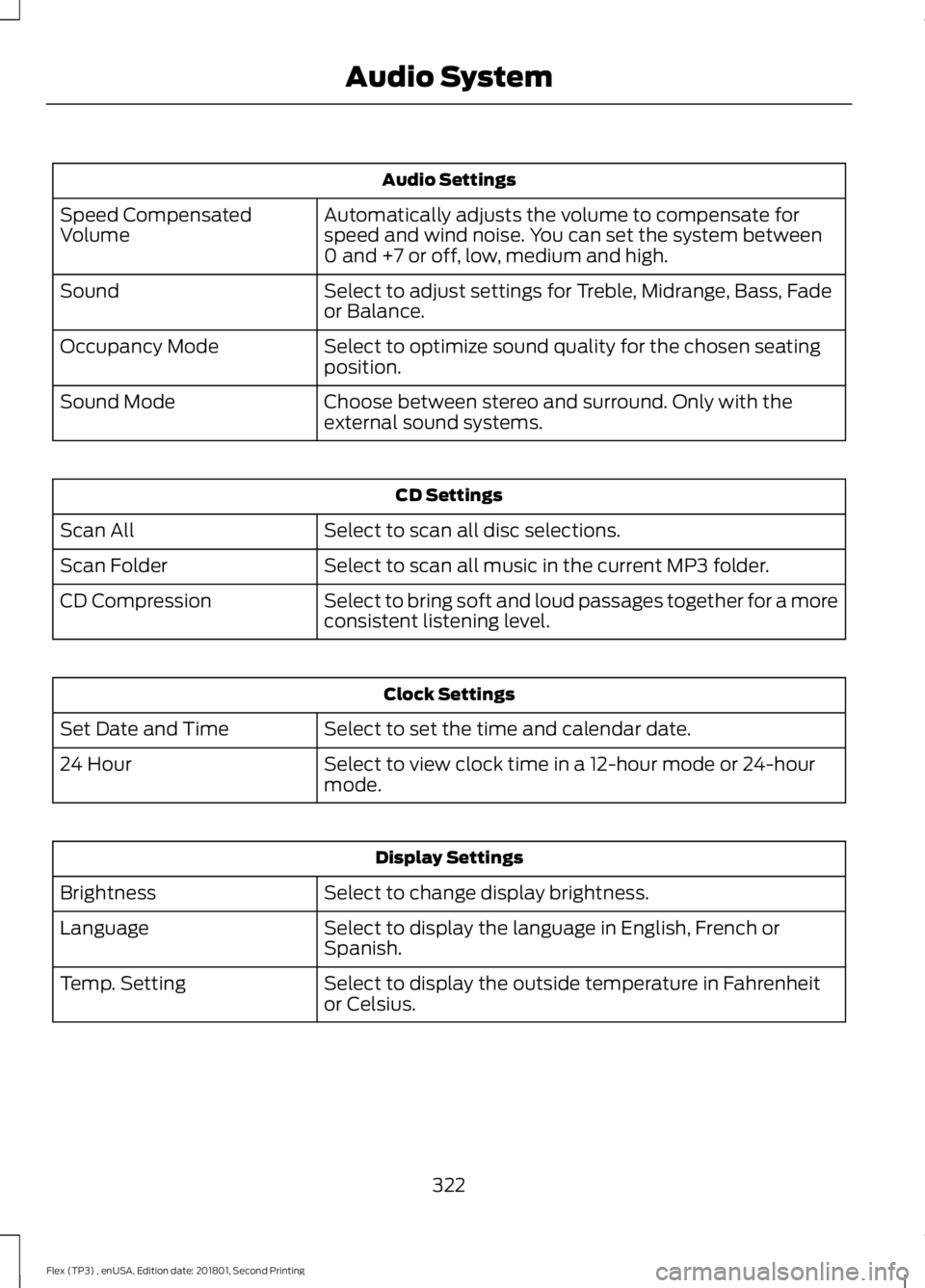
Audio Settings
Automatically adjusts the volume to compensate for
speed and wind noise. You can set the system between
0 and +7 or off, low, medium and high.
Speed Compensated
Volume
Select to adjust settings for Treble, Midrange, Bass, Fade
or Balance.
Sound
Select to optimize sound quality for the chosen seating
position.
Occupancy Mode
Choose between stereo and surround. Only with the
external sound systems.
Sound Mode CD Settings
Select to scan all disc selections.
Scan All
Select to scan all music in the current MP3 folder.
Scan Folder
Select to bring soft and loud passages together for a more
consistent listening level.
CD Compression Clock Settings
Select to set the time and calendar date.
Set Date and Time
Select to view clock time in a 12-hour mode or 24-hour
mode.
24 Hour Display Settings
Select to change display brightness.
Brightness
Select to display the language in English, French or
Spanish.
Language
Select to display the outside temperature in Fahrenheit
or Celsius.
Temp. Setting
322
Flex (TP3) , enUSA, Edition date: 201801, Second Printing Audio System
Page 369 of 508
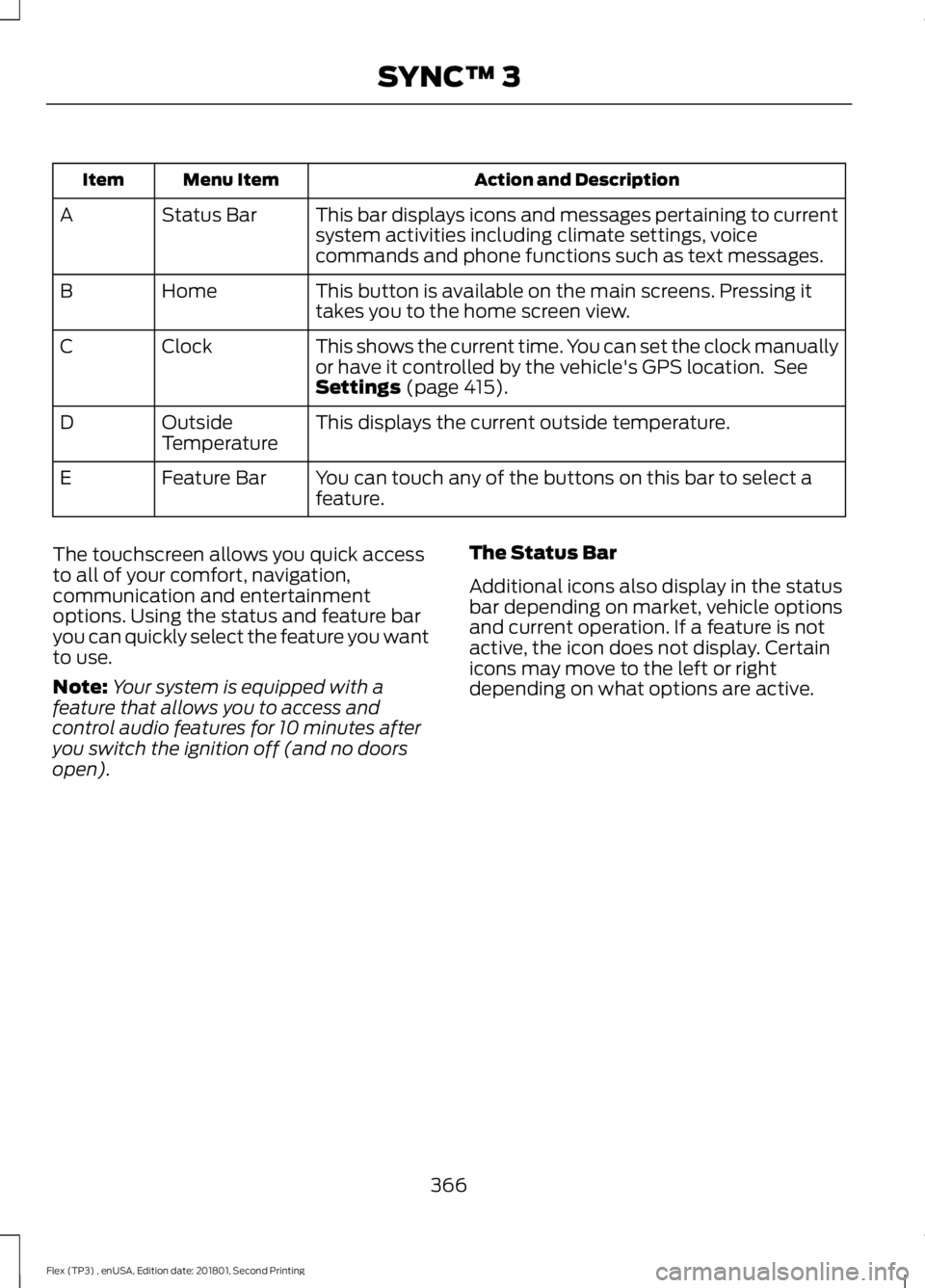
Action and Description
Menu Item
Item
This bar displays icons and messages pertaining to current
system activities including climate settings, voice
commands and phone functions such as text messages.
Status Bar
A
This button is available on the main screens. Pressing it
takes you to the home screen view.
Home
B
This shows the current time. You can set the clock manually
or have it controlled by the vehicle's GPS location. See
Settings (page 415).
Clock
C
This displays the current outside temperature.
Outside
Temperature
D
You can touch any of the buttons on this bar to select a
feature.
Feature Bar
E
The touchscreen allows you quick access
to all of your comfort, navigation,
communication and entertainment
options. Using the status and feature bar
you can quickly select the feature you want
to use.
Note: Your system is equipped with a
feature that allows you to access and
control audio features for 10 minutes after
you switch the ignition off (and no doors
open). The Status Bar
Additional icons also display in the status
bar depending on market, vehicle options
and current operation. If a feature is not
active, the icon does not display. Certain
icons may move to the left or right
depending on what options are active.
366
Flex (TP3) , enUSA, Edition date: 201801, Second Printing SYNC™ 3