lights FORD FLEX 2019 User Guide
[x] Cancel search | Manufacturer: FORD, Model Year: 2019, Model line: FLEX, Model: FORD FLEX 2019Pages: 513, PDF Size: 39.3 MB
Page 176 of 513
GENERAL INFORMATION
Note:
Occasional brake noise is normal. If
a metal-to-metal, continuous grinding or
continuous squeal sound is present, the
brake linings may be worn-out. Have the
system checked by an authorized dealer. If
your vehicle has continuous vibration or
shudder in the steering wheel while braking,
have it checked by an authorized dealer.
Note: Brake dust may accumulate on the
wheels, even under normal driving
conditions. Some dust is inevitable as the
brakes wear and does not contribute to
brake noise. See Cleaning the Wheels
(page 270).
Note: Depending on applicable laws and
regulations in the country for which your
vehicle was originally built, your brake lamps
may flash during heavy braking. Following
this, your hazard lights may also flash when
your vehicle comes to a stop. See
Warning Lamps and
Indicators (page 91).
Wet brakes result in reduced braking
efficiency. Gently press the brake pedal a
few times when driving from a car wash or
standing water to dry the brakes.
Brake Over Accelerator
In the event the accelerator pedal
becomes stuck or entrapped, apply steady
and firm pressure to the brake pedal to
slow the vehicle and reduce engine power.
If you experience this condition, apply the
brakes and bring your vehicle to a safe
stop. Move the transmission to park (P),
switch the engine off and apply the parking
brake. Inspect the accelerator pedal for
any interference. If none are found and the
condition persists, have your vehicle towed
to the nearest authorized dealer. Brake Assist
Brake assist detects when you rapidly
brake by measuring the rate at which you
press the brake pedal. It provides
maximum braking efficiency as long as you
press the pedal. It can also reduce
stopping distances in critical situations.
Anti-lock Brake System
This system helps you maintain steering
control during emergency stops by keeping
the brakes from locking.
If it illuminates when you are
driving, this indicates a
malfunction. Your vehicle
continues to have normal braking without
the anti-lock brake system function. Have
your vehicle checked as soon as possible.
It also momentarily illuminates when you
switch the ignition on to confirm the lamp
is functional. If it does not illuminate when
you switch the ignition on, or begins to
flash at any time, have the system checked
by an authorized dealer. It illuminates when you engage
the parking brake and the
ignition is on.
If it illuminates when your vehicle
is moving, make sure the parking
brake is disengaged. If the
parking brake is disengaged, this indicates
low brake fluid level or a brake system
fault. Have your vehicle checked as soon
as possible.
It also momentarily illuminates when you
switch the ignition on to confirm the lamp
is functional. If it does not illuminate when
you switch the ignition on, or begins to
flash at any time, have the system checked
by an authorized dealer.
173
Flex (TP3) , enUSA, Edition date: 201803, Second-Printing BrakesE270480 E270480
Page 178 of 513
PRINCIPLE OF OPERATION
The traction control system helps avoid
drive wheel spin and loss of traction.
If your vehicle begins to slide, the system
applies the brakes to individual wheels
and, when needed, reduces engine power
at the same time. If the wheels spin when
accelerating on slippery or loose surfaces,
the system reduces engine power in order
to increase traction.
USING TRACTION CONTROL
WARNING: The stability and traction
control light illuminates steadily if the
system detects a failure. Make sure you
did not manually disable the traction
control system using the information
display controls or the switch. If the
stability control and traction control light
is still illuminating steadily, have the
system serviced by an authorized dealer
immediately. Operating your vehicle with
the traction control disabled could lead to
an increased risk of loss of vehicle control,
vehicle rollover, personal injury and death.
The system automatically turns on each
time you switch the ignition on.
If your vehicle is stuck in mud or snow,
switching traction control off may be
beneficial as this allows the wheels to spin.
Note: When you switch traction control off,
stability control remains fully active.
Switching the System Off
When you switch the system off or on, a
message appears in the information
display showing system status.
You can switch the system off by either
using the information display controls or
the switch. Using the Information Display
Controls
You can switch this feature off or on in the
information display. See General
Information (page 95).
Using a Switch
(If Equipped)
Use the traction control switch on the
instrument panel to switch the system off
or on.
System Indicator Lights and
Messages The stability and traction control
light:
• Temporarily illuminates on engine
start-up.
• Flashes when a driving condition
activates either of the systems.
• Illuminates if a problem occurs in either
of the systems. The stability and traction control
off light temporarily illuminates
on engine start-up and stays on
when you switch the traction control
system off.
175
Flex (TP3) , enUSA, Edition date: 201803, Second-Printing Traction ControlE138639 E130458
Page 195 of 513
The radar sensor has a limited field of view.
It may not detect vehicles at all or detect
a vehicle later than expected in some
situations. The lead vehicle graphic does
not illuminate if the system does not
detect a vehicle in front of you.
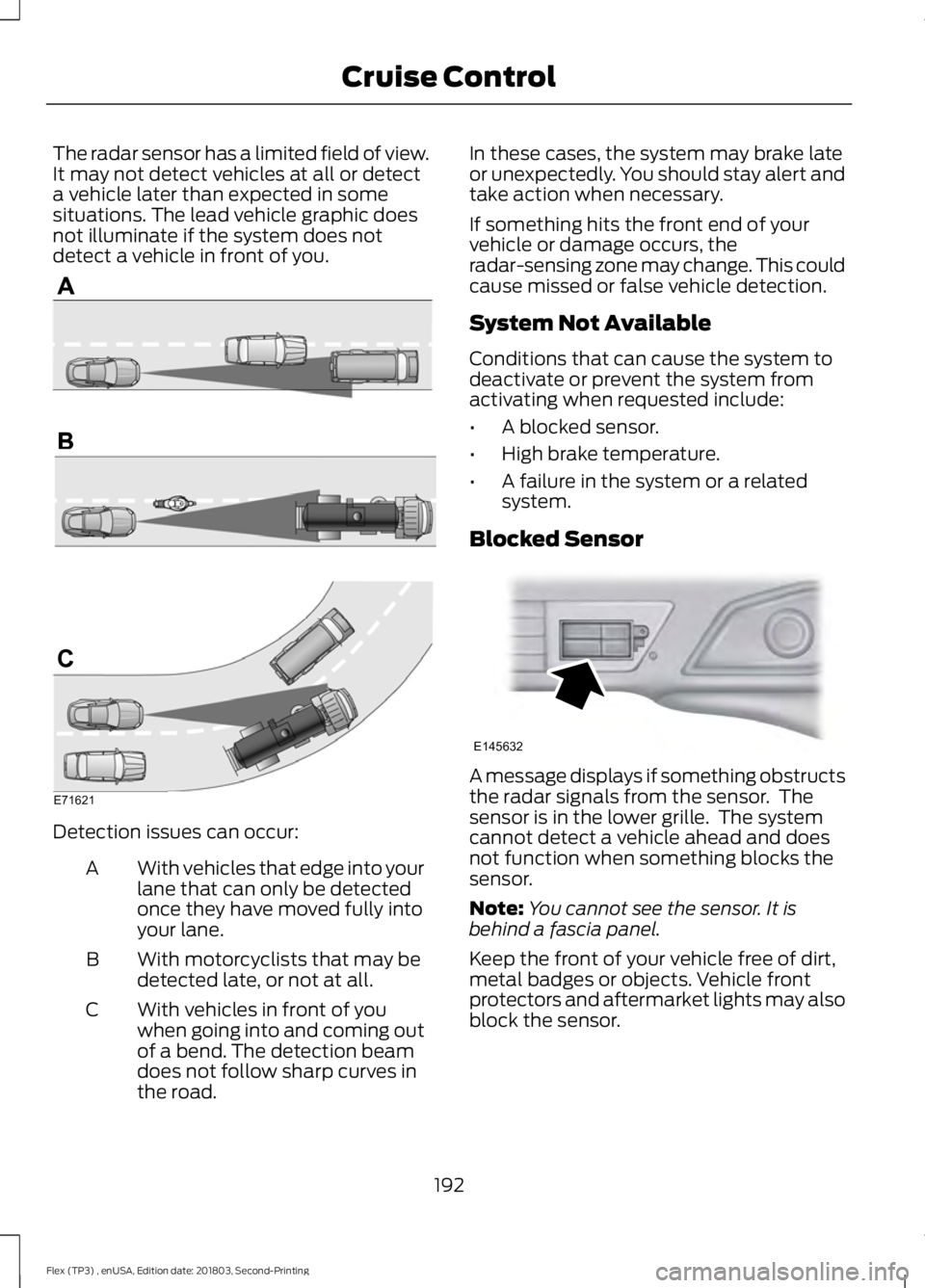
Detection issues can occur:
With vehicles that edge into your
lane that can only be detected
once they have moved fully into
your lane.
A
With motorcyclists that may be
detected late, or not at all.
B
With vehicles in front of you
when going into and coming out
of a bend. The detection beam
does not follow sharp curves in
the road.
C In these cases, the system may brake late
or unexpectedly. You should stay alert and
take action when necessary.
If something hits the front end of your
vehicle or damage occurs, the
radar-sensing zone may change. This could
cause missed or false vehicle detection.
System Not Available
Conditions that can cause the system to
deactivate or prevent the system from
activating when requested include:
•
A blocked sensor.
• High brake temperature.
• A failure in the system or a related
system.
Blocked Sensor A message displays if something obstructs
the radar signals from the sensor. The
sensor is in the lower grille. The system
cannot detect a vehicle ahead and does
not function when something blocks the
sensor.
Note:
You cannot see the sensor. It is
behind a fascia panel.
Keep the front of your vehicle free of dirt,
metal badges or objects. Vehicle front
protectors and aftermarket lights may also
block the sensor.
192
Flex (TP3) , enUSA, Edition date: 201803, Second-Printing Cruise ControlE71621 E145632
Page 197 of 513
BLIND SPOT INFORMATION
SYSTEM (If Equipped)
WARNING: Never
use the Blind
Spot Information System as a replacement
for using the interior and exterior mirrors
or looking over your shoulder before
changing lanes. The Blind Spot Information
System is not a replacement for careful
driving. The Blind Spot Information System is
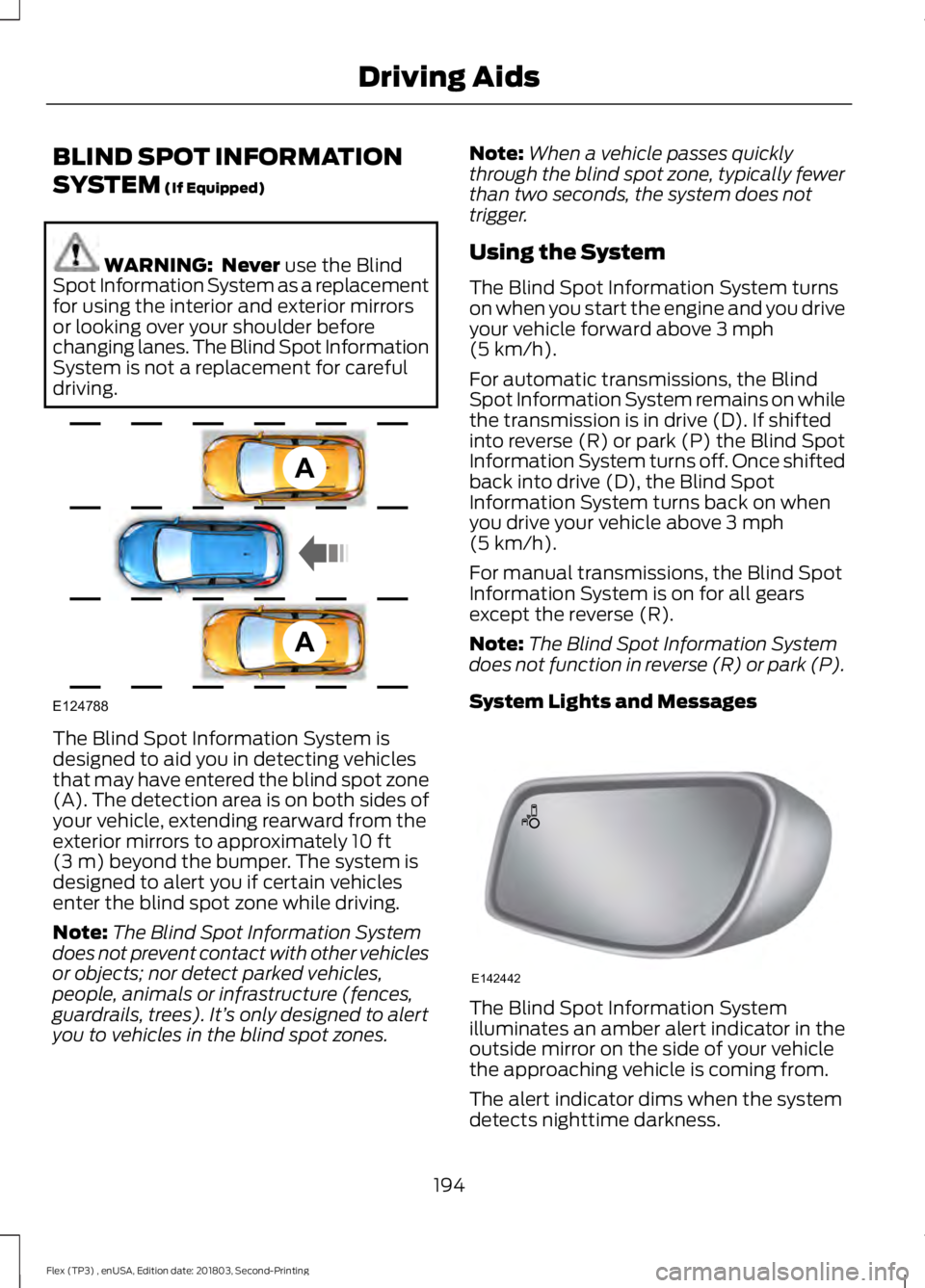
designed to aid you in detecting vehicles
that may have entered the blind spot zone
(A). The detection area is on both sides of
your vehicle, extending rearward from the
exterior mirrors to approximately
10 ft
(3 m) beyond the bumper. The system is
designed to alert you if certain vehicles
enter the blind spot zone while driving.
Note: The Blind Spot Information System
does not prevent contact with other vehicles
or objects; nor detect parked vehicles,
people, animals or infrastructure (fences,
guardrails, trees). It’ s only designed to alert
you to vehicles in the blind spot zones. Note:
When a vehicle passes quickly
through the blind spot zone, typically fewer
than two seconds, the system does not
trigger.
Using the System
The Blind Spot Information System turns
on when you start the engine and you drive
your vehicle forward above
3 mph
(5 km/h).
For automatic transmissions, the Blind
Spot Information System remains on while
the transmission is in drive (D). If shifted
into reverse (R) or park (P) the Blind Spot
Information System turns off. Once shifted
back into drive (D), the Blind Spot
Information System turns back on when
you drive your vehicle above
3 mph
(5 km/h).
For manual transmissions, the Blind Spot
Information System is on for all gears
except the reverse (R).
Note: The Blind Spot Information System
does not function in reverse (R) or park (P).
System Lights and Messages The Blind Spot Information System
illuminates an amber alert indicator in the
outside mirror on the side of your vehicle
the approaching vehicle is coming from.
The alert indicator dims when the system
detects nighttime darkness.
194
Flex (TP3) , enUSA, Edition date: 201803, Second-Printing Driving AidsA
A
E124788 E142442
Page 200 of 513
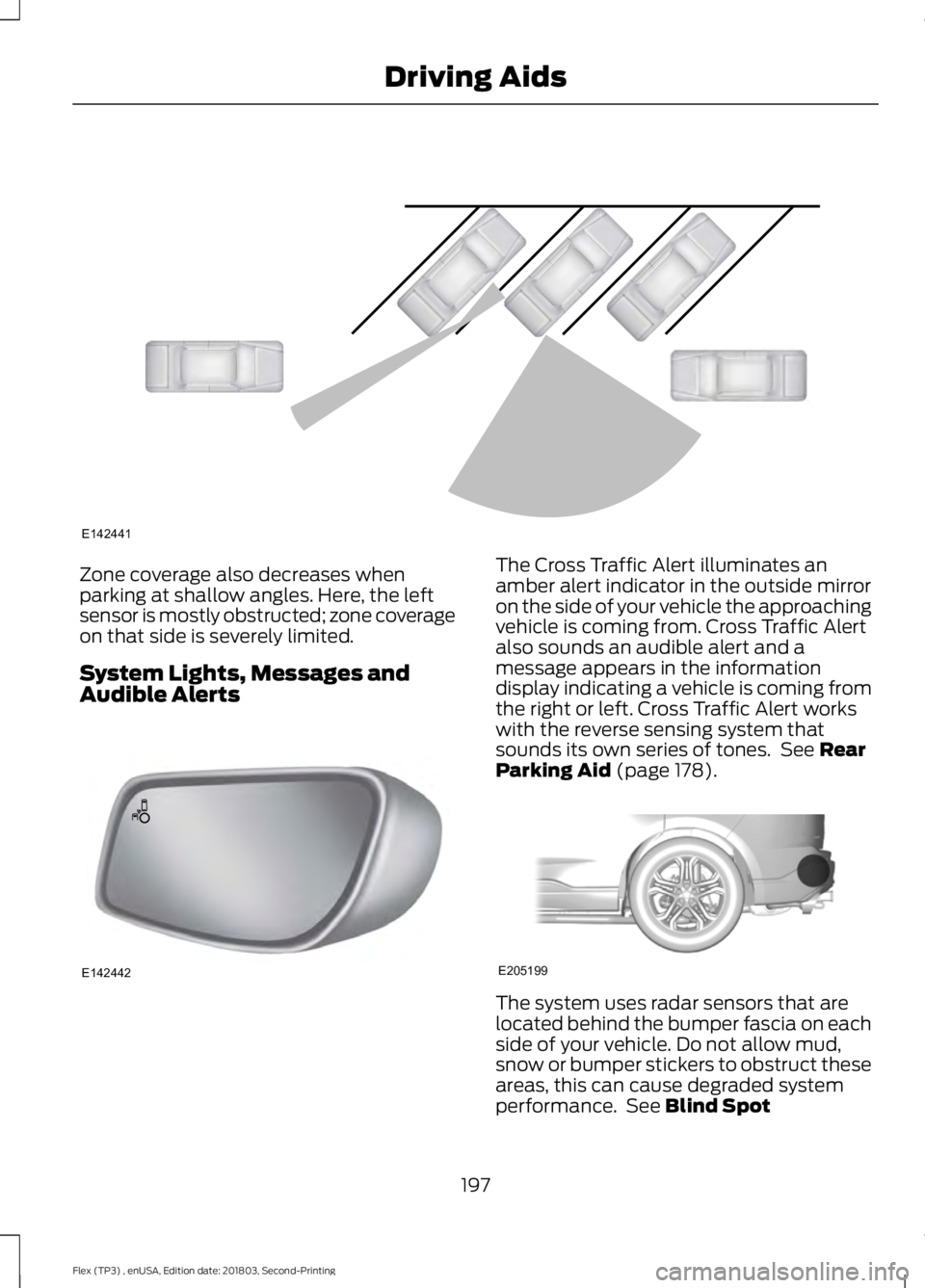
Zone coverage also decreases when
parking at shallow angles. Here, the left
sensor is mostly obstructed; zone coverage
on that side is severely limited.
System Lights, Messages and
Audible Alerts The Cross Traffic Alert illuminates an
amber alert indicator in the outside mirror
on the side of your vehicle the approaching
vehicle is coming from. Cross Traffic Alert
also sounds an audible alert and a
message appears in the information
display indicating a vehicle is coming from
the right or left. Cross Traffic Alert works
with the reverse sensing system that
sounds its own series of tones. See Rear
Parking Aid (page 178). The system uses radar sensors that are
located behind the bumper fascia on each
side of your vehicle. Do not allow mud,
snow or bumper stickers to obstruct these
areas, this can cause degraded system
performance. See
Blind Spot
197
Flex (TP3) , enUSA, Edition date: 201803, Second-Printing Driving AidsE142441 E142442 E205199
Page 214 of 513
ESSENTIAL TOWING CHECKS
Follow these guidelines for safe towing:
•
Do not tow a trailer until you drive your
vehicle at least 1,000 mi (1,600 km).
• Consult your local motor vehicle laws
for towing a trailer.
• See the instructions included with
towing accessories for the proper
installation and adjustment
specifications.
• Service your vehicle more frequently if
you tow a trailer.
See Scheduled
Maintenance (page 442).
• If you use a rental trailer, follow the
instructions the rental agency gives
you.
You can find information on load
specification terms found on the tire label
and Safety Compliance label as well as
instructions on calculating your vehicle's
load in the Load Carrying chapter. See
Load Limit
(page 202).
Remember to account for the trailer
tongue weight as part of your vehicle load
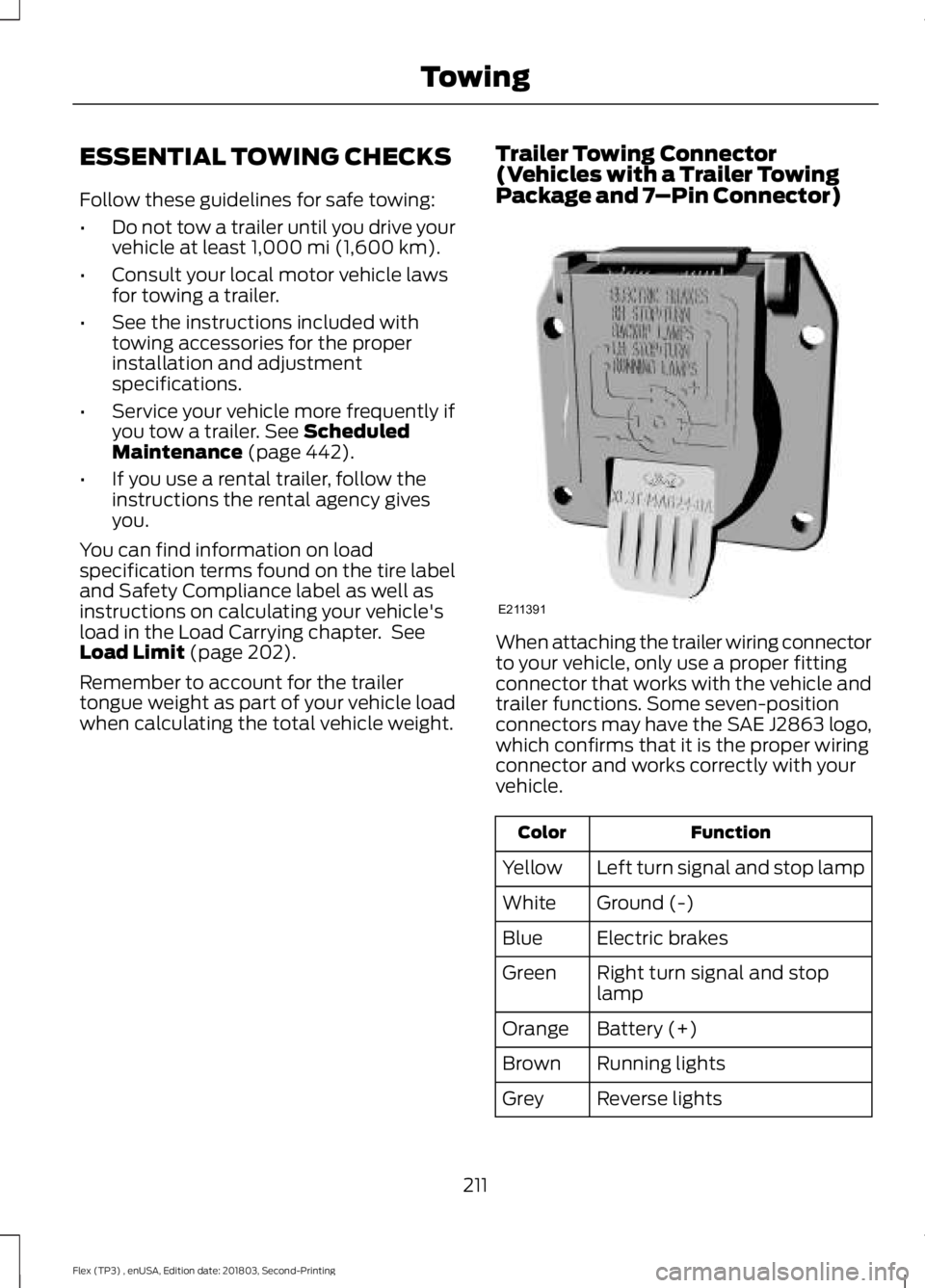
when calculating the total vehicle weight. Trailer Towing Connector
(Vehicles with a Trailer Towing
Package and 7
–Pin Connector) When attaching the trailer wiring connector
to your vehicle, only use a proper fitting
connector that works with the vehicle and
trailer functions. Some seven-position
connectors may have the SAE J2863 logo,
which confirms that it is the proper wiring
connector and works correctly with your
vehicle.
Function
Color
Left turn signal and stop lamp
Yellow
Ground (-)
White
Electric brakes
Blue
Right turn signal and stop
lamp
Green
Battery (+)
Orange
Running lights
Brown
Reverse lights
Grey
211
Flex (TP3) , enUSA, Edition date: 201803, Second-Printing TowingE211391
Page 216 of 513
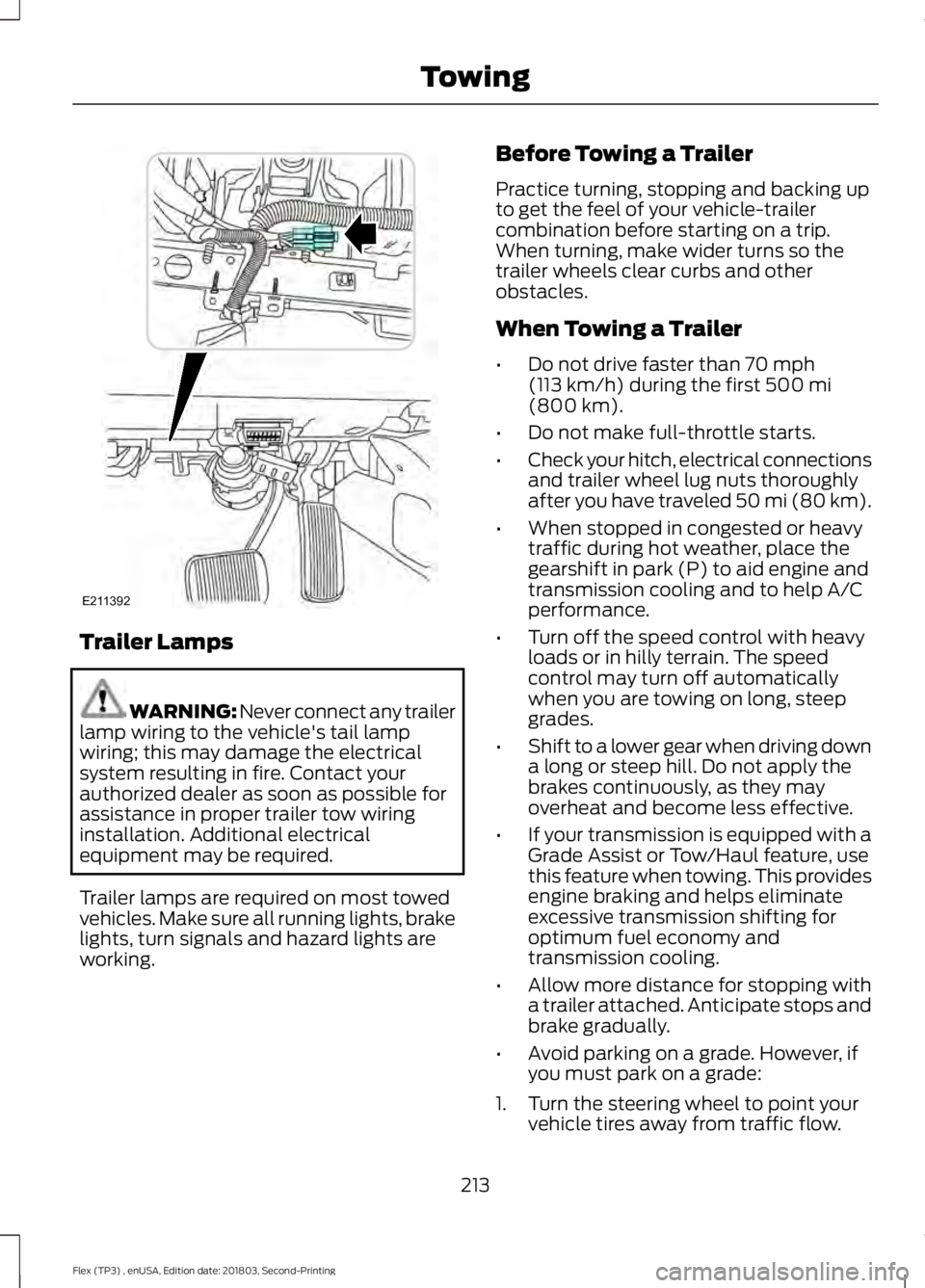
Trailer Lamps
WARNING: Never connect any trailer
lamp wiring to the vehicle's tail lamp
wiring; this may damage the electrical
system resulting in fire. Contact your
authorized dealer as soon as possible for
assistance in proper trailer tow wiring
installation. Additional electrical
equipment may be required.
Trailer lamps are required on most towed
vehicles. Make sure all running lights, brake
lights, turn signals and hazard lights are
working. Before Towing a Trailer
Practice turning, stopping and backing up
to get the feel of your vehicle-trailer
combination before starting on a trip.
When turning, make wider turns so the
trailer wheels clear curbs and other
obstacles.
When Towing a Trailer
•
Do not drive faster than 70 mph
(113 km/h) during the first 500 mi
(800 km).
• Do not make full-throttle starts.
• Check your hitch, electrical connections
and trailer wheel lug nuts thoroughly
after you have traveled 50 mi (80 km).
• When stopped in congested or heavy
traffic during hot weather, place the
gearshift in park (P) to aid engine and
transmission cooling and to help A/C
performance.
• Turn off the speed control with heavy
loads or in hilly terrain. The speed
control may turn off automatically
when you are towing on long, steep
grades.
• Shift to a lower gear when driving down
a long or steep hill. Do not apply the
brakes continuously, as they may
overheat and become less effective.
• If your transmission is equipped with a
Grade Assist or Tow/Haul feature, use
this feature when towing. This provides
engine braking and helps eliminate
excessive transmission shifting for
optimum fuel economy and
transmission cooling.
• Allow more distance for stopping with
a trailer attached. Anticipate stops and
brake gradually.
• Avoid parking on a grade. However, if
you must park on a grade:
1. Turn the steering wheel to point your vehicle tires away from traffic flow.
213
Flex (TP3) , enUSA, Edition date: 201803, Second-Printing TowingE211392
Page 220 of 513
•
Transmissions give their best fuel
economy when operated in the top
cruise gear and with steady pressure
on the gas pedal.
• Four-wheel-drive operation (if
equipped) is less fuel efficient than
two-wheel-drive operation.
• Close the windows for high-speed
driving.
DRIVING THROUGH WATER WARNING: Do not drive through
flowing or deep water as you may lose
control of your vehicle.
Note: Driving through standing water can
cause vehicle damage.
Note: Engine damage can occur if water
enters the air filter.
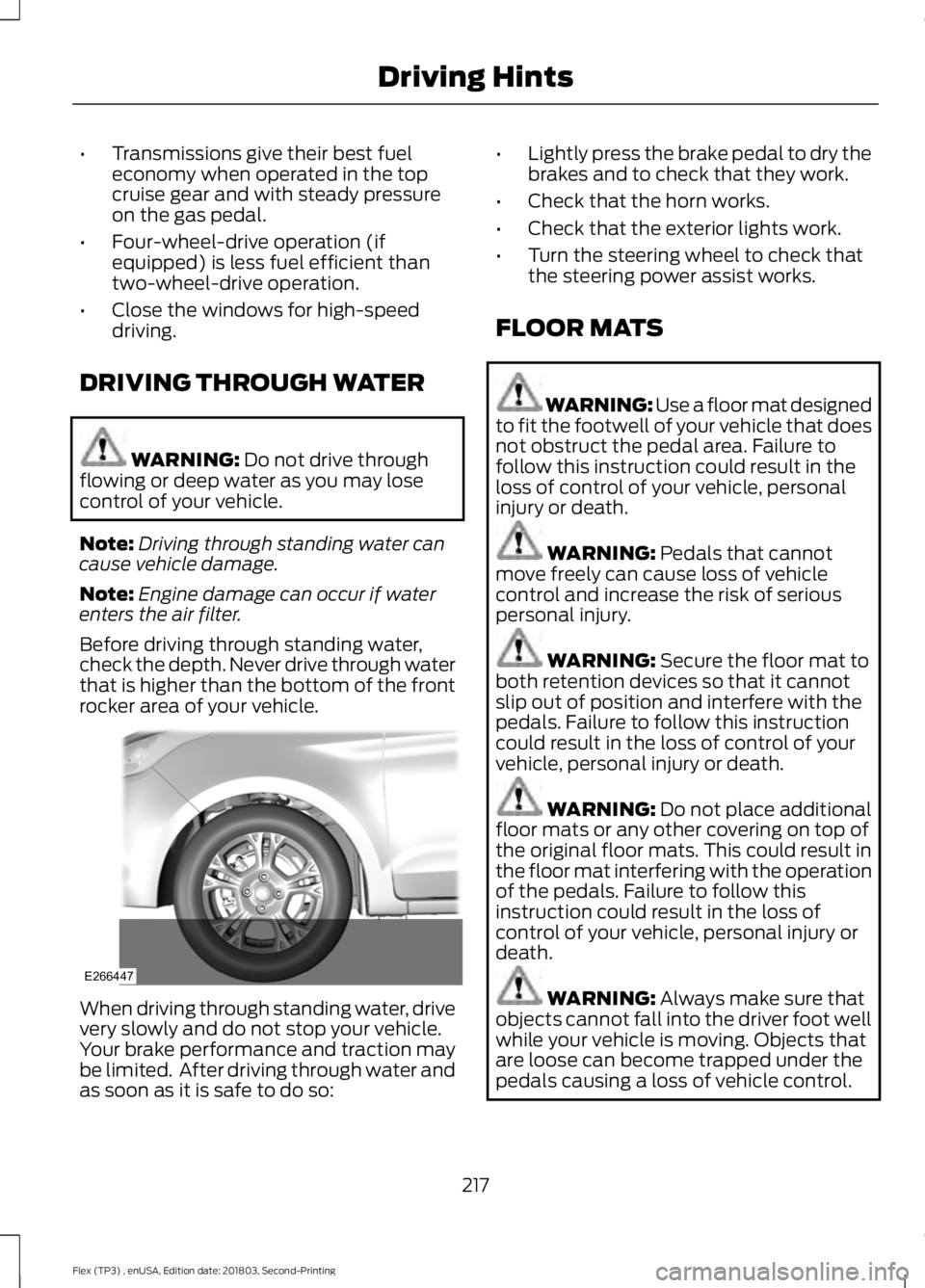
Before driving through standing water,
check the depth. Never drive through water
that is higher than the bottom of the front
rocker area of your vehicle. When driving through standing water, drive
very slowly and do not stop your vehicle.
Your brake performance and traction may
be limited. After driving through water and
as soon as it is safe to do so: •
Lightly press the brake pedal to dry the
brakes and to check that they work.
• Check that the horn works.
• Check that the exterior lights work.
• Turn the steering wheel to check that
the steering power assist works.
FLOOR MATS WARNING: Use a floor mat designed
to fit the footwell of your vehicle that does
not obstruct the pedal area. Failure to
follow this instruction could result in the
loss of control of your vehicle, personal
injury or death. WARNING:
Pedals that cannot
move freely can cause loss of vehicle
control and increase the risk of serious
personal injury. WARNING:
Secure the floor mat to
both retention devices so that it cannot
slip out of position and interfere with the
pedals. Failure to follow this instruction
could result in the loss of control of your
vehicle, personal injury or death. WARNING:
Do not place additional
floor mats or any other covering on top of
the original floor mats. This could result in
the floor mat interfering with the operation
of the pedals. Failure to follow this
instruction could result in the loss of
control of your vehicle, personal injury or
death. WARNING:
Always make sure that
objects cannot fall into the driver foot well
while your vehicle is moving. Objects that
are loose can become trapped under the
pedals causing a loss of vehicle control.
217
Flex (TP3) , enUSA, Edition date: 201803, Second-Printing Driving HintsE266447
Page 396 of 513
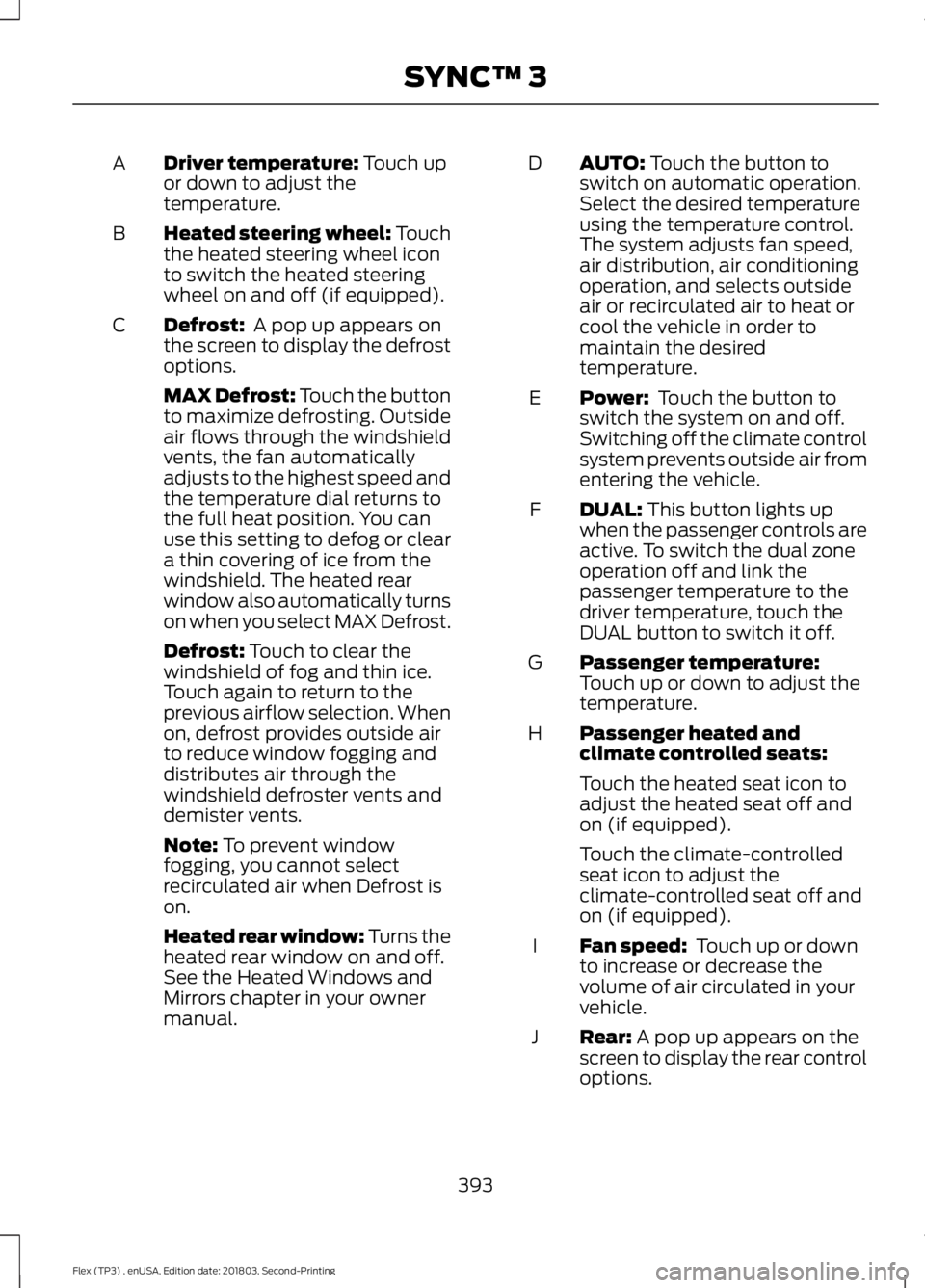
Driver temperature: Touch up
or down to adjust the
temperature.
A
Heated steering wheel: Touch
the heated steering wheel icon
to switch the heated steering
wheel on and off (if equipped).
B
Defrost:
A pop up appears on
the screen to display the defrost
options.
C
MAX Defrost: Touch the button
to maximize defrosting. Outside
air flows through the windshield
vents, the fan automatically
adjusts to the highest speed and
the temperature dial returns to
the full heat position. You can
use this setting to defog or clear
a thin covering of ice from the
windshield. The heated rear
window also automatically turns
on when you select MAX Defrost.
Defrost:
Touch to clear the
windshield of fog and thin ice.
Touch again to return to the
previous airflow selection. When
on, defrost provides outside air
to reduce window fogging and
distributes air through the
windshield defroster vents and
demister vents.
Note:
To prevent window
fogging, you cannot select
recirculated air when Defrost is
on.
Heated rear window: Turns the
heated rear window on and off.
See the Heated Windows and
Mirrors chapter in your owner
manual. AUTO:
Touch the button to
switch on automatic operation.
Select the desired temperature
using the temperature control.
The system adjusts fan speed,
air distribution, air conditioning
operation, and selects outside
air or recirculated air to heat or
cool the vehicle in order to
maintain the desired
temperature.
D
Power:
Touch the button to
switch the system on and off.
Switching off the climate control
system prevents outside air from
entering the vehicle.
E
DUAL:
This button lights up
when the passenger controls are
active. To switch the dual zone
operation off and link the
passenger temperature to the
driver temperature, touch the
DUAL button to switch it off.
F
Passenger temperature:
Touch up or down to adjust the
temperature.
G
Passenger heated and
climate controlled seats:
H
Touch the heated seat icon to
adjust the heated seat off and
on (if equipped).
Touch the climate-controlled
seat icon to adjust the
climate-controlled seat off and
on (if equipped).
Fan speed:
Touch up or down
to increase or decrease the
volume of air circulated in your
vehicle.
I
Rear:
A pop up appears on the
screen to display the rear control
options.
J
393
Flex (TP3) , enUSA, Edition date: 201803, Second-Printing SYNC™ 3
Page 404 of 513
3D city models are complete 3D models
of entire city areas including navigable
roads, parks, rivers and rendered buildings.
3D landmarks and city models appear in
3D map mode only. Coverage of these
varies and improves with updated map
releases.
Select the zoom in icon to see a
closer view of the map.
Select the zoom out icon to see
a farther away view of the map.
You can adjust the view in preset
increments. You can also pinch to zoom in
or out of the map.
The information bar tells you the names
of streets, cities or landmarks as you hover
over them with the crosshair curser.
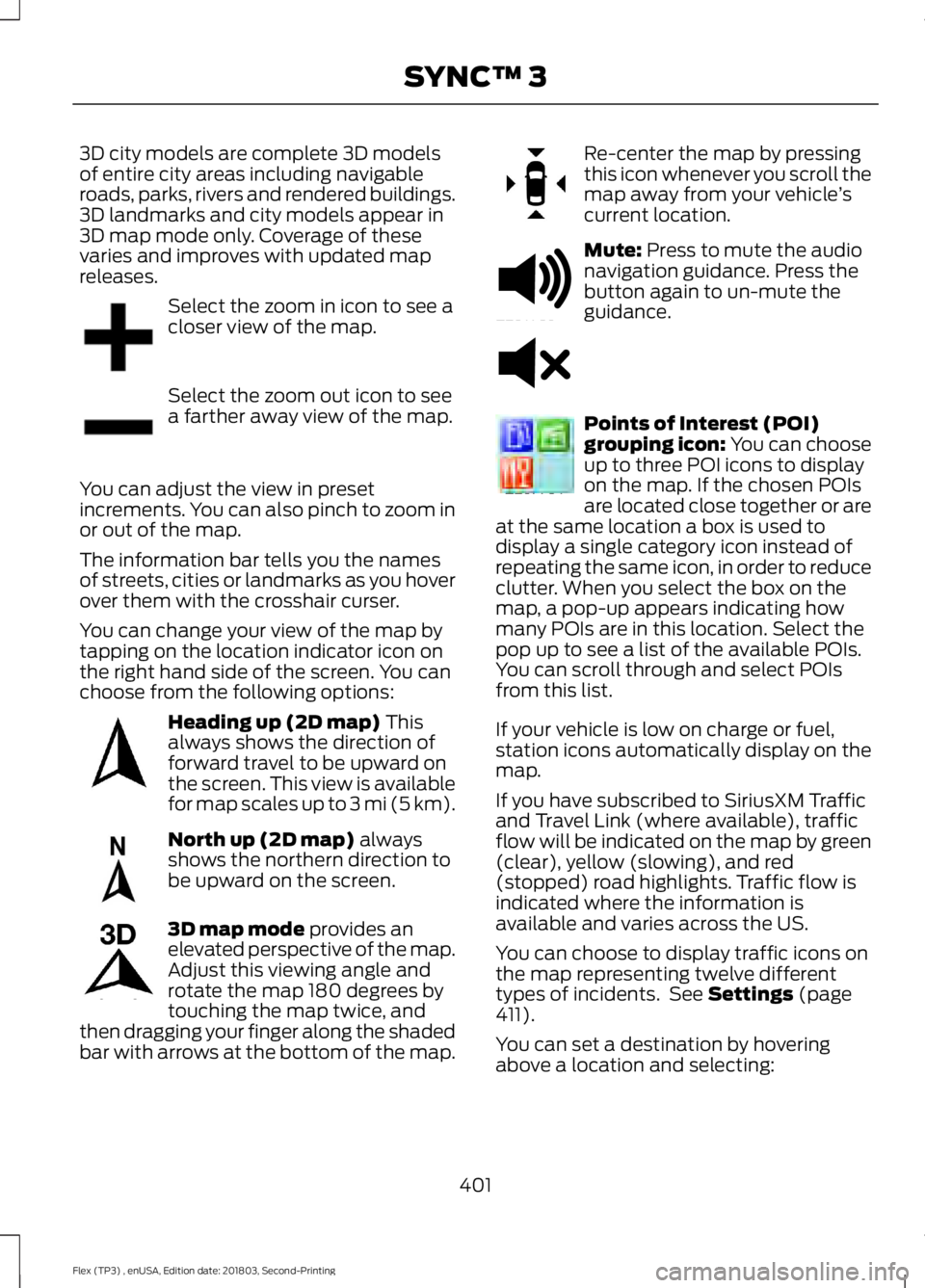
You can change your view of the map by
tapping on the location indicator icon on
the right hand side of the screen. You can
choose from the following options: Heading up (2D map) This
always shows the direction of
forward travel to be upward on
the screen. This view is available
for map scales up to
3 mi (5 km). North up (2D map)
always
shows the northern direction to
be upward on the screen. 3D map mode
provides an
elevated perspective of the map.
Adjust this viewing angle and
rotate the map 180 degrees by
touching the map twice, and
then dragging your finger along the shaded
bar with arrows at the bottom of the map. Re-center the map by pressing
this icon whenever you scroll the
map away from your vehicle
’s
current location. Mute:
Press to mute the audio
navigation guidance. Press the
button again to un-mute the
guidance. Points of Interest (POI)
grouping icon: You can choose
up to three POI icons to display
on the map. If the chosen POIs
are located close together or are
at the same location a box is used to
display a single category icon instead of
repeating the same icon, in order to reduce
clutter. When you select the box on the
map, a pop-up appears indicating how
many POIs are in this location. Select the
pop up to see a list of the available POIs.
You can scroll through and select POIs
from this list.
If your vehicle is low on charge or fuel,
station icons automatically display on the
map.
If you have subscribed to SiriusXM Traffic
and Travel Link (where available), traffic
flow will be indicated on the map by green
(clear), yellow (slowing), and red
(stopped) road highlights. Traffic flow is
indicated where the information is
available and varies across the US.
You can choose to display traffic icons on
the map representing twelve different
types of incidents. See
Settings (page
411).
You can set a destination by hovering
above a location and selecting:
401
Flex (TP3) , enUSA, Edition date: 201803, Second-Printing SYNC™ 3E207752 E207753 E207750 E207749 E207748 E207751 E251780 E251779 E207754