ECU FORD FLEX 2019 Owner's Guide
[x] Cancel search | Manufacturer: FORD, Model Year: 2019, Model line: FLEX, Model: FORD FLEX 2019Pages: 513, PDF Size: 39.3 MB
Page 267 of 513
When changing the engine air filter, do not
allow debris or foreign material to enter
the air induction system. Engine
components are susceptible to damage
not covered by the vehicle Warranty.
Change the air filter element at the correct
interval. See Scheduled Maintenance
(page 442).
Incorrect component use can cause
damage not covered by the vehicle
Warranty. See
Motorcraft Parts (page
300).
To replace the air filter element do the
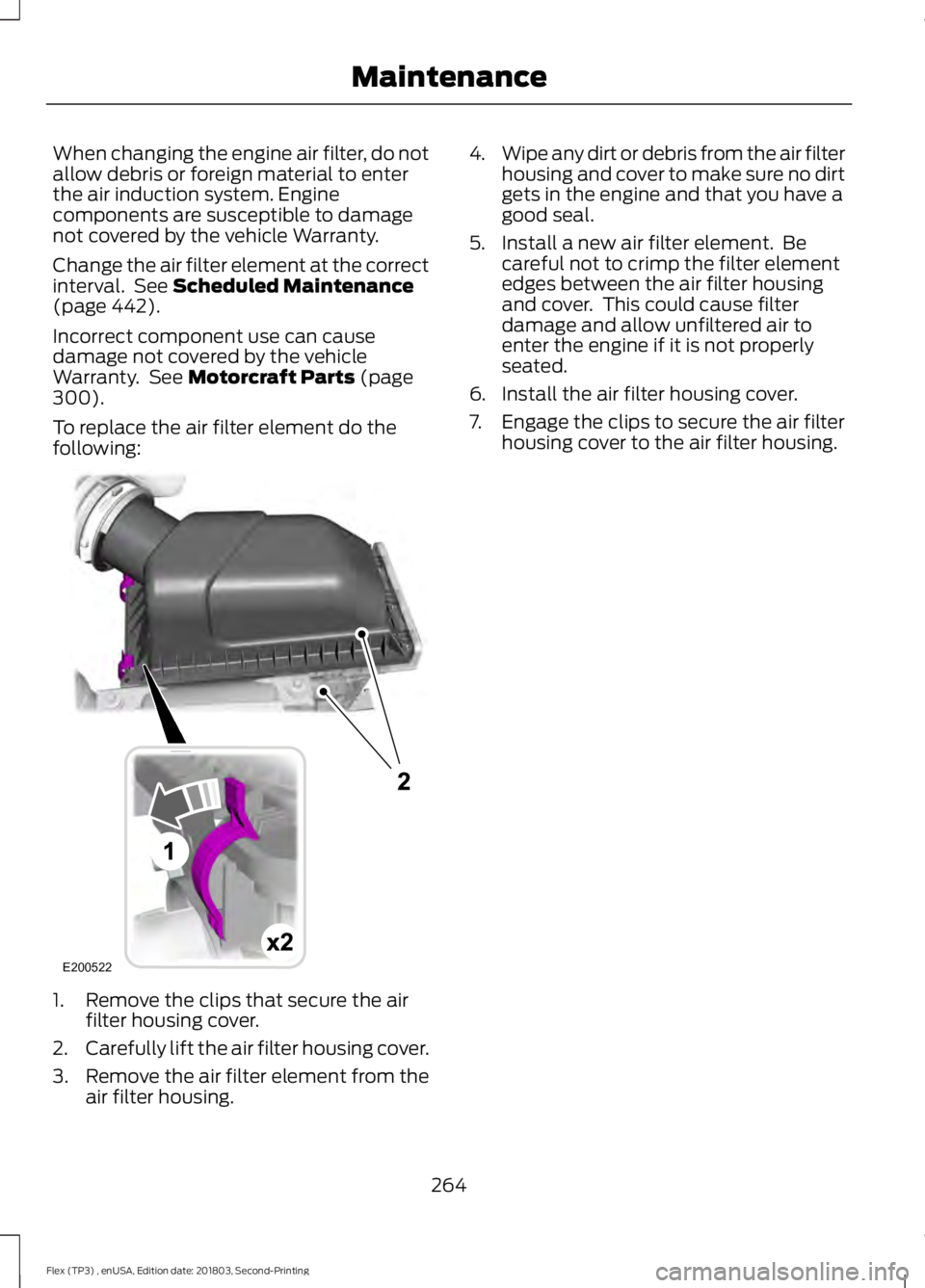
following: 1. Remove the clips that secure the air
filter housing cover.
2. Carefully lift the air filter housing cover.
3. Remove the air filter element from the
air filter housing. 4.
Wipe any dirt or debris from the air filter
housing and cover to make sure no dirt
gets in the engine and that you have a
good seal.
5. Install a new air filter element. Be careful not to crimp the filter element
edges between the air filter housing
and cover. This could cause filter
damage and allow unfiltered air to
enter the engine if it is not properly
seated.
6. Install the air filter housing cover.
7. Engage the clips to secure the air filter housing cover to the air filter housing.
264
Flex (TP3) , enUSA, Edition date: 201803, Second-Printing MaintenanceE200522
Page 292 of 513
Follow these guidelines when using snow
tires and chains:
•
If possible, avoid fully loading your
vehicle.
• Use only SAE Class S snow chains,
snow cables or equivalent on the front
axle for P235/60R17, P235/60R18, and
P235/55R19 equipped vehicles. The
use of snow chains, snow cables or
other traction assist devices that are
larger than SAE Class S may cause
damage to your vehicle ’s wheel house,
suspension and/or body.
• Do not install tire chains, cables, or
optional traction devices on the rear
tires. This could cause damage to the
vehicle ’s wheel house or body.
• Do not use tire chains, cables, or
optional traction devices with
255/45R20 tires.
• Install cable chains securely, verifying
that the cables do not touch any wiring,
brake lines or fuel lines.
• Do not exceed 30 mph (48 km/h) with
tire cables on your vehicle.
• Drive cautiously. If you hear the cables
rub or bang against your vehicle, stop
and retighten the cables. If this does
not work, remove the cables to prevent
damage to your vehicle.
• Remove the tire cables when they are
no longer needed. Do not use tire
cables on dry roads. TIRE PRESSURE MONITORING
SYSTEM WARNING:
The tire pressure
monitoring system is not a substitute for
manually checking tire pressures. You
should periodically check tire pressures
using a pressure gauge. Failure to correctly
maintain tire pressures could increase the
risk of tire failure, loss of control, vehicle
rollover and personal injury.
Note: You should only use tire sealants in
roadside emergencies as they may cause
damage to the tire pressure monitoring
system sensor.
Note: If the tire pressure monitoring system
sensor becomes damaged, it may not
function. Each tire, including the spare, if
provided, should be checked
monthly when cold and inflated
to the inflation pressure recommended by
the vehicle manufacturer on the vehicle
placard or tire inflation pressure label.
Installation of any tires that are not the
original equipment tire size can cause the
speedometer to display incorrect vehicle
speed.
As an added safety feature, your vehicle
has been equipped with a Tire Pressure
Monitoring System (TPMS) that
illuminates a low tire pressure telltale
when one or more of your tires is
significantly under-inflated. Accordingly,
when the low tire pressure telltale
illuminates, you should stop and check
your tires as soon as possible, and inflate
them to the proper pressure. Driving on a
significantly under-inflated tire causes the
tire to overheat and can lead to tire failure.
Under-inflation also reduces fuel efficiency
and tire tread life, and may affect the
vehicle ’s handling and stopping ability.
289
Flex (TP3) , enUSA, Edition date: 201803, Second-Printing Wheels and Tires
Page 298 of 513
WARNING: To help prevent your
vehicle from moving when you change a
tire, be sure to place the transmission in
park (P) or neutral (N), set the parking
brake, and block (in both directions) the
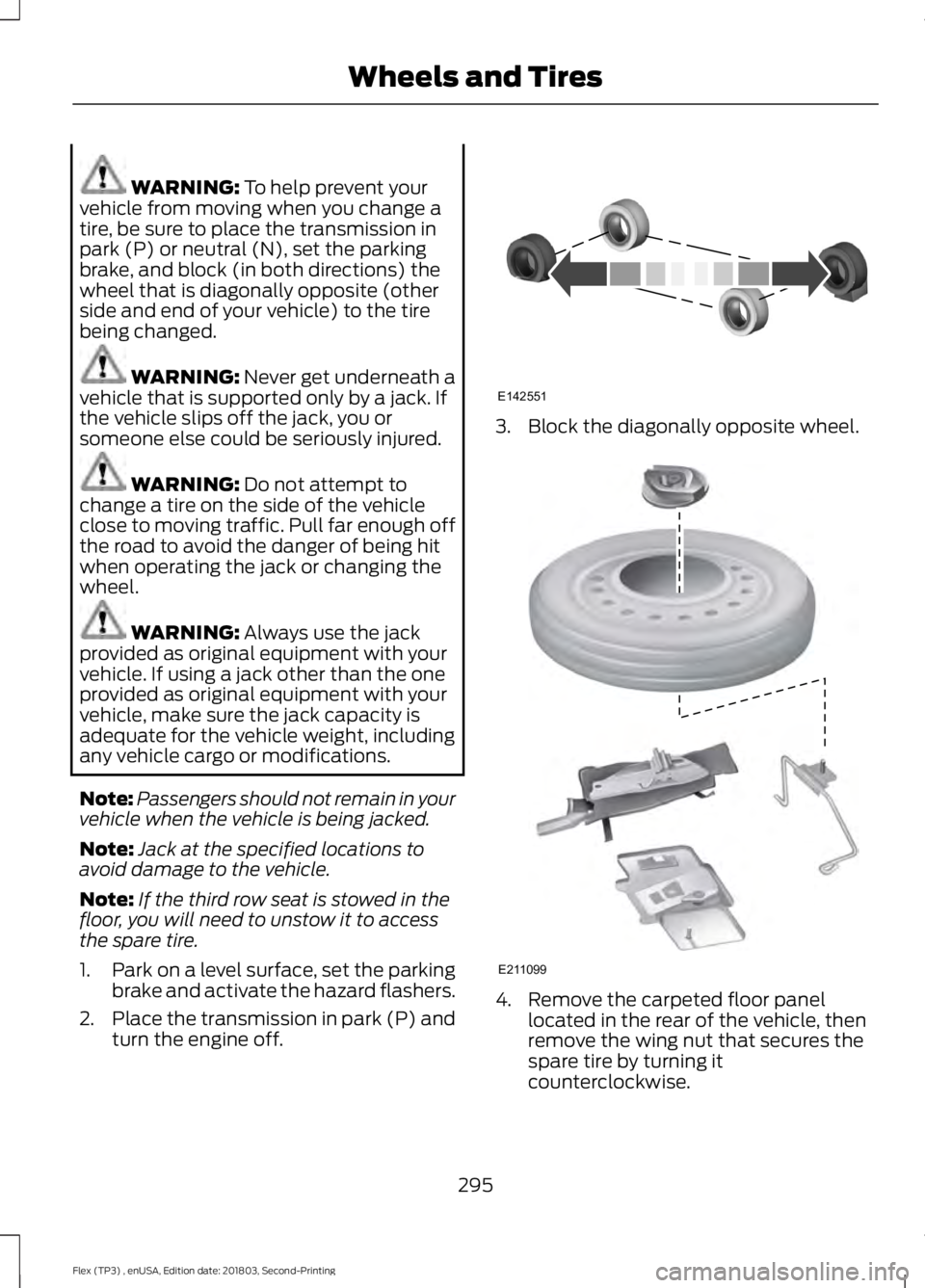
wheel that is diagonally opposite (other
side and end of your vehicle) to the tire
being changed. WARNING:
Never get underneath a
vehicle that is supported only by a jack. If
the vehicle slips off the jack, you or
someone else could be seriously injured. WARNING:
Do not attempt to
change a tire on the side of the vehicle
close to moving traffic. Pull far enough off
the road to avoid the danger of being hit
when operating the jack or changing the
wheel. WARNING:
Always use the jack
provided as original equipment with your
vehicle. If using a jack other than the one
provided as original equipment with your
vehicle, make sure the jack capacity is
adequate for the vehicle weight, including
any vehicle cargo or modifications.
Note: Passengers should not remain in your
vehicle when the vehicle is being jacked.
Note: Jack at the specified locations to
avoid damage to the vehicle.
Note: If the third row seat is stowed in the
floor, you will need to unstow it to access
the spare tire.
1. Park on a level surface, set the parking
brake and activate the hazard flashers.
2. Place the transmission in park (P) and
turn the engine off. 3. Block the diagonally opposite wheel.
4. Remove the carpeted floor panel
located in the rear of the vehicle, then
remove the wing nut that secures the
spare tire by turning it
counterclockwise.
295
Flex (TP3) , enUSA, Edition date: 201803, Second-Printing Wheels and TiresE142551 E211099
Page 299 of 513
5.
Lift and remove the spare tire from the
trunk.
6. Remove the second wing nut that secures the jack retention bracket by
turning it counterclockwise. Then
remove the jack kit from the vehicle.
7. Remove the jack, L-shaped bolt, and the wrench from the felt bag. Fold
down the wrench socket to use to
loosen the lug nuts and to operate the
jack.
8. Remove the wheel cover with the lug wrench tip and loosen each wheel lug
nut one-half turn counterclockwise,
but do not remove them until the wheel
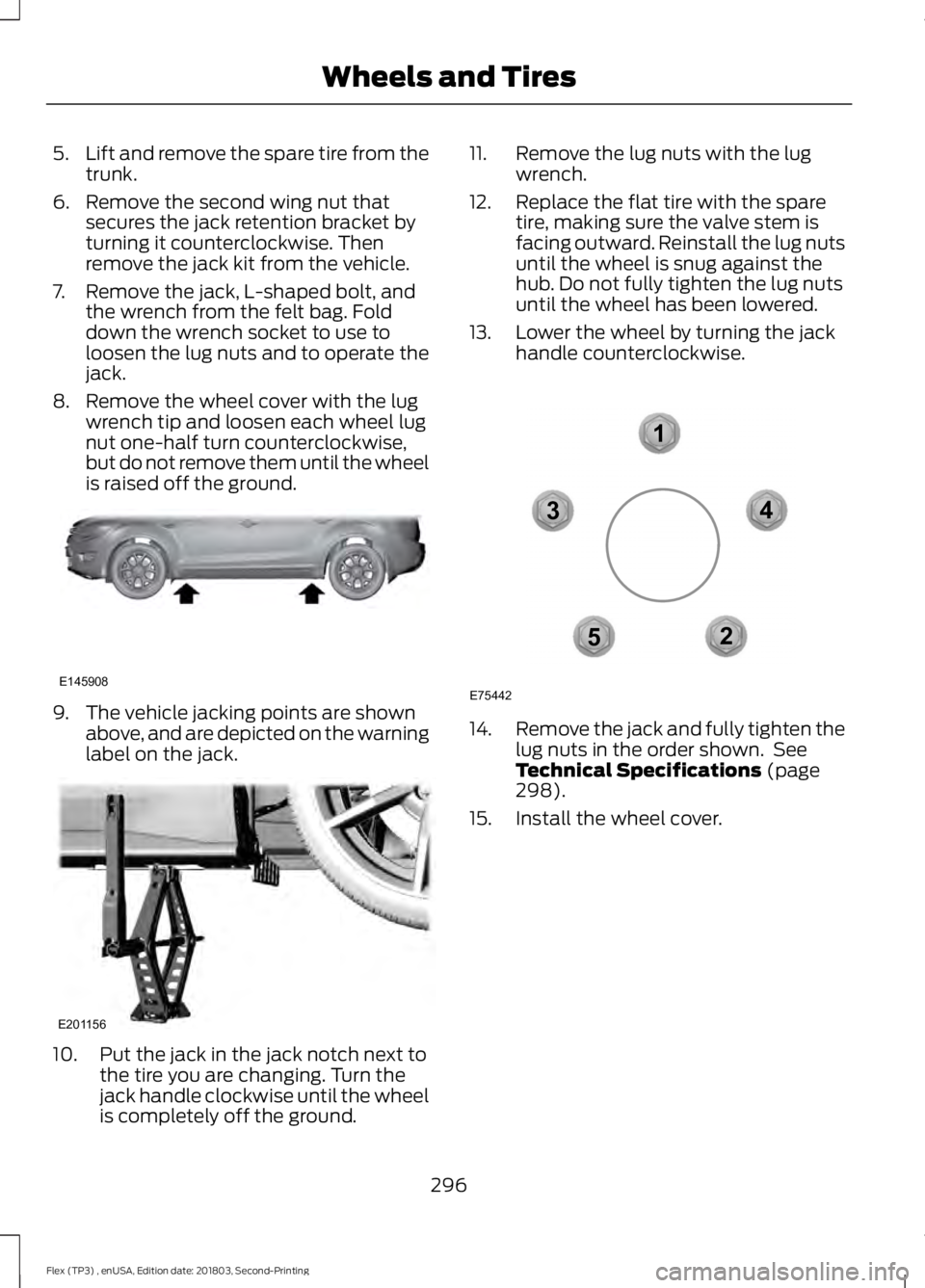
is raised off the ground. 9. The vehicle jacking points are shown
above, and are depicted on the warning
label on the jack. 10. Put the jack in the jack notch next to
the tire you are changing. Turn the
jack handle clockwise until the wheel
is completely off the ground. 11. Remove the lug nuts with the lug
wrench.
12. Replace the flat tire with the spare tire, making sure the valve stem is
facing outward. Reinstall the lug nuts
until the wheel is snug against the
hub. Do not fully tighten the lug nuts
until the wheel has been lowered.
13. Lower the wheel by turning the jack handle counterclockwise. 14.
Remove the jack and fully tighten the
lug nuts in the order shown. See
Technical Specifications (page
298).
15. Install the wheel cover.
296
Flex (TP3) , enUSA, Edition date: 201803, Second-Printing Wheels and TiresE145908 E201156 12
3
4
5
E75442
Page 300 of 513
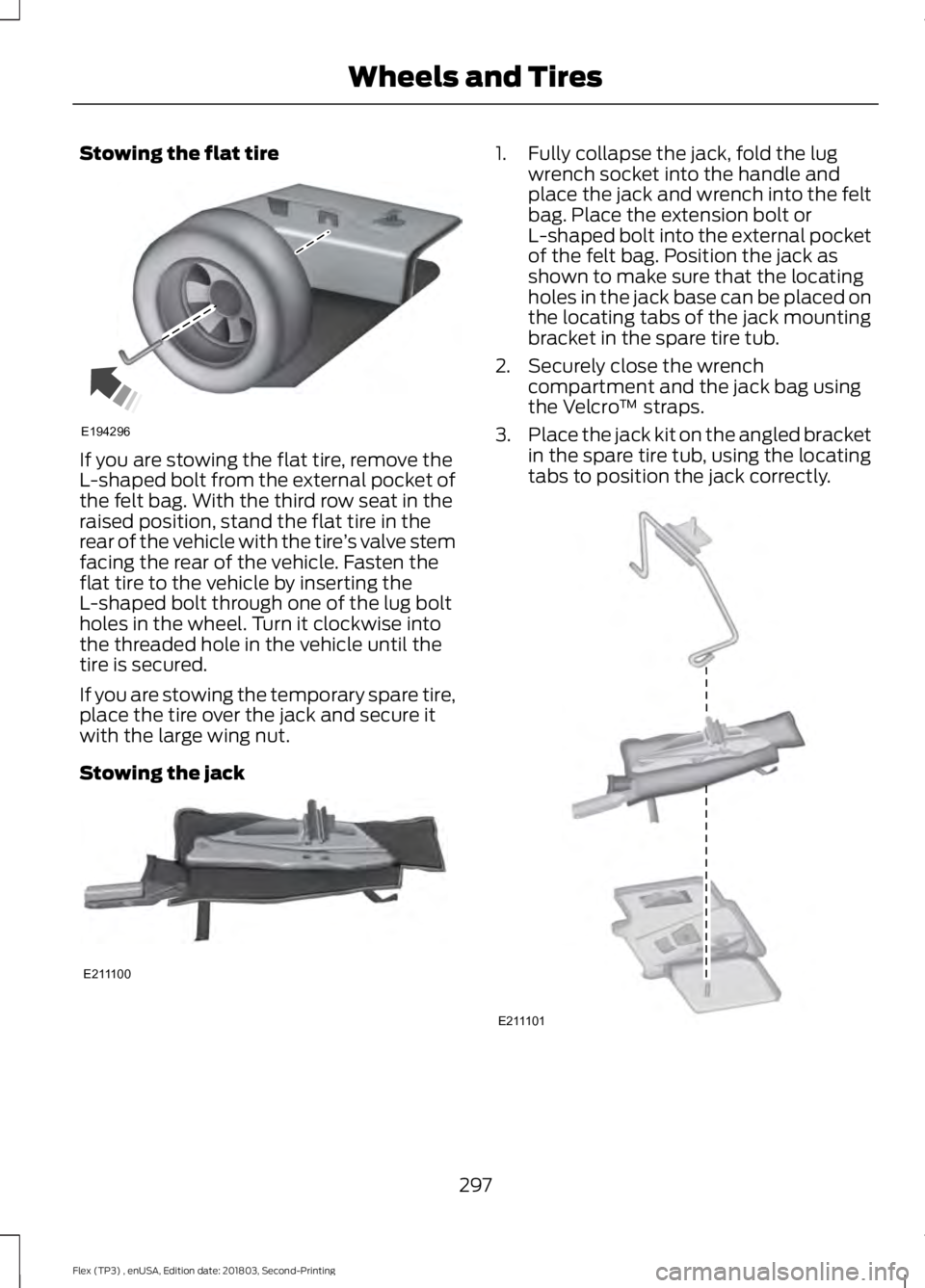
Stowing the flat tire
If you are stowing the flat tire, remove the
L-shaped bolt from the external pocket of
the felt bag. With the third row seat in the
raised position, stand the flat tire in the
rear of the vehicle with the tire
’s valve stem
facing the rear of the vehicle. Fasten the
flat tire to the vehicle by inserting the
L-shaped bolt through one of the lug bolt
holes in the wheel. Turn it clockwise into
the threaded hole in the vehicle until the
tire is secured.
If you are stowing the temporary spare tire,
place the tire over the jack and secure it
with the large wing nut.
Stowing the jack 1. Fully collapse the jack, fold the lug
wrench socket into the handle and
place the jack and wrench into the felt
bag. Place the extension bolt or
L-shaped bolt into the external pocket
of the felt bag. Position the jack as
shown to make sure that the locating
holes in the jack base can be placed on
the locating tabs of the jack mounting
bracket in the spare tire tub.
2. Securely close the wrench compartment and the jack bag using
the Velcro ™ straps.
3. Place the jack kit on the angled bracket
in the spare tire tub, using the locating
tabs to position the jack correctly. 297
Flex (TP3) , enUSA, Edition date: 201803, Second-Printing Wheels and TiresE194296 E211100 E211101
Page 301 of 513
4. Insert the straight end of the jack
retention bracket through the eyelet of
the angled bracket and swing the
retention bracket over the jack. With
the jack in place, place the looped end of the retention bracket over the
threaded stud in the trunk floor and
secure it with the plastic wing nut.
TECHNICAL SPECIFICATIONS
Wheel Lug Nut Torque Specifications WARNING: When you install a wheel, always remove any corrosion, dirt or foreign
materials present on the mounting surfaces of the wheel or the surface of the wheel hub,
brake drum or brake disc that contacts the wheel. Make sure to secure any fasteners that
attach the rotor to the hub so they do not interfere with the mounting surfaces of the
wheel. Installing wheels without correct metal-to-metal contact at the wheel mounting
surfaces can cause the wheel nuts to loosen and the wheel to come off while your vehicle
is in motion, resulting in loss of vehicle control, personal injury or death. lb.ft (Nm) *
Bolt size
100 lb.ft (135 Nm)
1/2 x 20
*Torque specifications are for nut and bolt threads free of dirt and rust. Use only Ford
recommended replacement fasteners.
Retighten the lug nuts to the specified torque within 100 miles (160 kilometers) after any
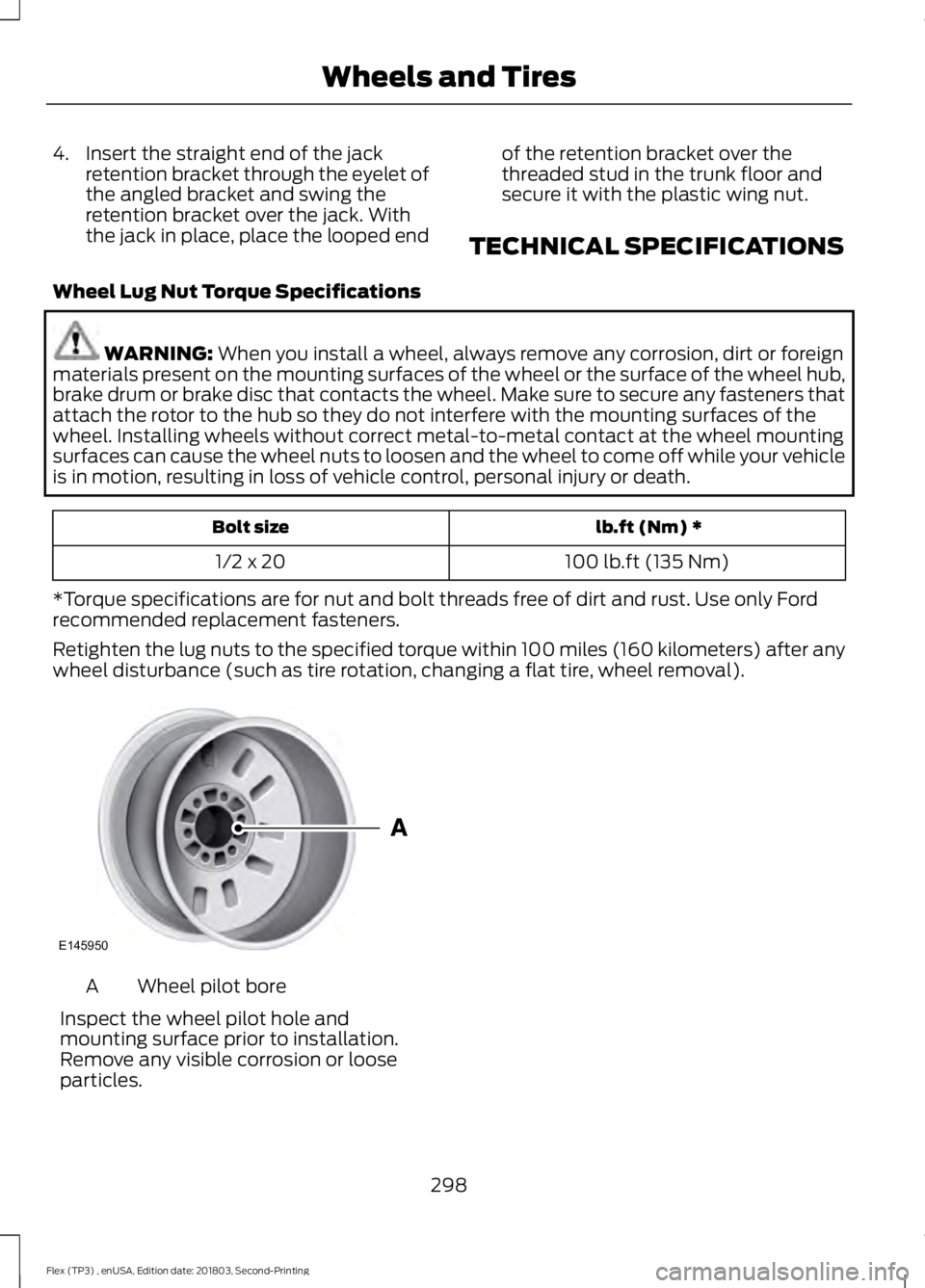
wheel disturbance (such as tire rotation, changing a flat tire, wheel removal). Wheel pilot bore
A
Inspect the wheel pilot hole and
mounting surface prior to installation.
Remove any visible corrosion or loose
particles.
298
Flex (TP3) , enUSA, Edition date: 201803, Second-Printing Wheels and TiresE145950
Page 344 of 513
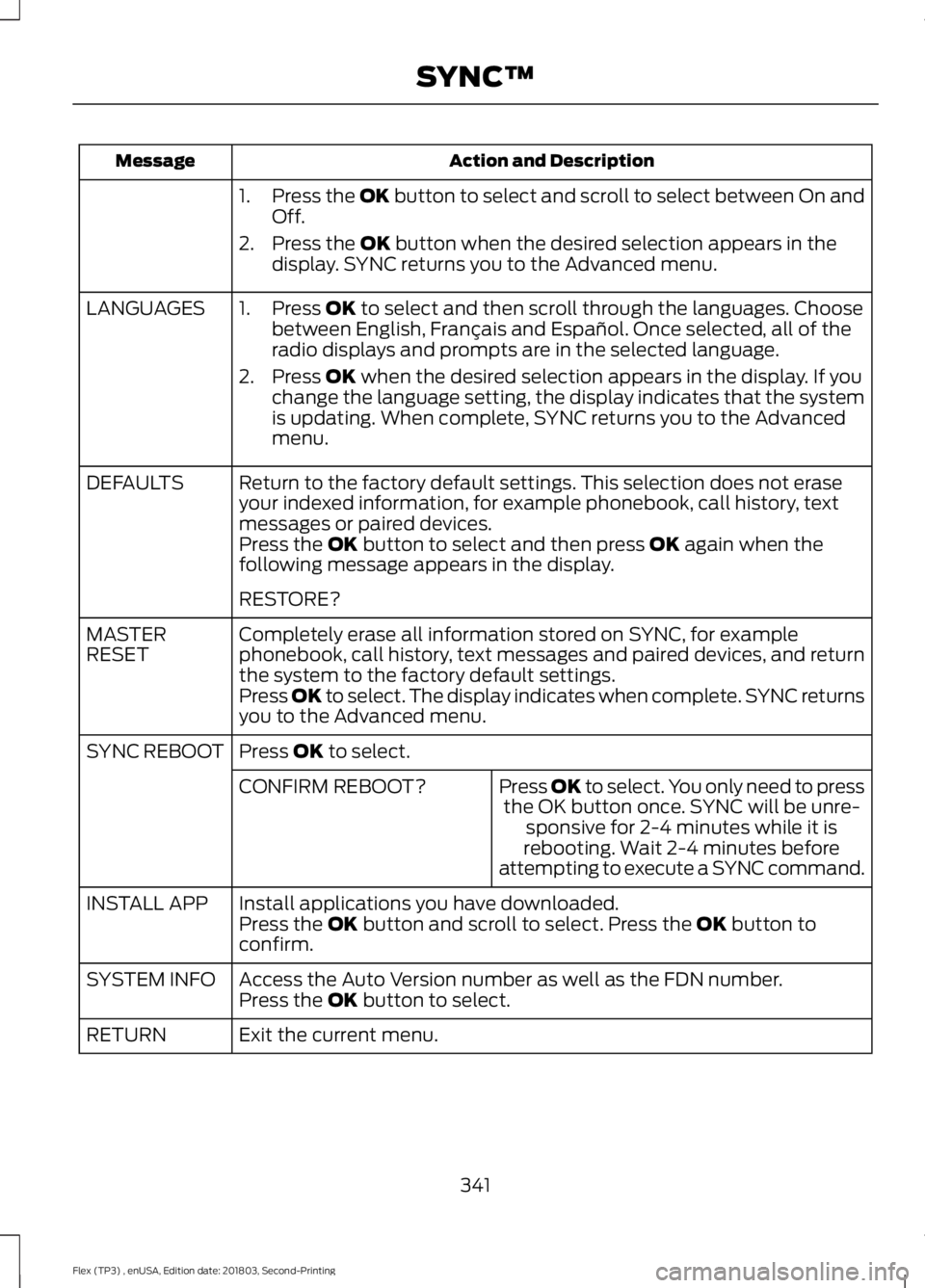
Action and Description
Message
1.Press the OK button to select and scroll to select between On and
Off.
2. Press the
OK button when the desired selection appears in the
display. SYNC returns you to the Advanced menu.
1. Press
OK to select and then scroll through the languages. Choose
between English, Français and Español. Once selected, all of the
radio displays and prompts are in the selected language.
2. Press
OK when the desired selection appears in the display. If you
change the language setting, the display indicates that the system
is updating. When complete, SYNC returns you to the Advanced
menu.
LANGUAGES
Return to the factory default settings. This selection does not erase
your indexed information, for example phonebook, call history, text
messages or paired devices.
DEFAULTS
Press the
OK button to select and then press OK again when the
following message appears in the display.
RESTORE?
Completely erase all information stored on SYNC, for example
phonebook, call history, text messages and paired devices, and return
the system to the factory default settings.
MASTER
RESET
Press OK to select. The display indicates when complete. SYNC returns
you to the Advanced menu.
Press
OK to select.
SYNC REBOOT
Press OK to select. You only need to pressthe OK button once. SYNC will be unre- sponsive for 2-4 minutes while it is
rebooting. Wait 2-4 minutes before
attempting to execute a SYNC command.
CONFIRM REBOOT?
Install applications you have downloaded.
INSTALL APP
Press the
OK button and scroll to select. Press the OK button to
confirm.
Access the Auto Version number as well as the FDN number.
SYSTEM INFO
Press the
OK button to select.
Exit the current menu.
RETURN
341
Flex (TP3) , enUSA, Edition date: 201803, Second-Printing SYNC™
Page 345 of 513
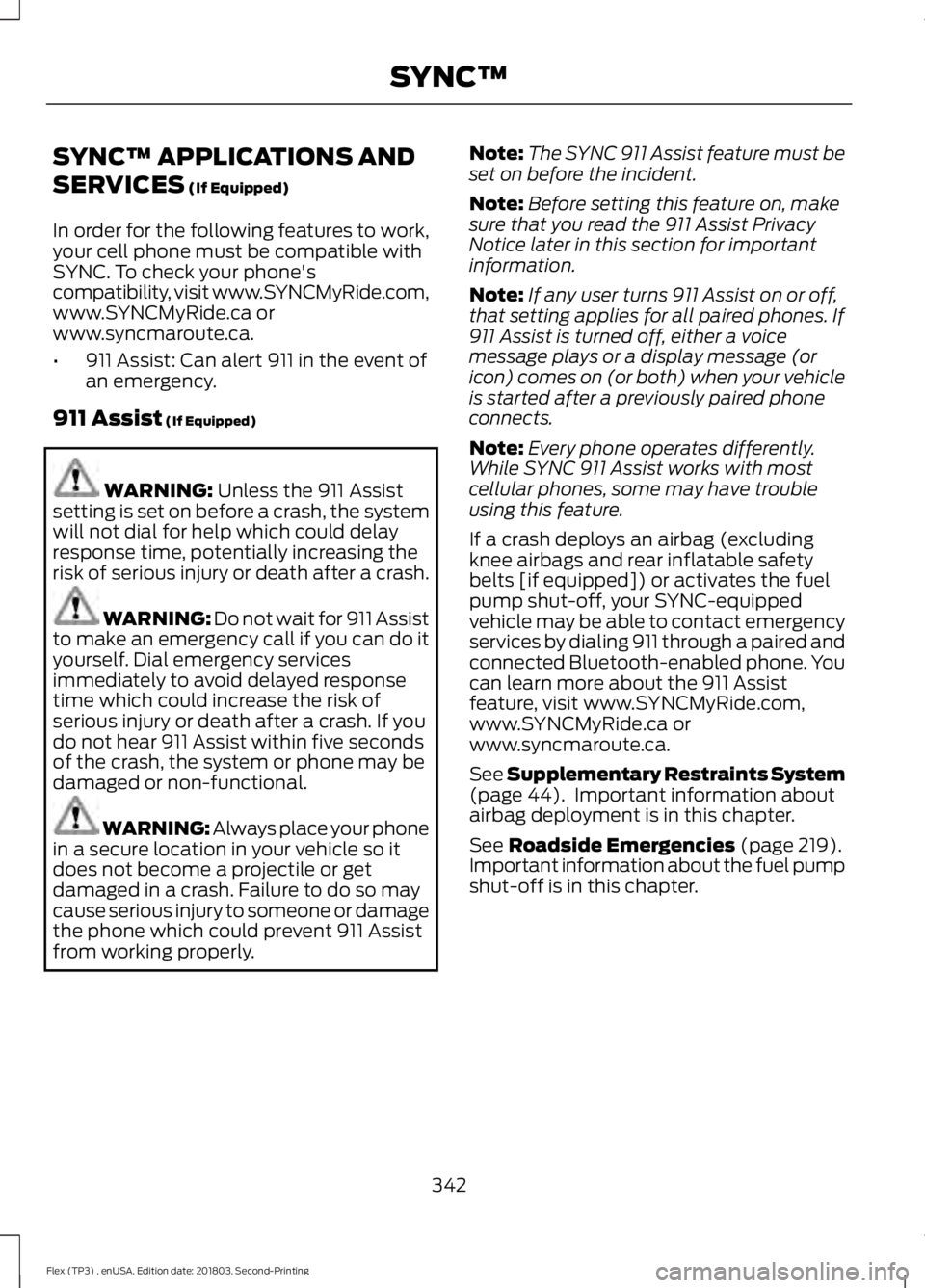
SYNC™ APPLICATIONS AND
SERVICES (If Equipped)
In order for the following features to work,
your cell phone must be compatible with
SYNC. To check your phone's
compatibility, visit www.SYNCMyRide.com,
www.SYNCMyRide.ca or
www.syncmaroute.ca.
• 911 Assist: Can alert 911 in the event of
an emergency.
911 Assist
(If Equipped) WARNING:
Unless the 911 Assist
setting is set on before a crash, the system
will not dial for help which could delay
response time, potentially increasing the
risk of serious injury or death after a crash. WARNING: Do not wait for 911 Assist
to make an emergency call if you can do it
yourself. Dial emergency services
immediately to avoid delayed response
time which could increase the risk of
serious injury or death after a crash. If you
do not hear 911 Assist within five seconds
of the crash, the system or phone may be
damaged or non-functional. WARNING: Always place your phone
in a secure location in your vehicle so it
does not become a projectile or get
damaged in a crash. Failure to do so may
cause serious injury to someone or damage
the phone which could prevent 911 Assist
from working properly. Note:
The SYNC 911 Assist feature must be
set on before the incident.
Note: Before setting this feature on, make
sure that you read the 911 Assist Privacy
Notice later in this section for important
information.
Note: If any user turns 911 Assist on or off,
that setting applies for all paired phones. If
911 Assist is turned off, either a voice
message plays or a display message (or
icon) comes on (or both) when your vehicle
is started after a previously paired phone
connects.
Note: Every phone operates differently.
While SYNC 911 Assist works with most
cellular phones, some may have trouble
using this feature.
If a crash deploys an airbag (excluding
knee airbags and rear inflatable safety
belts [if equipped]) or activates the fuel
pump shut-off, your SYNC-equipped
vehicle may be able to contact emergency
services by dialing 911 through a paired and
connected Bluetooth-enabled phone. You
can learn more about the 911 Assist
feature, visit www.SYNCMyRide.com,
www.SYNCMyRide.ca or
www.syncmaroute.ca.
See
Supplementary Restraints System
(page 44). Important information about
airbag deployment is in this chapter.
See
Roadside Emergencies (page 219).
Important information about the fuel pump
shut-off is in this chapter.
342
Flex (TP3) , enUSA, Edition date: 201803, Second-Printing SYNC™
Page 358 of 513
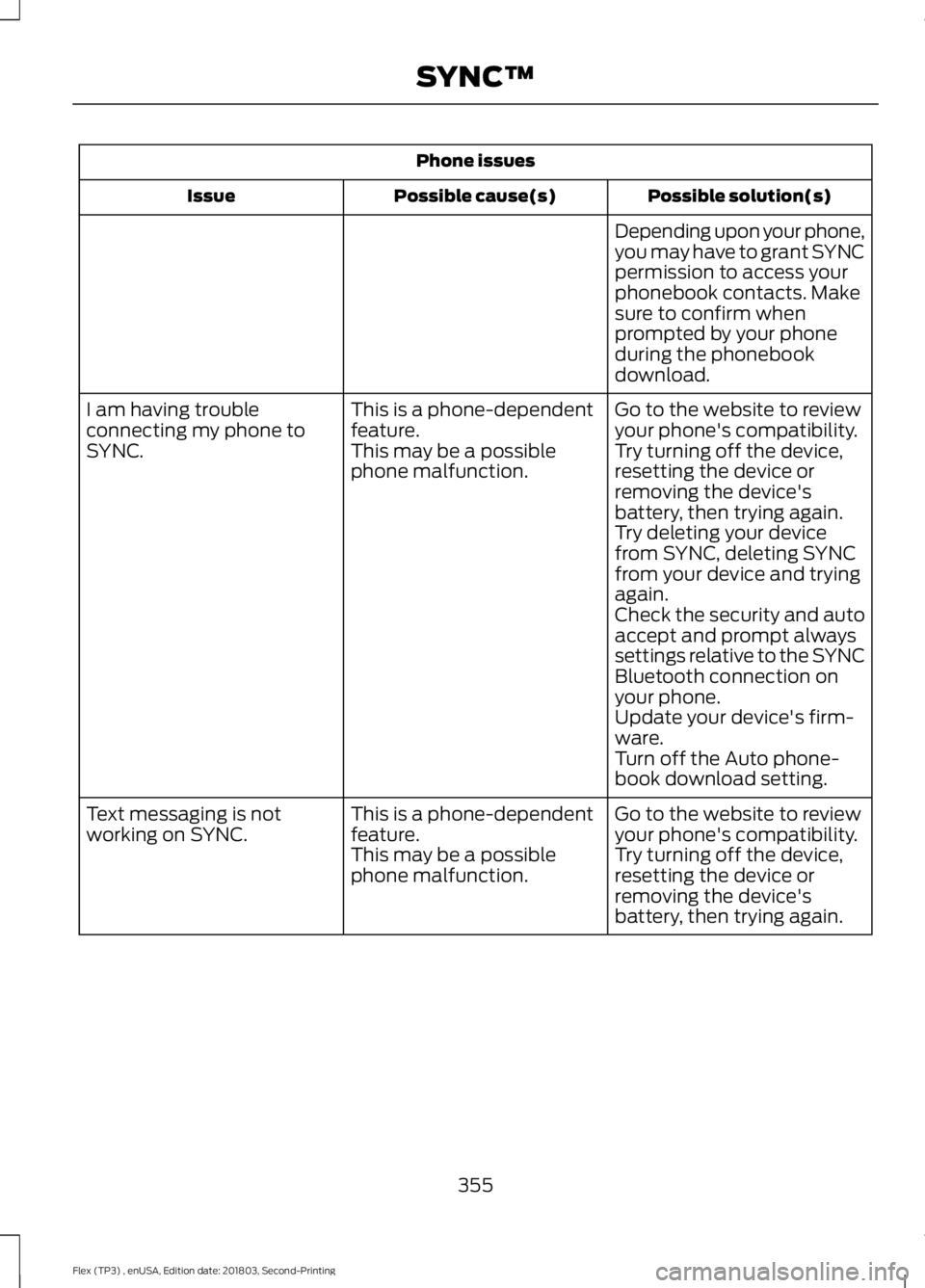
Phone issues
Possible solution(s)
Possible cause(s)
Issue
Depending upon your phone,
you may have to grant SYNC
permission to access your
phonebook contacts. Make
sure to confirm when
prompted by your phone
during the phonebook
download.
Go to the website to review
your phone's compatibility.
This is a phone-dependent
feature.
I am having trouble
connecting my phone to
SYNC.
Try turning off the device,
resetting the device or
removing the device's
battery, then trying again.
This may be a possible
phone malfunction.
Try deleting your device
from SYNC, deleting SYNC
from your device and trying
again.
Check the security and auto
accept and prompt always
settings relative to the SYNC
Bluetooth connection on
your phone.
Update your device's firm-
ware.
Turn off the Auto phone-
book download setting.
Go to the website to review
your phone's compatibility.
This is a phone-dependent
feature.
Text messaging is not
working on SYNC.
Try turning off the device,
resetting the device or
removing the device's
battery, then trying again.
This may be a possible
phone malfunction.
355
Flex (TP3) , enUSA, Edition date: 201803, Second-Printing SYNC™
Page 359 of 513
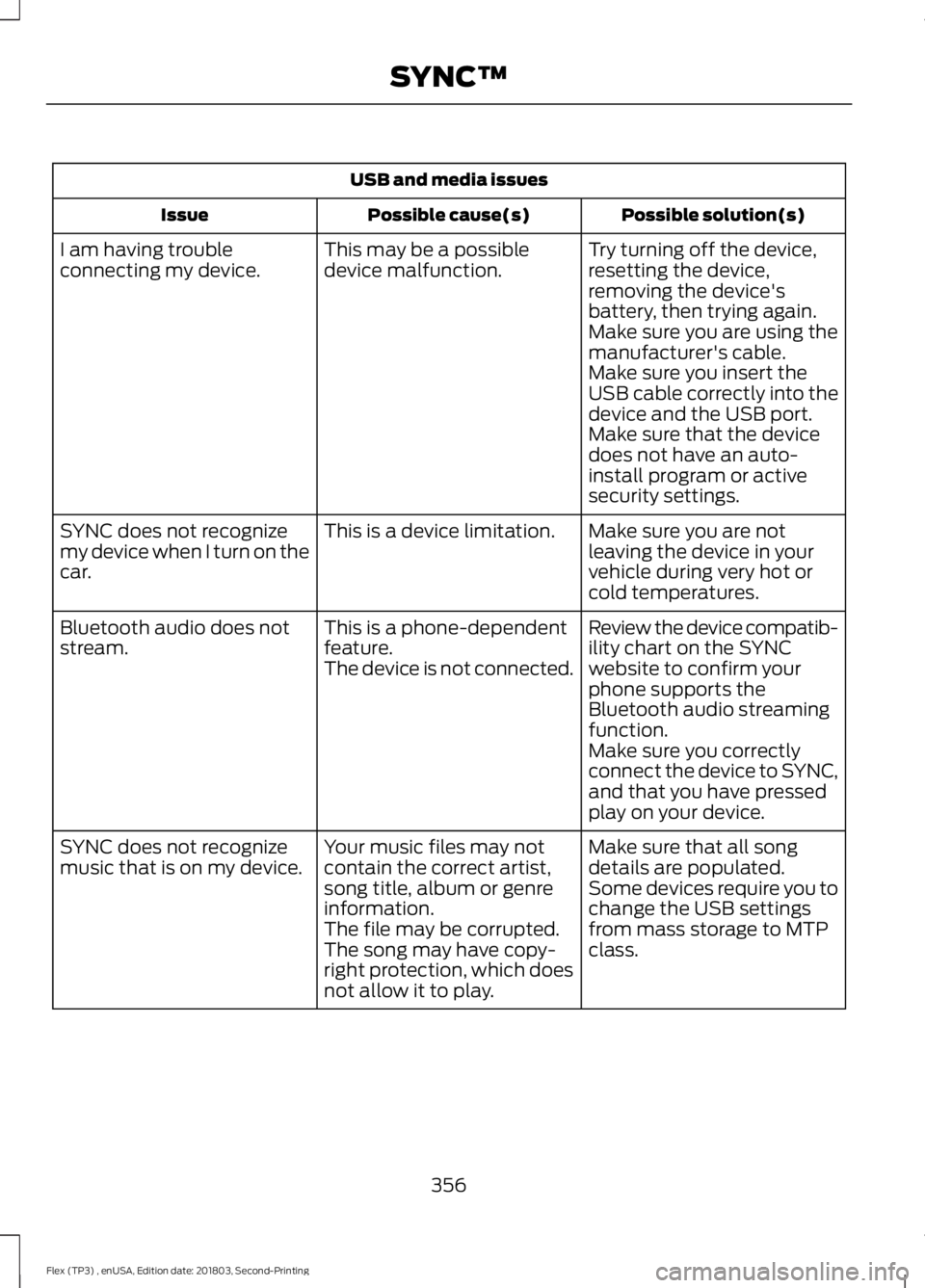
USB and media issues
Possible solution(s)
Possible cause(s)
Issue
Try turning off the device,
resetting the device,
removing the device's
battery, then trying again.
This may be a possible
device malfunction.
I am having trouble
connecting my device.
Make sure you are using the
manufacturer's cable.
Make sure you insert the
USB cable correctly into the
device and the USB port.
Make sure that the device
does not have an auto-
install program or active
security settings.
Make sure you are not
leaving the device in your
vehicle during very hot or
cold temperatures.
This is a device limitation.
SYNC does not recognize
my device when I turn on the
car.
Review the device compatib-
ility chart on the SYNC
website to confirm your
phone supports the
Bluetooth audio streaming
function.
This is a phone-dependent
feature.
The device is not connected.
Bluetooth audio does not
stream.
Make sure you correctly
connect the device to SYNC,
and that you have pressed
play on your device.
Make sure that all song
details are populated.
Your music files may not
contain the correct artist,
song title, album or genre
information.
SYNC does not recognize
music that is on my device.
Some devices require you to
change the USB settings
from mass storage to MTP
class.
The file may be corrupted.
The song may have copy-
right protection, which does
not allow it to play.
356
Flex (TP3) , enUSA, Edition date: 201803, Second-Printing SYNC™