buttons FORD FOCUS ELECTRIC 2014 3.G User Guide
[x] Cancel search | Manufacturer: FORD, Model Year: 2014, Model line: FOCUS ELECTRIC, Model: FORD FOCUS ELECTRIC 2014 3.GPages: 403, PDF Size: 6.42 MB
Page 283 of 403
Using the Touch-sensitive Controls on Your System
To turn a feature on and off, just touch the graphic with your finger.
To get the best performance from the touch-sensitive controls:
•Do not press hard on the controls. They are sensitive to light touch.
•Use your bare finger to touch the center of a touch-control graphic.
Touching off-center of the graphic may affect operation of a nearby
control.
•Make sure your hands are clean and dry.
•
Keep metal and other conductive material away from the surface of the
touchscreen as this may cause electronic interference (for example,
inadvertently turning on a feature other than the one you meant to
turn on).
Depending on your vehicle and option package, you may also have these
controls on your bezel:
•Power: Switch the media or climate features off and on.
•VOL:Control the volume of playing media.
•Fan: Control the speed of the climate system fan.
•Seek and Tune buttons: Use as you normally would in media modes.
•Eject: Eject a CD from the entertainment system.
•SOURCE:Touch the word repeatedly to see all available media
modes. The screen does not change, but you see the media change in
the lower left status bar.
•SOUND:Touch the word to access the Sound menu where you can
adjust settings such as: Bass, Treble, Midrange, Balance and Fade,
THX Deep Note Demo, DSP (Digital Signal Processing), Occupancy
Mode and Speed Compensated Volume. (Your vehicle may not have
all of these sound options.)
•Hazard flasher: Switch the hazard flashers off and on.
Cleaning the Touchscreen Display
Use a clean, soft cloth such as one used for cleaning glasses. If dirt or
fingerprints are still visible, apply a small amount of alcohol to the cloth.
Do not pour or spray alcohol onto the display. Do not use detergent or
any type of solvent to clean the display.
282MyFord Touch®
2014 Focus Electric Vehicle(fob)
Owners Guide gf, 1st Printing, May 2013
USA(fus)
Page 288 of 403
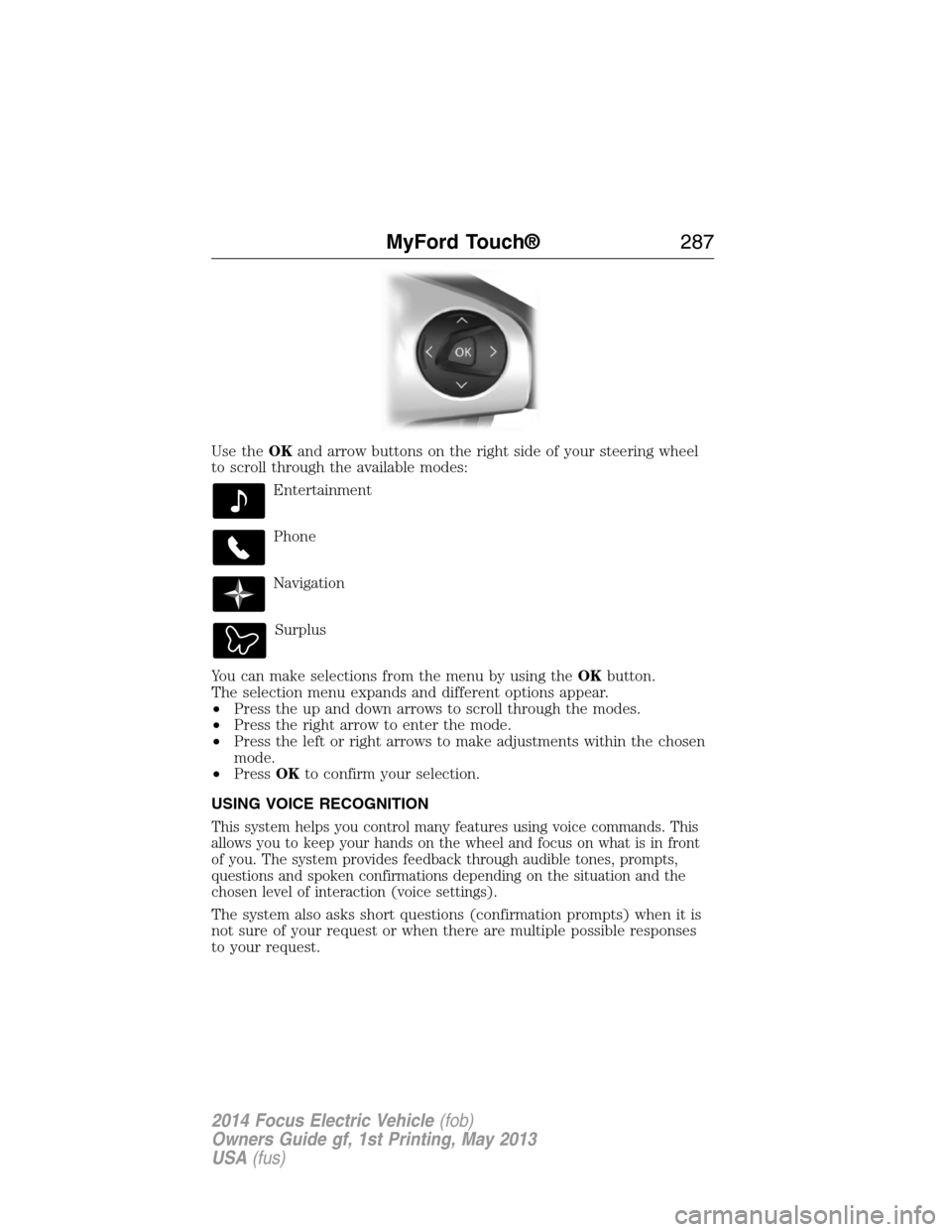
Use theOKand arrow buttons on the right side of your steering wheel
to scroll through the available modes:
Entertainment
Phone
Navigation
Surplus
You can make selections from the menu by using theOKbutton.
The selection menu expands and different options appear.
•Press the up and down arrows to scroll through the modes.
•Press the right arrow to enter the mode.
•Press the left or right arrows to make adjustments within the chosen
mode.
•PressOKto confirm your selection.
USING VOICE RECOGNITION
This system helps you control many features using voice commands. This
allows you to keep your hands on the wheel and focus on what is in front
of you. The system provides feedback through audible tones, prompts,
questions and spoken confirmations depending on the situation and the
chosen level of interaction (voice settings).
The system also asks short questions (confirmation prompts) when it is
not sure of your request or when there are multiple possible responses
to your request.
MyFord Touch®287
2014 Focus Electric Vehicle(fob)
Owners Guide gf, 1st Printing, May 2013
USA(fus)
Page 292 of 403
Using Voice Commands with the Touchscreen Options
Your voice system has a dual mode feature which allows you to switch
between using voice commands and making on-screen selections. This is
available only when the system displays a list of candidates generated
during a voice session. For example, when entering in a street address
or trying to call a contact from the phone you paired to the system.
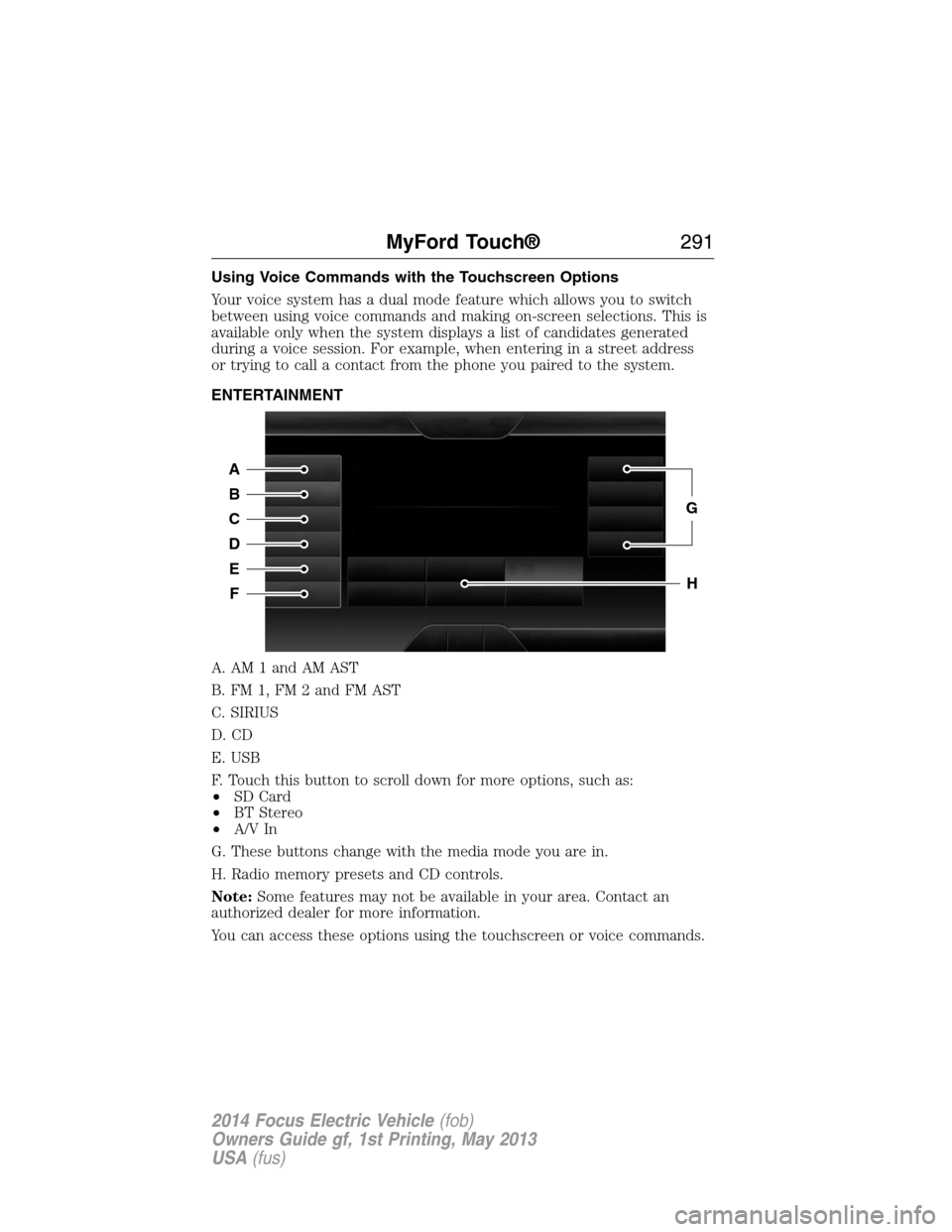
ENTERTAINMENT
A. AM 1 and AM AST
B. FM 1, FM 2 and FM AST
C. SIRIUS
D. CD
E. USB
F. Touch this button to scroll down for more options, such as:
•SD Card
•BT Stereo
•A/V In
G. These buttons change with the media mode you are in.
H. Radio memory presets and CD controls.
Note:Some features may not be available in your area. Contact an
authorized dealer for more information.
You can access these options using the touchscreen or voice commands.
A
B
C
D
E
F
G
H
MyFord Touch®291
2014 Focus Electric Vehicle(fob)
Owners Guide gf, 1st Printing, May 2013
USA(fus)
Page 300 of 403
Sirius Satellite Radio (If Activated)
Press the lower left corner of the touchscreen, then select the
SIRIUStab.
Presets
Save a channel by pressing and holding one of the memory preset areas.
There is a brief mute while the radio saves the channel. Sound returns
when finished.
ALERT
Save the current song, artist, or team as a favorite. The system alerts
you when it plays again on any channel.
Replay
Replay audio on the current channel. You can replay approximately
45 minutes of audio as long as you have remained tuned to the current
station. Changing stations erases the previous audio.
While in replay mode:
•Press and release the seek buttons to hear the previous or next song.
•Press and hold the seek buttons to reverse or fast forward in the
current track.
•Press play or pause to play or pause the audio.
•PressReplayto return to live audio if you have been using the
feature to replay audio.
Scan
Touch this button to hear a brief sampling of channels.
Options
Sound Settingsallows you to adjust settings for:
•Bass
•Midrange
•Treble
•Balance and Fade
•DSP (Digital Signal Processing)
•Occupancy Mode
•Speed Compensated Volume.
Note:Your vehicle may not have all these sound settings.
Set Category for Seek/Scanallows you to select a category of music
you would like to search for. You can then choose to either seek or scan
for the stations playing that category.
MyFord Touch®299
2014 Focus Electric Vehicle(fob)
Owners Guide gf, 1st Printing, May 2013
USA(fus)
Page 325 of 403
GO Time Schedule
Touch theEditbutton in the My GO Time section of the Settings screen
to see the GO Time Schedule.
Onturns on the GO Time schedule.
Offturns off the GO Time schedule. This also turns off the cabin
conditioning function. Use this mode to prevent using energy for cabin
preconditioning when you leave your vehicle plugged in and don’t plan to
use it for a while, such as when on vacation.
Note:If you choose to perform Value Charging with the schedule off, the
vehicle schedules charging to finish at the lowest cost within 24 hours of
plugging the vehicle in.
GO Time 1andGO Time 2display the GO Time day-of-week and time.
The blue highlighted GO Time is the present GO Time the vehicle is
using for charge scheduling and cabin conditioning. You can schedule
two GO Time events per day for each day of the week.
•GO Timeallows you to edit the GO Time and cabin conditioning
temperature.
•--:--indicates that you can add a GO Time to this slot.
Note:If you set GO Time 2 to occur before GO Time 1, a message pops
up alerting you. You need to go back to the previous screen and change
the times so GO Time 1 occurs before GO Time 2.
GO Time and Cabin Conditioning
This screen allows you to enter or change the GO Time and cabin
conditioning temperature.
Time Buttons (+ and -)changes the hours and minutes of your GO
Time. The minutes change in increments of five. You can also change the
settings for AM and PM by touching those buttons.
Cabin Conditioning Buttons (+ and -)changes the setting for your
selected cabin conditioning temperature for this GO Time event. You can
select from four settings:
•65°F (18.5°C)
•72°F (22.0°C)
•85°F (29.5°C)
•Off.
Note:Cabin conditioning can perform differently depending on if you
plug into a 120V convenience cord or 240V charging station. The power
available for conditioning is limited to the charging station power
available.
324MyFord Touch®
2014 Focus Electric Vehicle(fob)
Owners Guide gf, 1st Printing, May 2013
USA(fus)
Page 335 of 403
If your vehicle is equipped with Navigation, touch the i
(Information) button to access these features. If your vehicle is
not equipped with Navigation, touch the corner of the
touchscreen with the green tab.
Traffic On Route and Traffic Nearby
Touch these buttons to identify traffic incidents on your route, nearby
your vehicle’s current location or near any of your favorite places, if
programmed.
Fuel Prices
Touch this button to view fuel prices at stations close to your vehicle’s
location or on an active navigation route.
Movie Listings
Touch this button to view nearby movie theaters and their show times, if
available.
Weather
Touch this button to view the nearby weather, current weather, or the
five day forecast for the chosen area. SelectMapto see the weather
map, which can show storms, radar information, charts and winds. Select
Areato select from a listing of weather locations.
Sports Info
Touch this button to view scores and schedules from a variety of sports.
You can also save up to 10 favorite teams for easier access. The score
automatically refreshes when a game is in progress.
Ski Conditions
Touch this button to view ski conditions for a specific area.
334MyFord Touch®
2014 Focus Electric Vehicle(fob)
Owners Guide gf, 1st Printing, May 2013
USA(fus)
Page 352 of 403
Help
Press the Settings icon >Help,then select from the following:
Help
Where Am I?View your vehicle’s current location, if your
vehicle is equipped with navigation. If your
vehicle is not equipped with navigation,
nothing displays.
System InformationTouchscreen system serial number.
Your vehicle identification number (VIN).
Touchscreen system software version.
Navigation system version.
Map database version.
Sirius satellite radio electronic serial number
(ESN).
Gracenote Database Information and Library
version.
Software LicensesView the licenses for any software and
applications installed on your system.
Driving RestrictionsCertain features are not accessible when your
vehicle is moving.
911 AssistTurn on and turn off the 911 Assist feature.
See911 Assistin theSYNC applications
and servicessection.
In Case of Emergency (ICE) Speed Dial
allows you to save up to two numbers as ICE
contacts for quick access if there is an
emergency. SelectEditto access your
phonebook and then select the desired
contacts. The numbers then appear as options
on this screen for the ICE 1 and ICE 2
buttons. The ICE contacts you select appear
at the end of the 911 Assist call process.
Voice Command ListView categorized lists of voice commands.
MyFord Touch®351
2014 Focus Electric Vehicle(fob)
Owners Guide gf, 1st Printing, May 2013
USA(fus)
Page 359 of 403
Range Rings and Charge Points
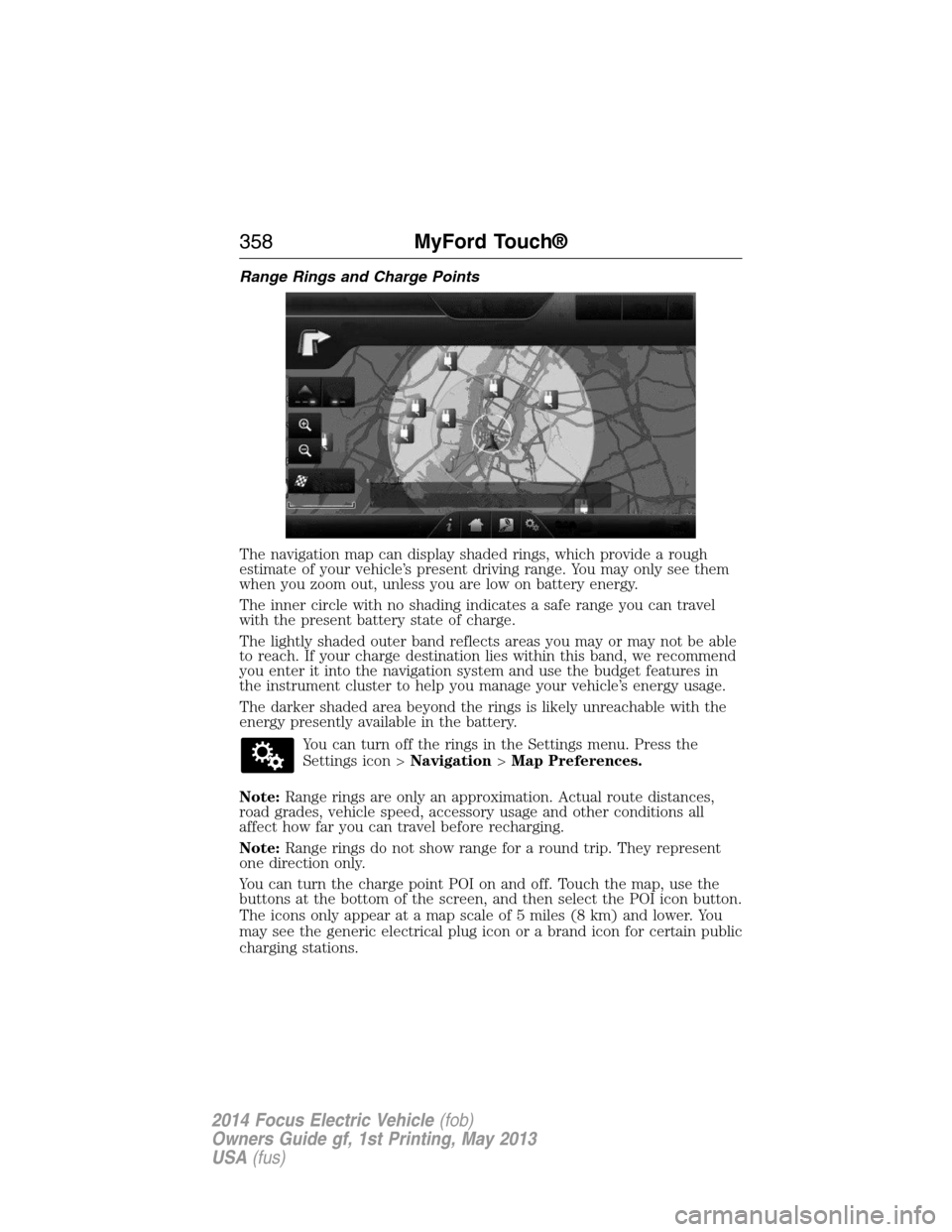
The navigation map can display shaded rings, which provide a rough
estimate of your vehicle’s present driving range. You may only see them
when you zoom out, unless you are low on battery energy.
The inner circle with no shading indicates a safe range you can travel
with the present battery state of charge.
The lightly shaded outer band reflects areas you may or may not be able
to reach. If your charge destination lies within this band, we recommend
you enter it into the navigation system and use the budget features in
the instrument cluster to help you manage your vehicle’s energy usage.
The darker shaded area beyond the rings is likely unreachable with the
energy presently available in the battery.
You can turn off the rings in the Settings menu. Press the
Settings icon >Navigation>Map Preferences.
Note:Range rings are only an approximation. Actual route distances,
road grades, vehicle speed, accessory usage and other conditions all
affect how far you can travel before recharging.
Note:Range rings do not show range for a round trip. They represent
one direction only.
You can turn the charge point POI on and off. Touch the map, use the
buttons at the bottom of the screen, and then select the POI icon button.
The icons only appear at a map scale of 5 miles (8 km) and lower. You
may see the generic electrical plug icon or a brand icon for certain public
charging stations.
358MyFord Touch®
2014 Focus Electric Vehicle(fob)
Owners Guide gf, 1st Printing, May 2013
USA(fus)
Page 364 of 403
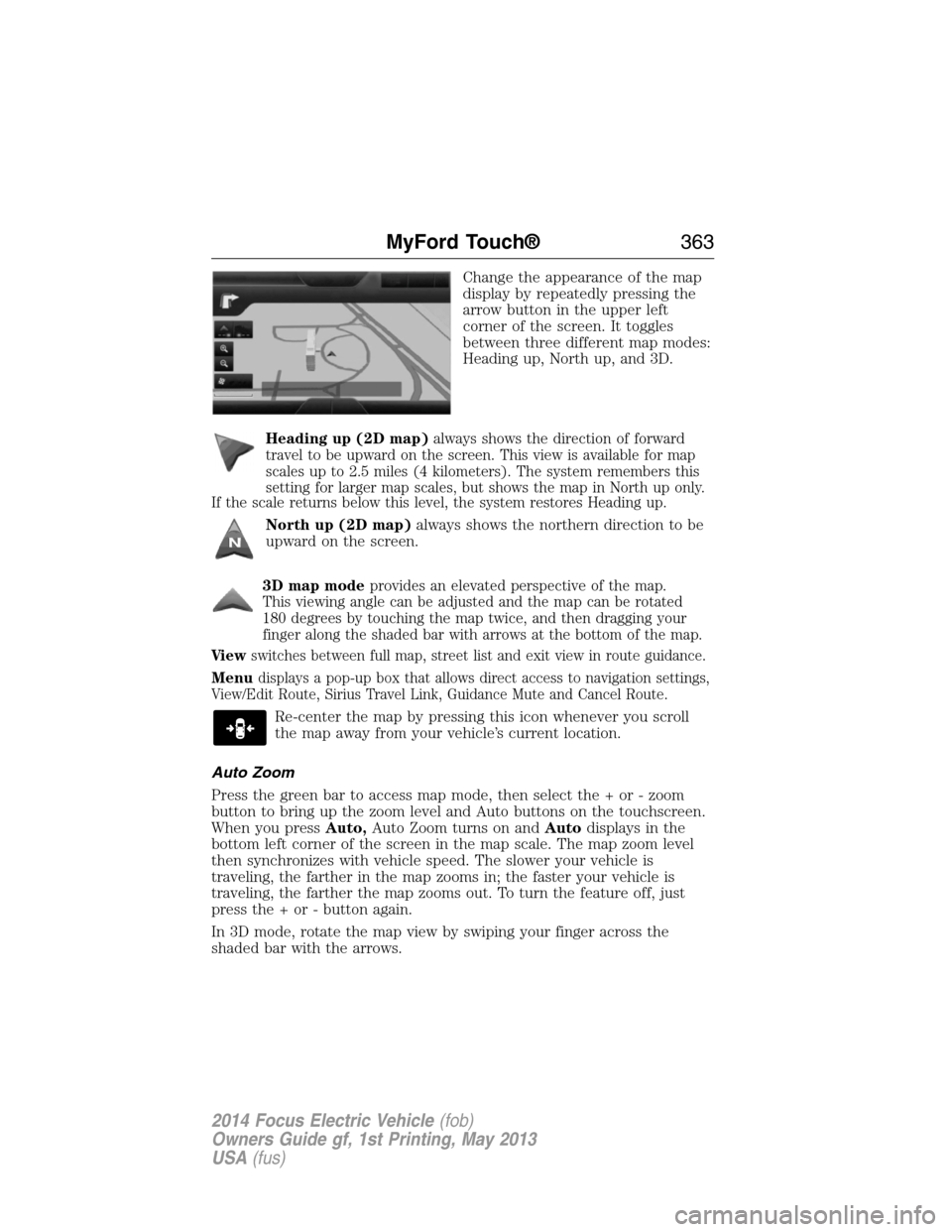
Change the appearance of the map
display by repeatedly pressing the
arrow button in the upper left
corner of the screen. It toggles
between three different map modes:
Heading up, North up, and 3D.
Heading up (2D map)
always shows the direction of forward
travel to be upward on the screen. This view is available for map
scales up to 2.5 miles (4 kilometers). The system remembers this
setting for larger map scales, but shows the map in North up only.
If the scale returns below this level, the system restores Heading up.
North up (2D map)always shows the northern direction to be
upward on the screen.
3D map mode
provides an elevated perspective of the map.
This viewing angle can be adjusted and the map can be rotated
180 degrees by touching the map twice, and then dragging your
finger along the shaded bar with arrows at the bottom of the map.
Vi e wswitches between full map, street list and exit view in route guidance.
Menudisplays a pop-up box that allows direct access to navigation settings,
View/Edit Route, Sirius Travel Link, Guidance Mute and Cancel Route.
Re-center the map by pressing this icon whenever you scroll
the map away from your vehicle’s current location.
Auto Zoom
Press the green bar to access map mode, then select the + or - zoom
button to bring up the zoom level and Auto buttons on the touchscreen.
When you pressAuto,Auto Zoom turns on andAutodisplays in the
bottom left corner of the screen in the map scale. The map zoom level
then synchronizes with vehicle speed. The slower your vehicle is
traveling, the farther in the map zooms in; the faster your vehicle is
traveling, the farther the map zooms out. To turn the feature off, just
press the + or - button again.
In 3D mode, rotate the map view by swiping your finger across the
shaded bar with the arrows.
MyFord Touch®363
2014 Focus Electric Vehicle(fob)
Owners Guide gf, 1st Printing, May 2013
USA(fus)
Page 366 of 403
Quick-touch Buttons
When in map mode, touch anywhere on the map display to access more
features.
Set as Dest
Touch this button to select a scrolled location on the map as your
destination. You may scroll the map by pressing your index finger on the
map display. When you reach the desired location, simply let go and then
touchSet as Dest.
Set as Waypoint
Touch this button to set the current location as a waypoint.
Save to Favorites
Touch this button to save the current location to your favorites.
POI Icons
Touch this button to select icons to display on the map. You can select
up to three icons to display on the map at the same time. Turn theseON
orOFF.
Cancel Route
Touch this button to cancel the active route.
View/Edit Route
Access these features when a route is active:
•View Route
•Edit Destination/Waypoints
•Edit Turn List
•Detour
•Edit Route Preferences
•Edit Traffic Preferences
•Cancel Route.
Nokia is the digital map provider for the navigation application. If you
find map data errors, you may report them directly to Nokia by going to
http://mapreporter.navteq.com. Nokia evaluates all reported map errors
and responds with the result of their investigation by e-mail.
Navigation Map Updates
Annual navigation map updates are available for purchase through your
dealership, by calling 1-800-NAVMAPS (in Mexico, call 01–800–557–5539)
or going to www.navigation.com/ford. You need to specify the make and
model of your vehicle to determine if there is an update available.
MyFord Touch®365
2014 Focus Electric Vehicle(fob)
Owners Guide gf, 1st Printing, May 2013
USA(fus)