reset FORD FOCUS ELECTRIC 2015 3.G User Guide
[x] Cancel search | Manufacturer: FORD, Model Year: 2015, Model line: FOCUS ELECTRIC, Model: FORD FOCUS ELECTRIC 2015 3.GPages: 369, PDF Size: 4.53 MB
Page 177 of 369
WARNINGS
Keep batteries out of reach of
children. Batteries contain sulfuric
acid. Avoid contact with skin, eyes or
clothing. Shield your eyes when working
near the battery to protect against possible
splashing of acid solution. In case of acid
contact with skin or eyes, flush
immediately with water for a minimum of
15 minutes and get prompt medical
attention. If acid is swallowed, call a
physician immediately. Battery posts, terminals and related
accessories contain lead and lead
compounds. Wash hands after
handling. Your vehicle is fitted with a Motorcraft
maintenance-free battery, which normally
does not require additional water.
Note:
After cleaning or replacing the
battery, make sure you reinstall the battery
cover or shield.
When a battery replacement is required,
you should replace the battery with a Ford
recommended replacement battery that
matches the electrical requirements of the
vehicle.
Note: Contact an authorized dealer for low
voltage battery access, testing or
replacement.
To make sure the battery management
system works correctly, do not connect an
electrical device ground connection
directly to the low voltage battery negative
post. This can cause inaccurate
measurements of the battery condition
and potential incorrect system operation.
Note: If you add electrical accessories or
components to the vehicle, it may adversely
affect the low voltage battery performance
and durability. This may also affect the
performance of other electrical systems in
the vehicle. For longer, trouble-free operation, keep the
top of the battery clean and dry.
If you see any corrosion on the battery or
terminals, remove the cables from the
terminals and clean with a wire brush. You
can neutralize the acid with a solution of
baking soda and water.
A computer electronically controls your
vehicle. The power of the low voltage
battery maintains the memory of some
settings, for example, clock setting or radio
presets. When the low voltage battery is
disconnected and then connected, these
settings erase.
To restore the settings, do the following:
1. Apply the parking brake.
2. Shift into park (P).
3. Switch off all accessories.
4. Press the brake pedal and start your
vehicle.
5. Reset the clock.
6. Reset the bounce-back feature. See Power Windows (page 77).
7. Reset the radio station presets. See Audio System
(page 227).
Make sure that you dispose of old batteries
in an environmentally friendly way. Seek
advice from your local authority about
recycling old batteries.
If storing your vehicle for more than 30
days without recharging the battery, we
recommend that you disconnect the
battery cables to maintain battery charge
for quick starting.
174
Focus (CDH), enUSA, First Printing Maintenance
Page 190 of 369
We engineer and test all motor vehicles
and their components for reliable, regular
driving. Under various conditions,
long-term storage may lead to degraded
engine performance or failure unless you
use specific precautions to preserve engine
components.
General
•
Store all vehicles in a dry, ventilated
place.
• Protect from sunlight, if possible.
• If you store vehicles outside, they
require regular maintenance to protect
against rust and damage.
Body
• Wash your vehicle thoroughly to
remove dirt, grease, oil, tar or mud from
exterior surfaces, rear-wheel housing
and the underside of front fenders.
• Periodically wash your vehicle if you
store it in exposed locations.
• Touch-up exposed or primed metal to
prevent rust.
• Cover chrome and stainless steel parts
with a thick coat of auto wax to prevent
discoloration. Re-wax as necessary
when you wash your vehicle.
• Lubricate all hood, door and luggage
compartment hinges and latches with
a light grade oil.
• Cover interior trim to prevent fading.
• Keep all rubber parts free from oil and
solvents.
Electric Motor
• Start your vehicle every 15 days for a
minimum of 15 minutes. Run at fast idle
with the climate controls set to defrost
until your vehicle reaches normal
operating temperature. Fuel System
•
Fill the fuel tank with high-quality fuel
until the first automatic shutoff of the
fuel pump nozzle.
Cooling System
• Protect against freezing temperatures.
• When removing your vehicle from
storage, check coolant fluid level.
Confirm that there are no cooling
system leaks and that fluid is at the
recommended level.
12V Battery
• Check and recharge as necessary. Keep
connections clean.
• If storing your vehicle for more than 30
days without recharging the battery,
we recommend that you disconnect
the battery cables to maintain battery
charge for quick starting.
Note: It is necessary to reset memory
features if you disconnect the battery
cables.
We recommend the following options for
your plug-in vehicle:
• Leave your vehicle plugged in. The 12V
battery maintains power if left plugged
in. However, this periodically uses
electricity from the household outlet.
• Connect a battery charger to your 12V
battery and leave it on a continuous,
slow charge.
• Disconnect the 12V battery. If your 12V
battery is located in the luggage
compartment, do not fully shut the
luggage compartment after
disconnecting the 12V battery. Only
leave the luggage compartment open
if your vehicle is stored in a locked
location.
187
Focus (CDH), enUSA, First Printing Vehicle Care
Page 218 of 369
Tire and Wheel Alignment
A bad jolt from hitting a curb or
pothole can cause the front end
of your vehicle to become
misaligned or cause damage to
your tires. If your vehicle seems to
pull to one side when you are
driving, the wheels may be out of
alignment. Have an authorized
dealer check the wheel alignment
periodically.
Wheel misalignment in the front
or the rear can cause uneven and
rapid treadwear of your tires and
should be corrected by an
authorized dealer. Front-wheel
drive vehicles and those with an
independent rear suspension (if
equipped) may require alignment
of all four wheels.
The tires should also be balanced
periodically. An unbalanced tire
and wheel assembly may result in
irregular tire wear.
Tire Rotation WARNING
If the tire label shows
different tire pressures for the
front and rear tires and the vehicle
is equipped with a tire pressure
monitoring system, then the
settings for the system sensors
need to be updated. Always
perform the system reset
procedure after tire rotation. If the
system is not reset, it may not
provide a low tire pressure
warning when necessary. See Tire
Pressure Monitoring System
(page 216). Note:
If your tires show uneven
wear ask an authorized dealer to
check for and correct any wheel
misalignment, tire imbalance or
mechanical problem involved
before tire rotation.
Note: Your vehicle may be
equipped with a dissimilar spare
wheel and tire assembly. A
dissimilar spare wheel and tire
assembly is defined as a spare
wheel and tire assembly that is
different in brand, size or
appearance from the road tires and
wheels. If you have a dissimilar
spare wheel and tire assembly it is
intended for temporary use only
and should not be used in a tire
rotation.
Note: After having your tires
rotated, inflation pressure must be
checked and adjusted to the
vehicle requirements.
215
Focus (CDH), enUSA, First Printing Wheels and Tires
Page 239 of 369
Speed-restricted Features
Editing the list of wireless networks
Adding or editing wallpaper
Photos and Graphics
Composing text messages
Text Messages
Viewing received text messages
Editing preset text messages
Using the keyboard to enter a destination
Navigation
Demo navigation route
Adding or editing Address Book or Avoid Area entries
Privacy Information
When you connect a cell phone to SYNC,
the system creates a profile within your
vehicle that links to that cell phone. This
profile helps in offering you more cellular
features and operating more efficiently.
Among other things, this profile may
contain data about your cell phone book,
text messages (read and unread), and call
history, including history of calls when your
cell phone was not connected to the
system. In addition, if you connect a media
device, the system creates and retains an
index of supported media content. The
system also records a short development
log of approximately 10 minutes of all
recent system activity. The log profile and
other system data may be used to improve
the system and help diagnose any
problems that may occur. The cellular profile, media device index,
and development log remain in your
vehicle unless you delete them, and are
generally accessible only in your vehicle
when your cell phone or media player is
connected. If you no longer plan to use the
system or your vehicle, we recommend you
carry out a Master Reset to erase all stored
information.
System data cannot be accessed without
special equipment and access to your
vehicle's SYNC module. Ford Motor
Company and Ford of Canada do not
access the system data for any purpose
other than as described without consent,
a court order, or where required by law
enforcement, other government
authorities, or other third parties acting
with lawful authority. Other parties may
seek to access the information
independently of Ford Motor Company and
Ford of Canada. For further privacy
information, see the sections on 911
Assist®, Vehicle Health Report, and Traffic,
Directions and Information.
236
Focus (CDH), enUSA, First Printing MyFord Touch
™
Page 240 of 369
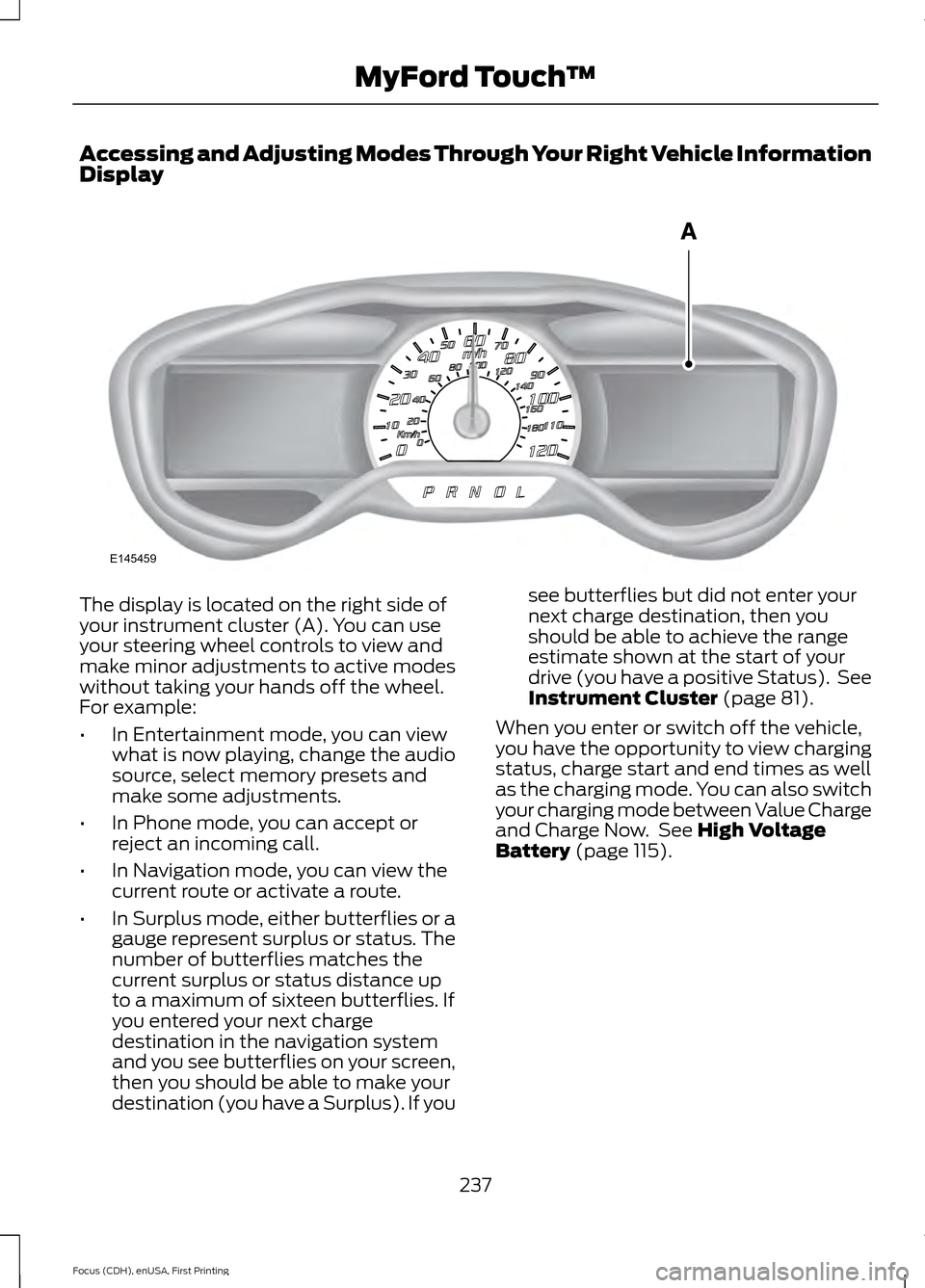
Accessing and Adjusting Modes Through Your Right Vehicle Information
Display
The display is located on the right side of
your instrument cluster (A). You can use
your steering wheel controls to view and
make minor adjustments to active modes
without taking your hands off the wheel.
For example:
•
In Entertainment mode, you can view
what is now playing, change the audio
source, select memory presets and
make some adjustments.
• In Phone mode, you can accept or
reject an incoming call.
• In Navigation mode, you can view the
current route or activate a route.
• In Surplus mode, either butterflies or a
gauge represent surplus or status. The
number of butterflies matches the
current surplus or status distance up
to a maximum of sixteen butterflies. If
you entered your next charge
destination in the navigation system
and you see butterflies on your screen,
then you should be able to make your
destination (you have a Surplus). If you see butterflies but did not enter your
next charge destination, then you
should be able to achieve the range
estimate shown at the start of your
drive (you have a positive Status). See
Instrument Cluster (page 81).
When you enter or switch off the vehicle,
you have the opportunity to view charging
status, charge start and end times as well
as the charging mode. You can also switch
your charging mode between Value Charge
and Charge Now. See
High Voltage
Battery (page 115).
237
Focus (CDH), enUSA, First Printing MyFord Touch
™E145459
Page 248 of 369
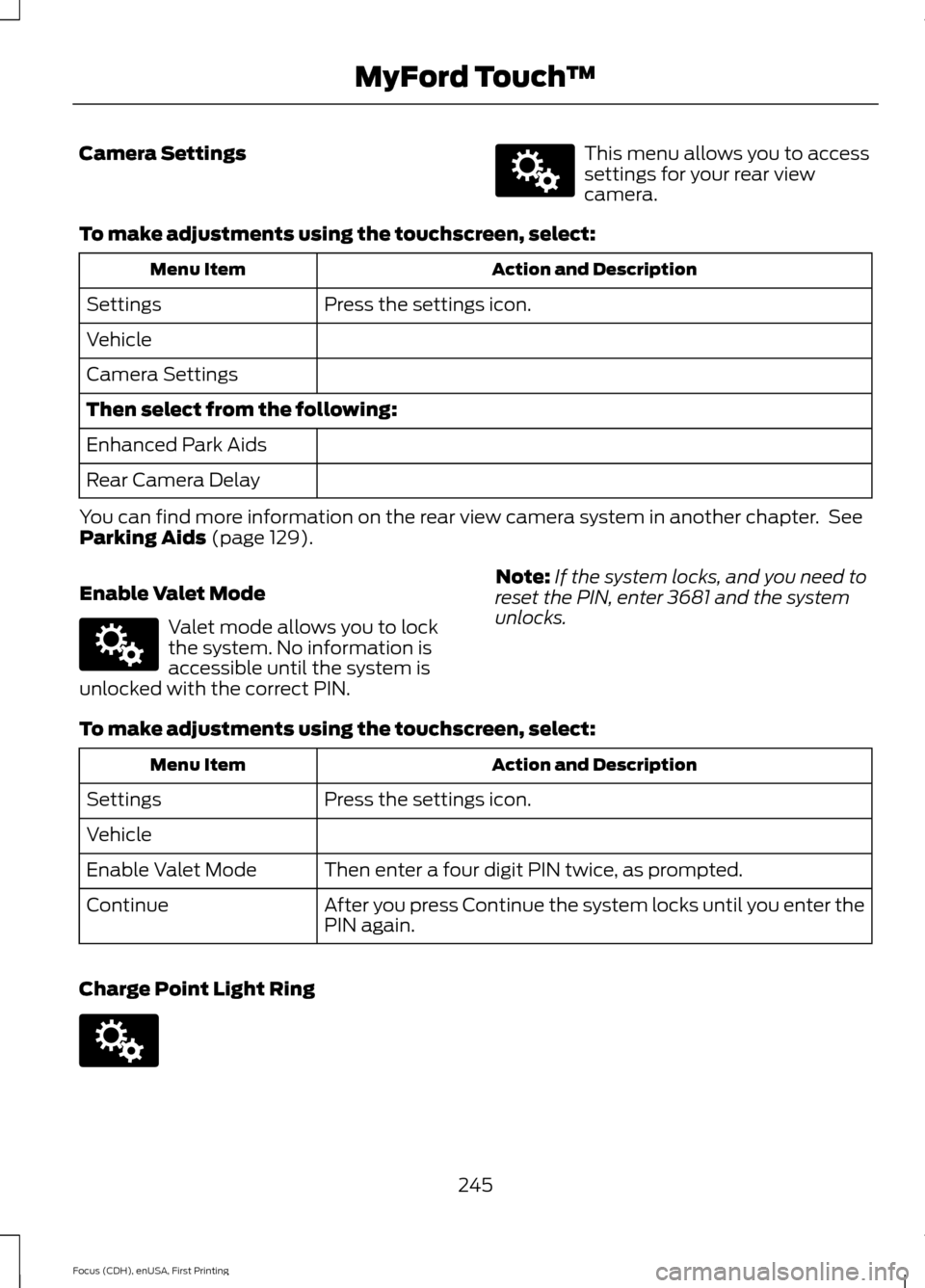
Camera Settings This menu allows you to access
settings for your rear view
camera.
To make adjustments using the touchscreen, select: Action and Description
Menu Item
Press the settings icon.
Settings
Vehicle
Camera Settings
Then select from the following:
Enhanced Park Aids
Rear Camera Delay
You can find more information on the rear view camera system in another chapter. See
Parking Aids (page 129).
Enable Valet Mode Valet mode allows you to lock
the system. No information is
accessible until the system is
unlocked with the correct PIN. Note:
If the system locks, and you need to
reset the PIN, enter 3681 and the system
unlocks.
To make adjustments using the touchscreen, select: Action and Description
Menu Item
Press the settings icon.
Settings
Vehicle
Then enter a four digit PIN twice, as prompted.
Enable Valet Mode
After you press Continue the system locks until you enter the
PIN again.
Continue
Charge Point Light Ring 245
Focus (CDH), enUSA, First Printing MyFord Touch
™E142607 E142607 E142607
Page 250 of 369
Action and Description
Message
Have the touchscreen keyboard display in QWERTY or ABC
format.
Keyboard Layout
Install any downloaded applications or view the current
software licenses.
Install Applications
Select to restore factory defaults. This erases all personal
settings and personal data.
Master Reset
Voice Control To make adjustments using the touchscreen, select:
Action and Description
Message
Settings
Voice Settings
Then select from the following: Standard interaction mode provides more detailed interaction
and guidance. Advanced mode has less audible interaction
and more tone prompts.
Interaction Mode
Have the system ask you short questions if it has not clearly
heard or understood your request.
Confirmation Prompts
Note: Even with confirmation prompts turned off, the system
may occasionally ask you to confirm settings.
Candidate lists are possible results from your voice
commands. The system simply makes a best guess at your
request with these turned off.
Media Candidate Lists
Candidate lists are possible results from your voice
commands. The system simply makes a best guess at your
request with these turned off.
Phone Candidate Lists
This allows you to adjust the system ’s voice volume level.
Voice Control Volume
247
Focus (CDH), enUSA, First Printing MyFord Touch
™E142607
Page 258 of 369
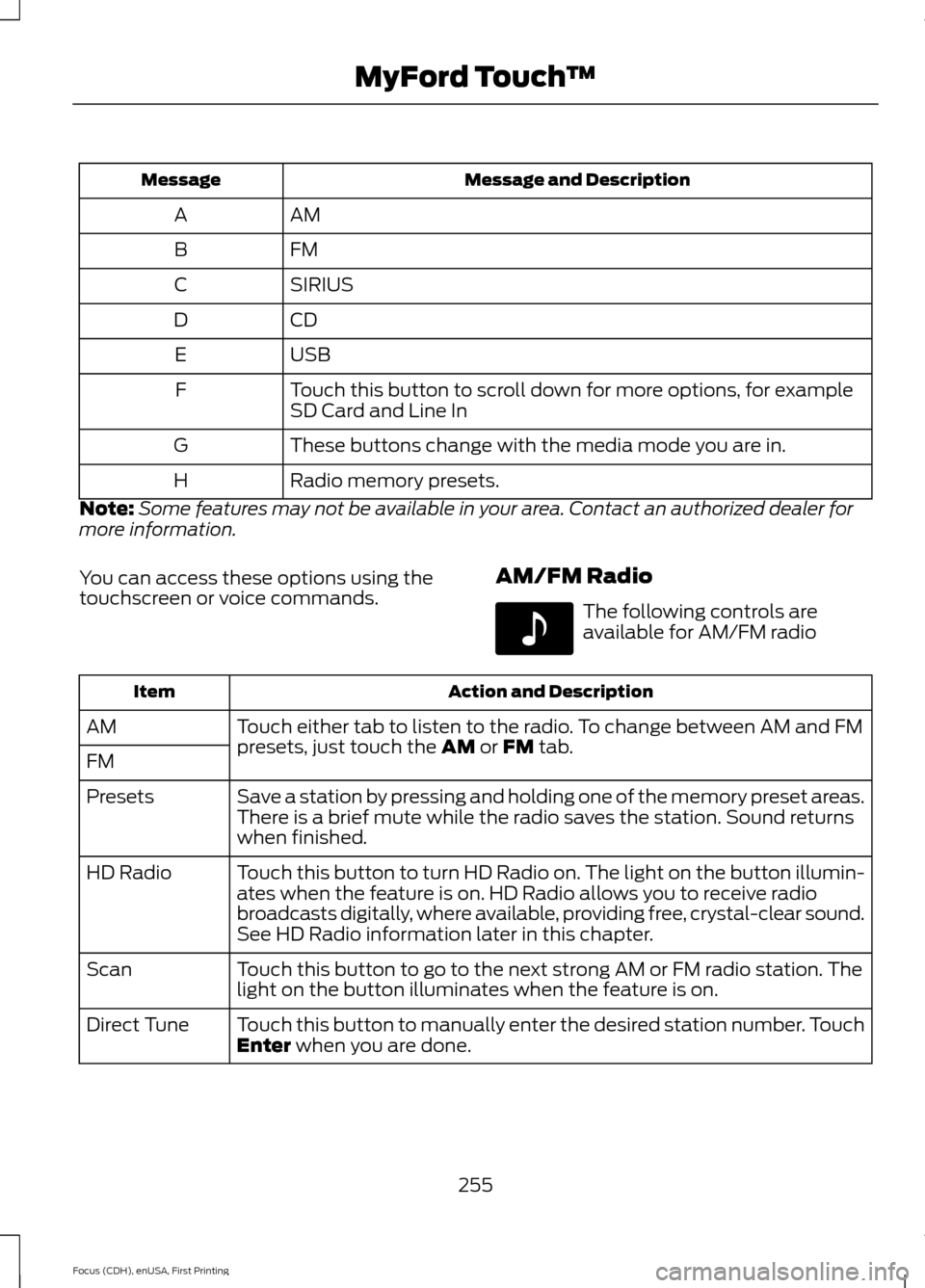
Message and Description
Message
AM
A
FM
B
SIRIUS
C
CD
D
USB
E
Touch this button to scroll down for more options, for example
SD Card and Line In
F
These buttons change with the media mode you are in.
G
Radio memory presets.
H
Note: Some features may not be available in your area. Contact an authorized dealer for
more information.
You can access these options using the
touchscreen or voice commands. AM/FM Radio The following controls are
available for AM/FM radio
Action and Description
Item
Touch either tab to listen to the radio. To change between AM and FM
presets, just touch the AM or FM tab.
AM
FM
Save a station by pressing and holding one of the memory preset areas.
There is a brief mute while the radio saves the station. Sound returns
when finished.
Presets
Touch this button to turn HD Radio on. The light on the button illumin-
ates when the feature is on. HD Radio allows you to receive radio
broadcasts digitally, where available, providing free, crystal-clear sound.
See HD Radio information later in this chapter.
HD Radio
Touch this button to go to the next strong AM or FM radio station. The
light on the button illuminates when the feature is on.
Scan
Touch this button to manually enter the desired station number. Touch
Enter
when you are done.
Direct Tune
255
Focus (CDH), enUSA, First Printing MyFord Touch
™E142611
Page 261 of 369
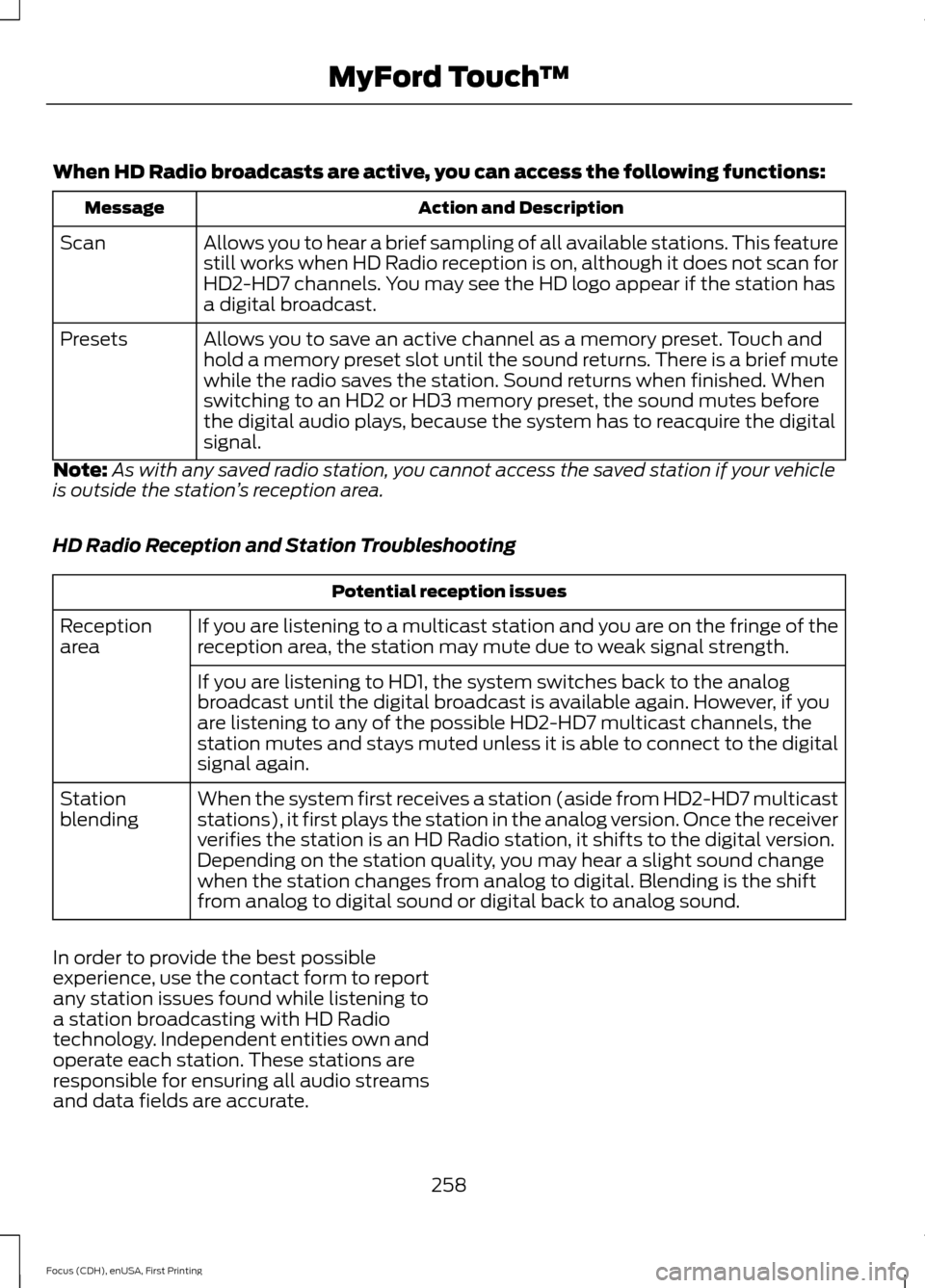
When HD Radio broadcasts are active, you can access the following functions:
Action and Description
Message
Allows you to hear a brief sampling of all available stations. This feature
still works when HD Radio reception is on, although it does not scan for
HD2-HD7 channels. You may see the HD logo appear if the station has
a digital broadcast.
Scan
Allows you to save an active channel as a memory preset. Touch and
hold a memory preset slot until the sound returns. There is a brief mute
while the radio saves the station. Sound returns when finished. When
switching to an HD2 or HD3 memory preset, the sound mutes before
the digital audio plays, because the system has to reacquire the digital
signal.
Presets
Note: As with any saved radio station, you cannot access the saved station if your vehicle
is outside the station ’s reception area.
HD Radio Reception and Station Troubleshooting Potential reception issues
If you are listening to a multicast station and you are on the fringe of the
reception area, the station may mute due to weak signal strength.
Reception
area
If you are listening to HD1, the system switches back to the analog
broadcast until the digital broadcast is available again. However, if you
are listening to any of the possible HD2-HD7 multicast channels, the
station mutes and stays muted unless it is able to connect to the digital
signal again.
When the system first receives a station (aside from HD2-HD7 multicast
stations), it first plays the station in the analog version. Once the receiver
verifies the station is an HD Radio station, it shifts to the digital version.
Depending on the station quality, you may hear a slight sound change
when the station changes from analog to digital. Blending is the shift
from analog to digital sound or digital back to analog sound.
Station
blending
In order to provide the best possible
experience, use the contact form to report
any station issues found while listening to
a station broadcasting with HD Radio
technology. Independent entities own and
operate each station. These stations are
responsible for ensuring all audio streams
and data fields are accurate. 258
Focus (CDH), enUSA, First Printing MyFord Touch
™
Page 262 of 369
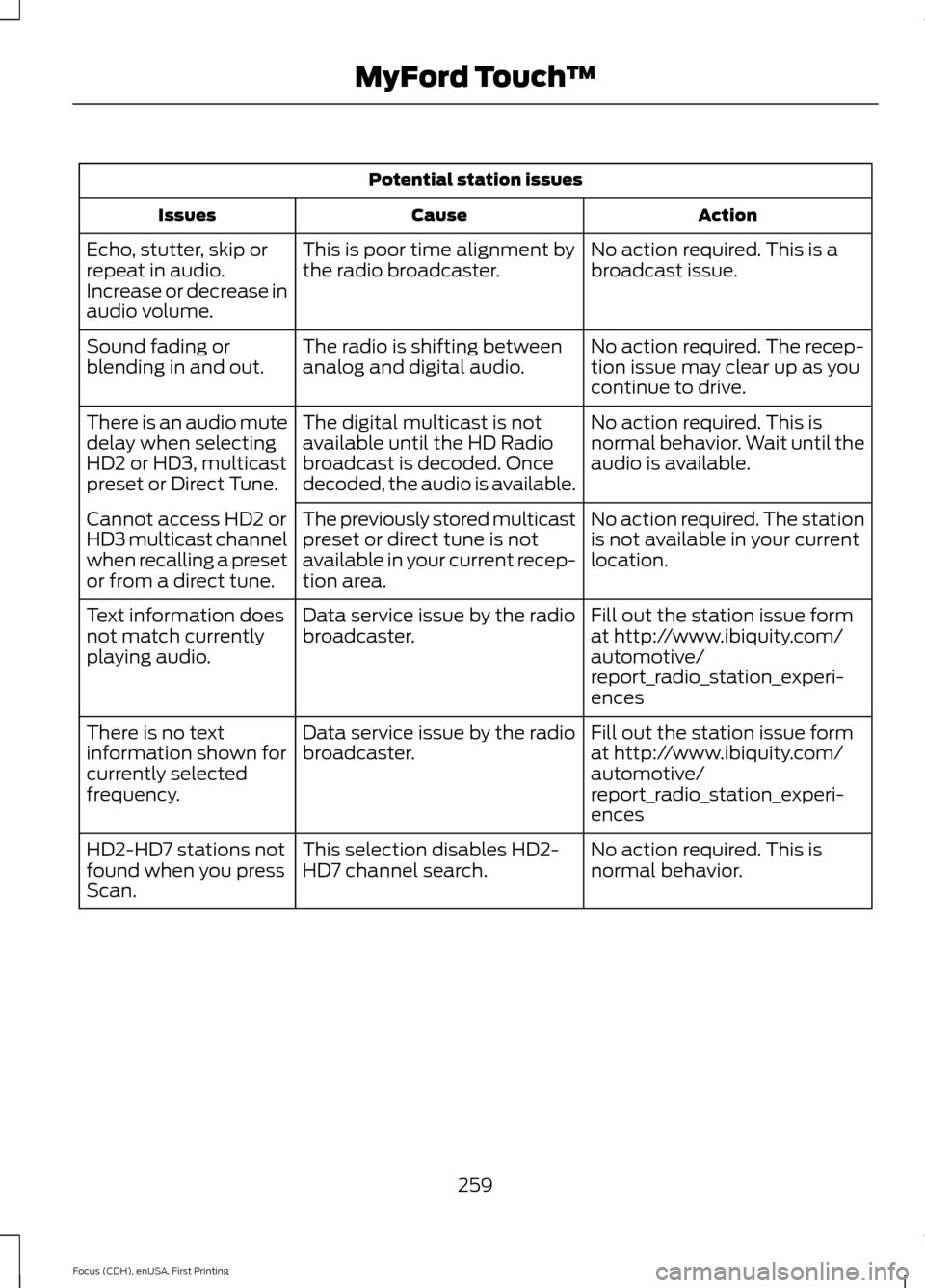
Potential station issues
Action
Cause
Issues
No action required. This is a
broadcast issue.
This is poor time alignment by
the radio broadcaster.
Echo, stutter, skip or
repeat in audio.
Increase or decrease in
audio volume.
No action required. The recep-
tion issue may clear up as you
continue to drive.
The radio is shifting between
analog and digital audio.
Sound fading or
blending in and out.
No action required. This is
normal behavior. Wait until the
audio is available.
The digital multicast is not
available until the HD Radio
broadcast is decoded. Once
decoded, the audio is available.
There is an audio mute
delay when selecting
HD2 or HD3, multicast
preset or Direct Tune.
No action required. The station
is not available in your current
location.
The previously stored multicast
preset or direct tune is not
available in your current recep-
tion area.
Cannot access HD2 or
HD3 multicast channel
when recalling a preset
or from a direct tune.
Fill out the station issue form
at http://www.ibiquity.com/
automotive/
report_radio_station_experi-
ences
Data service issue by the radio
broadcaster.
Text information does
not match currently
playing audio.
Fill out the station issue form
at http://www.ibiquity.com/
automotive/
report_radio_station_experi-
ences
Data service issue by the radio
broadcaster.
There is no text
information shown for
currently selected
frequency.
No action required. This is
normal behavior.
This selection disables HD2-
HD7 channel search.
HD2-HD7 stations not
found when you press
Scan.
259
Focus (CDH), enUSA, First Printing MyFord Touch
™