navigation system FORD FOCUS ELECTRIC 2015 3.G Owner's Manual
[x] Cancel search | Manufacturer: FORD, Model Year: 2015, Model line: FOCUS ELECTRIC, Model: FORD FOCUS ELECTRIC 2015 3.GPages: 369, PDF Size: 4.53 MB
Page 299 of 369
SYNC Services Voice Commands
If your vehicle is equipped with
Navigation, SYNC Services
downloads your requested
destination to the navigation system. The
navigation system then calculates the
route and provides driving instructions.
See Navigation (page 304).
If your vehicle is not equipped with
Navigation, when a route has been
downloaded (non-navigation systems),
you can press the voice button on the
steering wheel controls and say any of the
following commands to receive directions:
Services Voice command
Cancel Route
Route Status
Route summary
Update Route
Help Sirius Travel Link
(If Equipped) WARNING
Driving while distracted can result in
loss of vehicle control, crash and
injury. We strongly recommend that
you use extreme caution when using any
device that may take your focus off the
road. Your primary responsibility is the safe
operation of your vehicle. We recommend
against the use of any handheld device
while driving and encourage the use of
voice-operated systems when possible.
Make sure you are aware of all applicable
local laws that may affect the use of
electronic devices while driving. Note:
In order to use Sirius Travel Link, your
vehicle must be equipped with navigation
and your navigation SD card must be in the
SD card slot.
Note: A paid subscription is required to
access and use these features. Go to
www.siriusxm.com/travellink for more
information.
Note: Visit www.siriusxm.com/traffic and
click on Coverage map and details for a
complete listing of all traffic areas covered
by Sirius Travel Link.
Note: Neither Sirius nor Ford is responsible
for any errors or inaccuracies in the Sirius
Travel Link services or its use in vehicles.
When you subscribe to Sirius Travel Link,
it can help you locate the best gas prices,
find movie listings, get current traffic alerts,
view the current weather map, get
accurate ski conditions and see scores to
current sports games.
296
Focus (CDH), enUSA, First Printing MyFord Touch
™E142599
Page 301 of 369
This screen displays any system messages
(such as an SD card fault).
Note:
The system alerts you to any
messages by turning the information icon
yellow. After you read or delete the
messages, the icon returns to white.
Calendar If your vehicle is equipped with
Navigation, touch the I
(Information) button to access
these features. If your vehicle is not
equipped with Navigation, touch the corner
of the touchscreen with the green tab.
Press Calendar. You can view the current
calendar by day, week or month.
911 Assist WARNINGS
Unless the 911 Assist setting is set on
before a crash, the system will not
dial for help, which could delay
response time, potentially increasing the
risk of serious injury or death after a crash. Do not wait for 911 Assist to make an
emergency call if you can do it
yourself. Dial emergency services
immediately to avoid delayed response
time, which could increase the risk of
serious injury or death after a crash. If you
do not hear 911 Assist within five seconds
of the crash, the system or phone may be
damaged or non-functional. Always place your phone in a secure
location in your vehicle so it does not
become a projectile or damaged in
a crash. Failure to do so may cause serious
injury to someone or damage the phone,
which could prevent 911 Assist from
working properly. Note:
The SYNC 911 Assist feature must be
set on prior to the incident. Note:
Before setting this feature on, make
sure that you read the 911 Assist Privacy
Notice later in this section for important
information.
Note: If any user turns 911 Assist on or off,
that setting applies for all paired phones. If
911 Assist is turned off, either a voice
message plays or a display message (or
icon) comes on (or both) when your vehicle
is started after a previously paired phone
connects.
Note: Every phone operates differently.
While SYNC 911 Assist works with most
cellular phones, some may have trouble
using this feature.
If a crash deploys an airbag, excluding knee
airbags and rear inflatable safety belts
where fitted or activates the fuel pump
shut-off, your SYNC-equipped vehicle may
be able to contact emergency services by
dialing 911 through a paired and connected
Bluetooth-enabled phone. You can learn
more about the 911 Assist feature, visit
www.SYNCMyRide.com,
www.SYNCMyRide.ca or
www.syncmaroute.ca.
See
Supplementary Restraints System
(page 37). Important information
regarding airbag deployment is in this
chapter.
See
Roadside Emergencies (page 147).
Important information regarding the fuel
pump shut-off is in this chapter.
Setting 911 Assist On 298
Focus (CDH), enUSA, First Printing MyFord Touch
™E142608 E142608
Page 302 of 369
If your vehicle is equipped with
Navigation, touch the I (Information)
button to access these features. If your
vehicle is not equipped with
Navigation, touch the corner of the
touchscreen with the green tab. Then
select:
Message
Apps
911 Assist
On You can also access 911 Assist by
pressing:
Message
Settings
Phone
911 Assist
Or you can also select:
Help
911 Assist
To make sure that 911 Assist works
properly:
• SYNC must be powered and working
properly at the time of the incident and
throughout feature activation and use.
• The 911 Assist feature must be set on
prior to the incident.
• You must pair and connect a
Bluetooth-enabled and compatible
phone to SYNC. •
A connected Bluetooth-enabled phone
must have the ability to make and
maintain an outgoing call at the time
of the incident.
• A connected Bluetooth-enabled phone
must have adequate network coverage,
battery power and signal strength.
• The vehicle must have battery power
and be located in the United States,
Canada or in a territory in which 911 is
the emergency number.
In the Event of a Crash
Not all crashes deploy an airbag or activate
the fuel pump shut-off (which would
trigger 911 Assist); however, SYNC tries to
contact emergency services if 911 Assist
triggers. If a connected phone sustains
damage or loses connection to SYNC,
SYNC searches for, and tries to connect
to, any available previously paired phone
and tries to make the call to 911.
Before making the call:
• SYNC provides a short window of time
(approximately 10 seconds) to cancel
the call. If you fail to cancel the call,
SYNC attempts to dial 911.
• SYNC says the following, or a similar
message: "SYNC will attempt to call
911, to cancel the call, press Cancel on
your screen or press and hold the
phone button on your steering wheel."
If you do not cancel the call, and SYNC
makes a successful call, a pre-recorded
message plays for the 911 operator, and
then the occupant(s) in your vehicle is able
to talk with the operator. Be prepared to
provide your name, phone number and
location immediately, because not all 911
systems are capable of receiving this
information electronically.
299
Focus (CDH), enUSA, First Printing MyFord Touch
™E142607
Page 307 of 369
NAVIGATION
Note:
The navigation SD card must be in
the SD card slot to operate the navigation
system. If you need a replacement SD card,
see an authorized dealer.
Note: The SD card slot is spring-loaded. To
remove the SD card, just push the card in
and release it. Do not attempt to pull the
card out to remove it; this could cause
damage.
Your navigation system is comprised of
two main features, destination mode and
map mode.
Destination Mode
To set a destination press the green
corner of your touchscreen, then the
press: Menu Item
Dest.
Choose any of the following:
My Home
Favorites
Previous Destinations
Point of Interest
Emergency Menu Item
Street Address
Intersection
City Center
Map
Edit Route
Cancel Route
To set your destination, enter the
necessary information into the highlighted
text fields (in any order).
For an address destination entry, press: Action and Descrip-
tion
Menu Item
Pressing this button
makes the address
location appear on
the map.
Go
To choose a previous destination,
press: Action and Descrip-
tion
Menu Item
The last 20 destina-
tions you have
selected appear.
Previous Destina-
tions
304
Focus (CDH), enUSA, First Printing MyFord Touch
™
Page 308 of 369
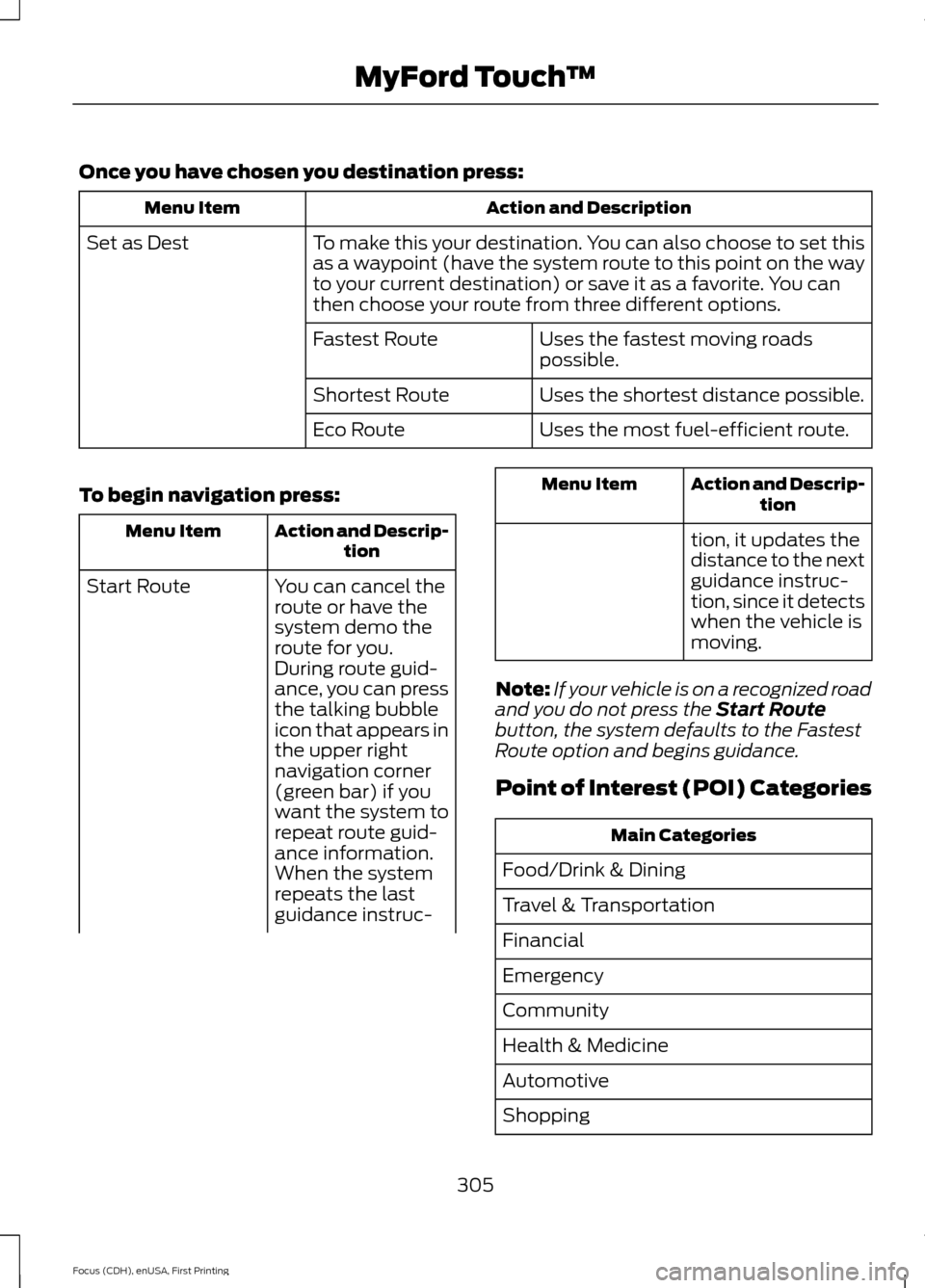
Once you have chosen you destination press:
Action and Description
Menu Item
To make this your destination. You can also choose to set this
as a waypoint (have the system route to this point on the way
to your current destination) or save it as a favorite. You can
then choose your route from three different options.
Set as Dest
Uses the fastest moving roads
possible.
Fastest Route
Uses the shortest distance possible.
Shortest Route
Uses the most fuel-efficient route.
Eco Route
To begin navigation press: Action and Descrip-
tion
Menu Item
You can cancel the
route or have the
system demo the
route for you.
Start Route
During route guid-
ance, you can press
the talking bubble
icon that appears in
the upper right
navigation corner
(green bar) if you
want the system to
repeat route guid-
ance information.
When the system
repeats the last
guidance instruc- Action and Descrip-
tion
Menu Item
tion, it updates the
distance to the next
guidance instruc-
tion, since it detects
when the vehicle is
moving.
Note: If your vehicle is on a recognized road
and you do not press the Start Route
button, the system defaults to the Fastest
Route option and begins guidance.
Point of Interest (POI) Categories Main Categories
Food/Drink & Dining
Travel & Transportation
Financial
Emergency
Community
Health & Medicine
Automotive
Shopping
305
Focus (CDH), enUSA, First Printing MyFord Touch
™
Page 309 of 369
Main Categories
Entertainment & Arts
Recreation & Sports
Government
Domestic Services Subcategories
Restaurant
Golf
Parking
Home & Garden Subcategories
Personal Care Services
Auto Dealership
Govt Office
Public Transit
Education
To expand these listings, press the + in
front of the listing.
The system also allows you to sort
alphabetically, by distance or by cityseekr
listings (if available).
Range Rings and Charge Points Shaded rings appear on the map when you
are driving.
Note:
You may only see them when you
zoom out.
The inner ring with no shading indicates a
safe range you can travel with the current
battery charge. The lightly shaded outer band reflects
areas you may or may not be able to reach.
If your destination is within this band, enter
it into the navigation system and use the
budget features in the instrument cluster
to help you manage your vehicle energy
usage.
306
Focus (CDH), enUSA, First Printing MyFord Touch
™E161378
Page 310 of 369
The darker shaded area, beyond the rings,
is unlikely to be within range on the current
battery charge.
The rings represent approximate ranges.
Actual route distances, road grades,
vehicle speed, accessory usage and other
conditions affect how far your vehicle can
travel before recharging.
You can switch off the rings in the
Settings menu by pressing:
Menu Item
Settings
Navigation
Map Preferences
You can switch the charge point POIs on
and off. Touch the map, use the buttons
at the bottom of the screen and then
select the POI icon. The icons only appear
at a map scale of 5 mi (8 km) and lower.
cityseekr
Note: cityseekr point of interest (POI)
information is limited to approximately 912
cities (881 in the United States, 20 in
Canada and 11 in Mexico). cityseekr, when available, is a service that
provides more information about certain
points of interest such as restaurants,
hotels and attractions. When you have selected a point of interest,
the location and information appear, such
as address and phone number. If cityseekr
lists the point of interest, more information
is available, such as a brief description,
check-in and checkout times or restaurant
hours.
For a longer review, a list of services
and facilities, the average room, meal
price or the website press:
Menu Item
More Information
This screen displays the point of interest
icon such as: Hotel
Coffeehouse
Food & Drink
Nightlife
Attraction
This icon appears when your
selection exists in multiple
categories within the system.
307
Focus (CDH), enUSA, First Printing MyFord Touch
™E142634 E143884 E142636 E142637 E142638 E142639 E142640
Page 311 of 369
When you are viewing more
information for hotels, cityseekr also
tells you if the hotel has certain
services and facilities using icons, such
as:
•
Restaurant
• Business center
• Handicap facilities
• Laundry
• Refrigerator
• 24 hour room service
• Fitness center
• Internet access
• Pool
• Wi-FI
For restaurants, cityseekr can provide
information such as star rating, average
cost, review, handicap access, hours of
operation, and website address. For hotels, cityseekr can provide
information such as star rating, price
category, review, check-in and checkout
times, hotel service icons and website
address.
Setting Your Navigation
Preferences Select settings for the system to
take into account when planning
your route.
To access the settings options, press Menu Item
Settings
Navigation
Then select any of the following:
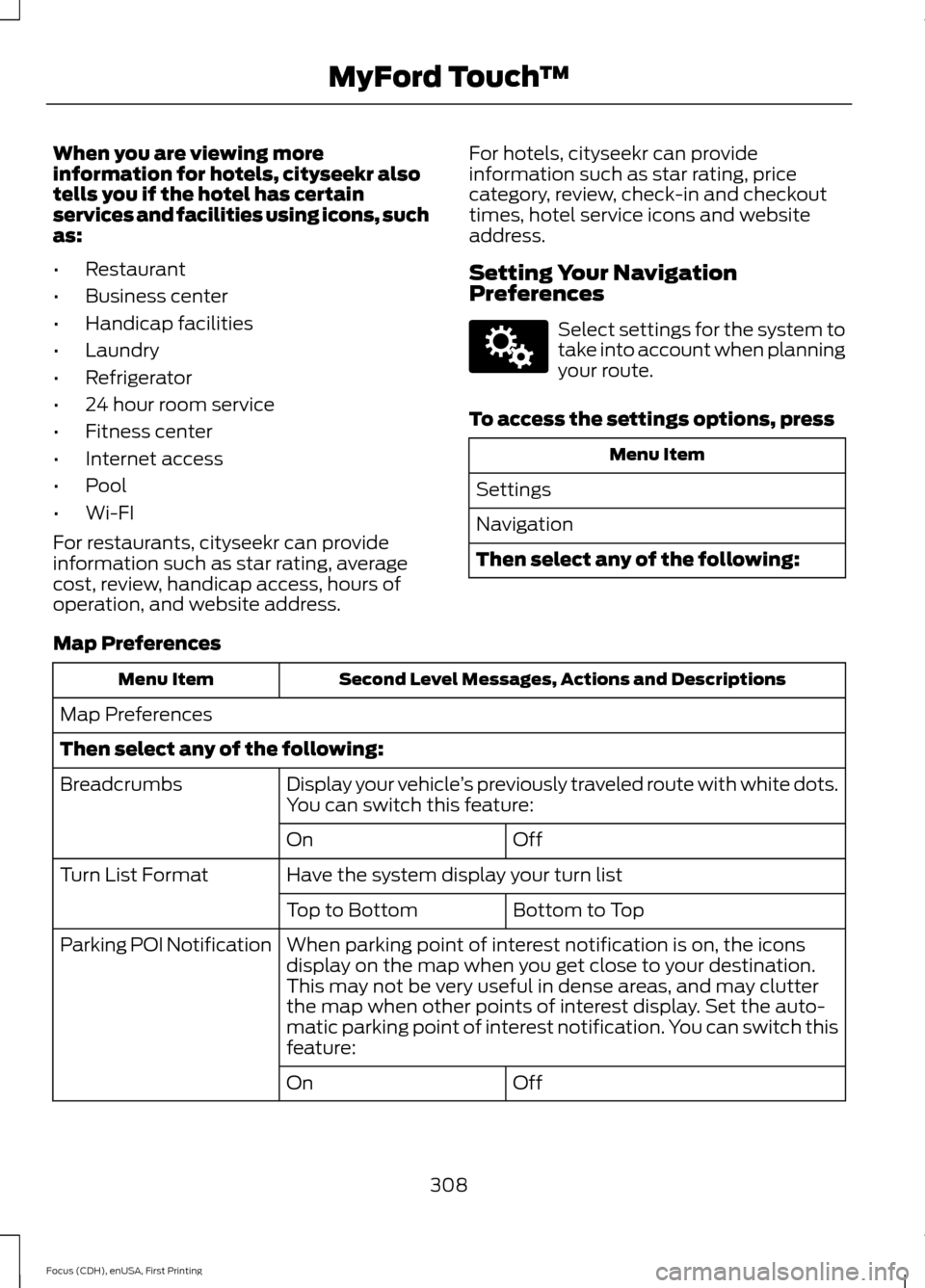
Map Preferences Second Level Messages, Actions and Descriptions
Menu Item
Map Preferences
Then select any of the following: Display your vehicle’s previously traveled route with white dots.
You can switch this feature:
Breadcrumbs
Off
On
Have the system display your turn list
Turn List Format
Bottom to Top
Top to Bottom
When parking point of interest notification is on, the icons
display on the map when you get close to your destination.
This may not be very useful in dense areas, and may clutter
the map when other points of interest display. Set the auto-
matic parking point of interest notification. You can switch this
feature:
Parking POI Notification
Off
On
308
Focus (CDH), enUSA, First Printing MyFord Touch
™E142607
Page 312 of 369
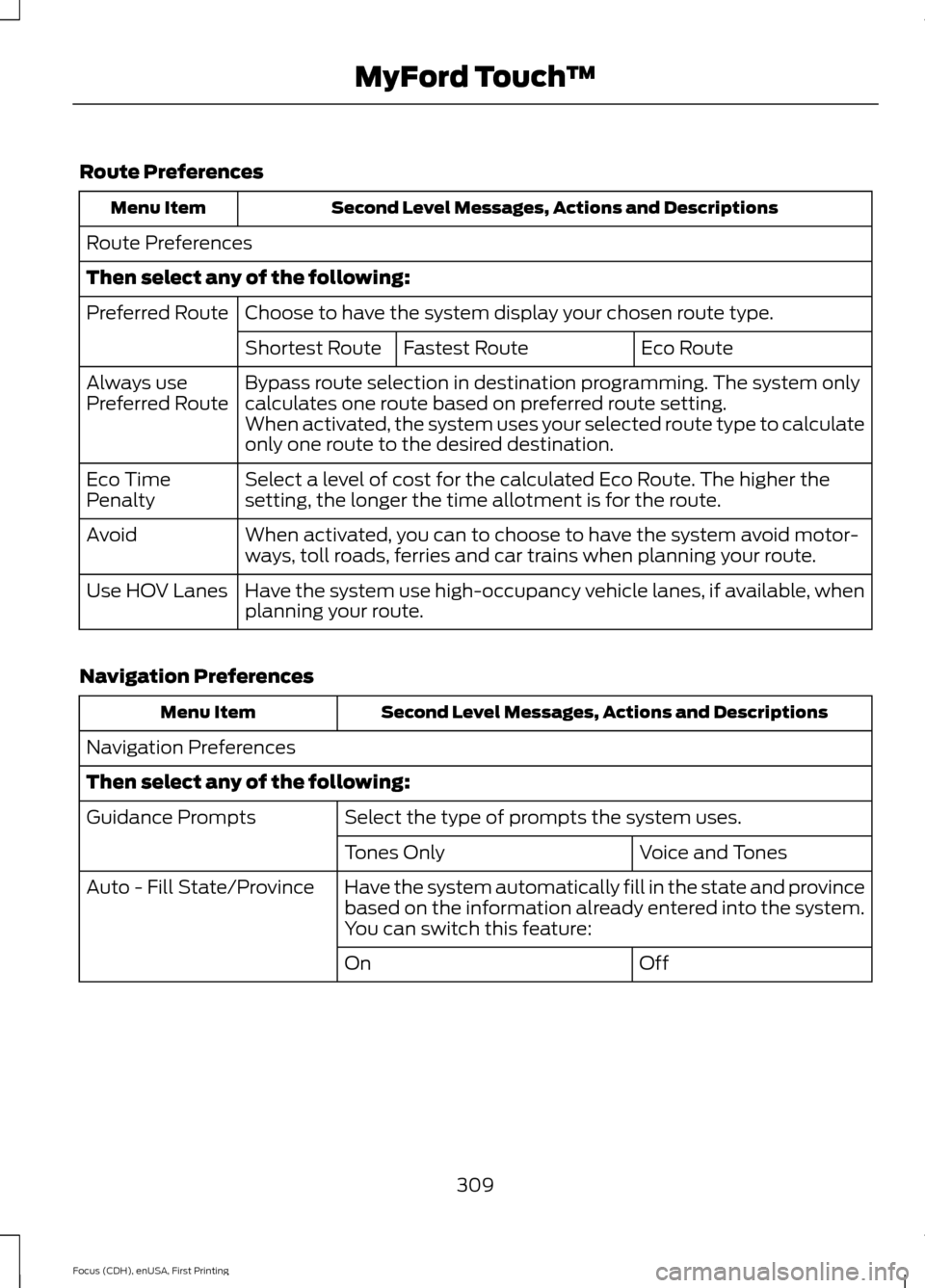
Route Preferences
Second Level Messages, Actions and Descriptions
Menu Item
Route Preferences
Then select any of the following: Choose to have the system display your chosen route type.
Preferred Route
Eco Route
Fastest Route
Shortest Route
Bypass route selection in destination programming. The system only
calculates one route based on preferred route setting.
Always use
Preferred Route
When activated, the system uses your selected route type to calculate
only one route to the desired destination.
Select a level of cost for the calculated Eco Route. The higher the
setting, the longer the time allotment is for the route.
Eco Time
Penalty
When activated, you can to choose to have the system avoid motor-
ways, toll roads, ferries and car trains when planning your route.
Avoid
Have the system use high-occupancy vehicle lanes, if available, when
planning your route.
Use HOV Lanes
Navigation Preferences Second Level Messages, Actions and Descriptions
Menu Item
Navigation Preferences
Then select any of the following: Select the type of prompts the system uses.
Guidance Prompts
Voice and Tones
Tones Only
Have the system automatically fill in the state and province
based on the information already entered into the system.
You can switch this feature:
Auto - Fill State/Province
Off
On
309
Focus (CDH), enUSA, First Printing MyFord Touch
™
Page 314 of 369
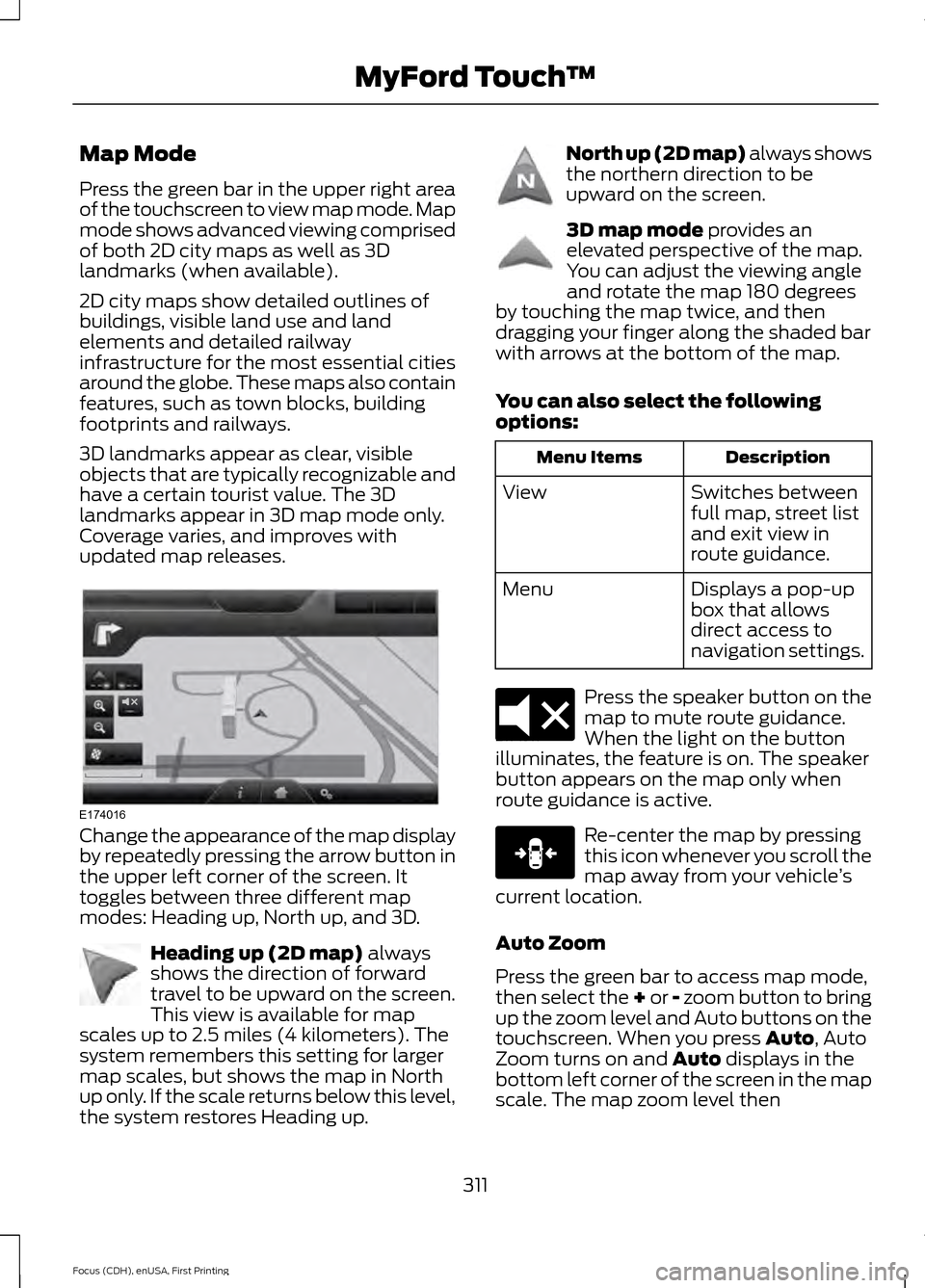
Map Mode
Press the green bar in the upper right area
of the touchscreen to view map mode. Map
mode shows advanced viewing comprised
of both 2D city maps as well as 3D
landmarks (when available).
2D city maps show detailed outlines of
buildings, visible land use and land
elements and detailed railway
infrastructure for the most essential cities
around the globe. These maps also contain
features, such as town blocks, building
footprints and railways.
3D landmarks appear as clear, visible
objects that are typically recognizable and
have a certain tourist value. The 3D
landmarks appear in 3D map mode only.
Coverage varies, and improves with
updated map releases.
Change the appearance of the map display
by repeatedly pressing the arrow button in
the upper left corner of the screen. It
toggles between three different map
modes: Heading up, North up, and 3D.
Heading up (2D map) always
shows the direction of forward
travel to be upward on the screen.
This view is available for map
scales up to 2.5 miles (4 kilometers). The
system remembers this setting for larger
map scales, but shows the map in North
up only. If the scale returns below this level,
the system restores Heading up. North up (2D map) always shows
the northern direction to be
upward on the screen.
3D map mode
provides an
elevated perspective of the map.
You can adjust the viewing angle
and rotate the map 180 degrees
by touching the map twice, and then
dragging your finger along the shaded bar
with arrows at the bottom of the map.
You can also select the following
options: Description
Menu Items
Switches between
full map, street list
and exit view in
route guidance.
View
Displays a pop-up
box that allows
direct access to
navigation settings.
Menu Press the speaker button on the
map to mute route guidance.
When the light on the button
illuminates, the feature is on. The speaker
button appears on the map only when
route guidance is active. Re-center the map by pressing
this icon whenever you scroll the
map away from your vehicle
’s
current location.
Auto Zoom
Press the green bar to access map mode,
then select the + or - zoom button to bring
up the zoom level and Auto buttons on the
touchscreen. When you press
Auto, Auto
Zoom turns on and Auto displays in the
bottom left corner of the screen in the map
scale. The map zoom level then
311
Focus (CDH), enUSA, First Printing MyFord Touch
™E174016 E142642 E142643 E142644 E174017 E146188