display FORD FOCUS ELECTRIC 2015 3.G Repair Manual
[x] Cancel search | Manufacturer: FORD, Model Year: 2015, Model line: FOCUS ELECTRIC, Model: FORD FOCUS ELECTRIC 2015 3.GPages: 369, PDF Size: 4.53 MB
Page 255 of 369
Action and Description
Menu Item
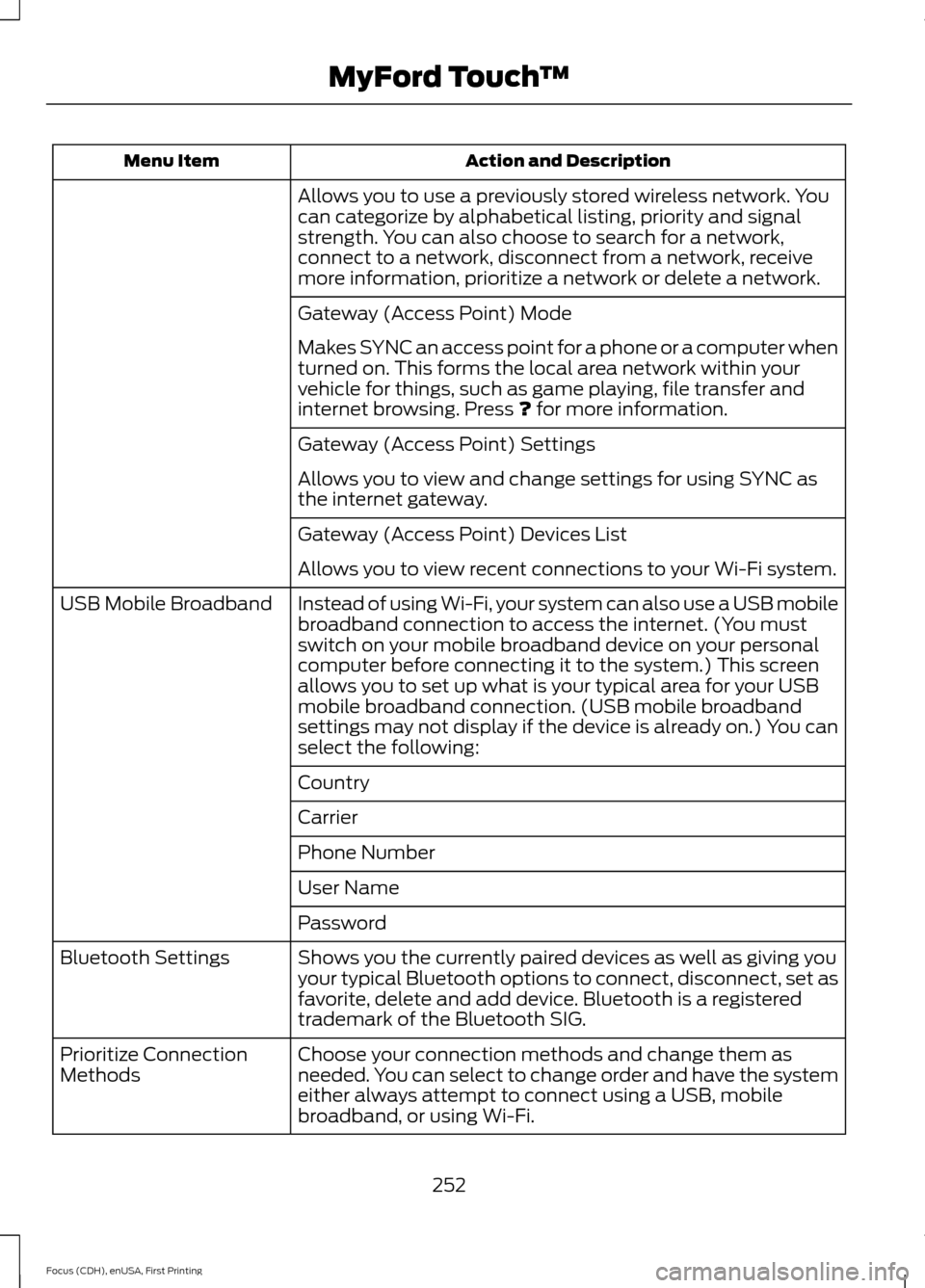
Allows you to use a previously stored wireless network. You
can categorize by alphabetical listing, priority and signal
strength. You can also choose to search for a network,
connect to a network, disconnect from a network, receive
more information, prioritize a network or delete a network.
Gateway (Access Point) Mode
Makes SYNC an access point for a phone or a computer when
turned on. This forms the local area network within your
vehicle for things, such as game playing, file transfer and
internet browsing. Press ? for more information.
Gateway (Access Point) Settings
Allows you to view and change settings for using SYNC as
the internet gateway.
Gateway (Access Point) Devices List
Allows you to view recent connections to your Wi-Fi system.
Instead of using Wi-Fi, your system can also use a USB mobile
broadband connection to access the internet. (You must
switch on your mobile broadband device on your personal
computer before connecting it to the system.) This screen
allows you to set up what is your typical area for your USB
mobile broadband connection. (USB mobile broadband
settings may not display if the device is already on.) You can
select the following:
USB Mobile Broadband
Country
Carrier
Phone Number
User Name
Password
Shows you the currently paired devices as well as giving you
your typical Bluetooth options to connect, disconnect, set as
favorite, delete and add device. Bluetooth is a registered
trademark of the Bluetooth SIG.
Bluetooth Settings
Choose your connection methods and change them as
needed. You can select to change order and have the system
either always attempt to connect using a USB, mobile
broadband, or using Wi-Fi.
Prioritize Connection
Methods
252
Focus (CDH), enUSA, First Printing MyFord Touch
™
Page 259 of 369
Options
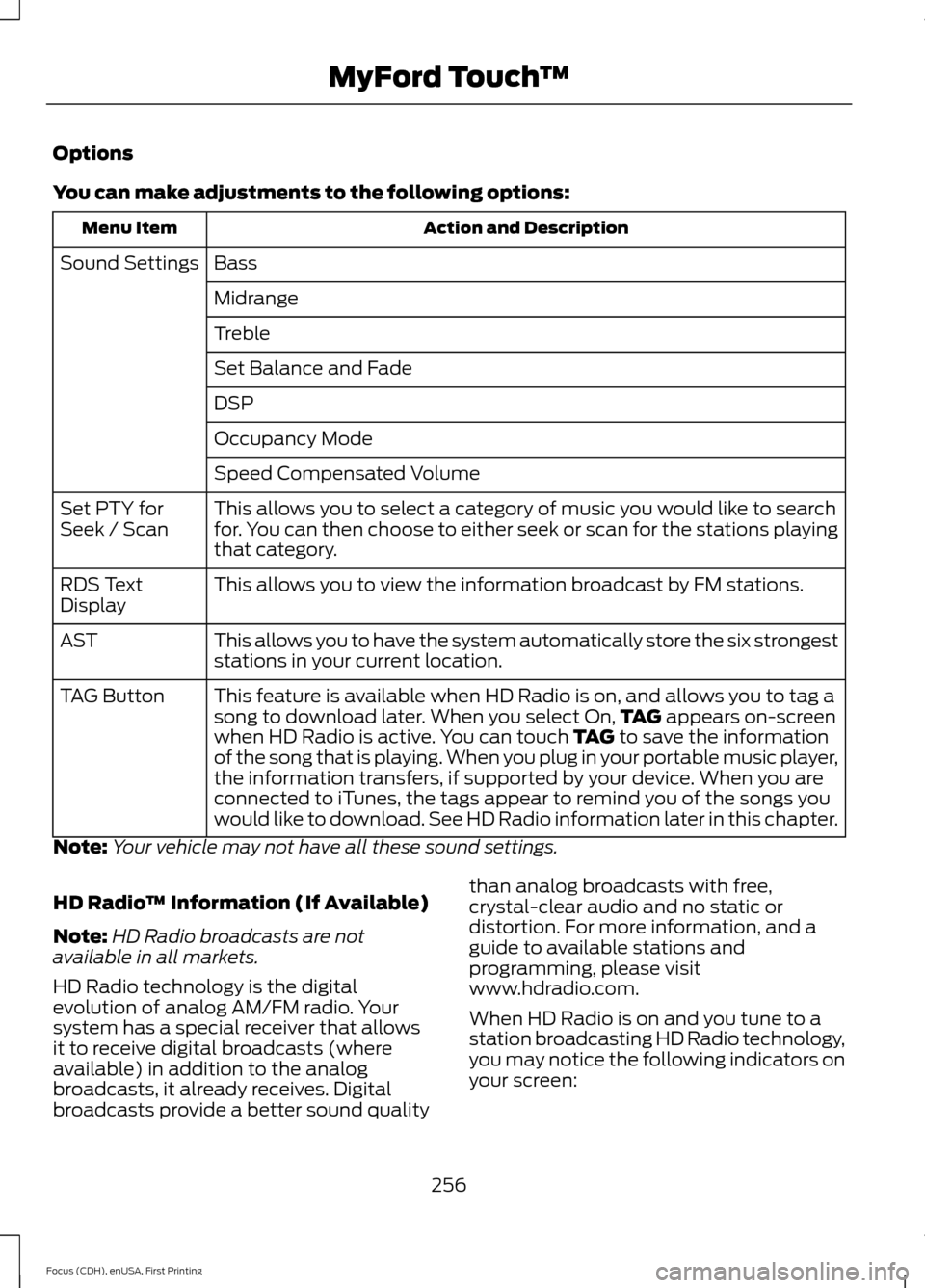
You can make adjustments to the following options:
Action and Description
Menu Item
Bass
Sound Settings
Midrange
Treble
Set Balance and Fade
DSP
Occupancy Mode
Speed Compensated Volume
This allows you to select a category of music you would like to search
for. You can then choose to either seek or scan for the stations playing
that category.
Set PTY for
Seek / Scan
This allows you to view the information broadcast by FM stations.
RDS Text
Display
This allows you to have the system automatically store the six strongest
stations in your current location.
AST
This feature is available when HD Radio is on, and allows you to tag a
song to download later. When you select On, TAG appears on-screen
when HD Radio is active. You can touch TAG to save the information
of the song that is playing. When you plug in your portable music player,
the information transfers, if supported by your device. When you are
connected to iTunes, the tags appear to remind you of the songs you
would like to download. See HD Radio information later in this chapter.
TAG Button
Note: Your vehicle may not have all these sound settings.
HD Radio ™ Information (If Available)
Note: HD Radio broadcasts are not
available in all markets.
HD Radio technology is the digital
evolution of analog AM/FM radio. Your
system has a special receiver that allows
it to receive digital broadcasts (where
available) in addition to the analog
broadcasts, it already receives. Digital
broadcasts provide a better sound quality than analog broadcasts with free,
crystal-clear audio and no static or
distortion. For more information, and a
guide to available stations and
programming, please visit
www.hdradio.com.
When HD Radio is on and you tune to a
station broadcasting HD Radio technology,
you may notice the following indicators on
your screen:
256
Focus (CDH), enUSA, First Printing MyFord Touch
™
Page 266 of 369
For more information on extended
subscription terms (a service fee is
required), the online media player and a
list of SIRIUS satellite radio channels, and
other features, please visit
www.siriusxm.com in the United States,
www.sirius.ca in Canada, or call SIRIUS at
1-888-539-7474.
Note:
This receiver includes the eCos
real-time operating system. eCos is
published under the eCos License. Satellite Radio Electronic Serial Number
(ESN)
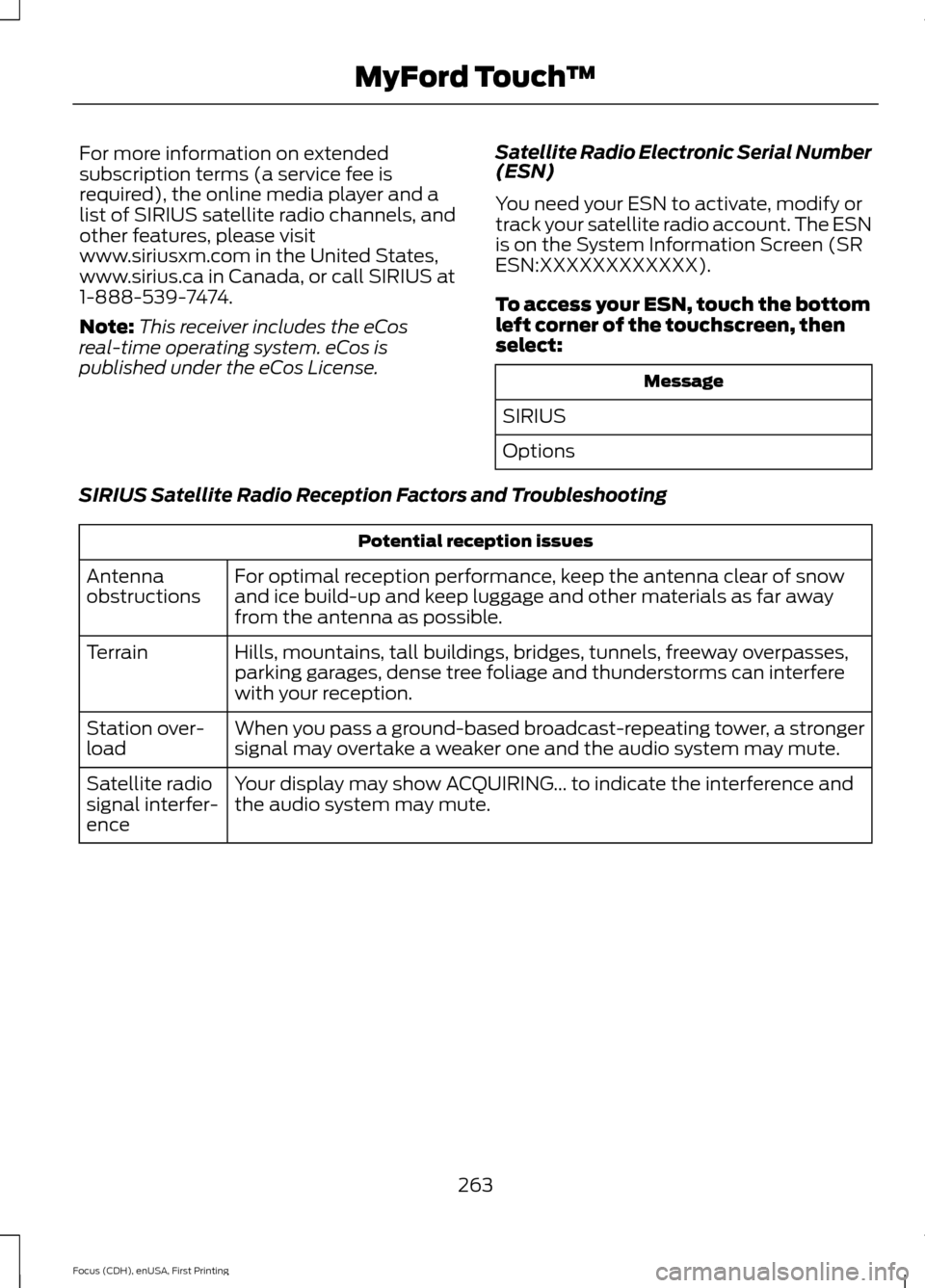
You need your ESN to activate, modify or
track your satellite radio account. The ESN
is on the System Information Screen (SR
ESN:XXXXXXXXXXXX).
To access your ESN, touch the bottom
left corner of the touchscreen, then
select: Message
SIRIUS
Options
SIRIUS Satellite Radio Reception Factors and Troubleshooting Potential reception issues
For optimal reception performance, keep the antenna clear of snow
and ice build-up and keep luggage and other materials as far away
from the antenna as possible.
Antenna
obstructions
Hills, mountains, tall buildings, bridges, tunnels, freeway overpasses,
parking garages, dense tree foliage and thunderstorms can interfere
with your reception.
Terrain
When you pass a ground-based broadcast-repeating tower, a stronger
signal may overtake a weaker one and the audio system may mute.
Station over-
load
Your display may show ACQUIRING... to indicate the interference and
the audio system may mute.
Satellite radio
signal interfer-
ence
263
Focus (CDH), enUSA, First Printing MyFord Touch
™
Page 271 of 369
Action and Description
Message
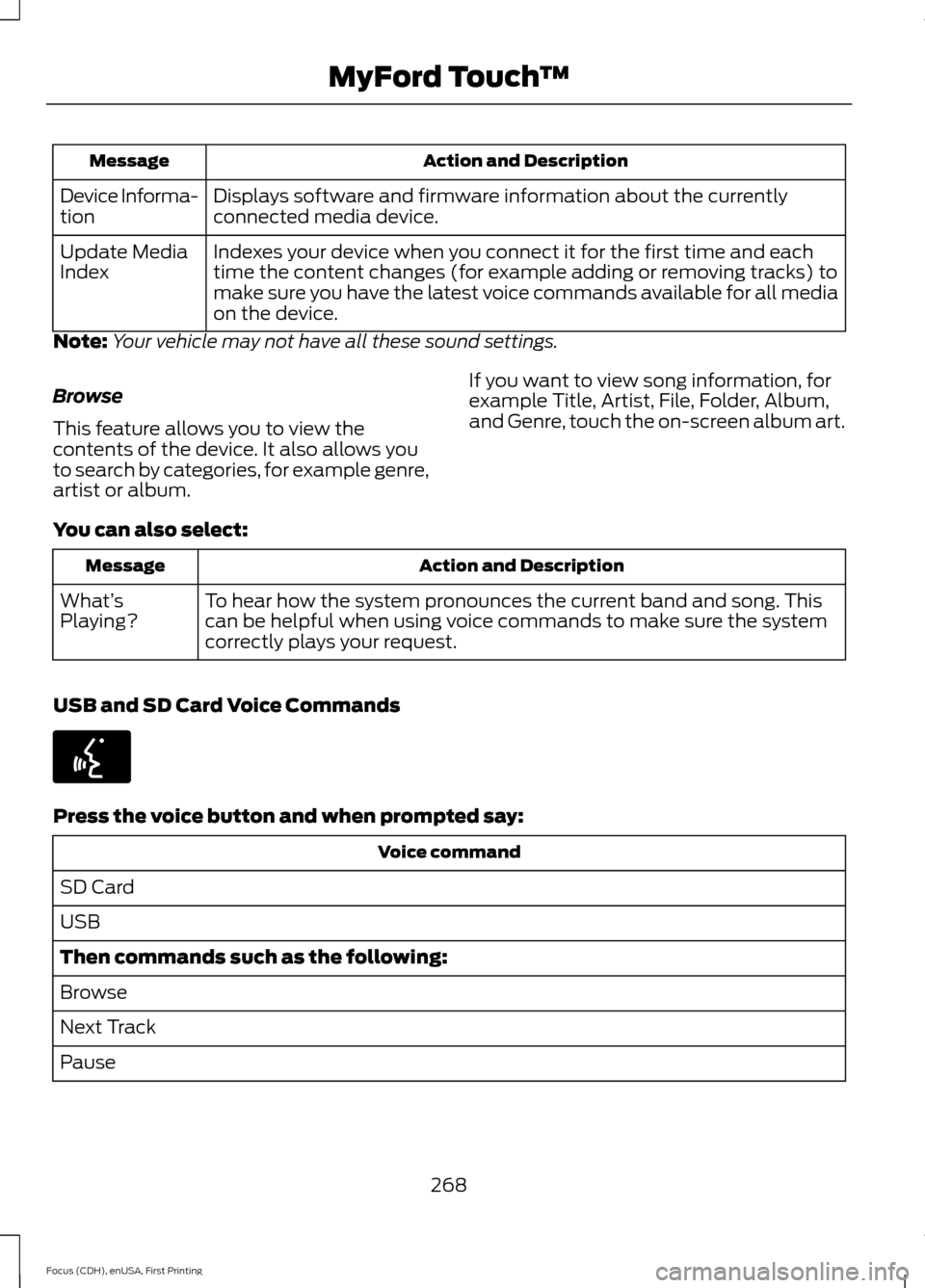
Displays software and firmware information about the currently
connected media device.
Device Informa-
tion
Indexes your device when you connect it for the first time and each
time the content changes (for example adding or removing tracks) to
make sure you have the latest voice commands available for all media
on the device.
Update Media
Index
Note: Your vehicle may not have all these sound settings.
Browse
This feature allows you to view the
contents of the device. It also allows you
to search by categories, for example genre,
artist or album. If you want to view song information, for
example Title, Artist, File, Folder, Album,
and Genre, touch the on-screen album art.
You can also select: Action and Description
Message
To hear how the system pronounces the current band and song. This
can be helpful when using voice commands to make sure the system
correctly plays your request.
What’
s
Playing?
USB and SD Card Voice Commands Press the voice button and when prompted say:
Voice command
SD Card
USB
Then commands such as the following:
Browse
Next Track
Pause
268
Focus (CDH), enUSA, First Printing MyFord Touch
™E142599
Page 275 of 369
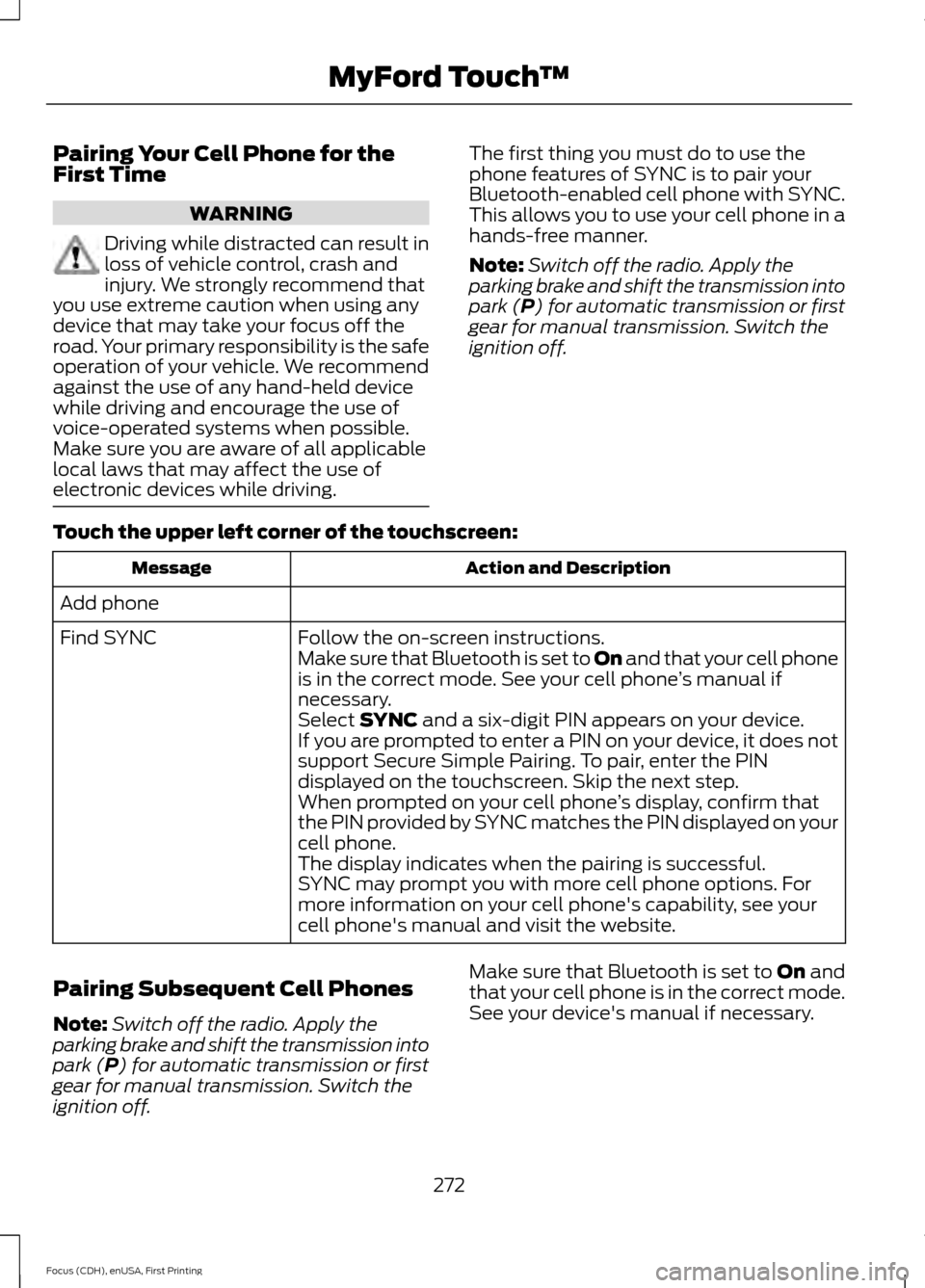
Pairing Your Cell Phone for the
First Time
WARNING
Driving while distracted can result in
loss of vehicle control, crash and
injury. We strongly recommend that
you use extreme caution when using any
device that may take your focus off the
road. Your primary responsibility is the safe
operation of your vehicle. We recommend
against the use of any hand-held device
while driving and encourage the use of
voice-operated systems when possible.
Make sure you are aware of all applicable
local laws that may affect the use of
electronic devices while driving. The first thing you must do to use the
phone features of SYNC is to pair your
Bluetooth-enabled cell phone with SYNC.
This allows you to use your cell phone in a
hands-free manner.
Note:
Switch off the radio. Apply the
parking brake and shift the transmission into
park (P) for automatic transmission or first
gear for manual transmission. Switch the
ignition off.
Touch the upper left corner of the touchscreen: Action and Description
Message
Add phone Follow the on-screen instructions.
Find SYNC
Make sure that Bluetooth is set to On and that your cell phone
is in the correct mode. See your cell phone ’s manual if
necessary.
Select
SYNC and a six-digit PIN appears on your device.
If you are prompted to enter a PIN on your device, it does not
support Secure Simple Pairing. To pair, enter the PIN
displayed on the touchscreen. Skip the next step.
When prompted on your cell phone ’s display, confirm that
the PIN provided by SYNC matches the PIN displayed on your
cell phone.
The display indicates when the pairing is successful.
SYNC may prompt you with more cell phone options. For
more information on your cell phone's capability, see your
cell phone's manual and visit the website.
Pairing Subsequent Cell Phones
Note: Switch off the radio. Apply the
parking brake and shift the transmission into
park (P) for automatic transmission or first
gear for manual transmission. Switch the
ignition off. Make sure that Bluetooth is set to
On and
that your cell phone is in the correct mode.
See your device's manual if necessary.
272
Focus (CDH), enUSA, First Printing MyFord Touch
™
Page 276 of 369
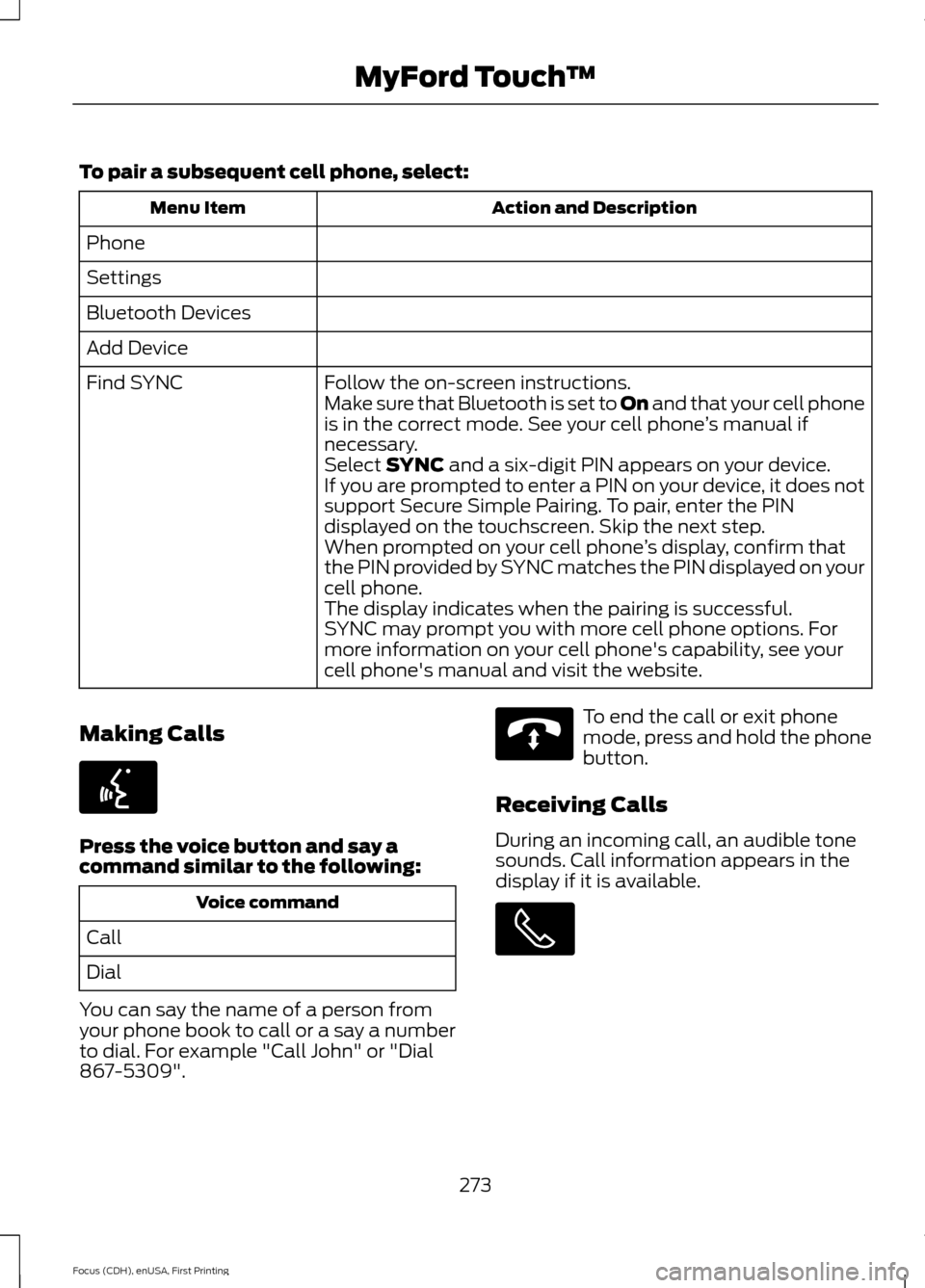
To pair a subsequent cell phone, select:
Action and Description
Menu Item
Phone
Settings
Bluetooth Devices
Add Device Follow the on-screen instructions.
Find SYNC
Make sure that Bluetooth is set to On and that your cell phone
is in the correct mode. See your cell phone ’s manual if
necessary.
Select
SYNC and a six-digit PIN appears on your device.
If you are prompted to enter a PIN on your device, it does not
support Secure Simple Pairing. To pair, enter the PIN
displayed on the touchscreen. Skip the next step.
When prompted on your cell phone ’s display, confirm that
the PIN provided by SYNC matches the PIN displayed on your
cell phone.
The display indicates when the pairing is successful.
SYNC may prompt you with more cell phone options. For
more information on your cell phone's capability, see your
cell phone's manual and visit the website.
Making Calls Press the voice button and say a
command similar to the following:
Voice command
Call
Dial
You can say the name of a person from
your phone book to call or a say a number
to dial. For example "Call John" or "Dial
867-5309". To end the call or exit phone
mode, press and hold the phone
button.
Receiving Calls
During an incoming call, an audible tone
sounds. Call information appears in the
display if it is available. 273
Focus (CDH), enUSA, First Printing MyFord Touch
™E142599 E142632
Page 277 of 369
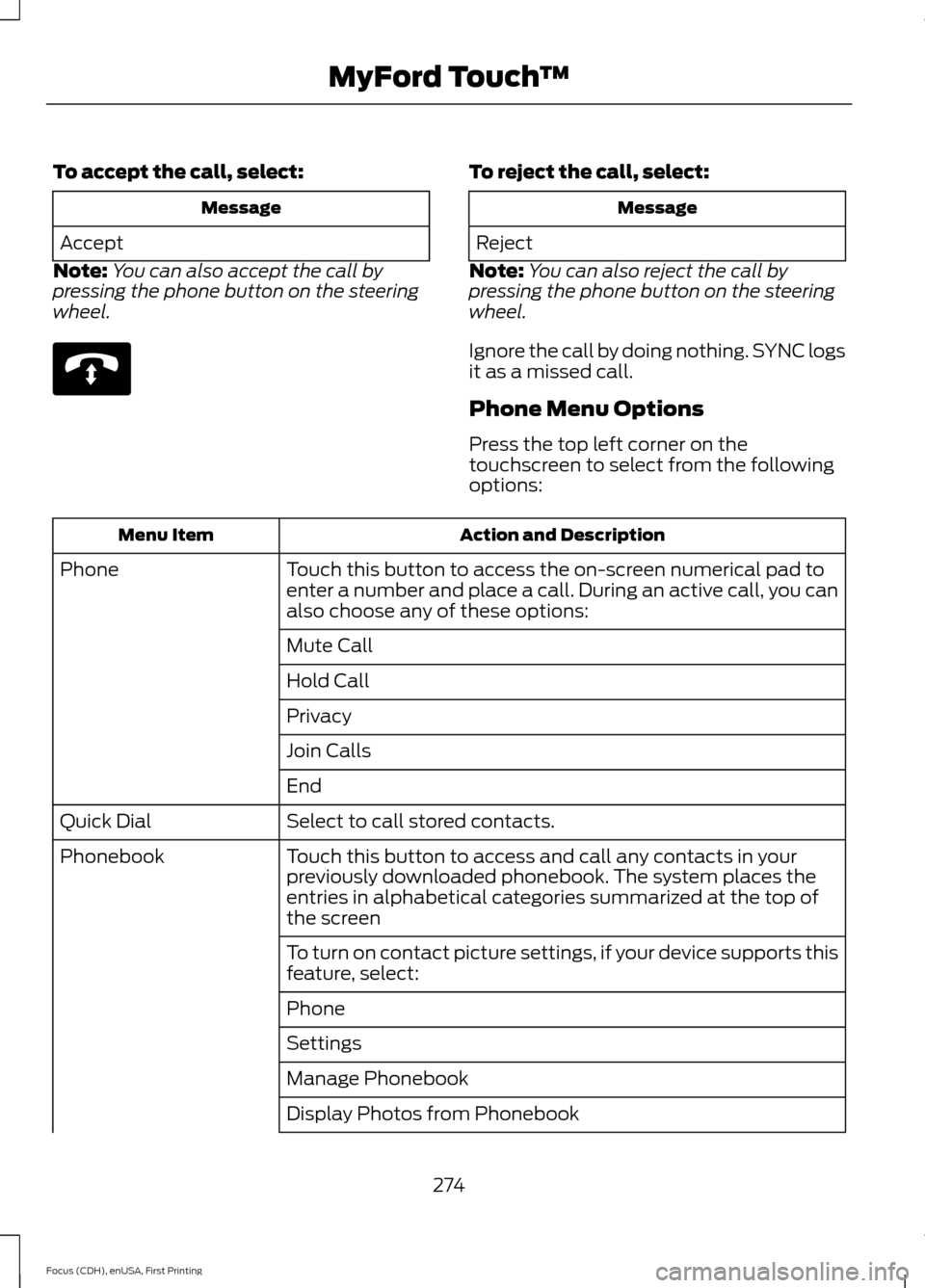
To accept the call, select:
Message
Accept
Note: You can also accept the call by
pressing the phone button on the steering
wheel. To reject the call, select:
Message
Reject
Note: You can also reject the call by
pressing the phone button on the steering
wheel.
Ignore the call by doing nothing. SYNC logs
it as a missed call.
Phone Menu Options
Press the top left corner on the
touchscreen to select from the following
options: Action and Description
Menu Item
Touch this button to access the on-screen numerical pad to
enter a number and place a call. During an active call, you can
also choose any of these options:
Phone
Mute Call
Hold Call
Privacy
Join Calls
End
Select to call stored contacts.
Quick Dial
Touch this button to access and call any contacts in your
previously downloaded phonebook. The system places the
entries in alphabetical categories summarized at the top of
the screen
Phonebook
To turn on contact picture settings, if your device supports this
feature, select:
Phone
Settings
Manage Phonebook
Display Photos from Phonebook274
Focus (CDH), enUSA, First Printing MyFord Touch
™E142632
Page 278 of 369
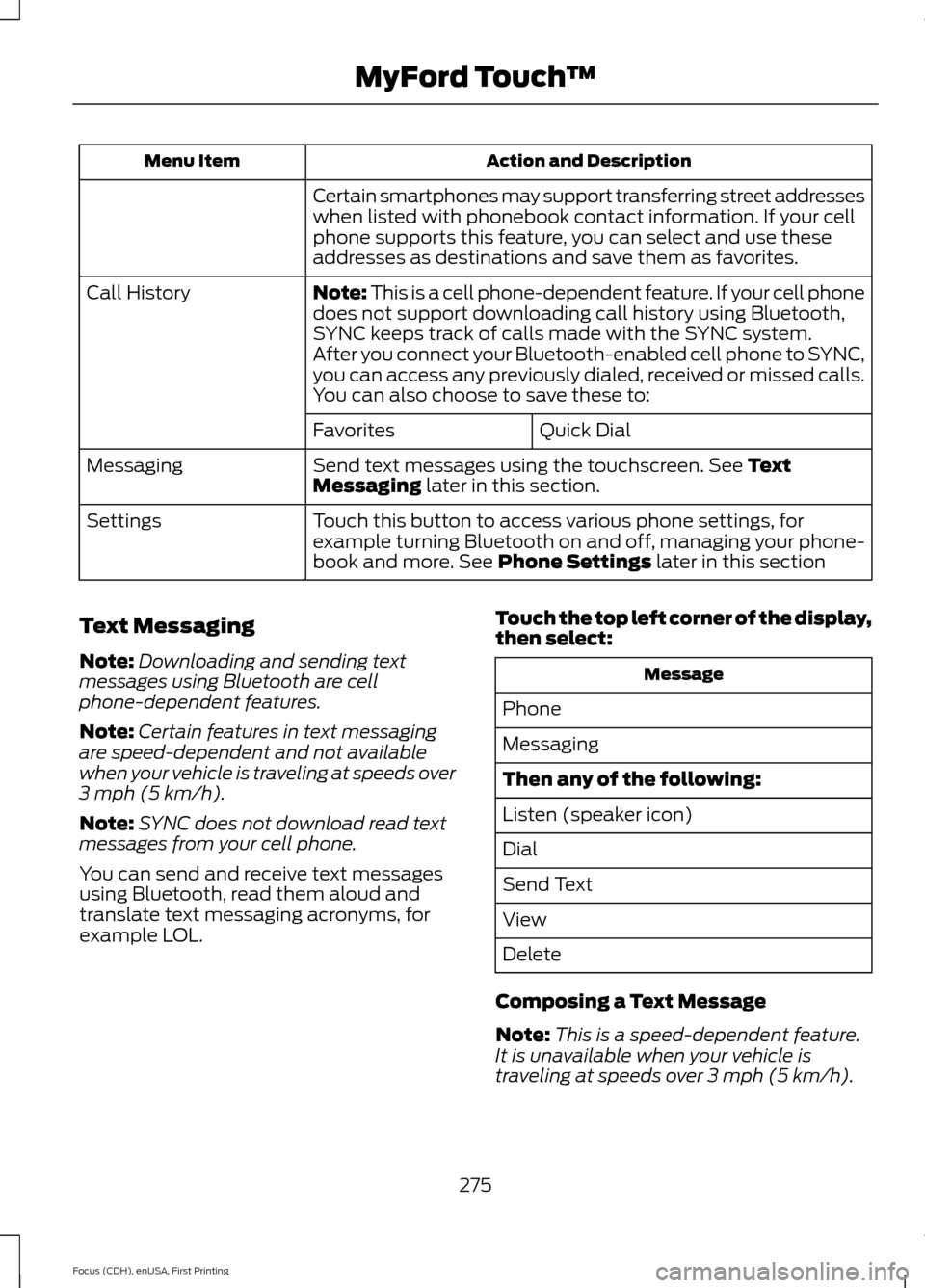
Action and Description
Menu Item
Certain smartphones may support transferring street addresses
when listed with phonebook contact information. If your cell
phone supports this feature, you can select and use these
addresses as destinations and save them as favorites.
Note: This is a cell phone-dependent feature. If your cell phone
does not support downloading call history using Bluetooth,
SYNC keeps track of calls made with the SYNC system.
Call History
After you connect your Bluetooth-enabled cell phone to SYNC,
you can access any previously dialed, received or missed calls.
You can also choose to save these to:Quick Dial
Favorites
Send text messages using the touchscreen. See Text
Messaging later in this section.
Messaging
Touch this button to access various phone settings, for
example turning Bluetooth on and off, managing your phone-
book and more. See
Phone Settings later in this section
Settings
Text Messaging
Note: Downloading and sending text
messages using Bluetooth are cell
phone-dependent features.
Note: Certain features in text messaging
are speed-dependent and not available
when your vehicle is traveling at speeds over
3 mph (5 km/h)
.
Note: SYNC does not download read text
messages from your cell phone.
You can send and receive text messages
using Bluetooth, read them aloud and
translate text messaging acronyms, for
example LOL. Touch the top left corner of the display,
then select: Message
Phone
Messaging
Then any of the following:
Listen (speaker icon)
Dial
Send Text
View
Delete
Composing a Text Message
Note: This is a speed-dependent feature.
It is unavailable when your vehicle is
traveling at speeds over
3 mph (5 km/h).
275
Focus (CDH), enUSA, First Printing MyFord Touch
™
Page 279 of 369
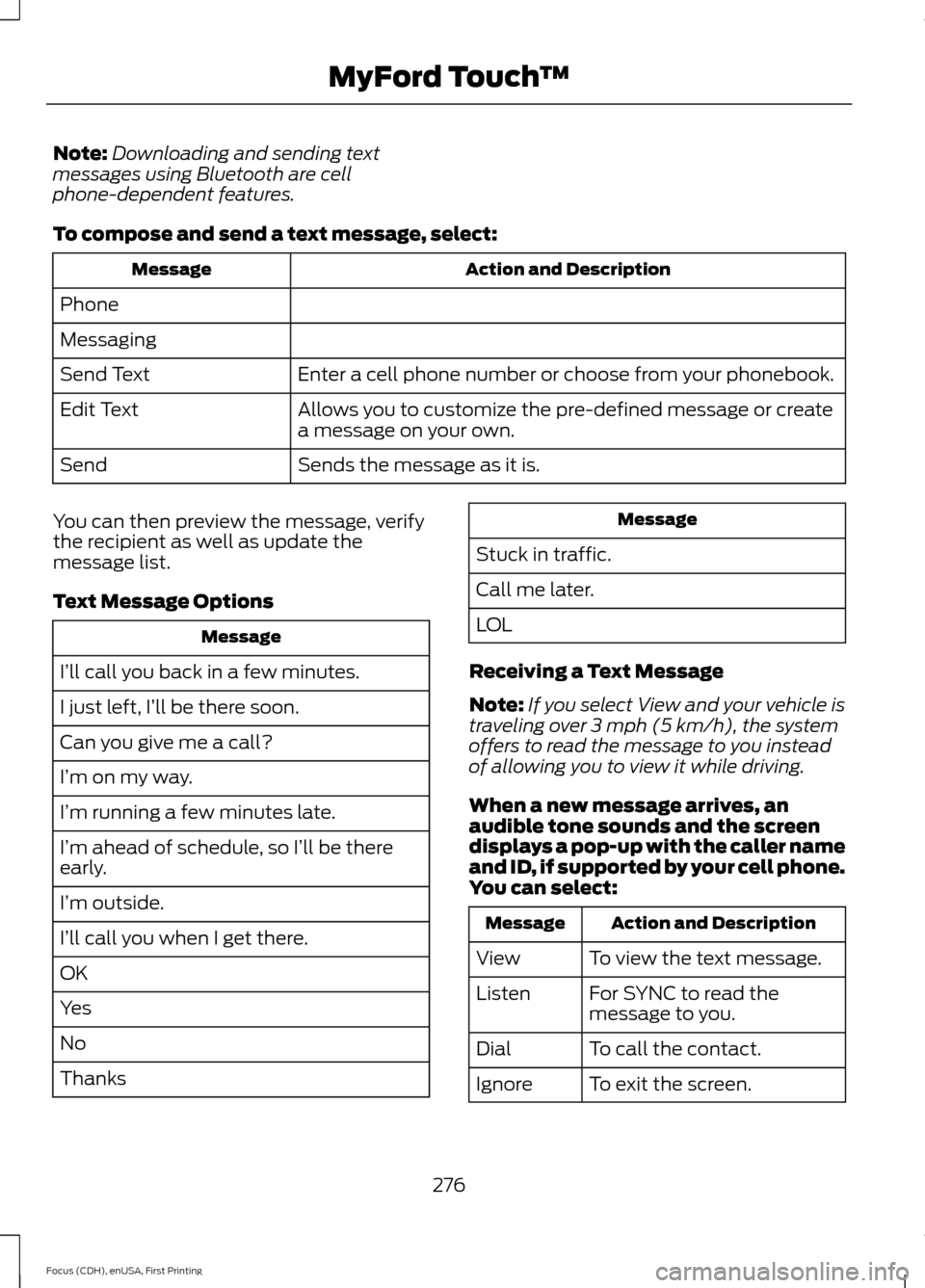
Note:
Downloading and sending text
messages using Bluetooth are cell
phone-dependent features.
To compose and send a text message, select: Action and Description
Message
Phone
Messaging Enter a cell phone number or choose from your phonebook.
Send Text
Allows you to customize the pre-defined message or create
a message on your own.
Edit Text
Sends the message as it is.
Send
You can then preview the message, verify
the recipient as well as update the
message list.
Text Message Options Message
I’ll call you back in a few minutes.
I just left, I’ll be there soon.
Can you give me a call?
I’m on my way.
I’m running a few minutes late.
I’m ahead of schedule, so I’ll be there
early.
I’m outside.
I’ll call you when I get there.
OK
Yes
No
Thanks Message
Stuck in traffic.
Call me later.
LOL
Receiving a Text Message
Note: If you select View and your vehicle is
traveling over 3 mph (5 km/h), the system
offers to read the message to you instead
of allowing you to view it while driving.
When a new message arrives, an
audible tone sounds and the screen
displays a pop-up with the caller name
and ID, if supported by your cell phone.
You can select: Action and Description
Message
To view the text message.
View
For SYNC to read the
message to you.
Listen
To call the contact.
Dial
To exit the screen.
Ignore
276
Focus (CDH), enUSA, First Printing MyFord Touch
™
Page 281 of 369
Phone Voice Commands
Press the voice button and when
prompted say any of the following or a
similar command:
Voice command
Call Voicemail
Listen to Message
Reply to Message
Pair Phone
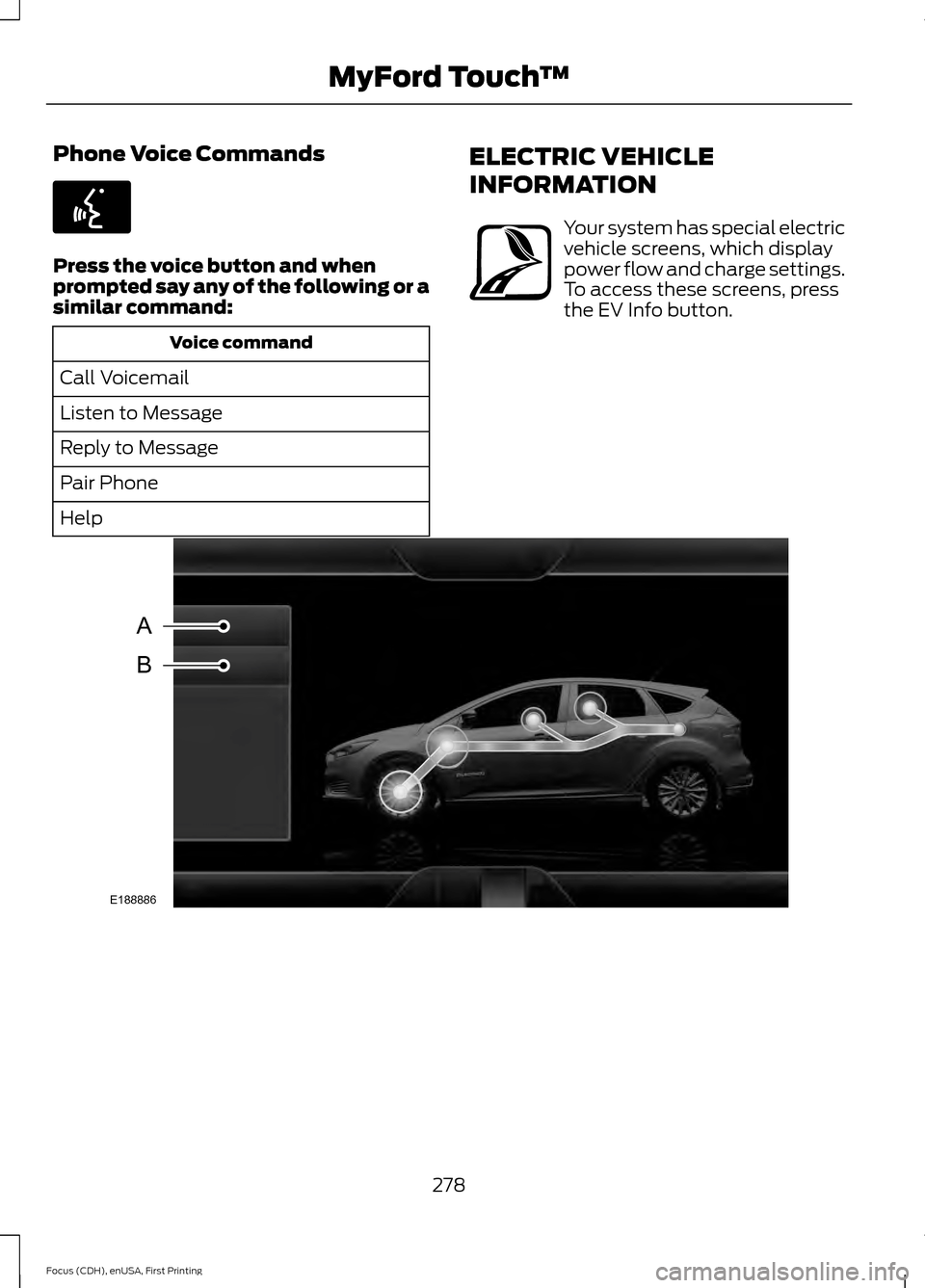
Help ELECTRIC VEHICLE
INFORMATION Your system has special electric
vehicle screens, which display
power flow and charge settings.
To access these screens, press
the EV Info button.
278
Focus (CDH), enUSA, First Printing MyFord Touch
™E142599 E161716 E188886
A
B