light FORD FOCUS ELECTRIC 2018 Manual PDF
[x] Cancel search | Manufacturer: FORD, Model Year: 2018, Model line: FOCUS ELECTRIC, Model: FORD FOCUS ELECTRIC 2018Pages: 375, PDF Size: 12.81 MB
Page 219 of 375
How Temperature Affects Your Tire
Pressure
The tire pressure monitoring system
monitors tire pressure in each pneumatic
tire. While driving in a normal manner, a
typical passenger tire inflation pressure
may increase about 2
–4 psi (14– 28 kPa)
from a cold start situation. If the vehicle is
stationary overnight with the outside
temperature significantly lower than the
daytime temperature, the tire pressure may
decrease about 3 psi (21 kPa) for a drop of
30°F (17°C) in ambient temperature. This
lower pressure value may be detected by
the tire pressure monitoring system as
being significantly lower than the
recommended inflation pressure and
activate the system warning light for low
tire pressure. If the low tire pressure warning light is on, visually check each tire
to verify that no tire is flat. If one or more
tires are flat, repair as necessary. Check
the air pressure in the road tires. If any tire
is under-inflated, carefully drive the vehicle
to the nearest location where air can be
added to the tires. Inflate all the tires to
the recommended inflation pressure.
CHANGING A ROAD WHEEL
Important Information for Lifting
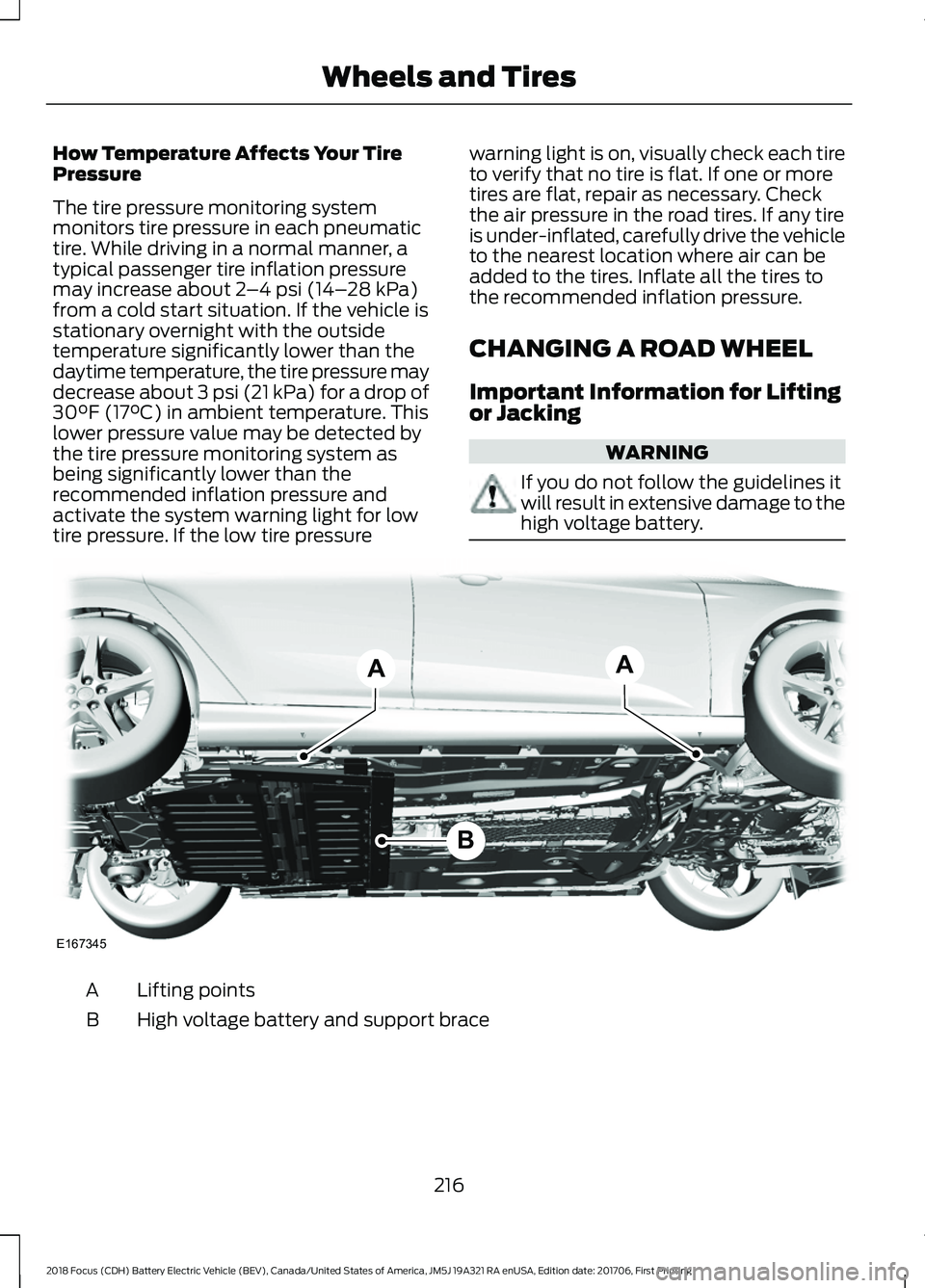
or Jacking WARNING
If you do not follow the guidelines it
will result in extensive damage to the
high voltage battery.
Lifting points
A
High voltage battery and support brace
B
216
2018 Focus (CDH) Battery Electric Vehicle (BEV), Canada/United States of America, JM5J 19A321 RA enUSA, Edition date: 201706, First Printing Wheels and TiresB
AA
E167345
Page 226 of 375
GENERAL INFORMATION
Radio Frequencies and Reception
Factors
AM and FM frequencies are established by
the Federal Communications Commission
(FCC) and the Canadian Radio and
Telecommunications Commission (CRTC).
Those frequencies are:
•
AM: 530, 540-1700, 1710 kHz
• FM: 87.9-107.7, 107.9 MHz Radio Reception Factors
The further you travel from an AM or FM station, the
weaker the signal and the weaker the reception.
Distance and strength
Hills, mountains, tall buildings, bridges, tunnels, freeway
overpasses, parking garages, dense tree foliage and
thunderstorms can interfere with the reception.
Terrain
When you pass a ground-based broadcast repeating
tower, a stronger signal may overtake a weaker one and
result in the audio system muting.
Station overload
CD and CD Player Information
Note: CD units play commercially pressed
4.7 in (12 cm) audio compact discs only. Due
to technical incompatibility, certain
recordable and re-recordable compact discs
may not function correctly when used in
Ford CD players.
Note: Do not insert CDs with homemade
paper (adhesive) labels into the CD player
as the label may peel and cause the CD to
become jammed. You should use a
permanent felt tip marker rather than
adhesive labels on your homemade CDs.
Ballpoint pens may damage CDs. Please
contact an authorized dealer for further
information.
Note: Do not use any irregularly shaped
discs or discs with a scratch protection film
attached.
Always handle discs by their edges only.
Clean the disc with an approved CD
cleaner only. Wipe it from the center of the
disc toward the edge. Do not clean in a
circular motion. Do not expose discs to direct sunlight or
heat sources for extended periods.
MP3 and WMA Track and Folder
Structure
Audio systems capable of recognizing and
playing MP3 and WMA individual tracks
and folder structures work as follows:
•
There are two different modes for MP3
and WMA disc playback: MP3 and
WMA track mode (system default) and
MP3 and WMA folder mode.
• MP3 and WMA track mode ignores any
folder structure on the MP3 and WMA
disc. The player numbers each MP3
and WMA track on the disc (noted by
the MP3 or WMA file extension) from
T001 to a maximum of T255. The
maximum number of playable MP3 and
WMA files may be less depending on
the structure of the CD and exact
model of radio present.
223
2018 Focus (CDH) Battery Electric Vehicle (BEV), Canada/United States of America, JM5J 19A321 RA enUSA, Edition date: 201706, First Printing Audio System
Page 230 of 375
GENERAL INFORMATION
WARNING
Driving while distracted can result in
loss of vehicle control, crash and
injury. We strongly recommend that
you use extreme caution when using any
device that may take your focus off the
road. Your primary responsibility is the safe
operation of your vehicle. We recommend
against the use of any hand-held device
while driving and encourage the use of
voice-operated systems when possible.
Make sure you are aware of all applicable
local laws that may affect the use of
electronic devices while driving. Getting to Know Your System
The SYNC 3 system allows you to interact
with a variety of features using the
touchscreen and voice commands. By
integrating with your Bluetooth-enabled
phone, the touchscreen provides easy
interaction with audio, multimedia, climate
control, navigation, and your phone's SYNC
AppLink.
Using the Touchscreen
To operate the touchscreen, you can
simply touch the item or option that you
want to select. The button highlights when
you select it.
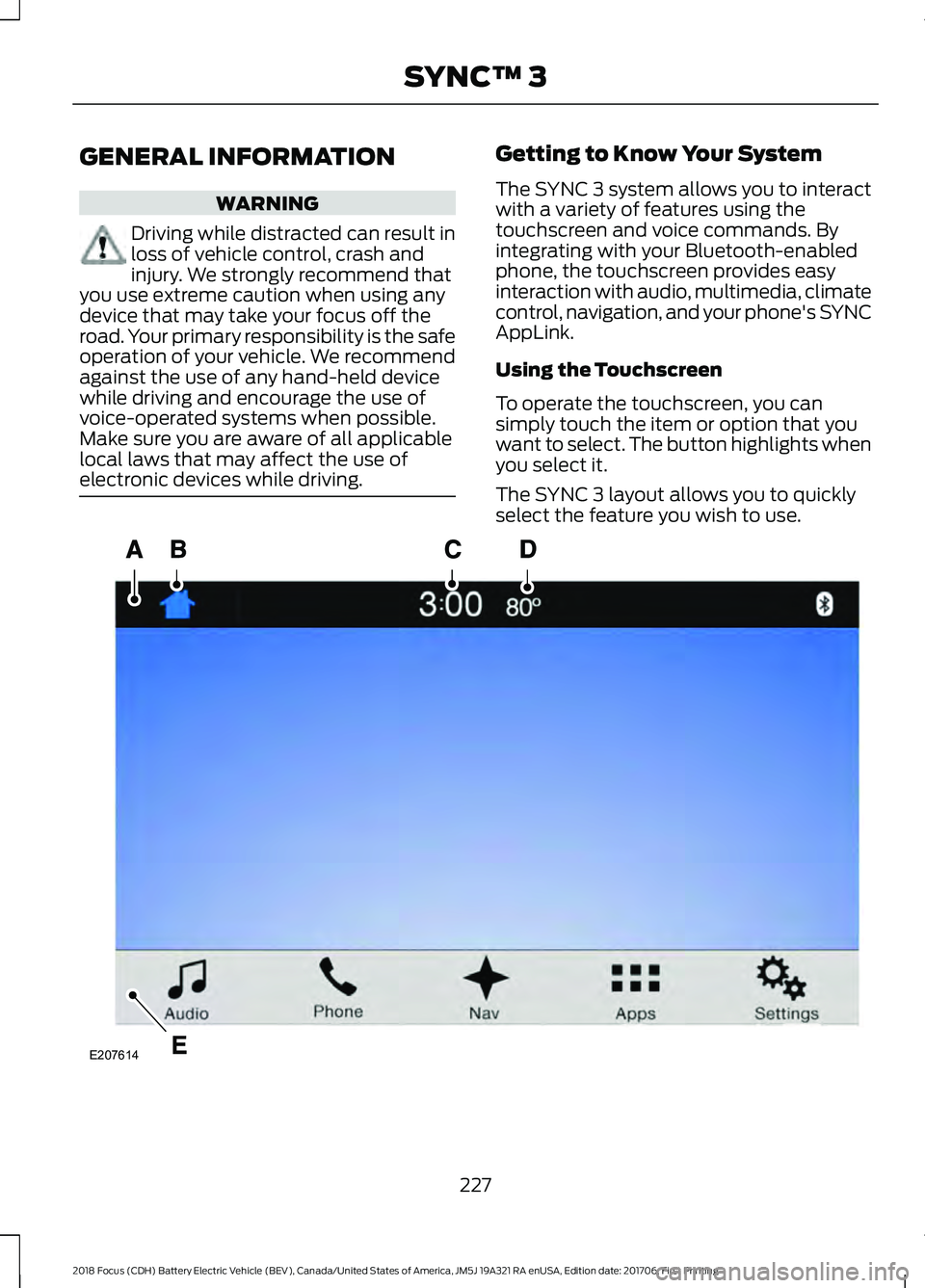
The SYNC 3 layout allows you to quickly
select the feature you wish to use.
227
2018 Focus (CDH) Battery Electric Vehicle (BEV), Canada/United States of America, JM5J 19A321 RA enUSA, Edition date: 201706, First Printing SYNC™ 3E207614
Page 253 of 375
HD Radio technology is the digital
evolution of analog AM/FM radio. Your
system has a special receiver that allows
it to receive digital broadcasts (where
available) in addition to the analog
broadcasts, it already receives. Digital
broadcasts provide a better sound quality
than analog broadcasts with free,
crystal-clear audio and no static or
distortion. For more information, and a
guide to available stations and
programming, please visit:
Website
www.hdradio.com
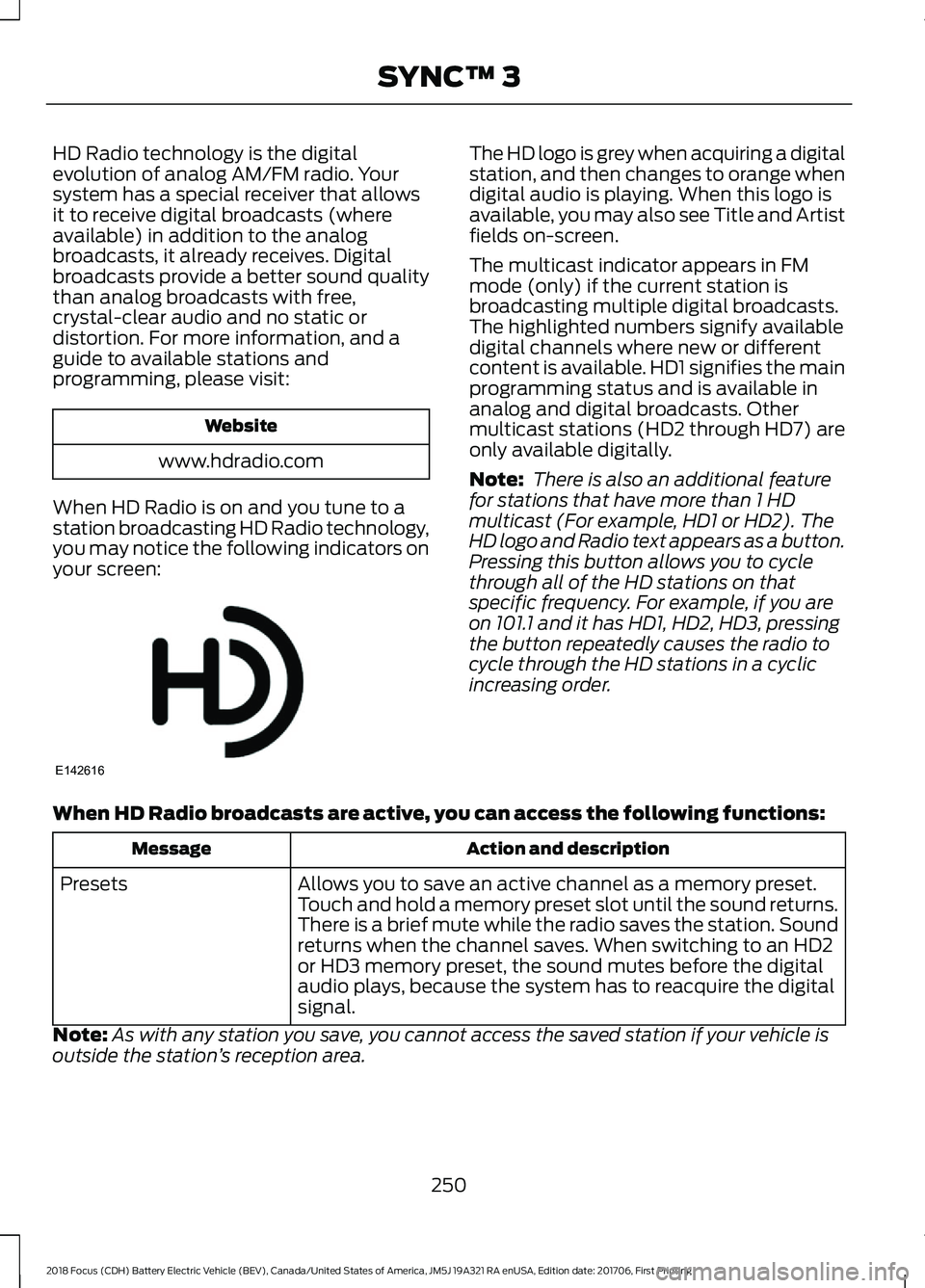
When HD Radio is on and you tune to a
station broadcasting HD Radio technology,
you may notice the following indicators on
your screen: The HD logo is grey when acquiring a digital
station, and then changes to orange when
digital audio is playing. When this logo is
available, you may also see Title and Artist
fields on-screen.
The multicast indicator appears in FM
mode (only) if the current station is
broadcasting multiple digital broadcasts.
The highlighted numbers signify available
digital channels where new or different
content is available. HD1 signifies the main
programming status and is available in
analog and digital broadcasts. Other
multicast stations (HD2 through HD7) are
only available digitally.
Note:
There is also an additional feature
for stations that have more than 1 HD
multicast (For example, HD1 or HD2). The
HD logo and Radio text appears as a button.
Pressing this button allows you to cycle
through all of the HD stations on that
specific frequency. For example, if you are
on 101.1 and it has HD1, HD2, HD3, pressing
the button repeatedly causes the radio to
cycle through the HD stations in a cyclic
increasing order.
When HD Radio broadcasts are active, you can access the following functions: Action and description
Message
Allows you to save an active channel as a memory preset.
Touch and hold a memory preset slot until the sound returns.
There is a brief mute while the radio saves the station. Sound
returns when the channel saves. When switching to an HD2
or HD3 memory preset, the sound mutes before the digital
audio plays, because the system has to reacquire the digital
signal.
Presets
Note: As with any station you save, you cannot access the saved station if your vehicle is
outside the station ’s reception area.
250
2018 Focus (CDH) Battery Electric Vehicle (BEV), Canada/United States of America, JM5J 19A321 RA enUSA, Edition date: 201706, First Printing SYNC™ 3E142616
Page 254 of 375
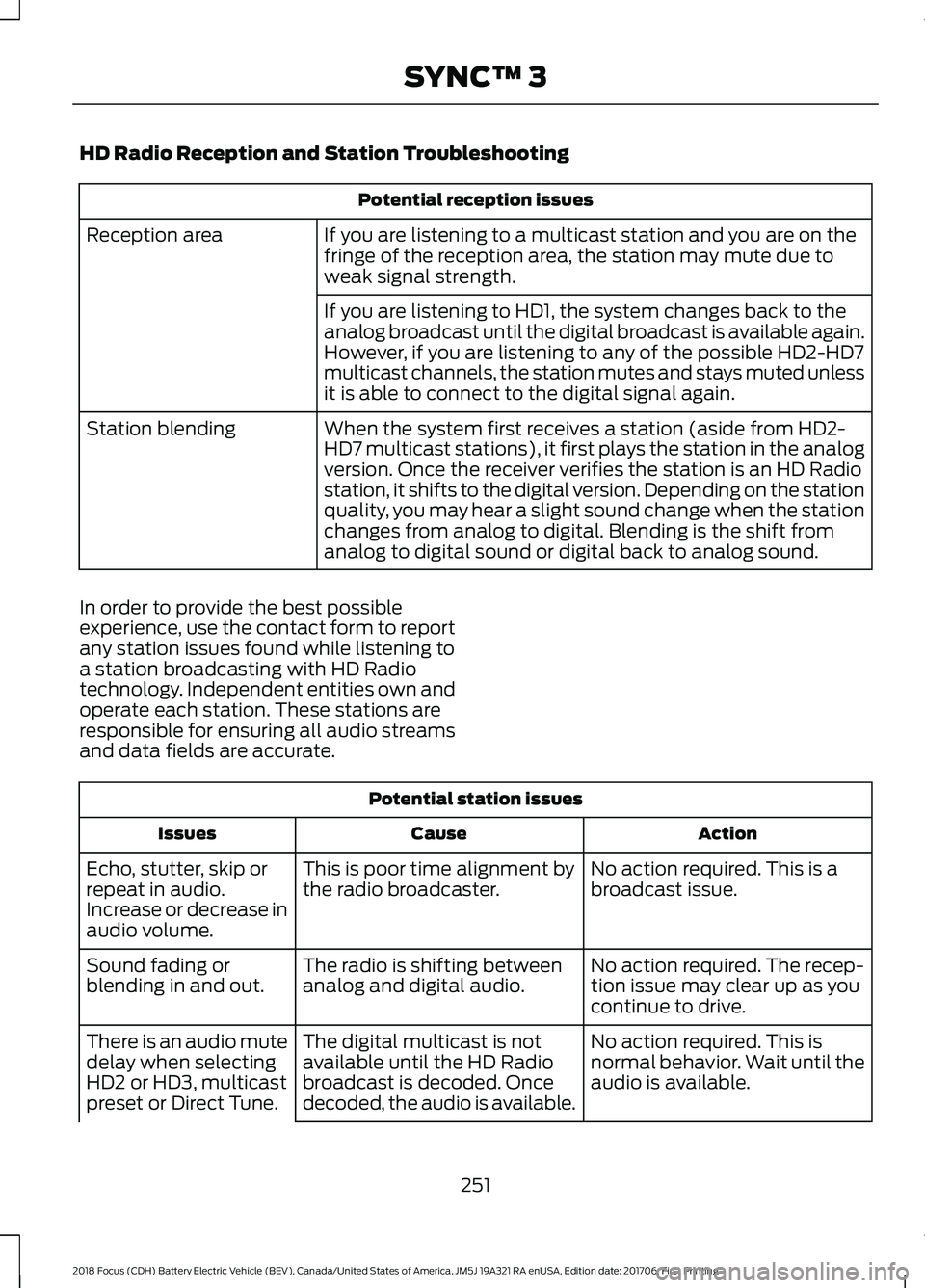
HD Radio Reception and Station Troubleshooting
Potential reception issues
If you are listening to a multicast station and you are on the
fringe of the reception area, the station may mute due to
weak signal strength.
Reception area
If you are listening to HD1, the system changes back to the
analog broadcast until the digital broadcast is available again.
However, if you are listening to any of the possible HD2-HD7
multicast channels, the station mutes and stays muted unless
it is able to connect to the digital signal again.
When the system first receives a station (aside from HD2-
HD7 multicast stations), it first plays the station in the analog
version. Once the receiver verifies the station is an HD Radio
station, it shifts to the digital version. Depending on the station
quality, you may hear a slight sound change when the station
changes from analog to digital. Blending is the shift from
analog to digital sound or digital back to analog sound.
Station blending
In order to provide the best possible
experience, use the contact form to report
any station issues found while listening to
a station broadcasting with HD Radio
technology. Independent entities own and
operate each station. These stations are
responsible for ensuring all audio streams
and data fields are accurate. Potential station issues
Action
Cause
Issues
No action required. This is a
broadcast issue.
This is poor time alignment by
the radio broadcaster.
Echo, stutter, skip or
repeat in audio.
Increase or decrease in
audio volume.
No action required. The recep-
tion issue may clear up as you
continue to drive.
The radio is shifting between
analog and digital audio.
Sound fading or
blending in and out.
No action required. This is
normal behavior. Wait until the
audio is available.
The digital multicast is not
available until the HD Radio
broadcast is decoded. Once
decoded, the audio is available.
There is an audio mute
delay when selecting
HD2 or HD3, multicast
preset or Direct Tune.
251
2018 Focus (CDH) Battery Electric Vehicle (BEV), Canada/United States of America, JM5J 19A321 RA enUSA, Edition date: 201706, First Printing SYNC™ 3
Page 256 of 375
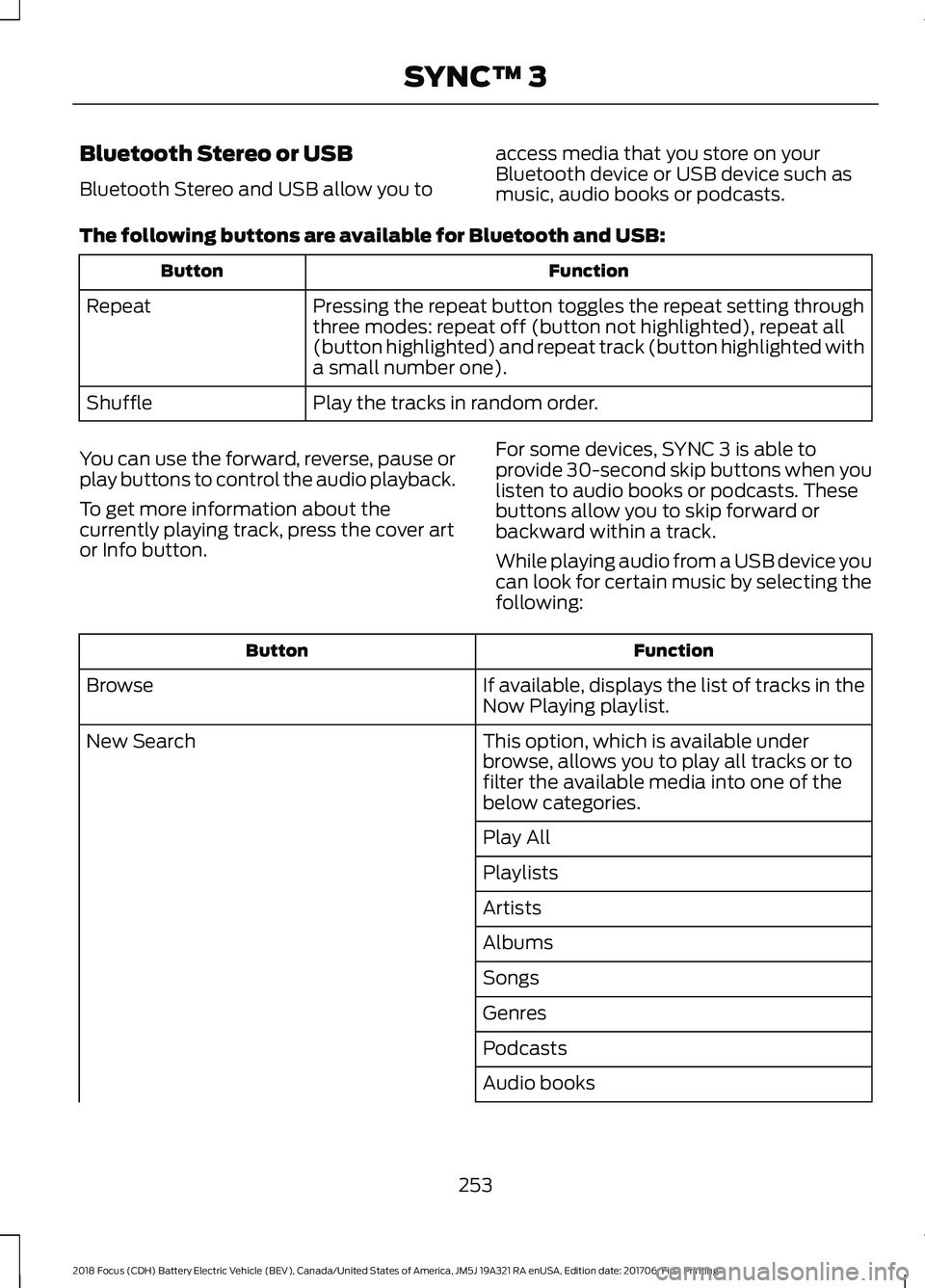
Bluetooth Stereo or USB
Bluetooth Stereo and USB allow you to
access media that you store on your
Bluetooth device or USB device such as
music, audio books or podcasts.
The following buttons are available for Bluetooth and USB: Function
Button
Pressing the repeat button toggles the repeat setting through
three modes: repeat off (button not highlighted), repeat all
(button highlighted) and repeat track (button highlighted with
a small number one).
Repeat
Play the tracks in random order.
Shuffle
You can use the forward, reverse, pause or
play buttons to control the audio playback.
To get more information about the
currently playing track, press the cover art
or Info button. For some devices, SYNC 3 is able to
provide 30-second skip buttons when you
listen to audio books or podcasts. These
buttons allow you to skip forward or
backward within a track.
While playing audio from a USB device you
can look for certain music by selecting the
following: Function
Button
If available, displays the list of tracks in the
Now Playing playlist.
Browse
This option, which is available under
browse, allows you to play all tracks or to
filter the available media into one of the
below categories.
New Search
Play All
Playlists
Artists
Albums
Songs
Genres
Podcasts
Audio books
253
2018 Focus (CDH) Battery Electric Vehicle (BEV), Canada/United States of America, JM5J 19A321 RA enUSA, Edition date: 201706, First Printing SYNC™ 3
Page 264 of 375
Map Mode
Map mode shows advanced viewing
comprised of 2D city maps, 3D landmarks
and 3D city models (when available). 2D
city maps show detailed outlines of
buildings, visible land use, landscape
features, and detailed railroad
infrastructure for the most essential cities
around the globe.
3D landmarks appear as clear, visible
objects that are typically recognizable and
have a certain tourism value.
3D city models are complete 3D models
of entire city areas including navigable
roads, parks, rivers and rendered buildings.
3D landmarks and city models appear in
3D map mode only. Coverage of these
varies and improves with updated map
releases.
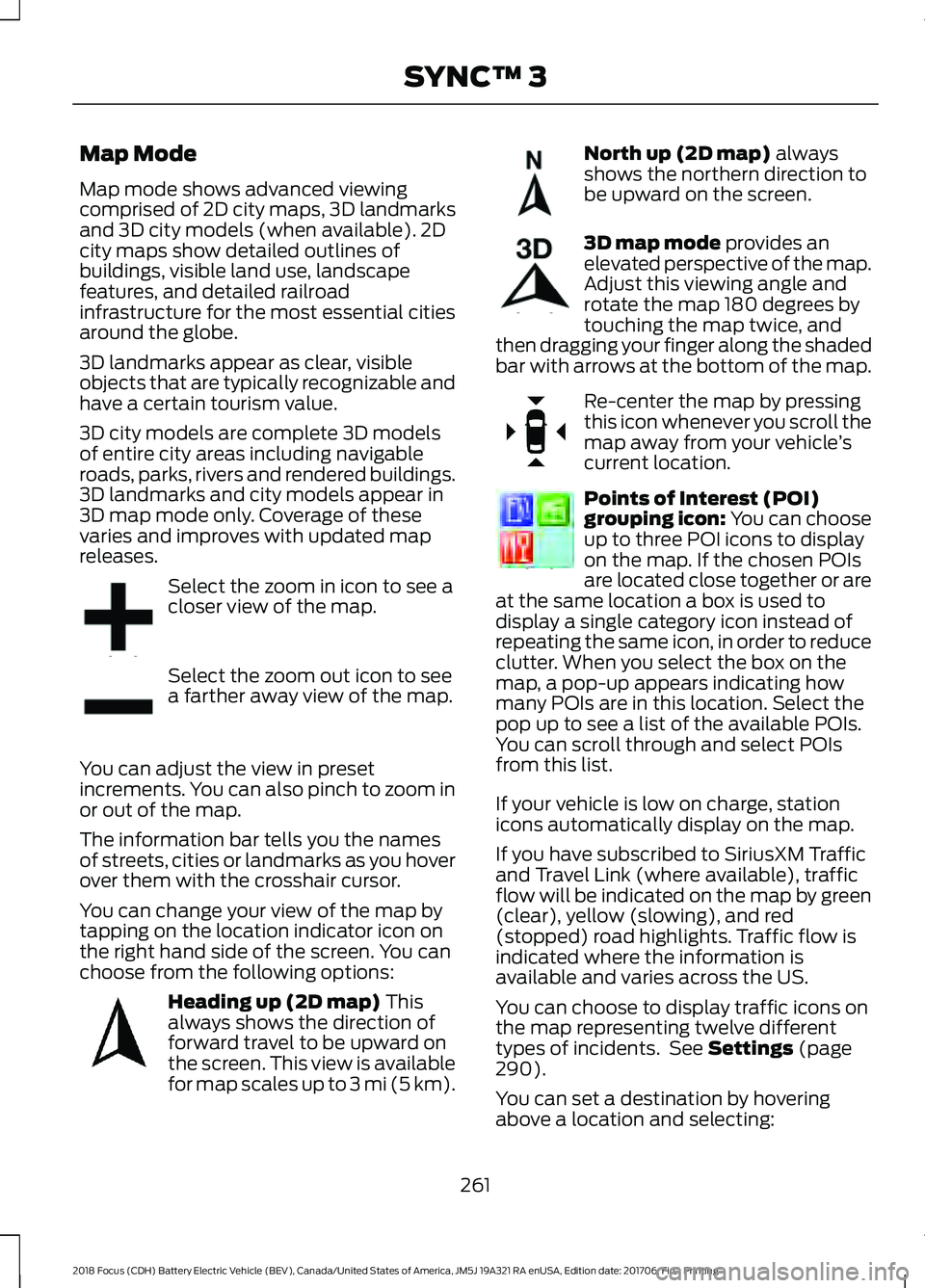
Select the zoom in icon to see a
closer view of the map.
Select the zoom out icon to see
a farther away view of the map.
You can adjust the view in preset
increments. You can also pinch to zoom in
or out of the map.
The information bar tells you the names
of streets, cities or landmarks as you hover
over them with the crosshair cursor.
You can change your view of the map by
tapping on the location indicator icon on
the right hand side of the screen. You can
choose from the following options: Heading up (2D map) This
always shows the direction of
forward travel to be upward on
the screen. This view is available
for map scales up to
3 mi (5 km). North up (2D map)
always
shows the northern direction to
be upward on the screen. 3D map mode
provides an
elevated perspective of the map.
Adjust this viewing angle and
rotate the map 180 degrees by
touching the map twice, and
then dragging your finger along the shaded
bar with arrows at the bottom of the map. Re-center the map by pressing
this icon whenever you scroll the
map away from your vehicle
’s
current location. Points of Interest (POI)
grouping icon: You can choose
up to three POI icons to display
on the map. If the chosen POIs
are located close together or are
at the same location a box is used to
display a single category icon instead of
repeating the same icon, in order to reduce
clutter. When you select the box on the
map, a pop-up appears indicating how
many POIs are in this location. Select the
pop up to see a list of the available POIs.
You can scroll through and select POIs
from this list.
If your vehicle is low on charge, station
icons automatically display on the map.
If you have subscribed to SiriusXM Traffic
and Travel Link (where available), traffic
flow will be indicated on the map by green
(clear), yellow (slowing), and red
(stopped) road highlights. Traffic flow is
indicated where the information is
available and varies across the US.
You can choose to display traffic icons on
the map representing twelve different
types of incidents. See
Settings (page
290).
You can set a destination by hovering
above a location and selecting:
261
2018 Focus (CDH) Battery Electric Vehicle (BEV), Canada/United States of America, JM5J 19A321 RA enUSA, Edition date: 201706, First Printing SYNC™ 3E207752 E207753 E207750 E207749 E207748 E207751 E207754
Page 265 of 375
Button
Start
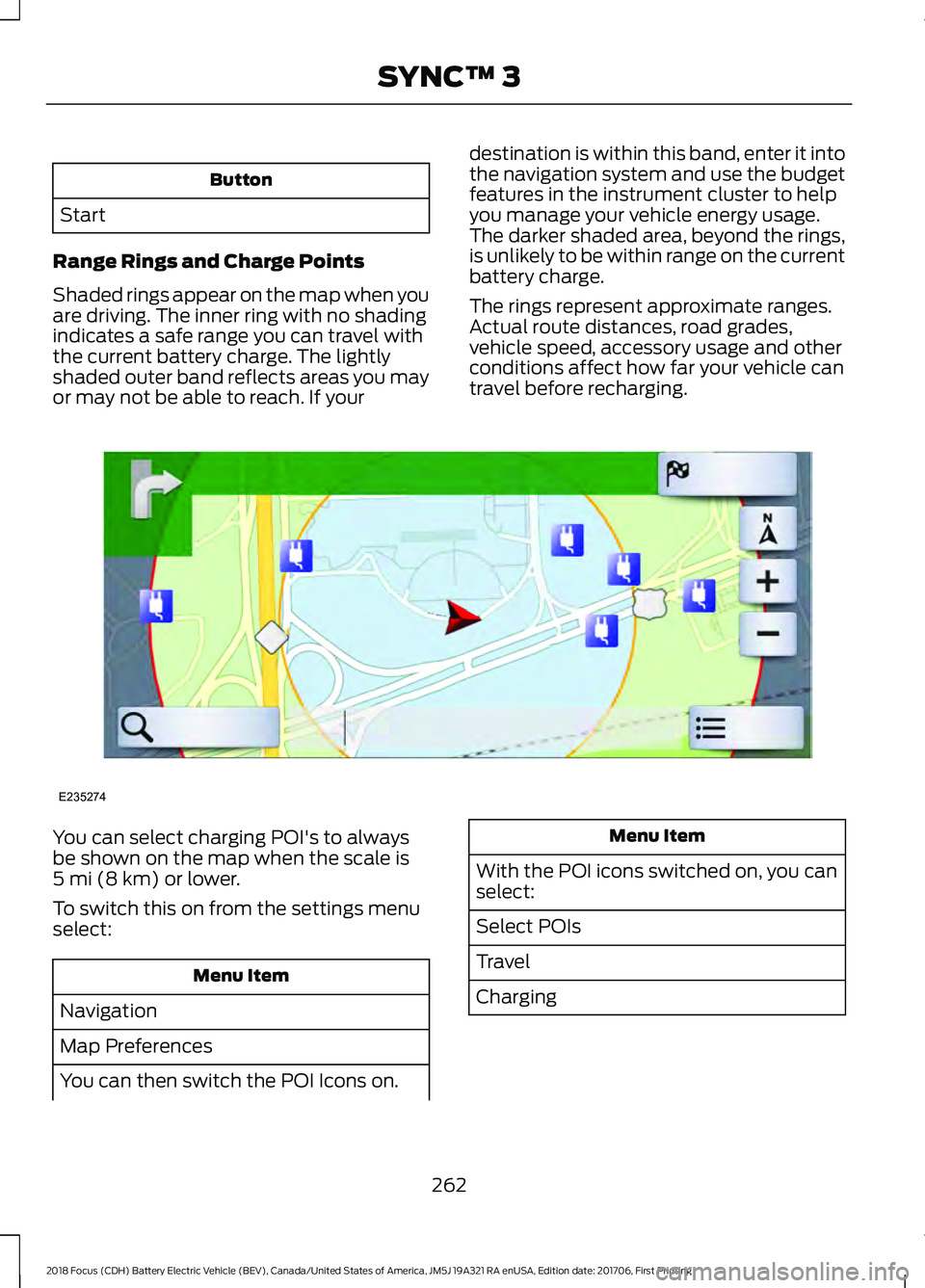
Range Rings and Charge Points
Shaded rings appear on the map when you
are driving. The inner ring with no shading
indicates a safe range you can travel with
the current battery charge. The lightly
shaded outer band reflects areas you may
or may not be able to reach. If your destination is within this band, enter it into
the navigation system and use the budget
features in the instrument cluster to help
you manage your vehicle energy usage.
The darker shaded area, beyond the rings,
is unlikely to be within range on the current
battery charge.
The rings represent approximate ranges.
Actual route distances, road grades,
vehicle speed, accessory usage and other
conditions affect how far your vehicle can
travel before recharging.You can select charging POI's to always
be shown on the map when the scale is
5 mi (8 km) or lower.
To switch this on from the settings menu
select: Menu Item
Navigation
Map Preferences
You can then switch the POI Icons on. Menu Item
With the POI icons switched on, you can
select:
Select POIs
Travel
Charging
262
2018 Focus (CDH) Battery Electric Vehicle (BEV), Canada/United States of America, JM5J 19A321 RA enUSA, Edition date: 201706, First Printing SYNC™ 3E235274
Page 272 of 375
SiriusXM Traffic and Travel Link
SiriusXM Traffic and Travel Link is available
on vehicles equipped with navigation and
only in select markets. You must activate
and subscribe to receive SiriusXM Traffic
and Travel Link information. It helps you
locate the best gas prices, find movie
listings, get current traffic alerts, view the
weather map, get accurate ski conditions
and see current sports scores. See Apps
(page 288).
The system calculates a reasonable
efficient route based on available speed
limits, traffic, and road conditions. You may
know a local short cut that is more efficient
at a given time than the route provided by
SYNC 3, but you should expect a slight
difference in minutes or miles with the
SYNC 3 route.
Navigation Map Updates
Annual navigation map updates are
available for purchase through your
dealership, by calling 1-866-462-8837 in
the United States and Canada or
01-800-557-5539 in Mexico. You can also
visit: Website
www.navigation.com/sync
You need to specify the make and model
of your vehicle to determine if there is an
update available.
HERE is the digital map provider for the
navigation application. If you find map data
errors, you may report them directly to
HERE by going to
www.here.com/mapcreator. HERE
evaluates all reported map errors and
responds with the result of their
investigation by e-mail.
Map coverage includes the USA (including
Puerto Rico and the US Virgin Islands),
Canada and Mexico.
ELECTRIC VEHICLE
INFORMATION
The power flow information for your
vehicle is available through the Apps
section of the touch screen.
269
2018 Focus (CDH) Battery Electric Vehicle (BEV), Canada/United States of America, JM5J 19A321 RA enUSA, Edition date: 201706, First Printing SYNC™ 3
Page 274 of 375
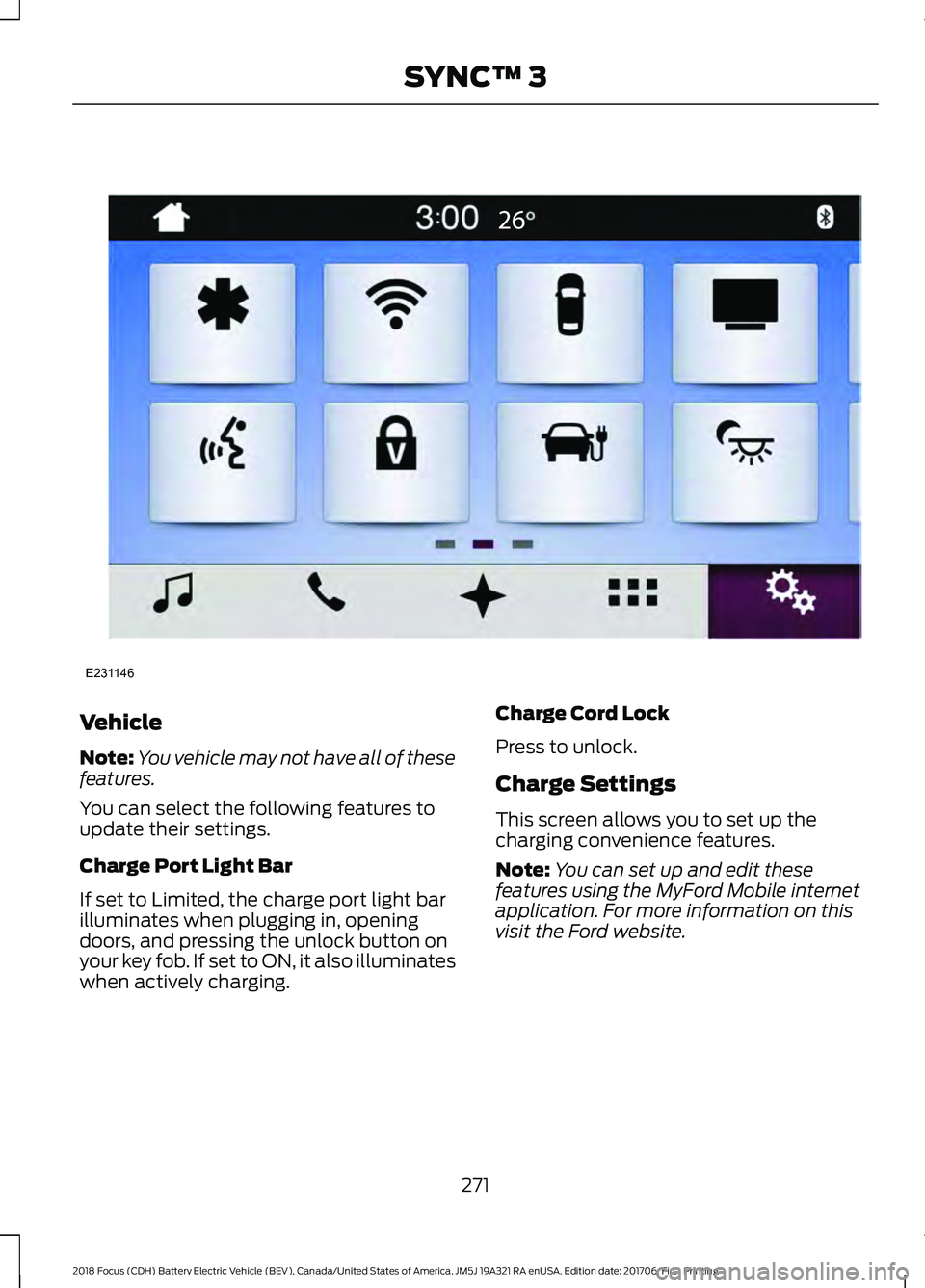
Vehicle
Note:
You vehicle may not have all of these
features.
You can select the following features to
update their settings.
Charge Port Light Bar
If set to Limited, the charge port light bar
illuminates when plugging in, opening
doors, and pressing the unlock button on
your key fob. If set to ON, it also illuminates
when actively charging. Charge Cord Lock
Press to unlock.
Charge Settings
This screen allows you to set up the
charging convenience features.
Note:
You can set up and edit these
features using the MyFord Mobile internet
application. For more information on this
visit the Ford website.
271
2018 Focus (CDH) Battery Electric Vehicle (BEV), Canada/United States of America, JM5J 19A321 RA enUSA, Edition date: 201706, First Printing SYNC™ 3E231146