brake sensor FORD FUSION 2019 User Guide
[x] Cancel search | Manufacturer: FORD, Model Year: 2019, Model line: FUSION, Model: FORD FUSION 2019Pages: 550, PDF Size: 8.5 MB
Page 203 of 550
The indicator, current gap setting and set
speed appear in the information display.
Following a Vehicle
WARNING: When following a
vehicle, your vehicle does not always
decelerate quickly enough to avoid a
crash without driver intervention. Always
apply the brakes when necessary. Failing
to do so may result in a crash, serious
injury or death. WARNING: Adaptive cruise control
only warns of vehicles detected by the
radar sensor. In some cases there may
be no warning or a delayed warning. You
should always apply the brakes when
necessary. Failure to do so may result in
a crash, serious injury or death.
When a vehicle ahead of you enters the
same lane or a slower vehicle is ahead in
the same lane, the vehicle speed adjusts
to maintain a preset gap distance. A
vehicle graphic illuminates in the
instrument cluster.
Note: The brakes may emit noise when
applied by the system.
Note: When you are following a vehicle and
you switch on a direction indicator, adaptive
cruise control may provide a small
temporary acceleration to help you pass.
Your vehicle maintains a consistent gap
from the vehicle ahead until:
• The vehicle in front of you accelerates
to a speed above the set speed.
• The vehicle in front of you moves out
of the lane you are in.
• You set a new gap distance. The system applies the brakes to slow your
vehicle to maintain a safe gap distance
from the vehicle in front. The system only
applies limited braking. You can override
the system by applying the brakes.
If the system determines that its maximum
braking level is not sufficient, an audible
warning sounds, a message appears in the
information display and an indicator
flashes when the system continues to
brake. Take immediate action.
Following a Vehicle to a Complete
Stop
If your vehicle follows a vehicle to a
complete stop and remains stationary for
less than three seconds, your vehicle
accelerates from a stationary position to
follow the vehicle ahead.
If your vehicle follows a vehicle
to a complete stop and remains
stationary for more than three
seconds, press to follow the vehicle ahead.
Or press the accelerator pedal.
Setting the Gap Distance
You can decrease or increase the distance
between your vehicle and the vehicle in
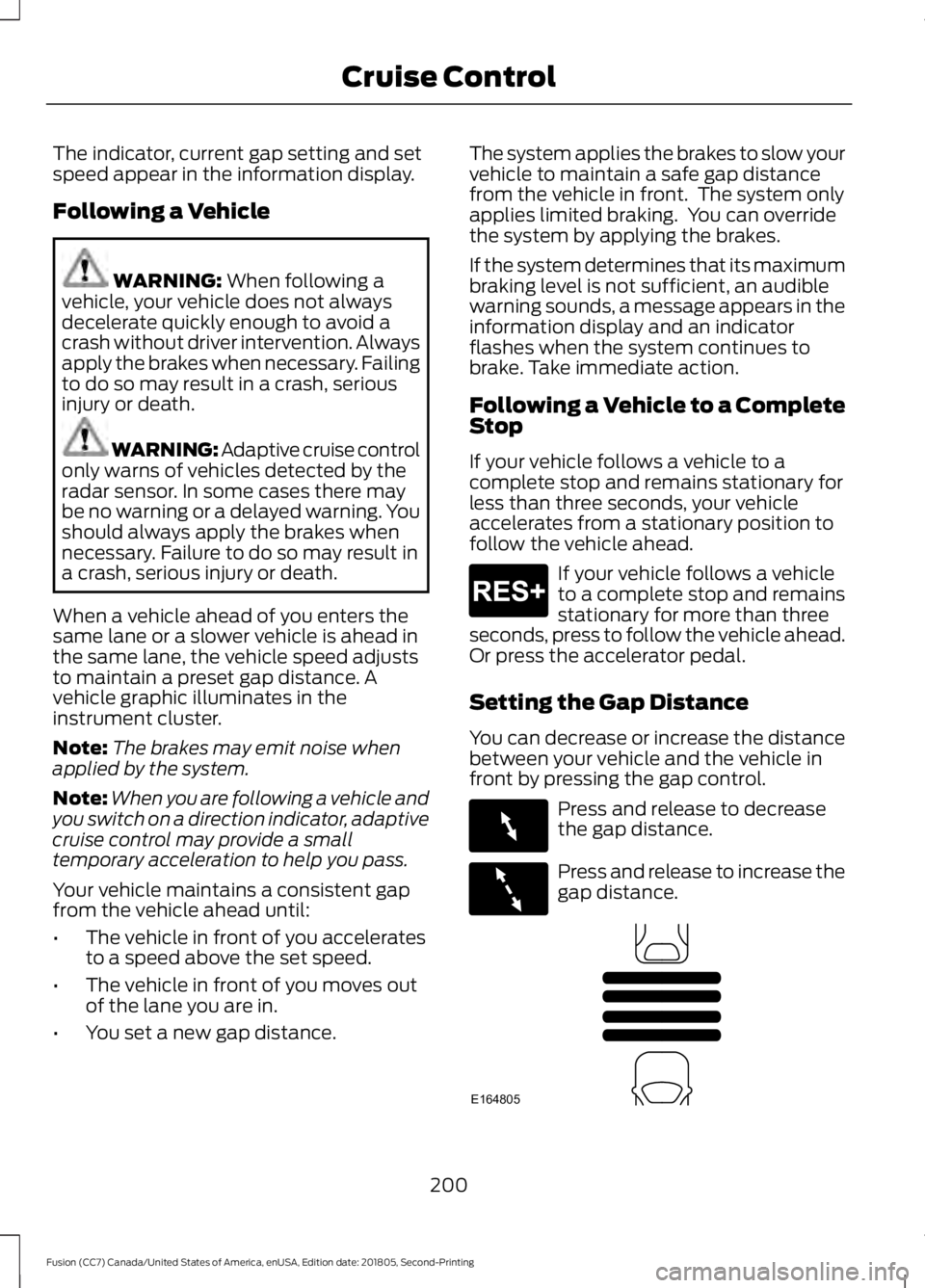
front by pressing the gap control. Press and release to decrease
the gap distance.
Press and release to increase the
gap distance.
200
Fusion (CC7) Canada/United States of America, enUSA, Edition date: 201805, Second-Printing Cruise ControlE265299 E263697 E263696 E164805
Page 205 of 550
Automatic Cancellation
Automatic cancellation can also occur
when:
•
The tires lose traction.
• You apply the parking brake.
Park Brake Application
Automatic parking brake application and
cancellation occurs if:
• You unbuckle the seatbelt and open
the door after you stop the vehicle.
• You hold the vehicle at a stop
continuously for more than three
minutes.
Hilly Condition Usage
You should select a lower gear when the
system is active in situations such as
prolonged downhill driving on steep
grades, for example in mountainous areas.
The system needs additional engine
braking in these situations to reduce the
load on the vehicle ’s regular brake system
to prevent it from overheating.
Note: An audible alarm sounds and the
system shuts down if it applies brakes for
an extended period of time. This allows the
brakes to cool. The system functions
normally again after the brakes cool.
Switching Adaptive Cruise Control
Off For vehicles without Speed
Limiter, press and release the
button when the system is in
standby mode or switch the ignition off. For vehicles with Speed Limiter,
press and release the button
when the system is in standby
mode or switch the ignition off.
Note: You erase the set speed when you
switch the system off. Detection Issues WARNING: On rare occasions,
detection issues can occur due to the
road infrastructures, for example bridges,
tunnels and safety barriers. In these
cases, the system may brake late or
unexpectedly. At all times, you are
responsible for controlling your vehicle,
supervising the system and intervening,
if required. WARNING:
If the system
malfunctions, have your vehicle checked
as soon as possible.
The radar sensor has a limited field of view.
It may not detect vehicles at all or detect
a vehicle later than expected in some
situations. The lead vehicle graphic does
not illuminate if the system does not
detect a vehicle in front of you.
202
Fusion (CC7) Canada/United States of America, enUSA, Edition date: 201805, Second-Printing Cruise ControlE265297 E144529
Page 206 of 550
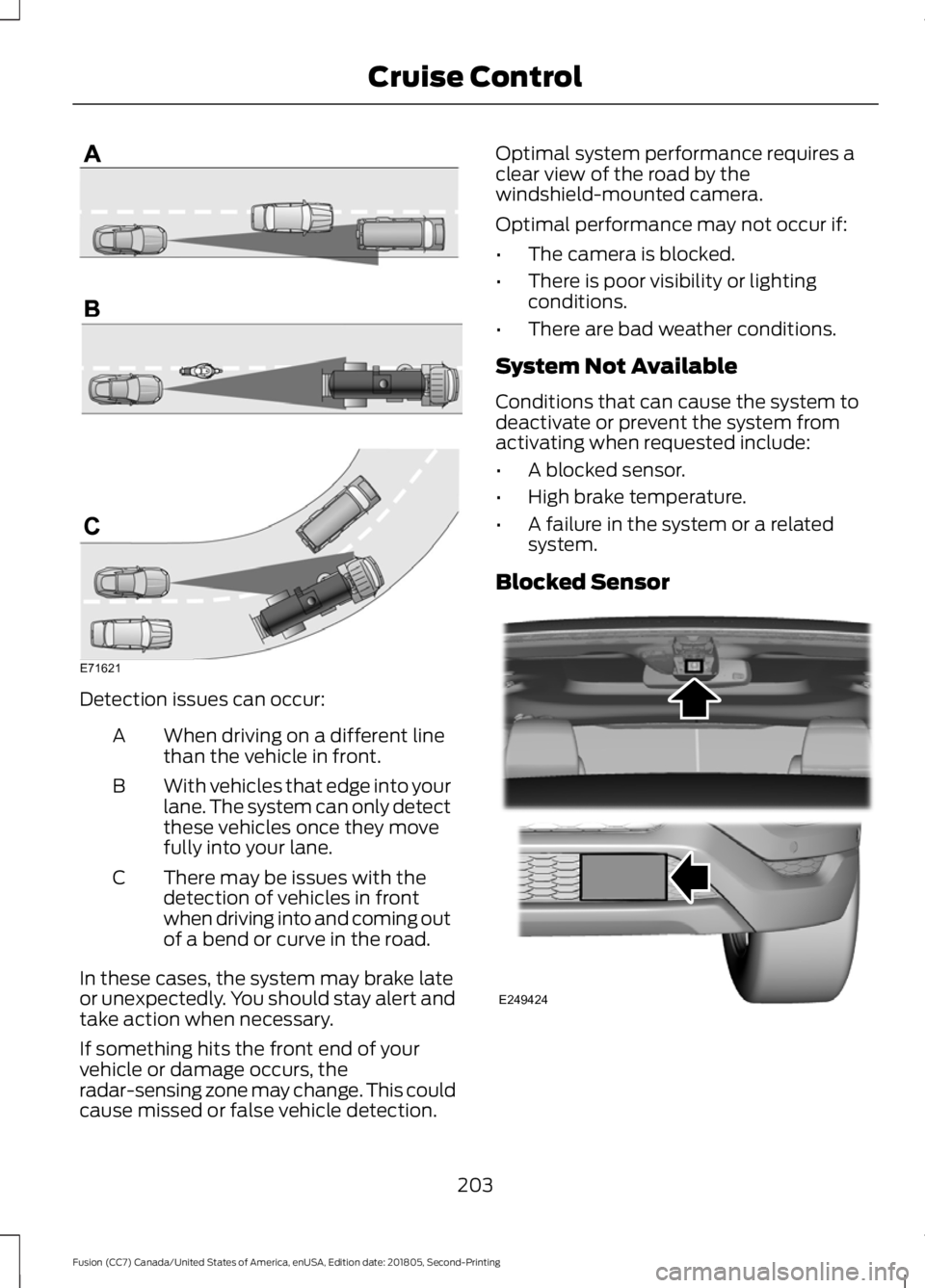
Detection issues can occur:
When driving on a different line
than the vehicle in front.
A
With vehicles that edge into your
lane. The system can only detect
these vehicles once they move
fully into your lane.
B
There may be issues with the
detection of vehicles in front
when driving into and coming out
of a bend or curve in the road.
C
In these cases, the system may brake late
or unexpectedly. You should stay alert and
take action when necessary.
If something hits the front end of your
vehicle or damage occurs, the
radar-sensing zone may change. This could
cause missed or false vehicle detection. Optimal system performance requires a
clear view of the road by the
windshield-mounted camera.
Optimal performance may not occur if:
•
The camera is blocked.
• There is poor visibility or lighting
conditions.
• There are bad weather conditions.
System Not Available
Conditions that can cause the system to
deactivate or prevent the system from
activating when requested include:
• A blocked sensor.
• High brake temperature.
• A failure in the system or a related
system.
Blocked Sensor 203
Fusion (CC7) Canada/United States of America, enUSA, Edition date: 201805, Second-Printing Cruise ControlE71621 E249424
Page 207 of 550
A message displays if something obstructs
the radar signals from the sensor. The
sensor is in the lower grille. The system
cannot detect a vehicle ahead and does
not function when something blocks the
sensor.
Note:
You cannot see the sensor. It is
behind a fascia panel.
Keep the front of your vehicle free of dirt,
metal badges or objects. Vehicle front
protectors and aftermarket lights may also
block the sensor.
Possible Causes and Actions for This Message Displaying: Action
Cause
Clean the grille surface in front of the radar
or remove the object causing the obstruc-
tion.
The surface of the radar is dirty or
obstructed.
Wait a short time. It may take several
minutes for the radar to detect that it is free
from obstruction.
The surface of the radar is clean but the
message remains in the display.
Do not use the system in these conditions
because it may not detect any vehicles
ahead.
Heavy rain or snow is interfering with the
radar signals.
Do not use the system in these conditions
because it may not detect any vehicles
ahead.
Water, snow or ice on the surface of the
road may interfere with the radar signals.
Wait a short time or switch to normal cruise
control.
You are in a desert or remote area with no
other vehicles and no roadside objects.
Due to the nature of radar technology, it is possible to get a blockage warning with no
actual block. A false blocked condition either self clears, or clears after you restart your
vehicle.
Switching to Normal Cruise
Control WARNING: Normal cruise control
will not brake when your vehicle is
approaching slower vehicles. Always be
aware of which mode you have selected
and apply the brakes when necessary. The cruise control indicator light
replaces the adaptive cruise
control indicator light if you
select normal cruise control. The gap
setting does not display, and the system
does not respond to lead vehicles.
Automatic braking remains active to
maintain set speed.
You can change from adaptive cruise
control to normal cruise control through
the information display.
204
Fusion (CC7) Canada/United States of America, enUSA, Edition date: 201805, Second-Printing Cruise ControlE71340
Page 220 of 550
Alert: When active, the system provides a
flashing visual warning and an audible
warning sound.
Brake Support
: The system design is to
help reduce the impact speed by preparing
the brakes for rapid braking. The system
does not automatically apply the brakes.
If you press the brake pedal, the system
could apply additional braking up to
maximum braking force, even if you lightly
press the brake pedal.
Active Braking
: Active braking may
activate if the system determines that a
collision is imminent. The system may help
the driver reduce impact damage or avoid
the crash completely.
Note: If you perceive Pre-Collision Assist
alerts as being too frequent or disturbing,
then you can reduce the alert sensitivity,
though the manufacturer recommends
using the highest sensitivity setting where
possible. Setting lower sensitivity would
lead to fewer and later system warnings.
Adjusting Pre-Collision Assist
Settings
You can adjust the Alert sensitivity to one
of three possible settings by using the
information display control.
See General
Information (page 97).
If required, you can switch active braking
off using the information display controls.
See
General Information (page 97).
Note: Active braking automatically turns
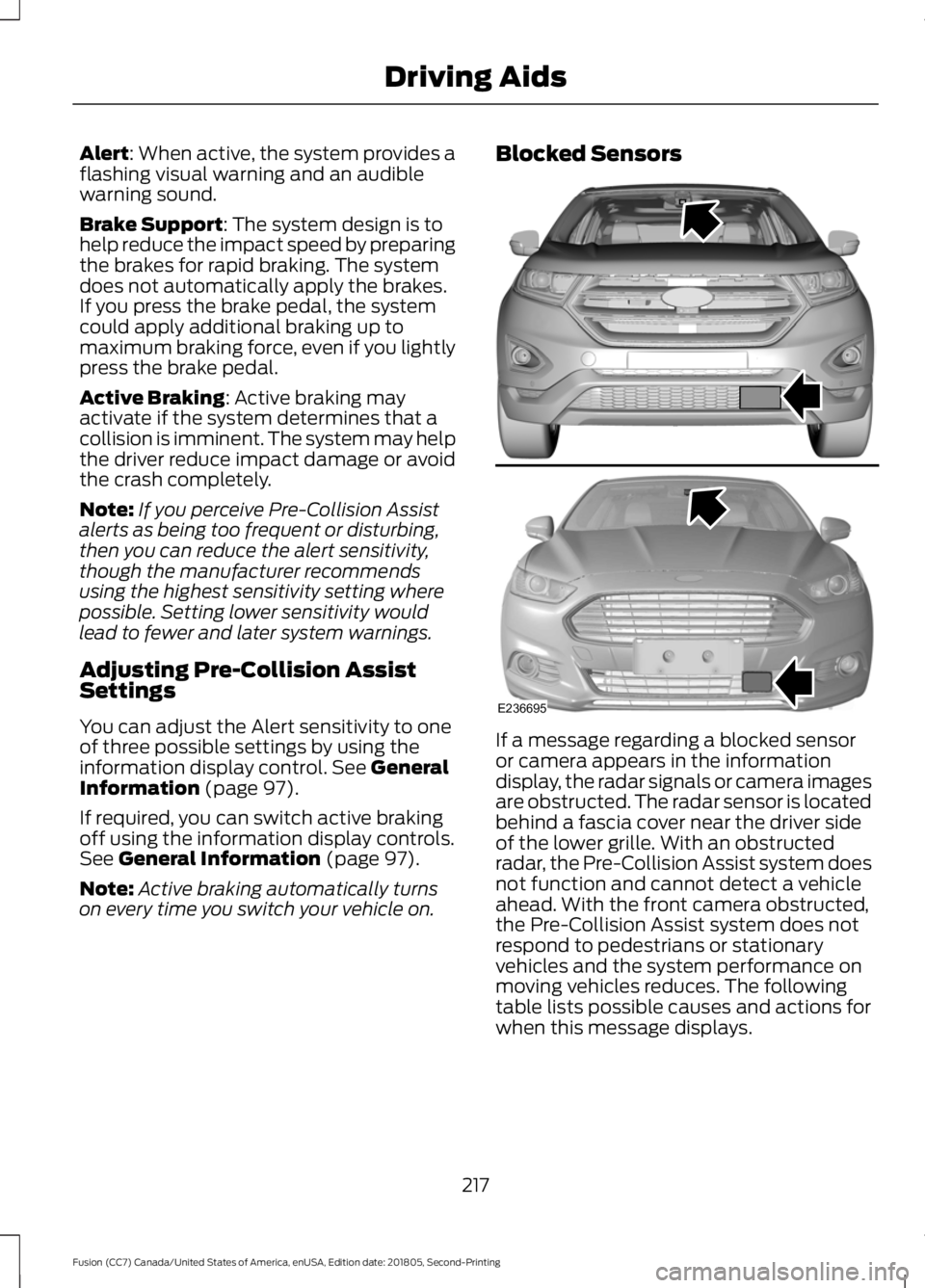
on every time you switch your vehicle on. Blocked Sensors
If a message regarding a blocked sensor
or camera appears in the information
display, the radar signals or camera images
are obstructed. The radar sensor is located
behind a fascia cover near the driver side
of the lower grille. With an obstructed
radar, the Pre-Collision Assist system does
not function and cannot detect a vehicle
ahead. With the front camera obstructed,
the Pre-Collision Assist system does not
respond to pedestrians or stationary
vehicles and the system performance on
moving vehicles reduces. The following
table lists possible causes and actions for
when this message displays.
217
Fusion (CC7) Canada/United States of America, enUSA, Edition date: 201805, Second-Printing Driving AidsE236695
Page 251 of 550
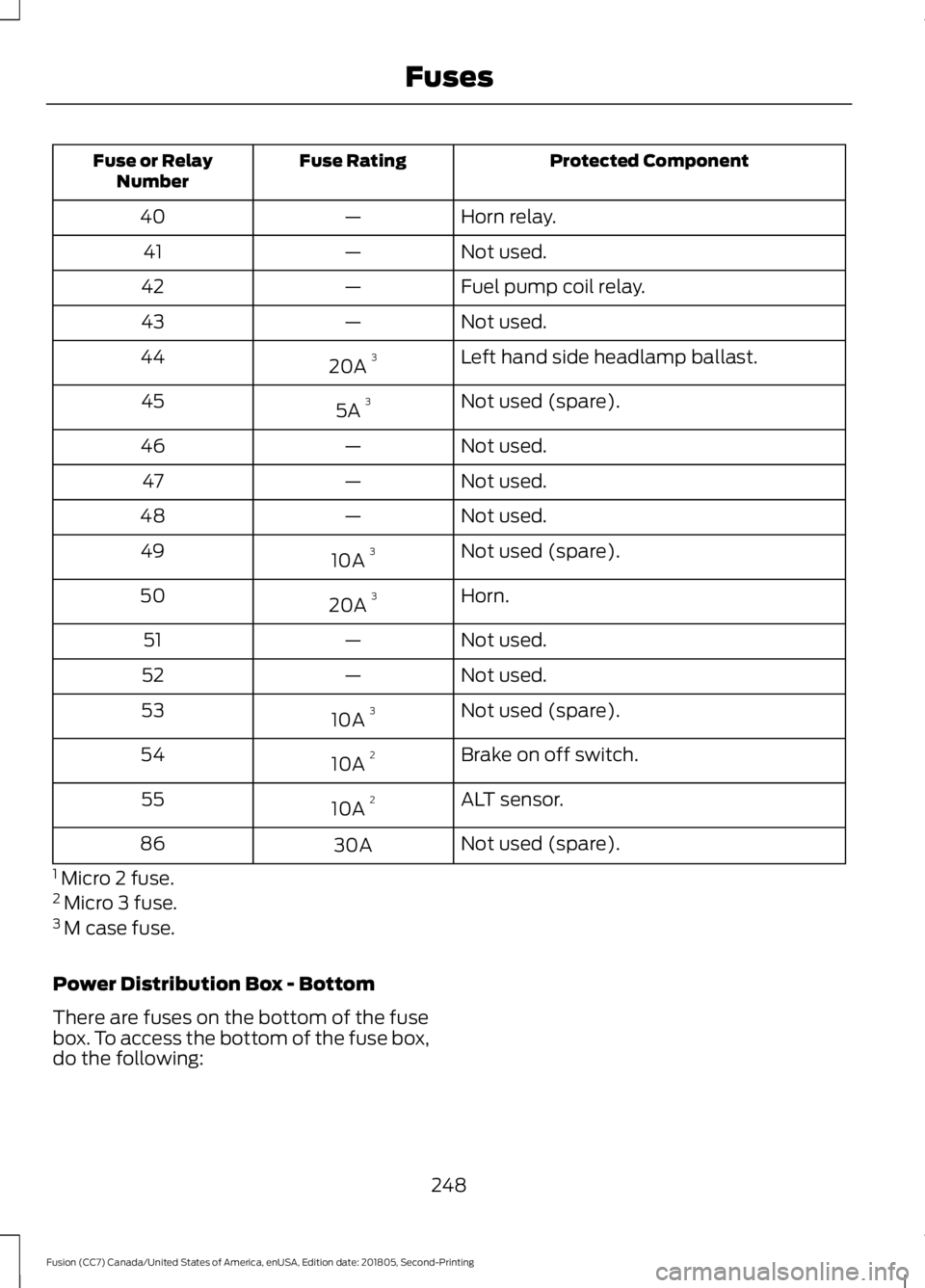
Protected Component
Fuse Rating
Fuse or Relay
Number
Horn relay.
—
40
Not used.
—
41
Fuel pump coil relay.
—
42
Not used.
—
43
Left hand side headlamp ballast.
20A 3
44
Not used (spare).
5A 3
45
Not used.
—
46
Not used.
—
47
Not used.
—
48
Not used (spare).
10A 3
49
Horn.
20A 3
50
Not used.
—
51
Not used.
—
52
Not used (spare).
10A 3
53
Brake on off switch.
10A 2
54
ALT sensor.
10A 2
55
Not used (spare).
30A
86
1 Micro 2 fuse.
2 Micro 3 fuse.
3 M case fuse.
Power Distribution Box - Bottom
There are fuses on the bottom of the fuse
box. To access the bottom of the fuse box,
do the following:
248
Fusion (CC7) Canada/United States of America, enUSA, Edition date: 201805, Second-Printing Fuses
Page 313 of 550
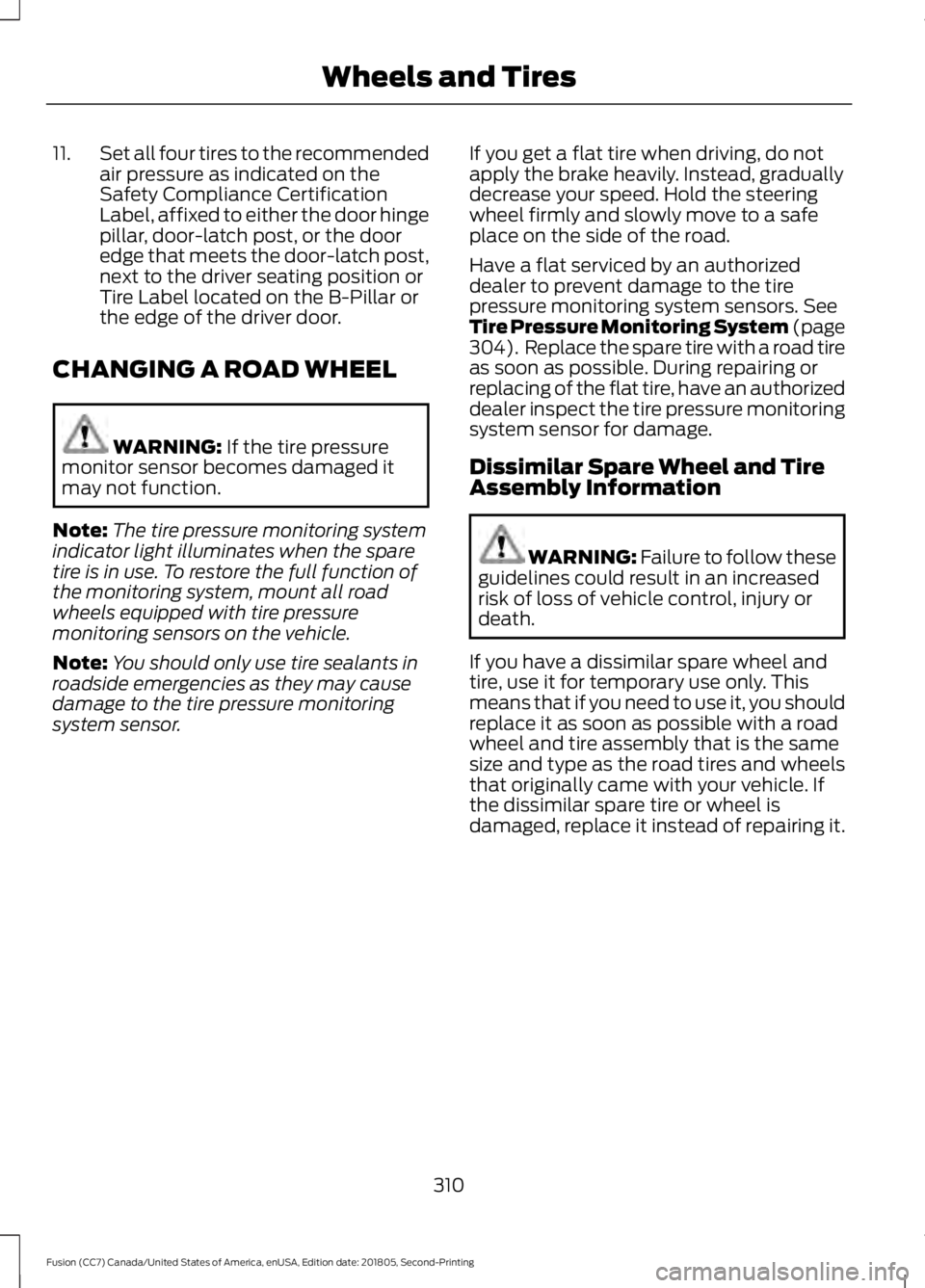
11.
Set all four tires to the recommended
air pressure as indicated on the
Safety Compliance Certification
Label, affixed to either the door hinge
pillar, door-latch post, or the door
edge that meets the door-latch post,
next to the driver seating position or
Tire Label located on the B-Pillar or
the edge of the driver door.
CHANGING A ROAD WHEEL WARNING: If the tire pressure
monitor sensor becomes damaged it
may not function.
Note: The tire pressure monitoring system
indicator light illuminates when the spare
tire is in use. To restore the full function of
the monitoring system, mount all road
wheels equipped with tire pressure
monitoring sensors on the vehicle.
Note: You should only use tire sealants in
roadside emergencies as they may cause
damage to the tire pressure monitoring
system sensor. If you get a flat tire when driving, do not
apply the brake heavily. Instead, gradually
decrease your speed. Hold the steering
wheel firmly and slowly move to a safe
place on the side of the road.
Have a flat serviced by an authorized
dealer to prevent damage to the tire
pressure monitoring system sensors.
See
Tire Pressure Monitoring System (page
304). Replace the spare tire with a road tire
as soon as possible. During repairing or
replacing of the flat tire, have an authorized
dealer inspect the tire pressure monitoring
system sensor for damage.
Dissimilar Spare Wheel and Tire
Assembly Information WARNING:
Failure to follow these
guidelines could result in an increased
risk of loss of vehicle control, injury or
death.
If you have a dissimilar spare wheel and
tire, use it for temporary use only. This
means that if you need to use it, you should
replace it as soon as possible with a road
wheel and tire assembly that is the same
size and type as the road tires and wheels
that originally came with your vehicle. If
the dissimilar spare tire or wheel is
damaged, replace it instead of repairing it.
310
Fusion (CC7) Canada/United States of America, enUSA, Edition date: 201805, Second-Printing Wheels and Tires
Page 549 of 550
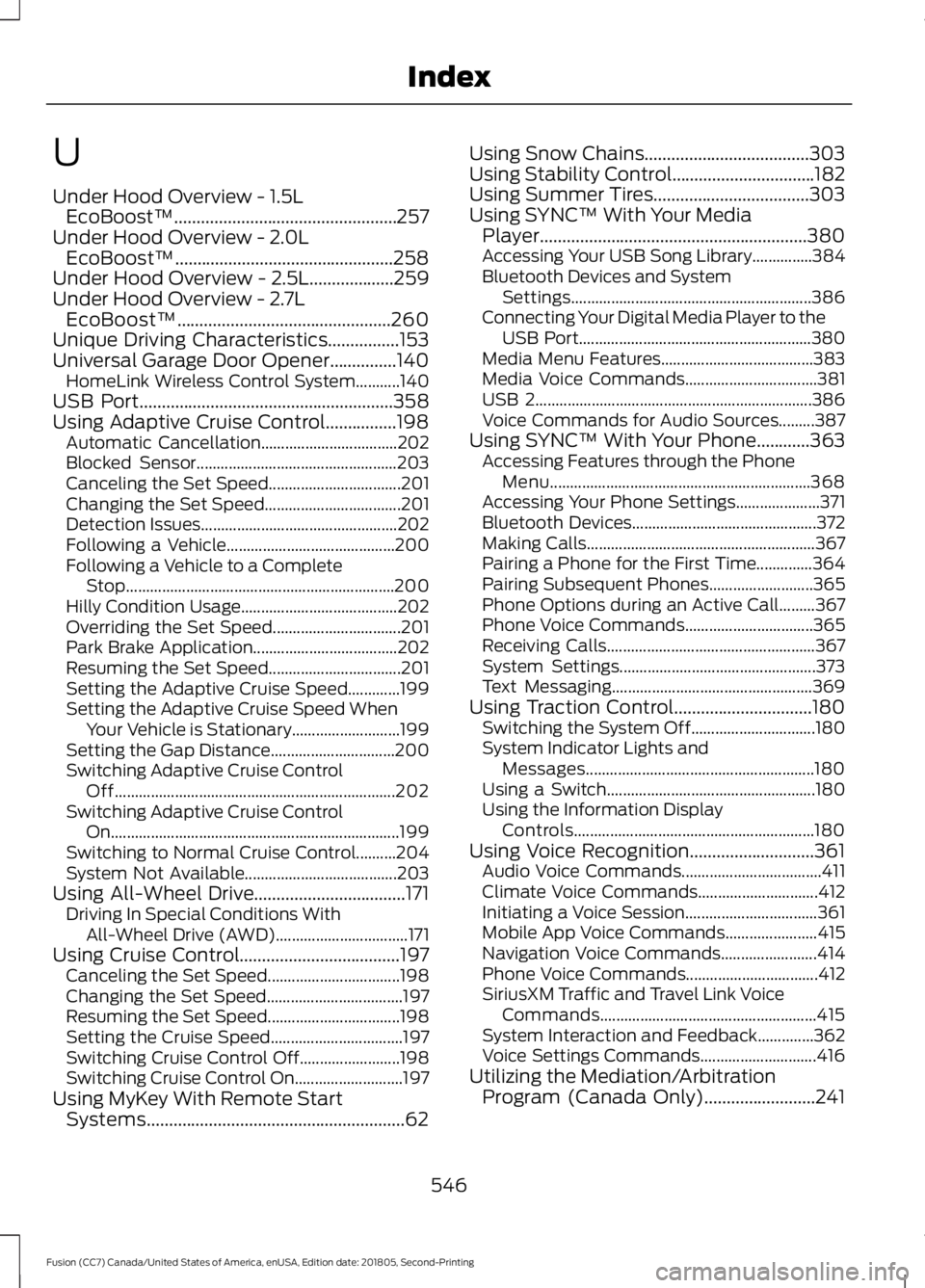
U
Under Hood Overview - 1.5L
EcoBoost™..................................................257
Under Hood Overview - 2.0L EcoBoost™.................................................258
Under Hood Overview - 2.5L...................259
Under Hood Overview - 2.7L EcoBoost™................................................260
Unique Driving Characteristics................153
Universal Garage Door Opener...............140
HomeLink Wireless Control System...........140
USB Port
.........................................................358
Using Adaptive Cruise Control................198 Automatic Cancellation.................................. 202
Blocked Sensor.................................................. 203
Canceling the Set Speed................................. 201
Changing the Set Speed.................................. 201
Detection Issues................................................. 202
Following a Vehicle.......................................... 200
Following a Vehicle to a Complete Stop................................................................... 200
Hilly Condition Usage....................................... 202
Overriding the Set Speed................................ 201
Park Brake Application.................................... 202
Resuming the Set Speed................................. 201
Setting the Adaptive Cruise Speed.............199
Setting the Adaptive Cruise Speed When Your Vehicle is Stationary........................... 199
Setting the Gap Distance............................... 200
Switching Adaptive Cruise Control Off...................................................................... 202
Switching Adaptive Cruise Control On........................................................................\
199
Switching to Normal Cruise Control..........204
System Not Available...................................... 203
Using All-Wheel Drive..................................171 Driving In Special Conditions With
All-Wheel Drive (AWD)................................. 171
Using Cruise Control
....................................197
Canceling the Set Speed................................. 198
Changing the Set Speed.................................. 197
Resuming the Set Speed................................. 198
Setting the Cruise Speed................................. 197
Switching Cruise Control Off......................... 198
Switching Cruise Control On........................... 197
Using MyKey With Remote Start Systems..........................................................62 Using Snow Chains
.....................................303
Using Stability Control................................182
Using Summer Tires...................................303
Using SYNC™ With Your Media Player
............................................................380
Accessing Your USB Song Library...............384
Bluetooth Devices and System
Settings............................................................ 386
Connecting Your Digital Media Player to the USB Port.......................................................... 380
Media Menu Features...................................... 383
Media Voice Commands................................. 381
USB 2..................................................................... 386
Voice Commands for Audio Sources.........387
Using SYNC™ With Your Phone............363 Accessing Features through the Phone
Menu................................................................. 368
Accessing Your Phone Settings..................... 371
Bluetooth Devices.............................................. 372
Making Calls......................................................... 367
Pairing a Phone for the First Time..............364
Pairing Subsequent Phones.......................... 365
Phone Options during an Active Call.........367
Phone Voice Commands................................ 365
Receiving Calls.................................................... 367
System Settings................................................. 373
Text Messaging.................................................. 369
Using Traction Control...............................180 Switching the System Off............................... 180
System Indicator Lights and Messages......................................................... 180
Using a Switch.................................................... 180
Using the Information Display Controls............................................................ 180
Using Voice Recognition............................361 Audio Voice Commands................................... 411
Climate Voice Commands.............................. 412
Initiating a Voice Session................................. 361
Mobile App Voice Commands....................... 415
Navigation Voice Commands........................ 414
Phone Voice Commands................................. 412
SiriusXM Traffic and Travel Link Voice Commands...................................................... 415
System Interaction and Feedback..............362
Voice Settings Commands............................. 416
Utilizing the Mediation/Arbitration Program (Canada Only)
.........................241
546
Fusion (CC7) Canada/United States of America, enUSA, Edition date: 201805, Second-Printing Index