change time FORD FUSION (AMERICAS) 2013 2.G Owners Manual
[x] Cancel search | Manufacturer: FORD, Model Year: 2013, Model line: FUSION (AMERICAS), Model: FORD FUSION (AMERICAS) 2013 2.GPages: 458
Page 2 of 458
The information contained in this publication was correct at the time of going to print. In the interest of
continuous development, we reserve the right to change specifications, design or equipment at any time
without notice or obligation. No part of this publication may be reproduced, transmitted, stored in a
retrieval system or translated into any language in any form by any means without our written permission.
Errors and omissions excepted.
© Ford Motor Company 2013
All rights reserved.
Part Number: 20130107203745
Page 51 of 458
PRINCIPLE OF OPERATION
MyKey allows you to program keys with
restricted driving modes to promote good
driving habits. Program all but one of the
keys to activate the restricted modes.
Any keys that remain unprogrammed are
referred to as administrator keys or admin
keys. They can be used to:
•
create a MyKey
• program optional MyKey settings
• clear all MyKey features.
Once you program a MyKey, you can
access the following information through
the information display to learn:
• The number of admin keys and MyKeys
programmed to your vehicle.
• The total distance your vehicle traveled
with a MyKey.
Note: Switch the ignition on to use the
system.
Note: All MyKeys are programmed to the
same settings. You cannot program them
individually.
Note: In vehicles equipped with the
intelligent access key (push-button start):
When both a MyKey and an admin fob are
present, your vehicle will recognize the
admin fob to start the engine.
Standard Settings
The following settings cannot be changed:
• Belt-Minder. You cannot disable this
feature. With a MyKey, the five-minute
timer does not expire and the audio
system mutes.
• Early low fuel. The low-fuel warning
activates earlier, giving MyKey users
more time to refuel. •
Driver assist features, if equipped, are
forced on: Rear parking aid, blind spot
information system (BLIS) with cross
traffic alert, lane keeping system and
collision warning system.
• Satellite radio adult content
restrictions activate.
Optional Settings
You can configure MyKey settings while
programming a MyKey or change them
while using an admin key.
• Vehicle speed limit: You can set various
vehicle speed limits of 65, 70, 75 and
80 mph (105, 113, 121 and 130 km/h) so
that drivers receive visual warnings and
an audible tone when they reach the
selected top speed.
• Vehicle speed minders: You can set
various vehicle speed minders of 45,
55 or 65 mph (75, 90, or 105 km/h) so
that drivers receive visual warnings and
an audible tone when they exceed the
preselected vehicle speed limit.
• Audio system maximum volume limit:
You can limit the audio system's
maximum output to 45% and disable
the speed-sensitive compensated
volume feature. The audio system
displays a message when drivers
attempt to exceed the volume limit.
• Always on setting: Certain driving aids
cannot be disabled or turned off when
drivers use a MyKey, such as
AdvanceTrac, 911 Assist or the Do not
disturb feature (if your vehicle is
equipped with these features).
Vehicles with Keyless Entry
If a MyKey and an admin key are present
within the vehicle at the same time, your
vehicle will recognize the admin key only.
48
Fusion/Mondeo (CC7) MyKey
™
Page 55 of 458
LOCKING AND UNLOCKING
You can use the power door lock control
or the remote control to lock and unlock
the vehicle.
Power Door Locks
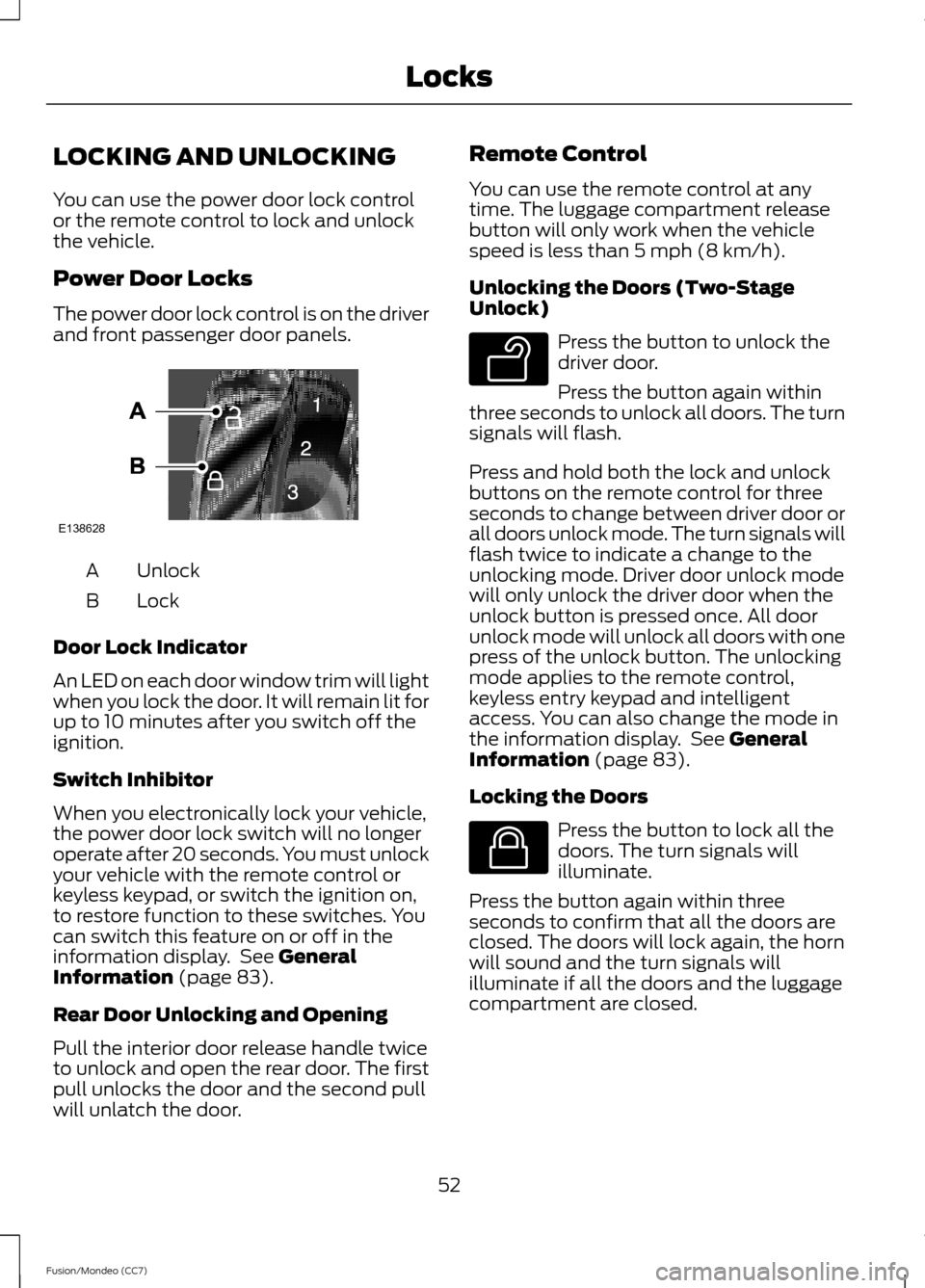
The power door lock control is on the driver
and front passenger door panels.
Unlock
A
Lock
B
Door Lock Indicator
An LED on each door window trim will light
when you lock the door. It will remain lit for
up to 10 minutes after you switch off the
ignition.
Switch Inhibitor
When you electronically lock your vehicle,
the power door lock switch will no longer
operate after 20 seconds. You must unlock
your vehicle with the remote control or
keyless keypad, or switch the ignition on,
to restore function to these switches. You
can switch this feature on or off in the
information display. See General
Information (page 83).
Rear Door Unlocking and Opening
Pull the interior door release handle twice
to unlock and open the rear door. The first
pull unlocks the door and the second pull
will unlatch the door. Remote Control
You can use the remote control at any
time. The luggage compartment release
button will only work when the vehicle
speed is less than 5 mph (8 km/h).
Unlocking the Doors (Two-Stage
Unlock)
Press the button to unlock the
driver door.
Press the button again within
three seconds to unlock all doors. The turn
signals will flash.
Press and hold both the lock and unlock
buttons on the remote control for three
seconds to change between driver door or
all doors unlock mode. The turn signals will
flash twice to indicate a change to the
unlocking mode. Driver door unlock mode
will only unlock the driver door when the
unlock button is pressed once. All door
unlock mode will unlock all doors with one
press of the unlock button. The unlocking
mode applies to the remote control,
keyless entry keypad and intelligent
access. You can also change the mode in
the information display. See
General
Information (page 83).
Locking the Doors Press the button to lock all the
doors. The turn signals will
illuminate.
Press the button again within three
seconds to confirm that all the doors are
closed. The doors will lock again, the horn
will sound and the turn signals will
illuminate if all the doors and the luggage
compartment are closed.
52
Fusion/Mondeo (CC7) LocksE138628 E138629 E138623
Page 73 of 458
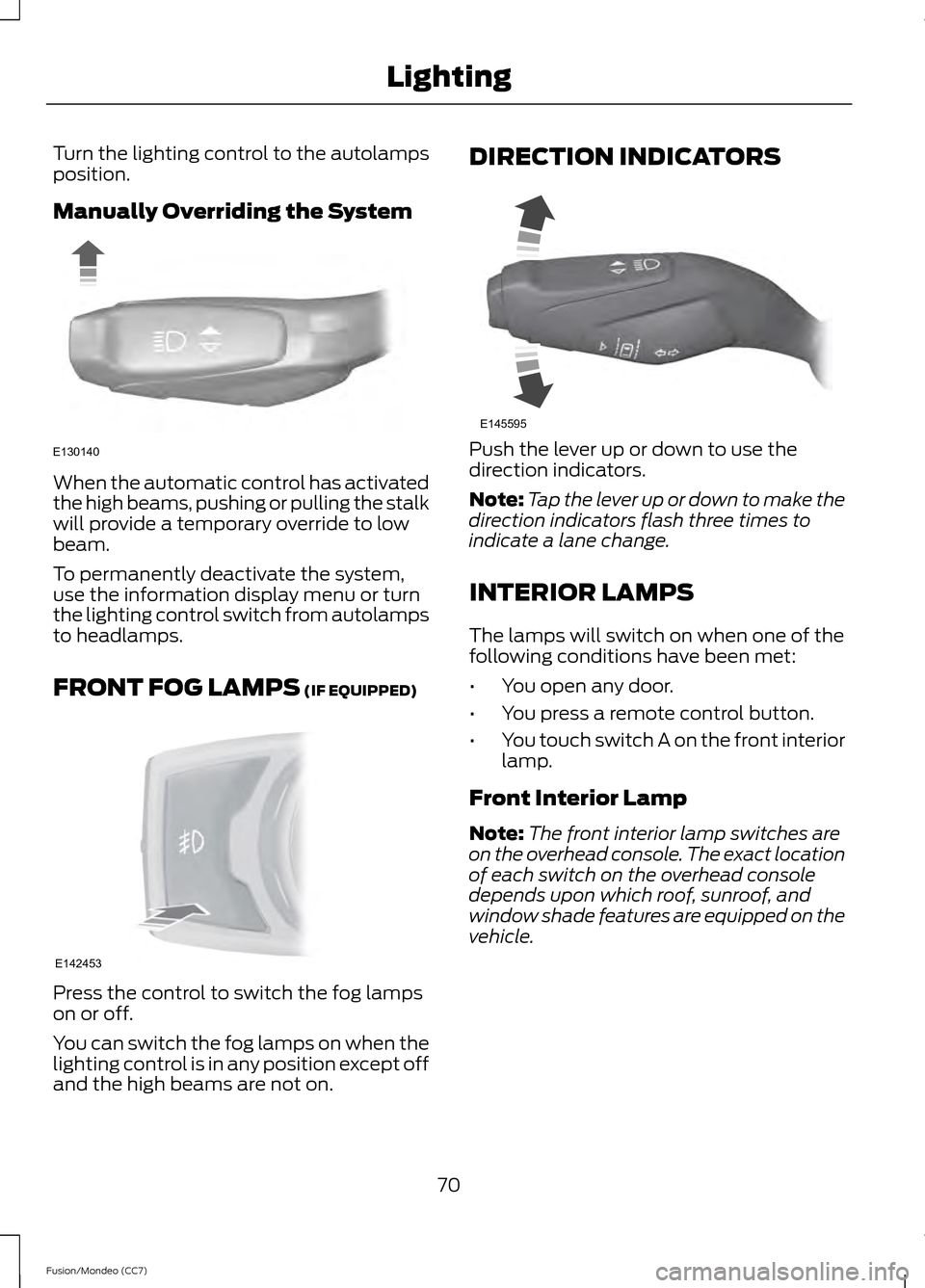
Turn the lighting control to the autolamps
position.
Manually Overriding the System
When the automatic control has activated
the high beams, pushing or pulling the stalk
will provide a temporary override to low
beam.
To permanently deactivate the system,
use the information display menu or turn
the lighting control switch from autolamps
to headlamps.
FRONT FOG LAMPS (IF EQUIPPED)
Press the control to switch the fog lamps
on or off.
You can switch the fog lamps on when the
lighting control is in any position except off
and the high beams are not on. DIRECTION INDICATORS
Push the lever up or down to use the
direction indicators.
Note:
Tap the lever up or down to make the
direction indicators flash three times to
indicate a lane change.
INTERIOR LAMPS
The lamps will switch on when one of the
following conditions have been met:
• You open any door.
• You press a remote control button.
• You touch switch A on the front interior
lamp.
Front Interior Lamp
Note: The front interior lamp switches are
on the overhead console. The exact location
of each switch on the overhead console
depends upon which roof, sunroof, and
window shade features are equipped on the
vehicle.
70
Fusion/Mondeo (CC7) LightingE130140 E142453 E145595
Page 90 of 458
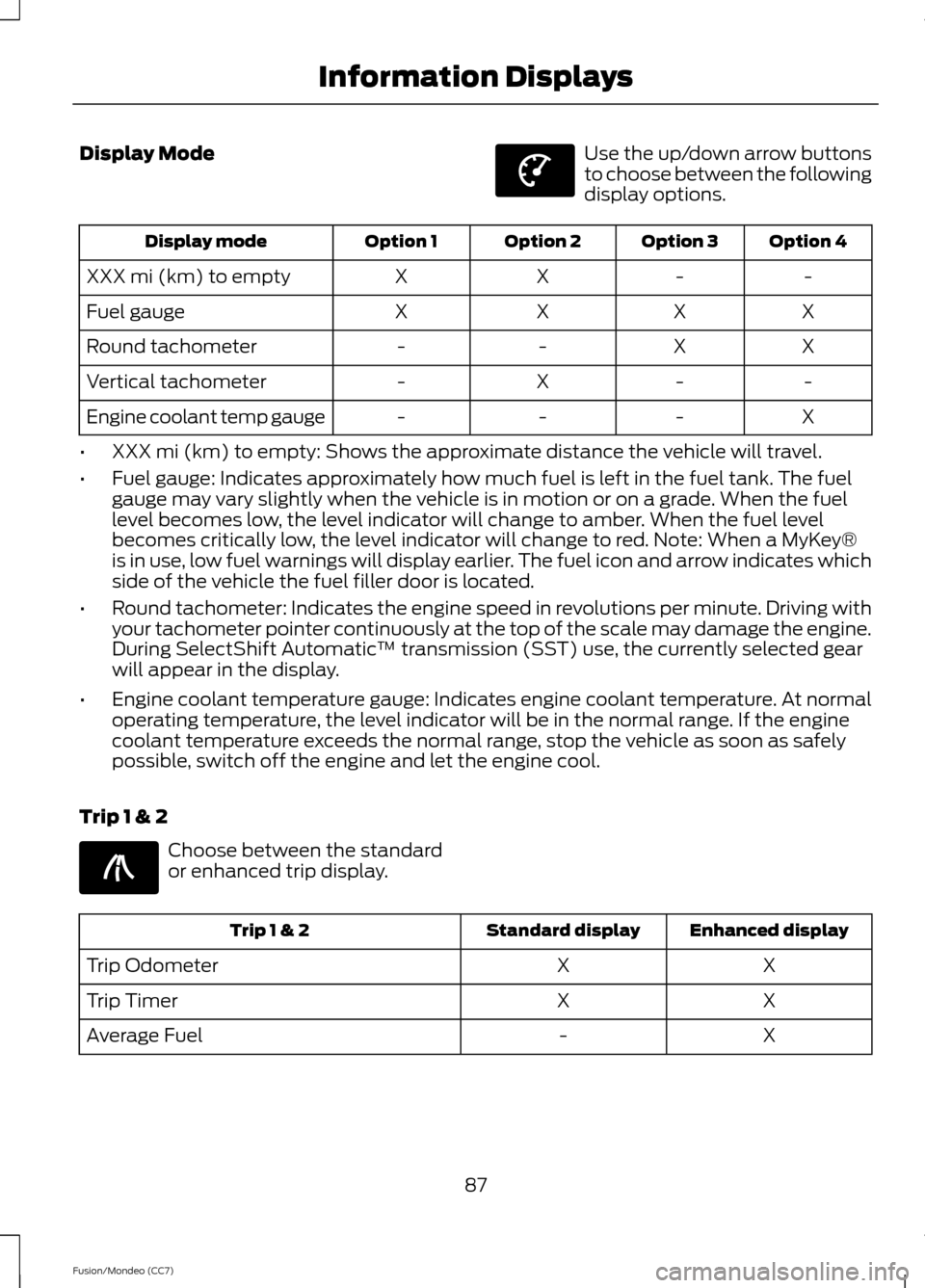
Display Mode Use the up/down arrow buttons
to choose between the following
display options.
Option 4
Option 3
Option 2
Option 1
Display mode
-
-
X
X
XXX mi (km) to empty
X
X
X
X
Fuel gauge
X
X
-
-
Round tachometer
-
-
X
-
Vertical tachometer
X
-
-
-
Engine coolant temp gauge
• XXX mi (km) to empty: Shows the approximate distance the vehicle will travel.
• Fuel gauge: Indicates approximately how much fuel is left in the fuel tank. The fuel
gauge may vary slightly when the vehicle is in motion or on a grade. When the fuel
level becomes low, the level indicator will change to amber. When the fuel level
becomes critically low, the level indicator will change to red. Note: When a MyKey®
is in use, low fuel warnings will display earlier. The fuel icon and arrow indicates which
side of the vehicle the fuel filler door is located.
• Round tachometer: Indicates the engine speed in revolutions per minute. Driving with
your tachometer pointer continuously at the top of the scale may damage the engine.
During SelectShift Automatic ™ transmission (SST) use, the currently selected gear
will appear in the display.
• Engine coolant temperature gauge: Indicates engine coolant temperature. At normal
operating temperature, the level indicator will be in the normal range. If the engine
coolant temperature exceeds the normal range, stop the vehicle as soon as safely
possible, switch off the engine and let the engine cool.
Trip 1 & 2 Choose between the standard
or enhanced trip display.
Enhanced display
Standard display
Trip 1 & 2
X
X
Trip Odometer
X
X
Trip Timer
X
-
Average Fuel
87
Fusion/Mondeo (CC7) Information DisplaysE144639 E138660
Page 91 of 458
Enhanced display
Standard display
Trip 1 & 2
X
-
Fuel Used
-
Press and hold OK to reset the currently
displayed trip information.
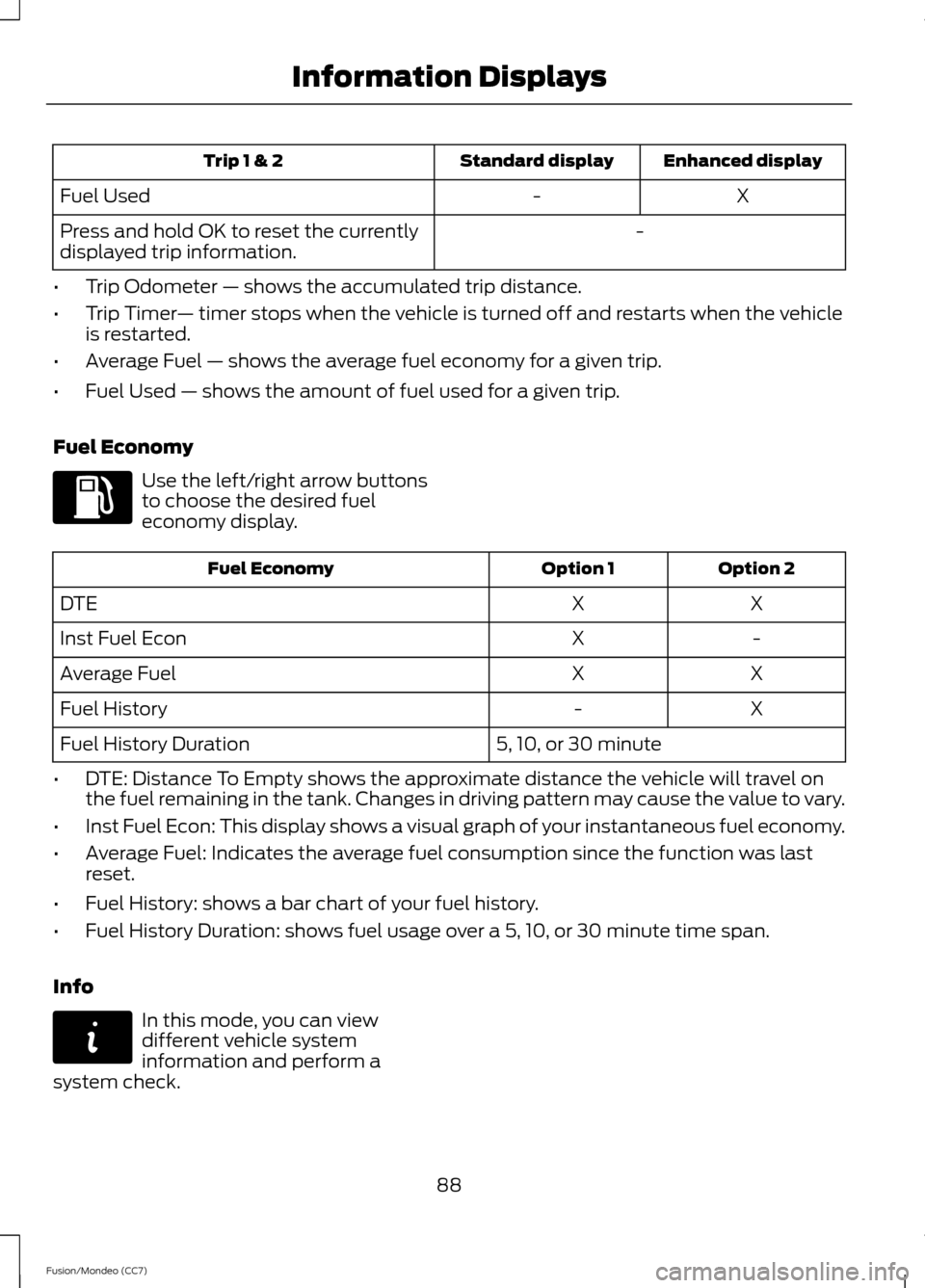
• Trip Odometer — shows the accumulated trip distance.
• Trip Timer — timer stops when the vehicle is turned off and restarts when the vehicle
is restarted.
• Average Fuel — shows the average fuel economy for a given trip.
• Fuel Used — shows the amount of fuel used for a given trip.
Fuel Economy Use the left/right arrow buttons
to choose the desired fuel
economy display.
Option 2
Option 1
Fuel Economy
X
X
DTE
-
X
Inst Fuel Econ
X
X
Average Fuel
X
-
Fuel History
5, 10, or 30 minute
Fuel History Duration
• DTE: Distance To Empty shows the approximate distance the vehicle will travel on
the fuel remaining in the tank. Changes in driving pattern may cause the value to vary.
• Inst Fuel Econ: This display shows a visual graph of your instantaneous fuel economy.
• Average Fuel: Indicates the average fuel consumption since the function was last
reset.
• Fuel History: shows a bar chart of your fuel history.
• Fuel History Duration: shows fuel usage over a 5, 10, or 30 minute time span.
Info In this mode, you can view
different vehicle system
information and perform a
system check.
88
Fusion/Mondeo (CC7) Information DisplaysE144640 E144642
Page 101 of 458
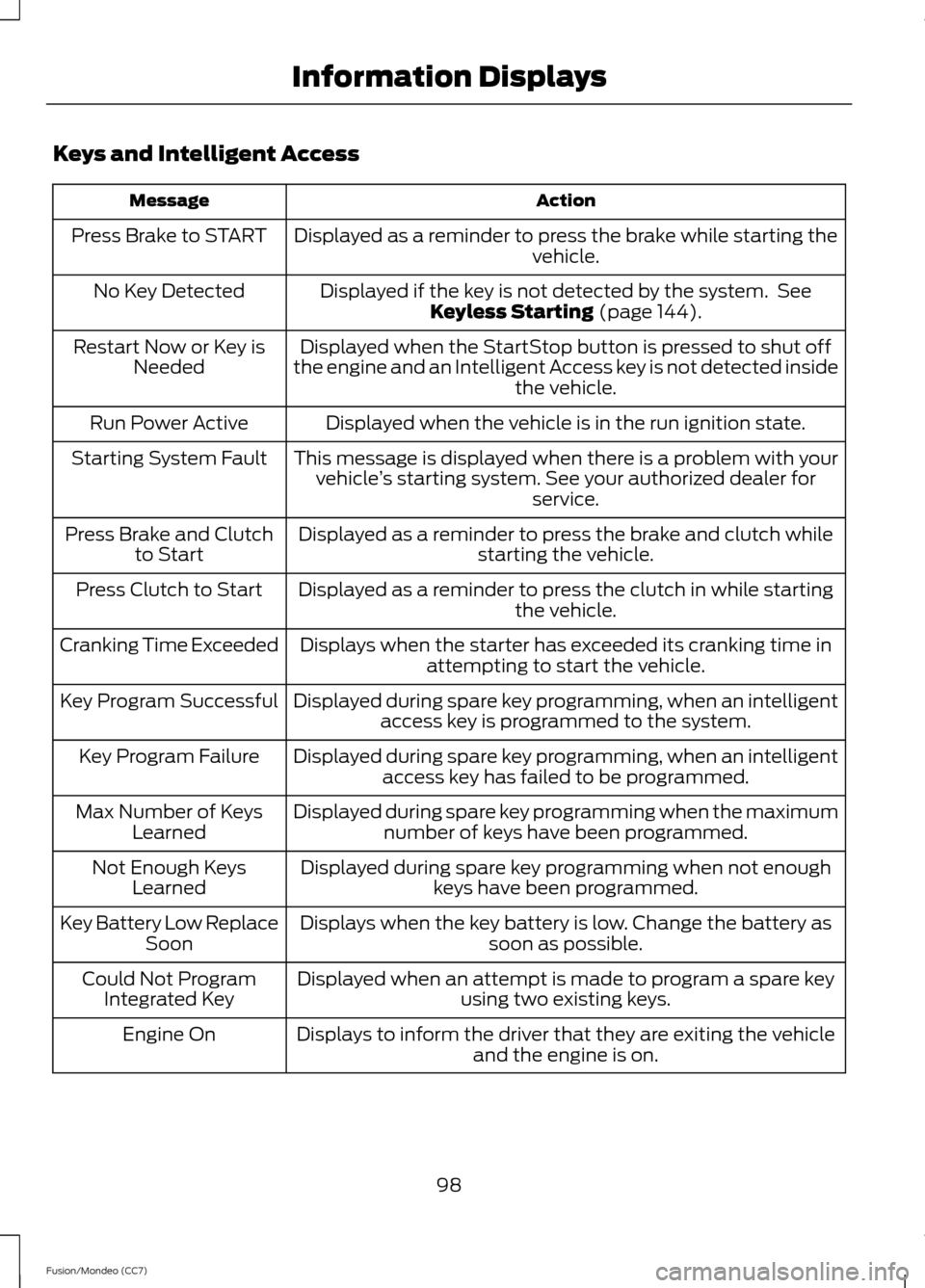
Keys and Intelligent Access
Action
Message
Displayed as a reminder to press the brake while starting the vehicle.
Press Brake to START
Displayed if the key is not detected by the system. SeeKeyless Starting (page 144).
No Key Detected
Displayed when the StartStop button is pressed to shut off
the engine and an Intelligent Access key is not detected inside the vehicle.
Restart Now or Key is
Needed
Displayed when the vehicle is in the run ignition state.
Run Power Active
This message is displayed when there is a problem with yourvehicle ’s starting system. See your authorized dealer for
service.
Starting System Fault
Displayed as a reminder to press the brake and clutch whilestarting the vehicle.
Press Brake and Clutch
to Start
Displayed as a reminder to press the clutch in while starting the vehicle.
Press Clutch to Start
Displays when the starter has exceeded its cranking time inattempting to start the vehicle.
Cranking Time Exceeded
Displayed during spare key programming, when an intelligentaccess key is programmed to the system.
Key Program Successful
Displayed during spare key programming, when an intelligentaccess key has failed to be programmed.
Key Program Failure
Displayed during spare key programming when the maximumnumber of keys have been programmed.
Max Number of Keys
Learned
Displayed during spare key programming when not enoughkeys have been programmed.
Not Enough Keys
Learned
Displays when the key battery is low. Change the battery as soon as possible.
Key Battery Low Replace
Soon
Displayed when an attempt is made to program a spare key using two existing keys.
Could Not Program
Integrated Key
Displays to inform the driver that they are exiting the vehicleand the engine is on.
Engine On
98
Fusion/Mondeo (CC7) Information Displays
Page 116 of 458
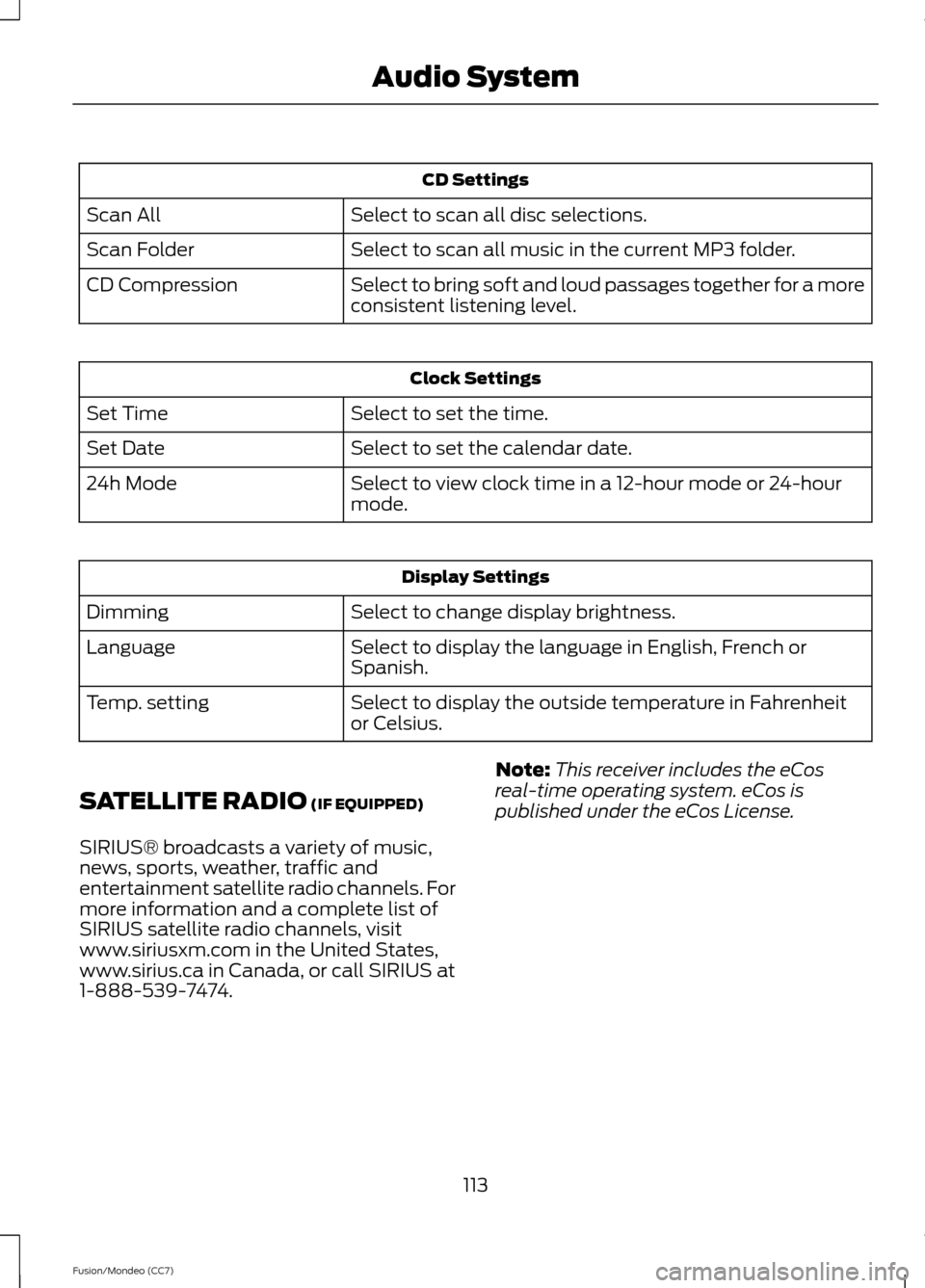
CD Settings
Select to scan all disc selections.
Scan All
Select to scan all music in the current MP3 folder.
Scan Folder
Select to bring soft and loud passages together for a more
consistent listening level.
CD Compression Clock Settings
Select to set the time.
Set Time
Select to set the calendar date.
Set Date
Select to view clock time in a 12-hour mode or 24-hour
mode.
24h Mode Display Settings
Select to change display brightness.
Dimming
Select to display the language in English, French or
Spanish.
Language
Select to display the outside temperature in Fahrenheit
or Celsius.
Temp. setting
SATELLITE RADIO (IF EQUIPPED)
SIRIUS® broadcasts a variety of music,
news, sports, weather, traffic and
entertainment satellite radio channels. For
more information and a complete list of
SIRIUS satellite radio channels, visit
www.siriusxm.com in the United States,
www.sirius.ca in Canada, or call SIRIUS at
1-888-539-7474. Note:
This receiver includes the eCos
real-time operating system. eCos is
published under the eCos License.
113
Fusion/Mondeo (CC7) Audio System
Page 117 of 458
Satellite Radio Reception Factors
Potential Satellite Radio Reception Issues
For optimal reception performance, keep the antenna
clear of snow and ice build-up and keep luggage and other
material as far away from the antenna as possible.
Antenna obstructions
Hills, mountains, tall buildings, bridges, tunnels, freeway
overpasses, parking garages, dense tree foliage and
thunderstorms can interfere with your reception.
Terrain
When you pass a ground-based broadcast repeating
tower, a stronger signal may overtake a weaker one and
the audio system may mute.
Station overload
Your display may show ACQUIRING . . . to indicate the
interference and the audio system may mute.
Satellite radio signal interfer-
ence
SIRIUS® Satellite Radio Service
Note: SIRIUS reserves the unrestricted right
to change, rearrange, add or delete
programming including canceling, moving
or adding particular channels, and its prices,
at any time, with or without notice to you.
Ford Motor Company shall not be
responsible for any such programming
changes. SIRIUS satellite radio is a
subscription-based satellite radio service
that broadcasts a variety of music, sports,
news, weather, traffic and entertainment
programming. Your factory-installed
SIRIUS satellite radio system includes
hardware and a limited subscription term
which begins on the date of sale or lease
of your vehicle. See an authorized dealer
for availability.
For more information on extended
subscription terms (a service fee is
required), the online media player and a
complete list of SIRIUS satellite radio
channels, and other features, please visit
www.siriusxm.com in the United States,
www.sirius.ca in Canada, or call SIRIUS at
1-888-539-7474.
Satellite Radio Electronic Serial
Number (ESN)
You need your ESN to activate, modify or
track your satellite radio account. When in
satellite radio mode, press Options.
114
Fusion/Mondeo (CC7) Audio SystemE142593
Page 140 of 458
HomeLink Wireless Control
System (If Equipped)
WARNING
Do not use the system with any
garage door opener that does not
have the safety stop and reverse
feature as required by U.S. Federal Safety
Standards (this includes any garage door
opener manufactured before April 1, 1982).
A garage door opener which cannot detect
an object, signaling the door to stop and
reverse, does not meet current federal
safety standards. Using a garage door
opener without these features increases
the risk of serious injury or death. Note:
Make sure that the garage door and
security device are free from obstruction
when you are programming. Do not program
the system with the vehicle in the garage.
Note: Make sure you keep the original
remote control transmitter for use in other
vehicles as well as for future system
programming.
Note: We recommend that upon the sale
or lease termination of your vehicle, you
erase the programmed function buttons for
security reasons. See Erasing the function
button codes later in this section.
Note: You can program a maximum of
three devices. To change or replace any of
the three devices after it has been initially
programmed, you must first erase the
current settings. See Erasing the function
button codes later in this section. The universal garage door opener replaces
the common hand-held garage door
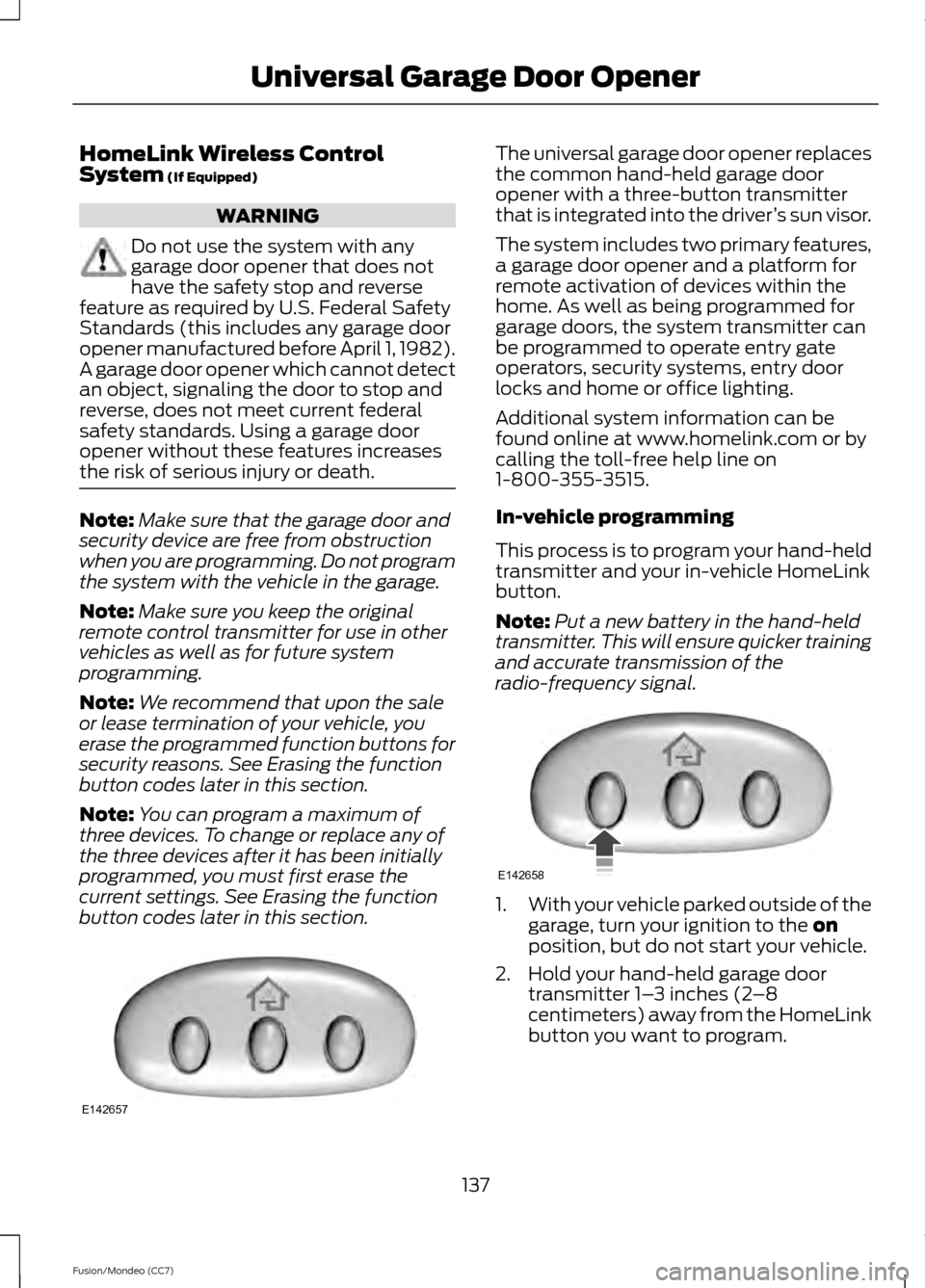
opener with a three-button transmitter
that is integrated into the driver
’s sun visor.
The system includes two primary features,
a garage door opener and a platform for
remote activation of devices within the
home. As well as being programmed for
garage doors, the system transmitter can
be programmed to operate entry gate
operators, security systems, entry door
locks and home or office lighting.
Additional system information can be
found online at www.homelink.com or by
calling the toll-free help line on
1-800-355-3515.
In-vehicle programming
This process is to program your hand-held
transmitter and your in-vehicle HomeLink
button.
Note: Put a new battery in the hand-held
transmitter. This will ensure quicker training
and accurate transmission of the
radio-frequency signal. 1.
With your vehicle parked outside of the
garage, turn your ignition to the
on
position, but do not start your vehicle.
2. Hold your hand-held garage door transmitter 1– 3 inches (2–8
centimeters) away from the HomeLink
button you want to program.
137
Fusion/Mondeo (CC7) Universal Garage Door OpenerE142657 E142658