audio FORD FUSION (AMERICAS) 2014 2.G Service Manual
[x] Cancel search | Manufacturer: FORD, Model Year: 2014, Model line: FUSION (AMERICAS), Model: FORD FUSION (AMERICAS) 2014 2.GPages: 458, PDF Size: 27.89 MB
Page 372 of 458
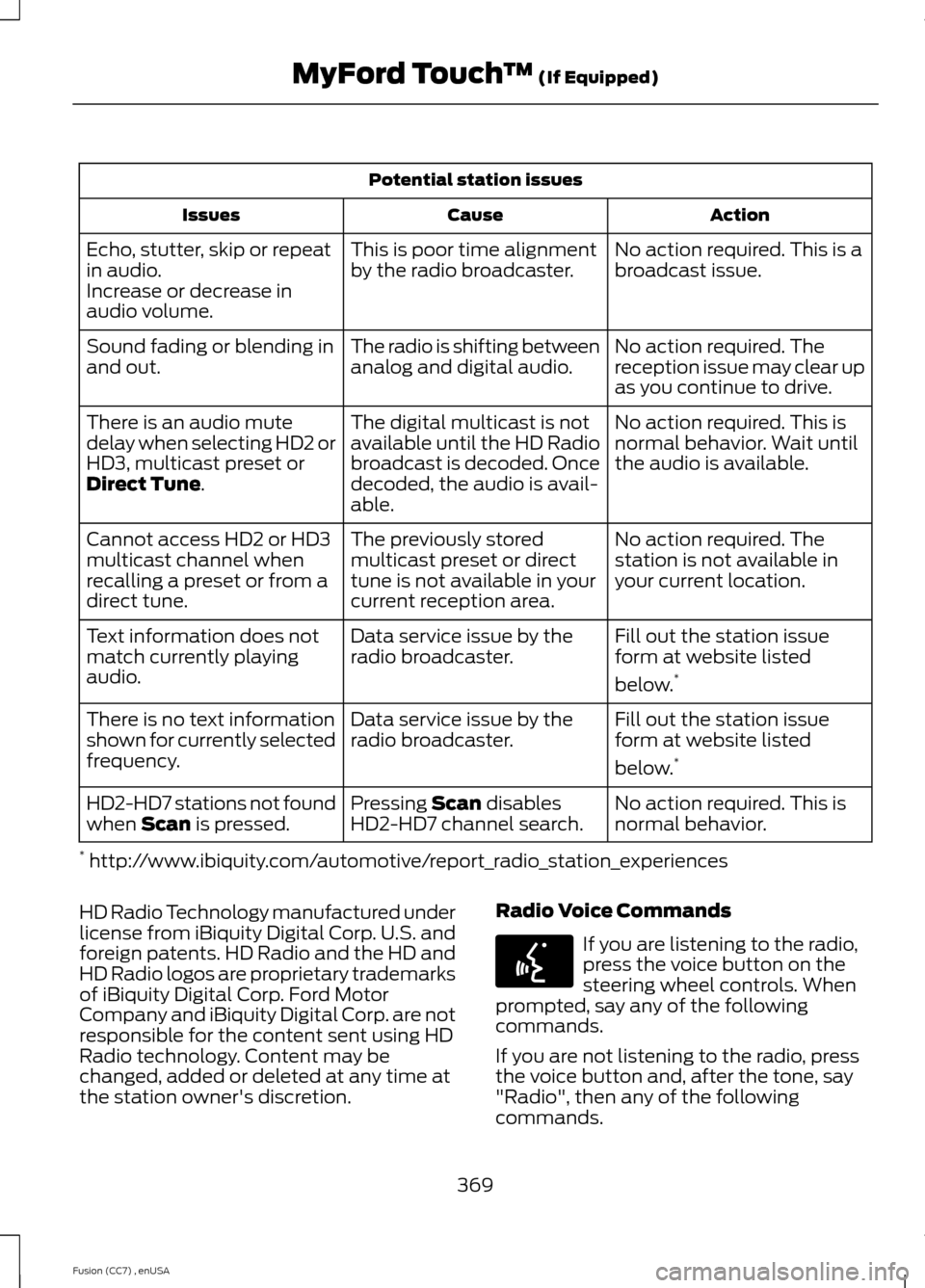
Potential station issues
ActionCauseIssues
No action required. This is abroadcast issue.This is poor time alignmentby the radio broadcaster.Echo, stutter, skip or repeatin audio.Increase or decrease inaudio volume.
No action required. Thereception issue may clear upas you continue to drive.
The radio is shifting betweenanalog and digital audio.Sound fading or blending inand out.
No action required. This isnormal behavior. Wait untilthe audio is available.
The digital multicast is notavailable until the HD Radiobroadcast is decoded. Oncedecoded, the audio is avail-able.
There is an audio mutedelay when selecting HD2 orHD3, multicast preset orDirect Tune.
No action required. Thestation is not available inyour current location.
The previously storedmulticast preset or directtune is not available in yourcurrent reception area.
Cannot access HD2 or HD3multicast channel whenrecalling a preset or from adirect tune.
Fill out the station issueform at website listed
below.*
Data service issue by theradio broadcaster.Text information does notmatch currently playingaudio.
Fill out the station issueform at website listed
below.*
Data service issue by theradio broadcaster.There is no text informationshown for currently selectedfrequency.
No action required. This isnormal behavior.Pressing Scan disablesHD2-HD7 channel search.HD2-HD7 stations not foundwhen Scan is pressed.
* http://www.ibiquity.com/automotive/report_radio_station_experiences
HD Radio Technology manufactured underlicense from iBiquity Digital Corp. U.S. andforeign patents. HD Radio and the HD andHD Radio logos are proprietary trademarksof iBiquity Digital Corp. Ford MotorCompany and iBiquity Digital Corp. are notresponsible for the content sent using HDRadio technology. Content may bechanged, added or deleted at any time atthe station owner's discretion.
Radio Voice Commands
If you are listening to the radio,press the voice button on thesteering wheel controls. Whenprompted, say any of the followingcommands.
If you are not listening to the radio, pressthe voice button and, after the tone, say"Radio", then any of the followingcommands.
369Fusion (CC7) , enUSAMyFord Touch™ (If Equipped)E142599
Page 374 of 458
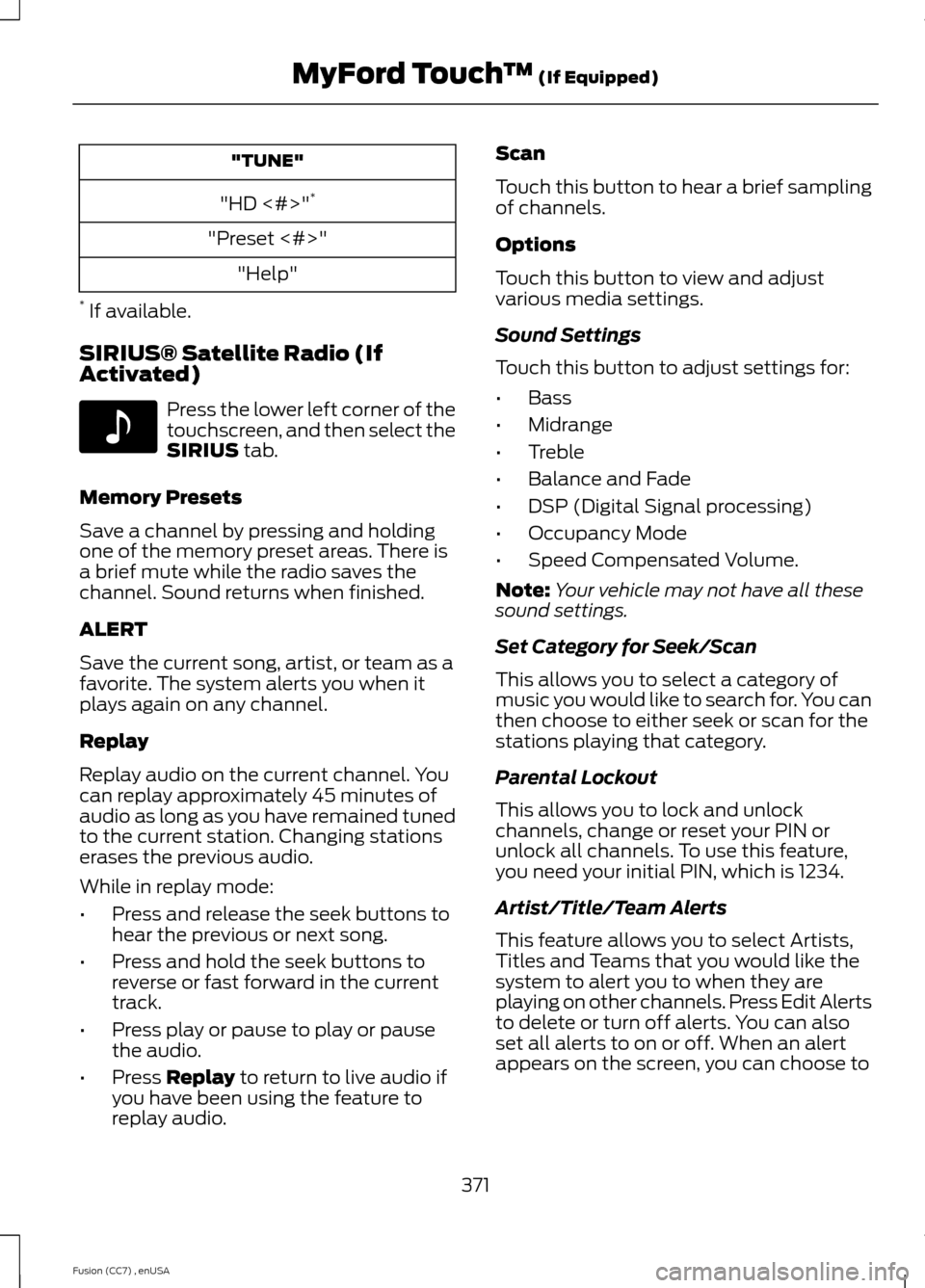
"TUNE"
"HD <#>"*
"Preset <#>"
"Help"
* If available.
SIRIUS® Satellite Radio (IfActivated)
Press the lower left corner of thetouchscreen, and then select theSIRIUS tab.
Memory Presets
Save a channel by pressing and holdingone of the memory preset areas. There isa brief mute while the radio saves thechannel. Sound returns when finished.
ALERT
Save the current song, artist, or team as afavorite. The system alerts you when itplays again on any channel.
Replay
Replay audio on the current channel. Youcan replay approximately 45 minutes ofaudio as long as you have remained tunedto the current station. Changing stationserases the previous audio.
While in replay mode:
•Press and release the seek buttons tohear the previous or next song.
•Press and hold the seek buttons toreverse or fast forward in the currenttrack.
•Press play or pause to play or pausethe audio.
•Press Replay to return to live audio ifyou have been using the feature toreplay audio.
Scan
Touch this button to hear a brief samplingof channels.
Options
Touch this button to view and adjustvarious media settings.
Sound Settings
Touch this button to adjust settings for:
•Bass
•Midrange
•Treble
•Balance and Fade
•DSP (Digital Signal processing)
•Occupancy Mode
•Speed Compensated Volume.
Note:Your vehicle may not have all thesesound settings.
Set Category for Seek/Scan
This allows you to select a category ofmusic you would like to search for. You canthen choose to either seek or scan for thestations playing that category.
Parental Lockout
This allows you to lock and unlockchannels, change or reset your PIN orunlock all channels. To use this feature,you need your initial PIN, which is 1234.
Artist/Title/Team Alerts
This feature allows you to select Artists,Titles and Teams that you would like thesystem to alert you to when they areplaying on other channels. Press Edit Alertsto delete or turn off alerts. You can alsoset all alerts to on or off. When an alertappears on the screen, you can choose to
371Fusion (CC7) , enUSAMyFord Touch™ (If Equipped)E142611
Page 376 of 458
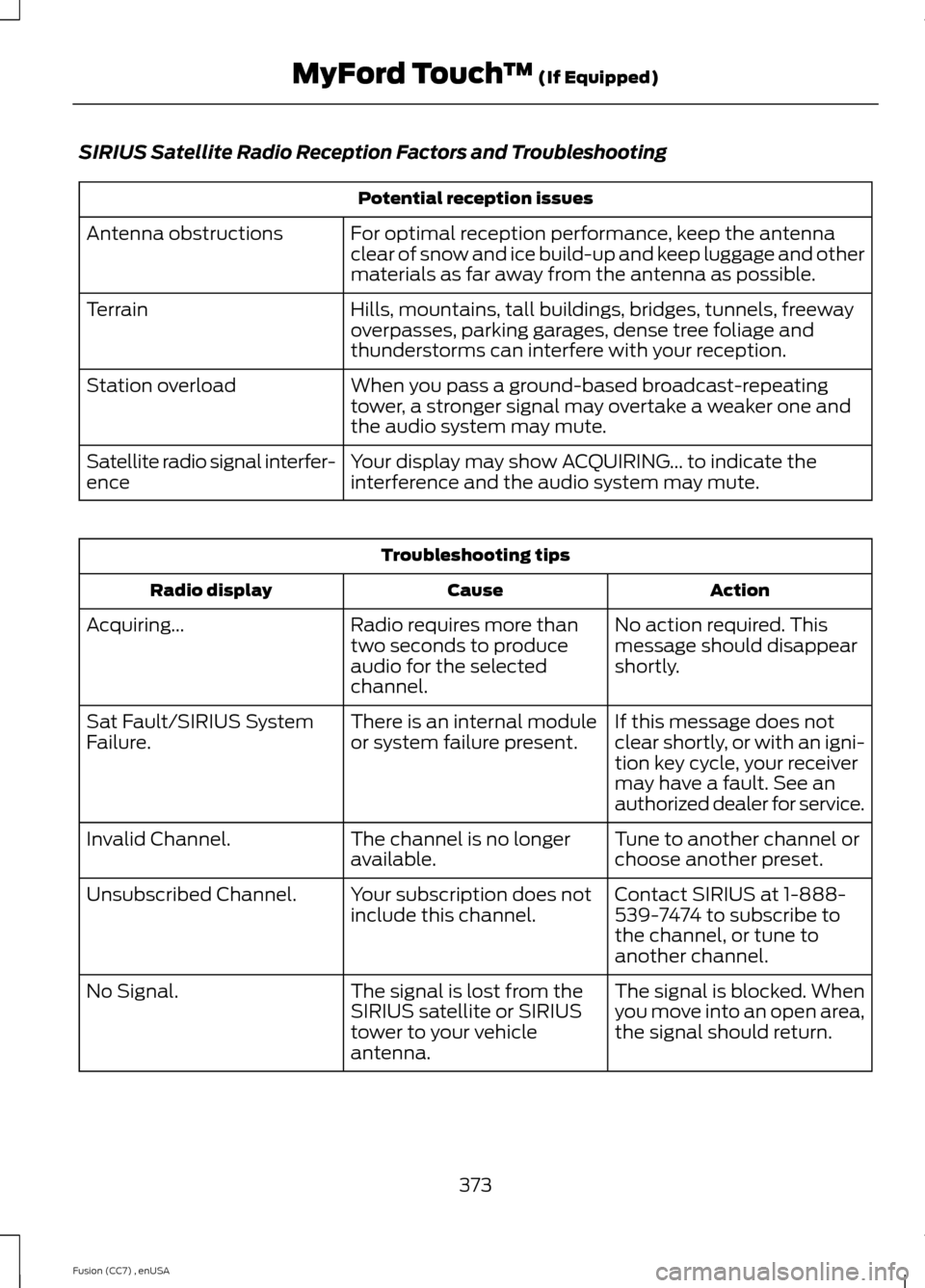
SIRIUS Satellite Radio Reception Factors and Troubleshooting
Potential reception issues
For optimal reception performance, keep the antennaclear of snow and ice build-up and keep luggage and othermaterials as far away from the antenna as possible.
Antenna obstructions
Hills, mountains, tall buildings, bridges, tunnels, freewayoverpasses, parking garages, dense tree foliage andthunderstorms can interfere with your reception.
Terrain
When you pass a ground-based broadcast-repeatingtower, a stronger signal may overtake a weaker one andthe audio system may mute.
Station overload
Your display may show ACQUIRING... to indicate theinterference and the audio system may mute.Satellite radio signal interfer-ence
Troubleshooting tips
ActionCauseRadio display
No action required. Thismessage should disappearshortly.
Radio requires more thantwo seconds to produceaudio for the selectedchannel.
Acquiring...
If this message does notclear shortly, or with an igni-tion key cycle, your receivermay have a fault. See anauthorized dealer for service.
There is an internal moduleor system failure present.Sat Fault/SIRIUS SystemFailure.
Tune to another channel orchoose another preset.The channel is no longeravailable.Invalid Channel.
Contact SIRIUS at 1-888-539-7474 to subscribe tothe channel, or tune toanother channel.
Your subscription does notinclude this channel.Unsubscribed Channel.
The signal is blocked. Whenyou move into an open area,the signal should return.
The signal is lost from theSIRIUS satellite or SIRIUStower to your vehicleantenna.
No Signal.
373Fusion (CC7) , enUSAMyFord Touch™ (If Equipped)
Page 381 of 458
Playing Video from Your Device
To access and play video from your device,your vehicle's transmission must be inposition P (vehicle equipped with anautomatic transmission) or neutral(vehicle equipped with a manualtransmission) with the ignition in accessorymode. See Starting and Stopping theEngine (page 136).
SD Card and USB Voice Commands
If you are listening to a USBdevice or an SD card, press thevoice button on the steeringwheel controls. When prompted, say anyof the following commands.
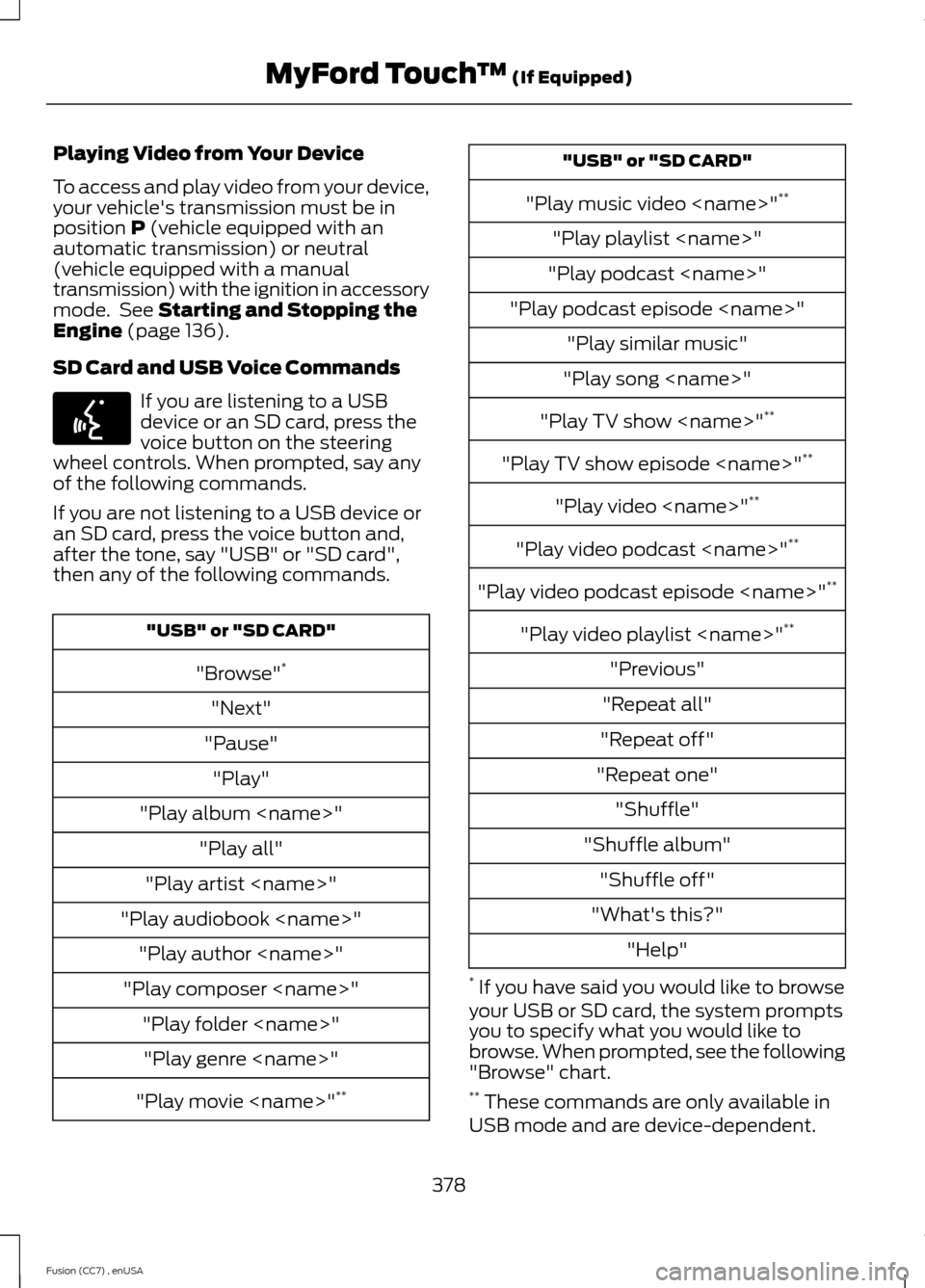
If you are not listening to a USB device oran SD card, press the voice button and,after the tone, say "USB" or "SD card",then any of the following commands.
"USB" or "SD CARD"
"Browse"*
"Next"
"Pause"
"Play"
"Play album
"Play all"
"Play artist
"Play audiobook
"Play author
"Play composer
"Play folder
"Play genre
"Play movie
"USB" or "SD CARD"
"Play music video
"Play playlist
"Play podcast
"Play podcast episode
"Play similar music"
"Play song
"Play TV show
"Play TV show episode
"Play video
"Play video podcast
"Play video podcast episode
"Play video playlist
"Previous"
"Repeat all"
"Repeat off"
"Repeat one"
"Shuffle"
"Shuffle album"
"Shuffle off"
"What's this?"
"Help"
* If you have said you would like to browseyour USB or SD card, the system promptsyou to specify what you would like tobrowse. When prompted, see the following"Browse" chart.** These commands are only available inUSB mode and are device-dependent.
378Fusion (CC7) , enUSAMyFord Touch™ (If Equipped)E142599
Page 382 of 458
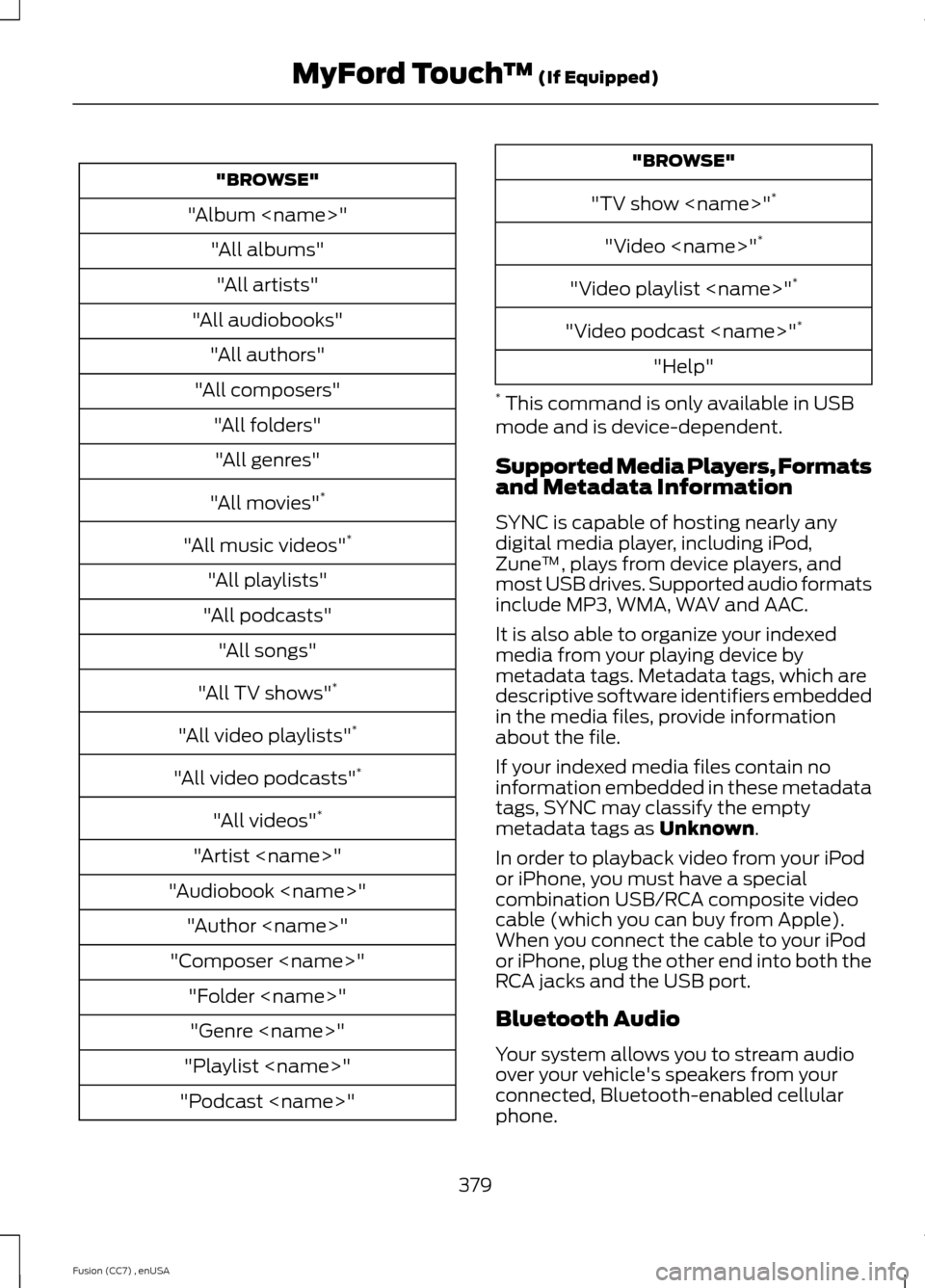
"BROWSE"
"Album
"All albums"
"All artists"
"All audiobooks"
"All authors"
"All composers"
"All folders"
"All genres"
"All movies"*
"All music videos"*
"All playlists"
"All podcasts"
"All songs"
"All TV shows"*
"All video playlists"*
"All video podcasts"*
"All videos"*
"Artist
"Audiobook
"Author
"Composer
"Folder
"Genre
"Playlist
"Podcast
"BROWSE"
"TV show
"Video
"Video playlist
"Video podcast
"Help"
* This command is only available in USBmode and is device-dependent.
Supported Media Players, Formatsand Metadata Information
SYNC is capable of hosting nearly anydigital media player, including iPod,Zune™, plays from device players, andmost USB drives. Supported audio formatsinclude MP3, WMA, WAV and AAC.
It is also able to organize your indexedmedia from your playing device bymetadata tags. Metadata tags, which aredescriptive software identifiers embeddedin the media files, provide informationabout the file.
If your indexed media files contain noinformation embedded in these metadatatags, SYNC may classify the emptymetadata tags as Unknown.
In order to playback video from your iPodor iPhone, you must have a specialcombination USB/RCA composite videocable (which you can buy from Apple).When you connect the cable to your iPodor iPhone, plug the other end into both theRCA jacks and the USB port.
Bluetooth Audio
Your system allows you to stream audioover your vehicle's speakers from yourconnected, Bluetooth-enabled cellularphone.
379Fusion (CC7) , enUSAMyFord Touch™ (If Equipped)
Page 383 of 458
To access, press the lower leftcorner on the touchscreen, thenselect the BT Stereo tab.
Bluetooth Audio Voice Commands
If you are listening to a Bluetoothaudio device, press the voicebutton on the steering wheelcontrol. When prompted, say "Next song","Pause", "Play" or "Previous song".
If you are not listening to a Bluetooth audiodevice, press the voice button and, afterthe tone, say "Next song", "Pause", "Play"or "Previous song".
A/V Inputs
WARNINGS
Driving while distracted can result inloss of vehicle control, crash andinjury. We strongly recommend thatyou use extreme caution when using anydevice that may take your focus off theroad. Your primary responsibility is the safeoperation of your vehicle. We recommendagainst the use of any handheld devicewhile driving and encourage the use ofvoice-operated systems when possible.Make sure you are aware of all applicablelocal laws that may affect the use ofelectronic devices while driving.
For safety reasons, do not connector adjust the settings on yourportable music player while yourvehicle is moving.
Store the portable music player in asecure location, such as the centerconsole or the glove box, when yourvehicle is moving. Hard objects maybecome projectiles in a crash or suddenstop, which may increase the risk of seriousinjury. The audio extension cable must belong enough to allow the portable musicplayer to be safely stored while yourvehicle is moving.
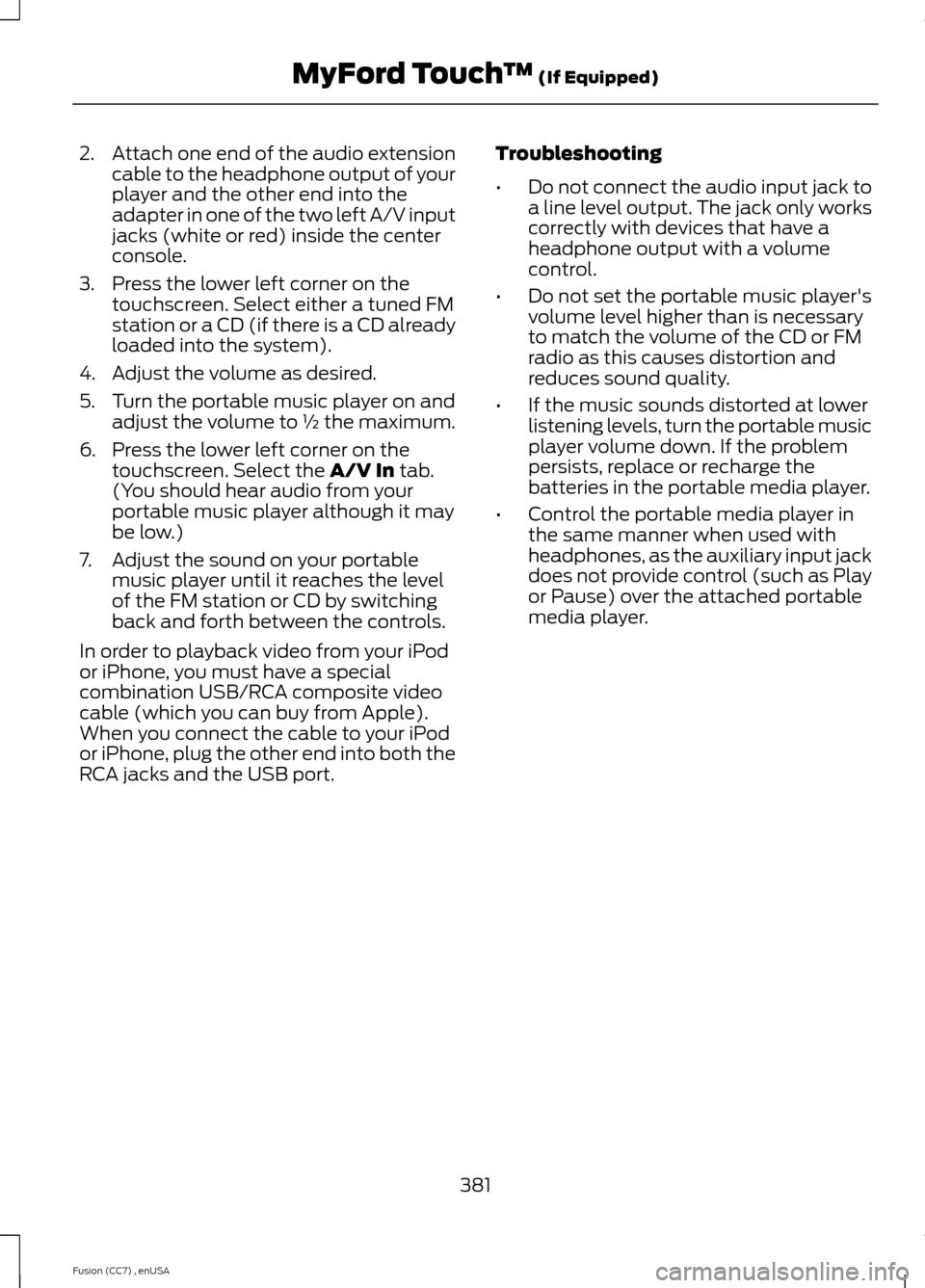
Your A/V inputs allow you to connect anauxiliary audio/video source (such as agaming systems or a personal camcorder)by connecting RCA cords (not included)to these input jacks. The jacks are yellow,red and white and are located eitherbehind a small access door on theinstrument panel or in your center console.
You can also use the A/V inputs as anauxiliary input jack to play music from yourportable music player over your vehicle'sspeakers. Plug in your 1/8 inch (3.5millimeter) RCA adapter into the two leftA/V input jacks (red and white).
Press the lower left corner of thetouchscreen, and then select A/V In.
To use the auxiliary input jack feature,make sure that your portable music playeris designed for use with headphones andthat it is fully charged. You also need anaudio extension cable with stereo male1/8-inch (3.5 millimeter) connectors at oneend and a RCA jack at the other.
1.Switch off the engine, radio andportable music player. Set the parkingbrake and put the transmission inposition P (vehicle equipped with anautomatic transmission) or neutral(vehicle equipped with a manualtransmission).
380Fusion (CC7) , enUSAMyFord Touch™ (If Equipped)E142611 E142599 E142622
Page 384 of 458
2.Attach one end of the audio extensioncable to the headphone output of yourplayer and the other end into theadapter in one of the two left A/V inputjacks (white or red) inside the centerconsole.
3.Press the lower left corner on thetouchscreen. Select either a tuned FMstation or a CD (if there is a CD alreadyloaded into the system).
4.Adjust the volume as desired.
5.Turn the portable music player on andadjust the volume to ½ the maximum.
6.Press the lower left corner on thetouchscreen. Select the A/V In tab.(You should hear audio from yourportable music player although it maybe low.)
7.Adjust the sound on your portablemusic player until it reaches the levelof the FM station or CD by switchingback and forth between the controls.
In order to playback video from your iPodor iPhone, you must have a specialcombination USB/RCA composite videocable (which you can buy from Apple).When you connect the cable to your iPodor iPhone, plug the other end into both theRCA jacks and the USB port.
Troubleshooting
•Do not connect the audio input jack toa line level output. The jack only workscorrectly with devices that have aheadphone output with a volumecontrol.
•Do not set the portable music player'svolume level higher than is necessaryto match the volume of the CD or FMradio as this causes distortion andreduces sound quality.
•If the music sounds distorted at lowerlistening levels, turn the portable musicplayer volume down. If the problempersists, replace or recharge thebatteries in the portable media player.
•Control the portable media player inthe same manner when used withheadphones, as the auxiliary input jackdoes not provide control (such as Playor Pause) over the attached portablemedia player.
381Fusion (CC7) , enUSAMyFord Touch™ (If Equipped)
Page 393 of 458
If your vehicle is not equipped withNavigation:
•Turn-by-turn directions appear in theinformation display, in the status barof your touchscreen system and on theSYNC Services screen. You also receivedriving instructions from audibleprompts.
•When on an active route, you canselect Route Summary or RouteStatus using the touchscreen controlsor voice commands to view the RouteSummary Turn List or the RouteStatus ETA. You can also turn voiceguidance on or off, cancel the route orupdate the route.
If you miss a turn, SYNC automatically asksif you want the route updated. Just say,"Yes" when prompted and the systemdelivers a new route to your vehicle.
If your vehicle is equipped with Navigation,SYNC Services downloads your requesteddestination to the navigation system. Thenavigation system then calculates theroute and provides driving instructions.See Navigation (page 400).
Disconnecting from SYNC Services
1.Press and hold the hang-up phonebutton on the steering wheel.
2.Say "Good-bye" from the SYNCServices main menu.
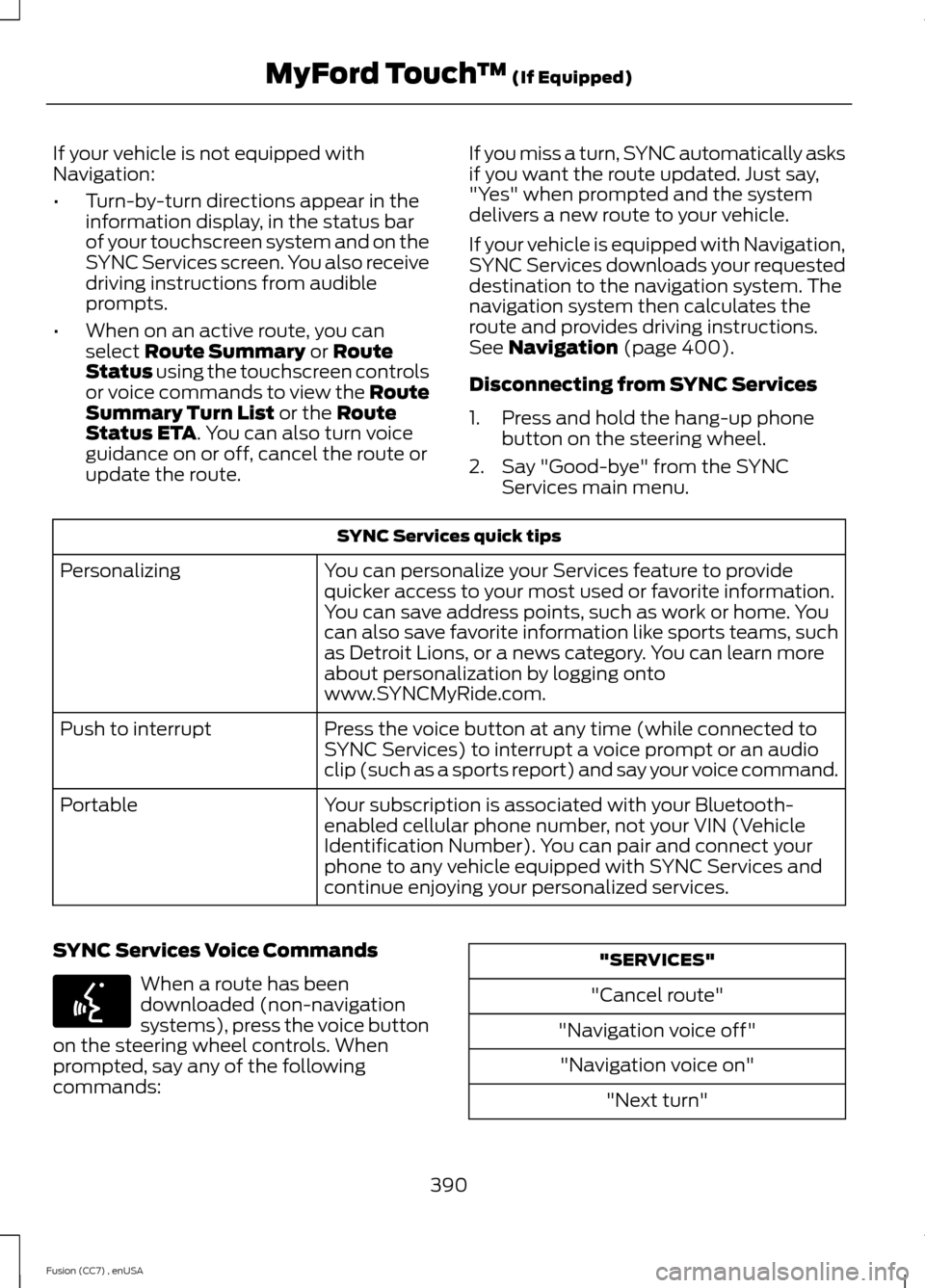
SYNC Services quick tips
You can personalize your Services feature to providequicker access to your most used or favorite information.You can save address points, such as work or home. Youcan also save favorite information like sports teams, suchas Detroit Lions, or a news category. You can learn moreabout personalization by logging ontowww.SYNCMyRide.com.
Personalizing
Press the voice button at any time (while connected toSYNC Services) to interrupt a voice prompt or an audioclip (such as a sports report) and say your voice command.
Push to interrupt
Your subscription is associated with your Bluetooth-enabled cellular phone number, not your VIN (VehicleIdentification Number). You can pair and connect yourphone to any vehicle equipped with SYNC Services andcontinue enjoying your personalized services.
Portable
SYNC Services Voice Commands
When a route has beendownloaded (non-navigationsystems), press the voice buttonon the steering wheel controls. Whenprompted, say any of the followingcommands:
"SERVICES"
"Cancel route"
"Navigation voice off"
"Navigation voice on"
"Next turn"
390Fusion (CC7) , enUSAMyFord Touch™ (If Equipped)E142599
Page 417 of 458
•Links to Third Party Sites: The MSSOFTWARE may provide you with theability to link to third party sites throughthe use of the SOFTWARE. The thirdparty sites are not under the control ofMS, Microsoft Corporation, theiraffiliates and/or their designatedagent. Neither MS nor MicrosoftCorporation nor their affiliates nor theirdesignated agent are responsible for(i) the contents of any third party sites,any links contained in third party sites,or any changes or updates to thirdparty sites, or (ii) webcasting or anyother form of transmission receivedfrom any third party sites. If theSOFTWARE provides links to thirdparty sites, those links are provided toyou only as a convenience, and theinclusion of any link does not imply anendorsement of the third party site byMS, Microsoft Corporation, theiraffiliates and/or their designatedagent.
•Obligation to Drive Responsibly:You recognize your obligation to driveresponsibly and keep attention on theroad. You will read and abide with theDEVICE operating instructionsparticularly as they pertain to safetyand assumes any risk associated withthe use of the DEVICE.
UPGRADES AND RECOVERY MEDIA:If the SOFTWARE is provided by FORDMOTOR COMPANY separate from theDEVICE on media such as a ROM chip, CDROM disk(s) or via web download or othermeans, and is labeled "For UpgradePurposes Only" or "For Recovery PurposesOnly" you may install one (1) copy of suchSOFTWARE onto the DEVICE as areplacement copy for the existingSOFTWARE, and use it in accordance withthis EULA, including any additional EULAterms accompanying the upgradeSOFTWARE.
INTELLECTUAL PROPERTY RIGHTS:All title and intellectual property rights inand to the SOFTWARE (including but notlimited to any images, photographs,animations, video, audio, music, text and"applets" incorporated into theSOFTWARE), the accompanying printedmaterials, and any copies of theSOFTWARE, are owned by MS, MicrosoftCorporation, FORD MOTOR COMPANY, ortheir affiliates or suppliers. TheSOFTWARE is licensed, not sold. You maynot copy the printed materialsaccompanying the SOFTWARE. All titleand intellectual property rights in and tothe content which may be accessedthrough use of the SOFTWARE is theproperty of the respective content ownerand may be protected by applicablecopyright or other intellectual propertylaws and treaties. This EULA grants you norights to use such content. All rights notspecifically granted under this EULA arereserved by MS, Microsoft Corporation,FORD MOTOR COMPANY, third partysoftware and service providers, theiraffiliates and suppliers. Use of any on-lineservices which may be accessed throughthe SOFTWARE may be governed by therespective terms of use relating to suchservices. If this SOFTWARE containsdocumentation that is provided only inelectronic form, you may print one copy ofsuch electronic documentation.
EXPORT RESTRICTIONS: Youacknowledge that the SOFTWARE issubject to U.S. and European Union exportjurisdiction. You agree to comply with allapplicable international and national lawsthat apply to the SOFTWARE, includingthe U.S. Export Administration Regulations,as well as end-user, end-use anddestination restrictions issued by U.S. andother governments. For additionalinformation, seehttp://www.microsoft.com/exporting/.
414Fusion (CC7) , enUSAAppendices
Page 421 of 458
2. Account Information
You agree: (a) when registering theTelenav Software, to provide Telenav withtrue, accurate, current, and completeinformation about yourself, and (b) toinform Telenav promptly of any changesto such information, and to keep it true,accurate, current and complete.
3. Software License
Subject to your compliance with the termsof this Agreement, Telenav hereby grantsto you a personal, non-exclusive,non-transferable license (except asexpressly permitted below in connectionwith your permanent transfer of theTelenav Software license), without theright to sublicense, to use the TelenavSoftware (in object code form only) inorder to access and use the TelenavSoftware. This license shall terminate uponany termination or expiration of thisAgreement. You agree that you will use theTelenav Software only for your personalbusiness or leisure purposes, and not toprovide commercial navigation services toother parties.
3.1 License Limitations
You agree not to do any of the following:(a) reverse engineer, decompile,disassemble, translate, modify, alter orotherwise change the Telenav Softwareor any part thereof; (b) attempt to derivethe source code, audio library or structureof the Telenav Software without the priorexpress written consent of Telenav; (c)remove from the Telenav Software, oralter, any of Telenav’s or its suppliers’trademarks, trade names, logos, patent orcopyright notices, or other notices ormarkings; (d) distribute, sublicense orotherwise transfer the Telenav Softwareto others, except as part of your permanenttransfer of the Telenav Software; or (e)use the Telenav Software in any mannerthat (i) infringes the intellectual property
or proprietary rights, rights of publicity orprivacy or other rights of any party, (ii)violates any law, statute, ordinance orregulation, including but not limited to lawsand regulations related to spamming,privacy, consumer and child protection,obscenity or defamation, or (iii) is harmful,threatening, abusive, harassing, tortuous,defamatory, vulgar, obscene, libelous, orotherwise objectionable; and (f) lease, rentout, or otherwise permit unauthorizedaccess by third parties to the TelenavSoftware without advanced writtenpermission of Telenav.
4. Disclaimers
To the fullest extent permissible pursuantto applicable law, in no event will Telenav,its licensors and suppliers, or agents oremployees of any of the foregoing, beliable for any decision made or actiontaken by you or anyone else in reliance onthe information provided by the TelenavSoftware. Telenav also does not warrantthe accuracy of the map or other data usedfor the Telenav Software. Such data maynot always reflect reality due to, amongother things, road closures, construction,weather, new roads and other changingconditions. You are responsible for theentire risk arising out of your use of theTelenav Software. For example butwithout limitation, you agree not to rely onthe Telenav Software for critical navigationin areas where the well-being or survivalof you or others is dependent on theaccuracy of navigation, as the maps orfunctionality of the Telenav Software arenot intended to support such high riskapplications, especially in more remotegeographical areas.
TELENAV EXPRESSLY DISCLAIMS ANDEXCLUDES ALL WARRANTIES INCONNECTION WITH THE TELENAVSOFTWARE, WHETHER STATUTORY,EXPRESS OR IMPLIED, INCLUDING ALLWARRANTIES WHICH MAY ARISE FROM
418Fusion (CC7) , enUSAAppendices