ECO mode FORD FUSION ENERGI 2017 Owners Manual
[x] Cancel search | Manufacturer: FORD, Model Year: 2017, Model line: FUSION ENERGI, Model: FORD FUSION ENERGI 2017Pages: 526, PDF Size: 7.89 MB
Page 378 of 526
Restricted features
Editing Wi-Fi settings.Wi-Fi
Editing the list of wireless networks.
Connecting to a new Wi-Fi network.
Viewing received text messages.Text Messages
Using the keyboard to enter a destination.Navigation
Adding or editing Navigation Favorites entries or AvoidAreas.
Creating a SYNC Owner Account
Why do I need a SYNC owner account?
•Essential for keeping up with the latestsoftware and connected features.
•Access to customer support for anyquestions you may have.
•Maintain account permissions.
Visit the website to sign up and register.
Website
www.owner.ford.comwww.syncmyride.cawww.syncmaroute.ca
MyFord Mobile™ with EmbeddedModem For Energi Vehicles (If
Equipped)
Connect to your vehicle using the MyFordMobile app on your smartphone. Theembedded modem in your vehiclecommunicates with the app and allowsyou to start, lock, unlock and locate yourvehicle remotely. The app also connectsyou with other vehicle resources like aparking locator, roadside assistance, dealerlocations and Ford Support. MyFord Mobile
is supported by Android and iPhone and itis available through the App Store andGoogle Play. The MyFord mobile app isavailable through a free download.Services included for four years. Text anddata rates apply to usage.
SYNC Connect For Hybrid Vehicles
(If Equipped)
With a SYNC® Connect-equipped vehicle,you can use FordPass® to track yourvehicle’s location and remotely accessvehicle features such as start, lock andunlock and vehicle status including fuellevel and approximate mileage. You canalso schedule specific times to remotelystart your vehicle so it’s ready to hit theroad as soon as you are. SYNC Connect isan optional feature on select 2017 MYvehicles. FordPass® is available througha free download via the Apple App Store®or Google Play™. Message and data ratesmay apply. Services may be limited bymobile phone network coverage area.
•FCC: LHJ-FAN
•IC: 2807E-FAN
Updating Your System
You can choose to download the updateonto a USB drive or use Wi-Fi to deliverautomatic updates.
375
Fusion Energi / Fusion Hybrid (CC7) Hybrid Electric Vehicle (HEV)/Plug-In Hybrid Electric Vehicle (PHEV), Canada/United States of America, enUSA, Edition date: 201602, Second Printing
SYNC™ 3
Page 387 of 526
There are also voice commands that you can use when app(s) are connected toSYNC 3:
DescriptionVoice command
At any time, you can say the name of a mobile app to start themobile app on SYNC 3.Say the name of anapp
SYNC 3 will list the available voice commands for the specifiedapp if the app is running on SYNC 3.Say the name of anapp, followed byhelp
SiriusXM Traffic and Travel LinkVoice Commands (If Equipped)
SiriusXM Traffic and Travel Link may notbe available in all markets. Activation anda subscription are required.
You can say the following commands to access SiriusXM Traffic and Travel Link:
DescriptionVoice command
Displays a list of traffic incidents.Show Traffic
Displays the current weather map.Show Weather Map
Displays a list of fuel prices.Show Fuel Prices
Displays the 5 day weather forecast.Show 5 Day Fore-cast
Help
Voice Settings Commands
You can say the following commands to access the voice settings:
DescriptionVoice command
Allows you to enter the voice settings functionality.Voice Settings
Sets standard prompting with longer prompts.Interaction ModeStandard
Sets advanced prompting with shorter prompts.Interaction ModeAdvanced
Allows the system to confirm before making a phone call.Phone Confirmation On
384
Fusion Energi / Fusion Hybrid (CC7) Hybrid Electric Vehicle (HEV)/Plug-In Hybrid Electric Vehicle (PHEV), Canada/United States of America, enUSA, Edition date: 201602, Second Printing
SYNC™ 3
Page 392 of 526
Action and descriptionMenu item
Replay audio on the current channel. You can replay approx-imately 45 minutes of audio as long as you remain tuned tothe current station. Changing stations erases the previousaudio.
Replay
When you are in replay mode, you are notable to select a different preset until youreturn to live audio. Pressing this buttonreturns you to the live broadcast.
Live
Save the current song, artist, or team as a favorite. The systemalerts you when it plays again on any channel.ALERT
Selecting this button allows you to enable and edit alerts. SeeSettings (page 436).
Memory Presets
To set a preset, tune to the station thenpress and hold one of the memory presetbuttons. The audio mutes briefly while thesystem saves the station and returns oncethe station is stored.
There are three preset banks available forSIRIUS. To access additional presets, tapthe preset button. The indicator on thepreset button shows which bank of presetsyou are currently viewing.
Satellite Radio Electronic SerialNumber (ESN)
You need your ESN to activate, modify ortrack your satellite radio account. SeeSettings (page 436).
SIRIUS Satellite Radio Reception Factors and Troubleshooting
Potential reception issues
For optimal reception performance, keep the antenna clearof snow and ice build-up and keep luggage and othermaterials as far away from the antenna as possible.
Antenna obstructions
Hills, mountains, tall buildings, bridges, tunnels, freewayoverpasses, parking garages, dense tree foliage and thunder-storms can interfere with your reception.
Terrain
When you pass a ground-based broadcast-repeating tower,a stronger signal may overtake a weaker one and the audiosystem may mute.
Station overload
Your display may show ACQUIRING... to indicate the interfer-ence and the audio system may mute.Satellite radio signalinterference
389
Fusion Energi / Fusion Hybrid (CC7) Hybrid Electric Vehicle (HEV)/Plug-In Hybrid Electric Vehicle (PHEV), Canada/United States of America, enUSA, Edition date: 201602, Second Printing
SYNC™ 3
Page 394 of 526
HD Radio technology is the digitalevolution of analog AM/FM radio. Yoursystem has a special receiver that allowsit to receive digital broadcasts (whereavailable) in addition to the analogbroadcasts, it already receives. Digitalbroadcasts provide a better sound qualitythan analog broadcasts with free,crystal-clear audio and no static ordistortion. For more information, and aguide to available stations andprogramming, please visit:
Website
www.hdradio.com
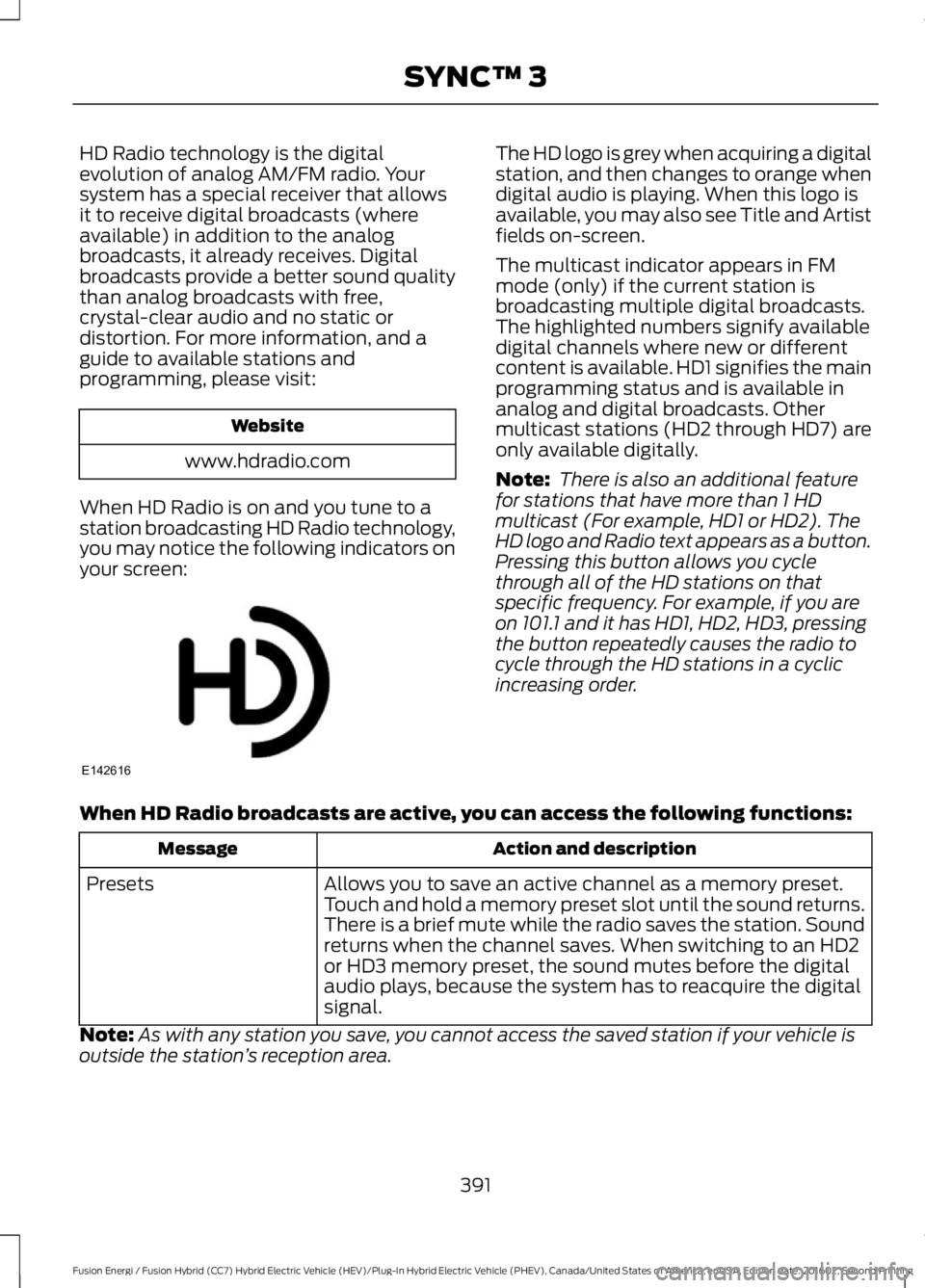
When HD Radio is on and you tune to astation broadcasting HD Radio technology,you may notice the following indicators onyour screen:
The HD logo is grey when acquiring a digitalstation, and then changes to orange whendigital audio is playing. When this logo isavailable, you may also see Title and Artistfields on-screen.
The multicast indicator appears in FMmode (only) if the current station isbroadcasting multiple digital broadcasts.The highlighted numbers signify availabledigital channels where new or differentcontent is available. HD1 signifies the mainprogramming status and is available inanalog and digital broadcasts. Othermulticast stations (HD2 through HD7) areonly available digitally.
Note: There is also an additional featurefor stations that have more than 1 HDmulticast (For example, HD1 or HD2). TheHD logo and Radio text appears as a button.Pressing this button allows you cyclethrough all of the HD stations on thatspecific frequency. For example, if you areon 101.1 and it has HD1, HD2, HD3, pressingthe button repeatedly causes the radio tocycle through the HD stations in a cyclicincreasing order.
When HD Radio broadcasts are active, you can access the following functions:
Action and descriptionMessage
Allows you to save an active channel as a memory preset.Touch and hold a memory preset slot until the sound returns.There is a brief mute while the radio saves the station. Soundreturns when the channel saves. When switching to an HD2or HD3 memory preset, the sound mutes before the digitalaudio plays, because the system has to reacquire the digitalsignal.
Presets
Note:As with any station you save, you cannot access the saved station if your vehicle isoutside the station’s reception area.
391
Fusion Energi / Fusion Hybrid (CC7) Hybrid Electric Vehicle (HEV)/Plug-In Hybrid Electric Vehicle (PHEV), Canada/United States of America, enUSA, Edition date: 201602, Second Printing
SYNC™ 3E142616
Page 397 of 526
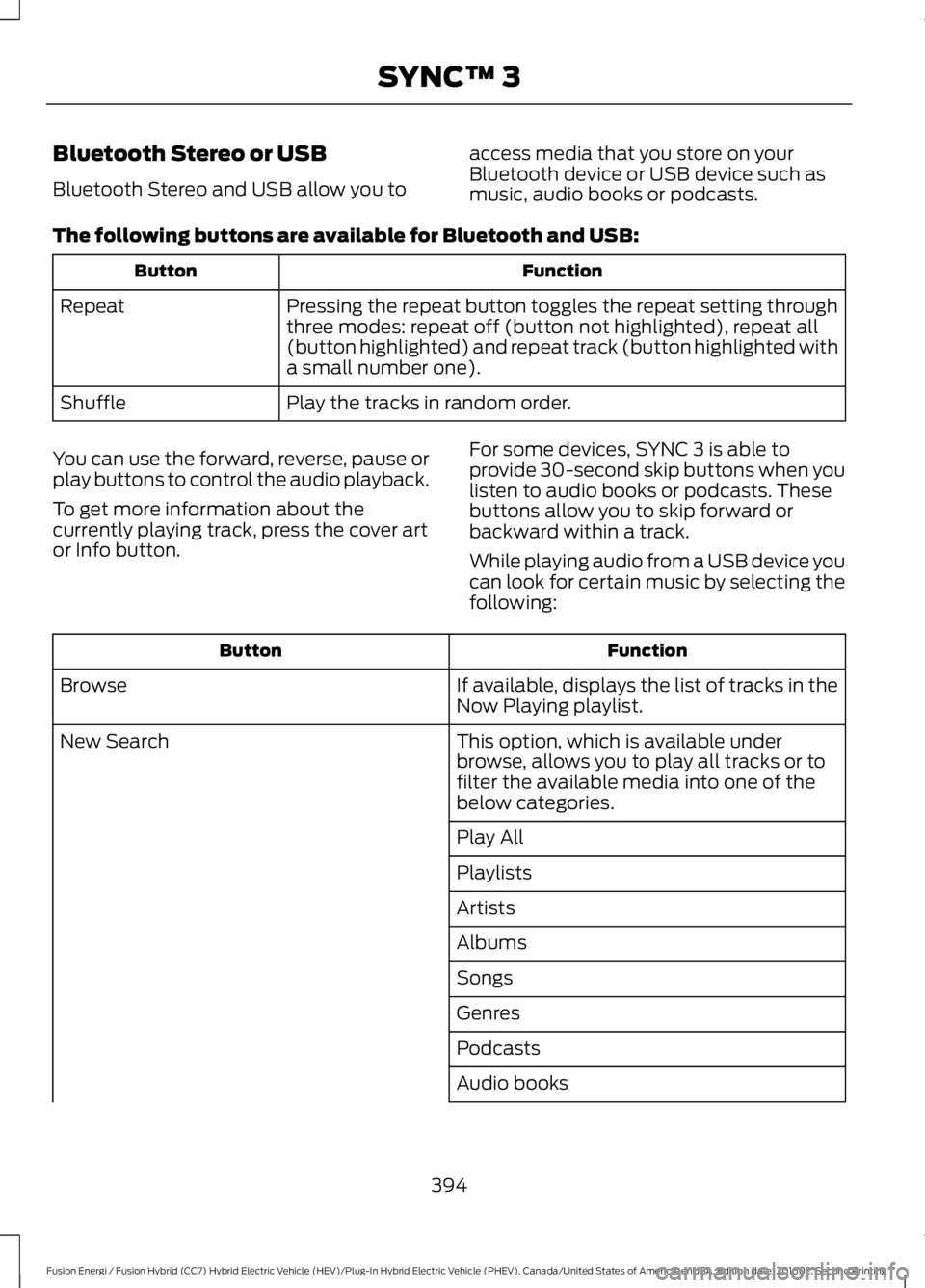
Bluetooth Stereo or USB
Bluetooth Stereo and USB allow you to
access media that you store on yourBluetooth device or USB device such asmusic, audio books or podcasts.
The following buttons are available for Bluetooth and USB:
FunctionButton
Pressing the repeat button toggles the repeat setting throughthree modes: repeat off (button not highlighted), repeat all(button highlighted) and repeat track (button highlighted witha small number one).
Repeat
Play the tracks in random order.Shuffle
You can use the forward, reverse, pause orplay buttons to control the audio playback.
To get more information about thecurrently playing track, press the cover artor Info button.
For some devices, SYNC 3 is able toprovide 30-second skip buttons when youlisten to audio books or podcasts. Thesebuttons allow you to skip forward orbackward within a track.
While playing audio from a USB device youcan look for certain music by selecting thefollowing:
FunctionButton
If available, displays the list of tracks in theNow Playing playlist.Browse
This option, which is available underbrowse, allows you to play all tracks or tofilter the available media into one of thebelow categories.
New Search
Play All
Playlists
Artists
Albums
Songs
Genres
Podcasts
Audio books
394
Fusion Energi / Fusion Hybrid (CC7) Hybrid Electric Vehicle (HEV)/Plug-In Hybrid Electric Vehicle (PHEV), Canada/United States of America, enUSA, Edition date: 201602, Second Printing
SYNC™ 3
Page 401 of 526
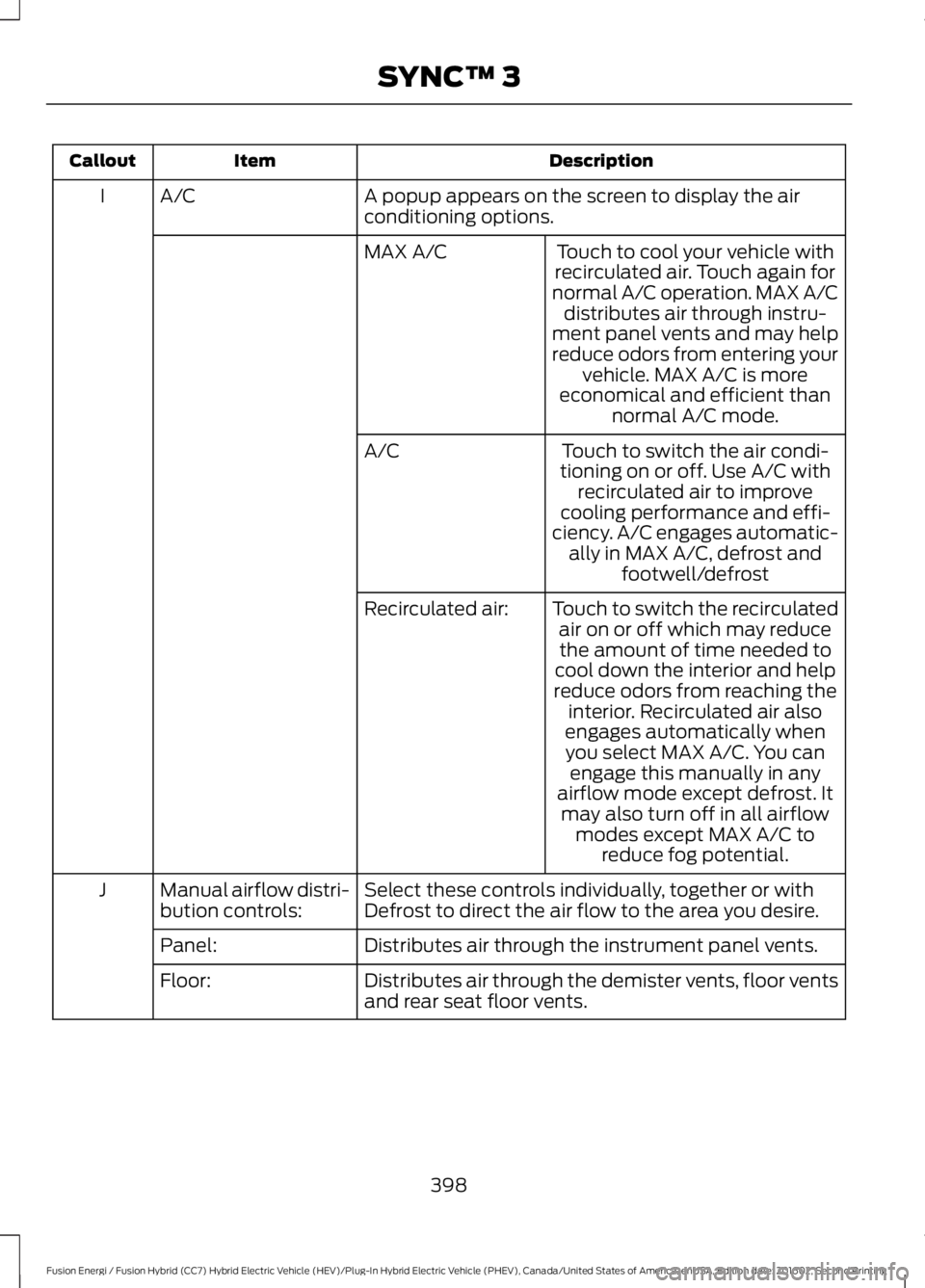
DescriptionItemCallout
A popup appears on the screen to display the airconditioning options.A/CI
Touch to cool your vehicle withrecirculated air. Touch again fornormal A/C operation. MAX A/Cdistributes air through instru-ment panel vents and may helpreduce odors from entering yourvehicle. MAX A/C is moreeconomical and efficient thannormal A/C mode.
MAX A/C
Touch to switch the air condi-tioning on or off. Use A/C withrecirculated air to improvecooling performance and effi-ciency. A/C engages automatic-ally in MAX A/C, defrost andfootwell/defrost
A/C
Touch to switch the recirculatedair on or off which may reducethe amount of time needed tocool down the interior and helpreduce odors from reaching theinterior. Recirculated air also
Recirculated air:
engages automatically whenyou select MAX A/C. You canengage this manually in anyairflow mode except defrost. Itmay also turn off in all airflowmodes except MAX A/C toreduce fog potential.
Select these controls individually, together or withDefrost to direct the air flow to the area you desire.Manual airflow distri-bution controls:J
Distributes air through the instrument panel vents.Panel:
Distributes air through the demister vents, floor ventsand rear seat floor vents.Floor:
398
Fusion Energi / Fusion Hybrid (CC7) Hybrid Electric Vehicle (HEV)/Plug-In Hybrid Electric Vehicle (PHEV), Canada/United States of America, enUSA, Edition date: 201602, Second Printing
SYNC™ 3
Page 402 of 526
PHONE
WARNING
Driving while distracted can result inloss of vehicle control, crash andinjury. We strongly recommend thatyou use extreme caution when using anydevice that may take your focus off theroad. Your primary responsibility is the safeoperation of your vehicle. We recommendagainst the use of any hand-held devicewhile driving and encourage the use ofvoice-operated systems when possible.Make sure you are aware of all applicablelocal laws that may affect the use ofelectronic devices while driving.
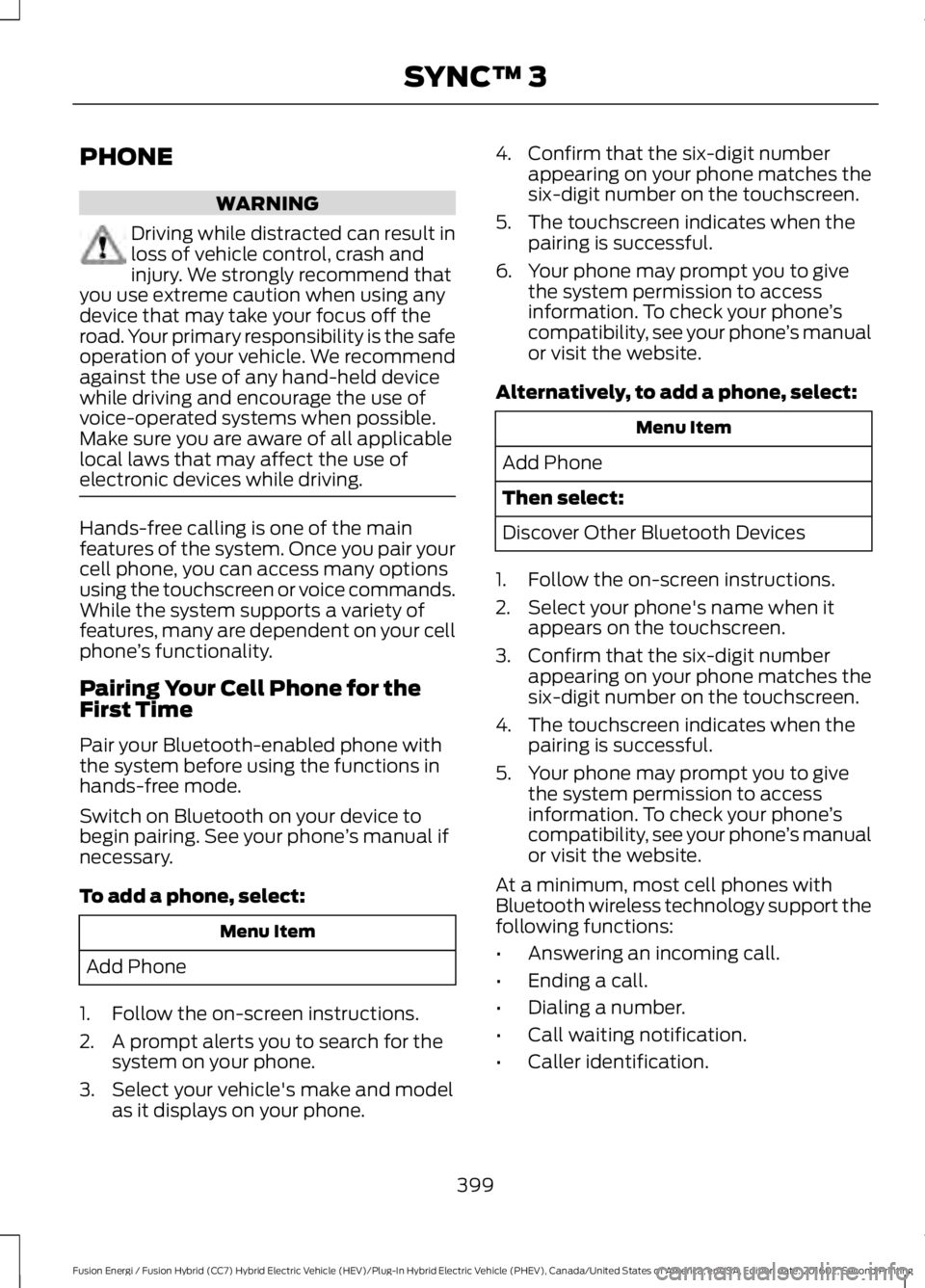
Hands-free calling is one of the mainfeatures of the system. Once you pair yourcell phone, you can access many optionsusing the touchscreen or voice commands.While the system supports a variety offeatures, many are dependent on your cellphone’s functionality.
Pairing Your Cell Phone for theFirst Time
Pair your Bluetooth-enabled phone withthe system before using the functions inhands-free mode.
Switch on Bluetooth on your device tobegin pairing. See your phone’s manual ifnecessary.
To add a phone, select:
Menu Item
Add Phone
1. Follow the on-screen instructions.
2. A prompt alerts you to search for thesystem on your phone.
3. Select your vehicle's make and modelas it displays on your phone.
4. Confirm that the six-digit numberappearing on your phone matches thesix-digit number on the touchscreen.
5. The touchscreen indicates when thepairing is successful.
6. Your phone may prompt you to givethe system permission to accessinformation. To check your phone’scompatibility, see your phone’s manualor visit the website.
Alternatively, to add a phone, select:
Menu Item
Add Phone
Then select:
Discover Other Bluetooth Devices
1. Follow the on-screen instructions.
2. Select your phone's name when itappears on the touchscreen.
3. Confirm that the six-digit numberappearing on your phone matches thesix-digit number on the touchscreen.
4. The touchscreen indicates when thepairing is successful.
5. Your phone may prompt you to givethe system permission to accessinformation. To check your phone’scompatibility, see your phone’s manualor visit the website.
At a minimum, most cell phones withBluetooth wireless technology support thefollowing functions:
•Answering an incoming call.
•Ending a call.
•Dialing a number.
•Call waiting notification.
•Caller identification.
399
Fusion Energi / Fusion Hybrid (CC7) Hybrid Electric Vehicle (HEV)/Plug-In Hybrid Electric Vehicle (PHEV), Canada/United States of America, enUSA, Edition date: 201602, Second Printing
SYNC™ 3
Page 407 of 526
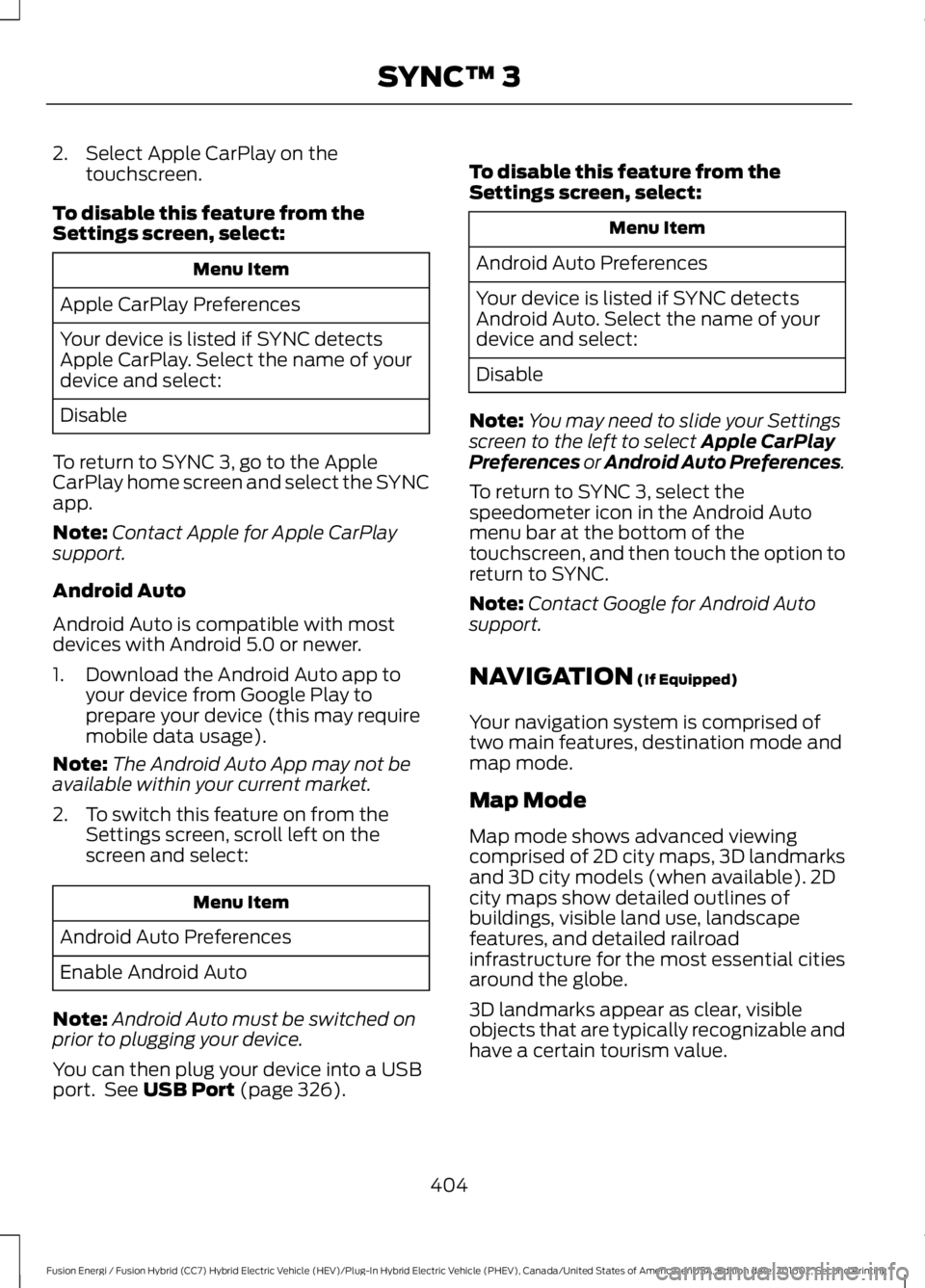
2. Select Apple CarPlay on thetouchscreen.
To disable this feature from theSettings screen, select:
Menu Item
Apple CarPlay Preferences
Your device is listed if SYNC detectsApple CarPlay. Select the name of yourdevice and select:
Disable
To return to SYNC 3, go to the AppleCarPlay home screen and select the SYNCapp.
Note:Contact Apple for Apple CarPlaysupport.
Android Auto
Android Auto is compatible with mostdevices with Android 5.0 or newer.
1. Download the Android Auto app toyour device from Google Play toprepare your device (this may requiremobile data usage).
Note:The Android Auto App may not beavailable within your current market.
2. To switch this feature on from theSettings screen, scroll left on thescreen and select:
Menu Item
Android Auto Preferences
Enable Android Auto
Note:Android Auto must be switched onprior to plugging your device.
You can then plug your device into a USBport. See USB Port (page 326).
To disable this feature from theSettings screen, select:
Menu Item
Android Auto Preferences
Your device is listed if SYNC detectsAndroid Auto. Select the name of yourdevice and select:
Disable
Note:You may need to slide your Settingsscreen to the left to select Apple CarPlayPreferences or Android Auto Preferences.
To return to SYNC 3, select thespeedometer icon in the Android Automenu bar at the bottom of thetouchscreen, and then touch the option toreturn to SYNC.
Note:Contact Google for Android Autosupport.
NAVIGATION (If Equipped)
Your navigation system is comprised oftwo main features, destination mode andmap mode.
Map Mode
Map mode shows advanced viewingcomprised of 2D city maps, 3D landmarksand 3D city models (when available). 2Dcity maps show detailed outlines ofbuildings, visible land use, landscapefeatures, and detailed railroadinfrastructure for the most essential citiesaround the globe.
3D landmarks appear as clear, visibleobjects that are typically recognizable andhave a certain tourism value.
404
Fusion Energi / Fusion Hybrid (CC7) Hybrid Electric Vehicle (HEV)/Plug-In Hybrid Electric Vehicle (PHEV), Canada/United States of America, enUSA, Edition date: 201602, Second Printing
SYNC™ 3
Page 408 of 526
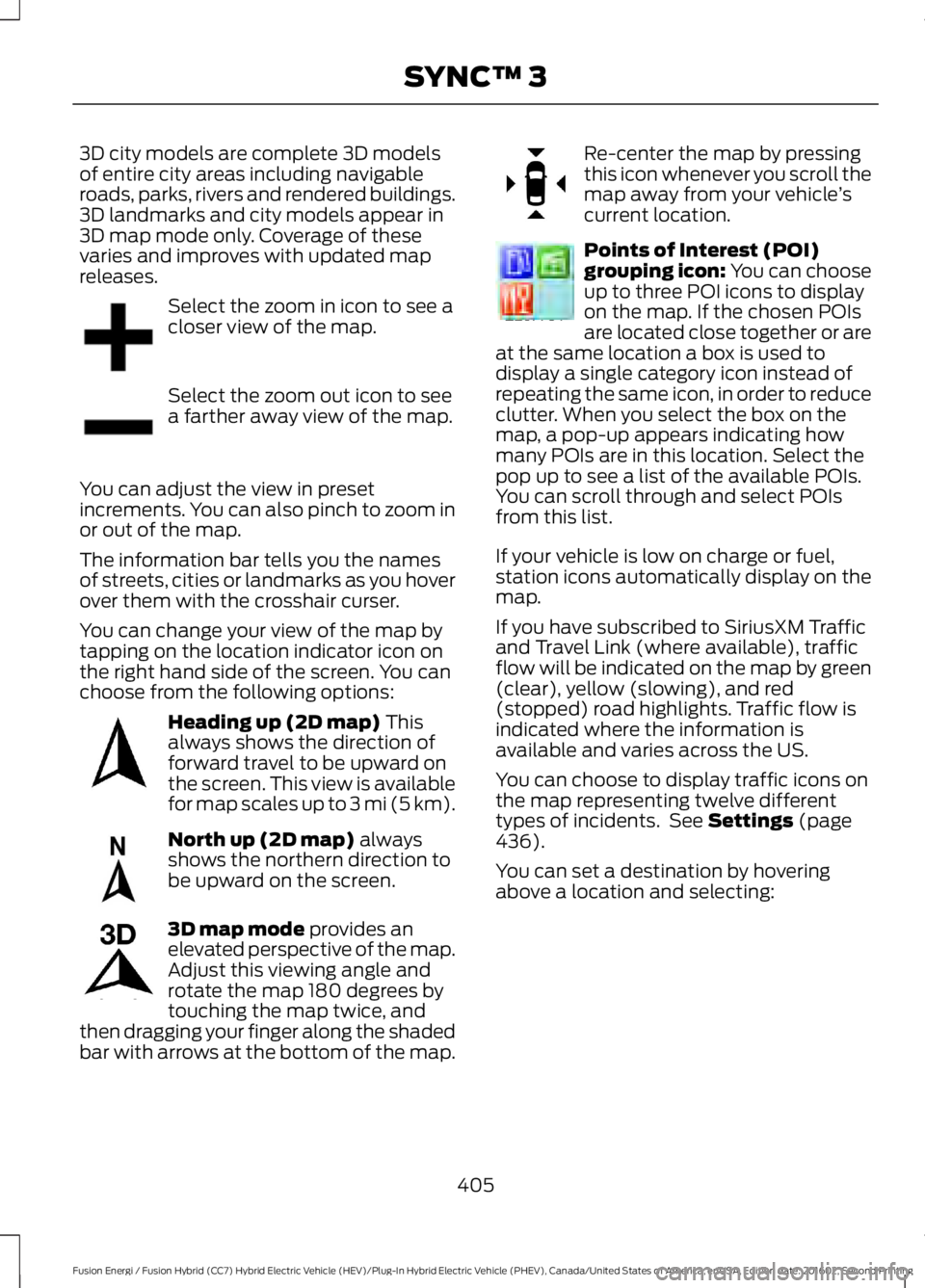
3D city models are complete 3D modelsof entire city areas including navigableroads, parks, rivers and rendered buildings.3D landmarks and city models appear in3D map mode only. Coverage of thesevaries and improves with updated mapreleases.
Select the zoom in icon to see acloser view of the map.
Select the zoom out icon to seea farther away view of the map.
You can adjust the view in presetincrements. You can also pinch to zoom inor out of the map.
The information bar tells you the namesof streets, cities or landmarks as you hoverover them with the crosshair curser.
You can change your view of the map bytapping on the location indicator icon onthe right hand side of the screen. You canchoose from the following options:
Heading up (2D map) Thisalways shows the direction offorward travel to be upward onthe screen. This view is availablefor map scales up to 3 mi (5 km).
North up (2D map) alwaysshows the northern direction tobe upward on the screen.
3D map mode provides anelevated perspective of the map.Adjust this viewing angle androtate the map 180 degrees bytouching the map twice, andthen dragging your finger along the shadedbar with arrows at the bottom of the map.
Re-center the map by pressingthis icon whenever you scroll themap away from your vehicle’scurrent location.
Points of Interest (POI)grouping icon: You can chooseup to three POI icons to displayon the map. If the chosen POIsare located close together or areat the same location a box is used todisplay a single category icon instead ofrepeating the same icon, in order to reduceclutter. When you select the box on themap, a pop-up appears indicating howmany POIs are in this location. Select thepop up to see a list of the available POIs.You can scroll through and select POIsfrom this list.
If your vehicle is low on charge or fuel,station icons automatically display on themap.
If you have subscribed to SiriusXM Trafficand Travel Link (where available), trafficflow will be indicated on the map by green(clear), yellow (slowing), and red(stopped) road highlights. Traffic flow isindicated where the information isavailable and varies across the US.
You can choose to display traffic icons onthe map representing twelve differenttypes of incidents. See Settings (page436).
You can set a destination by hoveringabove a location and selecting:
405
Fusion Energi / Fusion Hybrid (CC7) Hybrid Electric Vehicle (HEV)/Plug-In Hybrid Electric Vehicle (PHEV), Canada/United States of America, enUSA, Edition date: 201602, Second Printing
SYNC™ 3E207752 E207753 E207750 E207749 E207748 E207751 E207754
Page 409 of 526
Button
Start
Range Rings and Charge Points (EnergiOnly)
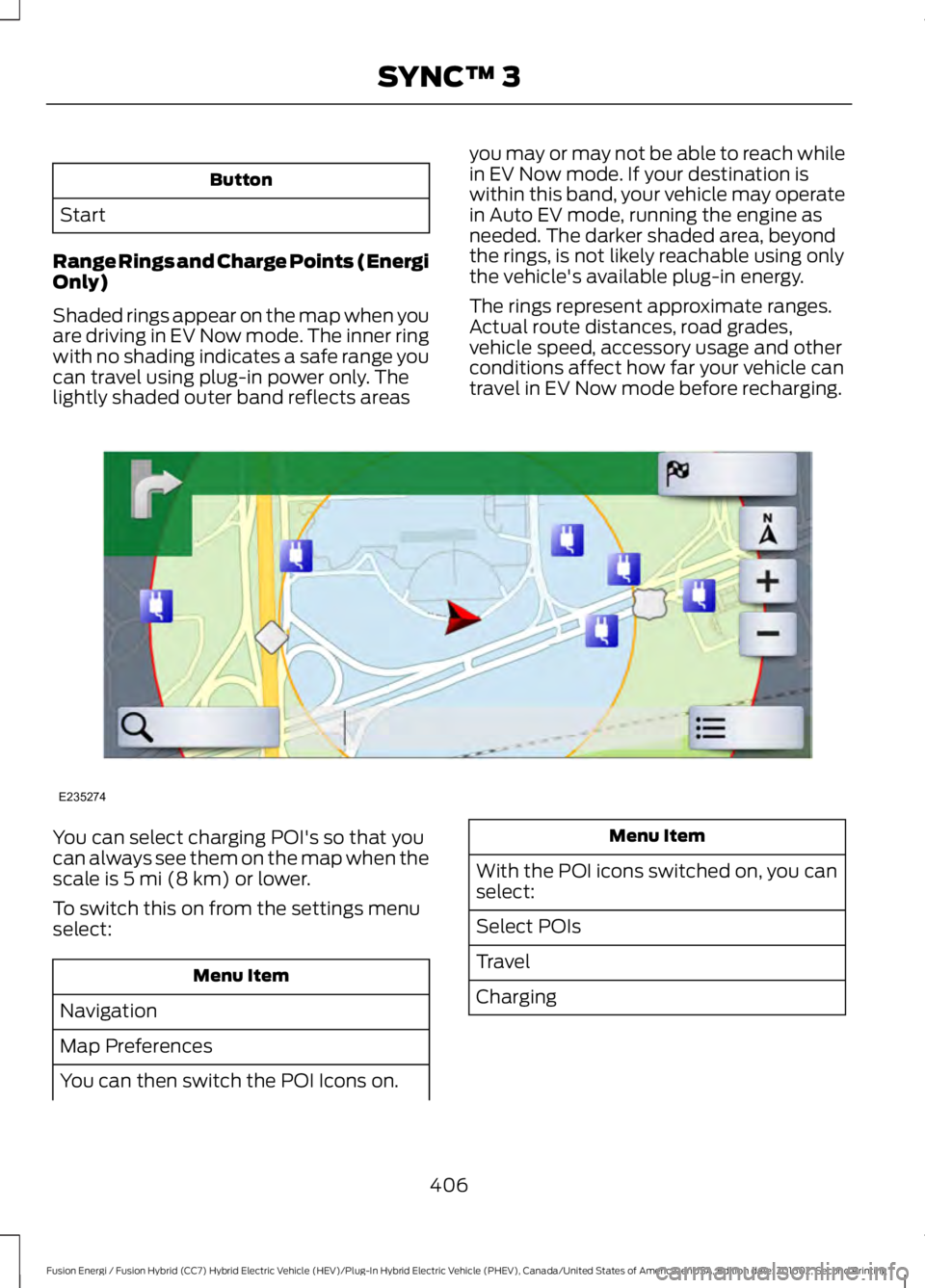
Shaded rings appear on the map when youare driving in EV Now mode. The inner ringwith no shading indicates a safe range youcan travel using plug-in power only. Thelightly shaded outer band reflects areas
you may or may not be able to reach whilein EV Now mode. If your destination iswithin this band, your vehicle may operatein Auto EV mode, running the engine asneeded. The darker shaded area, beyondthe rings, is not likely reachable using onlythe vehicle's available plug-in energy.
The rings represent approximate ranges.Actual route distances, road grades,vehicle speed, accessory usage and otherconditions affect how far your vehicle cantravel in EV Now mode before recharging.
You can select charging POI's so that youcan always see them on the map when thescale is 5 mi (8 km) or lower.
To switch this on from the settings menuselect:
Menu Item
Navigation
Map Preferences
You can then switch the POI Icons on.
Menu Item
With the POI icons switched on, you canselect:
Select POIs
Travel
Charging
406
Fusion Energi / Fusion Hybrid (CC7) Hybrid Electric Vehicle (HEV)/Plug-In Hybrid Electric Vehicle (PHEV), Canada/United States of America, enUSA, Edition date: 201602, Second Printing
SYNC™ 3E235274