change time FORD GT 2017 2.G User Guide
[x] Cancel search | Manufacturer: FORD, Model Year: 2017, Model line: GT, Model: FORD GT 2017 2.GPages: 313, PDF Size: 6.41 MB
Page 195 of 313
It may take up to two minutes of driving
over 20 mph (32 km/h) for the light to turn
off after you have filled your tires to the
recommended inflation pressure.
How Temperature Affects Your Tire
Pressure
The tire pressure monitoring system
monitors tire pressure in each pneumatic
tire. While driving in a normal manner, a
typical passenger tire inflation pressure
may increase about 2
–4 psi (14– 28 kPa)
from a cold start situation. If the vehicle is
stationary overnight with the outside
temperature significantly lower than the
daytime temperature, the tire pressure may
decrease about 3 psi (21 kPa) for a drop of
30°F (17°C) in ambient temperature. This
lower pressure value may be detected by
the tire pressure monitoring system as
being significantly lower than the
recommended inflation pressure and
activate the system warning light for low
tire pressure. If the low tire pressure
warning light is on, visually check each tire
to verify that no tire is flat. If one or more
tires are flat, repair as necessary. Check
the air pressure in the road tires. If any tire
is under-inflated, carefully drive the vehicle
to the nearest location where air can be
added to the tires. Inflate all the tires to
the recommended inflation pressure.
CHANGING A ROAD WHEEL
Important Information for Lifting
or Jacking
A vehicle jack is not included with your
vehicle. If you are on the road and need to
change a wheel, it is recommended that
you contact the Ford GT Concierge to
obtain roadside assistance. See
Special
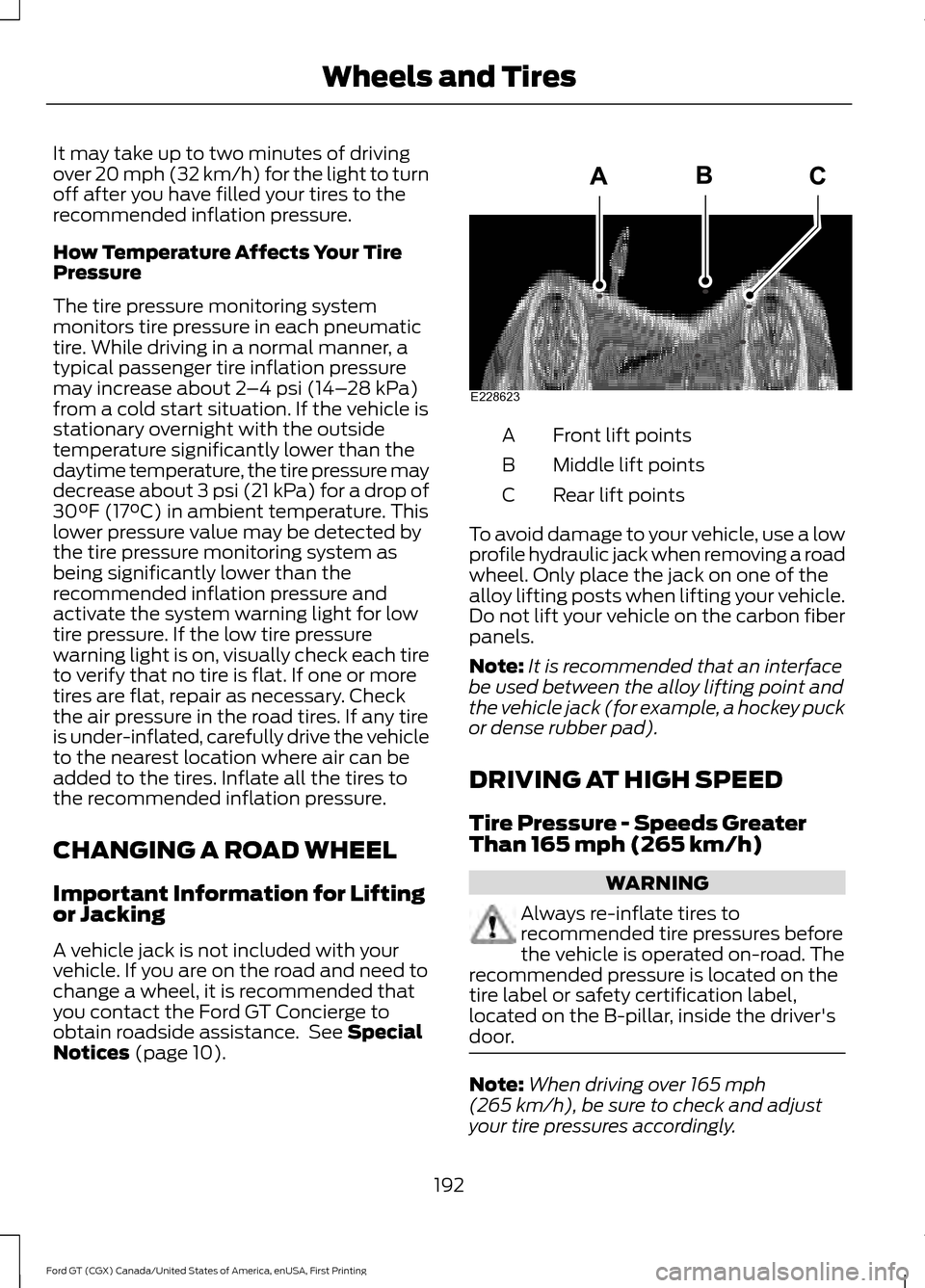
Notices (page 10). Front lift points
A
Middle lift points
B
Rear lift points
C
To avoid damage to your vehicle, use a low
profile hydraulic jack when removing a road
wheel. Only place the jack on one of the
alloy lifting posts when lifting your vehicle.
Do not lift your vehicle on the carbon fiber
panels.
Note: It is recommended that an interface
be used between the alloy lifting point and
the vehicle jack (for example, a hockey puck
or dense rubber pad).
DRIVING AT HIGH SPEED
Tire Pressure - Speeds Greater
Than
165 mph (265 km/h) WARNING
Always re-inflate tires to
recommended tire pressures before
the vehicle is operated on-road. The
recommended pressure is located on the
tire label or safety certification label,
located on the B-pillar, inside the driver's
door. Note:
When driving over
165 mph
(265 km/h), be sure to check and adjust
your tire pressures accordingly.
192
Ford GT (CGX) Canada/United States of America, enUSA, First Printing Wheels and TiresE228623
Page 206 of 313
GENERAL INFORMATION
WARNING
Driving while distracted can result in
loss of vehicle control, crash and
injury. We strongly recommend that
you use extreme caution when using any
device that may take your focus off the
road. Your primary responsibility is the safe
operation of your vehicle. We recommend
against the use of any hand-held device
while driving and encourage the use of
voice-operated systems when possible.
Make sure you are aware of all applicable
local laws that may affect the use of
electronic devices while driving. Getting to Know Your System
The SYNC 3 system allows you to interact
with a variety of features using the
touchscreen and voice commands. By
integrating with your Bluetooth-enabled
phone, the touchscreen provides easy
interaction with audio, multimedia,
navigation and your phone's SYNC 3
compatible apps.
Using the Touchscreen
To operate the touchscreen, you can
simply touch the item or option that you
want to select. The button changes color
when you select it.
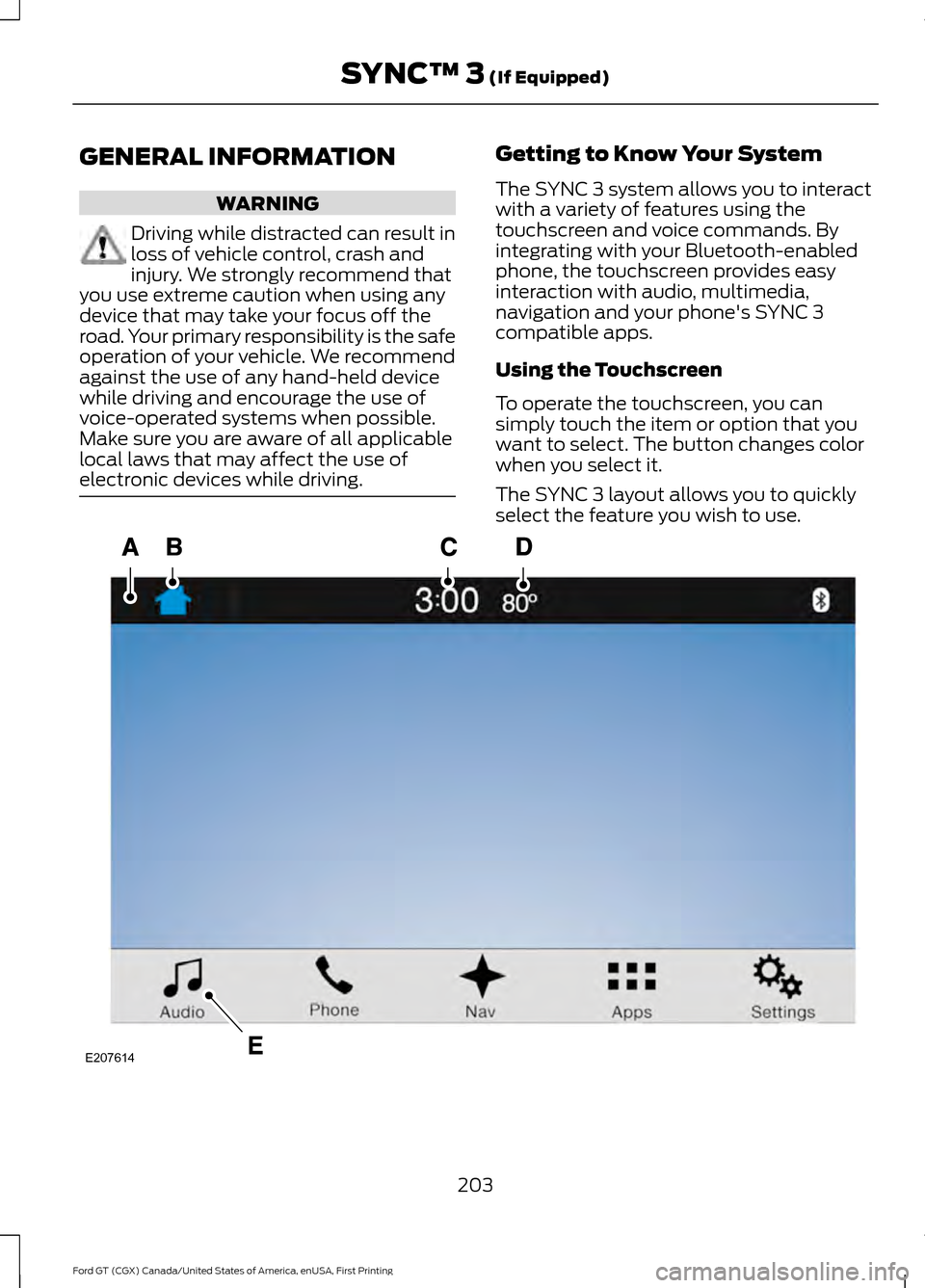
The SYNC 3 layout allows you to quickly
select the feature you wish to use.
203
Ford GT (CGX) Canada/United States of America, enUSA, First Printing SYNC™ 3 (If Equipped)E207614
Page 215 of 313
When Wi-Fi and automatic updates are
enabled, your system checks for software
updates periodically. If a new version is
available, it downloads at that time.
Software downloads can take place for up
to 30 minutes after you have switched your
vehicle off. The updates do not interrupt
the normal use of your SYNC 3 system. If
a download does not complete for any
reason, the download continues where it
left off at the next Wi-Fi connected
opportunity. Upon activation of an update,
a banner displays on the touchscreen
indicating the system update. Select the
icon to see more detail. This icon displays
for two ignition cycles.
To switch this feature off:
Menu Item
Settings
General In this menu selection, you
can change the selection
for automatic updates to
OFF.
Automatic
System
Updates
Support
The SYNC support team is available to
help you with any questions you are not
able to answer on your own.
Monday-Saturday, 8:30am-8:00pm EST.
United States: 1-800-392-3673.
Canada: 1-800-565-3673.
Times are subject to change due to
holidays. Privacy Information
When you connect a cellular phone to
SYNC 3, the system creates a profile within
your vehicle that links to that cellular
phone. This profile helps in offering you
more cellular features and operating more
efficiently. Among other things, this profile
may contain data about your cellular
phone book, text messages (read and
unread), and call history, including history
of calls when your cell phone was not
connected to the system. In addition, if you
connect a media device, the system
creates and retains an index of supported
media content. The system also records a
short diagnostic log of approximately 10
minutes of all recent system activity. The
log profile and other system data may be
used to improve the system and help
diagnose any problems that may occur.
The cellular profile, media device index,
and diagnostic log remain in your vehicle
unless you delete them and are generally
accessible only in your vehicle when the
cellular phone or media player is
connected.
If you no longer plan to use the system or
your vehicle, we recommend you perform
a Master Reset to erase all stored
information. You can find more information
about the Master Reset in General
Settings. See Settings (page 238). System
data cannot be accessed without special
equipment and access to your vehicle's
SYNC 3 module. Ford Motor Company and
Ford of Canada do not access the system
data for any purpose other than as
described absent consent, a court order,
or where required by law enforcement,
other government authorities, or other third
parties acting with lawful authority. Other
parties may seek to access the information
independently of Ford Motor Company and
Ford of Canada.
212
Ford GT (CGX) Canada/United States of America, enUSA, First Printing SYNC™ 3 (If Equipped)
Page 241 of 313
Note:
You must enable mobile apps for
each connected device the first time you
select a mobile app using the system.
Note: Ford reserves the right to limit
functionality or deactivate mobile apps at
any time.
Note: Standard data rates apply. Ford is
not responsible for any additional charges
you may receive from your service provider,
when your vehicle sends or receives data
through the connected device. This includes
any additional charges incurred due to
driving in areas when roaming out of a home
network.
You can enable and disable apps through
settings. See Settings (page 238).
App Permissions
The system organizes the App permissions
into groups. You can grant these group
permissions individually. You can change
a permission group status any time when
not driving, by using the settings menu.
While in the settings menu, you can also
see the data included in each group. When you launch an app using SYNC 3,
the system may ask you to grant certain
permissions, for example Vehicle
information, Driving characteristics, GPS
and Speed, and/or Push notifications. You
can enable all groups or none of them
during the initial app permissions prompts.
The settings menu offers individual group
permission control.
Note:
You are only prompted to grant
permissions the first time you use an app
with SYNC 3.
Note: If you disable group permissions,
apps will still be enabled to work with SYNC
3 unless you deactivate All Apps in the
settings menu.
SETTINGS
Under this menu, you can access and
adjust the settings for many of the system
features. To access additional settings,
swipe the screen left or right.
Sound
Pressing this button allows you to adjust
the following: Sound Settings
Returns Treble, Midrange, and Bass sound settings to factory levels.
Reset All
Adjusts the high frequency level.
Treble
Adjusts the middle frequency level.
Midrange
Adjusts the low frequency level.
Bass
Adjusts the sound ratio from side to side.
Balance
Adjusts the amount the audio system volume increases with speed,
or turns the feature off.
Speed
Compensated
Vol.
Optimizes the sound based on the location of the listeners.
Occupancy Mode
238
Ford GT (CGX) Canada/United States of America, enUSA, First Printing SYNC™ 3
(If Equipped)
Page 243 of 313
Clock
To adjust the time, select the up and down
arrows on either side of the screen. The
arrows on the left adjust the hour and
arrows on the right adjust the minute. You
can then select AM or PM.
You can adjust the following features:Action and Description
Menu Item
Select how time displays.
Clock Format
When active, the clock adjusts to time zone changes.
Auto Time Zone
Update This feature is only available in vehicles with navigation.
When selected, the vehicle clock resets to GPS satellite time.
Reset Clock to
GPS Time
The system automatically saves any
updates you make to the settings. Bluetooth
Pressing this button allows you to access
the following: Action
Menu Item
Turning Bluetooth off disconnects all devices and does not permit
new connections.
Bluetooth
You must activate Bluetooth to pair a
Bluetooth-enabled device.
The processes of pairing a Bluetooth
device is the same as pairing a phone. See
Pairing a Device in Phone settings for how
to pair a device and the available options.
Phone
Pair your Bluetooth-enabled phone with
the system before using the functions in
hands-free mode.
Switch on Bluetooth on your device to
begin pairing. See your phone ’s manual if
necessary. To add a phone, select: Menu Item
Add Phone
1. Follow the on-screen instructions.
2. A prompt alerts you to search for the system on your phone.
3. Select your vehicle's make and model as it displays on your phone.
4. Confirm that the six-digit number appearing on your phone matches the
six-digit number on the touchscreen.
5. The touchscreen indicates when the pairing is successful.
240
Ford GT (CGX) Canada/United States of America, enUSA, First Printing SYNC™ 3 (If Equipped)
Page 256 of 313
USB and Bluetooth Stereo issues
Possible solution
Possible cause
Issue
Make sure you connect the device to SYNC
3 and that you have started the media
player on your device.
This is a device-
dependent feature.
Bluetooth audio
does not
stream. The device is not
connected.
Make sure that all song details are popu-
lated.
Your music files may not
contain the correct artist,
song title, album or genre
information.
SYNC 3 does
not recognize
music that is on
my device. Try replacing the corrupt file with a new
version.
The file may be
corrupted.
Some devices require you to change the
USB settings from mass storage to media
transfer protocol class.
The song may have
copyright protection that
does not allow it to play.
Convert the file to a supported format. See
Entertainment (page 220).
The file format is not
supported by SYNC 3.
Update media index. See
Settings (page
238).
The device needs to be
re-indexed.
Make sure your device is unlocked before
connecting it to SYNC 3.
The device has a lock
screen enabled.
Disconnect the device from SYNC 3. Try
switching your device off, resetting it or
removing the battery, then connect it back
to SYNC 3.
This is a device limitation.
When I connect
my device, I
sometimes do
not hear any
sound. To listen to Apple devices through USB,
select AirPlay from the devices Control
Center, then select Dock Connector.
To listen to Apple devices through
Bluetooth Stereo, select AirPlay from the
devices Control Center, then select SYNC.
253
Ford GT (CGX) Canada/United States of America, enUSA, First Printing SYNC™ 3
(If Equipped)
Page 269 of 313
Before Operating Your Vehicle at High
Speeds:
•
Verify your tires have the correct
pressures See Technical
Specifications (page 193).
• Inspect wheels and tires for wear and
damage. Replace any damaged wheels
and tires.
• Check and set lug nut torque. See
Technical Specifications (page 193).
• Verify fluid levels for oil, coolant, brake,
and hydraulic fluid. See Maintenance
(page
147).
• Change the oil and filter prior to use on
the track. After Operating Your vehicle at High
Speeds and Track Day Driving, Do the
Following:
•
Set tire pressures to specification.
• Check and set lug nut torque. See
Technical Specifications (page 193).
• Check all fluid levels.
• If you drive your car for an extended
period of time at high speed or on the
track for an extended time, change the
oil and filter.
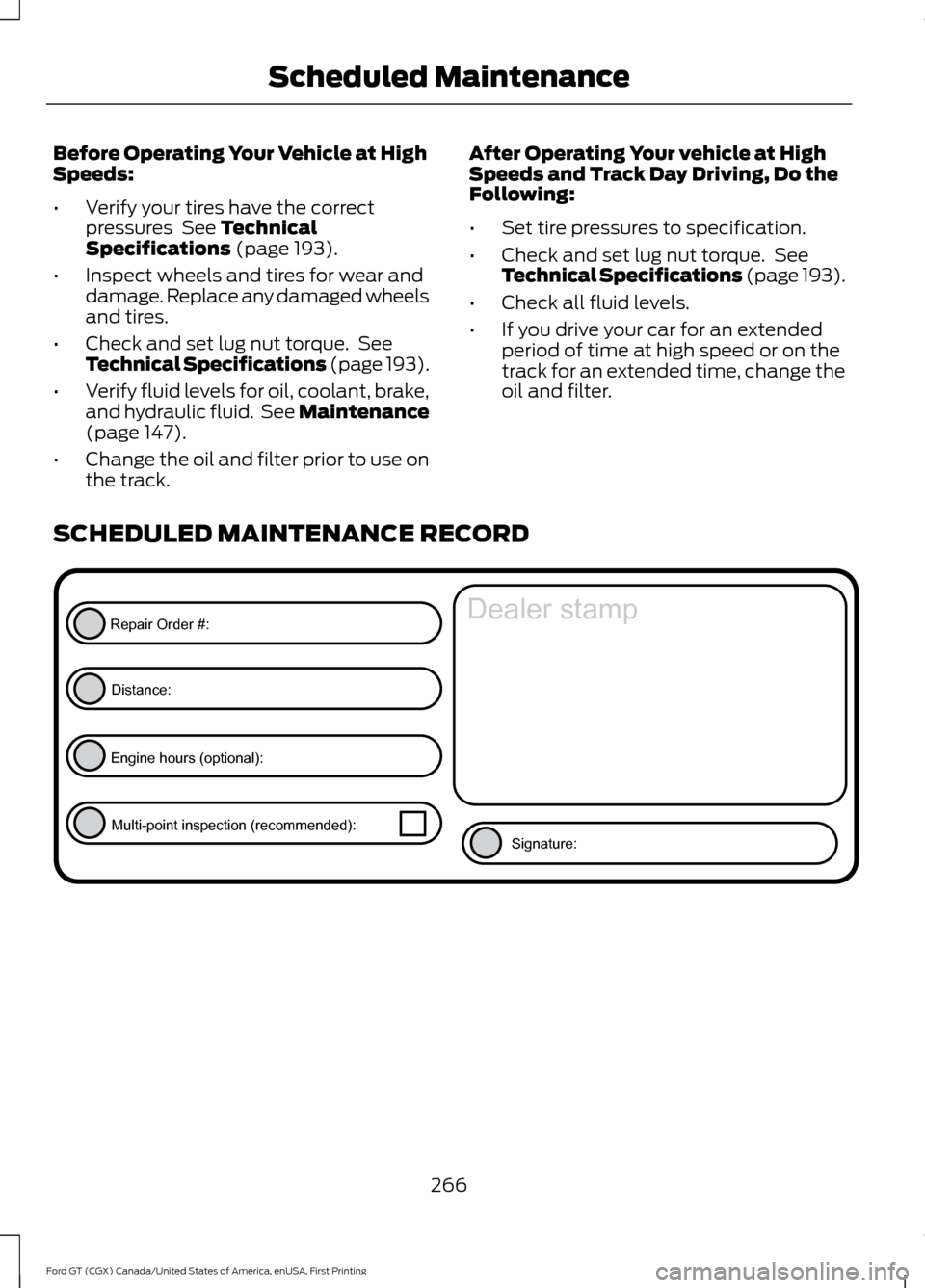
SCHEDULED MAINTENANCE RECORD 266
Ford GT (CGX) Canada/United States of America, enUSA, First Printing Scheduled MaintenanceE146852
Repair Order #:Distance:
Engine hours (optional): Multi-point inspection (recommended): Signature:
Dealer stamp
Page 302 of 313
GRACENOTE SERVERS OR GRACENOTE
CONTENT. GRACENOTE COLLECTIVELY
AND SEPARATELY RESERVE THE RIGHT
TO DELETE DATA AND/OR CONTENT
FROM THE COMPANIES' RESPECTIVE
SERVERS OR, IN THE CASE OF
GRACENOTE, CHANGE DATA
CATEGORIES FOR ANY CAUSE THAT
GRACENOTE DEEMS SUFFICIENT. NO
WARRANTY IS MADE THAT EITHER
GRACENOTE CONTENT OR THE
GRACENOTE SOFTWARE OR
GRACENOTE SERVERS ARE ERROR-FREE
OR THAT THE FUNCTIONING OF THE
GRACENOTE SOFTWARE OR
GRACENOTE SERVERS WILL BE
UNINTERRUPTED. GRACENOTE IS NOT
OBLIGATED TO PROVIDE YOU WITH ANY
ENHANCED OR ADDITIONAL DATA TYPES
THAT GRACENOTE MAY CHOOSE TO
PROVIDE IN THE FUTURE AND IS FREE
TO DISCONTINUE ITS ONLINE SERVICES
AT ANY TIME. GRACENOTE DISCLAIM ALL
WARRANTIES EXPRESS OR IMPLIED,
INCLUDING, BUT NOT LIMITED TO,
IMPLIED WARRANTIES OF
MERCHANTABILITY, FITNESS FOR A
PARTICULAR PURPOSE, TITLE, AND
NON-INFRINGEMENT. NEITHER
GRACENOTE WARRANTS THE RESULTS
THAT WILL BE OBTAINED BY YOUR USE
OF THE GRACENOTE SOFTWARE OR ANY
GRACENOTE SERVER. IN NO CASE WILL
GRACENOTE BE LIABLE FOR ANY
CONSEQUENTIAL OR INCIDENTAL
DAMAGES OR FOR ANY LOST PROFITS
OR LOST REVENUES FOR ANY REASON
WHATSOEVER. © Gracenote 2007.
Radio Frequency Statement
FCC ID: ACJ-SYNCG3-L
IC: 216B-SYNCG3-L
This device complies with Part 15 of the
FCC Rules and with RSS-210 of Industry
Canada. Operation is subject to the
following two conditions:
(1) This device may not cause harmful
interference, and
(2)
this device must accept any
interference received, including
interference that may cause undesired
operation.
Note: Changes or modifications not
expressly approved by the party responsible
for compliance could void the user's
authority to operate the equipment. The
term "IC" before the radio certification
number only signifies that Industry Canada
technical specifications were met.
The antenna used for this transmitter must
not be co-located or operating in
conjunction with any other antenna or
transmitter.
Taiwan Territory
Note: In accordance with the management
approach of low-power radio wave
radiation motors:
Article 12: For approved and certified
low-power radiation motor models,
companies, firms or users must not alter
the frequency, increase the power or
change the characteristics and functions
of the original design without authorization.
Article 14: The usage of low-power
radio-frequency motors must not affect
aviation safety and interfere with legal
telecommunications. Should interference
be detected, immediately stop using the
device and only resume usage after
ensuring that there is no longer any
interference. For the legal
telecommunication and wireless
telecommunication of the telco, the
low-power radio frequency motor must be
able to tolerate legal limits of interference
from telecommunication, industrial,
scientific and radio wave equipment.
299
Ford GT (CGX) Canada/United States of America, enUSA, First Printing Appendices
Page 307 of 313
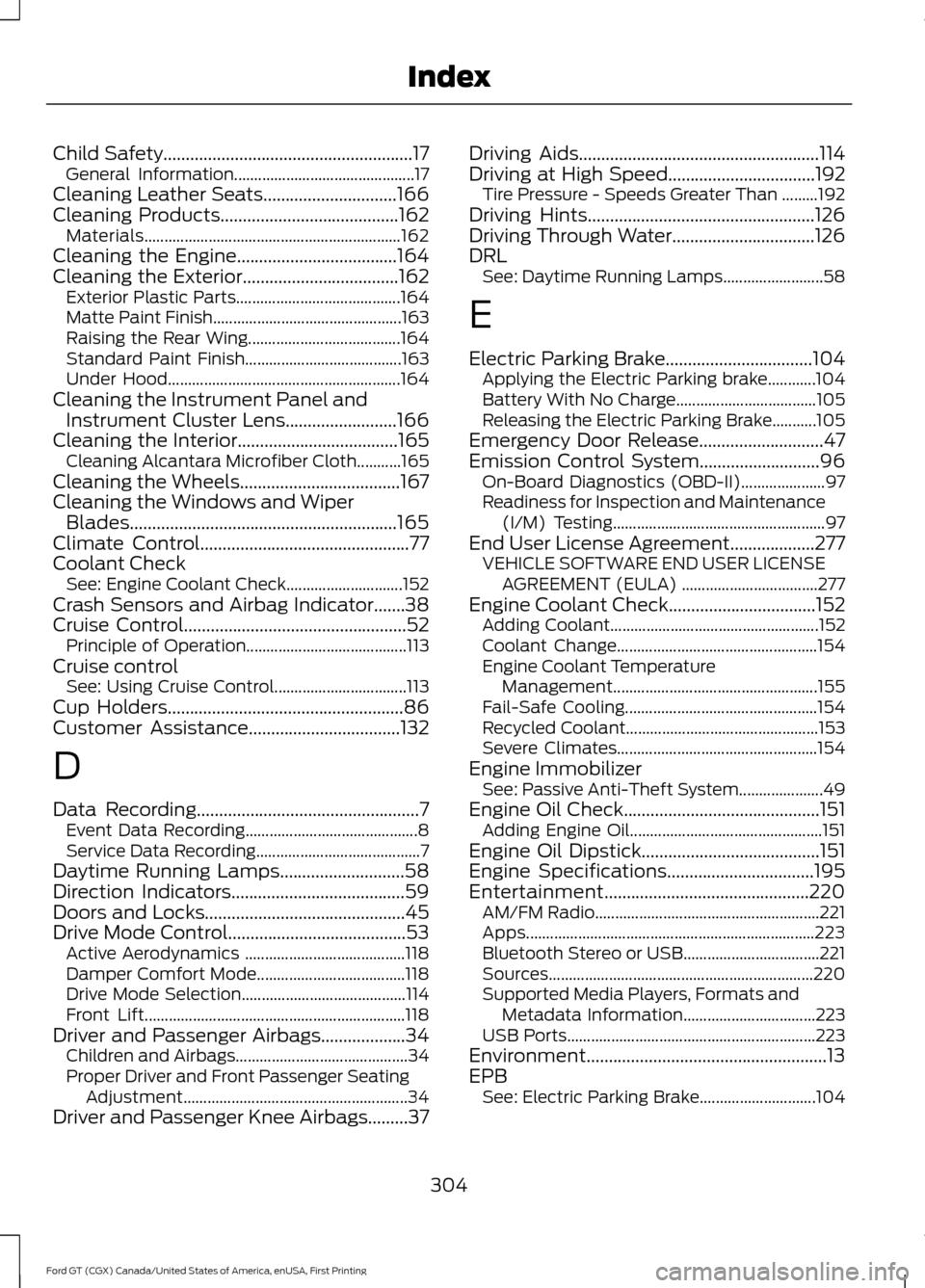
Child Safety........................................................17
General Information............................................. 17
Cleaning Leather Seats..............................166
Cleaning Products........................................162 Materials................................................................ 162
Cleaning the Engine....................................164
Cleaning the Exterior...................................162 Exterior Plastic Parts......................................... 164
Matte Paint Finish............................................... 163
Raising the Rear Wing...................................... 164
Standard Paint Finish....................................... 163
Under Hood.......................................................... 164
Cleaning the Instrument Panel and Instrument Cluster Lens
.........................166
Cleaning the Interior....................................165
Cleaning Alcantara Microfiber Cloth...........165
Cleaning the Wheels....................................167
Cleaning the Windows and Wiper Blades............................................................165
Climate Control
...............................................77
Coolant Check See: Engine Coolant Check............................. 152
Crash Sensors and Airbag Indicator.......38
Cruise Control..................................................52 Principle of Operation........................................ 113
Cruise control See: Using Cruise Control................................. 113
Cup Holders.....................................................86
Customer Assistance
..................................132
D
Data Recording
..................................................7
Event Data Recording........................................... 8
Service Data Recording......................................... 7
Daytime Running Lamps............................58
Direction Indicators
.......................................59
Doors and Locks.............................................45
Drive Mode Control........................................53 Active Aerodynamics ........................................ 118
Damper Comfort Mode..................................... 118
Drive Mode Selection......................................... 114
Front Lift................................................................. 118
Driver and Passenger Airbags...................34 Children and Airbags........................................... 34
Proper Driver and Front Passenger Seating Adjustment........................................................ 34
Driver and Passenger Knee Airbags
.........37 Driving Aids......................................................114
Driving at High Speed
.................................192
Tire Pressure - Speeds Greater Than .........192
Driving Hints
...................................................126
Driving Through Water................................126
DRL See: Daytime Running Lamps......................... 58
E
Electric Parking Brake.................................104 Applying the Electric Parking brake............104
Battery With No Charge................................... 105
Releasing the Electric Parking Brake...........105
Emergency Door Release
............................47
Emission Control System...........................96 On-Board Diagnostics (OBD-II)..................... 97
Readiness for Inspection and Maintenance (I/M) Testing..................................................... 97
End User License Agreement
...................277
VEHICLE SOFTWARE END USER LICENSE
AGREEMENT (EULA) .................................. 277
Engine Coolant Check
.................................152
Adding Coolant.................................................... 152
Coolant Change.................................................. 154
Engine Coolant Temperature Management
................................................... 155
Fail-Safe Cooling................................................ 154
Recycled Coolant................................................ 153
Severe Climates.................................................. 154
Engine Immobilizer See: Passive Anti-Theft System..................... 49
Engine Oil Check............................................151 Adding Engine Oil................................................ 151
Engine Oil Dipstick
........................................151
Engine Specifications.................................195
Entertainment..............................................220 AM/FM Radio........................................................ 221
Apps........................................................................\
223
Bluetooth Stereo or USB.................................. 221
Sources.................................................................. 220
Supported Media Players, Formats and Metadata Information................................. 223
USB Ports.............................................................. 223
Environment......................................................13
EPB See: Electric Parking Brake............................. 104
304
Ford GT (CGX) Canada/United States of America, enUSA, First Printing Index