wheel FORD MAVERICK 2022 Owners Manual
[x] Cancel search | Manufacturer: FORD, Model Year: 2022, Model line: MAVERICK, Model: FORD MAVERICK 2022Pages: 533, PDF Size: 9.58 MB
Page 352 of 533
Drive cautiously when using a full-size
dissimilar spare wheel and tire assembly
and seek service as soon as possible.
Removing the Vehicle Jack and
Tool Bag
The vehicle jack and tool bag are on the
rear passenger side of your vehicle, behind
the passenger seat.
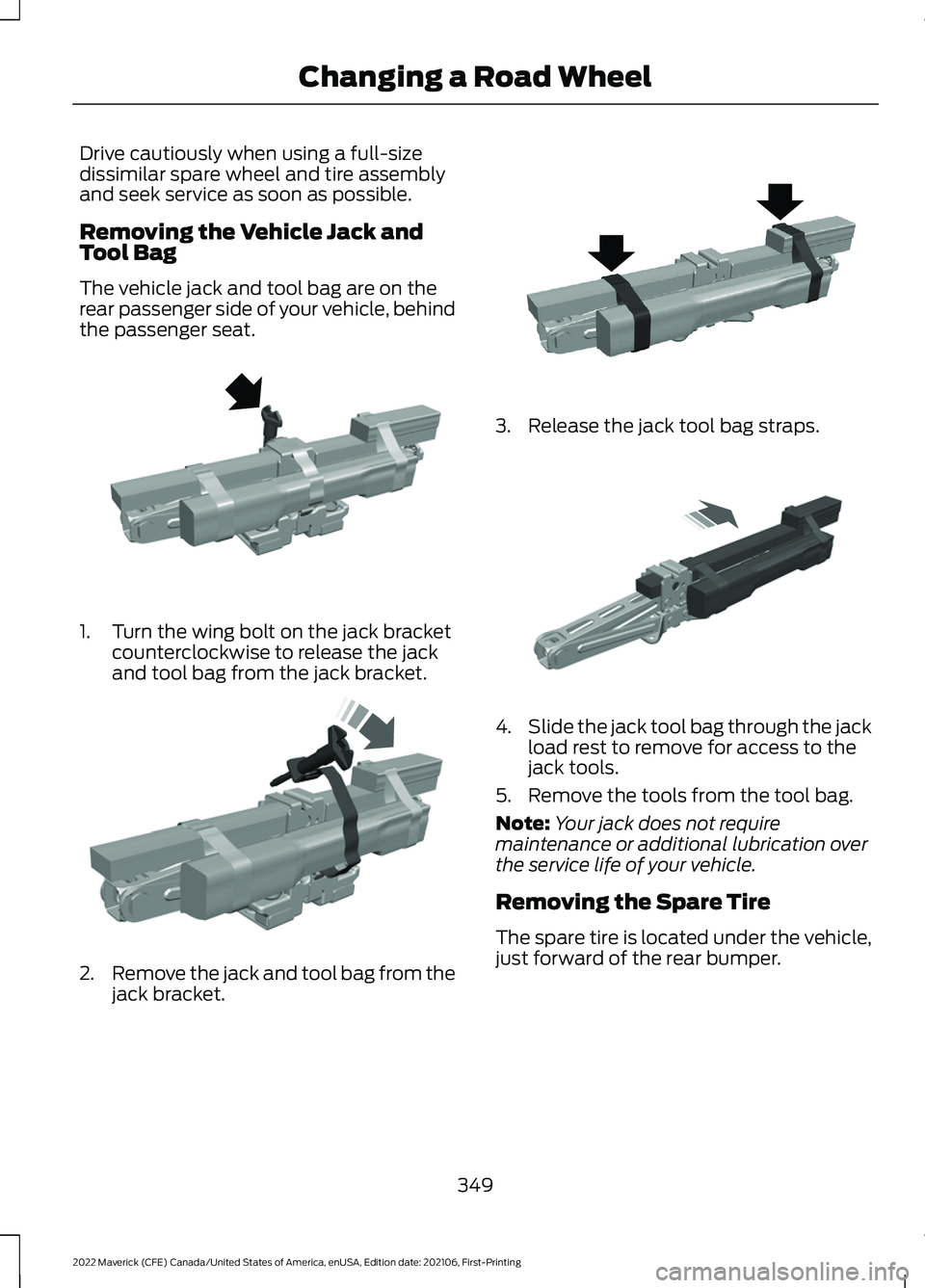
1. Turn the wing bolt on the jack bracket
counterclockwise to release the jack
and tool bag from the jack bracket. 2.
Remove the jack and tool bag from the
jack bracket. 3. Release the jack tool bag straps.
4.
Slide the jack tool bag through the jack
load rest to remove for access to the
jack tools.
5. Remove the tools from the tool bag.
Note: Your jack does not require
maintenance or additional lubrication over
the service life of your vehicle.
Removing the Spare Tire
The spare tire is located under the vehicle,
just forward of the rear bumper.
349
2022 Maverick (CFE) Canada/United States of America, enUSA, Edition date: 202106, First-Printing Changing a Road WheelE352020 E352025 E352022 E352033
Page 353 of 533
1. Assemble the jack handle as shown in
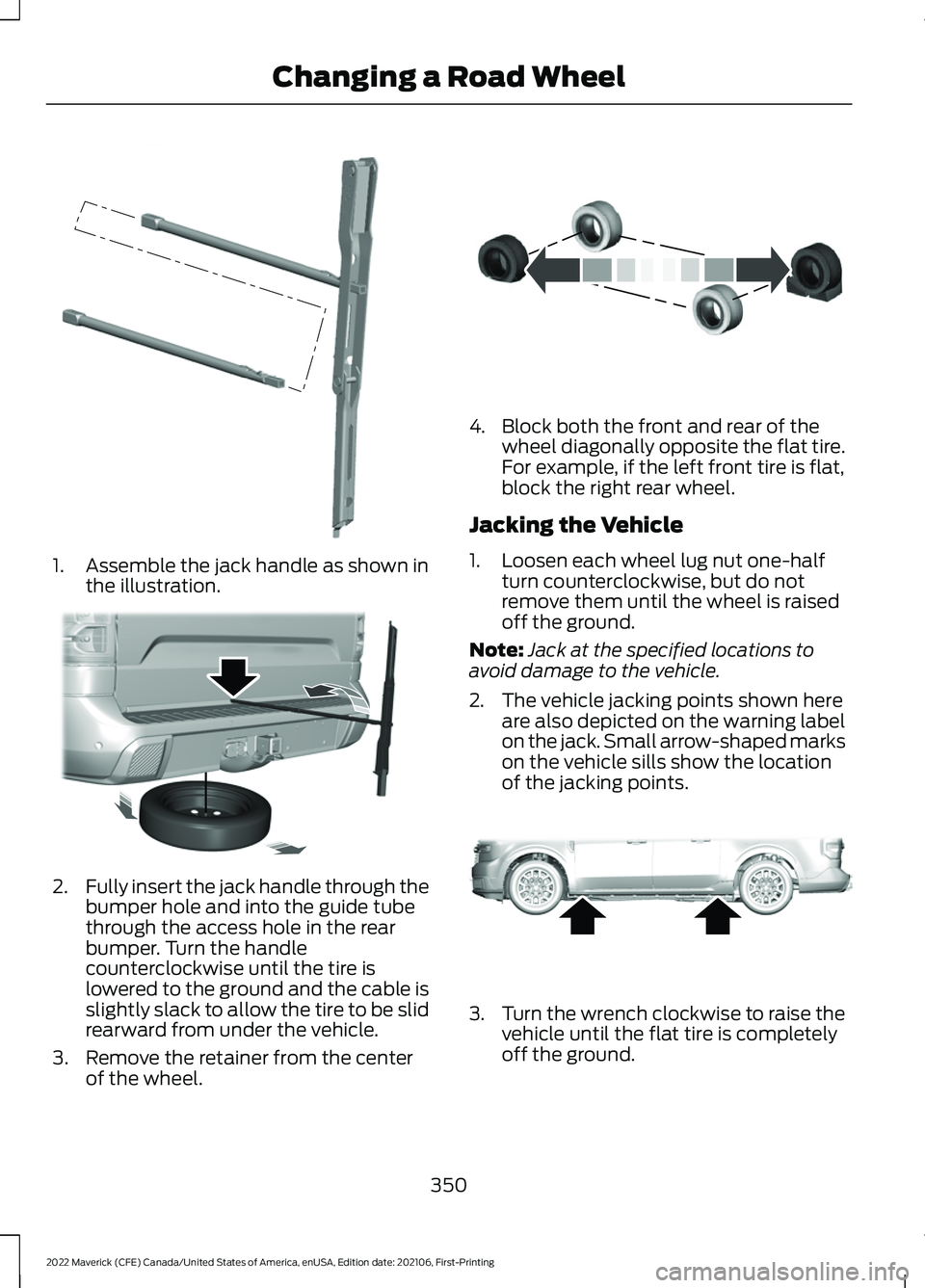
the illustration. 2.
Fully insert the jack handle through the
bumper hole and into the guide tube
through the access hole in the rear
bumper. Turn the handle
counterclockwise until the tire is
lowered to the ground and the cable is
slightly slack to allow the tire to be slid
rearward from under the vehicle.
3. Remove the retainer from the center of the wheel. 4. Block both the front and rear of the
wheel diagonally opposite the flat tire.
For example, if the left front tire is flat,
block the right rear wheel.
Jacking the Vehicle
1. Loosen each wheel lug nut one-half turn counterclockwise, but do not
remove them until the wheel is raised
off the ground.
Note: Jack at the specified locations to
avoid damage to the vehicle.
2. The vehicle jacking points shown here are also depicted on the warning label
on the jack. Small arrow-shaped marks
on the vehicle sills show the location
of the jacking points. 3.
Turn the wrench clockwise to raise the
vehicle until the flat tire is completely
off the ground.
350
2022 Maverick (CFE) Canada/United States of America, enUSA, Edition date: 202106, First-Printing Changing a Road WheelE352148 E352181 E175447 E352156
Page 354 of 533
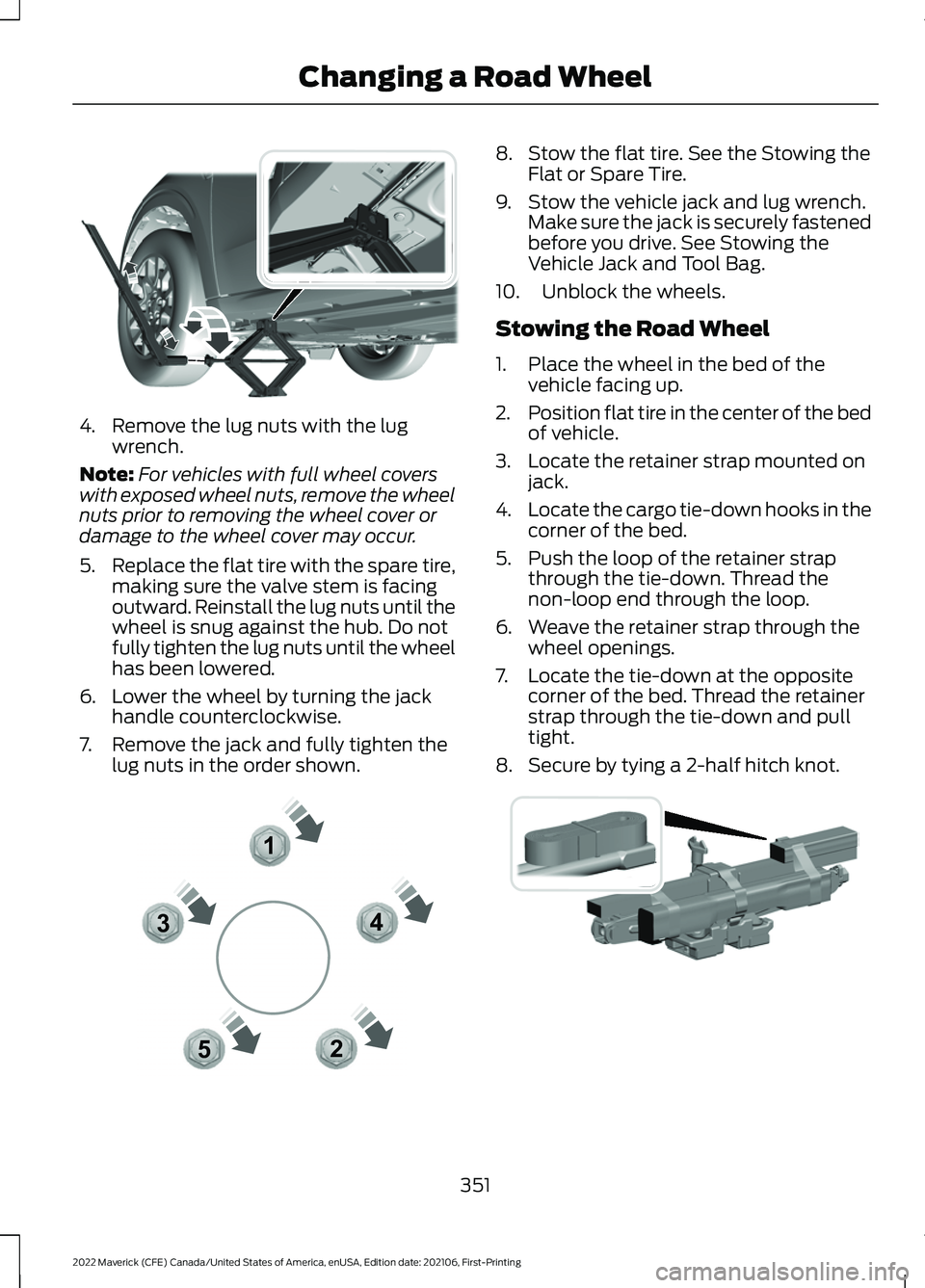
4. Remove the lug nuts with the lug
wrench.
Note: For vehicles with full wheel covers
with exposed wheel nuts, remove the wheel
nuts prior to removing the wheel cover or
damage to the wheel cover may occur.
5. Replace the flat tire with the spare tire,
making sure the valve stem is facing
outward. Reinstall the lug nuts until the
wheel is snug against the hub. Do not
fully tighten the lug nuts until the wheel
has been lowered.
6. Lower the wheel by turning the jack handle counterclockwise.
7. Remove the jack and fully tighten the lug nuts in the order shown. 8. Stow the flat tire. See the Stowing the
Flat or Spare Tire.
9. Stow the vehicle jack and lug wrench. Make sure the jack is securely fastened
before you drive. See Stowing the
Vehicle Jack and Tool Bag.
10. Unblock the wheels.
Stowing the Road Wheel
1. Place the wheel in the bed of the vehicle facing up.
2. Position flat tire in the center of the bed
of vehicle.
3. Locate the retainer strap mounted on jack.
4. Locate the cargo tie-down hooks in the
corner of the bed.
5. Push the loop of the retainer strap through the tie-down. Thread the
non-loop end through the loop.
6. Weave the retainer strap through the wheel openings.
7. Locate the tie-down at the opposite corner of the bed. Thread the retainer
strap through the tie-down and pull
tight.
8. Secure by tying a 2-half hitch knot. 351
2022 Maverick (CFE) Canada/United States of America, enUSA, Edition date: 202106, First-Printing Changing a Road WheelE352182 12
3
4
5E306781 E355266
Page 355 of 533
Stowing the Spare Tire
Note:
Failure to follow the spare tire
stowage instructions could result in failure
of the cable or loss of the spare tire.
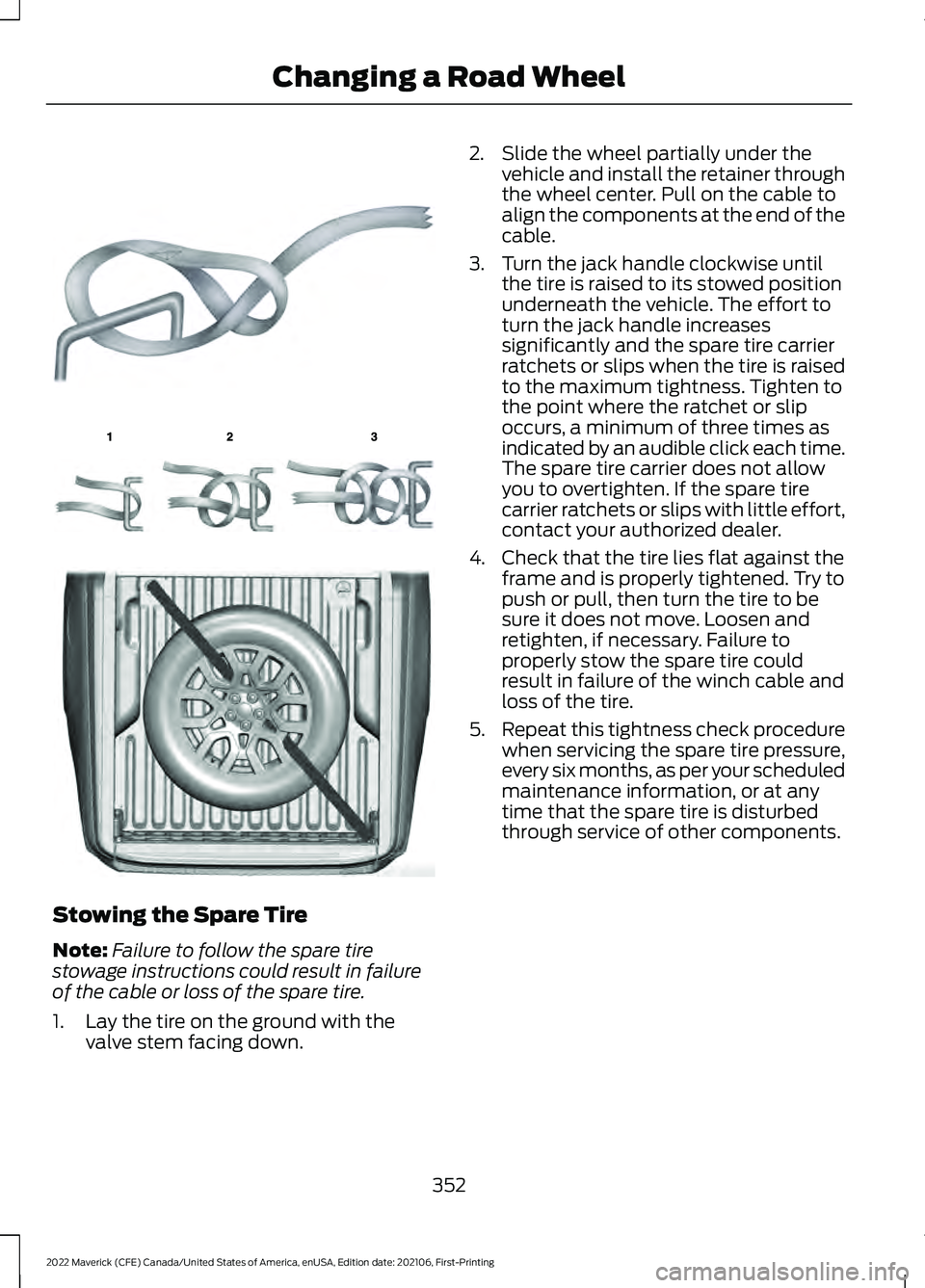
1. Lay the tire on the ground with the valve stem facing down. 2. Slide the wheel partially under the
vehicle and install the retainer through
the wheel center. Pull on the cable to
align the components at the end of the
cable.
3. Turn the jack handle clockwise until the tire is raised to its stowed position
underneath the vehicle. The effort to
turn the jack handle increases
significantly and the spare tire carrier
ratchets or slips when the tire is raised
to the maximum tightness. Tighten to
the point where the ratchet or slip
occurs, a minimum of three times as
indicated by an audible click each time.
The spare tire carrier does not allow
you to overtighten. If the spare tire
carrier ratchets or slips with little effort,
contact your authorized dealer.
4. Check that the tire lies flat against the frame and is properly tightened. Try to
push or pull, then turn the tire to be
sure it does not move. Loosen and
retighten, if necessary. Failure to
properly stow the spare tire could
result in failure of the winch cable and
loss of the tire.
5. Repeat this tightness check procedure
when servicing the spare tire pressure,
every six months, as per your scheduled
maintenance information, or at any
time that the spare tire is disturbed
through service of other components.
352
2022 Maverick (CFE) Canada/United States of America, enUSA, Edition date: 202106, First-Printing Changing a Road WheelE142906 E143746 E355267
Page 356 of 533
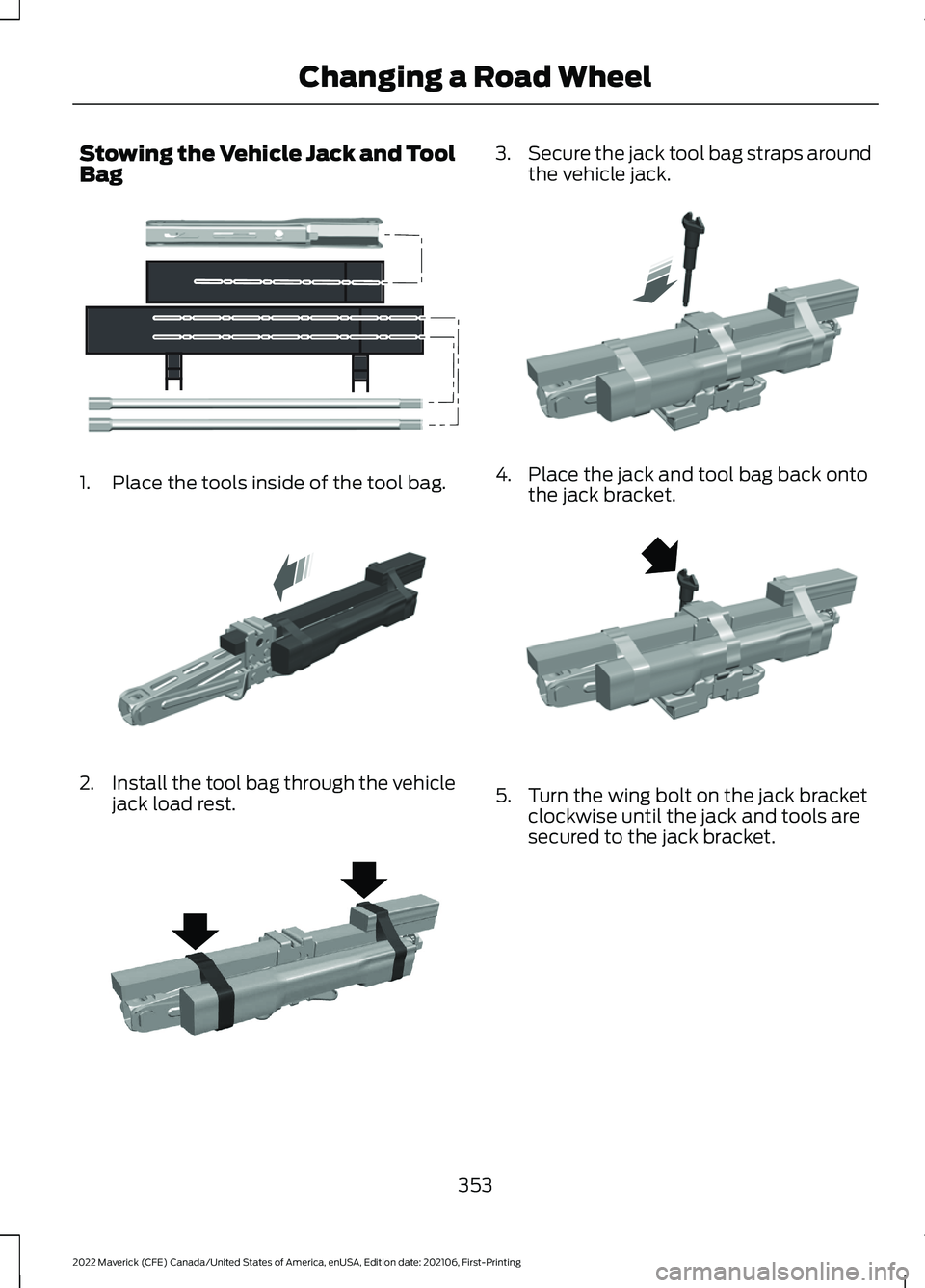
Stowing the Vehicle Jack and Tool
Bag
1. Place the tools inside of the tool bag.
2.
Install the tool bag through the vehicle
jack load rest. 3.
Secure the jack tool bag straps around
the vehicle jack. 4. Place the jack and tool bag back onto
the jack bracket. 5. Turn the wing bolt on the jack bracket
clockwise until the jack and tools are
secured to the jack bracket.
353
2022 Maverick (CFE) Canada/United States of America, enUSA, Edition date: 202106, First-Printing Changing a Road WheelE352149 E352034 E352022 E352027 E352026
Page 357 of 533
WHEEL NUTS
WARNING: When you install a wheel, always remove any corrosion, dirt or foreign
materials present on the mounting surfaces of the wheel or the surface of the wheel
hub, brake drum or brake disc that contacts the wheel. Make sure to secure any fasteners
that attach the rotor to the hub so they do not interfere with the mounting surfaces of
the wheel. Installing wheels without correct metal-to-metal contact at the wheel
mounting surfaces can cause the wheel nuts to loosen and the wheel to come off while
your vehicle is in motion, resulting in loss of vehicle control, personal injury or death. lb.ft (Nm)
Bolt size
148 lb.ft (200 Nm)
M14 x 1.5
* Torque specifications are for nut and bolt threads free of dirt and rust. Use only Ford
recommended replacement fasteners.
Retighten the lug nuts to the specified torque within 100 mi (160 km) after any wheel
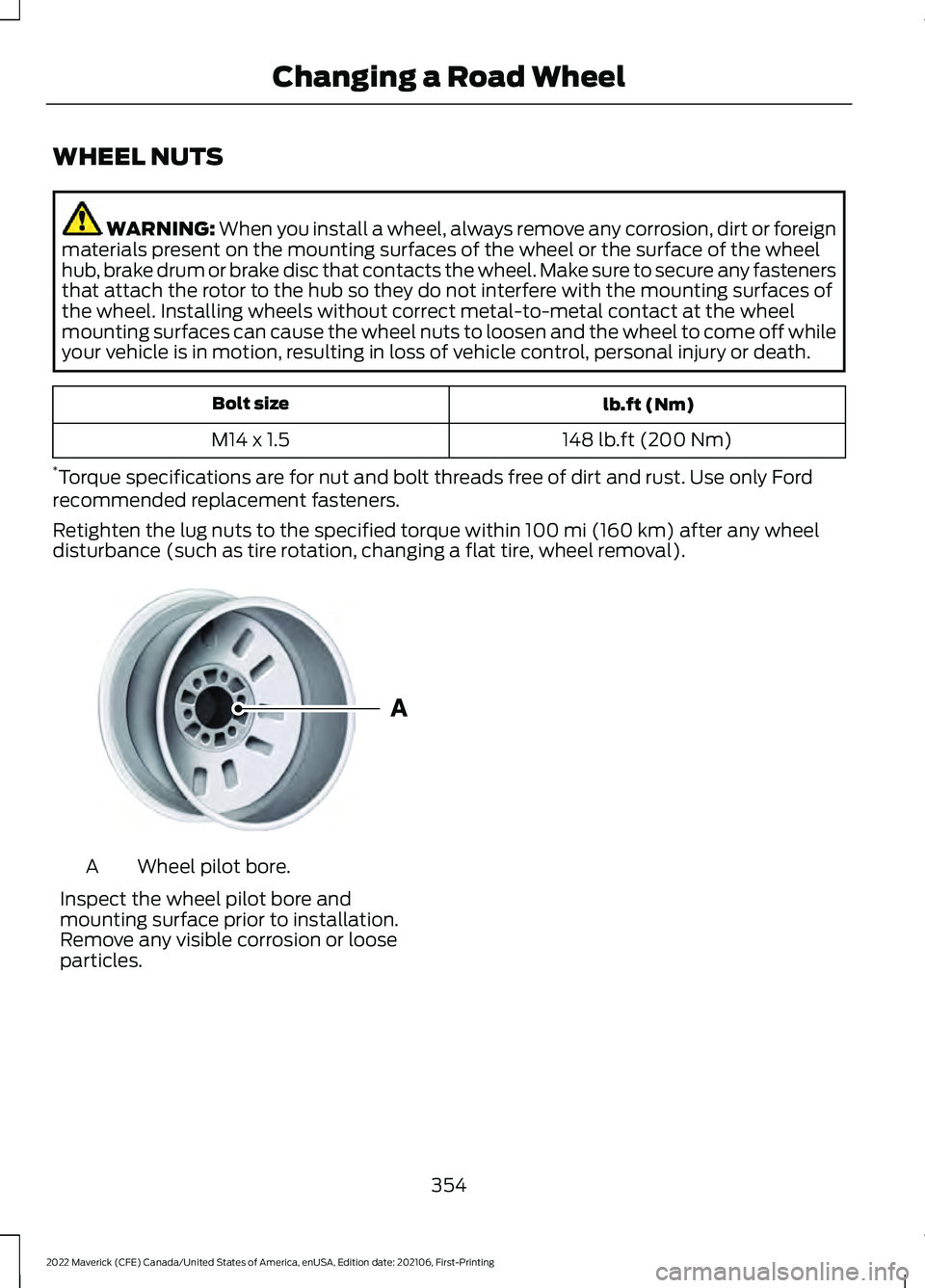
disturbance (such as tire rotation, changing a flat tire, wheel removal). Wheel pilot bore.
A
Inspect the wheel pilot bore and
mounting surface prior to installation.
Remove any visible corrosion or loose
particles.
354
2022 Maverick (CFE) Canada/United States of America, enUSA, Edition date: 202106, First-Printing Changing a Road WheelE145950
Page 385 of 533
Possible Cause and Resolution
Symptom
I have an Android device
that is correctly connected,
I have restarted my apps
and they are running but the
system still cannot find
them. –
An issue on some older versions of the Android oper-
ating system could result in apps not being found.
•Switch Bluetooth® off and on again to force the
system to reconnect to your device.
I have an iOS device that is
correctly connected, I have
restarted my apps and they
are running but the system
still cannot find them. –
Cable connection issue.
•Disconnect the cable from your device, wait for a
moment and then connect it again to force the
system to reconnect to your device.
I have an Android device
running a media app which
the system has found but I
cannot hear the sound or
the sound is very quiet. –
Device volume is low.
•Turn the volume up on your device.
I have an Android device
running a number of
compatible apps but the
system cannot find all of
them. –
Device limitation. Some Android devices have a limited
number of
Bluetooth® ports that apps can use to
connect. If you have more apps running on your device
than the number of available
Bluetooth® ports, the
system cannot find all of them.
• Close some of the apps to allow the system to find
those that you want to use.
USING VOICE RECOGNITION
Phone Voice Service
This system allows you to use the voice
recognition features of your phone and
focus on your driving. Press the voice control button
on the steering wheel.
Note:
This only works when connected via
Bluetooth®
. See Connecting a
Bluetooth® Device (page 377).
Note: When using voice recognition use the
language set on the device.
Note: We recommend that you check your
data plan before using your phone voice
service through the system. Using them
could result in additional charges.
382
2022 Maverick (CFE) Canada/United States of America, enUSA, Edition date: 202106, First-Printing Audio System - Vehicles Without: SYNC 3E142599
Page 388 of 533
Note:
The audio mutes briefly while the
system saves the preset and returns once it
is stored.
Note: You can save presets from multiple
sources to the memory preset bar.
MUTING THE AUDIO Press the button on the steering
wheel to mute the audio.
Press to mute the signal. Press
again to restore the signal.
ADJUSTING THE SOUND
SETTINGS
Balance and Fade (If Equipped)
1. Access the vehicle drawer on the touchscreen.
2. Press
SETTINGS.
3. Press
Sound.
4. Press
Balance / Fade.
5. Press the arrows to adjust the settings.
Tone Settings
1. Access the vehicle drawer on the touchscreen.
2. Press
SETTINGS.
3. Press
Sound.
4. Press
Tone Settings.
5. Use the slider bar to adjust the settings.
Speed Compensated Volume
1. Access the vehicle drawer on the touchscreen.
2. Press
SETTINGS.
3. Press
Sound.
4. Press
Speed Compensated Volume. 5. Press a setting.
Occupancy Mode
(If Equipped)
1. Access the vehicle drawer on the touchscreen.
2. Press
SETTINGS.
3. Press
Sound.
4. Press
Occupancy Mode.
5. Press a setting.
Sound Mode
(If Equipped)
1. Access the vehicle drawer on the touchscreen.
2. Press
SETTINGS.
3. Press
Sound.
4. Press
Sound Mode.
5. Press a setting.
SETTING THE CLOCK AND
DATE
1. Access the vehicle drawer on the touchscreen.
2. Press
SETTINGS.
3. Press
Clock.
4. Set the time.
Note: The
AM and PM options are not
available if 24-hour mode is on.
5. Press the arrows to adjust the settings.
Switching Automatic Time
Updates On and Off
1. Access the vehicle drawer on the touchscreen.
2. Press
SETTINGS.
3. Press
Clock.
4. Switch
Automatic time zone update
on or off.
385
2022 Maverick (CFE) Canada/United States of America, enUSA, Edition date: 202106, First-Printing Audio System - Vehicles With: SYNC 3
Page 394 of 533
Switching Automatic System Updates
On
Select the settings option on the
feature bar.
1. Select Automatic Updates.
2. Switch
Automatic System Updates
on.
The system is now set to check for and
receive system updates when it is
connected to a Wi-Fi network.
Note: You can use the system when a
download is in progress.
Note: If the system is disconnected from
the Wi-Fi network when a download is in
progress, the download continues the next
time the system is connected to a Wi-Fi
network.
Additional Information and
Assistance
For additional information and assistance,
we recommend that you contact an
authorized dealer or refer to the local Ford
website. USING VOICE RECOGNITION
The SYNC 3 system allows you to use voice
commands to control features like audio
and climate controls. By using voice
commands, you can keep your hands on
the wheel and your eyes on the road.
You can access each feature controlled by
SYNC 3 through a variety of commands. To activate the SYNC 3 voice
commands push the voice
button on the steering wheel and
wait for the prompt.
___ is a dynamic listing, meaning that it can
be the name of anything, such as artist, the
name of contact or number. The context
and the description of the command tell
you what to say for this dynamic option.
There are some commands that work for
every feature, these commands are: Action and Description
Voice Command
Brings you to the main menu.
Main Menu
Returns you to the previous screen.
Go back
Ends the voice session.
Cancel
Gives you a list of possible voice commands.
List of Commands
You can name any feature and the system gives a list of
commands available for the feature. For example, you could
say:
___ List of Commands
Phone List of Commands
Navigation List of Commands
391
2022 Maverick (CFE) Canada/United States of America, enUSA, Edition date: 202106, First-Printing SYNC™ 3
(If Equipped)E280315 E142599
Page 418 of 533
Navigation Map Accuracy and
Updates
HERE is the digital map provider for the
navigation application. If you find map data
errors, you may report them directly to
HERE by going to www.here.com. HERE
evaluates all reported map errors and
responds with the result of their
investigation by e-mail.
The navigation system map data may
contain inaccurate or incomplete
information due to the passage of time,
changing circumstances, sources used and
the nature of collecting comprehensive
geographic data, any of which may lead to
incorrect results. Inaccurate speed limit
information, turn restrictions and other
road attributes may affect the determined
route and associated guidance
Annual navigation map updates are
available for purchase through your
dealership. Depending on your purchase
agreement, you might be eligible for free
Map update. You can choose to download
the Map data update onto a USB, order a
USB, or use Wi-Fi to deliver automatic
updates. To update your Map data over
Wi-Fi, your vehicle must be connected to
a Wi-Fi access point. Map Data files are
large, so it is highly recommended to
perform the update when free Wi-Fi is
available otherwise high data rates may
apply. For USB updates, free map update
eligibility, and other details, contact
dealers at 1-866-462-8837 in the United
States and Canada or 01-800-557-5539
in Mexico or visit our local website for more
information.
ELECTRIC VEHICLE
INFORMATION
Power Flow The power flow information for
your hybrid vehicle is available
through the home screen or
under Apps
Vehicle Operational States
Power will flow to or from the front and
rear wheels depending on operational
state and drive conditions.
• Idling: The vehicle is running and in Park
(P). The engine and/or the high voltage
battery are on.
• Electric Driving: The vehicle is running
and in Drive (D) or Neutral (N). The
high voltage battery provides power to
the wheels.
• Hybrid Driving: The vehicle is running
and in Drive (D) or Neutral (N). The
engine and the high voltage battery
provide power to the wheels.
• Engine Driving: The vehicle is running
and in Drive (D) or Neutral (N). The
engine provides power to the wheels.
• Regenerative Braking: The vehicle is
running in Drive gear and is slowing
down. Power captured by the
regenerative braking system is sent
back to the high voltage battery.
Engine On Due To
The following conditions help to explain
why the engine is on, and what you can do
to allow all electric operation.
415
2022 Maverick (CFE) Canada/United States of America, enUSA, Edition date: 202106, First-Printing SYNC™ 3 (If Equipped)E260071