change time FORD MAVERICK 2022 User Guide
[x] Cancel search | Manufacturer: FORD, Model Year: 2022, Model line: MAVERICK, Model: FORD MAVERICK 2022Pages: 533, PDF Size: 9.58 MB
Page 247 of 533
WARNING: Take additional care if
your vehicle is heavily loaded or you are
towing a trailer. These conditions could
result in reduced performance of this
system. Failure to follow this instruction
could result in the loss of control of your
vehicle, personal injury or death. WARNING:
The system cannot
help prevent all crashes. Do not rely on
this system to replace driver judgment
and the need to maintain a safe distance
and speed. WARNING:
In situations where the
vehicle camera has limited detection
capability, this may reduce system
performance. These situations include
but are not limited to direct or low
sunlight, vehicles at night without tail
lights, unconventional vehicle types,
pedestrians with complex backgrounds,
running pedestrians, partly obscured
pedestrians, or pedestrians that the
system cannot distinguish from a group.
Failure to take care may result in the loss
of control of your vehicle, serious
personal injury or death.
PRE-COLLISION ASSIST
LIMITATIONS
Pre-collision assist depends on the
detection ability of its camera and sensors.
Any obstructions or damage to these areas
can limit detection or prevent the system
from functioning.
See Locating the
Pre-Collision Assist Sensors (page 245).
The system is active at speeds above
3 mph (5 km/h)
. Note:
Brake support and automatic
emergency braking are active at speeds up
to 80 mph (130 km/h). If your vehicle has a
radar sensor included with adaptive cruise
control, then brake support and automatic
emergency braking are active up to the
maximum speed of the vehicle.
Pedestrian Detection Limitations
Pedestrian detection is active at speeds
up to
50 mph (80 km/h).
Pedestrian detection operates optimally
when detected hazards are clearly
identifiable. System performance may
reduce in situations where pedestrians are
running, partly obscured, have a complex
background, or cannot be distinguished
from a group.
SWITCHING PRE-COLLISION
ASSIST ON AND OFF
You cannot switch the system off.
Adjusting the Pre-Collision Assist
Settings
You can adjust the following settings by
using the touchscreen controls in the
pre-collision assist menu:
• Change alert and distance alert
sensitivity to one of three possible
settings.
• Switch distance indication and alert on
or off.
• If required, switch automatic
emergency braking on or off.
• If required, switch evasive steering
assist on or off.
Note: Automatic emergency braking and
evasive steering automatically turns on
every time you switch the ignition on.
244
2022 Maverick (CFE) Canada/United States of America, enUSA, Edition date: 202106, First-Printing Pre-Collision Assist
Page 308 of 533
WARNING: Do not put coolant in
the windshield washer reservoir. If
sprayed on the windshield, coolant could
make it difficult to see through the
windshield.
Note: Do not use stop leak pellets, cooling
system sealants, or non-specified additives
as they can cause damage to the engine
cooling or heating systems. Resulting
component damage may not be covered by
the vehicle Warranty.
Note: Automotive fluids are not
interchangeable.
It is very important to use prediluted
coolant approved to the correct
specification in order to avoid plugging the
small passageways in the engine cooling
system. See
Capacities and
Specifications (page 355). Do not mix
different colors or types of coolant in your
vehicle. Mixing of engine coolants or using
an incorrect coolant may harm the engine
or cooling system components and could
void the vehicle Warranty.
Note: If prediluted coolant is not available,
use the approved concentrated coolant
diluting it to 50/50 with deionized or
distilled water. See
Capacities and
Specifications (page 355). Using water that
ha
s not been deionized may contribute to
deposit formation, corrosion and plugging
of the small cooling system passageways.
To top up the coolant level do the
following:
1. Unscrew the cap slowly. Any pressure escapes as you unscrew the cap.
2. Add enough prediluted coolant to reach the correct level.
Note: We do not recommend the use of
recycled coolant. 3.
Replace the coolant reservoir cap. Turn
the cap clockwise until it contacts the
hard stop.
4. Check the coolant level in the coolant reservoir the next few times you drive
your vehicle. If necessary, repeat step
2.
If you have to add more than
1.1 qt (1 L) of
engine coolant per month, have your
vehicle checked as soon as possible.
Operating an engine with a low level of
coolant can result in engine overheating
and possible engine damage.
In case of emergency, you can add a large
amount of water without engine coolant
in order to reach a vehicle service location.
Service your vehicle as soon as possible.
Water alone, without engine coolant, can
cause engine damage from corrosion,
overheating or freezing.
Do not use the following as a coolant
substitute, as they can cause engine
damage from overheating or freezing:
• Alcohol.
• Methanol.
• Brine.
• Any coolant mixed with alcohol or
methanol antifreeze.
Do not add extra inhibitors or additives to
the coolant. These can be harmful and
compromise the corrosion protection of
the coolant.
Severe Climates
If you drive in extremely cold climates, you
may need to increase the coolant
concentration above 50%.
Note: A coolant concentration of 60%
provides improved freeze point protection.
Coolant concentrations above 60%
decrease the overheat protection
characteristics of the coolant and could
cause engine damage.
305
2022 Maverick (CFE) Canada/United States of America, enUSA, Edition date: 202106, First-Printing Maintenance
Page 312 of 533
CHANGING THE ENGINE AIR
FILTER - 2.5L, HYBRID
ELECTRIC VEHICLE (HEV)
WARNING: To reduce the risk of
vehicle damage and personal burn
injuries, do not start your engine with the
air cleaner removed and do not remove
it while the engine is running.
When changing the air filter element, use
only parts that meet or exceed our
specifications.
Change the air filter element at the proper
interval. See
Scheduled Maintenance
(page 436).
Note: If you do not use the correct air filter
element, your vehicle warranty could be
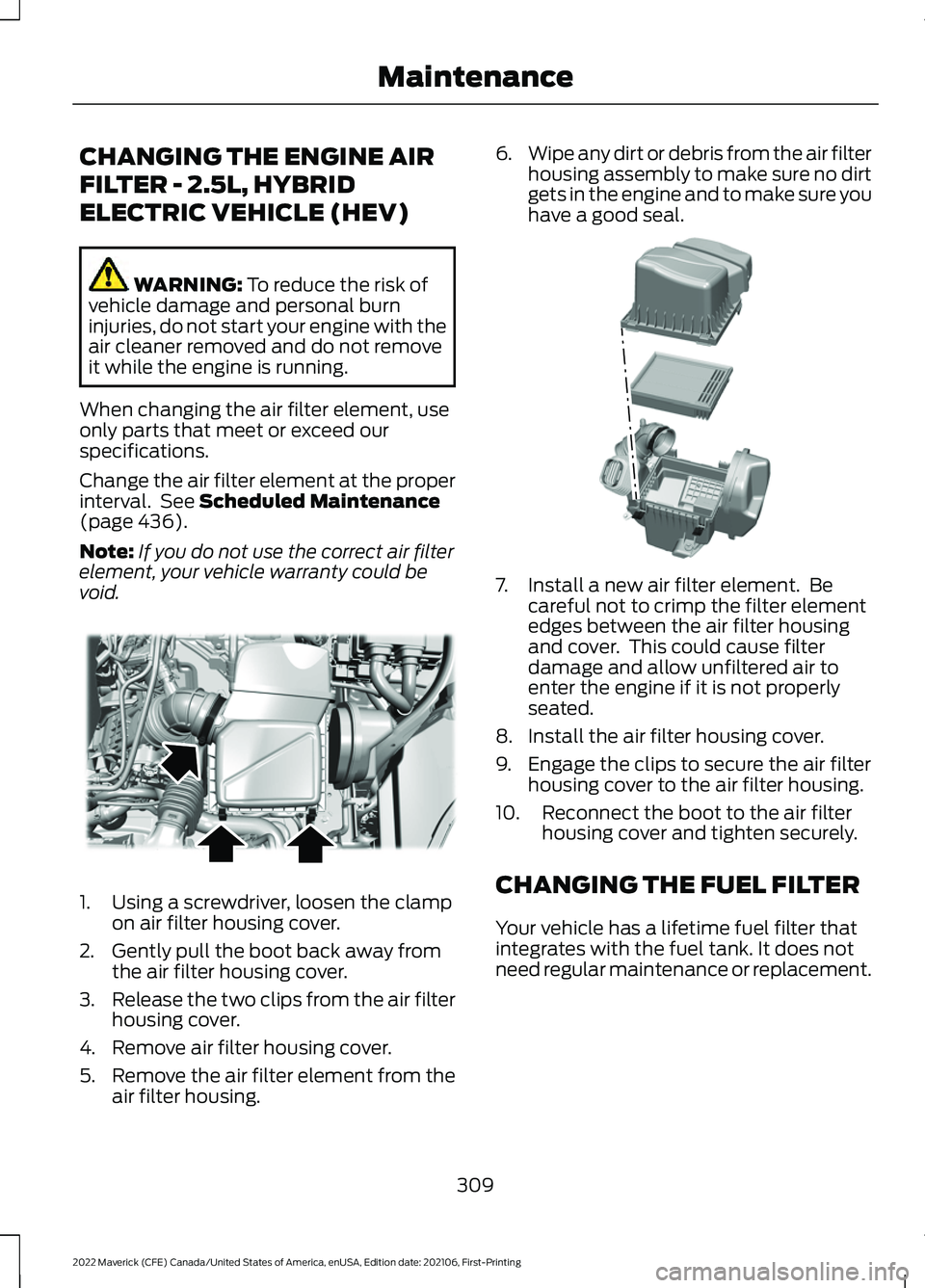
void. 1. Using a screwdriver, loosen the clamp
on air filter housing cover.
2. Gently pull the boot back away from the air filter housing cover.
3. Release the two clips from the air filter
housing cover.
4. Remove air filter housing cover.
5. Remove the air filter element from the
air filter housing. 6.
Wipe any dirt or debris from the air filter
housing assembly to make sure no dirt
gets in the engine and to make sure you
have a good seal. 7. Install a new air filter element. Be
careful not to crimp the filter element
edges between the air filter housing
and cover. This could cause filter
damage and allow unfiltered air to
enter the engine if it is not properly
seated.
8. Install the air filter housing cover.
9. Engage the clips to secure the air filter housing cover to the air filter housing.
10. Reconnect the boot to the air filter housing cover and tighten securely.
CHANGING THE FUEL FILTER
Your vehicle has a lifetime fuel filter that
integrates with the fuel tank. It does not
need regular maintenance or replacement.
309
2022 Maverick (CFE) Canada/United States of America, enUSA, Edition date: 202106, First-Printing MaintenanceE299071 E299074
Page 332 of 533
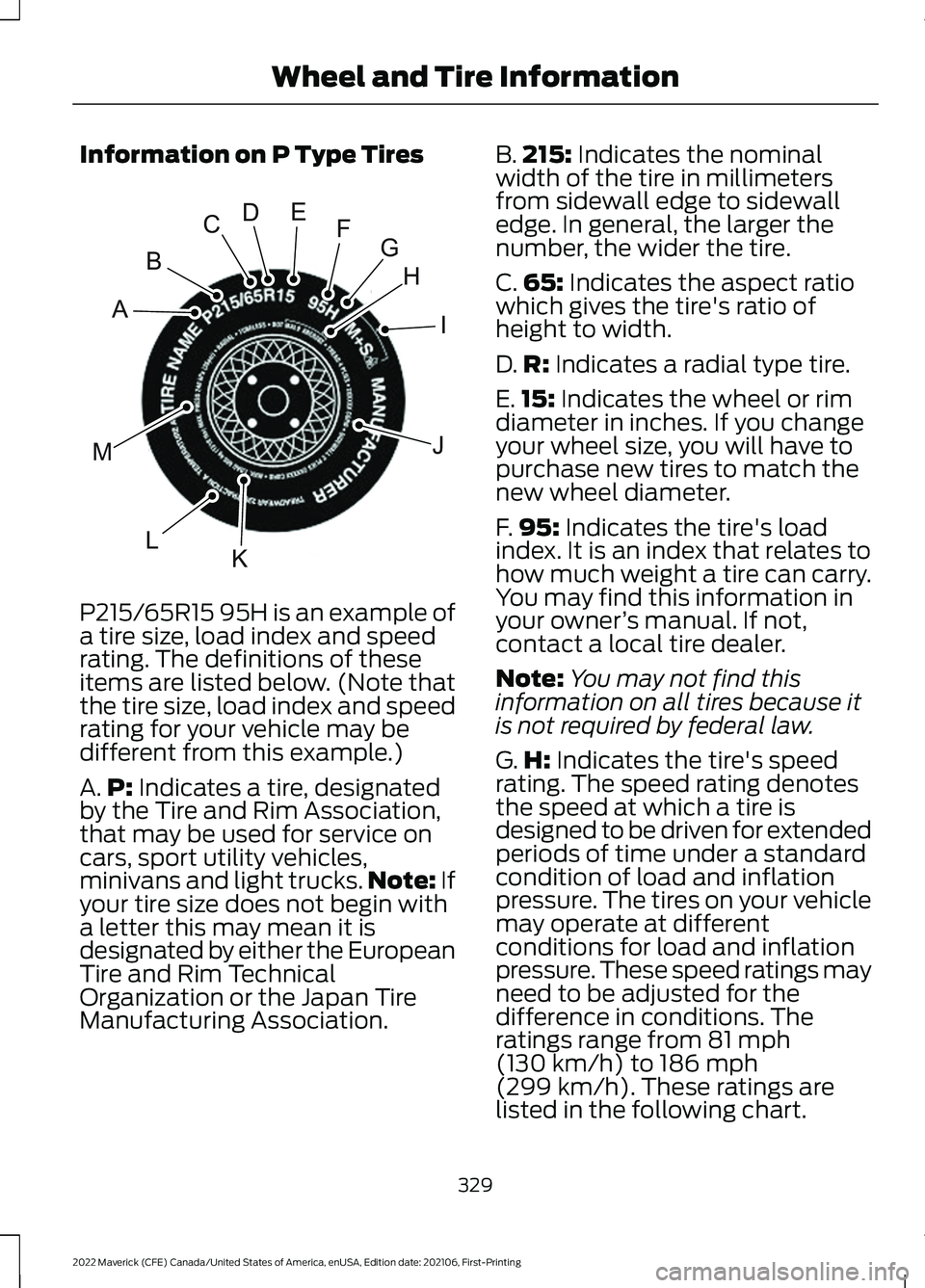
Information on P Type Tires
P215/65R15 95H is an example of
a tire size, load index and speed
rating. The definitions of these
items are listed below. (Note that
the tire size, load index and speed
rating for your vehicle may be
different from this example.)
A.
P: Indicates a tire, designated
by the Tire and Rim Association,
that may be used for service on
cars, sport utility vehicles,
minivans and light trucks. Note:
If
your tire size does not begin with
a letter this may mean it is
designated by either the European
Tire and Rim Technical
Organization or the Japan Tire
Manufacturing Association. B.
215:
Indicates the nominal
width of the tire in millimeters
from sidewall edge to sidewall
edge. In general, the larger the
number, the wider the tire.
C. 65:
Indicates the aspect ratio
which gives the tire's ratio of
height to width.
D. R:
Indicates a radial type tire.
E. 15:
Indicates the wheel or rim
diameter in inches. If you change
your wheel size, you will have to
purchase new tires to match the
new wheel diameter.
F. 95:
Indicates the tire's load
index. It is an index that relates to
how much weight a tire can carry.
You may find this information in
your owner ’s manual. If not,
contact a local tire dealer.
Note: You may not find this
information on all tires because it
is not required by federal law.
G. H:
Indicates the tire's speed
rating. The speed rating denotes
the speed at which a tire is
designed to be driven for extended
periods of time under a standard
condition of load and inflation
pressure. The tires on your vehicle
may operate at different
conditions for load and inflation
pressure. These speed ratings may
need to be adjusted for the
difference in conditions. The
ratings range from
81 mph
(130 km/h) to 186 mph
(299 km/h)
. These ratings are
listed in the following chart.
329
2022 Maverick (CFE) Canada/United States of America, enUSA, Edition date: 202106, First-Printing Wheel and Tire InformationH
I
J
KL
M
A
B
CDEFGE142543
Page 383 of 533
Note:
Your vehicle could have only one USB
port.
APPS
Note: We recommend that you check your
data plan before using your apps through
the system. Using them could result in
additional charges.
Note: We recommend that you check the
app provider's terms and conditions and
privacy policy before using their app.
Note: Make sure that you have an active
account for apps that you want to use
through the system.
Note: Some apps will work with no setup.
Others require you to configure some
personal settings before you can use them.
Using Apple CarPlay
Switching Apple CarPlay On
1. Connect your device to a USB port.
2. Follow the instructions on the touchscreen.
Note: Certain features of the system are
not available when you are using Apple
CarPlay.
Switching Apple CarPlay Off Select the settings option on the
feature bar.
1. Select Apple CarPlay Preferences.
2. Disable Apple CarPlay.
Using Apps on an iOS Device
Note: For more information about available
apps, refer to the local Ford website. When you start an app through the system
for the first time, you could be asked to
grant certain permissions. You can review
and change the permissions that you have
granted at any time when your vehicle is
not moving. Select the apps option on the
feature bar.
1. Switch Apple CarPlay off.
2. Connect your device to a USB port.
3. Start the apps on your device that you want to use through the system.
Note: If you close the apps on your device,
you will not be able to use them through the
system.
4. Select
Find mobile apps.
Note: The system searches and connects
to compatible apps that are running on your
device.
5. Select the app that you want to use on
the touchscreen.
Using Android Auto
Switching Android Auto On
1. Connect your device to a USB port.
2. Follow the instructions on the touchscreen.
Note: You might need to enable Android
Auto from the settings menu.
Note: Certain features of the system are
not available when you are using Android
Auto.
Switching Android Auto Off Select the settings option on the
feature bar.
1. Select
Android Auto Preferences.
2. Disable Android Auto.
380
2022 Maverick (CFE) Canada/United States of America, enUSA, Edition date: 202106, First-Printing Audio System - Vehicles Without: SYNC 3
Page 384 of 533
Using Apps on an Android Device
Note:
For more information about available
apps, refer to the local Ford website.
When you start an app through the system
for the first time, you could be asked to
grant certain permissions. You can review
and change the permissions that you have
granted at any time when your vehicle is
not moving. Select the apps option on the
feature bar.
1. Switch Android Auto off. 2. Pair your device.
3. Start the apps on your device that you
want to use through the system.
Note: If you close the apps on your device,
you will not be able to use them through the
system.
4. Select Find mobile apps.
Note: The system searches and connects
to compatible apps that are running on your
device.
5. Select the app that you want to use on
the touchscreen.
Apps Troubleshooting Possible Cause and Resolution
Symptom
The system cannot find any
apps. –
Incompatible device.
•You will need an Android device with OS 2.3 or
higher or an iOS 3GS device with iOS 5.0 or higher.
Pair and connect your Android device to find
AppLink compatible apps. Connect your iOS device
to a USB port to find AppLink compatible apps.
I have a compatible device
and it is correctly connected
but the system still cannot
find any apps. –
AppLink compatible apps not installed on your device.
•Download and install the latest version of the app.
– AppLink compatible apps not running on your device.
•Start the apps to allow the system to find them
and make sure you sign in to any apps if required.
– Incorrect app settings.
•Check and adjust the app settings on your device
and allow the system to access the app if required.
I have a compatible device,
it is correctly connected and
my apps are running but the
system still cannot find any
apps. –
Apps failed to fully close.
•Restart the apps and try again.
381
2022 Maverick (CFE) Canada/United States of America, enUSA, Edition date: 202106, First-Printing Audio System - Vehicles Without: SYNC 3
Page 389 of 533
AM/FM RADIO
AM/FM RADIO LIMITATIONS
The further you travel from an AM or FM
station, the weaker the signal and the
weaker the reception.
Hills, mountains, tall buildings, bridges,
tunnels, freeway overpasses, parking
garages, dense tree foliage and
thunderstorms can interfere with the
reception.
When you pass a ground-based broadcast
repeating tower, a stronger signal may
overtake a weaker one and result in the
audio system muting.
SELECTING A RADIO STATION
Manually Selecting a Radio
Station
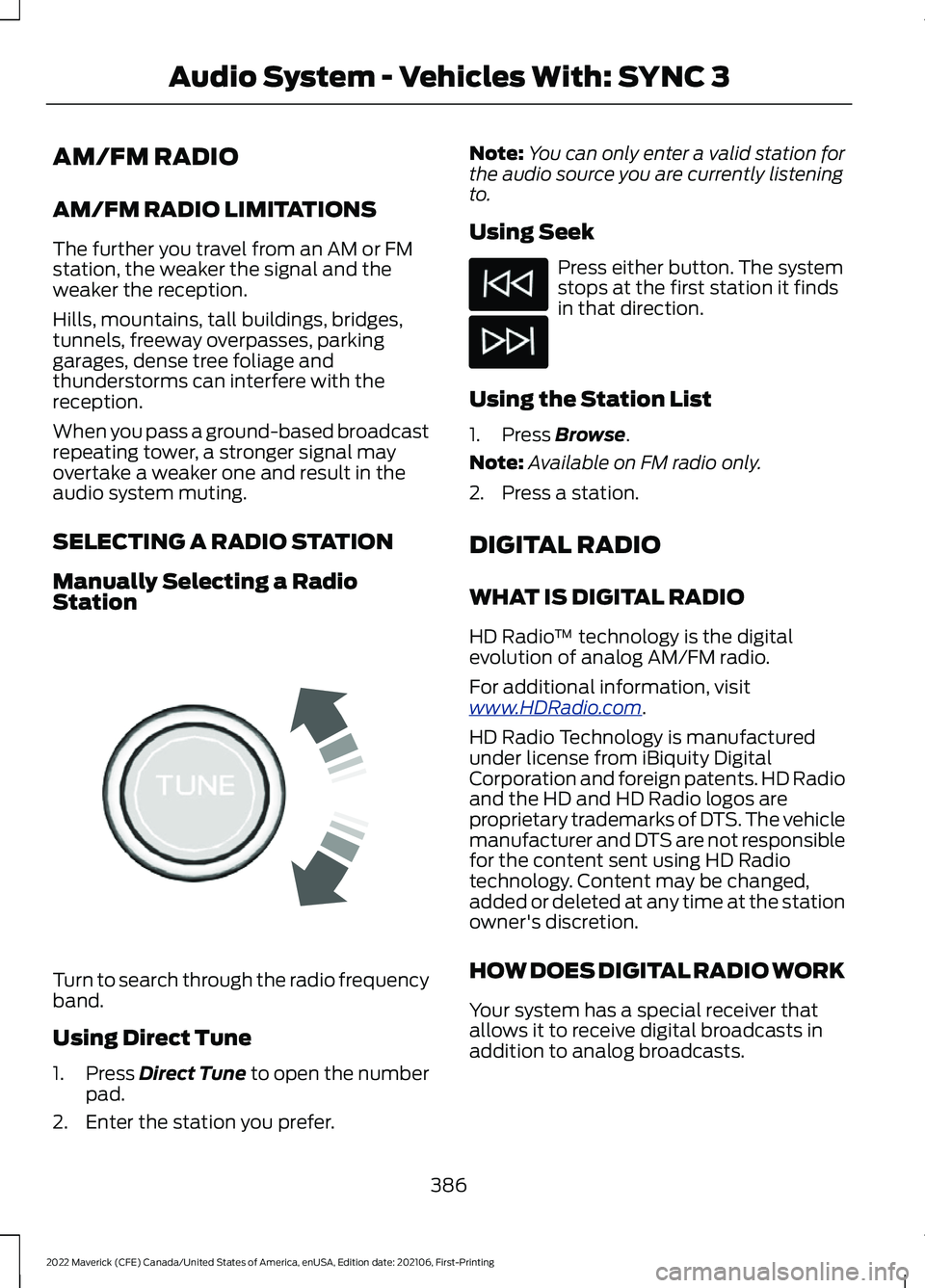
Turn to search through the radio frequency
band.
Using Direct Tune
1.
Press Direct Tune to open the number
pad.
2. Enter the station you prefer. Note:
You can only enter a valid station for
the audio source you are currently listening
to.
Using Seek Press either button. The system
stops at the first station it finds
in that direction.
Using the Station List
1. Press
Browse.
Note: Available on FM radio only.
2. Press a station.
DIGITAL RADIO
WHAT IS DIGITAL RADIO
HD Radio ™ technology is the digital
evolution of analog AM/FM radio.
For additional information, visit
www .HDR a dio . c om .
HD Radio Technology is manufactured
under license from iBiquity Digital
Corporation and foreign patents. HD Radio
and the HD and HD Radio logos are
proprietary trademarks of DTS. The vehicle
manufacturer and DTS are not responsible
for the content sent using HD Radio
technology. Content may be changed,
added or deleted at any time at the station
owner's discretion.
HOW DOES DIGITAL RADIO WORK
Your system has a special receiver that
allows it to receive digital broadcasts in
addition to analog broadcasts.
386
2022 Maverick (CFE) Canada/United States of America, enUSA, Edition date: 202106, First-Printing Audio System - Vehicles With: SYNC 3E270235
Page 391 of 533
SATELLITE RADIO
WHAT IS SATELLITE RADIO
Your factory-installed SiriusXM radio
system includes a limited subscription
term, which begins on the date of sale or
lease of your vehicle. See an authorized
dealer for availability.
For additional information about extended
subscription terms, visit www
.SiriusXM. c om
in the United States,
www .SiriusXM. c a in
Canada, or call SiriusXM at
1-888-539-7474.
Note: SiriusXM reserves the unrestricted
right to change, rearrange, add or delete
programming including canceling, moving
or adding particular channels, and its prices,
at any time, with or without notice to you.
Neither SiriusXM and its affiliates nor Ford
Motor Company and its affiliates will be
liable to you or any third party for any such
modification, suspension or termination.
SATELLITE RADIO LIMITATIONS
For optimal reception performance, keep
the antenna clear of snow and ice build-up
and keep luggage and other material as
far away from the antenna as possible.
Placing luggage over the antenna may
reduce performance.
Hills, mountains, tall buildings, bridges,
tunnels, freeway overpasses, parking
garages, dense tree foliage and
thunderstorms can interfere with your
reception.
When you pass a ground-based
broadcast-repeating tower, a stronger
signal may overtake a weaker one and
could result in the audio system muting.
Your display could show an error message
to indicate the interference. LOCATING THE SATELLITE RADIO
IDENTIFICATION NUMBER
1. Select SiriusXM as the audio source.
2. Tune to channel 0.
388
2022 Maverick (CFE) Canada/United States of America, enUSA, Edition date: 202106, First-Printing Audio System - Vehicles With: SYNC 3
Page 403 of 533
SiriusXM® Satellite Radio (If
Activated)
Note:
This feature may not be available in
all markets and requires an active
subscription. SiriusXM satellite radio is a
subscription-based satellite radio service
that broadcasts a variety of music, sports,
news, weather, traffic and entertainment
programming. Your factory-installed
SiriusXM satellite radio system includes
hardware and a limited subscription term
that begins on the date of sale or lease of
your vehicle. See an authorized dealer for
availability.
For more information on extended
subscription terms (a service fee is
required), the online media player and a
list of SiriusXM satellite radio channels,
and other features, please visit
www.siriusxm.com in the United States,
www.siriusxm.ca in Canada, or call
SiriusXM at 1-888-539-7474.
Note:
SiriusXM reserves the unrestricted
right to change, rearrange, add or delete
programming. This includes canceling,
moving or adding particular channels, and
its prices, at any time, with or without notice
to you. We are not responsible for any such
programming changes.
Note: This receiver includes the eCos
real-time operating system. eCos is
published under the eCos License.
The following buttons are available for SiriusXM: Action and Description
Menu Item
Touch this button to see a list of available stations.
Browse
A pop-up appears, allowing you to type in the call numbers of
a station.
Direct Tune
Once you enter the stations call numbers, you can select:The system tunes to the station you select.
Enter
You exit the pop-up and the current station
continues to play.
Cancel
You can press the backspace button to delete the previous
number.
400
2022 Maverick (CFE) Canada/United States of America, enUSA, Edition date: 202106, First-Printing SYNC™ 3 (If Equipped)E234451
Page 407 of 533
HD Radio Reception and Station Troubleshooting
Potential Reception Issues
If you are listening to a multicast station and you are on the
fringe of the reception area, the station may mute due to
weak signal strength.
Reception area
If you are listening to HD1, the system changes back to the
analog broadcast until the digital broadcast is available again.
However, if you are listening to any of the possible HD2-HD7
multicast channels, the station mutes and stays muted unless
it is able to connect to the digital signal again.
When the system first receives a station (aside from HD2-
HD7 multicast stations), it first plays the station in the analog
version. Once the receiver verifies the station is an HD Radio
station, it shifts to the digital version. Depending on the station
quality, you may hear a slight sound change when the station
changes from analog to digital. Blending is the shift from
analog to digital sound or digital back to analog sound.
Station blending
In order to provide the best possible
experience, use the contact form to report
any station issues found while listening to
a station broadcasting with HD Radio
technology. Independent entities own and
operate each station. These stations are
responsible for ensuring all audio streams
and data fields are accurate. Potential Station Issues
Action
Cause
Issues
No action required. This is a
broadcast issue.
This is poor time alignment by
the radio broadcaster.
Echo, stutter, skip or
repeat in audio.
Increase or decrease in
audio volume.
No action required. The recep-
tion issue may clear up as you
continue to drive.
The radio is shifting between
analog and digital audio.
Sound fading or
blending in and out.
No action required. This is
normal behavior. Wait until the
audio is available.
The digital multicast is not
available until the HD Radio
broadcast is decoded. Once
decoded, the audio is available.
There is an audio mute
delay when selecting
HD2 or HD3, multicast
preset or Direct Tune.
404
2022 Maverick (CFE) Canada/United States of America, enUSA, Edition date: 202106, First-Printing SYNC™ 3 (If Equipped)