set FORD MAVERICK 2022 Owner's Guide
[x] Cancel search | Manufacturer: FORD, Model Year: 2022, Model line: MAVERICK, Model: FORD MAVERICK 2022Pages: 533, PDF Size: 9.58 MB
Page 103 of 533
SWITCHING AMBIENT LIGHTING
ON AND OFF - VEHICLES WITH:
SYNC 3
1. Press Settings on the touchscreen.
2. Press
Vehicle Settings.
3. Press
Ambient Light.
4. Switch
Ambient Light on or off.
ADJUSTING AMBIENT LIGHTING
Drag the slider left or right.
INTERIOR LIGHTING –
TROUBLESHOOTING
INTERIOR LIGHTING –
FREQUENTLY ASKED QUESTIONS
Why do my courtesy lamps or interior
lamps turn off when I have them
switched on when I switch my vehicle
off? The battery saver turns the courtesy
lamps and interior lamps off after a
short period of time after you switch
your vehicle off.
100
2022 Maverick (CFE) Canada/United States of America, enUSA, Edition date: 202106, First-Printing Interior Lighting
Page 104 of 533
OPENING AND CLOSING THE
WINDOWS
WARNING: Do not leave children
unattended in your vehicle and do not
let them play with the power windows.
Failure to follow this instruction could
result in personal injury. WARNING:
When closing the
power windows, verify they are free of
obstruction and make sure that children
and pets are not in the proximity of the
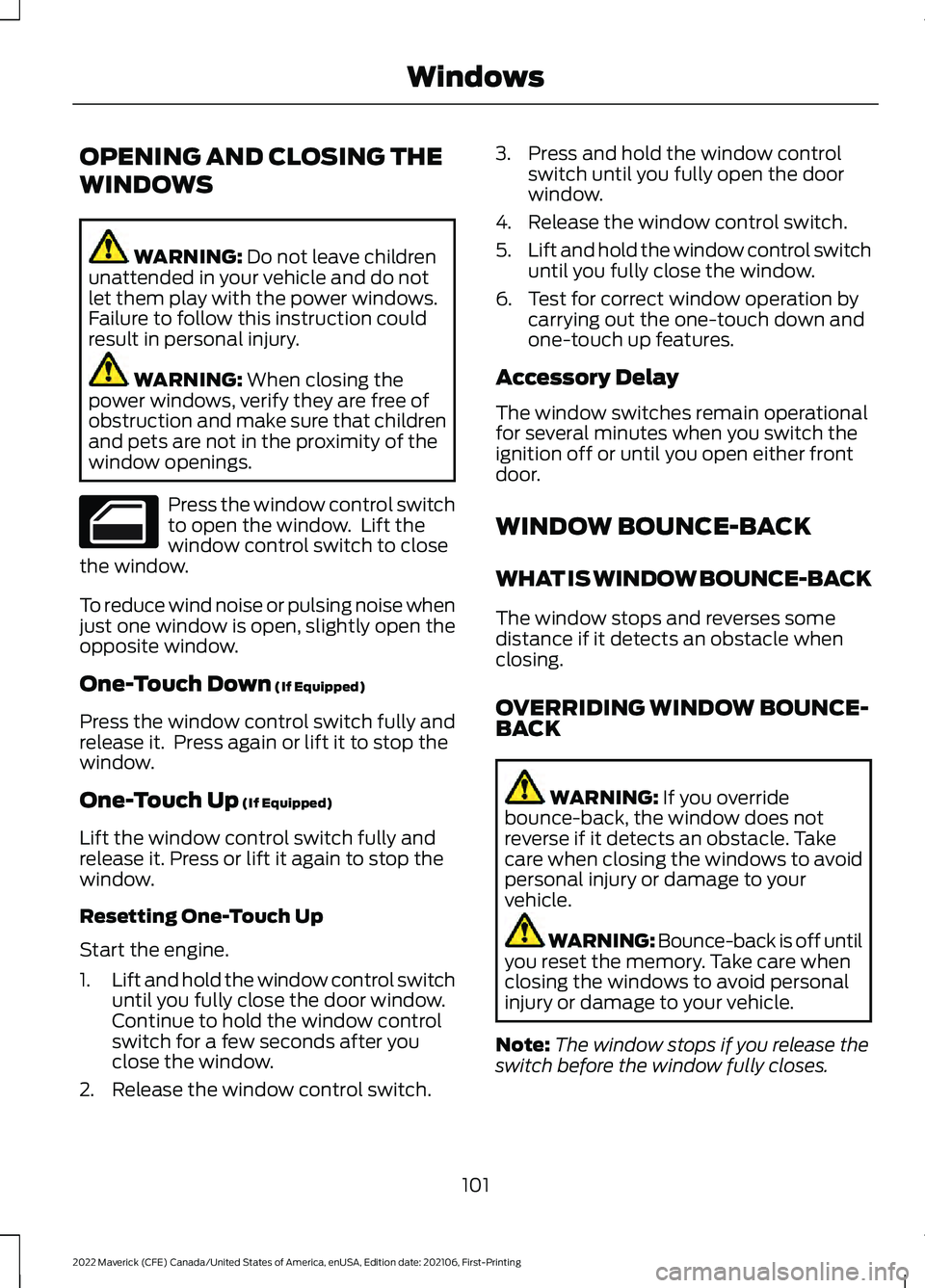
window openings. Press the window control switch
to open the window. Lift the
window control switch to close
the window.
To reduce wind noise or pulsing noise when
just one window is open, slightly open the
opposite window.
One-Touch Down
(If Equipped)
Press the window control switch fully and
release it. Press again or lift it to stop the
window.
One-Touch Up
(If Equipped)
Lift the window control switch fully and
release it. Press or lift it again to stop the
window.
Resetting One-Touch Up
Start the engine.
1. Lift and hold the window control switch
until you fully close the door window.
Continue to hold the window control
switch for a few seconds after you
close the window.
2. Release the window control switch. 3. Press and hold the window control
switch until you fully open the door
window.
4. Release the window control switch.
5. Lift and hold the window control switch
until you fully close the window.
6. Test for correct window operation by carrying out the one-touch down and
one-touch up features.
Accessory Delay
The window switches remain operational
for several minutes when you switch the
ignition off or until you open either front
door.
WINDOW BOUNCE-BACK
WHAT IS WINDOW BOUNCE-BACK
The window stops and reverses some
distance if it detects an obstacle when
closing.
OVERRIDING WINDOW BOUNCE-
BACK WARNING: If you override
bounce-back, the window does not
reverse if it detects an obstacle. Take
care when closing the windows to avoid
personal injury or damage to your
vehicle. WARNING: Bounce-back is off until
you reset the memory. Take care when
closing the windows to avoid personal
injury or damage to your vehicle.
Note: The window stops if you release the
switch before the window fully closes.
101
2022 Maverick (CFE) Canada/United States of America, enUSA, Edition date: 202106, First-Printing Windows
Page 119 of 533
USING THE INSTRUMENT
CLUSTER DISPLAY CONTROLS
WARNING: Driving while distracted
can result in loss of vehicle control, crash
and injury. We strongly recommend that
you use extreme caution when using any
device that may take your focus off the
road. Your primary responsibility is the
safe operation of your vehicle. We
recommend against the use of any
hand-held device while driving and
encourage the use of voice-operated
systems when possible. Make sure you
are aware of all applicable local laws
that may affect the use of electronic
devices while driving.
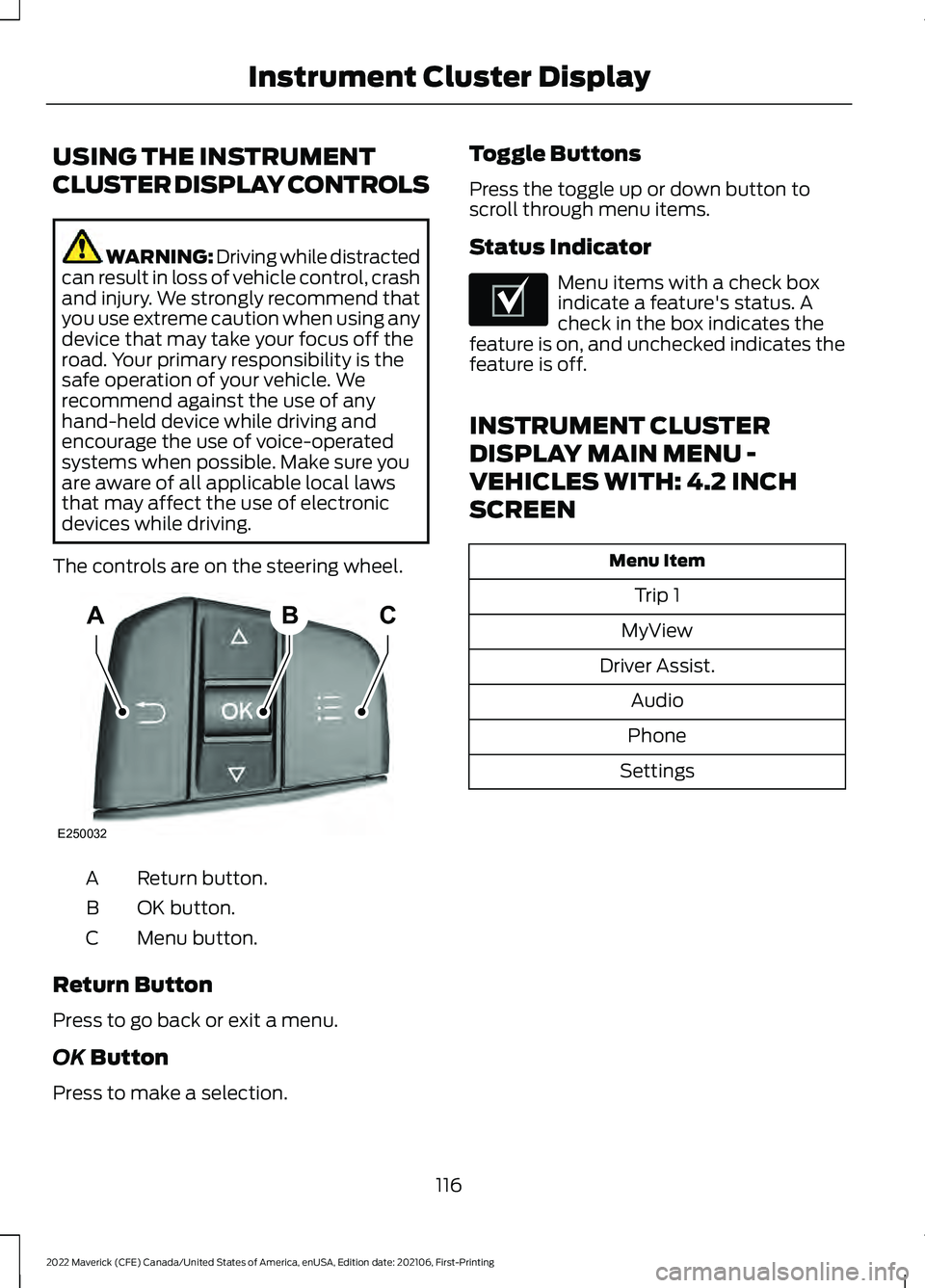
The controls are on the steering wheel. Return button.
A
OK button.
B
Menu button.
C
Return Button
Press to go back or exit a menu.
OK Button
Press to make a selection. Toggle Buttons
Press the toggle up or down button to
scroll through menu items.
Status Indicator Menu items with a check box
indicate a feature's status. A
check in the box indicates the
feature is on, and unchecked indicates the
feature is off.
INSTRUMENT CLUSTER
DISPLAY MAIN MENU -
VEHICLES WITH: 4.2 INCH
SCREEN Menu Item
Trip 1
MyView
Driver Assist. Audio
Phone
Settings
116
2022 Maverick (CFE) Canada/United States of America, enUSA, Edition date: 202106, First-Printing Instrument Cluster DisplayABC
E250032 E204495
Page 120 of 533
INSTRUMENT CLUSTER
DISPLAY MAIN MENU -
VEHICLES WITH: 6.5 INCH
SCREEN
Menu Item
Select Screens Audio
Phone
Settings
Display Setup
CUSTOMIZING THE
INSTRUMENT CLUSTER
DISPLAY - VEHICLES WITH: 4.2
INCH SCREEN
1. Using the information display controls on the steering wheel, select MyView.
2. Press the menu button.
3. Select a screen.
4. Press the
OK button.
CUSTOMIZING THE
INSTRUMENT CLUSTER
DISPLAY - VEHICLES WITH: 6.5
INCH SCREEN
Adding Screens Using Select
Screens
You can select various screens to show on
the instrument cluster display.
1. Select
Select Screens.
2. Use the controls on the steering wheel
to highlight a screen to add.
3. Press the
OK button. Note:
The amount of screens you can add
is limited. If the selected screen does not
appear, you must deselect items from the
menu. Select Screens
Calm screen
Fuel economy Trip 1
Trip 2
This trip
EV Coach
Tire pressure
Intelligent AWD Off-Road
Trailer light check Seatbelts
Auto StartStop Now playing
Note: Some options may appear slightly
different or not at all if items are optional.
Configuring Gauges
You can select which values your
speedometer shows in the instrument
cluster display.
1. Select
Display Setup.
2. Select a speed unit to display.
117
2022 Maverick (CFE) Canada/United States of America, enUSA, Edition date: 202106, First-Printing Instrument Cluster Display
Page 121 of 533
PERSONALIZED SETTINGS
CHANGING THE INSTRUMENT
CLUSTER DISPLAY LANGUAGE -
VEHICLES WITH: 4.2 INCH
SCREEN
You can change the language using the
instrument cluster display.
1. Select Settings and press the menu
button.
2. Select
Display.
3. Select
Language.
4. Select a language.
CHANGING THE INSTRUMENT
CLUSTER DISPLAY LANGUAGE -
VEHICLES WITH: 6.5 INCH
SCREEN
You can change the language using the
instrument cluster display.
1. Select
Display Setup.
2. Select
Language.
3. Select a language.
Note: Available languages vary by region.
CHANGING THE MEASURE UNIT -
VEHICLES WITH: 4.2 INCH
SCREEN
You can change the measurement unit
using the instrument cluster display.
1. Select
Settings and press the menu
button.
2. Select
Display.
3. Select
Measurement Unit.
4. Select a measurement unit. CHANGING THE MEASURE UNIT -
VEHICLES WITH: 6.5 INCH
SCREEN
You can change the measurement unit
using the instrument cluster display.
1. Select
Display Setup.
2. Select
Measurement Units.
3. Select a measurement unit.
CHANGING THE TEMPERATURE
UNIT - VEHICLES WITH: 4.2 INCH
SCREEN
You can change the temperature unit using
the instrument cluster display.
1. Select
Settings and press the menu
button.
2. Select
Display.
3. Select
Temperature Unit.
4. Select a temperature unit.
CHANGING THE TEMPERATURE
UNIT - VEHICLES WITH: 6.5 INCH
SCREEN
You can change the temperature unit using
the instrument cluster display.
1. Select
Display Setup.
2. Select
Temperature units.
3. Select a temperature unit.
CHANGING THE TIRE PRESSURE
UNIT - VEHICLES WITH: 4.2 INCH
SCREEN
You can change the tire pressure unit using
the instrument cluster display.
1. Select
Settings and press the menu
button.
2. Select
Display.
3. Select
Tire Pressure.
118
2022 Maverick (CFE) Canada/United States of America, enUSA, Edition date: 202106, First-Printing Instrument Cluster Display
Page 122 of 533
4. Select a tire pressure unit.
CHANGING THE TIRE PRESSURE
UNIT - VEHICLES WITH: 6.5 INCH
SCREEN
You can change the tire pressure unit using
the instrument cluster display.
1. Select Display Setup.
2. Select
Tire pressure.
3. Select a pressure unit.
FUEL ECONOMY DISPLAY -
GASOLINE
An instant fuel economy gauge is provided
along with average fuel economy. Average
fuel economy is continuously averaged
since the last reset.
Note: Press and hold the
OK button on the
controls on the steering wheel to reset your
average fuel economy.
FUEL ECONOMY DISPLAY -
HYBRID ELECTRIC VEHICLE
(HEV)
An instant fuel economy gauge is provided
along with average fuel economy. Average
fuel economy is continuously averaged
since the last reset.
When the gasoline engine is off the instant
fuel economy gauges is replaced with an
electric driving message.
Note: Press and hold the
OK button on the
controls on the steering wheel to reset your
average fuel economy. EV COACH - HYBRID ELECTRIC
VEHICLE (HEV)
EV coach can help you get the most out of
your vehicle's electric driving capabilities.
Note:
EV coach is a selectable screen. See
Customizing the Instrument Cluster
Display
(page 117).
When you are accelerating or maintaining
speed you see a blue or white solid bar
indicating vehicle power. You may also see
a blue rectangular box which shows the
power level at which the engine turns on.
• When the power level is within the box,
the color of the bar is blue. This means
you are in electric operation and the
engine is off.
• When the power level is outside of the
box, the color of the bar is white. This
means you are in hybrid operation with
a combination of the electric motor
and the engine providing vehicle power.
When you are decelerating with either your
foot off the accelerator pedal or on the
brake pedal, a green or white solid bar
displays indicating the power being used
to slow down your vehicle. You may also
see a green rectangular box which shows
the amount of power that can be
recaptured by the regenerative braking
system and returned to the high voltage
battery.
• When the power level is within the box,
the color of the bar will be all green.
This means that the regenerative
braking system is being used to
efficiently slow your vehicle down and
return the maximum percentage of
energy to the high voltage battery.
• When the power level is outside of the
box, then the bar is white. This means
both the regenerative braking system
and conventional braking system are
being used.
119
2022 Maverick (CFE) Canada/United States of America, enUSA, Edition date: 202106, First-Printing Instrument Cluster Display
Page 123 of 533
WHAT IS BRAKE COACH -
HYBRID ELECTRIC VEHICLE
(HEV)
The brake coach appears after your vehicle
has come to a stop. It coaches you to brake
in a manner that maximizes the amount
of energy returned through the
regenerative braking system.
The percent displayed is an indication of
the regenerative braking efficiency with
100% representing the maximum amount
of energy recovered. You can switch brake
coach on or off in the settings menu. See
Instrument Cluster Display Main Menu
(page 117).
WHAT IS THE TRIP SUMMARY
- HYBRID ELECTRIC VEHICLE
(HEV)
The trip summary displays upon shutting
off your vehicle. The values are cumulative
since you last started your vehicle.
The information shown is the same as the
This Trip screen. See
Trip Data (page 121).
120
2022 Maverick (CFE) Canada/United States of America, enUSA, Edition date: 202106, First-Printing Instrument Cluster Display
Page 124 of 533
ACCESSING THE TRIP
COMPUTER - VEHICLES WITH:
4.2 INCH SCREEN
1. Use the instrument cluster display
controls to navigate the home screen.
2. Select the trip screen.
3. Press the menu button on the steering
wheel.
4. Select Trip 1 or Trip 2.
ACCESSING THE TRIP
COMPUTER - VEHICLES WITH:
6.5 INCH SCREEN
Using Select Screens
1. Use the instrument cluster display controls to navigate the home menu.
2. Select
Select Screens.
3. Use the control on the steering wheel to navigate the menu. See
Customizing the Instrument Cluster
Display
(page 117).
Using the Home Screen
Once the screens have been added, use
the instrument cluster display controls on
the steering wheel to view each trip screen.
RESETTING THE TRIP
COMPUTER
1. Use the instrument cluster display controls to navigate the home screen.
2. Select the trip screen you want to reset.
3. Press and hold the OK button until the
system reset confirmation appears. RESETTING THE INDIVIDUAL
TRIP VALUES - VEHICLES
WITH: 4.2 INCH SCREEN
1. Use the instrument cluster display
controls to navigate the home screen.
2. Select the trip screen.
3. Press the menu button on the steering
wheel.
4. Select
Reset Individual Values.
5. Select a trip value to reset.
6. Press and hold the OK button until the
system reset confirmation appears.
CONFIGURING THE TRIP
COMPUTER - VEHICLES WITH:
4.2 INCH SCREEN
1. Use the instrument cluster display controls to navigate the home screen.
2. Select the trip screen.
3. Press the menu button on the steering
wheel.
4. Select
Configure View.
5. Select values to display.
TRIP DATA
Trip 1 and 2
Provides trip timer, trip average fuel
economy and total trip distance traveled.
For hybrid vehicles, the trip also shows the
distance traveled on electric power only.
Note: Trip 1 and 2 are selectable screens.
See
Accessing the Trip Computer (page
121).
121
2022 Maverick (CFE) Canada/United States of America, enUSA, Edition date: 202106, First-Printing Trip Computer
Page 125 of 533
This Trip
Provides trip timer, trip average fuel
economy, total trip distance traveled, and
distance traveled on electric power only
with the engine off. If the gasoline engine
has not turned on during the trip then trip
average fuel economy is not shown. This
Trip resets each time you start your vehicle.
Note:
This trip is a selectable screen. See
Accessing the Trip Computer (page 121).
122
2022 Maverick (CFE) Canada/United States of America, enUSA, Edition date: 202106, First-Printing Trip Computer
Page 126 of 533
WHAT IS REMOTE START
The system allows you to remotely start
your vehicle and to adjust the interior
temperature according to the settings that
you chose.
REMOTE START
PRECAUTIONS
WARNING: Do not start the engine
in a closed garage or in other enclosed
areas. Exhaust fumes are toxic. Always
open the garage door before you start
the engine. Failure to follow this
instruction could result in personal injury
or death.
REMOTE START LIMITATIONS
Remote start does not work under the
following conditions:
• The alarm horn is sounding.
• The hood is open.
• The transmission is not in park (P).
• The ignition is on.
• The battery voltage is below the
minimum operating voltage.
Note: Do not use remote start if your fuel
level is low.
Note: You can use remote start with
FordPass. See Connecting the Vehicle to
a Wi-Fi Network (page 369).
ENABLING REMOTE START
1. Using the information display controls on the steering wheel, select Settings.
2. Select
Vehicle Settings.
3. Select
Remote Start. 4. Switch
System on.
Note: To use remote start, make sure that
the modem is enabled. See
Enabling and
Disabling the Modem (page 369).
REMOTELY STARTING AND
STOPPING THE VEHICLE
Remotely Starting the Vehicle Press the button on the remote
control.
Within three seconds, press the
button twice on the remote
control.
Note: You can also use the FordPass App
to start the vehicle.
Note: The turn signals flash twice.
Note: The parking lamps turn on when the
vehicle is running.
Note: The horn sounds if the system fails
to start.
Note: All other vehicle systems remain off
when you have remotely started the vehicle.
Note: The vehicle remains secured when
you have remotely started the vehicle. A
valid key must be inside your vehicle to
switch the ignition on and drive your vehicle.
Remotely Stopping the Vehicle Within three seconds, press the
button twice on the remote
control.
EXTENDING THE REMOTE
START DURATION
To extend the remote start duration during
remote start, do the following:
123
2022 Maverick (CFE) Canada/United States of America, enUSA, Edition date: 202106, First-Printing Remote Start
(If Equipped)E138623 E138625 E138625