wheel FORD MAVERICK 2023 Owners Manual
[x] Cancel search | Manufacturer: FORD, Model Year: 2023, Model line: MAVERICK, Model: FORD MAVERICK 2023Pages: 556, PDF Size: 14.79 MB
Page 364 of 556
Stowing the Spare Tire
Note:Failure to follow the spare tirestowage instructions could result in failureof the cable or loss of the spare tire.
1.Lay the tire on the ground with thevalve stem facing down.
2.Slide the wheel partially under thevehicle and install the retainer throughthe wheel center. Pull on the cable toalign the components at the end of thecable.
3.Turn the jack handle clockwise untilthe tire is raised to its stowed positionunderneath the vehicle. The effort toturn the jack handle increasessignificantly and the spare tire carrierratchets or slips when the tire is raisedto the maximum tightness. Tighten tothe point where the ratchet or slipoccurs, a minimum of three times asindicated by an audible click each time.The spare tire carrier does not allowyou to overtighten. If the spare tirecarrier ratchets or slips with little effort,contact your authorized dealer.
4.Check that the tire lies flat against theframe and is properly tightened. Try topush or pull, then turn the tire to besure it does not move. Loosen andretighten, if necessary. Failure toproperly stow the spare tire couldresult in failure of the winch cable andloss of the tire.
5.Repeat this tightness check procedurewhen servicing the spare tire pressure,every six months, as per your scheduledmaintenance information, or at anytime that the spare tire is disturbedthrough service of other components.
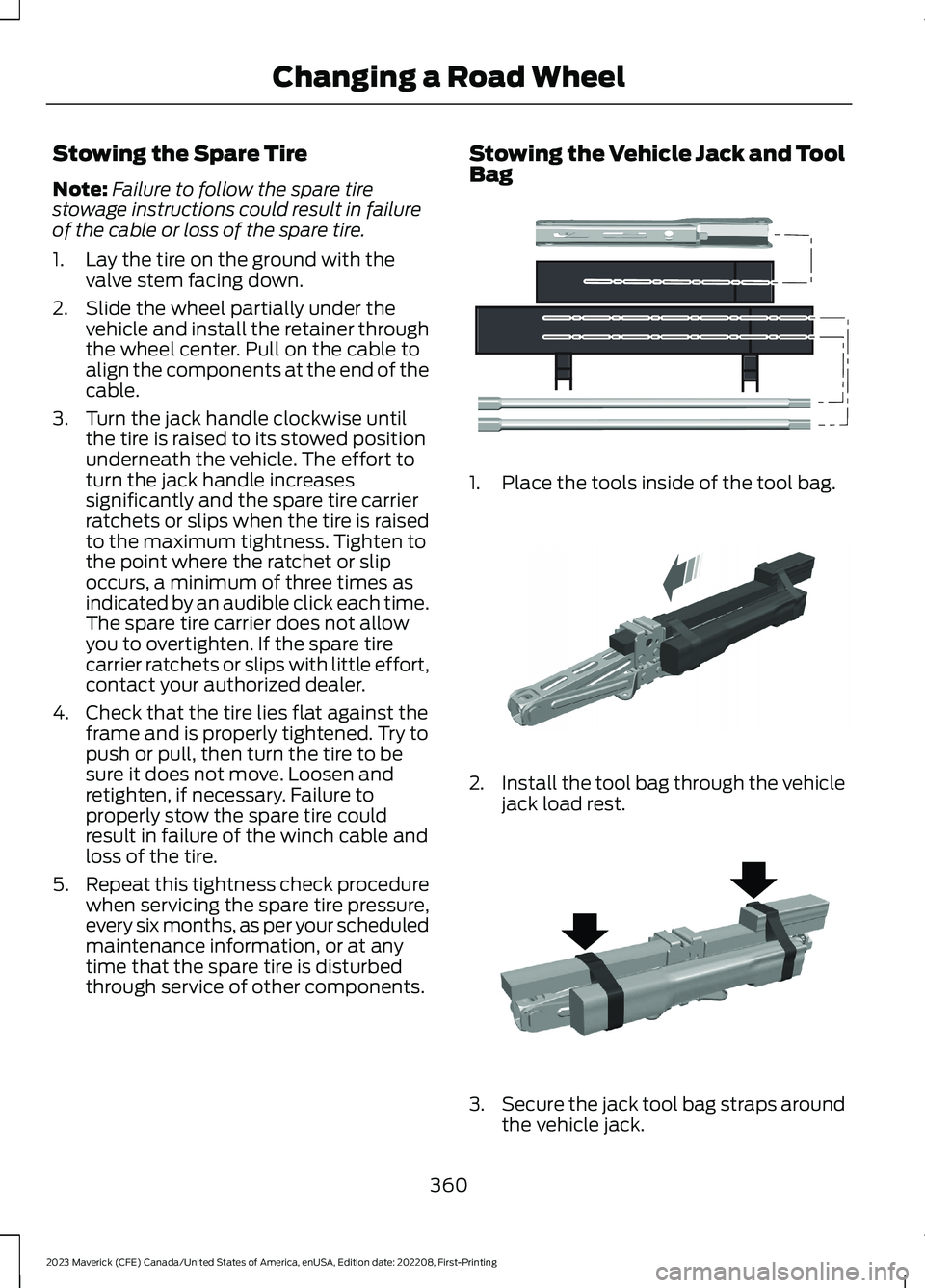
Stowing the Vehicle Jack and ToolBag
1.Place the tools inside of the tool bag.
2.Install the tool bag through the vehiclejack load rest.
3.Secure the jack tool bag straps aroundthe vehicle jack.
360
2023 Maverick (CFE) Canada/United States of America, enUSA, Edition date: 202208, First-PrintingChanging a Road WheelE352149 E352034 E352022
Page 365 of 556
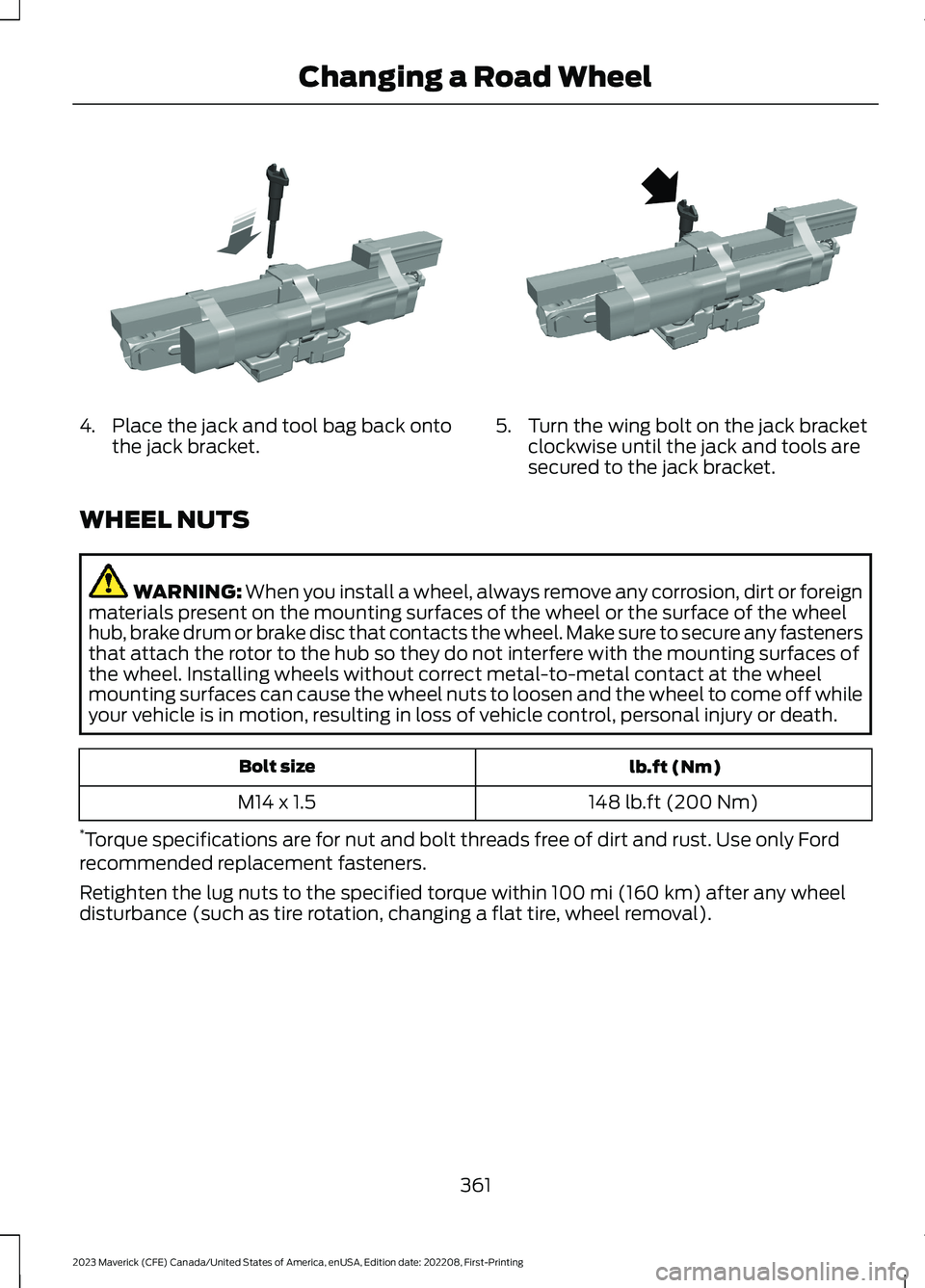
4.Place the jack and tool bag back ontothe jack bracket.5.Turn the wing bolt on the jack bracketclockwise until the jack and tools aresecured to the jack bracket.
WHEEL NUTS
WARNING: When you install a wheel, always remove any corrosion, dirt or foreignmaterials present on the mounting surfaces of the wheel or the surface of the wheelhub, brake drum or brake disc that contacts the wheel. Make sure to secure any fastenersthat attach the rotor to the hub so they do not interfere with the mounting surfaces ofthe wheel. Installing wheels without correct metal-to-metal contact at the wheelmounting surfaces can cause the wheel nuts to loosen and the wheel to come off whileyour vehicle is in motion, resulting in loss of vehicle control, personal injury or death.
lb.ft (Nm)Bolt size
148 lb.ft (200 Nm)M14 x 1.5
*Torque specifications are for nut and bolt threads free of dirt and rust. Use only Fordrecommended replacement fasteners.
Retighten the lug nuts to the specified torque within 100 mi (160 km) after any wheeldisturbance (such as tire rotation, changing a flat tire, wheel removal).
361
2023 Maverick (CFE) Canada/United States of America, enUSA, Edition date: 202208, First-PrintingChanging a Road WheelE352027 E352026
Page 366 of 556
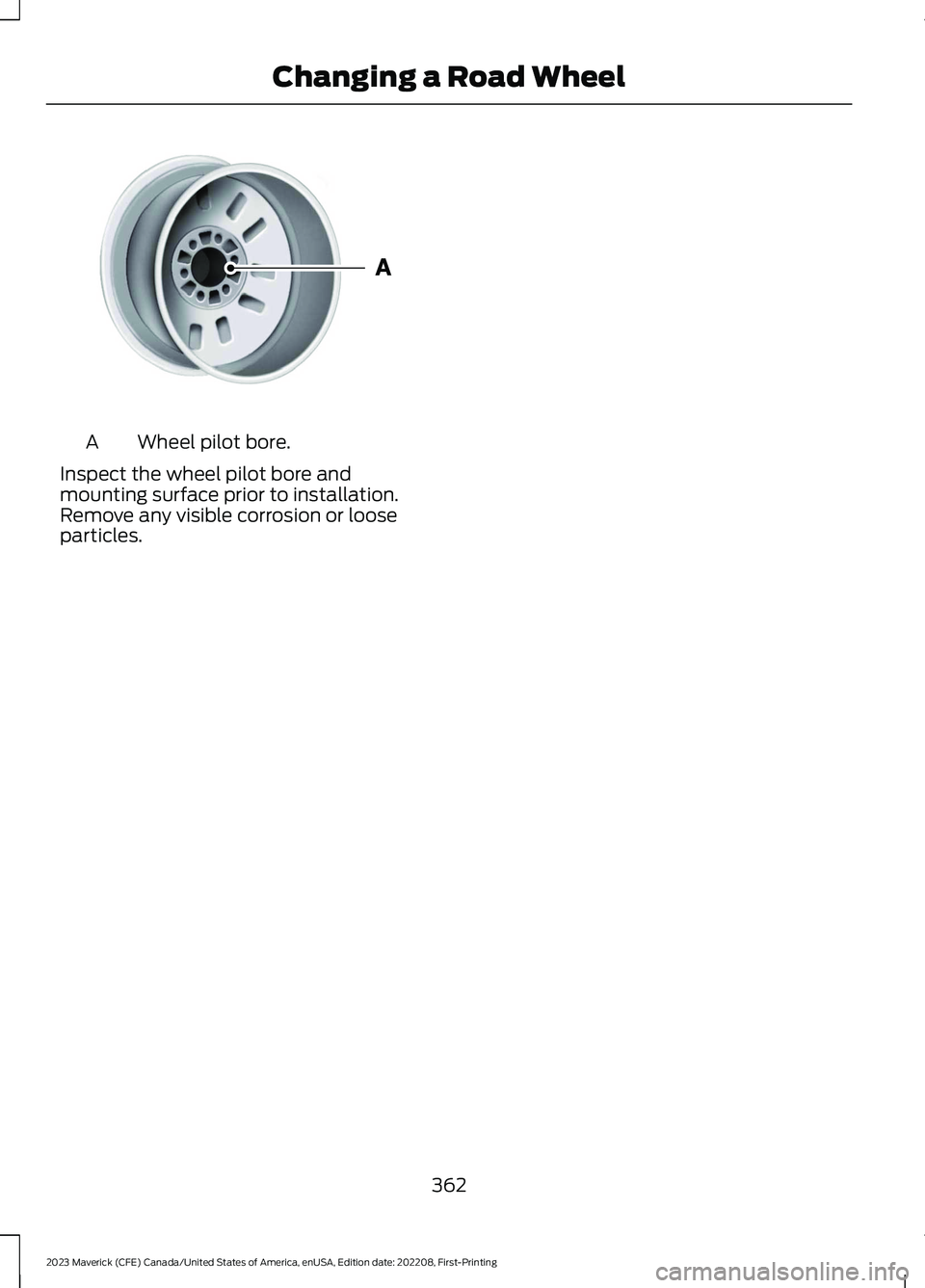
Wheel pilot bore.A
Inspect the wheel pilot bore andmounting surface prior to installation.Remove any visible corrosion or looseparticles.
362
2023 Maverick (CFE) Canada/United States of America, enUSA, Edition date: 202208, First-PrintingChanging a Road WheelE145950
Page 394 of 556
Possible Cause and ResolutionSymptom
I have an Android devicethat is correctly connected,I have restarted my appsand they are running but thesystem still cannot findthem.
–An issue on some older versions of the Android oper-ating system could result in apps not being found.
•Switch Bluetooth® off and on again to force thesystem to reconnect to your device.
I have an iOS device that iscorrectly connected, I haverestarted my apps and theyare running but the systemstill cannot find them.
–Cable connection issue.
•Disconnect the cable from your device, wait for amoment and then connect it again to force thesystem to reconnect to your device.
I have an Android devicerunning a media app whichthe system has found but Icannot hear the sound orthe sound is very quiet.
–Device volume is low.
•Turn the volume up on your device.
I have an Android devicerunning a number ofcompatible apps but thesystem cannot find all ofthem.
–Device limitation. Some Android devices have a limitednumber of Bluetooth® ports that apps can use toconnect. If you have more apps running on your devicethan the number of available Bluetooth® ports, thesystem cannot find all of them.
•Close some of the apps to allow the system to findthose that you want to use.
USING VOICE RECOGNITION
Phone Voice Service
This system allows you to use the voicerecognition features of your phone andfocus on your driving.
Press the voice control buttonon the steering wheel.
Note: This only works when connected viaBluetooth®. See Connecting aBluetooth® Device (page 385).
Note:When using voice recognition use thelanguage set on the device.
Note:We recommend that you check yourdata plan before using your phone voiceservice through the system. Using themcould result in additional charges.
390
2023 Maverick (CFE) Canada/United States of America, enUSA, Edition date: 202208, First-PrintingAudio System - Vehicles Without: SYNC 3E142599
Page 396 of 556
AUDIO SYSTEM
PRECAUTIONS
WARNING: Driving while distractedcan result in loss of vehicle control, crashand injury. We strongly recommend thatyou use extreme caution when using anydevice that may take your focus off theroad. Your primary responsibility is thesafe operation of your vehicle. Werecommend against the use of anyhand-held device while driving andencourage the use of voice-operatedsystems when possible. Make sure youare aware of all applicable local lawsthat may affect the use of electronicdevices while driving.
Listening to loud audio for long periods oftime could damage your hearing.
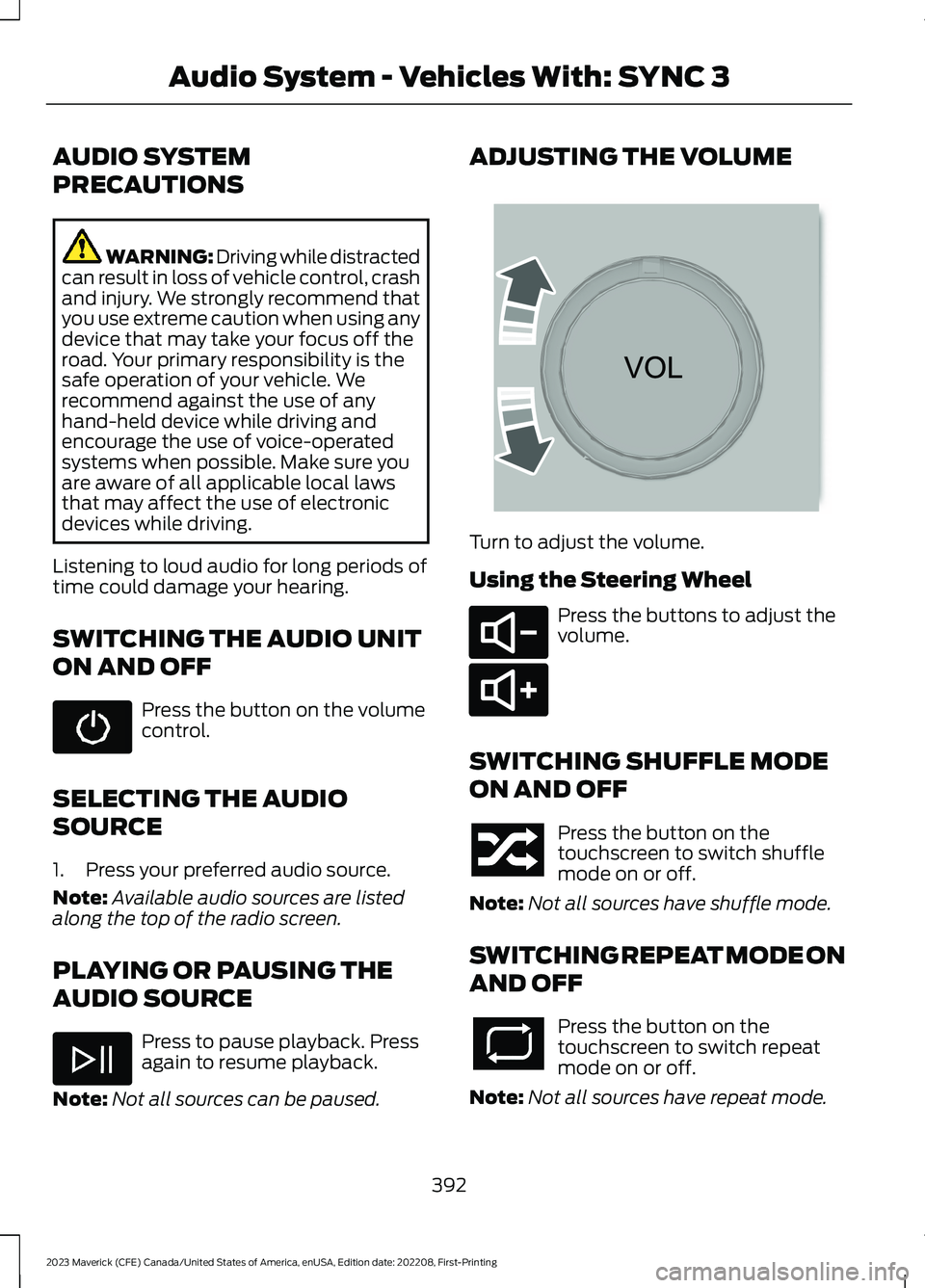
SWITCHING THE AUDIO UNIT
ON AND OFF
Press the button on the volumecontrol.
SELECTING THE AUDIO
SOURCE
1.Press your preferred audio source.
Note:Available audio sources are listedalong the top of the radio screen.
PLAYING OR PAUSING THE
AUDIO SOURCE
Press to pause playback. Pressagain to resume playback.
Note:Not all sources can be paused.
ADJUSTING THE VOLUME
Turn to adjust the volume.
Using the Steering Wheel
Press the buttons to adjust thevolume.
SWITCHING SHUFFLE MODE
ON AND OFF
Press the button on thetouchscreen to switch shufflemode on or off.
Note:Not all sources have shuffle mode.
SWITCHING REPEAT MODE ON
AND OFF
Press the button on thetouchscreen to switch repeatmode on or off.
Note:Not all sources have repeat mode.
392
2023 Maverick (CFE) Canada/United States of America, enUSA, Edition date: 202208, First-PrintingAudio System - Vehicles With: SYNC 3 E265373 E280802 E280803
Page 397 of 556
SETTING A MEMORY PRESET
1.Select a station or channel.
2.Press and hold a memory preset buttonon the touchscreen.
Note:The audio mutes briefly while thesystem saves the preset and returns once itis stored.
Note:You can save presets from multiplesources to the memory preset bar.
MUTING THE AUDIO
Press the button on the steeringwheel to mute the audio.
Press to mute the signal. Pressagain to restore the signal.
ADJUSTING THE SOUND
SETTINGS
Balance and Fade (If Equipped)
1.Access the vehicle drawer on thetouchscreen.
2.Press SETTINGS.
3.Press Sound.
4.Press Balance / Fade.
5.Press the arrows to adjust the settings.
Tone Settings
1.Access the vehicle drawer on thetouchscreen.
2.Press SETTINGS.
3.Press Sound.
4.Press Tone Settings.
5.Use the slider bar to adjust the settings.
Speed Compensated Volume
1.Access the vehicle drawer on thetouchscreen.
2.Press SETTINGS.
3.Press Sound.
4.Press Speed Compensated Volume.
5.Press a setting.
Occupancy Mode (If Equipped)
1.Access the vehicle drawer on thetouchscreen.
2.Press SETTINGS.
3.Press Sound.
4.Press Occupancy Mode.
5.Press a setting.
Sound Mode (If Equipped)
1.Access the vehicle drawer on thetouchscreen.
2.Press SETTINGS.
3.Press Sound.
4.Press Sound Mode.
5.Press a setting.
SETTING THE CLOCK AND
DATE
1.Access the vehicle drawer on thetouchscreen.
2.Press SETTINGS.
3.Press Clock.
4.Set the time.
Note:The AM and PM options are notavailable if 24-hour mode is on.
5.Press the arrows to adjust the settings.
393
2023 Maverick (CFE) Canada/United States of America, enUSA, Edition date: 202208, First-PrintingAudio System - Vehicles With: SYNC 3
Page 407 of 556
Switching Automatic System UpdatesOn
Select the settings option on thefeature bar.
1.Select Automatic Updates.
2.Switch Automatic System Updateson.
The system is now set to check for andreceive system updates when it isconnected to a Wi-Fi network.
Note:You can use the system when adownload is in progress.
Note:If the system is disconnected fromthe Wi-Fi network when a download is inprogress, the download continues the nexttime the system is connected to a Wi-Finetwork.
Additional Information andAssistance
For additional information and assistance,we recommend that you contact anauthorized dealer or refer to the local Fordwebsite.
USING VOICE RECOGNITION
The SYNC 3 system allows you to use voicecommands to control features like audioand climate controls. By using voicecommands, you can keep your hands onthe wheel and your eyes on the road.
You can access each feature controlled bySYNC 3 through a variety of commands.
To activate the SYNC 3 voicecommands push the voicebutton on the steering wheel andwait for the prompt.
___ is a dynamic listing, meaning that it canbe the name of anything, such as artist, thename of contact or number. The contextand the description of the command tellyou what to say for this dynamic option.
There are some commands that work forevery feature, these commands are:
Action and DescriptionVoice Command
Brings you to the main menu.Main Menu
Returns you to the previous screen.Go back
Ends the voice session.Cancel
Gives you a list of possible voice commands.List of Commands
You can name any feature and the system gives a list ofcommands available for the feature. For example, you couldsay:
___ List of Commands
Phone List of Commands
Navigation List of Commands
403
2023 Maverick (CFE) Canada/United States of America, enUSA, Edition date: 202208, First-PrintingSYNC™ 3 (If Equipped)E280315 E142599
Page 431 of 556
Navigation Map Accuracy andUpdates
HERE is the digital map provider for thenavigation application. If you find map dataerrors, you may report them directly toHERE by going to www.here.com. HEREevaluates all reported map errors andresponds with the result of theirinvestigation by e-mail.
The navigation system map data maycontain inaccurate or incompleteinformation due to the passage of time,changing circumstances, sources used andthe nature of collecting comprehensivegeographic data, any of which may lead toincorrect results. Inaccurate speed limitinformation, turn restrictions and otherroad attributes may affect the determinedroute and associated guidance
Annual navigation map updates areavailable for purchase through yourdealership. Depending on your purchaseagreement, you might be eligible for a freemap update. You can choose to downloadthe map data update onto a USB, order aUSB, or use Wi-Fi to deliver automaticupdates. To update your map data overWi-Fi, your vehicle must be connected toa Wi-Fi access point. Map data files arelarge, so it is highly recommended toperform the update when free Wi-Fi isavailable otherwise high data rates mayapply. For USB updates, free map updateeligibility, and other details, contactdealers at 1-866-462-8837 in the UnitedStates and Canada or 800-557-5539 inMexico or visit our local website for moreinformation.
ELECTRIC VEHICLE
INFORMATION
Power Flow
The power flow information foryour hybrid vehicle is availablethrough the home screen orunder Apps.
Vehicle Operational States
Power flows to or from the front and rearwheels depending on operational stateand drive conditions.
•Idling: The vehicle is running and in park(P). The engine and/or the high voltagebattery are on.
•Electric Driving: The vehicle is runningand in drive (D) or neutral (N). The highvoltage battery provides power to thewheels.
•Hybrid Driving: The vehicle is runningand in drive (D) or neutral (N). Theengine and the high voltage batteryprovide power to the wheels.
•Regenerative Braking: The vehicle isrunning in drive (D) and is slowingdown. Power captured by theregenerative braking system is sentback to the high voltage battery.
Engine On Due To
The following conditions help to explainwhy the engine is on, and what you can doto allow all electric operation.
427
2023 Maverick (CFE) Canada/United States of America, enUSA, Edition date: 202208, First-PrintingSYNC™ 3 (If Equipped)E260071
Page 432 of 556
•Drive Power: The engine is on due toaccelerator pedal pressure or speedcontrol activation. Reduce pressure onthe accelerator pedal or switch off thespeed control to return to full electricmode.
•High Speed: The engine is on becausethe vehicle speed exceeds the level forfull electric operation. Reduce thespeed to return to electric operation.
•Heater Setting: The engine is onbecause of the heater setting. Reduceor turn off the heater setting to returnto electric operation.
•Neutral Gear: The engine is on becausethe vehicle is in neutral (N). Shift outof neutral gear to return to electricoperation.
•Engine Cold: The engine is on becauseit is cold. The vehicle returns to electricoperation once the engine is sufficientlywarm.
•Battery Charging: The engine is on tocharge the high-voltage battery. Thevehicle returns to electric operationonce the battery is charged.
•Low Gear: The engine is on becausethe vehicle is in low gear. Shift out oflow gear to return to electric operation.
•Normal Operation: The engine is on tooptimize vehicle operation. The vehiclereturns to electric operation whenpossible.
•Engine Braking Active: The engine is onto provide increased powertrainbraking. This can occur when you turnon the grade assist feature, whenspeed control is on or when driving withyour foot off the accelerator pedal.Turning off grade assist or speedcontrol may allow the vehicle to returnto electric operation.
•Battery Temperature: The engine is ondue to high or low high-voltage batterytemperature. This is a normal operatingcondition. The vehicle returns toelectric operation when possible.
•Drive Mode: The engine is on due to thedrive mode selection. Select anappropriate drive mode for electric onlyoperation.
APPS
The system allows you interact with selectmobile apps while keeping your eyes onthe road. Voice commands, your steeringwheel buttons, or a quick tap on yourtouchscreen give you advanced control ofcompatible mobile apps. You can alsostream your favorite music or podcasts,share your time of arrival with friends, andkeep connected safely.
When you start an app through the systemfor the first time, you could be asked togrant certain permissions. You can reviewand change the permissions that you havegranted at any time when your vehicle isnot moving. We recommend that youcheck your data plan before using yourapps through the system. Using themcould result in additional charges. We alsorecommend that you check the appprovider's terms and conditions andprivacy policy before using their app. Makesure that you have an active account forapps that you want to use through thesystem. Some apps will work with nosetup. Others require you to configuresome personal settings before you can usethem.
Note:For more information about availableapps, visit catalog.ford.com.
Using Apps on an iOS Device
Select the apps option on thefeature bar.
428
2023 Maverick (CFE) Canada/United States of America, enUSA, Edition date: 202208, First-PrintingSYNC™ 3 (If Equipped)
Page 436 of 556
SYNC™ 3 TROUBLESHOOTING
Voice Recognition
Possible Cause and ResolutionSymptom
The system does not under-stand what I am saying.–You might not be using supported voice commands.
•See Using Voice Recognition (page 403).
•For a complete list of voice commands, refer to ourwebsite.
–You might be speaking too soon.
•Wait for the voice prompt before you speak.
The system does not under-stand the name of a track orartist.
–Device limitation.Bluetooth® does not support voicecommands.
•Connect your device to a USB port.
•If you have an iOS device, press and hold the voicecontrol button on the steering wheel to use Siri toplay specific tracks.
–You might not be using supported voice commands.
•See Using Voice Recognition (page 403).
•For a complete list of voice commands, refer to ourwebsite.
–You might not be saying the name exactly as it appearson your device.
•Say the name of the track or artist exactly as itappears on your device. Spell out any abbreviationsin the name.
–The name contains special characters, for example *,- or +.
•Rename the files on your device or use the touch-screen to select and play the track.
The system does not under-stand the name of a contactin the phonebook on mydevice and calls the wrongcontact.
–You might not be saying the name exactly as it appearson your device.
•Say the first and last name of the contact exactlyas it appears on your device. Spell out any abbrevi-ations in the name.
–The name contains special characters, for example *,- or +.
•Rename the contact on your device or use thetouchscreen to select and call the contact.
432
2023 Maverick (CFE) Canada/United States of America, enUSA, Edition date: 202208, First-PrintingSYNC™ 3 (If Equipped)