buttons FORD MAVERICK 2023 User Guide
[x] Cancel search | Manufacturer: FORD, Model Year: 2023, Model line: MAVERICK, Model: FORD MAVERICK 2023Pages: 556, PDF Size: 14.79 MB
Page 277 of 556
6.If the trailer wheels lock up, indicatedby squealing tires, reduce the gainsetting. If the trailer wheels turn freely,increase the gain setting. Repeat Steps5 and 6 until the gain setting is at apoint just below trailer wheel lock-up.If towing a heavier trailer, trailer wheellock-up may not be attainable evenwith the maximum gain setting of 10.
Note:Only perform this procedure atspeeds of approximately 20–25 mph(30–40 km/h).
Note:The trailer brake controller reducesoutput at vehicle speeds below 11 mph(18 km/h) so that trailer and vehicle brakingis not jerky or harsh. This feature is onlyavailable when applying the brakes usingyour vehicle's brake pedal, not thecontroller.
Note:Your vehicle's brake system and thetrailer brake system work independently ofeach other. Changing the gain setting on thecontroller does not affect the operation ofyour vehicle's brakes whether you attach atrailer or not.
Note:With the proper electrical connection,pressing your vehicle brake pedal or usingthe manual control lever illuminates bothtrailer and vehicle brake lamps.
Note:When you switch the engine off, thecontroller output is disabled and the displayand module shut down. The controllermodule and display turn on when you switchthe ignition on.
Note:Trailer braking is suspended duringstop/start events to minimize battery draw.
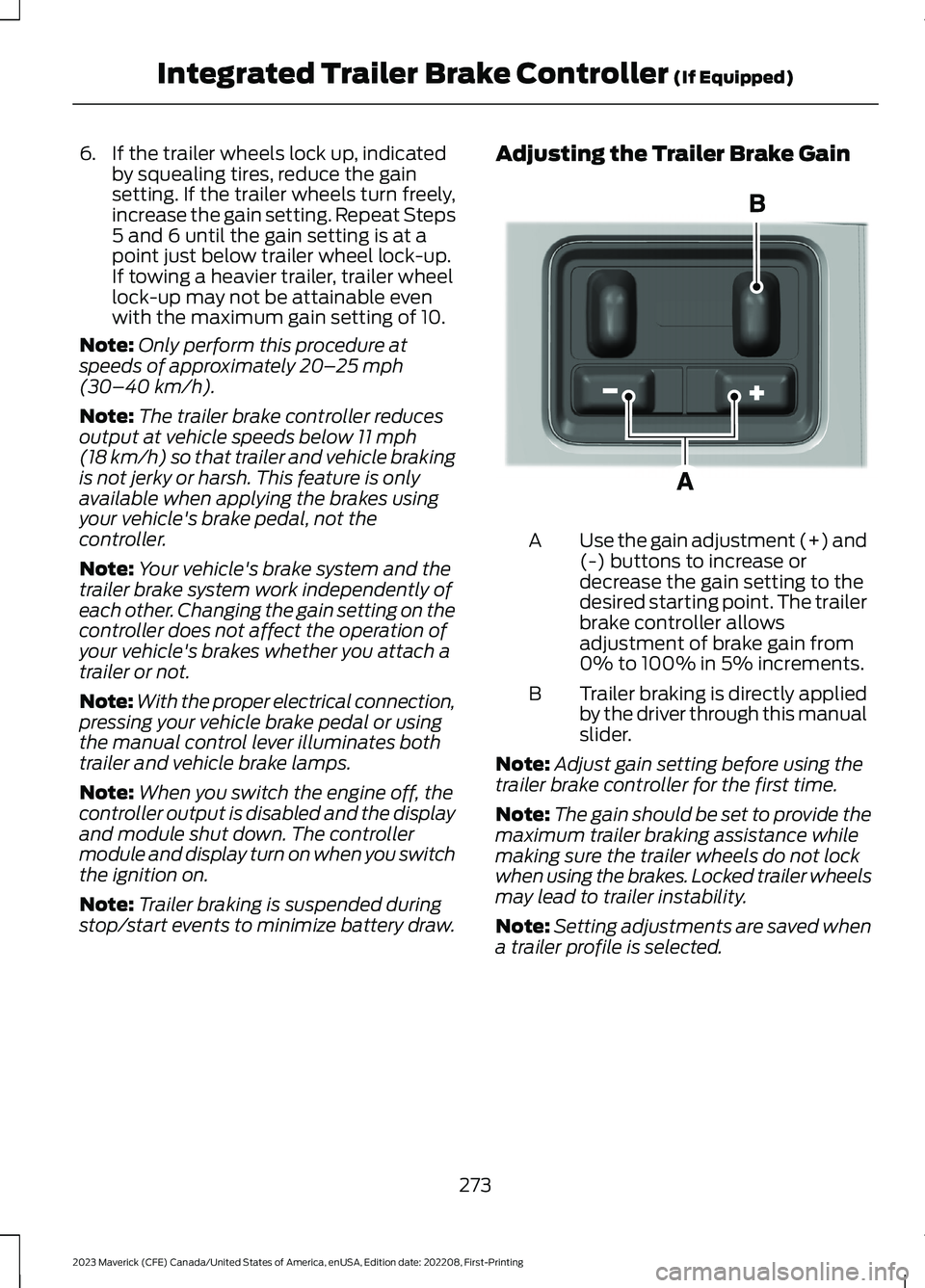
Adjusting the Trailer Brake Gain
Use the gain adjustment (+) and(-) buttons to increase ordecrease the gain setting to thedesired starting point. The trailerbrake controller allowsadjustment of brake gain from0% to 100% in 5% increments.
A
Trailer braking is directly appliedby the driver through this manualslider.
B
Note:Adjust gain setting before using thetrailer brake controller for the first time.
Note:The gain should be set to provide themaximum trailer braking assistance whilemaking sure the trailer wheels do not lockwhen using the brakes. Locked trailer wheelsmay lead to trailer instability.
Note:Setting adjustments are saved whena trailer profile is selected.
273
2023 Maverick (CFE) Canada/United States of America, enUSA, Edition date: 202208, First-PrintingIntegrated Trailer Brake Controller (If Equipped)E333154
Page 388 of 556
Turning off the Audio
Press the button to turn off theaudio.
Press the button again to turn onthe audio.
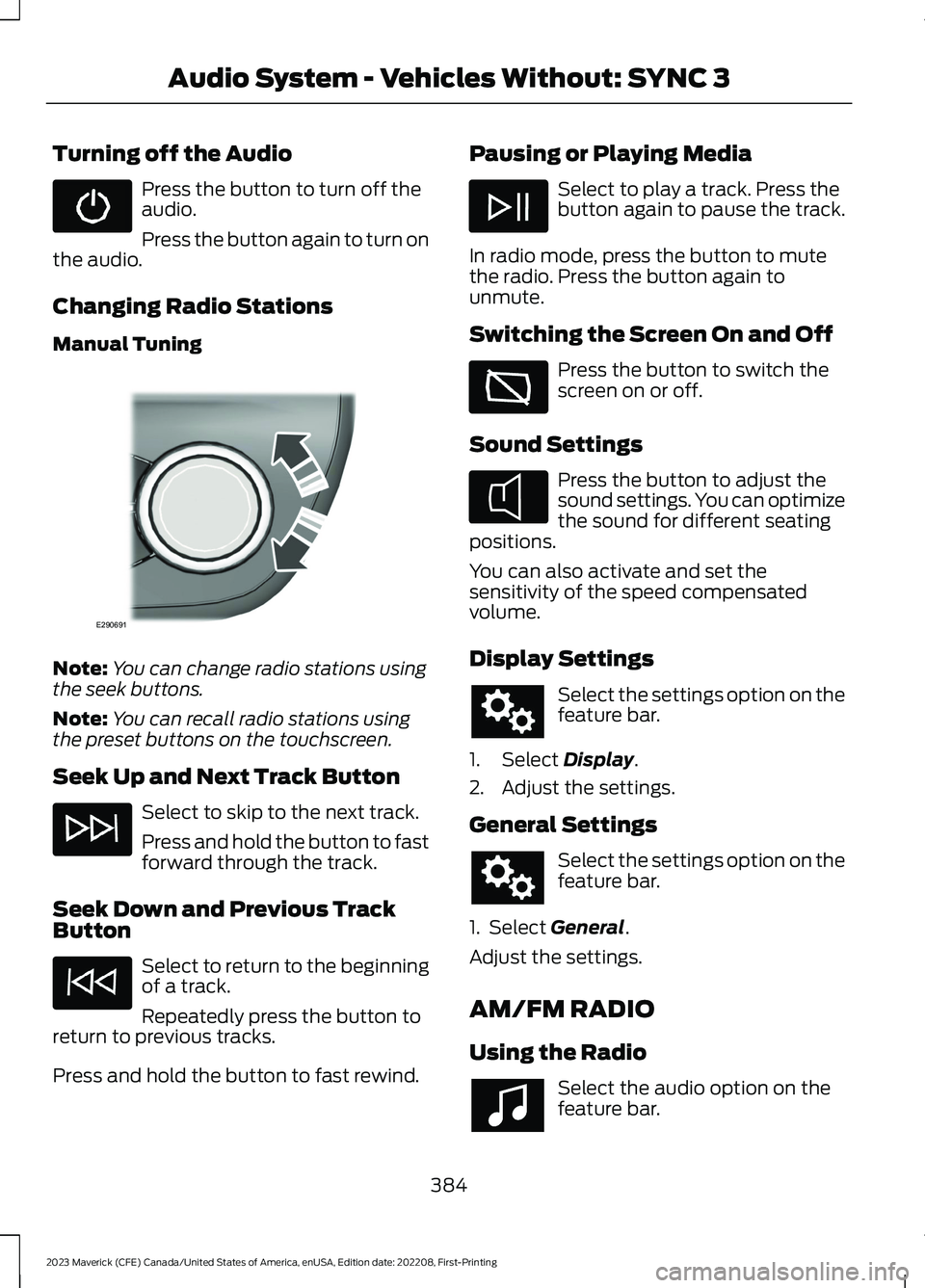
Changing Radio Stations
Manual Tuning
Note:You can change radio stations usingthe seek buttons.
Note:You can recall radio stations usingthe preset buttons on the touchscreen.
Seek Up and Next Track Button
Select to skip to the next track.
Press and hold the button to fastforward through the track.
Seek Down and Previous TrackButton
Select to return to the beginningof a track.
Repeatedly press the button toreturn to previous tracks.
Press and hold the button to fast rewind.
Pausing or Playing Media
Select to play a track. Press thebutton again to pause the track.
In radio mode, press the button to mutethe radio. Press the button again tounmute.
Switching the Screen On and Off
Press the button to switch thescreen on or off.
Sound Settings
Press the button to adjust thesound settings. You can optimizethe sound for different seatingpositions.
You can also activate and set thesensitivity of the speed compensatedvolume.
Display Settings
Select the settings option on thefeature bar.
1.Select Display.
2.Adjust the settings.
General Settings
Select the settings option on thefeature bar.
1. Select General.
Adjust the settings.
AM/FM RADIO
Using the Radio
Select the audio option on thefeature bar.
384
2023 Maverick (CFE) Canada/United States of America, enUSA, Edition date: 202208, First-PrintingAudio System - Vehicles Without: SYNC 3 E290691 E354722
Page 389 of 556
Selecting a Radio Station From a List
1.Select Sources.
2.Select a radio source.
3.Select Browse.
4.Select a radio station from the list.
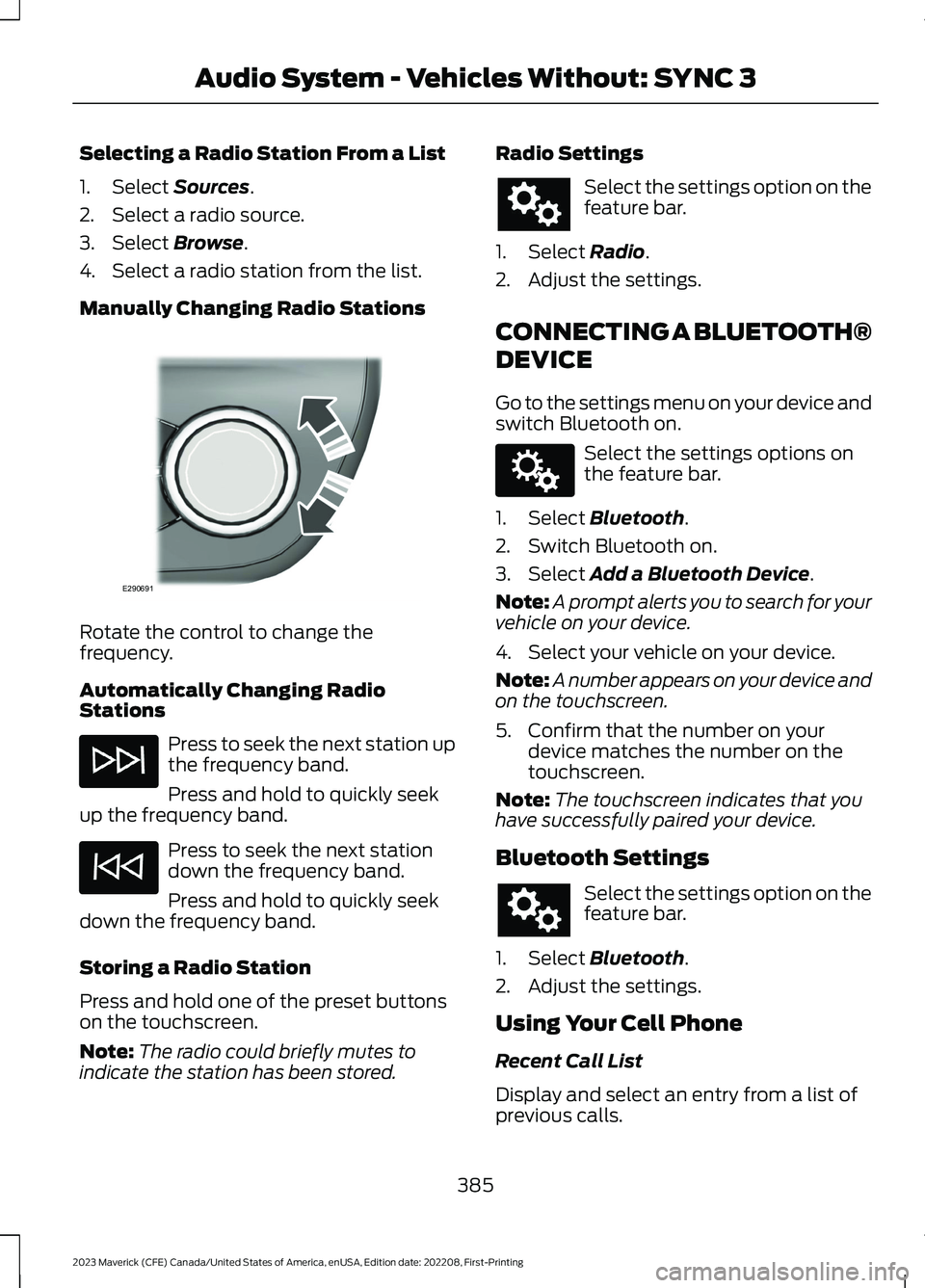
Manually Changing Radio Stations
Rotate the control to change thefrequency.
Automatically Changing RadioStations
Press to seek the next station upthe frequency band.
Press and hold to quickly seekup the frequency band.
Press to seek the next stationdown the frequency band.
Press and hold to quickly seekdown the frequency band.
Storing a Radio Station
Press and hold one of the preset buttonson the touchscreen.
Note:The radio could briefly mutes toindicate the station has been stored.
Radio Settings
Select the settings option on thefeature bar.
1.Select Radio.
2.Adjust the settings.
CONNECTING A BLUETOOTH®
DEVICE
Go to the settings menu on your device andswitch Bluetooth on.
Select the settings options onthe feature bar.
1.Select Bluetooth.
2.Switch Bluetooth on.
3.Select Add a Bluetooth Device.
Note:A prompt alerts you to search for yourvehicle on your device.
4.Select your vehicle on your device.
Note:A number appears on your device andon the touchscreen.
5.Confirm that the number on yourdevice matches the number on thetouchscreen.
Note:The touchscreen indicates that youhave successfully paired your device.
Bluetooth Settings
Select the settings option on thefeature bar.
1.Select Bluetooth.
2.Adjust the settings.
Using Your Cell Phone
Recent Call List
Display and select an entry from a list ofprevious calls.
385
2023 Maverick (CFE) Canada/United States of America, enUSA, Edition date: 202208, First-PrintingAudio System - Vehicles Without: SYNC 3E290691 E142607
Page 395 of 556
AUDIO SYSTEM – TROUBLESHOOTING
Possible Cause and ResolutionSymptom
The system is not func-tioning.•You can reset the system to restore functionality that hasstopped working.
•The system reset is designed to restore functionalityand does not delete any personal data that you havestored.
I want to delete personaldata from the system.•A master reset is required to restore the system back tofactory settings.
•This deletes any personal data that you have stored.
Resetting the System
1.Simultaneously press and hold theseek up and the audio unit powerbuttons until the screen goes black.
2.Wait three minutes to allow the systemto complete the reset.
Master Reset
Select the settings option on thefeature bar.
1.Select General.
2.Select Master Reset.
3.Select Continue.
Note:If you carry out a master reset, thesystem does not remove your vehicle fromyour vehicle network carrier’s account. Toremove your vehicle from the account,contact your vehicle network carrier.
Note:If you carry out a master reset, thesystem removes any authorized users andpersonal data.
391
2023 Maverick (CFE) Canada/United States of America, enUSA, Edition date: 202208, First-PrintingAudio System - Vehicles Without: SYNC 3
Page 396 of 556
AUDIO SYSTEM
PRECAUTIONS
WARNING: Driving while distractedcan result in loss of vehicle control, crashand injury. We strongly recommend thatyou use extreme caution when using anydevice that may take your focus off theroad. Your primary responsibility is thesafe operation of your vehicle. Werecommend against the use of anyhand-held device while driving andencourage the use of voice-operatedsystems when possible. Make sure youare aware of all applicable local lawsthat may affect the use of electronicdevices while driving.
Listening to loud audio for long periods oftime could damage your hearing.
SWITCHING THE AUDIO UNIT
ON AND OFF
Press the button on the volumecontrol.
SELECTING THE AUDIO
SOURCE
1.Press your preferred audio source.
Note:Available audio sources are listedalong the top of the radio screen.
PLAYING OR PAUSING THE
AUDIO SOURCE
Press to pause playback. Pressagain to resume playback.
Note:Not all sources can be paused.
ADJUSTING THE VOLUME
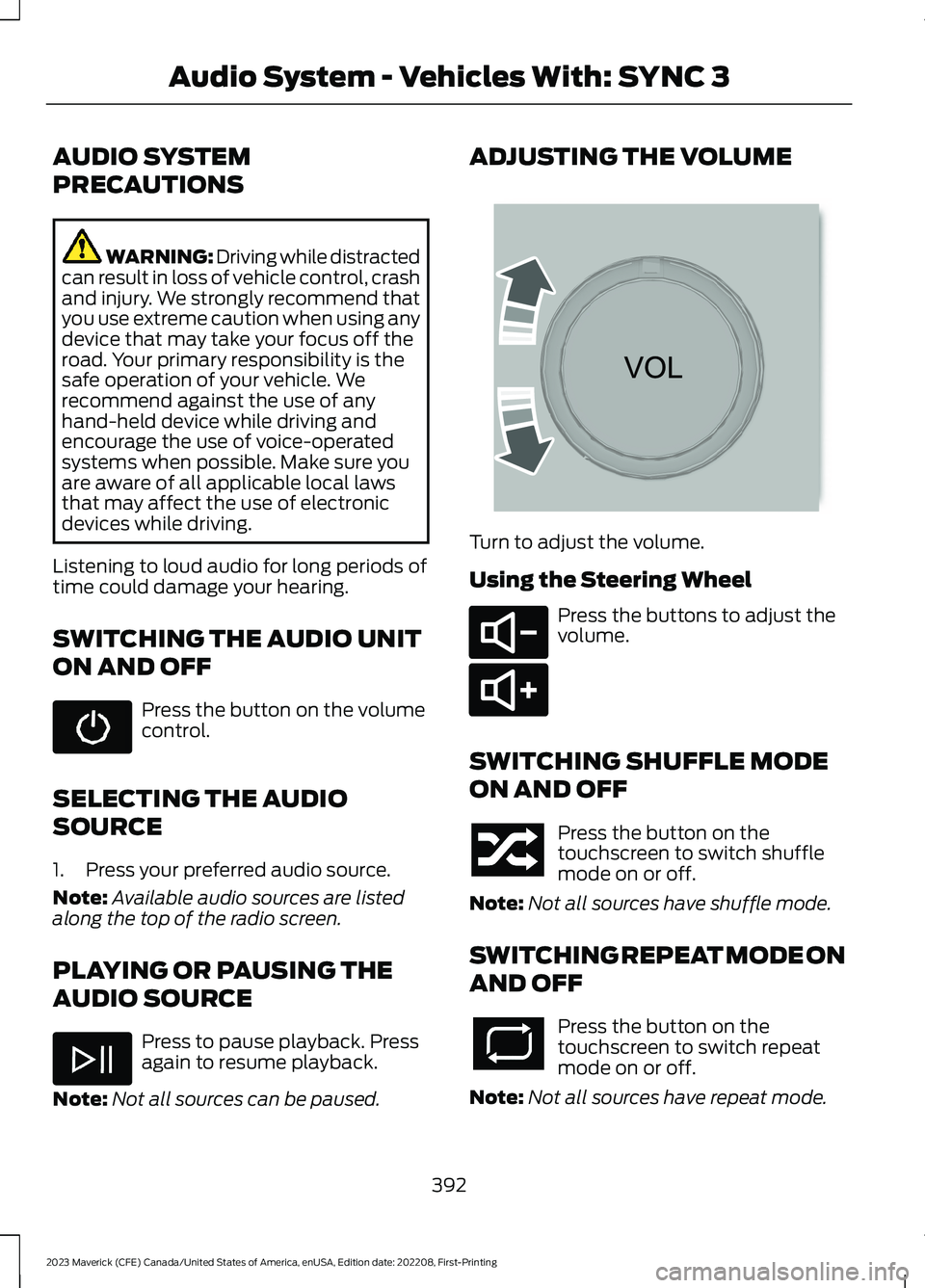
Turn to adjust the volume.
Using the Steering Wheel
Press the buttons to adjust thevolume.
SWITCHING SHUFFLE MODE
ON AND OFF
Press the button on thetouchscreen to switch shufflemode on or off.
Note:Not all sources have shuffle mode.
SWITCHING REPEAT MODE ON
AND OFF
Press the button on thetouchscreen to switch repeatmode on or off.
Note:Not all sources have repeat mode.
392
2023 Maverick (CFE) Canada/United States of America, enUSA, Edition date: 202208, First-PrintingAudio System - Vehicles With: SYNC 3 E265373 E280802 E280803
Page 414 of 556
DescriptionVoice Command
The system does not confirm before placing a call.Phone Confirmation Off
The system displays a short list of available commands.Voice Command Lists On
The system does not display the list of commands.Voice Command Lists Off
You can use the volume control to adjustthe volume of the system voice prompts.While prompt is active, adjust the volumecontrol up or down to your desired setting.
Note:Depending on the current climatecontrol settings, the fan speed mayautomatically go down while issuing voicecommands or while making and receivingphone calls via SYNC to reduce the amountof background noise in the vehicle. The fanspeed will automatically return to normaloperation once the voice session ends. Youcan adjust the fan speed during a voicesession, simply press the fan buttons (orturn the fan knob) to increase or decreasethe fan speed to the setting you prefer.
To disable this automatic fan speedreduction feature during voice sessions,press and hold the climate control AC andRecirculated air buttons simultaneously,release and then increase fan speed within2 seconds. To re-enable this feature, repeatthe above sequence.
ENTERTAINMENT
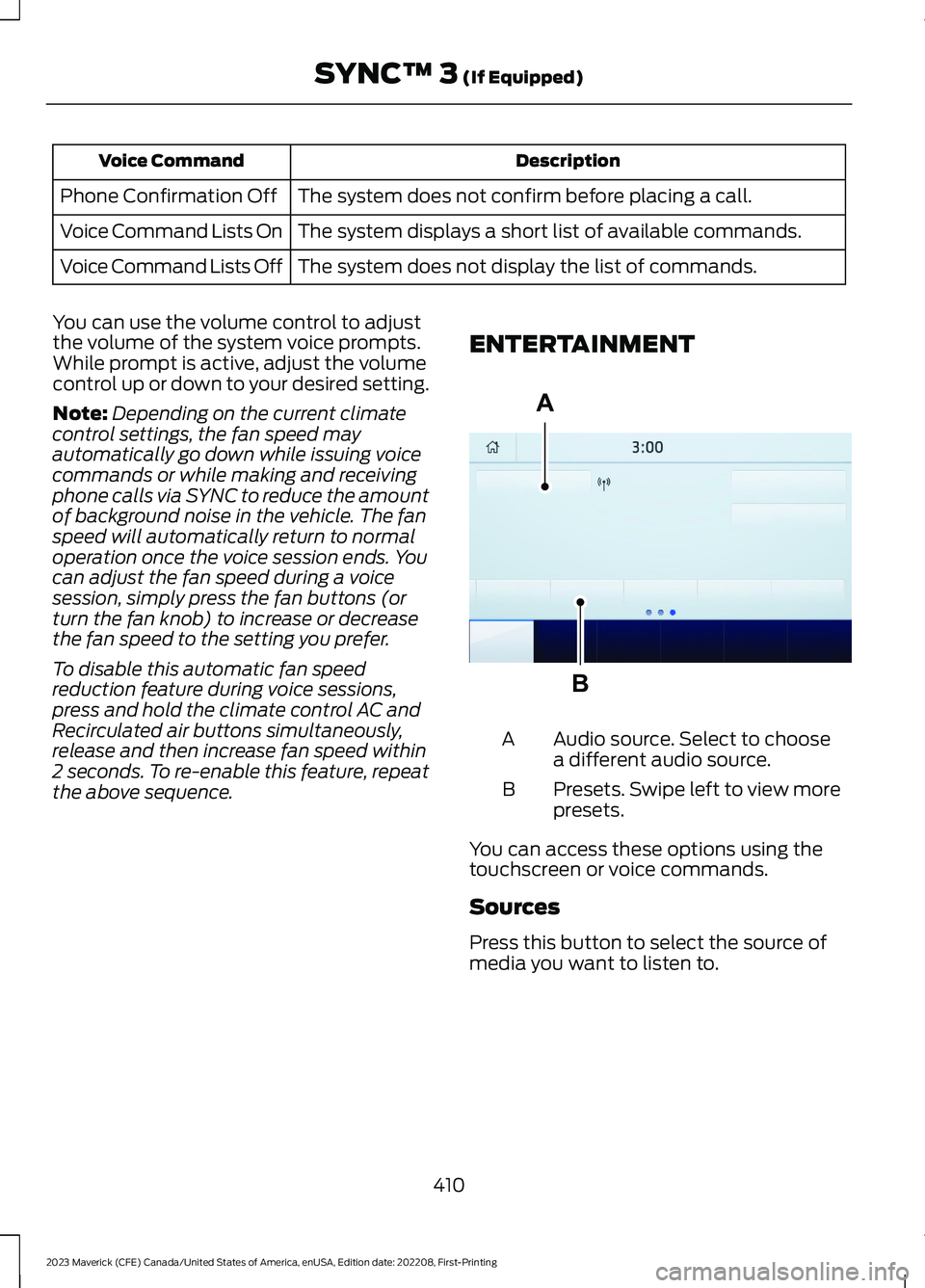
Audio source. Select to choosea different audio source.A
Presets. Swipe left to view morepresets.B
You can access these options using thetouchscreen or voice commands.
Sources
Press this button to select the source ofmedia you want to listen to.
410
2023 Maverick (CFE) Canada/United States of America, enUSA, Edition date: 202208, First-PrintingSYNC™ 3 (If Equipped)ABE293491
Page 415 of 556
Menu Item
AM
FM
1SIRIUS
CD
The name of the USB that is plugged in displays here.USB
Bluetooth Stereo
If you have SYNC 3 compatible apps on your connected smart phone, theydisplay here as individual source selections.Apps
1 This feature may not be available in all markets and requires an active subscription.
AM/FM Radio
Tuning a Station
You can use the tune or seek controls onthe radio bezel to select a station.
To tune a station using thetouchscreen, select:
Menu Item
Direct Tune
A pop up appears, allowing you to type inthe frequency of a station. You can onlyenter a valid station for the source you arecurrently listening to.
You can press the backspace button todelete the previously entered number.
Once you have entered the station'scall numbers, you can select:
Action and Descrip-tionMenu Item
Press to beginplaying the stationyou have entered.
Enter
Press to exitwithout changingthe station.
Cancel
Presets
To set a new preset, tune to the stationand then press and hold one of thememory preset buttons. The audio mutesbriefly while the system saves the stationand then returns.
You may be able to add additional presetpages using the settings option on thefeature bar.
411
2023 Maverick (CFE) Canada/United States of America, enUSA, Edition date: 202208, First-PrintingSYNC™ 3 (If Equipped)
Page 416 of 556
SiriusXM® Satellite Radio (IfActivated)
Note: This feature may not be available inall markets and requires an activesubscription.
SiriusXM satellite radio is asubscription-based satellite radio servicethat broadcasts a variety of music, sports,news, weather, traffic and entertainmentprogramming. Your factory-installedSiriusXM satellite radio system includeshardware and a limited subscription termthat begins on the date of sale or lease ofyour vehicle. See an authorized dealer foravailability.
For more information on extendedsubscription terms (a service fee isrequired), the online media player and alist of SiriusXM satellite radio channels,and other features, please visitwww.siriusxm.com in the United States,www.siriusxm.ca in Canada, or callSiriusXM at 1-888-539-7474.
Note:SiriusXM reserves the unrestrictedright to change, rearrange, add or deleteprogramming. This includes canceling,moving or adding particular channels, andits prices, at any time, with or without noticeto you. We are not responsible for any suchprogramming changes.
Note:This receiver includes the eCosreal-time operating system. eCos ispublished under the eCos License.
The following buttons are available for SiriusXM:
Action and DescriptionMenu Item
Touch this button to see a list of available stations.Browse
A pop-up appears, allowing you to type in the call numbers ofa station.Direct Tune
Once you enter the stations call numbers, you can select:
The system tunes to the station you select.Enter
You exit the pop-up and the current stationcontinues to play.Cancel
You can press the backspace button to delete the previousnumber.
412
2023 Maverick (CFE) Canada/United States of America, enUSA, Edition date: 202208, First-PrintingSYNC™ 3 (If Equipped)E234451
Page 417 of 556
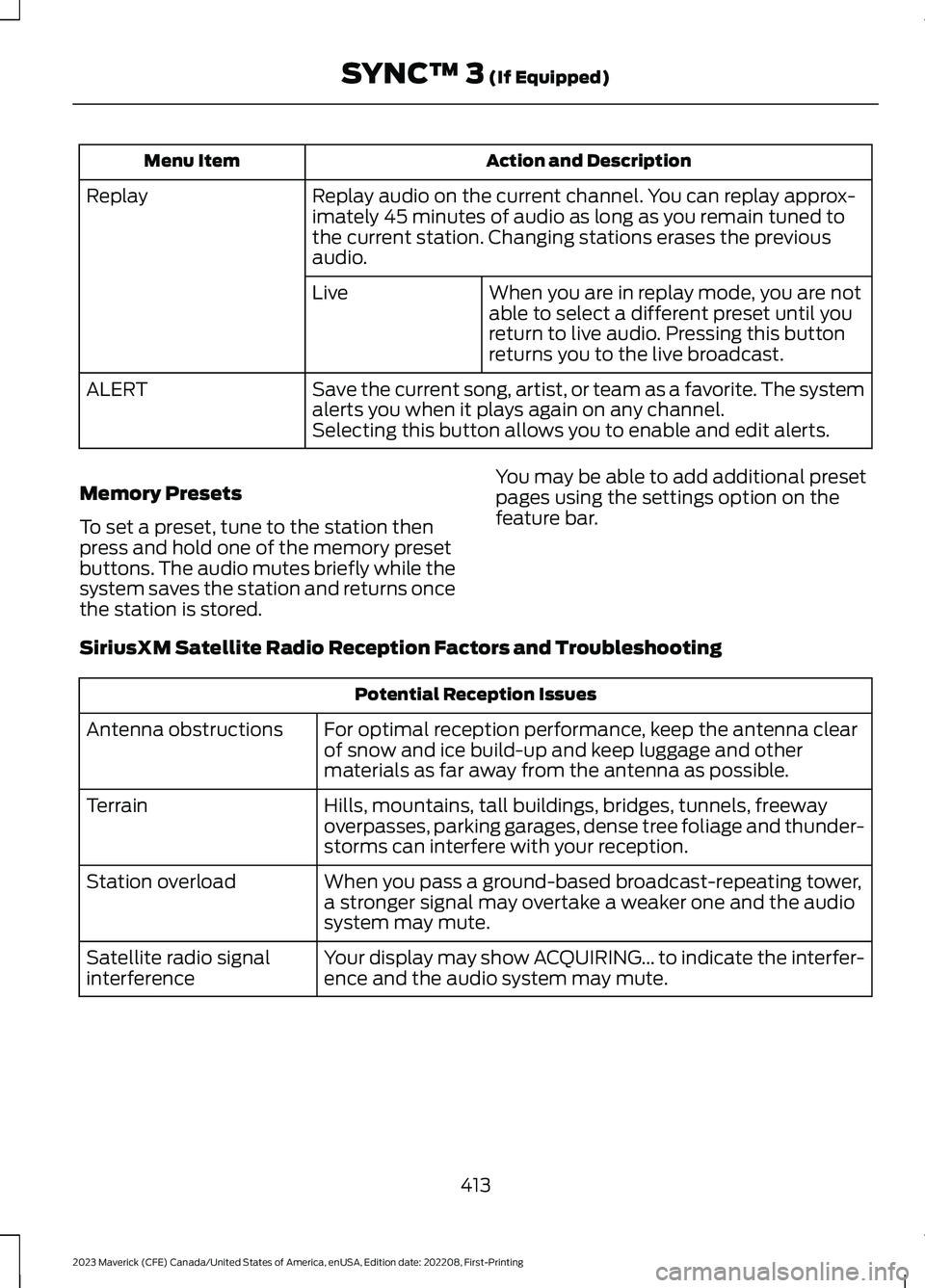
Action and DescriptionMenu Item
Replay audio on the current channel. You can replay approx-imately 45 minutes of audio as long as you remain tuned tothe current station. Changing stations erases the previousaudio.
Replay
When you are in replay mode, you are notable to select a different preset until youreturn to live audio. Pressing this buttonreturns you to the live broadcast.
Live
Save the current song, artist, or team as a favorite. The systemalerts you when it plays again on any channel.ALERT
Selecting this button allows you to enable and edit alerts.
Memory Presets
To set a preset, tune to the station thenpress and hold one of the memory presetbuttons. The audio mutes briefly while thesystem saves the station and returns oncethe station is stored.
You may be able to add additional presetpages using the settings option on thefeature bar.
SiriusXM Satellite Radio Reception Factors and Troubleshooting
Potential Reception Issues
For optimal reception performance, keep the antenna clearof snow and ice build-up and keep luggage and othermaterials as far away from the antenna as possible.
Antenna obstructions
Hills, mountains, tall buildings, bridges, tunnels, freewayoverpasses, parking garages, dense tree foliage and thunder-storms can interfere with your reception.
Terrain
When you pass a ground-based broadcast-repeating tower,a stronger signal may overtake a weaker one and the audiosystem may mute.
Station overload
Your display may show ACQUIRING... to indicate the interfer-ence and the audio system may mute.Satellite radio signalinterference
413
2023 Maverick (CFE) Canada/United States of America, enUSA, Edition date: 202208, First-PrintingSYNC™ 3 (If Equipped)
Page 421 of 556
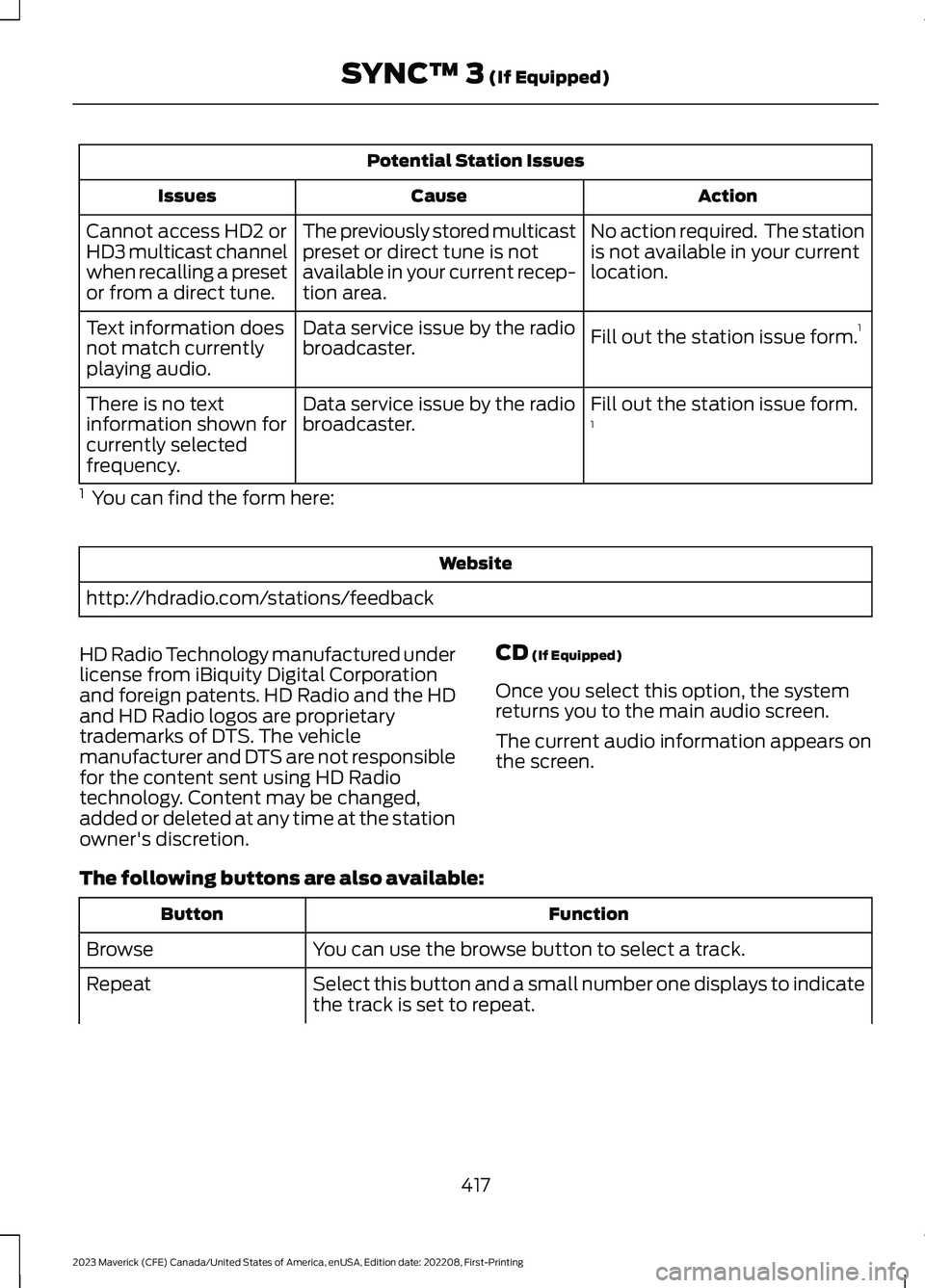
Potential Station Issues
ActionCauseIssues
No action required. The stationis not available in your currentlocation.
The previously stored multicastpreset or direct tune is notavailable in your current recep-tion area.
Cannot access HD2 orHD3 multicast channelwhen recalling a presetor from a direct tune.
Fill out the station issue form.1Data service issue by the radiobroadcaster.Text information doesnot match currentlyplaying audio.
Fill out the station issue form.1Data service issue by the radiobroadcaster.There is no textinformation shown forcurrently selectedfrequency.
1 You can find the form here:
Website
http://hdradio.com/stations/feedback
HD Radio Technology manufactured underlicense from iBiquity Digital Corporationand foreign patents. HD Radio and the HDand HD Radio logos are proprietarytrademarks of DTS. The vehiclemanufacturer and DTS are not responsiblefor the content sent using HD Radiotechnology. Content may be changed,added or deleted at any time at the stationowner's discretion.
CD (If Equipped)
Once you select this option, the systemreturns you to the main audio screen.
The current audio information appears onthe screen.
The following buttons are also available:
FunctionButton
You can use the browse button to select a track.Browse
Select this button and a small number one displays to indicatethe track is set to repeat.Repeat
417
2023 Maverick (CFE) Canada/United States of America, enUSA, Edition date: 202208, First-PrintingSYNC™ 3 (If Equipped)