buttons FORD MAVERICK 2023 Owner's Manual
[x] Cancel search | Manufacturer: FORD, Model Year: 2023, Model line: MAVERICK, Model: FORD MAVERICK 2023Pages: 556, PDF Size: 14.79 MB
Page 422 of 556
FunctionButton
For MP3 CDs, this button allows you to toggle through repeatoff, repeat one track (a small number one displays), and repeatcurrent folder (a small folder displays).
Select the shuffle symbol to have the audio on the disk playin random order.Shuffle
You can use the forward, reverse, pause orplay buttons to control the audio playback.Bluetooth Stereo or USB
Bluetooth Stereo and USB allow you toaccess media that you store on yourBluetooth device or USB device such asmusic, audio books or podcasts.
The following buttons are available for Bluetooth and USB:
FunctionButton
Pressing the repeat button toggles the repeat setting throughthree modes: repeat off (button not highlighted), repeat all(button highlighted) and repeat track (button highlighted witha small number one).
Repeat
Play the tracks in random order.Shuffle
You can use the forward, reverse, pause orplay buttons to control the audio playback.
To get more information about thecurrently playing track, press the cover artor Info button.
For some devices, SYNC 3 is able toprovide 30-second skip buttons when youlisten to audio books or podcasts. Thesebuttons allow you to skip forward orbackward within a track.
While playing audio from a USB device youcan look for certain music by selecting thefollowing:
FunctionButton
If available, displays the list of tracks in theNow Playing playlist.Browse
This option, which is available underbrowse, allows you to play all tracks or tofilter the available media into one of thebelow categories.
New Search
Play All
418
2023 Maverick (CFE) Canada/United States of America, enUSA, Edition date: 202208, First-PrintingSYNC™ 3 (If Equipped)
Page 432 of 556
•Drive Power: The engine is on due toaccelerator pedal pressure or speedcontrol activation. Reduce pressure onthe accelerator pedal or switch off thespeed control to return to full electricmode.
•High Speed: The engine is on becausethe vehicle speed exceeds the level forfull electric operation. Reduce thespeed to return to electric operation.
•Heater Setting: The engine is onbecause of the heater setting. Reduceor turn off the heater setting to returnto electric operation.
•Neutral Gear: The engine is on becausethe vehicle is in neutral (N). Shift outof neutral gear to return to electricoperation.
•Engine Cold: The engine is on becauseit is cold. The vehicle returns to electricoperation once the engine is sufficientlywarm.
•Battery Charging: The engine is on tocharge the high-voltage battery. Thevehicle returns to electric operationonce the battery is charged.
•Low Gear: The engine is on becausethe vehicle is in low gear. Shift out oflow gear to return to electric operation.
•Normal Operation: The engine is on tooptimize vehicle operation. The vehiclereturns to electric operation whenpossible.
•Engine Braking Active: The engine is onto provide increased powertrainbraking. This can occur when you turnon the grade assist feature, whenspeed control is on or when driving withyour foot off the accelerator pedal.Turning off grade assist or speedcontrol may allow the vehicle to returnto electric operation.
•Battery Temperature: The engine is ondue to high or low high-voltage batterytemperature. This is a normal operatingcondition. The vehicle returns toelectric operation when possible.
•Drive Mode: The engine is on due to thedrive mode selection. Select anappropriate drive mode for electric onlyoperation.
APPS
The system allows you interact with selectmobile apps while keeping your eyes onthe road. Voice commands, your steeringwheel buttons, or a quick tap on yourtouchscreen give you advanced control ofcompatible mobile apps. You can alsostream your favorite music or podcasts,share your time of arrival with friends, andkeep connected safely.
When you start an app through the systemfor the first time, you could be asked togrant certain permissions. You can reviewand change the permissions that you havegranted at any time when your vehicle isnot moving. We recommend that youcheck your data plan before using yourapps through the system. Using themcould result in additional charges. We alsorecommend that you check the appprovider's terms and conditions andprivacy policy before using their app. Makesure that you have an active account forapps that you want to use through thesystem. Some apps will work with nosetup. Others require you to configuresome personal settings before you can usethem.
Note:For more information about availableapps, visit catalog.ford.com.
Using Apps on an iOS Device
Select the apps option on thefeature bar.
428
2023 Maverick (CFE) Canada/United States of America, enUSA, Edition date: 202208, First-PrintingSYNC™ 3 (If Equipped)
Page 434 of 556
Note:A paid subscription is required toaccess and use these features. Go towww.siriusxm.com/travellink for moreinformation.
Note:Visit www.siriusxm.com/traffic andclick on Coverage map and details for acomplete listing of all traffic areas coveredby SiriusXM Traffic and Travel Link.
Note:Neither Sirius nor Ford is responsiblefor any errors or inaccuracies in the SiriusXMTraffic and Travel Link services or its use invehicles.
When you subscribe to SiriusXM Trafficand Travel Link, it can help you locate thebest gas prices, find movie listings, getcurrent traffic alerts, view the currentweather map, get accurate ski conditionsand see scores to current sports games.
Action and DescriptionMenu Item
Touch these buttons to identify traffic incidents on your route,near your vehicle’s current location or near any of your favoriteplaces, if programmed.
Traffic on Route
Traffic Nearby
Touch this button to view fuel prices at stations close to yourvehicle’s location or on an active navigation route.Fuel Prices
Touch this button to view nearby movie theaters and theirshow times, if available.Movie Listings
Touch this button to view the nearby weather, current weather,or the five-day forecast for the chosen area.Weather
Select to see the weather map,which can show storms, radarinformation, charts and winds.
Map
Select to choose from a listing ofweather locations.Area
Touch this button to view scores and schedules from a varietyof sports. You can also save up to 10 favorite teams for easieraccess. The score automatically refreshes when a game is inprogress.
Sports Info
Touch this button to view ski conditions for a specific area.Ski Conditions
SETTINGS
Press the button to enter thesettings menu.
Once you select a tile, press thebutton next to a menu item toview an explanation of thefeature or setting.
Sound
Select this tile to adjust the sound settings.
430
2023 Maverick (CFE) Canada/United States of America, enUSA, Edition date: 202208, First-PrintingSYNC™ 3 (If Equipped)E280315 E268570
Page 448 of 556
Resetting the System
1.Simultaneously press and hold theseek up and the audio unit powerbuttons until the screen goes black.
2.Wait three minutes to allow the systemto complete the reset.
3.Press the audio unit power button toswitch the system on.
Note:You can reset the system to restorefunctionality that has stopped working. Thesystem reset is designed to restorefunctionality and not delete any data thatyou have stored.
Additional Information andAssistance
For additional information and assistance,we recommend that you contact anauthorized dealer or refer to our website.
444
2023 Maverick (CFE) Canada/United States of America, enUSA, Edition date: 202208, First-PrintingSYNC™ 3 (If Equipped)
Page 536 of 556
ELECTROMAGNETIC
COMPATIBILITY
WARNING: Do not place objectsor mount equipment on or near theairbag cover, on the side of the front orrear seatbacks, or in areas that maycome into contact with a deployingairbag. Failure to follow theseinstructions may increase the risk ofpersonal injury in the event of a crash.
WARNING: Do not fasten antennacables to vehicle wiring, fuel pipes andbrake pipes.
WARNING: Keep antenna andpower cables at least 4 in (10 cm) fromany electronic modules and airbags.
Note:We test and certify your vehicle tomeet electromagnetic compatibilitylegislation. It is your responsibility to makesure that any equipment an authorizeddealer installs on your vehicle complies withapplicable local legislation and otherrequirements. Installation of someaftermarket electronic devices coulddegrade the performance of vehiclefunctions, which use radio frequency signalssuch as broadcast radio receiver, tirepressure monitoring system, push buttonstart,Bluetooth® connectivity or satellitenavigation.
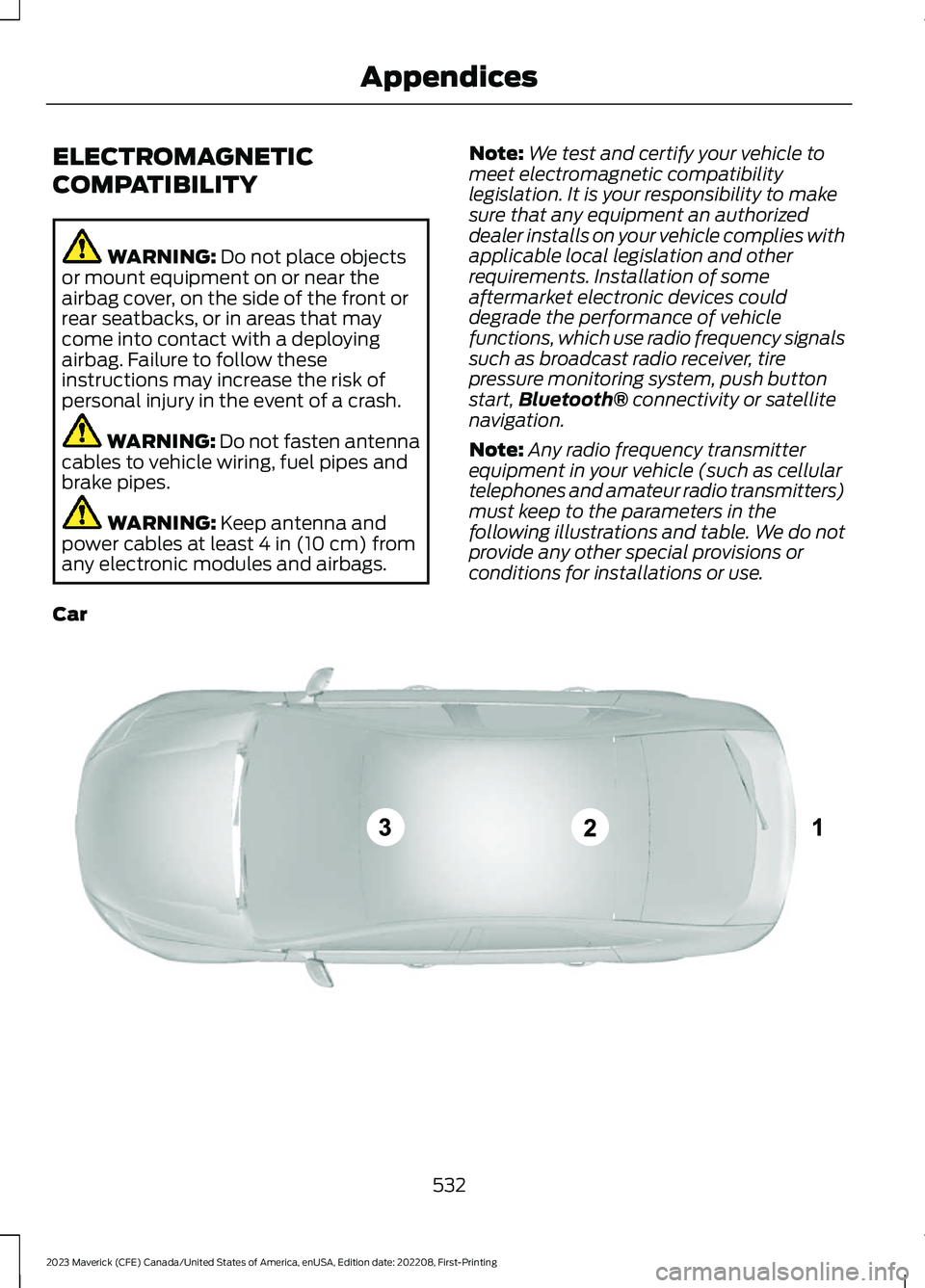
Note:Any radio frequency transmitterequipment in your vehicle (such as cellulartelephones and amateur radio transmitters)must keep to the parameters in thefollowing illustrations and table. We do notprovide any other special provisions orconditions for installations or use.
Car
532
2023 Maverick (CFE) Canada/United States of America, enUSA, Edition date: 202208, First-PrintingAppendicesE239120
Page 542 of 556
Calculating the Load Limit.......................259Canceling the Set Speed..........................204Capacities and Specifications................363Catalytic Converter......................................180Catalytic Converter –Troubleshooting............................................180Catalytic Converter Precautions............180Catalytic Converter –Troubleshooting........................................180Catalytic Converter – WarningLamps................................................................180Center Console..............................................153Opening the Center Console..........................153Changing a Flat Tire....................................354Changing a Road Wheel...........................354Changing the 12V Battery..........................315Changing the 12V Battery - HybridElectric Vehicle (HEV).............................318Changing the Engine Air Filter - 2.0LEcoBoost™..................................................313Changing the Engine Air Filter - 2.5L,Hybrid Electric Vehicle (HEV)...............314Changing the Fuel Filter.............................315Changing the Remote Control Battery -Vehicles With: Push Button Start.........64Changing the Remote Control Battery -Vehicles Without: Push ButtonStart.................................................................63Changing the Vehicle Wi-Fi HotspotName or Password...................................381Charging a Device.........................................147Charging a Wireless Device.......................152Checking MyKey System Status..............69Checking the Brake Fluid...........................192Checking the Coolant................................309Checking the Seatbelts...............................48Checking the Tire Pressures....................346Checking the Wiper Blades........................89Children and Airbags.....................................53Child Restraint Anchor Points....................32Locating the Child Restraint Lower AnchorPoints...................................................................32Locating the Child Restraint Top TetherAnchor Points...................................................33What Are the Child Restraint AnchorPoints...................................................................32Child Restraints...............................................33Child Restraint Position Information.............33
Child Restraints Recommendation...............34Child Safety.......................................................31Child Restraint Anchor Points..........................32Child Restraints.....................................................33Installing Child Restraints.................................34Child Safety Locks..........................................41Child Safety Precautions..............................31Cleaning Products........................................327Cleaning the Exterior..................................328Cleaning Camera Lenses andSensors.............................................................329Cleaning Chrome, Aluminium or StainlessSteel...................................................................328Cleaning Headlamps and RearLamps...............................................................328Cleaning Stripes or Graphics.........................329Cleaning the Engine Compartment............329Cleaning the Exterior Precautions...............328Cleaning the Underbody.................................329Cleaning Wheels................................................328Cleaning Windows and WiperBlades...............................................................328Cleaning the Interior...................................329Cleaning Carpets and Floor Mats.................331Cleaning Displays and Screens....................330Cleaning Fabric...................................................330Cleaning Leather................................................330Cleaning Moonroof Tracks..............................331Cleaning Plastic.................................................330Cleaning Seatbelts.............................................331Cleaning Storage Compartments................331Cleaning the Instrument Panel....................329Cleaning Vinyl.......................................................331Clearing All MyKeys.......................................69Climate Control.............................................125Auto Mode.............................................................126Climate Control Hints.................................128Cold Weather Precautions.......................278Configuring the Trip Computer - VehiclesWith: 4.2 Inch Screen...............................120Connected Vehicle.......................................377Connecting the Vehicle to a MobileNetwork.............................................................377Connected Vehicle Data..............................24Connected Vehicle Limitations...............377Connected Vehicle Requirements.........377Connected Vehicle – Troubleshooting -Vehicles With: Modem............................378
538
2023 Maverick (CFE) Canada/United States of America, enUSA, Edition date: 202208, First-PrintingIndex